All posts by DHZ

Smart Switch: Transfer Data to Samsung Galaxy 10/S9/S8/Note

[Summary]: Want to know how to use Smart Switch to transfer data from an Android, iOS iPhone/iPad, BlackBerry or Windows mobile phone to new Samsung Galaxy phone? This article teach you the detail guide on how to transfer contacts, photos, music, videos, messages, notes, calendars and more from your old phone to Galaxy Fold, Galaxy S10/S10+/S10e/S10 5G/ Galaxy S9/S9+, Galaxy S8/S8+ and Galaxy Note 10/Note 9/Note 8 with Free Samsung Smart Switch.

You may want to know:

* How to recover deleted photos from Samsung S9/S9+

* How to transfer music from iTunes to Android

Each brand of mobile phone has its own data transfer tool for new mobile phone users to switch data to the new phone, such as Samsung Smart Switch, Huawei Phone Clone, Google Pixel’s Quick Switch Adapter, LG Mobile Switch, Apple iTunes & iCloud(Data Backup & Resotre), Sony Xperia Transfer Mobile App, Motorola Migrate, HTC Transfer, ect. When you have bought an new Samsung Galaxy Fold, Galaxy S10/S9/S8(Plus)or Galaxy Note 9/Note 10, you many want to migrate all data from old phone to Samsung Galaxy phone, this article will teach you how to use Free Smart Switch app to transfer data including contacts, messages, photos, videos, music, calendar events, apps and even the device settings from Android phone to your new Galaxy Note 10/Note 10+/Note 10 5G/Note 10+ 5G.

Smart Switch: Transfer Data to Samsung Galaxy

Smart Switch is developed by Samsung company to transfer data from your old phone to your new Samsung Galaxy phone, there are three connecting method to transfer data to new Galaxy phone by Smart Switch:
– Transfer data directly from your old phone wirelessly.
– Transfer data directly from your old phone via USB cable.
– Transfer data from a PC or Mac to your new Galaxy phone.
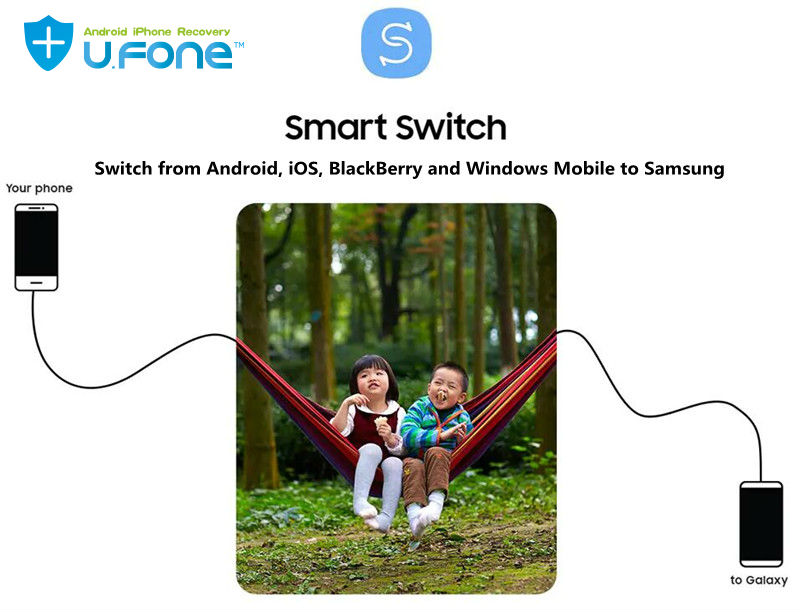
samsung smart switch

So, user can choose the method you feel most comfortable with, then using Smart Switch to move the data from an existing mobile phone to another Samsung Galaxy phone, Samsung Smart Switch is a freely available app that you can download on your old Android/iOS devices and Samsung Galaxy phone, please free download the Smart Switch on your both mobile phones, then follow the detail guide to transfer data like photos, message, contacts, etc. from Android to Galaxy S9 via wirelessly connection. Let’s take transfer Everything from Galaxy S7 to Galaxy S9 by using Samsung Smart Switch as example.

Steps to Transfer Data from Galaxy S7 to Galaxy S9 using Smart Switch

This guide show you how to use Smart Switch to move data from Samsung to Samsung, you can also follow the same steps to transfer data to Samsung phone from Apple iPhone/iPad/iPod, HTC, LG, Sony, Google Pixel, HUAWEI, Motorola, ZTE, Xiaomi, ZTE and more smartphones and tablets.

Step 1. Download and Launch Smart Switch app
First of all, please download the Smart Switch app on both the devices and launch it. Grant it all the needed permissions and choose the mode of transfer.

Step 2. Set Galaxy S9 as Target Device
TO move data to your new Galaxy S9, please mark the Samsung Galaxy S9 as a receiver(target device).
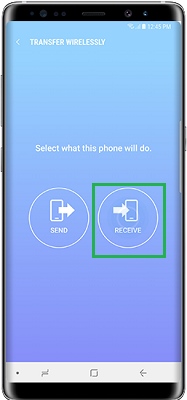
smart switch app Transfer Data to Your New Galaxy Phone

Step 3. Connect Both Phones and Set Galaxy S7 as Source Device
Mark your Galaxy S7 as a sender and connect the Galaxy S7 and Galaxy S9 by simply tapping on the “Connect” button via wirelessly.
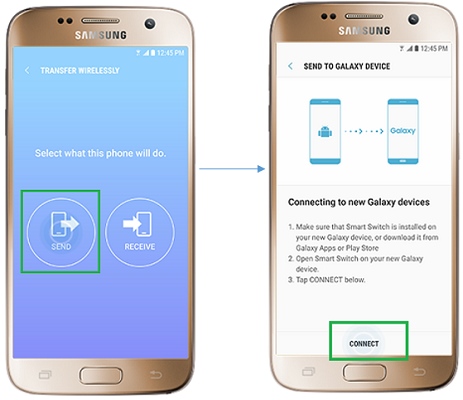
smart switch app Transfer Data to Your New Samsung Phone

To make sure both Galaxy S7 and S9 connected via the same wirelessly, a one-time generated pin needs to be matched. After when a secure connection is established, you can select the contents you want to move, including Contacts, Messaegs, Calendar, Memo, Call Log, ect.

Step 4. Start to Transfer Data from Galaxy S7 to Galaxy S9
After click “Send” on your old Galaxy S7, your S9 will appear a “Receive” button, please tapping on the “Receive” button to receive data from the old Galaxy S7.
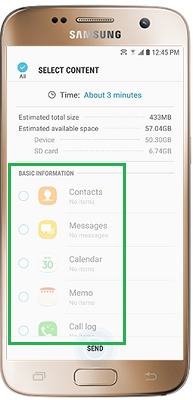
smart switch app Transfer Data to Galaxy S9

Please waiting during the data transferring process from old Galaxy S7 to new Galaxy S9. Once it is done, the interface will let you know all selected file types moved to the new S9. After moving the select contents to from old Android phone to new Galaxy phone, you can close the Smart Switch app and use your Galaxy S9 with all the newly transferred data.

Smart Switch Disadvantage:

Samsung Smart Switch can only transfer data from other devices to a Samsung device. Exclusively made for Samsung devices.Cross-platform transfer is not supported, for example, Samsung Smart Switch can not transfer contents between an Android and iOS, Android and Android, iOS and Android, and so on. Using the Smart Switch to transfer data to Samsung phone, the process is a bit complicated and slowly, it can’t transfer app data(for example WhatsApp messages from iPhone to Samsung), but can transfer major data files like photos, videos, contacts, etc. In additional, Smart Switch’s limited compatibility, it as different Smart Switch versions for different phone OS versions, so it doesn’t support different of devices running on different platforms. In order to transfer data between iPhone, Android, Windows Phone and Symbian Nokia phone without any loss, we will recommend you an more powerful Phone to Phone Transfer tool.

Phone Switch: Copy One Phone to Another, Easy and Fast

Phone Transfer and Phone Switch can help you transfer your photos, videos, music, contacts, calendar, text messages, call logs and all the other important files between devices directly, such as Android to Android, Android to iOS, iOS to Android, iOS to iOS, and restore backup from Blackberry 7/10, iTunes, iCloud, OneDrive, Kies to your Android and iPhone/iPad/iPod devices. What’s more, for the rooted Android devices and jailbroken iOS devices, transfer of App data is also supported. Both Phone Transfer and Phone Switch program works perfectly for more than 6000 smartphones and tablets, including Apple, Samsung, HUAWEI, OPPO, Sony, HTC, Google Pixel, Nexus, LG, Motorola, ZTE, Panasonic, OnePlus, Xiaomi, Nokia, Oppo, Vivo, Lenovo and more. No matter your device is provided by AT&T, Verizon, Sprint or T-Mobile. It compatible with Android 8.0 and the latest iOS 12.
Related guide: Phone Transfer – transfer files from old Samsung to Galaxy S9

Free download Phone Toolkit- Phone Switch for Windows and Mac and try to move data between two devices directly.


d_win d_mac

Below follow the complete tutorial to transfer data from and iPhone to Samsung Galaxy S9 by using Phone Switch software, you can also follow the same steps to transfer data from Android to Android Safe, Easy and Fast.

Steps to Transfer Data from iPhone to Galaxy S9 using Phone Switch

Step 1. Connect iPhone and Galaxy S9 To Computer
Download and launch Android Switch on your computer and click on “Switch” among the available option.
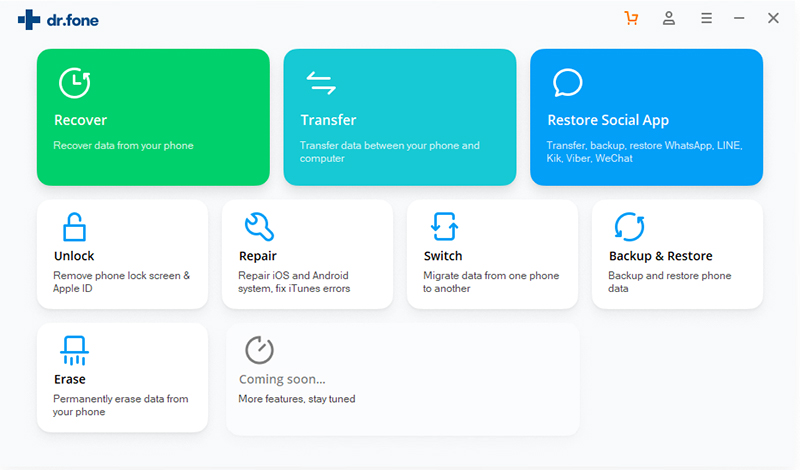
iPhone to Samsung transfer

Now connect both of your devices to your computer with the help of USB cable. Here we have taken iPhone and Android Samsung phone as an example.

The data will get transferred from the Source Device to Destination Device.

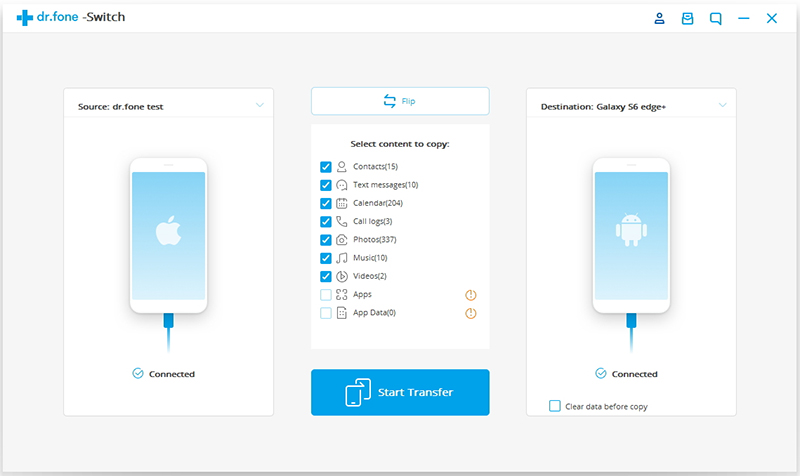
Note: If source and destination device are in wrong place then you can use the “Flip” button to exchange their position.

Step 2. Select The File To Transfer
Choose the files types that you want to transfer, including contacts, text messages, photos, videos, music and many other contents.
select iphone data to transfer

Step 3. Start to Transfer iPhone Data to Samsung Galaxy S9
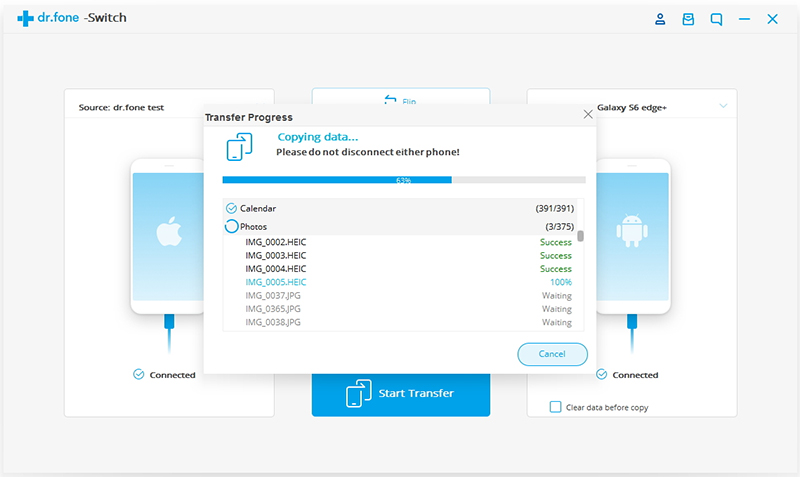
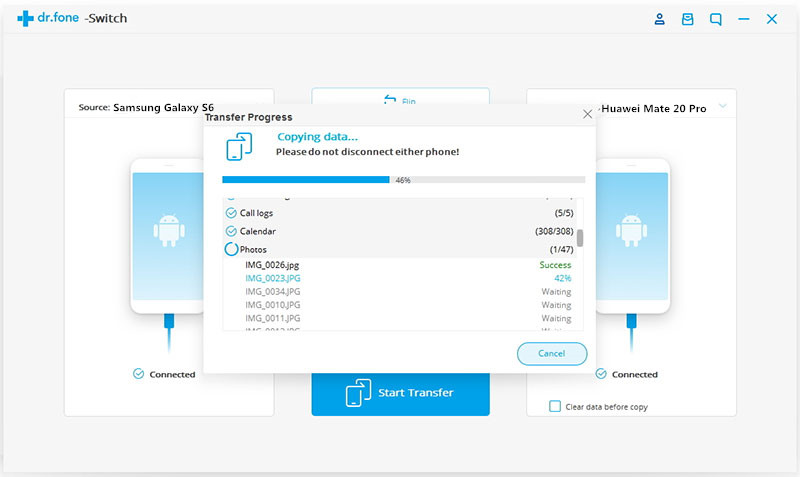
After selecting the file types, just click on “Start Transfer” to start transferring contents from your old iPhone to new Samsung Galaxy S9 smart phone directly.
transfer data to from iPhone to Samsung S9

Note: Do not disconnect the devices until and unless the transfer process gets complete.

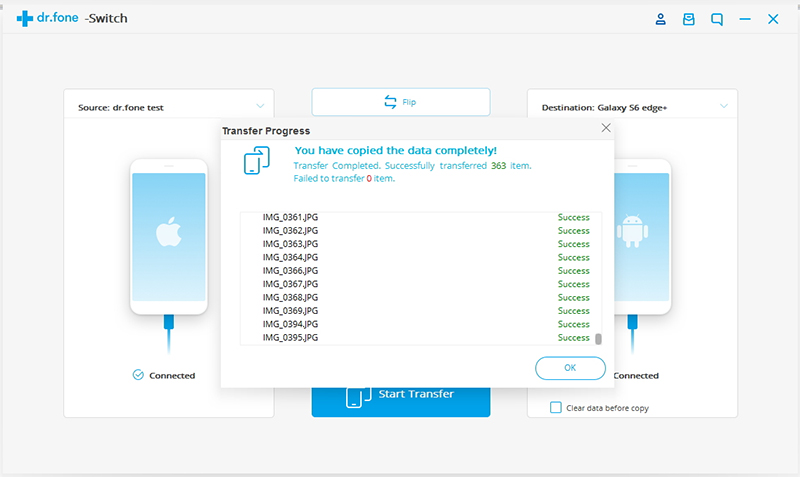
You may also check mark the box “Clear data before copy”, if you want to delete data on the destination phone before transferring the files to the target phone.
sync iphone data to huawei mate 20

In just few minutes, all the selected files will get transferred to Samsung Galaxy S9 successfully.

d_win d_mac

Wrap Up: So that was the two methods to transfer data to Samsung Galaxy smartphone. It totally depends upon you which method you want to go for. Samsung

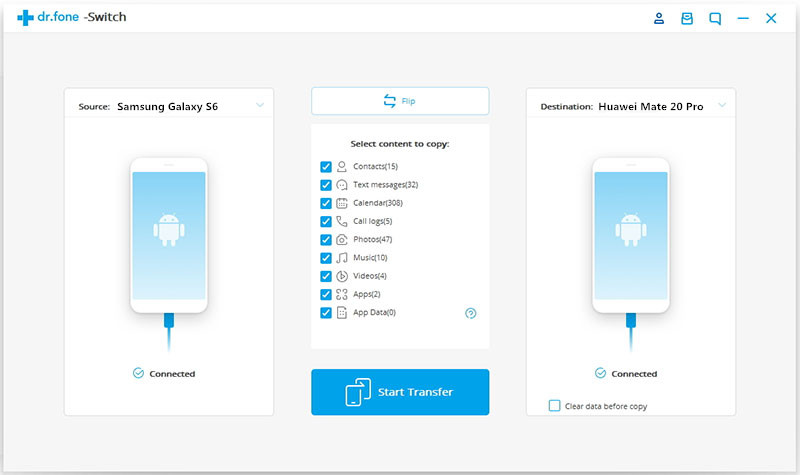
Smart Switch is free but the process is a bit complicated, it can only transfer photos, videos, contacts from other devices to a Samsung device. If you looking for a safely, easily and quickly method to transfer data between different phones, we recommend you use Phone Transfer or Phone Switch, both provides a 1-click simple solution to transfer/copy/switch/migrate data from one phone to another directly. No technical knowledge is needed to copy your phone’s data.
Best Smart Switch Alternatives

How to Transfer Data from Samsung to Huawei Mate 20/Mate 20 Pro

[Summary]: From the article,we can learn a useful way to transfer data from a Samsung phone to Huawei Mate 20/Mate 20 Pro.Just for a click, all the data such as contacts, photos, SMS, calendar, video, call history, music, apps and more can be transfer to your new Huawei Mate 20/Mate 20 Pro.

My old Samsung Galaxy S6 works so slowly,maybe it has not enough memory capacity, so I bought a new Huawei Mate 20.But who can help me transfer the contacts from Samsung phone to Huawei Mate 20?” – Asked by Sherry.

Maybe some friends has the same problem,when they buy a new phone,all the data should be transfer to a new one,as the same example like Sherry. Actually, with the help of a powerful software – Samsung to Huawei Mate 20(Pro) Transfer, all the data can be transfer in a click.

Phone Switch – Samsung to Huawei Mate 20(Pro/X/RS) Transfer

Phone Switch is a powerful phone to phone transfer software for us to transfer photos, contacts, text messages, call logs, applications, application data, music, video and more from Samsung Galaxy S5/S6/S7/S8/S9/Note 5/Note 4/Note 3/Galaxy J/ Galaxy Ace to Huawei Mate 20/Mate 20 Pro.In addition,the program can move data from iPhone to Huawei Mate 20,also can transfer contacts,text message,music and many other file types to another android phone,such as HTC, LG, SONY,  OPPO, vivo, Google, OnePlus, Xiaomi, Nokia, BlackBerry, and so on.Phone Switch not only helps us to transfer the data between different phone, but also helps to restore your lost data easily.Let’s take the example of transfer contacts from Samsung Galaxy S8 to Huawei Mate 20.

d_win d_mac

Transfer contacts from Samsung Galaxy S8 to Huawei Mate 20(Pro) in a click

Step 1. Download and launch the program
The first thing you need to do is download the software on your Windows PC or Mac. Then  installing it,launch the Phone Switch toolkit and click on the “Switch” option to go on.Through this function,it can help you copy the contact from Samsung S8 to Huawei Mate10(Pro).

samsung to huawei mate 20 transfer

Step 2.Connect Samsung and Huawei Phone to PC or Mac
Then,you should use the authentic USB cable connect both your Huawei Mate 10(Pro) and Samsung S8 to the system at the same time,the program will detected both the devices,please wait for a while.

Step 3.Detected your devices
Once the devices are detected, the interface will provide their basic snapshot. Ideally, your S8 should be listed as source and  Huawei device as a destination device. If not, then click on the “Flip” button to interchange their positions.

Step 4.Select the Contact to Transfer
Then, you can select the contacts which you need to copy from S8. In addition ,you can also select  photos, videos,messages, music, etc.

connect huawei and samsung to pc

Step 5.Start to Transfer Contacts from Samsung to Huawei Mate 20(Pro)
After selecting the contact from S8, click on the button “Start Transfer” to go on.

It will take you a minute to transfer the contacts from your old Samsung S8 device to Huawei Mate 10. During the process, don’t push out the USB cable.You can view its progress from an on-screen indicator.

huawei to huawei mate 20 transfer

Note: In this way you need to wait patiently during the transfer program and let your phones be connected to the computer before it was transfer completely.

Step 6. Safely remove the data
In the end, you will be notified by the application that you have successed to transfer all the contacts. As the same method,all the photos, messages, APP, musics ect can be transfer to Huawei Mate 20 too.

d_win d_mac

Related Articles

Transfer WhatsApp Data from Android to Huawei Mate 20(Pro/X/RS)

Transfer Photos from iPhone to Huawei Mate 20/Mate 20 Pro/X

How to Transfer Data from Samsung to Huawei P20/Mate 20(Pro)

Transfer Contacts & SMS from Samsung to Huawei Mate 20(Pro)

How to Transfer Photos, Videos, Music from iPhone to Huawei Mate 20

Transfer Samsung Data Huawei Mate 20

How to Recover Deleted WhatsApp Messages on Huawei Mate 20(Pro)

[Summary]: Regret for deleting important WhatsApp Message on your Huawei Mate 20 or Mate 20 Pro? Here you can find out the solution to retrieve WhatsApp messages, photos, videos and other attachment files with simple steps.

“Recently, my lover sent me a message from WhatsApp reminding me the date of Wedding anniversary. But unfortunately, I cleaned up the WhatsApp chat history by a Phone Data Manager program. However, I can’t remember the date of Wedding anniversary which means my sincerity towards my lover and I need to find a way to recover deleted WhatsApp chat history on Huawei Mate 20 for viewing the date again.Could you guys has a advice for me?”

Most often, Whatsapp chat history disappears:

Accidental deletion: instead of “Add conversation”, you click the “Delete chat” button;
After refreshing the phone: all data stored in the memory will not be recovered;
Uninstall the software: Under normal circumstances, you need to reinstall the whasApp software after switching to the new phone, as the result all messages are lost;
Cleared by some mobile data cleaning software, such as Android Eraser.

Maybe you like to work with WhatsApp because this app is popular in your social circles. Therefore, you you probably have some pretty important messages and media there, and it will be a shame if it suddenly disappears. This is an old topic about people who was mistakenly deleted WhatsApp message/chat history from Huawei Mate 20 or Huawei Mate 20 Pro. When you delete WhatsApp messages/chat history by mistake, don’t worry, we will show you how to use different methods to get deleted WhatsApp messages back, as well as other contents like text messages, videos, photos, contacts, etc. Among them, we recommend the more powerful U.Fone Android Data Recovery software, which is easy to use and fully functional.

Different ways of restoring WhatsApp Data on Huawei Mate 20(Pro):

Method 1. Restore WhatsApp Chats from Google Drive Backup

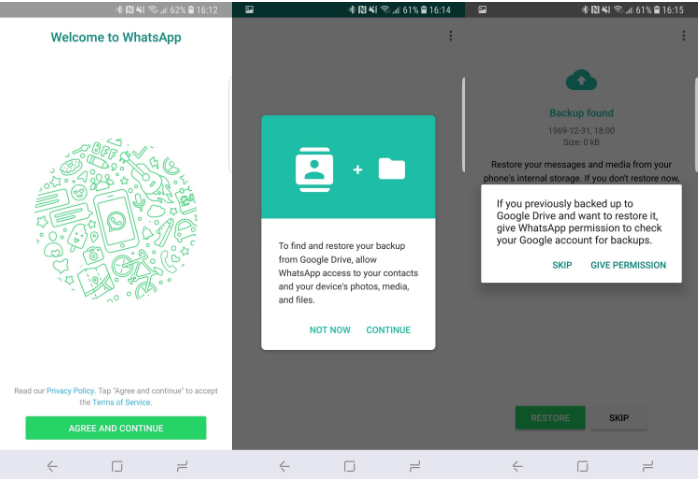
Making the method work requires you to make sure you have backed up your WhatsApp chat to Google Drive.If not, skip this method and go to method 4 is also a good idea. If you have successfully switched to a new smartphone and have re-downloaded and installed WhatsApp on your device, then you can:

step 1. Start WhatsApp and click on “AGREE AND CONTINUE“.
Step 2. Click Continue to allow WhatsApp to access your contacts to search for WhatsApp users.
Step 3. Next you will see a message prompting you to verify the information if you need to restore from your Google Drive backup.
Step 4. Verify your country and phone number when prompted. Or enter the six-digit verification code if it’s not done for you automatically.
Step 5. Click Continue to allow WhatsApp to access your Google Drive backup.
Step 6. Click GIVE PERMISSION to allow WhatsApp to check for Google Drive backups.
Step 7. Tap the account that contains the backup. Then just click Restore and set up your profile as you did for the first time.

Now that you have retrieved your previous WhatsApp chat history, all you have to do is log in.

restore-whatsapp-from-google-drive

Method 2. Recover WhatsApp Chat History from Recent Backups (Recent 7 days)

WhatsApp provides a service to automatically back up at 4 am (your local time) and stores it in the phone’s memory (only enough free space) or on an external microSD card for Android phones. All you need to do is reinstall WhatsApp, launch it and click “Restore” to restore deleted whatsApp messages on Huawei Mate 20(Pro) within 7 days.

Method 3. Recover WhatsApp Messages from older (7 days before) Backups

Follow this method to restore the longer WhatsApp chat history on Huawei Mate 20 from a backup.

Step 1. On your Huawei Mate 20 (Pro) phone, go to the File Manager and look for sdcard / WhatsApp / Database. If your data is not available on the SD card, you may see “internal storage” or “main storage” instead of an SD card.

Step 2. You may see a list of backup files. Select the backup you want to restore.

Step 3. Rename the backup file from “msgstore-YYYY-MM-DD.1.db.crypt12” to “msgstore.db.crypt12“.

Step 4. Uninstall and reinstall WhatsApp.

Step 5. During the installation process, click RESTORE when prompted. Then the backup you selected will be restored to the Huawei phone.

Method 4. Recover WhatsApp Chats without Backup Using U.Fone Android Data Recovery

All three methods mentioned above require at least one backup support. And once you restore the previous backup to Huawei phone, all new data generated after the backup will be overwritten. Why not try this simple U.Fone Android Data Recovery program to recover deleted/lost WhatsApp messages from Huawei Mate 20 (Pro)? There are no restrictions and data loss. Whether you have a backup or not, you can easily recover deleted WhatsApp messages, photos, videos and other attachment files from Huawei Android phones without deleting any other contents on your device. Below we gradually explain what this U.Fone Android Data Recovery program can do for you:

– Retrieve WhatsApp pictures, videos, audio, GIF images, attachments, documents and much more from Huawei phone.
– Recover deleted WhatsApp messages from Huawei Mate 20 without backup.
– Recover all types of data from Android devices, WhatsApp messages, contacts, SMS, photos, videos, call history, apps and app data and more.
– Restore data deleted or lost due to accidental deletion, factory reset, water damaged, broken screen, locked screen and so on.
– Preview recoverable files and selectively recover deleted WhatsApp chats.
– Supports a lot of Android devices offered by Samsung, LG, HTC, Sony, Huawei, and ZTE smartphones as well as tablets.

d_win d_mac

Step 1.Install U.Fone Android Data Recovery

First of all, free download and install this U.Fone Android Data Recovery program on your computer, launch it and choose “Android Data Recovery” modules from a pop-up window.

run android data recovery

Step 2.Connect Huawei Mate 20 Or Huawei Mate 20 Pro To Computer

Follow the instructions on the page to connect your Huawei Mate 20 or Mate 20 Pro device to your computer.

connect huawei mate 20 to the computer

Step 3. Enable USB Debugging On The Phone

Once detected, the program will present you with simple instructions to turn on USB Debugging Mode on your phone.

turn on usb debugging

Step 4. Select WhatsApp To Scan

You will be asked to select specific file types to scan. Tick “WhatsApp” only so that the program scans only WhatsApp data for time-saving. Or you can select all if you want to restore deleted files on Huawei mobile phone.Then click on “Next“.

select whatsapp data to scan

Step 5. Scan Huawei Phone to Access Your Data

Go to your Huawei phone and you might receive the pop-up that asks for privilege. Tap on “Allow“.

allow to scan

The program is going to scan WhatsApp messages on your Huawei Android device and it will take you some time to scan the data.
scan huawei mate 20 for deleted whatsapp messages

Step 6.Restore WhatsApp Chat History from Huawei Mate 20

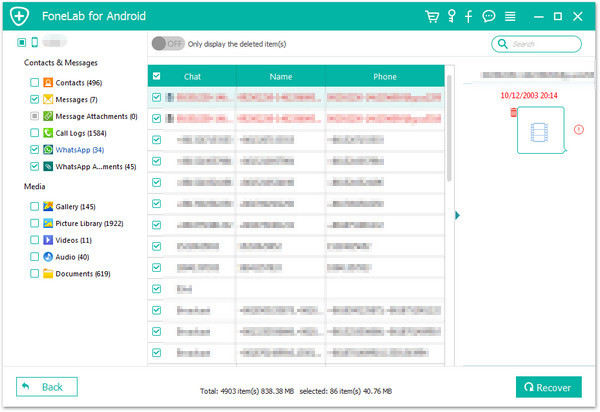
When scan is completed, you can preview all recoverable data found in the scan result one by one. Then find out the “WhatsApp” folder in the left panel and tap on it to preview the detailed contents of this folder in the program. Mark the data you want to restore and click on “Recover” button to save them on your computer.

recover whatsapp messages from huawei mate 20

d_win d_mac

Related Articles

How to Recover Deleted WhatsApp Messages from Huawei Mate 9/10

How to Recover Deleted Files from Huawei Mate 20(Pro)

WhatsApp Messages Recovery for Android

Recover Deleted WhatsApp Messages from Samsung Galaxy S9

How to Restore Deleted WhatsApp Data from LG Phone

Recover Deleted WhatsApp on Huawei

How to Recover Deleted Call History from Huawei Mate 20(Pro)

[Summary]: Simple and powerful U.Fone Data Recovery can recover lost/deleted files on Android phones, in this page we will show you how to restore lost/deleted call history from Huawei Mate 20(Pro) without difficulty.

“My Huawei Mate 20 Pro touch screen was in poor contact, which caused me to accidentally clean up my call history. I am working on trade sales, and calling history is too important for me. I have to do my best to recover deleted call records from Huawei Mate 20 Pro, can anyone tell me somehow?”

The benefits of call history:

Viewable call memory to quickly return calls and respond to messages
Quickly store contacts
Track costs, transactions, billing and other business metrics

How terrible if you delete/lost the call record from Huawei Mate 20 (Professional Edition) with any wrong operation, it would definitely affect the user’s convenience. For example, you won’t be able to track your account billing, quickly call someone, and more. Maybe a phone call from a new customer, and then you clean up wrongly, then you should be upset about the accident that may have lost business opportunities. Don’t be nervous now, follow the guidelines below to get deleted call logs back from Huawei Mate 20 or Huawei Mate 20 Pro by using powerful and reliable U.Fone Android Data Recovery software.

Retrieving Call History from Huawei Mate 20 Internal Memory

U.Fone Android Data Recovery has been designed innovatively for Android mobile users. With it, you can directly get access to your phone’s internal memory & SD card and conduct a deeply scanning on it. Finally, you’ll get both deleted yet existing data on your Huawei Mate 20(Pro/X/RS), so you can preview them and only recover deleted call history from Mate 2. Besides, this program also works well on other crucial data like contacts, text messages, photos, videos, whatsApp messages, documents, etc. The software supports all major brands of Android phones and tablets, such as Samsung, LG, Sony, HTC, Huawei, OnePlus, Google. Now, download the free trial on Windows 10/8.1/8/7 then follow below steps for recovering call history or call logs from Huawei Android phone.

d_win d_mac

Step Guide to Recover Deleted Call History from Huawei Mate 20

Step 1. Download The Program For Recovery

Download and install the U.Fone Android Data Recovery with your computer, open it and choose “Android Data Recovery” modules to start.

run android data recovery

Step 2.Connect Your Android Device

Connect your Huawei Android device to computer via a USB cable. Thus, your device can be recognized automatically.

connect huawei mate 20 to the computer

Step 3. Enable USB Debugging

Once detected, the program will present you with simple instructions to turn on USB Debugging Mode on your phone. There are three options. Please choose the one for your Huawei phone’s Android OS.

1) For Android 2.3 or earlier: Enter “Settings” < Click “Applications” < Click “Development” < Check “USB debugging”
2) For Android 3.0 to 4.1: Enter “Settings” < Click “Developer options” < Check “USB debugging”
3) For Android 4.2 or newer: Enter “Settings” < Click “About Phone” < Tap “Build number” for several times until getting a note “You are under developer mode” < Back to “Settings” < Click “Developer options” < Check “USB debugging”

turn on usb debugging

Step 4. Select Call History to Scan

For the purpose on retrieving deleted call logs on Huawei Mate 20, just mark the “Call Logs” option and press the “Next” button to proceed.

select call logs to scan

Step 5. Analyze Deleted Call History on Huawei Phone

Before scanning the files on Huawei Mate 20 or Huawei Mate 20 Pro, you need to allow the program scan your Huawei device. Turn to the Huawei phone and tap “Allow”.

allow scan the huawei phone

You may see a progress bar that indicates the process of scanning your device. This will take sometime depending how much data stored on the phone.

scan huawei for deleted call logs

Step 6.Preview and Recover Call History on Huawei Mate 20(Pro)

Once finished, you will be presented with scan results showing the contents of all your phones. Go ahead and click on “Call Logs” category under “Contacts & Messages” section, then select the call logs you want to recover. Simply click on “Recover” button to save these call logs on your computer.

recover call logs from huawei mate 20

d_win d_mac

Related Articles

How to Recover Deleted Files from Huawei Mate 20(Pro)

Ways to Restore Deleted Photos/Gallery from Huawei P20

How to Retrieve Deleted/Lost Data on Huawei Mobile Phone

How to Restore Deleted Text Messages from Huawei P20

How to Recover Deleted Data from Android Without Root

Recover Call Logs from Mate 20

Transfer Music (Apple Music, Spotify Music Included) to Huawei Mate 20/P20(Pro)

[Summary]: Do you want to import/transfer/put music from PC/Mac to Huawei Mate 20/P20(Pro)? This article teach you how to import music to Huawei phone? How to sync music from iTunes to Huawei? How to put Apple Music and Spotify Music to Huawei Mate 20/Mate 20 Pro & Huawei P20/P20 Pro, ect.

CONTENTS:

Huawei Mate 20/20 Pro/20 X/ 20 RS/ Mate 20 RS Porsche Design and Huawei P20/P20 Pro is the 2018 Huawei flagship Android smart phones. The newer Huawei Mate 20 Pro has Huawei’s latest Kirin 980 processor inside. Huawei claims that it’s 20 percent faster and 40 percent more efficient than the Kirin 970 which graces the P20 Pro. Both phones are available with 128GB of storage and 6GB of RAM or 256GB of storage and 8GB of RAM. Only the Mate 20 Pro allows for storage expansion via a card, but it won’t take any Micro SD card, you will have to spring for one of Huawei’s proprietary NM Cards. Not only does the Mate 20 Pro have a bigger battery, it also supports much faster charging at up to 40W, giving you 70 percent battery life in just 30 minutes, compared to just over 50 percent for the P20 Pro. Just to seal the deal, the Mate 20 Pro also supports Qi wireless charging which the P20 Pro lacks.

How to stream Apple Music to Huawei Mate 20 Pro?
I have got an new Huawei Mate 20 Pro, how to keep Apple Music songs playable on mobile phone after canceling subscription? I ready cancel subscription from Apple Music, how to download music from iTunes to Huawei Mate 20 Pro?

How to download music to Huawei P20 Pro without Spotify Premium subscription?
Spotify songs added DRM protection, how to remove DRM protection from Spotify songs, playlists & albums? I want to download Spotify music streams to Huawei P20 Pro for offline listening? Any way to download music from Spotify with free account?

Have downloaded songs on PC/Mac and want to import music from computer to Huawei phone? Looking for a iTunes music transfer to transfer iTunes music and library to Huawei Mate 20/Mate 20 Pro & Huawei P20/P20 Pro? Wanna transfer Apple Music and Spotify Music to Huawei Mate 20/P20(Pro)? Please keep reading the below methods, you can learn how to enjoy general music and streaming music on Huawei phone, no need download and install Apple Music Android app or Spotify for Android app on your phone, you can also enjoy Apple Music and Spotify Music on Huawei phone offline, even after after canceling subscription.

Part 1: Import Music from Computer to Huawei Mate 20/P20(Pro)

Phone Toolkit – Android Transfer(Windows/Mac) is a smart Android Transfer for transfer Everything between Android and computers, you can use this Android Transfer to transfer contacts, photos, Music, videos, SMS, contacts and more between Android Huawei Mate 20/P20(Pro) and computer easily, it enables you manage your Huawei phone on Windows/Mac computer. What’s more, Android Transfer allows you transfer iTunes music & library to Huawei Mate 20/P20(Pro) directly. If you use iPhone before, the Android Toolkit – Switch function can help you transfer contacts, text messages, music, videos and photos from iPhone to Huawei Mate 20/P20(Pro), it also is an iOS to Android transfer, Android to iOS transfer, iOS to iOS transfer, Android to Android transfer, if you have got a new phone, this program is very helpful for you!

Phone Toolkit- Android Transfer Key Features:

– Transfer music from iOS/Android, Computer, iTunes to Huawei Mate 20/P20(Pro);
– Transfer files between Huawei Mate 20/P20(Pro) and computer, including contacts, photos, music, SMS, and more;
– Manage, export/import your music, photos, videos, contacts, SMS, Apps etc.
– Transfer music, photos, videos, contacts, apps to Samsung, HTC, Google, LG, HUAWEI, Sony, Xiaomi, Oppo, ZTE and other Android phones.
– Transfer music, videos from iTunes to Android (vice versa).
– Manage your Huawei phone and other Android phone on computer.
– Fully compatible with Android 8.0.

Download the Phone Toolkit – Android Transfer for Windows or Mac and try to put music to your new Huawei phone.

d_win d_mac

Simple Steps to Transfer Music from Mac to Huawei Mate 20/P20(Pro)

Step 1. Download and Run Phone Toolkit on Mac
Download and run the Phone Toolkit on your Mac computer, and select “Transfer” among the modules.

huawei music transfer

Step 2. Connect Huawei Mate 20 to Mac
Then connect your Huawei Mate 20 to the Mac. After detected the device connected, your Huawei Mate 20 device will be shown in the primary window.

transfer music to huawei mate 20

Step 3. Tap “Music”
Tap “Music” on the top, you can transfer music data or music playlist from mac to your Huawei Mate 20 Android phone.

Step 4. Import Music from Mac to Huawei Mate 20
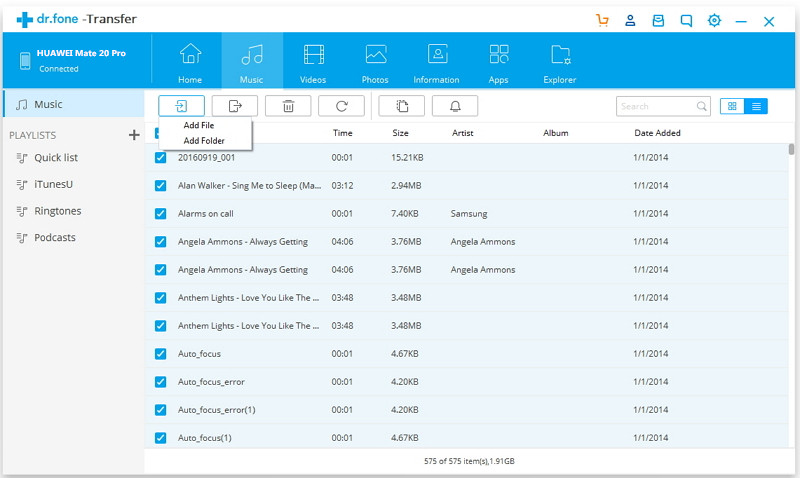
After entering the Music manager/transfer interface, then click “Add” to transfer music or music playlist from Mac to Huawei Mate 20 phone, select the songs or music playlist on your Mac, then click “Open” button start to transferring music from Mac to your Huawei Mate 20 directly.

add music to huawei mate 20

Part 2: Sync Music and Playlist from iTunes to Huawei Mate 20/P20(Pro)

Above, we have introduction the Phone Transfer- Android Transfer can help you transfer music from iTunes library to Android. Let’s shows you step by steps guide to sync iTunes music to Huawei Mate 20 Pro as example.

Step 1. Launch the Phone Transfer and Go to “Transfer” Function
After launching the Phone Toolkit and go to the “Transfer” module and connect your Huawei Mate 20 to the computer. It will automatically detect your Huawei phone and display its snapshot.

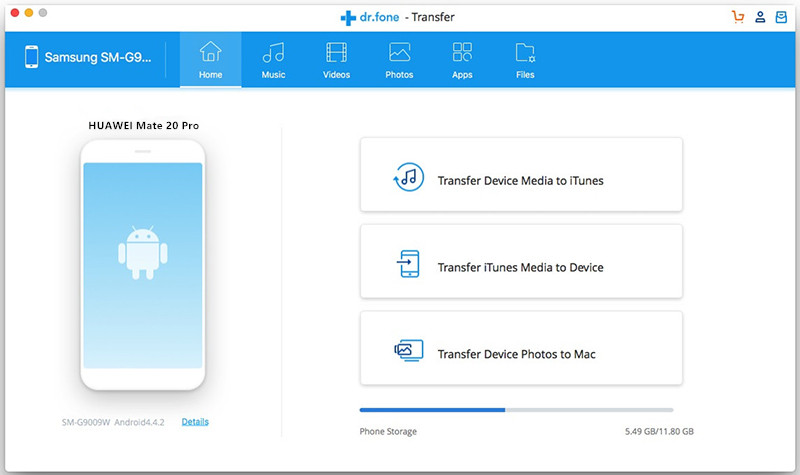
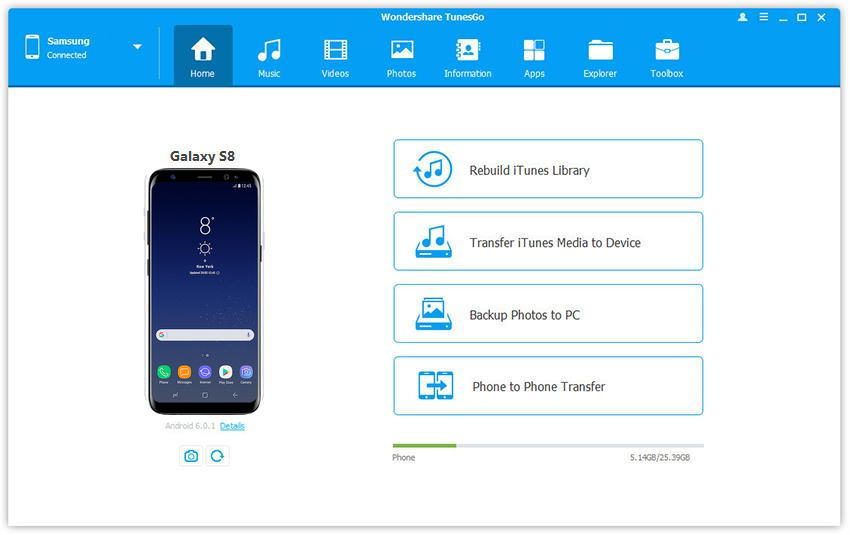
On the home screen, you can view various shortcuts. Out of all the provided options, click on “Transfer iTunes Media to Device”.

Transfer iTunes Music to Huawei Mate 20

Step 2. Loading iTunes Library
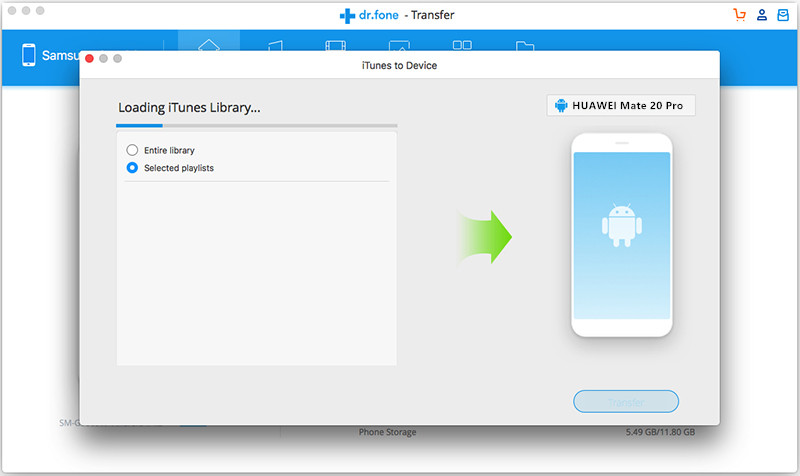
At this time, the application pop up a new windows and start loading iTunes library.

Loading iTunes Music

Step 3. Sync iTunes Music to Huawei Mate 20 Pro
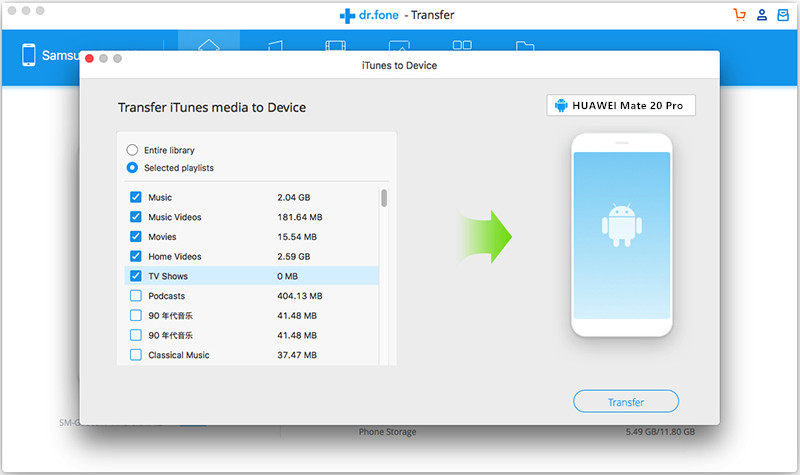
After loading all your iTunes medias, it will fetch all the prominent contents from iTunes and display it in a categorized manner. You can simply select the playlists of your choice or check the “Entire library” option as well. If you just want to sync songs from iTunes library to your Huawei Mate 20, please select “Music” option and click on the “Transfer” button begin to transfer iTunes music to Mate 20.

Sync iTunes Music to Huawei Mate 20 Pro

Well done! You have transfer music from computer to Huawei phone and sync unprotected AAC music from iTunes to Huawei Mate 20 Pro, the program also allows you copy music from Huawei Mate 20/P20 (Pro) to iTunes as well or manage your device data easily using this remarkable application.

d_win d_mac

Disadvantage: Phone Toolkit – Android Transfer does not support transfer Apple Music (DRM-protected) and M4P songs from iTunes to Android, if you want to transfer Apple Music to Android phone, you must to remove DRM from Apple Music and convert Apple Music to MP3 at first, then transfer the DRM-free Apple Music songs from computer to your Huawei Mate 20/P20(Pro) and other iOS/Android devices, so you can enjoy Apple music on Huawei Mate 20/P20(Pro) offline, even after you unsubscribed Apple Music. Please read the below guide about how to remove Apple Music track’s DRM and transfer to Huawei Mate 20 Pro as example.

Part 3: Remove DRM from Apple Music and Transfer to Huawei Mate 20/P20(Pro)

For some Apple Music subscribers, you probably want to transfer some songs from Apple Music for enjoyment after switching to the new Huawei Mate 20/P20(Pro). But there is a big problem that Apple Music songs are limited to be enjoyed on Apple Music app or iTunes because of the DRM protection.

If you want to play Apple Music on Huawei Mate 20/Mate 20 Pro and Huawei P20/P20 Pro offline or keep Apple Music on Huawei phone forever, you need to convert Apple Music to Huawei phone compatible MP3 format, then stream Apple Music on Huawei Mate 20/P20 without Apple Music for Android App.

UkeySoft Apple Music Converter can help you unlock DRM from downloaded Apple Music files, M4P songs and purchased Audiobooks, and convert them to DRM-free MP3, AAC, FLAC and WAV format with 16X fast conversion speed. Besides, with an advanced DRM removal technique that differs from traditional recording, it can keep the original audio quality and ID tags of the music in output files.

Key Features of Apple Music Converter:

– Unlock DRM from Apple Music, iTunes M4P music and iTunes Audiobooks completely & legally;
– Convert Apple Music songs, iTunes M4P music, Audiobooks, iTunes music video to MP3/AAC/FLAC/WAV;
– Convert Apple Music to MP3 playable on Huawei Mate/P series;
– Convert Apple Music songs and playlist at 16X faster speed with lossless quality;
– Keep ID3 Tags information after conversion;
– Keep Apple Music forever after unsubscribed;
– Play Apple Music songs on any devices offline, such as MP3 players, iPod Nano, iPhone, Android phone, ect.
– Fully compatible with latest Windows 10, macOS Mojave and iTunes

d_win d_mac

Steps to Transfer Apple Music to Huawei Mate 20/P20(Pro)

Step 1. Launch Apple Music Converter on PC or Mac
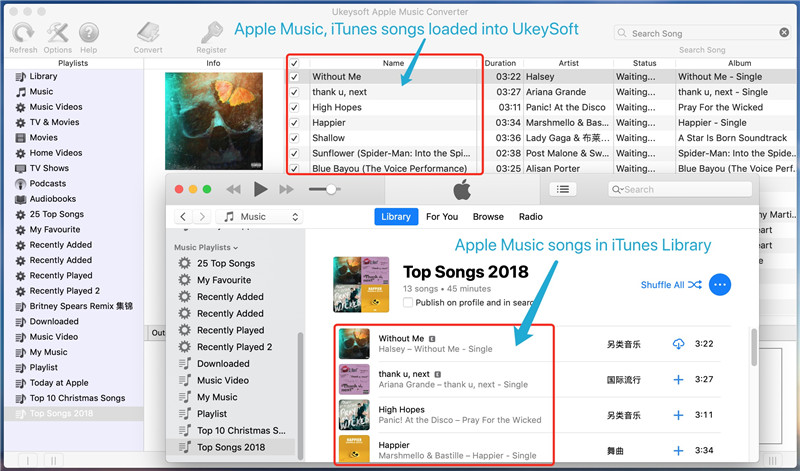
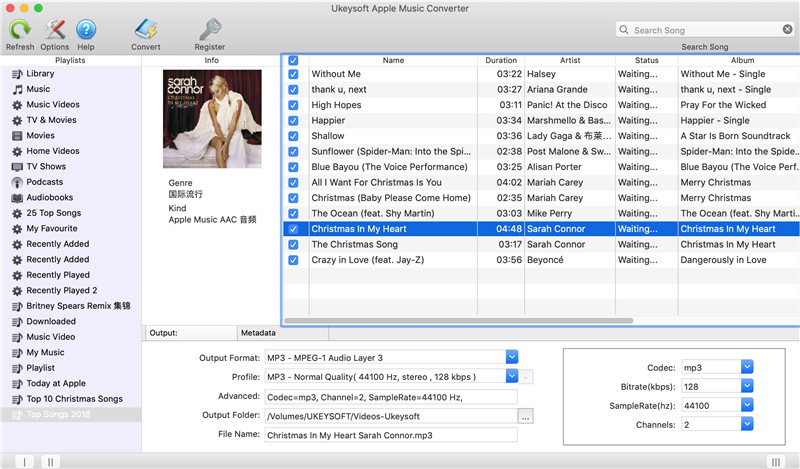
Launch Apple Music Converter and iTunes will be automatically launched as the program needs to load iTunes media library and integrates the playlists in software interface.

Apple Music Converter interface

All iTunes media files, including Apple Music tracks, Apple Music playlists, audiobooks, TV shows, home videos, music videos, podcasts, etc. will be loaded into the program.

Apple Music DRM removal

Tips: You don’t need to download Apple Music tracks to PC, but make sure you have add them to your iTunes library.

Step 2. Select Apple Music Tracks
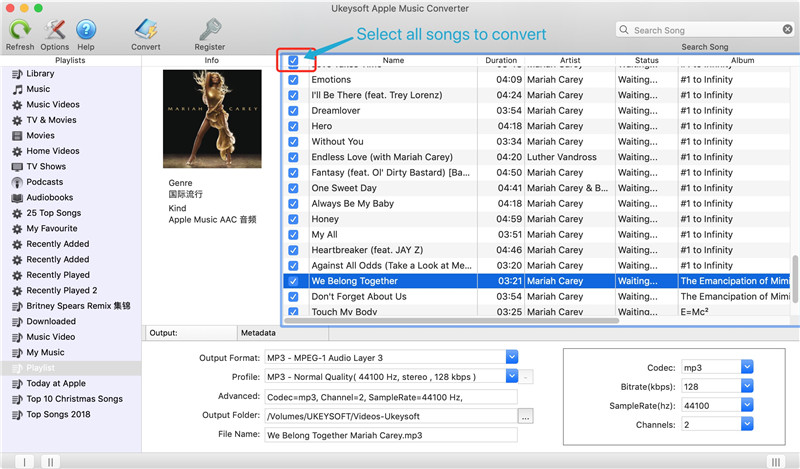
Click a playlist and choose any Apple Music tracks you want to convert, you can also tick the first checkbox on the top to choose entire playlists, if you can’t find the songs you want, please search song title, album, artist, etc. and search results will be displayed in one or two seconds.

Select Apple Music Tracks

Step 3. Set MP3 as Output Format
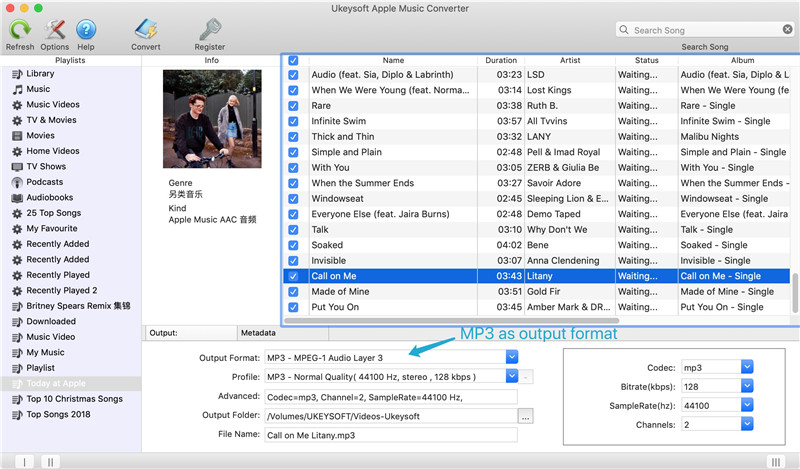
Because The best audio format for Huawei Mate 20/P20(Pro) and most Android phone is MP3, please select MP3 as output format. The program also can download and convert the DRM-protected M4P songs, albums, playlists to common audio files such as AC3, M4A, M4R, FLAC, MKA, AU, AC3 and more, please select the output format you need.

choose MP3

Apple Music Converter allows you to choose audio quality in profile list, or simply select a bitrate value. If audio quality is what you concern most, then 320kbps MP3 or 256kbps M4A will be good enough as this leads to lossless conversion.

Step 4. Convert Apple Music to MP3 for Huawei Mate 20/P20(Pro)
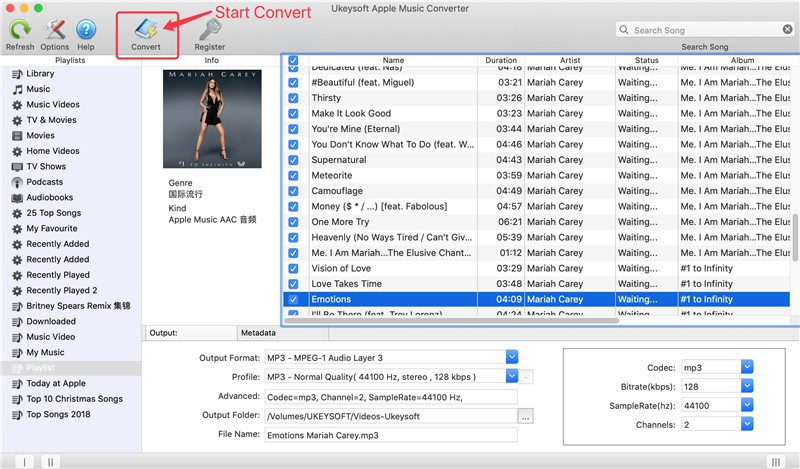
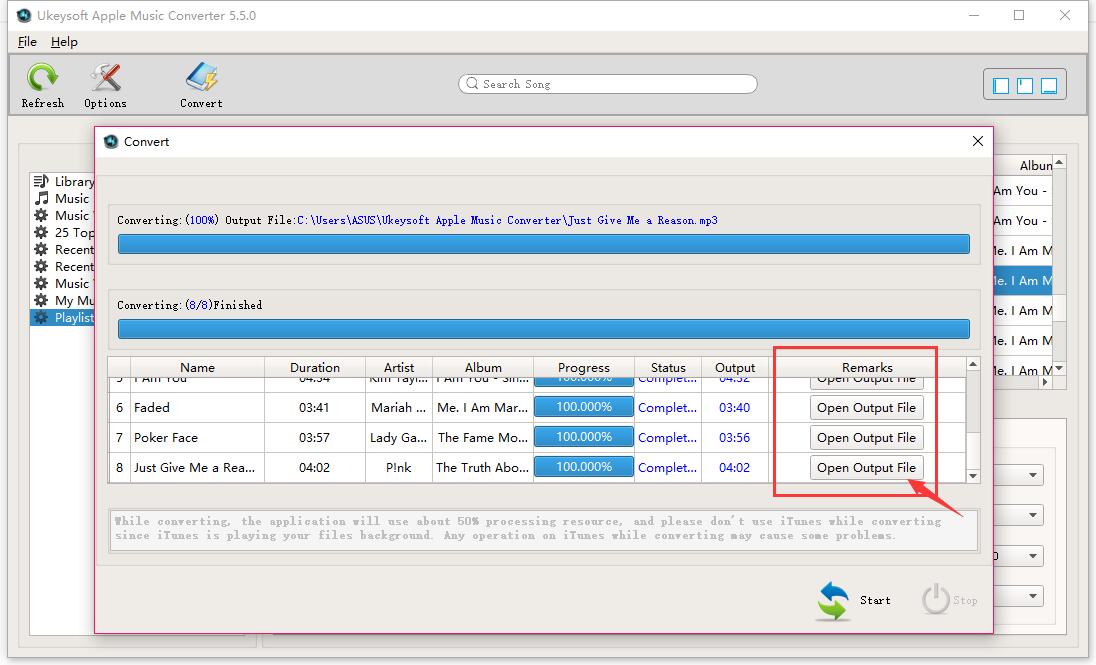
After select the output format for Huawei phone, just click “Convert” button to start removing DRM from Apple Music and converting Apple Music tracks to MP3.

Convert Apple Music to MP3

After conversion, you can click “Open output file” to locate converted DRM-free Apple Music songs in MP3 format.

Remove DRM from Apple Music Tracks

Step 5. Transfer DRM-free Apple Music Songs to Huawei Mate 20/P20(Pro)
Above steps, you have get the DRM-free Apple Music songs in MP3 format, now you can transfer or put the DRM-free Apple Music songs to Huawei Mate 20/P20(Pro). Above part 1, we have teach you how to transfer music from computer to Huawei phone with the help of Android Toolkit – Android Transfer. Or, you can drag and drop the converted Apple Music files to the Music folder of your Huawei Mate 20 after connecting the phone to computer via the provided USB cable.

transfer apple music to huawei mate 20

Note: The trial version of Apple Music Converter enables free users to convert 3-minute for each songs, you can unlock the time limitation by purchasing the full version. Please free download the program and try to remove DRM from Apple Music at first.

d_win d_mac

Part 4: Download Music from Spotify to Huawei Mate 20/P20(Pro)

Spotify is another popular streaming music platform/app, if you are not a Spotify Premium user, you can download any Spotify song, and you can’t download Spotify music streams to any device for offline listening, because all songs on Spotify is OGG Vorbis with DRM protected. Don’t worry, this part will teach you a easy method to free download Spotify songs/playlists/albums and transfer onto Huawei Mate 20/P20(Pro) for offline playback, as well as offline playing on other devices like MP3 player, iPod Nano, PSP/PS3/PS4, iOS/Android devices, etc.

When you have purchased an new Huawei Mate 20 or P20(Pro), for Spotify Music fans, you may want to enjoy Spotify music on the new huawei phone. Here we will show you the best way to stream Spotify music on Huawei Mate 20/P20(Pro) for both premium and free users.

UkeySoft Spotify Music Converter not only can help you remove DRM protection from Spotify songs, playlists & albums and convert them from OGG Vorbis to DRM-free MP3, M4A, WAV and FLAC. But also allows you to free download Spotify music streams to any device for offline listening. After convert Spotify music to MP3 for Huawei phone, you can enjoy Spotify tracks on Huawei Android phone offline without Spotify Premium.

Free download Spotify Music Converter for Windows or Mac and try to convert Spotify music to MP3 at first.

d_win d_mac

Steps to Download Spotify Music to Huawei Mate 20/P20(Pro)

Step 1. Run Spotify Music Converter on PC/Mac
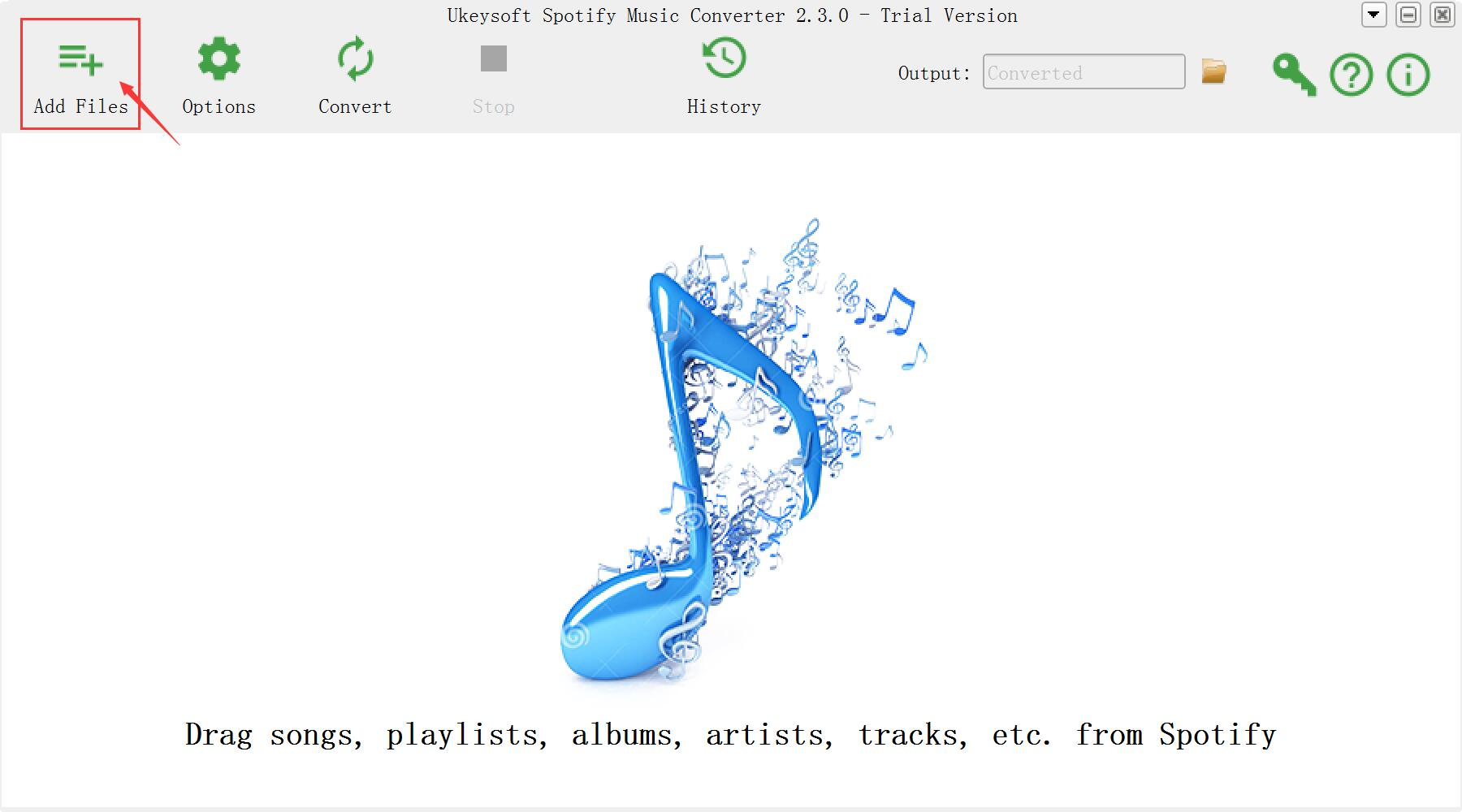
Firstly, please free download and launch the Spotify Music Converter on your Windows or Mac computer, you will get it’s main interface as below.

Spotify Music Converter home page

Step 2. Add Spotify Songs to Download
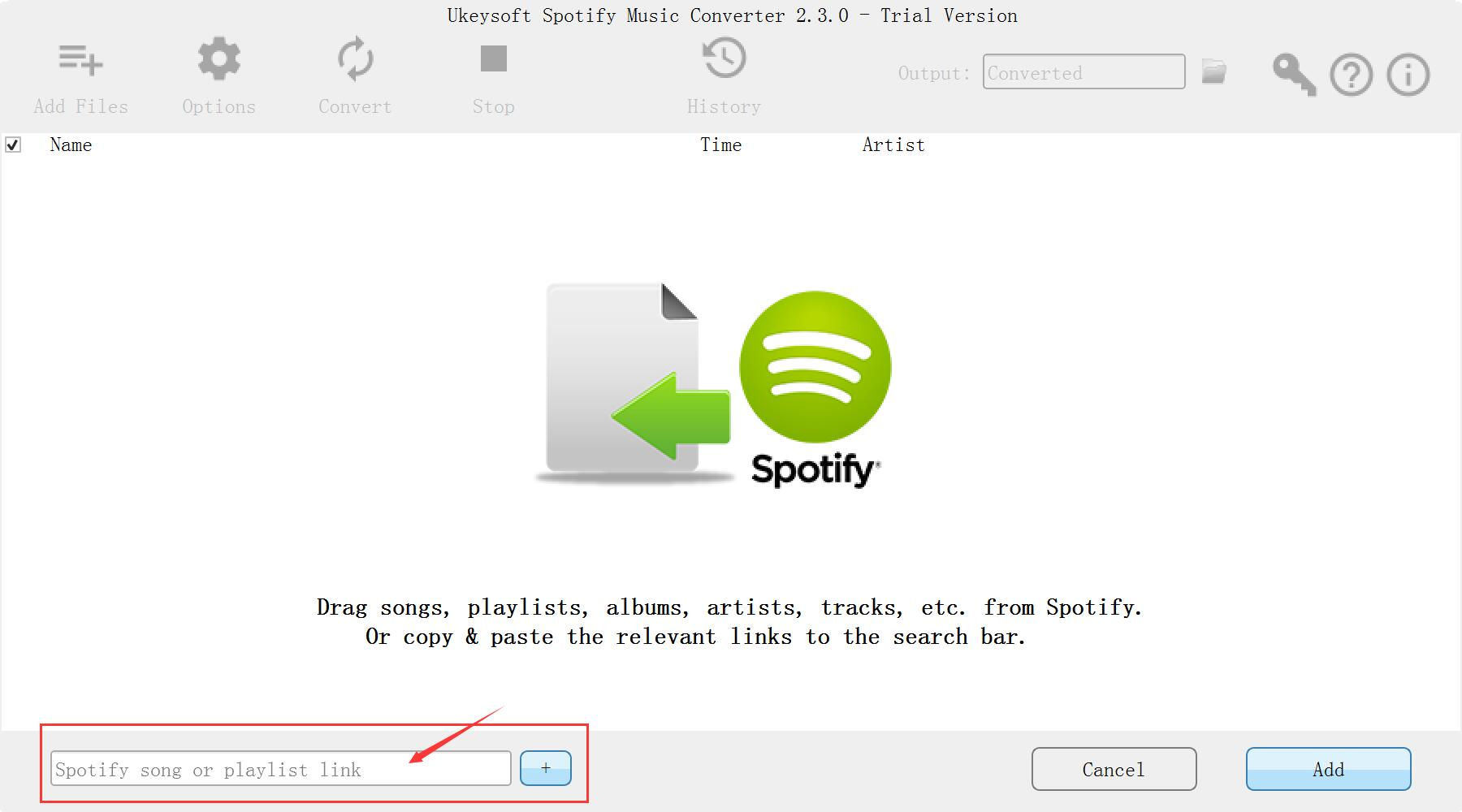
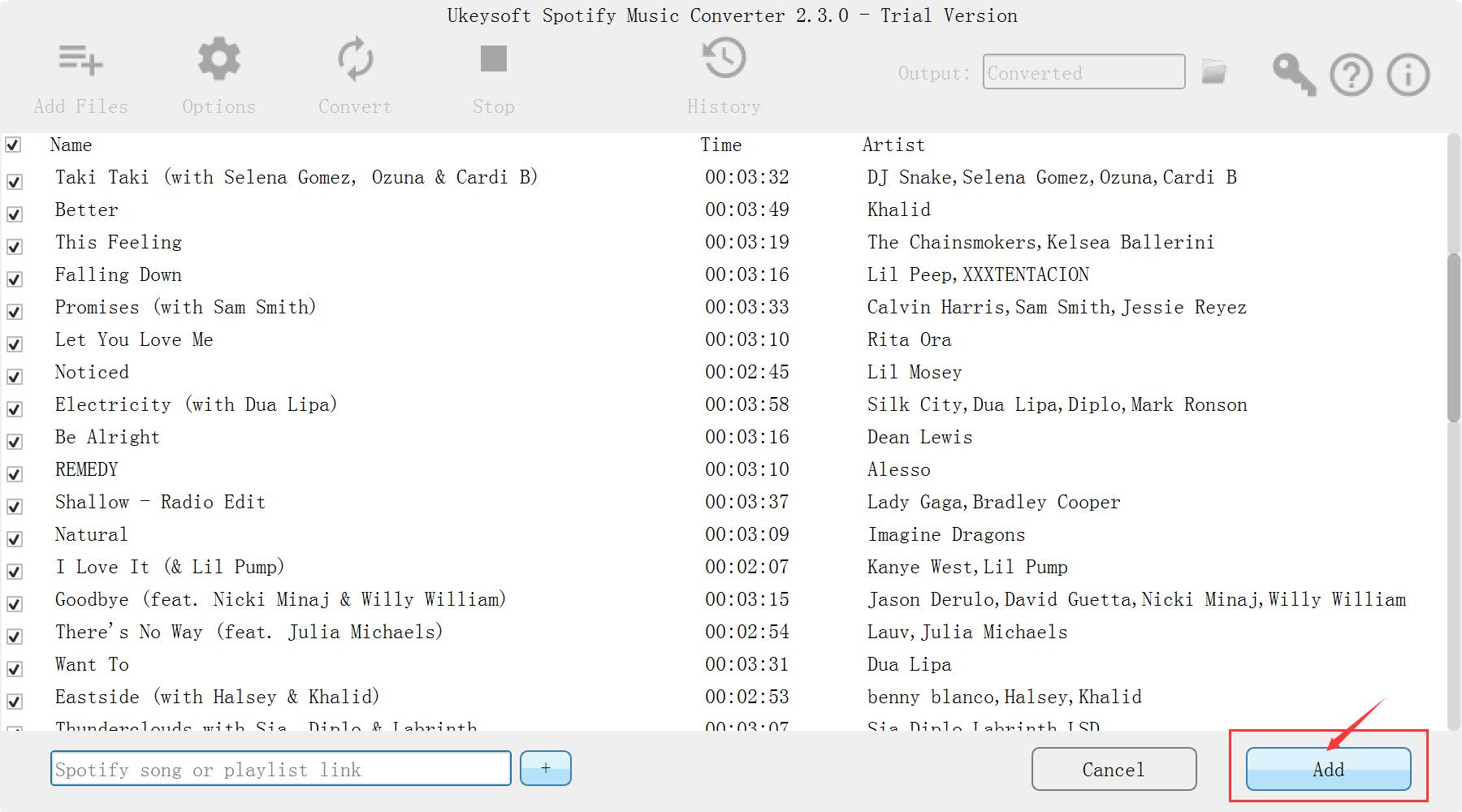
Drag&drop Spotify songs, albums and playlists you want to play in the car from Spotify app to the interface directly. Or click Add Files, copy&paste the link of the song, album or playlist to the left bottom area. And then click the Add button.

add spotify playlists

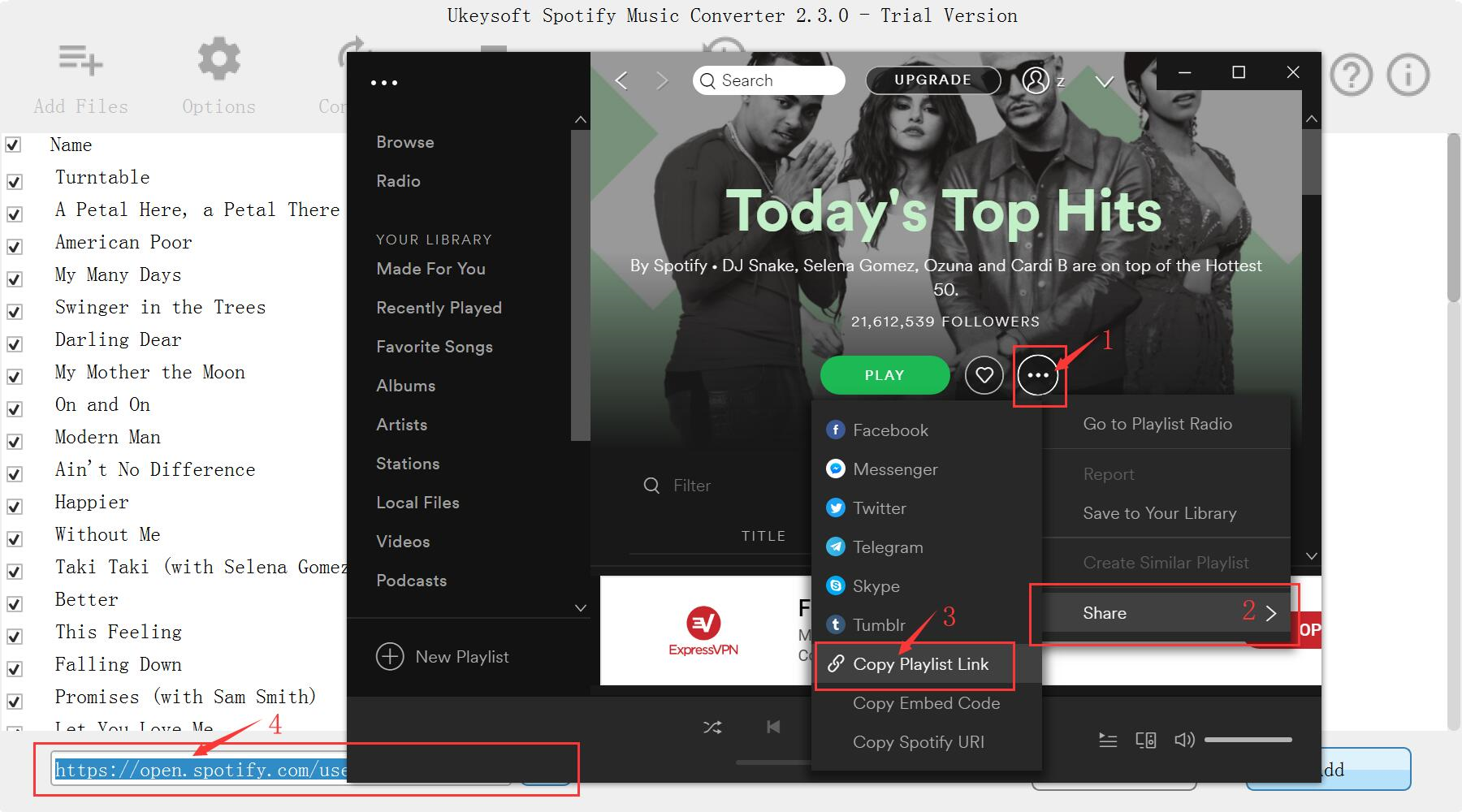
To copy a playlist link, right click the playlist corver or title and choose “Share” – “Copy Playlist Link“.

copy spotify playlist link

All songs in the playlist will be checked by default, you can uncheck the ones you don’t want to convert. Or add more playlists as you like.

add spotify playlist

Step 3. Select MP3 as Output Format
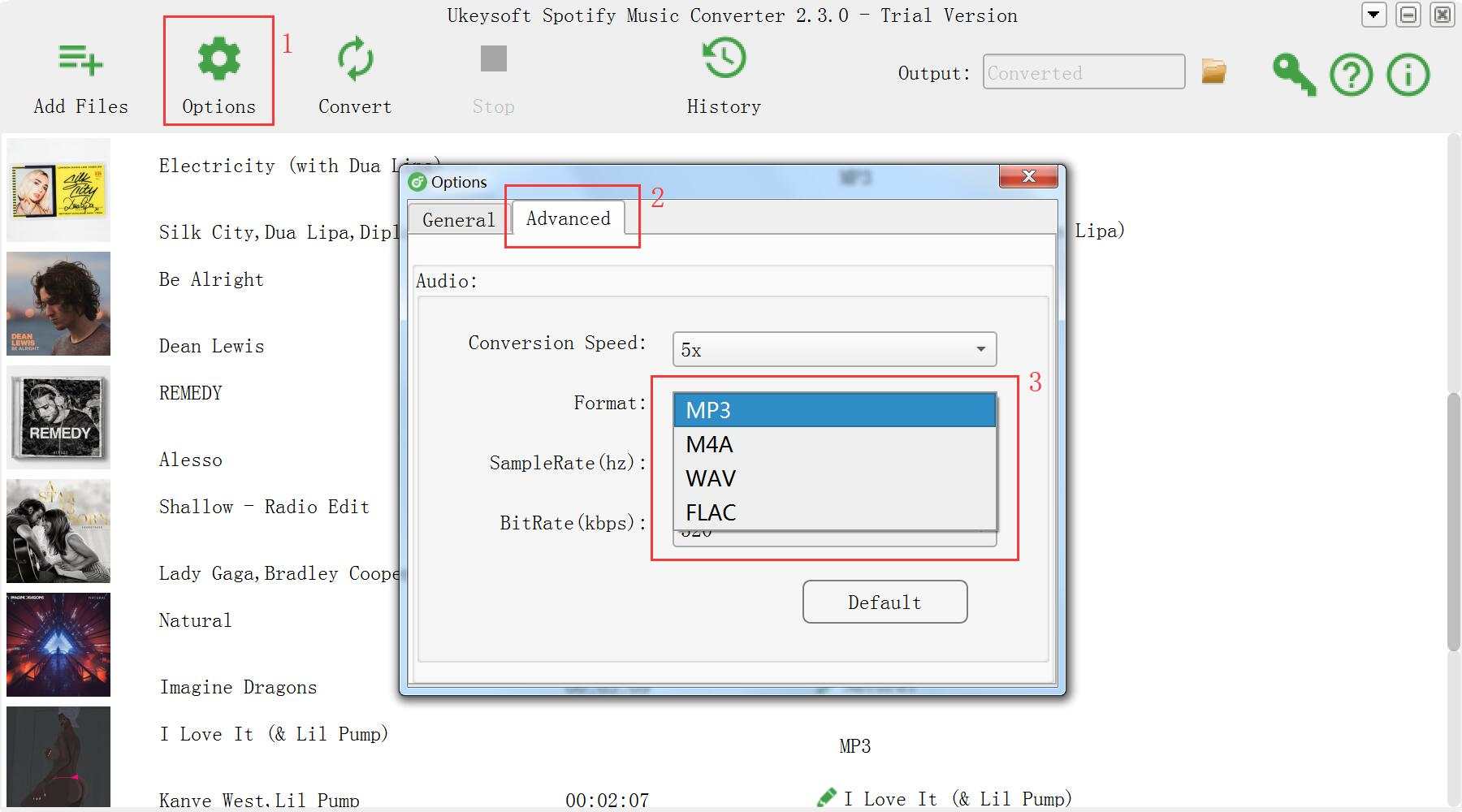
The program supports download and convert Spotify music to MP3, M4A, WAV or FLAC audio formats, please choose the output format you want. If you plan to transfer the downloaded Spotify songs to Huawei phone, please select “MP3” as conversion format.

Audio Quality: The audio quality of the output songs can be adjusted. Select bitrate, samplerate according to your needs.

Select MP3 as Output Format

Step 4. Start Download and Convert Spotify Music to MP3
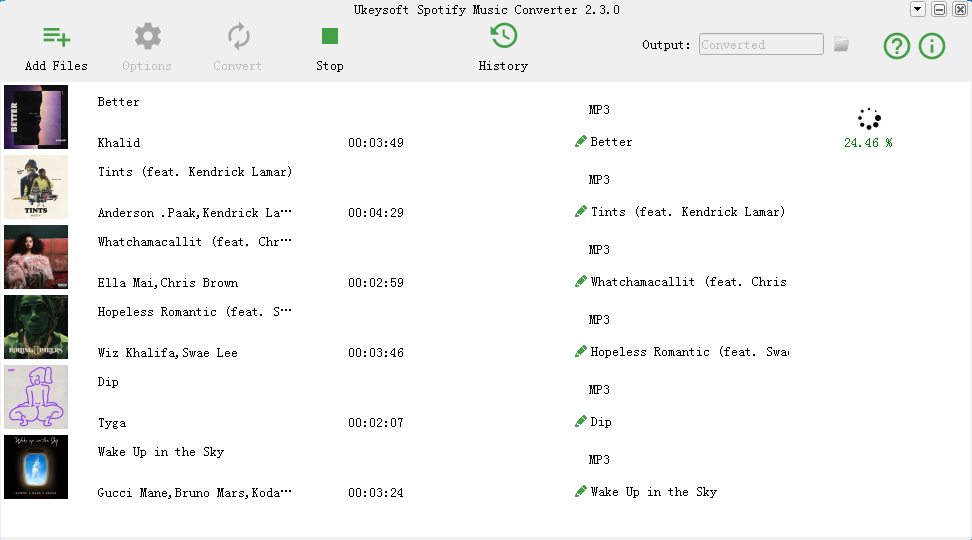
After setting MP3 as output format, just click the “Convert” button to start downloading and converting Spotify music to MP3. Only few minutes, you will get songs in DRM-free MP3 format.

Convert Spotify Music to MP3

Step 5. Transfer Converted Spotify Music to Huawei Mate 20/P20(Pro)
Above steps, we have teach you how to transfer music from computer to Huawei Android phone. After import the DRM-free Spotify music to your devices, you can enjoy Spotify Music on Huawei Mate 20/P20(Pro) offline.

Free download the Spotify Music Converter and try to download Spotify music as MP3 with free Spotify account.

d_win d_mac

Summary: Above three part, you know how to import Music including streaming music like Apple Music & Spotify Music to Huawei Mate 20/20 Pro, Huawei P20/P20 Pro and other Android devices, if you want to free download music from other Music Services like Spotify, Deezer, YouTube, Amazon, Pandora and SoundCloud, this streaming music platform/app not allow keep songs forever or playing songs offline, so you can use this Screen Record software to record various music, radio or online streaming music instead of downloading them, this screen not only can help you record online, streaming audio and microphone voice, but also capture any activity on Mac or Windows computer with full screen or customized screen size.
For example: how to capture streaming Amazon music
How to record Yotube video on Mac and Windows

Related Solution for Huawei Mate 20/P20

Transfer Music from iTunes to Huawei Mate 20(Pro/X/RS)

Transfer WhatsApp from iPhone to Huawei Mate 20(Pro/X/RS)

Recover Deleted Photos from Huawei Mate 20(Pro)

How to Recover Deleted/Lost Data from Huawei P20

Import Music to Huawei

How to Recover Deleted Contacts from Huawei Mate 20(Pro)

[Summary]: U.Fone Android Data Recovery can help you retrieve contacts lost due to accidental deletion, OTA update, factory reset, SD card formatting, etc from Huawei Mate 20 and Mate 20 Pro.

“I was saving contacts people to my Huawei Mate 20, but i didn’t notice the battery is low and shut down into a black screen of death. When i restart, all my contacts were gone. Now I am confused and looking for ways to recover contacts from Huawei Mate 20 phone. Can you help me?”

This situation is very common when user using smartphone, their phone accidentally get into black screen of death due to system upgrading error, app crashes, physical damage, etc. No matter which scenario you are experiencing that the contacts  just disappeared from Huawei Mate 20 and Huawei Mate 20 Pro suddenly, you can use an easily recovery program to recover deleted/lost contacts from Huawei Mate 20 and Huawei Mate 20 Pro by following the guide below.

Recover Deleted Contacts from Mate 20(Pro) without Backup

No matter how your contacts are deleted, such as accidentaly deletion, formatting, rooting, flash ROM, factory restore, etc., you can try this U.Fone Android Data Recovery to recover deleted contacts from Huawei Mate 20(Pro). Besides, this tool can retrieve deleted contacts from Huawei Honor, Mate 10/9 /7, P20 / P10, Nova series, G series and other Android phones and tablets. The program can be used to retrieve all file types like contacts, call logs, messages, photos, videos, WhatsApp chats, and much more.

d_win d_mac

Key Features of U.Fone Android Data Recovery:

-Efficiently recover contacts from Huawei smartphones.
-Also recover other data such as photos, videos, audio, call logs, notes, voice memos, messages, WhatsApp chat history and much more on Huawei Android phones.
-Preview recoverable files before final recovery.
-Support not only Huawei devices, but Samsung, Oppo, Google, HTC, LG, Blackberry and more Android devices.
-No leak, cloud storage or background records of personal info.

Step Guide to Recover Contacts on Huawei Mate 20(Pro)

Step 1. Download U.Fone Android Recovery

Free download and install this program for running, open the “Android Data Recovery” modules and go on.

Run android data recovery Software

Step 2.Connect Huawei Mate 20 Or Huawei Mate 20 Pro To Computer

Open U.Fone Android Data Recovery on a Windows computer. Make sure that Android USB driver has been installed on your computer. Then plug your Huawei Mate 20 or Huawei Mate 20 Pro phone to your PC, then your device will be detected and installed.

Connect huawei mate 20 to PC

Step 3. Enable USB Debugging On The Phone

Once detected, the program will present you with simple instructions to turn on USB Debugging Mode on your phone. There are three options. Please choose the one for your Huawei phone’s Android OS.
1) For Android 2.3 or earlier: Enter “Settings” < Click “Applications” < Click “Development” < Check “USB debugging”
2) For Android 3.0 to 4.1: Enter “Settings” < Click “Developer options” < Check “USB debugging”
3) For Android 4.2 or newer: Enter “Settings” < Click “About Phone” < Tap “Build number” for several times until getting a note “You are under developer mode” < Back to “Settings” < Click “Developer options” < Check “USB debugging”

turn on usb debugging

Step 4. Select Contacts To Scan

You will be asked to select specific file types to scan. Tick “Contacts” only so that the program saves time to scan only phone book in your phone. If you want to restore other data as you need, it also you can select.Then click the button “Next“.

Select Data Types

Step 5. Access Your Huawei Phone

Go to your Huawei phone. You will receive the pop-up that asks for privilege. Tap the “Allow” button.

Pass the Request

Then the software begins scanning your Huawei Mate 20. The scanning may take a while depending on the total amount of data being recovered.

scan Huawei mate 20 for deleted data

Step 6. Preview and Restore Contacts from Huawei Mate 20

When scan is completed, choose “Contacts” at the left pane. Then you can preview contacts in the table, including name, phone number, e-mail, even the profile image. Check items you want and click the button “Recover” to get them back.

restore contacts from huawei mate 20

d_win d_mac

Related Articles

How to Recover Deleted Files from Huawei Mate 20(Pro)

Ways to Restore Deleted Photos/Gallery from Huawei P20

How to Retrieve Deleted/Lost Data on Huawei Mobile Phone

How to Restore Deleted Text Messages from Huawei P20

How to Recover Deleted Data from Android Without Root

Recover Contacts from Huawei Mate 20

Recover Data from Broken Galaxy S8 or S8 Plus without 3rd Party App

We all know that Samsung is an absolutely massive player in the smartphone space, and that all comes down from up high with the flagship Galaxy S line. The Galaxy S7 and Galaxy S7 Edge might have been two of the best phones of 2017, but the well-documented issues faced by the Galaxy Note 7 have cast a shadow over Samsung’s mobile efforts. And its next flagship was always going to come under intense scrutiny. However, this does not affect the popularity of the Samsung Galaxy S8 and S8+ at all. The Samsung Galaxy S8 and its larger partner the Galaxy S8+, build on the core features and experiences from the Galaxy S7 and bring things into the future with great new design and a few eye-catching features that were all new for 2017.

Galaxy S8 and S8+: The basics

The two phones, which are only differentiated by their screen size and battery capacity, come in at 5.8-inches and 6.2-inches with extra-tall 18.5:9 aspect ratio displays. That battery difference is pretty subtle: 3500mAh for the Galaxy S8+ and 3000mAh for the standard Galaxy S8. You may note that the Galaxy S8+’s battery is actually 100mAh smaller than the Galaxy S7 edge of last year, while the Galaxy S8’s is the same size as the Galaxy S7 despite being a larger phone. They are equipped with Qualcomm Snapdragon 835
or Samsung Exynos 8895 processor and the main camera is a 12 MP shooter with large dual pixels, f/1.7 aperture, optical image stabilization, phase detection autofocus, and an LED flash. Samsung has opted for the rather safe capacities of 3,000 mAh for the Galaxy S8 and 3,500 mAh for the Galaxy S8 Plus.

My Samsung Galaxy S8 Phone is Broken

People can break their Android phones in many ways, from accident dropping, water damaged, screen-cracked, forgotten lock screen password and so on. Although the ways are completely different, they are in consensus at the result: My Samsung phone is broken. So, how to recover data from your broken Samsung Galaxy S8 or S8 Plus?

Recover Photos, contacts, and Notes from Broken Galaxy S8:

To recover photos on S8: If you have backed up Galaxy S8 photos via Google Photos, you can go to the Google Photos website. Sign in with the same email address you used to set up the Galaxy S8 and access all the images and videos that will be uploaded to the cloud.

To recover contacts on S8: If your Google / Gmail account was synced. You can access all your contacts by opening your Gmail account. Click on “Gmail” and select contacts.

To recover notes on S8: If you want to retrieve notes from the broken Galaxy S8, find out the “Compose” > “Notes“. The you can recover notes from broken Samsung Galaxy S8 or S8+.

Recover Data from Broken Galaxy S8 or S8+ via Find my Mobile:

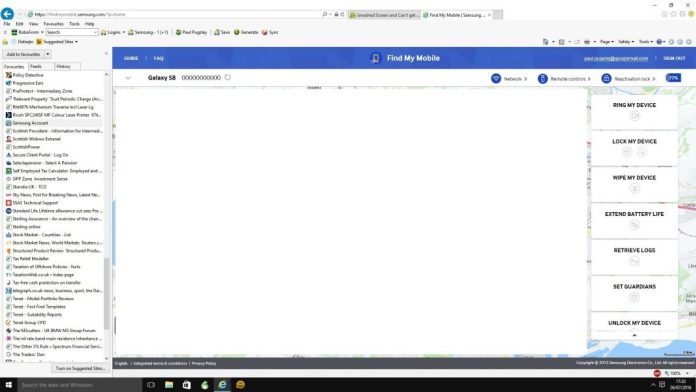
If you have a Samsung account and you already use it on your phone, then you can easily retrieve data from Samsung Galaxy S8/S8+ with Samsung Find my Mobile. We will use Samsung’s Find My Mobile service to remotely unlock your Galaxy S8. After unlocking, you can connect your phone to your computer and copy all the data from your phone to your computer. Below is how:

Go to Samsung Find my Mobile > Find.
Log in using your Samsung Account. If you don’t remember your username or password. please use “forget your ID or password” option to get back your credentials.
Once logged in, select the “Unlock My Device” option to unlock your broken Galaxy S8 remotely.
Once done, connect your Galaxy S8 to your PC and transfer data to your PC using copy/paste or KIES. You can also use the Android Toolkit – Android Data Backup & Restore app to backup all your Samsung data to your PC.

recover-data-from-broken-galaxy-s8

Easily Recover Deleted/Lost Data from Galaxy S8(Photos,Contacts,SMS,WhatsApp, etc.)

If your Samsung Galaxy S8 or S8+ phone is in normal mode, then the data is deleted due to your mistake, accidentally formatted, etc. This U.Fone Android Data Recovery software would be your best pick if you want to recover your deleted or lost data thoroughly and quickly. It enables you to recover multiple kinds of data from Samsung Galaxy S8, like contacts, call logs, messages, photos, videos, audios, Whatsapp, Viber messages, documents, and so on. In addition, it not only works perfectly with Samsung Galaxy S8, but also other types of Samsung phones like Galaxy S9, S7, S6, S5, S4, Note 9, Note 5, Note 4, etc.

Main Feature of U.Fone Android Data Recovery

-Rescue lost, missing, erased, formatted, deleted data from Android phones/tablets.
-Get back photos, contacts, text messages, notes, voice memo, call recordings, videos, audio, call history and much more.
-Retrieve deleted files in different scenarios, such as factory restore, Android OS update, rooting, formatting, device stuck or not responding, bricked, broken screen, black screen, forgotten password, ROM flashing, etc.
-Preview each recoverable files before recovery.
-Safe, secure and 100% read only program.
-Support Samsung Galaxy, HTC, LG, Moto, Google, Sony and other Android phones and tablets.

Choose Android data recovery mode

How to Recover Deleted Photos from Huawei Mate 20(Pro)

[Summary]: Unexpectedly lost/deleted precious photos from Huawei Mate20(Pro)?If you have not backup these pictures, follow the article to learn how to restore deleted photos from Huawei Mate20(Pro).

“I am used to taking pictures with the powerful Leica camera Huawei Mate 20. But one day I found out that the precious photos disappeared in somehow. I guess they may have been deleted along with the junk files. There are too many precious memories in the album, about family and lover. Can anyone help me retrieve deleted photos from Huawei Mate 20?”

If you are an avid fan of photography, you are definitely familiar with the Leica camera. The new brand mobile phone Huawei Mate 20/Mate 20 Pro is equipped with three LeiCa lenses boasts of producing results from professional cameras with an all-around performance equivalent to that of a 16-270mm zoom lens. Obviously, the powerful Leica lens provides excellent camera functionality, and most people would choose Huawei Mate 20 or Mate 20 Pro as a real camera replacement.

We may encounter data loss issues during our use of the device. No need to be surprised, your precious pictures may be lost after your Huawei smart phone is damages or stolen. You may accidentally delete photos from Huawei Mate 20 while cleaning up your phone. Performing a factory reset will cause phone data lost. These situations are very  common, and fortunately, U.Fone Android Data Recovery can help you. It’s as simple as a few steps to recover deleted photos from Huawei Mate 20(Pro) in just a few minutes. Besides, it can also recover lost data due to Android OS upgrade, system crashes, and more. Almost all data types can be recovered such as text messages, music, videos, contacts, audio and other data, all of which can fully meet your needs. This all-in-one data recovery software that can be used for a variety of Android devices, including Samsung Galaxy S9/S8/Note 9, Huawei Mate 20 and Mate 20 Pro, Google, SONY, ZTE, LG, vivo, OPPO, HTC, OnePlus and so on.  Here’s how to restore deleted photos from Huawei Mate 20(Pro) without losing any other contents.

d_win d_mac

Easy Steps to Restore Lost/Deleted Photos With Few Steps

Step 1.Install U.Fone Android Data Recovery

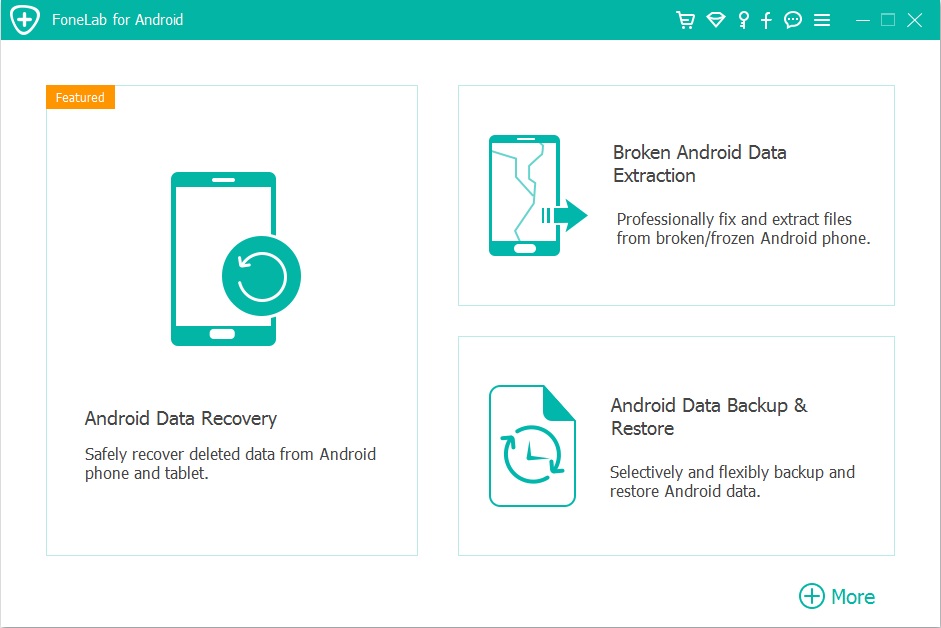
Primarily, pleas download and install the U.Fone Android Data Recovery program on your computer. Launch it and you will gain into program interface shown as 3 function modules:“Android Data Recovery”, “Broken Android Data Recovery” and “Android Data Backup & Restore”.In order you to restore deleted files from Huawei Mate 20(Pro), click the “Android Data Recovery” and go on.

Run android data recovery Software

Step 2.Connect Huawei Mate20(Pro) To PC

Connect your Huawei Mate20(Pro) to PC with USB cable. Wait the moment, then the program will detect your Huawei Mate20(Pro) phone automatically.

Connect huawei mate 20 to PC

Step 3.Enable USB Debugging To Access Data

For your detect the phone, you should open the usb debug. Here you are three options to enable USB Debugging. Select an option which is compatible your phone status.

1) For Android 2.3 or earlier: Enter “Settings” < Click “Applications” < Click “Development” < Check “USB debugging”
2) For Android 3.0 to 4.1: Enter “Settings” < Click “Developer options” < Check “USB debugging”
3) For Android 4.2 or newer: Enter “Settings” < Click “About Phone” < Tap “Build number” for several times until getting a note “You are under developer mode” < Back to “Settings” < Click “Developer options” < Check “USB debugging”

turn on usb debugging

Step 4.Select Data Types

If you just want to recover deleted photos, you just need to select the “Photos”, or if you want to recover other data types, you can also choose those data types or choose “Select All” button for all data types option. And click “Next” to begin the loss/deleted data analyze.

Select Data Types

Step 5.Allow Analyze and Scan Files on Huawei Mate 20 (Pro)

In order you successfully restoration, you need to approve the program to scan your Huawei Mate 20(Pro), then turn back to phone to accept and tap on the “Allow” button to let the program scan your phone.

Pass the Request

The program will automatically start scanning your Huawei phone. The whole process takes a few minutes, please keep the connection stable while the phone and computer are running.

scan Huawei mate 20 for deleted data

Step 6. Preview And Recover Deleted Photos From Huawei Mate20(Pro)

After the scan results come out, the recoverable photos will display in a window of this program, you can preview and select more accurate on these photos before recovery. Simply click “Recover” button to save them on your computer.

recover deleted pictures from huawei mate 20

d_win d_mac

Related Articles

How to Recover Deleted Files from Huawei Mate 20(Pro)

Ways to Restore Deleted Photos/Gallery from Huawei P20

How to Retrieve Deleted/Lost Data on Huawei Mobile Phone

How to Restore Deleted Text Messages from Huawei P20

How to Recover Deleted Data from Android Without Root

Recover Photos from Huawei Mate 20

Samsung Video Recovery: Recover Deleted Video on Galaxy S9/S9+

[Summary]: Unexpectedly deleting videos from Samsung Galaxy S9 without any backup? This article helps you jump out of how to recover deleted videos from the Samsung Galaxy S9/S9+ using Android Data Recovery software.

Accidentally removed videos from Samsung phone?

“When I deleted the images on my Samsung Galaxy S9+ to optimize the phone’s memory, I mistakenly removed some important videos about my son’s birth. They are so precious. Can I recover deleted videos from Samsung Galaxy S9+ which I did not back up in time?”

The outstanding features of the Samsung Galaxy S9 / S9 Plus have won the approval of users. Their dual cameras allowing capturing a sharp picture even in a low light environment. However, the higher quality of photos and videos, the more memory space you need. Sometimes you have to delete many files to release storage space on your Samsung Galaxy S9/S9+, but you may delete some videos by mistake. And it would be very upsetting when those deleted videos are meaningful for you.

Can I get deleted videos back on Galaxy S9/S9+ without backup?

Apple added a feature in the photo app called “Recently Deleted”, similar to the recycle bin on our windows PC or Trash on Mac. All deleted photos and videos are stored here for 30 days. If you don’t restore them to your Camera Roll over this period, your photos and videos will disappear from your device forever. Unfortunately, Android phones do not currently have this feature.

When Samsung Galaxy S9/S9+ videos are deleted, their original spaces are marked as empty and are waiting to be replaced by any new data. Remember, once you find that the data has been lost, stop using your Samsung phone immediately, as long as the original data is not covered by new files, Samsung Video Recovery and Samsung Data Recovery are possible by using the professional Android data recovery program.

U.Fone Android Data Recovery – Perfectly Restore Files from Samsung Memory and SD Card

Apart from accidental deletion, there are also many cases of data loss on Samsung Galaxy S9 / S9 + smartphones, such as root failed, virus attack, Android OS crashed, factory restore, Android OS update failed, forgotten unlock pattern, etc. U.Fone Android Data Recovery is designed to recover deleted data from Android phone internal memory and SD card. Therefore, you can easily retrieve deleted videos on Galaxy S9/S9+ without losing any other contents. Besides, you can retrieve data from all of the above scenarios, including contacts, SMS, pictures, videos, call history, WhatsApp messages, music and documents.

This data recovery software can be used on Windows 10/8.1/8/7/Vista/XP and supports Samsung Galaxy S9, S8, S7, S7 edge, S6 edge, S6, S5, S4, Note 9, Note 8, Note 5, A9, A7, J7, etc. Now get the free trial version by downloading on your computer.

d_win d_mac

Kind Tips: Want to download HD videos from YouTube? 4kFinder Online YouTube Downloader is the ultimate one-click downloader that can easily download YouTube HD videos to MP4 format without quality loss. 4kFinder supports batch download and faster download speed. With its help, you can play YouTube videos offline on any HD media player. Other than YouTube, it also supports Facebook, Twitter, Dailymotion, Bilibili, NicoNico and many other sites.

Easy Steps to Recover Deleted Video from Samsung Galaxy S9/S9+

Step 1. Launch U.Fone Android Data Recovery

Install and launch the U.Fone Android Data Recovery program on your computer after downloading. The main window will pop up as below, you need to enter the “Android Data Recovery” mode.

Run the samsung video recovery Software

Step 2. Connect Galaxy S9/S9+ to PC

Then you need to connect your Galaxy S9/S9+ to the computer via a USB cable. Make sure USB debugging is enabled on your Samsung phone.

Connect Samsung Galaxy S9/S9+ to PC

Step 3. Select Data Types

Select what kind of files you want to scan for recovery, such as Contacts, Messages, Messages Attachments, Call Logs, WhatsApp, WhatsApp Attachments, Gallery, Pictures Library, Videos, Audio, Documents. In this case, choose “Videos” and click on “Next”.

Select Data Types

Step 4. Scan Galaxy S9 Videos

This may take a few minutes to thoroughly scan the selected files on the Samsung Galaxy S9 device. Later, tap “Allow” on your Galaxy S9 when the pop-up asks you to remember the request forever. If not, click “Retry” and try again in the lower right corner. The program will then automatically scan your Galaxy S9 or S9+.

Pass the Request

Step 5. (Optional) Deeply Scan Your Phone

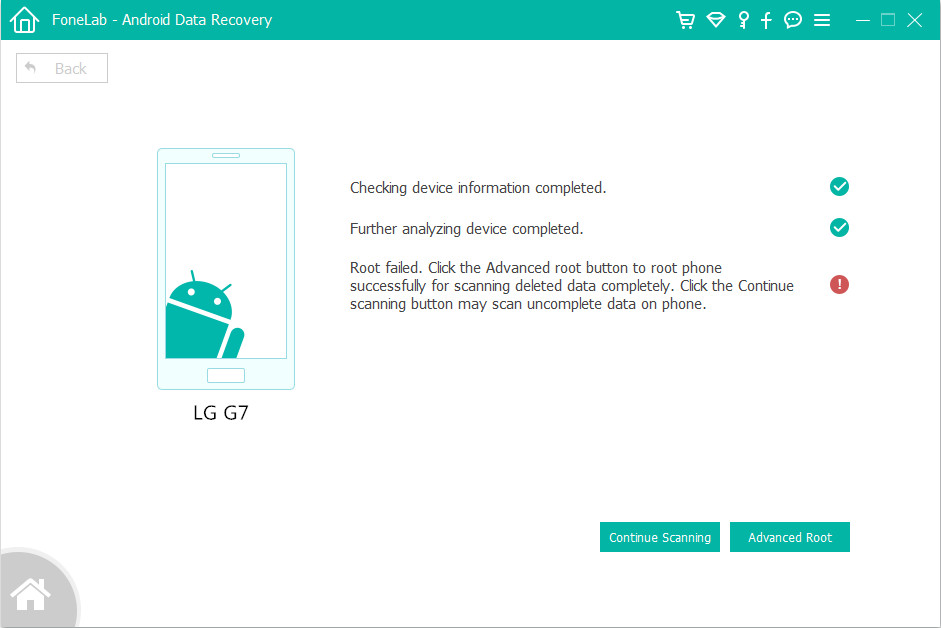
To deep scan and find the deleted files, you need to root your Samsung Galaxy S9 or S9+ device before recovering. Please be free to do it as U.Fone Android Data Recovery can easily get your Samsung phone rooted without any data loss by clicking the “Advanced Root” button at the lower right corner of the window. All you have to do is following the prompts.

Root for deep scanning

Step 5. Preview and Recover Deleted Videos on Galaxy S9/S9+

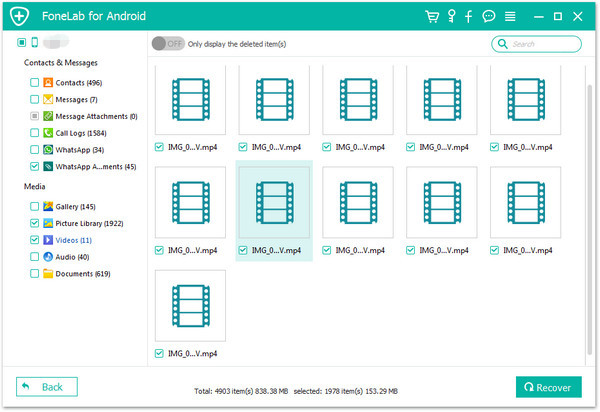
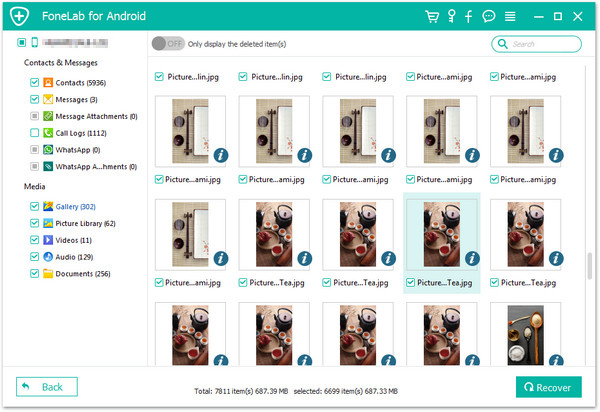
When the scan is terminated, you can preview the files in the scan results. Preview and select the desired items you want to recover – “Videos” then simply click on “Recover” button to recover deleted Samsung Galaxy S9 videos on your computer.

recover deleted videos on galaxy s9/s9+

d_win d_mac

Alternative: Restore Deleted Videos on Galaxy S9 without PC(Google Photos)

This solution will help you recover deleted videos from Samsung Galaxy S9 and Galaxy S9+ without a computer. The condition for determining if it works is that you have enabled back up & sync ON before the video is deleted. Furthermore, Google Photos only keeps deleted videos for 60 days, and the videos are recoverable before they expire. The following is how to do:

Step 1. Find Deleted Videos on Google Photos App

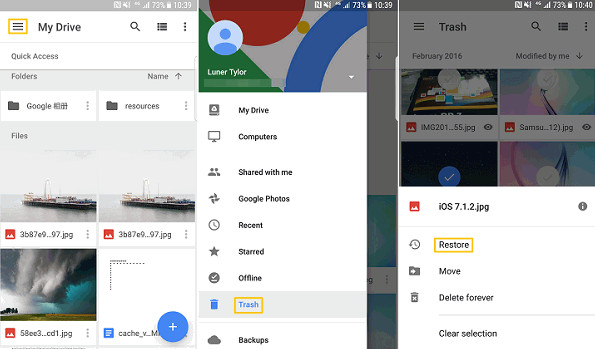
Go to “Google Photos” app on your Samsung Galaxy S9, tap on “Menu” on the top left > “Trash“.

Step 2. Restore Deleted Videos

Select the videos that you want to recover and then hit “Restore” at the bottom. Now the deleted videos will be back. You can back to “Photos” app on your Samsung phone, go to “Albums” to check the deleted videos.

restore-videos-from-google-photos

Tip: How to Avoid Deleting Videos on Samsung Android

Tip 1. You need to develop a habit of regularly backing up your data. Backing up important videos to your PC, external SD card, hard drive or cloud backup, such as Google Drive, Dropbox, etc. is the best way to prevent video loss.
Tip 2. When you delete any video on your device to clean your phone’s memory, please double check it.
Tip 3. Install a reliable anti-virus application on your Samsung device to avoid virus attacks that could damage your videos.

Related Articles

How to Recover Deleted Contacts from Samsung Galaxy S9/S9+

Restore Disappeared Photos/Gallery on Samsung Galaxy S9/S9 +

[Fixed]Data Recovery on Samsung Galaxy with Broken Screen

Ways to Recover Deleted Videos/Photos from Galaxy S8/S8 +

Recover/Restore Deleted Video Files from Broken Samsung

How to Recover Deleted Data from Android Without Root

Galaxy S9/S9+ Video Recovery

Samsung Galaxy S8/S8+ Data Recovery: Retrieve Deleted Files from Galaxy S8/S8+

[Summary]: Accident lost or deleted data on your Samsung Galaxy S8/S8+? Here you can find the best Samsung Galaxy S8/S8+ data recovery method to recover lost photos/pictures, videos, contacts, SMS, WhatsApp data back.

The Galaxy S9, Galaxy S9+ Galaxy S8 and Galaxy S8+ have finally arrived, and they might just be the finest phones available. Samsung’s decided to stick curved edges on both phones, making the ‘Edge’ label redundant. Thus, the S8+ is the replacement for the former S7 Edge. The iris scanner from the Galaxy Note series has finally made its way onto the Galaxy S range, the normal Galaxy S8 has a 5.8-inch display, while the S8+ gets a huge 6.2-inch screen. Both phones have the same 1440 x 2960 resolution Super AMOLED panel, and they look fantastic. Although the Galaxy S9/S9+ have finally arrived, there are still many users using Samsung Galaxy S8 or S8+ for it’s powerful features and cost-effective.

Causes of Data Loss on Samsung Galaxy S8/S8+

Samsung phone base on Android OS, for different reasons, you may lose data or accidentally delete data on Samsung Galaxy S8/S8+. Below are some common situations or scenarios that lead to data loss on Samsung Galaxy S8/S8+ smart phone:

Accidental deletion – Sometime, you may deleted photos, videos, contacts or text messages on your Samsung Galaxy S8/S8+, this is one of the major causes Samsung Galaxy S8 data loss;
Factory reset – After reset your Galaxy S8/S8+ to factory, it will erase/wipe all settings and data on your Galaxy S8/S8+;
Root Failed – If you root your Android phone, it will make you lose your data from Samsung Galaxy S8/S8+;
Virus attack – Phone dead or black screen for virus attack, the virus attack cause data on lose on your Samsung Galaxy S8/S8+;
Data Transfer – While transferring data between Samsung Galaxy S8/S8+ and computer or moving files between other phone and Galaxy S8. Interruption computer shutdown, phone shutdown and so on.
Android OS Crashed – Due to the system crash and cause your Samsung Galaxy S8 stuck in black-screen, download mode, boot screen(Samsung logo screen)….

If you encounter the above situation cause losing data on your Samsung Galaxy S8/S8+, don’t worry, you still have chance to recover lost or deleted data from Galaxy S8/S8+, what you need is a powerful Samsung Galaxy S8/S8+ data recovery, which can help you directly recover lost or deleted data including text messages, contacts, gallery/photos/pictures, videos, WhatsApp messages, call history and so on.

An Effective Samsung Galaxy S8/S8+ Data Recovery Software

Need an effective and powerful Samsung Galaxy S8/S8+ Data Recovery software?
U.Fone Android Data Recovery is a very helpful third-party Samsung data recovery tool that can help to retrieve the deleted or lost files from Samsung Galaxy S9, S8, S7, S7 Edge, S6, S5, S4, S3, Note 9, Note 8, Note 7, Note 4, Note 3, Galaxy A9/A7/A5, etc. If you lost or deleted files on Galaxy S8, please download and install this Samsung Galaxy S8 data recovery program on your computer, then deep scan your devices and recover contacts, text messages, call history, photos, videos, music, documents and WhatsApp chat history from Galaxy S8 or S8 Plus directly.

This Samsung Galaxy S8/S8+ data recovery software available on Windows and Mac, and it is very easy to use, you can easily retrieved your Android data at home.

d_win d_mac

Part 1: How to Recover Deleted Files on Samsung Galaxy S8/S8 Plus

This guide teach you how to recover deleted photos from Galaxy S8 in Windows computer by U.Fone Android Data Recovery, you can also download the Mac version to recover your Samsung Galaxy S8/S8+ lost data on Mac

Please click the above download button to download the program. After launching the Android data recovery on the computer, select “Android Data Recovery” function.

Run the Samsung Galaxy S8/S8+ Data Recovery Software

Step 1. Connect Samsung S8 to PC via USB Cable
After enter the data recovery function, please plug your Samsung Galaxy S8 into PC via the matching USB cable.

Connect Samsung Galaxy S8/S8+ to PC

Step 2. Select File Types You Want to Recover
Now, you can see all the data types from your device would be displayed on the interface of the program. Please choose the file types including WhatsApp messages, contacts, text messages, photos, videos, documents and then click on the “Next” button.

Select Data Types

Step 3. Allow the Program to Scan Device
Please go to your Samsung device and allow the program to analyze it. Then the program would automatically scan your smartphone.

Pass the Request

Step 4. Gain Root Permission for Deep Scanning (Option)
The program will check the device information and perform a basic scan of the device. If it can’t find the files you need and want to deep scan your phone for all deleted/lost data, it’s suggested that you root the phone to access to the full Android system. (You can unroot the device after the recovery task.)
To do so, click the Advanced Root button at the lower right position. At this point, you will be taken to an external website to download a free Android rooting tool — KingoRoot to root the device.
[Also Read: How to Safely Root and Unroot an Android Device with KingoRoot ]

Root for deep scanning

After you’re rooted, the Android Data Recovery software will begin running a deep scan of your Samsung Galaxy S8 phone’s memory and SD card to search for the deleted Stuff. Please be patient.

Step 5. Preview and Recover Deleted Files from Samsung Galaxy S8
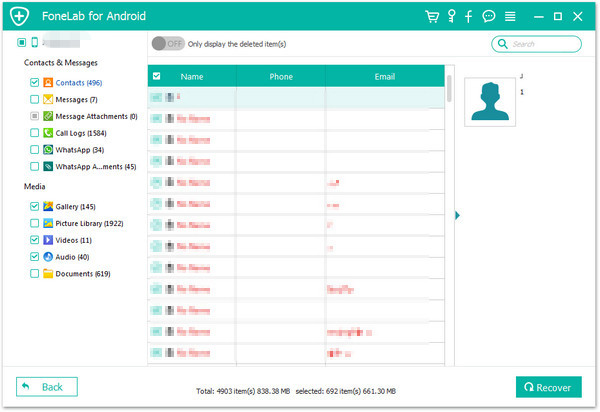
Please choose the data categories (Contacts, SMS, Pictures, Videos, Audio, Call History, Documents, WhatsApp Chat History, etc.) and preview the contained files in details. Mark those you want to get back and click “Recover” to export the data to computer.

Recover deleted files on Galaxy S8/S8+

Above simple steps, it is very easy to recover lost data from Galaxy S8 with the Android Data Recovery program, you can also follow the same steps to recover deleted or lost files from Galaxy S9/S9+/Note 9 directly. So why not have a try yourself?

d_win d_mac

Tips: After getting all your lost photos/pictures, videos, contact, SM back and save onto the computer, you can use this Android Transfer tool to import all retrieved files from computer to Samsung Galaxy S8/S8+ and other Android devices.

Part 2: Backup and Restore Samsung Galaxy S8 / S8+ via Google Account

To avoiding your Android data lost or deleted again, we recommend you use backup your Android data to computer regularly, there are many third-party Android backup app like U.Fone Android Data Backup & Restore, Android Manager, Samsung Kies and free cloud backup service like Google Cloud (or G Cloud Backup for Android ).

Google company also provides cloud backup service, which is an Android’s online file storage, you can back up your contacts, calendar data, app data, chrome data, documents, and Drive contents from Android phone to Google’s cloud online backup servers from within the “Settings” app, below is the step-by-step guide on how to backup and restore Samsung Galaxy S8/S8+ by using Google cloud backup services.

Step 1. From a Home screen, touch and swipe up or down to display all apps.
Note These instructions apply to Standard mode only.
Step 2. From a Home screen, navigate:Settings apps_settings_icon > Accounts accounts_icon > Backup and restore.
Step 3. Tap the Back up my data switch to turn on switch_on_icon or off switch_off_icon.
Step 4. With Back up my data turned on, tap Backup account.
Step 5. Tap the appropriate account.
Step 6. Tap Automatic restore switch to turn on switch_on_icon or off switch_off_icon.

Tips: If you want to backup photos and videos to Google cloud, you can backup your Samsung S8 photos and videos via “Google Photos” app.

Read related guide: Backup & Restore Samsung Galaxy S8/S8+ by Samsung Kies
backup samsung s8 photos to pc directly

Related Articles

Recover Data Contacts/Photos/SMS from Broken Galaxy S6

How to Recover Deleted Photos on Samsung Galaxy S8/S8 +

[Fixed]Data Recovery on Samsung Galaxy with Broken Screen

How to Recover Deleted Call Logs from Samsung Galaxy S8(Plus)

How to Recover Lost Data from Locked Samsung Phone

Recover Deleted WhatsApp Messages from Samsung Galaxy S8/S8+

Samsung Galaxy S8 Data Recovery