All posts by DHZ

How to Recover Data from Broken/Dead Samsung Phone

[Summary]: Samsung phone is broken/dead with black, locked or broken screen? This page will teach you two possible way to extract and recover lost data from broken or dead Samsung phone like Galaxy S6/S5/S4, Galaxy Note 5/4/3, you can also follow the below guide to fix bricked, crashed, frozen, black-screen or locked Android phone to normal after downloading a suitable recovery package.

If your Samsung phone is damaged/broken or running abnormal, for example, stuck in black screen, stuck in Samsung logo startup screen, password-forgot, can’t enter the system,  the touch screen cannot be used and even water-damage or broken screen. These accidents may cause data lost on your phone and you will face to a lot of trouble.

As a mobile phone user, you may store contacts, text messages, photos, videos, call logs, Whatsapp messages, documents and other important data on Samsung phone. When you lost data from broken Samsung Galaxy, how to recover data from broken or dead Samsung phone in an effective and safe way?
So, many Samsung users search in Google search to find how to recover data from the Samsung phone with a broken screen and get access to their important contents. Below, we will show you two effective ways to retrieve data from broken Samsung phone. Please keep reading and according to the damage of your mobile phone, choose the appropriate solution to rescue all your files from broken Samsung phone.

Broken Android Data Extraction is a part of Android Data Recovery software, which not only can help recover deleted or lost data from Android phone for accidental deletion, factory reset, OS update, rooting, virus and other unknown causes; but also enables you extract text messages, contacts, call history, WhatsApp, photos, etc. from broken Samsung Galaxy S6/S5/S4, Galaxy Note 5/4/3. If your Samsung phone is broken screen or black screen, the Broken Android Data Extraction function helps you download the matching recovery package and recovering your broken/dead phone to normal status, after that it will scan all existing data from the broken/dead Samsung phone directly, finally, you can preview the data in detail one by one, and extract all your phone data to computer with one click. In additional, you can selective and flexibly backup and restore Samsung data by “Android Data Backup & Restore” function inside of this program.

In the following description, please download the Android Data Recovery for Windows version and follow two effective methods to retrieve the data from your broken phone. Currently, the Mac version not support broken Android data recovery, we recommend you free download the Windows version and try to rescue your phone data. For Mac version, you can also try the Android data backup & restore(Mac) function to backup your Samsung data to Mac.


d_win d_mac
d_win d_mac

Let’s learn the step-by-step guide to fix cracked Samsung phone (bricked, system-crash, virus-attack, etc.) to normal and recover data from a broken/frozen Samsung Galaxy phone directly.

Method 1: Recover Data from Broken Samsung Phone with Broken/Locked Screen

If your Samsung Galaxy S/Note is broken-screen, black-screen or locked-screen(password-forgot), please follow this detail guide to recover lost data from your broken Galaxy S6/S5/S4/Note 5/Note 4/Note 3 and Galaxy Tab.

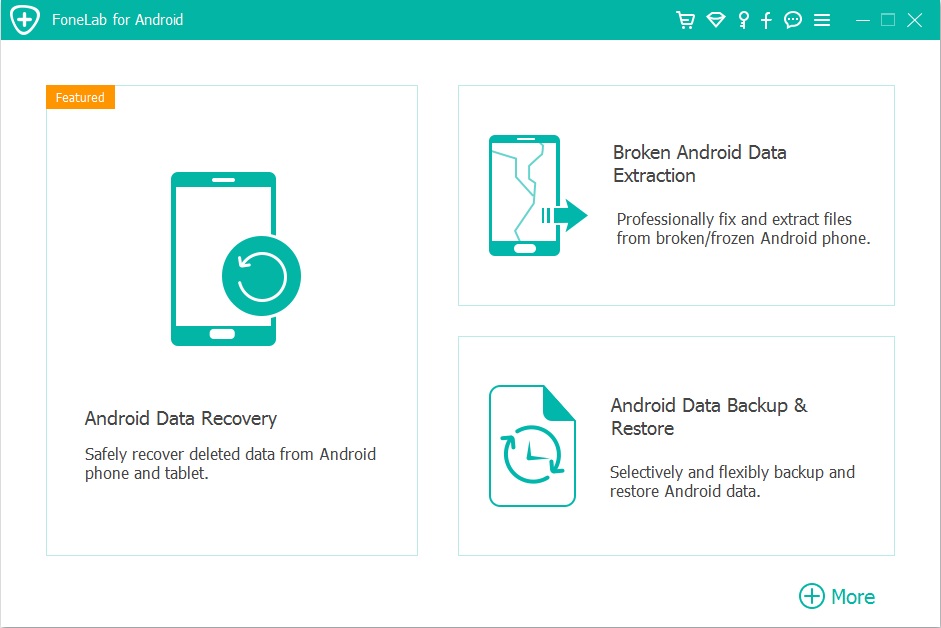
Step 1. Launch the Android Recovery and Click “Broken Android Data Extraction” mode
Firstly, download, install and launch Android Data Recovery program on Windows computer. Then click “Broken Android Data Extraction” feature go to next step.

launch broken android data recovery/extraction

Step 2.Connect Broken or Dead Samsung Phone to PC
Using a Android USB cable to connect your broken/damaged Samsung Galaxy S6 to computer, and the program will detect your phone automatically. Then, click the left “Start” button go to next step to select your Samsung phone’s name and model.
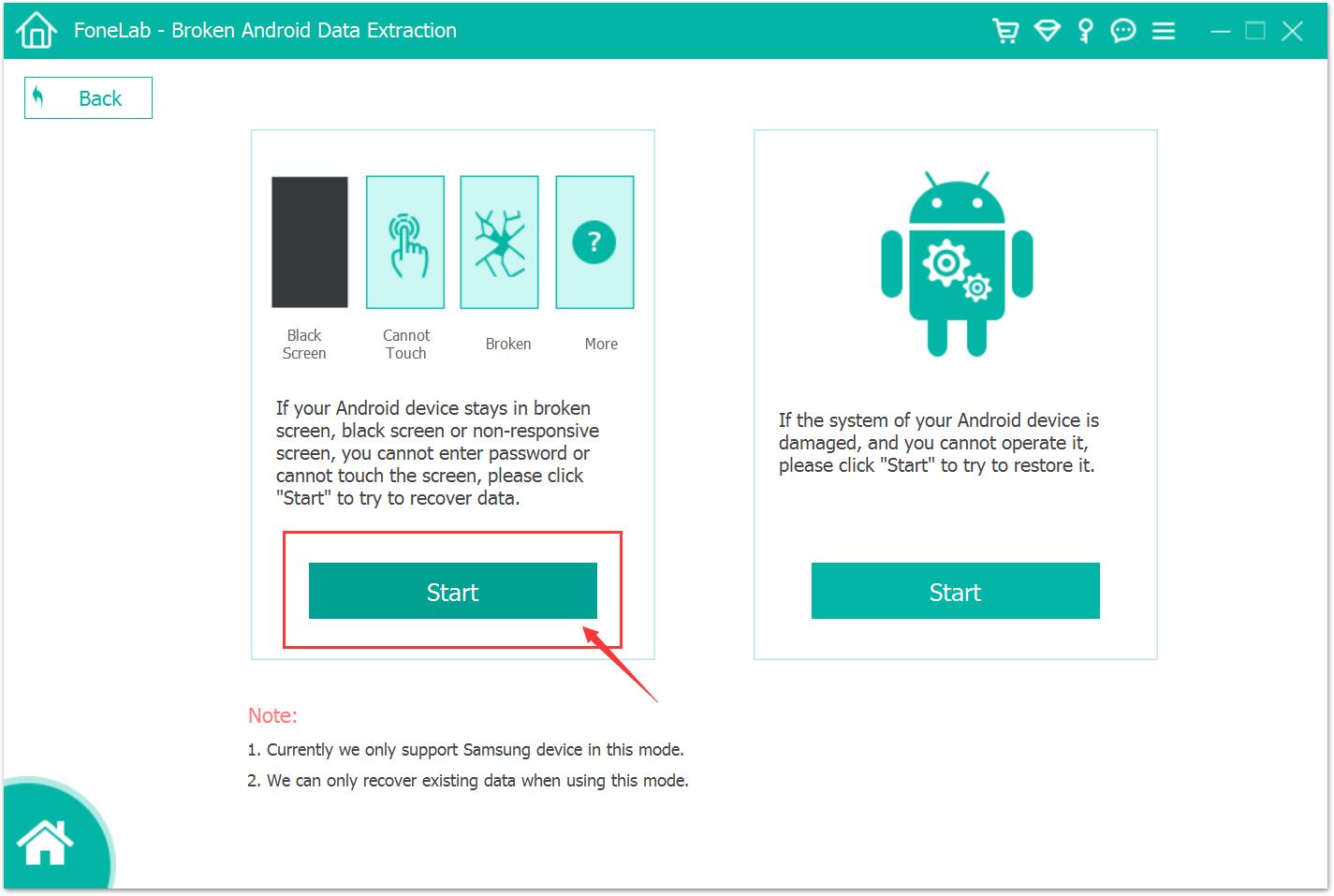
connect broken Samsung Galaxy phone to PC

Tips: If your Samsung phone stuck in broken screen, black screen or non-responsive screen, you cannot enter password or cannot touch the screen, this function helps you recover the existing data back.
If you want to recover deleted or lost data from Galaxy S9/S8/S7/Note 9/Note 8 and other Android normal phone, please learn this guide about how to recover deleted files from Samsung Galaxy.

Step 3.Select your Broken Samsung Phone’s Name and Model
In this step, please select the name and model of you broken Samsung phone, and then tap “Confirm” button to make sure your phone can be supported by this program for fixing and extracting files.
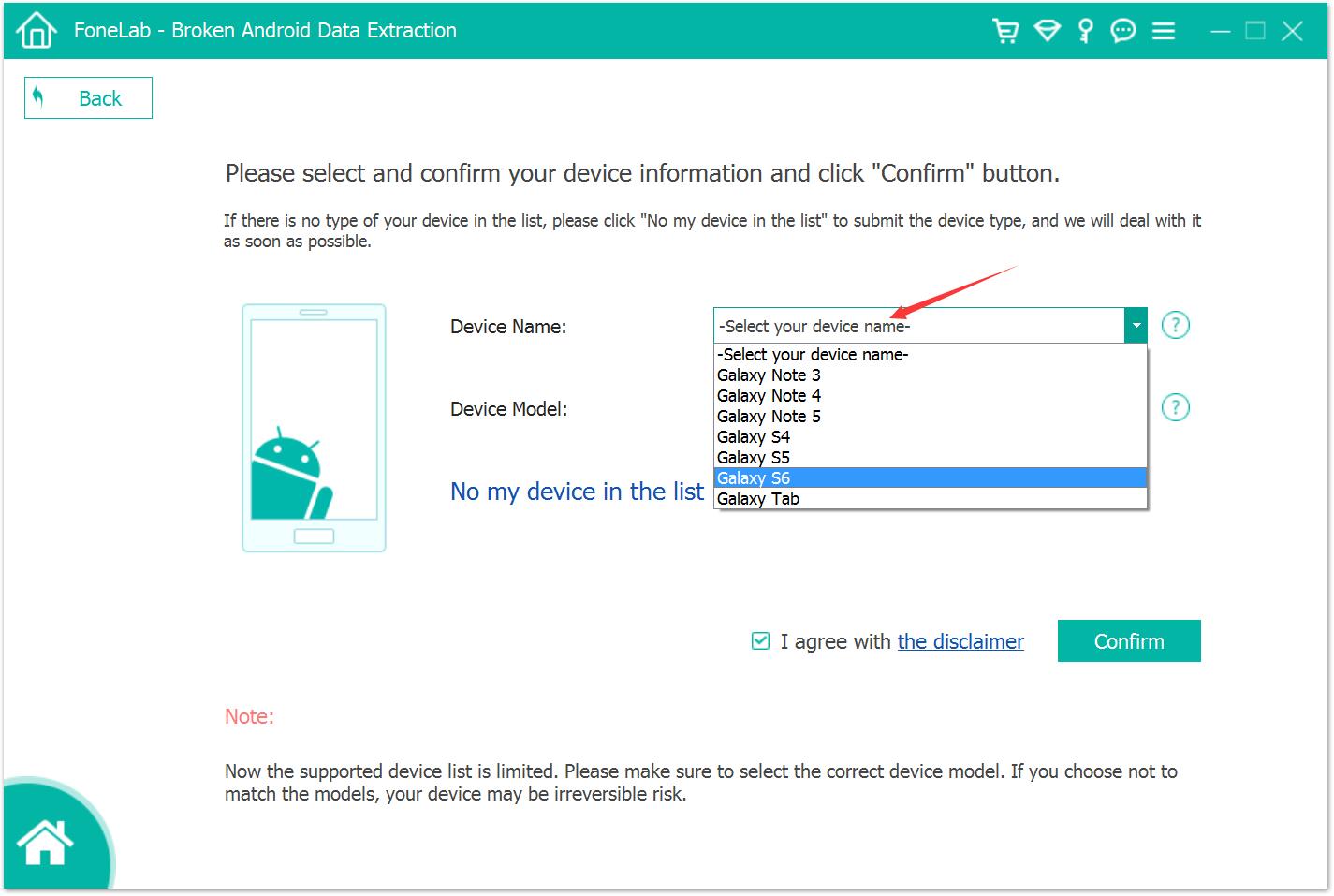
select Samsung Phone’s Name and Model

Step 4.Put the Phone Into Download Mode for Ready Download Recovery Package
In order to fixing your broken phone to normal, you need to get your phone into download mode at first. Please follow the simple guide to enter the download mode in three steps as the interface shows. Then, click “Start” to download the matching recovery package for your phone.
1). Power off the phone.
2). Press and hold Volume “-“, “Home” and “Power” button on the phone.
3). Press “Volume +” button to enter download mode.
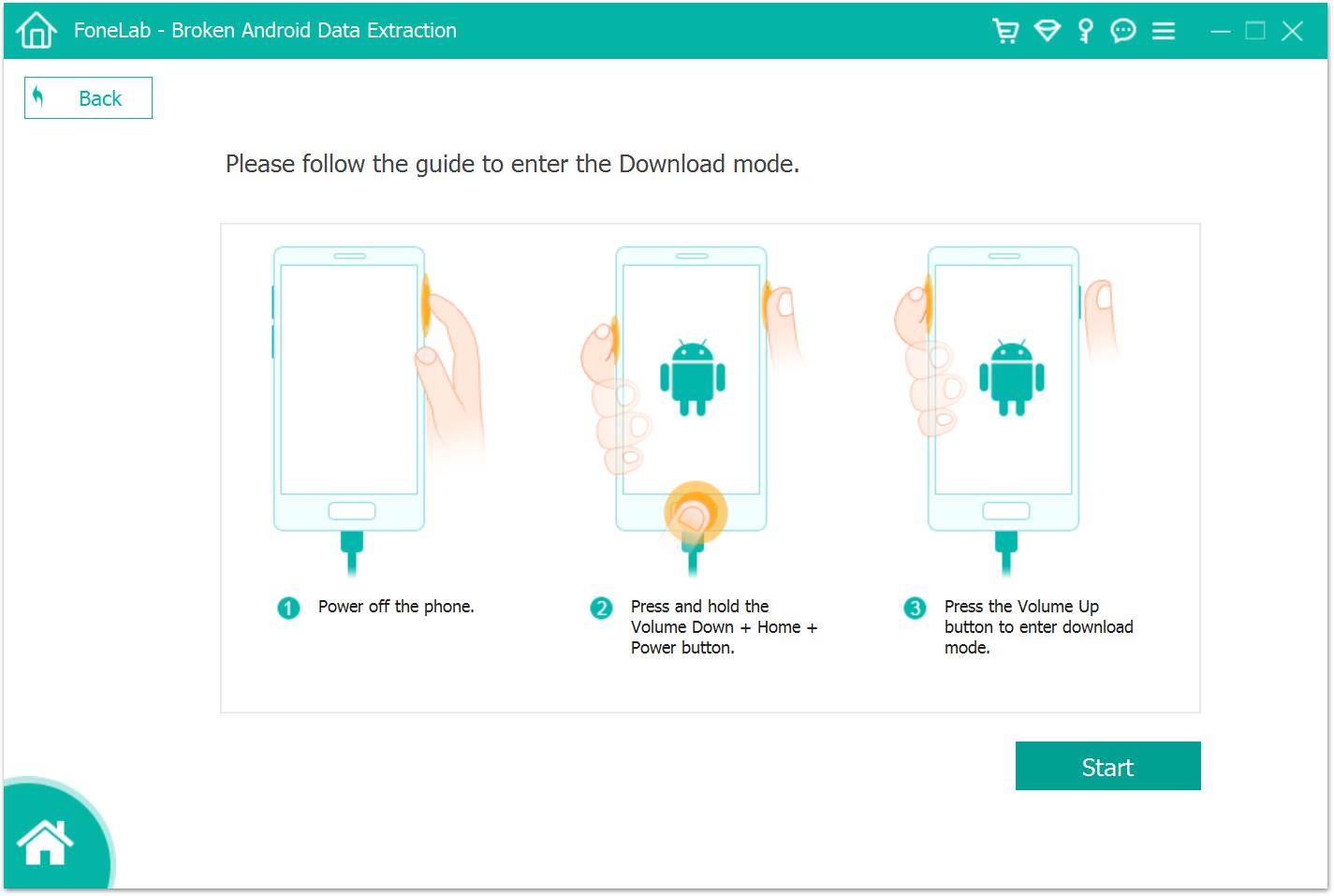
get your phone into download mode

Step 5. Waiting for Downloading the Matching Recovery Package
After getting the broken Samsung phone into Download mode, the broken Android data recovery program will analyze it and download the suitable recovery package for the broken phone.
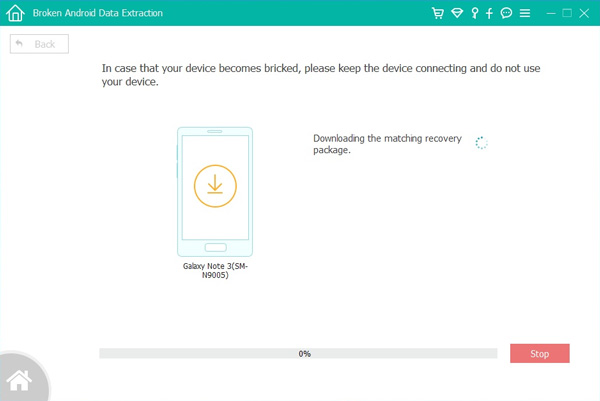
download Matching Recovery Package

When the program download the recovery package successfully, it will restore your device and fix it to normal automatically.
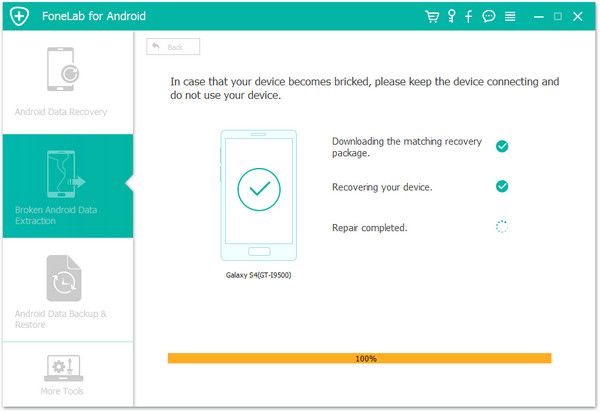
analyze broken phone

Step 6.Scan your Samsung Phone
After you fixing it successfully, the program will scan your Samsung phone to find all the existing data automatically. During this scanning process, it will take you some time, depending on how many files are stored on your phone, please be patient. . .
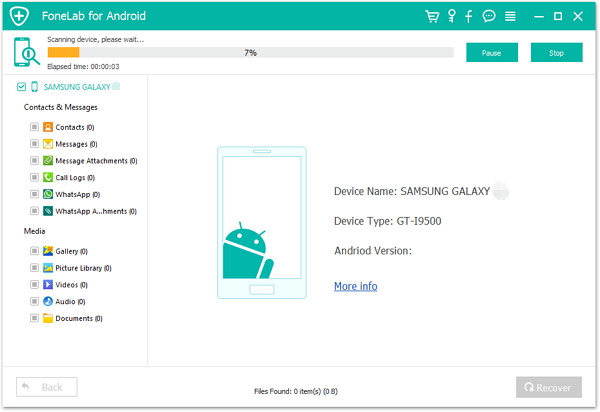
Scan data from Samsung Phone

Step 7.Preview and Recover Data from Broken Samsung Galaxy S/Note Phone
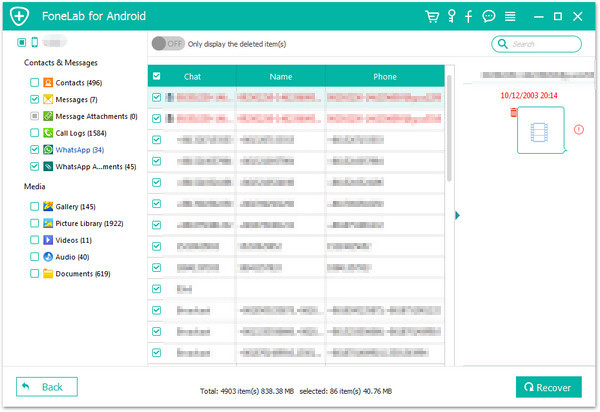
After scanning your phone completed, the program will shows all the recoverable data, including contacts, text messages, message attachments, call history, WhatsApp messages & WhatsApp attachments, photo library, videos, audio and documents. Please click and view the contents in details that you want. Finally, just click “Recover” button to recover the selective data from your broken Samsung phone to computer.
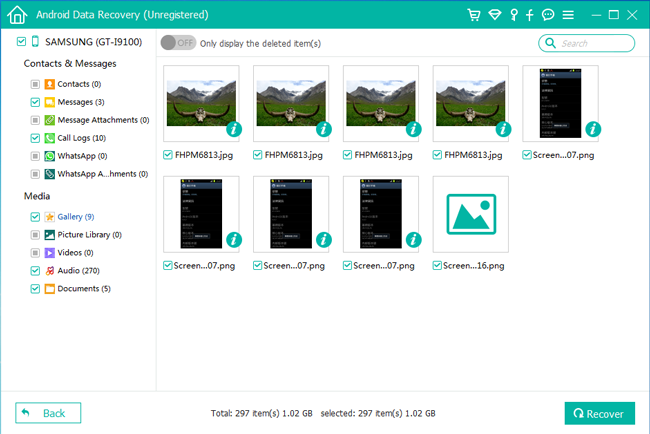
recover data from broken Samsung

Note: In this method, the data you recover from the broken Samsung are the existing data on your broken Samsung phone, not including the deleted files.

Free download the Broken Android Data Recovery for Windows and try to extract data from your broken Android phones and tables.

d_win d_mac
d_win d_mac

Tips:
Broken Samsung Contacts Recovery: All recoverable contacts will be saved as VCF, CSV or HTML for your use.
Broken Samsung SMS Recovery: Existing text messages and message attachments will be extracted and save them to PC as CSV, HTML and attached images.
Broken Samsung Call Logs Recovery: Extract all existing call history on PC as HTML and attached images for you browsing.
Broken Samsung Photo Recovery: All downloaded pictures, photos taken with your phone camera, app photos, and even the image cache from your browser will be save onto the computer from your broken Samsung phone.
Broken Samsung WhatsApp Recovery: Extract the WhatsApp chat history/messages, attached photos or video/audio from broken phone and save onto PC.
Broken Samsung Video Recovery: Backup existing video including taken by phone camera and App videos from your damaged Samsung phone to PC.
Broken Android Phone’s SD Card Recovery: If the documents stored on your Android phone’s SD card, the Android SD Card Recovery function can help you recover the deleted/lost/formatted pictures, videos and documents in Word, Excel, PPT, PDF, HTML, Zip, RAR or other formats to your computer.

Video Guide on how to recover data from broken or dead Samsung phone

Method 2. Fix and Recover Data from Bricked Samsung Phone

If your Samsung phone is broken due to system-crash, such as bricked, stuck, frozen, virus-attack, and can’t do anything, you can also use the “Broken Android Data Extraction” function to fix your bricked/frozen phone to normal firstly, and then recover photos, contacts, messages and other data from the cracked Samsung phone’s built-in storage directly.

Note: After fixing your bricked Samsung phone to normal, you can use it again as usual.

Step 1.Launch Broken Android Data Extraction and Connect Broken Samsung to PC
After download the Android Data Recovery for Windows and launch it on your computer, and then connect your broken phone with it via USB cable. Choose “Broken Android Data Extraction” function on the primary interface.

launch broken android data extraction

Step 2.Click the Right “Start” Button
To fix your broken Samsung phone to normal, please tap “Start” button on the left of the interface and go to next step.
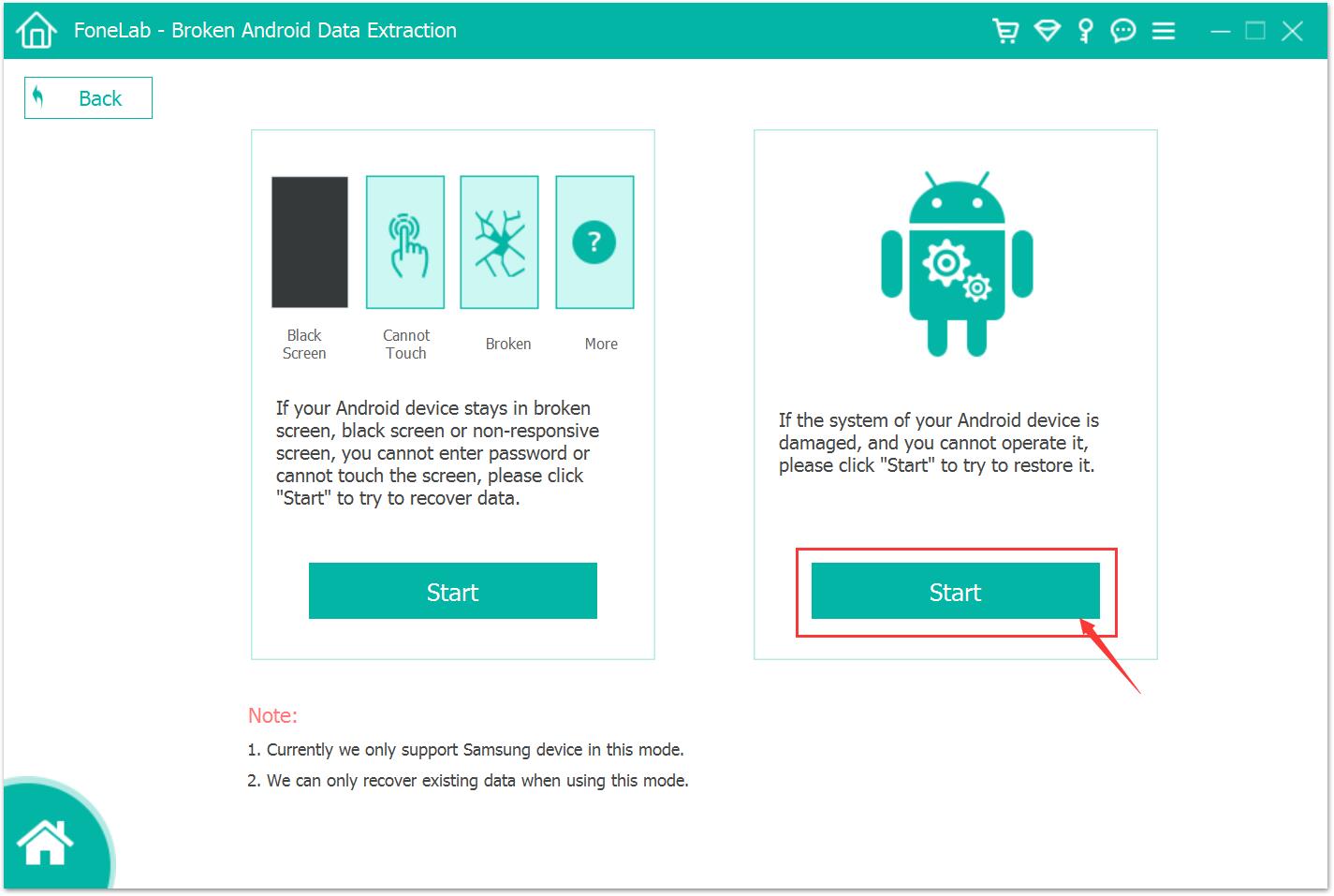
fix android device

Step 3.Select the Broken Mode of your Samsung Phone
If your phone is broken under below status like Stuck in Startup screen, stuck in the download mode, stuck in black screen, please select the correponding button, if not, please select the other question to fix the bricked Android phone.
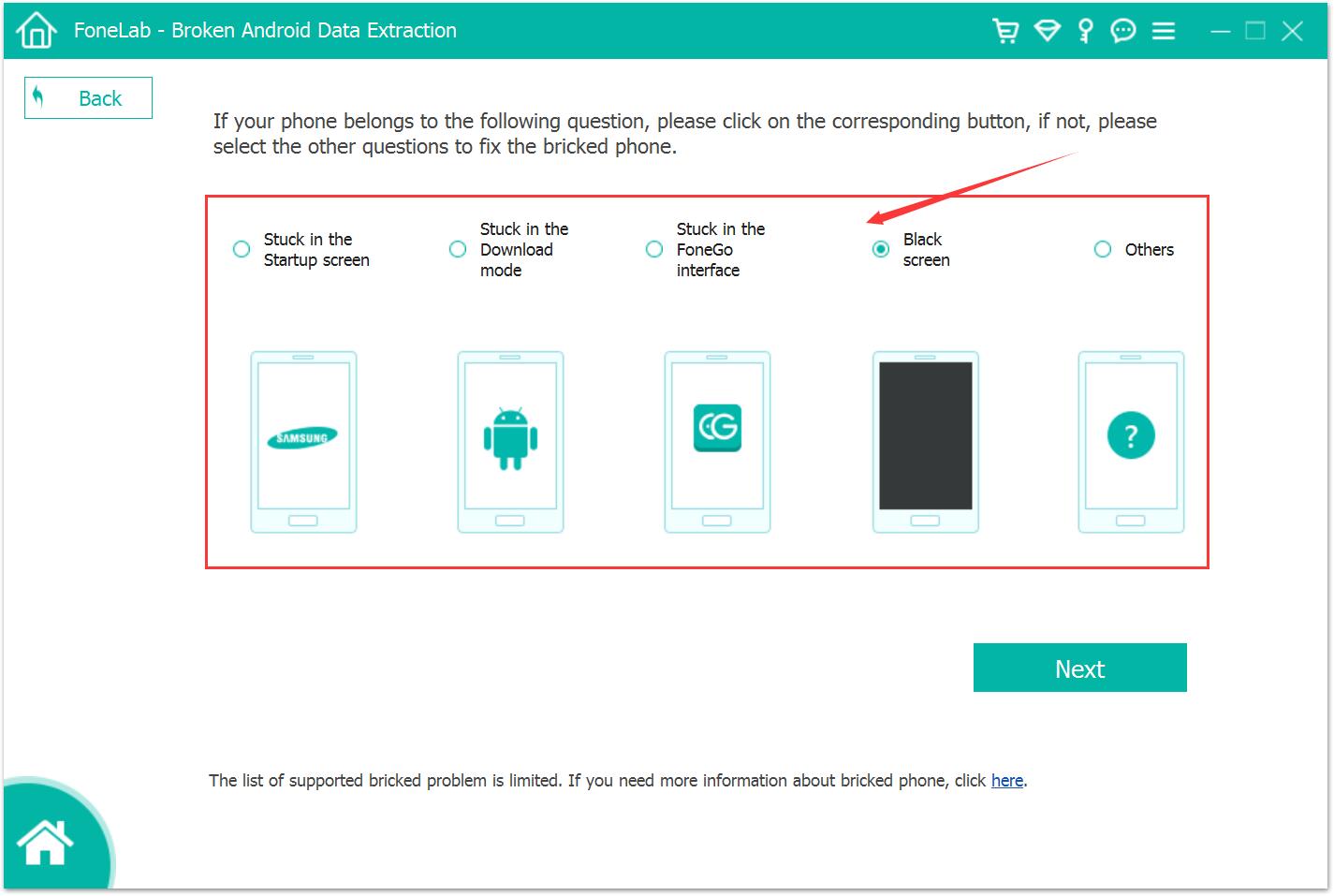
fix bricked samsung devices

Step 4. Choose the Right Model of Broken Phone
Select the name and matching mode of your broken Samsung Galaxy phone and click “Confirm” button.

Select Phone’s Name

select Samsung Phone’s Name

Select Samsung Phone’s Model
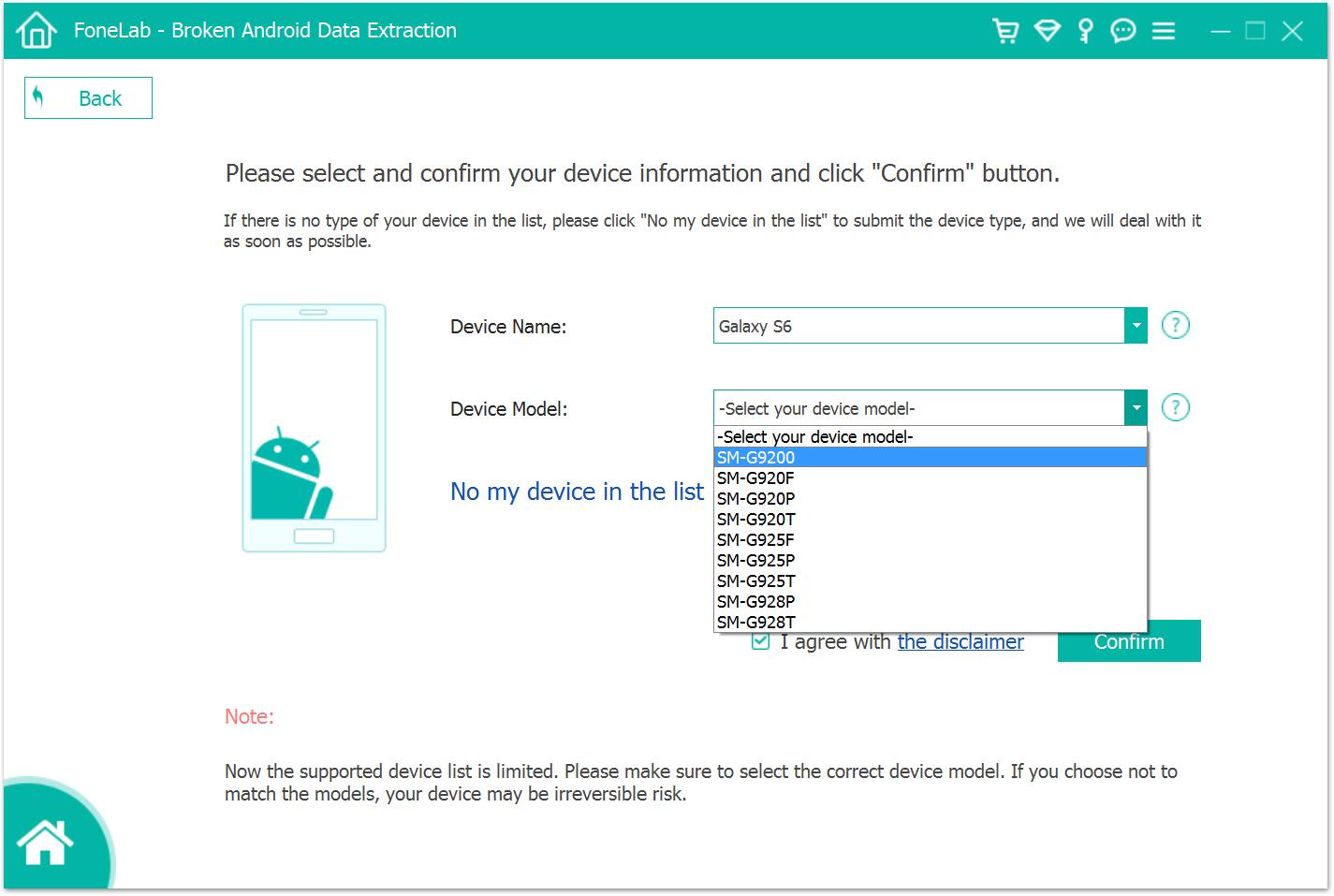
Select Samsung Phone's Model

Step 5.Put the Phone Into Download Mode
Then, put your broken Samsung phone into the download mode in below three steps.
1)Power off the phone.
2)Press and hold Volume “-“, “Home” and “Power” button on the phone.
3)Press “Volume +” button to enter download mode.

enter download mode

Step 6.Analyze the Phone and Download Recovery Package to Fix it
After that, the program will help you download the matching recovery package and start to fix your broken Samsung phone to normal status.

Analyze the broken Samsung Phone

Step 7. Return to “Android Data Recovery” Mode to Scan and Recover Data
After your Samsung Galaxy is fixed, please click “Android Data Recovery” function on the main interface of the program, which can help you directly scan all existing/deleted/lost data from the fixed phone.

scan broken Samsung phone

Step 7.Preview and Retrieve Data from Cracked Samsung Phone
After fixing and scanning your cracked Samsung phone, all the found data will display in the interface, and you can all the content before recovery. Mark those you want back to click “Recover” to extract your lost photos, text messages, contacts, videos and audios from broken Samsung phone to computer.
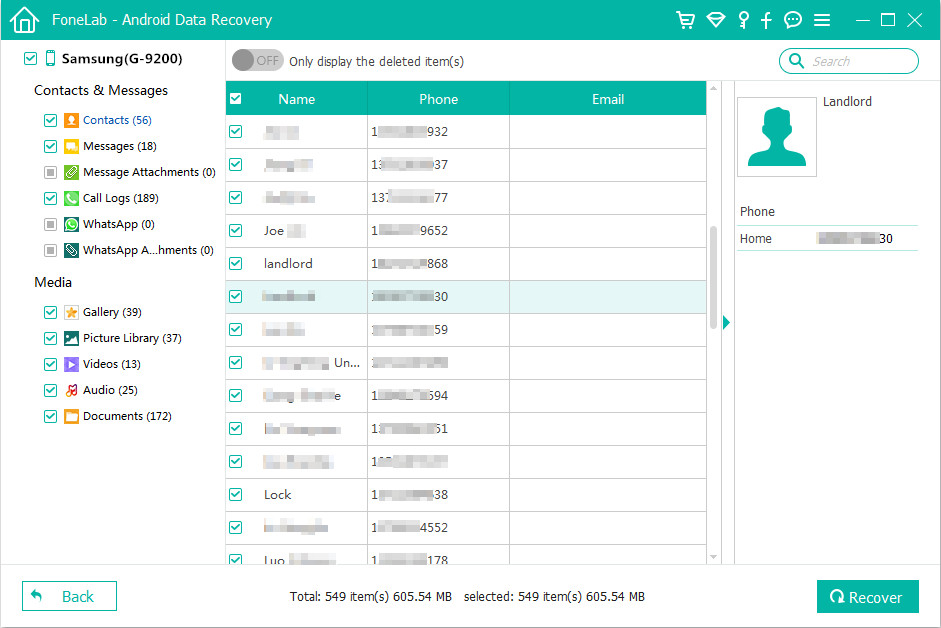
recover contacts from broken samsung galaxy s6

Free download the Android Data Recovery and try to fix and recover data from your Samsung devices.

d_win d_mac
d_win d_mac

What’s More about Samsung Data Recovery – Android Toolkit

1. Broken Android Data Recovery function support to extract photos, videos, contacts, messages, messages Attachments, call history, audios, whatsApp, documents from damaged/dead samsung Galaxy phone or SD card.
2. Android Data Recovery function allows you preview all deleted data before recovery.
3. Android Data Backup & Restore can help you back up and restore all types of files on Samsung, HTC, Sony, Google Pixel, Huawei, Motorola, Xiaomin Oppo and other Android devices.
4. Repair frozen, crashed, black-screen, virus-attack, screen-locked Android phone to normal and recover all existing data from broken phone directly.
5. Support almost all Samsung phones like Samsung Galaxy S, Samsung Galaxy Note, Samsung Galaxy A, Samsung Galaxy C, Samsung Galaxy Grand, etc.
6. Retrieve lost and deleted data from almost all Android phone missing due to mistaken deletion, factory reset, system crash, forgotten password, flashing ROM, rooting, ect.

Related Articles

How to Fix Samsung Galaxy Blank/Black Screen of Death

How to Recover Deleted Photos from Android

How to Recover Deleted Contacts from Android

How to Recover Lost Photos, Videos from Samsung Galaxy
How to Recover Lost Data from Broken/Dead Samsung Phone

How to Recover Data from Samsung Phone with Black Screen

How to Keep Apple Music on Mac Forever

[Summary]: If you cancel Apple Music, will you keep your songs offline forever? Here you will find detailed answers to keep Apple Music songs, albums on Mac forever, even if you cancel your subscription.

remove drm from apple music mac

Apple Music users’ quesions:
“Will I lose my music if I cancel my Apple Music subscription? How to save Apple Music songs as MP3 or M4A files and transfer to iPod Nano for playing offline?”

How to convert Apple Music to MP3 and save them on MacBook Pro forever? I want to transfer Apple Music songs from Mac to Sony Walkman MP3 player, is it possible to download Apple Music songs as MP3 format?

How remove DRM from Apple Music on Mac? Becuase Apple adds DRM protection to all Apple Music’s tracks, if I unsubscribe from Apple Music, I will lost all added or downloaded songs on iTunes library, how to keep Apple Music on MacBook Pro forever even after unsubscribing?

This is a question many Apple Music users asking. We all know that any song you listen or download from Apple Music has DRM (digital rights management) protection applied to it. These streaming music/playlists you added to the library from Apple Music catalog will no longer be playable and will be deleted if you are no longer a subscriber. So, you can’t keep Apple Music songs on Mac forever or play it in other MP3 players or devices after canceling subscription. After removing DRM from Apple Music, you can keep Apple Music free Forever, even you cancel the subscription someday.

The Best Solution to Keep Apple Music Songs on Mac Forever

Society is always making progress. Soon, we have found some useful softwares that focuses on remove DRM from Apple Music tracks and convert Apple Music songs, albums to common format, so that you can save Apple music forever after unsubscribing. And this Apple Music Convert software is one of the best leader among many softwares.

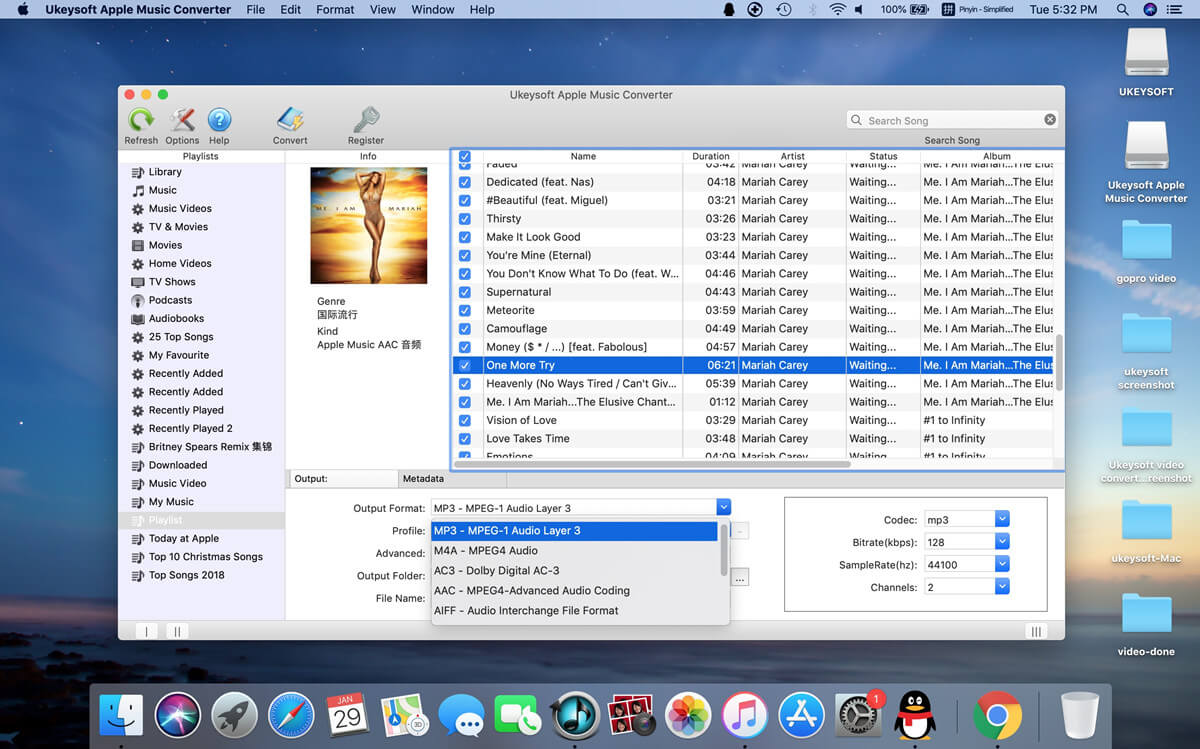
The UkeySoft Apple Music Converter (Mac) is an all-in-one and powerful iTunes DRM Removal and iTunes Music Converter which can remove DRM and convert not only Apple Music files , but also iTunes audiobooks and iTunes M4P music to plain MP3, AAC, FLAC and WAV format. Maximum 16X conversion speed is available to choose while converting. What’s more, you are able to convert Apple Music songs to MP3 with all ID3 tags, metadata kept. With Apple Music Converter, you can keep Apple Music songs on Mac forever even you have cancelled the subscription.

mac apple music converter

Free download Apple Music Converter for Mac version and start to convert Apple Music to MP3 on Mac:

d_win d_mac

How to Keep Apple Music Songs on Mac After You Unsubscribe

Step 1.Install and Launch the Software on Mac

To start with, download and install the UkeySoft Apple Music Converter (Mac) on the MacBook, MacBook Air, MacBook Pro, iMac or iMac Pro, it works well with the latest macos mojave.

install ukeysoft apple music converter for Mac

Launch the Apple Music Converter and iTunes will be launched automatically at the same time.

launch apple music converter

Step 2.Add Apple Music Tracks

The program will load all Apple music files automatically if you have added Apple Music tracks to iTunes Library. Locate “Library” and mark the Apple Music tracks that you want to convert.

select apple music tracks to convert

Step 3.Set the MP3 as the Output Format

After choosing the Apple Music tracks you want to rip/convert,you need to set up the output format in the next step. in order to converting all Apple music songs to MP3 format. From the drop-down list under the “Output Format” column, there are several formats for you to choose from, and MP3 is recommended. You can also change the output parameters like channels, sample rate, codec, bitrate, etc,.

select mp3 as output format

Step 4.Convert Apple Music to MP3 for Offline Listening Forever

Finally, click on “Convert” button to start converting Apple Music from M4P music to MP3 and save the converted MP3 Apple songs on Mac.

convert iTunes Music from M4P to MP3

Original ID tags and metadata information will be saved to the output MP3 audio files, the moment the conversion finished means you own your Apple Music on Mac forever, now you can offline listening Apple Music songs on Mac without iTunes, or transfer the converted Apple Music files from Mac to MP3 player, iPod, mobile phone, etc.

keep apple music forever

d_win d_mac

Related Article

Keep Apple Music Free Forever after Trial without Paying

How to Play Apple/iTunes Music after Canceling Subscription

Remove DRM and Play Apple Music on iPhone without Limitation

How to Convert M4B iTunes Audiobooks to MP3

How to Play Apple Music on iPhone 7/6S/6 for Free

Keep Apple Music on Mac Forever

Recover Lost Photos/SMS/Contacts on iPhone XS, Max, XR

[Summary]: If you are worry about losing photos, contacts, text messages, videos, whatsapp messages, ect., here are a practical way helping you recover lost files on iPhone XS/Max/XR. In addition, it can recover lost data from iPhone X/8/7/6s/6/5s//iPad with ease.

New iPhone XS/Max/XR is released on Sept 12th 2018 and all Apples fans will bye the newest phone for fun.When you enjoy the newest device,you may lost contacts, photos, messages, music files, or videos etc data on iPhone XS/Max/XR by some errors, like wrongly deletion, restore to factory settings, iOS update and jailbreak, iPhone is broken or lost, etc.In order to prevent lost important data in your new iPhone XS,we recommend you to make a backup data for your iPhone XS necessary.If the data lost ,it’s so trouble for you to get back.Relax!Here are a practical way help you recover iPhone XS/Max/XR lost photos/SMS/contacts/notes.Just follow the next several steps,let’s go now!

U.Fone iOS Toolkit — An iOS Data Recovery software can help you recover delete/lost data from iPhone XS/XS Max/XR. It can not only help you recover your own accidentally deleted/lost data including contacts, notes, pictures, videos, call history, WhatsApp messages etc, but also can recover data lost due to crashes, system crashes, viruses, forget passwords, stolen and other reasons for lost data. What’s more, U.Fone iOS Toolkit is suitable for almost all apple deviece: iPhone X/8 Plus/8/7 Plus/7/6s Plus/6s, iPad and iPod. The following is a brief introduction to the highlights of this software:

– Retrieve deleted or lost files on iPhone XS/XS Max/XR, iTunes or iCloud backup file.
– Get back various data types, contacts, SMS, photos, videos, music, notes, voice memos, calendars, WhatsApp chats, etc.
– Recover iPhone data lost due to wrong operation, iPhone got broken/crashed/smashed/water damaged, iOS upgrade, jailbreaking failure or factory settings restore.
– Preview what you’ve found before performing recovery.
– Compatible with iPhone, iPod and iPad and the latest iOS 12.

d_win d_mac

How to Recover iPhone XS Data Using iOS Data Recovery

Step 1: Connect the computer with iPhone XS and run the software

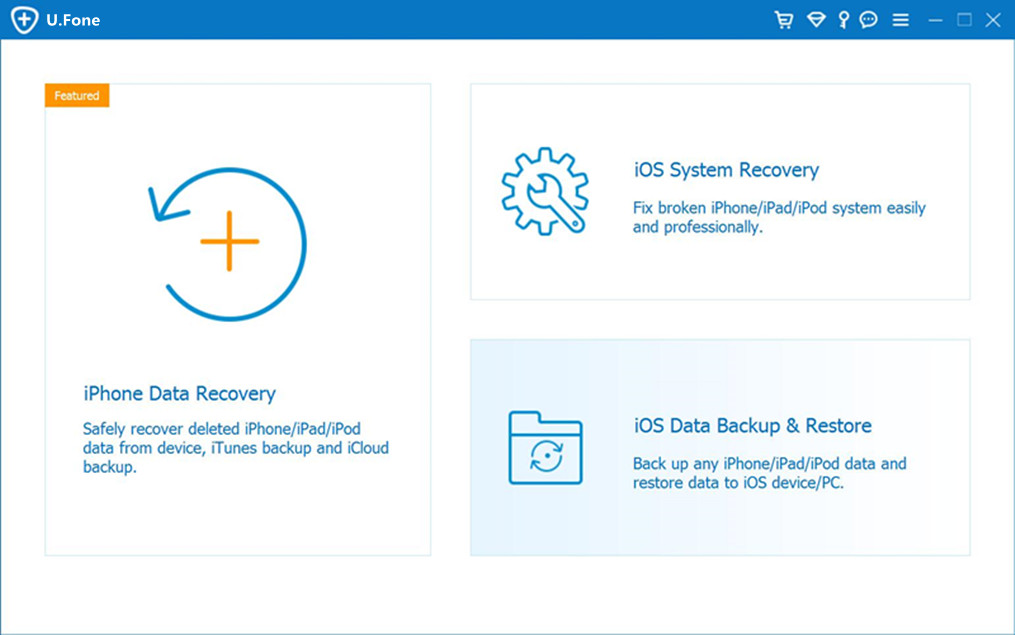
To the beginning, connect your iPhone XS to your PC/Mac and then run the program.From the window, click the button—“iPhone Data Recovery” > “Recover from iOS Device”,it means recovering the data from iPhone XS itself.

run ios 11 data system recovery

Step 2: Find the lost data you need to recover.

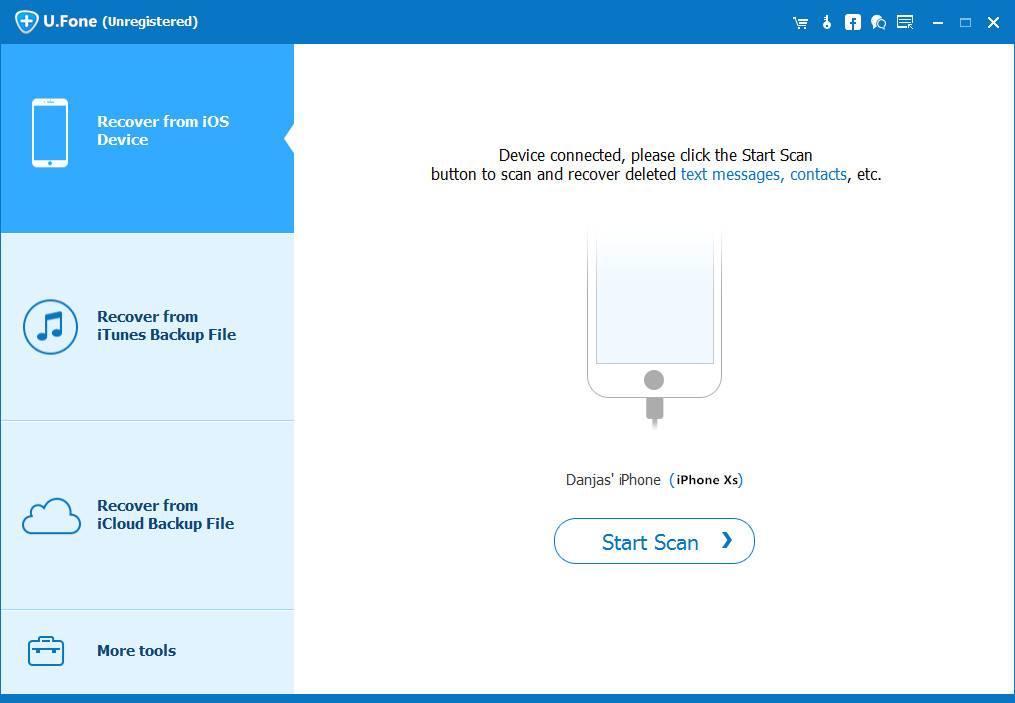
Here you can see the biggest button—“Star Scan”,click it!It will take you a few minute to scan the data from your iPhone XS and show you a list of categorized files that can be retrieved on the left sidebar.

connect device to computer

To recover iPhone XS lost data, such as “Contacts” “Media””Message””Memos””Photos”and other category on the left side, choose what you need to recover.

scan device for lost data

Step 3: Preview and Recover Photos/SMS/Contacts on iPhone XS

From this step,you will start to recover the lost data.Firstly,you can designate a location to save the retrieved data,then click the “Recover”button on the bottom-right corner of the window.

recover data from iphone xs on mac

d_win d_mac

Related Articles

Recover Deleted Text Messages on iPhone XS/XS Max/XR

How to Recover Deleted Contacts on iPhone XS/XS Max/XR

How to Recover Lost Photos from iPhone XS/XS Max/XR

How to Recover Deleted Notes on iPhone XS/XS Max/XR/X

How to Recover Deleted File on iPhone X/8/7/6S/6

Recover Photos/SMS/Contacts on iPhone XS

Samsung Broken Screen, How to Recover Data from it?

[Summary]: Having a damaged Samsung phone with broken screen and worry about losing all the precious data? This page describes how you can recover data from a Samsung Galaxy mobile phone with broken screen easily.

Have you ever encountered: unexpectedly dropping a Samsung Galaxy mobile phone from a height, unquestionable, your Samsung phone screen suffered serious breakage. Poorly, you can’t access any data from Samsung phone with an unresponsive broken screen, such as contacts, SMS, photos and videos and other files. In this case, broken Samsung data recovery program is increasingly being needed by the users.

Also Read:

* How to Unlock Samsung Phone with a Broken Screen

* How can I Get Pictures Off My Broken Samsung Phone

Broken Screen Samsung Galaxy Data Recovery

U.Fone Toolkit – Broken Android Data Extraction is recommended for you. Its outstanding performance allows you to access broken screen Samsung phone and recover data from it. With it, you enable to retrieve lost contacts, SMS, photos, videos, call logs, calendars, music from Samsung phone with cracked screen, broken screen, black screen or blue screen of death. Check more features of this Broken Android Data Extraction:

Extract and recover files when your phone is damaged, system crashed, unresponsive, locked, black screen stuck, virus attacked, etc.
Recover photos, videos, contacts, text messages, call logs, and more.
Safely recover deleted data from Samsung phone and tablet after accidentally deletion, factory restore, etc.
Selectively and flexibly backup and restore Samsung data.
Support Samsung Galaxy Note 2/Note 3/Note 4/Note 5, S2/S3/S4/S5/S6, Samsung Tab Pro 10.1,etc.

d_win d_mac

Easy Steps to Retrieve Data from Broken Screen Samsung phone

Step 1. Open the Software after Installation

Firstly, download the U.Fone Toolkit – Broken Android Data Extraction with your computer. Then launch it after installation and connect your broken screen Samsung phone to PC via its USB cable. Choose “Broken Android Data Extraction”.

samsung s7 data recovery backup and restore

Then click left “Start” to move on.

connect broken samsung to computer

Step 2. Select A Fault Type of Your Samsung Phone

In the windows below, there are several types of broken Samsung phones for your choice depends on your situation.

Choose Phone Broken Types

Step 3. Select Phone Information

Now, select a device name and device model from the drop-down list and click “Confirm”. Currently this function only works for some of Samsung devices in Galaxy S, Galaxy Note and Galaxy Tab series and so on.

Choose Samsung Model

Step 4. Enter Download Mode with Broken Screen Samsung

Here you need to enter download mode on broken screen Samsung phone so that program could access and analyze your device. Follow the instructions displayed on the software interface to put your device into download mode.

broken samsung download mode

When it is done, the program will download recovery package and fix your broken Samsung phone. U.Fone Toolkit – Broken Android Data Extraction will deeply scan and analyze your device for all existing data, including messages, contacts, photos, videos, whatsapp history and more.

scanning data broken samsung galaxy

Step 5. Recover Data from Samsung Phone with Broken Screen

After a while, the interface will provide a segregated display of all recoverable data files. Simply select the files that you wish to retrieve and click on the “Recover” button to extract data to your computer.

recover-sms-broken-samsung-galaxy

d_win d_mac

Related Articles

How to Recover Lost Data from Broken Samsung Galaxy Note 4

How to Recover Samsung Data when Touch Screen Can’t Be Used

Recover Picture/Data from Samsung Tablet with Broken Screen

How to Restore Contacts/Data on Broken Screen Samsung

How to Fix and Recover Data from Samsung Galaxy Black Screen

Samsung Broken Screen, How to Recover Data

iPhone SMS Recovery: Recover SMS from iPhone XS/XS Max/XR

[Summary]: If you have the same situation that you careless deleted the text messages or other important files like contacts, photos, notes, videos, WhatsApp messags, call logs, ect on your new iPhone XS, XS Max, XR.Please take it easy!Here the passage share the two useful methods help you recover the deleted text messages or other lost data.

You May Want to Know:

* Recover/Extract Text Messages from Disabled/Locked iPhone

* Recover WhatsApp Message from iPhone after iOS 11/12 Update

* How to Recover Deleted Photos from iPhone X/XS(Max)/XR

This article may share you the two ways to recover the lost or deleted text message from your newest iPhone XS, XS Max and XR.No matter with iTunes or iCloud backup or not.The main toolkit is an iOS Data Recovery softwareU.Fone iOS Toolkit,which can also restore other data such as deleted photos, notes, contacts, videos, ect. In addition,it also suitable for iPhone X/8 Plus/8/7 Plus/7/6s Plus/6s, iPad and iPod.Let’s go!

d_win d_mac

How to recover delete text messages from new iPhone XS/XS Max/XR?(Two useful ways)

Now, let’s analyze each step of the method about recover text message from iPhone XS.

Method 1: Recover Deleted Text messages from iPhone XS(without Backup)

Step 1: Run the program and connect iPhone XS to PC/Mac

After download and step the software,launching it!From the window,there are three options for you to select,if it’s the first time you launch,clicking on the “Recover from iOS Device” mode.Then connect your iPhone XS to PC/Mac using an USB cable.

run ios data recovery

Step 2: Scan the data from iPhone XS

In the middle of the window,you can see the biggest button”Start Scan”,selecting it to continue.The U.Fone iOS Toolkit will make a deep scan for your phone

After a few minute,the deeper scanning finished,there will show you the results of all the data,including the existing and the deleted one.So you can also preview the deleted text message which you will recover.

connect iphone xs to computer

Step 3: Preview text messages

From the left sidebar, click “Messages” and “Message Attachments” category, then click any one of message from the middle list, and you should see the chat history in iPhone-esque text bubble on the rightmost pane.

scan device for lost data

Tip: This iPhone Messages recovery application includes an “Only display the deleted item(s)” option at the top center. This is handy if you just need the lost files shown up in the list.

Step 4: Start to restore the deleted text messages on iPhone XS

After selected all the text messages you need to recover,then click the button”Recover” which at the lower right side .Choose an output folder for saving the recovered messages.

recover sms from iphone xs without backup

Finally, hit the Recover button in the pop-up again to kick off the iPhone messages recovering process. Your messages will save as a CSV or HTML file on your computer.

Method 2: Recover Text Messages on iPhone XS with Backup (iCloud or iTunes)

Option 1: Recover from iCloud (overwriting your iPhone)

One of the best way of the iPhone is its backup service provided by Apple iCloud. The fact is that only if you’ve turned on iCloud service in iPhone’s Settings app and do regural iCloud backup, you have better chance to get deleted iPhone SMS messages back. This method would restore your iPhone to factory settings and erase all current contents, so make sure you make a backup of your important stuff, such as photos, videos, and any other valuable files.

To restore iCloud backup and recover the recent old texts to Messages app in iPhone, go with the following steps:

1. Go to the Settings app, tap your name at the top, and then tap iCloud.
2. Scroll down until you see iCloud Backup option, tap it.
3. Now have a look at the time of your last backup to check if it could include the deleted iPhone text messages you want to get back. If it has, you’re in luck and ready to restore them.
4. Go to Settings > General > Reset > Erase All Content and Settings > Erase Now.
5. Once completed, your iPhone will restore to factory settings and treated as a new device.
6. Now you’ll be taken through the usual setup steps. When you come to Apps & Data page, tap Restore from iCloud Backup.

In this way, you should recover the text messages conversations. Here’s Apple official document.

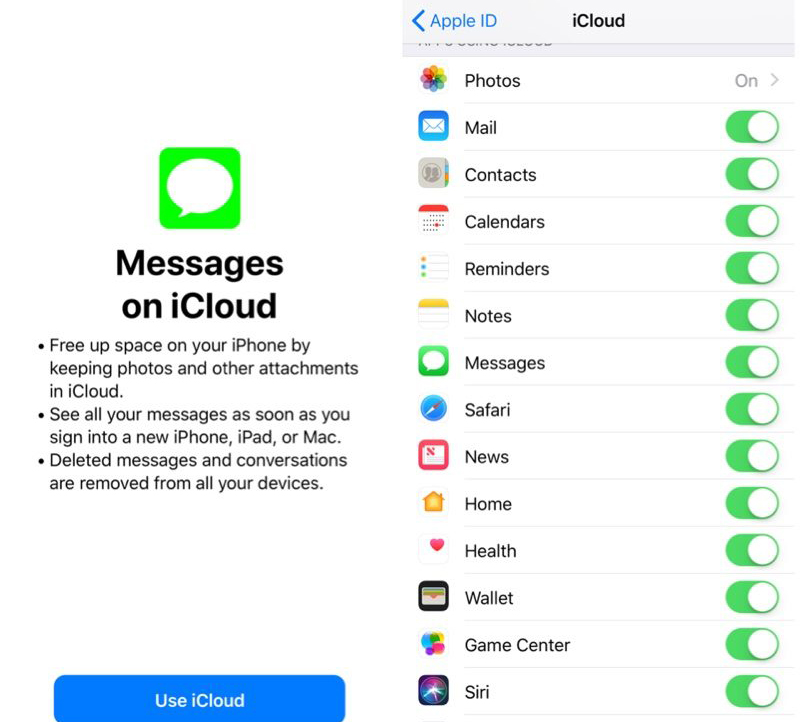
Option 2: Restore from iCloud (without overwriting your iPhone)

It has been an universal solution since the release of iOS 11.4—Apple finally provides services of synchronizing Messages conversations including photos and other attachments using iCloud in all territories and for all phone operators. Provided that you have Messages option set to ON under iCloud before the deleting of the texts, then you can restore text messages from your iPhone.

1. Go to the Settings > [Your Name] > iCloud.
2. Turn off Messages option.
3. In the notification that pops up, choose the first option: Keep on My iPhone
4. Now, turn Messages option on again.
5. In the pop-up, tap Merge, and wait. After a while the lost text messages and attachment associated with the conversions should back to your iPhone.

backup-and-restore-messages

If your did not create iCloud backup before you deleted the message history, don’t worry, you still have hope. Go ahead and try the following solutions.

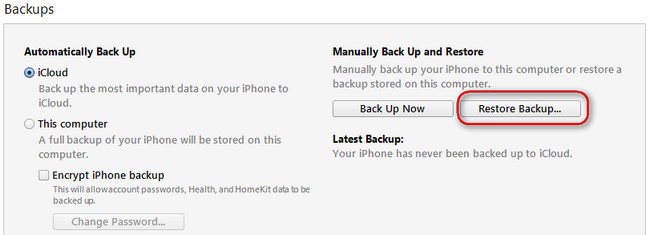
Option 3: iTunes backup

iTunes backup works in a similar fashion to iCloud backup. If you’re a big fan of iTunes and use it to continually creating regular backups of your iPhone, you can Retrieve Deleted Texts by connecting your iPhone to your computer. Let’s see how it’s done.

1. Connect the iPhone to computer and launch iTunes.
2. Click the iPhone icon appear in the top left-hand corner of the iTunes window.
3. Go to Summary section, then click Restore Backup…
4. Look at the date and size of each backup and pick the most relevant.
5. Click Restore and it will start restoring deleted text messages and other files to iPhone. Once done, you should see all your messages conversations appeared in the list on Messages app.

restore iphone xs sms from itunes-backup

Please note that restoring messages from iCloud or iTunes will erase all the current data on iPhone and replace the data you previously backed up. There isn’t a way to restore just messages from a backup.

d_win d_mac

Related Articles

Recover Deleted and Lost Data from iPhone X/Xs(Max)/XR

How to Recover Deleted Text Messages on iPhone X/8(Plus)

How to Recover Lost Text Messages after iOS 11/11.1 Update

How to Recover WhatsApp from iPhone X/iPhone 8(Plus)

How to Backup and Restore iPhone Text Messages on Mac

Recover SMS from iPhone XS without Backup

How to Recover Text Messages from Broken Screen Galaxy S6

[Summary]: Accidentally broken your Samsung Galaxy S6? Don’t know how to get data out of damaged Samsung phone? Here in this article, we’ll show you how to effortlessly restore text messages and others from broken screen Samsung Galaxy S6.

“All of a sudden, My Samsung Galaxy S6 just slipped from my pocket to the ground. Now its screen is smashed and I can’t access to the files on the phone. Is it possible for me to retrieve text messages on broken screen Samsung Galaxy S6?”

Extract SMS from Samsung Galaxy S6 with Broken Screen

Broken screen is one of the common causes of Samsung data loss. When your Samsung Galaxy S6 screen is broken, the touch function may become unresponsive, so all data and files can not be accessed, including text messages. If you are wondering how to extract and restore text messages from broken screen Samsung Galaxy S6, you can’t miss this article. This mentioned Android Data Extraction is a good assistant to recover lost data from broken Samsung phone.

If your Samsung Galaxy S6 device stays in broken, black, non-responsive screen, or you cannot touch it to operate, you can use this U.Fone ToolkitBroken Android Data Extraction to extract your needed data from a dead or damaged device. Thus, it is designed to retrieve text messages from Samsung Galaxy S6 easily. Let’s take a closer look at the areas covered by the tool:

Easily extract data from frozen or broken Samsung phones.
Support to recover contacts, call logs, messages, photos, videos, audios, WhatsApp, etc.
Restore data from broken, damaged, black screen, locked, virus infected, system crash, screen not responding Samsung phones and tablets.
Fully compatible with Samsung Galaxy Note 3/Note 4/Note 5, Samsung Galaxy S4/S5/S6, Samsung Tab ro 10.1.

d_win d_mac

Steps Guide to Restore from Broken Screen Samsung Galaxy S6

Step 1. Open Broken Android Data Extraction with PC

To restore SMS on broken screen Samsung Galaxy S6, you should launch this installed Broken Android Data Recovery with your computer first. Connect your broken screen Galaxy S6 to PC then click on the left “Start” button.

connect broken samsung to computer

Step 2. Select Fault Type on Your Samsung Phone

After that you will see a series of fault types, select the type of fault that you are facing currently with your Samsung Galaxy S6 smartphone, click on “Next” button.

Choose Phone Broken Types

Step 3. Select Correct Device Info

On the next page, choose the name and model of your Galaxy S6. Kindly, fill this information correctly as it will download the necessary files of that model to fix the issue.

Choose Samsung Model

Step 4. Get Samsung Phone into Download Mode

Reboot your Samsung Galaxy S6 in Download mode by pressing Home + Power + Volume Down buttons simultaneously. The software will begin downloading the required recovery package files.

broken samsung download mode

After downloading, the Broken Android Data Recovery starts scanning your Samsung Galaxy S6 to find all data types.

scanning data broken samsung galaxy

Step 5. Preview and Recover SMS from Galaxy S6 with Broken Screen

Once the scan is done, all files in your phone’s memory, SIM card, as well as your SD storage card will be scanned out and displayed in the left panel. You are allowed to preview the files that you want to recover then recover text messages from broken screen Samsung Galaxy S6 by clicking “Recover” button.

recover-sms-broken-samsung-galaxy

d_win d_mac

Tip: Make Backup of Samsung Galaxy S6

If you have any accidents on your Samsung Galaxy S6/S6 Edge, you may have nothing. There are many reasons for data loss, such as accidental deletion, formatting, flash ROM, Android OS update, rooting, Android phone get stuck on black screen/unresponsive screen and so forth. So to prevent the data loss, you would be better to make backup of the Samsung Galaxy S6 regularly in case of any unexpected incidence.

Phone Switch is what I want to recommend to you. With just one click, you can easily back up all data types from Samsung Galaxy S6 to a computer. Its highlights are mainly in several aspects:

– Transfer data from one device to another, even though they are cross-platform;
– Back up data to a computer with one click, like contacts, text messages, photos, videos, call logs and more;
– Selectively extract data from backup to any device.
– Permanently erase data from old phone to prevent privacy and personal information from being disclosed.

Related Article:

How to Recover Photos from Broken Samsung Galaxy S6/S6 Edge
How to Recover Contacts from Broken Samsung Galaxy S6/S7
How to Backup Data from Broken Samsung Galaxy S6
How to Recover Deleted Text Messages from Broken Android

How to Recover Text Messages from Broken Samsung Galaxy S6/S7
Recover SMS from Broken Screen Galaxy S6
4 Ways to Recover Deleted Notes on iPhone XS/XR/X/8/7

[Summary:] Deleted Notes on your iPhone? This article teaches you some tricks and tips from which you can retrieve deleted notes on new iPhone XS/Max, iPhone XR, iPhone X and iPhone 8/7/6s easily.

How to recover deleted notes on iPhone without backup?
“I deleted an important notes on my iPhone XS by careless, can I retrieve deleted notes on iPhone XS device without backup?”

How to recover lost notes after iOS 13 update?
iOS 13 upgrading cause all notes loss, I want to know is it possible to recover lost notes from iPhone after iOS 13 update? I really need to restore those lost notes, I haven’t backup my iPhone to iTunes or iCloud before iOS 13 upgrading, how to recover lost notes from iPhone after iOS 13 beta update?

Lost notes on your new iPhone XS, iPhone XS Max or iPhone XR? The iPhone Notes app is a fantastically useful tool that is great for making quick notes to yourself, be it shopping lists, lecture notes, or reminders. However, you may lose these notes due to mistaken deletion, iOS 12/11.4 upgrade, system crash, water damaged, jailbreak, factory restoring or other reasons.

Read Also:

* How to upgrade iPhone to iOS 13 safely

* How to Restore Deleted Voice Memo from iPhone

* How to Recover Deleted iPhone Notes after iOS 13/12 Update

You can easily restore deleted notes on the iPhone XS as long as you have had a backup of it in iTunes. Unfortunately, iTunes does not allow you to directly access your notes in it’s backup files and all existing data on iPhone XS will be replaced after restoring. To help you out, here we’re going to tell you 4 top methods to recover deleted notes on iPhone XS/XS Max/XR/X, as well as iPhone X, iPhone 8 and 8 Plus, iPhone 7 and 7 Plus, iPhone 6s, etc. Go ahead and read on more detailed information.

Part 1: Recover Notes on iPhone XS from “Recently Deleted” Folder

The Notes app offers a Recently Deleted feature to keep the deleted notes for 30 days, which means that you can easily get your deleted notes back from this folder if you have just deleted one or several important notes by accident.

Step 1. Open the Notes app on your iPhone XS, iPhone XS Max, or iPhone XR.
Step 2. Open the Recently Deleted folder and search for the note(s) you’d like to recover.
Step 3. Tap the “Edit” button in the top right corner, and choose the notes you’d like to recover.
Step 4. Tap the “Move to…” button and choose the folder you want to move the deleted notes back to.

Part 2: Recover Deleted Notes on iPhone XS without Backup

Whether you have a backup or not, iPhone Note Recovery software offers you a very user-friendly interface that you can use it to recover deleted notes easily and safely in three recovery modes. And you have the ability to view the notes available on iTunes, iCloud backup and protect your existing data from being overwritten. Not only notes, it can also retrieve as many as 20 types of files such as text messages, contacts, pictures, videos, music, calendars, bookmarks, voice memos, etc. You’re also allowed to preview the deleted notes and recover them selectively.

d_win d_mac
d_win d_mac

Hightlights of iPhone Data Recovery:

  • Restore lost or deleted notes without losing any other contents.
  • Recover notes lost due to accidental deletion, factory reset, broken device, forgotten password, iOS update, etc.
  • Restore notes from iDevice, iTunes backup files and iCloud backup files.
  • Support 20+ types of data recovery including contacts, SMS, photos, videos, WhatsApp messages, Safari Bookmarks, voice mail, etc.
  • Fully compatible with all iOS devices including iPhone XS, iPhone XS Max, iPhone XR and latest iOS 12.3 & iOS 13

Recover Lost Notes on iPhone XS with iOS 13/iOS 12 Update

Step 1. Open iPhone Data Recovery
Open the installed iPhone Data Recovery software on your Windows PC or Mac computer. On its home screen, choose “iPhone Data Recovery” option to start.

run ios 11 data system recovery

Secondly, locate on “Recover from iOS Device” mode and plug your iPhone XS device with your computer and click on “Start Scan”.

connect device to computer

Step 2. Scan iPhone XS to Find Deleted Notes
As you can see, the software is scanning your new iPhone XS and you can see the items being scanned from the window.

scan device for lost data

Step 3. Preview and Selectively Recover Deleted Notes on iPhone XS
When the scan is complete, preview the Notes in the scan result and choose the ones you need, then click on “Recover” to save them to your computer.

recover data from device

d_win d_mac
d_win d_mac

Part 3: Recover Deleted Notes on iPhone XS from iTunes Backup Files

With the help of iPhone Data Recovery tool, you can extract data from iTunes backup files and recover special notes.

Step 1. Select iTunes Recovery Mode

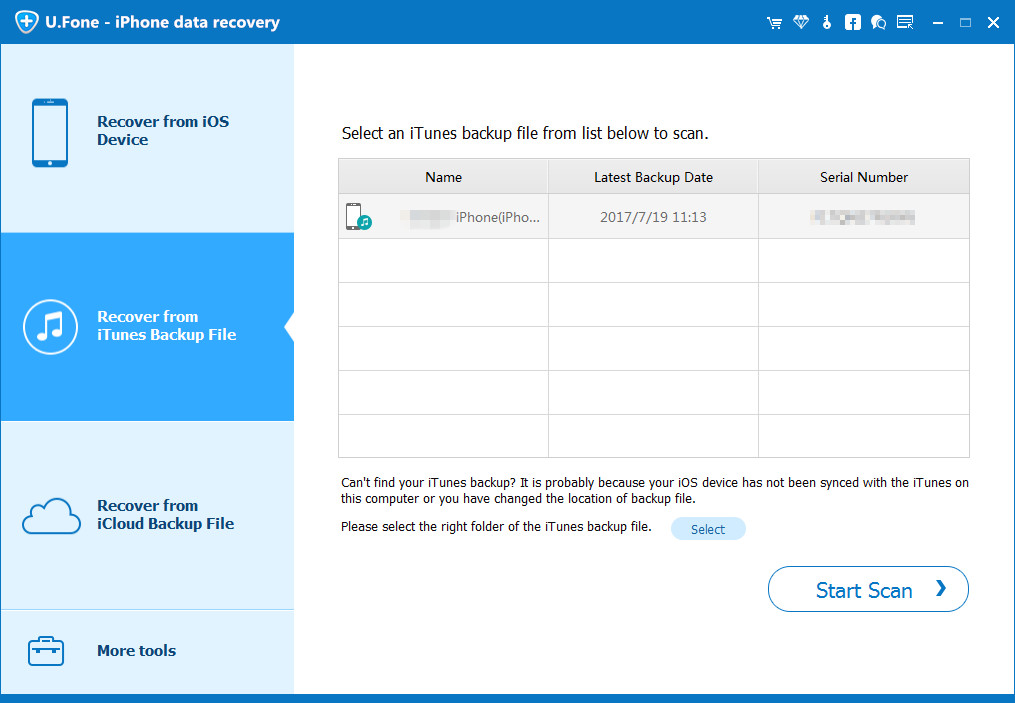
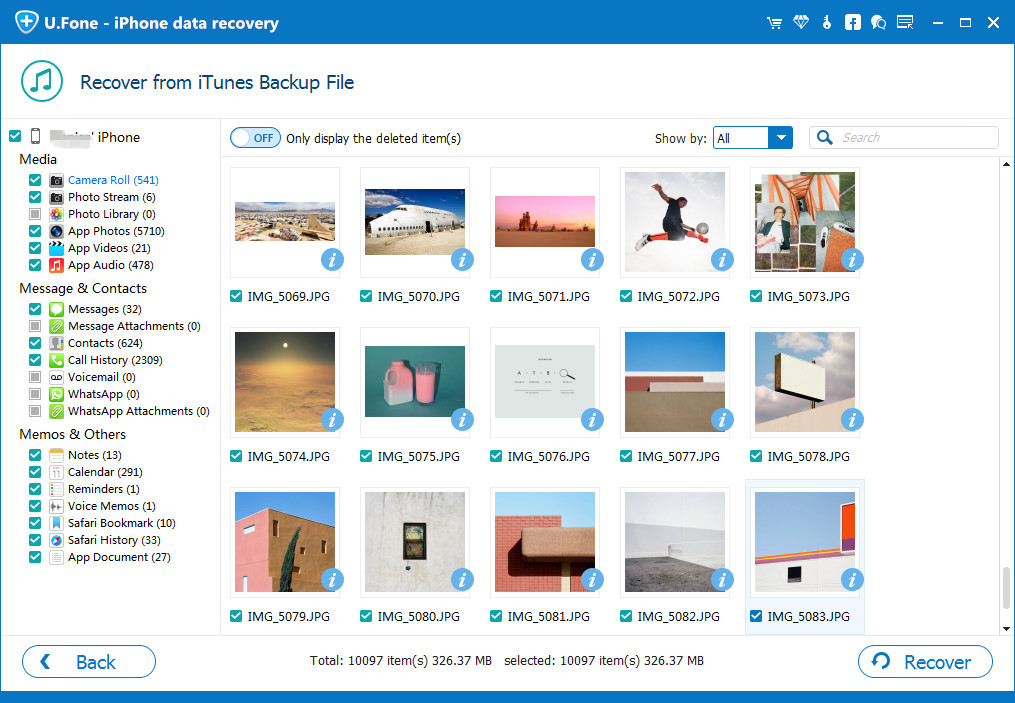
Launch the software and select “Recover from iTunes Backup File” mode. All iTunes backups are listed on the screen, you can choose a specific iTunes backup from which you are able to recover lost notes, and then click “Start Scan”.

scan itunes backup

Step 2. Extract and Recover Notes from iTunes Backup

The scan results will be shown on the interface clearly. Browse them according to your needs, and select the notes you want to restore. Simply hit on “Recover”.

restore text messages from itunes backup

d_win d_mac
d_win d_mac

Part 4: Recover Deleted Notes on iPhone XS from iCloud Backup Filesp

By using this iPhone Data Recovery software, you can also restore deleted notes on iPhone XS/XS Max/XR from iCloud backup files.

Step 1. Choose iCloud Recovery Mode and Sign in

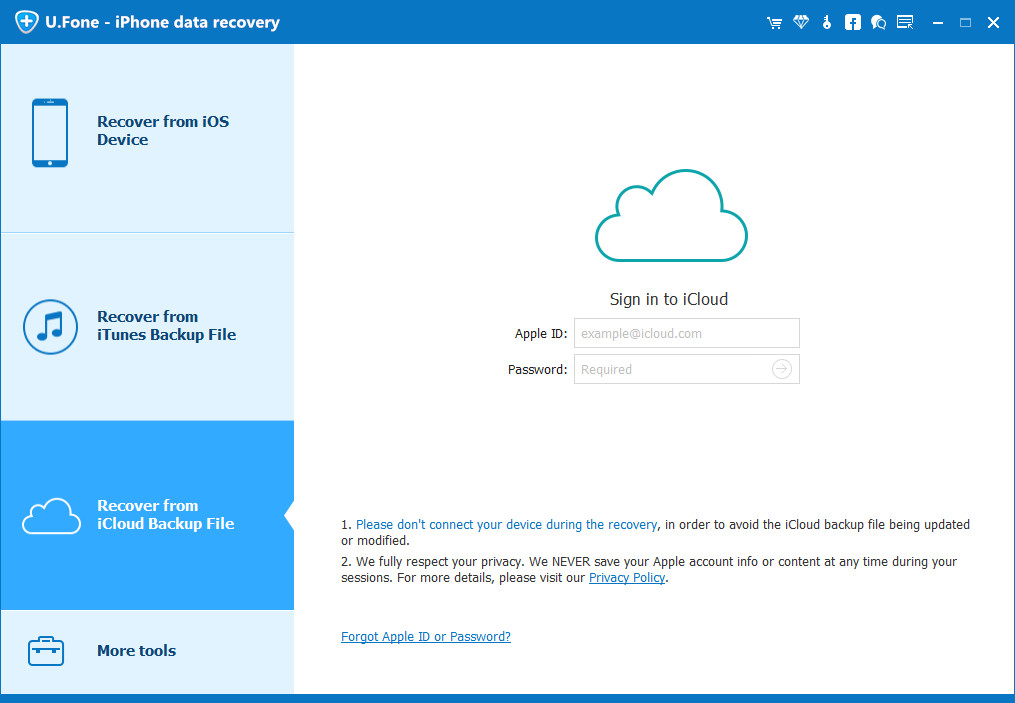
Launch iPhone Data Recovery and choose “Recover from iCloud Backup File” mode. After that, you will be asked to enter your iCloud user details: user name and password to sign in.

login icloud

Step 2. Download iCloud Backup Files

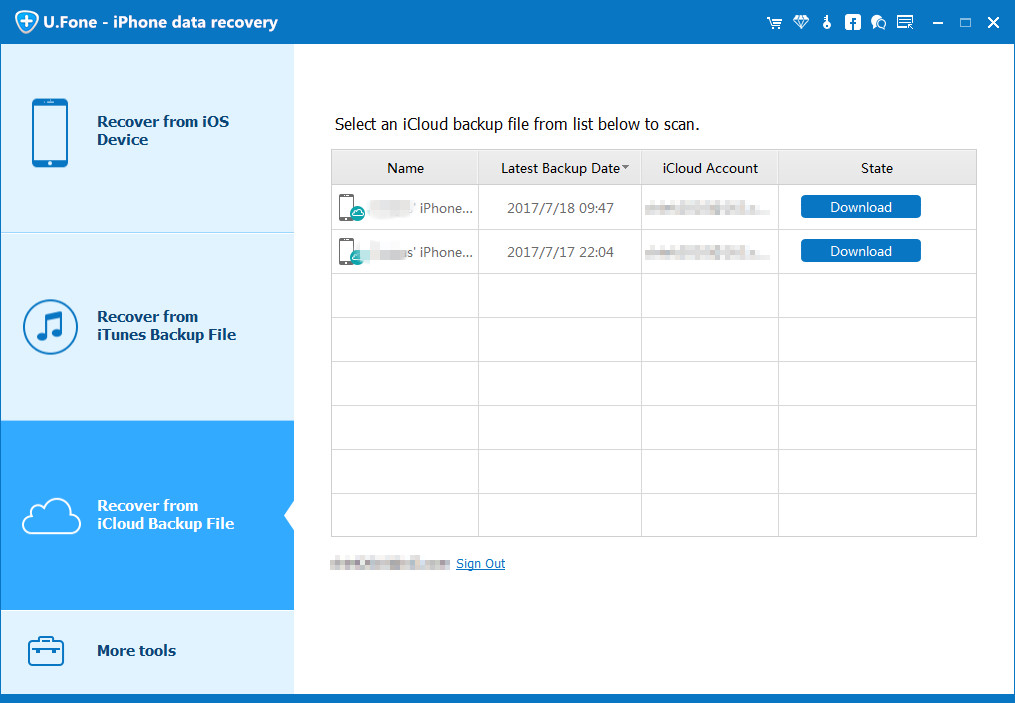
This software will scan all your previous iCloud backup files in this account. Choose the one with deleted notes. Click the “Download” button and it will take a few minutes to download your iCloud backup files.

choose icloud backup

Step 3. Preview and Restore Notes from iCloud Backup

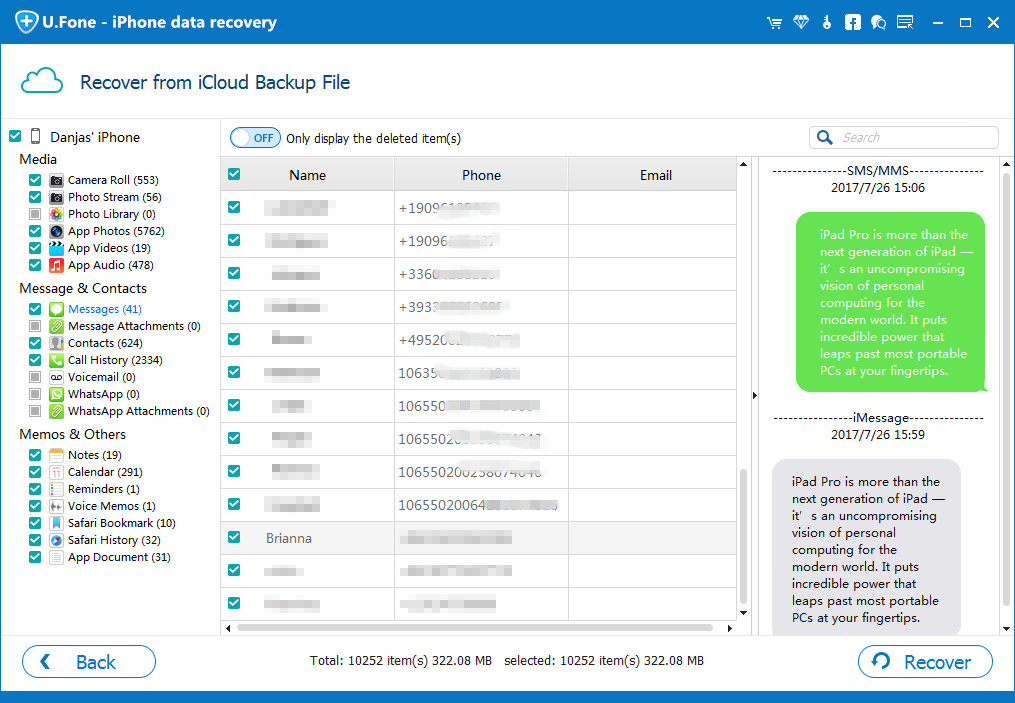
After the scan is finished, the search results will be clearly showed on the interface. Choose notes you want to retrieve, and then click “Recover”. Finally, select a location on your computer to store the recovered notes.

recover text messages from icloud backup files

d_win d_mac
d_win d_mac

Related Articles

Recover Deleted and Lost Data from iPhone X/Xs(Max)/XR

Ways to Recover Deleted Photos Videos from iPhone XS/Max

How to Recover Deleted Text Messages on iPhone XS/XS Max/XR

Ways to Recover Lost Note from iPhone after iOS 13/12 Update

Recover Deleted Notes on iPhone XS

How to Recover Data from iPhone XS/Max/XR on Mac?

[Summary]: Accidentally deleted or lost data on your iPhone XS/Max/XR? Don’t worry! The passage will teach you an easy way to recover deleted or lost iPhone XS/Max/XR data on Mac . It can recover any data,including,recover photos, videos, contacts, WhatsApp, messages, call logs and text messages, etc.

How to recover deleted/lost data from iPhone XS/Max/XR on Mac?

“Who can tell me how to recover lost data from my iPhone XS on Mac computer?
“I deleted all the precious videos on my iPhone XS while connecting it to my Mac computer to replay. I can’t find the videos on my iPhone XS neither on the Mac computer.”
Does anyone help me recover deleted videos from iPhone XS on Mac computer?”

This passage will introduce you a reliable way to recover lost/deleted data from iPhone XS, iPhone XS Max and iPhone XR. In additional,it can also recover videos, contacts, messages, notes, photos, WhatsApp message, call logs, ect. Just follow to get your lost data back now.

U. Fone iOS Toolkit – iPhone Data Recovery is a magical recovery software,just for 4 steps to get back deleted data directly from iPhone XS/Max/XR.

Begin by downloading and installing the software-U.Fone iOS Toolkit.

d_win d_mac

Guide to Recover Data from iPhone XS/Max/XR on Mac Directly

Step 1: Scan your iPhone XS

Running the recovery software and plug your iPhone XS into the Mac using a USB cable. From the left side of the window,you should choose the button “Recover from iOS Device”. The magical software will identify the device by model name and displays it on the pane.

run ios 11 data system recovery

Step 2: Start to scan the data from your phone

After connected, clicking the button “Start Scan”and the program will begin scanning through data on iPhone XS. It will take you several minutes.

connect device to computer

Step 3: Recover the Lost Data from iPhone XS on Mac

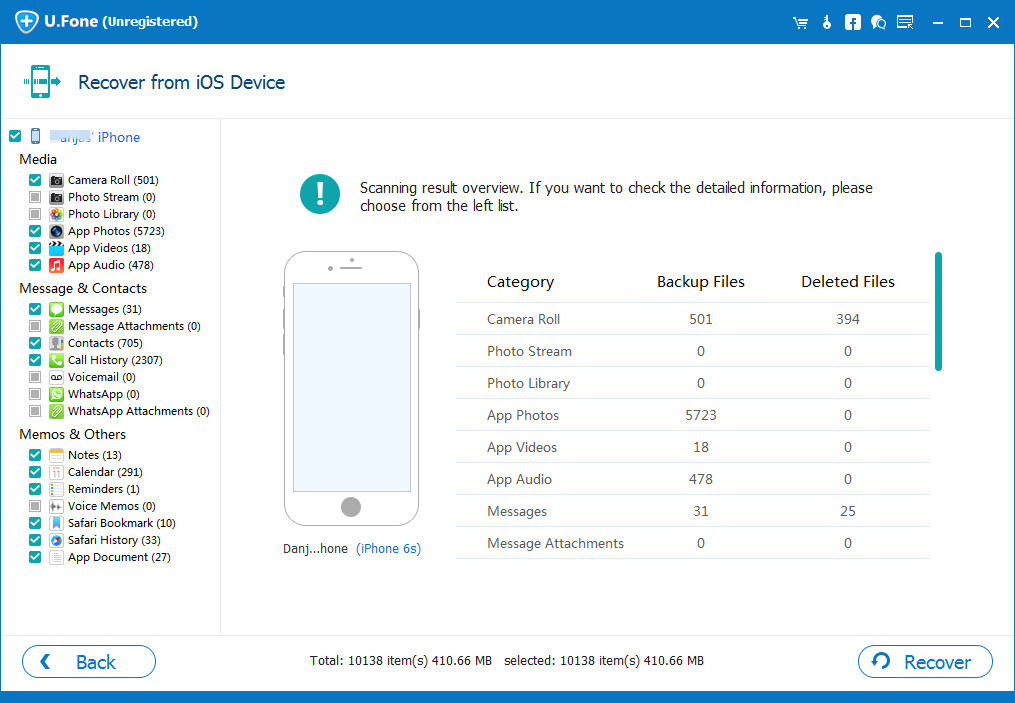
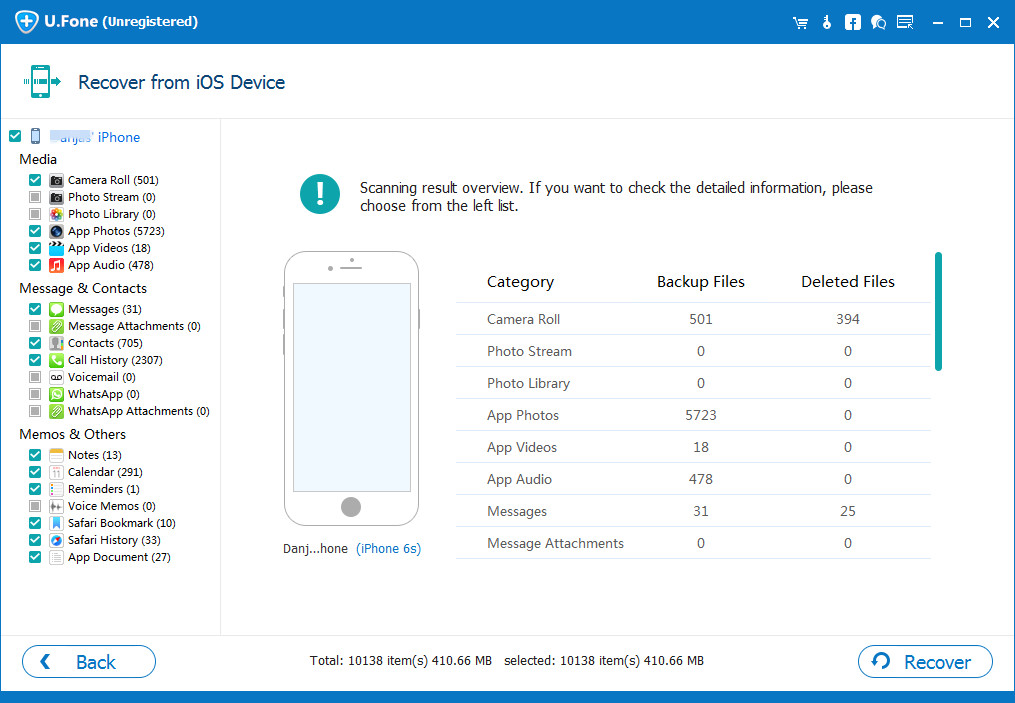
After scan,it shows you the number and types of files it has found from your iPhone.You will get a overview window just like the screenshot demonstrated below. It sorts files by different of categories on the left sidebar to help sifting through deleted files more quickly.

scan device for lost data

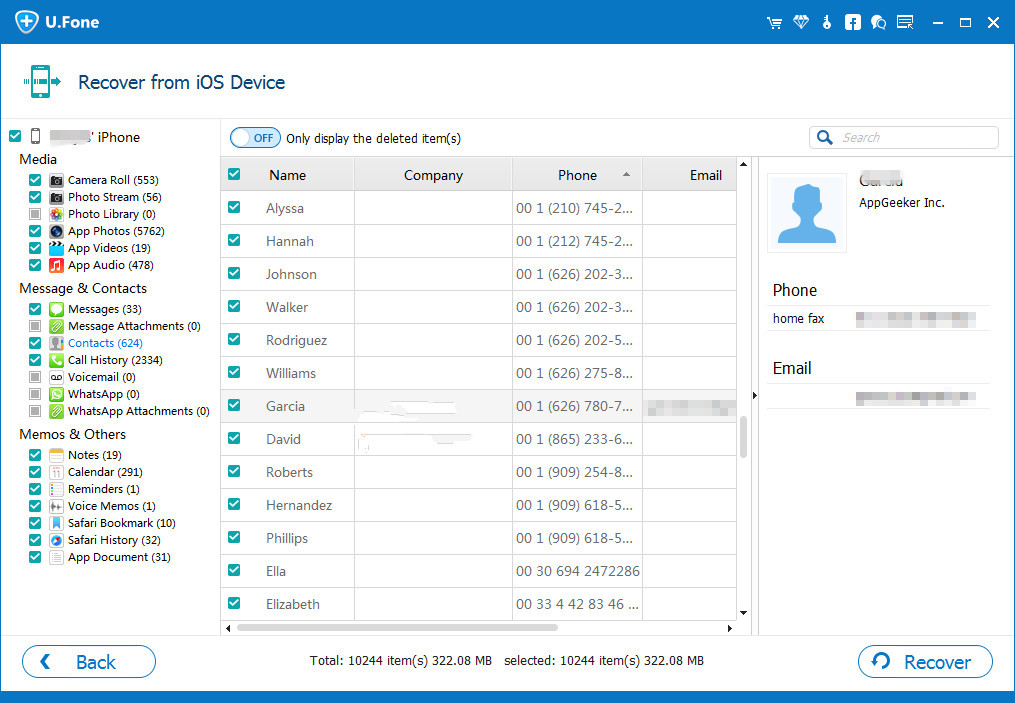
You can preview all the data at the left side,including, Photos, Videos, Contacts, Messages, Call History, Notes, and anything from your iPhone. Choose the lost/deleted data you need to recover by ticking the boxes next to each file.Then click the button “Recover” to start , before that you should choose a saving location in the pop-up dialog box.

recover data from iphone xs on mac

After a minute all the lost data will be saved to your Mac computer and organized by type.

d_win d_mac

Related Articles

How to Recover Lost Photos from iPhone XS/XS Max/XR?

Ways to Recover Deleted Photos Videos from iPhone XS/Max

How to Recover Deleted or Lost Data From iPhone XS/XS Max/XR

Recover Deleted Text Messages on iPhone XS/XS Max/XR

How to Recover Deleted Contacts on iPhone XS/XS Max/XR

iPhone XS Data Recovery on Mac

How to Recover Deleted Text Messages on iPhone XS/XS Max/XR

iPhone XS, iPhone XS Max and iPhone XR are Apple’s most advanced phones. When people are immersed in the joy of getting a new phone, some data loss problems are gradually emerging. Like text messages disappeared on iPhone 8/X, you will accidentally press the ‘delete’ button to remove your wanted text messages from iPhone XS/XS Max/XR, how to retrieve deleted messages on iPhone XS/XS Max/XR?

People are also interested in:

* How to Recover Deleted Text Messages on iPhone X/8(Plus)

* How to Recover WhatsApp from iPhone X/iPhone 8(Plus)

When you delete some messages from the iPhone XS, iPhone XS Max or iPhone XR, these files are not actually deleted, they are invisible and just marked as system deleted and hidden in the phone. Therefore, you are advised to stop using your iPhone XS/XS Max/XR to prevent deleted files from being overwritten by new data. Then try a third-party software to retrieve your deleted or lost SMS/MMS/IMessages on iPhone XS/XS Max/XR.

No harm to any other data on your iPhone XS/XS Max/XR, iPhone Data Recovery Software is worth trying, it provides a simple and green platform where you can retrieve lost text messages in three recovery modes: recover from iPhone device or extract data from iTunes and iCloud backup files. Unlike iTunes and iCloud, you are allowed to preview files and select special data to restore without erasing original contents. Each type of data is recoverable, like Contacts, Messages, Gallery, Videos, Call History, Music, Voicemail, Notes, Calendars, Reminders, Bookmarks, and App data and more. In addition, this app can help you retrieve data in a variety of scenarios:

Accidently deleted data on iPhone, iPad and iPod touch devices.
iOS 12, iOS 11.4, iOS 11.3, iOS 10.3 update deleted iPhone files.
iPhone factory settings restore erased all data including text messages.
iPhone jailbreak, black screen, white Apple logo screen of death cause messages and other data loss.

d_win d_mac

Part 1: Recover Deleted Text Messages on iPhone XS without Backup

Step 1. Open iPhone Data Recovery

Firstly, install and open the iPhone Data Recovery Software on your PC and the tool is available for both Windows and Mac. Go to iPhone Data Recovery feature to start the process.

run ios 11 data system recovery

Next, follow the instructions on the screen to connect your iPhone XS device to your computer with its lighting cable. Then click on “Start Scan”.

connect device to computer

Step 2. Scan iPhone XS to Find Deleted Messages

The recovery program will scan your iPhone XS device automatically. And the specific scan information will be displayed on the screen, please wait patiently.

scan device for lost data

Step 3. Preview and Recover Deleted Text Messages on iPhone XS

Now you can see all the recoverable messages. Check the “Messages” and “Messages Attachments” to preview all text messages that you need to recover. Finally, get back the deleted text messages and attachments and save them to your computer by using “Recover” button.

recover data from device

d_win d_mac

Part 2: Restore Deleted Text Messages from iTunes Backup

Step 1. Select iTunes Recovery Mode

Launch the software and choose “Recover from iTunes Backup File” mode. It will recognize all iTunes backup files automatically. You need to select the one contain your deleted messages and click on “Start Scan” to extract iTunes backup files.

scan itunes backup

Step 2. Preview & Restore Messages from iTunes Backup

After scanning, you can preview all the missing text messages and its attachments. Tick the messages for recovery, and then click on the “Recover” button to save the files back to your computer.

restore text messages from itunes backup

d_win d_mac

Part 3: Retrieve Deleted Text Messages from iCloud Backup

Step 1. Sign in iCloud Account

Similarly, launch iPhone Data Recovery and choose the “Recover from iCloud Backup File” mode to get started. Now enter the username and password to log in your iCloud account.

login icloud

Step 2. Download and Extract iCloud Backup Files

Once logged in, all the iCloud backup files will be recognized. Choose one to download and extract these downloaded files.

choose icloud backup

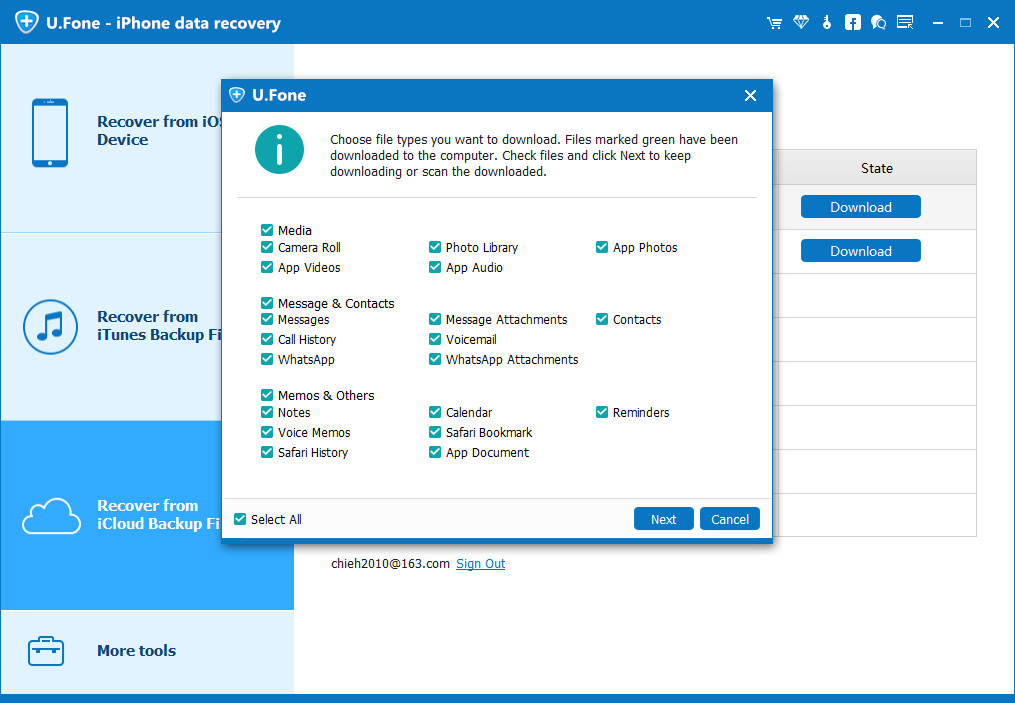
The program will remind you to select the required data to download in a small window, saving more time. You can also tick “Select All” to download all backup content.

icloud download and extract

Step 3. Retrieve Deleted Text Messages from iCloud Backup

After downloading, you are able to preview the messages one by one and select the messages you want to get back. Click on “Recover” button to retrieve to your computer.

recover text messages from icloud backup files

d_win d_mac

Another Recommended Tool – iPhone XS Data Recovery Software

Unexpected incidents lead to data loss. iPhone XS Data Recovery helps recover contacts, message, photos, videos, notes, and other contents on your iPhone XS, iPhone XS Max, iPhone XR, iPhone X/8/8 Plus/7/7 Plus/6s, iPad or iPod Touch. Four recovery modes are provided, and Smart Recovery mode is based on your data loss type and then develops a corresponding recovery method for you. To sum up what what this reliable software can do for you:

Recover data in four recovery modes, Smart Recovery, recover from iOS devies, recover from iTunes or iCloud backup files.
Get back deleted or lost data selectively and safely.
Support 20+ file types (WhatsApp, SMS, contacts, photos, music, videos, etc.)
Recover data lost due to accidentally deletion, system crash, virus attack, locked iPhone, iOS update, water damaged, etc.
Compatible with latest iOS 12 and iPhone XS/XS Max/XR.

Get the specific steps here: 3 Ways to Recover Text Messages from iPhone after iOS 11/12 Update

best iPhone xs data recovery

Related Articles

Recover Deleted and Lost Data from iPhone X/Xs(Max)/XR

Ways to Recover Deleted Photos Videos from iPhone XS/Max

Transfer Files from iPhone Xs(Max)/X/8/7/6S/6 to Computer

How to Transfer Data to from iPhone to iPhone XS/XS Max/XR

Recover Deleted Text Messages on iPhone XS

How to Recover Deleted Contacts on iPhone XS/XS Max/XR

Summary: Deleted cocntacts on new iPhone XS/XS Max/XR mistakenly? Here are three tips for retrieving deleted contacts from iPhone XS/XS Max/XR.

Contacts disappeared or missing on your newly updated iPhone XS, iPhone XS Max or iPhone XR? No matter how perfect your iPhone XS/XS Max/XR is, things are always unsatisfactory. We rely on iPhone contacts to call, message, email our relatives, friends, classmates, colleagues and customers to keep in touch with them. Losing contacts is one of the bad things. As a reminder, we list the reasons that are most likely to cause data loss, including contacts. Doing so reduces the likelihood of data loss:

Wrongly deleted contacts on iPhone XS/XS Max/XR
Factory reset removes iPhone XS data and files including contacts
Contacts are missing after jailbreaking latest iPhone XS/XS Max/XR
Your iPhone XS was water damaged or broken
iOS update failed causing everything is gone, such as contacts
Your iPhone XS is sudden stuck in recovery mode and cant extract contacts in it
Your iPhone XS/XS Max/XR is locked by forgotten password or stolen

Cant Miss:

* How to Recover Contacts from iPhone after iOS 12 Update

* Recover Contacts from Locked iPhone without iTunes Backup

When you are facing a loss of contacts, it is wise to stop using the iPhone XS/XS Max/XR to prevent deleted contacts from being overwritten by the newly added data. Here in this article, we list a number of different ways for you to recover disappeared contacts on iPhone XS/XS Max/XR, as well as iPhone X/8(Plus)/7(Plus)/6s(Plus)/SE/6(Plus).

Way 1: Restore Contacts on iPhone XS from iCloud

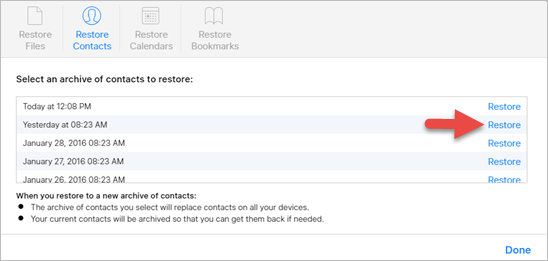
Step 1. Log in to iCloud from www.icloud.com using your Apple ID and password.

Step 2. Go to “Settings” and select the data you want to restore from iCloud Drive, including Contacts, Calendars and Bookmarks.

Step 3. Click on “Restore Contacts” to select the contacts you need to get back. Finally, tap on “Restore” to get deleted contacts back on your iPhone XS/XS Max/XR.

restore-contacts-in-icloud

Way 2: Retrieve Contacts from iPhone XS via Google

Before starting process of restoring contacts with Google, some conditions should be met:

1. You should have access to your Gmail account.
2. You should have synced your contacts with Gmail before.
3. Your iPhone should be connected to Internet correctly.

Step 1. Go to Settings > Contacts > Add Account on iPhone XS/XS Max/XR.

Step 2. Choose “Google” and login in with Google account.

Step 3. Switch on the “Contacts” and click “Save” to sync contacts to iPhone XS/XS Max/XR device.

Way 3: Recover Contacts from iPhone XS without Backup

If you don’t have a Gmail account, or iTunes/ iCloud Restore will delete all data and files on iPhone XS by default. What should you do? How can you retrieve deleted and lost contacts from iPhone XS/XS Max/XR without losing any other contents?

Try this U.Fone iOS Data Recovery, you can able to recover missing contacts from iPhone XS/XS Max/XR without backup. Or you can extract contacts from iTunes and iCloud backup files and no data will be overwritten. In addition to contact recovery, this app is also suitable for retrieving various types of data, like iMessages, photos, videos, call logs, music, calendars, notes, whatsapp chat history, bookmarks, etc. Its strong compatibility makes it work well on Windows PC or Mac PC for iPhone XS, iPhone XS Max, iPhone XR, iPhone X, iPhone 8/8 Plus, iPhone 7/7 Plus, iPhone 6s/6s Plus, iPhone SE, iPhone 6 and iPhone 6 Plus and more.

d_win d_mac

Step 1. Launch U.Fone iOS Data Recovery on PC

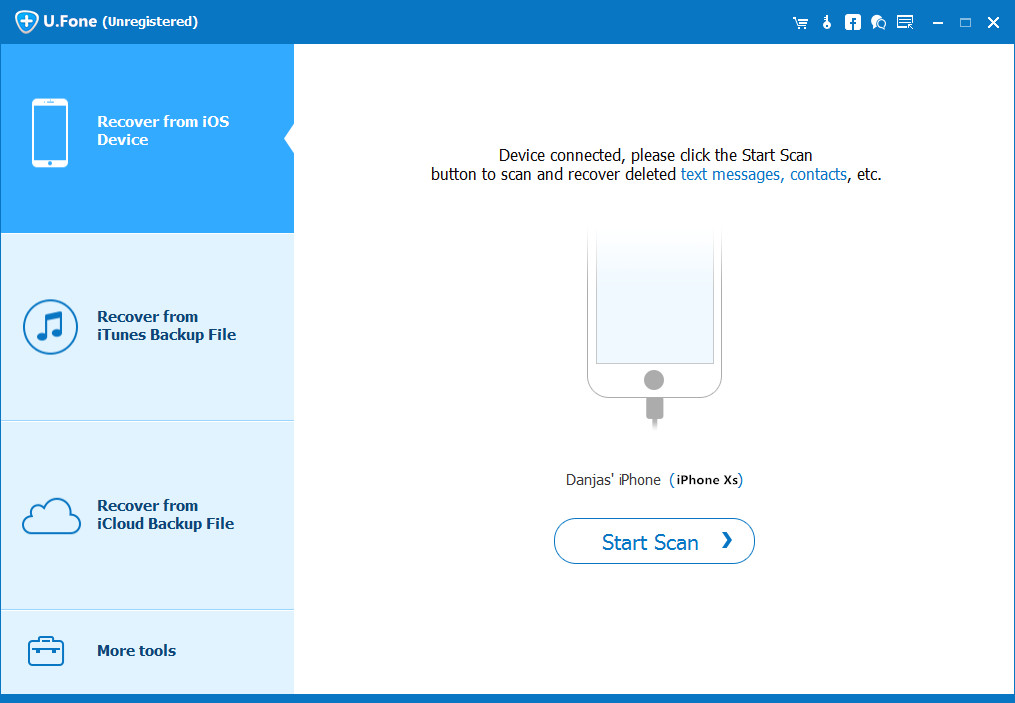
Firstly, free download, install and launch U.Fone iOS Data Recovery software with your Windows PC or Mac PC. In order to retrieve deleted contacts from iPhone XS, choose “iPhone Data Recovery” feature to start.

launch u.fone iPhone data recovery

Next, you should connect iPhone XS, iPhone XS Max or iPhone XR to your computer with its lighting cable. The device will be detected by the program right now. Click on “Start Scan”.

connect iPhone XS to computer

Step 2. Scan iPhone XS for Deleted Data

Then the software begins scanning iPhone XS memory, including those contacts that have been deleted.

scan lost data from iPhone xs

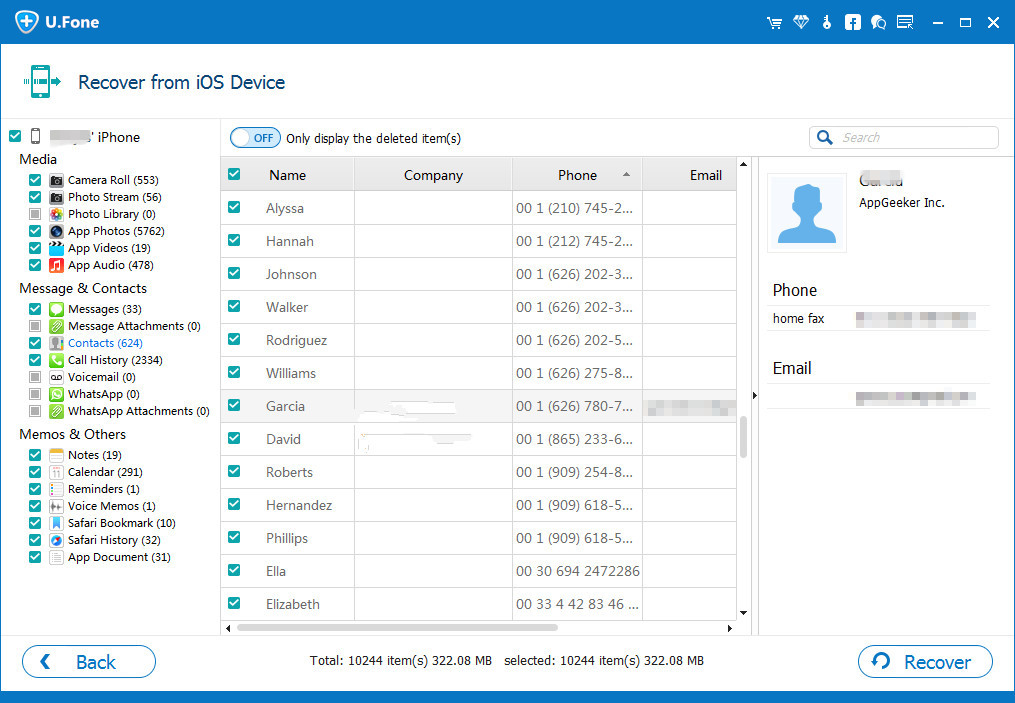
Step 3. Preview and Recover Deleted Contacts on iPhone XS/XS Max/XR

Once done, all data will be displayed on the left portion, sorted by different file types. For lost contacts, you can choose “Contacts” and find those contacts you want back. Then click “Recover” to save them on your computer.

recover contacts from iPhone xs

d_win d_mac

Other Solutions You Might Want to Try

1. iPhone Data Recovery

iPhone Data Recovery is a data recovery program that is able to work on iPhone devices and iTunes / iCloud backup for data recovery like pictures, videos, documents, contacts, calendars, SMS, etc. no matter what causes the data loss problems, such as deletion, iOS update, factory reset, jailbreak, water damaged, in Apple logo, in recovery mode, lost iPhone and locked iPhone.

Look at the specific steps here: How to Recover Data from iPhone 8/8 Plus/X/XS

iphone data recovery

2. iOS Toolkit

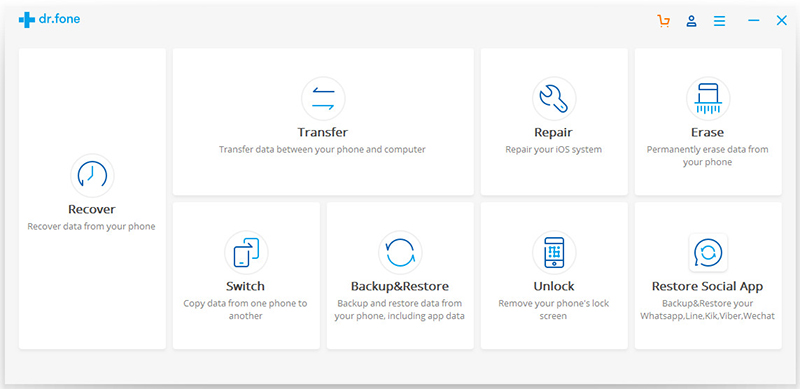
iOS Toolkit, this all-in-one tool not only works to recover lost data from iPhone/iTunes Backup/iCloud Backup files, but also enables a one-click data transfer between Android and iOS devices. Whether you switch from iPhone/Android to Android/iPhone, you can handle well your old phone data so that you can use the most advanced equipment without any worries. Besides, you can use it to unlock the locked iPhone with forgotten password.

ios toolkit home screen

Related Articles

Recover Deleted and Lost Data from iPhone X/Xs(Max)/XR

Ways to Recover Deleted Photos Videos from iPhone XS/Max

Move Data from Android Samsung to iPhone X/Xs (Max)/XR

Transfer Data from iPhone/Samsung/Nokia/BlackBerry to iPhone X/Xs

Recover Deleted Contacts on iPhone XS