All posts by DHZ

How to Recover Lost Contacts after iOS 12/13 Update

[Summary]: Your contacts have been deleted, lost, disappeared or missing after iOS 13/iOS 12.1.4 update on your iPhone and looking for methods to get them back as soon as possible? This article will share you three best ways to recover lost contacts/phone numbers on iPhone after updating to iOS 12 or iOS 13.
recover contacts after ios 13 update

Three Best Way to Recover Lost Contacts from iPhone after iOS 12/13 Update

Apple’s official website has released the iOS 12.1.4 and iOS 13 will be release in 2019, when release an new iOS system, you may jump to the new system right away. However, some users complained that they lost important data such as Contacts after the iOS update. More and more users are eager to know how to recover lost data contacts after updating to iOS 12.1/iOS 13.

How to Recover Lost Contacts after iOS 12/13 Update?

As a professional iOS data recovery tool, iPhone Data Recovery offers you 3 modes to get back lost contacts and other files on iPhone, iPad, or iPod touch after iOS 12.1 upgrade.

3 recovery modes are offered for iPhone contact recovery: Recover from iOS Device, Recover from iTunes Backup, and Recover from iCloud Backup.
It scans your iPhone deeply and finds the lost or deleted contacts after iOS 12.1 or iOS 13 update.
You are enabled to preview lost iPhone contacts from iTunes/iCloud backup and selectively recover them without restoring,
It helps recover all types of iOS data, including contacts, text messages/iMessages, message attachments, photos, notes, whatsapp messages, call history, etc.
It recovers deleted iOS data in various circumstances, such as accidental deletion, phone formatting, factory reset, virus attack, inappropriate operation, unexpected error during iOS system upgrade and so forth.


d_win d_mac
d_win d_mac

Method 1. How to Recover iOS 13/12.1 Lost Contacts without Backup

Firstly, get the iPhone Data Recovery software installed on the computer. After running it, you will gain this main page as below. The software provides several recovery modes, where using Smart Recovery you can choose the appropriate recovery method based on the data loss situation.

smart iphone data recovery main page

Step 1.Connect iPhone with the Program

Connect your iPhone to the PC or Mac with an original USB cable. Then open the iPhone Data Recovery program and it will detect your device automatically. Select “Recover from iOS device“option to activate the process.

connect iphone with computer

Step 2.Scan Data on iPhone

Here you can see the complete info about your iPhone, and all the recoverable files. Then tick the “Contacts” option and click the “Next” button to start to scan the lost or deleted contacts on iPhone.

select contacts to recover

After that, the program begins scanning your iPhone for deleted or lost contacts.

scan iphone and search lost contacts

Step 3.Preview and Recover Lost Contacts from iPhone Directly

Wait a while until the scanning is completed. Next choose the “Contacts” item on the left column to preview the lost iPhone contacts. Simply click the “Recover” button to retrieve all selected contacts.
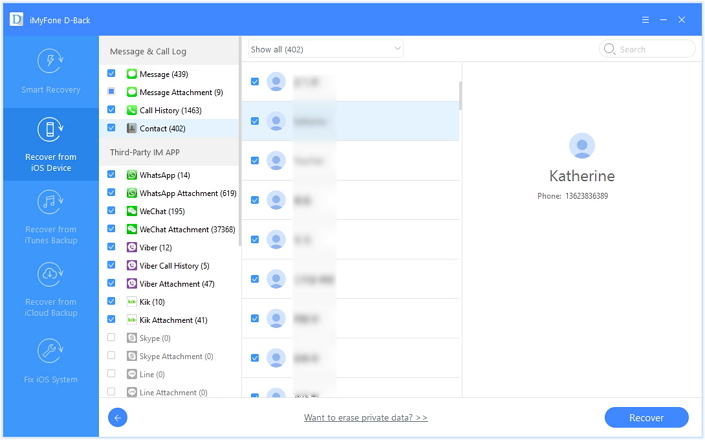
recover iphone contacts

Method 2. Recover Lost Contacts after iOS 13/12.1 Update with iTunes Backup

Once you have iTunes backup files, you can use iPhone Data Recovery to retrieve lost contacts on iPhone after iOS 12 upgrade by extracting from iTunes backup files.

Step 1.Choose and Extract the iTunes Backup

Open the program and then hit the “Recover from iTunes Backup” mode on the top menu bar. All your iTunes backup files will be shown in the list. You need to choose one backup file that may contain the missing contacts you want and click on “Scan”.

extract backup file from itunes

Step 2.Preview and Restore Contacts from iTunes Backup

When the scanning is done, all the recoverable contacts will be displayed. Tick all iPhone contacts you want to restore and then click the “Recover” button to get contacts back quickly.
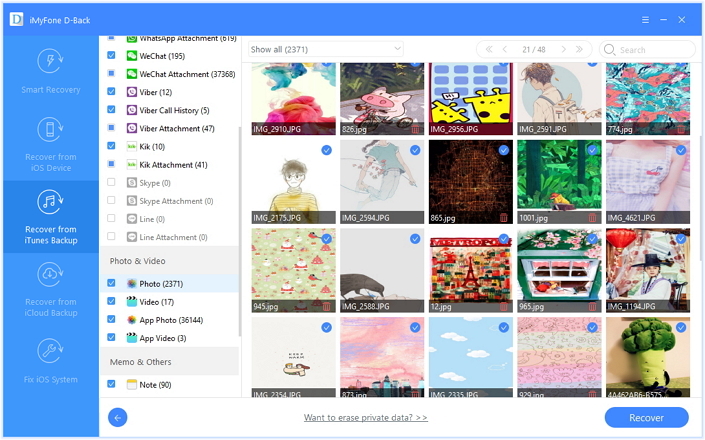
restore iphone contacts from itunes backup

Method 3. Recover Lost Contacts after iOS 13/12.1 Update with iCloud Backup

Alternatively, you can use iPhone Data Recovery to recover iOS 12.1.3/iOS 13 missing contacts if you have iCloud backup before iOS 13 update.

Step 1.Run the Software and Log into iCloud

Launch the program on the computer and switch to the “Recover from iCloud Backup” recovery mode. Then enter your Apple ID and passcode to sign in the iCloud account.
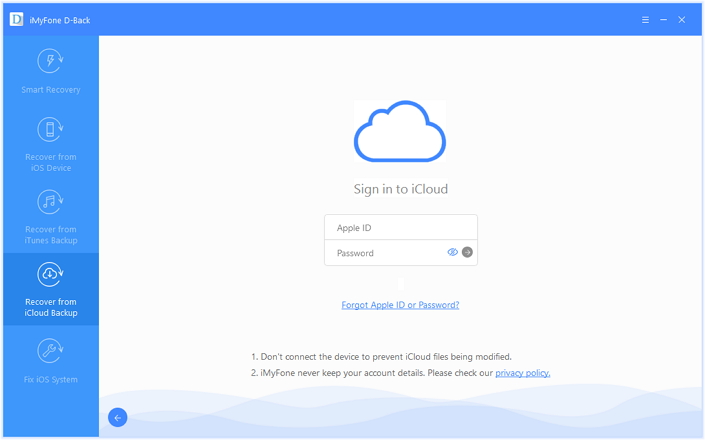
sign in icloud account to login

Step 2.Download A Backup File and Scan

Once you signed in, you can see all iCloud backup files you have. Select the latest backup file and click the “Next” button to download and extract the iCloud backup file.
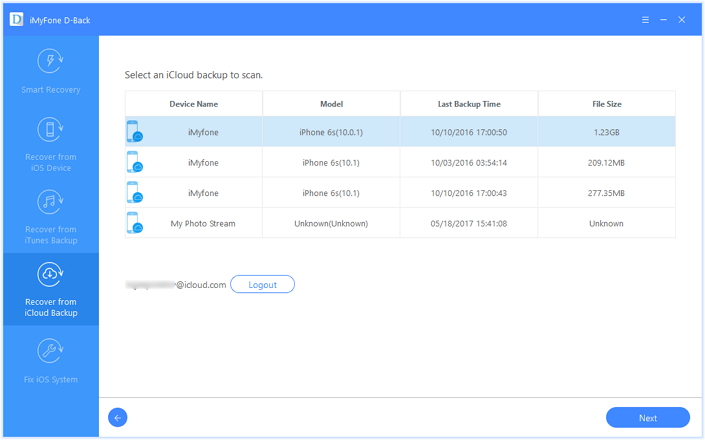
download icloud file

Step 3.Restore Missing iPhone Contacts via iCloud Backup

Wait until the download process is completed, all the recoverable contacts are listed. You are able to preview the contacts and tick all or the important ones you desire. Click the “Recover” button to export them to your computer.
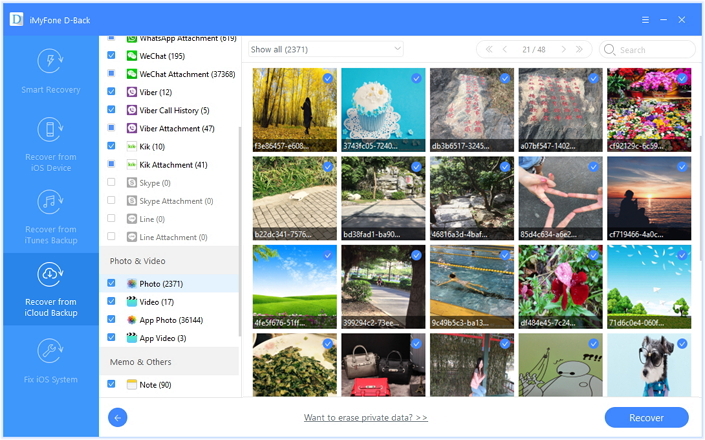
recover iphone contacts from icloud backup

d_win d_mac
d_win d_mac

Related Article

Ways to Recover Contacts from iPhone after iOS 12 Update

Restore WhatsApp Data on iPhone/iPad after iOS 12 Update

Ways to Recover Lost iPhone Photos after iOS 11 Update

Restore Deleted App Data from iPhone after iOS 12 Update

Recover Call Logs from iPhone/iPad after iOS 12 Update
Recover Contacts after iOS 12.1 Update
How to Recover iPhone Lost Data after iOS 15/14 Update

Summary
How to recover iPhone lost data after iOS 15/14 update? This guide teach you how to recover lost contacts, iMessages, WhatsApp messages, videos, pictures, notes or safari bookmarks after iOS 15 update, you can get lost data back from iPhone/iPad/iPod after upgrading to iOS 15.

CONTENTS

Every iOS system updates, some bugs for iPhone/iPad user and data loss is one of the most headache issues. The most commonly seen problem is that iOS iOS 15 update failed or stuck due to an error occurred, verifying update loop, freezing on white apple logo or recovery mode. However, to recover iPhone lost data after iOS 15 update, you can connect the iPhone to computer and use a third-party iOS 15 Data Recovery to scan your iPhone on PC and Mac, which is the best iOS 15 Data Recovery?

Lost Data After iOS 15 or iOS 14.8 Update

“iOS 15 was just available, I immediately upgraded my iPhone 12 to iOS 15. It seems that everything went smoothly, but I found some data lost after the upgrade. They are crucial. Is there any suggestion to recover lost data contacts, SMS and photos from iPhone after iOS iOS 15 update?”

Contacts, photos, text messages, videos, notes disappeared after update to iOS 15 and stuck in Appple Logo screen, how to recover lost data from iPhone X after iOS 15 update, how to fix iPhone sutck in Apple Logo after iOS 15 upgrade?

In either case, you will not be able to access your device and extract contacts, messages, photos, videos, call logs, notes, calendars, whatsapp chat history and others from it. If you are also unlucky one who lost important iPhone data after updating to iOS 15/iOS 14.8, please read this article to learn how to recover lost data from iPhone with or without backup.

Recover Data from iPhone, iTunes, or iCloud after iOS 15 Update

To recover lost and deleted data from iOS 15/14 devices, you need to use an iOS 15 Data Recovery and iOS 14 Data Recovery software, here we will recommend you a powerful iOS 15/14data recovery for iPhone, iPad and iPod touch, you can recover lost files from iOS devices, iTunes and iCloud.

As a professional iOS 15 Data Recovery software, it offers you 3 modes to recover lost data on iPhone, iPad, or iPod touch after updating to iOS 14.8, iOS 14.7 or iOS 15. It scans your iPhone deeply and finds the lost or deleted files on iPhone if you have no backup made before. Or It enables you to view lost files on iTunes/iCloud backup and selectively recover them without erasing existing iPhone contents. Up to 26+ types of iPhone data including text messages/iMessages, message attachments, photos, notes, contacts, call history, etc. are recoverable. In addition, the program features with iOS Repair Tools that will fix your iPhone back to normal state when your iPhone stuck on Apple Logo or recovery mode/DFU mode during iOS 14/15 update.

Free Download iPhone Data Recovery on your Mac or Windows computer firstly:

d_win d_mac
d_win d_mac

– Highest iPhone/iPad/iPod data recovery rate in the industry.
– Recover data from iPhone, iPad, iPod(touch), iTunes and iCloud.
– Recover photos, videos, contacts, text messages, notes, call logs, WhatsApp messages and more.
– Fix iPhone stuck in recovery mode, Apple logo, black screen after iOS 13/iOS 12 update.
– Recover lost data from iPhone, iPad, iPod after jailbreaking.
– Compatible with latest iPhone XS (Max)/XR, iPhone X, iPhone 8 (Plus).
– Supports iOS 13/14 and the latest iOS 15 beta.

Way 1:How to Recover iPhone Lost Data after iOS 15/14 Update

If you are not sure about the iPhone’s data loss, we recommend that you click on the “Smart Recovery” feature to select “How You Lost Your Data”, which will help improve data recovery speed.

iOS 15 data recovery

Step 1.Connect iPhone with the Program

Connect iPhone with your computer after launching. Select “Recover from iOS device“option to activate the process.

connect iphone with computer

Step 2.Scan Data on iPhone

Select the files type you want to recover,click “Next” to continue.The program will start scanning data on your iOS 12.1 deivce. You just need to wait for the end of scanning and check for the scanning result.

select file to recover

Click “Scan” to search for your lost data,then the program begins scanning your iPhone for lost data.

scan iphone and search lost data

Step 3.Preview and Recover Lost Data from iPhone Directly

When the scan finishes,all found data will be list in categories.You can preview most of them then check whether they are what you want to recover or not. Then you can select detail data you need and click “Recover” to save them back to your computer or device.

recover iphone contacts

Way 2: Restore iPhone Lost Data from iTunes Backup after iOS 12/iOS 13 Update

Step 1.Choose and Extract the iTunes Backup

After running the iOS 15 Data Recovery program on computer,then switch to “Recover from iTunes Backup File” recovery mode,the program will detect all iTunes backup files existing on your computer and display for you,here you can see the screen shoot as below,vincluding Name, Last Backup DateSerial Number.

Select one iTunes backed up contents you want to get back and click on the “Scan” button to begin extracting the data from iTunes backup.The extracting process will cost you only 5 seconds.

extract backup file from itunes

Step 2.Preview and Restore Data from iTunes Backup

Now in the scan result presented by iPhone Data Recovery,when the scanning process is complete,you will have a complete list of files that are available for recovering,before restore them,you are allow to preview all recoverable data one by one in detail, such as contacts, text messages, photos,videos, notes, call log, WhatsApp messages and more.Select your desired data to restore from iTunes backup,then click on the “Recover” button to extract them.

restore iphone data from itunes backup

Way 3: Retrieve iPhone Lost Data from iCloud Backup after iOS 15/14 Update

Step 1.Select Recovery Mode and Log in iCloud ID

Run iPhone Data Recovery on computer,and switch “Recover from iCloud Backup” mode and sign in your iCloud account ID and password.

sign in icloud account to login

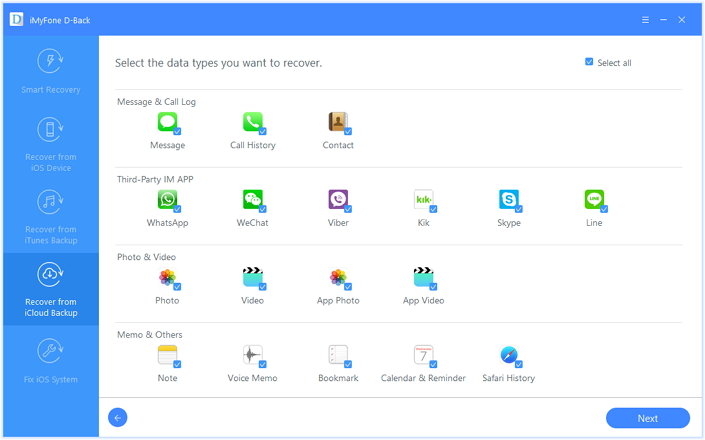
Step 2.Choose the Type of Files your Wanna Restore from iCloud Backup

In order to reduce downloading time, we recommend you to select specific files of your interest rather than downloading the entire file.

select the file types

Step 3.Select iCloud Backup File to Extract

Browse from the list and select the one from which you want to restore from your iCloud account.

download icloud file

Step 4.Retrieve Lost iPhone Files from iCloud Backup

Please wait until the download process is completed,after the selected files are downloaded, you can preview the contents that you have selected,including contacts, messages, videos, pictures, notes and more.To get the lost data back,just select to click “Recover to Devices” or “Recover to Computer”.

recover iphone data from icloud backup

d_win d_mac
d_win d_mac

Related Article

How to Recover Lost iPhone Data after iOS 15/14 Update

How to Recover Deleted iPhone Notes after iOS 15 Update

Ways to Recover Lost iPhone Photos after iOS 11 Update

Restore Deleted App Data from iPhone after iOS 15 Update

How to Recover Lost Data from iPhone after Factory Reset

Recover Data after iOS 15 Update

How to Transfer Data from Android to Axon 9 Pro

[Summary]: With the help of Phone Switch, you can you quickly move everything from your old Android phone to the new Axon 9 Pro handset, such as contacts, SMS, photos, videos, call logs and more.

ZTE Axon 9 Pro hands-on

The ZTE Axon 9 Pro is a phone with flagship specs including a Qualcomm Snapdragon 845 processor, a 6.2 inch, 2248 x 1080 pixel AMOLED display, 6GB of RAM, 128GB of storage, and dual rear cameras. Besides, it has a 12MP + 20MP dual rear camera system with support for optical image stabilization and has a 4,000 mAh battery, wireless charging support, 802.11ac WiFi, Bluetooth 5.0, NFC, Android 8.1 Oreo and USB Type-C.

“Is it possible to transfer Android data to Axon 9 Pro? I am an Android owner who is switching from HTC and needs a reliable solution to copy necessary data from HTC to Axon 9 Pro.”

If you’re moving between an Android phone and ZTE Axon 9 Pro smartphone then you’ll probably want to bring all of your conversations, contacts, text messages, photos and videos from WhatsApp as well. How to copy data from Android to Axon 9 Pro with a fast and safe way? Don’t worry. The best and very quick methods to transfer files from Android to Axon 9 Pro is to use Phone Switch software.

Phone Switch is a simple and straight-forward tool for iOS and Android users to copy data such as contacts, videos, messages, photos, music and other content from one device to another. With the help of Phone Switch software, you can:

Transfer data from Android to ZET Axon 9 Pro in just few steps.
Quickly move files such as text messages, contacts, photos, videos, music, calendar, call logs and more.
All data is transferable between Android, iOS, and Nokia.
Support Samsung, OnePlus, Google Pixel, Oppo, HTC LG, Sony, Huawei, ZTE, and iPhone XS/XS Max/XR/X/8/8 Plus/7/7 Plus/6s/6, etc.
Complete data transfer in 3 steps: Connect device – Select data – Start copying.
100% read-only program and easy to use.

d_win d_mac

User Guide: How to Transfer Data from Android to Axon 9 Pro

Step 1. Download Phone Switch on PC

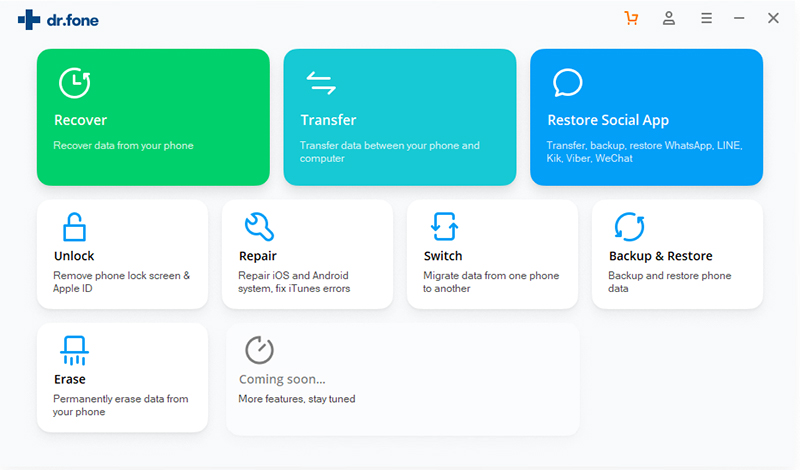
Firstly, free download, install and launch Phone Switch on your computer and select “Switch” from the available option.

phone-toolkit-01

Step 2. Connect Both Devices to the Computer

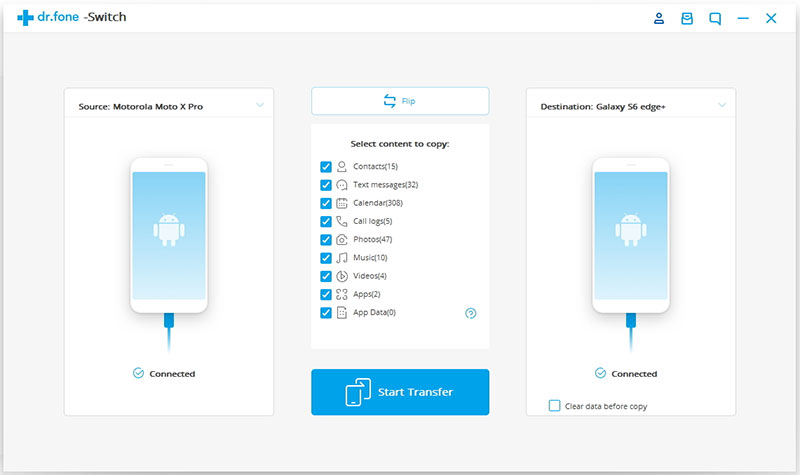
Next connect your Android phone and Axon 9 Pro to the same computer. In this guide we have taken old Android phone as source device and ZTE Axon 9 Pro as destination device.

connect android and axon 9 pro

Tip: You can choose to swap the position by clicking the “Flip” button.

Step 3. Select File Types and Start to Transfer

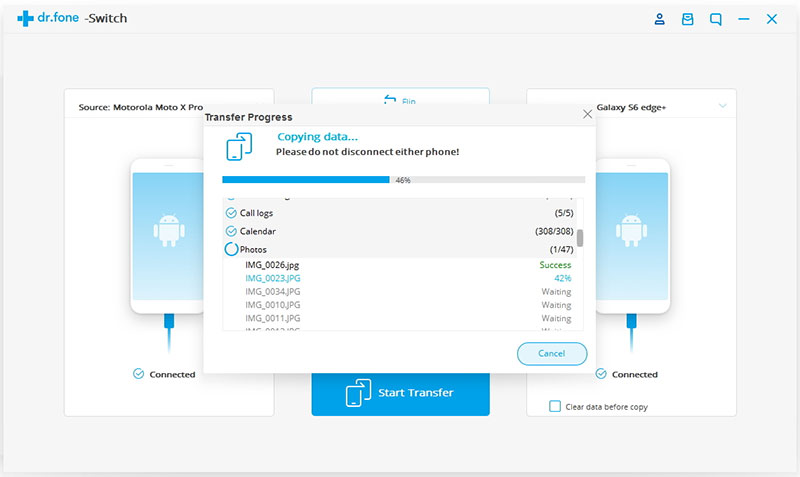
From the given pane list, check the file types that you are going to transfer to Axon 9 Pro, including contacts, text messages, calendar, photos, videos, music, etc. Then simply click on “Start Transfer” button to begin the transfer process. Make sure that both the device is connected to your computer during the transfer process.

transfer data from android to axon pro 9

d_win d_mac

Related Article

Transfer Data from Android to Samsung Galaxy S6/S7/S5

How to Import Videos to iPhone 8/X/XS(Max)/XR without iTunes

How to Transfer/Switch iPhone Data to Android

How to Transfer/Import Android Data to Huawei P10

How to Transfer/Switch/Copy Android Data to OnePlus 3T

Transfer Data from Android to Axon 9 Pro

How to Extract Audio from iTunes Music Videos

[Summary]: What to do if you want to get the audio only from the iTunes videos? This tutorial tells you how to extract audio from iTunes music videos, movies, TV shows with no quality loss by Apple Music Converter.

“I am a music lover and hope someone can teach me how to quickly extract the audio I need from the movie somehow.”

If you are the music lover or language learner, or you are the one who likes to collect your favorite music in a movie or TV episodes, you may want to extract audio from a video file. But it is known that iTunes music video files come encrypted with DRM (digital rights management) protection, which keeps legally purchased music videos from being played on your MP3 player, PMP, and other unauthorized devices. So, how to rip audio from iTunes M4V videos?

View also:

Keep Apple Music Forever after Trial

Keep Spotify Music after Canceling Subscription

extract audio from itunes music videos

Extract MP3 Audio from iTunes M4V Videos

Now Apple Music Converter features a solution for this. It is a professional DRM removal program with deciphering technology to convert purchased or rented iTunes music video files to unprotected songs. You can use it to extract audio tracks from iTunes music videos by exporting the audios to common MP3, AAC, WMA, etc. with little quality loss, so as to TV shows and iTunes movies. And it stands out converting Apple Music, iTunes M4P songs, Audible AA/AAX audiobooks to MP3, M4A, etc. This Apple Music Converter supports you to:

Remove DRM protection from iTunes music videos, movies, TV shows.
Convert purchased and rental M4V music videos files.
Convert iTunes music videos to multiple audio formats like MP3, AAC, M4A, WMA, etc.
Extract audio tracks from iTunes videos with a few simple clicks.
Extract any audio files with super high quality and 16X faster speed

d_win d_mac

A Step-by-step Tutorial for Extracting Audio from iTunes Music Videos

Tip: Before extracting, you should make sure that you have added your iTunes music videos to iTunes library first.

add-music-video-to-itunes-library-1

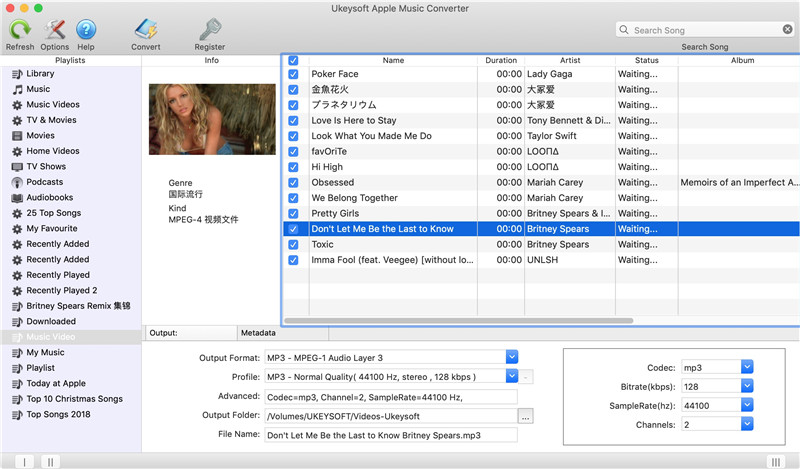
Step 1. Open Apple Music Converter

Download the installation package above and install it on your Windows or Mac PC. Then, open it then iTunes will be launched automatically. This program will open the iTunes to load your iTunes media library.

extract-audio-from-itunes-videos-1

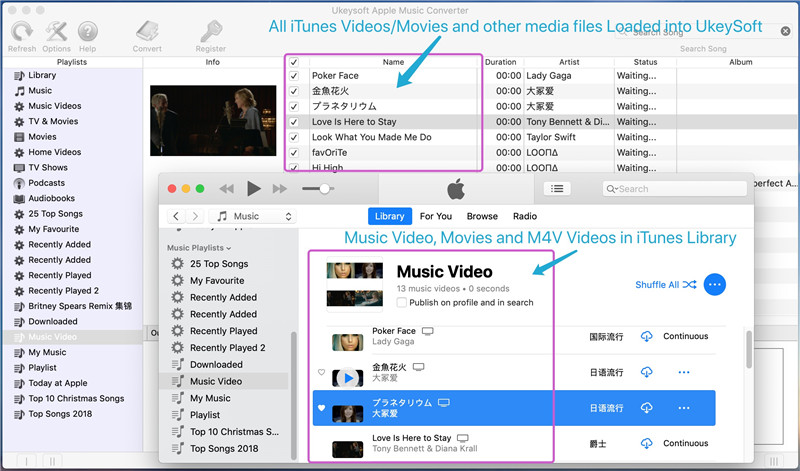
Step 2. Select iTunes Music Videos

All your iTunes library files will be imported to the different playlist category. Click on the “Music Videos” then you can choose the music video you want to extract audio from and click “Add” to load it to the converter.

Note: You can select several files for batch conversion.

extract-audio-from-itunes-videos-2

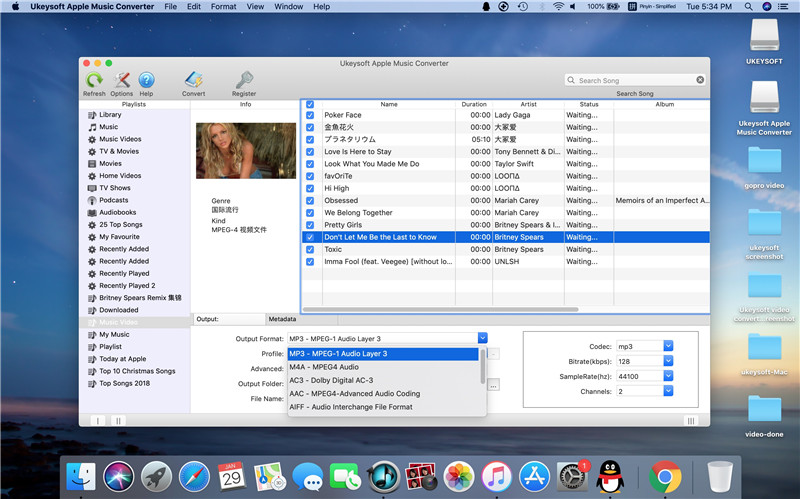
Step 3. Setup Your Output Format

You can choose the output format on the “Output Settings” section, such as P3/AAC/WAV. It is also able to customize the audio quality like codec, bitrate, sample rate, etc.

extract-audio-from-itunes-videos-3

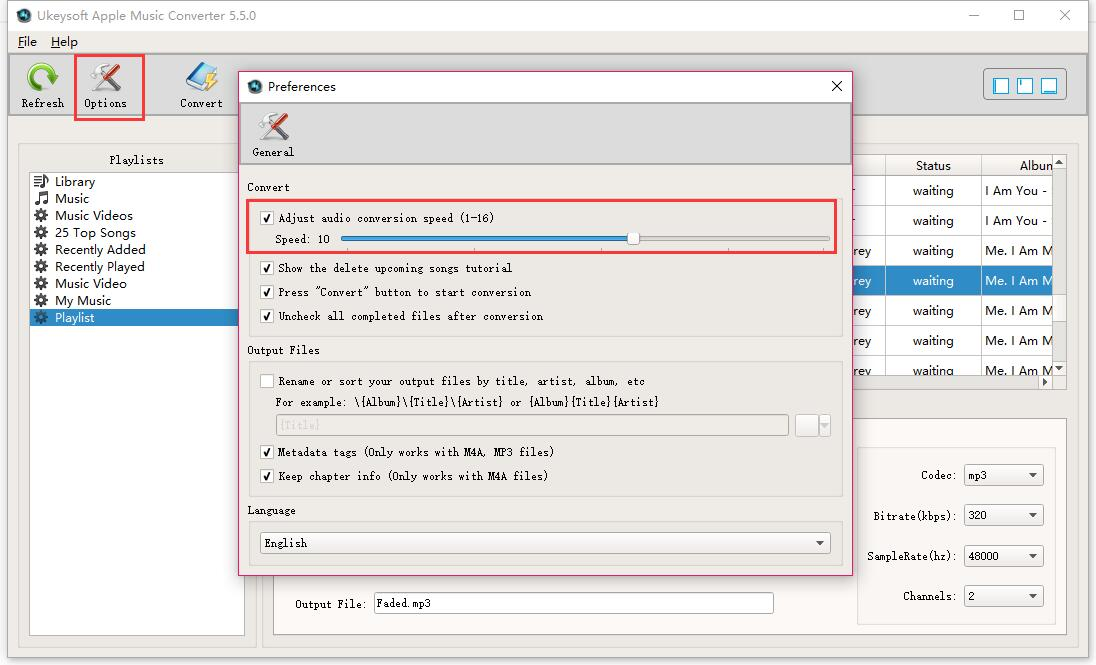
At the same time, you are free to choose a conversion speed from 1X to 16X by clicking “Options – Preferences”. Generally 5X high-speed conversion output quality is the best.

extract-audio-from-itunes-videos-4

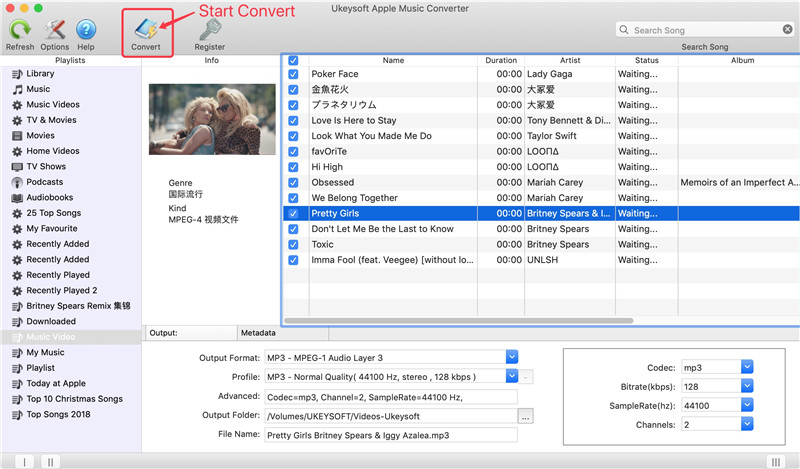
Step 4. Start to Extract Audio from iTunes Videos

Simply click on “Convert” button and Apple Music Converter begins to extract audio from iTunes music videos and save to the output folder as designed before on Mac.

extract-audio-from-itunes-videos-5

During the conversion process, please don’t click iTunes or don’t play music,videos via iTunes.

convert itunes m4v movies to mp3

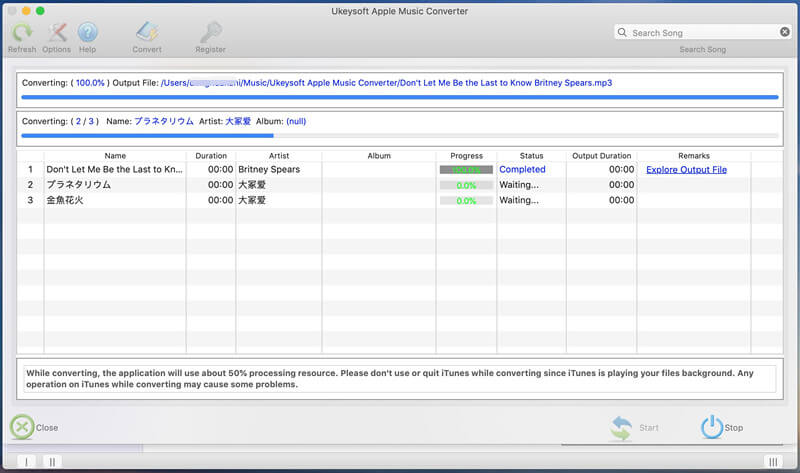
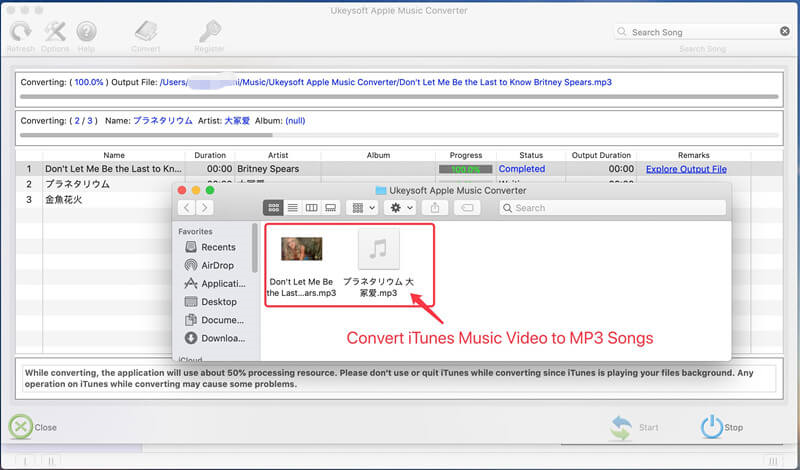
When it is done, you can click “Open Output File” from the converted list to find all the audio files.

extract-audio-from-itunes-videos-6

d_win d_mac

Related Articles:

How to Convert iTunes Music to MP3

How to Convert M4V iTunes Videos to MP3

How to Record and Rip Apple Music for Free

]Transfer iTunes Music Songs for Playing in a Car

How to Convert Apple Music to MP3?

Extract Audio from iTunes Music Videos

How to Recover Deleted Call Logs on iPhone XS/XS Max/XR

[Summary]: If you delete call log carelessly on iPhone XS/ XS Max/ XR or lost call history after updating iPhone to iOS 12, here is the useful way helping you how to recover deleted call history or lost call logs quickly.

“How to recover deleted call logs from iPhone XS? I don’t know why I recently received junk/spam phone calls from unknown resources. I remove them but mistakenly deleted some useful call history that I forgot to save to the Contact.”

call-log-recovery

As we know, iPhone XS call history contains all incoming calls, outgoing calls and missed calls on your phone. Sometimes, we may reveal our privacy, many unknown incoming calls may usually trouble your life, some friends delete the call history regularly. But, deleting call history from your iPhone XS may bring you some trouble, if you clear all the call history and need to recall the telephone number just deleted, how to get back the lost call logs? How to view and recover deleted call history on iPhone XS? Here is a simple tutorial helping you recover deleted call logs on iPhone XS, iPhone XS Max, iPhone XR using a data recovery software — iPhone Data Recovery.

View Deleted Call Logs by Scanning iPhone XS

iPhone Data Recovery — a magical software to retrieve deleted call logs from iPhone XS/XS Max/XR. The data recovery tool is easy to use and more powerful, you can view and recover other types of deleted/lost data including contacts, messages, notes, videos, WhatsApp messages, photos, calendars, reminder, voice memos, etc. In addition, it is also suitable for almost all apple devices: the latest iPhone X/XS Max/XR, iPhone X/8 Plus/8/7 Plus/7/6s Plus/6s, iPad and iPod. Download and install the program, then follow the next several simple steps.

d_win d_mac

Features of iPhone Data Recovery Software:

Get back all deleted call logs from iPhone, iTunes backup and iCloud backup.
Preview and recover from iTunes/iCloud backup directly without restoring.
The file types that it can restore are various, such as call logs, contacts, SMS, photos, videos, calendars, voice memos, whatsapp messages, etc.
Recover data lost due to mistakenly deletion, iOS update, jailbreak failure, or iPhone get lost, stolen, broken or locked, etc.
100% free yet powerful data recovery tool.

How to Free Recover Deleted iPhone XS Call History without Backup

Step 1: Choose the Recovery Mode(without backup)

After downloading and installing the program, launch it and choose the mode “Recover from iOS Device” from the main window.

launch iphone data recovery

Step 2: Connect iPhone XS with the Program

From this step, you should use an USB cables to connect the iPhone XS with your PC/Mac so that it can be detected by the program. And you can select the data types you want to recover, if you need to recover the call history, you can select the item “Call history” which under “Message and Call log”. In the way, you can easily recover lost call history on iPhone XS without backup. Then click the button “Next” to continue.

select call history to recover

Step 3: Get Ready to Scan Lost Call History

It will take you a few minute to read and scan the iPhone data.

scan iPhone XS

Step 4: Directly Retrieve Deleted Call Logs on iPhone XS

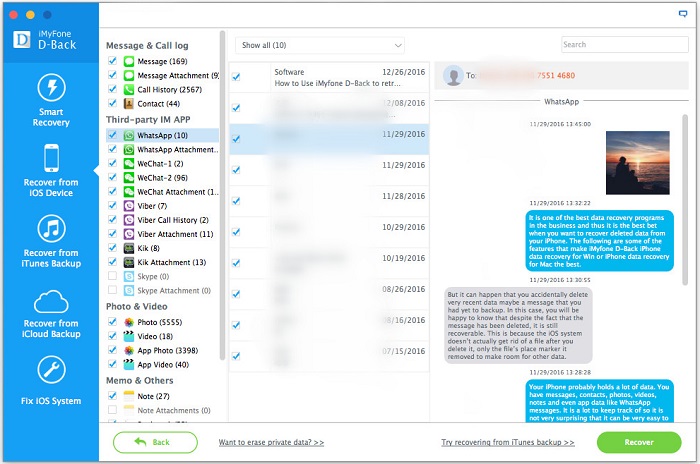
After a few minute, the program will list all the deleted data, including call history. From the window you can view all the call history both the existing one and the deleted one. After selecting the lost call history you would like to recover, click the button “Recover” which is available on the bottom-right corner. In the pop-up that appears, choose a location where you want the recovered call history to be stored.

recover deleted call logs from iPhone xs

By this way, your deleted call logs or lost call logs on iPhone XS are back with ease. This magical tool has any other features, it can also recover lost videos, text messages, contacts and more on iPhone, iPad and iPod Touch (iOS 12 supported) with the similar process. It can be used on both the Mac and Windows PC.

d_win d_mac

Related Articles

Recover Deleted Data From iPhone XS/XS Max/XR

How to Restore Deleted Call Logs from iPhone 8/7/6S/6

Recover Deleted Photos Videos from iPhone XS/Max

Recover Deleted Notes on iPhone XS/XS Max/XR/X

Recover Deleted Call Logs on iPhone XS

Recover Deleted WhatsApp Messages from iPhone XS/XS Max/XR

[Summary]: Wrongly deleted important Whatsapp messages on your iPhone? Don’t worry, this tutorial offers a simple way to help your fully restore deleted WhatsApp messages, photos &videos on iPhone XS/XS Max/XR without backup.

WhatsAPP is popular use nowadays, because it is convenient for our life, and we can use it chat with our classmates, families, workmates and our lover. In addition, we can use it send messages, photos, voice and document etc. But some friends may face to the accident that they deleted WhatsApp chats form iPhone XS carelessly.

Read also:

* Switch from Android Samsung to iPhone XS

* Unlock a Disabled iPhone with/without iTunes

“My little son use my new iPhone XS chatting with his Mon by WhatsApp, he deleted some important messages ignorantly which my boss gave me the task next week in WhatsAPP. How can I recover deleted WhatsApp Messages from iPhone XS?” – Asked by Stefan.

I have the same experience too. Luckily, my friend Tom introduced me a magical software – iPhone Data Recovery. Using the software, I have get back all the lost WhatsApp messages just for several steps. How amazing! I know that U.Fone iOS Toolkit is such a software that helps in getting deleted WhatsApp messages back without backup (iOS 12 Supported). It can recover deleted text messages, audio messages, photos and videos in WhatsApp conversations. In addition, it can also recover photos, video, music, messages, contacts, call history, notes, etc. on iPhone XS/XS Max/XR, as well as other iPhone devices. Now, let me introduce each step in detail.

d_win d_mac

Features of iPhone Data Recovery:

Restore various data types on iPhone, iPad, iPod.
Easily extract contact, SMS, iMessages, photos, videos, whatsApp messages, notes, etc.
Recover data from iPhone, or restore from iTunes or iCloud backup files if you have one.
Rescue data lost due to accidentally deletion, iOS update failed, iPhone stuck on recovery mode/Apple logo/black screen, device stolen or broken and so on.
Data are previewable before recovery.
Support the latest iPhone XS, iPhone XS Max, iPhone XR in iOS 12 and iPhone X/ 8/ 7/ 6S/ 6/ 5S/ 5 with iOS 11, iOS 10.

How to Recover Deleted WhatsApp Data from iPhone XS/XS Max/XR

Step 1. Download and Install the Software on PC/Mac

The most important step is download and install the iPhone Data Recovery software on your PC/Mac, here is free for you. Launch it and click the button “Smart Recovery” at the left side of the window, then is show you the title “How did you lose the data”, you should select the corresponding reason, now we can choose “Lost or deleted by accident” to continue.

smart recovery

Step 2. Connect Your iPhone XS to the Computer

Connect your iPhone XS to the computer then waiting for the program to detect the device. The software will scan your device before recovery. Once it is recognized, you can click “Recover from Ios Device” to the next step.

connect iPhone XS to PC

Tip:

1. If you choose the mode “Recover from iTunes backup“, pick up one relevant backup file that may contain the lost WhatsApp messages.

2. If you choose the mode “Recover from iCloud backup“, you need to login your iCloud account before start. The program will not save your login information.

Step 3. Select the Data Types You Want

There are all the data for you to choose recover, you can choose “WhatsApp” to proceed. In addition you can also recover more data together, such photo, video, App Photo, message etc. Click “Next” and then the program will start scanning your iPhone XS.

select file to recover

It will take you a few minute to scan your iPhone XS.

scan iPhone XS

Step 4. Recover the Deleted WhatsApp Messages

After scanning, it preview all the WhatsApp messages including the existent and the deleted one. Then select the lost messages which you need and click the button “Recover“. You can designate a location to save the retrieved data before. After a few minute the lost WhatsApp messages are recovered to the appointed file.

recover WhatsApp data from iPhone xs

No matter how did you lose the WhatsApp messages, with the iPhone Data Recovery, you can easily get back the lost data. The program has served more than 2 millions of users in 200+ countries worldwide. Enjoy your life!

d_win d_mac

Related Articles

Recover Deleted Data From iPhone XS/XS Max/XR

Transfer iPhone WhatsApp Chats to iPhone X/Xs(Max)

Recover Deleted Photos Videos from iPhone XS/Max

Recover Deleted Notes on iPhone XS/XS Max/XR/X

Recover WhatsApp Messages on iPhone XS

3 Best Data Recovery Software for Broken/Damaged Samsung Phone & Tablet

[Summary]: What if your Android smartphones/tablets gets damaged or broken and you can’t access any of data files on it? Top 3 Broken Samsung Data Recovery Software is available to you here. Trying it to extract and recover lost data from dead/broken Samsung phones and tablets.

Read also:

* Recover Contacts from Water Damaged Samsung

* Samsung Galaxy Data Recovery after Factory Reset

My Samsung Galaxy device is completely dead, how can I recover its data. More and more similar voices we can hear on the Samsung forum. Sometimes, our unintentional operation or system problems can cause Samsung mobile phones to crash/dead, such as Galaxy S6 / S5 / S4/ S3/ S2, Note 5 / 4 / 3, accidental drop, water damage and so on. Your Samsung phone is broken, dead, broken screen, smashed screen, unresponsive, brick, frozen or black screen? Regardless of which of the above conditions your phone is in, the result is the same: you can’t access the device, and it’s even less likely to extract and recover any data from your dead device, including contacts, text messages, photos and videos, and more.

The damaged Samsung phone or tablet is no longer working properly. You can’t recover data in it with no response screen. At this time, Broken Samsung Data Recovery software came into being. More efficiently, we have evaluated the Top 3 Broken Samsung Data Recovery Software for you. Either of it can scan your device data even though they are corrupted. With just a few simple steps, you can recover lost data from a dead or damaged Samsung phone without any pressure. Please read further for details.

Top 1. Broken Android Data Recovery

A versatile data recovery software, Broken Android Data Recovery is the first one recommended for you. Samsung phone is disabled after system upgrade failed? Stuck in black screen, non-responsive or locked screen? Or get frozen and can’t access to the system? Broken Android Data Extraction enables you to fix your broken Samsung phone to normal quickly and recover your files back, ever a virus-infected Samsung phone.

Features:

– Fix a disable Android OS to normal in just a few minutes.
– Recover files from Samsung phone’s SD card or internal storage.
– Restore data types like contacts, SMS, videos, photos, apps and app data and more.
– Recover data from black/broken/smashed/cracked screen, non-responsive, disable USB debugging Samsung Galaxy.
– It won’t keep, modify or leak any data on your device or backup file.
– Free to scan and preview files on Android phone before recovery.

select file types

Pros:

– Skip USB debugging to access and scan all existing files on damaged Samsung phone
– The recoverable files are various, including SMS, contacts, videos, music, photos and so on
– Select the specific file types for time saving
– The process is 100% clean and secure;

Cons:

Only compatible with Samsung Galaxy Note 3/4/5, S3/S4/S5/S6, Tab Pro 10.1, etc.

Top 2. U.Fone Broken Android Data Extraction

If you have damaged your Samsung device due to a sudden drop it out or it has broken for other reasons, you can use U.Fone Broken Android Data Extraction software to extract data from damaged or broken Galaxy S, Galaxy Note and Samsung Galaxy Tab Pro 10.1.

Features:

– Restore data such as contacts, SMS, WhatsApp messages, call logs, photos, videos, audios, documents, etc.
– Data Recovery from broken Samsung Note 3/Note 4/Note 5/S4/S5/S6/Tab Pro 10.1;
– Fix broken Samsung system errors and return to normal state.
– Extract data both on internal memory and external SD card.

d_win d_mac

connect broken Samsung Galaxy phone to PC

Pros:

– Scanning is done automatically and quickly.
– Get access data on a damaged device without enabling USB Debugging mode.
– Easy to use and keep your data safe.

Cons:

– Temporarily unable to work on the latest Samsung Galaxy S7, S8, S9, Note 8, Note 9.

Top 3. Dr. Fone – Broken Android Data Recovery

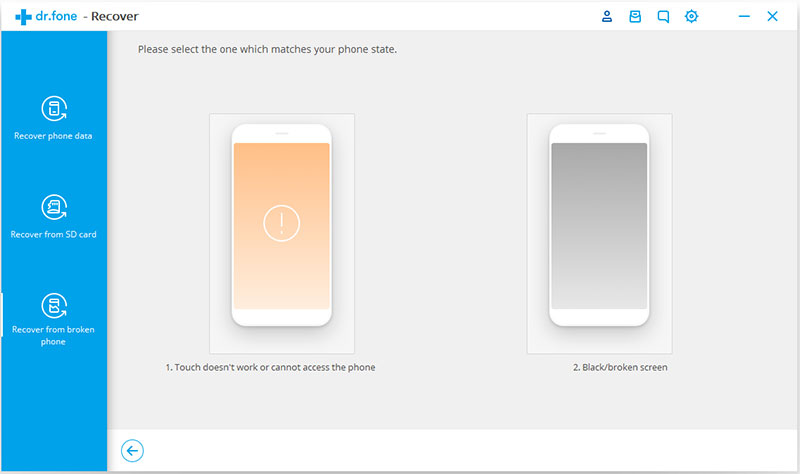
Finally recommended to you is another high-usage software: Dr. Fone – Broken Android Data Recovery. The software can fully retrieve all your files though your Samsung phone or tablet is damaged or dead. It has a very easy user interface and even data lost due to factory reset, accidentally deletion, formatting, rooting, etc. still have a hope of being recovered.
Features:

d_win d_mac

broken-android-data-recovery-02

Pros:

– Choose specific data to save time.
– Easy to use and safe.
– Compatible with most Samsung phones.
– Data is previewable before recovery.

Cons:

– Not as fast in scanning data.
– Your damaged Samsung phone is not repairable.
– Expensive.

Regardless of how advanced the Samsung device is, once it is damaged or locked it becomes nothing. Therefore, in order to prevent data loss, we generally recommend that Samsung users regularly back up their Samsung devices in case of any unexpected situation. You can also retrieve lost contacts, SMS, photos, videos, whatsapp messages and more from a broken/dead Samsung Galaxy phones and tablets via any of the above software.

Related Articles

How to Fix Samsung Galaxy Blank/Black Screen of Death

Recover Data from Water Damaged Android Phone

How to Extract/Restore Documents from Broken Android

How to Recover Data from Samsung Phone with Black Screen

How to Root and Unroot an Android Phone/Tablet Safely?

Summary
Rooting is easy as like as unrooting, this article teach you a complete guide on how to root Android safely and quickly, you also can learn how to remove root from Android devices safely.

Rooting an Android device, the equivalent of jailbreaking an iPhone or iPad, is the process of unblocking and accessing the blocked privileges of Android OS’s subsystems. After taking root, you have full control over your Android device, and you have the right to customize the device as you like, such as installing a custom ROM, removing bloatware, and installing incompatible applications. It is worth mentioning that Root Android can also extend the battery life, speed and performance of your Android devices. Read also: 12 Benefits to Root Your Android Phones.

Sometimes, rooting may void the warranty, resulting in unfortunate conditions, eg: a wrong action can make root failure and you may even end up with bricked handset. However, if you root the device in a proper manner, everything on it will goes normally as it does. Follow the steps if you want to root or unroot Android devices/tables with zero risk. KingoRoot is the best tool for rooting and unrooting.

KingoRoot is a rooted application that works easily and efficiently with most Android phones and tablets with a single click. It is safe and easy to use. If you want to get rid of root privilege in Android devices, you can also get the perfect solution from this software.

Before rooting your Android phone, there are some preparation jobs that need to be done:

  • Back up your Android phone
  • Your phone shall be powered on or have least 50% battery power left.
  • Ensure Internet (Wi-Fi network) connection is all right.
  • Allow your phone install apps from unknown sources: Settings > Security > Unknown Sources.
  • The original USB Cable.

Part 1: How to Root an Android Device on Windows

Step 1. Install and Launch KingoRoot on PC

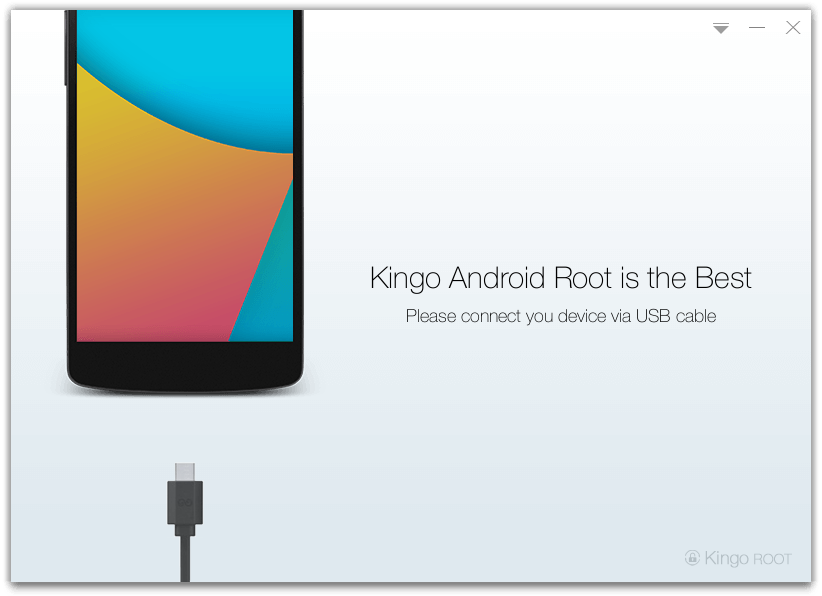
Free download and install the KingoRoot on your Windows PC. It will automatically run after installation and you will get a main page as below, asking you connect your Android phone to PC with a USB cable.

 run kingoroot

Step 2. Enable USB Debugging on Android
Once connected, you will be asked to enable USB debugging mode on your Android phone, which is a key step in successfully rooting your device. Go to the next step.

Note: If you don’t know how to activate USB debugging mode on Android, here is the detailed guide about How to Enable USB Debugging on Android

Enable USB Debugging

Step 3. Root Android device
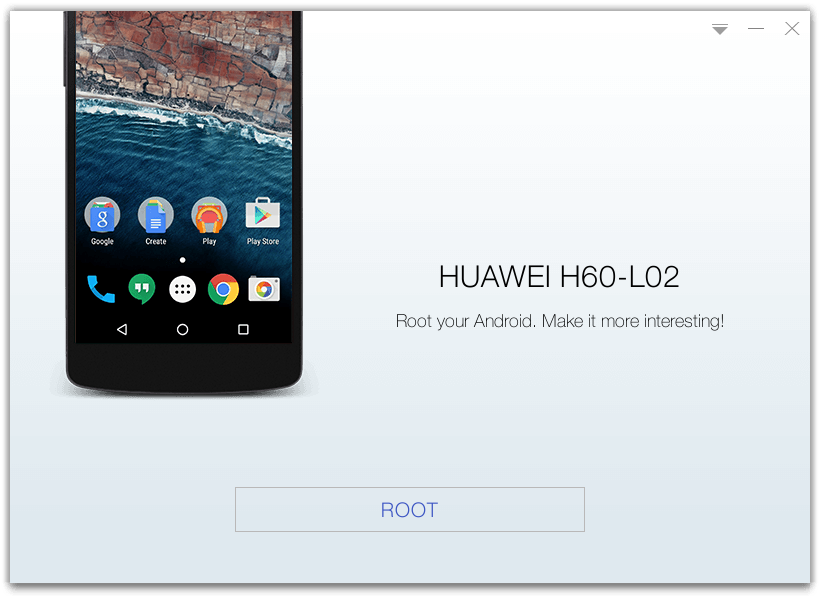
After the software recognizes and detects your device, simply click on the “Root” button at the bottom to get the command, the program will execute automatically, you need to wait a few minutes.

root android complete

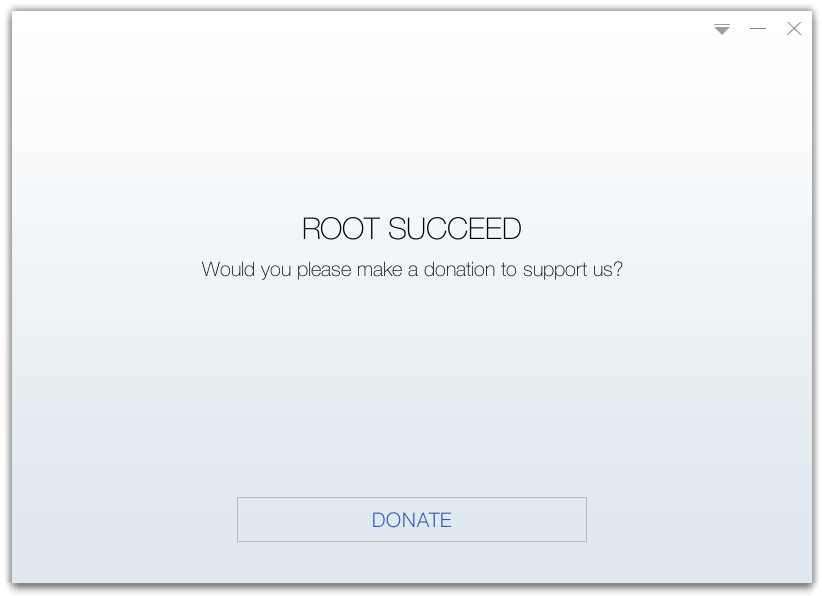
When you are done, you will see a window showing the “ROOT SUCCEED” character. Your Android will reboot and the rooting is done perfectly.

But sometimes you want to get rid of the root privileges on the Android device and restore the Android phone to its original state. Just launch the KingoRoot again, connect your rooted Android phone, and click on the Remove Root option. Below is a detailed guide.

Part 2: How to Unroot an Android Device on Windows

If you want to remove root from rooted Android device, please follwing this guide:

Step 1. Connect Rooted Android Phone to PC
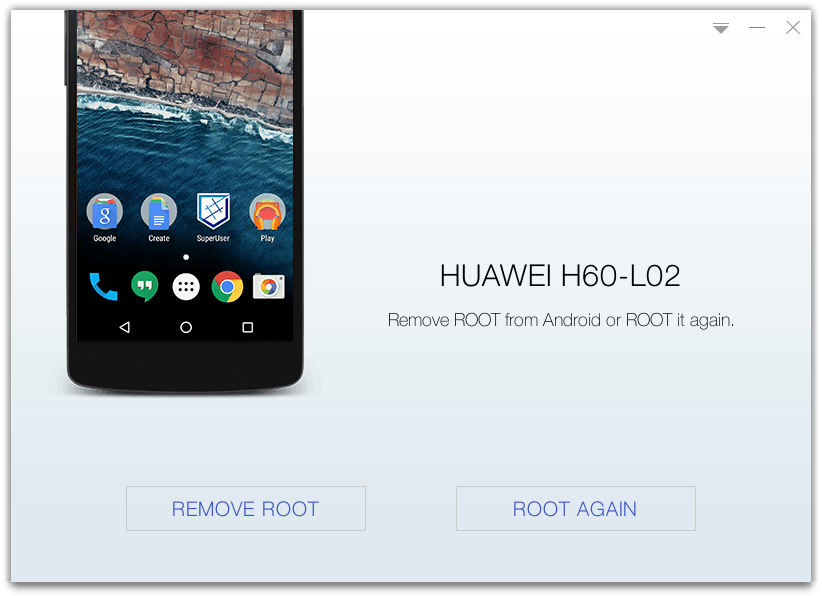
Launch the Kingo Root with your computer and get your rooted Android phone connected to PC through a USB cable. (You should turn on the USB Debugging mode on your Android phone). After being detected, you are given two feature: REMOVE ROOT and ROOT AGAIN.

kingoroot remove root

Step 2. Remove Root from Android Phone
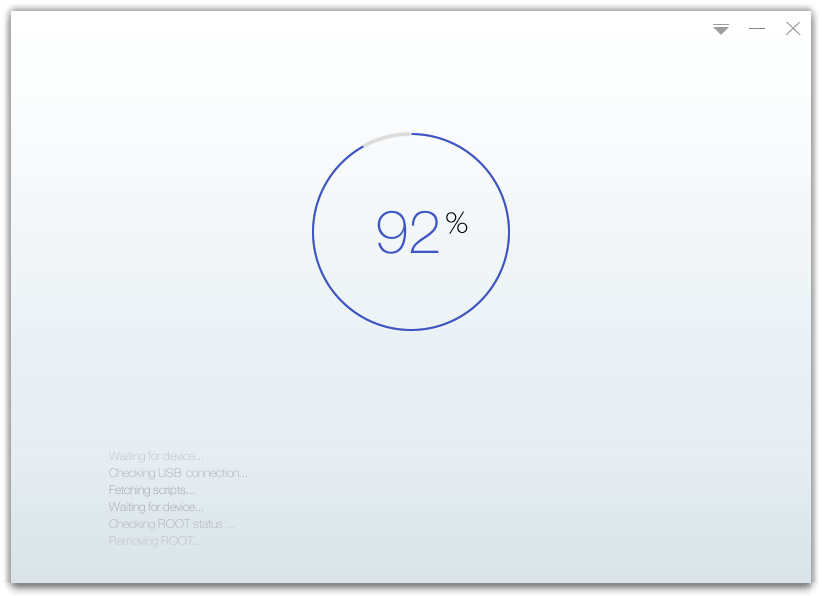
Directly click on the “REMOVE ROOT” button and this will start unrooting process automatically. Wait patiently until the entire process is completed to 100%.

unroot android

Done! Your Android phone is completely unrooted.

How to Retrieve Data from Broken/Dead Galaxy S6/S6 Edge?

[Summary]: If your Samsung Galaxy S6/S6 Edge becomes broken or dead due to some errors, this guide teachs you how to retrieve essential data from dead or broken Galaxy S6 with broken screen, black screen, cracked screen.

“How to recover data from a dead Samsung phone? This morning I followed the steps on the network to root my Galaxy S6. I don’t know which step has an error, and the screen suddenly turns black and unresponsive. Is it possible to retrieve lost files from a bricked Samsung Galaxy S6 device?”

People also read:

* Recover deleted and lost data from Galaxy S6/S6 Edge

* How to fix Android phone with black screen

Quite a few Samsung users would like to root their phones, but some of them fail to follow the correct rooting instructions, so they will unfortunately get a dead device. Actually, your Samsung Galaxy S6 mobile phone becomes unavailable can also be due to other conditions, such as water damaged, broken screen and unresponsive, blank screen, black screen of death. You are not be able to access your data from a broken device anymore, such as contacts, text messages, photos, videos, music, call history, apps and app data. How can I retrieve lost data from broken/dead Galaxy S6 phone? Thankfully, here is a handy and secure software recommended for you.

Broken Android Data Extraction, which can be used to retrieve files from broken, dead or formatted Samsung Galaxy S6 or S6 Edge, as well as S4/S5/Note 2/Note 3/Note 4/Note 5 with broken or black screen.

Broken Android Data Recovery is your friendly software and he will do his best to help you recover lost various types of data from damaged or dead Samsung phones. When your Samsung phone is in a abnormal state, the device stuck in Samsung logo, Samsung tablet won’t turn on, or frozen at a screen and not respond to any touches, etc. It only takes a few minutes and the problem can be solved without data loss. It is given the ability to preview data, so you can selectively extract important items before retrieving.

If you use a Samsung Galaxy S6 user, or using Galaxy S series, Galaxy Note series or Samsung tablet, you can use this Samsung data recovery software to recover lost data from Samsung device, such as Galaxy S9/S8/S7/S6, Galaxy Note 9/Note 8/Note 5/Note 4, Galaxy J2/J3/J5/J7 and other series of Samsung mobile phone. Looking forward to get contact, text messages, photos and other recoverable data off a broken Samsung Galaxy S6? Read on the following and get the broken Android data recovery software installed on your Windows computer by clicking the download button below.

d_win d_mac
d_win d_mac

Step-by-step guide to Recover Data from a Dead Galaxy S6

Step 1. Launch Broken Android Data Extraction

This friendly software supports Windows and Mac versions and it will automatically open after installation. Please find the “Broken Android Data Extraction” mode and click on it to start.

launch broken android data recovery/extraction

Step 2. Connect Dead/Broken Galaxy S6 to PC

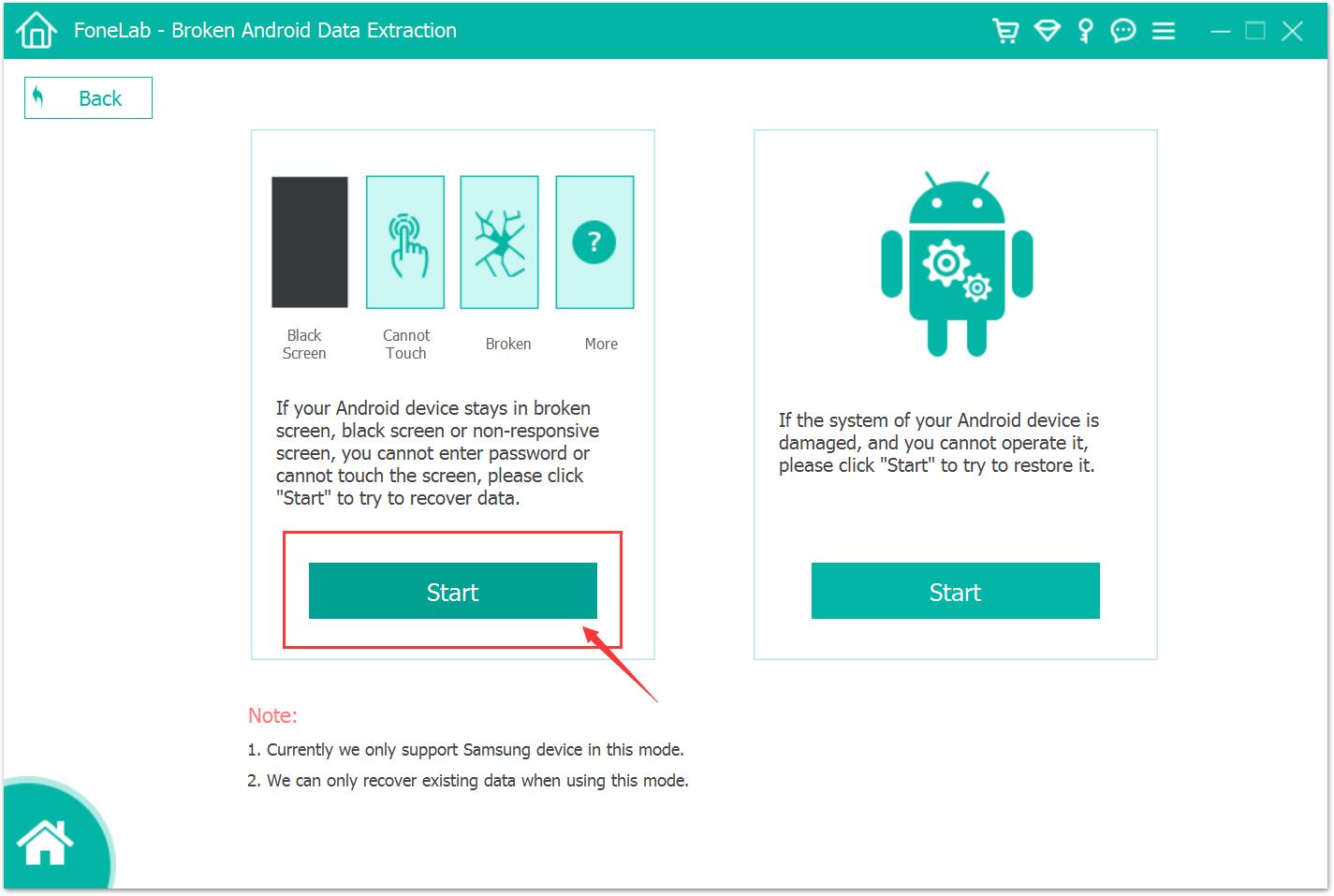
Next you need to connect your dead Samsung S6 to PC with a USB cable. You get such a page after the device is successfully detected. If the Samsung device is stuck in Samsung logo, black screen, broken screen, Samsung tablet won’t turn on, or frozen at a screen and not respond to any touches, etc., click the left “Start” button. While your Samsung phone gets bricked and unavailable, click on the right “Start”.

connect broken Samsung Galaxy phone to PC

Step 3. Select Your Phone Information

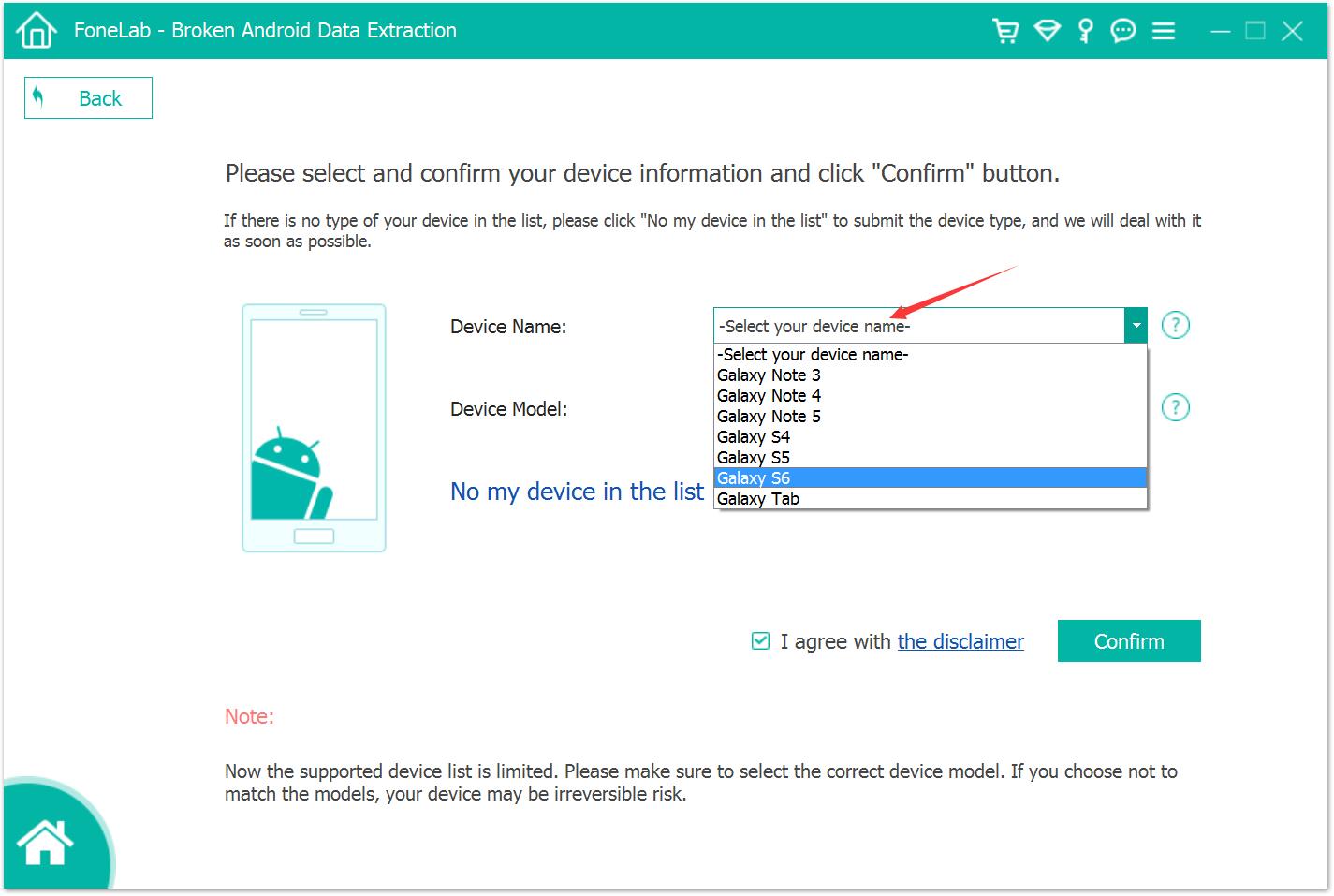
Select the matching device information from the drop-down list with your Samsung Galaxy S6 phone. Then Confirm it.

select Samsung Phone’s Name and Model

Step 4. Enter into Download Mode

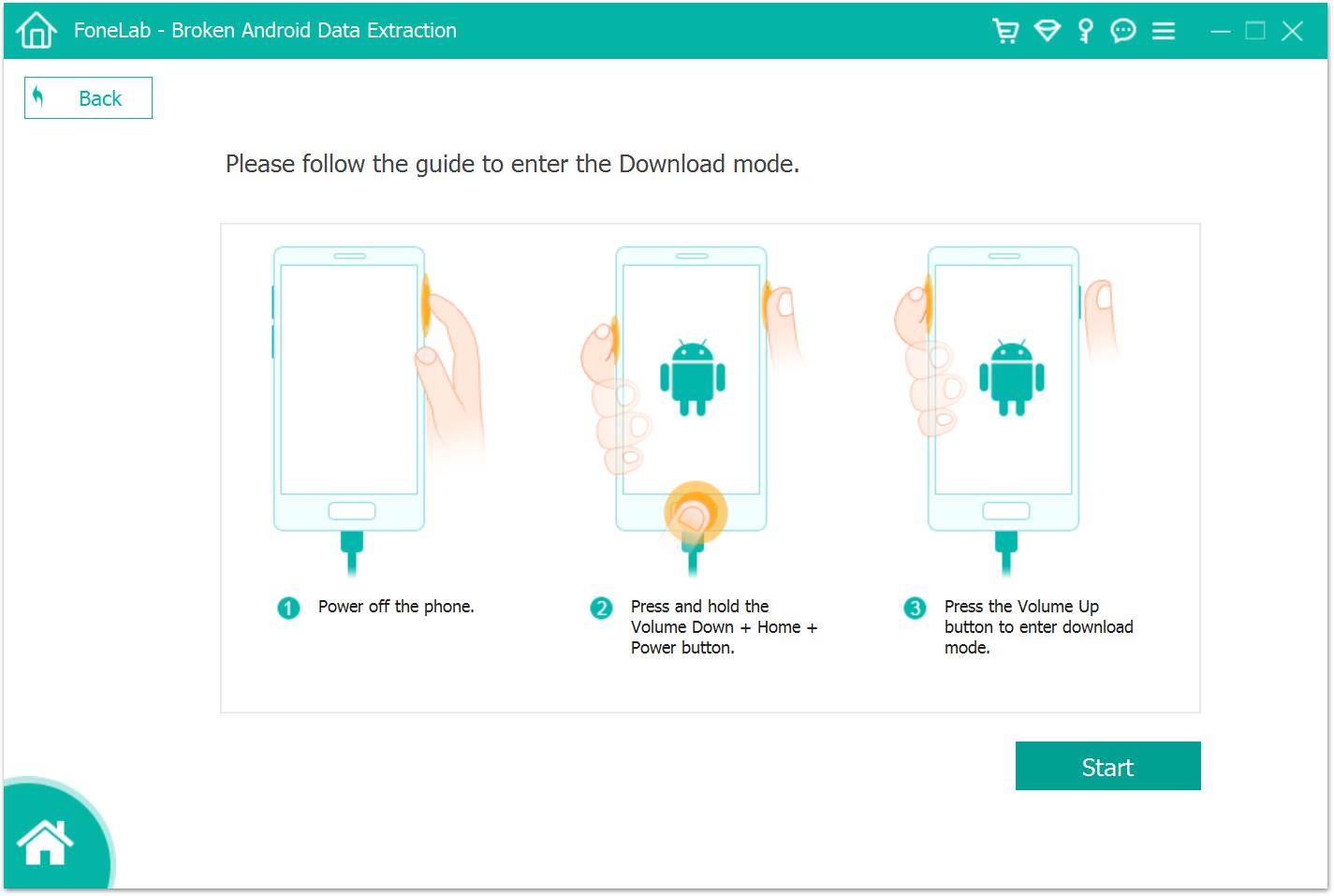
After finding the corresponding device data, you need to put the dead Samusng phone into download mode to download the appropriate recovery package and repair the dead Samsung phone. Follow the instructions on the screen and click the “Start” button.

get your phone into download mode

Step 5. Analyze and Scan Samsung S6

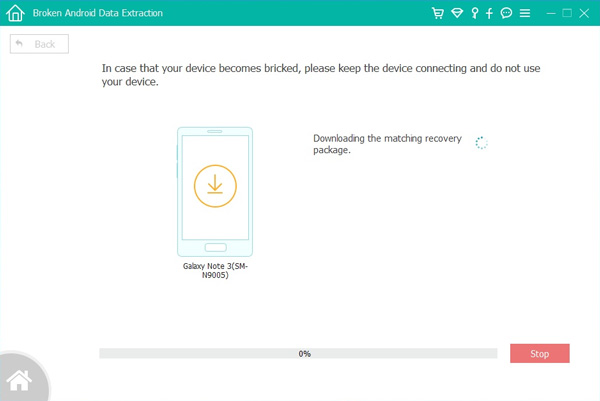
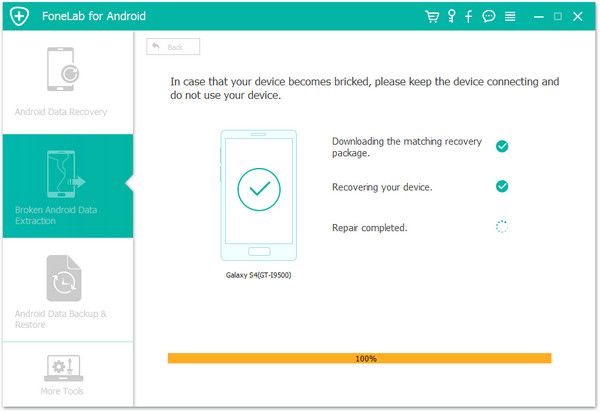
In the next step, you will see the progress of the program clearly, download the recovery package first. After downloading the matching recovery package for your dead Galaxy S6 mobile phone, the device would be fixed to normal state. The process can be done automatically.

download Matching Recovery Package

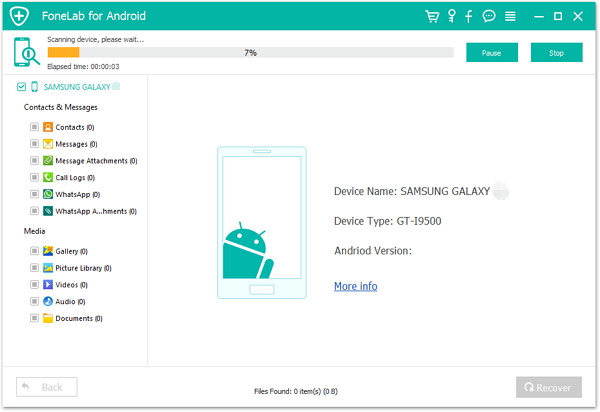
And then analyze and scan your device automatically.

analyze broken phone

Note: Do not disconnect the device from the program during the scan.

Scan data from Samsung Phone

Step 6. Preview and Recover Data from Dead Galaxy S6 Selectively

All the scan result will be displayed in categories. Then you can preview the whole files on it. While previewing, please mark your needed data and then hit the “Recover” button on the panel. A few seconds later, all targeted files will be saved to your computer without loss.

recover data from broken Samsung

d_win d_mac
d_win d_mac

Related Articles

Recover/Extract Photos from Broken Galaxy S6/S6 Edge

Recover Contacts from Samsung Galaxy S6/S6 Edge

How to Recover Deleted Contacts from Android

Recover Files from Water Damaged Samsung Phone

Extract Data from Black Screen Samsung Galaxy S6/S7

Data Recovery on Samsung Galaxy with Broken Screen

Broken Samsung Data Recovery

Recover Lost Data from Broken Samsung Galaxy S6/S5/S4/Note

[Summary]: If you have suddenly damage your Samsung Galaxy S6/S5/S4/Note 5/Note 4/Note 3 and it has broken, Don’t worry, here is a simple way for you to fix black-screen, crashed, frozen or locked Samsung phone and recover data from a broken or damaged phone on Windows computer.

People also read:

* How to Fix a Black Screen Android phone

* How to Recover Deleted Data from Samsung

“How to access phone data from my broken Samsung phone?” We often encounter Samsung users asking how to access data that Samsung phones are not working properly, or when the phone screen suddenly turns black or broken and how to extract data from a broken phone? Some users also slip the phone from a height carelessly, the screen is broken and becomes unresponsive.

No one is willing to see their Samsung phone frozen on a broken screen, cracked screen, black screen of death or other issues. Besides, your Samsung data loss can also be caused by the following:

Samsung phone stuck in startup screen or blank screen of dead.
Lock Samsung phone with forgotten password.
Perform a factory reset.
Drop Samsung Galaxy/Note into the water or toilet.
Failed ROM flashing, rooting, etc.

Well, whatever may be the case for the loss or deletion of data from Samsung phone, you can still save your broken phone. Let’s walk through a simple and effective way to recover all data types such as contacts, text messages, pictures, call logs, videos, whatsapp chat history, apps and app data from broken Samsung Galaxy S6/S5/S4/Note 8/Note 5/Note 4, etc.

Thanks to Broken Android Data Extraction and Android Data Recovery software, you are allowed to recover lost data from broken/dead Samsung phones and tablets directly. With it, you can

Recover data from dead Samsung phone, cracked/broken screen, water-damaged, black screen, system crashed, etc.
Easily extract contacts, messages, photos, videos, audio, call history and more from broken Samsung phone.
Retrieve inaccessible files without USB debugging.
Fix disabled Android OS to normal without data loss.
Free to scan and preview data before recovery.
Support Samsung Galaxy S2, S3, S4, S5, S6, S6 edge, Galaxy Note 5/4/3/2, Samsung tab, etc.

d_win d_mac

How to Access Data from Broken Samsung Galaxy S6/S5/S4/Note

Step 1. Launch on the Broken Android Program

First download, install the Android Data Extraction on your computer. Launch it and the main screen of the software you can see. Choose “Broken Android Data Extraction” option.

launch broken android data recovery/extraction

Step 2. Connect Broken Samsung to PC

Tap on “Start” button and connect your broken Samsung Galaxy phone via its USB cable.

connect broken Samsung Galaxy phone to PC

Step 3. Select Device Model

In the next step you should choose your Samsung phone name and phone model with your broken device. Click on “Next” to proceed.

select Samsung Phone’s Name and Model

Step 4. Enter Samsung Phone into Download Mode

Please follow the on screen instructions to enter your broken Samsung phone into download mode: power off the phone – press and hold the Volume Down + Home + Power button together – press the Volume Up button, and then click on the Start button.

get your phone into download mode

Then it starts downloading the recovery package to fix your broken Samsung phone to normal.

download Matching Recovery Package

After that, the program will get into your Samsung phone and scan the data from the device. So that you can preview the data types and check the items you want to get back.

analyze broken phone

Scan data from Samsung Phone

Step 5. Selectively Recover Data on Broken Samsung Galaxy

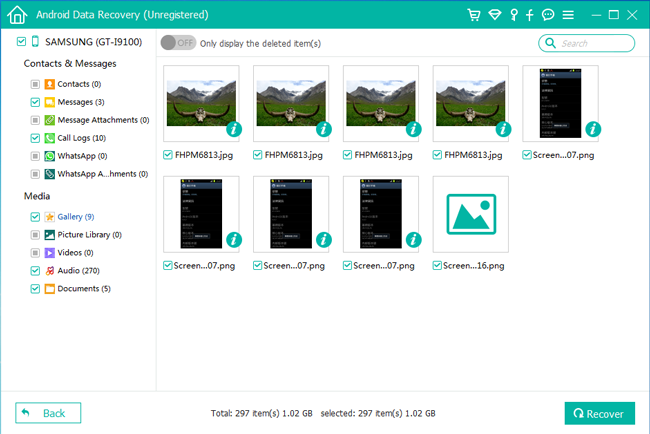
Finally, Android Data Recovery will show all the file types by categories. You can preview the recoverable data and select the one you want, click on “Recover” to save all data from broken Samsung phone.

recover data from broken Samsung

d_win d_mac

Related Articles

Recover Lost Data from Broken Samsung Galaxy Note 4

Recover Lost Data from Locked Samsung Phone

How to Recover Lost Photos, Videos from Samsung Galaxy

How to Recover Lost Data from Broken/Dead Samsung Phone

How to Recover Data from Samsung Phone with Black Screen