Forgot Apple ID password and want to remove Apple ID from iPhone/iPad without password? Get the powerful Apple ID Removal tools here and learn how to bapass Apple ID on iPhone/iPad without password.
“I forgot Apple ID password, so I cannot quit up and use another Apple ID, how to remove the Apple ID from iPhone, then I able to login with another Apple ID to use Apple’s service.”
“I bought a second-hand iPhone 13 from Amazon but there is an existing Apple ID used on it. How to remove the Apple ID from iPhone 13 without the password? Please help!”
If you want to sell your old iPhone, you must to erase all data, settings and Apple ID, this not only prevents your important data leakage, but also let the buyer login with their Apple ID or create a new Apple ID conveniently.However, if things didn’t turn out to be that way and you have an iPhone with someone else’s Apple ID on it, you will wonder how to remove Apple ID from iPhone without password.
Also read: Permanently erase data from iPhone before selling
Remove Apple ID in Various Situations
- Forgot your Apple ID password;
- Bought a second-hand iPhone online which someone else’s Apple ID on it;
- Bought a second-hand iPhone, but iCloud activation lock iPhone;
- Remove Apple ID and data permanently before selling your iPhone;
- Change to a different Apple ID or create a new one;
- Avoiding previous owner track your second-hand iPhone via previous Apple ID.
So if you forgot Apple ID or iCloud gets iPhone locked somehow,you cannot full use of every single feature on your iPhone. Then, how do you erase Apple ID without password? Here is a guide about how to remove Apple ID without password from your iPhone 16/15/14/13/12/11/Xs/Xs Max/XR/X/SE/8/7/6S, etc. You need to remove Apple ID without password with a third-party Apple ID unlocker tool.
Solution 1. Remove Apple ID from iPhone/iPad via iOS Unlocker
iOS Unlocker is a robust software solution designed to help iOS users remove Apple ID on iPhone/iPad, unlock screen passcode, and remove MDM and iTunes Backup Password. Whether you’re locked out due to a forgotten password, second-hand purchase, or iCloud activation, this powerful iOS unlocker offers a seamless experience to regain control of your device.




Unlike traditional methods that require entering the correct Apple ID and password, this iOS Unlocker uses advanced bypassing technology to remove Apple ID from iPhone without needing credentials, even if you forgot Apple ID or password.
Main Features of iOS Unlocker:
- Bypass Apple ID & iCloud activation lock on iPhone/iPad.
- Remove MDM locks from iPhones and iPads.
- Unlock Screen Passcode on all iPhone models (iPhone 5 to iPhone 16).
- Unlock disable/locked iPhone without Jailbreak.
- Compatible with the latest iOS 26/18 & iPadOS 18.
Simple Steps to Remove Apple ID from iPhone
Note: To remove Apple ID using the software, make sure “Find My iPhone” was disabled on your device. Before using the software, remember to backup data of your device in iTunes or iCloud.
Step 1. Download and Install iOS Unlocker
First, download and install the Apple ID Removal tool – iOS Unlocker on your Windows or macOS. And follow the prompts to complete installation.
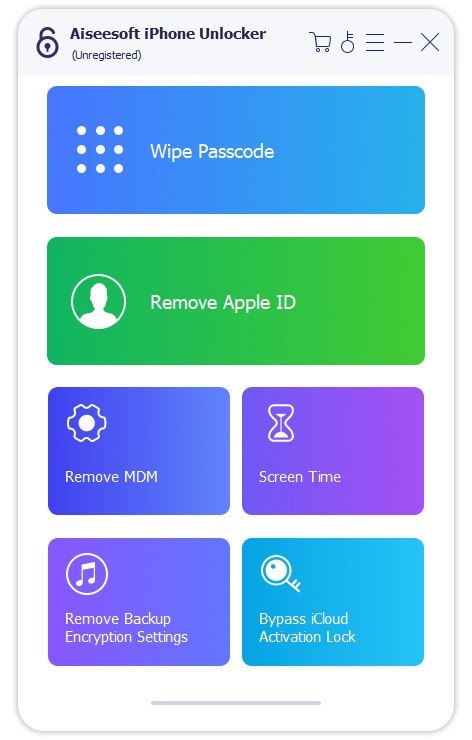
Step 2. Choose Remove Apple ID Mode
Launch the iOS Unlocker. From the main interface, select “Remove Apple ID” mode.
Step 3. Connect Your iPhone
Use a lightning cable to connect your iPhone to your computer. The iOS Unlocker will automatically detect your device.
Step 4. Start Apple ID Removal Process
Click “Trust” and enter your screen passcode. Hit on “Start” button to continue.

Then follow the steps to remove Apple ID from your iPhone.
Situation 1. If Find My iPhone is Disabled
If Find My iPhone is already disabled on your device, removing the Apple ID is straightforward. Just wait for a few minutes. Once completed, your device will be free from the linked Apple ID.
Tips: No password is required in this situation.
Situation 2. If Find My iPhone is Enabled
If Find My iPhone is enabled, additional steps are required to successfully remove the Apple ID.
2.1 Reset All Settings
On your iPhone or iPad, go to “Settings” > “General” > “Transfer or Reset iPhone“. Tap “Reset” > “Reset All Settings“. Enter your device passcode when prompted.
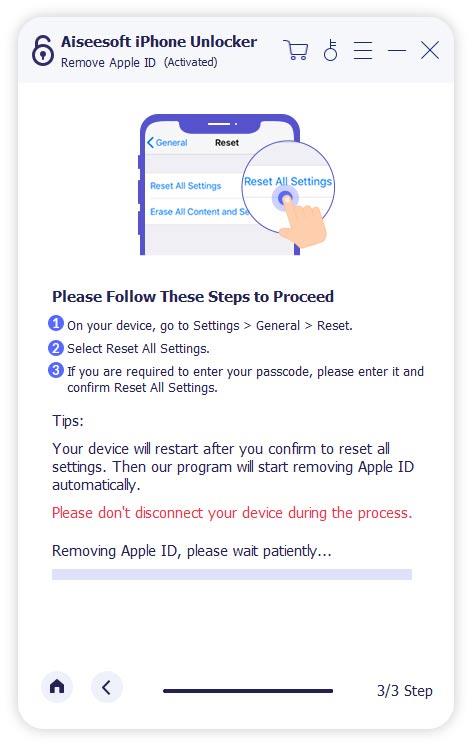
Tips: This step will not erase your data but will reset settings like Wi-Fi passwords and wallpapers.
2.2 Enable Two-Factor Authentication (for iOS 11.4 and above)
If your device is running iOS 11.4 or later, make sure Two-Factor Authentication is enabled before continuing:
Open “Settings” and tap your name at the top (Apple ID). Navigate to “Password & Security“. Ensure that Two-Factor Authentication is turned on.
If it’s off, toggle it on and follow the setup instructions.

Afterwards, it may prompt you to enter a confirmation code (e.g., type 0000) to proceed.
Tips: This verification step is essential to proceed with Apple ID removal on newer iOS versions.
2.3 Confirm Device Information and Download Firmware
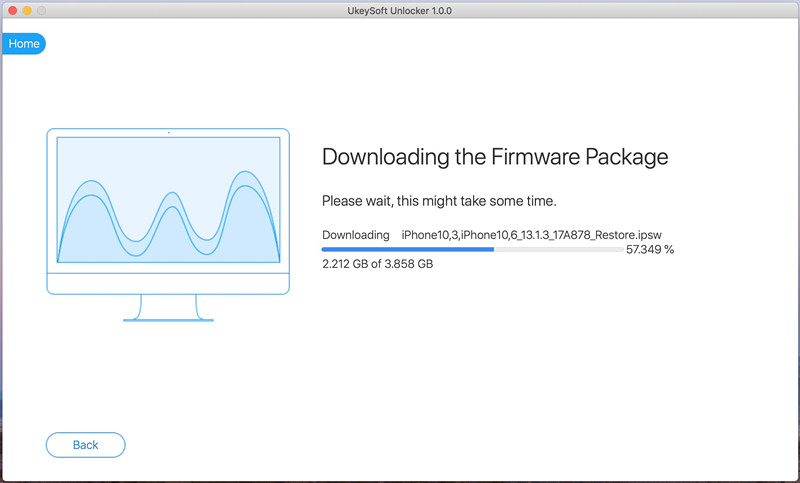
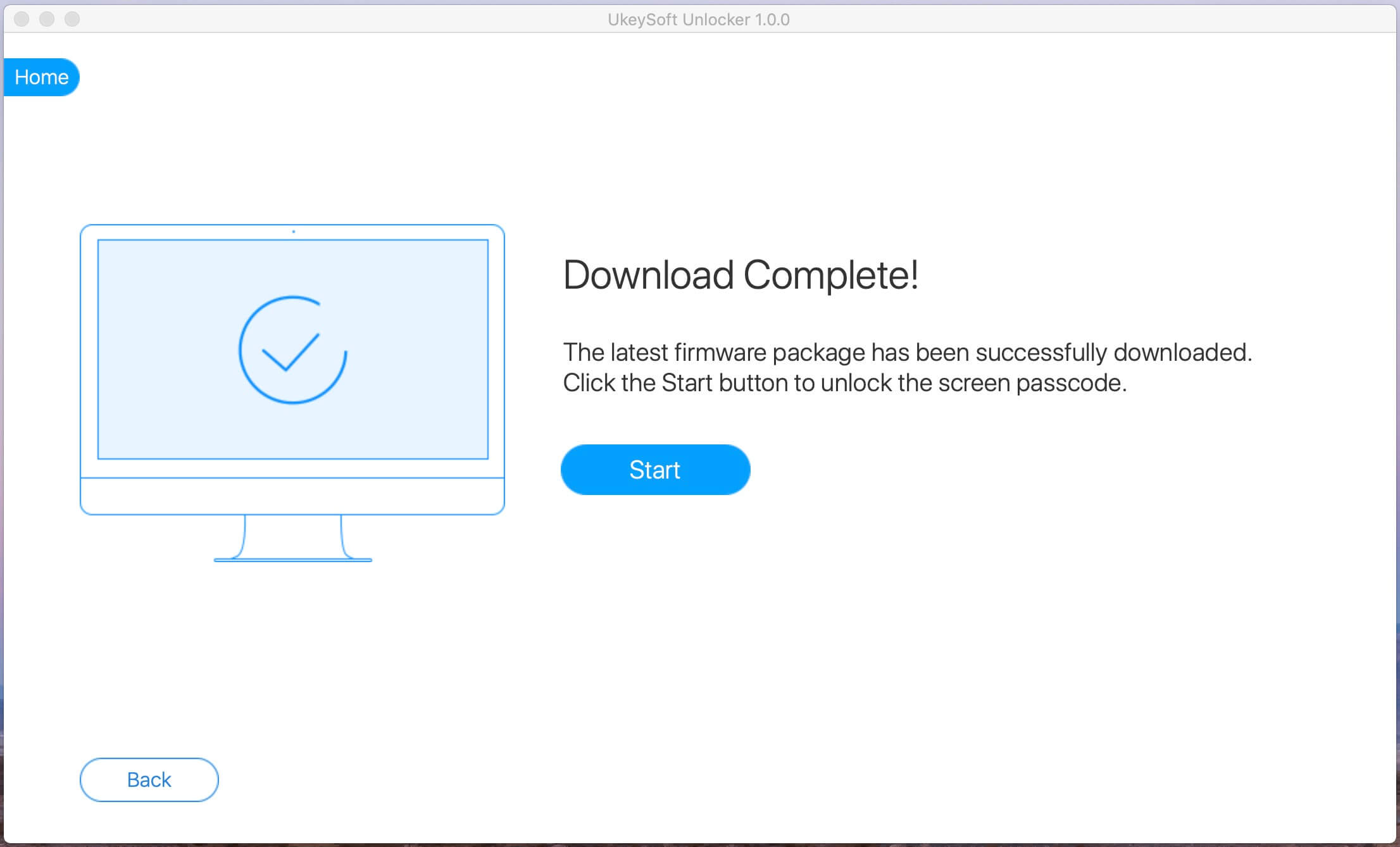
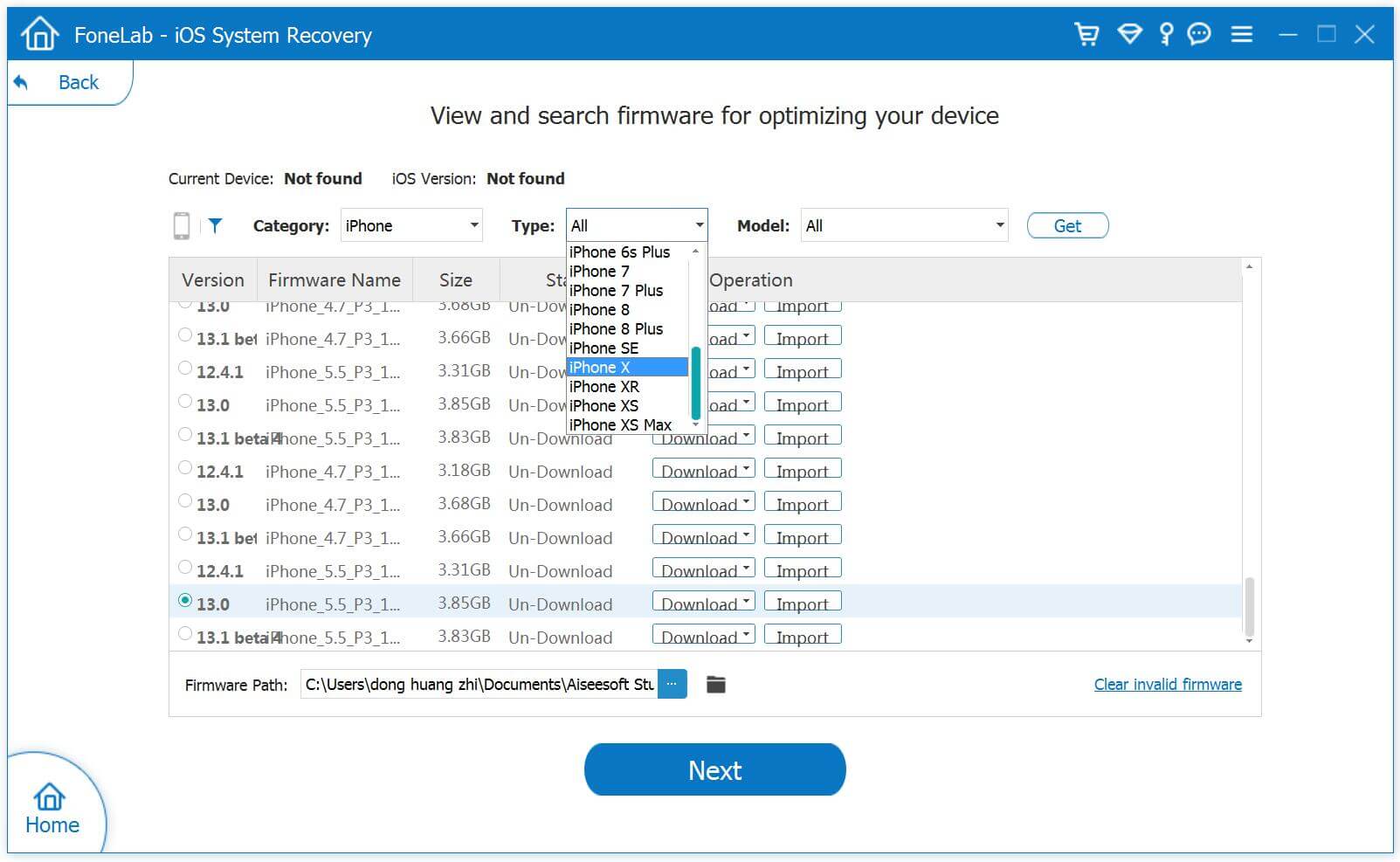
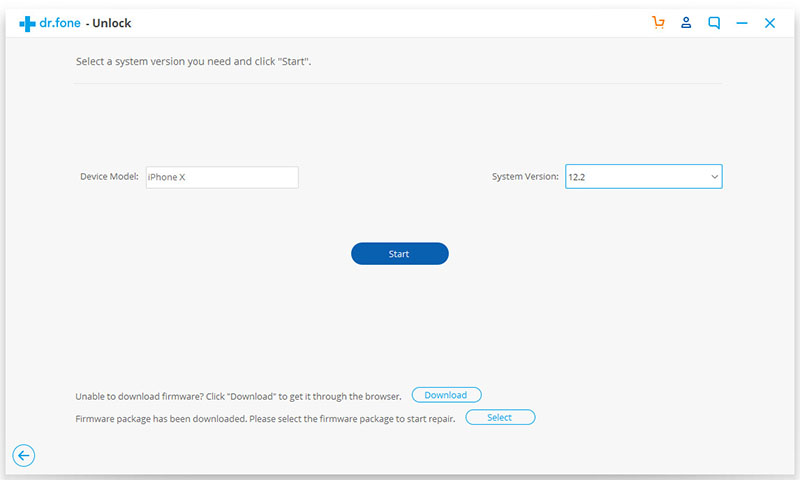
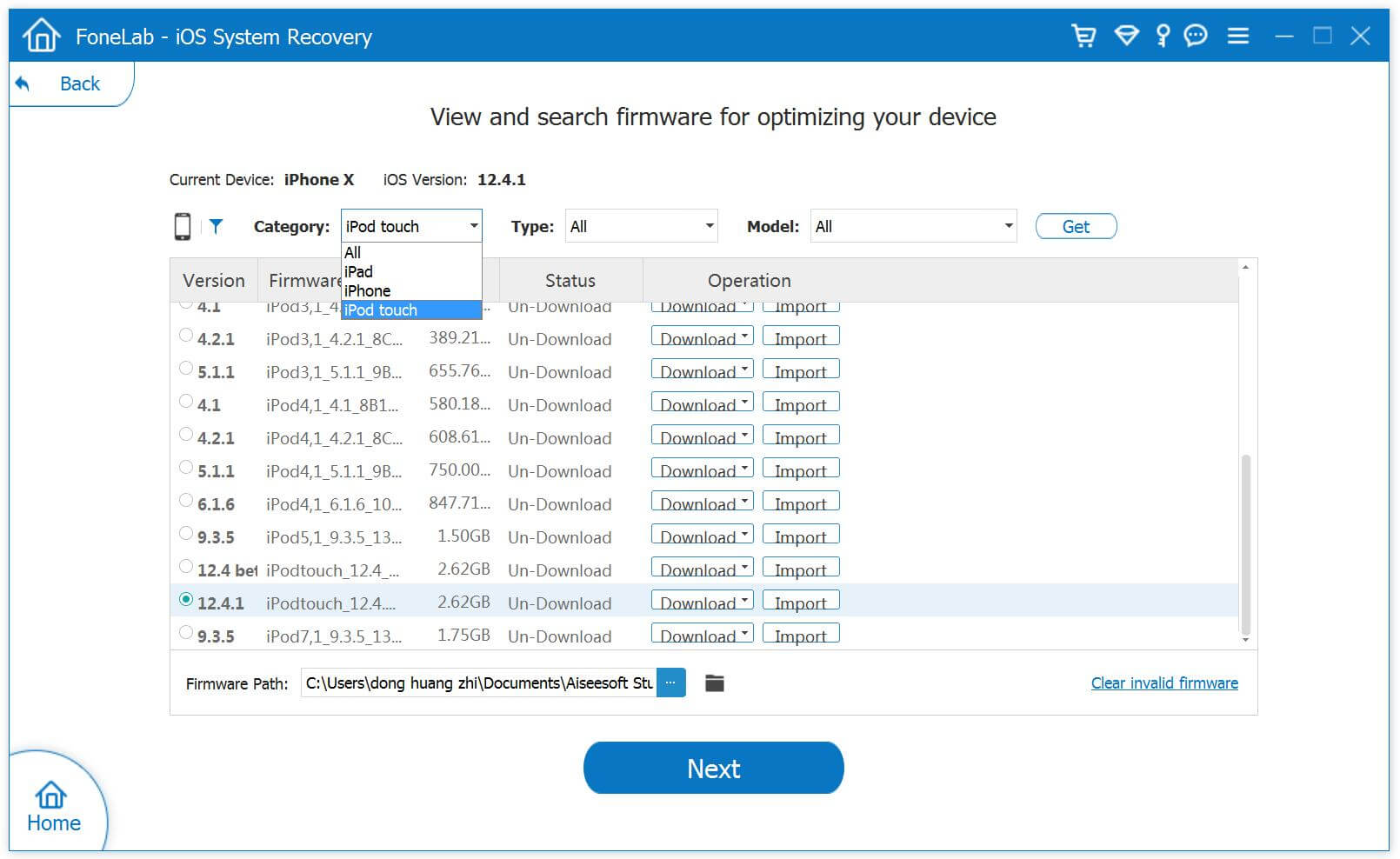
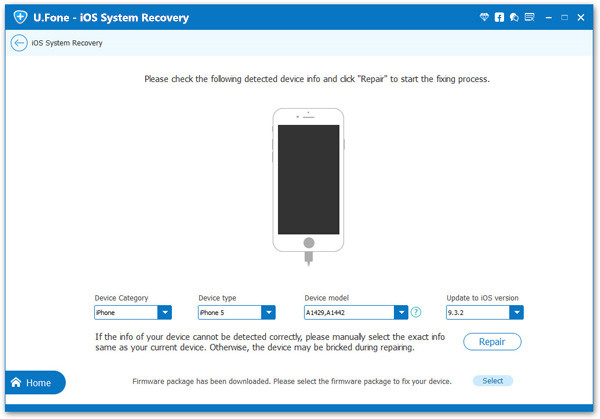
The iOS Unlocker software will automatically detect your device model. Carefully review and confirm the detected information (including Device Category, Device Type, and Device Model). If everything is correct, click “Start” button to get the appropriate firmware package.
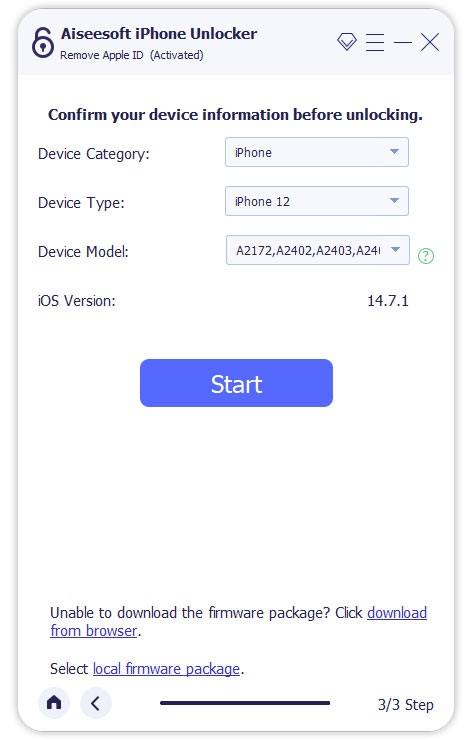
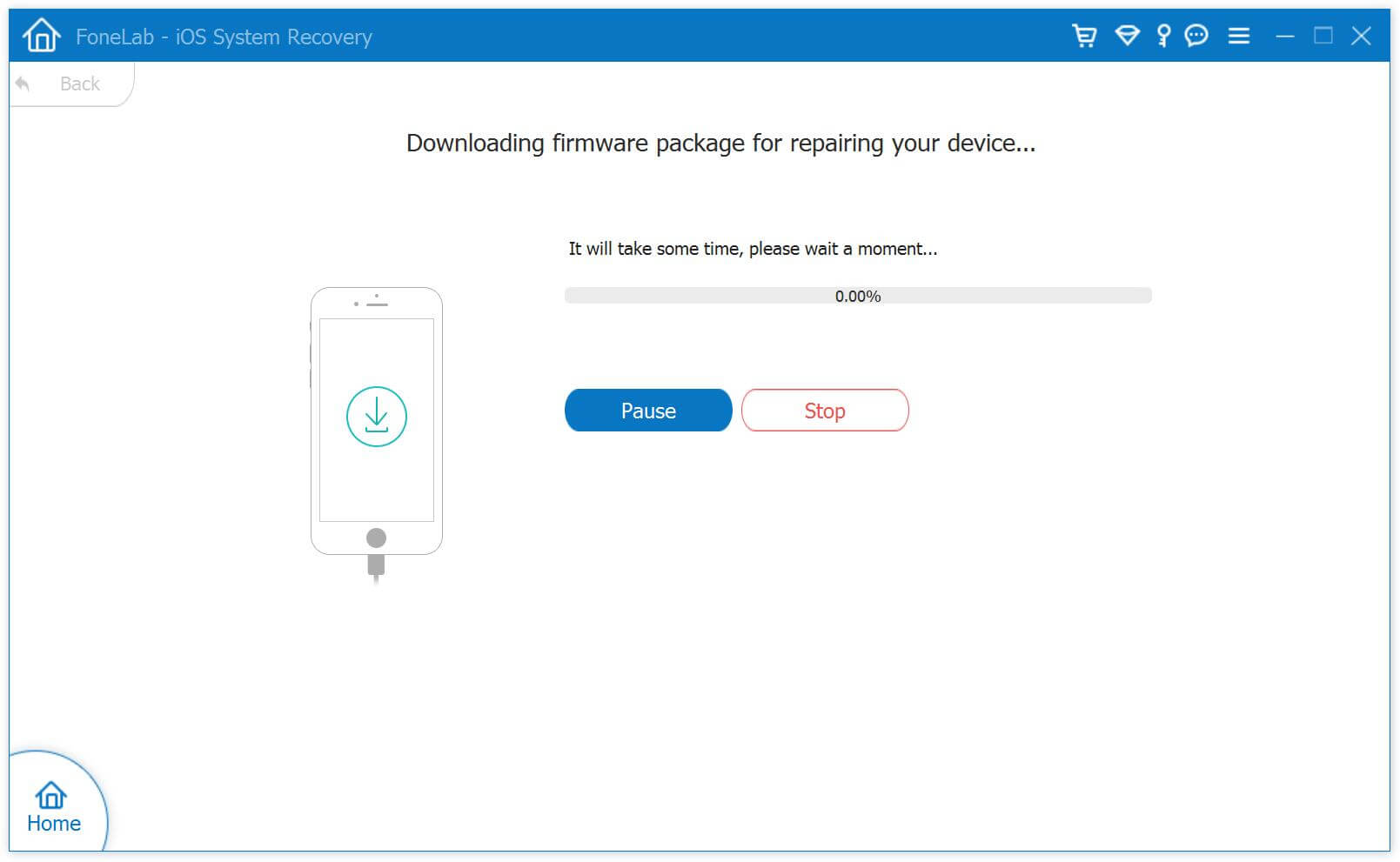
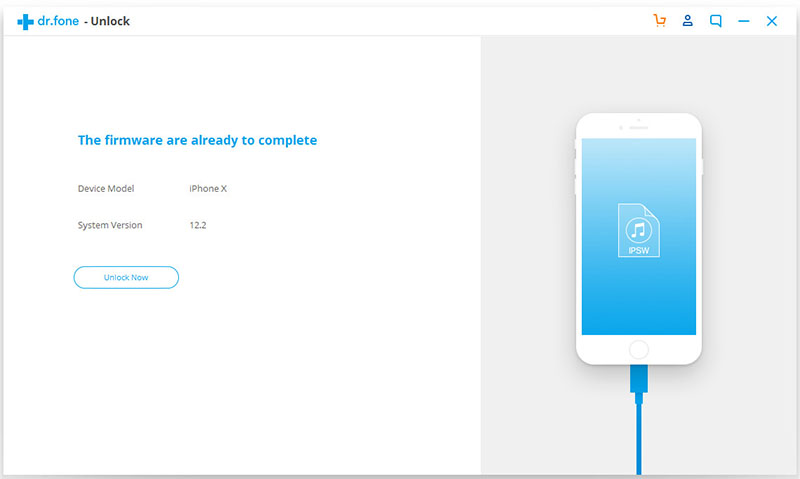
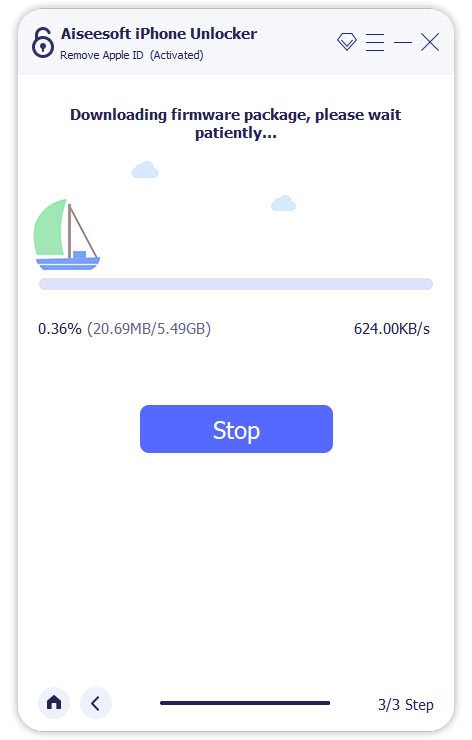
The iOS Unlocker tool will begin downloading the firmware package that matches your iPhone or iPad model.
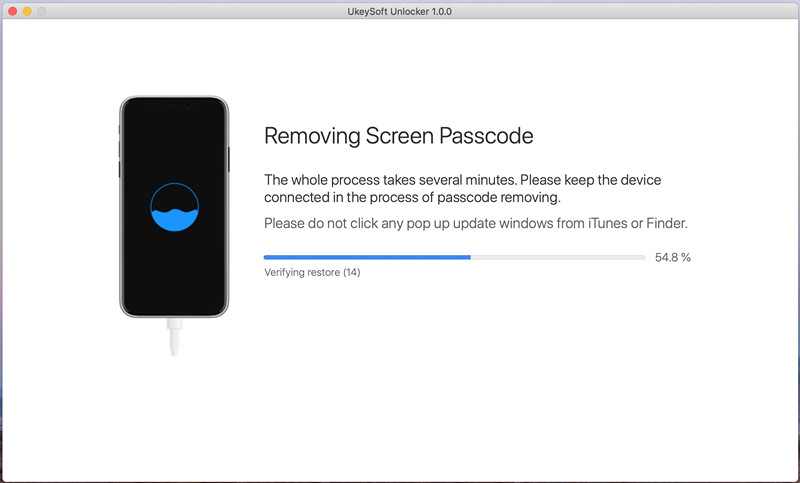
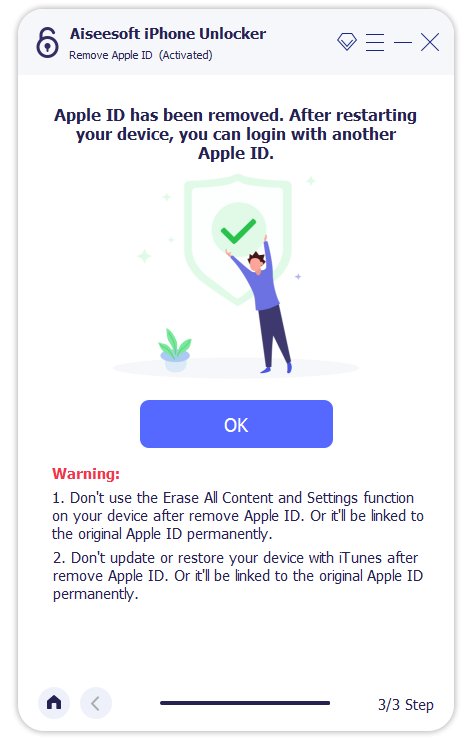
2.4 Start Apple ID Removal
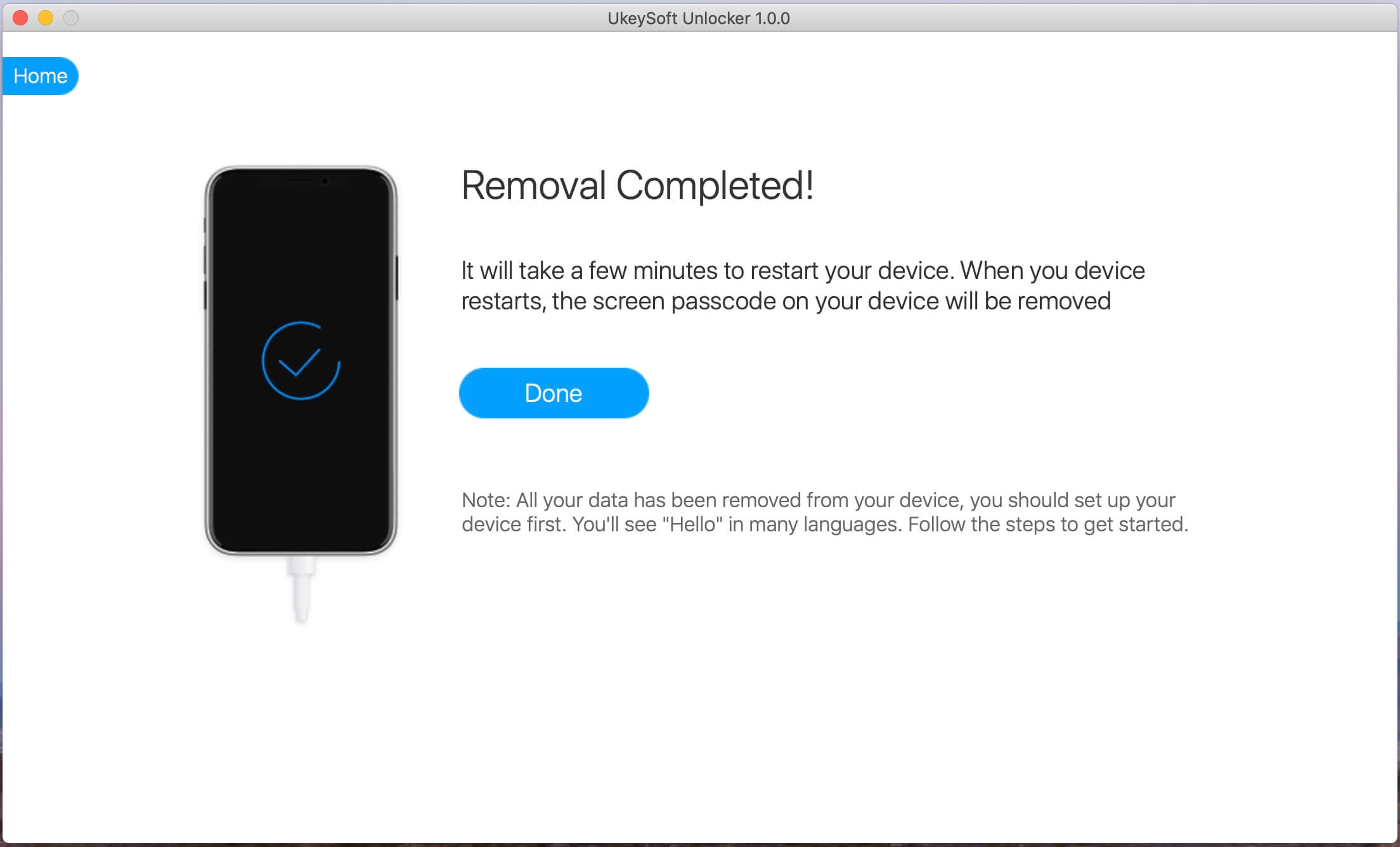
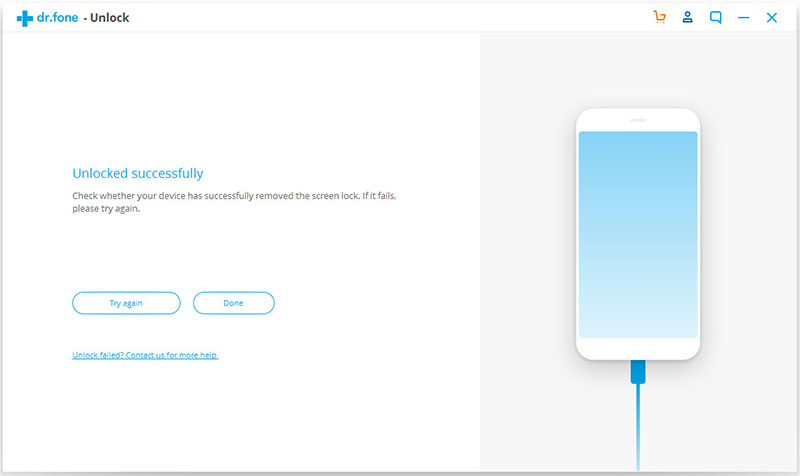
Wait until the process completes. The Apple ID and iCloud account will be removed from your iPhone/iPad. Your device will restart, and you’ll be able to set it up with a new Apple ID!
Solution 2. Remove Apple ID from iPhone/iPad via UkeySoft Unlocker
If you looking for a easy & safe method to remove Apple Music, you can use a professional iOS unlock tool to remove Apple ID from iPhone without password. Below we recommend you a useful Apple ID removal tool and teach you how to deleted Apple ID from iPhone without password.
UkeySoft Unlocker is a professional iPhone locked screen removal tool and Apple ID removal tool, it can help you remove Apple ID without password on iPhone 6, 6S, 7, 7S, 8, 8 Plus, 9, X, XR, Xs, Xs Max, iPhone 11, iPhone 11 Pro, iPhone 12, iPhone 13, iPhone 14, iPhone 15/15 Plus, iPhone 16/16 Pro/16 Pro Max, etc. Another attractive feature is that it is also capable of removing iPhone screen passcode when your iPhone is disabled of locked screen. In addition, UkeySoft Unlocker also assists you to bypass iCloud activation lock on iPhone/iPad with simple clicks.
UkeySoft iPhone Unlocker can help you:
- Remove Apple ID from iPhone without password in 1 minutes.
- Unlock iPhone/iPad lock screen in different situations.
- Compatible with all iOS devices and all types of lock screen.
- Unlock iPhone passcode at home, no need any technical skill.
- Unlock iPhone with broken screen or back screen.
- Remove icloud activation lock without password.
Note: This software only supports to remove Apple ID from an activated iPhone/iPad/iPod. In addition, your device must have been set up already and you can access your device settings.
1. If Find My [device] is off, all devices are supported to unlock Apple ID.
2. If Find My [device] is enabled, devices running from iOS 10.2 to 11.4 are supported to unlock without data loss.
3. If Find My [device] is enabled, devices running on iOS 12 and later versions are not supported.
Guide: Remove Apple ID without Password on iPhone
Go through the following guide to see how to remove Apple ID from iPhone without password under the help of UkeySoft Unlocker.
Step 1. Download, Install and Launch UkeySoft Unlocker
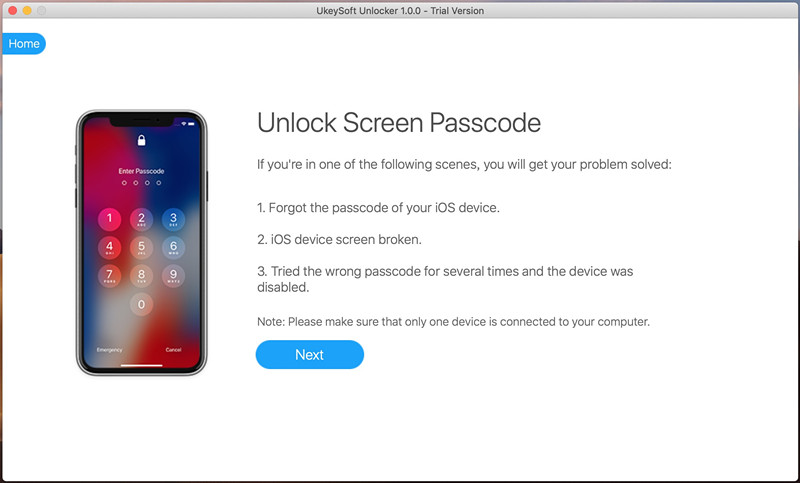
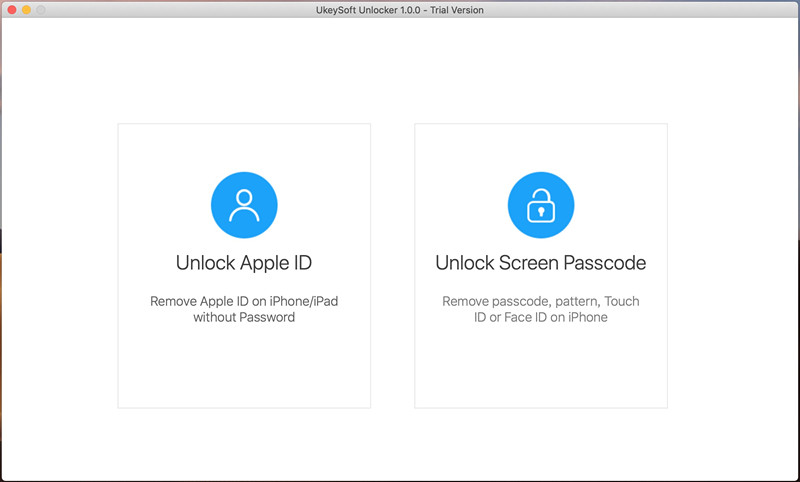
Download and install UkeySoft Unlocker on your computer. Launch it and choose “Unlock Apple ID” from the primary interface.
Step 2. Connect your iPhone to the computer
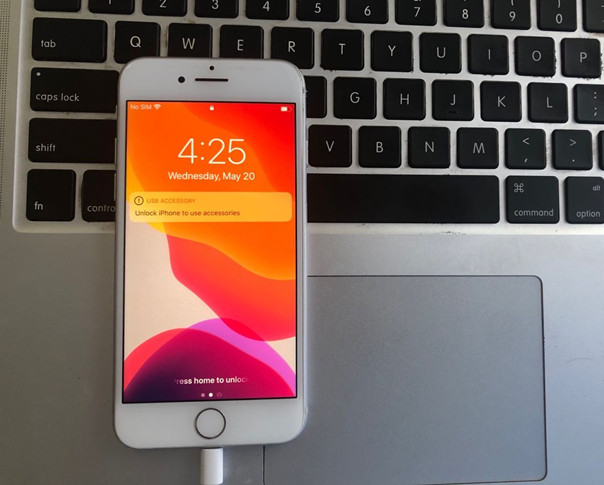
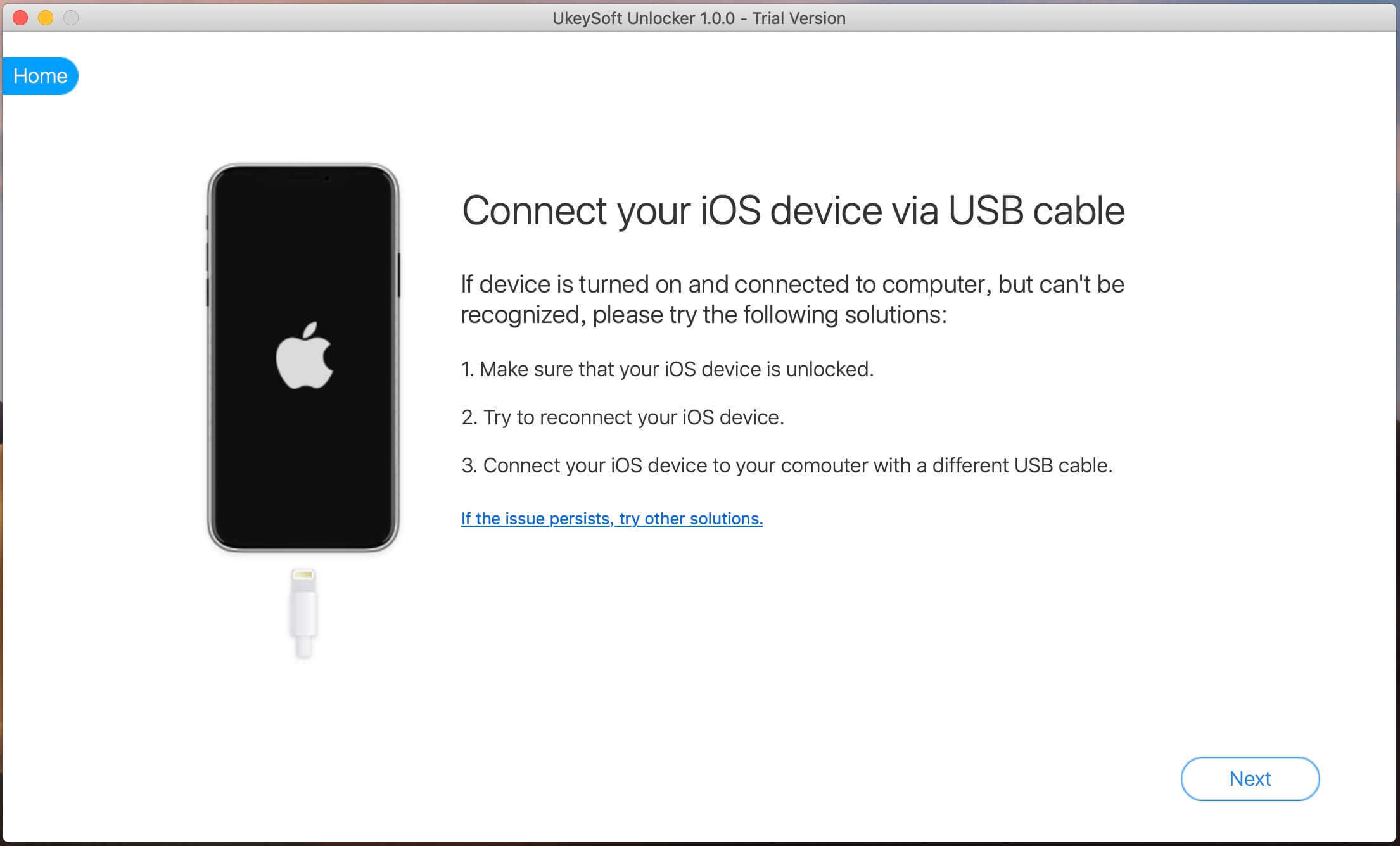
To delete Apple ID without a password, you need to connect your iPhone device to the computer.
Step 3. Enter screen password and trust this computer
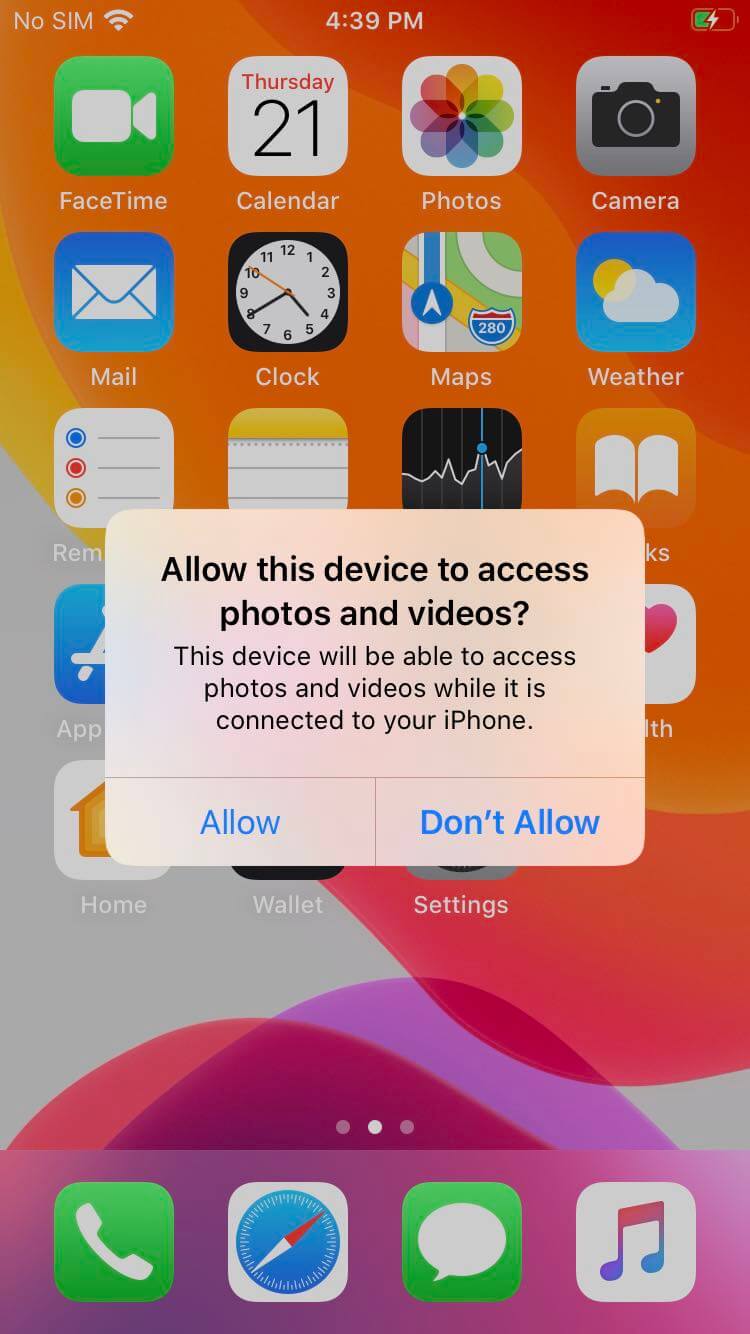
Turn to your iPhone and you will see a pop up dialog asking you whether to trust this computer. Just choose “Trust” so that the software can continue to analyze your iPhone device.
Step 4. Start to Remove Apple ID from iPhone
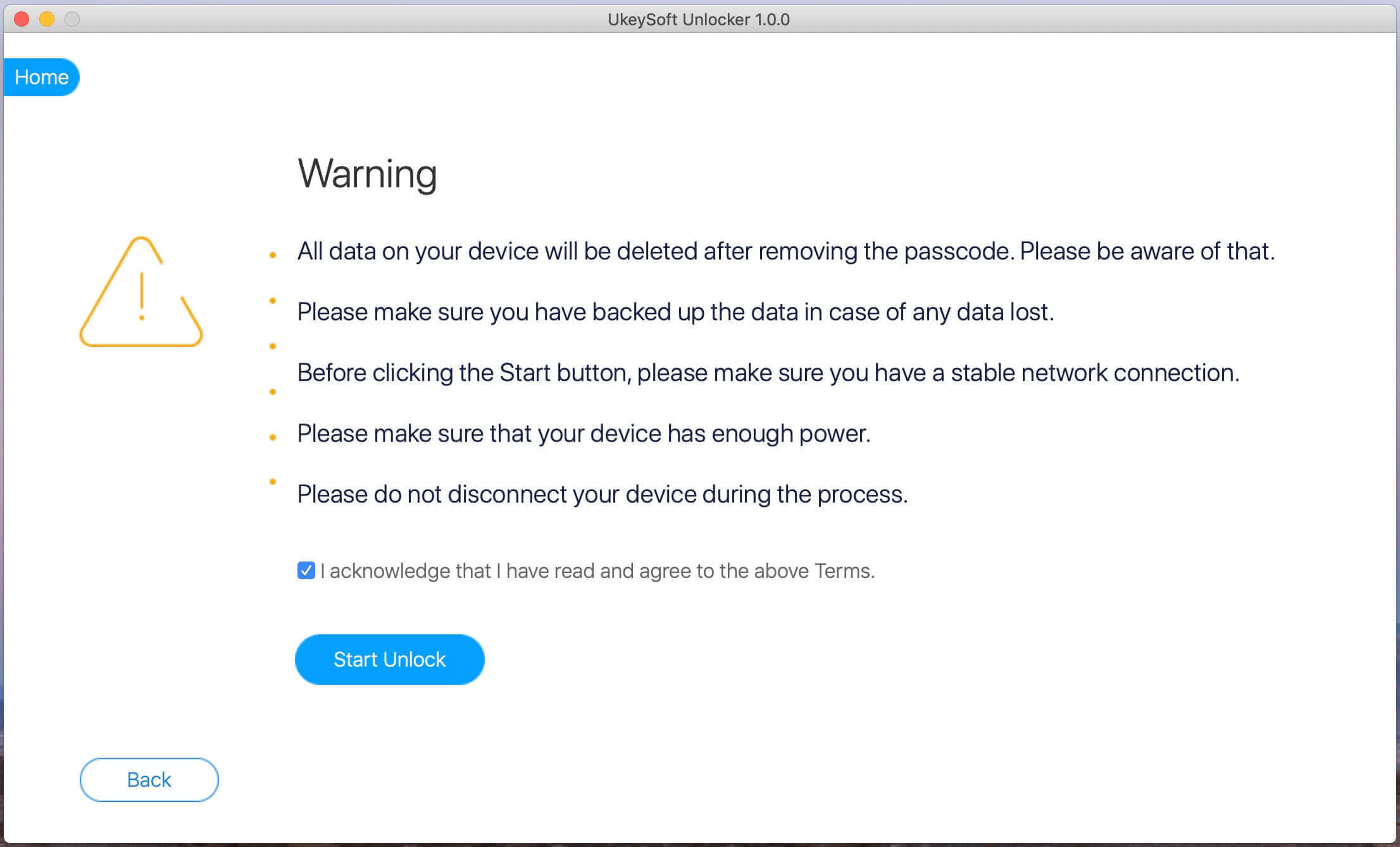
After the operations above, your iPhone will be connected to the program successfully. Now, you will be popped up with a warning window, reminding you that only one device is connected to your computer, click “Next” button to go on.
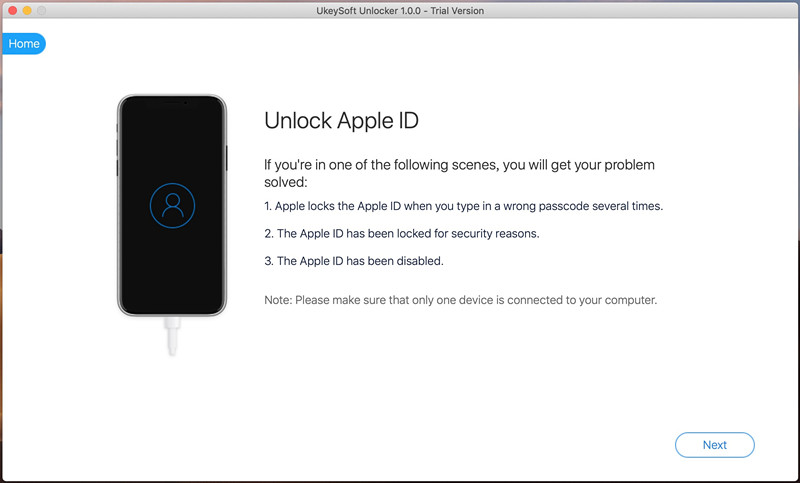
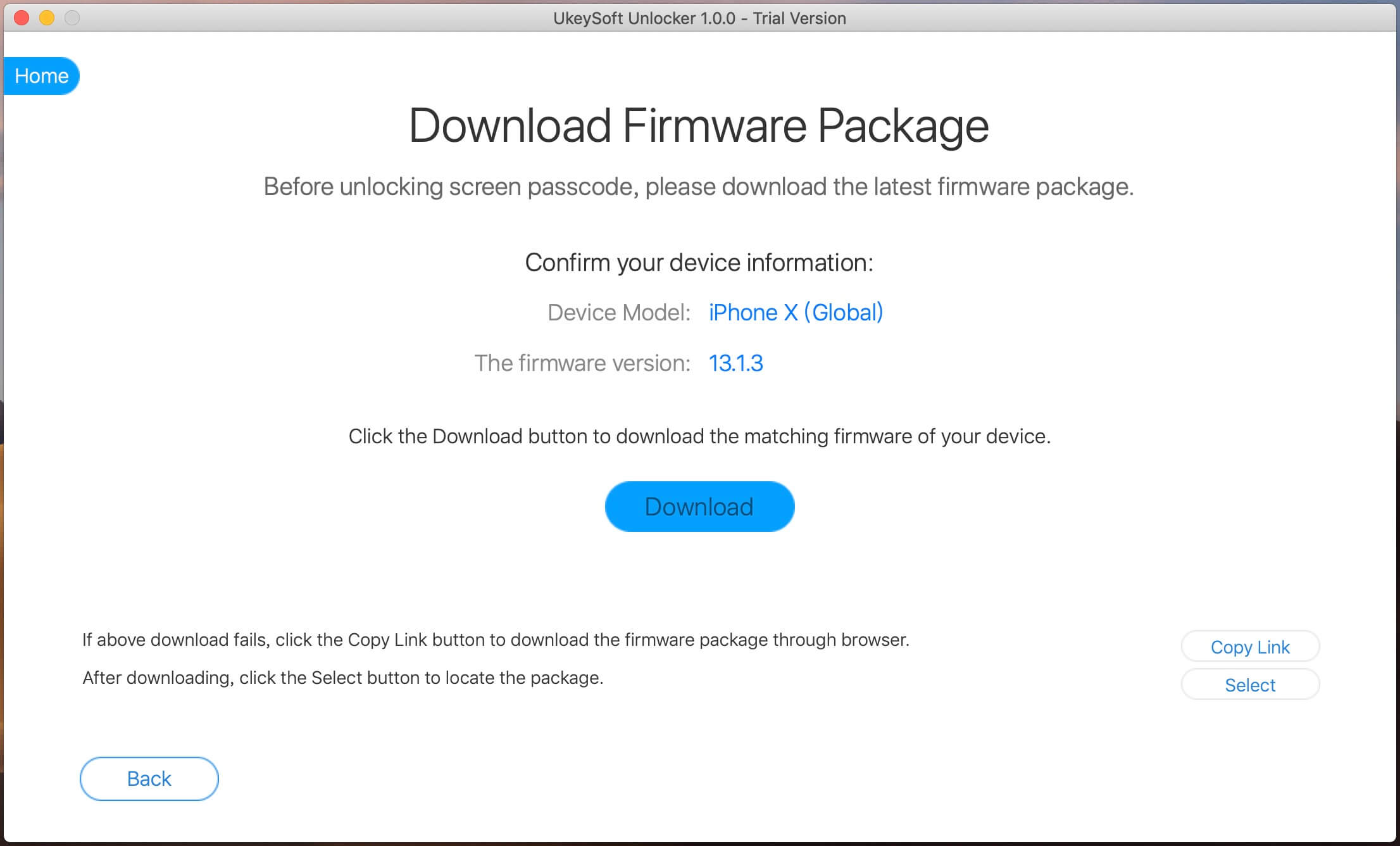
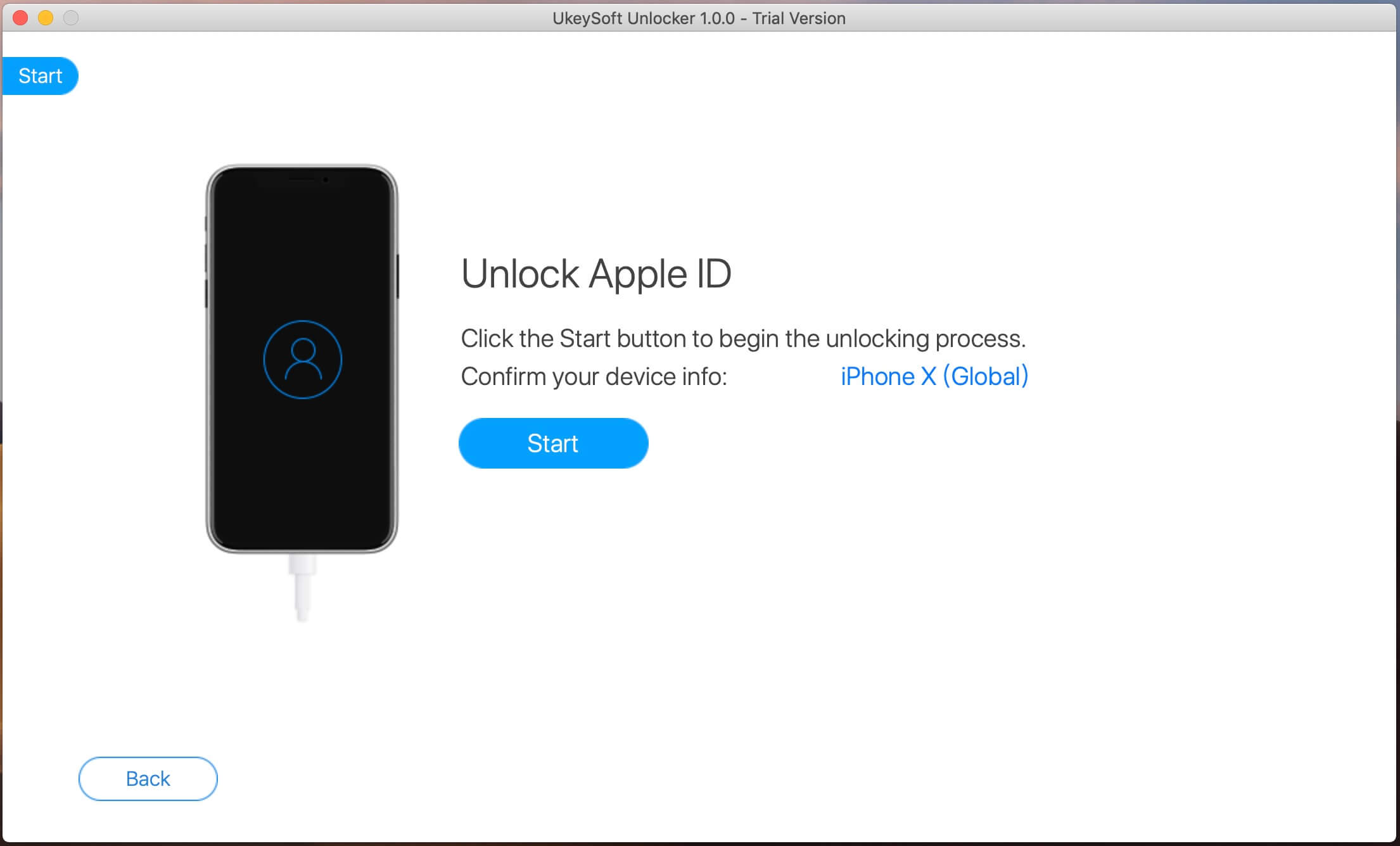
Confirm your device information and click “Start” button start to removing Apple ID and Apple ID password.
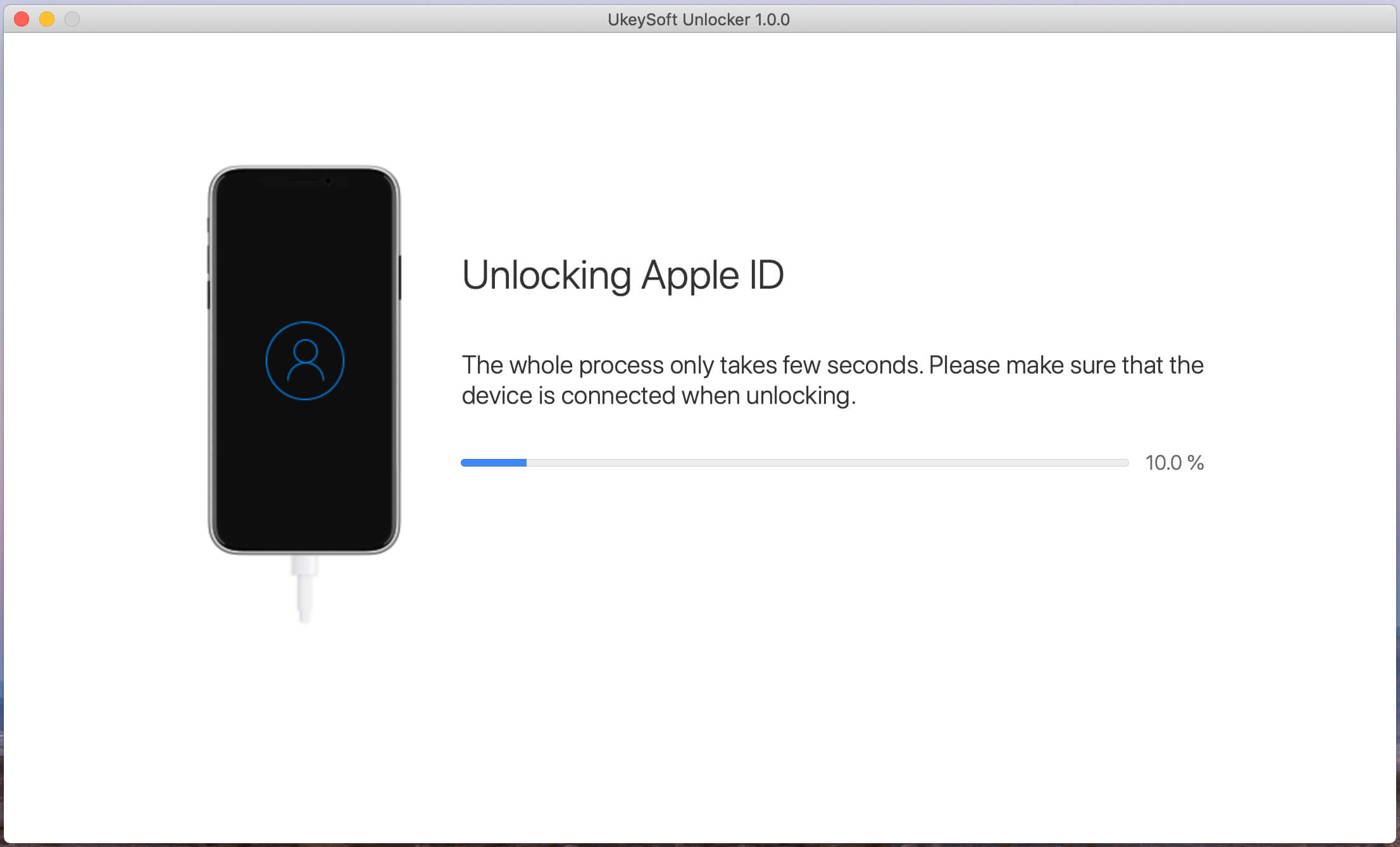
Step 5. Apple ID be Removed Successfully
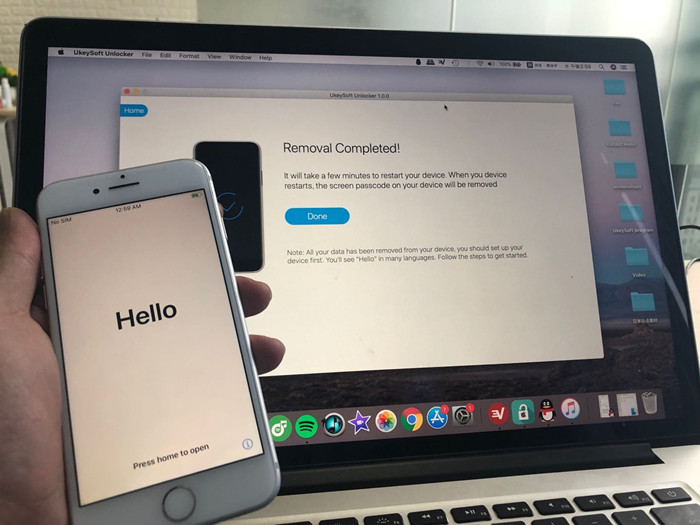
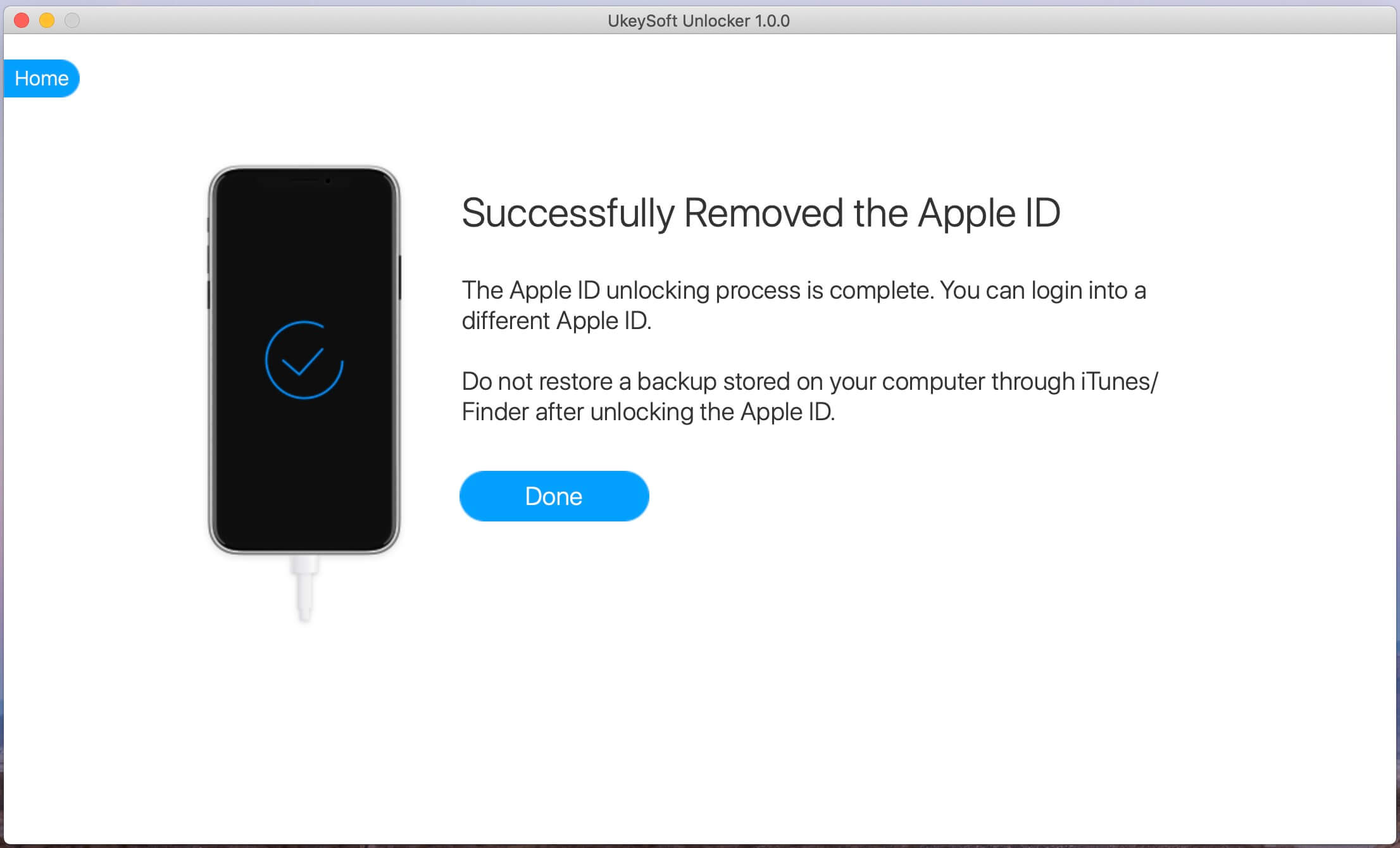
When the Apple ID removing process is completed, your iPhone device will restart automatically. Then, unlock your iPhone and open “Setting”, you can check whether the Apple ID on your iPhone has been removed successfully. If it fails, you can try again.
Therefore, we kindly suggest you to backup your iPhone data before going to further step.
Final Words
After reading the above content, you will know how to remove Apple ID account from iPhone/iPad without password. It’s easy to use, you can unlock Apple ID at home and no need to ask professional help, you can easily delete Apple ID account from iPhone without password. Of course, if you forget screen passcode on iPhone, you can also use thess iPhone unlock tools to bypass Apple ID and unlock iPhone without password, anyone can use it!
That’s all, I think this iPhone unlocking software is worth to try, please click the below download button to free download the trial version and start to unlock Apple ID without password.