All posts by DHZ

How to Transfer Android Data to Huawei Mate RS

I just switch from my old Android phone which has been used for 3 years to an Huawei Mate RS phone, which also named Porsche Design. Is there any way to import the data from my Android to the new Huawei phone with one click?

Upgrading to a new Huawei from an old Android phone is an inevitable calamity that always results in the loss of contacts or other data stored on the old phone. To avoid data loss, there will be a necessity to transfer data from your old device to the new one, especially contacts, photos, messages. Normally, one of the most common transferring methods is to backup your files with a backup application, such as SIM card or cloud and copy the backed up data to your new phone. That sounds so complicated. Is there an easier way to complete the transfer with one click?

You will be sure of smooth and easy transfer of any kind of mobile data or file from your old Android to Huawei when you get Phone Transfer running on your computer. It will offer you simple steps for file transfer to switch files from Android to Huawei Mate RS. In fact this program is a must have file manager for all those that are looking for the best way to manage their mobile data and transfer contacts, photos, text messages, videos, call logs, music, calendar, apps. It compatible with all Android models, including Huawei Mate RS, Mate 10/9, P10/P9; Samsung, HTC, Lenovo, Sony, OPPO, OnePlus, ZTE, Xiaomi, Google Pixel; and iPhone or Nokia phone.


d_win d_mac

How to Import Data from Android to Huawei Mate RS

Step 1. Connect Devices and Run Program
In the first step, connect Android and Huawei Mate RS to computer using USB cable, and run Phone Transfer on computer. On the homepage of program, click ” Phone to Phone Transfer” option.

phone transfer home page

Step 2. Select Files to Transfer
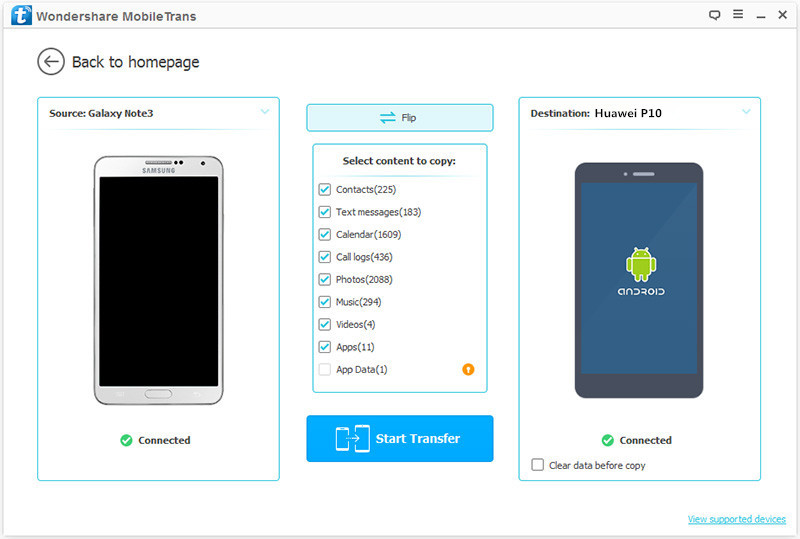
You will see both your Android and Huawei phone and files available to transfer. Android as the source device should be on the left, Huawei phone as the target device should be on the right. You are allow to change source and target phone by clicking “Flip“. Select files to transfer from Android to Huawei, contacts, SMS, photos, videos, music,call logs, calendar, apps are available.
select files to transfer

Step 3. Start Transfer Job
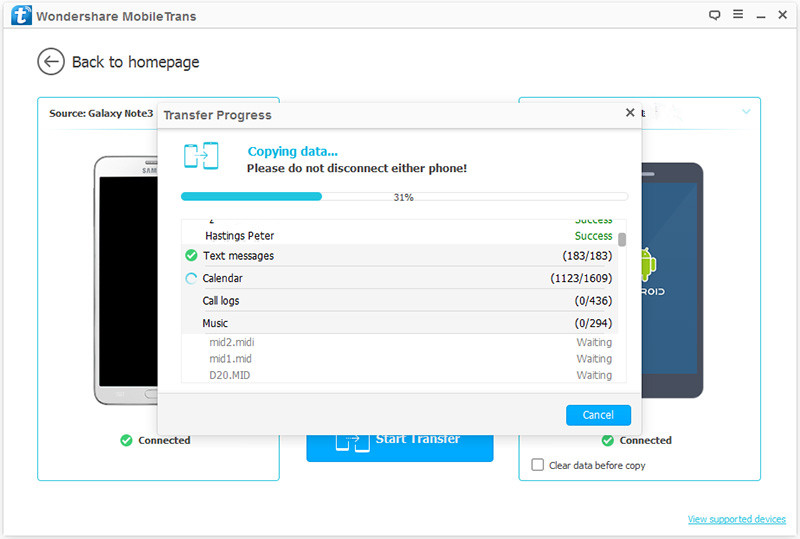
Simply click “Start Transfer” to begin transferring selected files from Android to Huawei Mate RS.
import Android data to Huawei Mate RS

The transferring process will take you a little while, depending on the size of the transferred files. Please keep the connection both of Android/Huawei and the computer while transferring. Click “OK” when the process ends.

d_win d_mac

Related Guides:

How to Transfer iPhone Data to Huawei Mate RS

How to Recover Deleted Data from Huawei Mate RS

How to iTunes Music/Videos Media Files to Huawei Mate RS

How to Backup and Restore Huawei Phone
How to Manage Huawei Android on Computer

How to Play Apple Music on Huawei Mate RS

How to Transfer iPhone Data to Huawei Mate RS

The Huawei P20 Pro is without a doubt the standout phone of 2018 so far. Nothing comes even remotely close – not even the Samsung Galaxy 9. Alongside this premium handset, Huawei released the ultra-extravagant Porsche Design Huawei Mate RS. On the inside, this is largely the same as the aforementioned P20 Pro, but with some gorgeous luxury touches that cements its appeal to the cashed-up few that’ll ultimately buy it.

For many years, the Apple iPhone has served as a benchmark for the design and style that rival Chinese manufacturers have built their handsets by and often, we’ve seen Chinese manufacturers like Huawei create some of the best looking Android handsets on the market, such as Huawei P10/P9, Huawei Honor. Recently Huawei released the newest model Huawei P20 and Huawei RS Porsche Design, which get much attention from mobile users. It’s no doubt that you may want to get a new Huawei model to replace iPhone, to upgrade to the Android based system device.

These splendid features on Huawei dose attract many iOS users switching to Huawei Mate RS. However, before switching to the new phone, you must want to figure out how to complete the data transfer between the old device and the new one, to keep the data on the new phone with a simple way. If you are also intended to buy a new Huawei Mate RS, no matter what smartphone you had before, such as iPhone 4/4s, iPhone 5/5s, iPhone 6/6s, you can use Phone Transfer to sync all content to your new Huawei device.

Sync iPhone Data to Huawei Mate RS

It will not being tricky to transfer data between iPhone and Huawei Mate RS with the help of Phone Transfer. As its name, this program enables to switch files between two mobile devices based on iOS system, Android system and Symbian system. The transferable types of data including contacts, SMS, photos, videos, music,call logs, calendar, apps. Besides to transfer data, this program allows to backup & restore device safely, wipe data from device completely. Phone Switch works well for all phone models, insist of, Huawei(Mate RS, P20/P10/P9, Mate 10/9), HTC, LG, Lenovo, Motorola, OPPO, ZTE; iPhone X,iPhone 8, iPhone 7, iPhone 6S/6, etc,.

d_win d_mac

How to Switch Data between iPhone and Huawei Mate RS

Step 1. Connect Devices and Run Program
Connect iPhone and Huawei Mate RS to computer using USB cable, and launch Phone Transfer. On the homepage, click ” Phone to Phone Transfer“.

Phone Transfer home page

Step 2. Select Files to Transfer
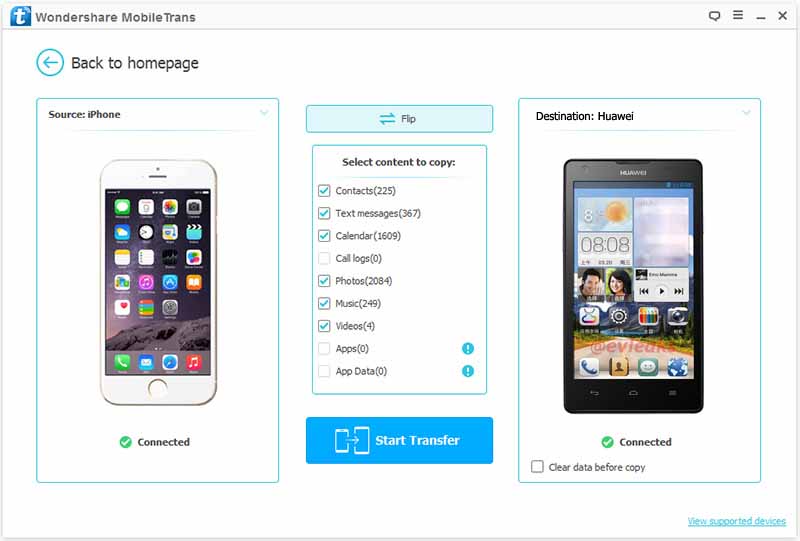
In following page, you will see both your iPhone and Huawei phone and files available to transfer. You can change source and target phone by clicking “Flip“. Select files to copy from iPhone to Huawei, including contacts, SMS, photos, videos, music,call logs, calendar, apps.

select data to transfer

Step 3. Start Transfer
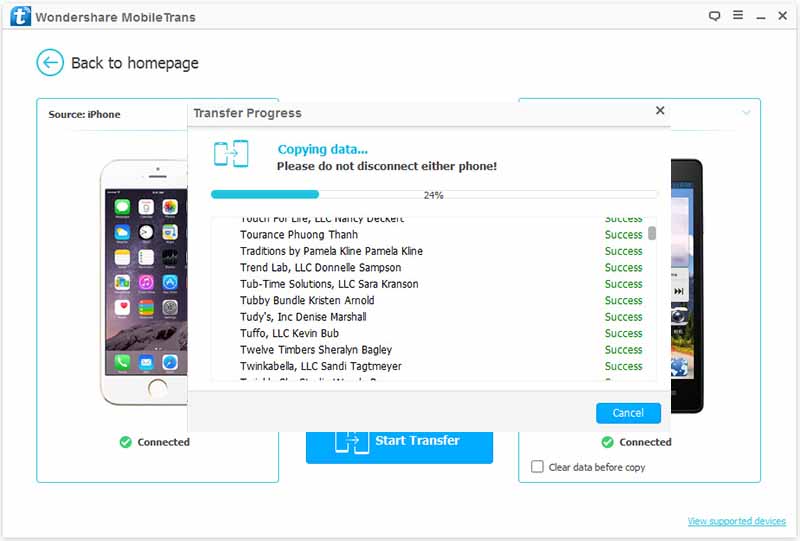
Click “Start Transfer” to begin transferring files from iPhone to Huawei Mate RS.

transfer iPhone files to Huawei Mate RS

The transferring process will take some time, depending on your file size. Please do not disconnect neither your iPhone nor Huawei phone while transferring. Click “OK” when the process finishes.

d_win d_mac

Related Guides:

How to Recover Deleted Data from Huawei Mate RS

How to Recover Deleted Photos on Huawei Mate RS

How to iTunes Music/Videos Media Files to Huawei Mate RS

How to Backup and Restore Huawei Phone
How to Manage Huawei Android on Computer

How to Play Apple Music on Huawei Mate RS

How to Fix iTunes Won’t Install/Update Issues

I get the messages ’There is a problem with this Windows Installer package. A program required for this install to complete could not be run. Contact your support personnel or package vendor.’ when I try to install iTunes on my computer. What’s wrong with it? How to fix this iTunes won’t install issue?

Many people have found it difficult to install or update iTunes on computer. This iTunes install error is not strange to some users who came across the same iTunes error on computer. The most common cause of the errors is outdated or incompatible version of iTunes installing on computer. Are you being trouble with the same problem? Actually, iTunes won’t install/update issue is not from your PC but not able to uninstall all the files of the previous version of iTunes. Now, you take this way for reference to fix this situation.

Here I recommend a wonderful tool call iTunesFix to help you. It’s powerful enough to repair 100+ iTunes error and issues without data loss by simple steps, like fix iTunes won’t install/update issue, fix iTunes couldn’t connect to iPhone issue, fix iTunes won’t back up/restore issue, etc,. What’s more, iTuneFix allows to completely uninstall iTunes and its components in the right order, leaving no traces; clean iTunes in one place, like to remove useless cache, cookies, logs, junk, used update files, old iOS backups, etc,.

d_win d_mac

How to Repair iTunes Won’t Install/Update Issues

Step 1. Run Program on Computer
First of all, run iTunesFix program on computer, it will auto-detect your iTunes.

Step 2. Select the Repair Mode
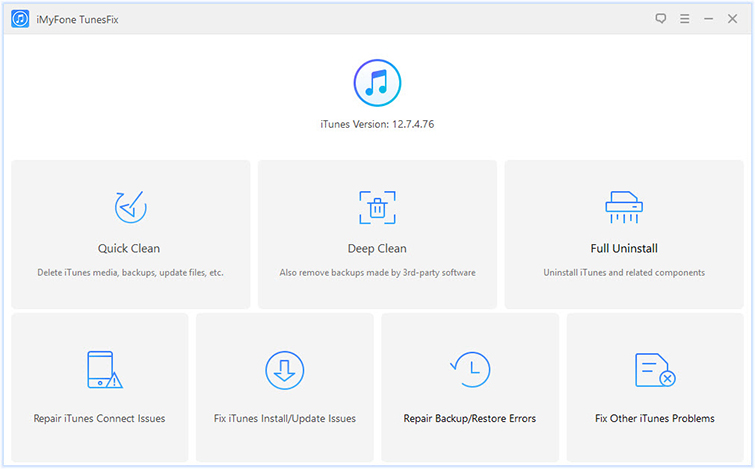
If there is no issue of iTunes and its components, you will be in the home interface. Choose one of the repair modes.

itunesfix home page

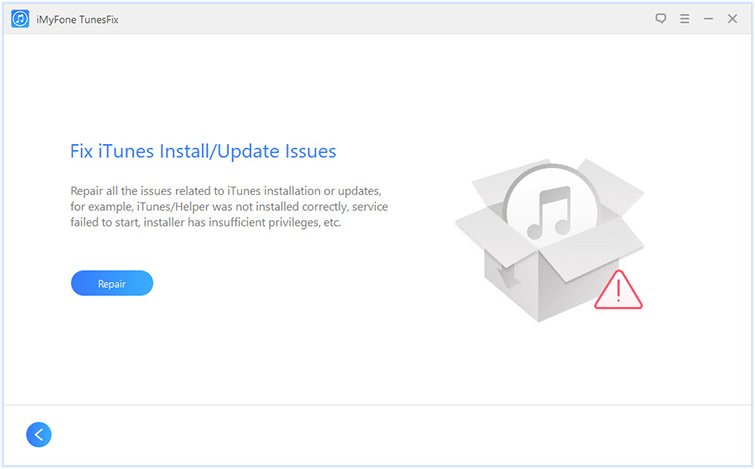
If you want to solve iTunes installation or updates, choose “Fix iTunes Install/Update Issues”.

fix itunes install update issues

Step 3. Fix iTunes to Normal
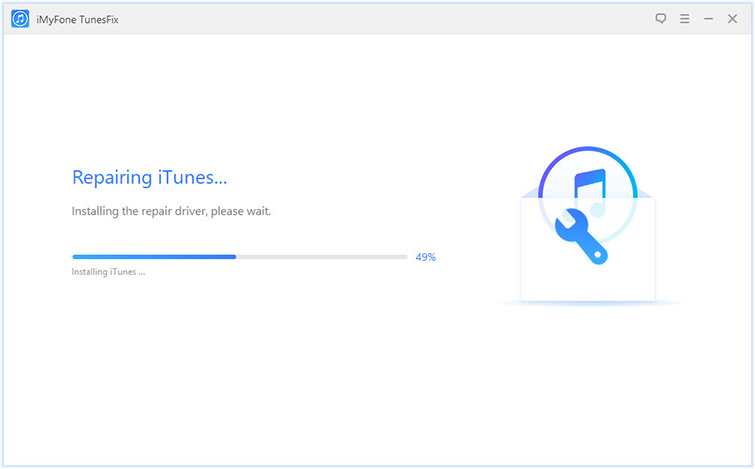
In the last step, click “Repair” and the program will start to repair your iTunes to normal. Please keep the internet stable until the repairing process is end.

repairing itunes

When the repair job is finish, you can click “Open iTunes” to launch your iTunes and try it again.

d_win d_mac

Related Articles:

How to Recover Deleted/Lost Data on iPhone X/8/7/6S/6

How to Repair iTunes Unknown Errors

How to Fix “iTunes Could Not Backup/Restore” Issue

How to Fix iTunes Cannot Connect to iPhone Error

Fix iTunes 9/4005/4013/4014 Error when Restore iPhone

How to Fix “iTunes Could Not Backup/Restore” Issue

I try to use iTunes to backup my iPhone last night but fail. It prompt with the messages ‘iTunes could not back up the iPhone because the backup was corrupt or not compatible with the iPhone’. I can’t check the problem with iTunes. Anyone know what wrong with it? How to fix this error and return iTunes to normal?

It is suggested for iOS users to backup iPhone/iPad/iPod device manually using iTunes on computer, which a the primary way to backup iOS device. Actually, backing up or restoring iOS device via iTunes should be an easy job. However, sometimes the iTunes syncing process may get some errors or just not compatible with your device. When this happen, iTunes will stop the sync process and prompt a messages for you, notice you iTunes can’t finish the job.

Recently, some people have complained that when backing up or restoring iPhone in iTunes, an error message pops out saying iTunes backup/restore is corrupt or not compatible. The causes of this error can be sync failure or iOS system incompatibility. Have you ever encountered a situation like this? This is an extremely frustrating issue and in this article we will show you how to deal with it, provides you a helpful way to fix “iTunes Could Not Backup/Restore” issue with easy steps.

Fix iTunes Issue and Return it to Normal

iTunesFix can be used to fix “iTunes Could Not Backup/Restore” issue without data loss and you don’t have to suffer from risks of losing data. In general, iTunesFix is designed for fix iTunes errors/issues and return it to normal, for example, fix “iTunes Could Not Connect to iPhone”, fix “iTunes Won’t Install/Update Issues” and other iTunes unknown errors. Additionally, it is an all-in-one program features with clear iTunes to free up and boost your computer, manage iTunes Library on computer safely, uninstall iTunes completely.

d_win d_mac

How to Repair “iTunes Could Not Backup/Restore” Issue

Step 1. Run Program on Computer
Firstly, run iTunesFix program on computer, after that, it will auto-detect your iTunes.

Step 2. Select the Repair Mode
If there is no issue of iTunes and its components, you will be in the home interface. Choose one of the repair modes.

itunesfix home page

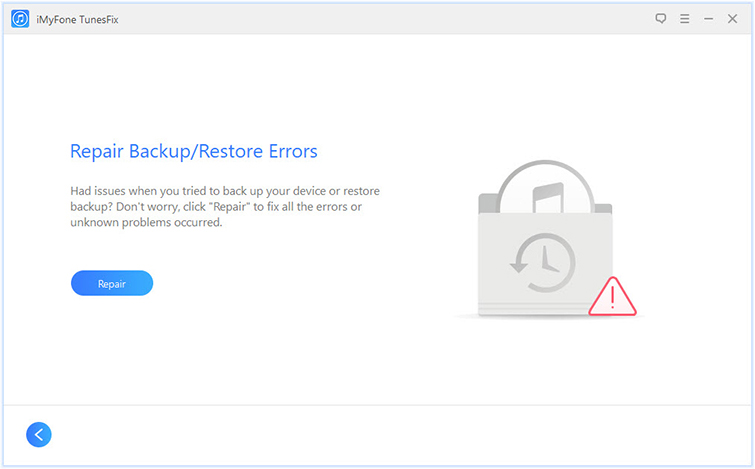
If you want to fix iTunes can’t backup or restore issue, click “Repair Backup/Restore Errors“.

repair backup restore errors

Step 3. Fix iTunes to Normal
Lastly, click “Repair” and the program will start to repair your iTunes to normal. Please keep the internet stable until the repairing process is end.

repairing itunes

When the repair job is complete, you can click “Open iTunes” to launch your iTunes and try it again.

d_win d_mac

Related Articles:

How to Recover Deleted/Lost Data on iPhone X/8/7/6S/6

How to Repair iTunes Unknown Errors

How to Fix iTunes Cannot Connect to iPhone Error

Fix iTunes 9/4005/4013/4014 Error when Restore iPhone

How to Fix iPhone Error 3194 on iTunes

How to Fix iPhone Error 14 on iTunes

How to Get Rid of iTunes Error 9006

How to Repair iTunes Unknown Errors

I try to connect my phone to iTunes on the computer then I got the messages that prompt me ‘An unknown error occurred(13010)’. I am not sure what’s wrong with it. How to fix this issue?

Some iOS users complained that they couldn’t open iTunes on computer and got some unknown iTunes errors for example 13010 issue, 0xE8000015 issue, error 4014/4013/4005. These issue usually caused by incomplete iTunes download or installation or virus infection. There are so many curses will lead to iTunes turns abnormal and then prompting you your iPhone can’t connect to iTunes as usual. But the good thing is, you can always find a way to fix the iTunes unknown errors. We’ve tested for times and gathered the best ways to fix iTunes errors, turn iTunes to normal, keep reading and have a try.

Fix iTunes Errors and Restore iTunes to Normal

One of most reliable options is using iTunesFix tool. It is one of the best tool that works perfectly with fixing all iTunes unknown errors and issues. It is a well-known repair tool for fixing 100+ iTunes errors without data loss during installing, connecting, restoring, backup with iTunes; clear iTunes to free up and boost your computer. The abnormal of iTunes states can be fix including “iTunes Could Not Connect to iPhone”, “iTunes Won’t Install/Update Issues”, “iTunes Could Not Backup/Restore”, etc,. What’s more, this program enables to manage iTunes Library on computer safely, uninstall iTunes completely.

d_win d_mac

How to Fix iTunes Unknown Errors

Step 1. Run Program on Computer
Run iTunesFix program on computer and it will auto-detect your iTunes.

Step 2. Choose the Repair Mode
If there is no issue of iTunes and its components, you will be in the home interface. Choose one of the repair modes.

itunesfix home page

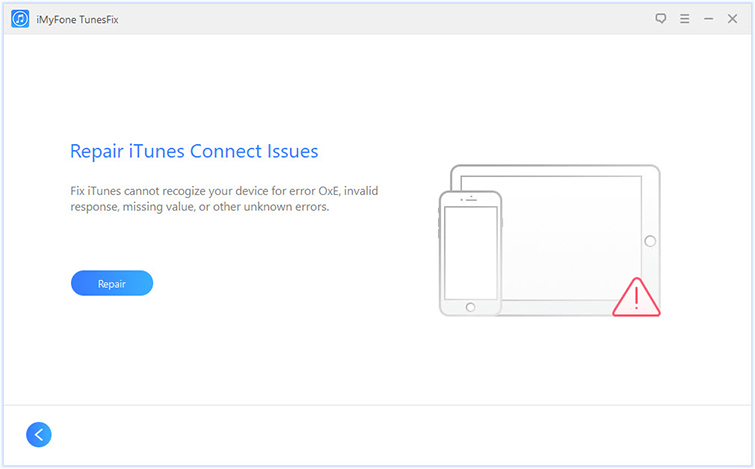
If you want to repair iTunes connect/detect issues, click “Repair iTunes Connect Issues“.

repair itunes connect issues

If you want to solve any issues related to iTunes installation or updates, choose “Fix iTunes Install/Update Issues“.

fix itunes install update issues

If you want to fix any errors occurred when you try to back up or restore iPhone, click “Repair Backup/Restore Errors“.

repair backup restore errors

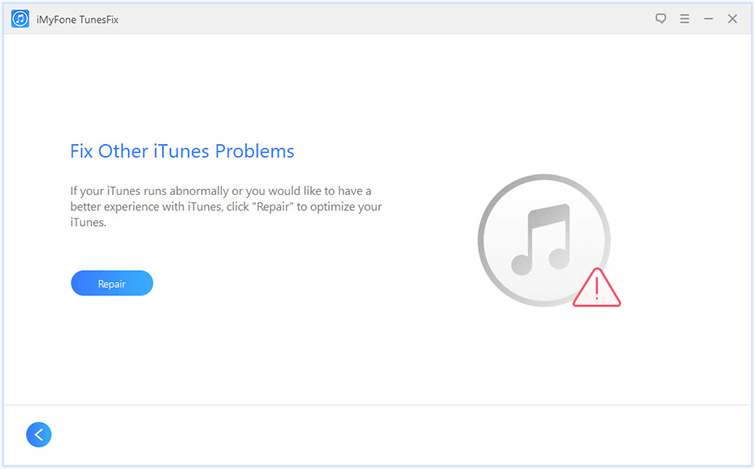
If you have no idea that the errors you want to get rid of belong to which kind of issues, just choose “Fix Other iTunes Problems“.

fix other itunes problems

Step 3. Repair Your iTunes to Normal
Click “Repair” and it will start to repair your iTunes. Please keep your internet stable during the repairing process.

repairing itunes

When it’s done, you can click “Open iTunes” to launch your iTunes and try it.

d_win d_mac

Related Articles:

How to Recover Deleted/Lost Data on iPhone X/8/7/6S/6

How to Fix iTunes Cannot Connect to iPhone Error

Fix iTunes 9/4005/4013/4014 Error when Restore iPhone

How to Fix iPhone Error 3194 on iTunes

How to Fix iPhone Error 14 on iTunes

How to Get Rid of iTunes Error 9006

How to Sync iTunes Videos Media Files to Huawei P/Huawei Mate

I sync some favorite fashion show videos with iTunes Library, how to sync these media files with my new Huawei P20 phone with one click? I want a simple and reliable solution. Thanks anyways.

Huawei phone with an appealing distinctive omni balance symmetric design which are different from the mainstream phones. Besides that, they are also have top-notch workmanship, water and dust resistant technology, great camera and screen, good performance. Since Huawei phone is so remarkable, there are a lot of iPhone users turn to Huawei phone, to experience Android performance of it. Here is the question. How to sync iTunes videos, movies and media files to Huawei P/Huawei Mate phone? Is it possible to transfer the videos files from iTunes to Huawei phone directly for entertainment?

Import iTunes Videos to Huawei Phone

You can rely on this Android & iOS Manager. It is an outstanding tool help for transferring and managing files for both Android and iOS devices. It is capable of transferring files between iTunes and Android, for example, import iTunes videos to Huawei phone(P20/P10/P9, Mate 10/9). It can also transfer files between Android and computer, between Android and Android/iOS device. Supported transferred files including videos, music, photos, contacts, SMS and playlist. More importantly, it is an all-in-one data manager tool for mobile device, features with Transfer iTunes Media to Device, Rebuild iTunes Library, Phone Transfer, Backup Device, Restore Device and GIF Maker. Works well on all Android and iOS models, insist of Huawei, ViVo, Samsung, HTC, OPPO, OnePlus, ZTE, Lenovo, LG, Sony, Motorola, Google Pixel; iPhone X, iPhone 8, iPhone 7, iPhone 6S/6; etc,.

d_win d_mac

How to Sync iTunes Videos to Huawei Phone

Launch Android & iOS Manager and connect your Huawei phone to the computer.Your phone will be detected and displayed in the primary window of program.

Step 1.Select the Transfer Mode
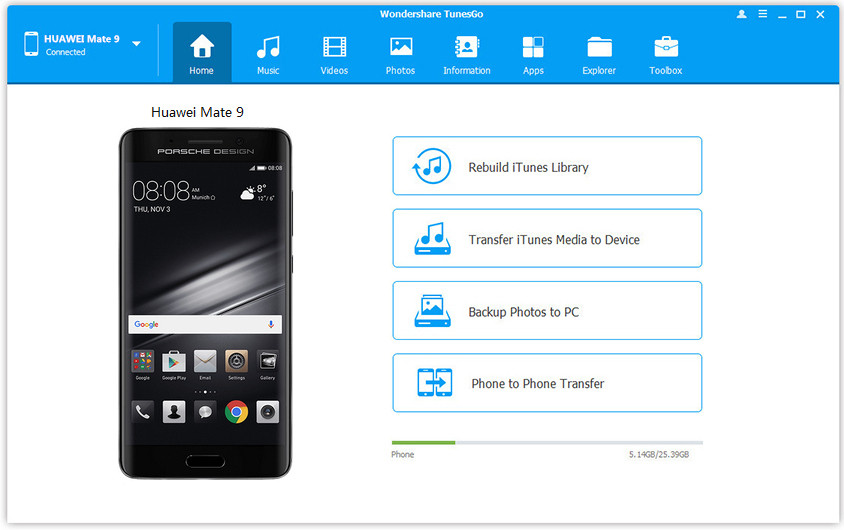
Simply click “Transfer iTunes Media to Device” on the main interface of program.Or find the “Transfer iTunes to Device” option under Toolbox > Transfer Tools section.

Android & iOS Manager home page

Step 2.Transfer iTunes Videos to Huawei Phone
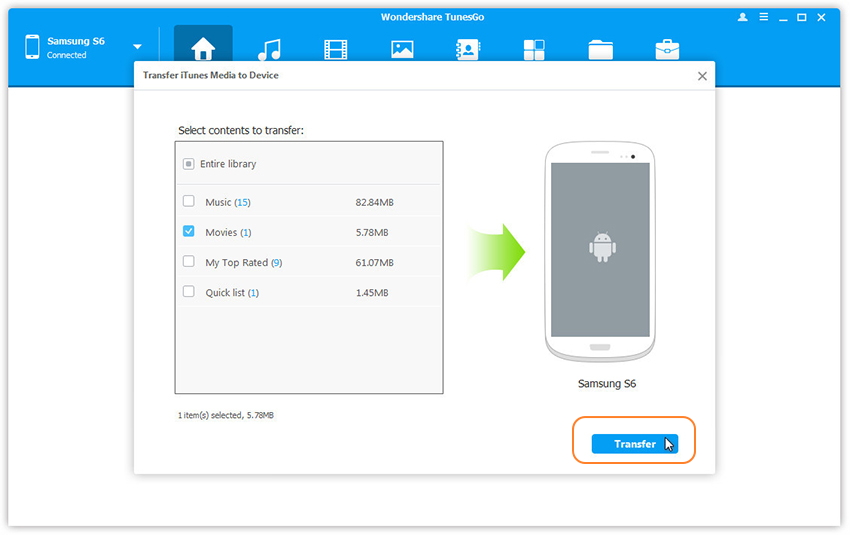
All the iTunes files will be scanned and will be shown under different categories like Movies, Music and others. By default, all the file types will be selected but to transfer only the videos file, you can uncheck the others. Check “Movies” options and start to transfer iTunes videos to Huawei phone by clicking “Transfer”.

transfer iTunes videos to Huawei

d_win d_mac

Related Guides you can Check:

How to Transfer Android Data to Huawei Phone

How to Transfer Samsung Data to Huawei Phone

How to Transfer iPhone Data to Huawei Phone

How to Backup and Restore Huawei Phone
How to Play Apple Music on Huawei Phone

How to Transfer iTunes Music to Huawei Phone

Restore Contacts/Photos/SMS from ViVo Y85/Y79/Y75/Y71/Y67

Summary: Similar to other Android brands, users find it easy to delete stuffs from Vivo Y85/Y79/Y75/Y71/Y67. And it is hard to get them back. But what I would like to say is that everything is possible. If you are looking for a way to restore files from ViVo phone, you are at the right place. I am introducing Android Data Recovery to all of you.

Vivo phone is one of the popular device among Android phone. There is no doubt that such a faction device will certainly attract a lot of people to use it. But some people will get some errors on device while using it, such as data loss. Obviously, too much of the situation may result in the loss of data, such as improper handling, accidental deletion, OS/rooting error, device failure/stuck, virus attacked, system crash, forgotten password, SD card issue and so on. However, it doesn’t seem to be a trouble thing. Actually, to get back the deleted data from your Vivo phone, what you need is just the Android Data Recovery.

Android Data Recovery is an effective as well as safe tool developed specifically for Android device data recovery, good to restore deleted data from ViVo Y85/Y79/Y75/Y71/Y67. It enables to recover any deleted Android data such as pictures, videos, contacts, WhatsApp messages, text messages, call logs, documents and so on. Whenever you need to recover your deleted Android files as soon as possible, Android Data Recovery is the best choice. Besides, This program allows to preview data before recovery. In addition, it provides you extra features with Android Data Backup & Restore, Broken Android Data Extraction. Compatible with all mobile models, for instance, ViVo, Samsung, HTC, OPPO, OnePlus, ZTE, Lenovo, LG, Sony, Motorola, Huawei, Google Pixel.

d_win d_mac

How to Recover Deleted Data from ViVo Y85/Y79/Y75/Y71/Y67

Step 1.Run Program and Connect Device to the Computer
To begin with, run Android Data Recovery program on the computer, select”Android Data Recovery” option in the home page of program. Connect your ViVo Y85/Y79/Y75/Y71/Y67 phone to the computer using a USB cable.

connect vivo to the computer

Step 2.Allow Program Connect Device
When you get the prompt on your device, click “OK” on the it to allow the program detect your phone on the computer.

allow to detect vivo

Step 3.Select the Files to Recover from ViVo
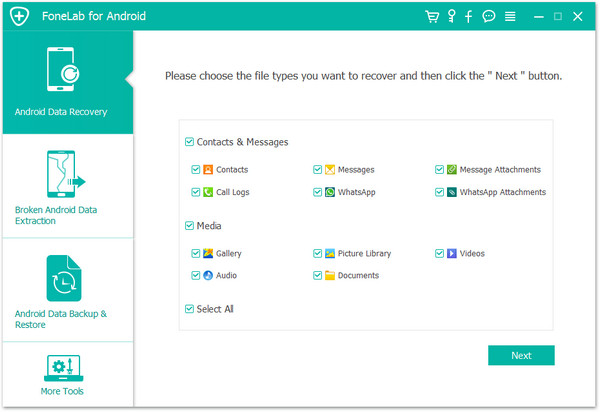
After allowing program detect your device on computer, you’ll see this window,different types of files can be chose to be scan by program.Select the files contain the data you want from ViVo that to be scanned and then click “Next” to go on.

select vivo data to recover

Tips: “Select all”could be selected to have all your ViVo data scanned.

Step 4.Allow Scanning and Analyzing Data on ViVo
You’ll get a window as follow on your device after your device is detected by the program.Tap “Allow” on your device to enable the program to scan your device for deleted data.

allow scan vivo phone

Note:Please make sure that your phone battery is more than 20% charged and don’t interrupt the connection between your phone and the computer until the recovery process is end.

Step 5.Scan Deleted Data from ViVo Phone
Now the program will begin to scan data on your phone with a little while.

scan vivo for deleted data

Step 6.Recover Deleted Data from ViVo Phone
Once the scan is end, you could preview all data found in the list of program, including contacts, SMS, gallery and more. Preview the data you want and click “Recover” to restore the selected data on the computer.

recover deleted data from vivo phone

d_win d_mac

Related Articles:

How to Recover Deleted Data from ViVo Phone

How to Restore Deleted Photos from ViVo Phone

How to Recover Deleted Contacts from ViVo Phone

How to Recover Deleted SMS from ViVo Phone

How to Recover Deleted WhatsApp Messages from ViVo Phone

How to Perform Rooting on Huawei P20 without Data Loss

How to root an Huawei P20 device without loss of data by myself? Any tools for help?

Why We should Root the Phone
For those new to the world of rooting, acquiring root access essentially grants you elevated permissions. With root access, you are able to access and modify files that would normally be inaccessible, such as files stored on the data and system partitions. Having root access also allows you to run an entirely different class of third-party applications and apply deep, system-level modifications. And by proxy, you may also be able to access certain device features that would otherwise be inaccessible or use existing features in new ways. That’s why most of Android people like to root their phone.

Android rooting opens up a world of possibility. However, the manufacturers and carriers have a vested interest in dissuading you from rooting – if done incorrectly, it can irreparably damage your phone. Rooting a device may void the warranty on the device. It may also make the device unstable or if not done properly, may completely brick the device. Even so, the potential benefits are well worth it. Do you want unlimited control over your phone? Some methods may install additional apps/software on your device. This guide on how to root Huawei P20 will walk you through the necessary steps to root your phone without data loss and damaging it.

One Click to Root Huawei P20 without Data Loss

Android & iOS Manager – Android Root tool is what we strongly introduce to you, which can one click to root Huawei P20 on computer without data loss. More importantly, it is an all-in-one data manager tool for Android and iOS device, features with Rebuild iTunes Library, Transfer iTunes Media to Device, Phone Transfer, Backup Device, Restore Device and GIF Maker. It can do a great help for transferring & managing files for mobile devices. It works well for almost all mobile device, like Huawei P20/P10/P9, Huawei Mate 10/9; HTC, Samsung, OPPO, Lenovo, Motorola, LG; iPhone, iPad.

d_win d_mac

How to Root Huawei P20 without Data Loss

Step 1.Run Program and Connect Huawei P20
Firstly, run Android & iOS Manager on computer and then connect the Huawei P20 phone to the computer with a USB cable.The program will detect your phone if it is connected successfully and display it on the primary window.

android & iOS manager home page

Step 2.Select Rooting Mode
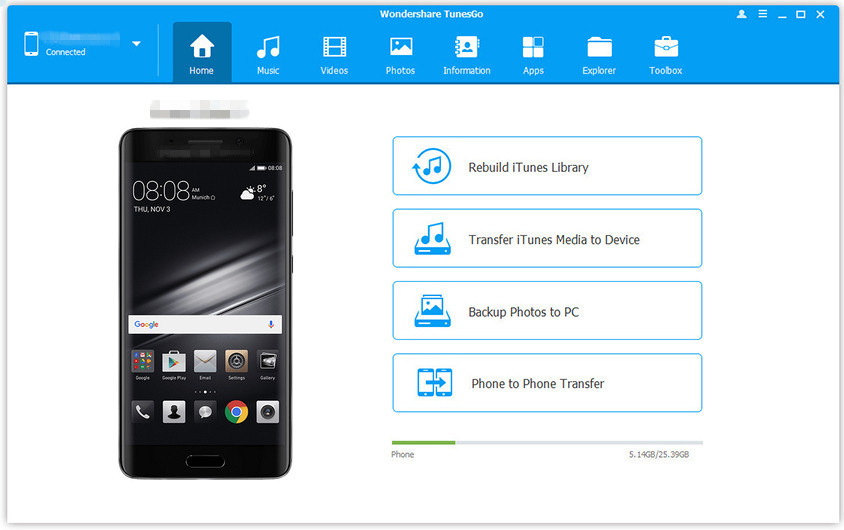
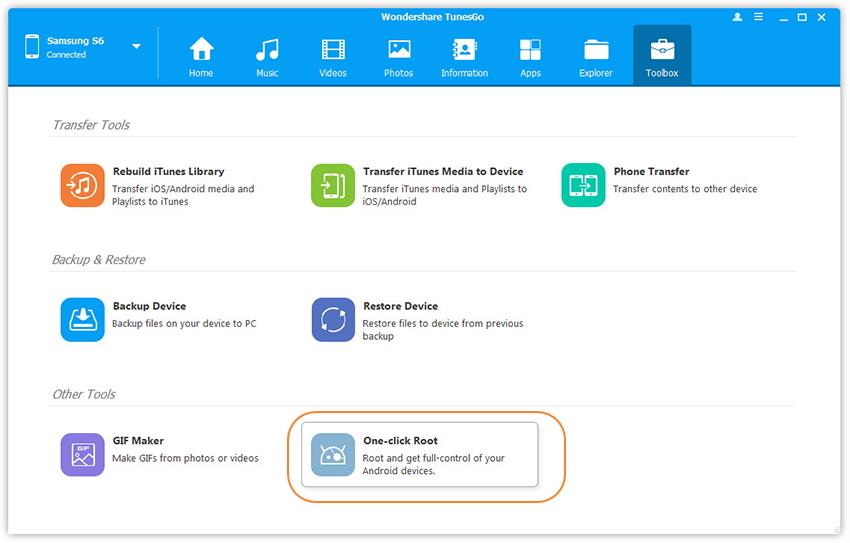
Click the “Toolbox” tab in the top menu on the primary window of the program.Three main sections will be displayed under the “Toolbox” option, including Transfer Tools,Backup & Restore, and Other Tools. Click the “Other Tools” selection,choose “One-click Root” to gain full control of your Huawei phone.

one click root

Step 3.One Click to Root Huawei without Data Loss
A prompt message will be displayed saying that after rooting you will gain full access to your phone system and that rooting may affect your device warranty.Just click “Root” from that warning box to continue rooting your Huawei phone.

root Huawei P20 without data loss

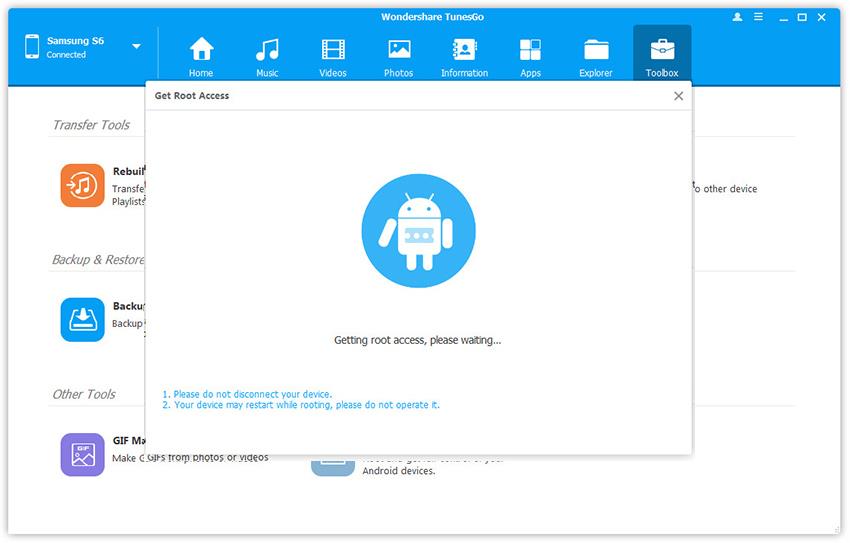
It will prompt you once the root process is finish. Please remember to don’t interrupt the connection of your device and the computer until the root is completed.The phone may restart during the root process,but you should not operate it.

d_win d_mac

Related Guides you can Check:

How to Recover Deleted Data from Huawei P20

How to Transfer iPhone Data to Huawei P20

How to Transfer Android Data to Huawei P20

How to Backup and Restore Huawei P20

How to Stream Apple Music to Huawei P20

How to Manage Huawei Android on Computer

How to Restore Lost Files from ViVo X21/X20/X9s

Summary: Finding ways to directly recover deleted contacts/photos/messages files from ViVo X21/X20/X9s without backup? Android Data Recovery provides you the best solution that allows you to recover files using only the phone, even without any professional skills.

I accidentally deleted some photos in Gallery on my Vivo X21 phone and have spent the whole day in searching online to find a solution to retrieve them back without backup but finally failed. Is there any app that can help?

Now, with the popularity of Android devices, more and more Android users are saving the personal data with their mobile phone, contacts, photos, SMS, etc,. Simultaneously, unexpected data loss disaster caused by different reasons occurs more and more frequently. The most common curses lead to data loss on device may be deletion accidentally, Android OS updated, factory reset restoring. If your Vivo phone get something important files lost, you should get the help of some data recovery programs. If you have no ideas, just try this one.

Recover Lost Files from ViVo X21/X20/X9s

No even more amazing is this Vivo data recovery – Android Data Recovery is not only suitable for ViVo mobile phone, but also applicable to a wide variety of Android mobile phone, for example, Samsung, Huawei, Motorola, HTC, LG, Sony, Meizu, Lenovo and so on. With this Android Data Recovery, you could easily recover lost files from ViVo X21/X20/X9s with a few clicks. It is a famous data recovery program special designed to restore Android data lost due to any curses, including deleted carelessly, Android system updated, restore to factory reset, virus attacked, etc,. Additionally, Android Data Recovery features with Android Data Backup & Restore, Broken Data Extraction.

d_win d_mac

Main Features of Android Data Recovery:
-Restore erased, deleted, lost, missing, formatted files from Android phones.
-Get back data such as photos, videos, contacts, text messages, WhatsApp messages, audio, call history, documents, etc,.
-Preview the recoverable file before final recovery.
-Backup or restore Android data safely.
-Recover data from broken device.

How to Retrieve Lost Data from ViVo X21/X20/X9s

Step 1.Run Program and Connect ViVo Phone to the Computer
In the first step, run the Android Data Recovery program on the computer, click”Android Data Recovery” option in the home page of program.Then please connect your ViVo X21/X20/X9s phone to the computer using a USB cable.

connect vivo to the computer

Step 2.Allow Program Connect ViVo to the Computer
Click “OK” on the phone to allow the program detect your device on the computer.

allow to detect vivo

Step 3.Select the Files to Recover from ViVo
After allowing program detect your device on computer, you’ll see this window,different types of files can be chose to be scan by program.Select the lost files contain the data you want from ViVo that to be scanned and then click “Next” to go on.

select vivo data to recover

Tips: “Select all”is selected to have all your ViVo data scanned.

Step 4.Allow Scanning and Analyzing Data on ViVo
You’ll get a window as follow on your device after your device is detected by the program.Tap “Allow” on your device to enable the program to scan your device for deleted data.

allow scan vivo phone

Note:Please make sure that your phone battery is more than 20% charged and don’t interrupt the connection between your phone and the computer during the recovery process.

Step 5.Scan Deleted Data from ViVo Phone
Now the program will start to scan data on your phone with some minutes.

scan vivo for deleted data

Step 6.Recover Lost Files from ViVo Phone
When the scan is end, you could preview all data found in the list of program, including contacts, SMS, gallery and more. Preview then retrieving the data you want to restore by clicking “Recover” button to save them on the computer.

recover lost files from vivo xplay phone

d_win d_mac

Related Articles:

How to Recover Deleted Data from ViVo Phone

How to Restore Deleted Photos from ViVo Phone

How to Recover Deleted WhatsApp Messages from ViVo Phone

How to Recover Deleted Contacts from ViVo Phone

How to Recover Deleted SMS from ViVo Phone

How to Root Huawei Phone on Computer Safely

I try to root my Huawei phone but failed. Any good ways to safely root my phone on computer with only one click? Anyone can help?

Huawei smartphones are becoming more and more popular and they are keeping provide great functions to Huawei fans. Almost every Android device comes with a few limitations. In order to make the most out of your Huawei device, you may want to get some ways to root in. After performing a Huawei root operation, you can definitely customize it on the go. From installing a wide range of apps to controlling the overall appearance of your device, there a lot of things you can do after you root Huawei phone. For example, you can get rid of the in-app ads, install custom ROM, uninstall the default applications, and perform all the other kind of impressive stuff after rooting your device.

What Should you Do before Rooting Huawei Phone
Action one: Backup your Huawei phone before rooting. You can create a backup of your Huawei device by some cloud service or getting help of some backup tool. Check this: How to Backup Huawei Phone Safely.

Action two: You need to ensure your device will keep turn on during the process, so you should to make sure it has at least 60% charged.

Root Huawei Phone on Computer with One Click

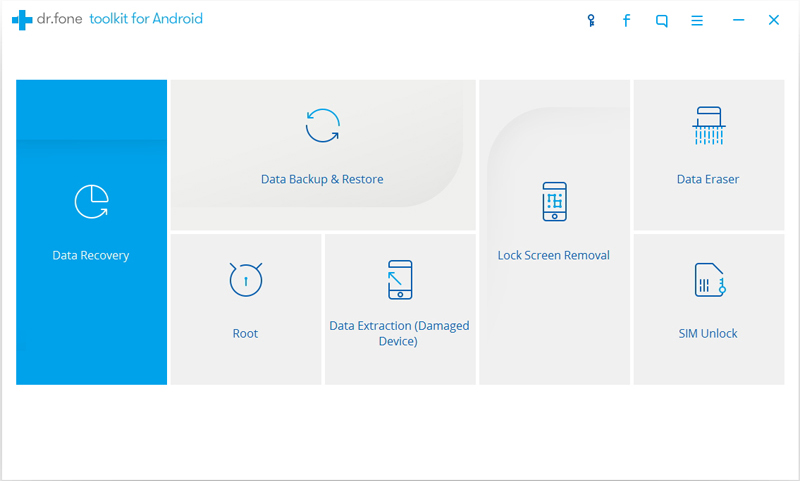
Android ToolKit Android Root can do you a favor. It is a well-known rooting tool for Android device, help to safely root Huawei phone on computer with only one click, the process will not lead to any data loss on device. Generally, Android Root provides you a reliable rooting solution for all Android device, including Huawei(P20, P10/P9, Mate 10/Mate 9, Honor), HTC, LG, Motorola, Google Pixel, ZTE, Samsung, OnePlus, OPPO, ViVo, Xiaomi, etc,. Furthermore, Android ToolKit is an all-in-one data manager tool for Android device, features with Data Recovery, Data Backup & Restore, Broken Device Data Extraction, Lock Screen Removal and more.

d_win d_mac

How to Root Huawei Phone without Data Loss

First of all, download and run Android Root tool on computer, click on “More Tools” in the main page of program. Select “Root” option on it.

android root home page

Step 1.Connect Huawei to the Computer
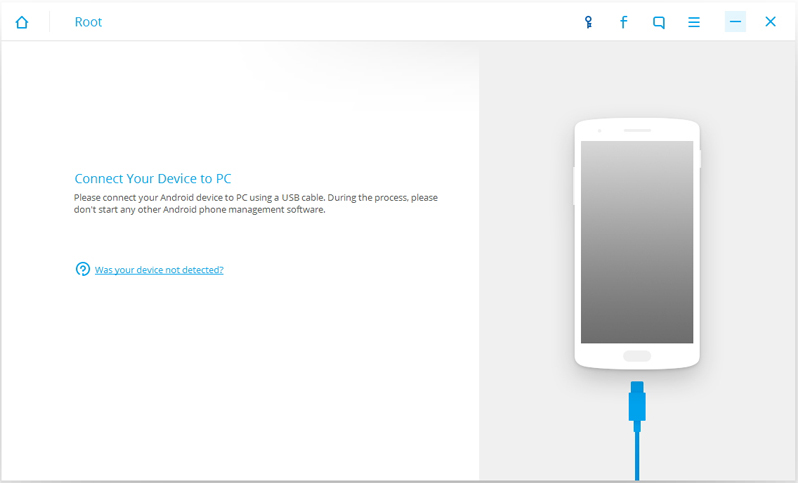
Connect your Huawei phone to the computer with an USB cable.Make sure you have enabled USB Debugging mode on your device.Then Android Root will automatically detect your device.

connect Huawei to pc

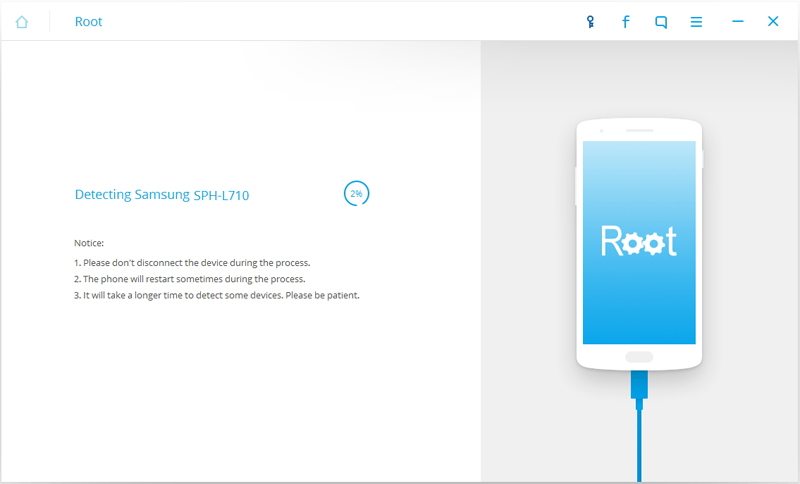
When your Huawei is detected successfully,Android Root will find a proper solution to root your phone.Click on “Start” to go on.

detect Huawei with android root

Tips:
A.Please don’t disconnect the device during the whole process.
B.It may cost you a little time to detect your device.Please be patient.
C.The phone will restart sometimes when detecting.

Step 2.Root Android with One Click
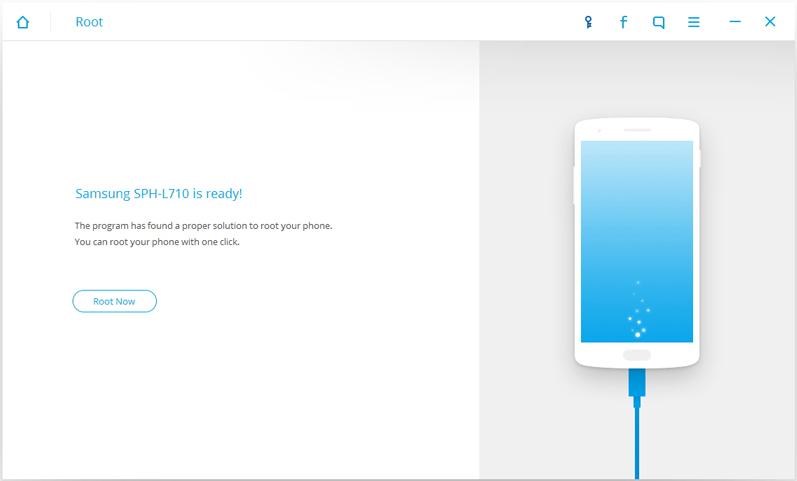
It will take you some minutes for the program to detect the device.Then it will be ready for you to root your device.Just click on “Root Now” to root your device without data loss

ready to root Huawei

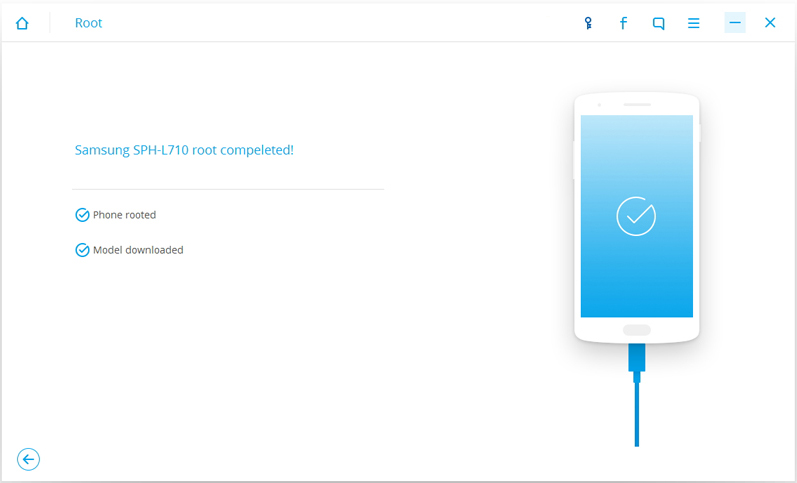
During the rooting process,the phone will pop up a message to ask whether you would like to root the phone.Tap on “Confirm” to continue the rooting process.You phone will be finish rooting in just a few minutes.

Huawei rooted

d_win d_mac

Related Articles:

How to Recover Deleted Data from Huawei Phone

How to Restore Deleted Photos from Huawei Phone

How to Sync Music from iTunes to Huawei Phone

How to Play Apple Music Files on Huawei Phone

How to Manage Huawei Android on Computer