All posts by DHZ

5 Ways to Recover Lost Notes from iPhone and iCloud

Summary
Notes disappeared on iPhone 11/11 Pro(Max)? Read this guide to get 3 ways to recover disappeared/lost/deleted notes on iPhone 11/XS/XR/X/8/7/6s.

Have bought an new iPhone 11? The iPhone 11 runs iOS 13 system, the newest iOS 13 comes and brings some expected amazing new features. Do you deleted data on iPhone 11? We still hear a lot of users’ complaints about data like notes, contacts, videos, photos, music or messages disappeared after iOS 13 update. Here in the post, we are going to introduce you 3 methods to fix notes disappeared on iPhone 11. You also an recover deleted notes from iPhone XS/XR/X/8/7/6S/6.

[Also Read: How to export notes from iPhone to computer]

[Also Read: Recover Data Files on iPhone 11 (Pro, Pro Max) without Backup]

Notes disappeared on iPhone? This may be due to accidental deletion, erased or for other reasons too, this can happen. However, the good news is that you can still get your lost notes on iPhone 11/11 Pro (Max) back. How? Well! You will get to know when you read this article carefully. We are going to cover 3 useful ways that will let you find disappeared notes from iPhone 11/11 Pro (Max) or iCloud. Here you go!

Part 1: Log in with the correct iCloud ID to Find the Backed Up Notes

Firstly, make user that you log in with the correct iCloud ID on your iPhone 11/11 Pro (Max). Sometimes, you may log in with different iCloud ID/Apple ID from iPhone device, which resulting in your previous notes disappeared on iPhone 11/11 Pro (Max). So, you need to ensure that you are making use of the correct ID and not using the incorrect ones. This may lead to make your notes disappear and you notes will not stay updated.

How to check and change your Apple ID on iPhone 11? Please go head to “Settings” and go to your name on the top.

You will be able to see your Apple ID, making sure you have logged in the correct Apple ID/iCloud ID that the previous note in your iPhone. if this is not correct, scroll down and tap “Sign Out”, then sign in correct iCloud ID again, you will find the previous note synced into the iPhone 11 again.
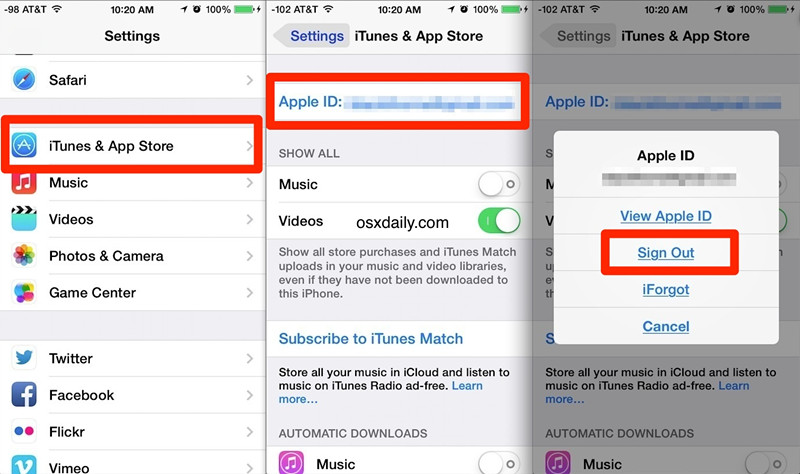
change apple id on iphone

Part 2: Restore recently deleted notes on iPhone 11

iPhone includes a folder for recently deleted notes. When you delete a note recently, it just stays in the Recently Deleted album for up to 30 days. You can still view and recover the note before it’s removed permanently. This is the simplest way of getting deleted notes back to iPhone.

Step 1.Open the Notes app on iPhone.
Step 2.Tap the < arrow in the upper left corner to view your notes folders.
Step 3.Select Recently Deleted in the folder list.
Step 4.Tap Edit in the upper-right corner
Step 5.Tap the note you want to restore.
Step 6.Tap on Move To… and select the folder you want to move it to.
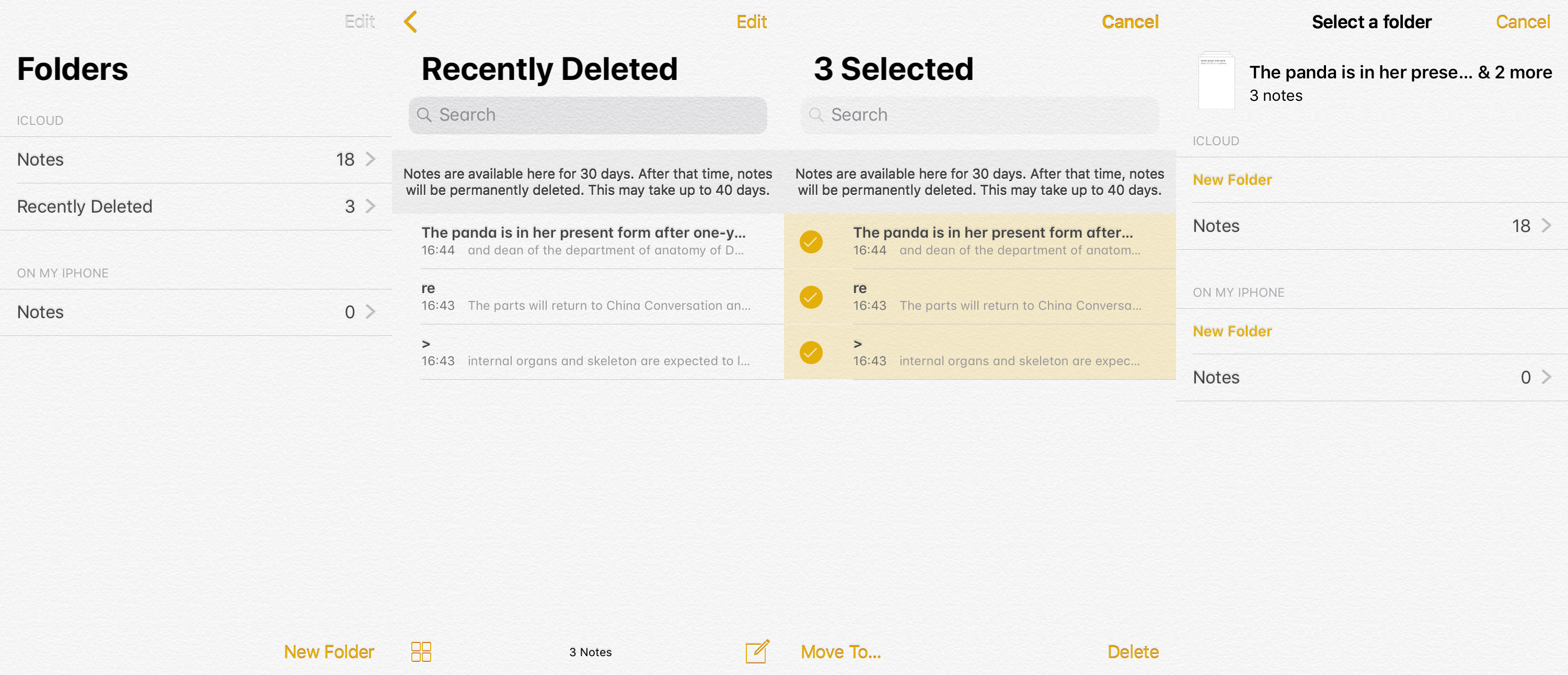
recover recently deleted notes on iPhone 11

Part 3: Find your Notes in icloud.com

If you have turn on iCloud – Note backup service, iCLoud.com also saves the recently deleted notes. And you can recover deleted notes on iPhone 11/11 Pro (Max) there were deleted within last 40 days. Therefore, we are introducing this as the next method to be followed when your notes get disappeared from iPhone 11/11 Pro (Max). Here is what you need to do:

Step 1.Open to iCloud.com on your browser.
Step 2.Sign in with your ID and tap on “Notes” icon.
Step 3.Choose “Notes” followed by “Recently Deleted”.
Step 4.Select the notes you think were disappeared from your device.
Step 5.Simply hit on “Recover” in the last.
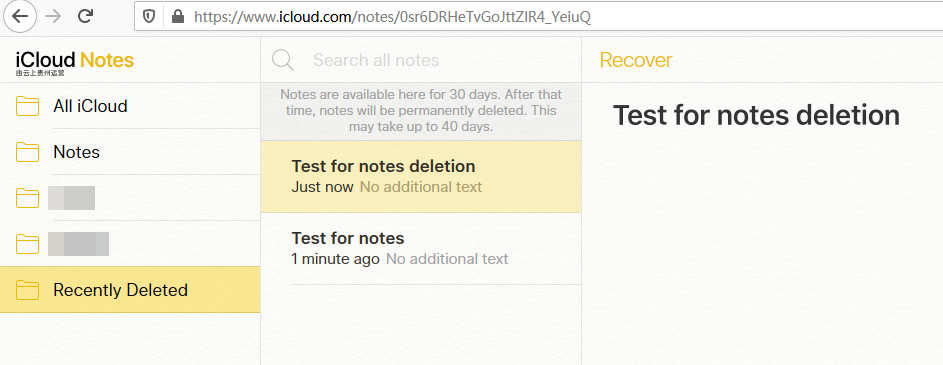
Find your Notes in icloud.com

Step 6.You can now sync the downloaded notes to your iPhone with iTunes.

Part 4: Turn off Notes again from iCloud in iPhone 11

If you have synced the notes with your iCloud account before they were lost, you could get lost notes back on iPhone 11 (Pro). Here’s how:

Step 1.Go to Settings > [Your Name] > iCloud.
Step 2.Turn off Notes and on again.
A few minutes later, all your deleted notes should be resynchronized and reappeared in Notes app on iPhone 11 (Pro).
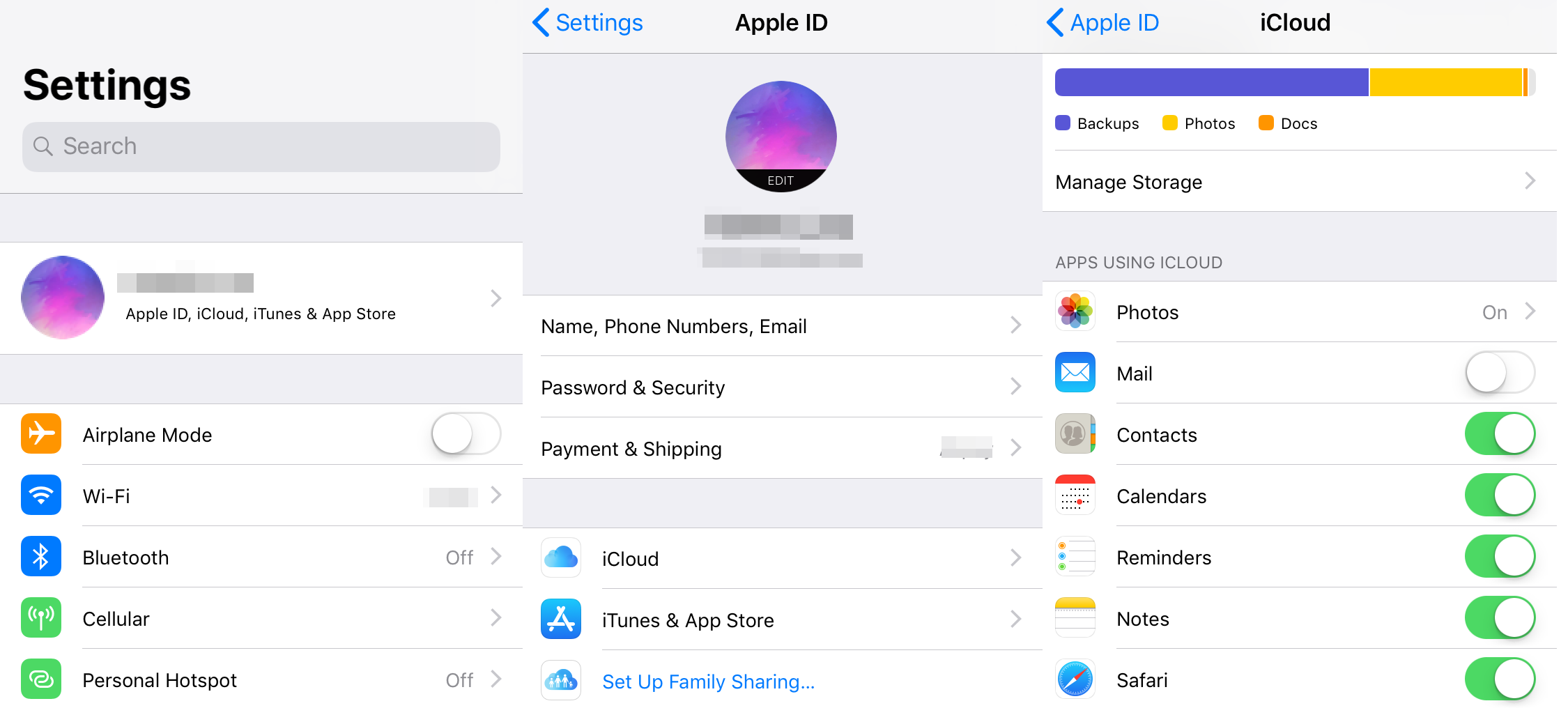
icloud notes recovery

Part 5: One click to Recover Lost Notes from iPhone 11 without Backup

If you have no available backup, then you can turn to iPhone Note Recovery software for help, which is the best iPhone data recovery tools, the iPhone Data Recovery is capable of helping you scan iPhone deeply and display phone data on the screen so that you can preview all data and then selectively recover lost notes from iPhone 11/11 Pro. What’s more, it supports recovering lost data such as notes, contacts, photos, videos, call logs, text messages, WhatsApp messages and App data from iPhone or extract lost data from your iTunes backup or export data from iCloud backup.


d_win d_mac
d_win d_mac

Tips: This iPhone Data Recovery is compatible with the iOS 13/12.1/12/11 and the new models like iPhone 8/X/XS/XS Max/XR/11.

Tutorial: How to Recover Disappeared Notes on iPhone 11?

This part shows you the simple guide on how to recover iPhone notes on Mac with iPhone Data Recvoery(Mac version), you also can follow the same steps to restore lost notes from iPhone/iPad with the iPhone Data Recovery(Windows).

Step 1: Connect your iPhone 11 to computer and run the program
Start up the program and choose “iPhone Data Recovery” mode.
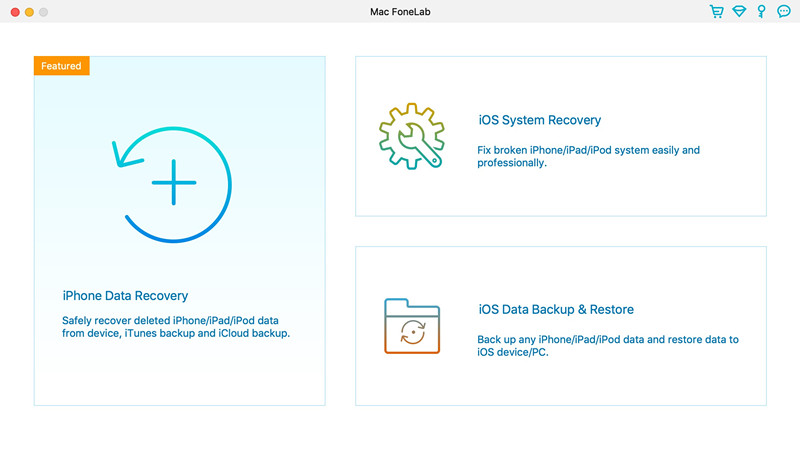
iphone data recovery for mac

To recover lost data from iPhone directly, choose “Recover from iOS Device” mode, and connect your iPhone 11 to computer.
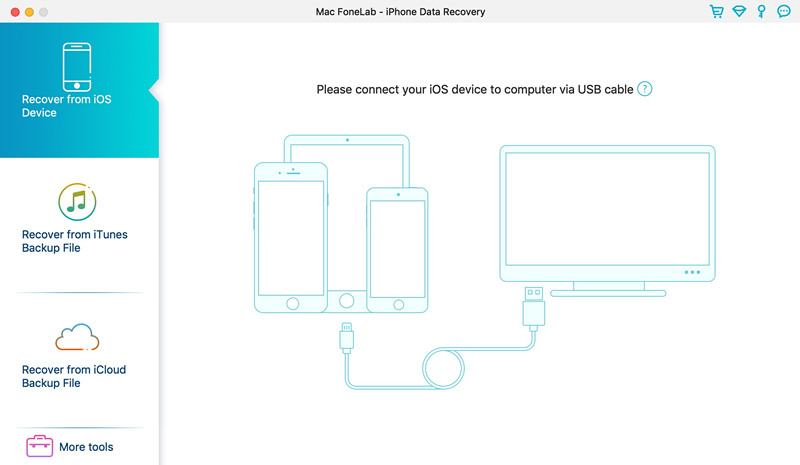
get notes back on iPhone 11

Step 2: Select “Notes” file type for scan on iPhone 11 storage
Go ahead and select “Notes” option in the next window, then click the “Start Scan” button to begin scanning your iPhone 11 completely.
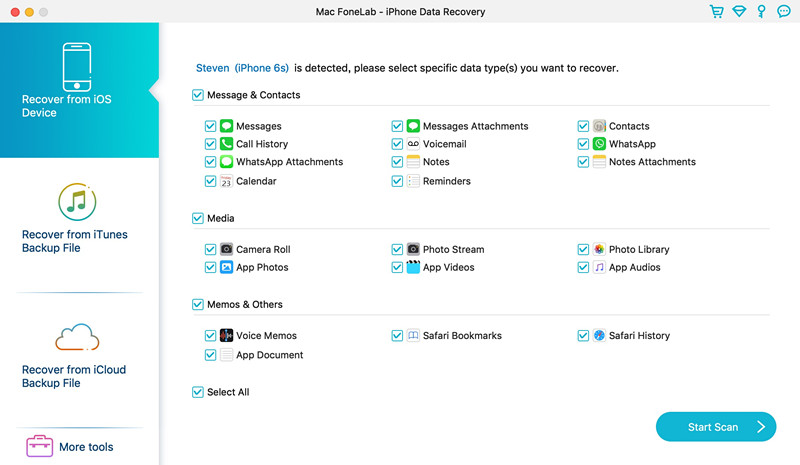
select Notes

Step 3: Start Scanning Lost Notes from iPhone 11
During scanning process, please keep connecting your iPhone with the computer. When the scan is finished, you will get an overview window with all notes it found.
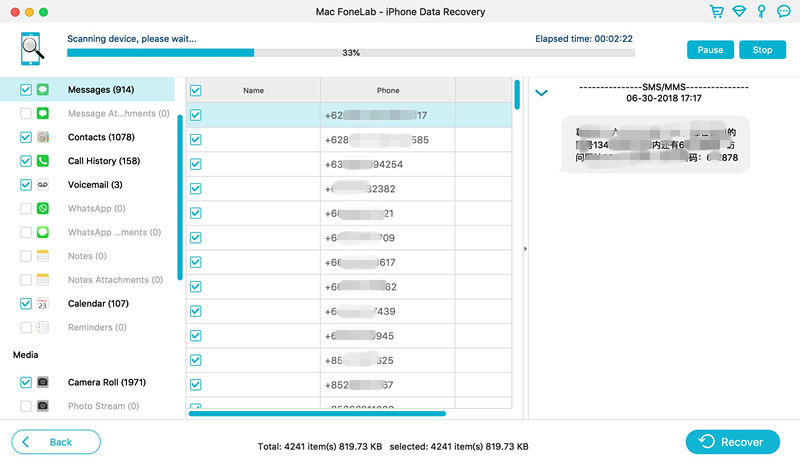
Scan deleted notes from iPhone

Step 4: Preview and Recover Lost Notes from iPhone 11
In this stage, you can click the Notes category under “Memos & Others” section to have a preview of your lost or deleted notes in detail, including title, date and contents.
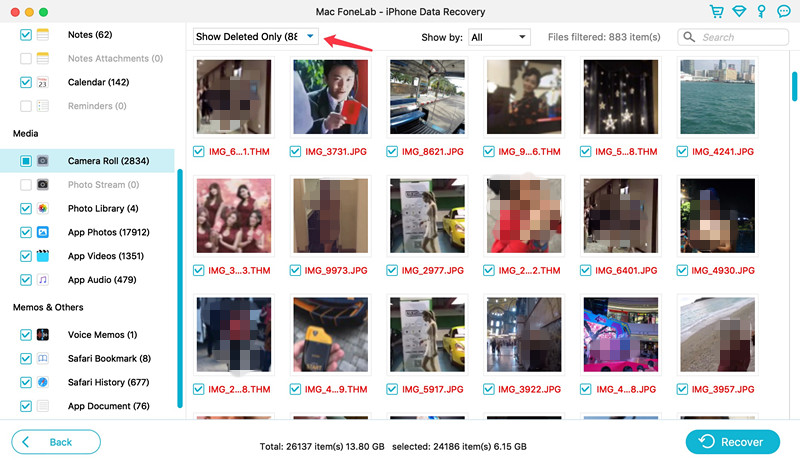
View the deleted files

Step 5: Recover Notes and save on computer folder
Now, select the note files you wish to get back and click the “Recover” button on the lower right corner. In the pop-up dialog, you’ll want to designate a path on computer for saving the recovered notes.
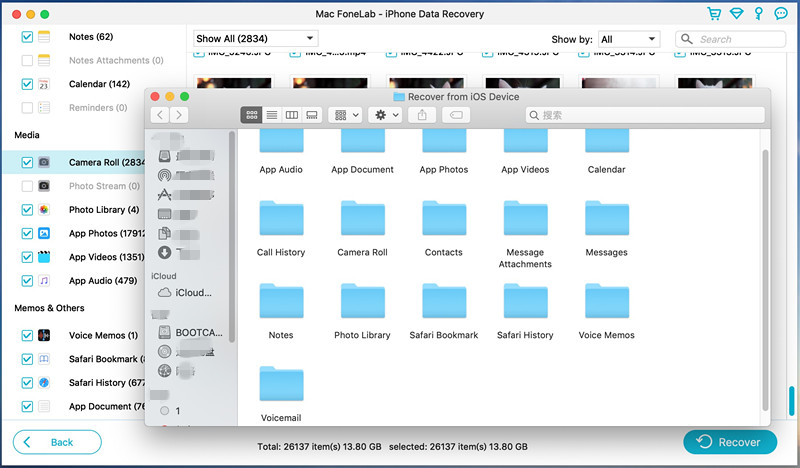
save iPhone data on computer

Click the Recover button again to let the program do the rest things. Within a few seconds, your lost notes will get back and save in HTML file that you then can read and print on computer.

Now, download this powerful iPhone data recovery program to recover lost notes from iPhone/iPad/iPod touch.

d_win d_mac
d_win d_mac

The Bottom Line

That’s all for how to recover lost notes from iPhone 11, you also can recover deleted/lost notes from iPhone after iOS update, and restore lost notes after factory reset iPhone. If you like this guide, please share it to help more people. If you have any questions, just leave a comment and we will help you out as early as possible.
How to Recover Data Files on iPhone 11 (Pro, Pro Max) without Backup

[Summary]: iPhone 11 Data Recovery can help you recover deleted/lost data files on iPhone 11 & iPhone 11 Pro & iPhone 11 Pro Max efficiently, no matter how you get data lost due to you deleted data accidentally, factory resetting, or the contents just disappeared after iOS update/downgrade.

How to Recover Lost Data from iPhone 11 Pro after Factory Reset?
Yesterday, I have factory reset my iPhone 11 Pro to fix some iOS bugs or just to gain a better experience.But, all important notes, documents, photos, messages, videos and more are all wiped out. What makes me feel helpless is that I haven’t backed up via iTunes or iCloud, is it possible to restore lost data from iPhone 11 Pro without any backups?

How to Restore iPhone 11 Lost Files after Updating?
I have upgraded my iPhone 11 to the latest iOS 11 version, I found all import note document were disappeared, how to recover lost notes from iPhone after iOS 13 upgrading?

How to Recover iPhone 11 Deleted Photos without Backup?
My boyfriend deleted some important pictures on my iPhone 11 Pro Max accidentally, which makes me very angry. But I haven backup those photos to computer, iTunes or iCloud before, how I can recover deleted photos from iPhone 11 Pro Max directly?

I believe most of the iPhone users have ever performed a factory reset, iOS software update, delete useless files, etc. However, the biggest effect would be data loss, or you deleted data accidentally, or the files just disappeared for various reasons. Important photos, messages, videos and more are all lost, deleted or disappeared. If you’ve backed up via iTunes or iCloud, you might be relaxed now. If not, don’t worry. Here is a very useful guide on how to recover iPhone 11/11 Pro(Max) lost data without iTunes or iCloud backups.

Part 1: Restore iPhone 11 Lost Data via Finder or iTunes

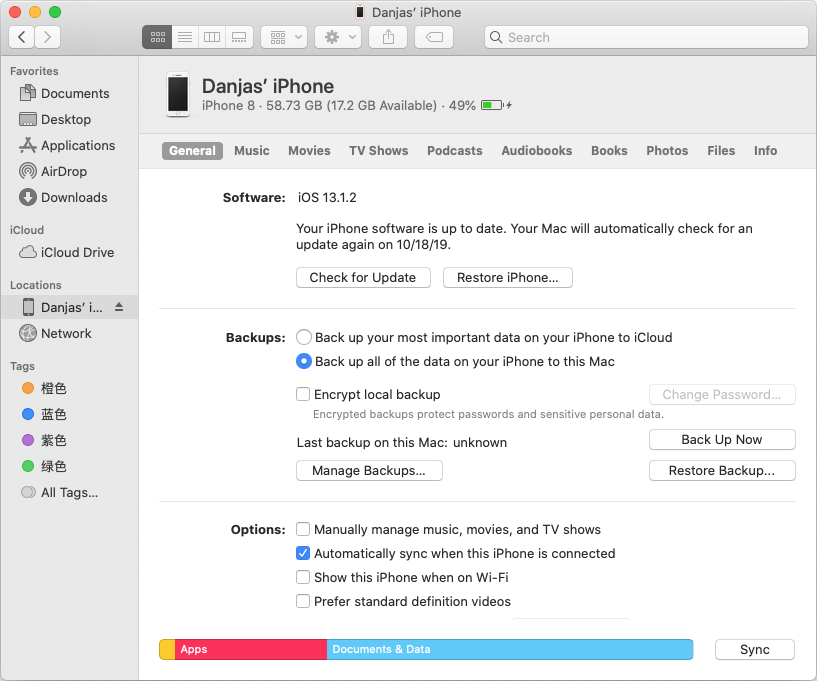
If you have upgrade your Mac computer to macOS Catalina 10.15, you can backup iPhone with Finder. If you use Mac OS X 10.14 and older or Windows computer, you can backup iPhone data with iTunes. In other word, you can restore data from Finder or iTunes on Windows/Mac computer if you have already created a backups(How to do?). Let’s teach you how to restore data to iPhone from iTunes/Finder backups.

Step 1. Open Finder on a Mac with macOS Catalina 10.15. Or run iTunes on any PC or a Mac running macOS Mojave 10.14 or earlier.
Step 2. Connect iPhone 11 to PC/Mac with an Apple USB cable.
Step 3. Click on iPhone 11 when appears on the Finder window or iTunes.
Hit Restore Backup.
Step 4. Locate which backup copy you’re going to restore data from.
Step 5. Click Restore and wait for the restoring process complete.

finder restore iphone data

[Also Read: Recover iPhone data from iTunes backups]

Part 2: Recover Data Files on iPhone 11 Pro & Pro Max without backup

What to do if we haven’t backed up phone data via iTunes or iCloud? Can we find the data back? The good news is that most iPhone data recovery software options make things easy to handle with. You could install iOS Data Recovery and use it to find lost data from your iPhone 11 directly. This powerful iPhone 11 Data Recovery supports three recovery modes: Recover from iOS device, iTunes Backup and iCloud Backup. So, if you never backed up your iPhone device, you still have change to recover iPhone 11 lost photos, contacts, messages, videos, audio, WhatsApp data, notes, call logs and more. What’s more, this iPhone data recovery also can help you recover chat messages from WhatsApp, WeChat, Viber, Kik, Skype etc.

Free download the iOS Data Recovery and try to restore iPhone lost data:

d_win d_mac
d_win d_mac

Let’s show you the simple guide to restore deleted data on iPhone 11 (Pro, or Pro Max) effortlessly.

How to: Directly Recover Deleted Data from iPhone 11 (Pro, Pro Max)

Step 1. Launch the iOS Toolkit on PC or Mac
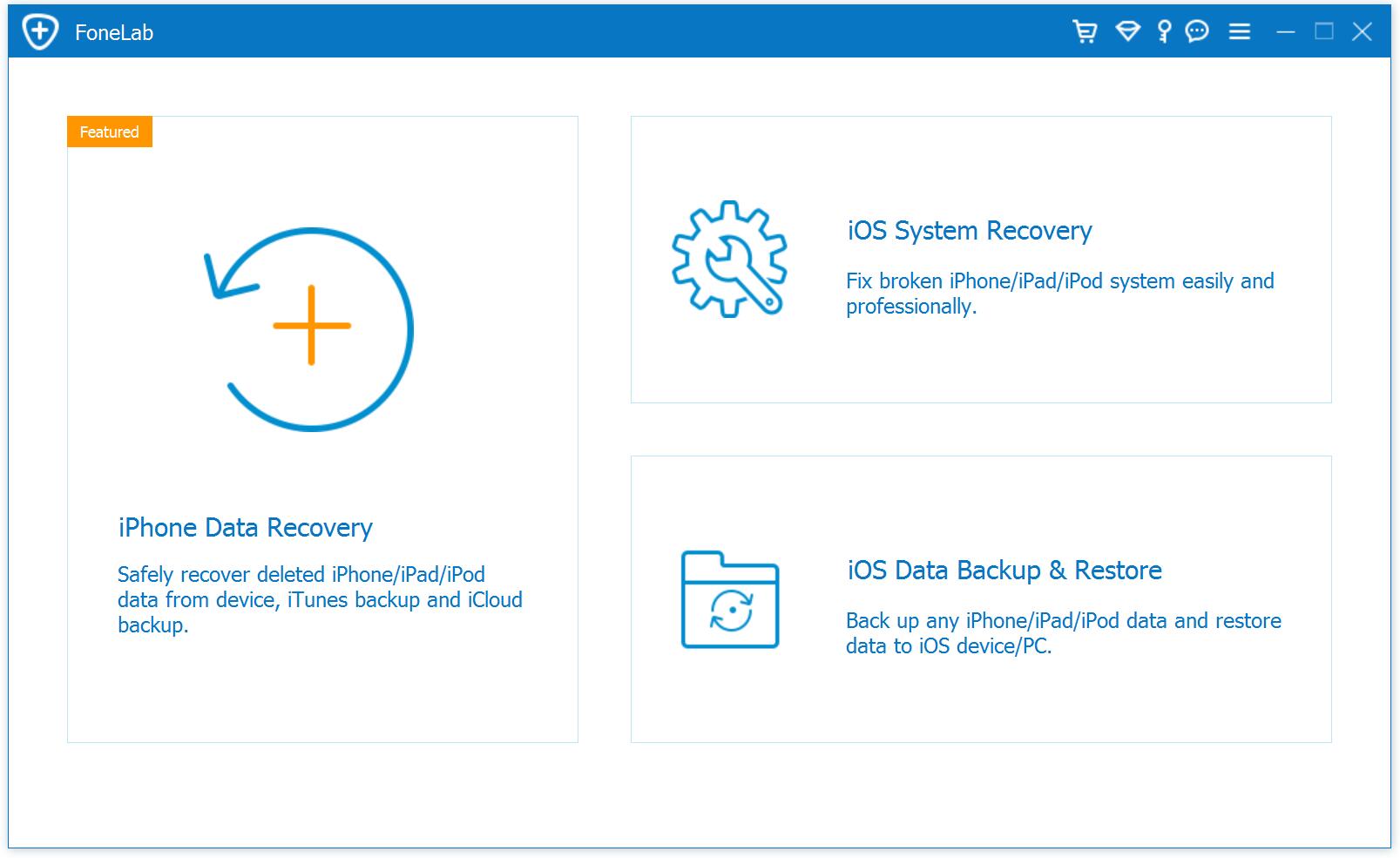
Now we’re going to recover deleted files from iPhone 11 without backup files using the iOS Toolkit – iPhone Data Recovery, please download, install and run the software and click “iPhone Data Recovery” function.

iphone data recovery for mac

Step 2. Select  “Recover from iOS Device” mode
On the iOS Data Recovery main interface, please select “Recover from iOS Device” mode.

connect iPhone to Mac

Step 3. Connect iPhone 11 to the Computer
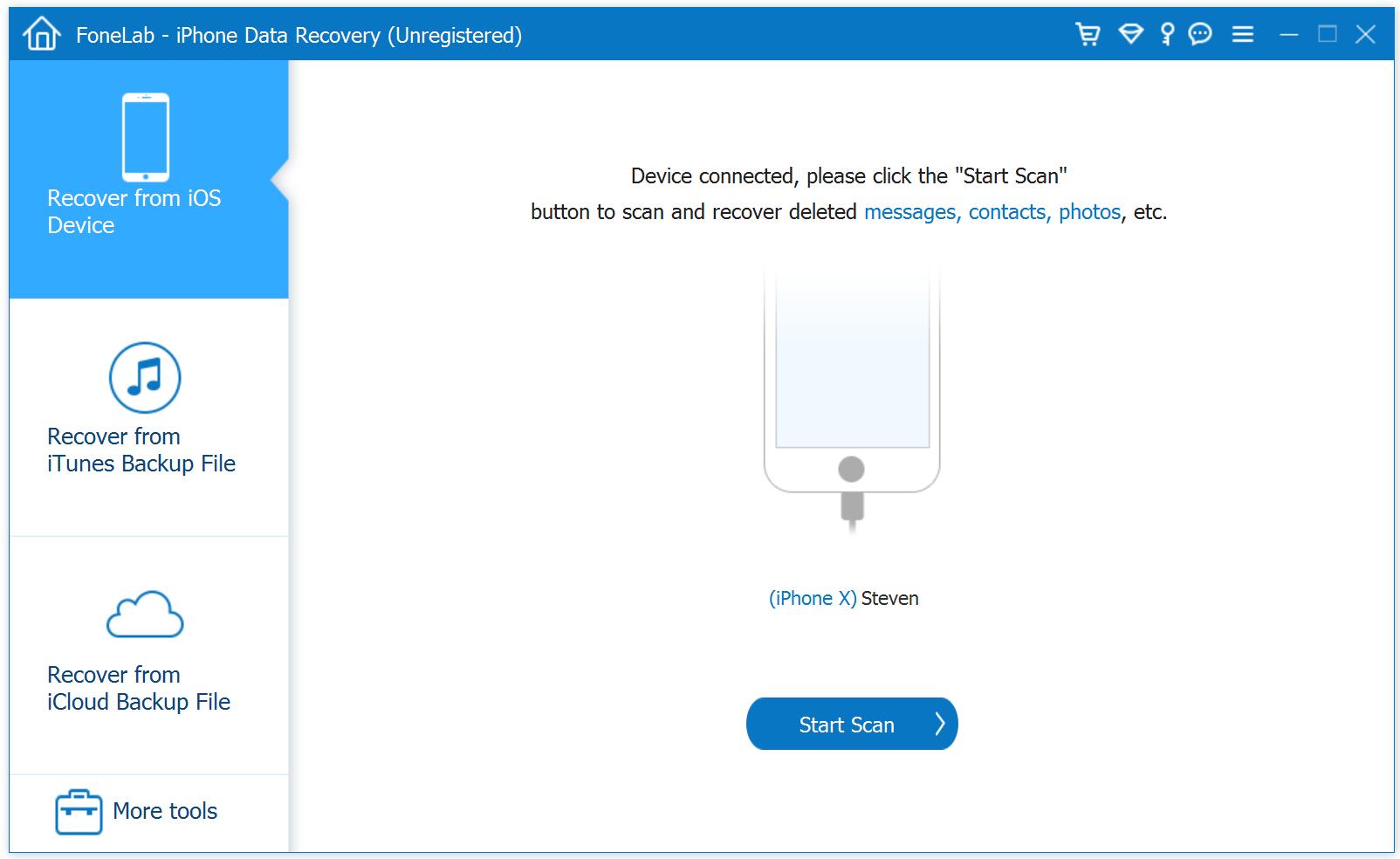
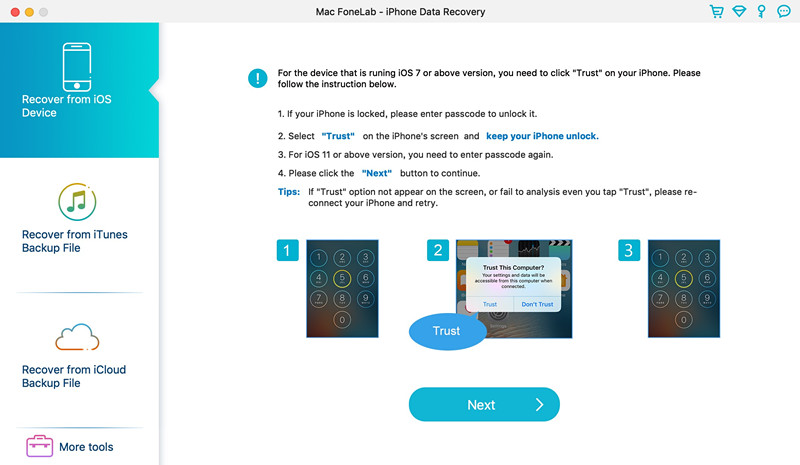
Connect iPhone 11 (Pro, Pro Max) to computer via USB cable, when the software detects the device, please tap “Trust” to let the device connected.

trust on iphone 11

Step 4. Select Types of Data
Choose types of data you want to find out from iPhone 11 memory, or check “Select All” option to select all types of contents that you want to get back and click “Start Scan” button.
[Also Read: How to backup and restore data on iPhone 11(Pro)]

Scan Data to Recover

Step 5. Start Scanning Lost Data from iPhone 11
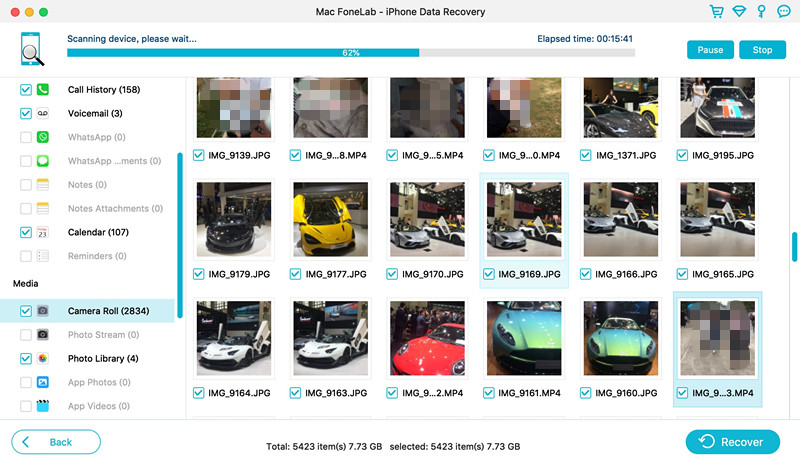
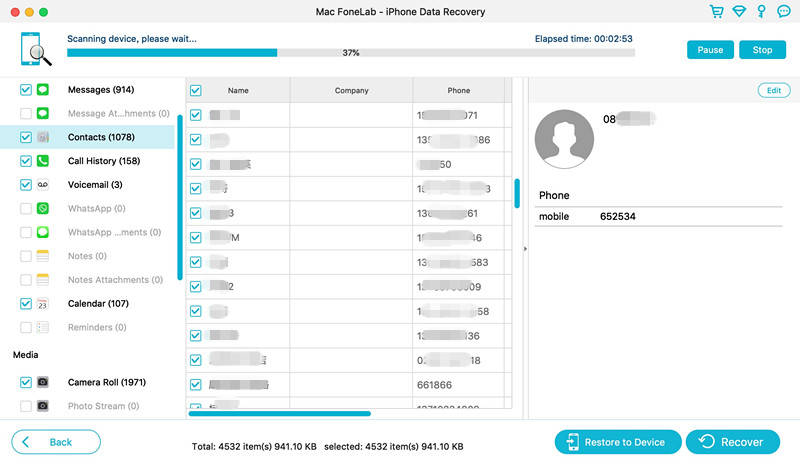
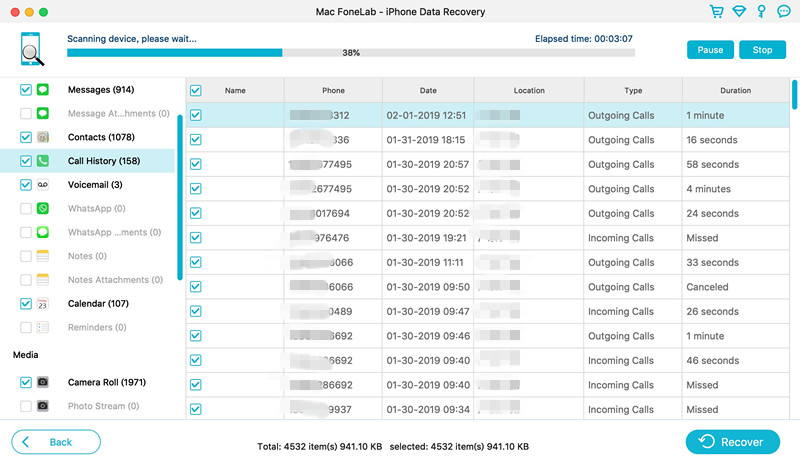
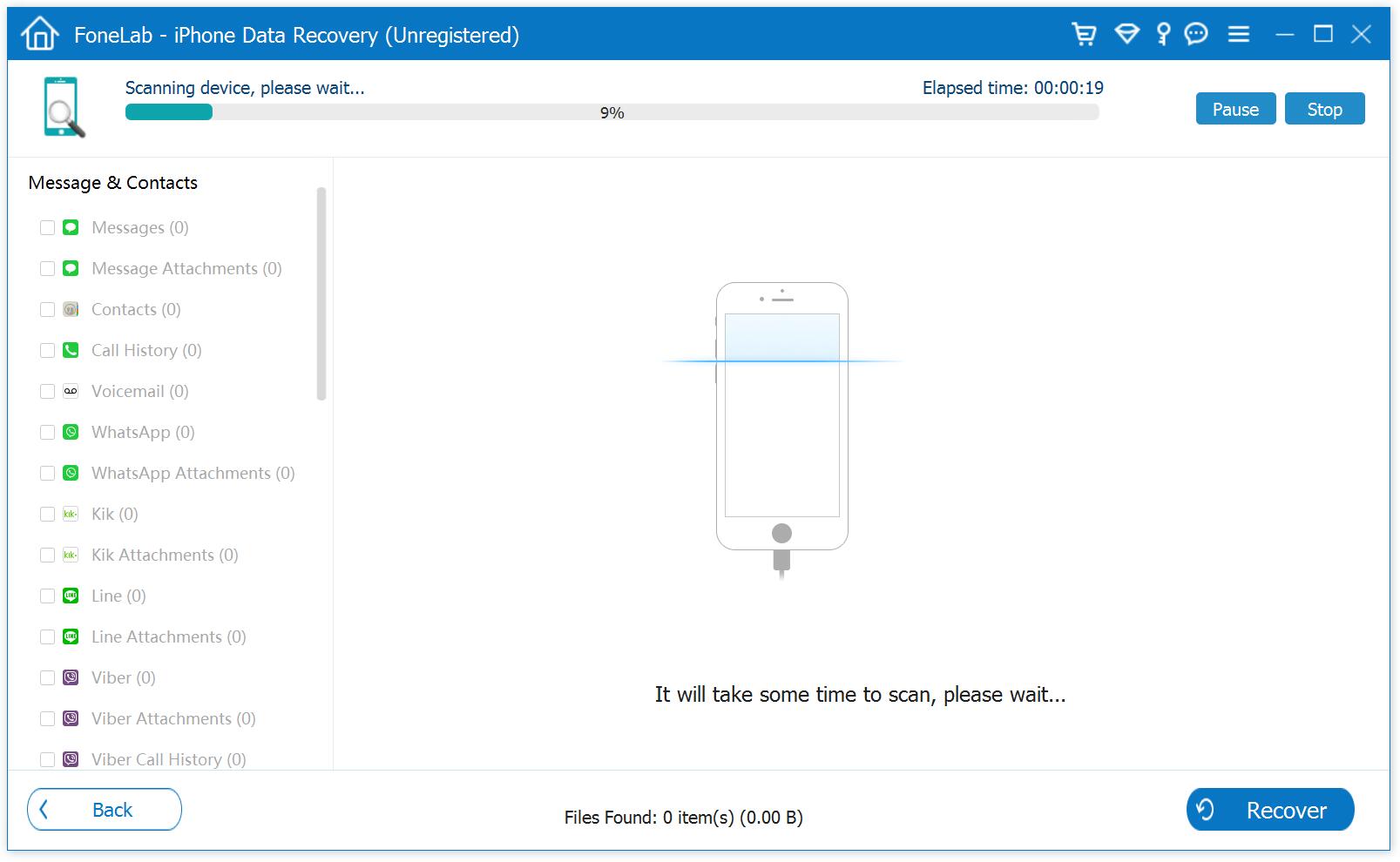
The iPhone Data Recovery software start to analyze your iPhone 11 device and scanning all types of data. For example, you can see the software is scanning iPhone photos, text messages, contacts, call history and more.

Scanning deleted photos from iPhone 11

Scan deleted Camera from iPhone

Scanning lost contacts from iPhone 11

Scan deleted contacts from iPhone

Scanning deleted messages from iPhone 11

Scan deleted messages from iPhone

Scanning deleted call logs from iPhone 11

Scan deleted call history from iPhone

Step 6. View Detail Contents
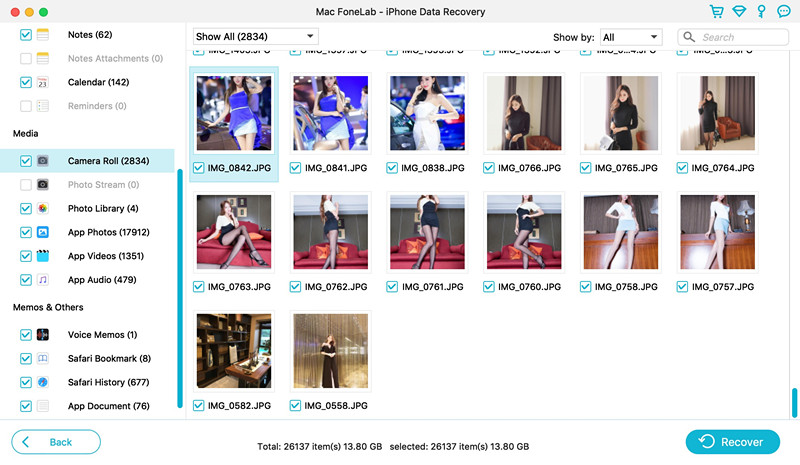
On the scan results, you will be able to preview all of the data before recovery. You can choose to ‘Only display the deleted items’ which will only shows your deleted files.

View the deleted files

Step 7. Begin Restoring Data from iPhone 11
Last step, please select the found data you want, including Photos & Videos, Messages & Call logs, Memos & Others.

Recover Data from iPhone 11 Pro

Just click “Recover” button to recover lost data from iPhone 11 and save them onto the computer.

save iPhone data on computer

Now, download this powerful program to recover your iPhone/iPad/iPod data.

d_win d_mac
d_win d_mac

NOTE: You should note that data recovery is a cautious process. Therefore, when you notice that you’ve accidentally delete an important file, don’t make any operation any more. Once new data is written to your device, the old file will be overwritten and become unrecoverable. So, please save the recovered data on your computer firstly, then use an third-party iPhone Transfer tool, iTunes or Finder to sync/transfer them to iOS devices again.
How to Recover Deleted Contacts from iPhone 11 Without Backup

[Summary]: Deleted your important photos/pictures/images on iPhone 11 without backup? Use iPhone Photo Recovery software. Learn how with this quick tutorial and recover deleted photos from iPhone 11, iPhone 11 Pro and iPhone 11 Pro Max.
Nowadays, many people like taking photos with smart phone, like iPhone 11 Pro Max, Samsung Galaxy S20 Pro, Huawei P40 Pro, Huawei Mate 30 Pro, etc. In 2020, most top smart phone has three powerful cameras. When you have got a new iPhone 11 Pro Max, you may have took lots of wonderful photos with iPhone 11. Instead, you store everything including photos, videos, messages, contacts, notes and documents into your iPhone 11, but this has its own disadvantages because of the potential risk of accidentally deleting the photos and videos. What makes thing worse is that you didn’t create any backups of iPhone photos beforehand.

On your part, the Camera Rool and App Photos are perhaps the most part of your iPhone 11, you may save lots of pictures on photos library, but if the deleted photos haven’t been backed up at the moment you begun to use iPhone 11, or maybe you are unable to restore the deleted photos from backups because the iTunes backup files are corrupted not to be accessed, or the new iOS version is not compatible with iCloud.

Whatever the reason is, don’t fret. As long as your iPhone 11 is not physically damaged and doesn’t have any broken parts inside that may prevent it from functioning correctly, then the deleted photos are still present on your iPhone 11/X/XR/XS/8/7/6s/6 and can be recovered even without backup.

iPhone Photo Recovery is one of our favorite options to recover deleted and lost photos from iPhone. Its interface is pretty simple and a breeze to use, making it easy and quick to recover deleted or lost photos and videos from iPhone 11 without backup. It can recover more than 18 diverse file types, including text messages, WhatsApp messages, contacts, call logs, videos, messages, voice memos, notes, office documents, etc.

d_win d_mac
d_win d_mac

How to Restore Lost Photos from iPhone 11 without iTunes Backup

Step 1: Plug iPhone 11 into the computer
Once the program opens up, you will see a simple interface featuring three modes for different purposes.

iphone data recovery for mac

For restoring deleted photos from an iPhone 11 without pre-made backup file, choose the first mode labeled “Recover from iOS Device”.

connect iPhone to Mac

Connect your iPhone 11 to the computer. The program will quickly detect it and display its information including name and generation will display on the screen. When the software detects the device, please tap “Trust” to let the device connected, when your iPhone is detected, an interface as follow will appear.

trust on iphone 11

Step 2: Select the lost photos you want to recover
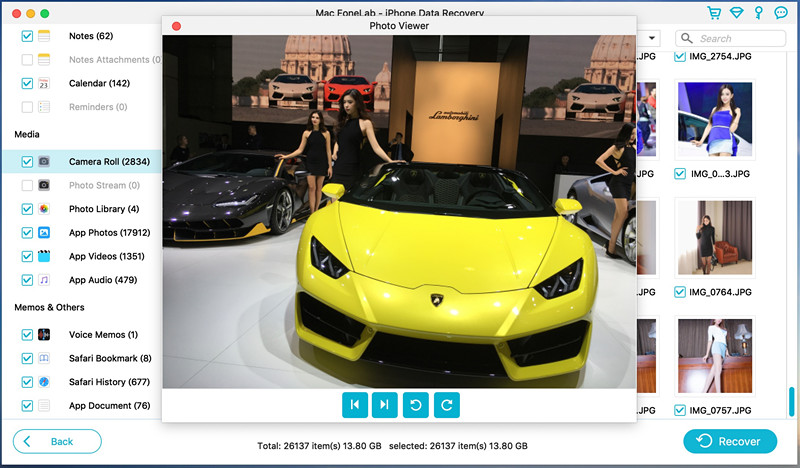
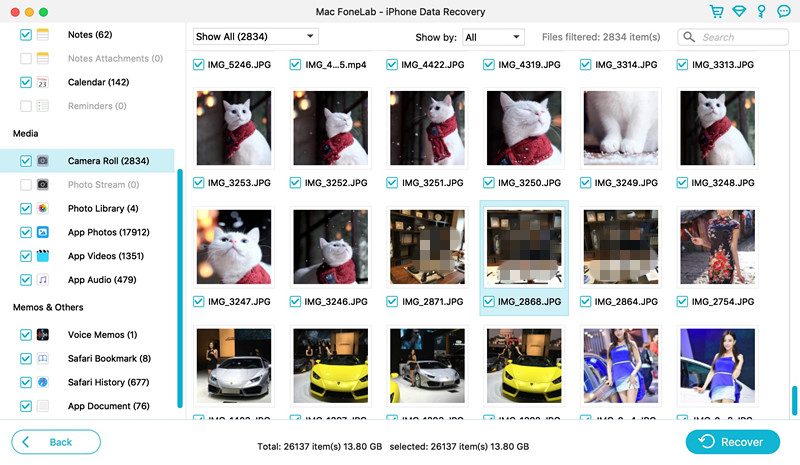
In our case, you can click the “photos” category under “Camera Roll”, “App Photos”, “Photo Stream” and “Photo Library” section on the sidebar and go through the items for the lost photos on the middle and right pane.

Select Photos to recover

Step 3: Scan to search for lost photos
Next, select photos file type and then click “Start Scan” button start to scann all deleted and lost photos from iPhone memory. This should take a few minutes, depending how much files on your device.

Scan iPhone 11 Photos

[Also read: how to transfer photos from iPhone to Mac]

Step 4. Preview Photos
Once the scan is completed, you will be able to preview all of the data which has been detected by the program.

Preview iPhone Photos

This iPhone photos recovery software also allows you to narrow the results by toggling the “Only display the deleted item(s)” option (see top center) to ON position.

Step 5. Start Recovering Deleted Photos from iPhone 11 Directly
Go ahead and tick the checkboxes next to deleted photos you want to recover from iPhone 11. Just mark those you want and click “Recover” button at the bottom to recover the deleted photos from iPhone 11, in the pop-up dialog box, pick a location on the computer to store the recovered files.

recover deleted iPhone 11 photos without backup

Tip: You can type the photos name or other keywords related to the photos in the Search field (see upper right portion) to find what you just need to avoid browsing through several deleted photos items in the list.

After that, press the Recover button again, the software will start the process. The length of time the process takes to complete is brief. If there is no other files on the queue for recovery, this can be finished in seconds. The photos will be save in a jpg, png.

Once your lost photos are restored from iPhone 11 without backup, you can open the folder you specified earlier and view them to check that everything is OK. You can also transfer them back to your device through iTunes or third-party utility (iOS Manager & Transfer, for example).

That’s it, you’re done.

Back Up iPhone Data

For future reference, we really would suggest you back up your iPhone data locally or online. The good thing about the iPhone is that through iCloud and iTunes—the official way Apple offers, you can create solid copy of your iPhone on computer hard drive or in iCloud’s storage. You can also use the built-in backup service of this iOS Data Recovery to do it.The iOS Data Backup & Restore function also can help you backup photos, videos, contacts, messages, notes and more from iPhone/iPad/iPod to Mac.
Read More: How to backup iOS Data to Computer

[Also read: how to backup WhatsApp photos from iPhone to Mac]

The Bottom Line

iOS Data Recovery has much to offer. In addition to retrieve the lost photos from iPhone 11 without backup, there are another two ways to bring back the deleted photos. One is through iTunes backup and the other is via iCloud backup.What’s more, the iOS Toolkit also can help you restore iOS system to normal if your iPhone stuck on Apple logo, black screen,etc.

How to Transfer iTunes Videos/Movies to Samsung S20, S20+ & S20 Ultra

[Summary]: Don’t know how to play iTunes M4V videos on Samsung Galaxy S20? This article tells you how to transfer videos/movies from iTunes to Samsung S20, S20+ & S20 Ultra or other Android phones/tablets, so that you can watch iTunes videos on Samsung Galaxy S20.

How to watch iTunes M4V movie on Samsung S20? Can the Galaxy S20 supports iTunes M4V music video, TV shows and movies playback? Is there a best way to put iTunes videos to Samsung phone?

I once used Apple iPhone, so I often backup video to iTunes. Now I want to change to Samsung Galaxy S20. But I find no way to transfer videos from iTunes to my Samsung S20. Any smart solutions?

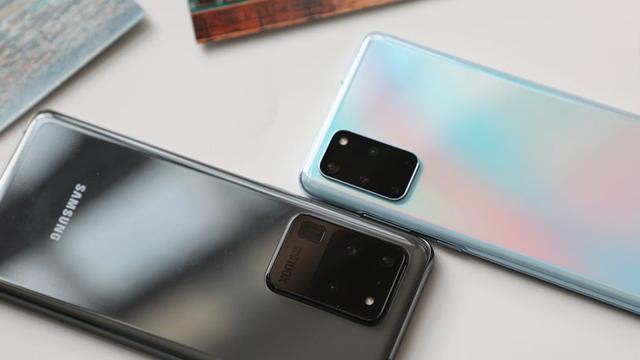
In the new beginning of 2020, Samsung will also start a new journey from a new starting point. The Samsung Galaxy S series just released will be renamed after the year, and three mobile phones will come out: Samsung Galaxy S20 5G | S20 + 5G | S20 Ultra 5G. The three phones use a new design language and a variety of colors, and are excellent in size, configuration and camera. All three Samsung Galaxy S20 series phones are equipped with 120Hz high refresh rate * ultra-sensory full-view screen, support 8K ultra-clear video recording *, equipped with Qualcomm Snapdragon 865 processor, equipped with LPDDR5 next-generation fast storage, support WiFi 6, support SA / NSA dual-mode 5G.

Compared with iOS iPhone/iPad, the Android OS Smartphones/Tablets is cheaper. So, many people will choose the Android OS such as Samsung, HUAWEI, LG, HTC, Motorola, Sony, Xiaomi and Google itself. All of these handsets now have a big screen and watching videos and HD movies on them is a better choice. Watching itunes movies on your Android phone has always been a problem, becuase the iTunes M4V movies are usually protected by the FairPlay Digital Rights Management copyright protection of Apple, in addition, the iTunes can’t transfer media files to Android devices.

Do you have bought a new Samsung Galaxy S20, S20+ or S20 Ultra? You may need to transfer iTunes movies and music to Galaxy S20 for playing on the go. Here are three details guide about how to transfer iTunes videos to Samsung Galaxy S20, you also can learn how to remove DRM from iTunes movies and convert M4V to MP4, then you can directly transfer the MP4 video to Samsung S20 for any Android devices for offline watching.

Part 1: Sync iTunes Home Video to Samsung Galaxy S20

The Android Toolkit – Transfer is an iTunes to Android Transfer tool, it not only can help you transfer music, videos from iTunes to Samsung S20, S20+ or S20 Ultra, but also allows you transfer music, videos, photos and contacts between Samsung Galaxy S20 and computer directly. What’s more, you can use this tool to backup music, movies, and photos from Android devices to iTunes, as well as re-build your iTunes library. Let’s show you the simple steps to sync Home Videos from iTunes to Samsung S20.

d_win d_mac
d_win d_mac

More Features:

  • Directly sync music, videos and photos from iTunes to Android devices.
  • Transfer Photos, Music, Videos and More from iPad/iPhone/iPod Touch to Samsung devices.
  • Transfer files between Android/iOS and PC/Mac directly.
  • Transfer calendar, contacts and messages from iPad/iPhone to Samsung S20.
  • Works perfectly with iPhone, iPad, iPod, Samsung, HTC, LG, Sony, Google, HUAWEI, Motorola, ZTE, Nokia, Xiaomi and more smartphones and tablets.
  • Fully compatible with major providers like AT&T, Verizon, Sprint and T-Mobile.
  • Fully compatible with iOS 13 and Android 10.0
  • Fully compatible with Windows 10 and Mac 10.15.

Kind Tips: Looking for a way to download videos from YouTube? 4kFinder YouTube Video Downloader provides everything you expect. This is an excellent online video downloader dedicated to downloading 1080p 60fps videos, 720p HD, 1080p HD, 4K, 8K videos, etc. from YouTube to MP4 without image quality loss. In addition, extracting MP3 audio from YouTube is also one of its features. Apart from YouTube, it is also able to download videos from more than 1,000 popular online streaming sites, like Facebook, Instagram, Twitter, Bilibili, NicoNico, BBC, Vimeo, VLive, Tumblr, Fmovies, etc.

Steps to Sync iTunes Videos to Samsung Galaxy S20

Step 1: Download Phone Toolkit on your Windows
First, you must install the Phone Toolkit – Phone Transfer on your Windows or Mac. Launch the application.

itunes video to android transfer

Step 2: Connect Samsung Galaxy S20 to Computer
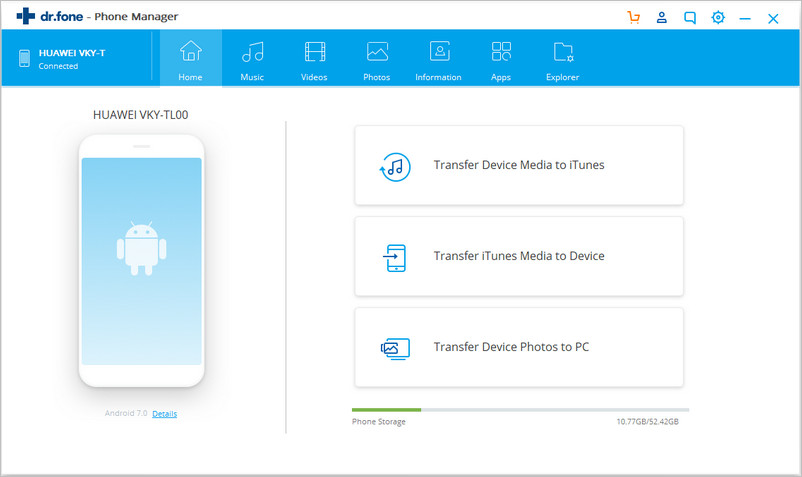
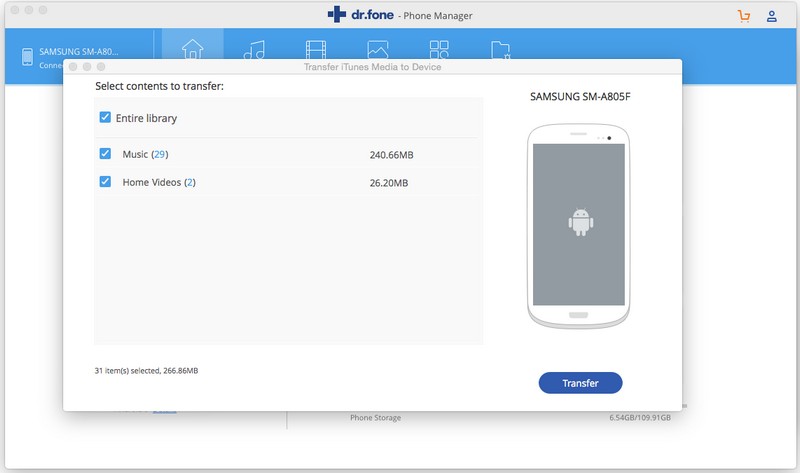
Three options would be displayed, please tap on “Transfer iTunes Media to Device”. Then, connect your Samsung Galaxy S20 to the Mac or Windows via Android USB cable. Ensure that you allow the USB debugging on the phone. Once connected, on the top left corner, it will confirm that your Samsung device is connected.

transfer itunes video to samsung s20

Step 3: Analyze iTunes Library
The software will pop up a new windows, it will analyzes entire iTunes library and scans all media files, please wait patiently. After scanning complete, please select “Home Videos” item.

copy itunes video to samsung s20

Step 4: Start to Transfer iTunes Video to Samsung S20
Finally, just click on the blue “Transfer” button at the bottom to transfer Home Video from iTunes library to Samsung Galaxy S20 directly.

sync itunes video to samsung s20

More About Phone Transfer:

The Phone Toolkit – Phone Manager is so far the best iOS and Android manager tool, it can help you back up and transfer music, photos, videos, contacts and text messages between Android device or iOS device and PC or Mac, and vice versa. As mentioned above, you can transfer your media files from iTunes to Android or iOS devices, including songs, movies, TV shows, podcasts, audiobooks, playlists, pictures,etc.

Disadvantage: The Phone Toolkit – Phone Manager only supports transfer the iTunes unprotected video files, but it can’t transfer the DRM protected movies/videos. If you want to transfer iTunes movies to Samsung Galaxy S20, please keep reading the following part 3 solution.

Part 2: Restore iTunes Movies, Music to Samsung S20

Phone Transfer is the solution for you to achieve the simple iTunes data to Android restore and Android data transfer, it not only can help you restore music, song and playlists from iTunes Library to Android tablet and smartphone, but also enables you transfer movies, videos, music and photos from iOS to Android Samsung devices, as well as contacts, text messages, call logs and App data.

More Features:

  • Restore iTunes/iCloud backup to Samsung S20/S10/S9/S8, etc.
  • Transfer photos, videos, calendar, contacts, messages and music between two mobile phones.
  • Backup and restore data on Android and iOS devices.
  • Erase data from Android/iOS completely.
  • Fully compatible with major providers like AT&T, Verizon, Sprint and T-Mobile.

d_win d_mac
d_win d_mac

Steps to Restore iTunes Backup to Samsung Galaxy S20

Step 1. Download and Launch Phone Transfer on PC or Mac
Firstly, download, install and run Phone Transfer on the computer,then connect your Samsung S20 to your computer using a USB cable.

sync itunes video to samsung s20

Step 2. Click “Restore From Backups”
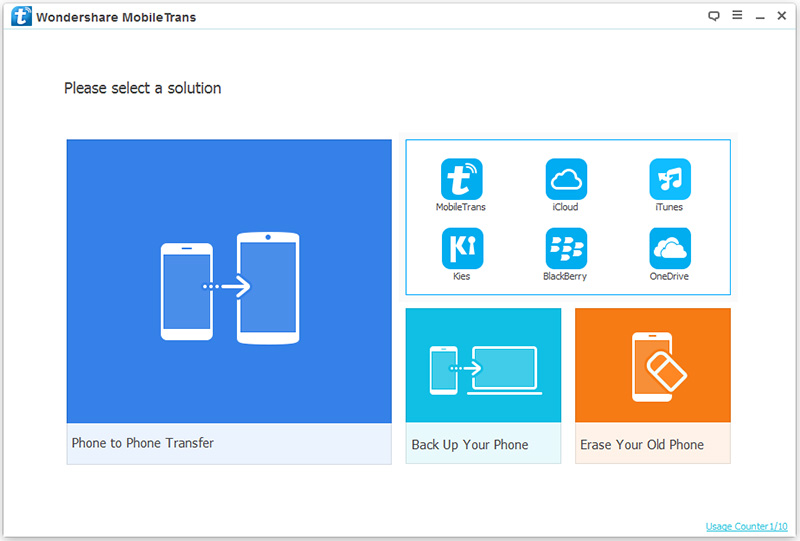
On the software main interface, please click“Restore From Backups”and click the iTunes option on the right-hand side.

sync itunes video to samsung s20

Step 3. Scan iTunes Library
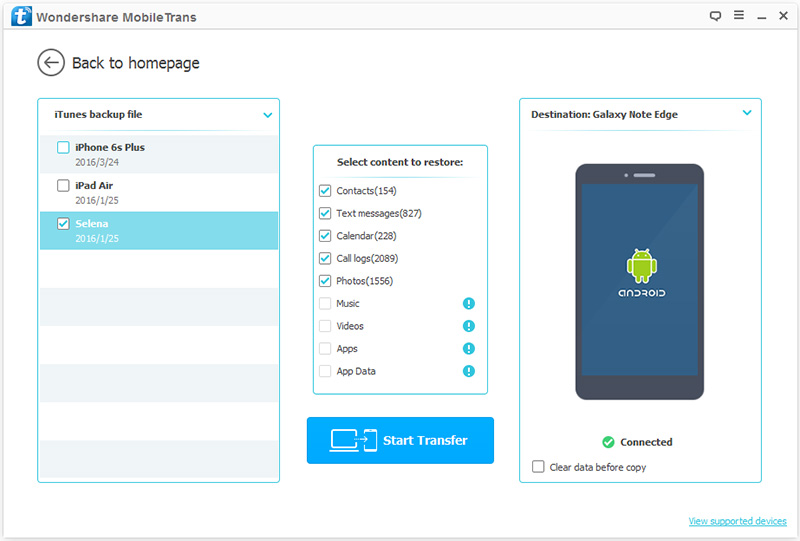
The software will now scan your computer for available iTunes backup files. Select which one you want to transfer, as well as the file types you want to transfer from the middle menu. If you want to transfer music and videos from iTunes to Samsung Galaxy S20, please select “Music” and “Video” item.

transfer video from itunes to samsung s20

Step 4. Start Restoring iTunes Videos and Music to Samsung S20
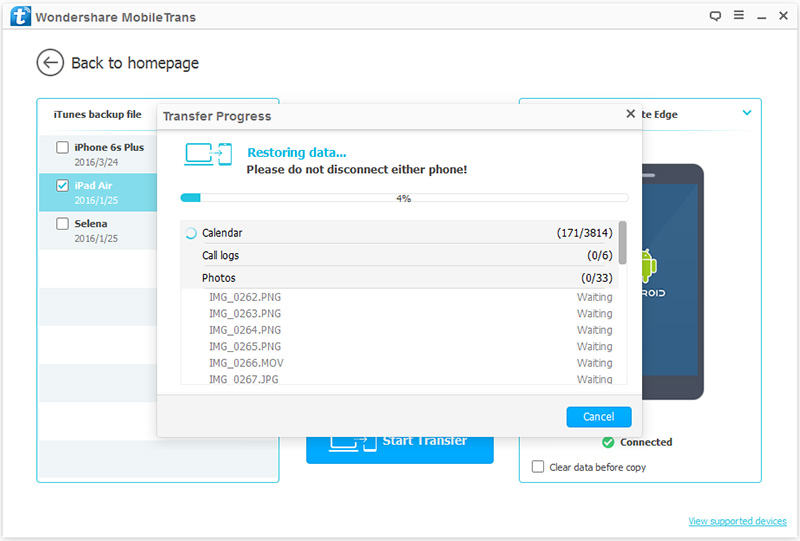
Click “Start Transfer” button to sync iTunes music and videos to your Galaxy S20.

restore itunes video to samsung s20

After restoring process complete, the transferred iTunes videos and music will be show on your Samsung S20, now you can access your files on your Samsung S20 and playing them wherever you go.

Disadvantage: Even though the Phone Transfer can restore iTunes backup to Android devices, but all downloaded iTunes movies comes with DRM protection, the software can’t put the iTunes movies to Android devices. If you want to watch iTunes purchased or rented movies on Samsung Galaxy S20, S20+ & S20 Ultra, S10/S9/S8 and more mobile devices, you should remove DRM from iTunes M4V movies. The following guide will teach you how to remove Apple’s FairPlay DRM copyright protection, so that you can transfer iTunes movies to Android devices for watching freely.

Part 3: Convert iTunes M4V Video to MP4 for Watching on Samsung S20

Do you want to play iTunes movies on Android smartphones or tablets? When you bought a new Samsung Galaxy S20, Galaxy S20+ or Galaxy S20 Ultra, you may plan to watch iTunes movies on this big screen Samsung phone, this part will teach you how to remove DRM from iTunes purchased or rented movies for playing on Samsung Galaxy S20.

UkeySoft M4V Converter is a professional iTunes video DRM removal tool and iTunes M4V to MP4 converter, you can not only easily remove DRM from iTunes movies, TV shows and music videos, but also convert the iTunes M4V videos to MP4 format which is supported by Samsung S20 and most mobile devices. After you get the DRM-free movies, you can import them to your Samsung Galaxy S20 for offline watching.

More Features:

  • Remove DRM from iTunes movies, TV shows and music videos.
  • Convert iTunes M4V video files to MP4 format.
  • Supports convert the iTunes purchased and rented movies.
  • Preserves 100% original quality and all audio tracks/subtitles, including AC3 Dolby 5.1, Closed Captioning, Audio Descriptions.
  • 30x faster speed to convert iTunes video to MP4.
  • Keep iTunes purchased and rented forever.
  • Play iTunes on any MP4 compatible devices and players.

d_win d_mac

Guide: How to Watch iTunes Movies on Samsung Galaxy S20

Step 1. Launch iTunes M4V Converter on Computer
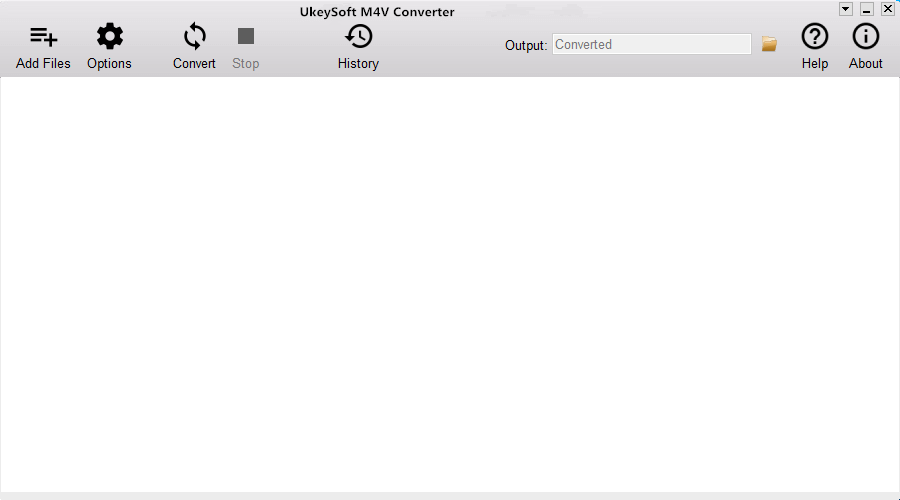
Firstly, please click above download button to download the UkeySoft M4V Converter, then install and launch it on PC or Mac, you will get following interface:

itunes m4v converter

Step 2. Add iTunes Movies
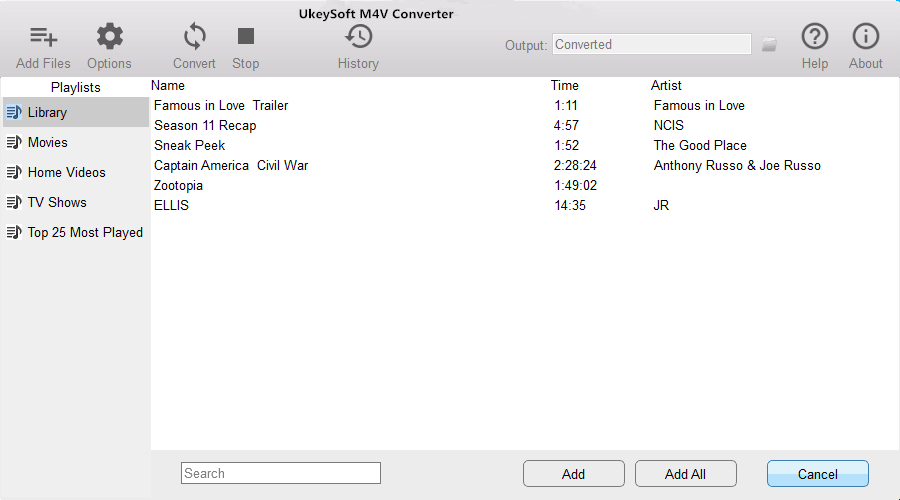
Click add files icon and you will see all your iTunes movies, music videos and TV shows. Choose the ones you want to convert and click “Add” button.

add itunes movies

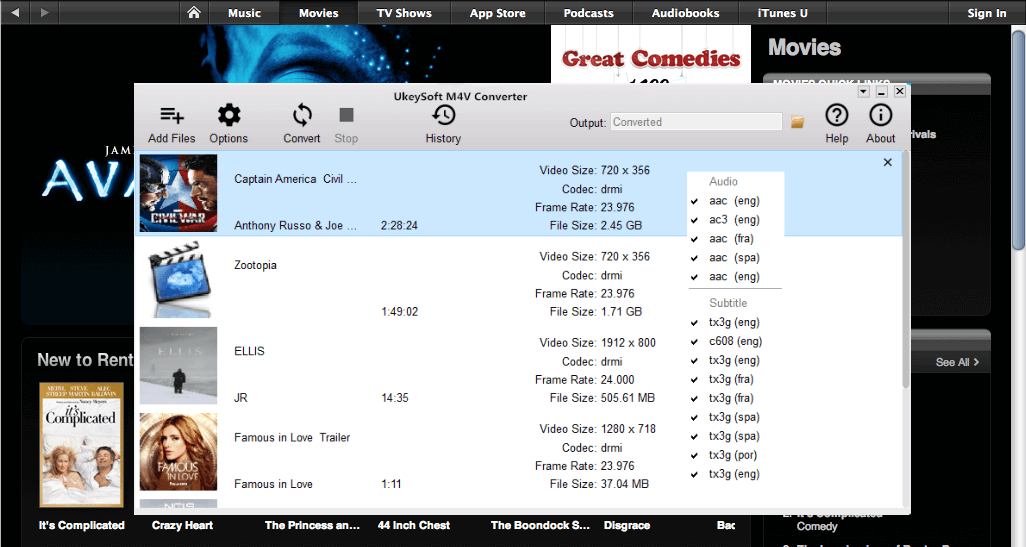
You can see all iTunes M4V video files synced to the converter, if you have added unwanted videos, select it and click the x icon on the top right corner to delete it.

movie audio tracks subtitles

Step 3. Start Convert iTunes Movies to MP4
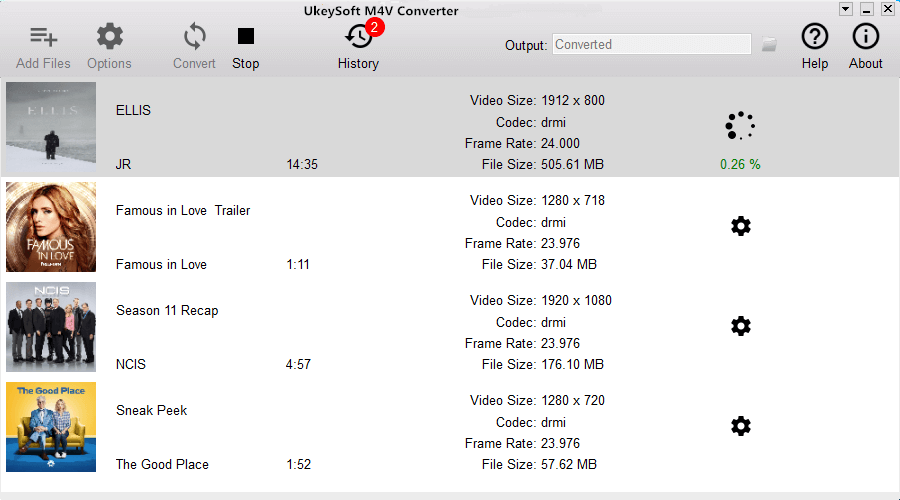
Just click “Convert” button to start convert iTunes movies/videos to MP4, the software will helps you remove DRM from selected videos during conversion process.

convert itunes movies to mp4

With 30x conversion speed, you will quickly convert a large movie to MP4 format,you will get the DRM-free MP4 movies soon.

Step 4. Import the Converted Movies to Samsung Galaxy S20
Well done, you have get the MP4 movies, now you can directly copy the MP4 movies to Samsung Galaxy S20 or other Android devices. Or, you can use the above Phone Toolkit – Android Transfer tool to directly add movies to your Samsung Galaxy S20.

Related Articles

How to Transfer Music from iTunes to Samsung S20/S20+/S20 Ultra

Transfer Apple Music and iTunes Library to Samsung Galaxy S20/S20+

Transfer Music from iTunes to iPhone 11(Pro) without iTunes

How to Transfer WhatsApp Messages from iPhone to Galaxy S20, S10, S9

How to Transfer Data from iPhone to Samsung Galaxy S20, S20+ & S20 Ultra

How to Transfer Data from Android to Samsung S20, S20+ & S20 Ultra

Transfer WhatsApp Messages from iPhone to Samsung S20, S20+ & S20 Ultra

[Summary]: Do you want to transfer WhatsApp messages from iPhone to Samsung Galaxy S20, this guide teach you two simple solution to transfer WhatsApp messages from iPhone to Samsung S20/S20+/S20 Ultra.

I have bought a new Samsung S20+. But all of me important WhatsApp data on my old iPhone X. Is there any simple solution to transfer WhatsApp messages from iPhone X to Samsung Galaxy S20+?

I have been using iPhone 7 for more that two years, but recently I have bought a new Samsung Galaxy S20+, I want to transfer WhatsApp from iPhone to Samsung S20 Plus. Any free iOS to Android transfer tool helps me transfer WhatsApp data from iPhone to Samsung S20+?

Samsung released the Samsung Galaxy S20 + 5G / S20 Ultra 5G series. In terms of appearance, the Galaxy S20 series uses a center-digging Infinity-O curved screen on the front. The left and right bezels and forehead are almost zero. . The screen sizes are S20 6.2 inches, S20 + 6.7 inches, and S20 Ultra 6.9 inches. The resolutions are 3200 × 1440 (20: 9). It supports 120Hz high refresh rate, HDR10 + display, and second-generation ultrasonic fingerprint recognition.

samsung galaxy s20

Have got a new Samsung S20 smart phone? The first thing you need to do is transferring all your precious data from old phone to Samsung Galaxy S20, it’s easy to transfer contacts, messages, photos, videos and music i.e from iOS to Android or vice versa, for example, you can transfer contacts from iPhone to Android by using a third-party iPhone to Android Transfer tool, but it’s difficult to transfer WhatsApp data from iOS to Android. So, how to transfer WhatsApp messages from iPhone to Android completely, without any data loss? Don’t worry, this article will teach you a safe and secure method to transfer WhatsApp from iPhone to Samsung S20, S20+ & S20 Ultra and other Android phone.

iPhone WhatsApp to Samsung S20/S20+/S20 Ultra Transfer

Samsung Smart Switch can help you transfer data from nearly any device to Samsung phones, but this tool can transfer WhatsApp from iPhone to Samsung device, so you need to use a third-party WhatsApp transfer tool.

Restore Social App is a part of iOS Toolkit, which is a powerful iOS to Android WhatsApp transfer, iOS to iOS WhatsApp transfer and WhatsApp backup & restore tool. This tool not only can help you transfer WhatsApp messages from iPhone to Samsung Galaxy S20/S20+/S20 Ultra and other Android devices, but also allows you transfer WhatsApp chat history from iPhone to another iPhone i.e from iPhone X to iPhone 11 Pro or vice versa. What’s more, this Social App manager tool also can help you backup your WhatsApp/LINE/Viber/Kik/Wechat chat history with 1 click, then you can restore them to other devices easily. Just simply follow the simple steps below to copy your WhatsApp messages from iPhone to Samsung S20 in a few minutes.

More Features:

  • Back up or export WhatsApp messages from iOS/Android to computer.
  • Restore the backed up WhatsApp data to iPhone, iPad, & Android.
  • Transfer WhatsApp chat history from iOS to Android or vice versa.
  • Backup WhatsApp/LINE/Kik/Viber/Wechat chat history to computer with one click.
  • Preview the LINE/Kik/Viber/Wechat backup file on computer.
  • Selectively restore the backed up chat history to devices.

d_win d_mac
d_win d_mac

Guide: How to Transfer WhatsApp Messages from iPhone to Samsung S20

Step 1.Launch Phone Toolkit on Computer
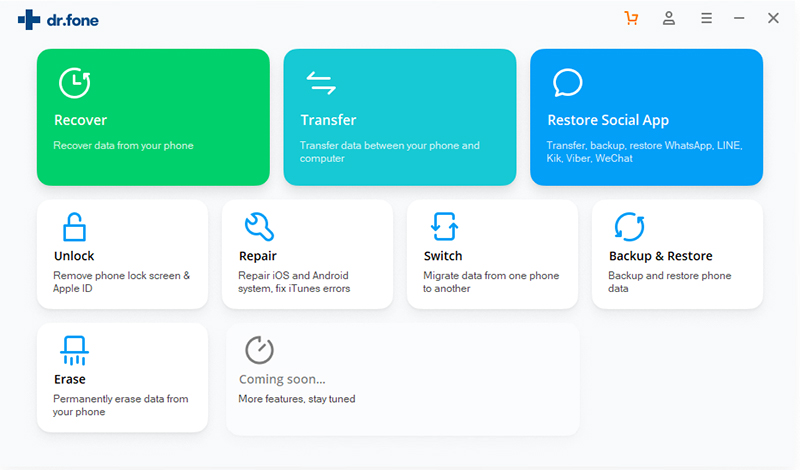
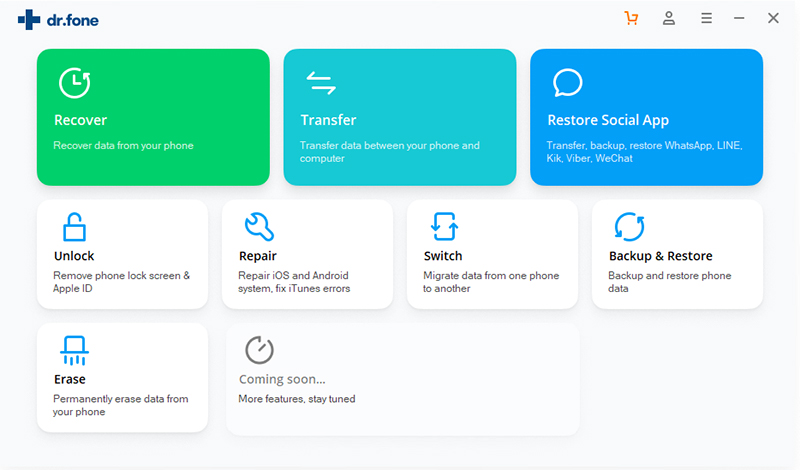
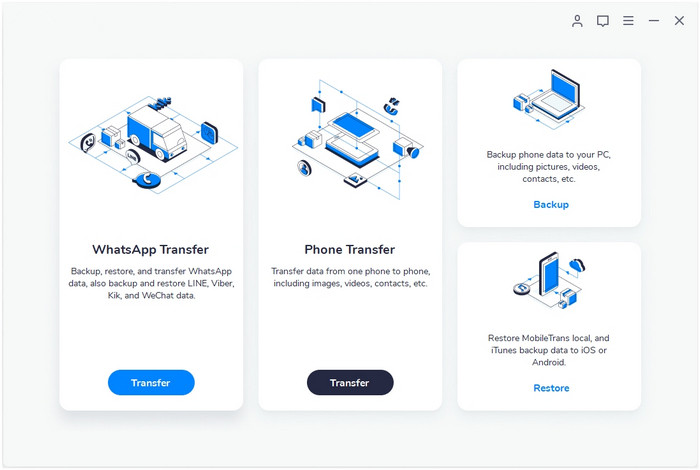
Download, install and launch Phone Toolkit on your PC or Mac. Tap over “Restore Social App” and tap the ‘WhatsApp Transfer’ tab afterwards.

launch WhatsApp transfer

Step 2. Select “WhatsApp Transfer” option
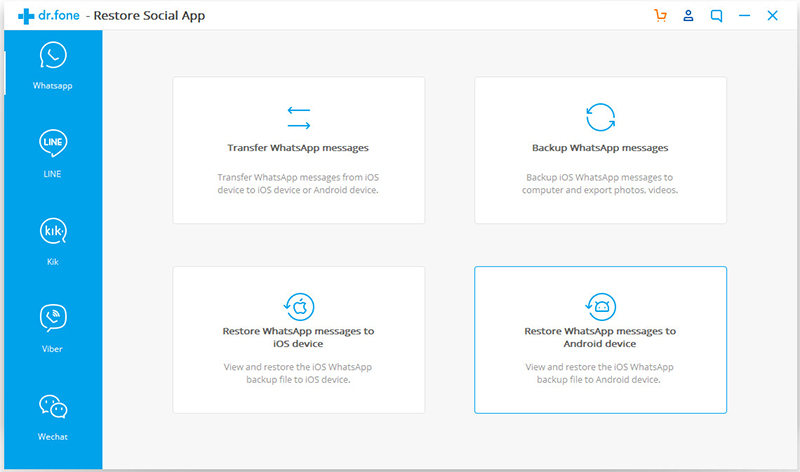
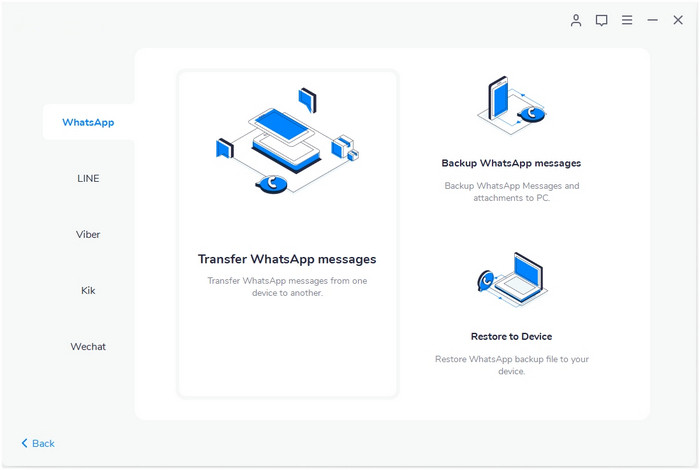
The next screen will show four different options; transfer WhatsApp messages, backup WhatsApp messages, restore WhatsApp messages to the iOS device, restore WhatsApp messages to the Android device. If you want to transfer WhatsApp messages from iPhone to Samsung Galaxy S20, please click on “Transfer WhatsApp messages” function.

WhatsApp messages transfer

Step 3. Connect Samsung S20 and iPhone to Computer
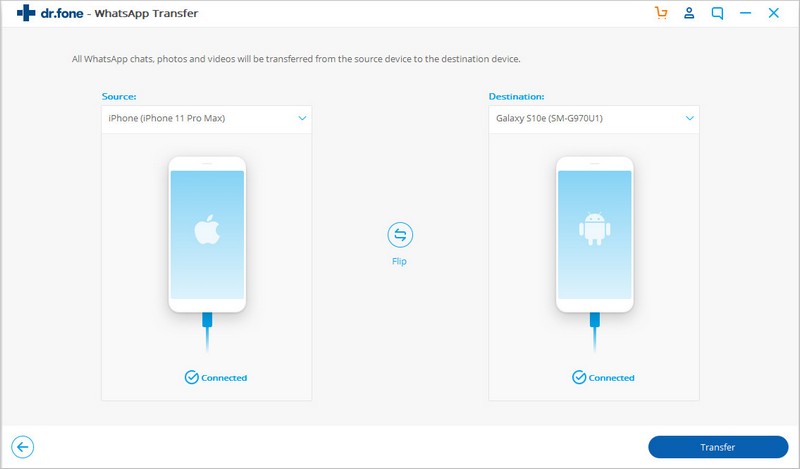
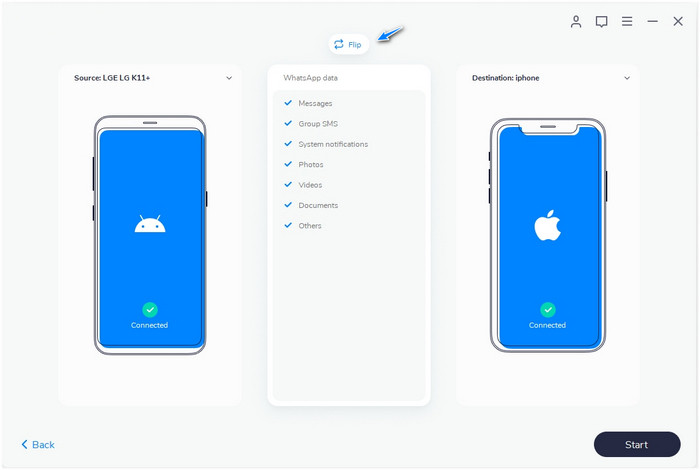
Then, connect your Samsung S20 and iPhone to computer by using their original USB cable, the software will detect the two devices and shows connection success. In order to transfer WhatsApp from iOS to Android, make sure that your iPhone on the left side as “Source” and your Samsung S20 is on the right side as “Destination”. You also can click on the “Flip” button to interchange the position of your phones.

coy WhatsApp messages from iPhone to Samsung S20

Step 4. Start Transferring WhatsApp from iPhone to Samsung S20
Just click on the “Transfer” button, the software will pop-up transfer windows. The program  informs you that if you confirm to begin the transfer process, all the existing data on the Samsung S20 will be erased. Click on “Continue” to start the process. However, if you want to create a backup of your existing data on the target phone – Samsung S20, please tap on the “Backup” option to backup them firstly.

transfer WhatsApp from iPhone to Samsung S20 transfer

Step 5. iPhone to Samsung S20 WhatsApp Transfer Complete
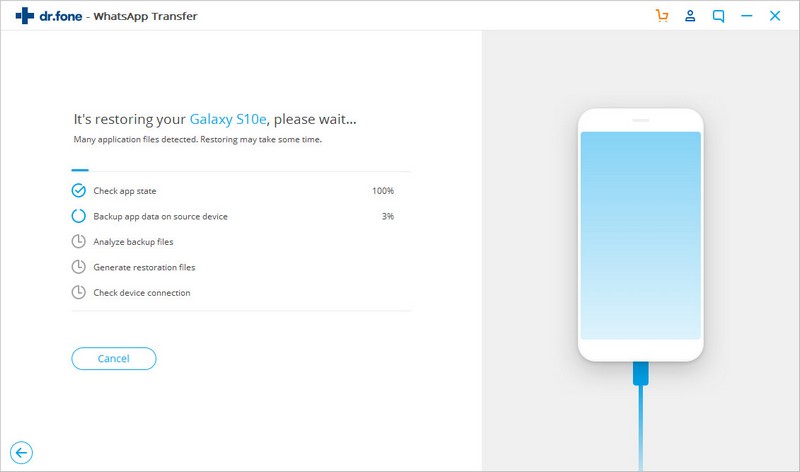
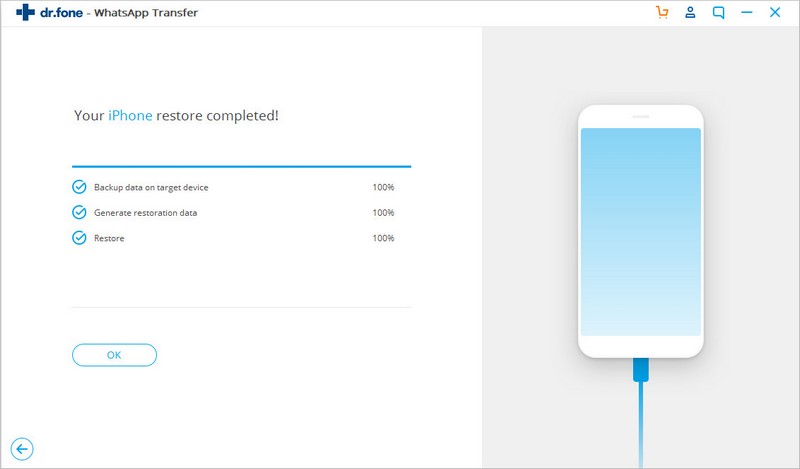
During the transferring process, please wait patiently and don’t disconnect both two devices. Only few minutes, all of your WhatsApp data is transferred from iPhone to Samsung Galaxy S20.

iPhone WhatsApp to Samsung S20 transfer

Once all your WhatsApp chat history is transferred to new Samsung S20, please launch WhatsApp app on Samsung S20 and log in with the same account, then restore the backup to get access to the transferred data in the app.

d_win d_mac
d_win d_mac

Now, you have known how to transfer WhatsApp messages from iPhone/iPad to Samsung Galaxy S20, if you want to transfer contacts, SMS and more data to your Samsung S20, the Phone Switch of this Phone Toolkit can help you, this function allows you transfer contacts, call logs, messages, music, photos, videos, App data from an old iOS/Android device to Samsung Galaxy S20, S20+ & S20 Ultra directly.

Transfer WhatsApp from iPhone to Samsung S20 with Phone Transfer – WhatsApp Transfer

Previous version of Phone Transfer is designed to transfer contacts, photos, messages and videos between Android, iOS & Windows phone.
Also read: How to transfer iPhone data to Samsung phone

Updated: Now, Phone Transfer has been updated, the latest version of Phone Transfer not only can transfer contacts, messages and more from iPhone to Android, but also can help you transfer WhatsApp chat history from iPhone to Android, such as Samsung Galaxy S20, S10, S9, S8, S7, Note 10, Note 9, Note 8, etc.

Free download the Phone Transfer for Windows or Mac version:

d_win d_mac
d_win d_mac

Let’s following the below steps to transfer WhatsApp chat history from iPhone to Samsung S20 by using Phone Transfer:

Step 1. Launch Phone Transfer
Please click the above download button to Phone Transfer on your Mac or Windows computer, install and launch it.
If you want to transfer data from iOS to Android, please select the “WhatsApp Transfer” feature to launch the dedicated tool.

launch phone transfer

Tips: This “WhatsApp Transfer” feature not only allows you transfer WhatsApp messages between iPhone and Android, but also can help you easily to backup and restore data.

phone-transfer

Step 2.Connect Samsung S20 and iPhone to Computer
Then, please connect your Samsung phone and iPhone to the computer via USB cable.Once the software would detect the connected devices, it will mark them as either source or destination. In this case, to transfer WhatsApp from iPhone to Samsung S20, please set the iPhone as the source device(left side) and Samsung S20 as the destination device(right side). If this is not the case, please click the “Flip” button to switch them.

connect phones to computer

Step 3. Start Transfer WhatsApp Messages from iPhone to Samsung S20
After marking the source device(iPhone) and the target device(Samsung S20), just click the “Start” button. At this time, the program start to transfer WhatsApp messages from iPhone to Samsung Galaxy S20.

Transfer WhatsApp Messages from iPhone to Samsung S20

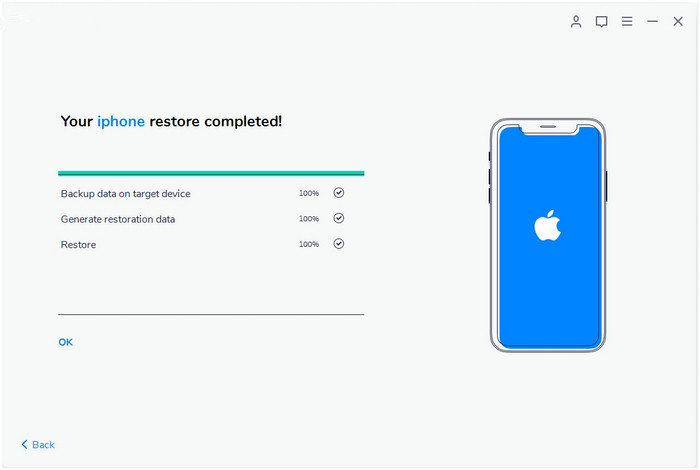
During the WhatsApp transfer process, please keep connecting both two devices. You will be notified when the WhatsApp transfer from iPhone to Samsung will be completed. Then, you can disconnect your two phones.

Now, please launch WhatsApp on Samsung S20, the App will restore the newly transferred backup data on it, you will found all transferred chat history appear in WhatsApp app.

Free download the Phone Transfer and try to convert WhatsApp chat history from iOS to Android:

d_win d_mac
d_win d_mac

iOS WhatsApp to Android Transfer

How to Transfer iTunes Music to Samsung S20, S20+ & S20 Ultra

[Summary]: Bought a new Samsung Galaxy S20 and want to enjoy your music on Samsung Galaxy S20, S20+ & S20 Ultra too? This article introduces a easy ways to transfer music from iTunes to Samsung Galaxy S20, S20+, S20 Ultra and other Android devices.

How to transfer music from iTunes library to Samsung Galaxy S20 Ultra? All my favorite tracks are in iTunes and I don’t know how to transfer iTunes music to S20, is it possible to transfer songs from iTunes library to Android phone?

The Galaxy s and Galaxy note series are Samsung’s two flagship series. Both series use Samsung’s top AMOLED screen, and the screens of the two mobile phones are centered punched screens. Let’s take a look at the parameters of the two screens:

The Galaxy s20 is equipped with a 6.2-inch hyperbolic full-screen display, 2K resolution (3200 * 1440), 120Hz refresh rate, HDR10 + certification, maximum brightness of 800nit, peak brightness of about 1300nit, and the sixth generation of Gorilla Glass!

samsung galaxy s20

The Galaxy note10 + is equipped with a 6.8-inch hyperboloid full-view screen, 2K resolution (3040 * 1440), 60Hz refresh rate, HDR10 + certification, maximum brightness of 800nit, peak brightness of about 1300nit, and the sixth generation of Gorilla Glass!

After reading the parameters, the biggest difference between the screens of the two phones is the screen refresh rate, while the Samsung Galaxy S20 supports a refresh rate of 120Hz, while note10 + only supports 60Hz.

Have bought a new Samsung Galaxy S20? When you got new Samsung Galaxy phone, you may want to know how to get iTunes music on Galaxy S20/S10/S9/S8/S7 or any other Android device, then you are at the right place. In this guide, we will teach you how to transfer iTunes music to Galaxy S20 and other Android devices.

In addition, if you want to transfer Apple Music to Samsung Galaxy S20/S10/S9/S8/S7 or any other Android device, you need to remove DRM from Apple Music and convert them to MP3, then copy the converted Apple Music songs to the Android devices.

iTunes Music to Samsung Galaxy S20 Transfer

This iTunes to Samsung S20 Transfer is a complete Samsung phone manager & transfer tool that can help you transfer music from iOS/Android/iTunes/PC/Mac to Samsung S20, S20+ & S20 Ultra. What’s more, this program also can help you transfer music, photos, videos, contacts, messages, and more from one device to another. The “Transfer iTunes Media to Device ” function even supports rebuild iTunes library or fetch its data without using iTunes.

Key Features:

  • Transfer iTunes Music to Samsung Galaxy S20 in 1 Click.
  • Transfer files between Samsung and computer, including contacts, photos, music, SMS, and more.
  • Manage, export/import your music, photos, videos, contacts, SMS, Apps etc.
  • Transfer iTunes to Android, transfer Android media files to iTunes.
  • Manage your Samsung S20 on computer.
  • Fully compatible with all Android OS.

d_win d_mac
d_win d_mac

How to Transfer Music from iTunes to Samsung Galaxy S20

Step 1. Download and Launch Android Toolkit
Firstly, please click the above download button to download Android Toolkit, then install and launch it on computer, you will get the below interface. If you want to transfer iTunes music and videos to Samsung S20, please click “Transfer”function.

itunes music to android transfer

Step 2. Click “Transfer iTunes Media to Device”
Go to iTunes to Android transfer function, and then connect your Android device to it. It will automatically detect your S20 and display its snapshot.

transfer itunes music to samsung s20

Step 3.Start Detecting iTunes Library
The program will pop up new windows, it will start detecting the iTunes media on your computer.

sync itunes music to samsung s20

Step 4. Start to Transfer iTunes Music to Samsung S20
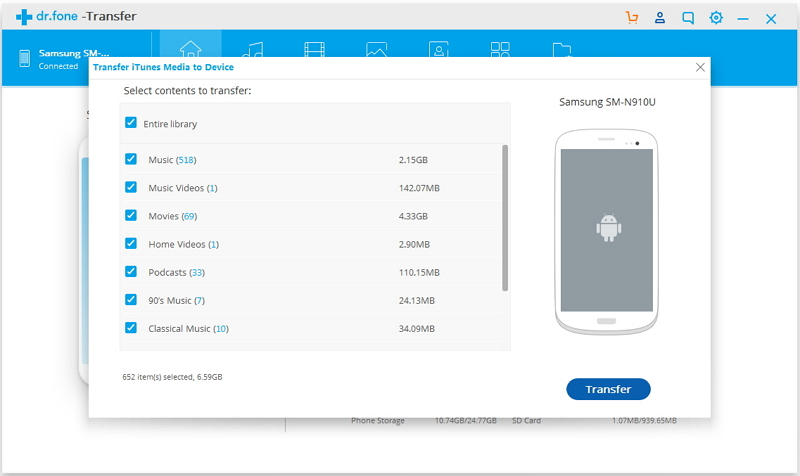
You can simply select the playlists of your choice or check the “Entire library” option as well. Then, please click on the “Transfer” button. The software will automatically transfer iTunes music to your Samsung Galaxy S20 directly.

Free download the Phone Toolkit and start to transfer iTunes media files to Android devices.

d_win d_mac
d_win d_mac

Well done, you have success transfer the unprotected songs from iTunes to Samsung Galaxy S20. But this program can’t transfer Apple Music tracks and iTunes M4P songs to Samsung or other Android devices, because all Apple Music files added DRM protection. If you want to transfer Apple Music songs to Samsung Galaxy S20 for offline listening, you need to use a professional Apple Music Converter to remove DRM from Apple Music and convert them to MP3 files. Here, we recommend UkeySoft Apple Music Converter, which is a popular and powerful Apple Music DRM removal and iTunes music converter, you can use this converter directly convert Apple Music and iTunes songs to MP3, M4A, WAV, etc. Then, using the above Android Manager tool to transfer the DRM-free Apple Music songs to Samsung Galaxy phone.

Related Articles

How to Transfer Music from iTunes to Galaxy S10/S10+

How to Transfer Apple Music to Samsung Galaxy S20/S10/S9/S8/S7

Transfer Music from iTunes to iPhone 11(Pro) without iTunes

How to Transfer WhatsApp Messages from iPhone to Galaxy S20, S10, S9

How to Transfer Data from iPhone to Samsung Galaxy S20, S20+ & S20 Ultra

How to Transfer Data from Android to Samsung S20, S20+ & S20 Ultra

iTunes Music to Samsung S20 Transfer

How to Recover Deleted Contacts from iPhone without Backup

[Summary]: Lost your important contacts on iPhone without backup? How to recover deleted contacts from iPhone 11/XS/XR/X/8/7/6S/6 without backup(iCloud or iTunes)? Use iPhone Contacts Recovery software to restore iPhone contacts directly.

All my iPhone contacts disappeared…I logged out iCloud and signed in again and then slid the syncing on, but I find all contacts were loss.How can I recover lost contacts from iPhone without backup?

I recently updated my iPhone X to iOS 13 and I found all the saved contacts on my device were lost. Is this possible to restore lost contacts on iPhone? Can someone help me understand how to recover lost contacts on iPhone X?

Also read:

How to Recover Deleted Photos from iPhone

How to Recover Deleted WhatsApp Messages on iPhone

Contacts are so important in your daily life, when you have got an new iPhone, the first thing you need to do is adding as many phone numbers as needed to the Contacts app, or transfer contacts from old phone to iPhone, so that you can use the saved phone number to make a phone call, text your friends, send an email, etc.  But if you lost contacts on iPhone, how to recover lost contacts on iPhone?

Sometimes, contacts losing due to iOS systems upgrade, synchronization error or accident deletion. When you found the contacts are lost, but you haven’t create iPhone backup before the contacts are gone. However, is there any way to recover contacts from the iPhone itself? Don’t worry, you still have chance to recover lost contacts on iPhone ever you haven’t created iPhone backup with iTunes or iCloud before.

Tips: When you found contacts lost on your iPhone, you need to stop using the device immediately and don’t add new phone numbers to the Contact app. Doing so will increase the odds that the lost contacts are actually overwritten by new data you added. Please use a professional iPhone Contact Recovery to recover the lost or deleted contacts from iPhone.

iPhone Contacts Recovery Software

The iPhone Contacts Recovery can help you recover and export lost contacts from any iOS device, including iPhone 11 Pro Max/11 Pro/11, iPhone XS/XS Max, iPhone XR, iPhone X, iPhone 8/8 Plus, iPhone 7/7 Plus, iPhone SE, iPhone 6s/6s Plus, iPhone 6/6 Plus, iPhone 5s/5c/5/4S. You can easily recover the lost contacts with full information like contacts name, phone number, Email, job title, companies, address, and more which you fill on your iPhone. And the exported contacts will be saved as VCF, CSV or HTML files for your using, copying or printing.

d_win d_mac
d_win d_mac

Recover Deleted Contacts on iPhone Without iTunes or iCloud Backup

This tutorial take iPhone Data Recovery (Mac) as an example (steps with iPhone Data Recovery for Windows are similar as follows). Let’s learn how easy to recover iPhone lost contacts without backups.

Step 1. Download, Install and Run iOS Toolkit
Download, install and launch the iOS Toolkit on computer and select “iPhone Data Recovery”.

iphone data recovery for mac

Step 2. Choose “Recover from iOS Device” mode
Start up the program on computer, and you will be given the options to choose any suitable mode to start from. Just select “Recover from iOS Device” mode so that you can recover deleted contacts from iPhone storage without any iCloud or iTunes backup.

Then, get your iPhone plugged into the machine and wait for the connection.

connect iPhone to Mac

Step 3. Choose iPhone contacts to recover
From here, you can select the type of data that you wish to scan. You can choose to look for only the deleted content or perform an extensive scan. To get better results, we recommend performing a complete scan. Just make sure that the “Contacts” option is enabled before clicking on the “Start Scan” button.

Select Contacts

Step 4. Scan All Contacts from the iPhone
The software will start scan the deleted or loss contacts on your device. It might take a while so you need to make sure that the device stays connected to the computer.

scan contacts from iPhone

Step 5. Preview and Recover iPhone Lost Contacts
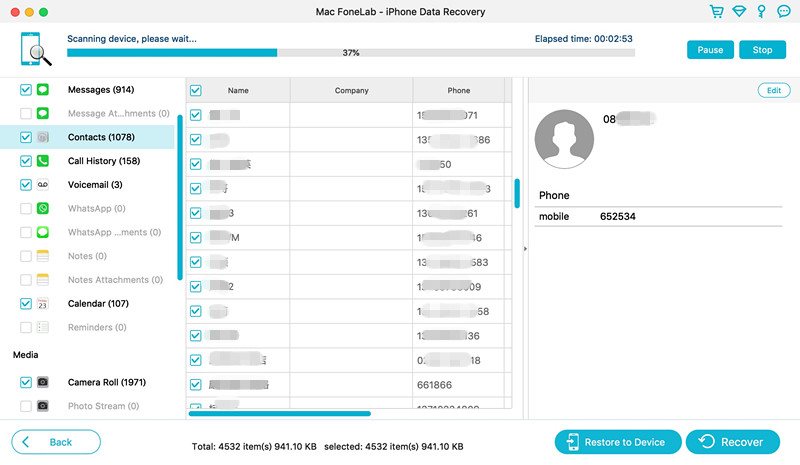
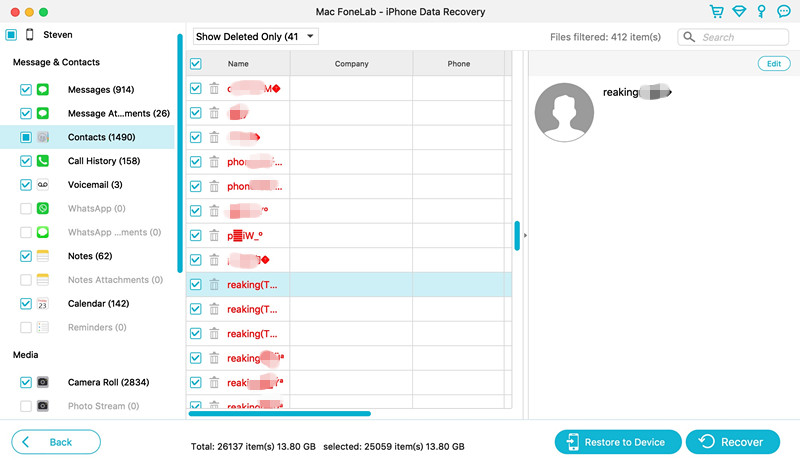
Once the application has retrieved the deleted or lost content, it will display it under different categories. click on “Contacts” category and you can see the contact details on the middle pane.

Tips: You can toggle the “Only display the deleted item(s)” switch to ON position to view just the lost contacts.

recover contacts on iPhone 11

The last step, please select which contact you want to get back from iPhone. To select all deleted contacts, click a checkmark next to the “Contacts” category on the left sidebar, then click “Recover” button to retrieve and export the lost contacts to computer directly.

The recovered contacts be saved as HTML or CSV file to your chosen path, so that you can view the contacts on the computer and transfer them back to your iPhone.

d_win d_mac
d_win d_mac

If you want to transfer the recovered contacts back to your iPhone for using, you should save them as CSV format, then use this iPhone Manager tool to directly add contacts to your iPhone easily.
Also read: How to import contacts to iPhone

Conclusion

iPhone Data Recovery makes it easily to recover lost contacts, messages, photos, videos, notes, call logs, WhatsApp from iPhone even though you haven’t created iTunes or iCloud backup previously. In addition, if you have backup iPhone to iTunes or iCloud before, the iPhone Data Recovery also can help you restore and export lost data from iTunes backup; or download and import data from iCloud backup selectively.

How to Recover Deleted Data from Samsung

Summary
Lost data like photos, messages, contacts, WhatsApp messages, documents or music files in Samsung phones? You can free download Samsung data recovery software and recover deleted photos, pictures, videos, music files, messages, contacts, WhatsApp messages and documents from internal memory directly; You also can free download Data Recovery software to recover media files from Samsung SD card on Windows/ Mac.

Compared with iPhone in market, many people like to use Android Samsung phone, like Samsung Galaxy S: S20, S10, S9, S8, S7, S6, S5 and Samsung Galaxy Note: Note 10, Note 9, Note 8, Note 5, Note 4, Samsung Captivate, Samsung Galaxy Ace, Samsung Infuse, Galaxy Nexus,etc. But, when you deleted data on Samsung phone, do you looking for an effective Samsung data recovery solution? Accidentally deleted photos, messages or contacts on your Samsung handset? Or lost data after factory reset, rooting, etc. You may want to know how to recover your Samsung lost data?

samsung data recovery

In case you have been storing your important documents and personal data on the internal memory of your Samsung phone all along and have lost the data due to any reason. Do you want to how to recover deleted data from Samsung phone in a simple way? Accidentally deleted WhatsApp messages, text messages or contacts on your Samsung Galaxy phone? Deleted photos and videos on Samsung phone by careless? Or lost pictures and videos from the SD card on your Samsung device?

Reasons of Samsung Galaxy Data Loss

There are many reasons lead to your Samsung data is lost. Here I list the common reasons:

  • Accidentally deleted the important files by mistake.
  • The USB disconnected accidentally during data transferring between Samsung phone and the computer.
  • The Samsung phone suddenly power off when you are using it. It may also cause data loss, too.
  • The virus infection. If your PC is infected by virus, it may lead to the data be infected and erased when you connecting your Samsung phone with the computer.
  • Other reasons: factory reset, system crash, forgotten password, flashing ROM, rooting, ect.

Whether your lost Android data due to a upgrade failure, factory reset or you simply delete file by mistake, you still have a reasonable chance of recovering data from Samsung Galaxy phone. In this quick article, we will show you how you can recover lost or deleted data from Samsung Cloud, from Samsung device internal memory, or from Android SD card.

Part 1: How to Restore Lost Data from Samsung Cloud

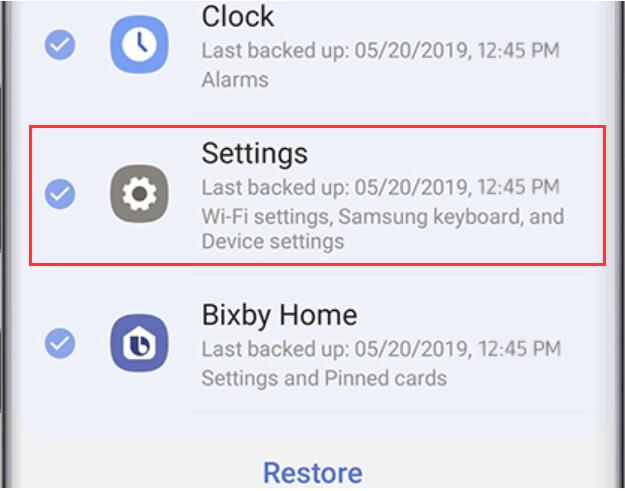
Samsung offers Samsung Cloud service for Samsung users to backup and restore data easily, if you want to transfer data from old Samsung to new Samsung Galaxy device, you can backup Samsung data content to Samsung Cloud and then restore the backups to new Galaxy device. You can avoid data loss on Samsung devices by using the he Samsung Cloud backup and restore service.

There is a “Backup Settings” on Samsung phone, if you have enable “Backup Settings” option and wireless backup your important data files to Samsung Cloud before. Once the data loss or delete, you can easily to restore lost data from Samsung Cloud backup. Follow the steps to learn how to restore data from Samsung Cloud.

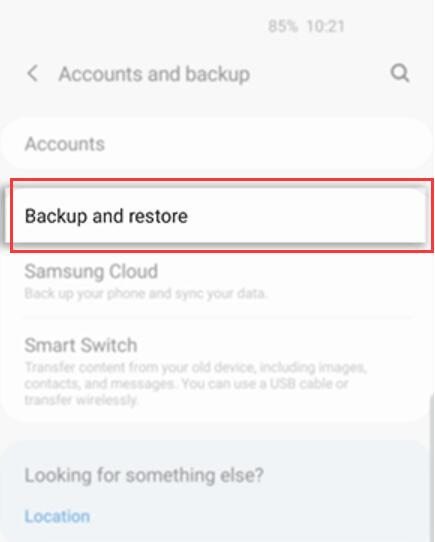
Step 1. On your Samsung Galaxy phone Home interface, please tap Settings > Accounts and backups.

samsung cloud restore data

Step 2. Select Backup and Restore.

samsung cloud restore files

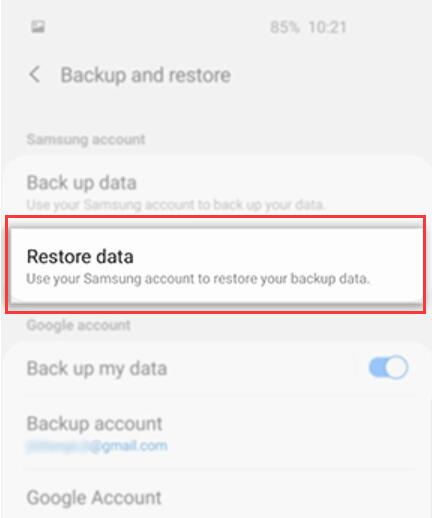
Step 3. Under Samsung Account select Restore data.

samsung cloud restore photos

A messages will pop out asking if you would like to install the apps that were backed up if they don’t exist on your using device already. Tap Install if needed.

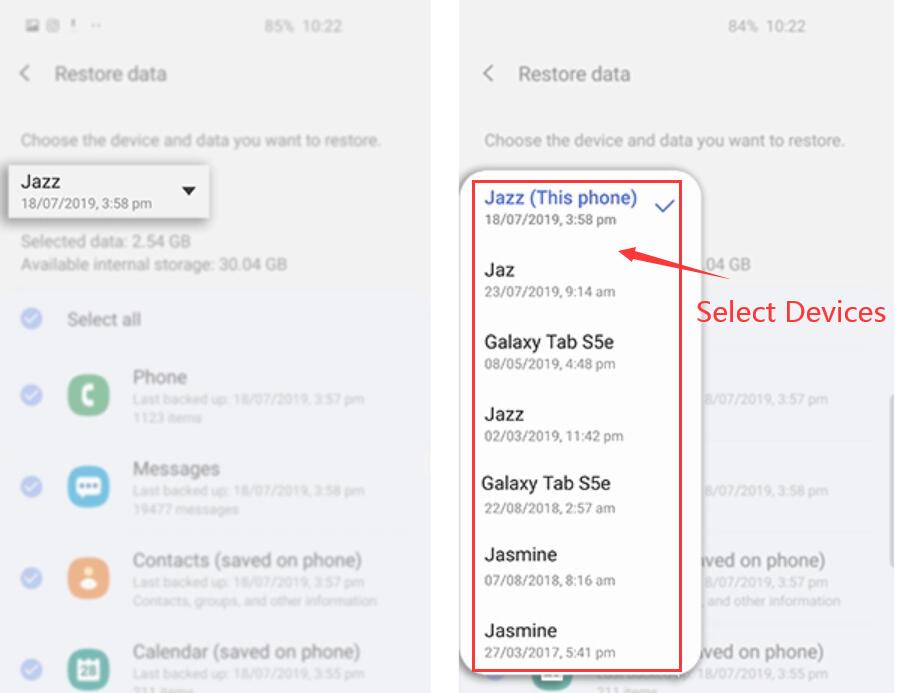
Step 4. Select the device you would like to restore data from.

samsung cloud restore contents

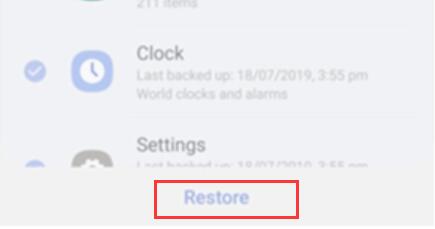
Step 5. Then tap on Restore Now.
Once you have selected the backup and content you would like restored on your Samsung Galaxy phone, tap on Restore, the backed data will restore to your Samsung Galaxy phone.

samsung cloud restore documents

Tips: Even if you back up your Samsung phone to Samsung cloud regularly, the backup won’t always contain your most recent data contents. If you find the deleted data won’t restored back to Samsung Galaxy phone from Samsung Cloud. Please don’t worry, you can use a third-party Samsung Galaxy data recovery or data recovery software, please keep reading the following Samsung files recovery guide.

An Professional Samsung Data Recovery Software to Use

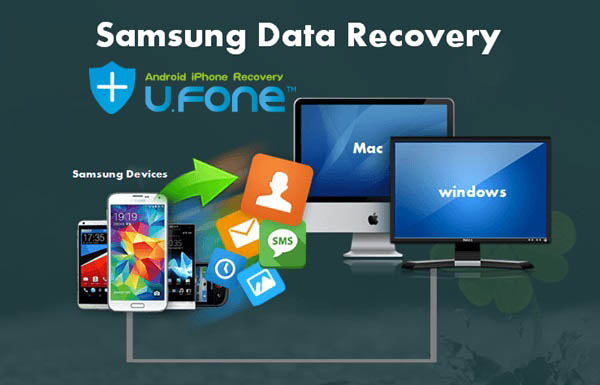
Samsung Data Recovery is a secure and powerful tool that can recover lost photos, contacts, messages, videos, audios, call logs, WhatsApp messages, and documents from Samsung Galaxy phones and tablets, including Samsung Galaxy S20/S10/S9/S8/S7/S6/S5/S4, Samsung Galaxy Note 10/Note 9/Note 8/Note 7/Note 6/Note 5/Note 4/Note 3, Samsung Galaxy J, Samsung Galaxy Ace, Samsung Galaxy Note, Samsung Infuse, Galaxy Nexus, Samsung Captivate, Samsung Epic 4G Touch, and more.

  • Support to recover lost and deleted files from Samsung phone or SD card.
  • Preview and selectively restore deleted files from Samsung devices before recovery.
  • Recover data from dead/broken/black screen Samsung phone, supports Samsung Galaxy S6/S5/S4, Galaxy Note 5/Note 4/Note 3.
  • Fix Samsung phone system all kinks of issues, such as Samsung logo screen, frozen, crashed, black-screen, virus-attack, screen-locked and extract data from broken Samsung Galaxy phone.
  • Support to backup photos, videos, contacts, messages, messages Attachments, call history, audios, whatsApp, documents from Samsung phone to computer.
  • Support to restore the backups to any Android devices.

Now, download the free trial version of Android data recovery tool to recover lost data from Samsung phone.

d_win d_mac
d_win d_mac

Part 2: How to Recover Deleted Data from Samsung Phone

Step 1: Run Android Toolkit on PC or Mac
First of all, please click the above download button to download the Android Toolkit – Data Recovery, then install and run the program on your computer.

To recover Samsung lost data, please select “Android Data Recovery” option on the main interface to enter data recovery function, then connect your Samsung phone to the computer via Android USB cable.

Samsung Galaxy Data Recovery

Note: If your Samsung S6/S5/S4, Note 5/Note 4/Note 3 was dead/broken/black screen, you can choose “Broken Android Data Extraction” function to fix Android system and recover data from broken Samsung phone.

recover data on broken samsung

Step 2: Enable USB debugging on your Samsung Device
When the program detects your phone, it requires you to enable USB debugging. There are three options. Please choose the one for your phone’s Android OS. If fails, please visit article: How to Enable USB Debugging on Android.

  • 1) For Android 2.3 or earlier: Enter “Settings” < Click “Applications” < Click “Development” < Check “USB debugging”
  • 2) For Android 3.0 to 4.1: Enter “Settings” < Click “Developer options” < Check “USB debugging”
  • 3) For Android 4.2 or newer: Enter “Settings” < Click “About Phone” < Tap “Build number” for several times until getting a note “You are under developer mode” < Back to “Settings” < Click “Developer options” < Check “USB debugging”.

Enable USB debugging on Samsung phone

Step 3: Choose Contents and Scan from Samsung Phone
After your Samsung phone is successfully detected by the program, then select type of files that you want to get back and then click “Next” button, the program will analyze the file on your device.

select data to scan

Tips: Make sure that your phone battery is more than 20%

Step 4: Root Samsung Phone to do a Deep Scanning
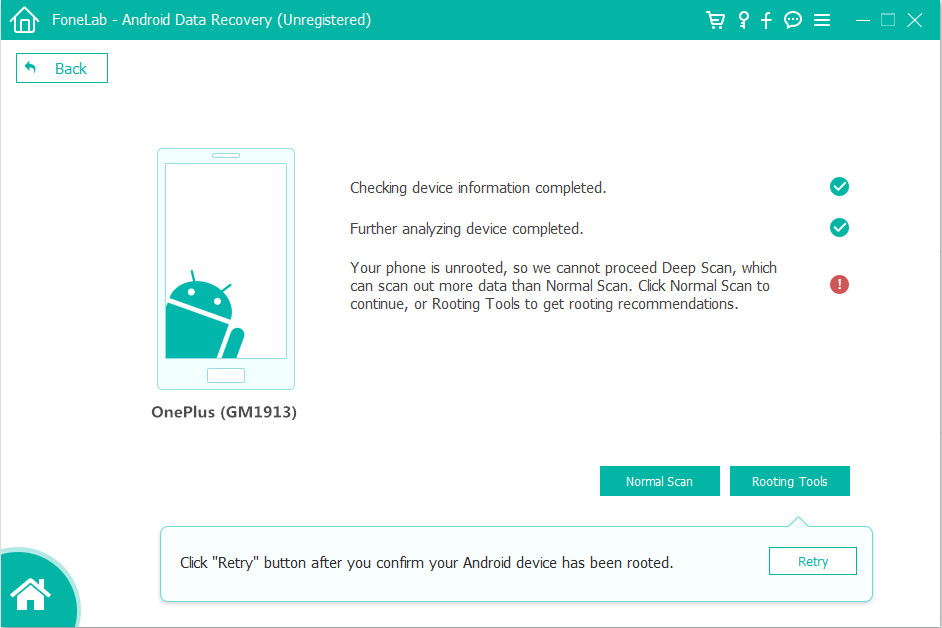
If your Android Samsung phone is unroot, you need to root your Samsung Android phone so that the program can do a deep scan all lost and deleted files.

Related Tips: Why you need to root the Android device firstly? The deleted files are stored in a hidden folder of your phone memory, which can’t be accessed by regular file explorer. Only after rooting your Android phone can an Android data recovery app gain access to the deleted data. Therefore, although there are apps claiming that they can recover deleted data from Android without rooting, it is actually impossible to get back your lost or deleted without rooting.

To root the Samsung Galaxy phone, please click the “Rooting Tools” button and the program will bring you into a new website, please download KingoRoot tool on PC or Mac. Then, install the Android rooting tool on your computer and root your Samsung device with this powerful Android rooting program.
Read More: How to Safely Root and Unroot an Android Device with KingoRoot.

root samsung phone

After rooting Samsung Galaxy phone complete, then return to this Android data recovery software and click “Retry” button

Step 5: Start Scanning Data from Samsung Phone
The software will start analysing your phone thoroughly and displays a list of results for the selected file type in the window. The progress bar at the top informs you of the status of the current scanning.

recover data from Samsung phone

Step 6: Recover Deleted Data from Samsung Galaxy Phone
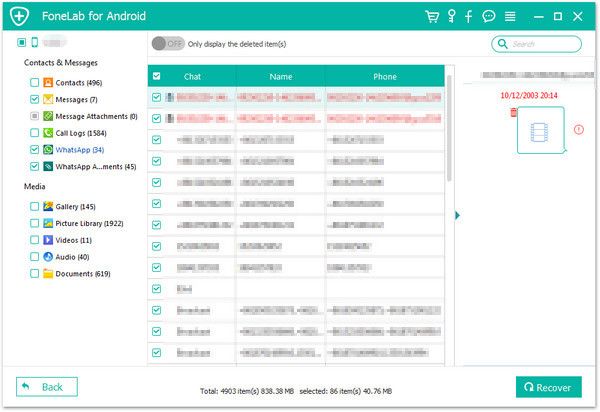
Once the scan is finished, a list of recoverable files that have been found from your Samsung will be shown. All files are sorted by categories.  preview the text messages, contacts,photos, WhatsApp messages and other types of content from Samsung device before recovery. You can choose the data you want and click “Recover” button to save them on your computer.

recover data from Samsung phone

Free download the Android Data Recovery and try to recover Samsung lost data:

d_win d_mac
d_win d_mac

Well done! You’ve successfully recovered files from Samsung phone. Now you can check the recovered files on the folder and transfer them back to your Android device through the method of drag and drop or using iOS & Android Manager tool, this phone manager tool not only can help you transfer files between iPhone, Android devices and computer, but also move data between iOS and Android directly.

Part 3: How to Recover Deleted Data from Samsung SD Card

You save the data in SD card inside of your Samsung phone? If you deleted, lost or formatted files from micro SD card on Samsung by careless. Don’t worry, in this part you can easily to recover photos, videos, audio and other documents from Samsung micro SD card.

The Data Recovery can help you recover lost data from SD card, not matter the SD card got formatted, physical damage or corrupt, got virus or trojan attacks, or the device system crashed. You can find out the way to recover deleted or lost photos, videos and other files from Samsung phone’s SD memory card in easily and effectively.

Free download the Data Recovery for Windows or Mac:

d_win d_mac
d_win d_mac

Step 1. Insert Samsung SD Card Into Computer
Please remove the SD card from the Samsung phone and insert it into the computer.

Step 2. Launch Data Recovery on Computer
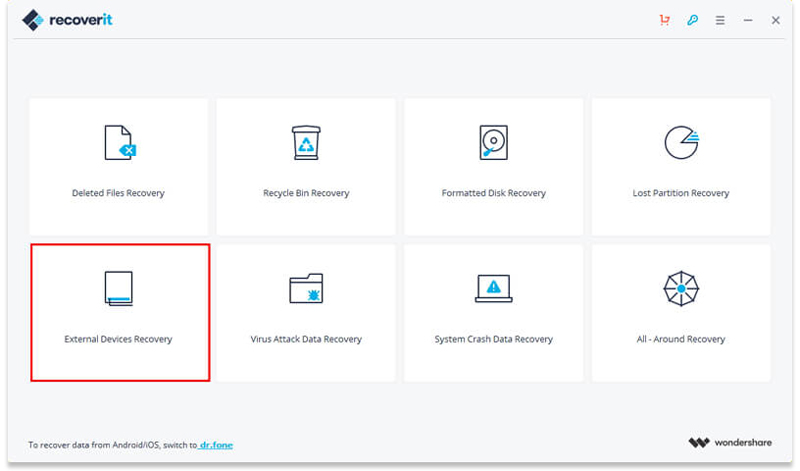
Launch Data Recovery on your PC or Mac, if you want to recover data from Samsung SD card, you should select “External Devices Recovery” data recovery mode to get started.

recover data from Samsung sd card

Step 3. Select Samsung SD Card
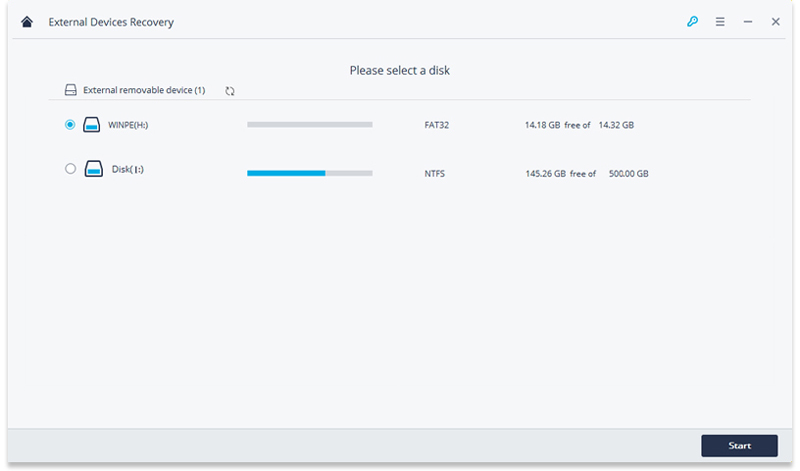
Make sure your Samsung SD card inserted into the computer and detected. Select the Samsung SD card device and click “Start” button to scanning lost data.

select Samsung SD card

Step 4. Deep Scan Lost Data Data from Android SD Card
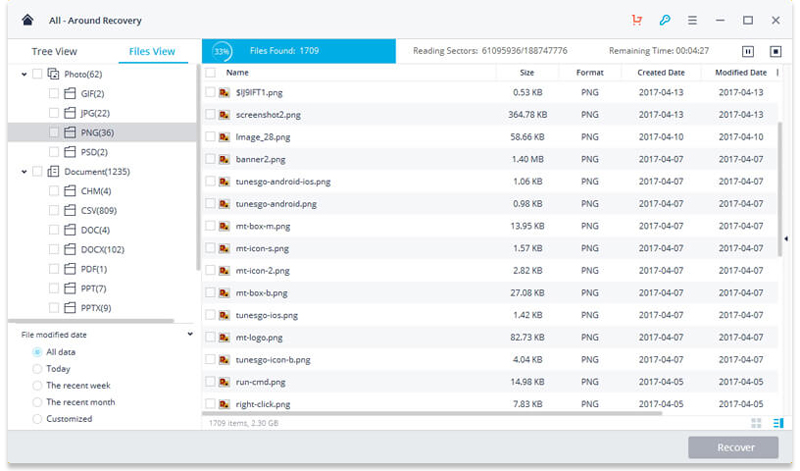
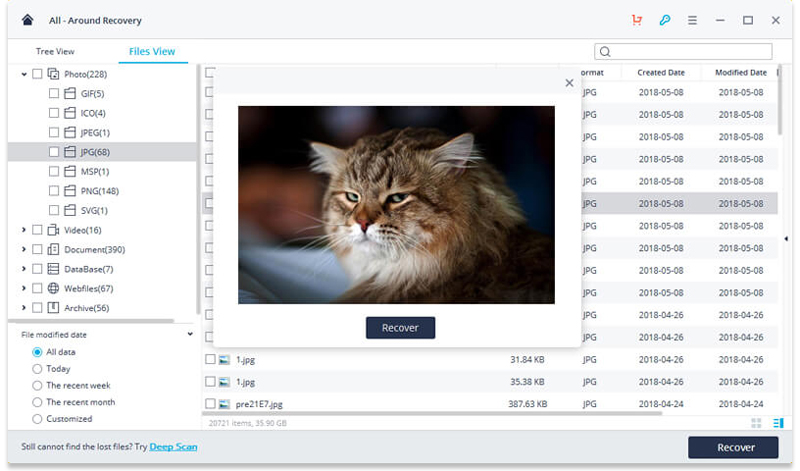
The Samsung SD Card data recovery software will start a quick scan. If quick scan can’t find your lost data, you can go to deep scan with “All-around Recovery” mode. It will take more time, but recovers the entire folder structure as well, which is ideal to recover lost and formatted data from SD card.

deep scan recovery

Step 5. Preview and Recover Data from SD Card
After the scanning completes, all the deleted data will be shown to you, you can preview a list of all the files recovered from Samsung SD card. Then, please select your data files and click on “Recover” button to save the deleted data onto your computer.

samsung sd card recovery

Tips: We suggest you should save your all recovered files on your computer hard drive or an external device, in case of data loss again or overwritten. Please free download the data recovery software and try to recover data from Samsung SD Card on Windows or Mac.

d_win d_mac
d_win d_mac

Now you can check the recovered photos, videos, audios and documents on the computer, you can directly copy them back to your Samsung Galaxy Phone, or transfer files from computer to Android with Android Transfer tool.

How to Recover Deleted WhatsApp Messages on iPhone and Android

[Summary]: The WhatsApp chat messages are deleted, leaving you without a record. How do you recover WhatsApp messages from iPhone or Android phone? You’re now in the right place, here you can learn two methods to restore the lost & deleted WhatsApp messages from the iPhone, Samsung, Huawei, Sony, Google Pixel, Xiaomi, HTC and other Android phone quickly and painlessly.

whatsapp messages recovery for iPhone Android

Also read:
* Recover WhatsApp/Viber/Line/Messenger/Kik/Facebook Messenger Data from iOS Devices

* Backup, Restore WhatsApp Data and Transfer WhatsApp Messages between iOS and Android

WhatsApp Manager is a very popular mobile online chat application which allows to send instant messages and multimedia files (photos, videos and audio notes) for free, so WhatsApp is a popular mobile chat App. Although it is fun to use, when you tend to delete some chat messages to keep your WhatsApp inbox tidy, if you accidentally delete important WhatsApp messages, this may be annoying moment, just realize that this is not the messages you want to delete. How to recover deleted WhatsApp messages on any mobile phones? This article will recommend two effective WhatsApp messages recovery software.

In fact, even if you accidentally or intentionally delete chat history in WhatsApp, you can recover deleted WhatsApp messages if the data is not overwritten. This article will teach you two ultimate WhatsApp data recovery software to recover deleted WhatsApp data from iPhone or Android phone, including text conversations, photos, videos within the conversations.

Solution 1: Restore Deleted WhatsApp Messages from iPhone Memory

When a WhatsApp messages is deleted, it’s just marked as deleted, however it’s not immediately removed from iPhone internal memory. As long as you take immediate action before new data has overwritten that space, your deleted WhatsApp chat history can be restored. And that’s iPhone WhatsApp recovery software comes in.

This iPhone Data Recovery is designed to recover deleted Whatsapp messages as well as other data files from all models of iPhones, including Text Messages, iMessages, Photos, Contacts, Kik/Line/Viber/Facebook Messenger Data, Notes, Call History, etc. The iPhone Data Recovery can full-scan the iPhone memory, offer a comprehensive scanning results overview on what the chances are, and recover the deleted files quickly.

More Features:

  • Recover Deleted and Lost Data from iPhone, iPad and iPod.
  • Recover Lost Data from iTunes and iCloud Backups.
  • Works well with iPhone 11/XS/XS Max/XR/X/8/8 Plus/7/7 Plus/SE and older version of iPhone, as well as all version of iPad and iPod touch.
  • Fix iOS system to normal status without data losing.
  • Quickly backup iPhone/iPad data in one click.
  • Selectively preview and restore backup to computer/iPhone/iPad/iPod touch.

d_win d_mac
d_win d_mac

Here’s how to retrieve deleted WhatsApp messages on iPhone without any backups.

Guide: How to Recover Deleted Text Messages on iPhone

Step 1. Launch iPhone Data Recovery
Launch the iOS Toolkit and select “iPhone Data Recovery”, and the interface as follow will appear.

iphone WhatsApp recovery

Step 2. Connect iPhone to Computer with USB Cable
Here are three recovery modes: Recover from iOS Device, Recover from iTunes Backup File or Recover from iCloud Backup File. Choose the first one and move on. Then connect your iPhone 11 to the computer with a digital cable.

connect iphone to pc

Step 3. Scaning the iPhone
After connecting your iPhone with the computer, the software will detect it, then you can click “Start Scan” button to scan your phone directly.

scan WhatsApp messages from iPhone

Then the iPhone Data Recovery software will start scanning your iPhone, during the scanning processing, please keep connecting your iPhone with the computer. If you find the data you want, please click “Stop” button to ends it.

Step 4. Start Recovering WhatsApp Messages from iPhone
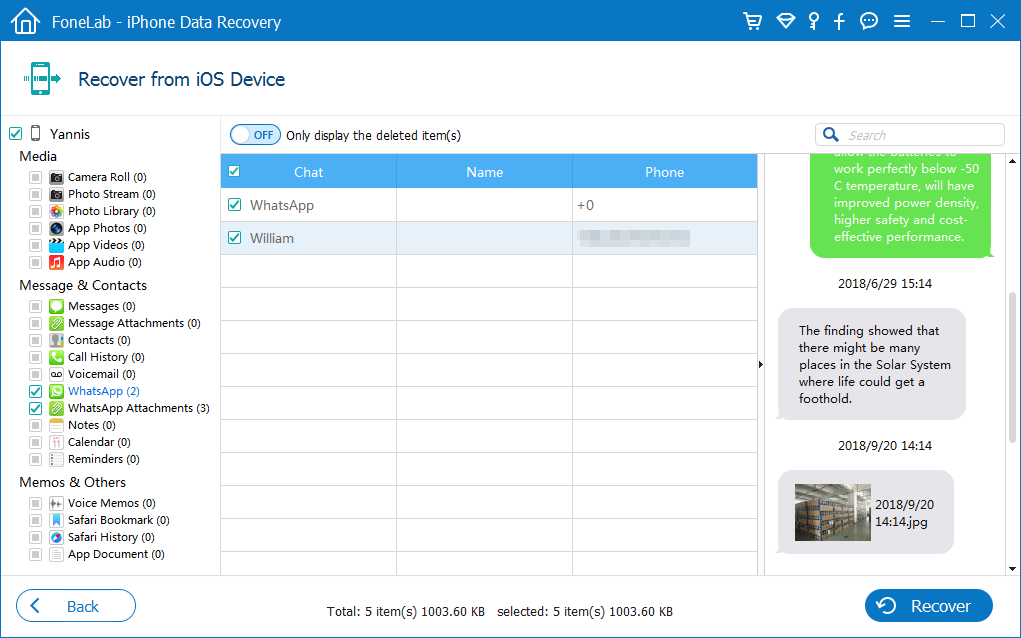
When the scan finished, all deleted WhatsApp data will be found and displayed in a list. If you want to preview lost calendar, please click “WhatsApp” menu on the right side and you can preview the detailed content one by one. Then you should select those data you want restore and click the “Recover” button to save them all on your computer.

recover WhatsApp messages from iPhone

Note: you can find the deleted data and those data still on your iPhone. If you only want back the deleted ones, you can refine the scan result by using the slide button at bottom to “only display deleted items”.

d_win d_mac
d_win d_mac

Above the simple guide teach you how to directly scan and recover deleted WhatsApp messages from iPhone memory. If you have backup iPhone to iTunes or iCloud before, you can recover data from iTunes or iCloud selectively, please back to iPhone Data Recovery home page and select “Recover from iTunes Backup File” or “Recover from iCloud Backup File”. No matter you have created backups or not, the iPhone Data Recovery enables you get back the deleted data.

Solution 2: Recover Deleted WhatsApp Messages from Android Memory

If you accidentally delete or lose WhatsApp messages on Android phones, please don’t add new data to the phone, follow the following step by step on how to recover deleted WhatsApp chat history on Android phone and Android tablet with Android WhatsApp Recovery.

Android Data Recovery is designed for Android users to recover lost/deleted Android data such as contacts, text messages, call history, photos, WhatsApp messages, videos and so on. It can scan the Android phone’s memory and recover deleted text messages, Whatsapp messages/photos, videos, contacts, photos, call logs, audios, music and other document files from Android phone and SD card easily. It supports almost all of Android device including Samsung, HTC, LG, Motorola, Huawei, Google Pixel, Xiaomi and so on. You can also learn how to recover deleted WhatsApp messages on Samsung phones and how to recover deleted text messages from Android phones.

More Features:

  • Directly scan and recover deleted WhatsApp messages and attachments from Android devices.
  • Preview these deleted WhatsApp messages and attachments before recovery.
  • Recover other data from Android, including WhatsApp data, photos, videos, contacts, music, messages,call logs, etc.
  • Recover Android files lost due to mistaken deleting, factory resetting, OS upgrade, system crash, forgotten password, flashing ROM, rooting, ect.
  • Recover data from almost all Android phones and tablets.
  • Recover files from broken Samsung galaxy S4/S5/S6, as we all Galaxy Note 5/Note 4/Note 3 and Samsung tablets.
  • Fix bricked Android phone to normal status, like frozen, crashed, black-screen, virus-attack, screen-locked.
  • Backup and Restore Data from any Android devices.

d_win d_mac
d_win d_mac

Simple Steps to Restore Deleted WhatsApp Messages from Samsung Phone

Step 1: Run Android Data Recovery and connect Samsung phone
To recover WhatsApp messages, connect the Samsung phone to computer through a USB cable and launch the program. Then go with the “Android Data Recovery” mode on the interface.

Android WhatsApp Messages Recovery

Once connected, a wizard that appears on screen will walk you through the steps on setting the device to USB Debugging mode. Do it as required.

usb debugging Samsung Galaxy S20

Related Article: How to enable USB Debugging on Android device.

Step 2: Select WhatsApp Data
Next, you’ll get a screen to ask you to choose the type of data you’re looking to recover. In this example, check “WhatsApp” and “WhatsApp Attachments” and click Next button.

retrieve Samsung WhatsApp messages

Step 3: Root Samsung Smartphone for Deeply Scanning All Deleted WhatsApp Data
At this stage, you have to root the Samsung phone so that the software can go deeper into the memory and scan the lost photos. To do this, click “Rooting Tools” button to download a tool named KingoRoot and let it root your Samsung phone.

root Android Samsung

For more information, please consult the article: how to safely root and unroot an Android device.

Tips: What is Deep Scan?

1.Deep Scan users byte-bybyte disk scanning technology. It will scan full storage. Compared with Standard Scan, more deleted and lost data will be scanned under this mode, but it will takes more time.

2.If you want to use Deep Scan, your phone must be rooted before. If your phone is unroot, please download KingoRoot on computer and root your Android phone safely.

After the device has been rooted, the scanning process will start immediately and last for 15-20 minutes approximately. Please be patient.

Note:

1. Your Android device will be disconnected while rooting. Don’t worry, the Android Data Recovery software will reconnect your device to Deep Scan automatically, and the software will scan the Android device again.

2. Please exit root tools after rooting your device. Then, click “Retry” and “Start Deep Scan” button to scan more lost data from Android device.

Step 4: Recover WhatsApp Data from Android Samsung Phone
After the scan completed, all found pictures appear on the window. You can click the thumbnail to view the pictures.

Next, check the boxes next to each WhatsApp messages you want to recover from Samsung phone and click Recover button at the bottom.

how do I get deleted WhasApp messages back from Samsung Galaxy

In the pop-up window, choose an output folder to store the WhatsApp messages on the computer. After that, press “Recover” button again.

Download the free Android Data Recovery and try to scan all deleted WhatsApp data from your phone.

d_win d_mac
d_win d_mac

The Bottom Line

Above two guides show you how to recover deleted WhatsApp messages and more data from iPhone/iPad and Android devices. The iOS Toolkit – iPhone Data Recovery offers three recovery modes to recover iOS data: Directly scan and recover lost data from iOS devices, restore data from iTunes or iTunes backups; And the Android Toolkit – Android Data Recovery not only can recover deleted/lost files from Android devices, but also allows you fix Android OS to normal and extract photos, contacts, messages, call logs, music, WhatsApp messages and documents from broken Samsung Galaxy phone.

Even though the above two mobile phone data recovery can help you recover deleted data, it’s important to treat your phone with care and back up your data to avoid losing them again in future. You can choose to sync the data to iCloud or Samsung Cloud, or backup data from iPhone/iPad/iPod or backup Android data onto computer hard drive regularly.

Related Guide

How to Transfer WhatsApp Messages from iPhone to iPhone 11(Pro)

Transfer WhatsApp Messages, Photos & Videos from iPhone to Android

How to Restore Deleted iMessages on iPhone without Backup

How to Recover Lost Data from iPhone after a Factory Reset

3 Methods to Recover Deleted Photos from Samsung Galaxy

Export WhatsApp Messages from iPhone to Computer

How to Transfer Data from Android to Samsung S20/S10/S9/S8/S7

Summary
If you switch to Samsung Galaxy S20 from an Android phone, you may need to transfer data from Android to Samsung Galaxy S20. Read on to see how to transfer files from any Android phone to Samsung S20/S20+/S20 Ultra, as well as S10/S9/S8/S7.

Samsung Galaxy S20, S20+ & S20 Ultra 5G are really great choice for Android users. If you wanna switch from an old Android device like Huawei, Xiaomi, Samsung, LG, HTC, Sony, Nokia, Oppo, Motorola, Oneplus, Google Pixel, etc to the Samsung Galaxy S20/ S20+/S20 Ultra or Galaxy Z Flip, you might want to know how to directly transfer data from an old Android device to Samsung S20/ S20+/S20 Ultra/S10/S10+/S10e. In this article, we will show you two easy solutions to directly move everything including contacts, SMS, photos, music, video, calendar, call history, apps and more from Android to Samsung Galaxy S20/S10(Plus).

Solution 1: Transfer Data from Android to Samsung Galaxy S20/S10(Plus) in One Click

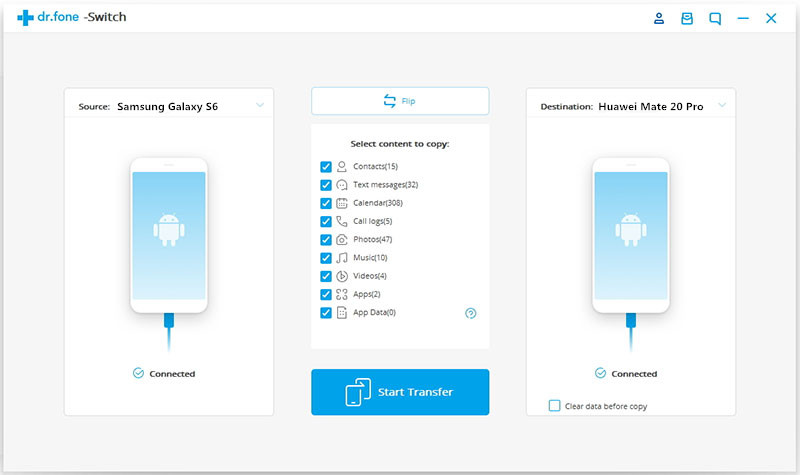
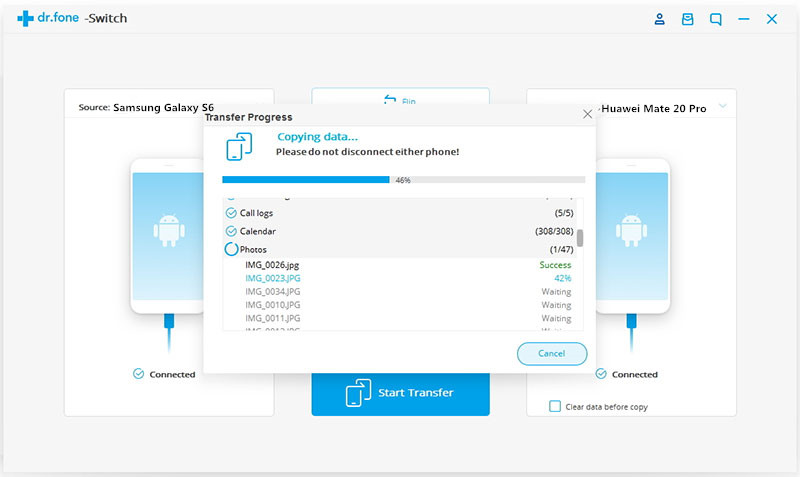
Phone Switch and Phone Transfer both are the most useful all-in-one Android to Android data transfer software that allows you to transfer photos, text messages, music, videos, call history, contacts, calendars, apps from all Android phone like Samsung, Huawei, Motorola, HTC, LG, Sony, OPPO, vivo, OnePlus, Google phone, etc to Samsung Galaxy S20/S10(Plus) within simple three steps. When you switch from one Android to another Android? This powerful Android to Android transfer tool can transfer 11 file types between two Android phones: photos, videos, contacts, messages, call history, bookmarks, calendar, voice memo, contact blacklist, music, and apps.

Apart from transferring data from Android to Android, you can also migrate data from iOS to iOS, iOS to Android, Android to iOS. What’s more, you are able to transfer WhatsApp messages from iPhone to Android, or backup and restore WhatsApp data via Android Toolkit – Phone Switch. In addition, it also enables you to restore all data from iTunes or iCloud backup to Android phone with only one click. In addition, if you deleted data on iPhone or Android phone, this powerful Phone Toolkit also can help you recover lost data from iOS and Android devices.

Simply download and install this program to get started.

d_win d_mac
d_win d_mac

Phone Toolkit Features

  • Transfer files between Android and iOS, including contacts, photos, music, SMS, and more.
  • Backup phone data and restore in lossless quality.
  • Restore iTunes/iCloud backup to iOS or Android devices.
  • Sync music from iTunes Library to Android devices.li>
  • Transfer WhatsApp messages from iOS to Android, iOS to iOS.
  • Backup and restore App data, including WhatsApp, Viber, LINE, Kik and Wechat.

3 Steps to Transfer Data from Samsung Galaxy S7 to Samsung Galaxy S20

Step 1. Run Phone Toolkit on Computer
After downloading and installing, you need to open Phone Toolkit with your computer. On the home page, you can find all the features it supports. Here locate “Switch” feature to start.

Android to Samsung S20 transfer

Step 2. Connect Samsung S20 and Samsung S7 to PC
Next, please connect both of your Android phones to the computer. You should enable USB debugging mode on Android devices to allow program connect them, of course you can also connect Android device via WiFi network. To transfer data from Samsung S7 to Samsung Galaxy S20, make sure your old Samsung S7 listed on the left while your Galaxy S20/S20+ on the right. Or you can change the position by clicking “Flip” button.

connect android and samsung galaxy s20

Step 3. Start Transferring Data from Android Samsung to Samsung Galaxy S20
After connected both phones successfully, Phone Switch program would load all your data on devices automatically. Then simply check your desired items on the middle panel (Camera Roll, Photo Library, Audio, Video, Contacts, Messages Chats, Call History, Application, Bookmarks), and click on “Start Transfer” button to start the transfer process. After a while, all your desired data would be synced from old Samsung phone to Samsung Galaxy S20 successfully.

transfer data from android to s20

d_win d_mac
d_win d_mac

With this Phone Switch tool, you can transfer all types of data like contacts, messages, photos, music, calendar, etc. from phone to phone seamlessly.This phone transfer program works perfectly for more than 8000 smartphones and tablets, including Apple, Samsung, HUAWEI, OPPO, Sony, HTC, Google, LG, Motorola, ZTE, and more. No matter your device is provided by AT&T, Verizon, Sprint or T-Mobile, or unlocked. Devices running the latest iOS and Android system are also supported.

Solution 2: Transfer Data from Android to Samsung S20/S10(Plus) with Samsung Smart Switch

Samsung Smart Switch supports transfer data including Contacts, Calendar, Notes, App list, Call log/Block list, Bookmarks, Clock and Wifi from Android to Samsung Galaxy S20/S10/S9/S8/S7. Samsung Smart Switch offers two transfer methods: Transfer wirelessly and Connect with USB cable. Let’s teach you step-by-step guided transfer contents from Android to Samsung S20.

Method 1: Samsung Smart Switch – Transfer Data to Samsung S20/S10 via USB-OTG adapter

Step 1. Link Old Android Phone to Samsung S20/S10 with USB-OTG adapter
Install Smart Switch on your both two phones from Google play store or Samsung store, then use a USB cable to link your old Android device to Samsung S20 or S10.

samsung smart switch connect two phones

Step 2. Select Data to Transfer
In the app, choose which type of contents you want to transfer, preferences and data you want to keep. Leave behind what you don’t.

samsung smart switch select data to transfer

Step 3.Transfer Data from Android to Samsung S20/S10
Smart Switch start to transfer the selected data from old Android phone to S20 or S10. Your new Samsung Galaxy phone will be ready to go in no time.

samsung smart switch transfer data to Samsung Galaxy S20

Method 2: Samsung Smart Switch – Transfer Data to Samsung S20/S10 via Transfer Wirelessly

Step 1. Install the Samsung Smart Switch app on the two devices from Google play store or Samsung store.

Step 2. Place your two Android phones close together (within 8 inches) and run the Smart Switch app on both phones.

Step 3. On your new Samsung Galaxy S20, select Wireless > Receive, then it will ask you to select your old device model.

Step 4. On the old Android device, choose Wireless > Send > Connect, it will use high-frequency audio to search for your Galaxy S20/S20+, or you can use the PIN code displayed to connect to Galaxy S20, then you can simply select your desired data to copy.

Step 5. Finally, tap on “SEND” option on old Android device to begin the file transfer. On your Samsung Galaxy S20, remember to choose the “RECEIVE” option to receive contents from old device.

android data to Samsung Galaxy S20

Conclusion

All the introduced tools are equally effective when it comes to transferring files. Yet if you want to transfer wirelessly, the perfect tool for you is Samsung Smart Switch. On the other hand, you may pick Phone Transfer or Phone Switch if you want to move files when an internet connection is not available. Likewise, Phone Switch is a handy tool for this kind of need. However, unlike the aforementioned tools, it does not allow you to preview files before transferring meaning you won’t be able to selectively move data. Nevertheless, if you want to transfer WhatsApp and more App data between iOS and Android phone, we recommend you use Android Toolkit, which not only can help you transfer transfer data between phones, but also allows you recover deleted data from Android.

Android to Samsung S20 Transfer