All posts by DHZ

How to Transfer Data from iPhone to Samsung S20/S10/S9/S8/S7

[Summary]: If you transfer data from iPhone to Samsung S20, S10 or other Samsung S series smart phones, you may need to transfer data like Messages, Contacts, Photos, WhatsApp data, Videos, Music, Call logs from iPhone to Samsung phone. Read on to learn how to switch iPhone data to Samsung Galaxy mobile phone in a fast and easy way.

Yet Samsung Galaxy S20 series are Samsung’s the latest smart phone, when Samsung Galaxy S20 released, you may want to buy an new Galaxy 20 to replace iPhone, when you have get an new Samsung S20, how to transfer data from iPhone to Samsung S20/S20+/S20 Ultra? Maybe you will use Samsung Smart Switch to sync data from iPhone to Galaxy S20 wireless, but in face: you can’t transfer messages, pictures, videos, music and WhatsApp messages from old iPhone to Samsung Galaxy S20 (Plus), right?

In this article, we will teach you how to transfer all data and files including contacts, photos, videos, music, text messages, call history, WhatsApp messages and more from iPhone 4/4S 5/5C/5S/6/6 Plus/6S/6S Plus/SE/7/7 Plus/8/8 Plus/X/XS/XR/11 to Samsung S20, as well as Samsung S10/S9/S8/S7/S6/S5/Note 10/Note 9/Note 8/Note 5 and other Android phones.

Compared Wireless Transfer (Samsung Smart Switch) and Cable Data Transfer(Phone Switch Software)

  • Wireless Transfer from iPhone to Samsung with Samsung Smart Switch: Contacts, Calendar, Notes, App list, Call log/Block list, Bookmarks, Clock and Wifi.
  • Data Transfer from iPhone to Samsung with Phone Switch or Phone Transfer software: contacts, messages, photos, videos, music, WhatsApp messages, App data and more. What’s more, the phone transfer tool also supports transfer data between Android, iOS and Windows.

Go further and explore how to transfer data from iPhone to Samsung Galaxy S20!

Way 1. One click to Transfer Data from iPhone to Samsung S20

This two iPhone to Samsung Transfer toolPhone Switch and Phone Transfer, both are the best and the fastest way that you can use to transfer your data from the iPhone to the Samsung S20(Plus), this two powerful phone to phone transfer supports transfer data like text messages, contacts, apps, photos, music, etc. from one device to another with one click.In addition, if you want to transfer WhatsApp messages from iPhone to Samsung Galaxy S20(Plus), the Phone Switch – Phone Toolkit allows you backup and restore WhatsApp data and transfer iPhone WhatsApp chat history to Android.
Also read: How to transfer WhatsApp from iPhone to Samsung.

  • Transfer data between iPhone and Samsung Galaxy phone directly.
  • Transfer iCloud and iTunes backup to Android devices easily.
  • Supports backing up Android, iPhone to Mac or Windows PC.
  • Transfer call logs, contacts, messages, calendars, music, photos, and videos.
  • Compatible with almost all iPhones and Android devices.
  • This iPhone to Android transfer tool could be used in the Samsung company’s upcoming Galaxy S11 series phones.

Now, download the Phone Toolkit – Phone Switch (with its Mac version) and try to transfer iPhone data to Samsung S20.


d_win d_mac
d_win d_mac

Guide: Transfer Data from iPhone to Samsung Galaxy S20

Step 1. Run Phone Toolkit on Computer
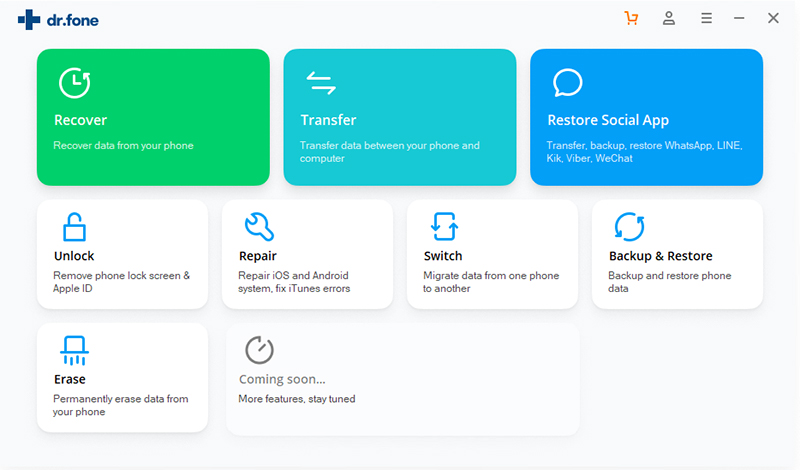
Run the Phone Toolkit on your computer, and select “Switch” among the modules.
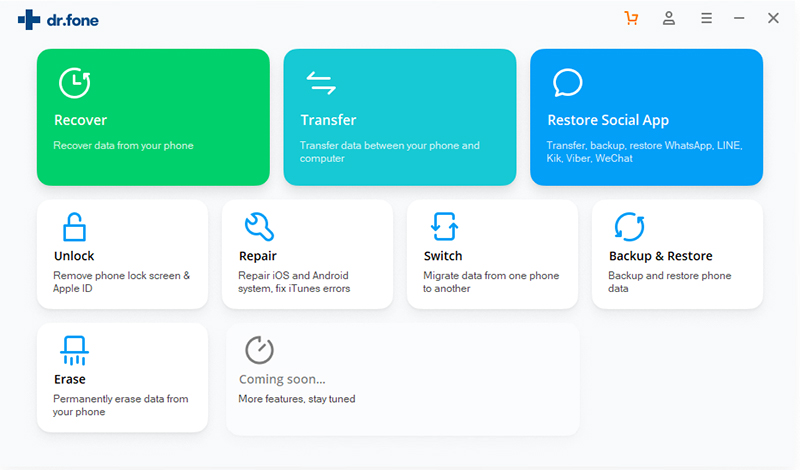
iPhone to Samsung transfer

Step 2. Connect iPhone and Samsung Galaxy S20 to Computer
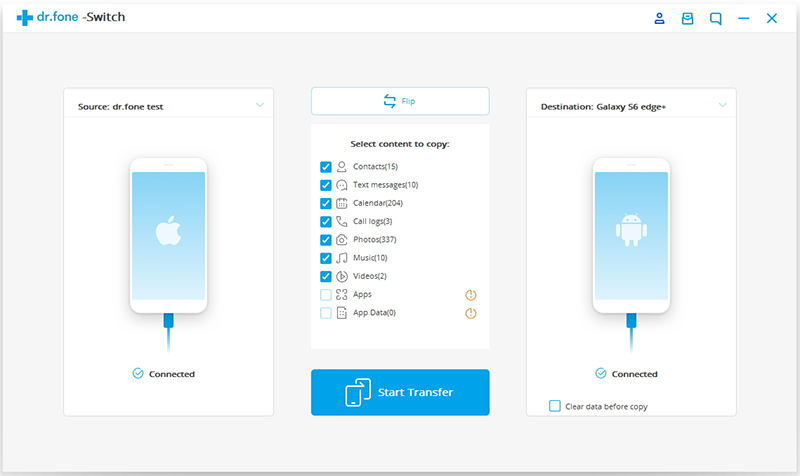
On the next window, you are required to connect both your iPhone and Galaxy S20 (Plus) handset to the computer. Just grab the two included USB cables to do this. Once done, your devices can be detected successfully. Your iPhone should be detected as a Source device and then displayed on the left side of the window, however, the new Samsung Galaxy S20 should be named as the Destination phone being displayed on your right side.
select data to transfer

Note: If your devices aren’t in the correct positions, then click the “Flip” button to switch them.

Step 3. Transfer Files from iPhone to Samsung S20
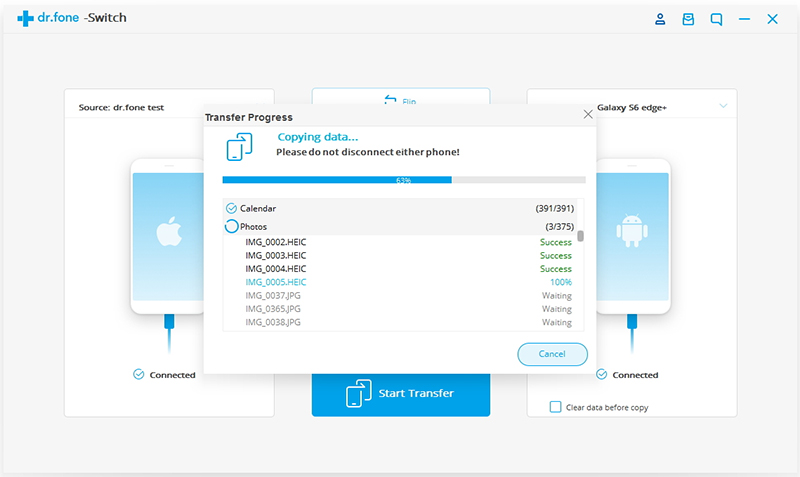
As you can see, many of transferable data types are listed in the middle. Now select the content you would like to copy from the iPhone to Samsung Galaxy S20 by ticking the box next to the data type. It’s worth noting that Call logs and Apps options are grey out for compatible issue between iOS and Android. When you’ve selected the data types that you want to be transferred, click on “Start Transfer“. And when the process bar reaches the end, press “OK” to finish the process.
transfer iphone data to samsung galaxy S20

Free download the Phone Toolkit and start to copy iPhone data to Samsung Galaxy S20.

d_win d_mac
d_win d_mac

Way 2. Samsung Smart Switch: Transfer Data from iPhone to Samsung S20

Samsung company developed a wireless transfer service to transfer data from Android, iOS, BlackBerry, Windows Phone to Samsung devices. When you have bought a new Samsung Galaxy S20, you can transfer data to your new Samsung phone wirelessly.Let’s teach you how to wireless transfer data from iPhone to Galaxy S20 with Samsung Smart Switch.

Guide: Wireless Transfer Data from iPhone to Samsung S20 with Samsung Smart Switch

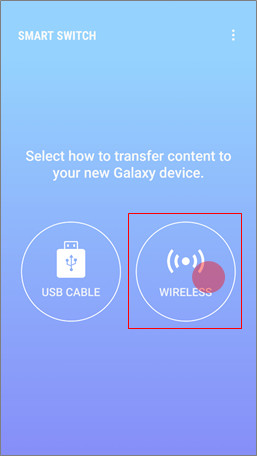
Step 1: Open the Samsung Smart Switch app on your new Galaxy S20.

Step 2: Touch “WIRELESS”.
samsung smart switch wireless transfer

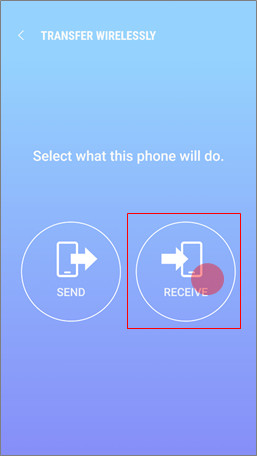
Step 3: Touch RECEIVE.

samsung smart switch touch receive

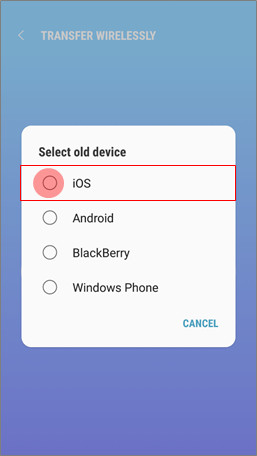
Step 4: Touch iOS.

samsung smart switch touch ios

Step 5: Enter your Apple ID and password. Then touch SIGN IN to connect to your iCloud account.
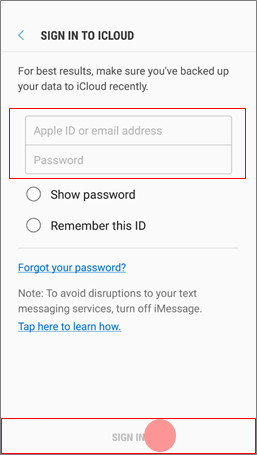
samsung smart switch enter Apple ID

Step 6: Select the content you want to transfer. Unselect any content you don’t want to import from your iCloud account. Then touch IMPORT.
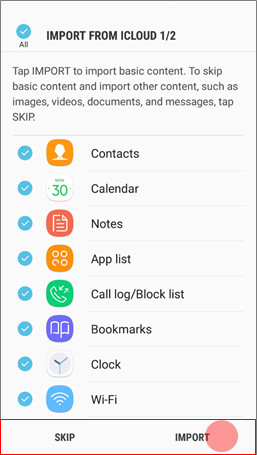
samsung smart switch select data

Step 7: Touch CONTINUE to import additional content from your iCloud account.
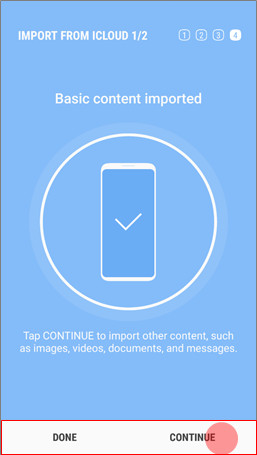
samsung smart switch touch continue

Step 8: Select the content you want to transfer. Unselect any content you don’t want to import from your iCloud account. Then touch IMPORT.
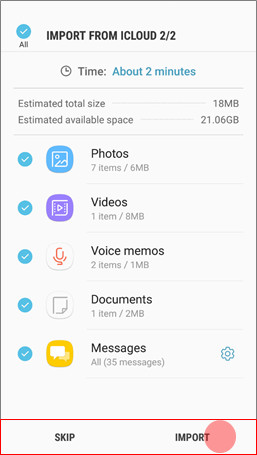
samsung smart switch touch transfer iPhone to Samsung S20

The End: Choose a proper way from the two solutions above. Have a free try with three handy tools: Phone Switch, Phone Transfer and Samsung Smart Switch. If you want to transfer WhatsApp messages or backup WhatsApp messages, we recommend you use the Phone Toolkit – Phone Switch. Keep one you prefer for further use. Any other questions? Please do not hesitate to leave your comments down below.

Related Articles

Transfer Music, Video, Photos to Samsung Galaxy S20/S20+/S20 Ultra

Transfer WhatsApp from iPhone to Galaxy S20, S10, S9

How to Transfer Contacts and SMS from Android to Samsung Galaxy S10

How to Transfer Data from Old Samsung to Galaxy S10

Transfer Data from Samsung to Galaxy Note 8/5/4/3

How to Copy Photos from iPhone to Samsung Galaxy

Transfer iPhone Data to Galaxy S20

How to Recover Photos on Samsung Galaxy Phone (S, Note, A, J, M Series) without Any Backups

[Summary]: Looking for a way to recover your lost or deleted pictures from Samsung Galaxy phone? The tutorial will teach how to recover lost or deleted photos, videos from Android Samsung Galaxy phone and tablet with Android Data Recovery, even if you haven’t create any backups.

You may stored photos, pictures, images, videos and movies in Gallery, DCIM folder, Micro SD card or internal storage of your Samsung phone. Have you ever accidentally deleted your photos, videos and other media files from Samsung Galaxy S10, S9, S8, S7, S6, S5, Note 10, Note 9, Note 8, J7 or formatted the media storage? It can be an unexpected SD card corrupt and format the photo folder, It could even be a Android OS upgrade failure without a backup, or reset phone to factory setting and lost all data. Don’t panic! Android Data Recovery offers the best, simple and secure way to recover deleted and lost photos, videos from Samsung Galaxy phone, even you haven’t backup before.

Samsung Galaxy phone has built-in Samsung Cloud and Google Photos option for users to back up, sync, and restore photos & videos, if you haven’t backup Samsung photos via Samsung Cloud and Google Photos, you can’t get back the deleted photos; If you have deleted photos on Samsung Galaxy phone recently, you can view and restore the deleted pictures from Samsung phone’s Trash (or Recycle bin) within 15 days, but if it has been more than 15 days, these files stored in the recycle bin will be emptied automatically; If you save pictures to SD card on the Samsung phone, when you accidentally deleted photos from the camera gallery, or formatting the Samsung SD card, you can recover lost/deleted/formatted photos from Android SD card via Data Recovery(Windows/Mac), as well as recover deleted files from computer, camera, memory card, flash drive and more. But, if you haven’t backup the Samsung device, how to recover deleted photos from Samsung internal memory?

Please keep reading the following guide, you will learn how to recover lost or deleted photos, videos from Samsung Galaxy phone directly with the help of Android Photo Recovery.

The Android Data Recovery and Android Toolkit – Data Recovery, both not only can help you recover media files: photos, videos, audios, App photos and App videos, but also recover lost contacts and SMS from various Android mobile phones.

More information about Android Data Recovery:

  • 1. Directly recover lost or deleted pictures, photos library, gallery, videos, audio files, contacts, messages, messages Attachments, call history, WhatsApp messages, documents from samsung phone and other android smartphone or SD cards inside your Android device.
  • 2. Restore lost data for android phone or SD card, no matter they are lost because of accidentally deleting, factory resetting, system crash, forgotten password, flashing ROM, rooting, ect.
  • 3. Preview and selectively check to get back lost or deleted pictures, videos, messages, contacts etc from android smartphone.
  • 4. Recover data from dead/broken Samsung phone internal storage, fix samsung phone system problem such as frozen, crashed, black-screen, virus-attack, screen-locked and get it back to normal.
  • 5. Almost all Android smartphones and tablets are supported, such as Samsung, HTC, LG, Huawei, Sony, Sharp, Windows phone, etc.
  • 6. Read and save the data with 100% safety and quality.
  • 7. Backup and restore Android data easily.

Download Android Data Recovery and have a try to recover your lost data.

d_win d_mac
d_win d_mac

Tutorial: How to Recover deleted Photos from Samsung Phone (without backup)

Step 1: Run Android Data Recovery on PC/Mac
We provides Windows version and Mac version, so you can recover Samsung deleted photos on Windows or Mac computer. In order to recover photos from Samsung phone, please download, install and launch the Android Toolkit program. Then go with the “Android Data Recovery” mode on the interface.

Samsung Photo Recovery

Step 2. Connect Samsung Phone to Computer and Enable USB debugging
Then, connect the Samsung Galaxy phone to computer through a USB cable. Once connected, a wizard that appears on screen will walk you through the steps on setting the device to USB Debugging mode. Do it as required.
Related Article: How to enable USB Debugging on Android device.

The program will prompt you to “Enable USB debugging” according to three different situations:
1) For Android 2.3 or earlier: Enter “Settings” < Click “Applications” < Click “Development” < Check “USB debugging”
2) For Android 3.0 to 4.1: Enter “Settings” < Click “Developer options” < Check “USB debugging”
3) For Android 4.2 or newer: Enter “Settings” < Click “About Phone” < Tap “Build number” for several times until getting a note “You are under developer mode” < Back to “Settings” < Click “Developer options” < Check “USB debugging”

usb debugging Samsung phone

Note: If you still get this window and the USB debugging has been enabled, please try to disable it and reset it again.

Step 3. Select Photos to Scan
Next, you’ll get a screen to ask you to choose the type of data you’re looking to recover. In this example, check “Gallery”, “Picture Library” and “Videos” and click Next button.

choose data types to recover

Step 4. Root for Deep Scanning
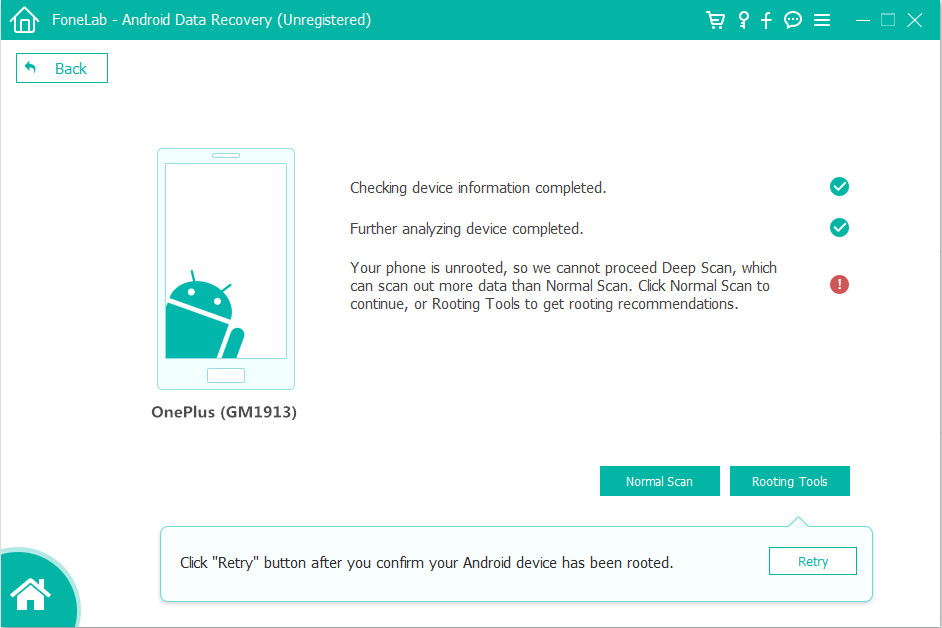
In order to deep scan the Samsung phone, you have to root the Samsung phone so that the software can go deeper into the memory and scan the all lost and deleted photos. Please click Rooting Tools button to download a rooting tool named KingoRoot, please download it to your computer, it will helps you root your Samsung phone safely.

For more information, please consult the article: how to safely root and unroot an Android device. You can get you phone return to original unrooted status after recovering data complete.

root samsung phone

After the Samsung device has been rooted, please click “Retry” button start to deep scanning the Samsung phone, the scanning process will start immediately and last for 15-20 minutes approximately. Please be patient.

Step 5. Preview and Recover Photos from Samsung Galaxy
After the scan, all found pictures appear on the window. You can preview the recoverable file in the category of “Gallery” and “Videos” at the left side of the window, then check the photo files you want back and click “Recover” to save them on your computer.

recover photos from Samsung phone

Step 6. Transfer the Recovered Photos, Video to Samsung Phone for Using or Viewing(Optional)
Follow the above simple steps, you have recovered and save the deleted photos on the computer, if you want to import them to your Samsung phone or other Android/iOS devices for viewing, using or sharing, please connect your phone to computer via USB cable, then use this Android & iOS Transfer to add photos and videos to mobile phone from computer.
Also read: Transfer Music, Photos, Videos to Samsung Galaxy

add photos to Samsung phone

Free download the Android Data Recovery and try to scan your deleted Samsung files.

d_win d_mac
d_win d_mac

The Bottom Line

In order to avoiding your important files lost or deleted again, we recommend you should back up your Samsung data to computer regularly. You can choose to sync the Gallery to Samsung Cloud, or save the copy of the photo onto computer hard drive regularly. Here, we introduce this Android Data Backup & Restore tool, it can help users backup Everything from Android to computer, after creating the backups file, you also can restore these backed up Android files to the phone for further use.

How to Recover Data Files on Samsung Galaxy S20 (Plus) & S20 Ultra

Summary
Need a Samsung Galaxy S20 data recovery to recover data from Galaxy S20/S20+/S20 Ultra? Android Data Recovery tool is a professional data recovery for Android users, it supports recover Photos, Contacts, Text Messages & attachments, Phone Numbers, Call Logs, WhatsApp messages & attachments, Videos, Audio, Music, Documents, etc.

Samsung S20 is the best Android smartphones in the current market. You probably have your data and document files saved onto your Samsung 20 (+)/ S20 Ultra. However, when you deleted files on Samsung Galaxy S20 by careless, you can’t recover the deleted data on Samsung S20 if you don’t have made a backup previously. When you deleted accidentally delete data on Samsung Galaxy S20, how to recover data from Galaxy S20 in a simple and secure way?

This post will show you how to recover deleted data from Galaxy S20 and Glalaxy S20+ with Samsung Data Recovery, a PC/Mac program that can help you recover deleted data from Samsung phone, such as Galaxy S10/S9/S8/S7/S6/S5, Galaxy Note 10, Note 9, Note 8, Note 5, Note 4, etc.

samsung s20 dat recovery

Every one will learn – how to recover deleted data from Samsung Galaxy S20 (+) or S20e. Below, we’ll go over the easiest methods to restore Android data you’ve accidentally deleted or lost, with even less effort. Even your Samsung phone is broken or dead, the Broken Android Data Extraction function enables you recover data from broken Samsung phone.

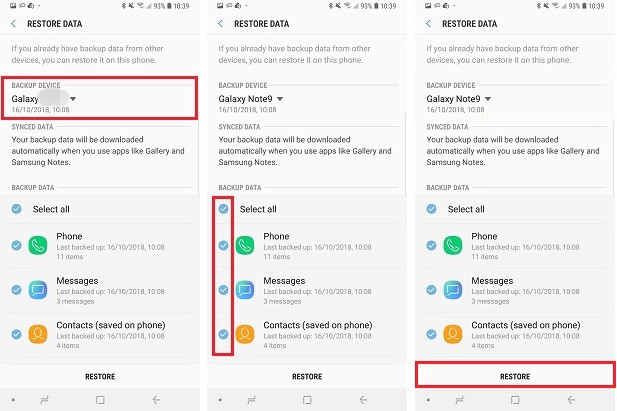
Method 1: Restore Samsung Galaxy S20 Data from Samsung Cloud

If you have backed up your Samsung S20 with Samsung Cloud or Smart Switch before, you can easily to restore deleted data from the Samsung Cloud/Smart Switch backup. If you’ve enabled “Auto back up” feature or manually backed data up in regular basis, try to restore the Samsung Cloud Backup to restore files to Samsung Galaxy S20 smart phone, but this method won’t enable you to preview the data before recovering.

Let’s learn how to recover deleted data on Samsung S20/S20+ with Samsung Cloud backup:

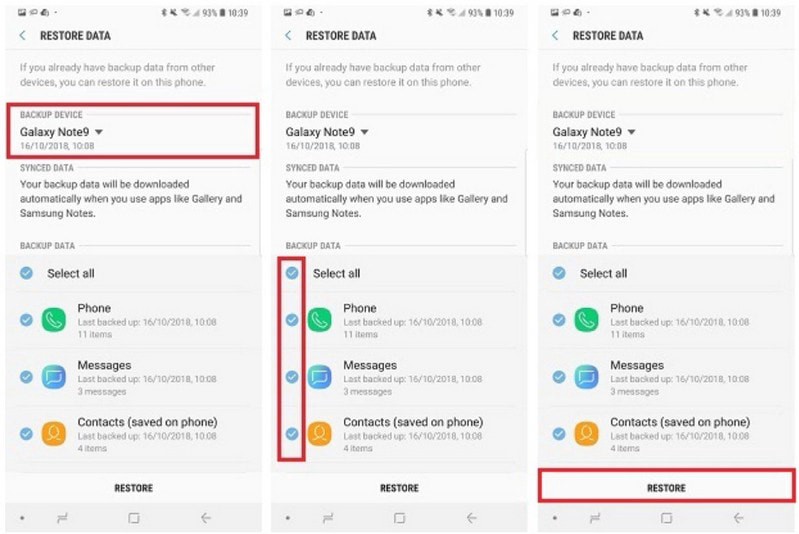
Step 1. Unlock Samsung S20 and go to home screen, then open Settings app.
Step 2. Tap on Cloud and accounts > Samsung Cloud > Backup and Restore > Restore Data.
Step 3. Select the data you want to recover, for example: Phone, Messages, Contacts, Clock, Calendar, Settings, Apps, Music, Voice Recorder, Documents, Home Screen.
Step 4. Tap Restore start to restore Samsung Cloud’s data to Samsung S20.
Now you could access any recovered data in Samsung Galaxy S20.

Tips: To avoid data loss or deleted on your Samsung phone, we suggest you should back up your important Android data regularly. You can either back up Android data to computer with Samsung Kies, Samsung Smart Switch or third-party Android Backup & Restore software, or back up data to Samsung Cloud or SD card storage.

Above is the guide teach you how to recover Samsung data from backups, if you haven’t created a backup on your Samsung S20 before, you cannot recover deleted data from Samsung Cloud backups. Let’s teach you how to recover deleted data from Samsung Galaxy S20/S20+/S20e without any backups.

Method 2: Recover Deleted Data from Samsung Galaxy S20 without Backup

When you delete or lost data like a photo, contact or message from your Samsung Galaxy S20, the deleted data are not immediately deleted from the phone memory space but will stay on the phone’s memory space until it be covered by new data. What you need to do is scanning and recovering the deleted files with a professional Android Data Recovery as soon as possible.

This Samsung Galaxy S20/S20+ Data RecoveryAndroid Data Recovery can help you find the deleted data from your S20/S20+/S20 Ultra and recover, save the recoverable data onto the computer, including photo, gallery pictures, messages, contacts, WhatsApp chat history, call history, videos, or other data.

The Android data recovery provides the preview of the deleted data to ensure that you can get back the data that you need.

Download the Android data recovery and follow the below simple steps to recover deleted photo, message, etc. from Samsung S20.

d_win d_mac
d_win d_mac

How to Recover Deleted Files from Galaxy S20/S20+ without Backups

Step 1: Run the Android Toolkit on PC or Mac
Download the Android Toolkit on any PC (or Mac) firstly, install it.

Open up the software, you can see it’s main interface as below screenshot, if you want to recover deleted files on Samsung pone without backups, please choose “Android Data Recovery” mode.

Samsung Galaxy S20 Data Recovery

Step 2: Connect Samsung S20 and allow USB Debugging on it
Connect your Samsung Galaxy S20 to the computer with USB cable. Tap “Allow” when prompted on the Samsung phone.

Then you’ll need to have USB debugging mode enabled on your Samsung S20 to grant your access to it. Also see detailed instructions about how to enable USB debugging on Android phone.
For Samsung Galaxy S20, please open Settings > About phone > Build number, tap it for 7 times to enable the Developer options. Then go back to Settings > Developer options, and scroll down the screen until you find the USB debugging switch, toggle it to ON position.

usb debugging Samsung Galaxy Note 10

Step 3: Select Data to Scan from Samsung S20
On the next interface, choose what you’d like to scan for the lost files in the Galaxy S20 storage, then click Next button and move on.

select data to scan

Now the tool starts to analyze the phone and then scan it for all your files.

You should be prompted to root the device for a deep analysis of the lost stuff. To do this, press Rooting Tools button and download KingoRoot app on a browser webpage.

Read “How to safely root and unroot an Android Device” for full tutorial.

root samsung Galaxy S20

Once rooted, then click “Retry” button, the program continues scanning Samsung S20. This will take some minutes.

Step 4: Preview and Recover Data from Samsung Galaxy S20 memory
When the Android Data Recovery has scanned completes, it will show the data in categories. The deleted data will be shown in red. Select the deleted data that you want to get back and click “Recover” to save them onto to your computer.

recover data from Samsung Galaxy S20

Well done! You have recover the deleted files from Samsung Galaxy S20. If you want to backup and restore Android data, please download the Android Toolkit, which includes Android Data Recovery, Android Data Backup & Restore and Broken Android Data Extraction.

d_win d_mac
d_win d_mac

[Read Also: Samsung Galaxy S20 – Google Backup and Restore]

Conclusion

Above four steps, you have recovered the data and contents lost or deleted on Samsung Galaxy S20 & S20 Plus & S20e, if your phone is broken or lost/stolen, you can’t get back your important data, so we recommend you back up important data on your Samsung phone from time to time.

How to Backup and Restore Samsung Galaxy S20/S20+/S20 Ultra

Summary
Do you want to know how to backup and restore Samsung Galaxy S20/S20+/S20 Ultra? This article teach you two common ways to help you backup and restore Samsung Galaxy S20/S20+/S20 Ultra via Google Cloud and Samsung Cloud, the most safely ways is to backup and restore Samsung Galaxy S20, S20 Plus or S20 Ultra on Windows PC or Mac.

How to Backup Samsung Galaxy S20 to Computer?

There were some unknown errors on my Samsung S20, I need to restore it to factory settings to fix this erros, so I need to backup data to computer before factory reset, which is the best Android data backup tool? I want to backup photos, videos, WhatsApp messages, contacts and messages from Samsung S20 to Macbook.

Before resetting your phone to factory settings, you should backup data from Samsung Galaxy S20/S20+/S20 Ultra to computer’s local, Samsung cloud or Google cloud. After factory reset completed, you can easily to restore them back to your phone for viewing or using.

Nowadays, mobile phone is no longer just a device to call or text other people, but also an all-in-one gadget which allows you to explore the word via Internet, decorate your life via multiple apps or record your moments via photos or videos. Data loss is painful because you may have stored extremely valuable contents on your phone, such as a call log, messages or a contact with a business partner. Therefore, you are suggested to backup your data from Samsung S20/S20+/S20 Ultra to computer, no only for saving storage, but also for safe-keeping. In addition, you should backup Samsung data before resetting to factory settings, rooting, upgrading, etc.

Please follow this article to find out thhree solutions to backup and restore data from Samsung Galaxy S20/S20+/S20 Ultra.

Method 1: Backup and Restore Samsung Galaxy S20 via Google Cloud

Google company offers Google Cloud Backup & Restore for Android users to back up or restore data on Android device. When you added a Google account to your Samsung Galaxy S20/S10/S9/S8/S7/Note 10/Note 9/Note 8, previous backups are restored. This can be done by adding an existing Google account to your already active phone or by signing in to the same Google account while setting up your new or reset phone. In addition, those backups can’t be restored from a higher Android™ version onto a phone with a lower Android version. For example, if you have upgraded from Samsung S10 to Samsung S20, you can restore the Samsung S10 backups to Galaxy S20.
Also read: How to transfer data from Android to Samsung S20

Let’s shows you how to backup and restore Samsung Galaxy S10 data via Google™ Backup and Restore.

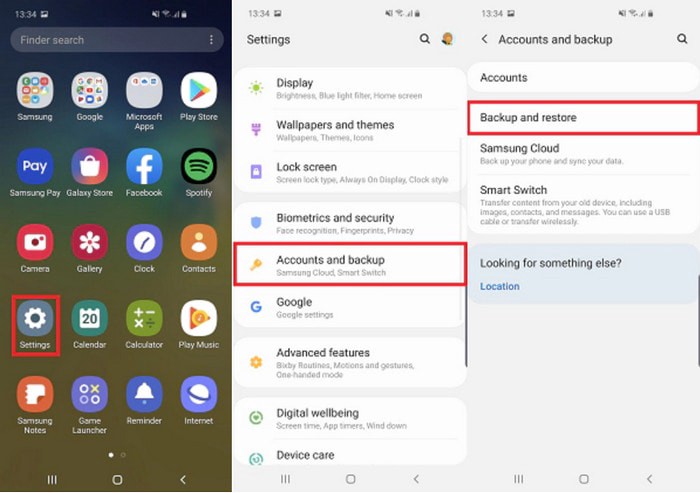
Step 1. Unlock Samsung Galaxy S20 and go to Home screen, swipe up or down from the center of the display to access the apps screen.
Note: These instructions only apply to Standard mode and the default Home screen layout.

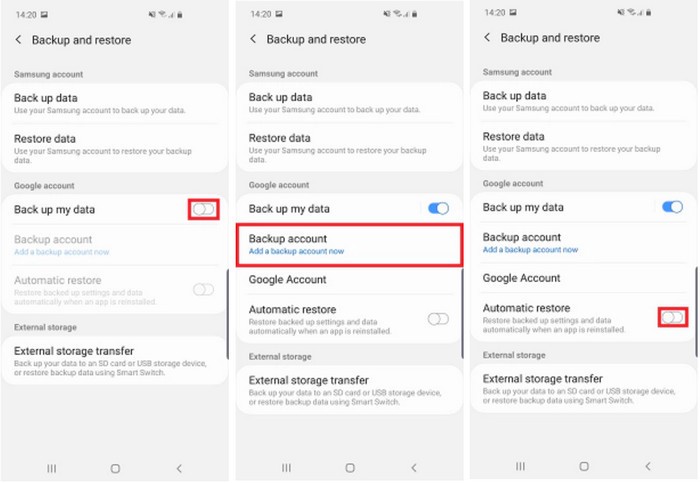
Step 2. Navigate: Settings Settings icon > Accounts and backup > Backup and restore.

samsung s20 data backup restore

Step 3. From the Google account section, tap Back up my data.

Step 4. Tap the Back up my data switch to turn on Switch on icon or off Switch off icon.
Note: If turned off, existing backups are deleted from Google’s servers.

Step 5. Tap the Back icon Back icon to return to the Backup and restore menu.

Step 6. When turned on, ensure the appropriate account is listed in the Backup account field.
Note: To change the backup account:
a. Tap Backup account.
b. Select the preferred account.

samsung s20 data backup restore

Step 7. Tap Automatic restore to turn on or off.

Method 2: Backup and Restore Samsung Galaxy S20/S20+ on Windows PC/Mac

If you looking for a more simple and safely method to backup and restore data on Samsung Galaxy S20, this party will recommend you a powerful and effective Samsung Galaxy S20 Backup and Restore tool.

Android Data Backup & Restore is a suitable Samsung Galaxy S20 Ultra/S20/S20+ Backup & Restore software. With the help of this software, you can easily backup Galaxy S20 data to PC, Mac and later you can use that backup file to restore data to any Android phone or Samsung Galaxy phone or tablet. This Android backup and restore tool can help you backup Contacts, Messages, Call Logs, WhatsApp Messages, Photos, Gallery, Videos, Audio, Documents from Samsung Galaxy S20 to computer easily, and you can choose the data to be restored to your Android device selectively, and the program won’t erase your data on device. This Android data backup and restore software also supports HTC, Google Pixel, Huawei, Sony, LG, OnePlus, Xiaomi, Meizu, Motorola, Oppo and more Android devices.

d_win d_mac
d_win d_mac

Part 1: Backup Data from Samsung Galaxy S20/S20+ to Computer

Step 1. Launch Android Toolkit on Computer
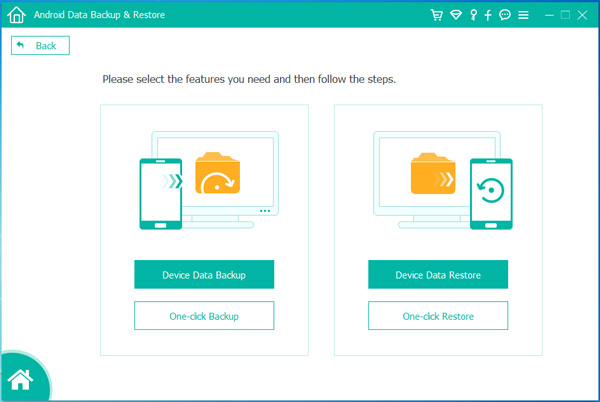
Launch Android Data Backup & Restore and then choose the “Android Data Backup & Restore” option.

Samsung S1 data backup and restore

Step 2.Connect Samsung Galaxy S20 to Computer
Connect your Samsung Galaxy S20 device to computer it with USB cable, the software will detects it. If it’s the fist time that you connect the device with the computer, you need to allow usb debugging on Android.

allow usb debugging

Step 3.Choose Backup Mode
Choose “Device Data Backup” or “One-click Backup option” to back up your Android files.

choose Android data backup

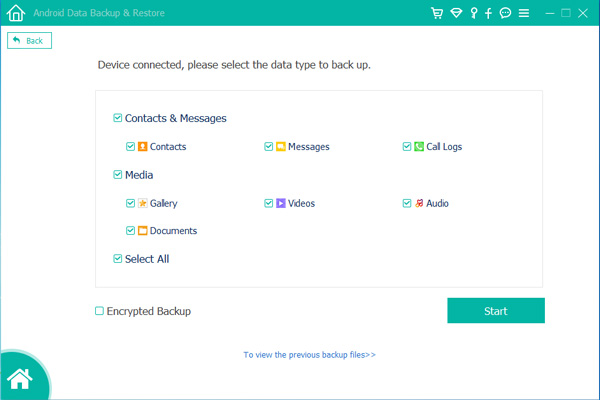
Step 4. Select Data to Backup
In this step, please select what types of data you want to backup, including Contacts, Messages, Call Logs, Gallery, Videos, Audio, Documents. You also can backup all data with 1 click.

Choose data to backup

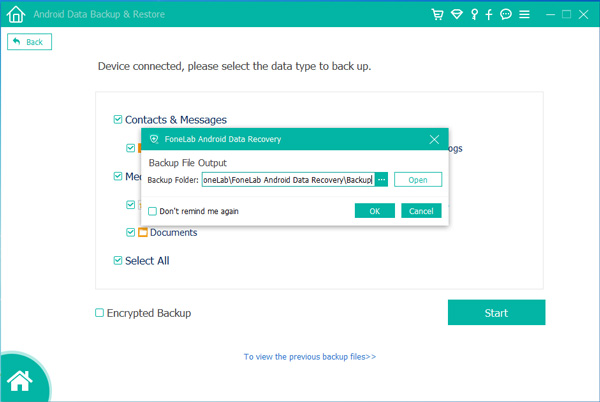
Step 5. Select the Folder for the Output Files
Select a location to store your backed up data and click “OK” to continue.

Choose Output Directory

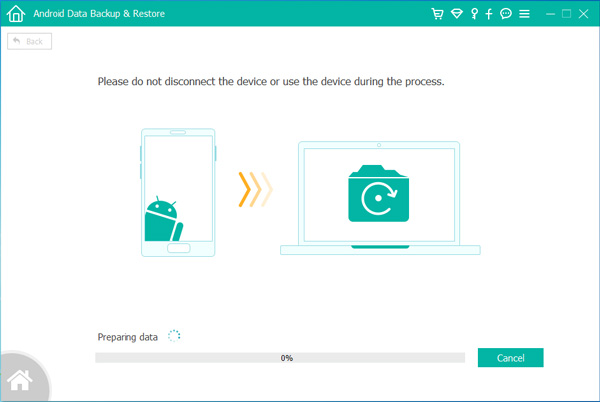
Step 6. Start to Backup Data from Samsung Galaxy S20 to Computer
Last step,just simply click “Start” button to backup the selected data from Galaxy S1 to computer. Only few minutes, all of your Samsung data be backed up to the computer, you can view the backed up data on the computer.

backup samsung Galaxy S20 data to Computer

Part 2: Restore the Backups to Galaxy S20 or Other Android Devices

Above simple steps, you have created Samsung Galaxy S20 backups on computer, if you want to restore the backups from computer to Samsung Galaxy S20/S20+/S20e or other Android phone, Android tables. Please connect your Samsung phone to the computer again, then click launch the software. After your phone be detected by the software, then click “Device Data Restore” selection or “One-Click Restore” selection, the software start to restore the backups to your Samsung Galaxy S20.

restore backups data to Android

d_win d_mac
d_win d_mac

Method 3: Back up And Restore Samsung Galaxy S20/S20+/S20 Ultra via Samsung Cloud

Like Google cloud and Apple iCloud, the Samsung company also provides its users free cloud backup service, Samsung users can get Samsung’s cloud storage space up to 15 GB, if you want to get more storage, you need to pay for that extra storage.

With Samsung Cloud backup and restore service, you are able to directly back up data from Samsung Galaxy S20/S20+/S20 Ultra to Samsung cloud, including Gallery (Photos & Videos), Calendar, Contacts, Call History, Messages, Apps, Settings, Documents, Music, Recordings etc., of course, you can restore all data back to your phone with singing the same Samsung account.

Follow the steps below to back up your data to Samsung Cloud and restore data from the backup to your new device:

Part 1: Backup Data from Samsung Galaxy S20/S20+/S20 Ultra to Samsung Cloud

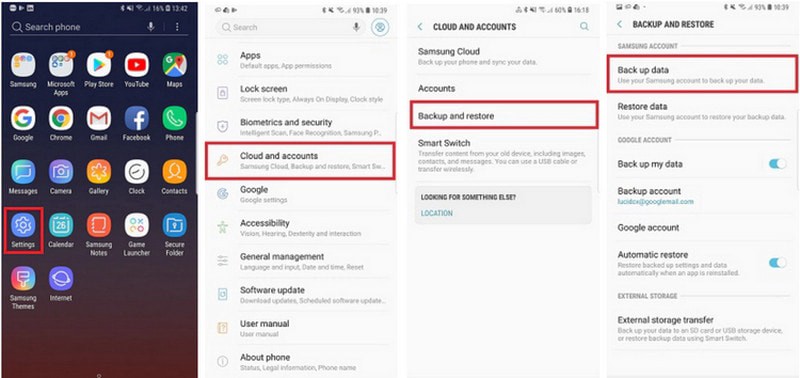
Step 1: Please go to Settings on your Samsung Galaxy S20, then tap Accounts and Backup > Samsung Cloud. Then choose “Back up and Restore” and turn on “Back up data”.

samsung cloud backup

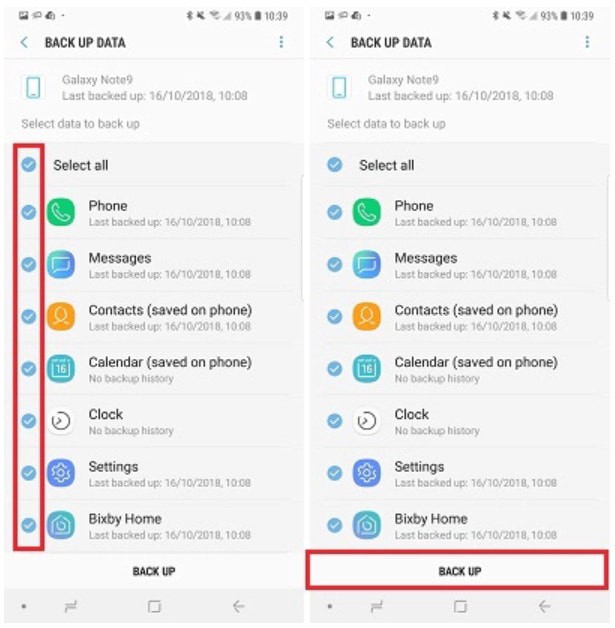
Step 2: Select the data you want to back up, then choose “Back up”.

samsung cloud backup restore

Part 2: Restore Data from Samsung Cloud to your phone

Step 1: If you want to restore the backed up data from the Samsung cloud to your Samsung Galaxy S20/S20+/S20 Ultra, please go to Settings > Accounts and Backup > Samsung Cloud. Login the same Samsung account that you have synced before, then tap “Back up and Restore” > “Restore data”.

Step 2: Select the data you wanna restore, then choose “Restore” option, then you selected data will be restored to the phone.

samsung cloud restore data to phone

Conclusion

Compared with Google cloud backup and Samsung cloud backup service, I recommend Android Data Backup & Restore tool, I’d rather backup my important data to computer, which is more safer. The above Android backup & restore software not only can back up and restore all types of files on your Android device, but also can recover lost data from Android device.

How to Transfer WhatsApp from iPhone to Galaxy S20, S10, S9

[Summary]: The most simple method here regarding transferring WhatsApp messages from iPhone to your new Samsung Galaxy S20/S20+/S20 Ultra, as well as coping WhatsApp data from iPhone/iPad to Samsung Galaxy S10/S9/S8(Plus).

WhatsApp is an instant-messaging service to communicate with other cellphone users on any variety of smartphones. When you have got a new Samsung Galaxy S20 smart phone, the first thing you need to do is installing WhatsApp on your Galaxy S20 for chat with others. However, how to transfer WhatsApp chat history from old phone to Galaxy S20? Especially transferring data from iPhone to Samsung Galaxy, including contacts, messages, WhatsApp messages, photos, videos and music.

If you want to transfer contacts from iPhone to Galaxy S20, you can use a third-party iPhone to Samsung Galaxy S20 transfer tool, like Phone Transfer or iOS & Android Manager. But, if you want to transfer messages from WhatsApp app between iPhone and Android, you need to use a professional WhatsApp messages transfer & manager too.

In this article, we discuss how you are able to transfer WhatsApp messages from iPhone to Galaxy S20, Galaxy S10, Galaxy S9, Galaxy S9 Plus, S10 with the help of the Phone Toolkit – WhatsApp Transfer.

iPhone WhatsApp to Samsung Galaxy S20 Transfer

Phone ToolkitWhatsApp Transfer is a powerful App data backup & restore tool, it not only helps you backup and restore App data like chats and attachments of Viber, Kik, WeChat, WhatsApp, and LINE etc. But also enables you transfer WhatsApp messages from iOS to Android, iOS to iOS, Android to Android. So, you can back WhatsApp data from iPhone to computer and later restore it to your respective device or to the new Samsung Galaxy S20/S20+/S20 Ultra. If you just want to transfer WhatsApp messages from iPhone to Galaxy 11, you can directly copy WhatsApp chat history from iPhone to Samsung directly. Let’s show you how to transfer WhatsApp messages from iPhone to Galaxy S20 at easy steps.

d_win d_mac
d_win d_mac

Part 1: How to Transfer WhatsApp Messages from iPhone to Samsung Galaxy S20
Step 1.Download and Launch Phone Toolkit on Computer
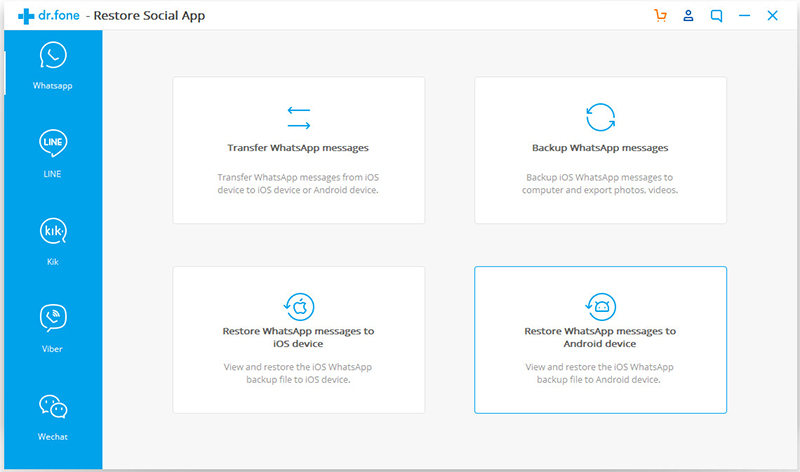
At first, run Phone Toolkit on your computer right after installing it. Tap over “Restore Social App” and tap the ‘WhatsApp Transfer’ tab afterwards.

iPhone WhatsApp to Samsung S20 transfer

Step 2.Select Transfer WhatsApp Messages
From the left panel, press the ‘WhatsApp’ over the following window. Now, you got to click over the ‘Transfer WhatsApp messages’ tab on the application interface.

WhatsApp messages transfer

Step 3. Connect iPhone and Samsung S20 with Computer
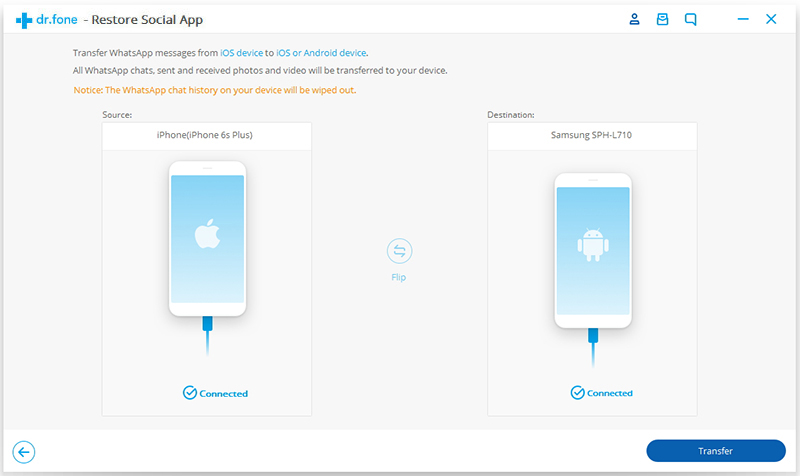
Next, plug in your iPhone to the PC using only an authentic lightning cable. Once the tool detects your iDevice, plug in your Samsung Galaxy S20 into another USB port. Let the software recognize this device too.

transfer iPhone WhatsApp messages to Galaxy S20

Step 4. Start Transfer iPhone WhatsApp to Samsung Galaxy S20
As soon as your devices are detected, they’ll be visible on your screen. Hit the ‘Transfer’ button on the bottom right of the interface.

Copy WhatsApp Messages from iPhone to Samsung Galaxy S20
Step 5. iPhone WhatsApp to Samsung S20 Transfer
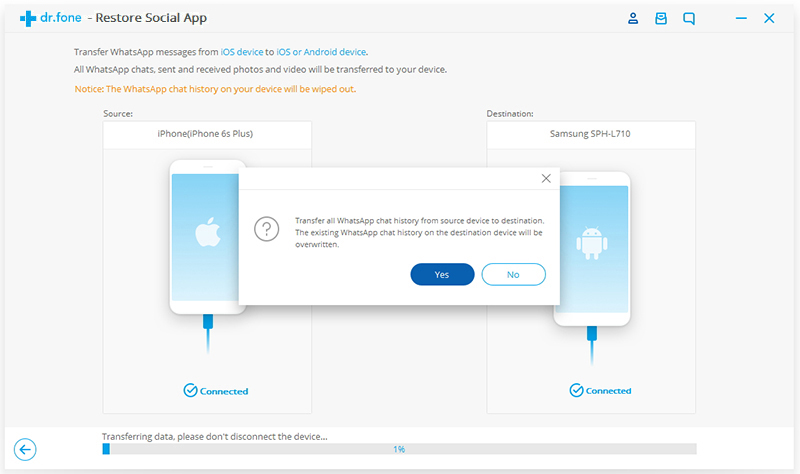
Lastly, you need to confirm your actions to proceed further by hitting ‘Yes’ button. This is because the transfer of WhatsApp chats from iPhone to Samsung Galaxy S10 will wipe off existing WhatsApp data on target device.
transfer WhatsApp Messages from iPhone to Galaxy S20+

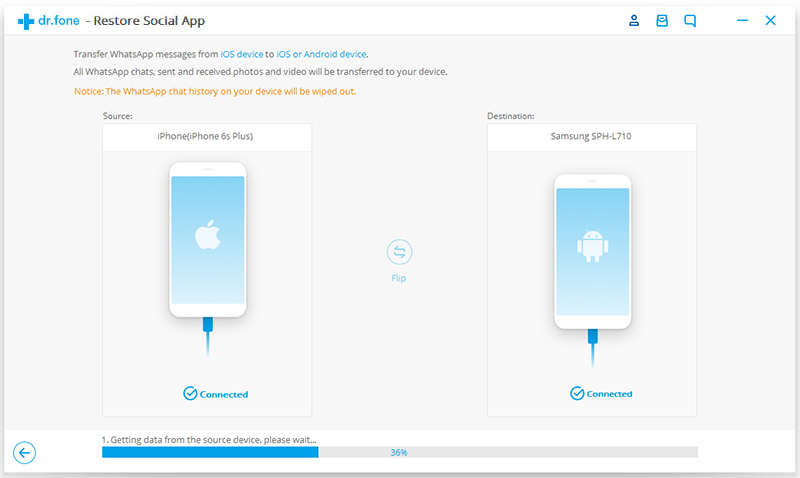
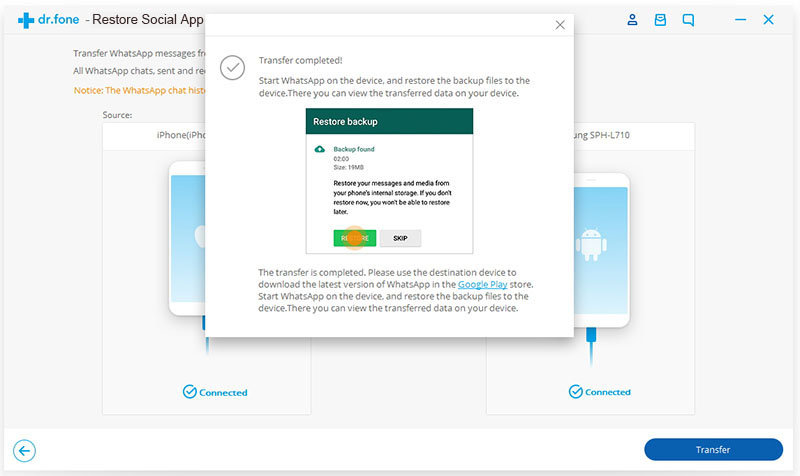
The software start to transfer WhatsApp chats from iPhone to Samsung Galaxy S20, it will get completed within few minutes. You can then disconnect two mobile phone from the computer and check for the transferred WhatsApp messages over your Samsung Galaxy S20.
copy WhatsApp Messages from iPhone to Samsung phone

Please open WhatsApp app on your Samsung Galaxy S20, you will find the transferred messages appears on your WhatsApp app.

d_win d_mac
d_win d_mac

Part 2: Transfer WhatsApp Messages from Android to Samsung S20 via Google Drive

Above is the simple steps to transfer WhatsApp messages from iPhone/iPad/iPod Touch to Samsung Galaxy S20, if you want to transfer WhatsApp chat history to Samsung S20 from Android phone, like Samsung, Huawei, HTC, Sony, Motorola, Google Pixel, Xiaomi, etc. You can backup WhatsApp data from old Android phone to Google drive firstly, then restore them to your new Samsung Galaxy S20.

The WhatsApp for Android version, the WhatsApp data for Android devices allow backed to Google drive, then you can transfer WhatsApp from Android to Google Drive, then restore the backups from Google Drive to Samsung Galaxy S20 directly.

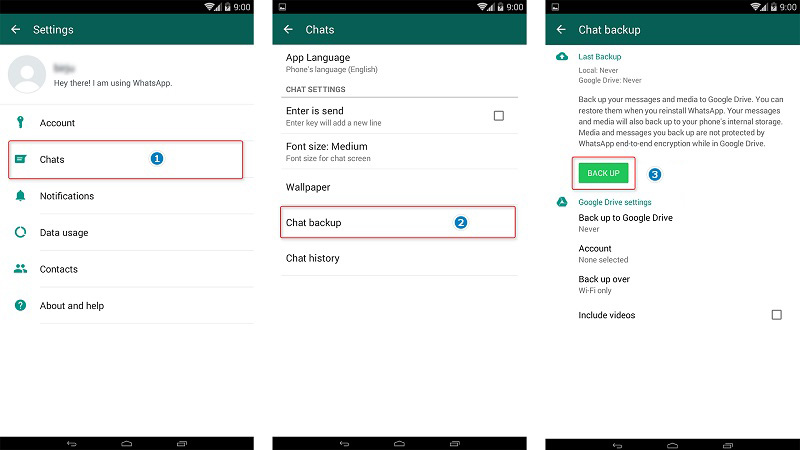
Step 1. Open WhatsApp on your old Android phone. On the main interface, navigate to Menu button > Settings > Chats > Chat backup where you can view the backup options under Google Drive settings.

Step 2. Click on Back up to Google Drive and choose a backup frequency (Daily, Weekly or Monthly) other than Never to back up WhatsApp automatically to Google Drive. If you need to back up now just tap Back Up. All of WhatsApp chats will be backed to WhatsApp cloud server.

backup android whatsapp with google drive

Step 3. After backing up WhatsApp chats to cloud server, install WhatsApp on your new Samsung Galaxy S10. If WhatsApp was installed on your S10 before, uninstall it then reinstall it.

Step 4. Launch WhatsApp on your Samsung Galaxy S20 then verify your phone number. You will be prompted to restore chats and media from Google Drive. Follow the instructions. After the restoration process is complete, tap Next and your chats will be displayed once initialization is complete. After restoring your chats, WhatsApp will begin restoring your media files. Just wait with patience and keep the internet connection stable.

Note: If you change your Google account, you will not be able to access your backups that are linked to a different Google account.

Above are two methods about how to transfer WhatsApp data to Samsung Galaxy S20, if you want to transfer contacts, SMS and more data to your Samsung S20, there is an program which helps you to transfer contacts, call logs, messages, music, photos, videos, App data from an old iOS/Android device to Samsung Galaxy S20/S10/S9/S9/S7/Note 10, do you want it? Phone Transfer can help you copy all types of data between iOS and Android, please free download and try to transfer data from old device to Galaxy S20.

Transfer Music, Video, Photos to Samsung Galaxy S20/S20+/S20 Ultra

[Summary]: Transfer music, video, photos and more files from PC, Mac, Android and iOS to Samsung Galaxy S20 will be a super easy thing under the help of iOS & Android Manager tool.

Regarding the naming of Samsung Galaxy S20, it may be named Galaxy S20, which represents a new era in 2020. The Samsung Galaxy S20 series (renamed to Samsung Galaxy S20 for the time being has not yet been confirmed, S11 for the time being) has three different sizes of models, that is, Samsung Galaxy S20 Ultra, Samsung Galaxy S20 and Samsung Galaxy S20 + which have been exposed before. According to previous exposure news, the screen size of the Samsung Galaxy S20e may be between 6.2 inches and 6.4 inches, the screen size of the Samsung Galaxy S20 may be 6.5 inches, and the screen size of the Samsung Galaxy S20 + may reach 6.9 inches. From the exposed protective film, we can also see the specific differences in size of the three models. With regard to other aspects of the Samsung Galaxy S20 series, according to media reports, Samsung Galaxy S series products will continue to use Exyons processors in all European markets, and all other markets will switch to Qualcomm Snapdragon processors.

Whether the new Samsung Galaxy phone named Galaxy S20 or Galaxy S20, it will be revealed in February 2020. When the new Samsung Galaxy S20 released, many Samsung fans will buy a new one to enjoy music, videos, movies with Galaxy S20. However, how to put media files to Samsung S11 easily? Many users want to add music, videos, photos or all kinds of data to Samsung Galaxy S20, many users may ask how to transfer files from computer, Android or iOS to Samsung Galaxy S20. Don’t worry, this article shows you a simple way to import video, music, photos from computer to Samsung Galaxy S20, as well as transferring contacts, messages and media files from Android, iPhone to Samsung Galaxy S20/S20+/S20 Ultra.
This Samsung Galaxy S20 Manager & TransferiOS & Android Manager and Phone Toolkit – Android Transfer, both are recommended to you, which can perfectly transfer audio, music, videos, movies, photos from computer to new Samsung Galaxy S20, or backup data from Samsung to computer. What’s more, it enables you transfer data from old Android/iOS device to new Samsung Galaxy S20, including contacts, SMS, call logs, photos, videos and music.

Download the iOS & Android Manager tool on PC or Mac:

d_win d_mac
d_win d_mac

  • Transfer files between Android and computer, including contacts, photos, music, SMS, and more.
  • Manage, export/import your music, photos, videos, contacts, SMS, Apps etc.
  • Transfer iTunes music, video to Android (vice versa).
  • Manage your Samsung Galaxy phone on computer.
  • Fully compatible with Android v10 (Q) operating system.

Kind Tips: Want to download HD videos from YouTube? 4kFinder Online YouTube Downloader is the ultimate one-click downloader that can easily download YouTube HD videos to MP4 format without quality loss. 4kFinder supports batch download and faster download speed. With its help, you can play YouTube videos offline on any HD media player. Other than YouTube, it also supports Facebook, Twitter, Dailymotion, Bilibili, NicoNico and many other sites.

Get ready to know more about how to import songs, photos and videos from PC to Samsung S11? Keep reading.

How-to: Put Music, Videos and Photos to Samsung Galaxy S20
Step 1. Launch Phone Toolkit on Computer
Download, install and run the phone toolkit on your computer, then click “Transfer”option if you want to import files from computer to Android device.

transfer files to samsung Galaxy S20

Step 2. Connect Samsung Galaxy S20 to Computer
Connect your Galaxy S20 device to your computer using a USB cable.

transfer files to samsung Galaxy S20

Step 3. Click Music, Videos and Photos
At the top, click the “Music”, “Videos”,“Photos”option and you’ll see the software start to compile all the music/video/photo folders on your device.

transfer music from computer to s11

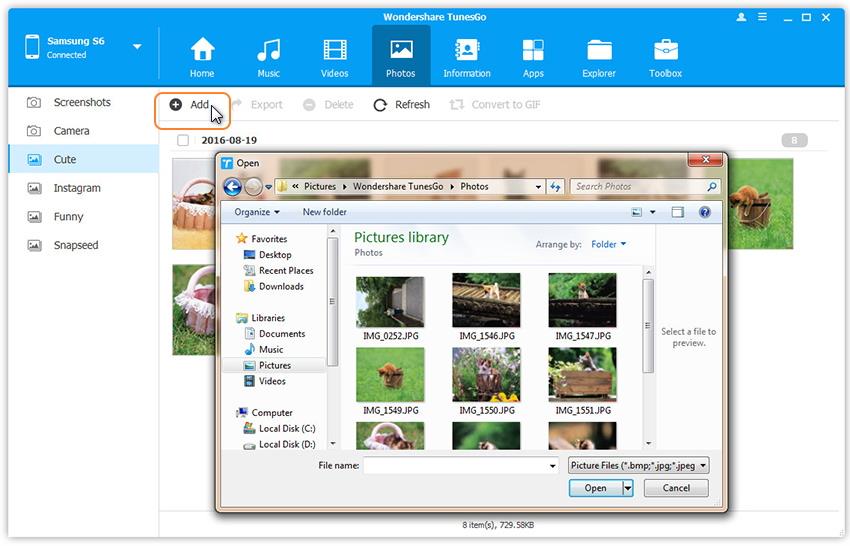
Step 4. Add Music to Samsung Galaxy S20
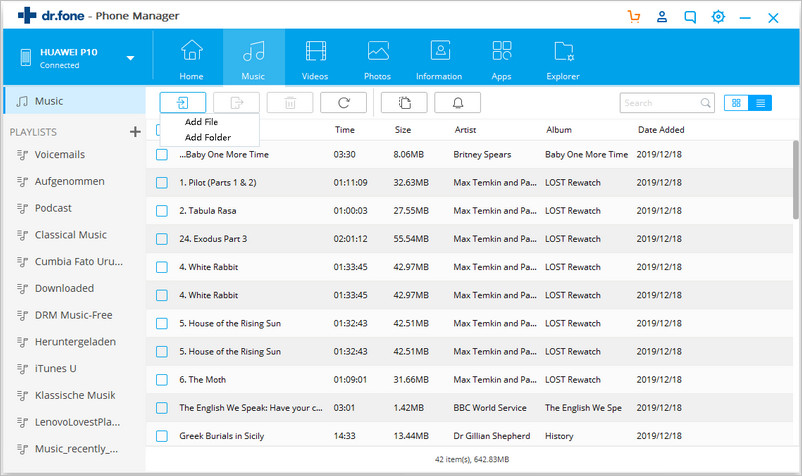
Click the Add button to add a file or folder with music into your Phone Tookit. You’ll need to navigate your computer in order to find the music you want to transfer.

Finally, when you click OK, this will add all those music files you selected to your Samsung Galaxy S20, and you’ll be ready to play music, videos on your Samsung Galaxy S20.
d_win d_mac
d_win d_mac

How to Recover Deleted WhatsApp Messages on Samsung S20/S20+

Summary
Want to know how to recover deleted WhatsApp messages on Samsung Galaxy S20/S20+? Read this post to recover deleted WhatsApp Messages on Samsung S20 with or without backup.
WhatsApp brings a lot of convenience to our lives, we can use WhatsApp to communicate with their family, friends or colleagues in daily life. When you have got an new Samsung Galaxy S20, S20+, S20e, the first time you may do is installing a WhatsApp App on Samsung S20, so that you can free to send messages, photos, and videos to others. So it is hard to imagine how disastrous it would be when deleting WhatsApp messages by accident. However, such a thing happens indeed to Samsung users. Then, When you deleted WhatsApp messages on Samsung Galaxy S20, how to recover deleted WhatsApp messages from Samsung S20?
Yesterday when I was cleaning up WhatsApp useless messages in batches on my Samsung Galaxy S20, I accidentally deleted some important WhatsApp photos and videos, I want to know how to recover deleted WhatsApp chat history on Samsung Galaxy S20? Thanks to help.
Method 1. How to Recover Deleted WhatsApp Messages on Samsung S20 with Backup

WhatsApp automatically creates a backup of your chat history every day and saved them in your phone memory or SD card for 7 days. If you accidentally deleted WhatsApp messages, you can recover recent deleted WhatsApp messages from local backup easily. Let’s learn how to retrieve deleted WhatsApp messages from backups.

Step 1. Uninstall WhatsApp on your Samsung phone > Reinstall WhatsApp and sign in with your account.

Step 2. After the verifying process completes, you will be prompted to retrieve deleted WhatsApp messages >Tap Restore when asked.

Warm suggestion: If you are also an iOS user and want to recover deleted messages, WhatsApp messages, and iMessages from iPhone, iPad, or iPod touch, please read the guide on how to recover deleted WhatsApp messages from iPhone.

Note: However, if the newest WhatsApp messages that have not been backed up yet and the messages older than 7 days will not be able to retrieve via this way. If you want to recover all WhatsApp messages at once, simply follow to Method 2 to make restore WhatsApp messages without backup.

WhatsApp Messages Recovery for Samsung Galaxy S20/S20+
Don’t worry, when your important WhatsApp messages was deleted or lost. Actually, you can easily recover deleted WhatsApp messages from Android phone. Today, we will show you how to recover deleted WhatsApp messages on Samsung Galaxy S20, S10, S9, S8, S7, S6 etc. with a powerful Android WhatsApp Messages Recovery, no matter you have a backup or not. In addition, you also can learn how to recover deleted messages, contacts, photos, videos, call logs from Samsung phone, let’s learn more about the Android data recovery.
To recover deleted WhatsApp messages on Samsung Galaxy S20/S20+ without backup, a professional Android data recovery can be the most reliable and safest way to finish the task.
This Android Data Recovery software can help you recover deleted WhatsApp messages and attachments from almost all Android devices, such as Samsung, Huawei, OnePlus, HTC, LG, Sony, Google Nexus, Google Pixel, Motorola,Sony, Sharp, Xiaomi and and other brands with the latest of Android OS. So, you can directly scan and recover deleted WhatsApp messages from Samsung Galaxy S20/S20+/S20e. What’s more, this Android data recovery also enables you retrieve lost or deleted photos, messages, messages attachments, contacts, call logs, videos,audio files, from Samsung Galaxy S20 and SD cards inside your Samsung device.


It enable you to directly recover deleted WhatsApp messages from Samsung phone with full information such as name, chat messages, attached pictures, attached videos and more. And saving the deleted WhatsApp messages as CSV, HTML for your use or print.

d_win d_mac
d_win d_mac

More Features:

  • Directly scan and recover deleted WhatsApp messages and attachments from Android.
  • Preview these deleted WhatsApp messages and attachments before recovery.
  • Recover other data from Samsung phones/tables, including WhatsApp data, photos, videos, contacts, music, messages,call logs, etc.
  • Recover Samsung data lost due to mistaken deleting, factory resetting, OS upgrade, system crash, forgotten password, flashing ROM, rooting, ect.
  • Recover data from almost all Samsung devices, such as Samsung Galaxy S4/S5/S6/S7/S8/S9/S10/S20, even the latest Samsung Galaxy S10/S9, Note 4/5/8/9/Edge, Note 10/Note 10+, J7/J6/J5/J4/J3/, Sol 2 as well as other Samsung phones and tablets.
  • Recover data from broken Samsung galaxy S4/S5/S6, as we all Galaxy Note 5/Note 4/Note 3 and Samsung tablets.
  • Fix bricked Android system to normal and get your Samsung phone back to normal status, like frozen, crashed, black-screen, virus-attack, screen-locked.
  • Backup and Restore Data from Samsung devices.

Method 2. How to Recover Deleted WhatsApp Messages on Samsung 20 without Backup

Go further to read the tutorial and figure out the procedures to recover lost or deleted WhatsApp messages from Samsung Galaxy S20. Let’s begin.

Step 1.Launch the Android Toolkit on Computer
Download, install and run the program, then click “Android Data Recovery”if you want to recover Samsung lost data.

WhatsApp Messages Recovery for Samsung Galaxy S20

Step 2. Connect Samsung S20 to Computer
Plug your Samsung Galaxy S20 into computer with Android USB cable.Then the Android data recovery software will detect your Samsung S20 automatically.
If the device can not be detected, turn to allow USB debugging. Follow the steps as below:

For Samsung S20: Navigate to “Settings”, tab “Build number” for 7 times. Go back to “Settings” and select “Developer options” > Check “USB debugging”.
Also see detailed instructions about how to turn on USB debugging on Android.

usb debugging Samsung Galaxy S20

After enable the USB debugging mode, continue to follow the next step.

Step 3. Choose to scan WhatsApp Data from Samsung internal memory
After debugging mode, the software will provide you with the file types that can be recovered. Here you can just check “WhatsApp” and “WhatsApp attachments” to reduce the recovery time.

choose WhatsApp to recover

Step 4. Gain Root Permission to Get Full Access to Phone Memory
As soon as the scan process starts, it will first conduct a checking of device information and then a further analyzing.

After that, you’ll be prompted to root the device for a deep scan the internal storage of your Samsung Galaxy S20. So, you need to click the “Advanced root” button, the software tells you to download KingoRoot on computer, then let it root your Samsung S20 firstly.It’s safe, you can unroot the Android device again after a end of your data recovery task.

Also read: How to safely root and unroot an Android device

root samsung Galaxy S20

After the successful root access, please click “Retry” button, the program will start scanning your Samsung S20 deeply for the deleted stuff. This will take some time.

Step 5. Preview and Recover deleted WhatsApp Messages on Samsung S20
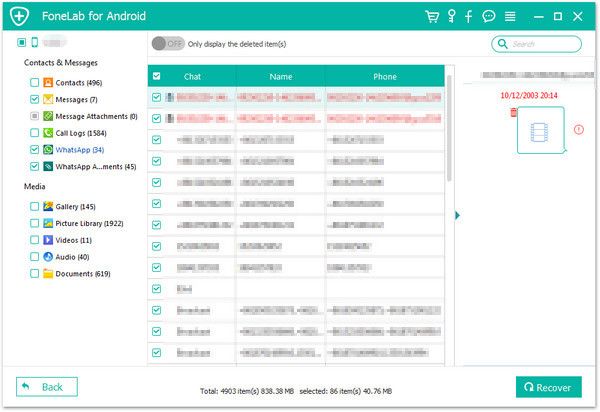
After the scanning is completed, you will get a list of all recoverable WhatsApp data as shown in the screenshot below.

To quickly find deleted WhatsApp messages on Samsung phone, please click “WhatsApp” and “WhatsApp Attachments” category on the side bar, and then turn on “Only display the deleted item(s) button” on the top bar.

recover deleted WhatsApp messages on Samsung S20

Finally, select the lost or deleted WhatsApp messages and WhatsApp attachments pictures & videos that you want to recover, then click the “Recover” button to save them onto the computer. Only few minutes,your deleted messages will be as HTML or CSV file format.

Android Toolkit – Data Recovery is designed to retrieve lost or deleted data from Android, please free download it and try to scan Android internal memory, you can easily to recover deleted WhatsApp messages, text messages, contacts, call logs, pictures and more from Android devices, even you haven’t backed up before.

d_win d_mac
d_win d_mac

How to Recover Deleted Photos from Samsung Galaxy S20/S20+/S20 Ultra

Summary
Want to recover photos from Samsung S20 /S20+? This article teach you three effective methods to recover deleted and lost photos, videos from Samsung Galaxy S20/ S20+/ S20 Ultra, as well as recovering files from Samsung Galaxy S10/S9/S8/S7/S6/S5, etc.

Google Photos and Samsung Cloud is a photo sharing and storage app. Permanently deleted photos from your Samsung Galaxy S20 remain in the trash of Google and Samsung Cloud, but if you have deleted backed up photos to Google Photos or Samsung Cloud, you still have change to recover deleted photos from Samsung Galaxy S20/S20+/S20 Ultra without backup.

samsung galaxy s20 photo recovery

How to Recover Deleted Photos on Samsung Galaxy S20?

Hi, I accidentally deleted some photos from my new Samsung Galaxy S20+, how to recover deleted photos from Samsung Galaxy S20+? Can I restore Samsung photos without root?” — Jamnet

Yesterday, I have reset my phone to factory settings, I found all photos were losing, how to recover lost photos from Samsung S20 android internal memory for free?

Samsung Galaxy S20 series comes with HD camera and advanced processor, many user like using Samsung S20 to take photos and shooting videos. If you just lost or deleted some important photos, videos from your Samsung Galaxy S20? Never fear! Actually, the lost photos are not really gone, instead, they still exist in your phone and can be recovered before being overwritten by the new data. Thus, do not use your phone to take new photos, then take effective measures to get them back.

Photos Recovery for Samsung Galaxy S20 / S20+

No matter you save the photos and videos in Gallery, DCIM folder, Micro SD card or internal storage of device, you still haven chance to recover deleted photos from Samsung Galaxy S20. Here are three Samsung Galaxy S20 photo recovery methods recommended for you!

Method 1: Recover deleted photos from Trash folder on Samsung S20

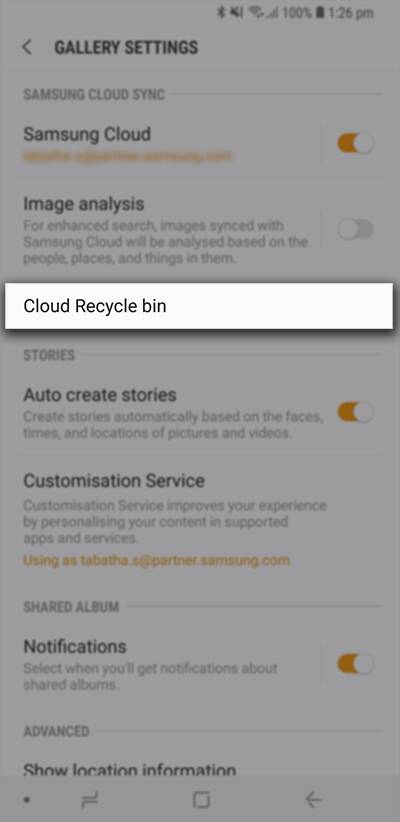
There is a Trash (Recycle bin) function in Samsung Galaxy S20, if the deleted photos moved to Trash folder less than 15 days, you can view and restore the deleted photos within 15 days, this is the most simple and free method to get backup the deleted photos on Samsung Galaxy S20, as well as Samsung Galaxy S10, S9, S8, S7, Note 10, Note 9 and Note 8. Let’s learn how to restore photos from the Samsung Cloud Recycle Bin.

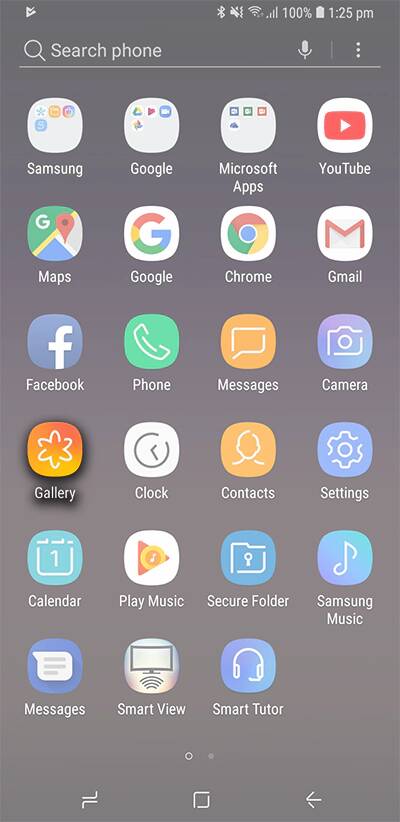
Step 1. Open the Gallery app on your Galaxy phone.

restore photo from samsung cloud recycle bin

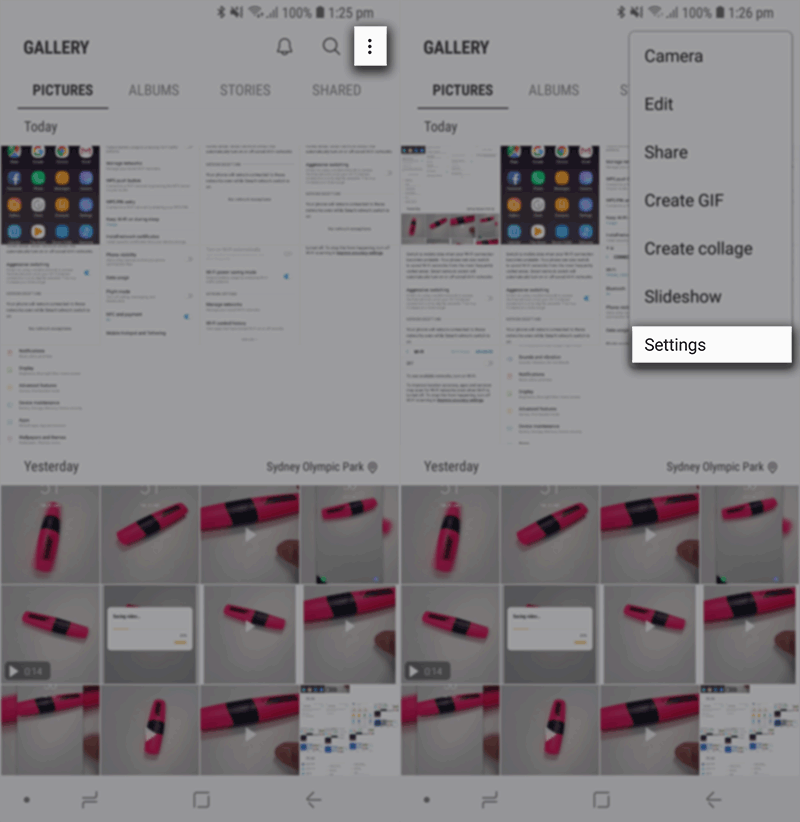
Step 2. Tap the three dots in the top right corner.

restore photo from samsung cloud recycle bin

Step 3. Tap Trash (or Recycle bin).

samsung cloud recycle bin recover deleted photo

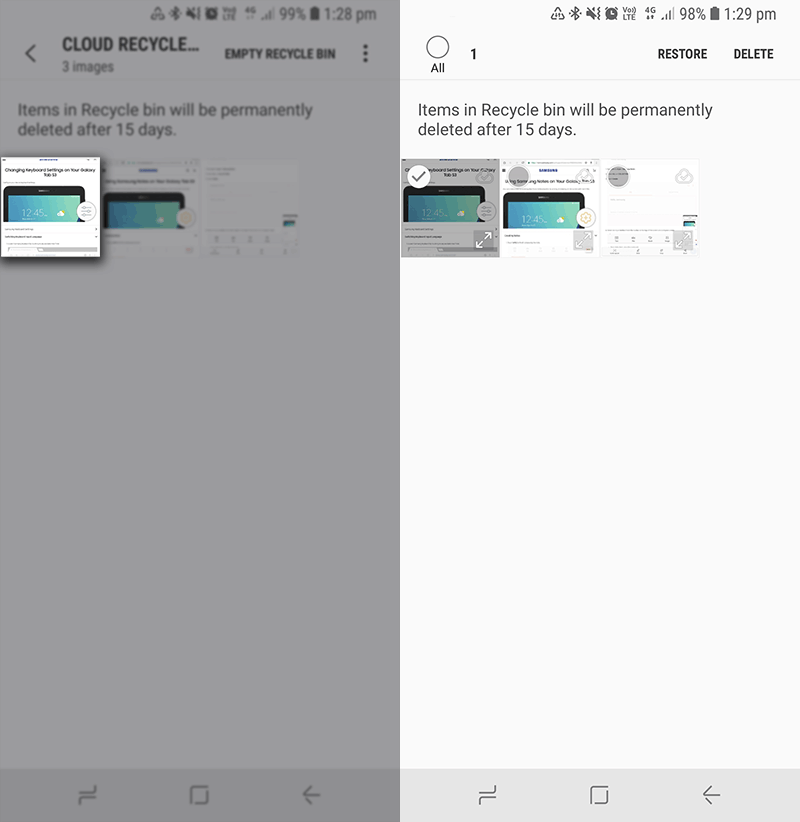
Step 4. Tap Edit.
Step 5. Select the pictures you want to restore.

samsung cloud recycle bin restore photo

Step 6. Tap Restore button to get the deleted photos back to your phone’s Gallery folder.

Method 2: Recover Samsung S20 deleted photos from Google Photos app

If you have synced your photos from Samsung Galaxy S20 to the Google Photos app(Google Cloud) for backup previously, no matter the photos are lost or deleted, you can quickly restore them from the recycle bin, this Google Cloud restore feature allows you recover deleted photos within 60 days. Let’s teach you how to recover deleted photos from Google Cloud:

Step 1. Unlock your Samsung Galaxy S20 and open the Google Photos app.
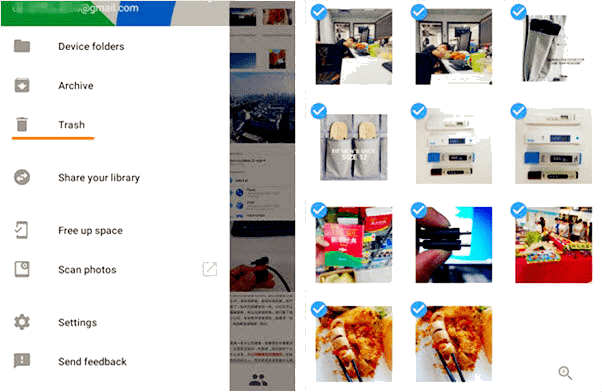
Step 2. Tap “Trash” from the top-left menu, all the lost photos will be listed in appear.
Step 3. Select the photos that you want to recover, then tap “Restore” to restore deleted photos from Google Photos app to your Samsung Galaxy S20.
The lost or deleted photos and videos should be in the Gallery app.

recover samsung photos from google photos app

Tips: If you haven’t backup photos or videos to Samsung Cloud or Google Photo app, you can directly scan and recover deleted files from Samsung phone, please keep reading the below guide:

Method 3. Recover Deleted Photos and Videos from Samsung S20 without Backup

If you haven’t backup photos to local or Cloud, don’t worry, you still have chance to directly recover deleted photos, videos and other files from Samsung S20 after rooting. What you need is a professional Samsung Galaxy S20 Photo Recovery.

This Android Data Recovery not only can recover deleted photos, music, videos but also can recover deleted contacts, messages, call logs, documents, WhatsApp messages and Viber conversations, etc., from Samsung S20, it also can help you recover deleted data from Samsung Galaxy Galaxy S10/S10+, Samsung Galaxy S9/S9+, Samsung Galaxy Note 8, Samsung Galaxy S8/S8+, Samsung Galaxy S7/S7Edge, Samsung Galaxy S6/S6 Edge, and other and other brands of Samsung phones directly. Now, let’s see how to recover deleted photos from Samsung S20 without backups.

d_win d_mac
d_win d_mac

How to Recover Deleted Photos, Videos from Galaxy S20

Step 1: Run Android Toolkit and connect Samsung S20 phone
To recover photos and videos, connect the Samsung Galaxy S20 mobile phone to computer through a USB cable and launch the program. Then go with the “Android Data Recovery” mode on the interface.

Samsung S20 Data Recovery

Step 2. Connect and Enable USB Debugging mode
Then connect Samsung phone to the computer via a USB cable, a wizard that appears on screen will walk you through the steps on setting the device to USB Debugging mode.
For Samsung Galaxy S20, please open Settings > About phone > Build number, tap it for 7 times to enable the Developer options. Then go back to Settings > Developer options, and scroll down the screen until you find the USB debugging switch, toggle it to ON position.
Also see detailed instructions about how to turn on USB debugging on Android

usb debugging Samsung Galaxy Note 10

Step 3. Select Pictures and Videos to Recover
Once the connection has been built. Next, you’ll get a screen to ask you to choose the type of data you’re looking to recover. In this example, check “Gallery“, “Picture Library” and “Videos” and click Next button.

choose data types to recover

Step 5. Root the Phone for Deep Scanning
To scan and recover more deleted files from Android, you have to root the phone so that the software can go deeper into the memory and scan the deleted files. The software recommends a powerful and effective rooting tool, just click Rooting Tools button, it will open a website, please download KingoRoot on your computer and let it root your Samsung S20 firstly.

root samsung S20

Tips: Please don’t worry, you can get your phone back to it’s original non-rooted state after recovering data completed.
For more information, please consult the article: how to safely root and unroot an Android device.

Once rooted, just click “Retry” button, the program continues scanning the deleted files from Galaxy S20. This will take some minutes.

Step 6. Recover Photos and Videos from Samsung S20 Gallery and Picture Library
After the scan completed, all found pictures and videos appear on the window, you can view the pictures and video before recovery.

During the process, please keep your phone well connected to the computer.

recover photos from Samsung Galaxy S20

Finally, please tap “Recover” button to retrieve deleted photos and videos on Samsung S20.

More About Android Data Recovery Software

There are many Android data recovery software and Samsung phone data recovery software in market, we highly recommend this Android data recovery software after we tests too many times, which with a high recovery success rate.

This Android Toolkit – Data Recovery software can recover data from most Android phones, such as Samsung Galaxy, Huawei, HTC, LG, Motorola, OnePlus, Google Pixel, Xiaomi, Redmi, OnePlus, ZT and other Android phones. Furthermore, this Android data recovery software compatible with both Windows and Mac platforms. In addition, this Android Toolkit also can help us fix bricked Android OS and extract data from broken Samsung phone, as well as backing up & restore data easily.

d_win d_mac
d_win d_mac

How to Recover Deleted Contacts and SMS from Samsung Galaxy S20

Summary
Do you want to recover deleted contacts and messages from Samsung S20? This article will tell you an easy way to recover deleted text messages and contacts from Samsung Galaxy S20. You can download the Android data recovery program for free to have a try!

I am looking for a way to retrieve text messages on my Samsung S20, I tried to restore the disappeared texts from the Samsung Cloud, but when the restore was complete, the message threads don’t come back. How to recover deleted messages on Samsung Galaxy S20? I haven’t backup my Samsung phone before.

Yesterday, I have reset my phone to factory setting, but I found all contacts were loss, is it possible to recover lost contacts on Samsung S20 Plus?

samsung Galaxy S20 data recovery

Accidentally deleted your messages and contacts from Samsung Galaxy phones, like S5, S6, S7, S8, S9, S10 and Galaxy S20? Actually, when the deleted files is missing, it doesn’t go to the trash or the recycle bin, because there isn’t a trash or a recycle bin on your Samsung as on the computer. And it’s only marked as useless information and can be overwritten by new data. Therefore, the deleted contacts and message only turns to be invisible, and you can recover deleted contacts and SMS from Samsung Galaxy S20 until being overwritten.

Regardless of the reasons, you still stand a good chance of retrieving SMS and contacts on Samsung S20 phone (S20 Plus, S20e), let’s shows you two ways to retrieve deleted contacts and messages on Samsung Galaxy S20.

Method 1: Recover Contacts and Messages from Samsung Cloud

If you have backed up contacts and messages to Samsung Cloud, you can directly restore deleted contacts and SMS from Samsung Cloud, only few steps to restore text messages and contacts(phone numbers) on Galaxy S20, as well as S10, S9, S8, S7, Note 10, Note 9, etc.

Step 1. Unlock your Samsung Galaxy S20 and go to Settings app.
Step 2. Tap Accounts and backup > Samsung Cloud > Restore.
Step 3. Tap on Messages and Contacts to select it.
Step 4. Tap Restore Now to restore the lost messages and contacts.

restore data from samsung cloud

The lost or deleted contacts, messages and attachments should be in the Messages app and Contacts app.

Tips: If you haven’t backup contacts and messages to Samsung Cloud, you can directly recover contacts, messages, photos, videos, WhatsApp, etc. from Samsung Galaxy S20. Please keep reading the below guide, you may need a third-party Samsung Galaxy S20 Data Recovery for help.

Method 2: Recover deleted Contacts and Messages from Samsung Galaxy S20 without Backups

To recovery deleted data from Galaxy S20 without any backups, you can use this Android Data Recovery software, which can help you recover deleted SMS, pictures, videos and contacts from Samsung Galaxy S20. In addition, it also enables you recover data from SD card.

More Features:

  • Save the deleted messages as CSV, HTML for your use or print.
  • Save the deleted contacts as VCF, CSV or HTML for your use, import or print.
  • Recover photos, videos, audio files, contacts, messages, messages attachments, call history, whatsApp, documents from Samsung phone.
  • Recover Android data lost due to accidentally deleting, factory resetting, system crash, forgotten password, flashing ROM, rooting, ect.
  • Recover data from dead/broken Samsung phone.
  • Fix Samsung phone, for example: frozen, crashed, black-screen, Samsung logo-screen, virus-attack, screen-locked.
  • Recover data from Samsung, HTC, LG, Huawei, Sony, Sharp, Motorola, OnePlus, Google Pixel and more Android devices.
  • Works well with Windows and MacOS computer

d_win d_mac
d_win d_mac

How to Recover Lost Contacts and Messages on Samsung Galaxy S20

Step 1. Launch Android Toolkit on Computer
Launch the Android Toolkit, choose “Android Data Recovery” mode.

Samsung Galaxy Note 10/Note 10+ Data Recovery

Step 2. Connect Phone to Computer and turn on USB debugging
Then, connect Samsung Galaxy S20 to computer.
On your phone, turn on USB debugging. Follow on-screen steps to do this.
Open Settings > About phone > Build number, tap it for 7 times to enable the Developer options. Then go back to Settings > Developer options, and scroll down the screen until you find the USB debugging switch, toggle it to ON position.
Also see detailed instructions about how to enable USB debugging on Android phone

usb debugging Samsung Galaxy Note 10

Step 3. Choose Messages and Contacts to Recover
In this step, you’ll see the kinds of data listed that the software can recover. Click “Messages” and “Messages Attachments” and “Contacts” item, then click “Next” button to go on.

choose data types to recover

Step 4. Root for Deep Scanning
If you want to extract the existing data, please skip this step. If you want to deep scan more deleted and lost data, you need to root the device firstly. Click Rooting Tools button, and the pretty safe KingoRoot utility will get this done.
Also read: How to root and unroot an Android phone or tablet

root samsung S20

Once rooted, just click “Retry” button, the program continues scanning the deleted files from Galaxy S20. This will take some minutes.

Step 5. Preview and Recover Contacts, SMS from Samsung S20
After scanning complete, you can see the scanning results interface, if you want to recover deleted messages and contacts, please select the contacts and messages that you want to retrieve.

Recover deleted contacts from Samsung Galaxy S20/S20+

recover contacts from Samsung Galaxy S20

Recover deleted messages from Samsung Galaxy S20/S20+

recover SMS from Samsung Galaxy S20

Finally, click Recover button to save text messages and contacts in CSV & HTML onto computer.

d_win d_mac
d_win d_mac

Prevent Contacts and SMS Loss Again

To avoiding data loss again, we recommend you should backup data regularly, it’s easy to backup photos and videos from Samsung to computer, but it’s difficult to backup text messages and contacts from Samsung Galaxy S20 to computer. Don’t worry, we have an extended guide on how to back up Android phone to computer with Android Data Backup & Restore software, you can easily view and back up contacts, messages, call logs, photos, videos, audio and documents from Android to PC/ Mac. In addition, you are able to set a password for protecting your important backup.
Related article: How to backup and restore Android data

Of course, if you just want to back up your SMS messages and contacts with this powerful Android Backup & Restore, it allows you backup SMS (text) messages (in CSV, HTML format), and save contacts as VCF, CSV or HTML format for your use. Once disaster strikes, you can quickly restore messages and contacts back to Samsung or other Android phone for viewing and using.

How to Restore Deleted iMessages on iPhone without Backup

[Summary]: Many iPhone/iPad users want to know the way to recover deleted iMessages from iPhone iPad, is it possible to recover iMessages with or without backup? Now follow the guides step-by-step, you can easy to recover lost or deleted iMessages from iPhone, iPad and iPod touch.

Apple inc. offers iMessages app for Apple users to free send text, pictures, videos, sound, location, and more between your iPhone, iPad or Mac, we can use message effects with iMessage on iPhone, iPad, iPod, Apple Watch or Mac via Wi-Fi or cellular data connection. On your iPhone, iMessage lives alongside SMS and MMS, so you can keep in touch with non-Apple friends from the same app. Many iPhone users send messages to chat with friends, colleagues, lovers, family, etc. But, if you deleted iMessages on iOS devices, is it possible to recover iMessages from iPhone? Many users will ask how to recover deleted or lost iMessages on iPhone.

Have deleted or lost iMessages on iPhone? Don’t worry, we can recover lost iMessages from iPhone, even we haven’t backed up before. What you need is a professional iMessages recovery for iPhone.

Using the iPhone iMessages Recovery Software

This iPhone Data Recovery is a powerful iPhone iMessages recovery tool, it not only can help you recover deleted iMessages and iMessages attachments from iPhone, iPad and iPod, but also enables to recover text messages, messages attachments, WhatsApp messages, WhatsApp attachments , Kik messages, Viber messages, Wechat messages, Skype messages, etc. What’s more, this iPhone data recovery is special designed to recover photos, contacts, videos, SMS, notes, call history, safari bookmark and more from iPhone, iPad and iPod touch. It works well with the latest iOS 13, so you can recover deleted iMessages from iPhone 11, iPhone 11 Pro, iPhone 11 Pro Max, or recover lost iMessages and messages from iPhone after iOS 13 update.

More Features:

  • Recover iMessages and Text Messages from iPhone, and saved them as CSV, TEXT, or HTML format to computer for your use.
  • Recover all iPhone data with/without backup due to deletion, device smashed or broken, device loss, jailbreak, iOS upgrade or device reset etc.
  • Recover Deleted iPhone iMessages and Text Messages from iTunes Backup
  • Recover Deleted iPhone iMessages and Text Messages from iCloud Backup
  • When your iPhone encountered some system errors so that you can’t access the system, the iOS System Recovery function can help you fix iPhone stuck at apple logo, recovery mode, white/black screen, start up exception and other issue.
  • iOS Data Backup & Restore functions can help you backup and restore all types of data, such as WhatsApp messages, notes, call logs, contacts, text messages, photos, videos and more.

d_win d_mac
d_win d_mac

3 Simple Steps to Recover Deleted iMessages on iPhone Without Backup

Here’s how to use the iPhone data recovery(Mac) program to recover deleted iMessages from an iPhone without backup. For Windows users, you can download the iPhone data recovery for Windows to recover iPhone iMessages and text messages on Windows 10 | Windows 8.1 | Windows 8 | Windows 7 | Windows Vista | Windows XP – 32 bit and 64 bit.

Step 1. Download, Install and Launch iOS Toolkit on Computer
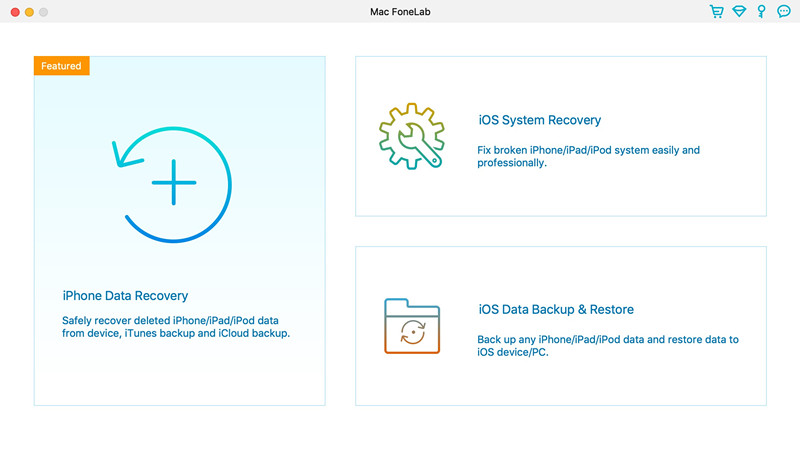
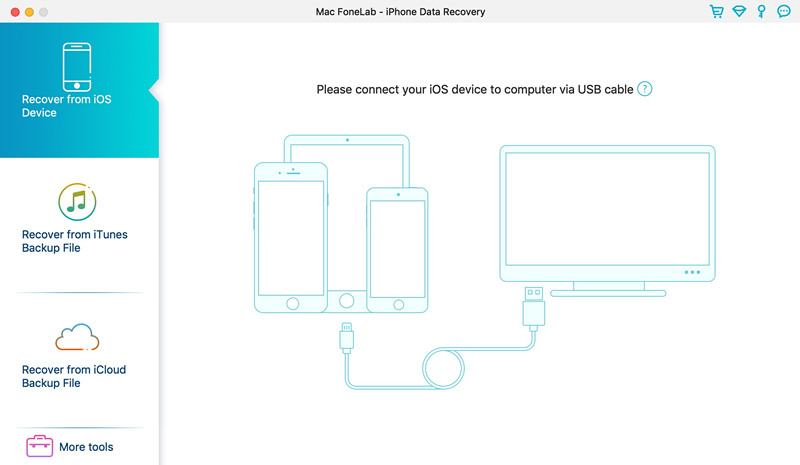
Firstly of all, please download, install and launch the iOS Toolkit on your computer, if you want to recover data from iPhone, iTunes or iCloud, please click “iPhone Data Recovery” section, you will see the software provides three recovery modes: Recover from iOS Device, Recover from iTunes Backup Files and Recover from iCloud Backup File.

iPhone Data Recovery for mac

To recover deleted iMesaages from iPhone without backup, please select “Recover from iOS Device”, and then connect your iPhone to the computer via USB cable.

iPhone iMessages recovery

Step 2. Select Messages and attachments
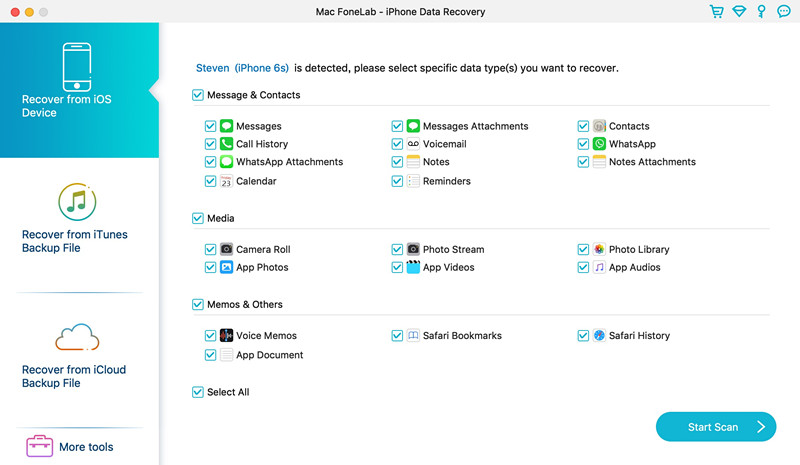
To recover text messages and iMessages from iPhone, please “Messages” and “Messages Attachments”, then click “Start Scan” button to scan all deleted, lost or existing messages from iPhone.

Scan iMessages from iPhone

Step 3. Preview and Recover lost iMessages from iPhone
After the scan is over, the iMessages and attachments on iPhone will be displayed in scan result, you can view all messages including the existing and deleted one, find the ones you want to recover and mark them one by one or select all, click the “Recover” button to save them on your computer.
Note: Except messages, you can also select all file type to scan and recover other data like photos, videos, contacts and more in the simple way.

recover iMessages from iPhone

Above simple steps shows you how to restore iPhone iMessages and text messages without backup. If you have backed up the device with iTunes or iCloud, you can choose “Recover from iTunes Backup Files” or “Recover from iCloud Backup File” modes to selectively restore messages from iCloud/iTunes backup to computer.

d_win d_mac
d_win d_mac

Related Article

How to Recover Deleted Text Messages on iPhone

How to Recover Deleted Contacts on iPhone

How to Recover Deleted Photos on iPhone

How to Recover WhatsApp Messages on iPhone

iMessages Recovery for iPhone iPad