All posts by DHZ

How to Recover iPhone 11 Data Without iTunes/iCloud Backup?

[Summary]: Is it possible to recover lost data from iPhone 11/11Pro (Max) without any backup? Sure! This article shows you three effective method to recover iPhone data without iTunes, Finder or iCloud backup. You can also learn how to restore iPhone data from iTunes/Finder or iCloud backups.

How can I recover iPhone data without iCloud or iTunes backup?

I accidentally deleted messages and contacts from my iPhone 11, and I haven’t enable iCloud automatic backup service and forgot to backup my iPhone with iTunes. Now, I need them urgently, but I’ve heard that there is no way to recover deleted files on an iPhone except through backup. Is that really? Is it possible to recover iPhone lost data without iTunes or iCloud backup? Please help! Thanks in advance.

If you have backed up your iPhone with iTunes or iCloud, restoring from backup file is the simple way to recover your iPhone data, but to be honest, not everyone will backup data regularly. Once you lost data without any backup in Finder (or iTunes) and iCloud, is it possible to recover lost data from iPhone directly?

If you deleted or lost data on iPhone accidentally, you should use a professional iPhone Data Recovery software to recover them back as soon as possible in case the lost files are overwritten by new data. In this guide, we’ll walk you through the steps you need to restore iPhone data without backup. We’ll also explain how to recover lost data from iTunes or iCloud backup if you have made before.

Part 1: iPhone Data Recovery: Recover iPhone Data without Backup

This iPhone Data Recovery can help you recover all data such as photos, messages, videos, contacts, Voice Memo, Notes, WhatsApp messages and more from iPhone, iPad and iPod. It not only allows you directly recover deleted data from iPhone without backup, but also enables you restore lost data from iTunes backup; or extract iPhone data from iCloud backup. So, if you ever backup your iPhone data to iTunes or iCloud, you can extract your lost data from backup iTunes/iCloud files. But, if you never backup your iPhone, you can scan and recover deleted data from iPhone directly. What’s more, the iPhone Data Recovery won’t overwrite the current data, which is different for using iTunes or iCloud restoring method.

  • Recover deleted photos, video, contacts, messages, notes, etc. from iPhone without any backups.
  • Extract and preview all content in iCloud/iTunes backup files.
  • Selectively restore data from iCloud/iTunes backup to computer.
  • Preview all deleted files in detail before recovery.
  • Never cover the existing iPhone data, 99% recovery rate.
  • Support the latest iOS 13, iPhone 11, iPhone 11 Pro, iPhone 11 Pro Max, etc.

d_win d_mac
d_win d_mac

Note: When you deleted data on iPhone, it is not really lost immediately and the data is still saved on the device, until other new overwritten it for multiple times. If you find the data lost or deleted, you had better stop to use your iPhone and try to recover deleted data as soon as possible.

How to Directly Recover iPhone 11 Lost Data on Mac?

Below are the instructions on how to recover lost data from iPhone 11 without a backup using the iPhone data recovery software. This guide shows you how to recover lost data on iPhone 11 on MacOS computer, such as Mac: Mavericks – 10.9 | Yosemite – 10.10 | El Capitan – 10.11 | macOS Sierra – 10.12.1/ 10.12.2/ 10.12.3/ 10.12.4/ 10.12.5/ 10.12.6 | macOS High Sierra – 10.13.1/ 10.13.2/ 10.13.3/ 10.13.4/ 10.13.5/ 10.13.6 | macOS Mojave – 10.14.1/ 10.14.2/ 10.14.3/ 10.14.4/ 10.14.5/ 10.14.6 | macOS Catalina – 10.15. You also can download the Windows version to recover iPhone data on Windows laptop/PC, including Windows 10 | Windows 8.1 | Windows 8 | Windows 7 | Windows Vista | Windows XP.

Step 1. Download and Launch iPhone Data Recovery on Mac
Download the iPhone Data Recovery(Mac) on Macbook, then install and launch it, you will will it’s main interface as below screenshot. In order to recover lost photos, contacts, SMS and more from iPhone 11 without backup, please choose“iPhone Data Recovery” feature.
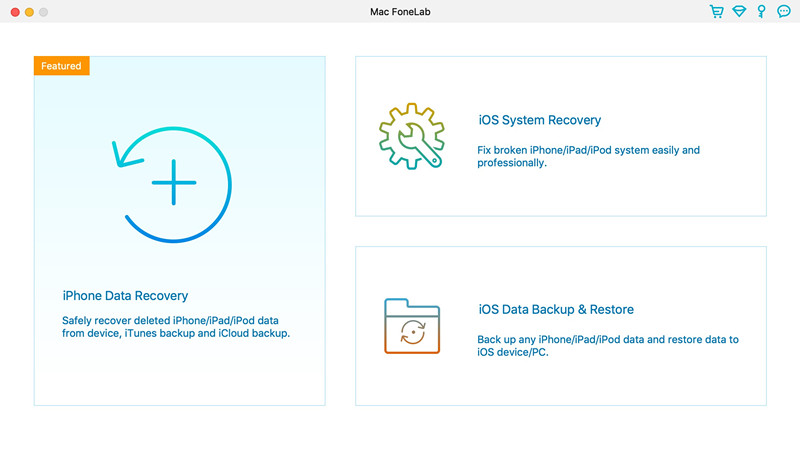
iPhone Data Recovery for mac

Step 2. Connect iPhone 11 to Macbook
The software can help you directly scan and recover deleted data from iPhone without backup, if you want to directly recover iPhone lost data, please connect the device to computer via USB cable.
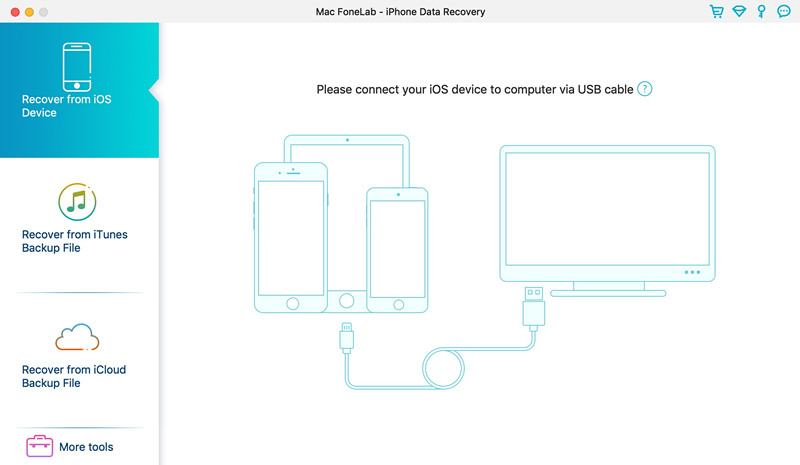
connect iPhone 11 to Macbook

Step 3. Select the Types of Data to Scan
When the software detects it, please select what data types you want to retrieve by checking the boxes next to data name and click the “Scan” button to initiate a deep scan on iPhone for searching for lost data files.
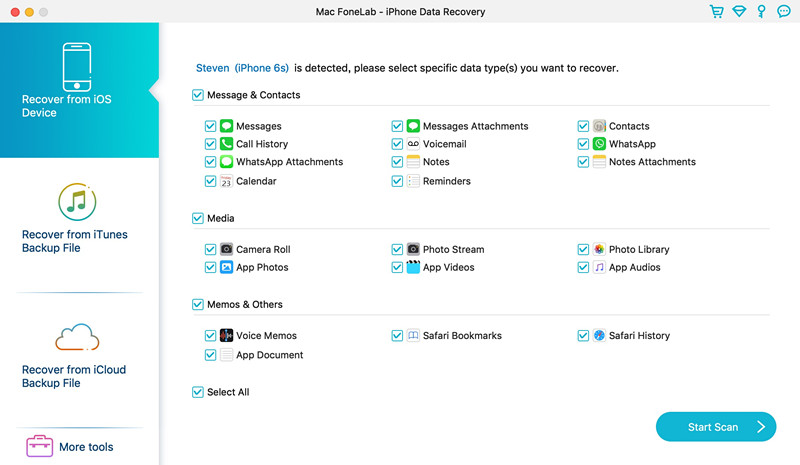
Scan iPhone 11 data

Step 4. Start Scanning Lost Data from iPhone 11
The iPhone data recovery start to scan all lost data from your iPhone device, then be patient while the scan is going on. The progress bar on the screen will show you the progress of the scanning activity, the total time for this scan may vary for different people depending on the amount of data stored in your iPhone. After the process is over, all found files are displayed on the screen.
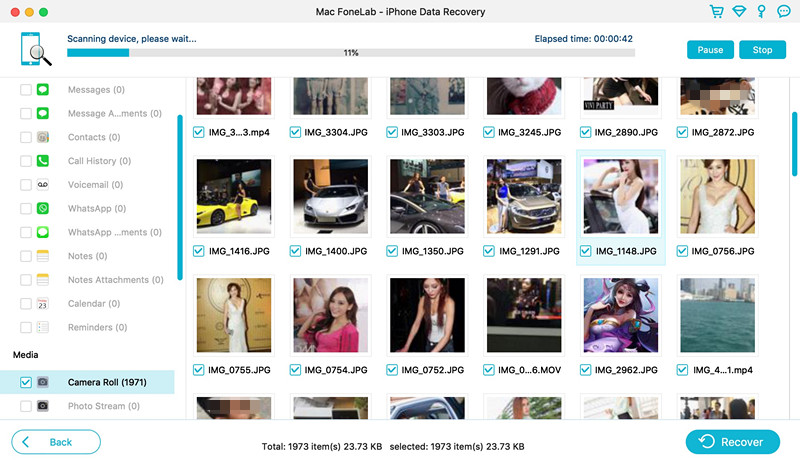
Scan deleted files from iPhone 11

Step 5. Preview the Lost Data
In this step, you can preview all types of content that you want to restore by clicking the specific category on the left pane to expand the list. For example, click “Camera Roll” category to view the scanned photos and videos. You also can just view the deleted files, please tap “Show Deleted Only”, it will shows you all deleted photos and videos. Then, tick the boxes next to each file name to choose files you want to retrieve.
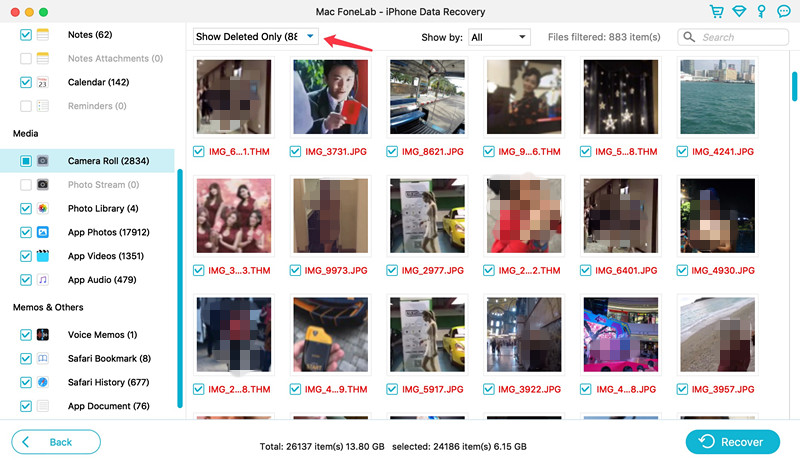
recover iphone data without backup

Step 6. Recover iPhone Data without backup
Now, just click “Recover” button on the bottom right corner. In the opening box, specify a location, the program starts recovering data from your iPhone storage and save the data onto computer.
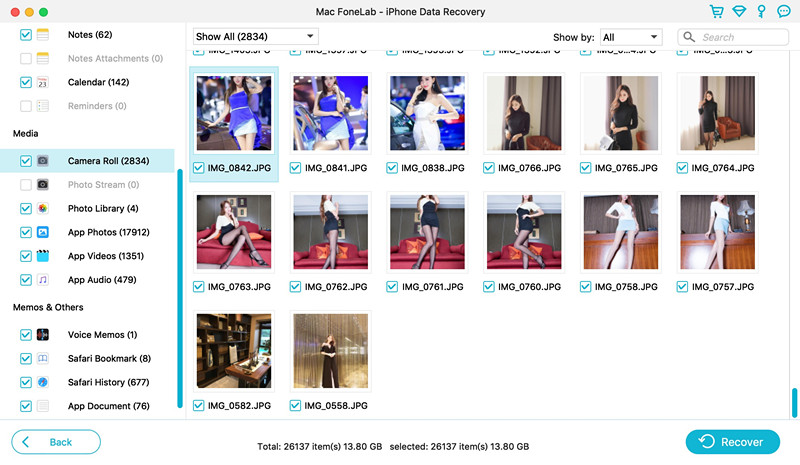
Recover iPhone Data without backup

Step 7. Import Files Back to iPhone
After recovering your iPhone data completed, all data save onto your computer folder. If you want to transfer the recovered files to iPhone, iPad or iPod touch for viewing and using, you can use this iPhone iPad iPod Manager(Windows/Mac) to import them back to the device directly.
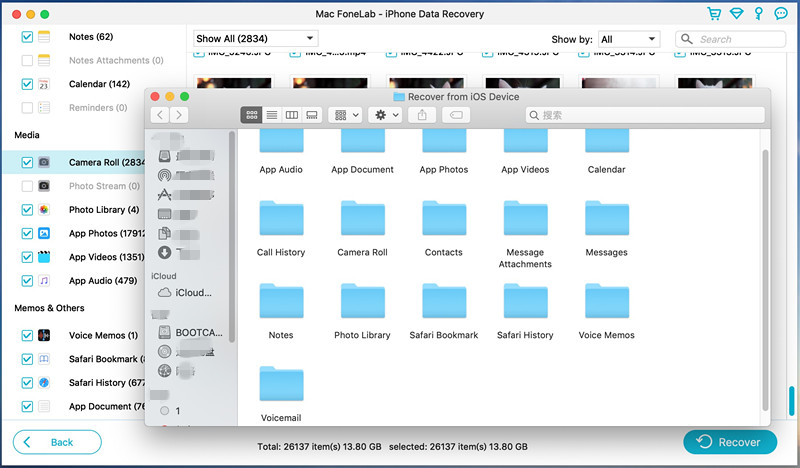
view the recovered data

You see how simple and easy it is on how to recover iPhone data without iTunes or iCloud backup? The iPhone Data Recovery also allows you selectively recover what you want from iCloud/iTunes backup, it won’t cover the existing iPhone data.

d_win d_mac
d_win d_mac

If you have created iPhone backup with iTunes or iCloud, let’s shows you how to restore data from backup with iTunes or iCloud if you have made before.

Part 2: Recover iPhone Data from iCloud Backup

If you have ever backup iPhone with iCloud, it is easy to recover your iPhone previous data from iCloud backup. However, you need to verify that an iCloud backup exists firstly. Go to Settings > [Your Name] > iCloud > iCloud Backup. If you can see there is a last backup history was made, please follow the below simple steps to erase your iPhone to restore data from iCloud backups.

Step 1. On your iPhone, please go to Settings > General > Reset, then tap Erase All Content and Settings.
Step 2. On the Apps & Data screen, tap Restore from iCloud Backup.
Step 3. Login to iCloud with Apple ID.
Step 4. Select from a list of available backups in iCloud, just restore them.
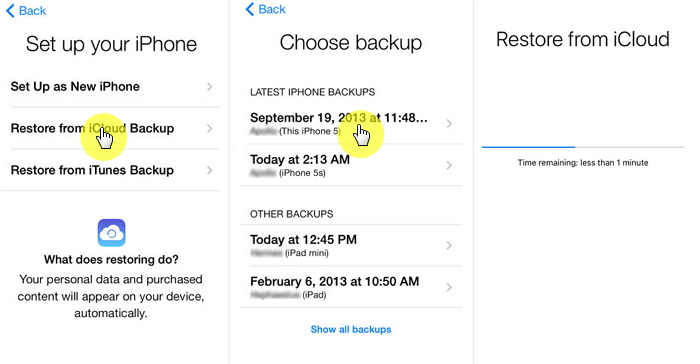
restore iphone data from icloud backup

Note: This method will erase existing iPhone data, it means the previous backed up content will cover the existing content. So, we recommend you use a iPhone data recovery to restore data from iCloud backups, this method is 100% safe.
Also read: Download iCloud backup – Selectively Recover iPhone data from iCloud backup

Part 3: Recover iPhone Data from iTunes/ Finder Backup

Apple inc. offers Finder or iTunes (Mac with 10.14 or earlier, or on PC) for Apple users to manage, backup, convert or sync files. If you have backed up iPhone data with Finder or iTunes (Mac with 10.14 or earlier, or on PC), you can restore the previous data to iPhone from iTunes/ Finder backups. Let’s learn how to restore iTunes data to iPhone steps-by-steps:

Step 1. Launch the iTunes or Finder that you have created backups before.
Step 2. Connect your iPhone to computer and open Finder or iTunes.
Step 3. Select iPhone device icon on the window.
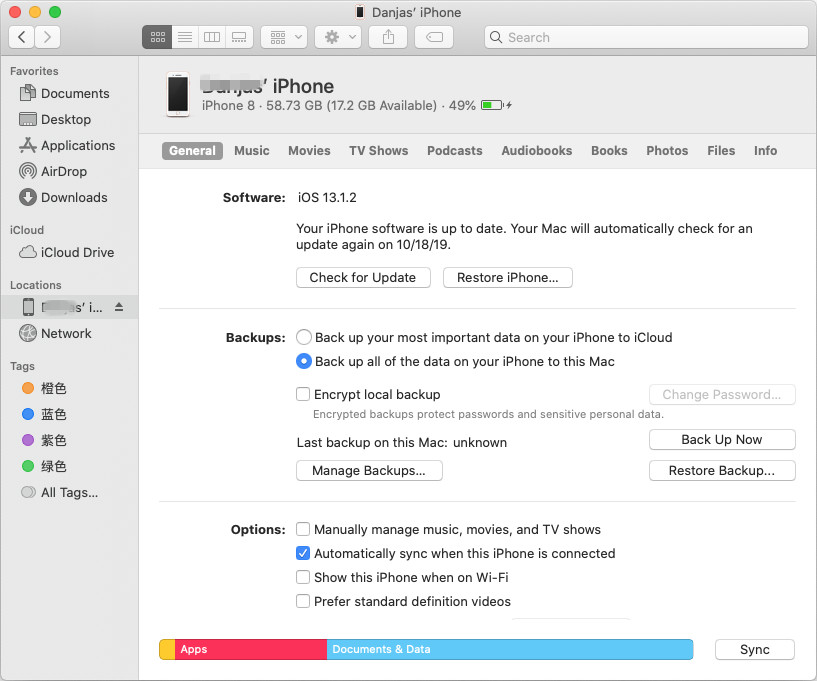
finder restore iphone data

Step 4. Click Restore from Backup.
Step 5. Choose the backup data that contains your lost data.
Step 6. Click Restore. Please wait patiently, all your backed data will restore to iPhone soon.
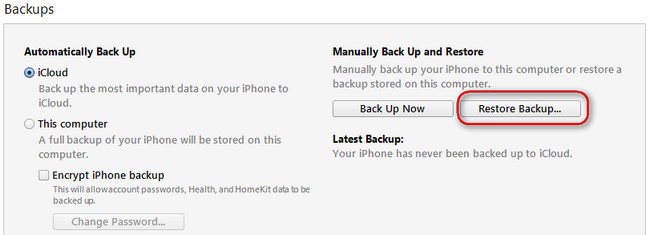
Recover iPhone data from iTunes

But, you will found all existing iPhone data was lost, because iTunes/ Finder restore method overwrites the existing data. So, we recommend you use a third-party iPhone data recovery to extract data from iTunes/ Finder backups, then import them to the devices.
Also read: Extract iTunes backup – Recover iPhone data from iTunes backups
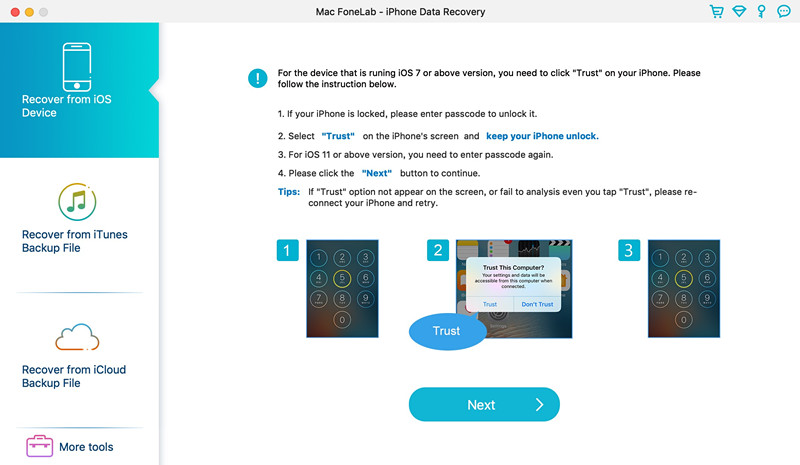
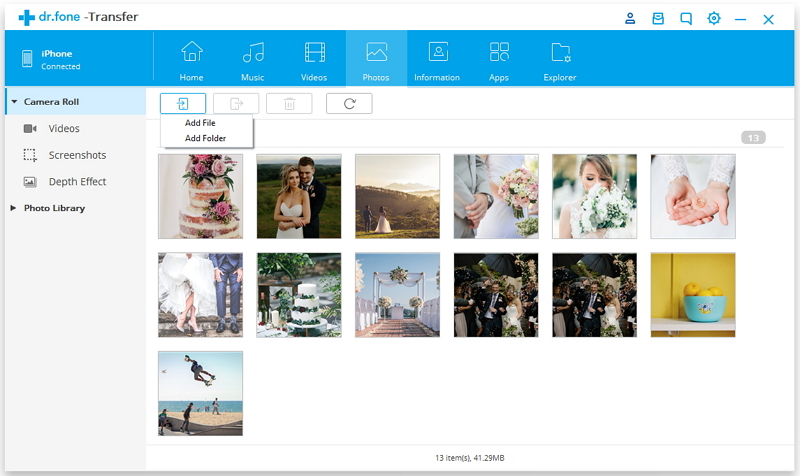
Recover iPhone Data Without Backup

How to Recover Data from iPhone 11/11 Pro after Factory Reset

Summary
Do you want to recover lost data after factory reset iPhone 11, iPhone 11 Pro and iPhone 11 Pro Max? Read this article to restore iPhone 11 lost data after the factory reset, you can recover lost contacts, SMS, photos, videos, notes and more from iPhone 11 after factory reset.

Tags: iPhone 11 data recovery, restore iPhone data after reset, iphone data recovery after factory reset without backup, recover data from iPhone after factory reset, recover photos after factory reset iPhone without backup, can iphone data be recovered after reset, how to recover data after factory reset iPhone, how to recover photos from iPhone after factory reset, iphone factory reset data recovery, recover data from iPhone after factory reset without backup

The iPhone 11 series is the latest Apple mobile phone, more and more Apple fans update their old iPhone to iPhone 11, iPhone 11 Pro or iPhone 11 Pro Max. The iPhone 11 Pro offers a telephoto camera to get closer to your subject. The 11 comes with a new ultrawide-angle camera, Night Mode for low-light photography, Deep Fusion processing for better indoor shots, faster autofocus and overall sharper images with more accurate color reproduction. Many people like to taking photos or shooting videos with iPhone 11 Pro.

If there is a software errors or setup issues with your iPhone, just simple reset iPhone to factory settings or reset all settings, then restart iPhone, your iPhone will restore to normal status.

How to Restore iPhone 11 to Factory Settings or Reset All Settings?

To restore your iPhone 11 to factory settings, go to Settings > General > Reset and then select Erase All Content and Settings.

To reset all settings on iPhone 11, go to Settings > General > Reset and then tap Reset All Settings. If presented, enter the password. Tap Reset All Settings to confirm.

If you don’t have any backup before factory reset iPhone, you may lost photos, contacts, messages, videos, notes, etc. Many users don’t know how to recover lost from iPhone 11 after the factory reset. Many people have been search on Google to find the solution about, “How to restore iPhone 11 lost data after reset?” If you are also asking the same question, then this article will teach you an effective solutions to recover data from iPhone 11 after factory reset, you also can follow the same steps to recover deleted data from other iOS 13 devices, such as iPhone XS, iPhone XR, iPhone 8, iPhone 7, iPhone 6S, iPad and iPod touch.
What Reason Causes Data Loss on iPhone?

Except for factory resetting, there may be several possible reasons may cause data lost on your iPhone.

  • Accidentally deletion of files due to wrong operation
  • Delete all photos and videos on “Recently Deleted Album” Folder of Camera Roll
  • Update or downgrade your iPhone
  • iPhone gets broken or crashed or smashed
  • Water damaged
  • Phone stolen or dropped somewhere
  • Jailbreaking failure
  • Data transmission interrupted during transferring data between iPhone and computer, iPhone to iPhone, etc.

How to Recover iPhone 11 Lost Data After Factory Reset without Backup

There are many free ways to restore lost data after factory reset iPhone without backup when you have already backed up all your iPhone data to iTunes or iCloud. If you don’t have any backup and you lost data after factory reset iPhone 11. Don’t worry, you can recover the iPhone lost  data is by scanning with a professional iPhone 11 Data Recovery software – iOS 13 Data Recovery.

This iPhone Data Recovery can help you recover lost or deleted data from iPhone 11 devices, iCloud backup and iTunes backup due to factory reset, it enables to recover iPhone 11 lost photos, videos, audios, SMS, Call History, Calendar, Notes, Voice Memos, Voice Memos, iBooks reading, Reminders and Safari Bookmarks etc. In addition, the iOS data recovery also allows you recover data from iPhone/iPad/iPod, even the files lost due to deletion, device crashed, smashed or broken, jailbreak, iOS upgrade or device reset etc.

d_win d_mac
d_win d_mac

Tips: The iPhone Data Recovery offers three different recovery modes: “Recover from iOS Devices directly”, “Recover from iTunes Backup Files” and “Recover from iCloud Backup Files”. If you haven’t backup your iPhone, please follow the below steps to recover lost data from iPhone after factory reset.

Guide: Recover iPhone Lost Data after a Factory Reset without Backup

This part shows you how to recover lost data from iPhone 11 on Mac with the help of use iPhone Data Recovery(Mac), you also can download the Windows version and follow the same steps to recover lost data from iPhone 11/11 Pro (Max) in Windows 10/8/7/XP.

Step 1. Launch iOS Toolkit and Choose “iPhone Data Recovery”
Download, install and run the iOS Toolkit on your Mac computer, if you want to recover lost photos, contacts, SMS and more from iPhone 11 after factory reset, please select “iPhone Data Recovery” function.

iPhone 11 Data Recovery

Step 2. Connect iPhone 11 to Mac via USB cable
Using a Apple USB cable to connect your iPhone 11 with the computer, the software will detect it automatically.

connect iPhone 11 to recover data

Please tap “Trust” to let the device connected with the computer.

trust on iphone 11

Step 3. Select Data to Scan
Then, please select the type of data you wish to recover, then click “Start Scan” button.

Scan lost data from iPhone 11

Step 4. Start Scanning Lost Data from iPhone 11
Then the iPhone data recovery software begins scanning your iPhone 11 automatically for lost data, and you’ll get the interface as follow. If you find the files that you want, you can click “Stop” button to end scanning process.

Scan deleted photos from iPhone 11

Step 5. Preview the Scanned Files
Once the scan is complete, all found data are displayed in categories, please preview the data and see if you can find any of the lost data, including contacts, text messages, message attachments, call history, camera roll, photo stream, photo library, calendar, notes, reminders, voice memos and safari bookmark, the software allows you preview full contents before recovery. If you just want to view the deleted files, please select “Show Deleted Only”, it will display all deleted contents.

recover iphone 11 lost data after factory reset

Step 6. Start to Recover Lost Photos/Data from iPhone 11
For example, to recover lost photos from iPhone 11 after factory reset, click “Camera” and “Photo Library” to preview, you can mark the pictures you want to get back and click “Recover” button to save all the photos on your computer with one click.

restore data from iPhone 11 Pro after reset to factry settings

Step 7. Transfer the Recovered Files to iPhone (Option)
After saving the data to your computer, you can quickly locate the recovered files. If you want to import the recovered contents to iPhone 11 for using and viewing, you can use this iPhone Manager tool, which allows you transfer the recovered contacts, photos, videos, music, etc. from computer to iPhone directly.

save iPhone data

Free download the iPhone 11 data recovery and try to recover lost data from iPhone 11 without backups.

d_win d_mac
d_win d_mac

Above guide shows you how to directly recover lost data after resetting iPhone to factory settings, the iPhone data recovery software also enables you selectively recover lost data from iTunes/iCloud backup after factory reset.

Tips to recover Recently Deleted photos and videos from “Recently Deleted” Folder

When photos are deleted within 30 days, all deleted photos be removed to “Recently Deleted” folder, you can using Recently Deleted in your iPhone’s Photos app.

Step 1. Go to the Photos app.
Step 2. Go to the Recently Deleted folder.
Step 3. Tap Select in the upper-right corner.
Step 4. Select the photos or video that you want to recover, then tap on “Recover” button and your photos will be restored.

In fact, the other way is to check your iPhone trash folder as you can find your deleted pictures within 30 days. This technique works when your iPhone is running on iOS 13/12/11/10/9/8.

Recover iPhone Data after Factory Reset

How to Unlock iPhone with Forgotten Passcode

Summary
How to unlock iPhone if you forgot the passcode, password or code? Your iPhone now is disabled/locked? Don’t worry, this article teach you how to remove the passcode on an iPhone if you forgot your phone screen passcode.

If you forgot the screen passcode on your iPhone 6/6 Plus, 6S/6S Plus, 7/7 Plus, 8/8 Plus, XXS/XR/XS Max, iPhone 11/11 Pro/Pro Max or your device is disabled, the phone will tips you that your device is disabled/locked, if you forgotten your passcode for iPhone, you’ll need to unlock iPhone passcode. Restoring iPhone by iTunes, it will erase all data and settings, including the passcode. Unless you backed up the device to iTunes or iCloud before you forgot your passcode, there isn’t a way to save the data on your device. Follow the steps below to unlock iPhone if you forgot the password.

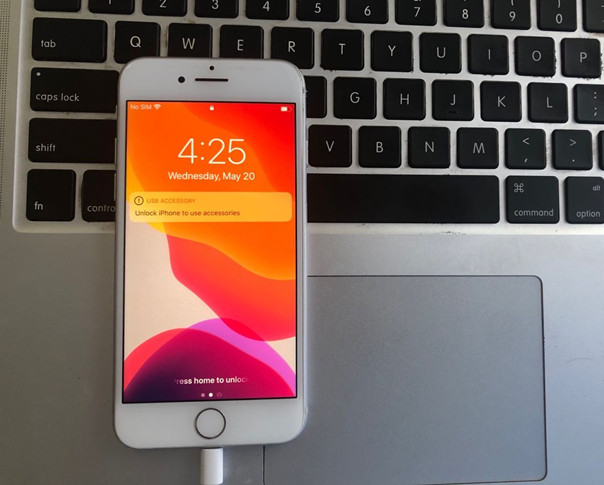
unlock iphone passcode

The easiest and most recommended way to unlock iPhone without passcode is using a third-party iPhone unlocking tool – UkeySoft Unlocker or Dr.Fone iOS Unlock. Both not only can help you easily to remove iPhone passcode, but also to remove Apple ID and iCloud account from a any iPhone/iPad/iPod without password.

UkeySoft Unlocker Features:

  • Remove iPhone 4/6-digit passcode, Face ID, Touch ID.
  • Unlock an iPhone if you forgot the screen passcode.
  • Unlock a disabled, lock or black-broken iPhone, iPad or iPod touch.
  • Unlock Apple ID if you forgot the password, as well as unlocking iCloud account.
  • Remove Apple ID without erasing data and settings.
  • High success rate is guaranteed to unlock iPhone from any lock.
  • Works for all models of iPhone, iPad and iPod touch.
  • Fix iPhone stuck on recovery mode, DFU mode, black screen issues, etc.
  • Unlock a broken screen iPhone.
  • Fully compatible with the latest iOS 13.

d_win d_mac
d_win d_mac

Guide: How to Remove A Forgotten Passcode on iPhone?

Step 1. Launch the iPhone Unlock tool on Computer
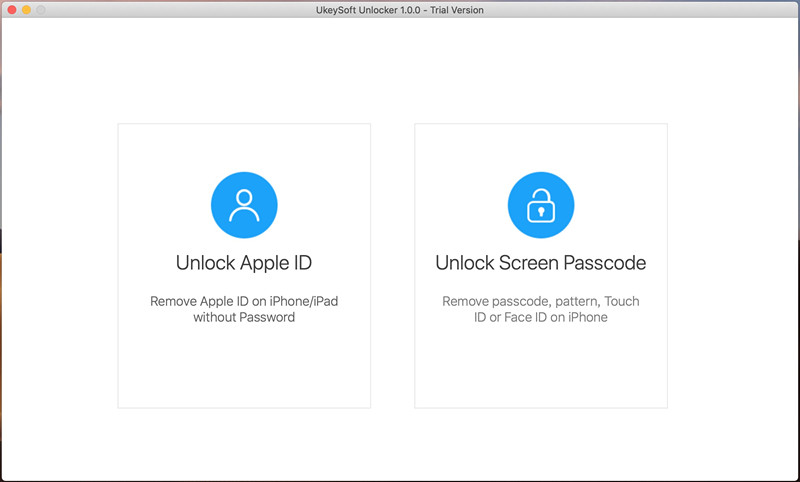
First of all, please download, install and run the UkeySoft Unlocker on computer, then select “Unlock Screen Passcode”.

unlock iPhone

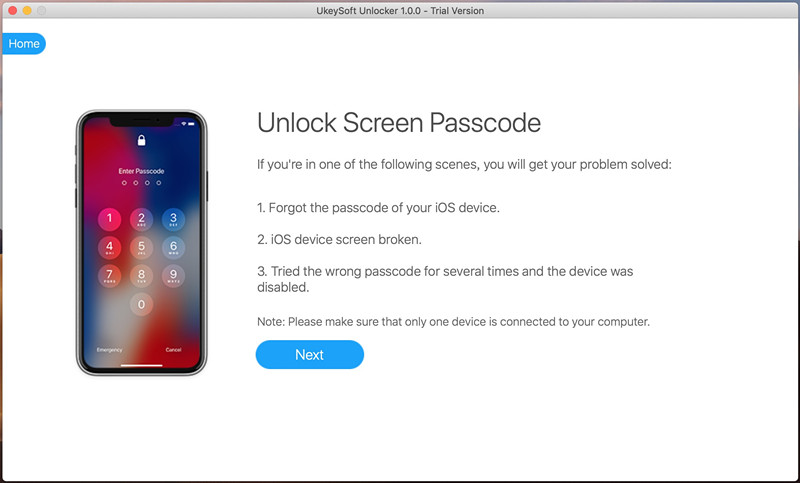
Then connect your iPhone to the computer via USB cable, the software will detects it.

Unlock Screen Passcode

Step 2. Put iPhone into DFU mode or Recovery Mode
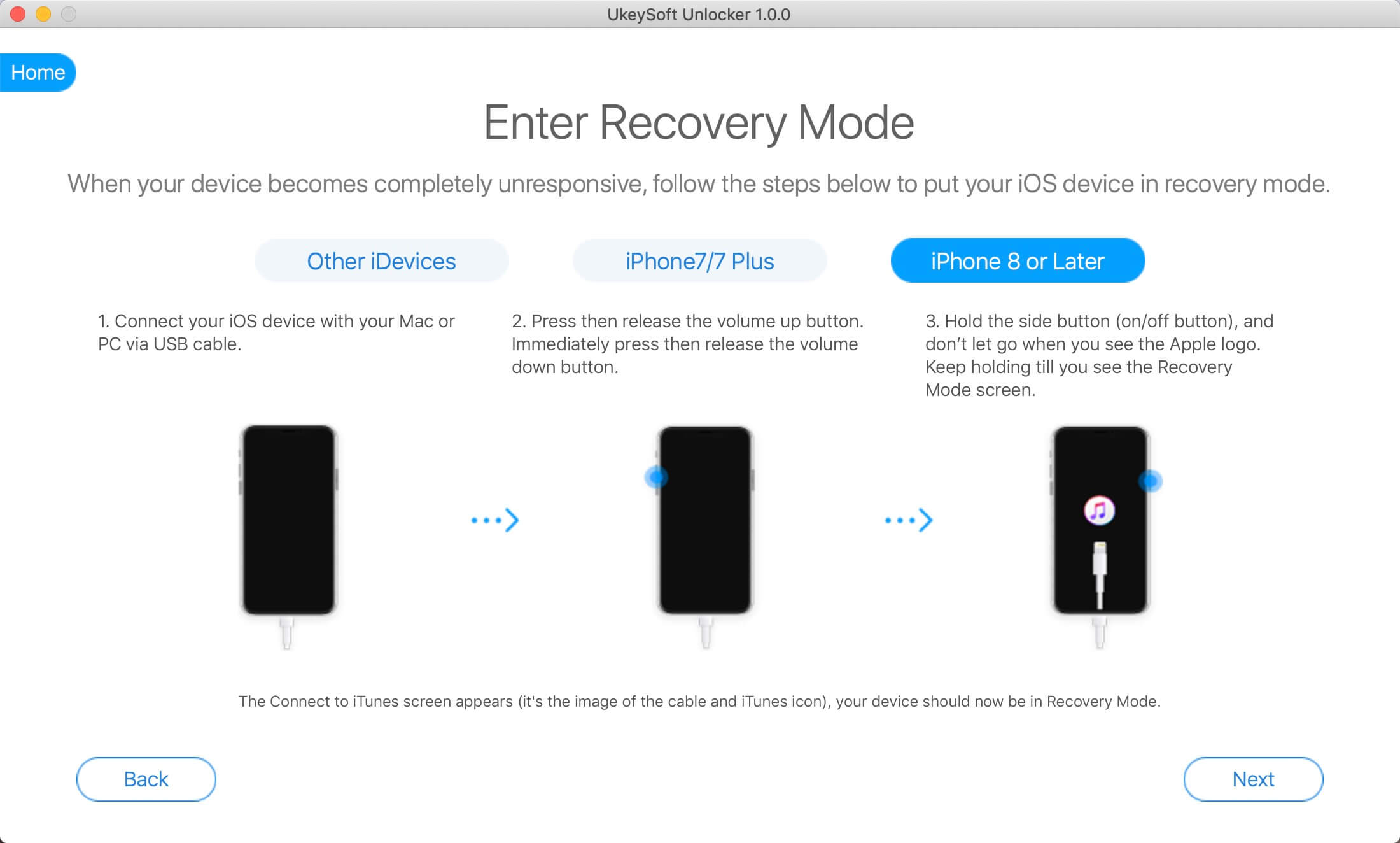
In the new window, you need to follow the instructions to enter the DFU mode or recovery mode.
Read more: how to put iPhone into recovery mode.

put iPhone into recovery mode

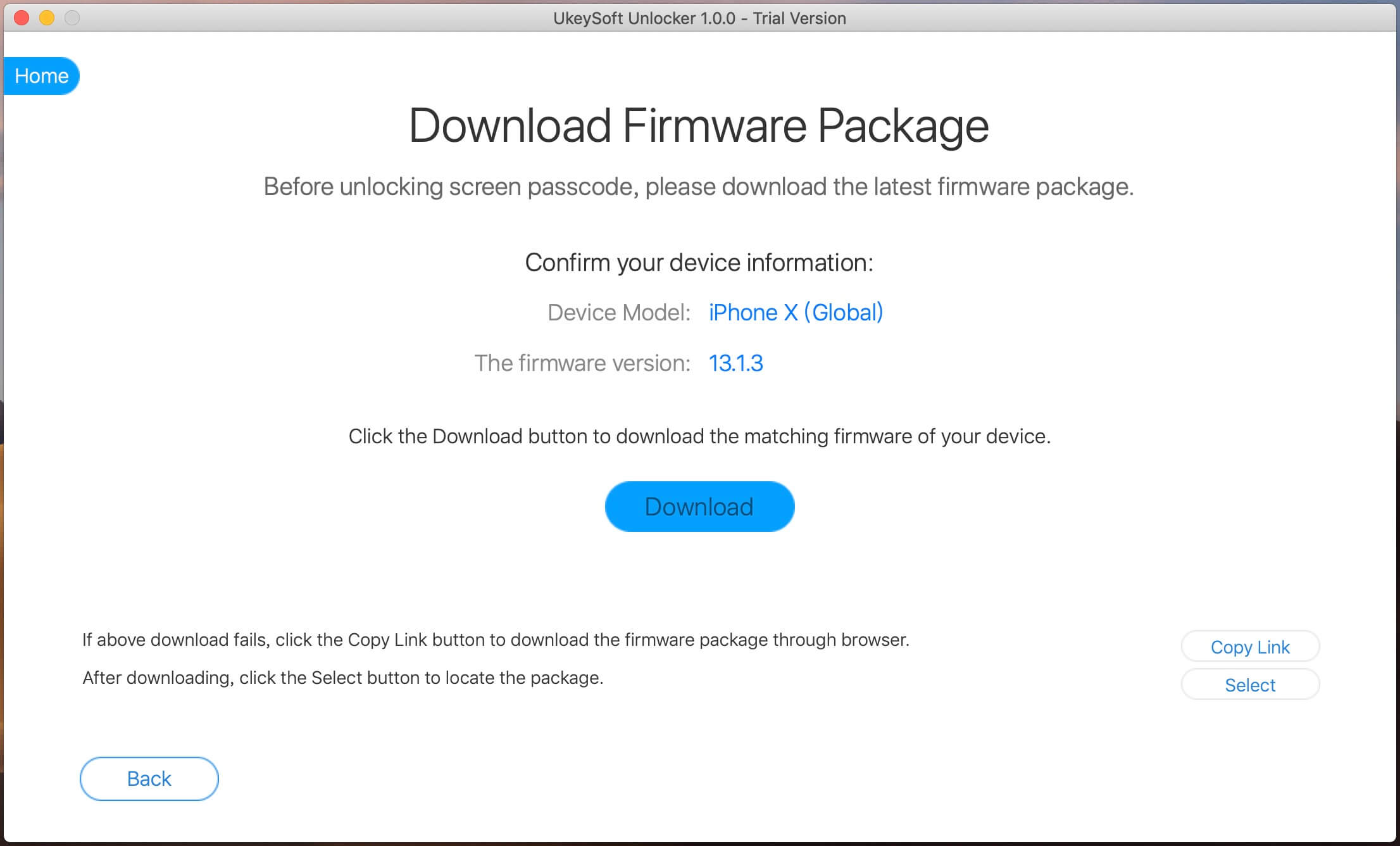
Step 3. Check the information of your iPhone
In order to unlock iPhone without passcode, you need to download the matching IPSW files,the iPhone unlock software will detect your iPhone information such as the iOS version, device number and generated code etc. Just cross check the information and click “Download” button to download firmware package for your iPhone.

confirm iphone information

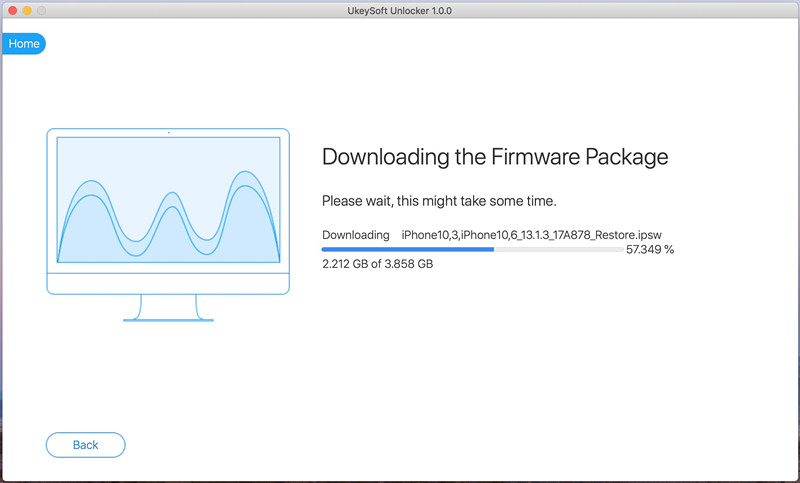
The iPhone unlock software start downloading firmware package for your iPhone, please keep connecting your iPhone with the computer.

download firmware package for iPhone

Step 4. Click “Start” to Confirm Unlock your iPhone
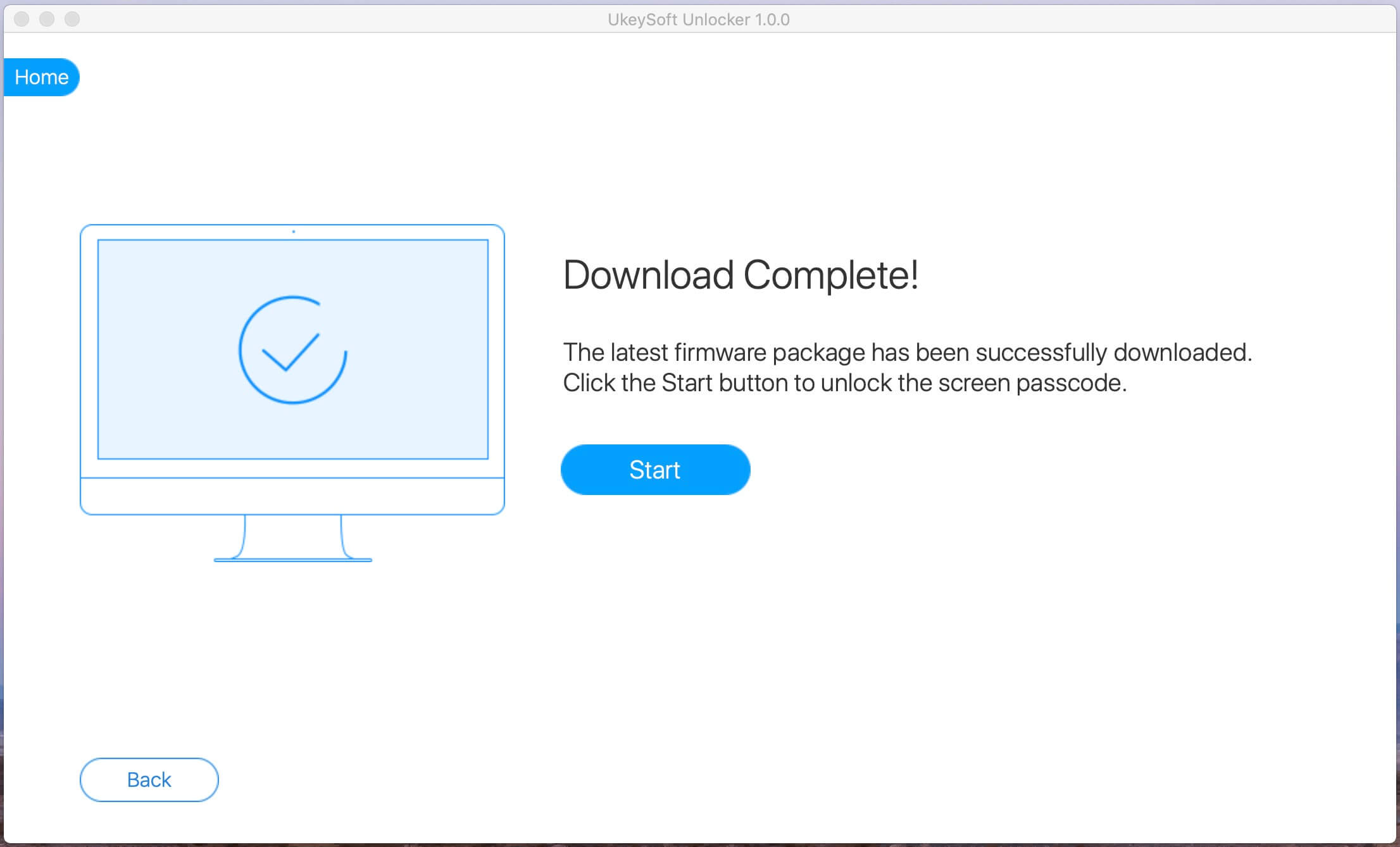
Once the firmware package downloaded completed, the UkeySoft Unlocker will proceed to remove your passcode.

firmware package downloaded completed

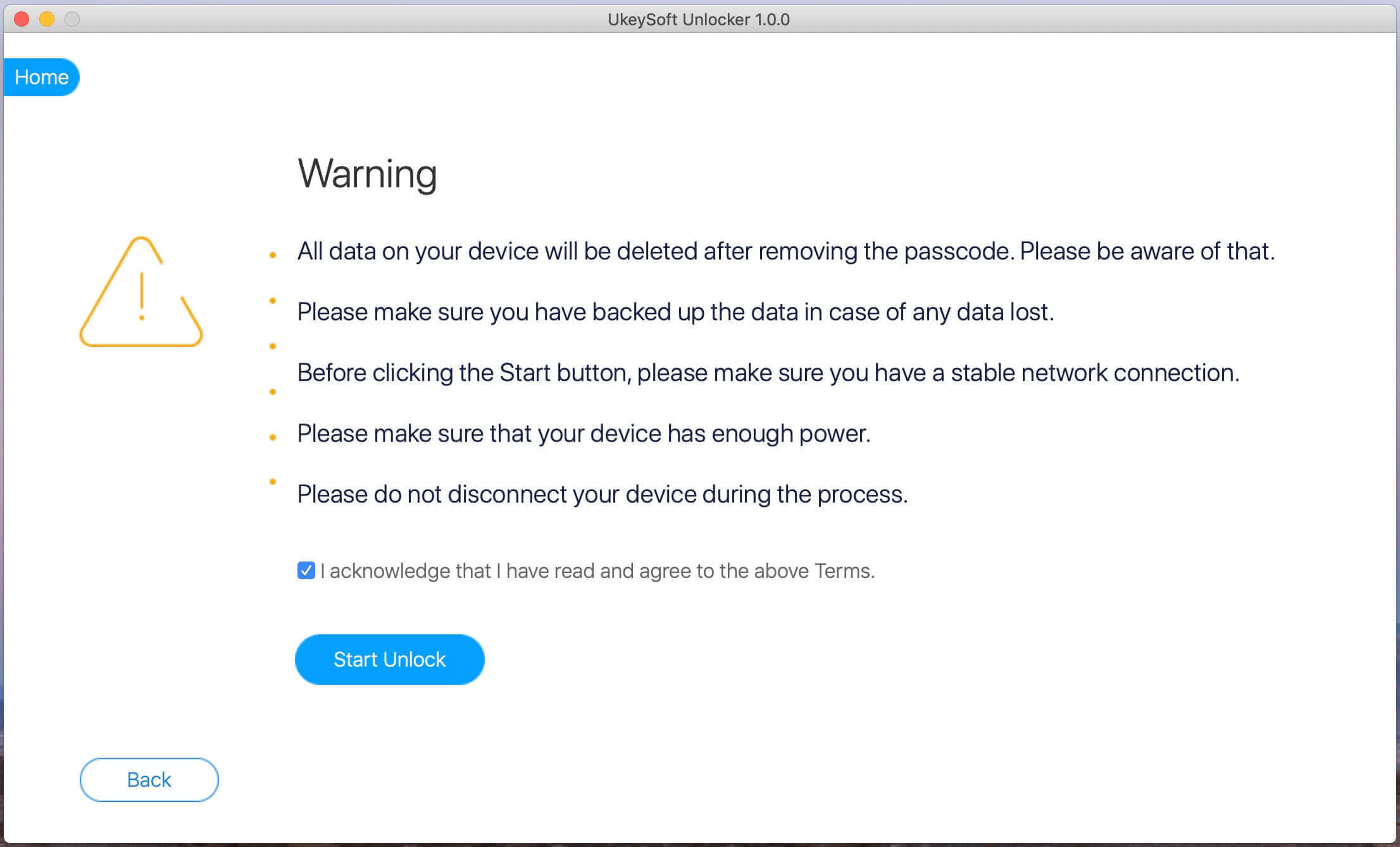
Tips: For that, you would have to click the button “Start Unlock” as shown in the image below. Then you need to confirm the erasing operation as this will erase your iPhone data and settings.

start unlock iPhone screen

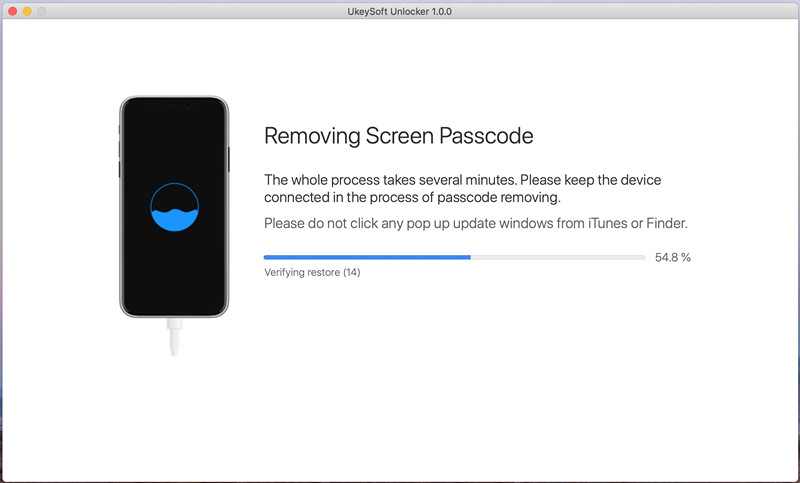
Step 5. Start Remove iPhone Screen Passcode
The software start to remove a forgotten passcode on iPhone.

Remove iPhone Screen Passcode if forgotten passcode

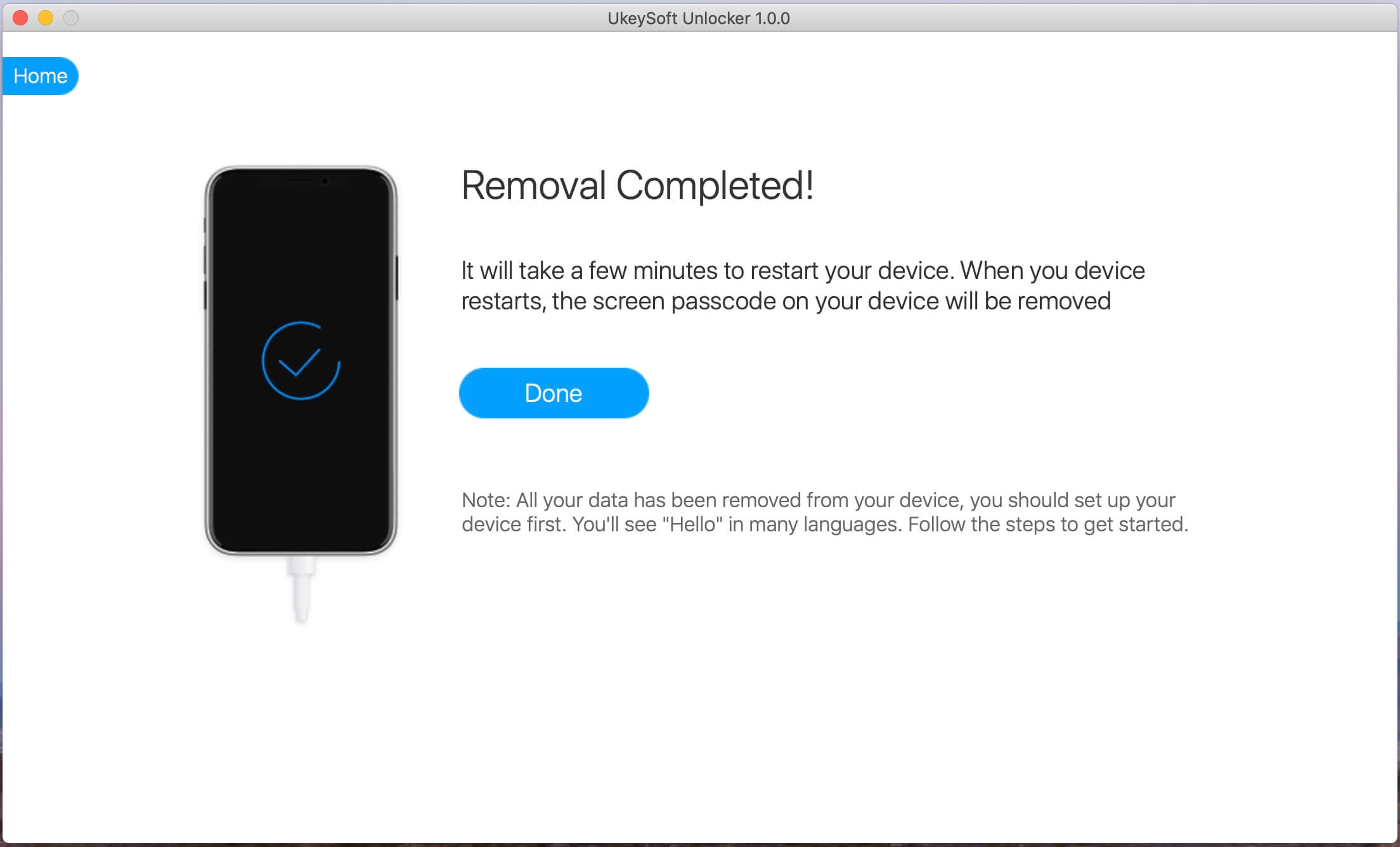
Step 6. iPhone Passcode Removal Completed
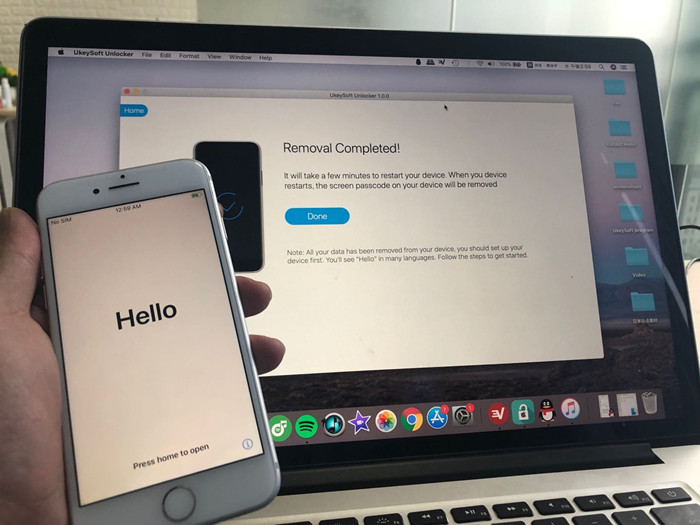
Within a few minutes your iPhone passcode will be removed and the device will restart as a newly bought iPhone without lock screen display.

unlock iPhone passcode

Now, you can set up the device and access the system, the unlocked iPhone looks like a new one, this software could be used to erase all iPhone data and settings before selling.

remove passcode on iphone completed

d_win d_mac
d_win d_mac

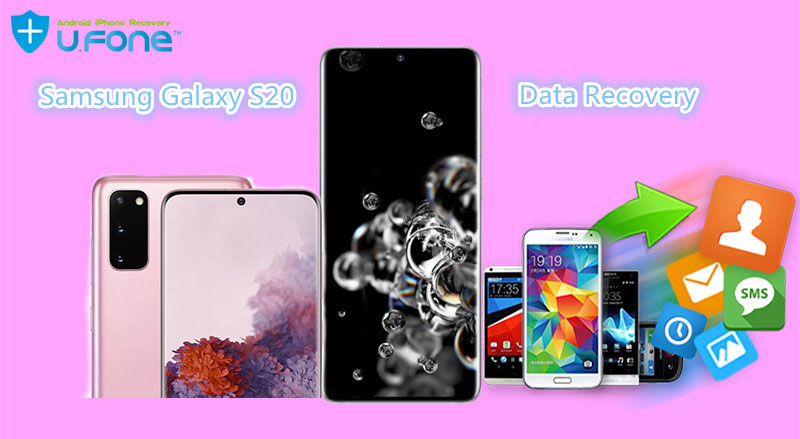
Samsung Galaxy S20 Data Recovery – Recover Lost Data from Galaxy S20

Summary
Samsung Galaxy S20 Data recovery can help you recover deleted or lost data including photos, gallery, videos, photos, contacts, WhatsApp messages etc. from Galaxy S20, S20+, S20 Ultra, and you’ll also learn to back up the device safely in case the loss.

The Samsung Galaxy S20 is one of the most top smartphone in 2020, the Samsung Galaxy S20 comes with a larger screen. There are 5 models of the Galaxy S20 series: 3 sizes of 6.4 inches, 6.7 inches, and 6.9 inches, 5G and LTE will be supported on Galaxy S20 6.4 and 6.7 models, while Galaxy S20 6.9 inches will only support 5G. Samsung Galaxy S20 series all have curved edge display.

As we know, some people may accidentally delete data on their Samsung phone, if those data are very important that they want to recover them.

As a matter of fact, there is an effective way to recover lost data from Samsung Galaxy S20.

1. You need a third-party tool to directly scan and recover data from your Samsung Galaxy S20.
2. If you’ve synced your Samsung with Samsung Kies, you also can regain your deleted data by extracting your Samsung Kies backup file.
3. If you synced your Samsung S20 with Samsung Cloud before, you can recover deleted data from Samsung Cloud backup file.

samsung galaxy s20 data recovery

You may want to read:

How to recover deleted data on Samsung S10

How to transfer iPhone data to Samsung S10/S11

When we are using the Android phone, data loss is common for many reasons. For example, deleting by accident, system crash, factory reset, etc.. When this happens, how to recover lost data on Samsung phone? Here is a tool for you.

Data Recovery for Samsung Galaxy S20, S20+ & S20 Ultra 5G

This Samsung Galaxy S20 Data RecoveryAndroid Data Recovery is the useful Samsung data recovery tool to recover deleted data from Galaxy S20 series. It enables you to recover deleted contacts, text messages, videos, photos, call logs, WhatsApp, documents, etc. It can recover files from the internal storage and from the SD card without backup. It can be your effective Samsung Galaxy S20 Data recovery, as well as recovering data from Samsung Galaxy S10, S9, S8, S7, S6, S5, etc.

d_win d_mac
d_win d_mac

How to Use Samsung Galaxy S20 Data Recovery to Recover Lost Data?

Step 1: Run the Android Toolkit on PC or Mac
Download and install the Samsung Galaxy S10 data recovery to your Windows (or Mac) computer firstly, install it. To recover deleted files on Galaxy S20, please choose “Android Data Recovery” mode.

Samsung Galaxy Note 10/Note 10+ Data Recovery

Step 2: Connect Samsung Galaxy S20 to Computer and allow USB Debugging on it
Connect your Samsung Galaxy S20 to the computer via USB cable, tap “Allow” when prompted on the phone, then the program will detect your Samsung phone automatically.

If it’s the first time you connect your iPhone with the computer, you’ll be required to open USB debugging mode on the Samsung S11. Follow the on-screen instructions to enable it.
Operating procedure on your Samsung Galaxy S20 handset: Open Settings > About phone > Build number, tap it for 7 times to enable the Developer options. Then go back to Settings > Developer options, and scroll down the screen until you find the USB debugging switch, toggle it to ON position.
Also see detailed instructions about how to enable USB debugging on Android phone

usb debugging Samsung Galaxy Note 10

Step 3: Choose types of data files to scan
In this step, please choose what you’d like to scan for the lost files in the Galaxy S20 storage, then click Next button and go on.

choose data types to recover

Step 4: Root for Deep Scanning
Now the tool starts to analyze the Samsung phone and then scan it for all your files.

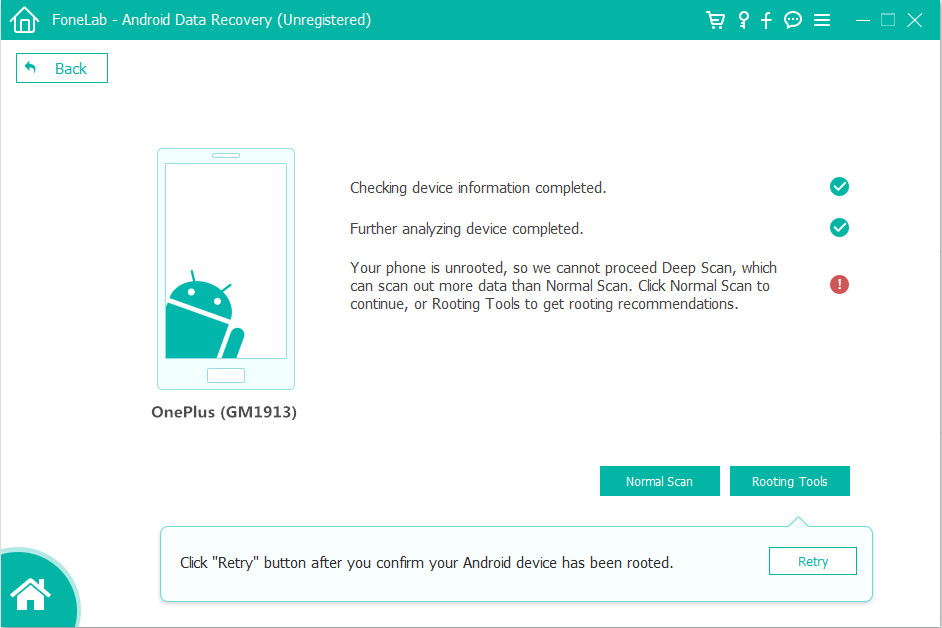
You should be prompted to root the device for a deep analysis of the lost stuff. To do this, press Rooting Tools button and get KingoRoot app on a browser webpage.

Read “How to root and unroot an Android Device” for full tutorial.

root Samsung Galaxy Note 10

Once rooted, just click “Retry” button, the program continues scanning S11. This will take some minutes.

Step 5: Preview and Recover deleted Data from Samsung Galaxy S20 memory
Finally, when the scanning is over, you can find the recoverable files on the left panel, mark the files you need, including contacts, messages, photos, videos, WhatsApp messages, call logs and documents, if you only want to view the deleted files, please switch on “Only display the deleted items”, the software will shows all deleted contents, please select the data you want and hit on “Recover” button to recover deleted data from Samsung Galaxy S20.

recover deleted data from Samsung Galaxy Note 10

The Samsung Galaxy S20 Data Recovery will get back the files and save them locally. Done!

Step 6: Transfer the Data from Computer to Samsung Galaxy S20(Option)
Well done! All deleted files save onto your computer folder, you can use this iOS & Android Manager tool or Android Transfer tool to import the files to your Galaxy S20 easily, the Android transfer also can help you backup data from Samsung Galaxy phone to computer.
Also read: How to transfer files to Samsung Galaxy

d_win d_mac
d_win d_mac

Tips: Backup Up My Samsung Data to Google Cloud

Most Samsung users use Samsung Cloud and Smart Switch to backup their data, the Google cloud backup service also is a great service for backing up Android data over the air. Once it’s backed up, you no worry when losing the device or Android data is corrupted or disappeared.

Google cloud enable us easily to back up data from Samsung phone to Google account: apps, app settings, contacts, photos & videos, call logs, Wi-Fi passwords, account data, and other files. How to backup data from Samsung Galaxy S20 to Google Cloud?

Step 1. On Samsung S11 screen, swipe up or down to get to the apps screen.
Step 2. Tap Settings > Accounts and backup > Backup and Restore.
Step 3. In Google Account section, toggle on “Back up my data” as well as “Automatic Restore”.
[Read Also: 4 Ways to Backup and Restore Android Data]

Compare Motorola Razr 2019 vs Samsung Galaxy Fold

The screen of the Motorola Razr smartphone is a 6.2-inch, 21: 9 OLED panel structure, equipped with a Snapdragon 710 processor, a 16-megapixel main camera, and a front-facing camera of 5 megapixels.

Also read:

How to Transfer Data from Samsung to Galaxy Fold

How to Recover Deleted Data on Samsung Galaxy Fold

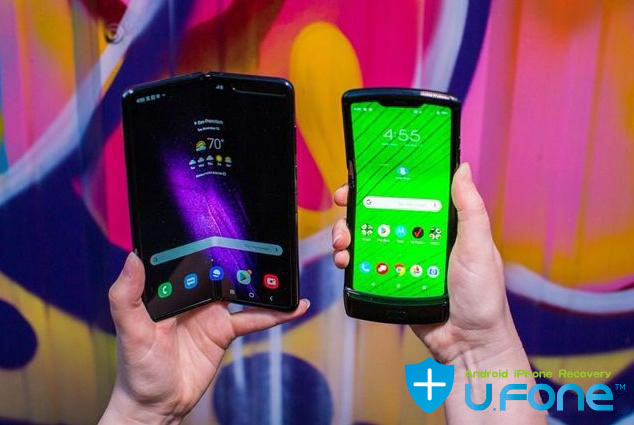
American IT media CNET reported the comparison of the main functions of the Galaxy Fold and Motorola Razr.

Compare Motorola Razr 2019 vs Samsung Galaxy Fold

Designed by Motorola Razr, more practical

CNET claims that the Razr folding screen mobile phone is more close to the “mobile phone” design than the folding and unfolding method on both sides like a book. In addition, unlike thicker bezels and rounded notchs, the positions of Razr’s camera, bezels, buttons, etc. are more familiar to users.

The Galaxy Fold has a 7.3-inch screen, while the Razr has a 6.2-inch screen, which is relatively small. Therefore, compared to the Galaxy Fold, the Razr has become a tablet and is closer to a smartphone. It is a product that can still be put into a pocket after being unfolded.

Compare Motorola Razr 2019 vs Samsung Galaxy Fold

Folding up and down, the folding traces are relatively inconspicuous

Because the Razr folding screen phone is vertically folded up and down, compared to the Galaxy Fold, the folded part is about 2.8 inches less. Of course, Razr can still see the trace of the folding, but compared to the Galaxy Fold, it is not so obvious.

Samsung Galaxy Fold, you can do more in small screen

Motorola Razr folding screen mobile phone, external auxiliary screen, can provide signal or battery status, and support notification function, can carry out limited functions such as selfie, video call, music playback.

The Samsung Galaxy Fold’s outside auxiliary screen can basically run all Android software, so it can also be traversed when folded.

Razr’s durability is still in doubt

Compare Motorola Razr 2019 vs Samsung Galaxy Fold

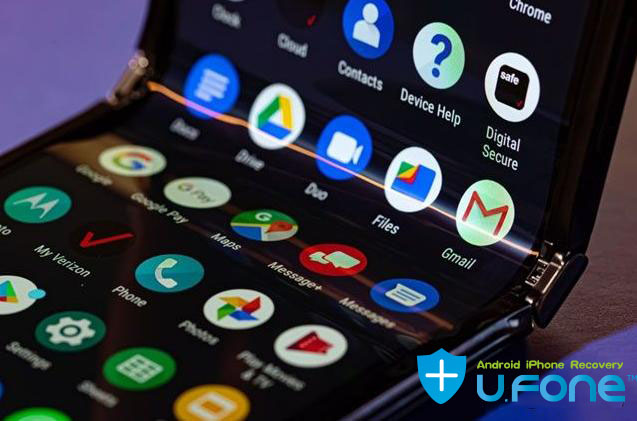
CNET said that if you look at the Razr folding screen phone carefully, there are some physical factors in question. Although the hinge design is very good, because some devices are exposed to the inside and outside of the phone, there may be some debris or dust infiltration.

In addition, the Razr phone has some fingernail-shaped grooves, and the screen is separated from the frame, so dust will flow in. The durability of the protective film on the surface of plastic OLEDs has yet to be confirmed.

At Samsung Electronics’ Galaxy Fold, some people had torn off the screen protector in the early stage and had screen damage, and foreign matter had penetrated into the hinge to cause problems. Afterwards, Samsung Electronics directly extended the protective film to the position of the frame, so that users could not easily remove it, and redesigned the chain.

Video experience

Motorola Razr mobile phone has a “chin” on the bottom, so when watching videos in horizontal screen, you can grab the chin, very convenient. However, CNET claims that Motorola’s screen ratio is a 21: 9 ratio called cinema vision, which cannot be balanced for all videos. In addition, when watching videos in the vertical screen state, the screen is too narrow, which is very inconvenient, and you can only get a better experience by watching it horizontally.

Razr camera design structure is backward

The Galaxy Fold is equipped with six high-performance cameras, while the Razr has only one main camera with 16 megapixels and the front camera has only 5 megapixels. This is for video calls.

What about the battery of the Razr folding screen phone?

Compare Motorola Razr 2019 vs Samsung Galaxy Fold

Motorola claims that the battery of the Razr folding screen phone can last for one day, but CNET has questioned the actual battery life. The reason is that the Razr battery has only 2,500mAh capacity. The reference battery performance is not so good. The battery capacity of the Google Pixel 4 phone also reached 2,800mAh, which is higher than the Razr battery.

In addition, the battery of the folding screen mobile phone is disassembled into two. This can form a stable balance when holding a device, but the battery as a whole is more efficient than two batteries. So from the perspective of the Galaxy Fold, a 4,380mAh battery is less efficient than a battery of the same overall capacity.

Galaxy Fold is more excellent in other performance

In addition to the camera, Samsung Electronics’ Galaxy Fold offers a wider screen, a high-performance processor Snapdragon 855, and wireless charging. Supporting 5G in South Korea and the United Kingdom, the internal RAM capacity is also more than twice that of Razr.

Related Articles

How to Recover Photos, Messages, Contacts, WhatsApp on Motorola Phone

Backup and Restore your Android on Computer

How to Erase Data on Android Phone before Selling

How to Recover Deleted Data on Samsung Galaxy Note 10/Note 10+

[Summary]: Deleted data on Samsung Galaxy Note 10? Don’t worry, here is an effective method to recover photos, SMS, contacts, call logs, videos, WhatsApp data and documents from Samsung Galaxy Note 10 or Note 10+.

Samsung Galaxy Note 10 & Note 10+, Samsung Galaxy S10/S10+/S10e is Samsung’s flagship smartphone in 2019, which compete with iPhone 11 Pro, iPhone XS/XR/X, Huawei Mate 30 Pro, P30 Pro, OnePlus 7T PRO, Xiaomi MI 9T PRO, Google Pixel 4XL and other top smart phones. Then the brand new Samsung Galaxy Note 10 or Note 10+ might be a good choice for you, since they both have some amazing cameras as well as feature all the necessities for a flagship smartphone.

Samsung Galaxy Note 10, with a screen size of 6.3 inches, and a 3,500mAh battery inside, this is a phone that you can get some serious work done on. There’s also some excellent audio capability packed in here, with Dolby Atmos and UHQ upscaling included. Whichever part of the Note 10 you look at, it ends up impressing. What really makes the Note 10 stand out on this best Android phones list, though, is that superb S Pen stylus. It’s been improved and upgraded once more this year with a huge 10-hour battery life and new Air Gestures feature, the latter allowing you to control your phone by using the stylus like a wand. Everything from the playback of videos and music tracks, to the browsing of websites, and onto the control of the phone’s camera can now be undertaken with a flick of the wrist.

Lost or Deleted Data on Samsung Galaxy Note 10/Note 10+?

However, there are many other reasons could cause data loss, like virus attack, OS update, accidental deletion etc. If you are the one who are suffering from the trouble of data loss as mentioned above, then you might be at stake with your new Samsung Galaxy Note10 or Note10 Pro. As your smartphone is precious to you, so is the data in it. To help you get rid of this trouble, we will be telling you about a few Samsung Galaxy Note 10/Note 10+ Data Recovery software and apps that help you to recover deleted files from Samsung Android internal memory without any hassle.

Before we get into what is going on, we will have to cover some tips on Samsung Note 10 data recovery:

As a matter of fact, they were not really gone from your Samsung phone, but marked as useless and hidden on device, which could be overwritten by the new data. Don’t use your Samsung phone once data lost, as the deleted data may be overwritten by new content, because the data is still on the device and you can get them back with the help of Android Data Recovery tool. To avoid overwritten the deleted data, you had better stop using your phone and try to recover your lost files ASAP.

U.Fone Android Data Recovery: A Samsung Galaxy Note 10/Note 10+ Data Recovery

Thanks to Android open nature, you are able to easily recover deleted files from your Samsung Galaxy Note 10/Note 10+ by using a 3rd Android Data Recovery software.

This Android Data Recovery is a good helper for you to recover your deleted data from Samsung Galaxy Note 10/Note 10+, Galaxy Note 9/Note 8/Note 5/Note 4, etc. It can recover all kinds of files, including photos, contacts, SMS, videos, audios, call history, WhatsApp chat history, documents and other files from Samsung phones, as well as recovering lost data from Android SD card. This Android Data Recovery supports multiple Android phones and tablets, like Samsung Galaxy J Series, S Series, Note Series, Y Series, Huawei, LG, HTC, Sony, Google Pixel, Nexus, OnePlus, Motorola, Xiaomi, Redmi, Oppo, Meitu, Windows Phone, Sharp phones and so on.

The Broken Android Data Extraction can help you recover Samsung lost data due to different issues, like accidentally deletion ,broken device, water damaged, virus attack, or have its system crashed, it also enables you fix Android OS to normal if your phone gets bricked.

After rooting your Android devices, this Android data recovery can help you recover data from any Android devices. In addition, the software provides the feature to display all deleted and existed information in detail, you can check them one by one to make sure those deleted data still store in the phone, not completely removed or overwritten by new files, then you can mark all deleted call logs, contacts and SMS you need and selectively restore and save them to computer for printing, or you can restore the contacts, photos, videos and other files back to Android devices for view or use.

In addition to the above functions, you also can use it to extract data from broken Samsung Galaxy Note 5/Note 4/Note 3/Galaxy S6/S5/S4 or fix your phone issues like frozen, crashed, black-screen, virus-attack, screen-locked, get the phone back to normal.

What’s more, the Android Toolkit also can help you backup and restore data on your Samsung Galaxy Note 10/Note 10+, including SMS, contacts, call logs, WhatsApp data, pictures, videos, audios and documents.

Now you can download the trial version to get your Android lost data back.

d_win d_mac
d_win d_mac

How to Restore Deleted Data from Samsung Galaxy Note 10/Note 10+?

Step 1: Connect Samsung Note 10 to computer
After installing the software properly on your computer, open it and you will get an easy-to-navigate interface with three tabs on. Since you’re going to recover deleted files from Android internal storage or memory card, go with the mode labeled “Android Data Recovery” and move on.

Samsung Galaxy Note 10/Note 10+ Data Recovery

Then, connect your Samsung Note 10 to computer using a USB cable.

Step 2: Enable USB Debugging to scan your phone
Once detected, the program will present you with simple instructions to turn on USB Debugging Mode on your phone. If you’ve done this before, skip to Step 3.

For more details, you can also refer to How to Enable USB Debugging Mode on Android.

usb debugging Samsung Galaxy Note 10

Step 3: Choose Types of Data to Recover
In next window, you’ll be prompted to select which types of data you want this Android file recovery software to search. please pick only the types you wish to recover, so we can speeds up the scan process.

Click the Next to go on.

choose data types to recover

Step 4: Go to root permission for a complete scan
The program will check the device information and perform a basic scan of the device. If it can’t find the files you need, it’s suggested that you root the phone to access to the full Android system. (You can unroot the device after the recovery task.)

To do so, click the Rooting Tools button at the lower right position. At this point, you will be taken to an external website to download a free Android rooting tool — KingoRoot to root the Samsung Galaxy Note 10.

[Also Read: How to Safely Root and Unroot an Android Device with KingoRoot ]

root Samsung Galaxy Note 10

After you’re rooted, this Android Data Recovery software will begin running a deep scan of your Android’s phone memory and SD card to search for the deleted Stuff. Please be patient.

Step 5: Preview and recover deleted files from Galaxy Note 10
When the scan is done, you can preview and sort the list of data files accordingly on the screen.

You can toggle the button to ON position on the top of the screen to display only the deleted items. It also offers an advanced search option in the upper right corner to help you quickly locate what you want from the results.

recover deleted data from Samsung Galaxy Note 10

To get back the deleted data files from Samsung Note 10, just check the boxes next to items you want and then hit “Recover” button.

d_win d_mac
d_win d_mac

Well done, you have recover data from Samsung Galaxy Note 10, all files saved onto your computer, if you want to import the files to your Note 10 for using again, you can use this Android Transfer tool to transfer them to your phone easily.
Also read: How to Import Files from Computer to Samsung Galaxy Note 10/9/8

Related Article

How to Recover Deleted Photos on Samsung Galaxy Note 10/Note 10+

How to Recover Deleted Files from Samsung Galaxy Note 10

How to Transfer Data from iPhone to Galaxy Note 10/Note 10+

How to Recover Photos, Messages, Contacts, WhatsApp on Motorola Moto G7

[Summary]: Looking for ways to recover deleted data from Motorola Moto G8, G7, G6, G5, G4, G3 or other mobile phones? Here is a Motorola data recovery app that can help you recover deleted photos, messages, call logs, contacts, WhatsApp messages and documents from Motorola Moto series.

Which is the most most affordable and reliable Android phones of 2019? Motorola Moto G7, OnePlus 7 Pro, Google Pixel 3A, Samsung Galaxy S10E, Samsung Galaxy Note 10 Plus, all is a good choice; which is the best Android phone right now? Of course, these are the best Android phones of 2019: SAMSUNG GALAXY S10 PLUS, HUAWEI P30 PRO, HUAWEI Mate 30 PRO, ONEPLUS 7T PRO, SAMSUNG GALAXY NOTE 10, XIAOMI MI 9T PRO, HUAWEI MATE 20 PRO, GOOGLE PIXEL 4, NOKIA 9 PUREVIEW, SONY XPERIA 5, HTC U12+ and XIAOMI MI NOTE 10.

The exciting thing for any prospective shopper right now for a quality Android phone is that, thanks to the Black Friday sales, there are plenty of awesome handsets currently retailing for truly bargain price points. If you make sure you do your homework properly and shop smart, chances are you’ll be able to narrow down the perfect Android phone for you. If you want to buy a cost-effective Android phones, I recommend Motorola Moto G7, which is one of the most affordable and reliable Android smart phone, though G7’s single speaker doesn’t offer the greatest sound, and it takes mediocre low-light photos and video, the G7 has dual rear cameras, an enduring battery life and a sleek design, it also charges really quickly, the Motorola Moto G7 with 64GB Memory may about cost $299.99 on US.

When you have got Motorola Moto G7, you may often take photos with it’s dual rear cameras, but when you deleted photos on Moto G7 by accidentally, or lost contacts, SMS, call logs and other data after factory reset Moto G7. However, it faces the same data loss issues as other Android phones. So, how to recover deleted data from Motorola phone has become one of the most concerned topics.

This does not require much technical expertise to recover data from Motorola Moto G7, G6, G5 or other Android phones . Below, we’ll cover the easiest way, and you can easily recover deleted and lost data on Motorola G series phone.

Is it Possible to Recover Deleted Data from Moto G7

When you deleted files on your Moto G7, G6, G5, G4, G3, the Android OS only removed the pointers to the files and marks the memory space containing the files as blank and available for use. In other words, the deleted data does not erased permanentl. Actually, the deleted data are still on the phone memory, until it overwrite and replace with other data. With the help of a professional Moto data recovery tool, it is entirely possible to recover deleted files from Motorola mobile phone.

Motorola Data Recovery Solution: Recover Deleted Data on Motorola series

This Android Data Recovery is a powerful Motorola data recovery app. With it, users can recover deleted or lost contacts, call logs, messages, photos, videos, audios, WhatsApp messages and What’sApp cal logs, etc., from Moto G7, G6, G5 as well as other Android phones quickly. What’s more, this Android data recovery tool is highly reliable and really easy to use. You can view the step-by-step guide below to learn how to use this Android Data Recovery to recover deleted data from your Motorola Moto G7.

d_win d_mac
d_win d_mac

Guide: Process for Motorola Moto G7 Data Recovery

Step 1: Run the Android Toolkit
Download the utility with appropriate version on any PC (or Mac) firstly, install it.

Open up the software, and in its main interface, choose “Android Data Recovery” mode.

Android SMS Recovery

Step 2: Connect Moto G7 and allow USB Debugging on it
Plug your Moto G7 into computer. Tap “Allow” when prompted on the phone.

Then you’ll need to have USB debugging mode enabled on your Moto G7 to grant your access to it. You can turn to this article for help: How to Enable USB Debugging Mode on Android Device. If you have done this before, skip to next step.

usb debugging OnePlus 7T/7T Pro

Step 3: Choose types of data files to scan
On the next interface, choose what you’d like to scan for the lost files in the Moto G7 storage. For this case, check the “Contacts”, “Text Messages”, “WhatsApp Messages”, “Picture Library”, “Gallery”, “Call Logs”, “Documents” option and click the Next button to proceed.

Restore Moto G7 Delete Data Files

Now the tool starts to analyze the phone and then scan it for all your files.

You should be prompted to root the device for a deep analysis of the lost stuff. To do this, press “Rooting Tools” button and get KingoRoot app on a browser webpage.

Read “How to root and unroot an Android Device” for full tutorial.

root Moto G7

Once rooted, the program continues scanning Moto G7. This will take some minutes.

Step 4: Preview and Recover Lost Data from Moto G7
When the scan completes, the app shows a tidy interface with a clearly organized menu of content types that you can view, and if you switch on “Only display the deleted items”, you’ll get to what you’re looking for.

recover deleted phoots on Moto G7

Select the contents you are going to retrieve, and click “Recover” button on the bottom right.

Recover Lost Data on Moto G7

A dialog will open. From there, choose a folder on the computer as the recovery destination.

After that, press Recover button to get back the files and save them locally. Done!

d_win d_mac
d_win d_mac

How to Put iPhone 11/11 Pro, iPhone XR/XS/X into Recovery Mode

[Summary]: Want to put the iPhone XS, XR, XS Max, or iPhone X into recovery mode or DFU mode to restore with iTunes or macOS Finder (for Catalina and later), or to fix ios system to normal? This article teach you how to enter recovery mode or exit recovery mode on iPhone XR, XS, XS Max, iPhone X, iPhone 8/8 Plus.

Sometimes you may put your iPhone into Recovery Mode to effectively restore the device, fix iPhone stuck on Apple logo screen/black screen of death, remove iPhone screen passcode(unlock iPhone) and fix various ios system error.

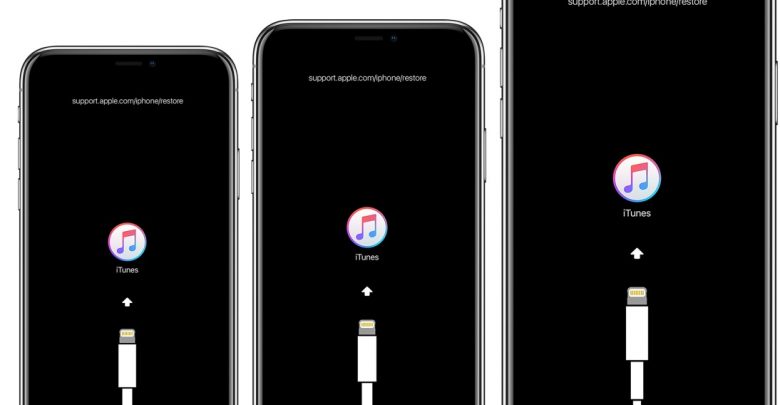
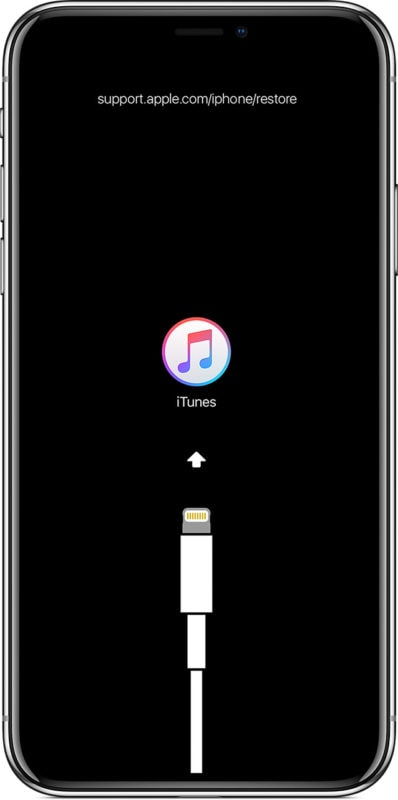
If your iPhone XS, XR, XS Max or X is stuck on the Apple logo for an extended amount of time and does not boot, is stuck on the iTunes logo with a USB cable, or if the computer is not recognizing the iPhone. When in Recovery Mode, the iPhone XS, XR, XS Max, or X can be restored directly with iTunes or macOS Finder (for Catalina and later), but it will erase all iOS data and settings when your using iTunes/macOS Finder to restore the devices.
Also read: How to fix iOS to normal without data loss

How to put an iPhone XR, iPhone XS, iPhone XS Max, or iPhone X into recovery mode? This article teach you how to enter or exit recovery mode on iOS 13 devices, If you have an older iPhone, then follow the instructions for putting older iPhone models into Recovery Mode instead.

enter recovery mode on iphone xs, iPhone 11 pro

What to do before putting iOS 13 devices into recovery mode

1. A Apple USB cable
2. A computer with the latest version of iTunes, or MacOS Catalina or later
3. Update iTunes to the latest version before attempting to use Recovery Mode.
4. Backup your iPhone data, because using recovery mode or attempting to restore without a backup can result in permanent erase your data.

How to Put iPhone XR, XS, XS Max, X, 8, 8 Plus into Recovery Mode

Backup your iPhone data before beginning. Failure to have an available backup may lead to permanent data loss from the iPhone.

Step 1. Connect the iPhone XR, iPhone XS, iPhone XS Max, or iPhone X to a computer with a USB cable
Step 2. Open iTunes on the computer (Mac or Windows, or in macOS Catalina open Finder)
Step 3. Press and release Volume Up on the iPhone
Step 4. Press and release Volume Down on the iPhone
Step 5. Press and continue holding the Power button until the iPhone XR, XS, XS Max, X is in recovery mode

Put iPhone 11/11 Pro, iPhone XR/XS/X into Recovery Mode

iTunes (or Finder) will show an alert stating an iPhone has been found in Recovery Mode
After the iPhone has entered into Recovery Mode, you can update the iPhone XR, XS, XS Max, X with the latest available iOS release, or restore with iTunes (or Finder) as usual either with a backup or by setting the device up as new.

An iPhone in recovery mode can also be restored by using IPSW if needed, as long as the IPSW file is actively being signed by Apple and matches the specific iPhone XR, XS, XS Max, X model. You may find iOS IPSW files here for the latest iOS versions.

How to Exit Recovery Mode on iPhone XR, XS, XS Max, X

Exiting Recovery Mode happens automatically once the iPhone is restored or updated, but you can also exit recovery mode without restoring by issuing a force reboot to the iPhone XR, XS, XS Max, X as follows:

Step 1. Disconnect the iPhone XR, XS, XS Max, X from the computer
Step 2. Press and release the Volume Up button on iPhone
Step 3. Press and release the Volume Down button on iPhone
Step 4. Press and hold the Power button on iPhone, continue to hold until you see the  Apple logo appear on iPhone screen
Step 5. Exiting Recovery Mode will return the iPhone to whatever the prior state was before it was placed into recovery mode in the first place. If the iPhone was stuck on the ‘connect to iTunes’ screen anyway, then it won’t boot back into the normal home screen or lock screen.

All other iPhone (and iPad) models can also enter into recovery mode is needed for troubleshooting purposes, but the steps to do so differ per device.

Additionally, DFU mode is available for when Recovery Mode is not working to restore a device. DFU mode is a lower level restore mechanism but is rarely needed.

Looking for a safe way to fix your system problem? Please keep reading the below effective guide, you need to free download an iOS system recovery to repair your iPhone software problem.

Repair All iPhone Problems with iOS System Recovery(No Data Loss)

If you’re having trouble with your iPhone or iPad – for example: iPhone Stuck in Recovery Mode, iPhone Stuck in Spinning Circle, iPhone Stuck on Apple Logo, White Screen of Death, Black Screen of Death, iPhone Frozen, iPhone Boot Loop, iPhone Won’t Turn On, iPhone Restore Failure, iPhone Update Failure, or you can’t get it out of recovery mode – this reliable iOS system recovery software is exactly what you need.

This iOS System Recovery is expert at fixing your iPhone/iPad/iPod touch device when you cannot enter the system in normal way and compared with iTunes, the iPhone fix tool can repair with various iOS system issues like white Apple logo, boot loop, recovery mode, DFU mode, etc. Besides, it can fix your iOS system without data loss. What’s more, it also can help you downgrade iOS without iTunes through downloading and installing IPSW firmware, no data loss at all.

Main Features of iOS System Recovery

  • Enter & Exit Recovery Mode With One Click, No Data Loss
  • Fix 50+ iOS System Problems without Data Loss
  • Factory Reset iPhone/iPad without iTunes/Password – Unlock iPhone
  • Supports all iOS versions and devices including the latest iOS 13 devices
  • Works well with Windows and Mac computer

d_win d_mac
d_win d_mac

How to Fix iPhone Stuck in DFU Mode

Step 1: Launch the iOS Toolkit on PC or Mac
Run the software on your computer and connect your iPhone to the computer via a USB cable.

connect iPhone to computer

Step 2: Click “iOS System Recovery”
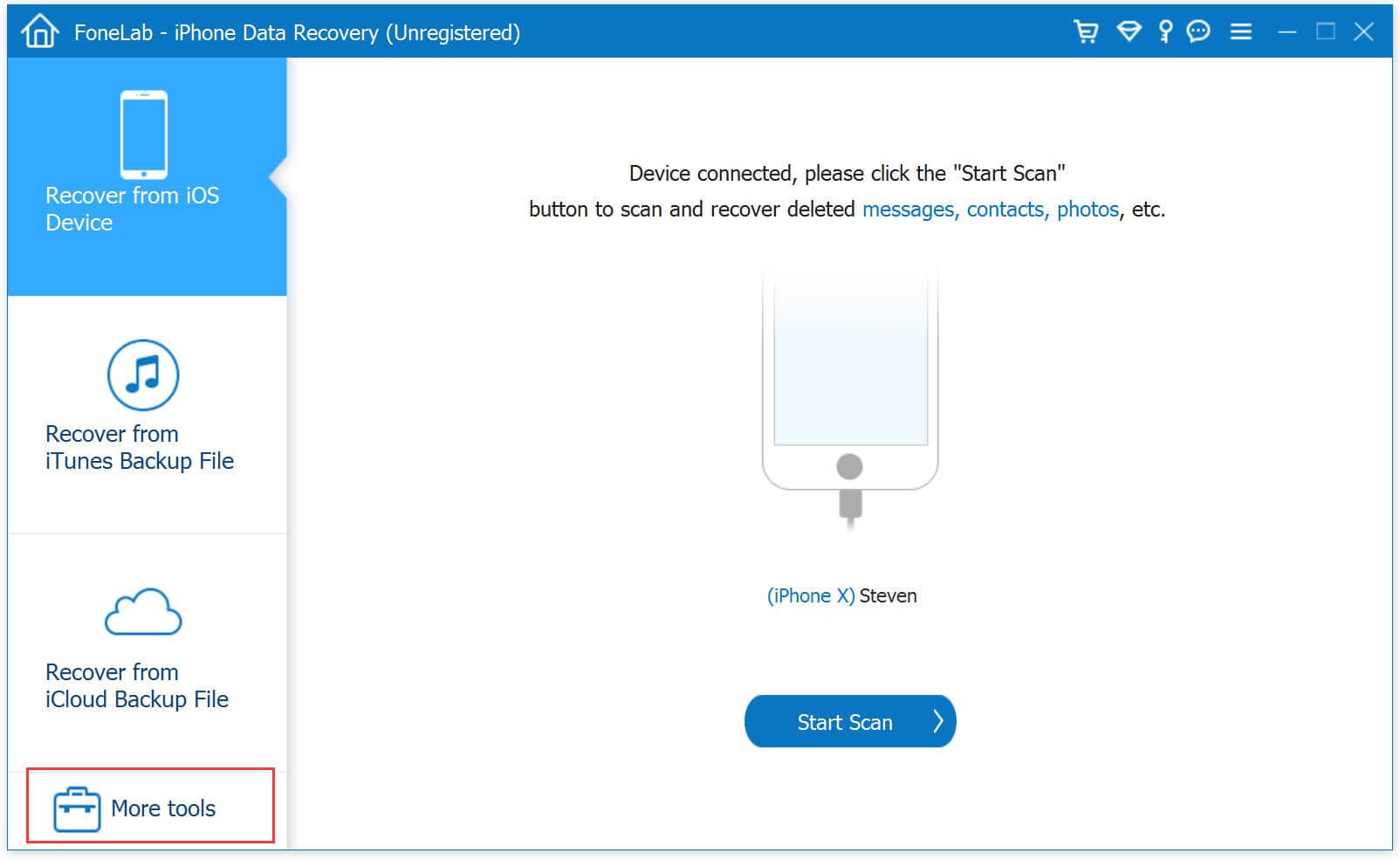
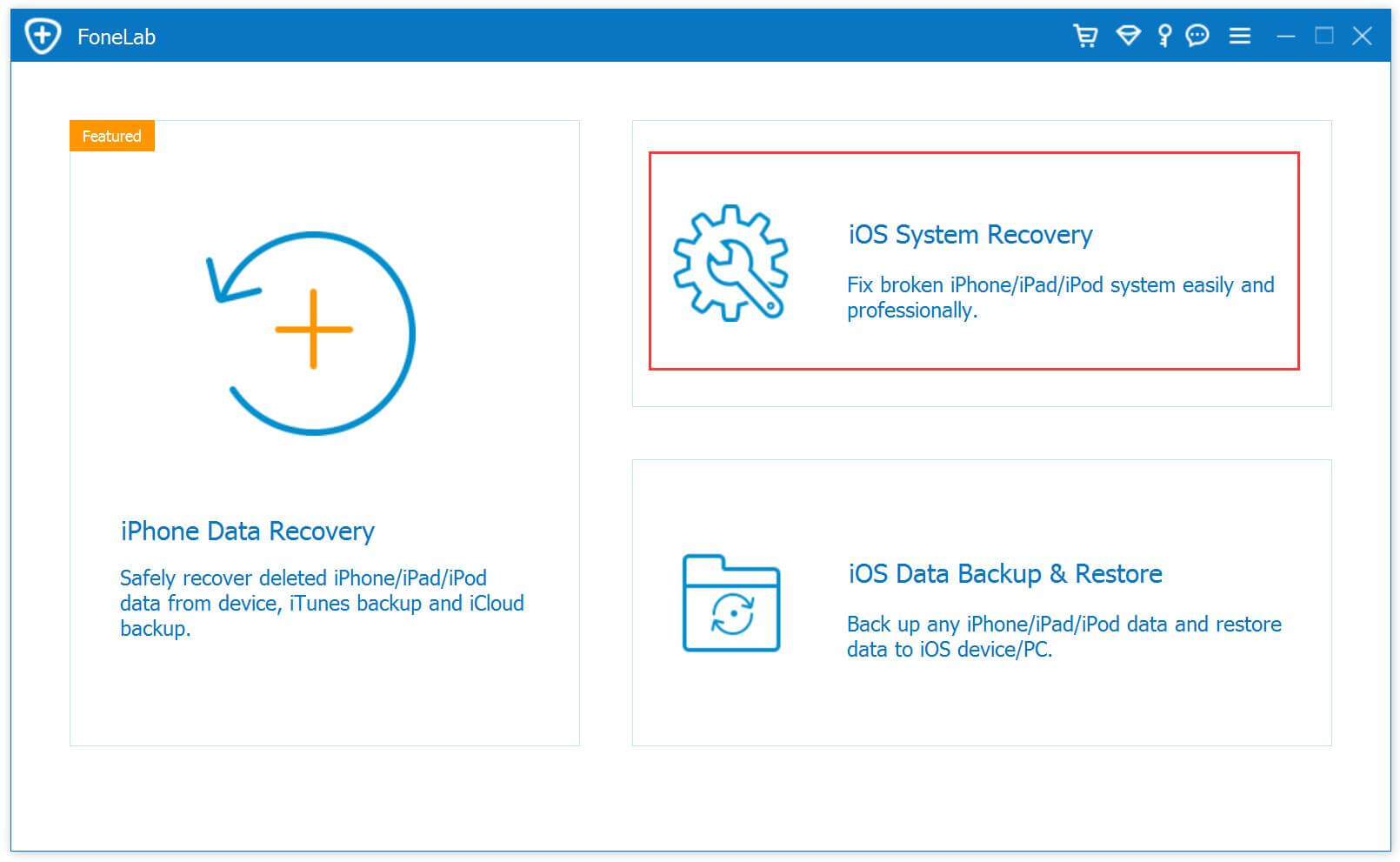
You’ll see there are three main functions: iPhone Data Recovery, iOS System Recovery , iOS Data Backup & Restore. To fix the iPhone stuck in DFU mode, click the More tools and click “iOS System Recovery“.

launch iOS System Recovery

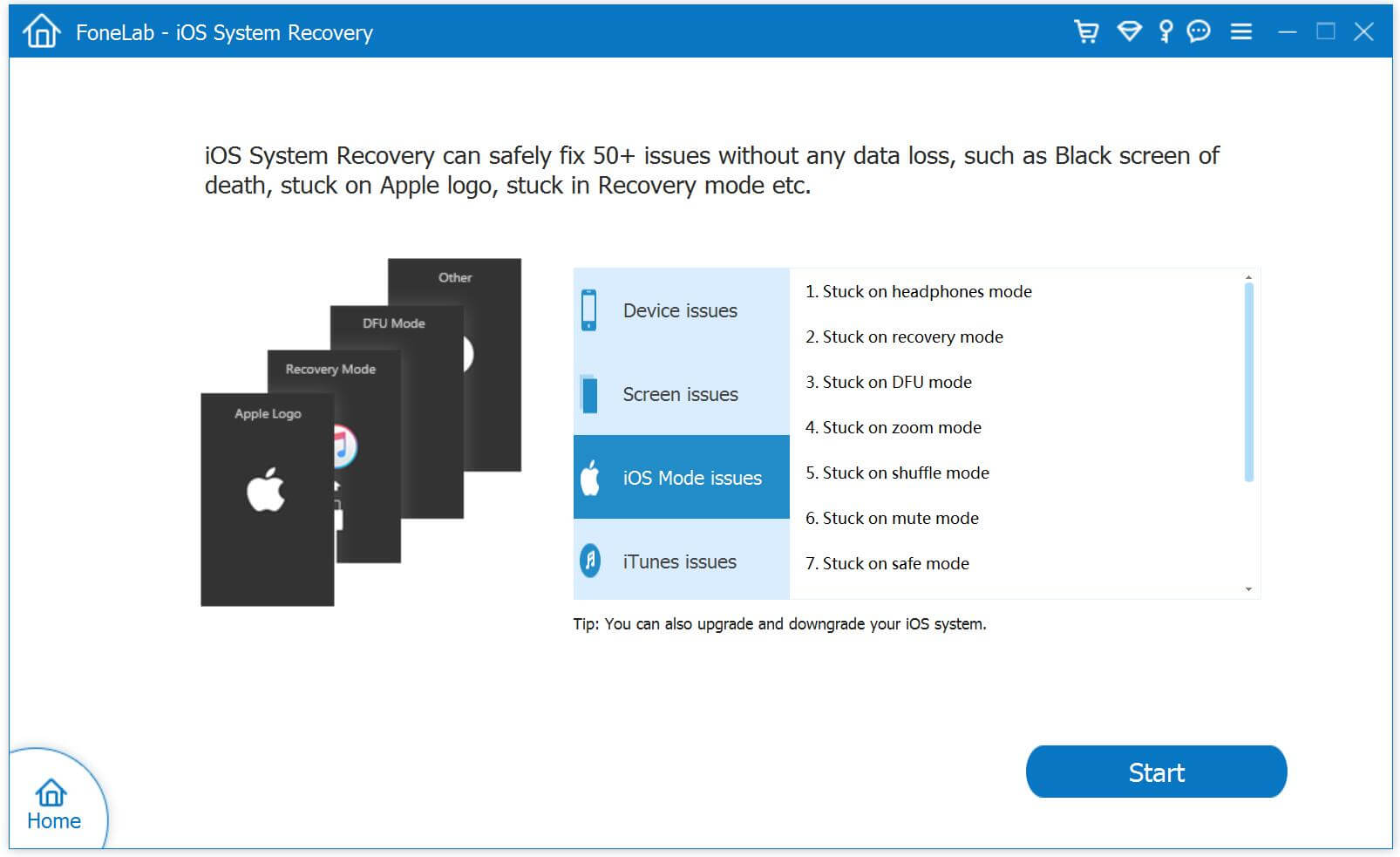
The iOS System Recovery can hep you fix iPhone stuck on recovery mode, headphones mode, DFU mode, etc. Then, hit the “Start” button at the lower right corner to go on.

select iOS Mode issues option

Step 4: Choose a Repair Mode
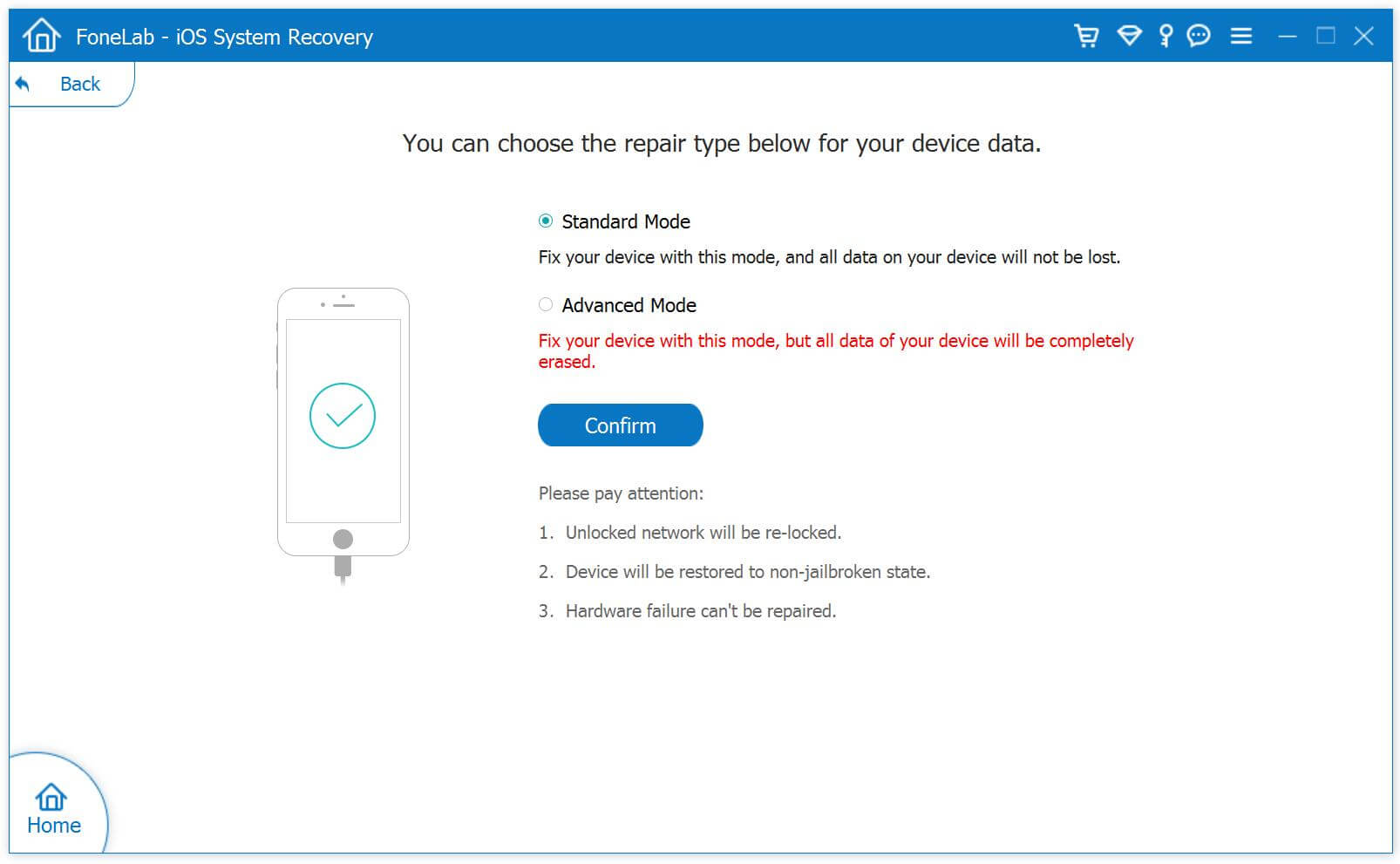
You then will get into a new window, like the screenshot below. Please select “Standard Mode” or “Advanced Mode” to fix your iPhone device, then click “Confirm” to go on.
“Standard Mode” – Fix your device with this mode, all data on your device will not be lost.
“Advanced Mode” – Fix your device with this mode, it will erase all data on your device.
Suggest that you go to the advanced mode only if the standard mode fails.

iPhone fixing mode

Step 5: Enter Recovery Mode
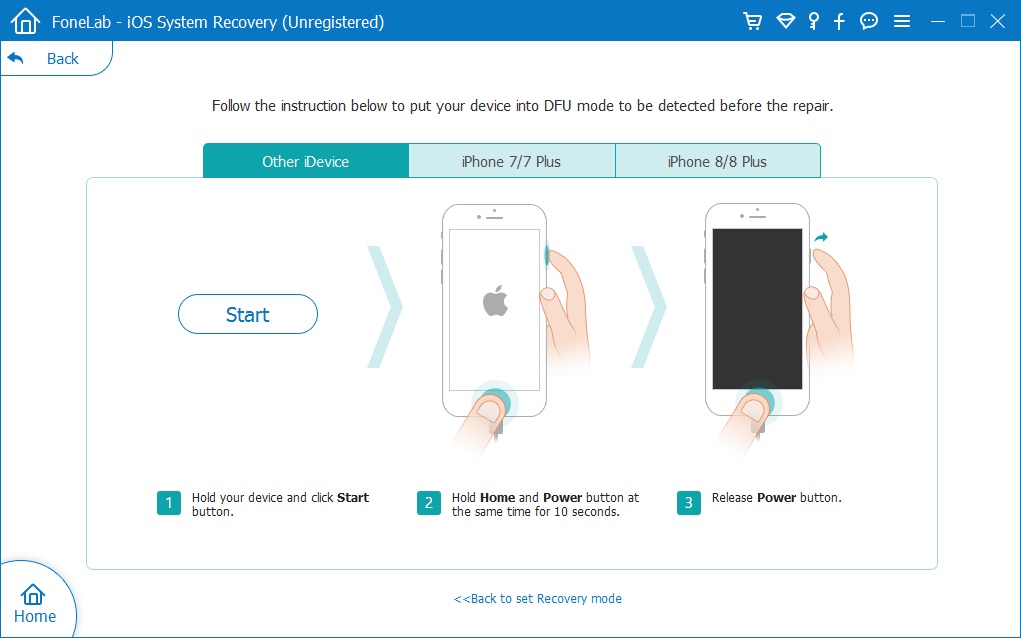
If your iPhone stuck on recovery mode, please skip this step. At this point, follow the instructions on the window to put your iPhone into recovery mode, you also can follow the below instructions to enter recovery mode on iPhone 11/11 Pro, iPhone XR/XS/X, iPhone 8 and iPhone 8 Plus.

put iPhone into DFU mode

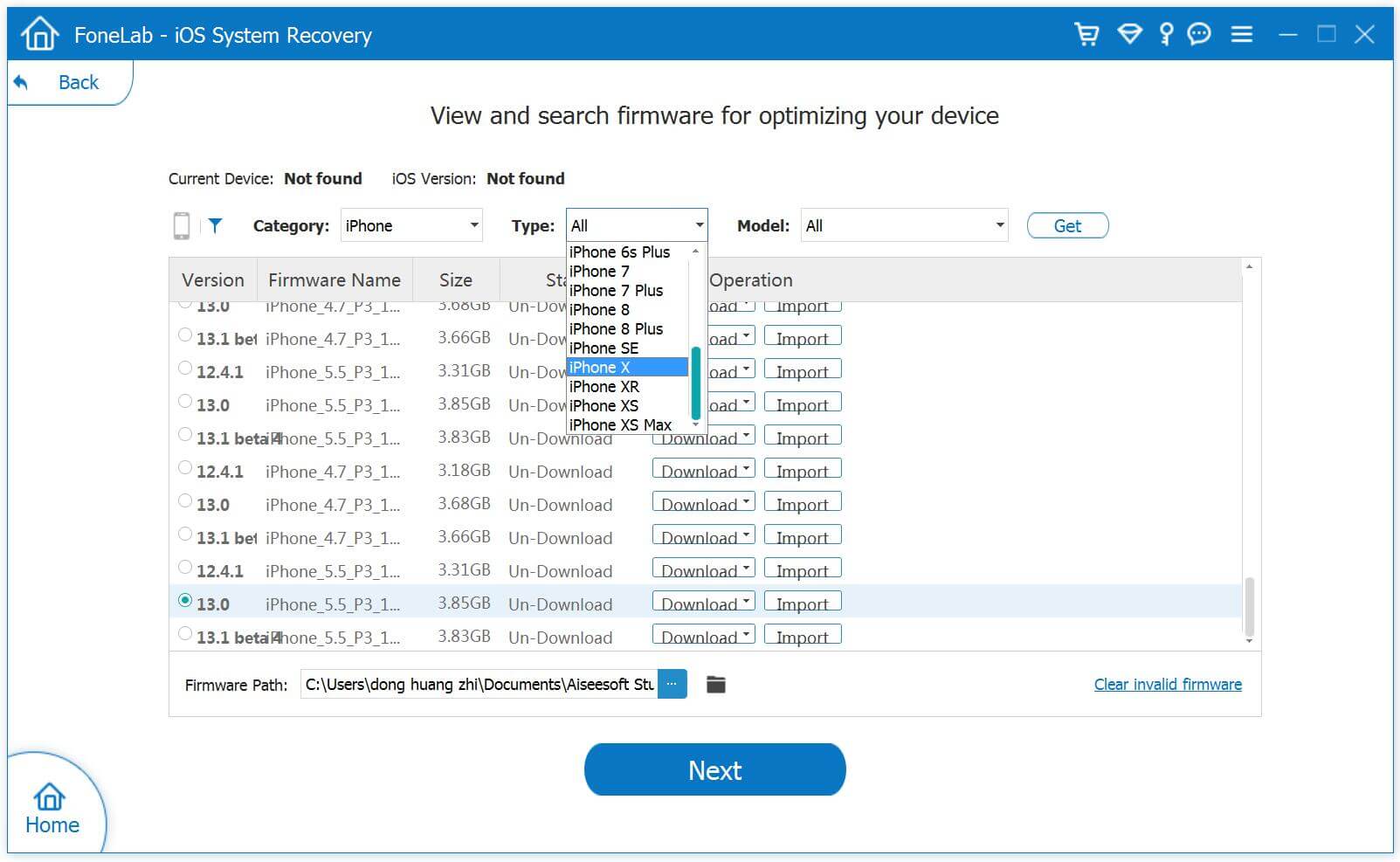
Step 6: Select Firmware to Download
Select a suitable ios firmware package and start to download.

Select Firmware - iOS 13/12/11/10

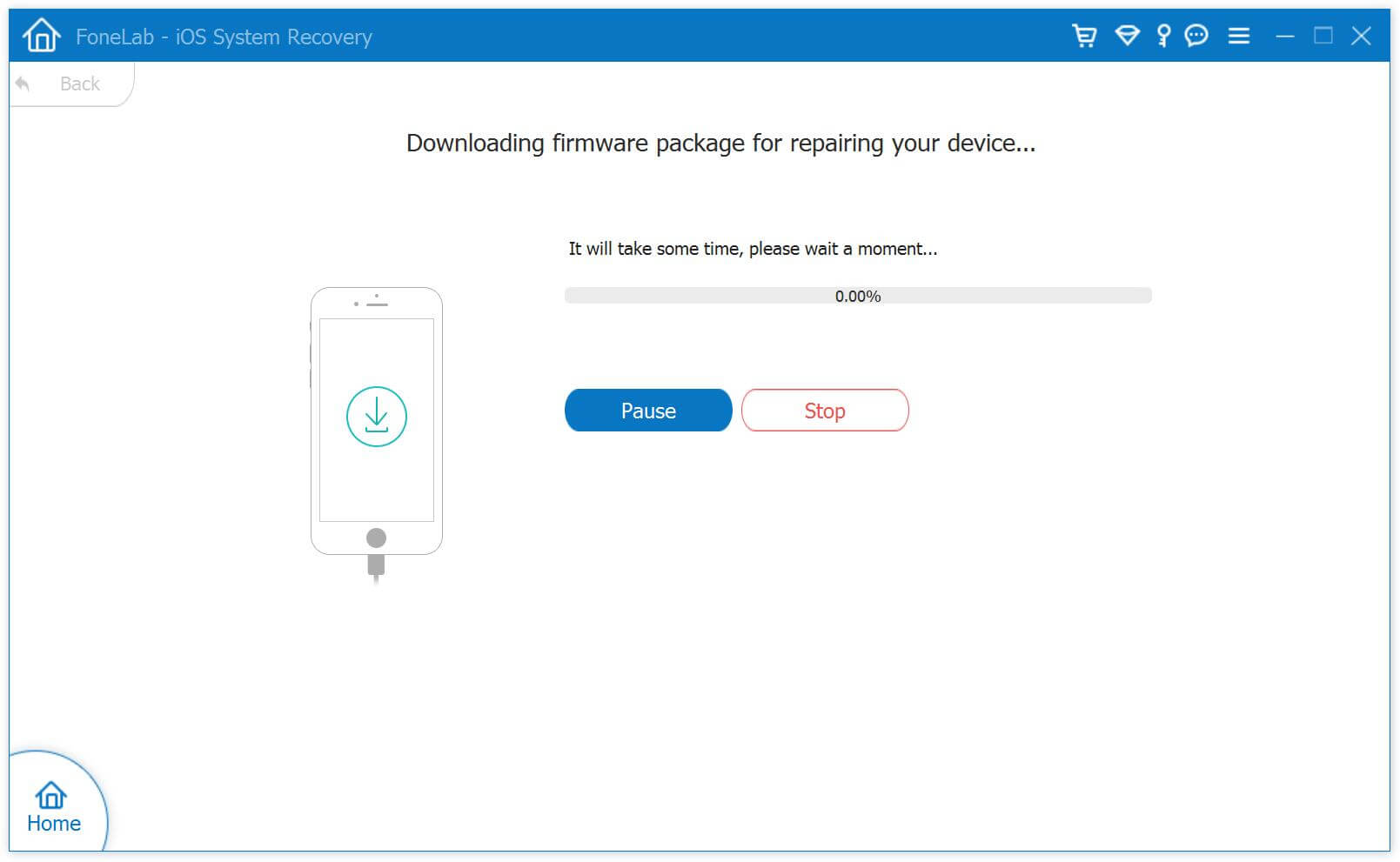
Step 7: Download Firmware Package for Repair your iPhone
The software start downloading firmware package and fix your iPhone device.

Download Firmware - IPSW files

Step 8: Repair the iPhone in Recovery mode or DFU mode
After downloading firmware package completed, then just click the “Repair” button at the lower right corner. The software starts the process of restoring your iPhone.

fix iPhone stuck in recovery mode

When it’s done, your iPhone will boot up automatically and get back to normal.

d_win d_mac
d_win d_mac

Conclusion

This powerful iOS Toolkit is not only able to fix iPhone stuck on recovery mode or DFU mode, but also allows you recover lost and deleted data from your iPhone/iPad/iPod touch, such as messages, photos, video, contacts, and more. Even better, you can backup your iPhone data to your computer or external hard drive to in case your iPhone is lost, damaged or stolen.

Your May Want to Know

How to Fix iPhone Stuck in Recovery Mode After iOS 13 Update

How to Fix an iPhone iPad Stuck on Apple Logo

How to Recover Lost Data from iPhone after iOS 13 Update

How to Recover Deleted Data on iPhone 11/11 Pro

Repair iPhone on Recovery Mode

How to Unlock Huawei, Xiaomi, Lenovo, Motorola, and OnePlus: Forgot Password (Pattern/PIN Code)

[Summary]: Forgot your phone screen password, Pattern or PIN code? Don’t worry, this article shows you the best and most effective way to remove screen password(Pattern/PIN code) on Samsung, LG, Huawei, Motorola, Xiaomi, Lenovo and OnePlus.

You may want to know:

* How to Unlock Samsung Phone

* How to Unlock LG phone

My Huawei P20 was locked due to I abandon it for more that 6 months, I want to use it again, but I forgot the screen password, how to unlock Huawei phone locked screen without password?

I got a send-hand Motorola mobile phone, but the phone is locked and I don’t know the lock screen passcode, how to unlock Motorola phone password without factory reset?

I forgot my Samsung phone’s pattern, PIN or password, how to bypass Samsung lock screen without reset?

How do i unlock my LG phone if i forgot the pattern? Is it possible to unlock a LG phone without data loss?

You may encounter the above issues, may people search in Google to find an effective solution to unlock their phone when forgot password , pattern or PIN, if you forgot password (pattern/PIN code) on Android phone, you can unlock your phone screen password with a third-party Android Unlock tool.

Currently, there are various brands of Android phones, if you forgot the phone passcode and want to remove lock screen password, for different Android phones, the methods to remove the phone screen passsword varies. Here, we teach you the most simple and effective way to bypass the forgotten screen passsword.

Unlock Samsung/ LG/ Huawei/ Xiaomi/ Lenovo/ Motorola/ OnePlus Password, PIN, Pattern Lock

The Android Unlock tool is a part of Android Toolkit, this Android Lock Screen Removal enables you to unlock Huawei, Xiaomi, Lenovo, Motorola, and OnePlus phone screen passcode in 5 minutes, but it will delete your data on those Android smart phones. What’s more, it also can unlock Samsung and LG phone without data loss, such as LG G2, G3, G4, Samsung Galaxy S/Note/Tab series, etc.

More Features:

  • Remove pattern, PIN, password and fingerprint on Android phone;
  • Unlock Android phone if you forgot the screen passcode;
  • Unlock an Android phone with locked screen;
  • Unlock a broken screen Android phone;
  • Unlock Samsung and LG phones, no data loss at all;
  • Unlock Huawei, Xiaomi, Lenovo, Motorola, and OnePlus phone, data erased;
  • Supports all major carriers like AT&T, T-Mobile, Verizon, Sprint, etc;
  • Supports recover the text messages, contacts, photos, videos, documents, audio, WhatsApp messages from Android devices.

d_win d_mac
d_win d_mac

How to Unlock your Huawei, Xiaomi, Lenovo, Motorola and OnePlus smartphone

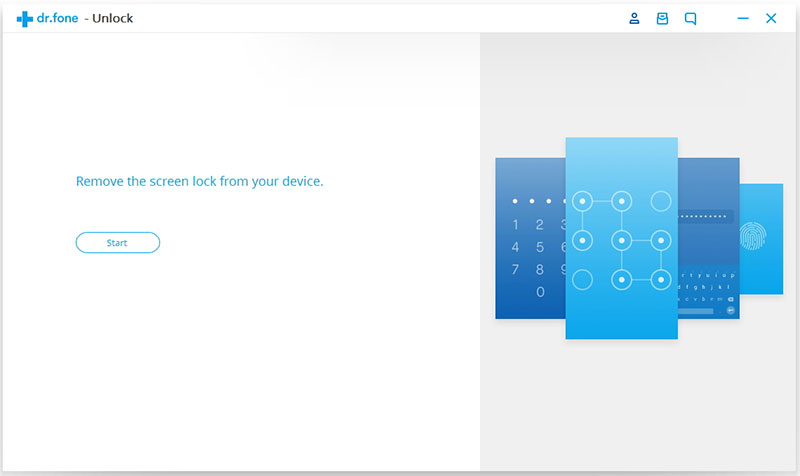
Step 1. Launch Android Toolkit
To get started, launch the Android Toolkit and simply click on “Unlock”.

samsung lock screen removal

Step 2. Connect your Android Phone to Computer
To remove screen passwords, pins and pattern lock of your Android phone. Just connect your phone and click on the Start button to begin the process.

connect android to computer

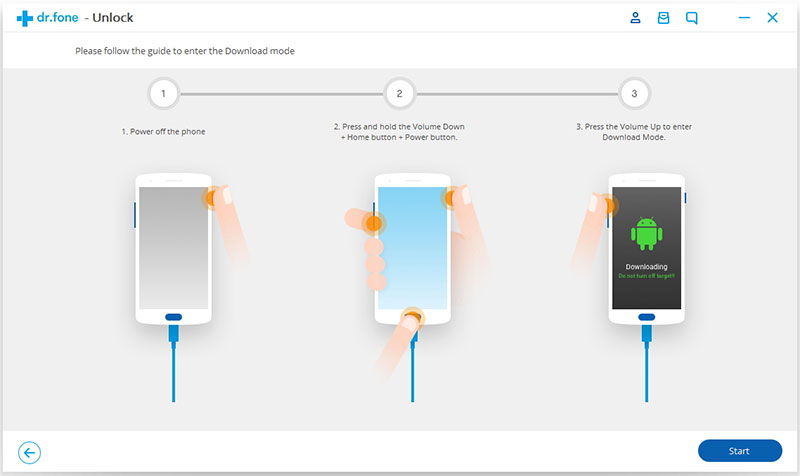
Step 3. Enable the Download Mode on your device
To do this follow the simple instructions to get your Android smartphone into the Download Mode.

1. Power off your Samsung smartphone.
2. Press the home button + volume down button + the power button at the same time.
3. Press the volume up button to enter the download mode.
Step 3: Simply download the recovery package.

enter download mode lock samsung

Step 4. Download Recovery Package
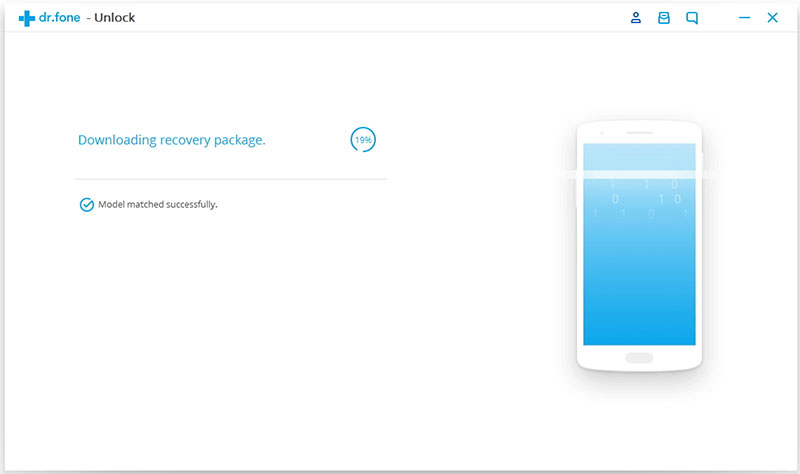
Once your phone goes into the download mode, it will start downloading the recovery package. You have to wait until it is fully completed.

downloading recovery package

Step 5. Start Unlocking Android Lock Screen
Your phone will not have any lock screen password as soon as the recovery download package is completed. This process won’t hurt any data on your Samsung and LG device, except for Huawei, Xiaomi, Lenovo, Motorola, and OnePlus smartphone. Once this whole process is done then you can access your phone without entering any type of password or pattern lock.

remove android screen passcode

Free download the Android Toolkit – Android Unlock to remove pattern, PIN, password & fingerprints of your Android phone.

d_win d_mac
d_win d_mac

Conclusion

This Android Lock Screen Unlock tool can remove passcodes of pattern, PIN, password and fingerprint during install the recovery package, your phone will restart after the downloaded recovery package installed completed, then you are able to reset your phone and access it.

Please note that: For Samsung or LG smart phone, you can use this Android unlock tool to remove the lock screen password, it won’t erase your data of Samsung or LG device, but for Huawei, Xiaomi, Lenovo, LG, Samsung, Motorola, OnePlus other Android devices, it will delete your data. However, you can try to recover lost data on Android.

Above solutions can help you perform Unlock Android and regain control over your Android device. If you want to unlock iPhone/iPad/iPod Touch, UkeySoft Unlock is a wonderful product and should be used and recommended by iOS users. Since it supports all iOS devices, you can use UkeySoft Unlock to remove screen passcode and Apple ID on iPhone, iPad, and other iDevices as well.
Also read: How to unlock iPhone/iPad/iPod touch

How to Reset Locked/Disable iPhone iPad without Passcode

[Summary]: Your iPhone/iPad locked or even disabled? Don’t worry, this tutorial shows you how to reset your locked iPhone or iPad without passcode.

Hi, I got a second-hand iPhone 7, but it is showing a message saying: “iPhone is disabled – connect to iTunes”, how to unlock a iPhone without passcode?

iphone is disabled locked

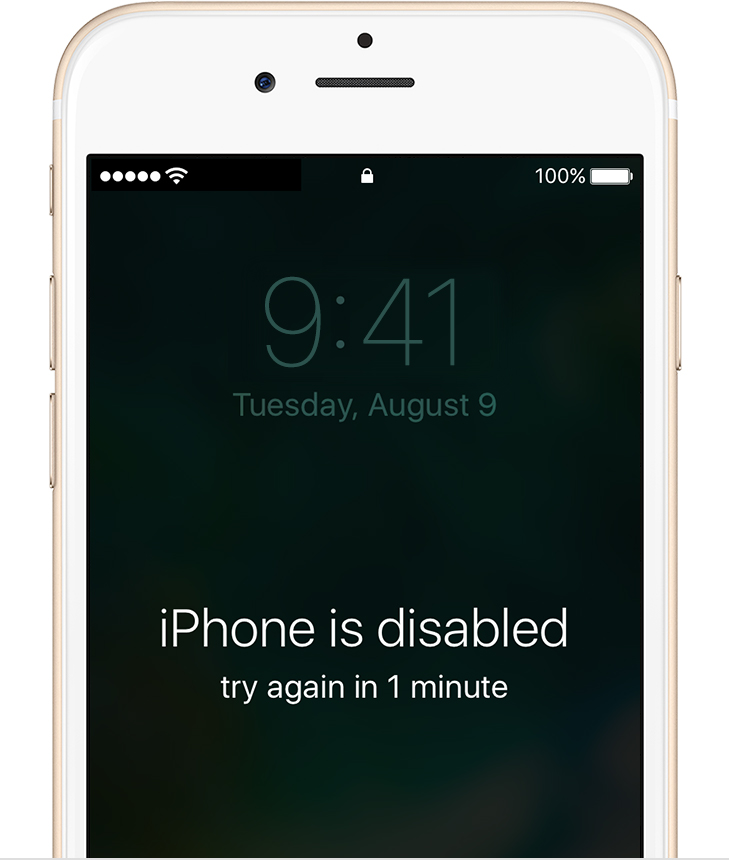
Your iPhone was locked but you forgot the passcode? When you enter the wrong passcode on your iPhone more that 6 times continuously, you will get a message pop up on your iPhone: “iPhone is disabled, try again in 1 minute”. Once you forgot the passcode of your iPhone, how to unlock your disable iPhone? How to reset locked iPhone without passcode? Let’s learn how to reset your screen locked iPhone.

How to Reset Locked iPhone without Passcode – iOS 13 Device Supported

When you forgot your iPhone/iPad lock screen password or you locked the device after too many wrong attempts. Don’t worry, this iOS Toolkit – Unlock (iOS) can help you to unlock iPhone screen lock without knowing passcode, it also enables you unlock your Apple ID with a few clicks, the software supports iPhone XS (Max) / iPhone XR / iPhone X / 8 (Plus)/ iPhone 7(Plus)/ iPhone6s(Plus), iPhone SE and the latest iOS 13 version.

Free download iOS Toolkit – Unlock (iOS) and try to reset your disable iPhone on Windows/Mac computer.

d_win d_mac
d_win d_mac

Steps to Reset a Locked iPhone (without Password)

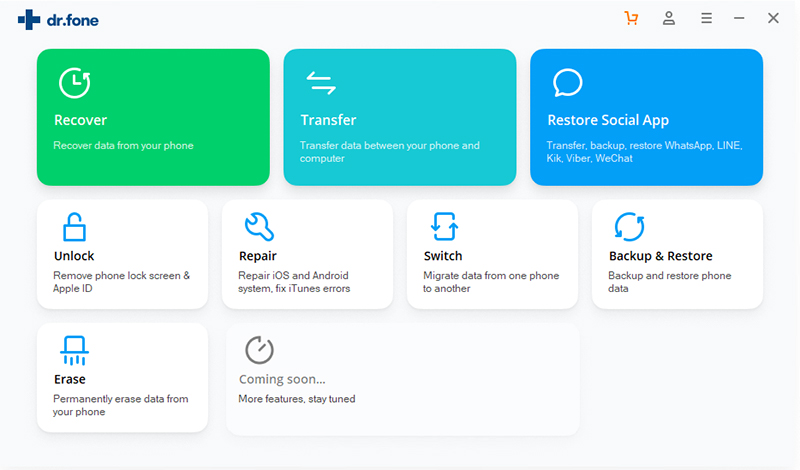
Step 1. Launch the iOS Toolkit on PC or Mac
Please download, install and run the iOS Toolkit on your computer and click “Unlock” among all the tools.

ios locked screen removal

Step 2. Connect your iPhone to Computer
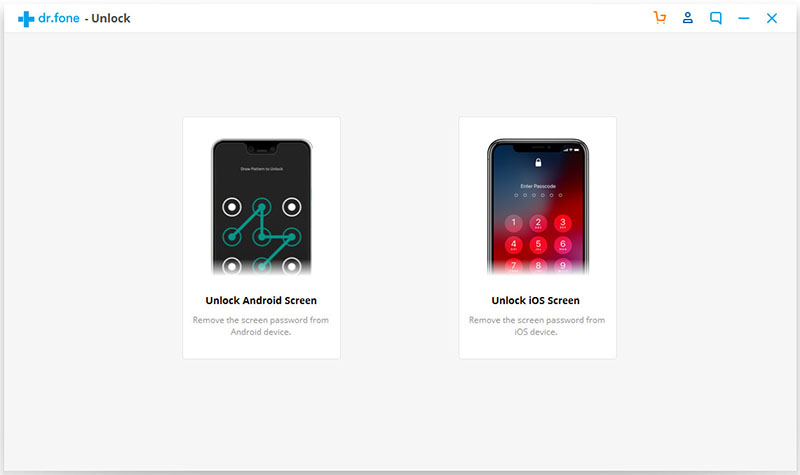
Connect your iPhone device to the computer with a USB cable. Then click “Unlock iOS Screen” on the program.

unlock iOS and Android

Tips: The software also can help you unlock Android phone with few steps.

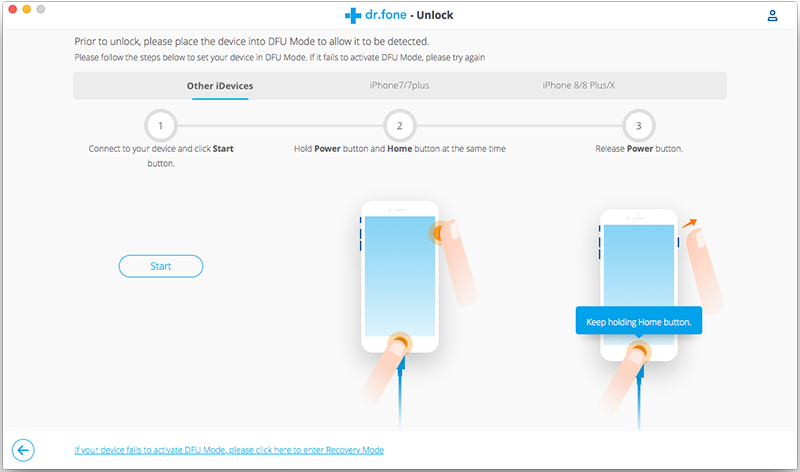
Step 3. Put iPhone into Recovery mode or DFU mode
The software need to download the iOS firmware package to unlock your iPhone, since your iPhone is disable and lock, you need to boot iPhone in recovery mode or DFU mode firstly, then the software will helps you download firmware package. Please follow the instructions to put your iPhone into recovery mode or DFU mode.

Choose your device model “Other iDevice,” “iPhone 7/7 Plus” or “iPhone 8 or Later” on the top bar. Then follow the instruction on how to put your device into DFU mode.

Put iPhone into dfu mode

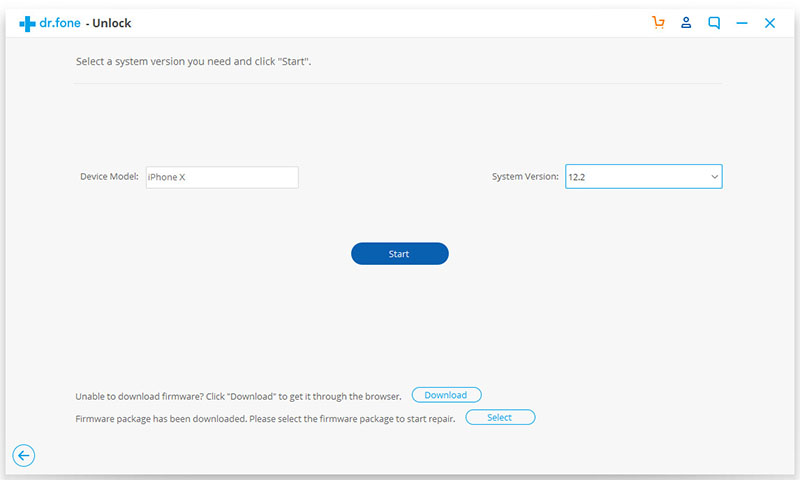
Step 4. Confirm your iPhone Model and System Version
When your iPhone stuck in DFU mode, the software will display the iPhone device information, then select the latest iOS version that your iPhone supported from the dropdown lists. Then click “Download” the download the iOS firmware package for your iPhone.

Put iPhone into dfu mode

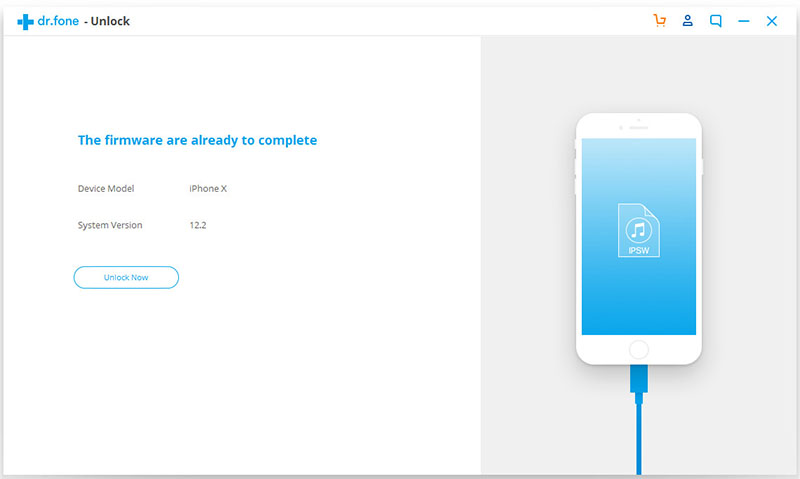
Step 5. Start to Unlock and Reset your Disable iPhone
After the firmware is downloaded successfully, click “Unlock Now” to start remove passcode from your disable iPhone, this software will reset your iPhone during unlocking process.

unlock Disable iPhone

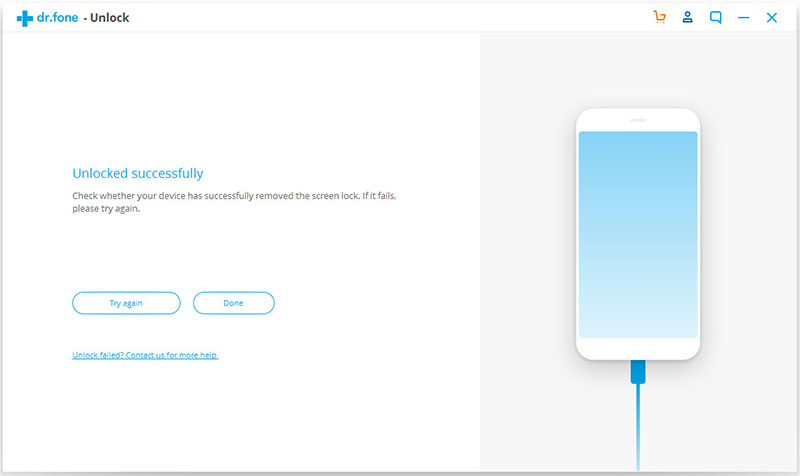
Step 6. Restart Your iPhone
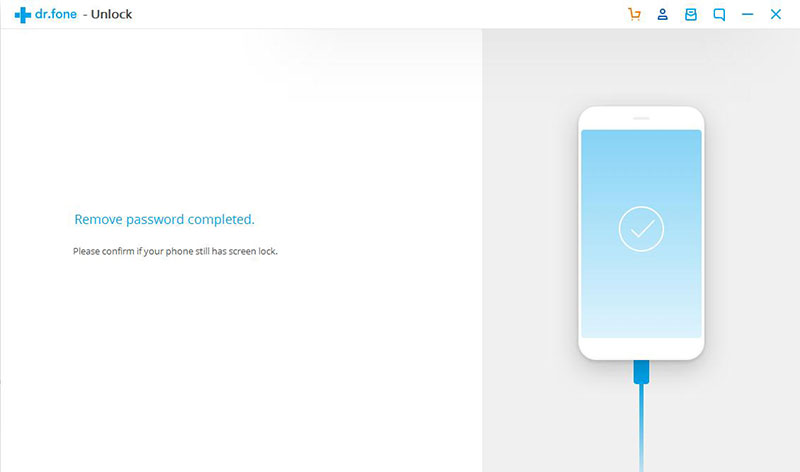
After unlocking your iPhone successfully, it will take a few minutes to restart your device, you need to re-set up your device and then access the system.

remove passcode from disable iPhone

Note: It will erase the data on your iPhone/iPad during unlocking process. Honestly there is no solution to unlock iPhone/iPad without data loss for the moment in the market. So, we recommend you backup your iPhone/iPad data to computer regularly.

d_win d_mac
d_win d_mac

Unlock Disable iPhone