All posts by DHZ

How to Transfer Files from PC to iPad

Summary
Do you want to transfer files from PC to iPad for viewing or using? This article shows you a great solution to import files from computer to iPad, including music, photos, videos and more, you also can backup files from iPad to PC directly.

How to transfer music, videos and photos from PC to iPad Pro? I have got an new iPad, but I don’t know how to import songs and videos to iPad. Is there any iPad manager tool for PC?

It is easy to copy, import files from PC to a USB flash drive or SD card, but if you want to transfer files from computer to iPad, you need to use a professional PC to iPad transfer tool, because it is limited data transfer across platforms – iOS and Windows 10/8/7/XP.

Many iPad users want to import photos, songs, videos and more to iPad for enjoy freely. As we all know, we can sync files to iPad, iPhone or iPod with iTunes, but it’s very tedious to sync data with iTunes, and it will take a lot of time. Worse, you will lose your iPad data. Is there any safely and quickly way to transfer files from PC to iPad without using iTunes?

Best PC to iPad Transfer Tool

If you looking for an easy-to used iPad transfer tool to solve this problem, you can transfer this iOS Transfer tool, this iPad transfer & manager tool can help you transfer photos, music, movies and more from computer to your iPad, and vice versa.

  • Easily transfer files between iPad and PC, including music, videos, photos and more files.
  • Transfer photos, videos, music, contacts, messages, apps data, call logs etc.between iPad and iPhone.
  • Transfer files between iPhone/iPad/iPod and Android devices.
  • Create ringtone for your iPhone.
  • Fully compatible with the latest iOS 13.
  • Fully compatible with Windows 10 and Mac 10.15.

d_win d_mac
d_win d_mac

This iOS transfer works well with all iPad models:

  • iPad, iPad 2, iPad 3, iPad 4, iPad 9.7in (2017), iPad 9.7in (2018), iPad 10.2in (2019)
  • iPad Air, iPad Air 2, iPad Air (2019)
  • iPad mini, iPad mini 2 with Retina display, iPad mini 3, iPad mini 4, iPad mini (2019)
  • iPad Pro 12.9in (2015), iPad Pro 9.7in (2016), iPad Pro 10.5in (2017), iPad Pro 12.9in (2017), iPad 11in (2018), iPad 12.9in (2018)

How to Transfer Files from Computer to iPad

To get start, download this iOS manager program on your computer. Here, Let’s take the Windows version as a example to check out transferring music from PC to iPad in easy steps below.

Step 1. Download and Launch Phone Toolkit
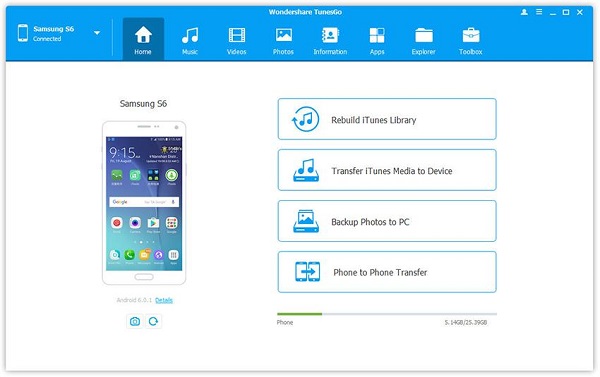
To start the process, download and run the Phone Toolkit on your PC, after that, choose the “Transfer” module from the software main window.
iPad to PC transfer

Step 2. Connect iPad to PC
Now, connect your iPad to your computer using a digital cable. If you are connecting your iPad to a computer for the first time, then the popup windows will appear on your iPad for “Trust this computer. So, tap on “Trust”.
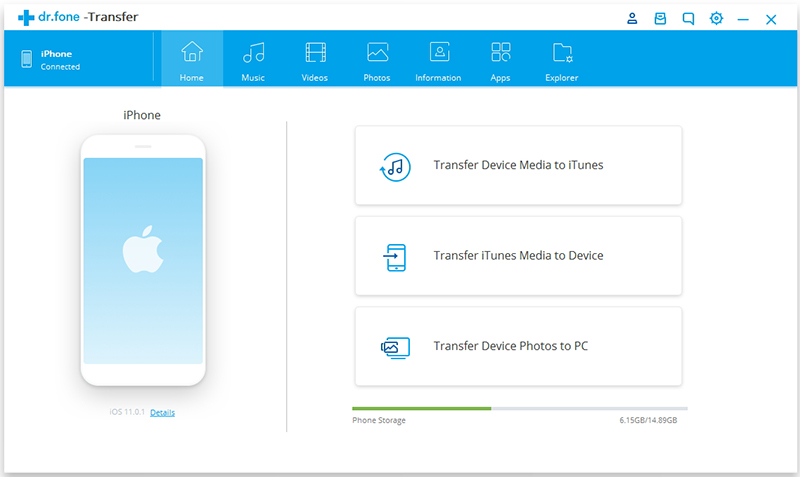
iPad file transfer

Step 3. Tap Music
After that, tap on the files that you want to transfer to your iPad, you can choose “Music”, “Videos”, “Photos”, “Information” and “App”. In this case, in order to import songs to iPad, please tap “Music” option.
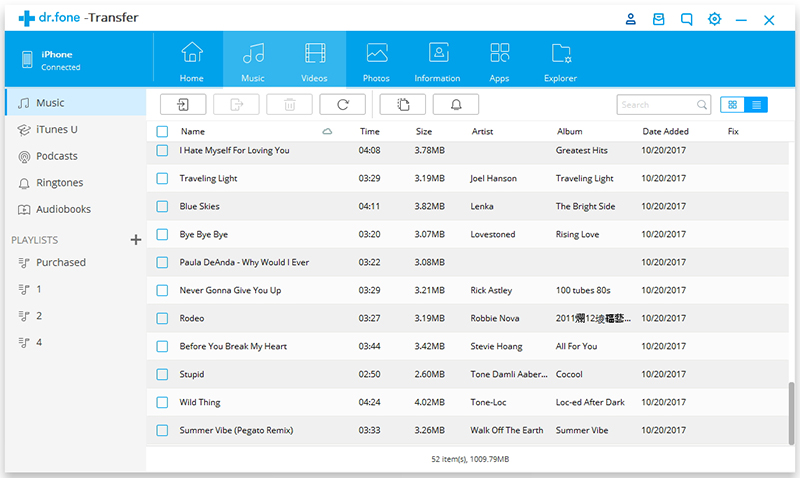
transfer music to iPad without itunes

Step 4. Add Music or Music Folder
Now, click on the “Add” icon to add those songs that you want to transfer from computer to iPad.
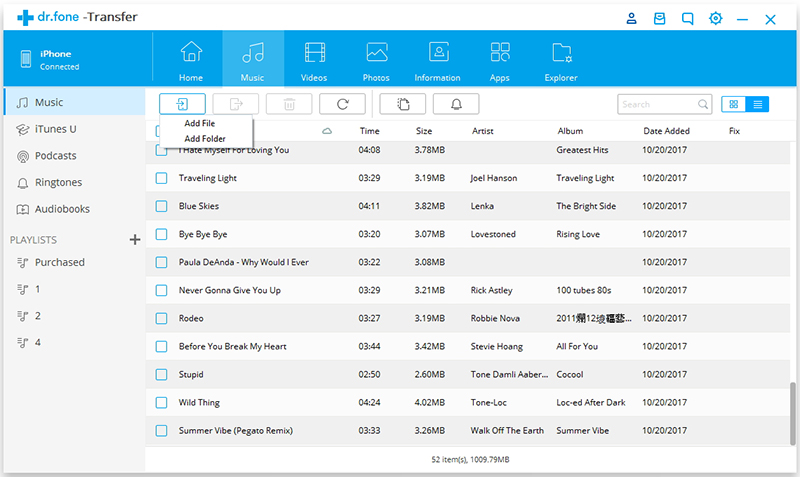
Add Music to iPad

Tips: In this step, you can also transfer music from one phone to another, or transfer music from iPhone to PC.

Step 5. Start to Transfer Music from PC to iPad
The browser window will appear. Select the desired music files from your computer and finally, tap on “Ok”. Within a few minutes, your selected music files will be transferred to your iPad from the computer.
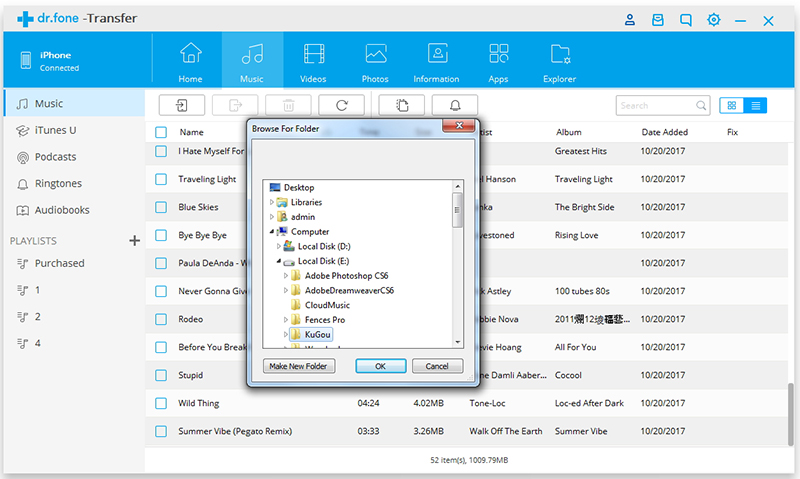
Transfer Music from PC to iPad

Note: Currently, the Mac version doesn’t support transferring contacts from Computer to iPad.

That’s all the guides about how to add photos, videos and music to iPad.

000

More information about iOS Manager program

This iOS Manager is a part of iOS Toolkit, it not only enables you to transfer files from computer to iPad/iPhone/iPod, but also can help you your files on iPhone, iPod & iPad easily:

  • Directly transfer data between iOS devices: Transfer music, photos, contacts, SMS and more between iPhone, iPad and iPod touch.
  • Best iTunes Alternatives to make your life easier: Also transfer files from PC & iTunes to your iPhone, iPod, iPad.
  • Convert music & video: Automatically convert to iPad/iPhone/iPod – compatible formats during transfer.
  • Directly transfer photos between Apple devices and PC: Drag photos to your iDevice or save to your PC to print & share.
  • Manage your iPhone contacts easily: Manage contacts: Edit, import, remove duplicates & more.
  • Backup sms and contacts from iPhone to PC.
  • Create a ringtone for your iPhone.
  • Create gif animation with your iPhone/iPad photos.
d_win d_mac
d_win d_mac

How to Transfer Data from LG to Samsung Phone

Summary
Do you want to transfer data from LG to Samsung Galaxy phone? This article teach you how to transfer SMS, call logs, contacts, photos, songs and videos from LG to Samsung with one click.

If you purchased a new Samsung phone or upgrade from LG phone to Samsung Galaxy S20/S10/S9/Note 10, etc, you may have a need to transfer data from LG to Samsung. Since these those important data including text messages, contacts, photos, videos, call logs, WhatsApp data store in your old LG phone.

How to transfer all data from LG to Samsung in a simple way? Don’ panic! You can transfer Everything from LG to Samsung or another Android phone with the help of Phone Transfer tool.

Best LG to Samsung Transfer Apps on computer

Phone Transfer, as a professional and useful LG to Samsung transfer tool, it enables you not only transfer messages, but also cope pictures, songs, videos, contacts, WhatsApp messages, call logs and apps from LG to Samsung within one click. It allows you to transfer your data among Android, iOS and Symbian, which supports more than 800 devices including HTC, iPhone 11 Pro(Max), Samsung, LG, Sony, Google Pixel, Windows phone and Nokia.

Now, download and install the program on your computer and follow the steps.

d_win d_mac
d_win d_mac

Transfer Data from LG to Samsung in 3 Steps

Step 1.Launch Phone Transfer
First, you need to install the Phone Transfer software on your computer. After installing and launching the software. Then, select “Phone Transfer” option from the software dashboard.

LG to Samsung Transfer

Step 2.Connect Two Phones with the Computer
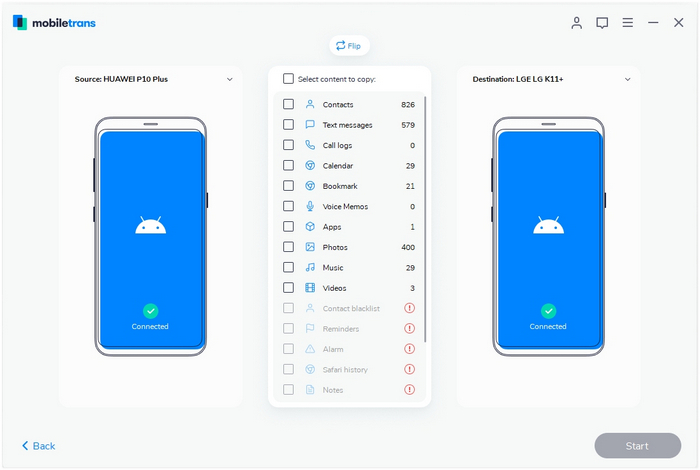
Connect your LG phone and Samsung phone to the computer.Once they are connected, the program will detect them automatically as “Source” and “Destination”. You support to change the places of the two phones by clicking “Flip” button.

transfer lg to samsung

Thereafter, choose the file that you want to transfer and click on the “Start” button.

Step 3. Start Transferring Data from LG to Samsung
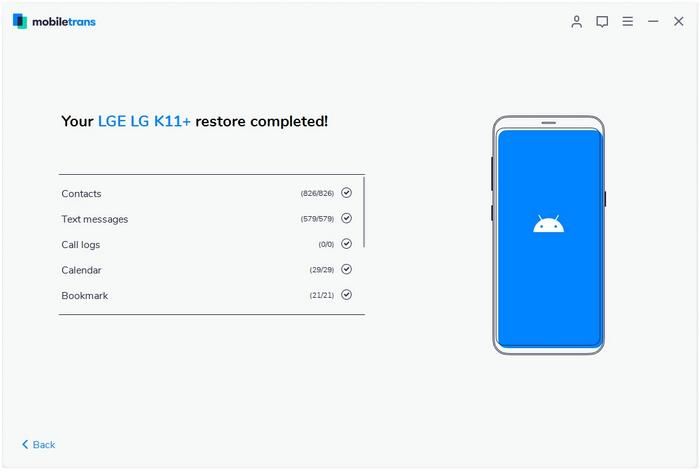
Within a few minutes, your selected data will be transferred or copied to the Samsung phone.

transfer data from lg to samsung

What’s More about Phone Transfer

Phone Transfer enables you to transfer contacts, photos, messages, videos and more from Android to Android, Android to iPhone, iPhone to Android and iPhone to iPhone automatically and securely, it works well with all Android, iOS & Windows mobile devices. Here, you can learn more feature of this powerful Phone Transfer tool.

  • Transfer data between Android, iOS and Windows phone.
  • Transfer contacts, photos, music, videos, canlenda, voice mail and more from one phone to another.
  • Transfer WhatsApp messages from iPhone to Android, backup and restore WhatsApp data.
  • Compatible with 6000+ mobile phones including iPhone, Smasung, LG, Google Pixel, OnePlus, HTC, Huawei, Xiaomi and more.
  • Work with Android 9.0 and iOS 13.

d_win d_mac
d_win d_mac

How to Transfer Apps from Android to Android Phone

Summary
Have bought an new Android phone and want to transfer Apps and App data from Android to new one? Here, a step-by-step guide on how to transfer Apps from Android phone to new Android directly with the help of Android App Transfer tool.

You may have download and install lots of apps on your Android phone, if you have got a new Android phone like Samsung Galaxy S20/S10/Note 10, Huawei P40/P30/Mate 30, Sony, Google Pixel, OnePlus, etc. You may want to transfer your wonderful app resource to the new Android phone. However, how to transfer apps from one Android phone to another Android? This article will teach you a easy method to transfer apps between Android phones efficiently, what you need is a third-party Android App transfer tool called Phone Transfer.

Android Apps Android Transfer

Phone Transfer is a popular Android to Android transfer tool, it not only can help people transfer apps between Android phones, but also allows you to transfer SMS, call logs, contacts, photos, songs and videos from Android to Android with one click. What’s more, “WhatsApp Transfer” is a new feature of Phone Transfer, it can help you transfer WhatsApp messages between Android and iPhone easily.

Key Features:

  • Transfer contacts, photos, music, videos, SMS and other file types from one phone to another.
  • Transfer WhatsApp from phone to phone, backup WhatsApp and more social apps to computer and restore.
  • Backup all data from your android or iOS devices to PC/Mac to avoid data loss.
  • Restore backup files to a phone, including iTunes and its backup.
  • Full compatible with Windows and Mac OS

Download the free trial version of Phone Transfer on your computer to have a try.

d_win d_mac
d_win d_mac

How to Transfer Apps from Android to Android

Step 1. Install and launch the Phone Transfer
After installing the Phone Transfer on your computer, launch it, you will come to the primary window as follow. You should select “Phone to Phone Transfer”, click “Start” to go on.

transfer data to android

Step 2. Connect your Android phones to the computer
Connect your Android devices to the same computer simultaneously via USB cables. Moblie Transfer program will detect both phones automatically as soon as they are connected. They will be detected as two places of “Source” and “Destination”. If you want to change the position of Source phone and destination phone, click “Flip” button.
Note: You can check the box “Clear data before copy” to empty your Android phone before transferring, just in case of duplication.

transfer data to android

Step 3. Transfer Apps from Android device to Android
Apart from apps, you are able to transfer text messages, photos, videos, contacts and music from one Android to anther. If you just need to copy apps, you need to uncheck the boxes of other data. Then click “Start Copy” to let the program to sync your apps. Please remember to keep both of the phones connected well during the transferring period. When the transfer progress is finish, click “OK” button to end it.

transfer app from android to android

Free download the Phone Transfer and start to transfer data between two phones.

d_win d_mac
d_win d_mac

Confusion

Wit the help of Phone Transfer, you can easily transfer data between two phones, including Android, iPhone, iPad, iPod, Windows phone and more. If you want to backup and restore data, this software also helps you easily to backup contacts, text messages, photos, videos, etc. from Android to computer.

How to Recover Deleted Videos on Android Phone

Summary
If you deleted or lost important videos on Android phone, this article teach you how to recover deleted videos from Android phone, such as Samsung, HTC, Motorola, LG, Sony, Google Pixel, Huawei, OnePlus, etc.

Does anyone recommend me an effective Android video recovery software? I want to recover deleted videos from Samsung Galaxy S7, is it possible to recover deleted videos on Android phone?

Is it possible to retrieve deleted videos from Android phone? I can’t find the deleted videos on recycle bin, which is the best Android video recovery software that can helps me recover deleted videos on Huawei P30? Thanks.

In recent years, Android smartphones have performed very well in shooting applications, most top Android smart phones comes with two or more HD cameras, such as Samsung Galaxy S20 Pro, Galaxy S10+, Galaxy Note 10 Plus, Huawei Mate 30 Pro, Huawei P40/P30 Pro, OnePlus 7 Pro, Oppo, Find X2 Pro, Sony, Motorola, etc. Many users like to use their Android phone to take photos and videos instead of digital camera. You may offer taking photos and shooting videos to record precious moment in the daily life, such as friend’s birthday party, baby’s birthday party, wedding day recordings, our business videos, graduation, etc. However, accidents happen sometimes. If you deleted videos on Android phone/tablet by accidentally, it may annoy you a lots.

You can directly restore your video from the Recycle bin of the Android phone before it is deleted permanently. If you can’t find the deleted video in that recycle bin, you will need to use professional Android video recovery software to get it back, this guide teach you how to recover deleted videos from Android phone easily.

A Security and Effective Android Video Recovery software

To retrieve deleted and lost videos from Android devices, you can use this professional Android Video Recovery tool, it not only can help you recover lost photos and videos from Android devices, but also enables you recover deleted sms, contacts, whatsApp and more from Android phone easily. Not matter you files lost due to mistaken deletion, factory reset, system crash, forgotten password, flashing ROM, rooting, ect, it can hep you quickly scan the Android device and shows the scanned result for you to preview and selectively recover them at once.

More Features:

  • Recover Video, Photo, Audio and Documents from Android internal storage or SD card inside of Android devices.
  • Recover text contents from Android, including Contacts, Messages, Call history, WhatsApp message & attachment, WhatsApp messages & attachment, etc.
  • Recover videos and other data from broken Samsung phones.
  • Supports recover data from Samsung, HTC, Motorola, LG, Sony, Google Pixel, Huawei, OnePlus and other brands of Android devices.
  • Highest mobile phone data recovery rate in the industry.

d_win d_mac
d_win d_mac

Supported Brands: Samsung, Huawei, LG, Sony Xperia, Google Pixel, Motorola, ZTE, OnePlus, Xiaomi, Redmi, OPPO, VIVO, ASUS, HTC, and more.

Now, read on the tutorial to learn how to recover deleted videos on Android phone. You can follow the similar way to recovery other types of file as well.

Kind Tips: Want to download HD videos from YouTube? 4kFinder Online YouTube Downloader is the ultimate one-click downloader that can easily download YouTube HD videos to MP4 format without quality loss. 4kFinder supports batch download and faster download speed. With its help, you can play YouTube videos offline on any HD media player. Other than YouTube, it also supports Facebook, Twitter, Dailymotion, Bilibili, NicoNico and many other sites.

How to Recover Deleted Videos from Android Phone

Step 1: Connect Android phone to computer
To recover deleted files from Android internal storage, please free download the Android Toolkit and go with the mode labeled “Android Data Recovery“.

Android Video Recovery

Then, connect your Android phone to computer using a USB cable.

Step 2: Enable USB Debugging to access data
Once detected, the program will present you with simple instructions to turn on USB Debugging Mode on your phone. If you’ve done this before, skip to Step 3.

For more details, you can also refer to How to Enable USB Debugging Mode on Android.

put on USB debugging

Step 3: Choose Video to Scan
For this case that you want to recover deleted videos from Android, please select “Video” you want this Android data recovery software to search. please pick only the types you wish to recover, so we can speeds up the scan process. Click the Next to go on.

choose videos to recover

Step 4: Gain root permission for a complete scan
The program will check the device information and perform a basic scan of the device. If it can’t find the files you need, it’s suggested that you root the phone to access to the full Android system. (You can unroot the device after the recovery task.)

To do so, click the Rooting Tools button at the lower right position. At this point, you will be taken to an external website to download a free Android rooting tool — KingoRoot to root the device.

[Also Read: How to Safely Root and Unroot an Android Device with KingoRoot ]

root the android phone

After you’re rooted, this Android Data Recovery software will begin running a deep scan of your Android’s phone memory and SD card to search for the deleted Stuff. Please be patient.

Step 5: Preview and recover deleted videos from Android
When the scan is done, you can preview and sort the list of data files accordingly on the screen.

You can toggle the button to ON position on the top of the screen to display only the deleted items. It also offers an advanced search option in the upper right corner to help you quickly locate what you want from the results.

recover deleted videos from Android

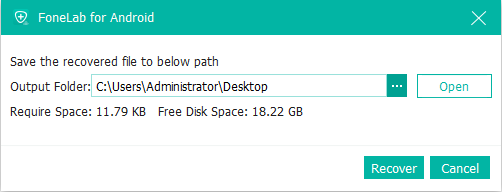
To get back the deleted data files from Android phone, just check the boxes next to items you want and then hit “Recover” button.

In opening dialog, you can click on “…” icon in the Output Folder field to specify the destination directory on your computer or just use the default folder for saving the recovered video files

The above is all the steps of Android video recovery.You can recover all types of data from your Android device including contacts, photos, sms, call history, WhatsApp messages and many others. Download it and have a try!

d_win d_mac
d_win d_mac

Video Guide on How to Recover Video Files from Android

Now, you have restored the deleted videos and save them onto computer, you can use this Android Transfer tool to transfer them into your Android phone so to continue using them again. In addition, this Android Transfer tool also can help you backup videos, photos, music, contacts and messages from Android to computer. In order to avoiding data loss again, we suggest you backup your Android data to computer regularly.

How to Transfer Text Messages from Android to Computer

Summary
Do you want to transfer SMS from Android phone to computer for backup? This article teach you a simple way to backup SMS from Android to computer.

It is necessary to backup text messages to computer before factory reset your Android phone, rooting Android device, Android OS update, fixing your phone, etc. After transferring SMS from Android to computer, your important text messages be saved onto a safe place, even if the text messages deleted or lost, you can restore them to the device easily. Therefore, backup messages from Android phone to a computer is very important. But how to transfer text messages to computer?

Android SMS to PC Transfer

This powerful Android Data Transfer can help you transfer messages between Android phone and computer, it not only allows you backup Android SMS to computer as as .xml or .txt files, but also enables you import SMS in .xml format from computer to your Android device easily. What’s more, this Android Manager tool also enables you transfer SMS from Android to Android, Android to iOS, iOS to iOS, as well as contacts, photos, videos, call logs and more data.

More Features:

  • Transfer photos, music, videos, contacts, SMS, call history, apps, calendar and more from Android to computer.
  • Transfer data between Android and iPhone/iPad/iPod.
  • Transfer Everything from Android to Android.
  • Add/Export various data like songs, videos, photos, contacts and so on.
  • Compatible with Windows and Mac computer.

Download the trail version of Android Data Transfer to transfer your SMS to computer.

d_win d_mac
d_win d_mac

Steps to Transfer SMS from Android to PC

Step 1. Launch the Android Transfer and connect Android phone to PC
Install the program on your PC first. Then, launch it and bring yourself to the primary window. Connect your Android phone to computer via a USB cable. Once Android phone is connected, the program will detect them automatically and shown up the window as below.

launch Android Transfer

Note: Android Transfer is fully compatible with all popular Android phones like Samsung, Huawei, HTC, Google, Pixel, Motorola, Sony phone, Xiaomi, OnePlus, etc.

Step 2. Select SMS Exported Format
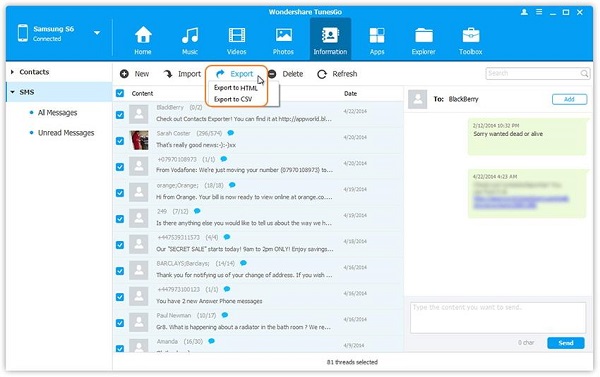
Click “Information” icon on the navigation bar, then click on the SMS tab to enter the SMS management window. All your text messages will be list in front of the SMS management window as below. You can choose those messages you wanted and then click the “Export” button, you can select “Export to HTML“, “Export to CSV” or “Export to Text” in the drop-down list, choose one and then choose the target folder and tap OK button on your computer in the pop-up.

Select exported SMS format – HTML, CSV or Text

select sms format

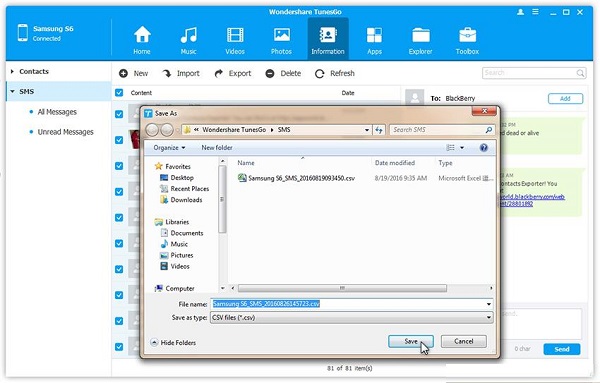
Step 3. Transfer SMS from Android to computer
Click “Save” to backup SMS from Android to Computer

transfer sms from andoid to computer

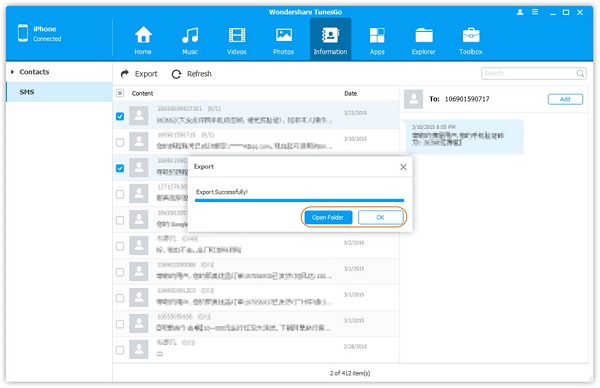
After finish the process, the text messages will be saved on your computer. Finally, click “Open Folder” to view the exported text messages if you need.

open and view SMS on PC

Now, download this software and try to backup your Android data to computer now!

d_win d_mac
d_win d_mac

How to Recover Deleted WhatsApp Messages from Huawei P40/P40 Pro

[Summary]: Accidentally delete your WhatsApp chat history on Huawei phone? Don’t worry, read the post about HUAWEI WhatsApp messages and photos recovery, then recover WhatsApp messages and picture attachments from your Huawei P40, P40 Pro or P40 Pro+.

How to recover deleted WhatsApp messages from Huawei P40?
How can I recover deleted WhatsApp messages from Huawei P40? I uninstalled WhatsApp app on my Huawei P40 just because I wanted to make space for this new app, after I re-install the latest WhatsApp, I found all chat history were lost? How to recover deleted WhatsApp messages without having to install it again?

How to restore lost WhatsApp data after factory reset Huawei P40 Pro+?
Help! All of my important WhatsApp data were loss after reset Huawei to factory settings, is it possible to recover lost WhatsApp chat history and image attachments from Huawei P40 Pro+?

Tips: When you have got a new Huawei P40, you may want to transfer WhatsApp from iPhone to Huawei P40, or backup and restore WhatsApp data on PC/Mac.

I’m sorry to hear that you were lose your WhatsApp chats on Huawei. In order to improve recover lost and deleted WhatsApp messages from Huawei phone in higher success rate, you should don’t add files to the phone or taking photos with the phone, avoiding the new data cover the old data, which will greatly increase the difficulty of data recovery, let’s using a professional Android WhatsApp Recovery to recover the lost WhatsApp messages as soon as possible.

Android Data Recovery software is designed for Android users to recover WhatsApp messages, WhatsApp attachments, contacts, messages, call logs, documents, photos, and videos. It supports cell phone running on Android 2.1 to Android 10.As we all know that the Huawei P40 series based on Android 10, so you can use this powerful Android data recovery to restore deleted WhatsApp messages from Huawei P40/P40 Pro/P40 Pro+. So, this Android data recovery can help you recover lost data from most Huawei cellphones, such as HUAWEI Mate 30/20/10, Mate 9, Mate 8, Mate 7, P40/P30/P20/P10, P8 lite.

Download the free trial version of Android Data Recovery and start to recover deleted WhatsApp chats on Huawei phone.

d_win d_mac
d_win d_mac

Retrieve Lost WhatsApp Chat on Huawei P40

Step 1: Run Android Data Recovery and connect Huawei P40 to computer
Launch the Android Data Recovery on PC or Mac, you would see a interface which gives you three choices to complete different kinds of tasks. For the purpose of retrieving WhatsApp messages on Huawei P40, click the “Android Data Recovery” option on the left to proceed.

Android Data Recovery

Next, attach your Huawei device with the computer.

Step 2: Enable USB debugging mode on Android
When detects, a notification jumps out, requiring you to enable USB debugging mode on the Huawei P40.
For Huawei P40, please open Settings > About phone > Build number, tap it for 7 times to enable the Developer options. Then go back to Settings > Developer options, and scroll down the screen until you find the USB debugging switch, toggle it to ON position.
Do as the screen instructs.You can also read our article about how to enable USB bugging mode on Android for reference.

usb debugging huawei phone

Step 3: Choose WhatsApp and WhatsApp Attachments to scan
Next, you will see the software can recover all types of contents from Android device In this case, check the box in front of the “WhatsApp” and “WhatsApp Attachments”, followed by Next.

choose WhatsApp messages to scan

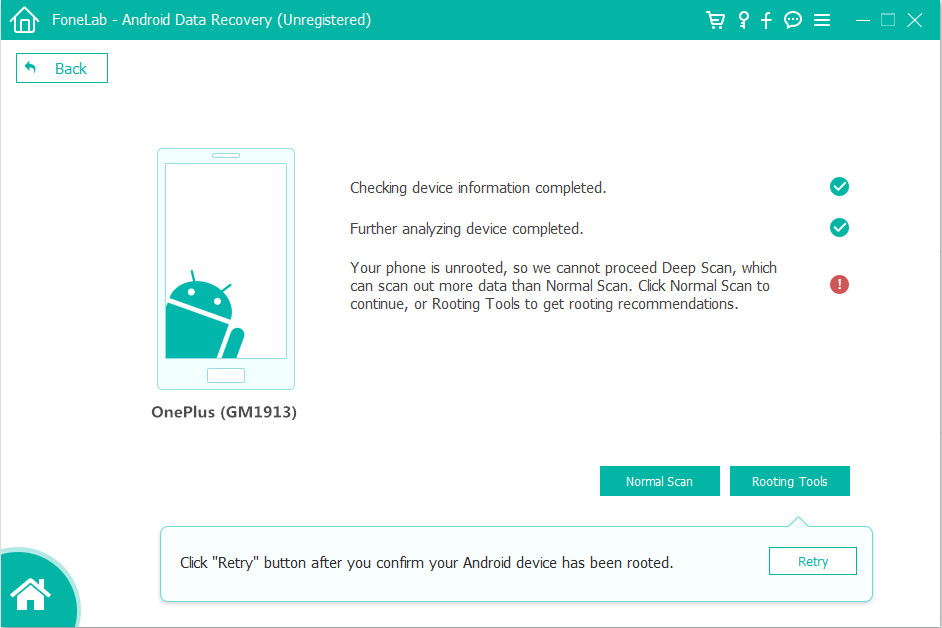
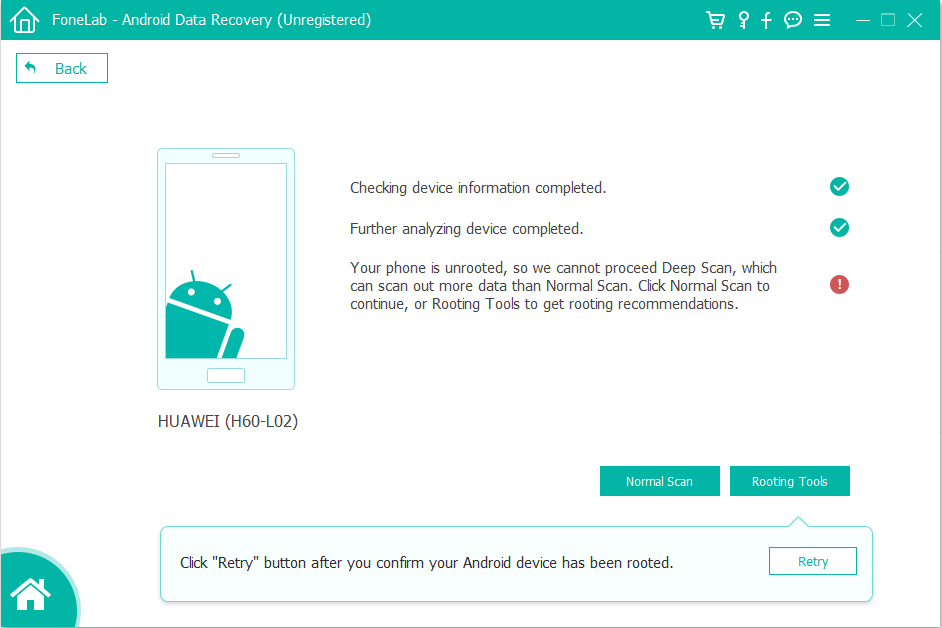
The program will start scanning the device. If your device is not rooted, you should see this screen below. To get full access to the internal memory, you’ll have to root the device.

Click the Rooting Tools button. This will open an external website, which offers you a root tool option — KingoRoot. It’s safe and performs rooting task well.

Check out the article on How to Safely Root and Unroot an Android Device.

root HUAWEI P40

After rooting your Huawei phone successfully, please click “Retry” button, this Huawei data recovery software will start scanning your phone completely for deleted WhatsApp messages and it’s attachments. Be patient. It will takes around 5-20 minutes.

Step 4: Select WhatsApp Data you want get back
Once the scan is done, all deleted and existing files should display on the window, just like the screenshot shown below.

You are able to have a preview at all those files and let the program just show the deleted files by toggling the “Only display the deleted item(s)” switch on the middle top position.

To restore WhatsApp data, click the “WhatsApp messages” and “WhatsApp Attachments” category on the sidebar and check the boxes next to each file name to select lost WhatsApp data you want to retrieve.

Recover WhatsApp messages from HUAWEI P40

Step 5: Recover WhatsApp Data from Huawei P40 storage memory
Go ahead and hit the green Recover button at the bottom right corner. When you see the following screen, choose a location for saving the recovered files.

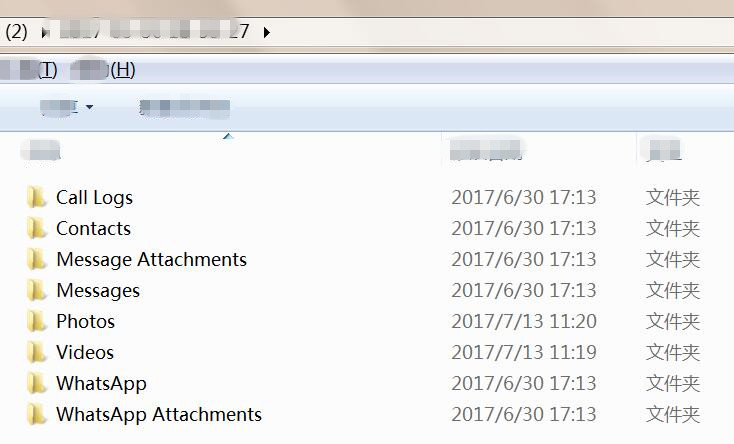
Again, hit the Recover button and the program will start the recovery process and save your lost or deleted WhatsApp messages to computer in HTML, CSV and VCF format separately. The deleted WhatsApp image attachments will be saved to computer in .JPG, PNG or other image format.

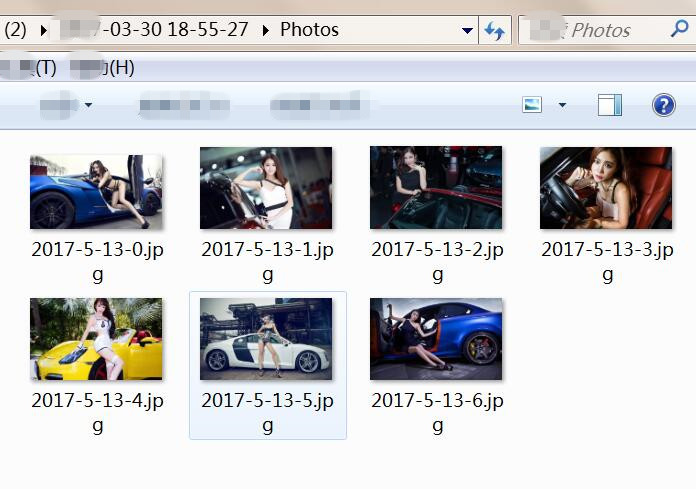
Once done, you can open the folder you specified earlier and check all newly recovered WhatsApp, and transfer them back to your Huawei device if required. Most Android phones support import of WhatsApp using CSV or VCF file. You can use this WhatsApp Backup & Restore tool to restore the recovered WhatsApp messages to the Android phone, or directly import the recovered pictures to your Huawei phone.

When you found data lost on your phone, please do not to operate your phone to avoid data being overwritten, and launch Android Data Recovery to recover lost data from your Android device.

d_win d_mac
d_win d_mac

HUAWEI WhatsApp Data Recovery

How to Transfer WhatsApp from iPhone to HUAWEI P40/P40 Pro(+)

[Summary]: Can’t seem to transfer WhatsApp from iPhone to HUAWEI P40? Read on and get to know about a simple method to transfer WhatsApp messages from iPhone to HUAWEI P40, P40 Pro or P40 Pro+.

Recently, I have upgraded from iPhone X to HUAWEI P40 Pro. What confuses me is that I not able to transfer WhatsApp from iPhone to HUAWEI P40 Pro, there are lots of important chat history in previous WhatsApp app. Can someone help me transfer WhatsApp data from iPhone to HUAWEI P40 Pro?

This is a query recently question by a new HUAWEI P40 users on reddit on how to transfer WhatsApp messages from iPhone to HUAWEI Android phone. When you have got a new HUAWEI P40 smart phone, you may want to know how to transfer data including WhatsApp messages, contacts, messages, photos, videos, etc. from an iPhone to HUAWEI P40? The good news is that there are several third-party solutions that can help us transfer data from iPhone to Huawei, including the WhatsApp chat history.

iPhone to HUAWEI P40 WhatsApp Transfer

To transfer WhatsApp messages from iPhone, iPad to HUAWEI P40/P40 Pro(+), you need to use a third-party iOS to Android WhatsApp transfer tool.

The good news is that the Phone Transfer tool has been upgraded, now it not only supports transfer WhatsApp messages, group info, attached media (photos/videos), shared documents, contacts, and so on between Android and iPhone, but also backup WhatsApp data to computer, and restore the backup data to the iOS/Android devices.

More Features:

  • Transfer Data between Android, iPhone/iPad/iPod touch and Windows phones.
  • Support transfer contents: contacts, photos, messages, WhatsApp messages, videos and more.
  • Transfer WhatsApp messages from Android to iPhone, iPhone to Android.
  • Back up WhatsApp data to Windows or Mac computer.
  • Restore WhatsApp backup to iPhone or Android phone.
  • Backup and restore app data like WhatsApp, Viber, WeChat, LINE, and Kik.

d_win d_mac
d_win d_mac

Let’s learn how to transfer WhatsApp messages from iPhone to HUAWEI P40, P40 Pro or P40 Pro+ with Phone Transfer.

Guide: How to Transfer WhatsApp Messages from iPhone to HUAWEI P40

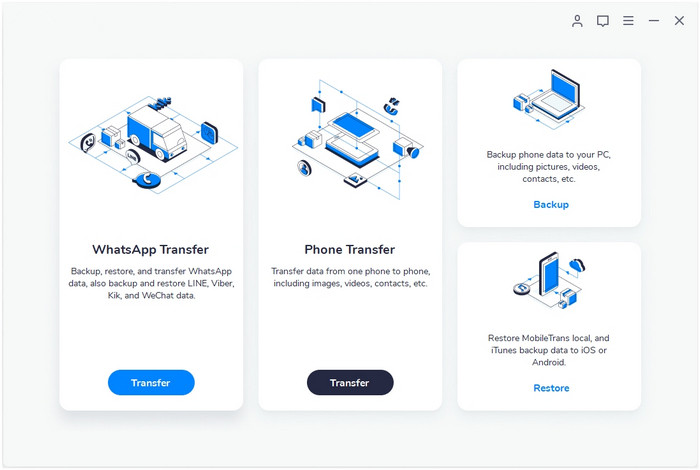
Step 1.Launch the Phone Transfer and Click “WhatsApp Transfer”
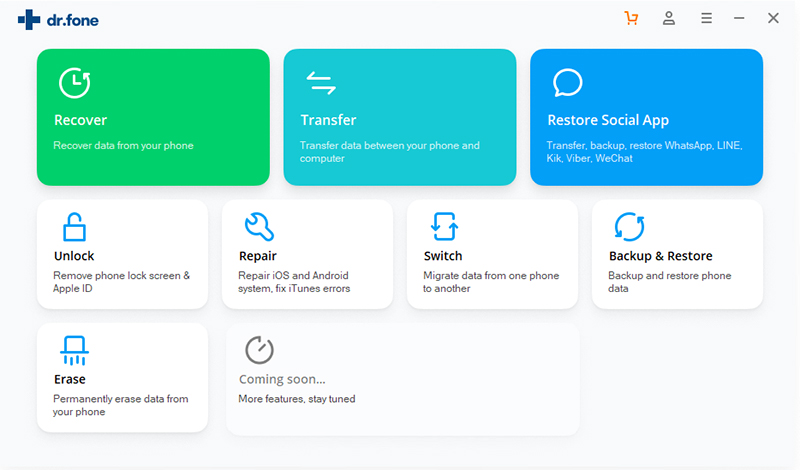
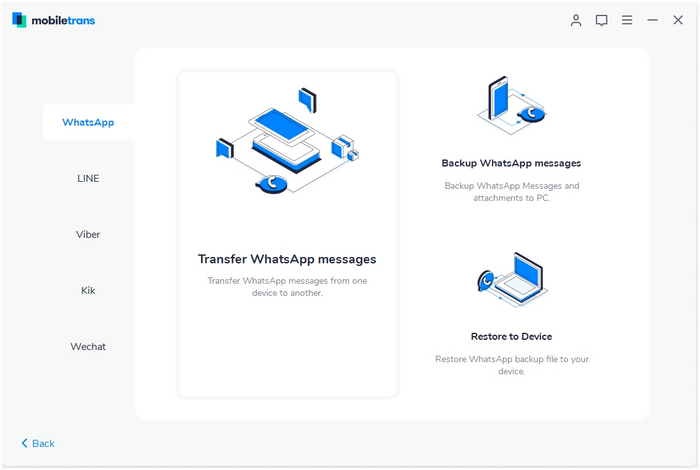
Firstly, please launch the Phone Transfer application on your PC or Mac, then click the “WhatsApp Transfer” feature from its home interface.

phone transfer

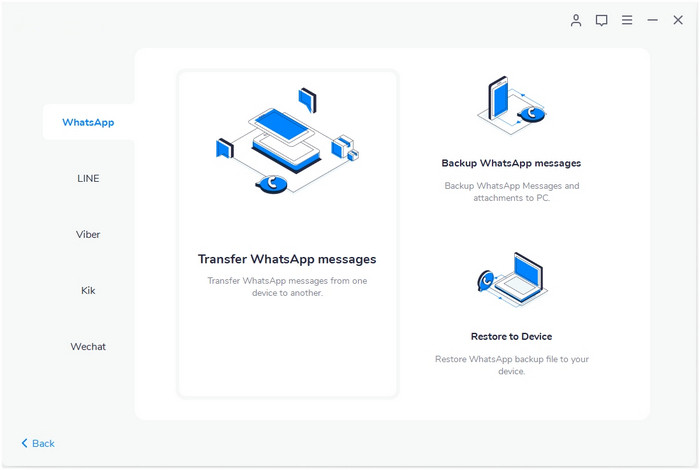
After entering this powerful WhatsApp data manager/transfer features, you can see the software also can backup and restore other app data like Viber, WeChat, LINE, and Kik. If you want to transfer WhatsApp messages from iPhone to Huawei phone, please click the “WhatsApp” section from here and choose to transfer your WhatsApp messages. In addition, this feature also allows you backup and restore WhatsApp data.

iPhone to Android whatsapp transfer

Step 2. Connect Both Two Phones and Set Source Device and Destination Device
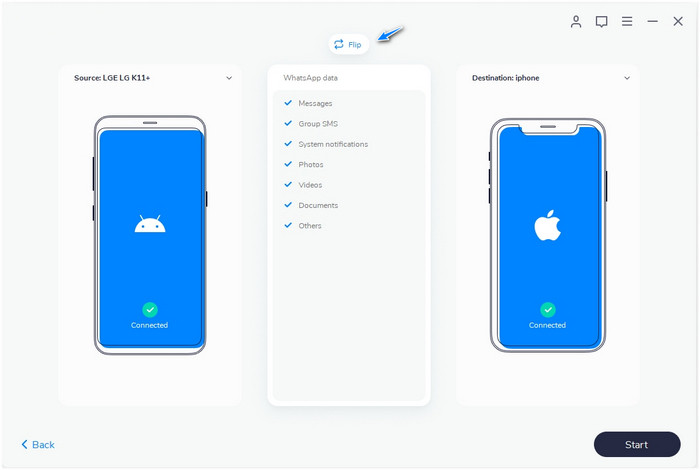
Now, just connect your Huawei P40 and iPhone devices to the computer. At the same time, the software would detect your phones and will display them as either source or target. In this case, you would like to transfer WhatsApp from iPhone to Huawei P40, please set the Huawei phone on right side as the destination device. If not, please click the “Flip” button to correct their position.

transfer whatsapp android to ios

Step 3. Start Transferring WhatsApp from iPhone to HUAWEI P40
Finally, just click on the “Start” button and start transferring WhatsApp chat history from iPhone to HUAWEI P40. Please wait for a few minutes as the application would transfer WhatsApp messages from iPhone to Huawei phone.

Transfer WhatsApp Messages from iPhone to HUAWEI P40

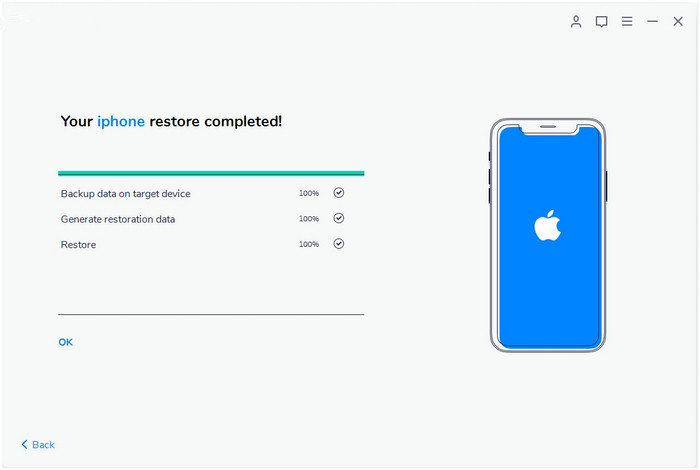
Once the WhatsApp transfer process is completed, the application will inform you so that you can safely disconnect two phones. Then, you can reinstall WhatsApp on your Huawei P40 and the App will restore the newly transferred backup data on it, now you can access the transferred WhatsApp data on Huawei P40.

Free download the Phone Transfer and try to convert WhatsApp chat history from iOS to Huawei phone:

d_win d_mac
d_win d_mac

You May Also Like

How to Backup WhatsApp Messages from Android to PC

Transfer WhatsApp from iPhone to Android Samsung

How to Recover Deleted Data Files on HUAWEI P40/P40 Pro

Recover Deleted Photos, Videos from HUAWEI P40/P40 Pro

iOS to Huawei WhatsApp Transfer

How to Recover Deleted Contacts, SMS from HUAWEI P40/P40 Pro

[Summary]: Deleted contacts and messages on HUAWEI P40? This article provides an efficient and effective way for you to recover contacts, messages and WhatsApp messages from HUAWEI P40/P40 Pro/P40 Pro+ with Android Data Recovery.

recover sms, contacts, whatsapp on HUAWEI P40/P40 Pro

How Can I Recover Lost Contacts and Messages on HUAWEI P40 series?

My contacts and messages lost!!! I don’t know why this is happening after factory reset my HUAWEI P40, when I restart the phone again, all contacts, messages and WhatsApp chat history were disappear. Both work and personal were gone, is it possible to recover lost contacts, messages and WhatsApp conversation after factory reset HUAWEI P40? Thanks a lot!

I send messages with my new HUAWEI P40 Pro when taking bus. But unfortunately, I deleted a important text messages on my phone by accident due to the shaking, how to recover deleted messages on Huawei P40 Pro?

After perform factory reset in HUAWEI P40 Pro+, all contacts were erased, then I check my Google account and I find that I haven’t backup before, how can I restore lost contacts on HUAWEI P40 Pro+ without any backups?

Many Android users may ask similar questions like above, you may wonder whether there is any chance for you to recover lost or deleted contacts, text messages and WhatsApp messages on Huawei Android phone. Good news for you! With the help of Android Data Recovery, which is a professional Huawei data recovery tool, you can recover text contents: contacts, SMS, WhatsApp messages, call logs, notes; media files: photos, videos, audio and documents from Huawei P40/P30/P20/P10/P9/P8/Mate 30/Mate 20/Mate 10/Mate 9, etc. Only few clicks, you can recover your lost data from Huawei Android phones.

A Professional Android File Recovery Software to Use

  • 1.It can recover deleted contacts with full information such as contacts name, phone number, email, job title, address, companies and more which you fill on your Huawei phone. And saving the deleted contacts as VCF, CSV or HTML to your computer for your use.
  • 2. It can directly recover deleted messages from Huawei phone with full information such as name, phone number, attached images, email, message, data and more. And saving the deleted messages as CSV, HTML for your use.
  • 3. Recover data from Huawei phone or SD card inside Android devices due to mistaken deletion, factory reset, system crash, forgotten password, flashing ROM, rooting, ect.
  • 4.Extract data from dead/broken Samsung S6/S5/S4/Note 5/Note 4/Note 3, fix Android phone problem such as frozen, crashed, black-screen, virus-attack, screen-locked and restore Android OS back to normal.
    4. Preview and selectively recover the contacts, messages and WhatsApp messages you need before recovery.
  • 5.Support recover data from Samsung, HTC, LG, Sony, Google Nexus, Motorola, Huawei, Sony, Sharp, OnePlus, Xiaomi, Google Pixel and and other brands with Android OS.

Firstly, download the free trial of Huawei Data Recovery program below and try to recover your lost data.

d_win d_mac
d_win d_mac

Recover Deleted Contacts and Messages from HUAWEI P40 in 4 Steps

Step 1: Run the software and plug HUAWEI P40 into the computer
The first thing needed is to install this software on your computer before you begin to retrieve lost contacts on HUAWEI P40 phone. After that, open it, an interface will pop up asking you what kinds of task you want to perform. In this case, we select “Android Data Recovery” to proceed. Then, connect your HUAWEI P40 to the computer with USB cable.

Android Data Recovery

Step 2: Turn on USB debugging on HUAWEI P40
In this step, you’ll see a message flashing on the screen prompting you to enable USB debugging on the device. Just follow the instructions displayed to accomplish the job.

Besides, you have a guide for reference: How to enable USB debugging on Android.

usb debugging huawei phone

Step 3: Choose “Contacts” and “Messages” option to scan
Next, it’s time to select the to-be-scanned file type. With regard to recovering HUAWEI P40 contacts, click the checkbox next to the “Contacts” and “Messages” option, followed by Next button.

choose data types to recover

By default, the program will try to analyze the device and perform a quick scan on its file system to search for deleted contacts. If the attempt doesn’t return the contacts that you need, you can perform a more deeper scan.

To do so, click Rooting Tools button at the bottom and get KingoRoot to get the device rooted. For more info, learn from: How to Root and Unroot an Android Device.

root HUAWEI P40

Once rooted, just click “Retry” button, the program continues scanning the deleted contacts and messages from HUAWEI P40. This will take some minutes.

Step 4: Recover Contacts and SMS from HUAWEI P40
After completing a deep search, all found contacts will display on the interface. You can click the specific one to preview its detail, such as name, phone number, email, etc.

Recover deleted contacts from HUAWEI P40/P40 Pro(+)

recover contacts from HUAWEI P40

Recover deleted SMS from HUAWEI P40/P40 Pro(+)

recover SMS from HUAWEI P40

You can now select the contacts you wish to get back, and click the Recover button at the bottom right side of the program’s window.

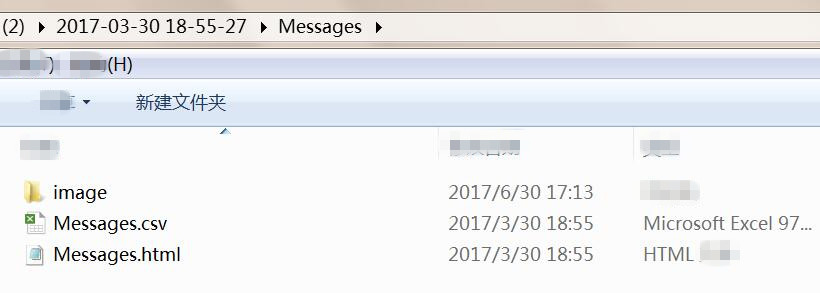
#1 You can see the program will save the deleted messages as CSV, HTML

recover sms on HUAWEI P40/P40 Pro

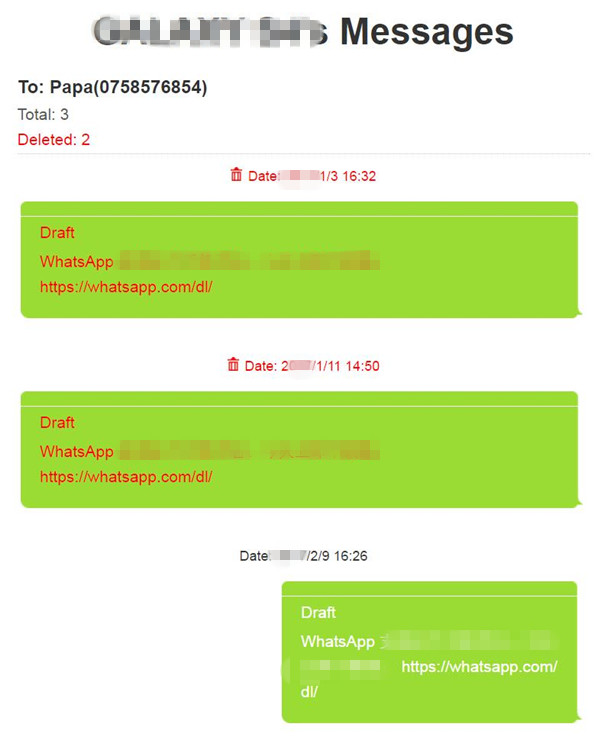
#2View the restored text messages(.HTML) on computer

restore sms on HUAWEI P40/P40 Pro

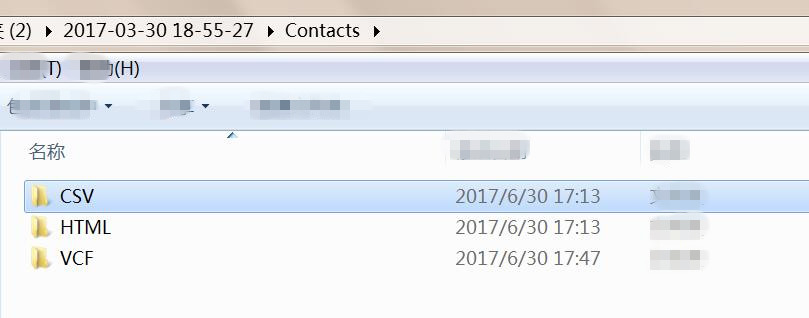
#3And saving the restored deleted contacts as VCF, CSV or HTML to your computer for your use.

recover contacts on HUAWEI P40/P40 Pro

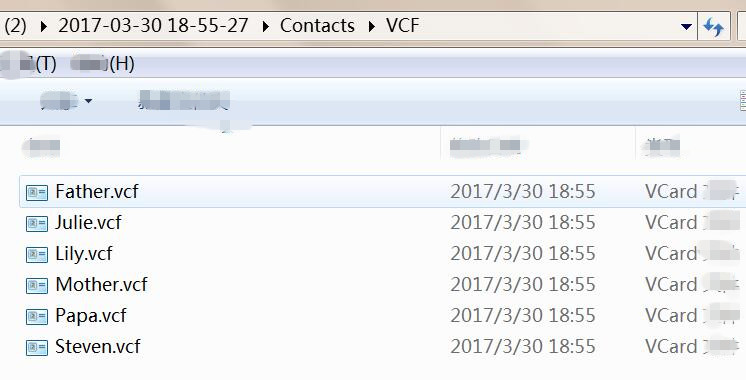
#4View the restored contacts(.VCF) on computer

restore contacts on HUAWEI P40/P40 Pro

Now you have your lost messages and contacts back! We highly suggest you to do frequent backup your important Android data to computer in case of some unexpected data loss. This Android toolkit not only can help you recover lost or deleted data from Android, but also can help you backup and restore Android data, please free download and have a try!

d_win d_mac
d_win d_mac

Since those restored contacts and messages saved on the computer, you can use this Android Transfer to import the contacts .VCF files to your Android phone for using.

HUAWEI Data Recovery

Recover Deleted Photos, Videos from HUAWEI P40/P40 Pro

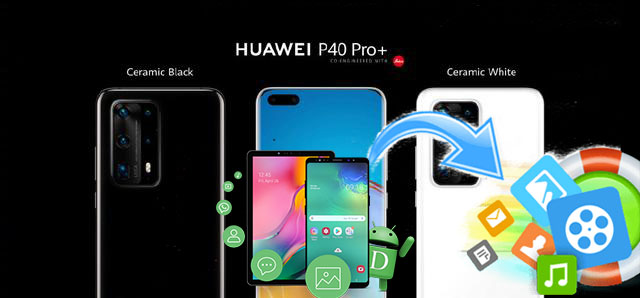
[Summary]: Cannot restore photos from Recently Deleted Folder on Huawei? This tutorial will teach how to recover lost or deleted photos, videos from Android HUAWEI P40/P40 Pro/P40+ with Android Data Recovery and SD card Recovery, read on and get the solutions.

On the evening of March 26, Huawei held an new product launch conference and officially released its first flagship P40 series. The HUAWEI P40 series of mobile phones this time includes three models, namely Huawei P40, Huawei P40 Pro, and ultimate P40 Pro +. The configuration and camera systems have been increased or decreased in order. The first is the basic version of the P40, which is equipped with a 6.1-inch digging screen on the front, with a screen resolution of 2340 × 1080, a front digging position of 32 million pixels and an infrared camera, and a rectangular three-shot combination on the back of the phone. Huawei named it Super-Perceptual Leica Triple Camera. The main camera is a 50-megapixel super-sensing camera. The 1 / 1.28-inch RYYB sensor can be used to further improve the performance of photography in low-light scenes. 16-megapixel ultra-wide-angle camera and 8-megapixel telephoto camera, supporting 3x optical zoom, 5x hybrid zoom and up to 30x digital zoom, and this telephoto camera supports OIS optical image stabilization.

huawei p40 photo recovery

If you’re a Huawei user and like to use the built-in camera to take photos and shot videos, you may have stored lots of photos and videos in the device’s photo library. Sometimes, you may deleted the useless pictures, photos, videos and movies to free up some space on your Huawei P40 phone. Guess what? You deleted the photos or videos by careless which you intend to keep for good.

How Can I Recover Photos and Videos from HUAWEI P40?

I deleted some precious photos on my HUAWEI P40, then I go to Recently Deleted album on Huawei phone, but I can’t find those recently deleted photos, how to recover deleted photos from Huawei P40 without backups?

After reset HUAWEI P40 Pro to factory setting, I found all data lost, including photos, videos, contacts, messages, how to restore lost photos and videos from HUAWEI P40 Pro?

If you have deleted some important photos and videos on HUAWEI P40, don’t worry. This article teach you three ways to recover deleted photos, videos on HUAWEI P40/P40 Pro/P40 Pro+, even you haven’t backed up.

Method 1: Restore Deleted Photos from Recently Deleted Folder on Huawei P40

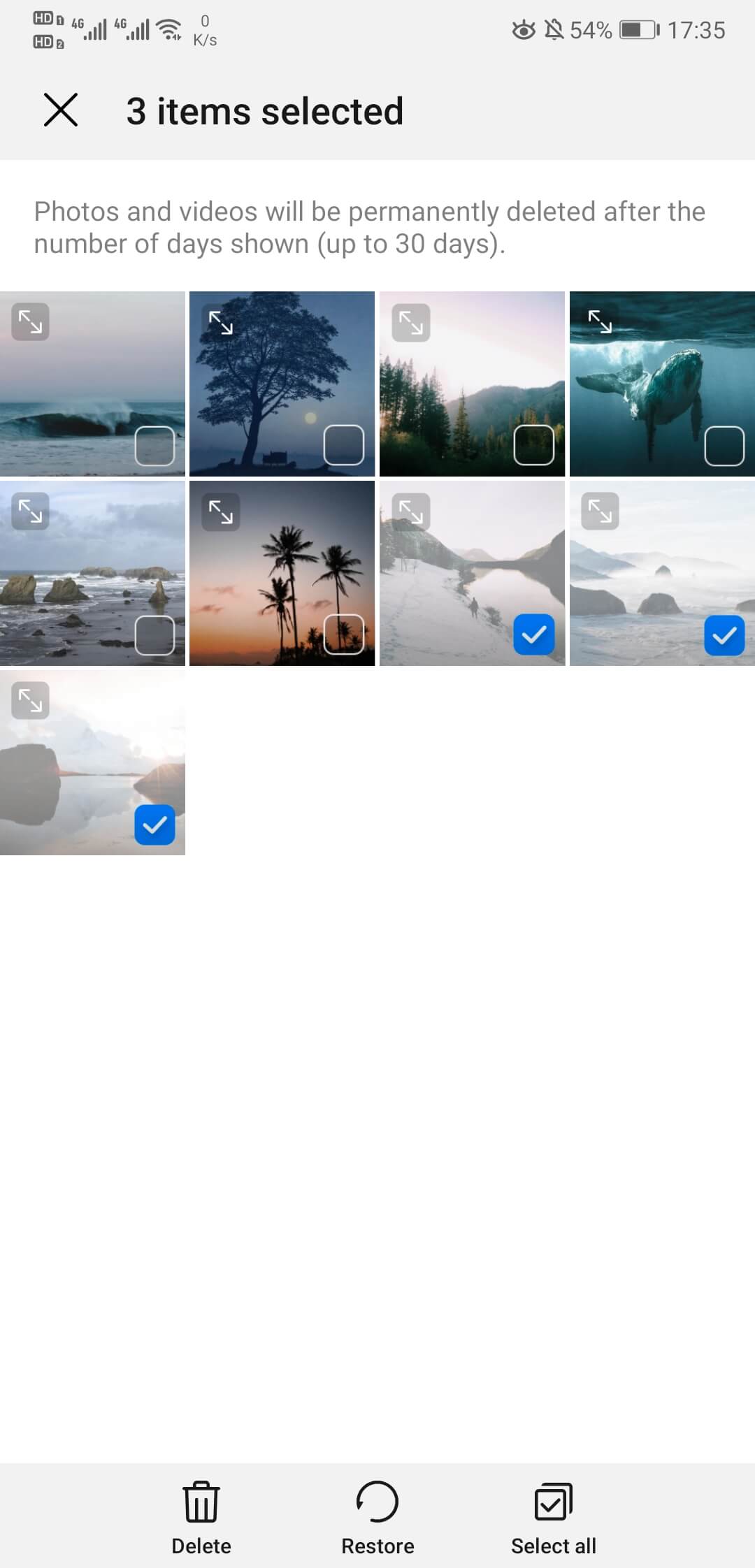
For a new Huawei phone, there is a [Recently Deleted folder] in Gallery app, where saving the recently deleted photos and videos, this folder as a recycle bin, helping you keep deleted photos for 30 days.

If you recently deleted photos and videos on Huawei P40 phone by accidentally, please don’t worry, those deleted pictures just be moved a [Recently Deleted folder] in Gallery app. So if you accidentally delete a photo, you can recover the deleted photos and videos from Recently Deleted folder on Huawei within 30 days.

How to recover deleted photos from Recently Deleted album on Huawei P40?

Step 1. Unlock your Huawei P40 and open Gallery app
Step 2. Tap Albums > Recently Deleted.
Step 3. Select the deleted photo(s) and video(s) you want to restore, and tap Restore option.

restore photos in huawei phone

Then, you will find those restored photos and videos displaying in photos library again.

This is the most simple way to restore deleted photos and videos on Huawei phone, but if the photos has been deleted more than 30 days, those deleted files will be erased permanently automatically. Under these circumstances, you have to use a third-party Android Data Recovery software or SD Card Data Recovery program to scan and recover deleted photos, videos from your Huawei phone’s internal memory as well as an SD card, please keep reading the following Huawei P40 Photo Recovery solution.

Method 2: Recover Deleted Photos, Videos from HUAWEI P40 with Huawei Photos Recovery software

The Android Data Recovery is capable of recovering photos, videos, audio, messages, contacts, WhatsApp messages, call logs and documents on/from an Android phone or tablet. Due to the ease-to-use interface, it’s ideal for everyone, only three simple steps: Scan, preview and recover. Simple clicks get back your deleted photos and videos from HUAWEI P40/P30/P20/P10/P9/P8. Not only restore deleted files from Android devices, Android Data Recovery also can backup and restore data on Huawei phone, as well as various brands of Android phones/tablets.

Android Data Recovery Key Features:

  • 1. Scan and recover lost or deleted photos, videos, audio files, contacts, messages, messages Attachments, call history, whatsApp, documents from Huawei phone and other android smartphone or SD cards inside your Android device.
  • 2. Get back deleted files from Android phone or SD card, no matter they are lost because of accidentally deleting, factory resetting, system crash, forgotten password, flashing ROM, rooting, ect.
  • 3. Preview deleted scanned photos, videos, messages, contacts etc before recovery.
  • 4. Recover data from dead/broken Samsung phone internal storage, fix Android system to normal if you phone frozen, crashed, black-screen, virus-attack, screen-locked.
  • 5. Recover data from almost all brands of Android devices, such as Google Pixel, OnePlus, Samsung, HTC, LG, Huawei, Sony, Sharp, Windows phone, etc.
  • 6. Read and restore the data with 100% safety and quality.
  • 7. Backup and restore Android files to your computer easily.

Download Android Data Recovery and have a try to recover your lost data.

d_win d_mac
d_win d_mac

How to Perform HUAWEI P40/P40 Pro/P40 Pro+ Photos Recovery?

Step 1: Launch the software and connect HUAWEI P40 to computer
First thing first, download the tool and install it on your computer. Launch it and you will get a simple interface as image shown below.

In order to get back photos from Galaxy HUAWEI P40 device, Click “Android Data Recovery” mode at the left side.

run Huawei photo recovery

Then you’ll be prompted to connect your HUAWEI P40 into computer via USB cable. Just follow what it said.

Step 2: Allow USB debugging in HUAWEI P40
In this step, you will need to turn on USB debugging on your HUAWEI P40 to access the device data. You can carry out the on-screen instructions to finish the task or follow our easy-to-go guide on how to enable the USB debugging mode on Android.

usb debugging in HUAWEI P40

Step 3: Choose Photos, Videos and proceed scanning HUAWEI P40
The following step is to choose file types. With the target of recovering lost pictures from HUAWEI P40 device, tick Videos, Gallery and Picture Library box.

recover photos from HUAWEI P40 gallery

Click on Next button on the lower right to start scanning your HUAWEI P40.

If it can’t find deleted images you want after the normal scan, you can click Rooting Tools button and download KingoRoot to root your device so that you can get complete access the HUAWEI P40 operating system to look for more information.

For more information of rooting your HUAWEI P40 device, check the article: How to root and unroot an Android device safely.

root HUAWEI P40

Once your HUAWEI P40 gotten rooted, deep data scanning on the handset for missing photos will commence automatically.

Step 4: Preview photos and recover photos on HUAWEI P40
Once scanning is done, you can preview all found pictures in clear and organized format on the right side of the screen. For quick view of deleted photos, you can toggle on the “Only display the deleted item(s)” slider at the top center of the interface to let it just display pictures missed on HUAWEI P40.

Go ahead and tick the boxes next to the pictures you want to retrieve and click Recover button. When a pop-up shows up, select where you prefer to save your restored photos.

get pictures back from HUAWEI P40 phone

Once confirming the output folder, click on the “Recover” button again and this HUAWEI P40 photo recovery program will recover the pictures you select and save onto computer.

get pictures back from HUAWEI P40 phone

Once the deleted photos be stored and saved onto the computer, you will find them on your computer folder.

recover photos on HUAWEI P40

Now, please free download the Android data recovery and start to recover deleted or lost files from Huawei phone.

d_win d_mac
d_win d_mac

Method 3: Recover Photos and Videos from SD card in Huawei P40

If you storage photos, videos, music and documents on MicroSD card of your Huawei phone, once you deleted photos from your SD memory card, you can recover deleted, lost or formatted files from SD card with Photo Recovery software.

This Data Recovery(Windows/Mac), which is an professional SD card data recovery program, it enables you recover photos and videos from SD card, digital camera, USB flash drive and hard disk. Please unplug the SD card from the Huawei phone and insert it into a computer with a card reader, then follow this guide to recover photos, videos from SD card.

All is done! You can now transfer the recovered photos back to Huawei P40 or other Android devices, here we recommend you use this powerful and useful Android File Transfer & Manager tool, which not only can help you directly import photos, videos and music from computer to HUAWEI P40/P40 Pro/P40 Pro+, but also can help you mange Android files easily.

HUAWEI P40 Photo Recovery

How to Recover Data Files on HUAWEI P40/P40 Pro

[Summary]: Do you wish to recover your lost data back from Huawei P40? Read on and learn how to perform HUAWEI P40 data recovery from your phone’s internal memory as well as an SD card.

Huawei has released the latest P40 series, including P40, 40 Pro and P40 Pro+. The following is a comparison of Huawei P40 series camera configuration:
The Huawei P40 has only three vertical rows in its rectangular lens module; it includes a 52-megapixel super-sensitive main camera, a 40-megapixel movie lens, and an 8-megapixel 3x optical variable lens.
The P40 Pro replaces an 8-megapixel 3x optical variable lens with a square periscope lens, adds a TOF lens, and improves it to four. Both models are available in grey, pink gold, black, blue and aurora.
Huawei P40 Pro+, the camera continues to increase to five cameras on the basis of supporting the first two models, has a 6.7-inch 2K + resolution 120Hz display, battery capacity 5500mAh, supports 50W fast charge / 27W wireless fast charge. The color scheme is expected to provide highlight white and highlight black, with a ceramic body.

HUAWEI P40 Data Recovery

How to Perform HUAWEI P40 Data Recovery?

Have bought an new Huawei P40 smart Android phone? If you use Android phone for long time, you may found the phone becomes slowly, sometimes an Android phone can be crashed due to plenty of reasons. You might end up losing your data due to factory reset, Android OS update or accidental deletion. In this guide, we will let you know how to perform HUAWEI P40 data recovery, you can recover photos, contacts, SMS, call logs, WhatsApp messages, videos, audios and documents from HUAWEI P40/P40 Pro/P40 Pro+.

Let’s learn how to recover lost and deleted data files from HUAWEI P40, P40 Pro and P40 Pro+, there are two ways to perform Huawei data recovery: The firstly method is directly scanning and dcover data from Huawei phone’s internal; the second method is inserting the SD card into your PC’s card reader, and then recover photos videos, audios and documents from SD card. The first method also can help you recover deleted contacts, messages, call logs, WhatsApp messages and other special document from Android devices.

HUAWEI P40 Data Recovery Software You’ll Need

This HUAWEI P40 Data Recovery – Android Data Recovery is one of the most powerful data recovery for Huawei phone. It provides a secure way to recover data files from HUAWEI P40/P30/P20/P10/P9, as well as compatible with more than 6000 Android devices, it runs on both Windows and Mac. With it, you can easily recover all Android data like photos, videos, audio, call logs, text messages, contacts, WhatsApp messages, documents, and a lot more. It can help you retrieve files from your Huawei phone’s internal memory as well as an SD card.

Key Features:

  • Recover lost and deleted data from Huawei phone & tablet directly.
  • Preview and selectively recover what you want from your Huawei phone.
  • Supports all types of data from Android devices.
  • Supports almost all brands of Android phone and tablets.
  • Fix bricked Android OS to normal and recover data from broken Samsung phone.
  • Backup and restore data on Huawei phone easily.

d_win d_mac
d_win d_mac

Guide: How to Recover Deleted and Lost Data on HUAWEI P40/P40 Pro

Step 1: Run the Android Data Recovery and Connect HUAWEI P40 to PC
The first step is to download the program, install it on your computer, then run it.

You’ll want to retrieve deleted photos deleted from HUAWEI P40, so you’ll select “Android Data Recovery” tab in the opening window.

Next, connect your HUAWEI P40 device to computer with USB cable.

Samsung Galaxy S20 Data Recovery

Step 2: Allow USB Debugging on Android
When connected, you will get prompt to enable USB debugging mode on the device to get access to the internal storage. You can follow the on-screen instructions to complete this or refer to our article about: How to turn on USB debugging mode on Android.

usb debugging on huawei

Step 3: Choose data you want to scan
Next, select what data type to scan for deleted files. In our case, select “Gallery” and “Picture Library”, “Contacts”, “Messages”, “WhatsApp Messages” and other type of data to continue.

select data to scan

The program will start analyzing the device and try to discover the deleted pictures. To be able to full read what’s inside the device storage, a root and in-depth search is required.

To do so, click the “Rooting Tools”, this will open a new window where you can download a rooting tool named KingoRoot helping you root the device.

Also check: how to root and unroot an Android device with KingoRoot

root HUAWEI P40

Step 4: Recover Deleted Data from HUAWEI P40
Once you’re rooted, the software will initial a full and complete scan on the internal memory or SD card on the HUAWEI P40. This might take a few minutes.

After the scan, it should display all photos including deleted ones that can recover on the window, just like the screenshot shown below.

Go ahead and select photos, sms, contacts and other data you want to get back, click the “Recover” button on the lower right corner. You will get dialog as to where you want to save the recovered files to the computer. Just do as it requires.

recover data from HUAWEI P40

Finally, click the “Recover” button again, your data will begin restoring to your specified location on computer.

android data restored

That’s it. That’s how you can recover deleted data from HUAWEI P40. Please free download and have a try Now!

d_win d_mac
d_win d_mac

Recover Deleted Photos and Videos from Huawei SD card

If you deleted photos and videos on SD card in HUAWEI P40, you have other options to restore deleted photos on HUAWEI P40? It’s basically the same process as recovering files from a computer. You just need to insert the SD card into your PC’s card reader, then use a professional Data Recovery(PC/ Mac) to scan lost/deleted/formatted data from your SD card. When it displays a list of the recovered pictures, you can recover them and save onto the computer.
Also read: How to Recover Data from Android SD Card

Above two methods to recover deleted files from Huawei P40, Huawei P40 Pro and Huawei P40 Pro+, all recoverable data be save onto the computer. If you want to use the recovered files on your phone, you can use this Android Transfer & Manager tool to transfer files from computer to Huawei P40 or other Android/iOS devices.