All posts by DHZ

How to Backup and Restore Data on Samsung Galaxy Fold

[Summary]: Afraid of losing everything on your Android device? Get the best way to backup and restore files Samsung Galaxy Fold without any data loss.

Disasters with Android smartphone & tablet strike more often you think, which will put you into an extremely bad position. Find out which one led to the deletion of your precious files and learn how to recover lost data from Android For example, you perform an update on your Android phone without backing up; your Android gets stolen, damaged in accidents or falls into the water; you accidentally delete the wrong files, or just press the delete all button by mistake. Other causes include virus attacks, files getting corrupted due to repeated usage on different devices, rooting and flashing ROM.

Awfully, all the contacts, photos, videos, app data, settings, valuable documents and more irreplaceable contents stored in Android device are vanished in a flash. But if you have an updated backup of your smartphone then you don’t need to worry about data inaccessibility as you can easily restore them. Today we will discuss about this topic only where you will be guided on how to backup and restore data or files on Samsung Galaxy Fold.

As you know, the Samsung Galaxy Fold was only launched this month and there are many users who want to buy it. Compared to previous models, it is unique in design and has some extra features. However, in fact Samsung Galaxy Fold received a positive response from customers, although its starting price was $1980, a little expensive.

Thanks to U.Fone Toolkit – Android Data Backup Restore, you can easily backup and restore data and files from Samsung Galaxy Fold. You are allowed to backup every kind of data, which includes videos, photos, contacts, call history, music, gallery, audios, documents (ppt, word, excel, pdf…), etc. It facilitates user to manage, export and import data whenever they want. If needed, you can easily preview and restore backup to Android devices. The program has built-in functionality for backing up all data with one click, and you can also copy only specific file types. Equally, this also applies to the recovery process.

Now get this program on your computer and have a try.

d_win d_mac

Part 1: How to Back Up Samsung Galaxy Fold Data

Step 1. Install U.Fone Toolkit – Android Data Backup Restore Software

Once you install the program on your computer, double click the icon on the desktop to run it. Its main interface will open with three tabs: Android Data Recovery, Broken Android Data Extraction and Android Data Backup & Restore. To create a full backup of your Samsung Galaxy Fold, select “Android Data Backup & Restore” option to start.

android data backup restore

Step 2. Select Device Data Backup Option

Here we click on “Device Data Backup” option and then plug your Samsung Galaxy Fold into the computer using a USB cable.
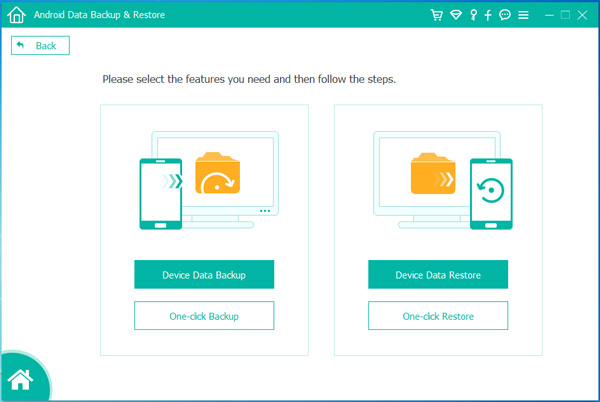
choose device data backup

Step 3. Choose Data Type from Galaxy Fold

Here you can select which file types you wish to back up. As you can see, contacts, videos, audios, call logs, messages, pictures and documents are all supported.
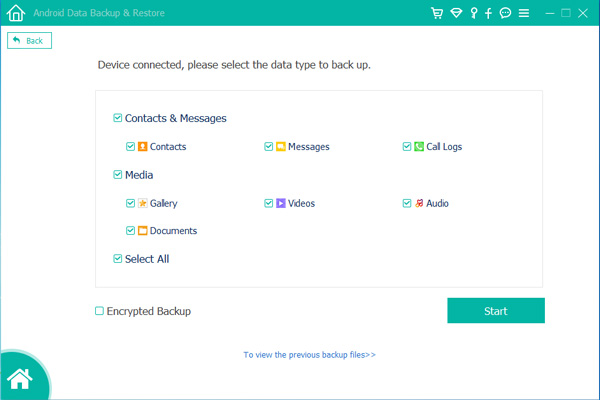
Choose data to backup

Step 4. Start Backing Up from Samsung to PC

A dialog box for output path selection jumps out after you click on the “Start” button. You just specify the directory where you wish to save the newly created copy of Galaxy Fold data.
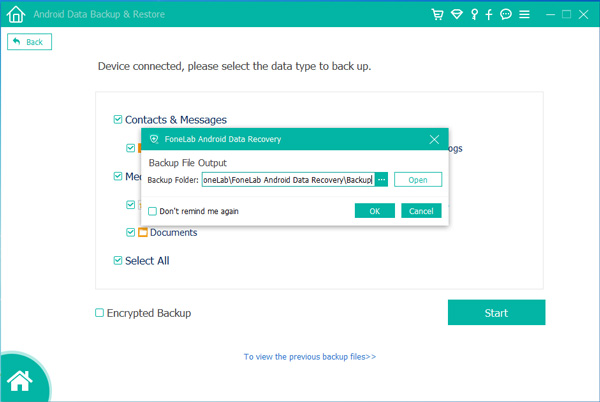
Choose Output Directory

Clicking on the “OK” button and it will begin the process of automatically backing up the Samsung Galaxy Fold. You can keep track of the progress through the window.
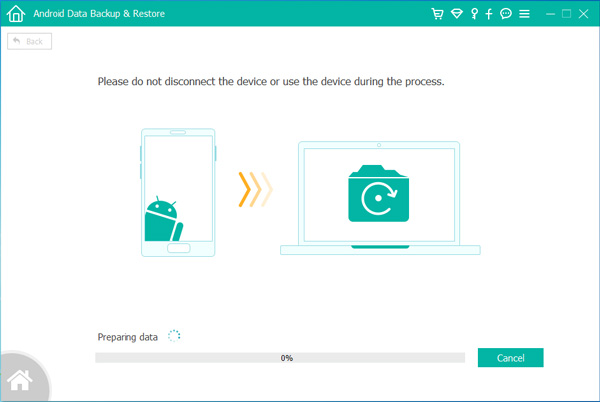
backup data from samsung galaxy fold to computer

Part 2: How to Restore Backup to Samsung Galaxy Fold

Step 1. Choose “Device Data Restore” Mode

Connect your Samsung Galaxy Fold device to the computer after launching the program. Navigate to “Device Data Restore” mode to begin.

choose device data restore

Step 2. Specify A Backup to Restore From

You can access all the backups you have made for your Samsung device. You are able to identify the backup by name, model, latest backup data, serial number and backup size. Select a backup that contains your desired data.
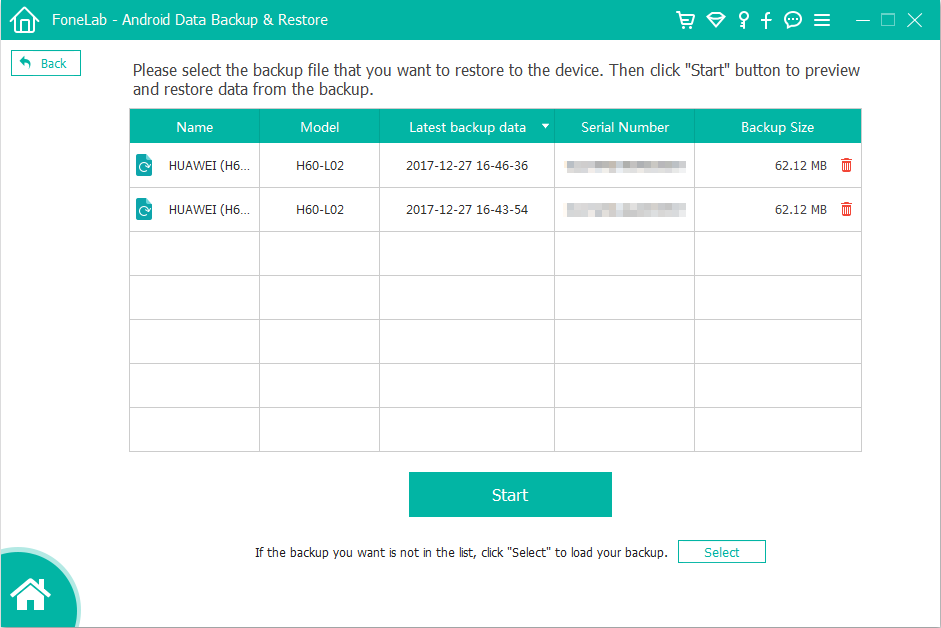
select a backup to scan

Step 3. Select Data Type to Restore

Click the “Start” button and the program will automatically scan the backup of your choice. Once done, all files the backup contains will be displayed on the window, just like the screenshot shown below.
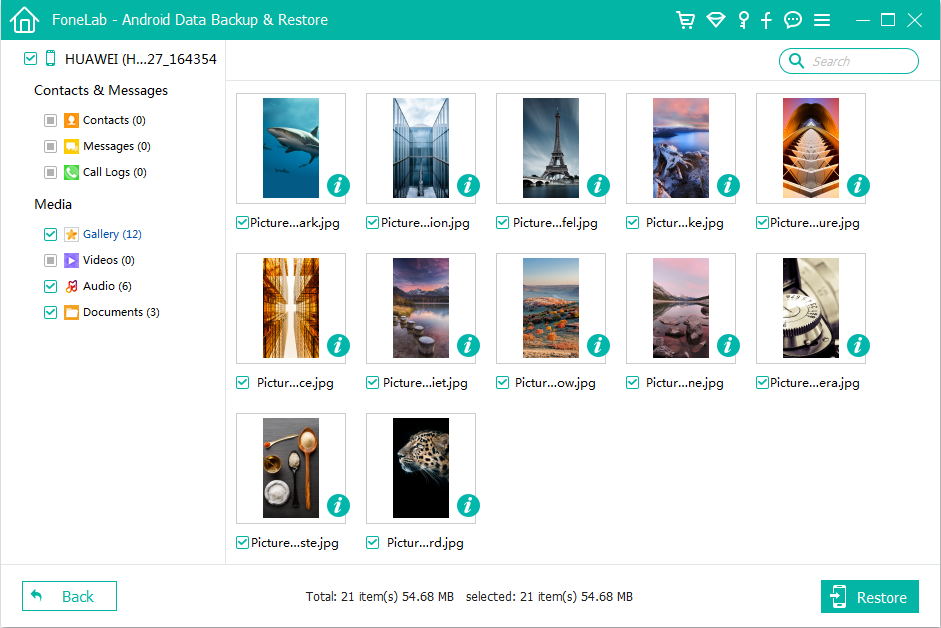
select data restore from backup

Now choose which files you want to retrieve and click on “Restore” button to get them back. When the process completes, the selected files will be restored to your Samsung Galaxy Fold.
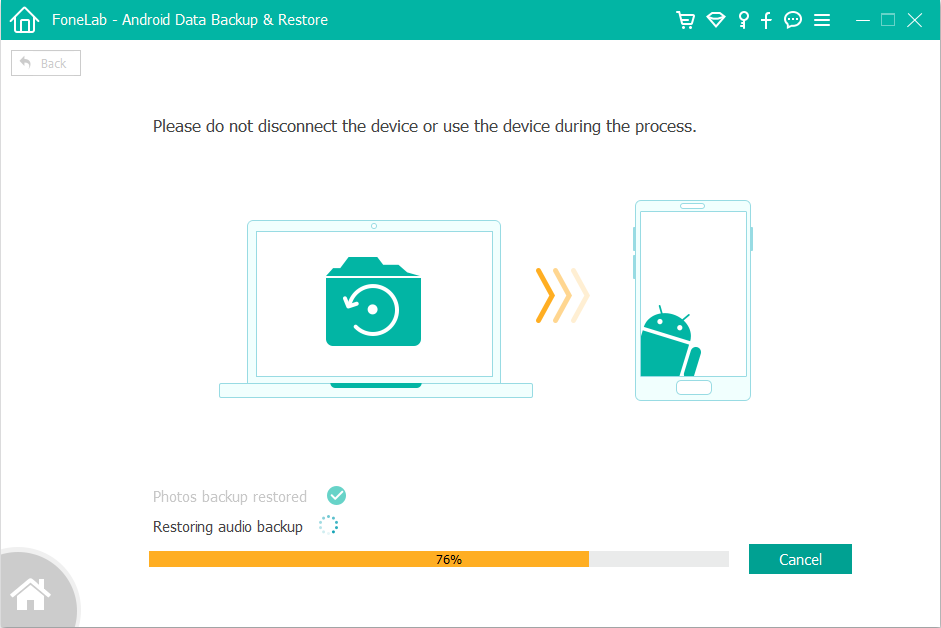
restore data from backup to samsung galaxy fold

d_win d_mac

Samsung Galaxy Fold specificstions

*7.3-inch QXGA+ display on the inside (4:2:3 aspect ratio)
*4.6-inch HD+ display on the outside (21:9 aspect ratio)
Two batteries add up to 4,380mAh of capacity
*Unnamed 7nm processor
*512GB storage, 12GB RAM
*Wireless PowerShare
*Three cameras on the outside (16MP+12MP+12MP) and another three (10MP+8MP+10MP) on the inside
*Samsung OneUI interface

Related Article

How to Transfer Data from Samsung to Galaxy Fold

How to Transfer Data Contacts from Samsung to iPhone XS(Max)/XR

How to Transfer WhatsApp from iPhone to Huawei Mate 20(Pro/X/RS)

Solutions to Backup and Restore Android Phone/Tablet

How to Backup and Restore Data on LG Phones

Samsung Galaxy Data Backup and Restore

Transfer Data Contacts, SMS, Photos, Music, Video from iPhone to Galaxy Fold

[Summary]: The article demonstrates how to transfer everything from an old iPhone to Samsung Galaxy Fold with ease, including pictures, contacts, messages, videos, music, app and app data, etc.

Highlights of Samsung Galaxy Fold:

1. When folded into a 7.3-inch tablet, the Samsung Galaxy Fold has a unique screen resolution of 2,150 x 1,536 pixels with an aspect ratio of 4.2:3. After folding, it has a 4.6-inch screen, dynamic AMOLED off and hand control to the typical Super AMOLED display panel on the other side.

2. The rear of the Samsung Galaxy Fold gets the triple-camera setup, featuring a primary 12MP sensor with variable aperture of f/1.5-2.4, optical image stabilisation and dual pixel autofocus. Its accompanying models include a 12MP telephoto sensor with f/2.4 telephoto lens, optical stabilisation, phase detection autofocus, and 2x effective optical zoom. The third unit is a 16MP unit with an ultra-wide angle f/2.2 lens.

It is said that when Samsung launched the Galaxy Fold on April 26, it will cost you an amazing, heartbreaking $1,980, while the Samsung Galaxy S10 starts at $1,000. If you are a style-conscious user and want to ditch your iPhone (iPhone X, iPhone 8 or 8 Plus, iPhone 7/7 Plus, iPhone 6s/6s Plus, iPhone 6/6 Plus, etc.) for a new Android device, then the elegant Samsung Galaxy Fold is your best bet.

If you are looking for a versatile iPhone to Samsung Galaxy Fold transfer tool, we will recommend Phone Toolkit – Switch. It allows almost all data files from contacts, SMS, calendar, call logs to videos, photos and tracks to be migrated. As a versatile utility, Phone Toolkit – Switch is receptive to most operating systems, like iOS, Android, BlackBerry, WinPhone and Symbian.

d_win d_mac

Why Choose This Phone Toolkit – Switch:

*Transfer data in one click.
*Phone Toolkit – Switch will not overwrite or interrupt existing data on both iPhone and Samsung phone during the whole process.
*Extract your data and files from iPhone and put them to Samsung in original format and quality.
*Works for a wider range of data types, including videos, photos, music, contacts, SMS and other documents.
*Compatible with almost all iOS devices, like iPhone XS/X/8/8 Plus/7/7 Plus/6/6s/5/5s/5c/4, and Samsung Galaxy S10/S9/S8/S7/S6/S5/S4/Note 9/Note 5, Galaxy Fold, etc.
*Support for Windows 10/8/8.1/7/XP and Mac OS.

Detailed Guide on How to Sync Data from iPhone to Samsung Galaxy Fold

Step 1. Install Phone Toolkit – Switch on PC

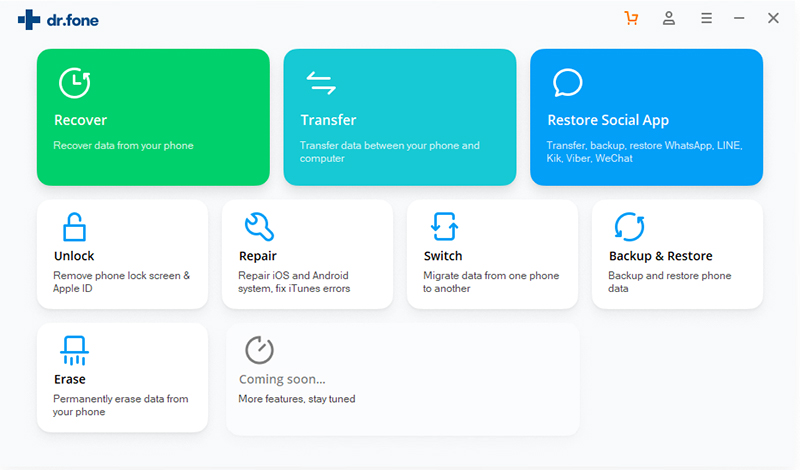
Download the Phone Toolkit – Switch program and install it on your machine(Windows PC or Mac PC). Launch it and select the “Switch” module.

phone switch on pc

Step 2. Connect iPhone and Samsung Galaxy Fold to PC

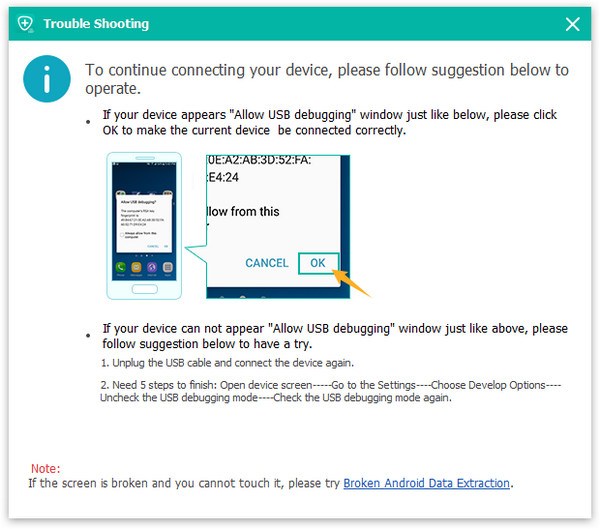
Connect your old iPhone and New Galaxy Fold to your computer with two USB cables. Once connected, please activate USB debugging mode on your Samsung devcie. On iPhone, just tap “Trust” when a prompt pops up.

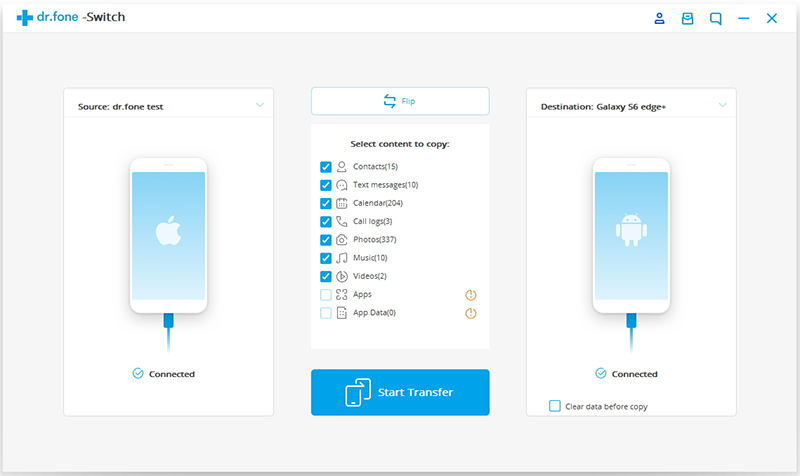
Now, both your devices are on the program window. Click “Flip” button to set iPhone as the Source device and Samsung Galaxy Fold handset as the Target device.

select iphone data to transfer

Step 3. Transfer iPhone Files to Samsung Galaxy Fold at Ease

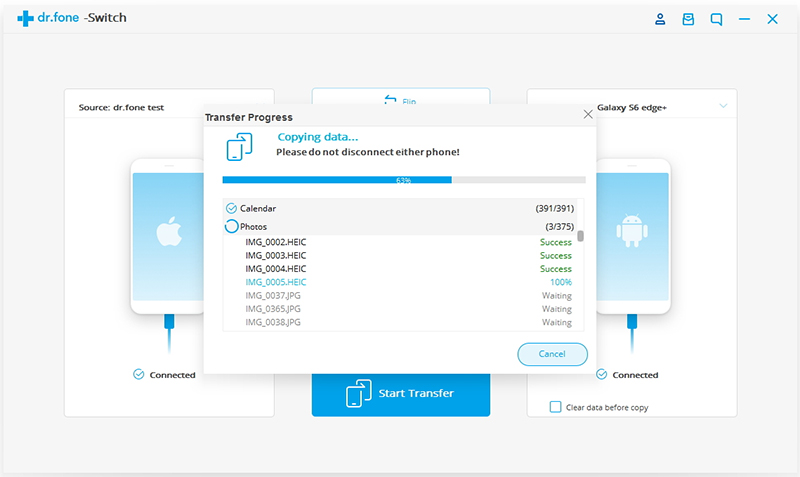
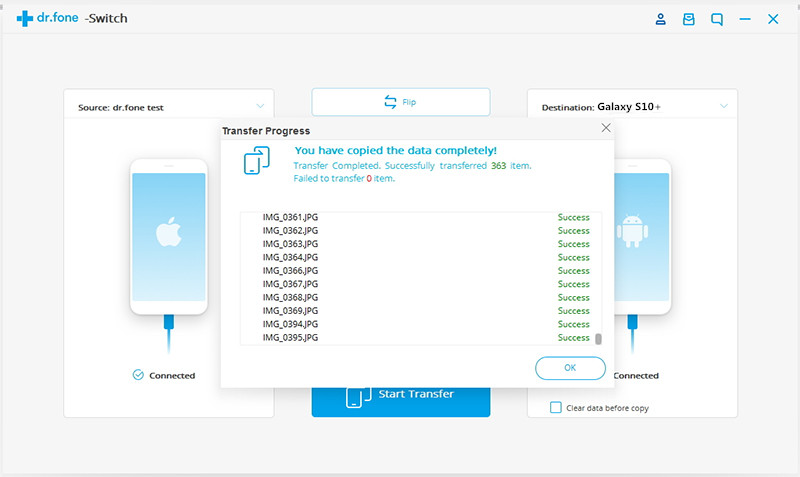
All the available data from iPhone are displayed on the middle data box. Just select whatever data (contacts, text messages, calendars, music, videos, photos, call logs) you would like to transfer. Finally, click “Start Transfer” button.

sync iphone data to samsung galaxy fold

d_win d_mac

Related Article

How to Transfer Data from Samsung to Galaxy Fold

How to Transfer Data from HUAWEI to Galaxy S10/S10+/Fold

How to Backup and Restore Data on Samsung Galaxy Fold

How to Recover Deleted/Lost Data on Galaxy Fold

Transfer Data Contacts from Samsung to iPhone XS(Max)/XR

iPhone to Samsung Data Transfer

How to Transfer Data from Samsung to Galaxy Fold

[Summary]: Phone Toolkit-Switch program allows users to transfer data like contacts, text messages, call logs, apps, music, photos, videos, etc. from Samsung to Galaxy Fold within few clicks. And it can also switch data between other systems as you like.

How much do you know about Samsung Galaxy Fold?

Samsung’s new Galaxy Fold smart phone which has a 4.6-inch screen when used as a phone and can unfold into a tablet with a 7.3-inch screen, is released in San Francisco, California, U.S. February 20, 2019. And it works with the next-generation 5G networks. To make sure maximum ease of usage, the Samsung Galaxy Fold gets three individual imaging units that, despite functioning separately, ensures that you can click a photograph from any form of the device. Furthermore, it has inside plenty of firepower (Snapdragon 855 + 12GB RAM + 512GB storage + optional 5G variant) to make for an always connected laptop.

Has Samsung Galaxy Fold caught your attention? The 4G version of the Galaxy Fold will be available for sale starting April 26, starting at $1,980 (£1,515). Also promised to offer a more expensive 5G version. It’s quite possible that some of you may choose to switch from an old Samsung to Galaxy Fold. And to do a switch, you may want to transfer data from Samsung to Galaxy Fold.

Phone Toolkit – Switch helps users transfer data from Samsung to Samsung Galaxy Fold with ease. Not only does it perform well in transferring contacts and text messages, but it also performs well in media files such as music, photos, videos and other files. You can also use this tool to move files between different systems, such as transferring data from Android to iPhone or from iOS to Samsung Android. No ads are bothering you during the process. There are no plugins, so users don’t have to worry about malware affecting your data. More importantly, its transfer speed is faster than Bluetooth when moving large files.

d_win d_mac

Phone Toolkit – Switch is a comprehensive tool designed to help users move data between Samsung and other devices without any loss of quality.

*Transfer data, including contacts, text messages, music, photos, videos, applications, documents, etc.
*4 modes: Android to Android Transfer, iOS to iOS transfer, Android to iOS transfer, iOS to Android transfer;
*Read and transfer only, no corrupted files and personal information leaks;
*Supported devices: Samsung Galaxy S10/S10 Plus, S9/S9 Plus, S8/S8 Plus, S7/S7 edge, S6/S6 edge, Note 3, Note 4, Note 5, J7, A5, A7, A8, A9, etc., as well as other Android brands like HTC, LG, Huawei, Sony, etc.

How to Copy Data from Samsung to Galaxy Fold in One Click

Step 1. Get Phone Toolkit – Switch installed on computer

Download and install the right version of the Phone Toolkit – Switch application to your computer based on the operating system. On its main page, choose “Switch” to start.

phone switch on pc

Step 2. Connect Both Samsung Phones to PC
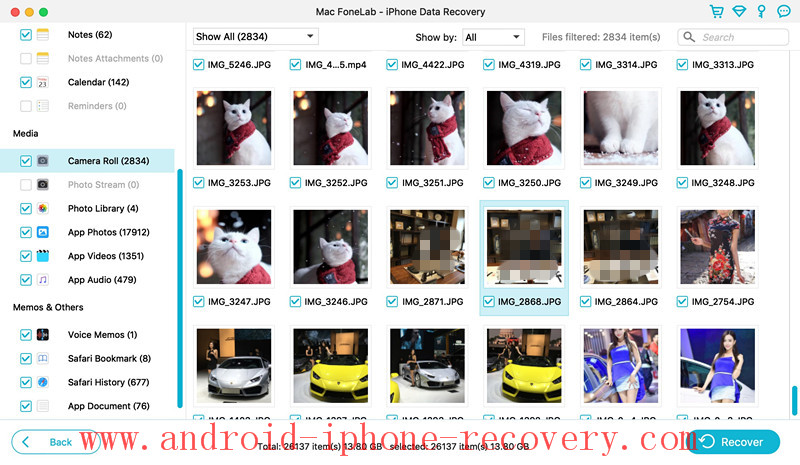
Next, plug both your old Samsung device and Galaxy Fold to your computer with the USB cords. And the toolkit will detect your devices automatically. Make sure your Samsung Galaxy Fold is detected as the “Target Device” and old Samsung shows in the “Source Device” area. If not, hit the “Flip” button to correct it.

connect two samsung phones

Step 3. Copy Data from Old Samsung to Galaxy Fold

There are several options, contacts, photos, text messages, music, and more. Check the box in front of each required data type and click the “Start Transfer” button to start transferring data from Samsung to Galaxy Fold device.

sync data from old samsung to galaxy fold

Note: If you do not want to cover the existing date on your Galaxy Fold, uncheck the option titled “Remove the chosen data on Target Device before copy”.

d_win d_mac

Related Article

Transfer Data Contacts, SMS, Photos, Music, Video from iPhone to Galaxy Fold

Samsung Galaxy Fold Data Recovery: Recover Deleted/Lost Data on Galaxy Fold

How to Transfer SMS from Samsung to Nokia 8/7/6

How to Transfer Data Contacts from Samsung to iPhone XS(Max)/XR

How to Transfer Android File to Pixel

Samsung to Samsung Data Transfer

How to Transfer Data from HUAWEI to Galaxy S10 and Galaxy Fold

[Summary]: Guide on how to transfer data from Huawei P/Mate/G/Honor/Nova/Y to Samsung Galaxy S10/S10+/S10E/S10 5G and Galaxy Fold, including contacts, text messages, photos, videos, music, videos and more.

transfer data to galaxy s10 and galaxy fold

CONTENTS:

Samsung officially released Galaxy Fold and Galaxy S10 series Android smart phones.

Samsung Galaxy Fold
The Samsung Galaxy Fold folds up to 4.6 inches and expands to 7.3 inches, the Galaxy Fold starts at $1980.

Samsung Galaxy S10
Regular Galaxy S10 series updates, including Galaxy S10, Galaxy S10+ and Galaxy S10e. The Galaxy S10+ features a 6.4-inch hyperboloid punch screen with AMOLED material and a screen ratio of 19:9 for HDR10+ display. Equipped with under-screen ultrasonic fingerprint recognition. Front dual camera, rear with three-camera configuration, including a 12-megapixel telephoto lens, a 12-megapixel main camera, F1.5 / F2.4 variable iris switching, and a 16 million pixel Ultra wide-angle lens. Galaxy S10 series two other new S10 and S10e, the general hardware configuration is the same as the Galaxy S10+, the difference is that the S10 front is a single camera with a screen size of 6.1 inches; the S10e screen size is 5.8 inches, and it is a non-curved screen, fingerprint recognition is on the machine Side of the body. Samsung also announced that the new Galaxy S10 series will have a 5G network version and is the world’s first 5G mobile phone that has been officially released. Galaxy S10 5G will be equipped with a 6.7-inch screen, equipped with a 3D Depth camera, built-in 4500mAh battery.

When you have got an new Samsung Galaxy S10 or Galaxy Fold, how to transfer data from old Android phone to Galaxy Fold/Galaxy S10(+)?

How to transfer data from Huawei to Galaxy S10+?
Just bought my girl friend an Galaxy S10+, but she needs contacts, SMS, photos, videos, music transferred over from old Huawei Mate 10. Is this possible? How can I transfer data from Huawei to Samsung Galaxy S10? Please help!

How to transfer contacts from Huawei to Galaxy Fold?
I have purchased an new Samsung Galaxy Fold, I used Huawei P10 before, but there are lots of important contacts including phone numbers, address stored in my old Huawei phone, any solution helps me move contacts from Huawei P10 to Galaxy Fold without Samsung SmartSwitch?

When you switching to a new Samsung phone, such as Galaxy S10/S9/S8/S7/Note 9/Note 8 and Galaxy Fold, you definitely don’t want to leave behind your old photos, notes, contacts, videos and text messages which can be important than a phone. So here in this article we’d like to introduce a easy way to transfer data from Huawei Android phone to Samsung Galaxy S10 or Galaxy Fold.

Part 1. Best HUAWEI to Galaxy S10/Fold Transfer Solutions

If you want to transfer Everything from Android/iPhone to Galaxy S10/Galaxy Fold, then you can try third-party tool. Here we recommend an HUAWEI to Samsung TransferPhone Switch and Phone Transfer, both can help to transfer data from Huawei/Samsung/HTC/Sony/LG/Motorola/Google Pixel to Samsung Galaxy S10/Fold without erasing existed data on the target device, it supports move all data files like text messages, contacts, photos, videos, music, call history and more between two devices.

d_win d_mac

1 Click to Transfer Contacts Data from Huawei to Galaxy S10/S10+

Step 1. Download and Launch Phone Toolkit
Download and run the Phone Toolkit on your PC or Mac, then click “Switch” feature on this program, the Switch function support to copy data from Android to iPhone, Android to Android, iPhone to iPhone (or vice versa).

huawei to samsung transfer

Step 2. Connect Huawei phone and Galaxy S10 to PC/Mac
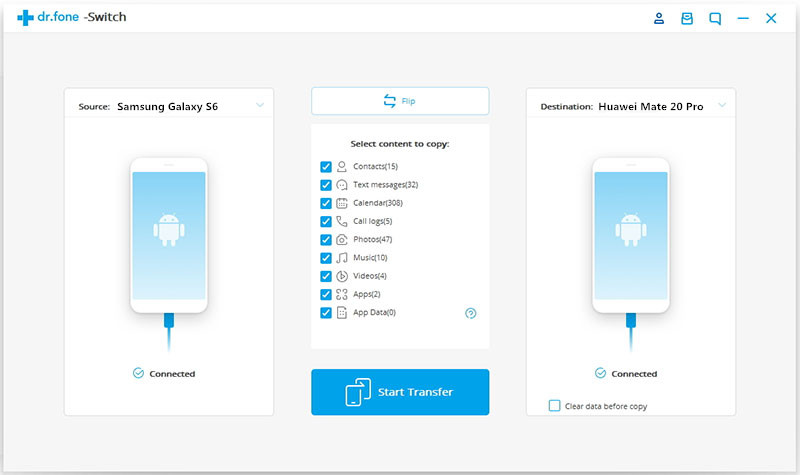
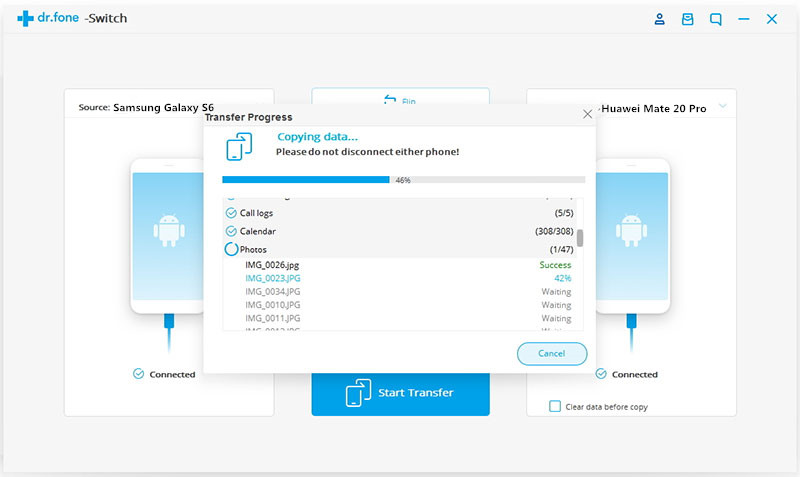
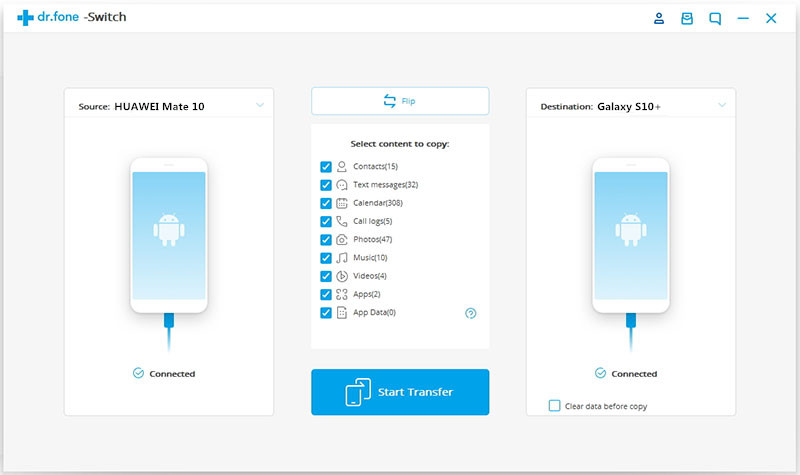
The tool will automatically recognize your devices and list them as either source or destination. Please mare sure the Huawei phone on the left side as source device and the Samsung device in the right side as target device. If you want to exchange their positions, then click on the “Flip” button.

Step 3. Select Content Types to Transfer from HUAWEI to Galaxy S10
Now, select the data you wish to copy, such as contacts, text messages, photos, videos, music, calendar, App and App data.

connect huawei and galaxy s10 to PC or Mac

Tips: This will automatically transfer contacts from one phone to another. You can also choose to clear data before copying contacts on the target device as well.

Step 4. Start to Transfer Data from Huawei to Samsung Galaxy S10
To move contacts from Huawei to Samsung Galaxy S10, select “Contacts” before clicking on the “Start Transfer” button. At this time, the program begin moving all selected contents from Huawei to Galaxy S10, it would move contacts from Android to iPhone, make sure that both the devices are connected.

transfer huawei data to samsung galaxy s10+

Step 5. Huawei to Samsung Data Transfer Complete
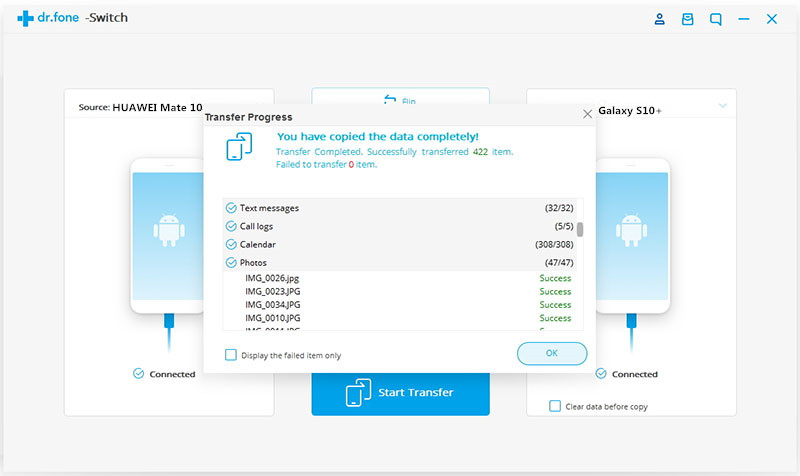
Once the process is completed, you will be notified via an on-screen message. Now, you can disconnect both the devices. That’s it! In this way, you can learn how to transfer contacts from Huawei to Samsung Galaxy S10 with 1 click, you can also follow the same step-by-step guide to transfer data from iPhone to Galaxy S10 or Galaxy Fold directly.

move data from huawei to samsung galaxy s10+

Part 2. What Huawei and Samsung Models Supported by Phone Switch?

Phone Toolkit – Phone Switch almost supports all Android phones and tablets:

Huawei Ascend:Ascend P8/ G7/ Mate 7/ Mate 6

Huwei G: G9/ G9 Plus/ G9 Lite/ G8/ G7 Plus/ GR5 2017/ GT3/ GR5/ GR3/ G7

Huawei Honor: Honor V9/ 8/ 8 Pro/ Magic/ 7/ 6/ 6X/ 5X/ 4c/ 3c/ 4x

Huawei Mate: Mate 10/ 9/ 9 Pro/ 9 Porsche Design/ 8/ 7/ S/ RS Porsche Design.

Huawei Nova:Huawei Nova/ Huawei Nova Plus

Huawei P: P20/ P10/ P10 Plus/ P9/ P9 Plus/ P8/ P8max/ P8 Lite/ P11

Huawei Y: Y5 2017/ Y6II/ Y5I/ Y3II/ Y6 PRO

Samsung devices: Samsung Galaxy Fold, Samsung Galaxy S10/S10+/S10E/S10 5G, Samsung Galaxy S9+/S9/S8+/S8/S7/S6/S5/S4, Samsung Galaxy Note 9/8/7/5/4, Samsung J3/J3 Pro/J4/J5/J6/J7/J8, Samsung Galaxy A9/A8/A7/A5 and etc.

Other Android devices: Sony, Google, Motorola, OPPO, VIVO, OnePlus, ZTE, Xiaomi, etc.

Free download the Phone Toolkit – Switch and try to transfer data from Android/iOS to Samsung Galaxy S10/Galaxy Folder on Windows/Mac computer.

d_win d_mac

Tips: If you want to backup and restore data on Samsung Galaxy S10 or Samsung Galaxy Fold, please using the “Backup & Restore” function among on the Phone Toolkit.

Huawei to Galaxy S10 Transfer

How to Recover Lost and Deleted Text Messages from Samsung Galaxy Fold

[Summary]: How to recover deleted text messages from Samsung Galaxy Fold could be simply tackled with by using U.Fone Android Data Recovery. It becomes convenient for users to recover deleted SMS and other files like pictures, contacts, videos, audio, apps, etc. with this tool.

Samsung’s new Galaxy Fold smartphone was released on February 20, 2019 in San Francisco, California, USA. Multi-tasking is a big focus of this device, and Samsung demonstrated the device’s ability to maintain continuity within an app as you switch between displays, as well as its ability to run three apps on the larger screen simultaneously. Essentially, the presence of multi-active apps is made possible by the Snapdragon 855 processor, the generous 12GB of RAM and the cutting edge 512GB UFS 3.0 storage medium. It brings the multi-functionality of a conventional tablet into the pocketable, portable form factor of a smartphone.

“I accidentally erased a few text conversations on my Samsung Galaxy Fold and how do I have lost messages back to my phone again? I would be grateful if someone could help me out.”

Reasons for the Lost/Deleted SMS on Samsung Galaxy Fold

Accidentally deletion – You might delete SMS by mistake or accidentally which result in permanently deletion of SMS.

factory Reset – If you have performed a factory reset on your phone then it will delete all the data from phone memory including text messages as well.

Rooting – If you have root your Samsung phone then you will definitely lose the SMS from it.

Other reasons such as virus infection, up-gradation of OS, etc. may lead to your SMS loss.

So, the above mentioned reasons are the common through which you may lose text messages from your Samsung Galaxy Fold, Samsung Galaxy S10 and S10 Plus. However, you can restore deleted or lost text messages by the use of U.Fone Android Data Recovery tool.

Tool You’ll Need to Restore SMS on Samsung Galaxy Fold

U.Fone Android Data Recovery helps you to recover deleted text messages on Samsung Galaxy Fold in no time at all. It is the best option for us when we lost a valuable SMS and have no backup for it at all. Actually, it is also a great utility to restore other data files (photos, sms, call logs, audio, video, documents, etc) from your Samsung Galaxy Fold, Samsung Galaxy S10/S10 Plus/S9/Note 9/S8/S7/S6 as well.

If in case you do not have the backup, then it can be recovered with the help of U.Fone Android Data Recovery tool. This tool is also proficient in:

Rescuing deleted, lost, or hidden data from all types of Android devices.
Recover deleted/lost contacts, text messages, call logs, whatsapp messages, photos, videos, audio files.
Get back Samsung data from Internal Memory and SD Card.
Recover data from every Android brands including Samsung, HTC, LG, Sony, Motorola, Google and other.
Preview scanned files before recovery.
Easy, safe and you are only a few clicks away from recovering your Samsung phone.

d_win d_mac

Note – When deletion occurs, stop using your Samsung phone as adding new data will overwrite the existing data and hence you will lose the chance to recover your deleted text messages.

Steps to Retrieve Deleted SMS from Samsung Galaxy Fold

Step 1. Install U.Fone Android Data Recovery

Install and launch the U.Fone Android Data Recovery on the computer first and you’ll be presented with an intuitive interface. Among the three options on it, choose “Android Data Recovery” to get into next window.

launch U.Fone Android data recovery

Next, connect your Samsung phone to computer and set it to USB debugging mode.

enable USB debugging on Samsung Galaxy Fold

Step 2. Enable USB Debugging Mode

You can follow the on-screen wizard to finish it or refer to this article: How to turn on USB Debugging mode.

turn on debug usb

Step 3. Choose Messages to Scan

Here it will display a list of data types available for you to choose from for the aim of scanning, such as contacts, messages, call logs, photos, videos, audios, etc. In the case, simply check the “Messages” option and press “Next” button to proceed.

select mesages to recover

To successfully scan your device, the program needs your authorization. Click the “Allow” button to have the program scan for deleted files on your Samsung phone.

allow scan samsung galaxy fold phone

Step 4. Root the Samsung Phone for Complete Scan

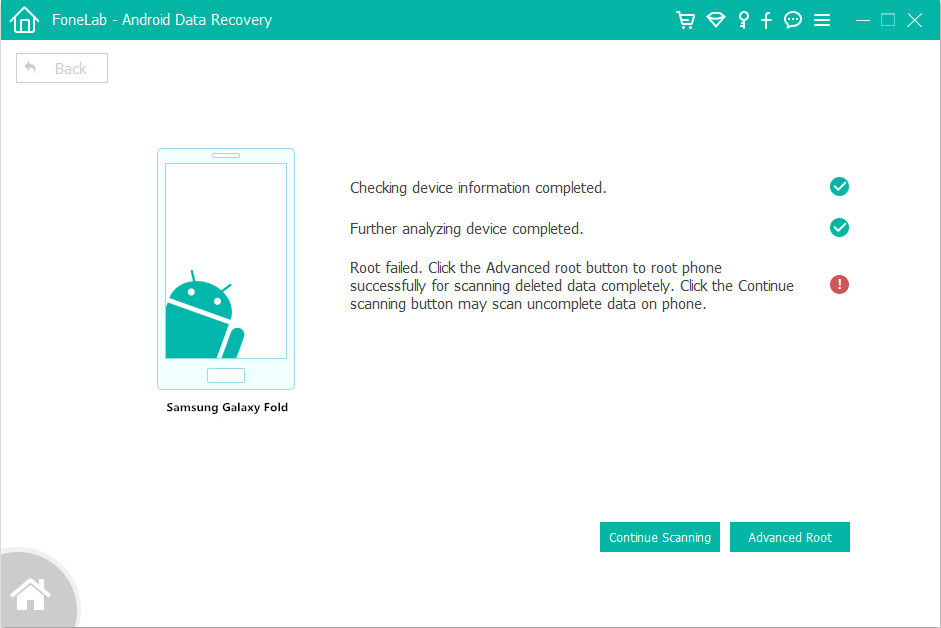
In the following window, click “Advanced Root” button to root your Samsung Galaxy Fold device.

root Samsung Galaxy Fold phone

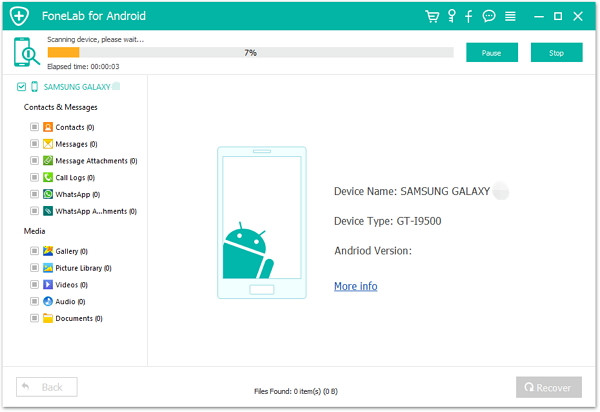
Once it takes root, the software will start scanning Samsung’s completely for deleted SMS, please be patient.

scan data from Galaxy Fold

Step 5. Retrieve Deleted Texts on Samsung Galaxy Fold

When it finished scanning, the software will display all found files on the window, sorted by different categories. Preview and select the text messages that you want to get back and click “Recover”.

recover deleted messages on galaxy fold

d_win d_mac

Related Article

How to Recover Deleted Contacts from Samsung Galaxy Fold

Samsung Galaxy Fold Data Recovery: Recover Deleted/Lost Data on Galaxy Fold

How to Recover Deleted Photos,Videos on Galaxy Fold

How to Recover Deleted Text Messages after Android 8.0 Update

How to Recover Lost SMS/Text Messages from Samsung Galaxy S10

Samsung Galaxy Message Recovery

How to Recover Deleted Contacts from Samsung Galaxy Fold

[Summary]: Efficient, safe and easy Samsung Galaxy data recovery solution helps you recover deleted contacts from Samsung Galaxy Fold with simple steps from all data loss situations.

February 20, 2019 – The Samsung Galaxy Fold is official! Samsung’s new Galaxy Fold smartphone has its outstanding highlights. Galaxy Fold itself is a multi-modal device that can be switched between a smartphone and a tablet at will. You can run multiple applications at the same time to provide serious multitasking credentials for your device. It gets a total of six cameras – arranged in a triple-camera, dual-camera and single camera configurations. In addition, it has inside plenty of firepower (Snapdragon 855 + 12GB RAM + 512GB storage + optional 5G variant) to make for an always connected laptop.

No matter how powerful your smartphone is, losing contacts on your smartphone can be stressful. Even if you handle the Samsung Galaxy Fold phone carefully, there are some main reasons why you lose valuable contact, phone numbers:

• Your Android operating system is corrupt
• You accidentally deleted a contact on Galaxy Fold
• The virus infects your smartphone
• USB is accidentally disconnected when transferring data from the device to PC
• OS updates can lead to data loss, such as contacts
• Restoring factory settings or formatting devices may misplace important data, including contacts.

If you are stuck in any of the above situations, you will suffer data loss. Is there a way to recover deleted or lost contacts/phone numbers from Samsung Galaxy Fold? Of course, this is a powerful Samsung Galaxy Fold data recovery software that can recover lost or deleted data, including your important contact data.

Why Deleted Contacts Can Be Recovered?

In general, deleted or lost contacts are not permanently deleted from the Samsung Galaxy Fold, they are still available on the device, they are just hidden, and it is difficult to find them without the help of a third-party software. Once they are covered by new data, unfortunately, you will lose them forever. That’s why you are advised to stop using your device immediately after discovering that data is lost.

Best Solution to Retrieve Deleted/Lost Contacts on Galaxy Fold

If you have not over-written the deleted/lost existing data on your Samsung Galaxy Fold then you can apply this famous U.Fone Android Data Recovery software for recovering erased, deleted, lost, formatted, missing contacts from Samsung Galaxy Fold, as well as Samsung Galaxy S10/S10 Plus. Of course, you can not only recover deleted contacts, but also save other files in Samsung devices such as photos, call logs, documents, WhatsApp chats, videos, text messages, audio, music files, etc. are all recoverable. Not only Samsung Galaxy Fold, S10, S9, S8, S7, S6, S5, Note 9, Note 8, Note 5, C5 Pro, C7 Pro, J1, J2, J5, J7, A7, A9 can be supported but users can retrieve data from other popular brands such as LG, Sony, HTC, Lenovo, Redmi, Huawei, Motorola, Google Pixel.

U.Fone Android Data Recovery scans your Samsung device and allows you to preview the recoverable files within the software before you proceed further to save files on your system. Now download it on your Windows PC or Mac and rescue lost/deleted contacts from Samsung Galaxy Fold.

d_win d_mac

Steps to Restore Lost/Deleted Contacts from Samsung Galaxy Fold

Step 1. Run U.Fone Android Data Recovery

Run on U.Fone Android Data Recovery after downloading and installing and you will get a window as below. Choose “Android Data Recovery” option on the left area for contacts recovery task.

launch U.Fone Android data recovery

Next, plug your Samsung Galaxy Fold into the computer with USB cable.

enable USB debugging on Samsung Galaxy Fold

Step 2. Allow USB Debugging

Once connected, you need to switch on USB Debugging mode on the handset to let it be identified by the software. The on-screen instructions will guide you through the whole process.

turn on debug usb

Step 3. Choose Contacts to be Scanned

When the following window opens up, uncheck the “Select All” checkbox. Click the “Contacts” checkbox and then click “Next”.

select contacts to recover

Before you start analyzing and scanning your device, you need to authorize and allow the software to scan your Samsung Galaxy Fold phone. Click the “Allow” button on your phone screen to agree to the program to scan deleted files on your Samsung device.

allow scan samsung galaxy fold

(Optional) Before the program can implement a deep scan of your Samsung phone, you have to root it. Press “Advanced Root” button on the screen below, which will take you to a site where you can download and install a tool called KingoRoot for the rooting job.

root Samsung Galaxy Fold phone

Step 4. Scan and Analyze Your Samsung Phone

Once rooted, it will start scanning your phone completely for lost contacts.

scan data from Galaxy Fold

Step 5. Retrieve Deleted Contacts on Samsung Galaxy Fold

After the scan process is completed, you will arrive at an overview screen listing the recoverable files on the left part. In your case, click “Contacts” category to expand a list of specific contacts. Next, highlight the contacts you want to restore then click on “Recover” button.

restore contacts from samsung galaxy fold

Next, a dialog box opens, asking you to specify where to save the recovered contacts. And your contacts will be saved in HTML, CSV and VCF format.

path

d_win d_mac

Related Article

How to Recover Lost and Deleted Text Messages from Samsung Galaxy Fold

Recover Lost Data from Samsung Galaxy S6 after Factory Reset

How to Restore Deleted Contacts from Nokia 8/7/6

Ways to Restore Deleted Contacts from Samsung Galaxy S9/S9+

How to Retrieve Deleted Contacts from Samsung Galaxy X

Samsung Galaxy Contact Recovery

Best Way to Recover Deleted Photos on Samsung Galaxy Fold

[Summary]: Guide to recover deleted photos from Samsung Galaxy Fold, get back deleted pictures/photos/gallerys/images/App photos on Samsung Galaxy Fold with professional Android data recovery software, U.Fone Android data recovery.

recover photos from samsung galaxy fold

Samsung officially released the latest mobile devices such as the folding screen mobile phone Galaxy Fold and Galaxy S10 series – Galaxy S10, Galaxy S10+, Galaxy S10e and Galaxy S10 5G. The Galaxy Fold folds up to 4.6 inches and expands to 7.3 inches. The screen is a flexible material with no seams in the middle. The Samsung Galaxy Fold uses the Snapdragon 855 processor. The folding screen has batteries on both sides. There are 6 cameras in the whole body, which are located on the rear, front and side of the fuselage. Samsung Galaxy Fold’s price starting at $1980.

How can I recover deleted photos on Samsung Galaxy Fold?

I have got an new Samsung Galaxy Fold. Usually, I like to use it to record anything about my life. Since I bought the device, I took pictures when I cooked a big meal, I took photos in my friend’s birthday party, yesterday, I deleted some important photos on Gallery by careless, is it possible to recover deleted pictures from Samsung Galaxy Fold? How to get back deleted photos on Samsung Android phone?

Samsung users are also experiencing the same headache – how to recover deleted photo files from the Samsung phone without backup? Data loss or accidental deletion is still a big trouble to Samsung phone users if they don’t back up Android data on Mac or PC regularly. Don’t worry, you still have chance to recover lost or deleted files such as pictures, messages, contacts, photos, videos, call log and WhatsApp chat history etc. from Samsung phones. Thus, this article will shows you the best Samsung Galaxy Fold data recovery solutions, you can directly scan and recover deleted photos on Samsung Galaxy Fold via U.Fone Android Data Recovery software.

U.Fone Android Data Recovery is the world’s best Android Recovery software to recover missing/deleted/lost photos, videos, messages, contacts, WhatsApp and more from Samsung Galaxy S/Note/J/A/F that lost due to accidental deletion, OS update, rooting, factory reset, virus and other unknown causes. If you want to recover data on Samsung Galaxy Fold, just connect your Galaxy Fold Android phone to PC or Mac, and then using the Android data recovery software to scan the phone’s internal memory or SD card and recover deleted photos directly. Let’s learn the simple guide about how to retrieve deleted photos from Samsung Galaxy Fold, as well as Galaxy S10/S9/S8/S7/S6 and Galaxy Note series.

d_win d_mac

Good News: The new Android Data Recovery for Mac now can recover files both from the internal memory and from the SD card inside the Android phone. Just give it a free try now! The Windows version is right on the way! You can also follow the same step-by-step guide to recover deleted photos from Android phone like Motorola, HTC, Google, OnePlus, Huawei, Xiaomi, Sony, LG, ZTE, etc.

Guide: Recover Deleted Photos, Videos from Samsung Galaxy Fold Internal Memory

Step 1. Free download the Android Data Recovery
Firstly, download and install this Galaxy Fold photo recovery to your computer, then click “Android Data Recovery” features to ready scan and recover your Android lost/deleted files.

launch U.Fone Android data recovery

Connect your Samsung Galaxy Fold device to the PC or Mac, at this time, the will detect your device is connecting successfully.

connect Galaxy Fold to PC

Step 2. Identify your Galaxy Fold
Next, you need to enable USB debugging to let the program identify your device. Just follow the instructions in the window to enable USB debugging.

enable USB debugging on Samsung Galaxy Fold

Just click “OK” to allow connect to the computer, if you have done ever before, just skip it.

debug usb

Step 3. Select Photo File Types to Recover
Then, select the “Gallery“, “Photo Library” item that you want to get back. If you want to recover deleted videos from Samsung Galaxy Fold, please select “Video” item, too.

select photos to recover

Step 4. Scan your Samsung Galaxy Fold for the lost or deleted photos
After the software identifies your device, click Scan to scan deleted and lost photos from your Samsung Galaxy Fold, the program also scans all exiting pictures from the device, so you can use this Android data recovery backup photos from Android devices to PC or Mac.

scan deleted photos from samsung galaxy fold

Step 5. Preview and Recover Deleted Photos from Samsung Galaxy Fold
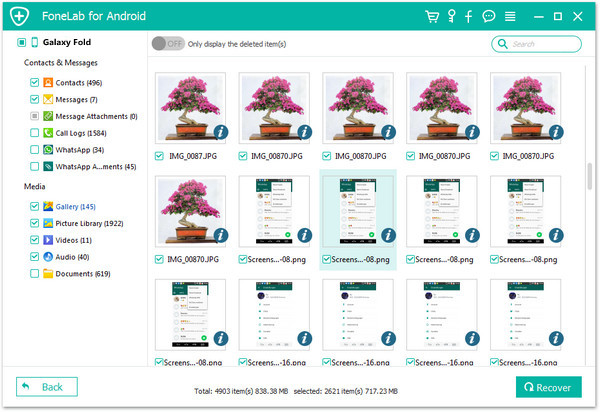
After the scan, you can go to the photo folder on the left sidebar to preview the photos found on your Galaxy Fold, you can click “show deleted items” to find all deleted photos. Finally, just select the photos and App photos you need, hit “Recover” to retrieve your Samsung Galaxy Fold deleted pictures and save them onto your PC or Mac.

recover deleted photos from samsung galaxy fold

Well done! You have retrieved deleted photos from Samsung Galaxy Fold and save them in computer, if you want to import the retrieved photos and other contents to your Samsung Galaxy Fold or other iOS/Android devices for view/use, you can use this iOS & Android Manager tool to manage or add files to the devices easily.

d_win d_mac

In additional, you can also follow the same steps to recover deleted videos, music, contacts, text messages, WhatsApp messages, etc. from Samsung Galaxy Fold, Galaxy S10/S9/S8/S7 easily.

How to Recover Deleted or Lost Data on Samsung Galaxy Fold

[Summary]: Efficient, safe and easy Samsung Galaxy data recovery solution helps you recover files like photos, videos, music, contacts, text messages and other data from Samsung Galaxy Fold and other Samsung devices with simple steps from all data loss situations.

samsung galaxy fold

You may want to read:

* Smart Switch: Transfer Data to Samsung Galaxy Fold/S10/S9

* How to Transfer Data from iPhone to Galaxy S10/Galaxy Fold

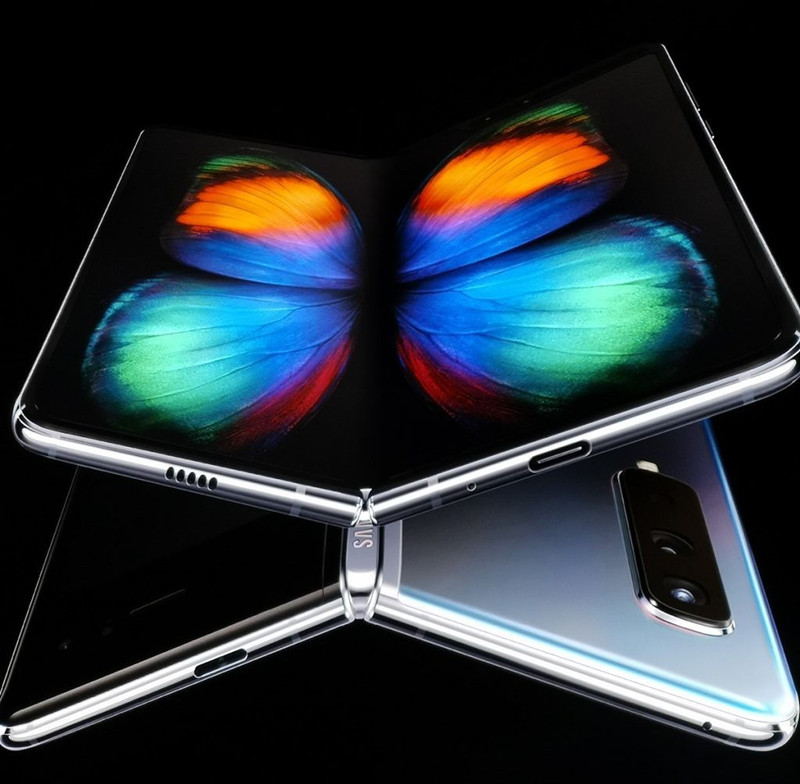
The Samsung Galaxy Fold release date is April 26 in the US and May 3 in Europe. In addition, Samsung also released the new Samsung S10 series including the Galaxy S10e, Galaxy S10, Galaxy S10 + and Galaxy S10 5G. The Galaxy Fold has two AMOLED screens that can be folded in the same way as books, priced at up to $1,800. In addition, Samsung also launched a new high-end mobile phone Galaxy S10 series. The series will challenge the iPhone. The main screen of the Galaxy Fold phone is a 7.3-inch foldable “Infinity Flex” display with a cover screen of 4.6 inches. It comes with an 8-core processor, 12GB of RAM, 512GB of storage, and no Micro SD card slot. It is equipped with 6 lenses – 3 on the back, 2 on the inside, and 1 on the cover, which can capture the picture at any time no matter how the user holds or folds the device.

CONTENTS

As the hottest Android smartphones like Samsung Galaxy S10/S10+/S9/S9+/S8/S7, HUAWEI P20/P10/Mate 20/Mate 10, Google Pixel 3/2(XL), HTC U12+, LG G7/G6/G5, OnePlus. 6T, Motorola. Moto X4/Moto G6 and Nokia 6, etc. Samsung Galaxy Fold base on Android OS – Android Q(presumably code-named Android Q), which will include support for foldables in two different conformations: There will be one-screen foldables that fold over to leave the display exposed on both “sides” of the phone, as well as two-screen foldables that will fold closed with a secondary display on the outside. Once this folding screen phone is on the market, we believe as more and more people choose Samsung Galaxy Fold. For mobile phone users, data recovery problem is frequently asked. It is common for a Samsung smartphone or tablet user to encounter data loss problem. As a phone owner, we usually stored a lot of important data, such as photos, videos, music, contacts, text messages, WhatsApp messages, App data and other data in the phone memory and we wish to protect them well, hoping we can keep them forever. For a Samsung Galaxy Fold users, when your Android data lost due to various and unexpected situations, how to recover deleted data from Samsung Galaxy Fold?

Samsung Galaxy Fold Data Recovery solution

In this page, we will introduce you how to recover data from Samsung Galaxy Fold or Samsung Galaxy S10/S9/S8/Note 9/Note 8 with an easy and efficient Samsung Galaxy data recovery solution. Hope it is helpful!

Deleted or lost data on Samsung phones and tablets? Don’t worry, U.Fone Android Data Recovery can help you recover deleted data from Samsung Galaxy Fold. Before retrieving Samsung Galaxy Fold deleted/lost files, what you should pay attention to is that you need to recover lost or deleted data as soon as possible before they get overwritten. Once the data were overwritten, no matter what method you try, you can’t get them back.

Tips for successful Samsung Galaxy Fold Data Recovery

1. Stop using your Samsung Galaxy Fold once you get your files lost by accident. Any operation may generate new data and wipe the missing data permanently from your device.

2. Find a reliable and professional Android data recovery tool to do the Samsung Galaxy Fold data recovery as soon as possible, such as U.Fone Android data recovery.

3.Make sure your device can be switched on and recognized by your PC, and the battery should be more than 20% before starting to recover data from Samsung Galaxy Fold.

4.Don’t import or add files to Samsung Galaxy Fold before getting the lost data back.

5.Don’t take photos until the deleted/lost pictures retrieved.

Recover data from Samsung Galaxy Fold with U.Fone Android data recovery software

U.Fone Android data recovery software is a powerful data recovery for Android users to recover photos, videos, audios, text messages, contacts, WhatsApp messages, call logs, App data and documents on Android (Samsung, Sony, Google, Motorola, HUAWEI, OPPO, VIVO, OnePlus, ZTE, Xiaomi and more) from all data loss situations. Being powerful, safe and easy-to-use, it is your ideal tool to recover data from Samsung Galaxy Fold.

Recover deleted, erased, missing, lost, disappeared data/files from Samsung Galaxy Fold.

– Efficiently recover files such as photos, videos, audio, contacts, text messages, Whatsapp chat history, call history, notes, voice memo, documents and many more.
– Retrieve data from Samsung Galaxy Fold that got lost or deleted due to accidental deletion, factory reset, virus attack, formatting SD card, OS update, ROM flashing, rooting, water damaged, forgotten screen lock password and so on.
– Support all Samsung Android phones such as Samsung Galaxy Fold, Samsung Galaxy S9+/S9/S8+/S8/S7/S6/S5/S4, Samsung Galaxy Note 9/8/7/5/4, Samsung J3/J3 Pro, Samsung Galaxy A9/A8/A7/A5 and etc.
– Support backup and restore data from Samsung Galaxy Fold/
– Fix your bricked Android phones and recover your data on broken/damaged Samsung devices.

d_win d_mac

Here is the free trial version. Now you can download it to have a try by yourself. Then, follow the step-by-step guide below and check how to recover deleted data from Samsung Galaxy Fold with the help of U.Fone Android data recovery software.

Guide: Recover Deleted and Lost Data on Samsung Galaxy Fold

Step 1. Download and Launch Android Data Recovery
Download and install Android Data Recovery on your computer, then connect your Galaxy Fold to your computer with a USB cable.

launch U.Fone Android data recovery

Launch this software and select “Android Data Recovery”. Please wait when your device is connecting to this software.

connect Samsung Galaxy Fold to PC

Step 2. Enable USB debugging on your Galaxy Fold
Follow the software’s guide to enable USB debugging on your Samsung Galaxy Fold. (If you have done ever before, just skip it.) You may see an interface as below, just choose your current Android version and follow its steps.
For more detail guide to Enable USB Debugging Mode on Android.

enable USB debugging on Android

Step 3. Select Types of File to Recover
When your Samsung Galaxy Fold phone is detected successfully, then you can select the files types like contacts, messages, photos, videos, audios, App data, call logs or documents to recover and click on “Next”. You also can select all to retrieve if you want.

select LG phone's data to recover

Step 4. Authorize on Samsung Galaxy Fold
In this step, you need to authorize and allow the software to scan your Samsung Galaxy Fold phone, it will prompt you turn back to your phone again to accept and tap on the “Allow” button to let the program scan deleted files on your Samsung phone.

allow scan LG Android phone

Step 5. Gain Root Permission for a Deep Scan(Option)
Your Samsung Galaxy Fold phone may have a popup message to request a privilege to scan more deleted files, and you need to tap on “Allow” to continue, if not, skip this step. (You can unroot the device after the recovery task.)

To do so, click the Advanced Root button at the lower right position. At this point, you will be taken to an external website to download a free Android rooting tool — KingoRoot to root the device.

[Also Read: How to Safely Root and Unroot an Android Device with KingoRoot ]

root Samsung Galaxy Fold phone

After you’re rooted, this Android Data Recovery software will begin running a deep scan of your Samsung phone’s memory and SD card to search for the deleted Stuff. Please be patient.

Step 6.Deep Scan Deleted Data from Samsung Galaxy Fold
Now, the program begin to scanning your Samsung phone to find all exiting and deleted/lost data.

scan data from Galaxy Fold

Step 7.Preview and Recover Deleted Data from Samsung Galaxy Fold
When scanning is done, all of the found and recoverable data would be shown in the list on the left sidebar. Now tick the data types you would like to recover. (You also can choose to only display the deleted items). Then tap on “Recover” and wait for this process to be completed.

recover lost data from Galaxy Fold

Free download Android data recovery and try to recover deleted files from Samsung devices:

d_win d_mac

The Bottom Line

U.Fone Android Data Recovery Tool provides you the best solution to recover lost data and deleted files directly from Android device without backup, so you don’t need to worry about that anymore. For other Android devices, you can also follow the same steps to retireve lost or deleted text messages, contacts, pictures, videos, WhatsApp chat history, and documents etc. from your Android phone with a computer, a USB, a phone and an Android Data Recovery software. In additional, if your Samsung phone was broken screen, black screen or dead, the “Broken Android Data Recovery” function can help you fix broken Samsung and extract data from broken/damaged Samsung phone(Galaxy S6/S5/S4/Note 5/Note 4/Note 3, etc.).

Samsung Galaxy Data Recovery

How to Recover Deleted iPhone Whatsapp Chat History on Mac

[Summary]: Want to recover iPhone WhatsApp messages and attachments? Go through this post to get a workable way to retrieve deleted or lost WhatsApp chat history from iPhone 6/6s/7/8/X/XS/XS Max on Mac without hassle.

“Can I still recover deleted WhatsApp messages from iPhone X/8/7/6s when I deleted them by mistake?”

So far, Whatsapp has become one of the leading messaging apps along with Facebook’s Messenger, Line and Kakaotalk. WhatsApp lets you exchange messages without having to pay for SMS. Every day, users around the world can chat and share videos, audio, photos, etc. through this Whatsapp messaging app. There is no doubt that it contains information of great value. However, in some cases, this information is not sufficiently secure. If you are an iPhone user, your data and your WhatsApp chat history may be deleted from iPhone due to issues such as accidental deletion, jailbreaking or upgrading the iPhone.

If you are also looking for a way to recover deleted WhatsApp chat history on iPhone, here we introduce you an iPhone Data Recovery for Mac users. If you are using a Windows PC, you can refer to this guide to retrieve deleted WhatsApp messages on iPhone XS/X/8/7/6S.

U.Fone iPhone Data Recovery offers 3 recovery modes to retrieve deleted iPhone WhatsApp messages on Mac. You can recover deleted or lost WhatsApp chat history directly by scanning the memory of the device connected to the Mac computer. You can also restore WhatsApp messages via an iTunes backup or iCloud backup of your iPhone because the software will analyze the contents of the backup and let you extract contacts and conversations from WhatsApp (in XLS, TXT or XML), including multimedia file attachments (photos and videos) and save to your Mac.

d_win d_mac

More features:

Get deleted photos, videos, contacts, messages, call logs, notes, WhatsApp data and more files come back to you.
Three recovery methods available: Recover from iOS Device, Recover from iTunes Backup, Recover from iCloud Backup.
Recover data lost due to accidental deletion, device lost, virus attack, jailbreak failure, system crash, iOS upgrade/downgrade error, wrong password lock, water damage, or other factors.
Preview all recoverable data before the recovery.
Get back deleted or lost files in easy steps.
Perfectly support iOS 12 & nearly all models of iDevices, including iPhone XS/XS Max/x/8/7/6s/SE/6/5s/5, etc.
Suitable for Windows PC and Mac computer.

Steps to Recover Deleted iPhone WhatsApp Messages on Mac without Backup

Step 1. Launch U.Fone iPhone Data Recovery

Download and install the U.Fone iPhone Data Recovery
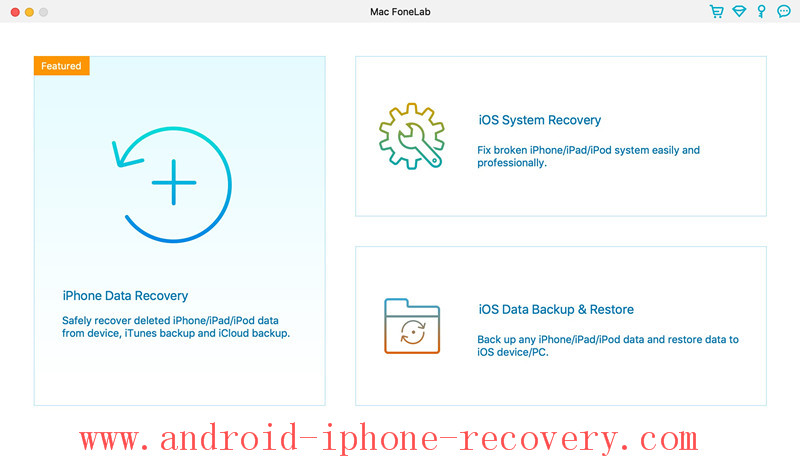
software on your Mac. The software will launch automatically once it completes. And you have three sections, select the “iPhone Data Recovery” to start.

ufone iphone data recovery for mac

Step 2. Connect iPhone to Your Mac Computer

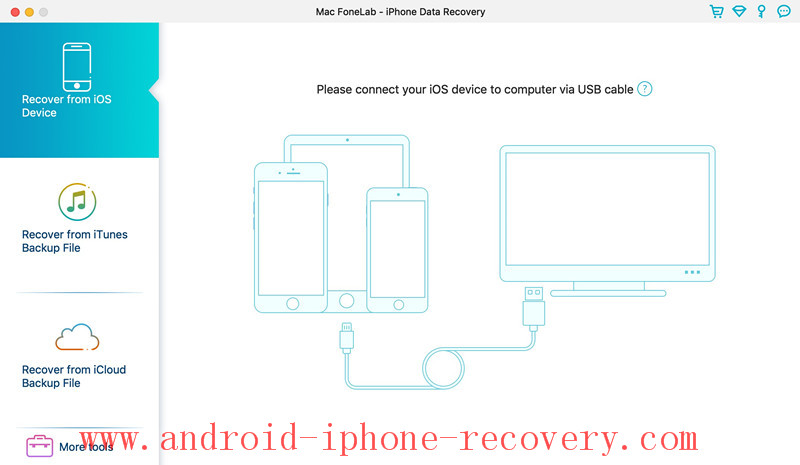
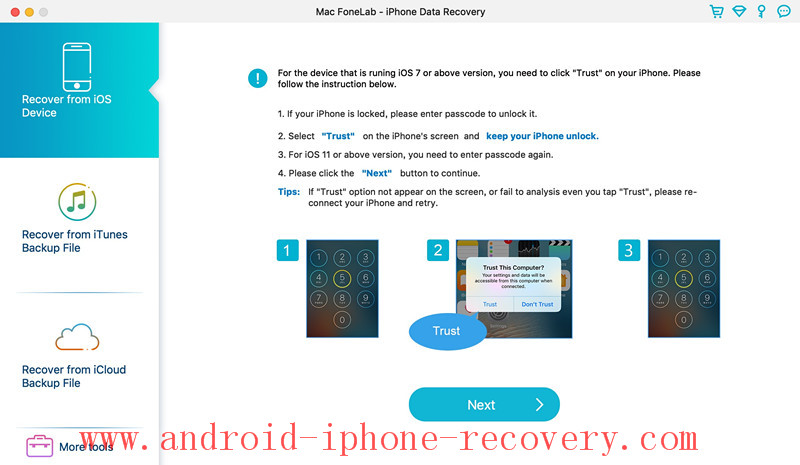
Just follow the on-screen instructions to connect your Apple device to your Mac. The program will then automatically detect your device.

recover data from iPhone directly

If this is your first time connecting to your Mac, you will need to click “Trust” on your iPhone to activate the connection between the device and the computer.

trust on iphone

Step 3. Choose File Type to Scan

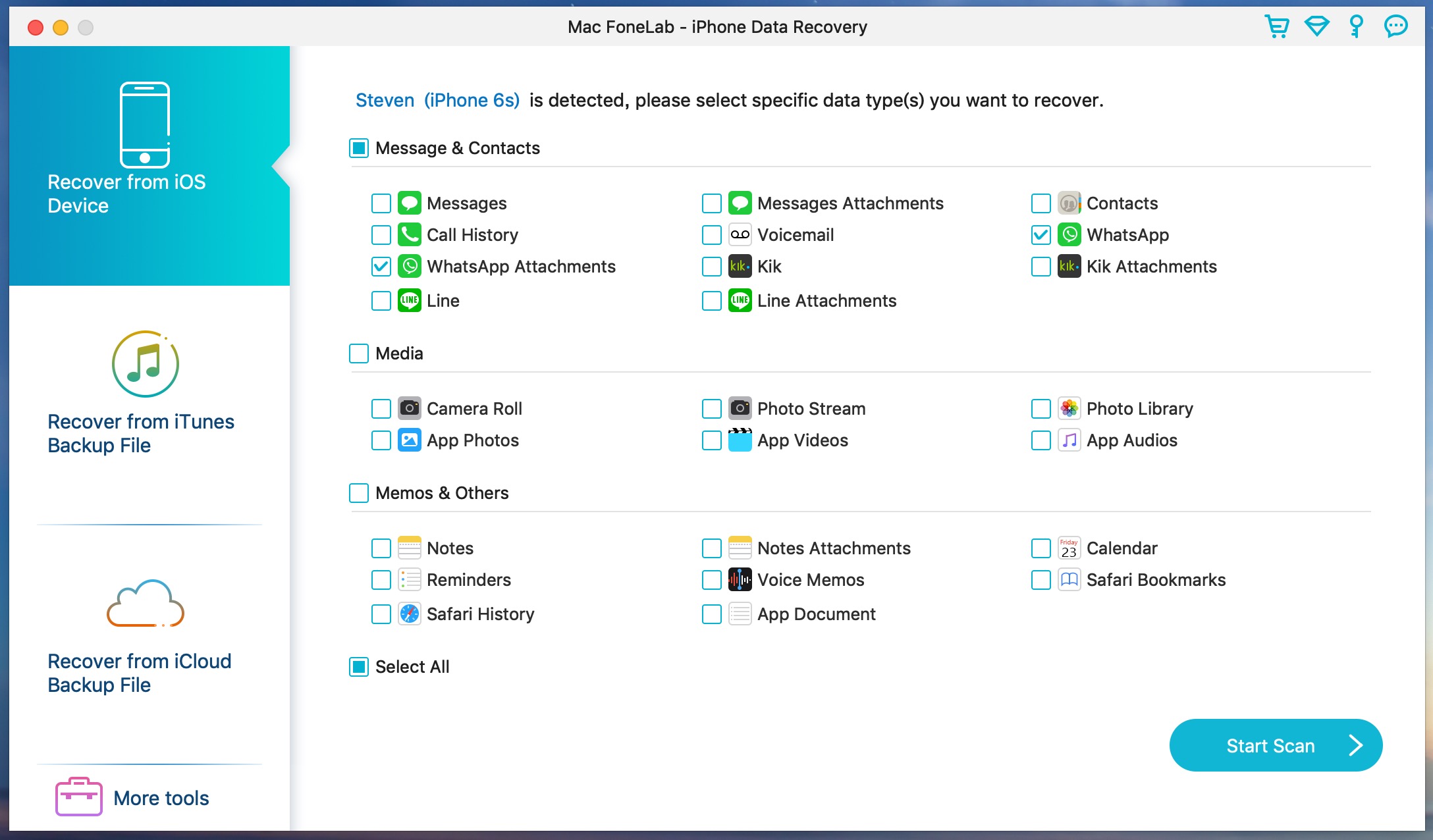
This program supports recovery of various data types. In this case, you will have the options to select “WhatsApp” and “WhatsApp Attachments” in the pop up window, and then click “Start Scan”. The application will then scan the WhatsApp data on your iPhone.

recover-iphone-whatsapp-on-mac

Step 4. Scan iPhone for Deleting WhatsApp Chat History

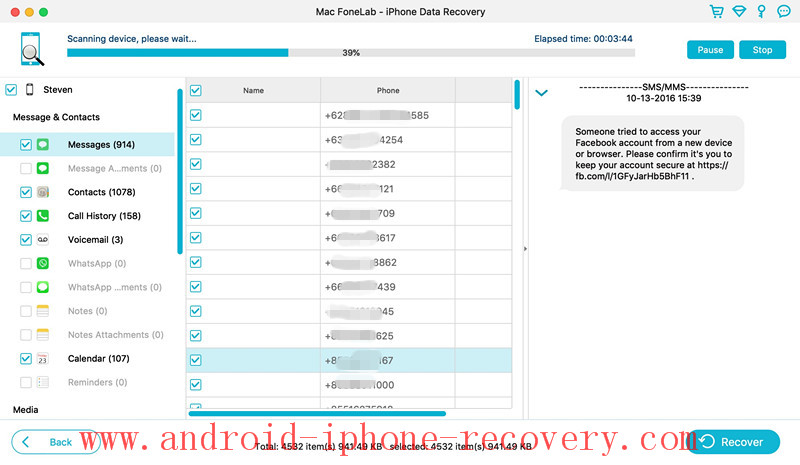
The scan will initiate thereafter. From the window you can keep track of the progress of the scan and understand what the program is scanning.

analyzing and scaning iPhone

Step 5. Preview & Recover Deleted WhatsApp Messages from iPhone to Mac

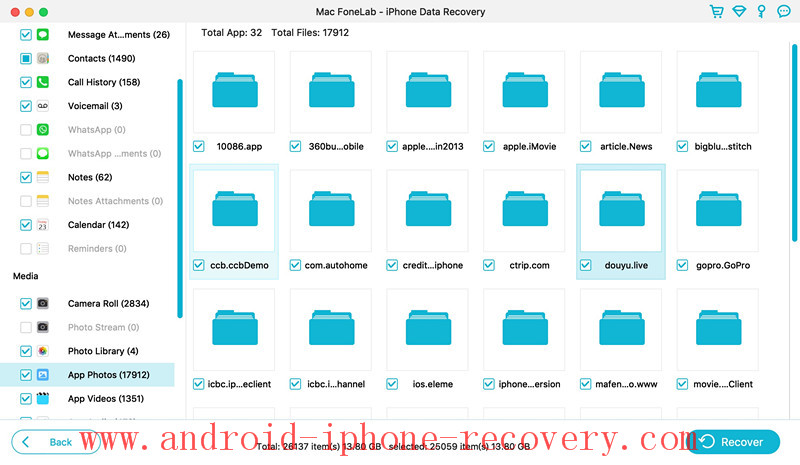
When the program finished scanning the device, a list of all the files will then be displayed. For this process, click the item “WhatsApp” to be able to retrieve your deleted Whatsapp files.The program will then display your current and deleted Whatsapp messages. Turn on the option “Only display the deleted items” to display the only deleted messages.

recover kik app pictures from iphone

Check WhatsApp and WhatsApp Attachments to preview detail. Then mark those items you want, and click “Recover” to save them onto your Mac.

view iPhone data recovery result

d_win d_mac

How to Recover Kik Messages & Attachments on iPhone XS/X/8/7/6S

[Summary]: Want to regain the deleted funny Kik pictures, videos and useful attachments you have created or received on your iPhone? Here is the solution for you to selectively retrieve deleted Kik messages from iPhone to Mac with ease.

Kik Messenger, commonly known as Kik, uses a smartphone’s data plan or Wi-Fi to send and receive messages, photos, videos, sketches, mobile web pages and other content after the user registers a username. Kik has successfully combined the power of Blackberry and Snapchat, while adding some useful communication tools to make it different from other messaging applications. Generally, you can do this in the Kik app: Share Camera photos or other photos stored on your iPhone; Buy or get free Stickers or Smileys from the Kik store; Send drawn pictures to your friends by using the built-in tools on Kik; Search for images in Kik on the Internet and send the images you find and so on.

Your iPhone Kik messages are deleted or lost, how to recover?

Sometimes data loss is an inevitable event. It is a common occurrence for iOS users to ask how to recover iPhone Kik messages that have been deleted or lost. And here, we summarize the most common scenarios. Usually, you may lose Kik chat logs from iPhone XS/XS Max/XR, iPhone X, iPhone 8/8 Plus, iPhone 7/7 Plus, iPhone SE, iPhone 6s/6s Plus, iPhone 6/6 Plus when you:

reset your account
login to your account on a different device
delete your Kik app
reset or update your iOS system on your iOS device
lose your iPhone or your phone is damaged or broken

With so many interesting pictures you created or received at Kik, it would be awful if the pictures and other contents were mistakenly deleted or missed. Want to regain lost Kik photos, videos, attachments on your iPhone? This is the fastest way – use U.Fone iPhone Data Recovery.

Tool You’ll Need to Recover Kik Messages on iPhone XS/X/8/7/6S

U.Fone iPhone Data Recovery works on both Windows PC and Mac computer. It is used to quickly scan your iOS device and find deleted Kik images from the iPhone’s internal storage. Don’t worry, the program supports multi-function recovery, it also automatically recognizes and extracts Kik messages from iPhone’s iTunes backup or iCloud backup without erasing any other data. Apart from Kik Messages, you are able to selectively restore or export messages, photos, SMS, app photos, videos, notes, reminders, call history, contacts, etc. from iPhone, iPad or iPod and backup file. This U.Fone iPhone Data Recovery fully supports iOS 12.1 and iTunes 12.9. Now get the free trial version on your PC or Mac computer by clicking on the download icon.

d_win d_mac

Step-by-step Guide to Restore Kik Messages from iPhone Directly

Step 1. Install U.Fone iPhone Data Recovery on PC/Mac

U.Fone iPhone Data Recovery supports to recover deleted/lost iPhone Kik messages including photos, videos, attachments from iPhone directly or your iTunes, iCloud backup. After downloading, enter “iPhone Data Recovery” mode to get started.

ufone iphone data recovery for mac

Next, use a USB cable to connect your iOS device to the computer.

recover data from iPhone directly

Step 2. Choose Recover from iOS Device

Then the software will recognize the device in seconds. In the case, you should locate the “Recover from iOS Device” mode and trust your iOS device.

trust on iphone

Step 3. Select Kik messages and Kik Attachments to Scan

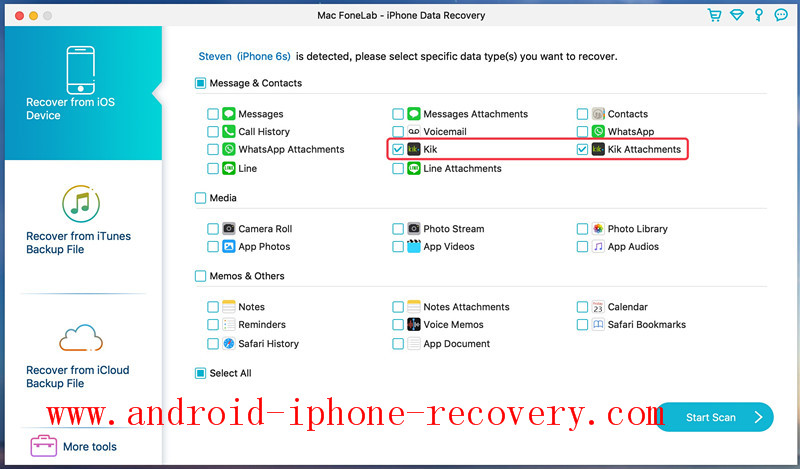
You can choose the specific data type you want to recover, or check “Select All” to retrieve all the content on iPhone. The program is currently adding a new feature that you are supported to retrieve old Kik messages from your iPhone. So choose “Kik or Kik Attachments” and then click “Start Scan” to go to the next screen.

Select Kik messages and Kik Attachments

Step 4. Analyzing and Scaning iPhone for Deleted Messages and Kiki Messages & Attachments

As the page shows, you can see that the program is scanning all the contents of your iPhone. Please wait patiently until it is finished.

analyzing and scaning iPhone

Step 5. Preview and Recover Kik Messages and Kik Attachments from iPhone

After the scanning, all contents will be displayed in groups here. You are allowed to preview each file. Select “Kik” or “Kik Attachments” from the sidebar. Choose those items you want to recover and then click “Recover” button.

recover kik app pictures from iphone

preview and recover kik photos from iphone

Only few mintues, the program can help you easily to recover Kik messages/chat history, Kik Attachments including pictures, videos from iPhone and save onto your PC or Mac.

view iPhone data recovery result

Free download the iPhone Data Recovery and try to recover app data from iPhone on Mac/Windows.

d_win d_mac

Related Article

Recover Deleted Data from iPhone XS/X/8/7/6S/6 on Mac

How to Recover Deleted App Data from iPhone X/8(Plus)

Restore Deleted WeChat History from iPhone(Text,Photos,Videos)

How to Recover Deleted Photos from iPhone/Android/PC/Mac?

How to Restore Deleted Call Logs from iPhone XS/X8/7/6S/6

Recover Kik/Kik Attachments on iPhone