All posts by DHZ

How to Sync iTunes/iCloud Backup to Huawei Mate 20

[Summary]: Switched from iOS to Huawei Mate 20 or Mate 20 Pro? This post shows you how to transfer iTunes and iCloud backup files to Huawei Mate 20 and Mate 20 Pro with one click.

Have you picked up a Mate 20 Pro for yourself yet? Huawei Mate 20 and Mate 20 Pro are the largest and most impressive phones in this entire lineup. The display of these two devices (Mate 20: 6.53 “FHD +; Mate 20 Pro: 6.32” 2K + curved OLED) offers rich, clear details that let you enjoy all your favorite photos, videos, games and more. Moreover, they are also equipped with a brand-new Leica triple camera system. If you’re shooting a video, you can also add unique movie effects using AI Cinema Mode. The 5000mAh battery and the Kirin 980 chipset are better able to handle long hours of gaming or multitasking.

If you are an iPhone user and have backed up iPhone to iCloud/iTunes, who wants to switch to a Huawei Mate 20 smartphone, this post shares with you a quick way to migrate your backup data from iTunes and iCloud to Huawei Mate 20/Mate 20 Pro.

Since we can’t restore iTunes and iCloud backup to Android Phone directly, we need Android ToolKitBackup & Restore software which is a very user-friendly data transfer tool, enable you to sync data types between iOS and Android phones, such as contacts, SMS, photos, videos, call logs, music, notes, apps, and more. In addition, the tool helps you access iTunes and iCloud backup files then directly transfer iTunes or iCloud backup to Huawei Mate 20(Pro) with supported and readable formats in Huawei phone. By using Android Toolkit – Backup & Restore, you can back up your essential data on a computer and restore data to device from iTunes backup, iCloud backup, and BlackBerry backup. Now download the software and have a try.

d_win d_mac

Part 1: Restore iTunes Backup to Huawei Mate 20

Step 1. Launch the Android Toolkit – Backup & Restore Tool

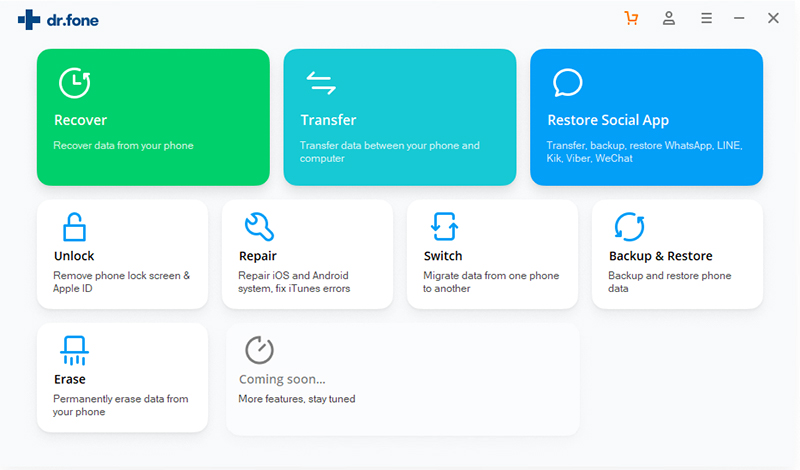
Free download, install and launch the Android Toolkit – Backup & Restore tool with your computer. After getting the full home page, select the “Backup&Recovery” module.

android toolkit home page

Step 2. Connect Huawei Mate 20 to the Computer

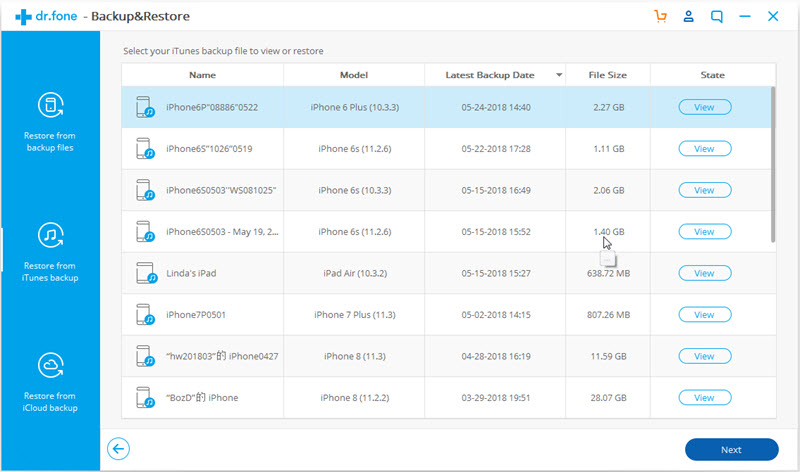
Next, connect your Huawei Mate 20 to the computer and choose “Restore” option. Secondly, click on the “Restore from iTunes backup” tab.

detect itunes backup files

Android Toolkit – Backup & Restore would detect the iTunes backup you’ve made, and list them out. Choose one iTunes backup you need and click on View to extract iTunes backup files.

confirm android device to restore to

Step 3. Transfer iTunes Backup to Huawei Mate 20

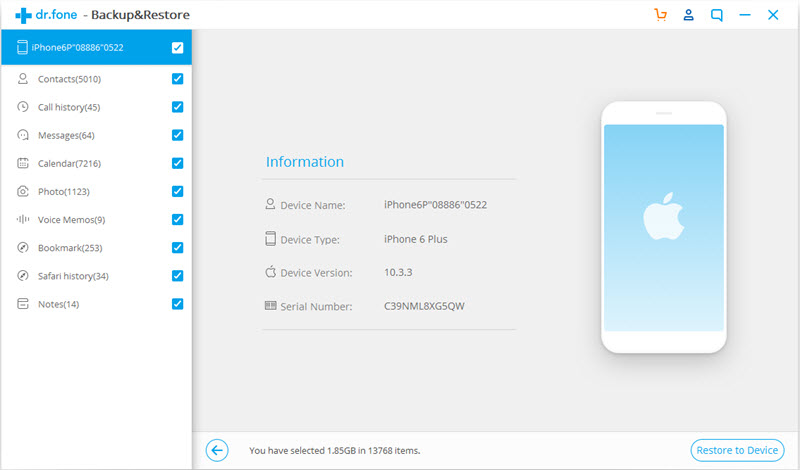
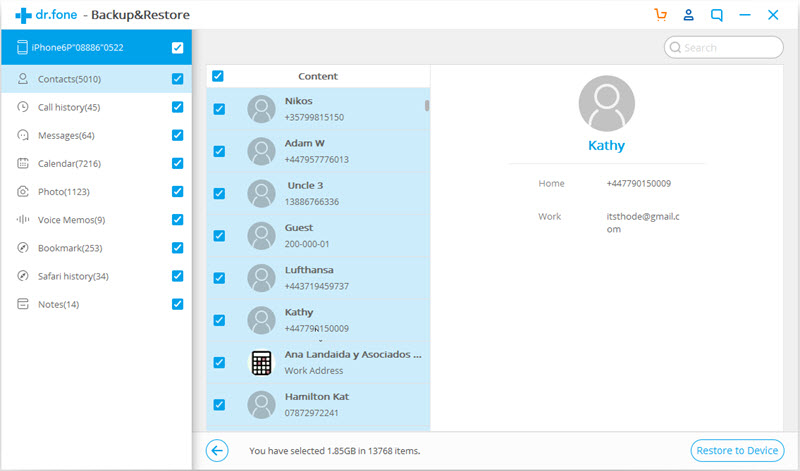
Then just select the contents you want to restore (including Contacts, SMS, Call logs, DCIM photos and Bookmarks) and click on “Restore to Device”.

select itunes backed up data to restore

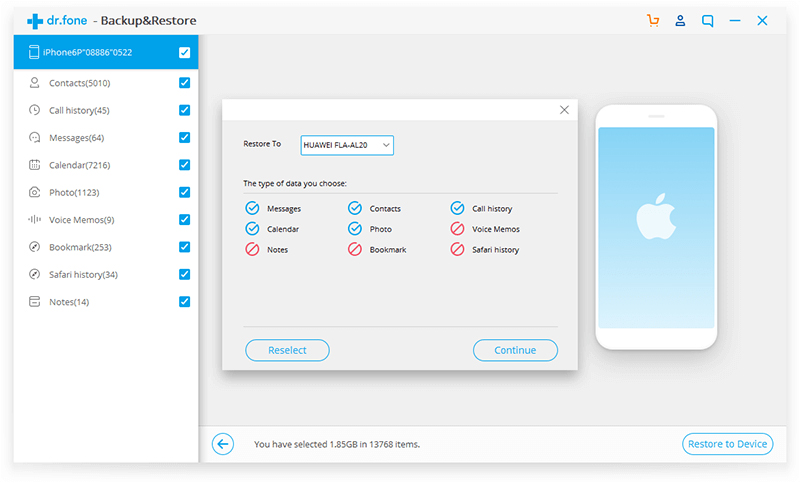
Finally, tap on “Continue”confirm restoring iTunes backup to Huawei Mate 10 and Mate 20 Plus.

confirm to restore to samsung galaxy s10

d_win d_mac

Part 2: Restore iCloud Backup to Huawei Mate 20

Step 1. Run Android Toolkit – Backup & Restore

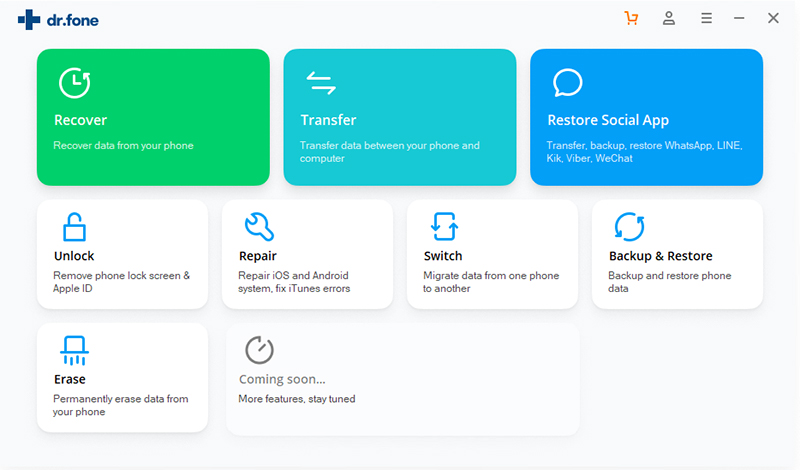
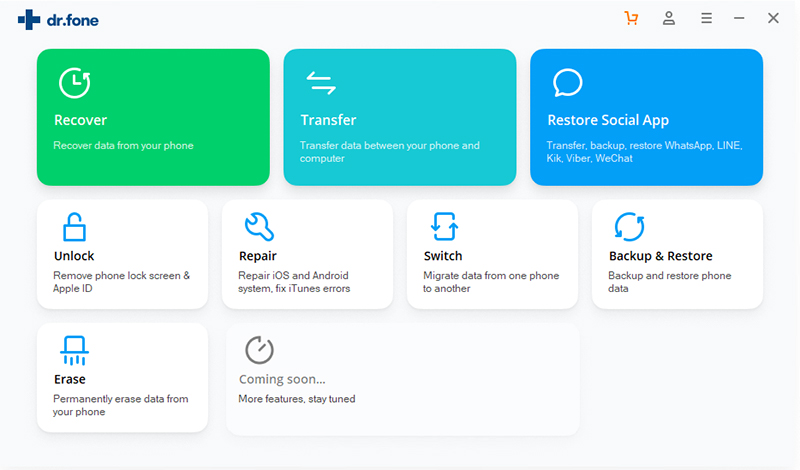
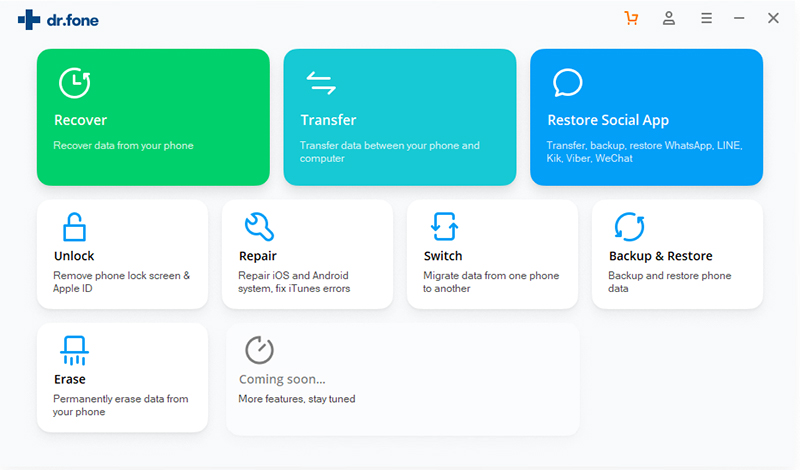
After downloading, install and launch Android Toolkit – Backup & Restore program on your computer. You can see all modules on the program homepage: Recover, Transfer, Switch, Backup&Restore, Repair, Unlock, Erase, Root. Select “Backup&Restore” module on the homepage.

android toolkit home page

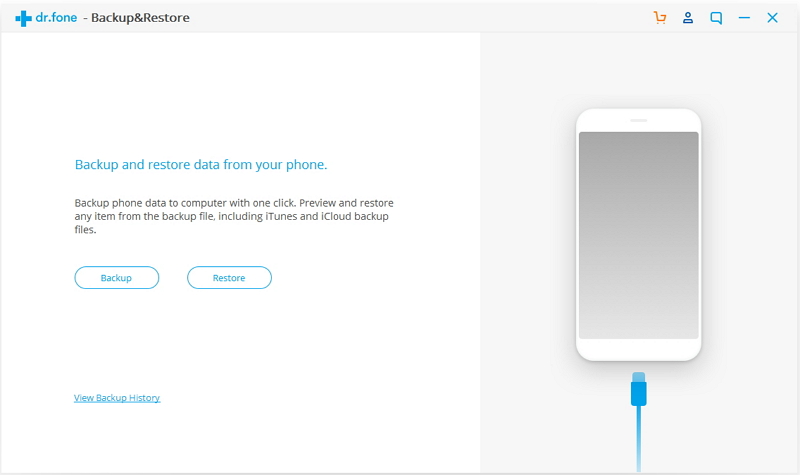
Then choose “Restore” and connect your Huawei Mate 20 phone to the computer.

ios device backup restore

Step 2. Log in to iCloud Account

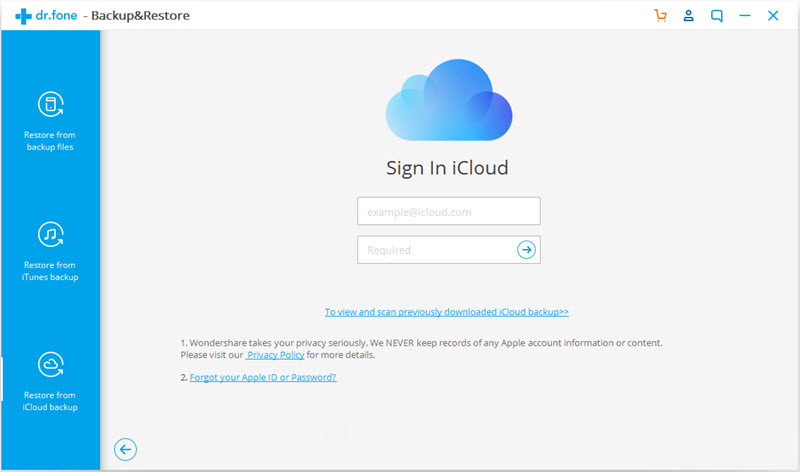
From the left sidebar, click on “Restore from iCloud backup”. Now you can use the following display to enter your iCloud account information.

sign in icloud

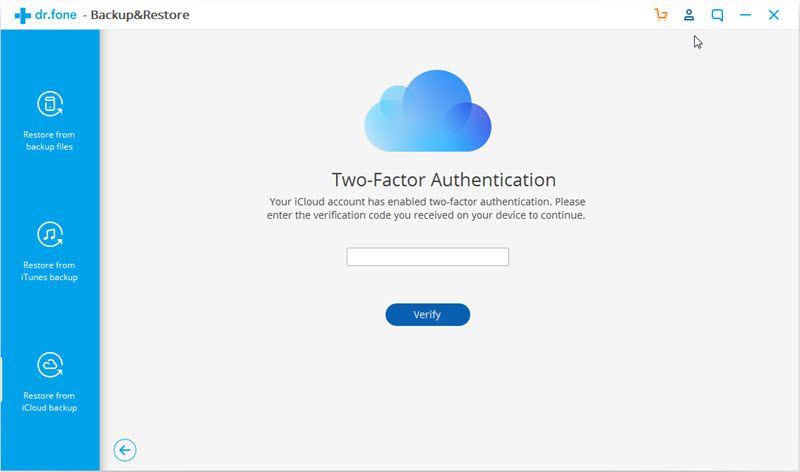
Note: After you sign in, you may have to enter a two-factor authentication code. Once you do this, press the “Verify” button to continue.

verify icloud id

Step 3. Download iCloud Backup File

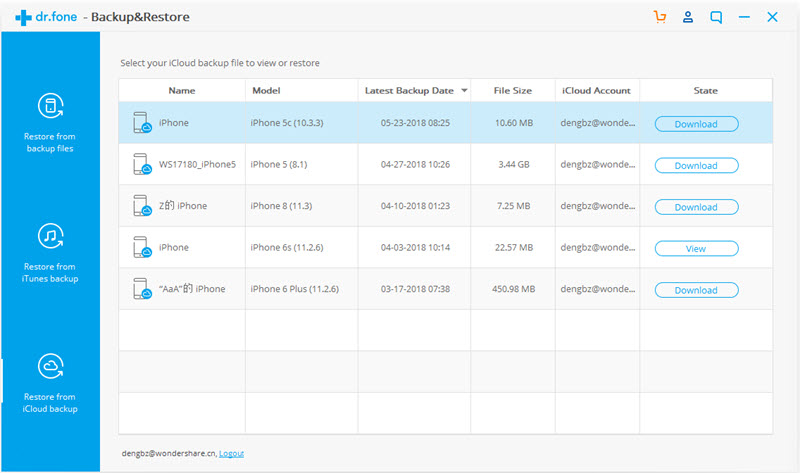
A list of backups will be shown on the next display. Choose the backup that you want to restore by clicking “Download”.

download icloud backup file

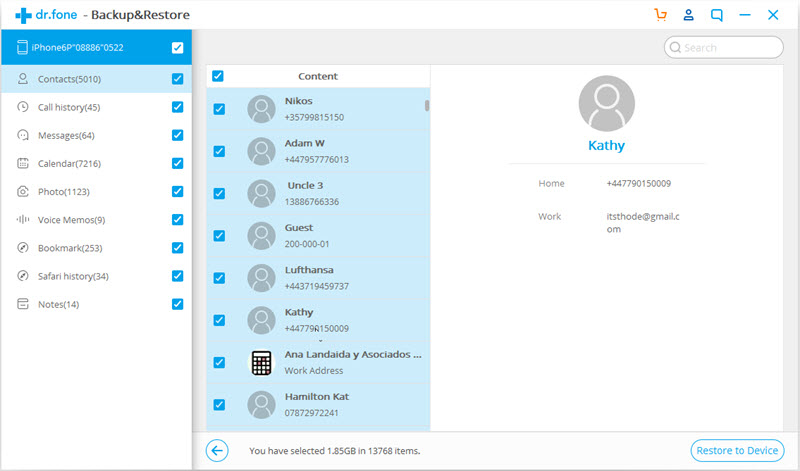
After selecting, the program will start downloading your iCloud backup files. And once done, all data types will be shown on your screen.

Step 4. Restore to Huawei Mate 20 from iCloud Backup

Browse each category and choose the data that you want to restore. Click on “Restore to Device” to save what you want.

select icloud backup data to restore

A small window pops up, you can select Huawei Mate 20 from the drop-down list, and then click Continue to restore the selected data from the iCloud backup to the Huawei device.

confirm to restore to android

d_win d_mac

More Android Toolkit Tips:

How to Transfer Photos from Samsung to Computer

How to Backup Files from Android Phone to Mac

How to Backup Text Messages from Samsung Galaxy

How to Move WhatsApp Messages from iPhone to Galaxy S10

Sync iTunes/iCloud Backup to Huawei

Restore iTunes/iCloud Backup to Samsung Galaxy S10/S10+

[Summary]: If you have backup files on iCloud or iTunes, follow this tutorial to restore iCloud or iTunes backup to the new Samsung Galaxy S10 or S10+ easily.

Samsung Galaxy S10 and S10 Plus

The Samsung 10th Anniversary smartphone lineup will include the Galaxy S10, S10+ and S10e. According to rumors, the higher specification model may be the first to use Samsung’s Infinity-O display, display fingerprint scanner and three cameras. We are all looking forward to their arrival.

“How can I transfer data from iCloud to Samsung Galaxy S10”? Upgrade your phone from an old iPhone 4/4S/5/5S/6/6S/7/8/X to Samsung Galaxy S10/S10+? Many people will encounter this problem when you are used to backing up your personal files from your iPhone or iPad to iTunes/iCloud. Obviously, you can restore iTunes backed up files to almost any iDevices. But how to sync contacts, text messages, photos, videos, call logs, app data and more from iTunes or iCloud backup to Samsung Galaxy S10, a completely different platform from the iPhone?

In order to enable iTunes / iCloud backup to be restored to Samsung Galaxy S10 / S10 +, you need a professional third party software, and Phone Switch is generated. Android ToolKitBackup & Restore is designed to help users transfer file types like text messages, call logs, contacts, photos, music, videos, notes, and applications between Android or iOS devices. Of course, it also has a useful feature that helps you download data from your iCloud / iTunes backup to your Android device. With its help, syncing your iCloud / iTunes backup to the Samsung Galaxy S10/S10+ is an easy job. This software works well for cross-platform data transfer, from iOS to Android and vice versa, as well as backing up data from Android/iPhone to a Windows PC or Mac computer. When needed, you are allowed to restore individual data because it allows you to preview before restoring and selectively check the content you want.

Now get the right free trial by clicking the below downloading icon and we’ll guide you through each of them in detail.

d_win d_mac
d_win d_mac

Part 1: How to Restore iCloud Backup to Samsung Galaxy S10

Step 1. Connect Samsung Galaxy S10 to Computer

Please follow the installation instructions to install the Android Toolkit – Backup & Restore program to your computer after downloading. Running it you will find that the program not only supports data transfer, but also has other useful advantages such as data recovery. In this case, you need to go into the “Backup & Restore” mode. Don’t forget to connect your Samsung Galaxy S10 device to your computer.

android toolkit home page

After connect your Samsung phone to the computer, then click the “Restore” button in the middle of the screen if you gain the screen as below.

ios device backup restore

Step 2. Sign in iCloud Account

Several restore options are displayed in the left column, please click “Restore from iCloud backup”. Then get all the backup content by filling in the iCloud account you used for iCloud backup.

sign in icloud

Note: You may have enabled two-factor authentication for your iCloud account. In this case, the verification code will be sent to your iPhone. Type the verification code you received and click “Verify”.

verify icloud id

Step 3. Download iCloud Backup File

You will successfully get all the backups for this account. Select one of the backups you wish to restore and click “Download” to save the file to a local directory on your computer.

download icloud backup file

Step 4. Restore iCloud Backup File to Galaxy S10

Then the Android Toolkit – Backup & Restore will automatically read and display all the data in the downloaded iCloud backup file. Preview the data and check all or part of the files, click “Restore to Device”.

select icloud backup data to restore

Immediately, there is a window pop up, where you can select your Samsung Galaxy S10 from the drop down list and click “Continue” to restore the selected data from iCloud backup to Samsung device.

confirm to restore to android

Note: Data types such as voice memos, Notes, bookmarks, and Safari history are not supported for restoring from iCloud backups to Android devices.

Part 2: How to Restore iTunes Backup to Samsung Galaxy S10

Step 1. Run Android Toolkit – Backup & Restore Software

This step is the same as the first step of Part 1. Run on the software and connect your Samsung phone to PC. Locate to the “Restore” from “Backup & Restore” option from the main screen.

ios device backup restore

Step 2. Select Restore from iTunes Backup

Select “Restore from iTunes Backup” from the left column. Soon, the program will detect the location of the iTunes backup files on your computer and display them one by one on the right side of the window.

detect itunes backup files

Step 3. Preview & Sync Data from iTunes Backup to Samsung

You can choose the latest iTunes backup and click on “View”, or you can choose another you want. This software perfectly reads and displays all the details from the iTunes backup file by data type.

confirm android device to restore to

Next, select the data you need to restore by data type and click “Restore to Device”. You are able to choose all or some of the items.

select itunes backed up data to restore

In the new dialog box that pops up, select your Samsung phone and click “Continue” to confirm restoring iTunes backup to Samsung Galaxy S10/S10+.

confirm to restore to samsung galaxy s10

d_win d_mac
d_win d_mac

More Android Toolkit Tips:

How to Transfer Photos from Samsung to Computer

How to Backup Files from Android Phone to Mac

How to Backup Text Messages from Samsung Galaxy

How to UnLock your LG Phone Screen Lock

How to Move WhatsApp Messages from iPhone to Galaxy S10

Restore iTunes/iCloud Backup to Samsung

How to Copy Photos, Videos from Galaxy S/Note to Mac

[Summary]: Want to backup data from Samsung to Mac? This guide will show you the simple ways in steps to transfer photos from Samsung Galaxy S9/S8/S7/S6/Note to Mac.

“I tried to download a data transfer software to my Mac. Obviously it recognizes my Samsung phone and the MTP on the devices, but it can’t recognize my “Gallery” photos and so I can’t transfer photos and videos to my Mac for backing up good moments. Any ideas?”

When you first connect your Samsung Android device to your Mac for photo import, you may be disappointed to see that Aperture and iPhoto cannot recognize the device as a camera. The reason is there is no direct way for your Galaxy which is an Android device to communicate with the Mac. Android devices will generally communicate better with a PC. The article next shows a quick and easy way to copy photos & videos from a Samsung phone (Samsung Galaxy S10/S9/S8/S7/S6/S5/S4, Galaxy Note 9/Note 8/Note 5/Note 4/Note 3/Note 2, etc.) to a Mac.

People Also Read:

* Samsung Kies to Backup & Restore Galaxy S9/S8/S7/S6/S5

* Backup Apps/Apps Data on Samsung Galaxy S8

Android Toolkit – Transfer allows you to easily transfer photos and videos individually or all photo at once from your Samsung phone to Mac. You can also sync other contents (music, messages, contacts, applications, etc.) from Samsung Galaxy S/Note to a Mac or a laptop. Below are the key features of this Android Toolkit – Transfer.

  • Selectively transfer data from Samsung Galaxy S/Note;
  • Transfer contacts, photos, videos, music, SMS between Android and computer;
  • Sync iTunes to Samsung Android phone and vice versa;
  • Fully compatible with Android 9.0/8.0.

d_win d_mac
d_win d_mac

Kind Tips: Looking for a way to download videos from YouTube? 4kFinder YouTube Video Downloader provides everything you expect. This is an excellent online video downloader dedicated to downloading 1080p 60fps videos, 720p HD, 1080p HD, 4K, 8K videos, etc. from YouTube to MP4 without image quality loss. In addition, extracting MP3 audio from YouTube is also one of its features. Apart from YouTube, it is also able to download videos from more than 1,000 popular online streaming sites, like Facebook, Instagram, Twitter, Bilibili, NicoNico, BBC, Vimeo, VLive, Tumblr, Fmovies, etc.

Guide on How to Transfer Photos from Samsung Galaxy to Mac

Step 1. Launch Android Toolkit – Transfer

Download and install the Android Toolkit – Transfer program to your Mac computer. Launch it and enter Transfer feature. As you can see, the program has multiple built-in features, and you can experience them one by one after downloading.

ios toolkit

Step 2. Connect Samsung Galaxy Phone to Mac

Then connect your Samsung Galaxy mobile phone to Mac using an USB cable. And your device can be automatically detected by the program.

Step 3. Transfer Gallery from Samsung S/Note to A Mac

Option 1. Sync All Photos from Samsung Galaxy to Mac

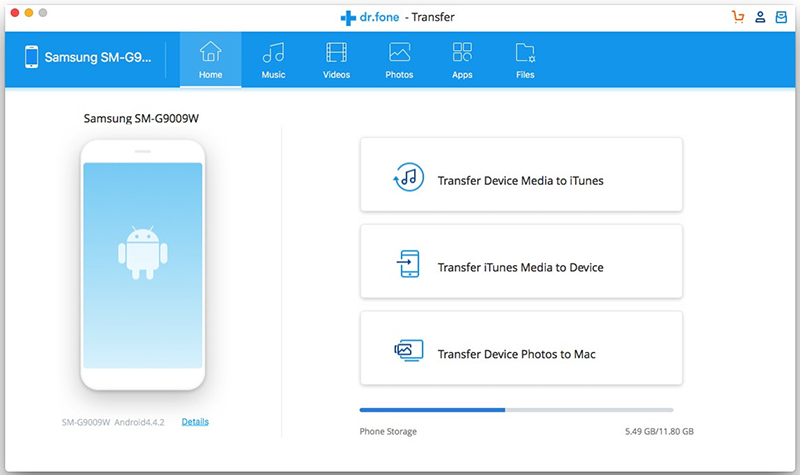
On the main window of Transfer, click on “Transfer Device Photos to Mac”. This will help you transfer all photos on your Samsung Galaxy mobile phone to Mac in just 1 click.

select data to backup

Option 2. Transfer Photos from Samsung to Mac Selectively

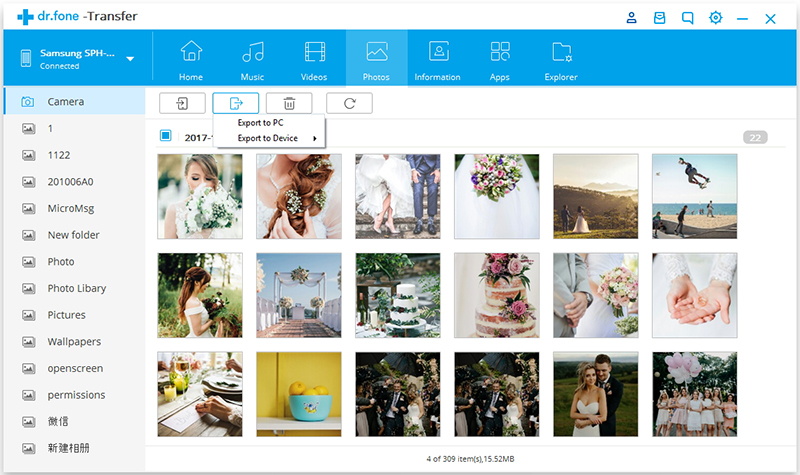
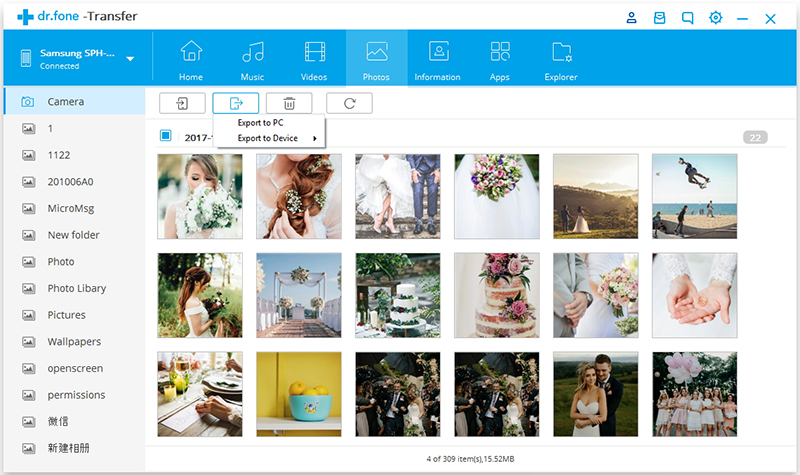
If you would like to transfer photos from Samsung to Mac selectively, go to “Photos” tab on the top of the window. Here you can preview and select the photos you like and export them to your Mac easily.

transfer selected photos from samsung to mac

d_win d_mac
d_win d_mac

Related Article

Ways to Transfer/Import Videos to Samsung Galaxy Note 8(5/4/3)

Backup & Restore Android Files – Photos/Videos/Music

How to Manage & Transfer Files for Samsung Galaxy Note 9

Transfer Photos from Samsung to Mac

How to Backup Files from Android Phone to Mac

[Summary]: Here we give you a guide on how to backup Android phone to Mac by using Android Toolkit for Mac, which enables you to transfer contacts, SMS, photos, videos, music, apps, etc. from Android to Mac easily with one click.

How do I back up my Android phone to my Mac? Many users are trapped here. Your Android device may lose important data while system update, factory reset, accidentally deletion, rooting, formatting, flashing, etc. It’s hard to imagine losing important files on your Android phone. If your device is stolen, lost or damaged, it’s best to be prepared and ensure that the most valuable data is backed up. However, Android does not provide any built-in backup application, which makes users neglect the need to do daily backups. Here, we will show you the ideal solution for full backup is premium software specifically meant for the purpose.

Tool You’ll Need to Backup Android Data to A Mac

Android Toolkit for Mac works professionally in backing up Android phone on Mac, allowing users to either cherry pick selected files for backup, or conduct a full back up at the click of a button. And you can preview the detail contents before transferring to Mac computer. It means that you are able to backup Android phone to a Mac with one click or transfer photos from Samsung to Mac selectively.

Top Features of Android Toolkit for Mac

Full backup Android to Mac.
Transfer separate content from an Android to Mac.
One-click restore from backup file.
Preview data then selectively restore to your Android phone.
Multiple additional features are available for Android users.
Support Android phones and tablets like Samsung Galaxy S10/S9/S8/Note 9, HTC, Sony, LG, Huawei P20/Mate 20(Pro), etc.

The software is intuitive and simple to use. Follow the steps below to safely and securely backup your precious files and data from Android phone to your Mac computer. Now download the software on your Mac first.

d_win d_mac

Steps to Backup Android to Mac Selectively(Photos, Videos, Music)

Step 1. Install and Run Android Toolkit on Your Mac

After you download Android Toolkit on your Mac computer, you can install and double-click the program icon to run it. The program’s built-in features are shown in the figure. Enter “Transfer” mode to start.

ios toolkit

Step 2. Connect Android Phone to Mac

Next connect your Android phone to Mac with a USB cable. This software will detect and recognize your Android phone device information.

select data to backup

Step 3. Choose Files to Export

On the top, you can click the file type icon in the toolbar such as Music, Videos, and Photos. And then you can preview the detail content.

Step 4. Backup Files from Android to Mac

Select and mark the specific files that you need to backup to Mac from Android device. After that, click “Export” and you’ll asked to choose a target location to save the files on your Mac computer.

backup media files from android to mac

Wait for a few minutes to successfully complete the backup of Android device to your Mac. Once done, you can see the files that are backed up to the local folder on the Mac laptop.

d_win d_mac

Related Article

How to Backup and Restore your Android on Computer

Backup & Restore Android Files – Photos/Videos/Music

How to Backup and Restore Motorola Phones

Backup Files from Android to Mac

Transfer WhatsApp Messages from iPhone to Galaxy S10/Fold

[Summary]: WhatsApp is great app and most of its users want to transfer WhatsApp data when they switched to a new device. Here you can move WhatsApp messages from old iPhone to Galaxy S10 and Galaxy Fold in a simple click using Phone Switch app.

WhatsApp is one of the most popular social applications that uses an internet connection to send message images, audio and video to other people. It allows users stay in touch with people around the world in such a very useful way and what’s more, it is almost free. WhatsApp is one of the most popular social apps that use an internet connection to send message images, audio and video to others. It allows users to stay in touch with people around the world in a very useful way and, more importantly, it’s almost free. Anyone who updates from the old iPhone 5/5s/6/6s/SE/7/8 to the latest Samsung Galaxy S10 and Galaxy Fold, a higher-spec model which is the first to adopt Samsung’s Infinity-O display, an in-display fingerprint scanner, a triple-camera setup and 5G support, he/she certainly does not want to miss the WhatsApp data, such as photos, videos, text messages, attachments.

If you want to move all WhatsApp chats and media attachments from an iPhone to newest Samsung Galaxy S10/S10 Plus or Samsung Galaxy Fold, regardless of all the complex factors, the easiest and safest way is to use the iOS Toolkit – Restore Social App. Giving only the best results, this program uses various algorithms to transfer data between smartphones safely. With it, you enable to transfer WhatsApp chats from iPhone to Samsung Galaxy S10/Galaxy Fold, or from iPhone to iPhone X/XS, from iPhone to Android/iOS & iOS/Android & Android, and Android & iOS. Besides, you are able to securely take backups & restore WhatsApp data on your Samsung Galaxy S10/S9/S8/Note 9.

It works on both Windows and Mac versions. Please download it and have a try.

d_win d_mac

Key Features of iOS Toolkit – Restore Social App:

Transfer WhatsApp messages and attachements from iPhone to Samsung Galaxy S10/S10+.
Move WhatsApp chats between iPhone/iPod/iPad and Android devices.
Easily backup or export WhatsApp data from Android/iOS to PC.
Back up all of your WhatsApp/WeChat/Kik/LINE/Viber chat history with 1-click.
Preview the backup of social app content and restore the only data that you need.
Support all models of Android phones, iPhone, iPad & iPod touch. Compatible with latest iOS 12 and Android 9.0.

Easy Guide to Sync WhatsApp Data from iPhone to Galaxy S10 or Galaxy Fold

Step 1. Install iOS Toolkit – Restore Social App on Mac/PC

Download and install iOS Toolkit – Restore Social App on to your Mac computer or Windows PC. Launch it and then select “Restore Social App” for Windows users, “Backup&Restore” for Mac users.

ios toolkit

Step 2. Locate to WhatsApp Section

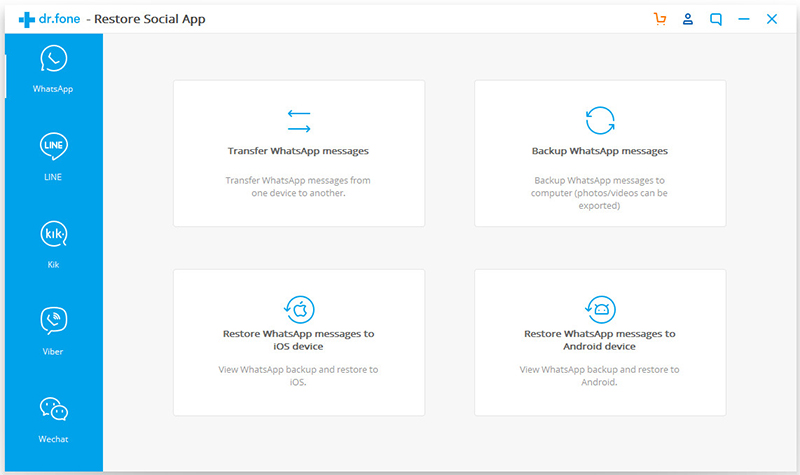
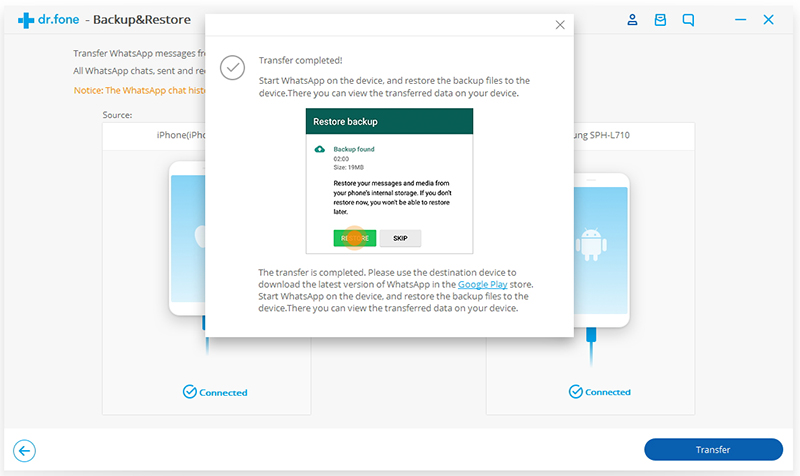
Next, connect both devices to your computer using USB cables. The program should detect the devices. Go to WhatsApp tab and from the options provided choose “Transfer WhatsApp messages.”

whatsapp backup restore

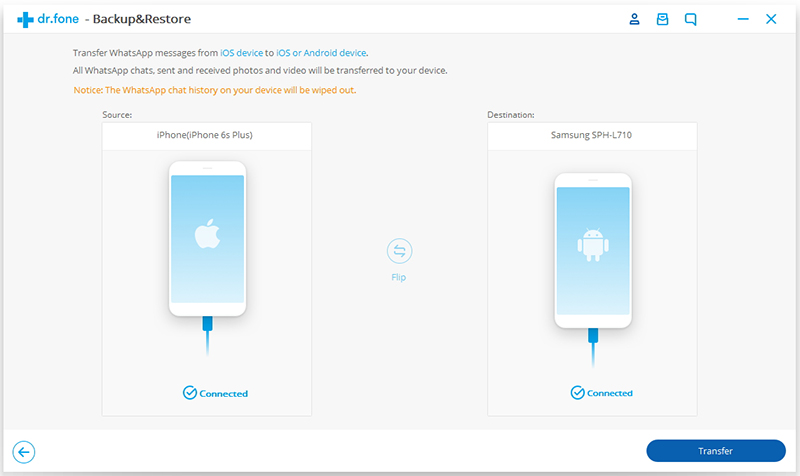
Then the program will then activate each device’s connection. Make sure that the destination device is your Samsung Galaxy S10, if not then click “Flip”.

ios whatsapp transfer

Step 3. Transfer WhatsApp Messages from iPhone to S10

Simply click on “Transfer” to begin the process, then on the notification that appears, click “Yes” to imitate the process.

confirm to transfer whatsapp

d_win d_mac

Related Article

Solutions to Backup and Restore Android Phone/Tablet

How to Transfer/Backup Android Data to Computer

How to Backup/Restore App Data on Android Phone

Backup Files on Android Phone or Tablet(Contacts,Photos,SMS)

Move WhatsApp from iPhone to Galaxy S10

How to Recover Deleted Data from iPhone XS/X/8/7/6S/6 on Mac

[Summary]: Need an Mac iPhone Data Recovery to recover lost and deleted files from iPhone. Try U.Fone iPhone Data Recovery(Mac) to recover deleted photos, SMS, contacts, call history, notes, videos, ect. from iPhone/iPad/iPod on Mac freely, as well as retrieve data from iTunes backup and iCloud backup on Mac.

How to recover deleted SMS from iPhone on MacBook Pro?
“I accidentally deleted some important messages in iPhone X. I using MacBook Pro, how do I recover deleted text messages from iPhone X on MacBook Pro?”

How to Recover Lost Photos from iPhone on MacBook Air?
After update my iPhone 8 Plus to iOS 12, I don’t know what happened, photos not saving to camera roll ios 12, photos missing after iOS 12 Update? How to fix photos disappeared from iPhone after iOS 12 upgrading?

How to Recover Deleted Contacts from iPhone XS on Mac?
“I used to store a lot of female friends’ contacts and photos on iPhone XS. Yesterday, I quarrelled with my girlfriend, she deleted all the contacts and picures in my iPhone, any iPhone data recovery for Mac to recover deleted contacts and photos from iPhone XS? Thank you!”

We’ve all experienced that horrible stomach-churning pang ofr dread when we delete a file that we didn’t mean to delete. A lot of reasons can cause you to lose iPhone data, updates, jailbreaks, accidental deletions, water damage, factory resets… If you lose all of this, it’s really a nightmare. The bad news is that iPhone albums can save photos and videos deleted within 30 days, but other apps don’t have undelete feature. The good news is that these deleted files have not really disappeared from your iPhone, their location is marked blank and waiting to be overwritten by new data. Therefore, as long as you make sure they are not replaced by new data, it is possible to recover deleted iPhone files on your Mac, including iPhone 5S/SE/6(Plus)/6S(Plus)/7(Plus)/8(Plus)/X, and the latest iPhone XS/XS Max/XR running on iOS 12. This is why you are advised to stop using the device immediately once data loss occurs.

What if you don’t have a handy backup? What should you do to recover lost data from iPhone on Mac? This article will show you a best solution to get back deleted data and files on iPhone without backup.

Things You’ll Need To Recover iPhone Lost Data on Mac (iOS 12 Supported)

Before beginning the recovery process, ensure that you have the following things ready:

– Your iPhone
– A USB cable
– MacOS computer
– U.Fone iPhone Data Recovery for Mac

U.Fone iPhone Data Recovery for Mac is a recovery program that is efficient on retrieving deleted or lost data from iPhone on Mac without backup. It is available to recover lost photos, contacts, notes, reminders, call history, calendar, Safari bookmarks and many other data from iPhone XS/XS Max/XR/X/8/8 Plus/7/7 Plus/SE/6s/6/5s/5c/5/4S, both lost and existent files are visible. Not only that, U.Fone iPhone Data Recovery (Mac) provides you with 3 quick and simple ways to get it all back on your iOS device: Recover from iOS device directly, restore from iTunes backup or iCloud backup without erasing existing contents.

Download the trial from here and try to retrieve the lost data from iPhone on Mac:

d_win d_mac

Mac machine: iPhone Data Recovery Mac version supported MacBook, MacBook Air, MacBook Pro, iMac, iMac Pro.

Operating System: Works well with Mac OS X 10.6, 10.7, 10.8, 10.9, 10.10, 10.11, 10.12 and the latest macos mojave.

iOS: iOS 11, iOS 10, iOS 9 and supported the latest iOS 12, such as iPhone XS Max, iPhone XS, iPhone XR, iPhone X; iPad and iPod(touch) as well.

U.Fone iPhone Data Recovery (Mac) – Recover Anything You Lost

– Recover data from iOS device, iTunes backup and iCloud backup on Mac.
– Recover contacts, SMS, notes, call logs, photos, video, Whatsapp/Kik/Line(Messages & Attachments), etc.
– Allow previewing and selectively recovering lost data.
– Works for many common scenarios, such as Deletion, Virus Attack, Locked/Disabled Device, iOS Downgrade/Update/Jailbreak, System Failure, Factory Reset, Device Broken/Damaged, iPhone Lost/Stolen,
– Fully compatible with iPhone XS/XS Max/XR and iOS 12.

A Step Guide to Preview and Recover iPhone Data without Backup

Step 1. Launch iPhone Data Recovery for Mac
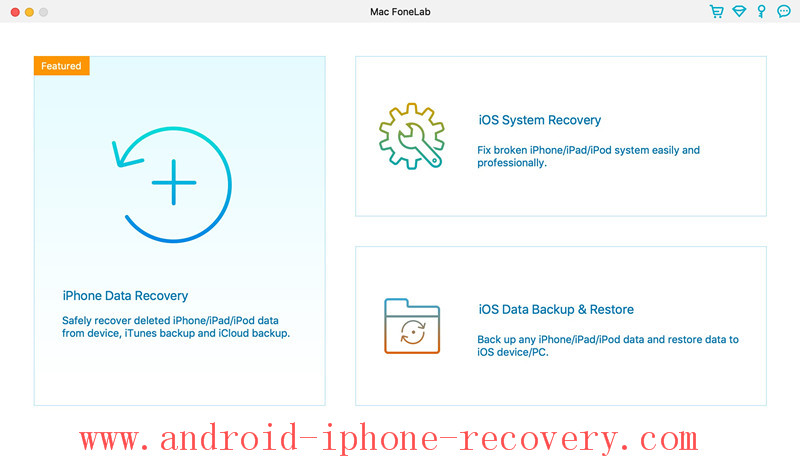
Start by launching the iPhone Data Recovery(Mac) on your Mac, then click “iPhone Data Recovery” function, this function can help you recover data from iPhone/iPad/iPod, iTunes backup and iCloud backup.

ufone iphone data recovery for mac

If you want to directly recover lost and deleted data from iPhone, please select “Recover from iOS Device” option.

recover data from iPhone directly

Step 2. Connect iPhone device to Mac
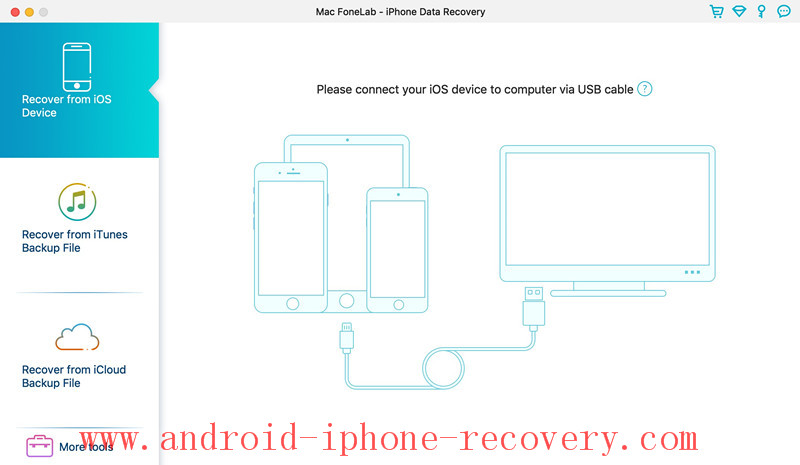
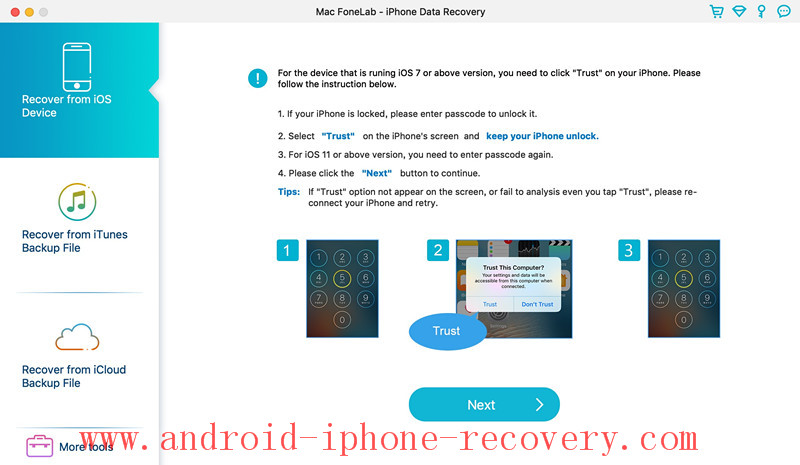
Using a USB cable to connect your iPhone with the Mac, , you need to “Trust” on your iPhone for the program scanning the device, the program will detect it automatically.

trust on iphone

Step 3. Select Data Type to Scan
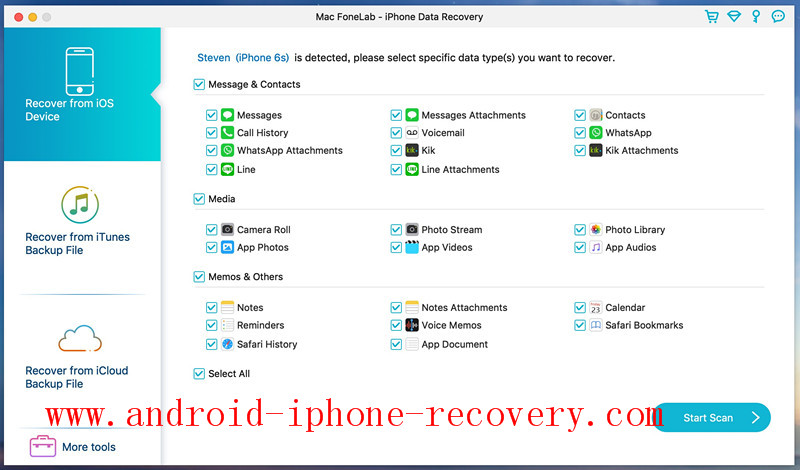
After your iPhone device connected to MacBook successfully, then select the types of file you want to recover, including:
Messages & Contacts – “Messages”, “Messages Attachments”, “Contacts”, “Call History”, “Voicemail”, “WhatsApp messages”, “WhatsApp Attachments”, “Notes”, “Calendar”, “Reminders”

Media Files – “Camera Roll”, “Photo Stream”, “Photo Library”, “App Photos”, “App Videos”, “App Audios”

Memos & Others – “Voice Memos”, “Safari Bookmarks”, “Safari History” and “App Documents”

You can select the specific data type(s) you want to get back, or “Select All” to recover, then click on “Start Scan” button, your device will be scanned directly.

select files to recover

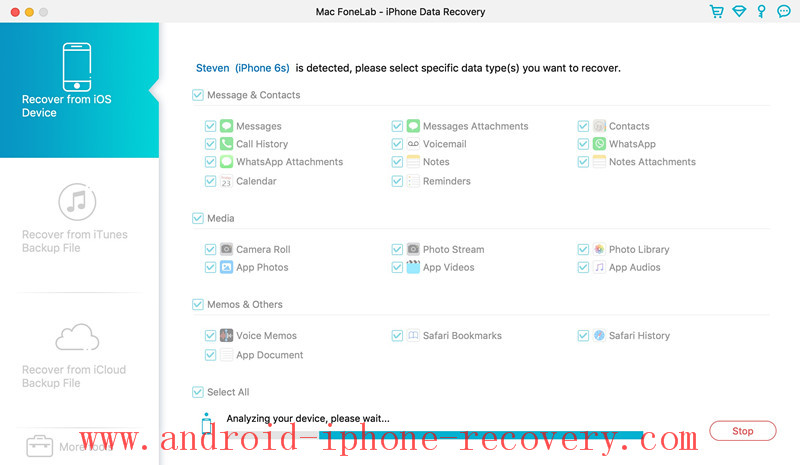
As you can see, the program is analyzing your device, please keep connecting your iPhone to MacBook and waiting patiently.

analyzing iphone

Step 4. Scan iPhone to Find All Data
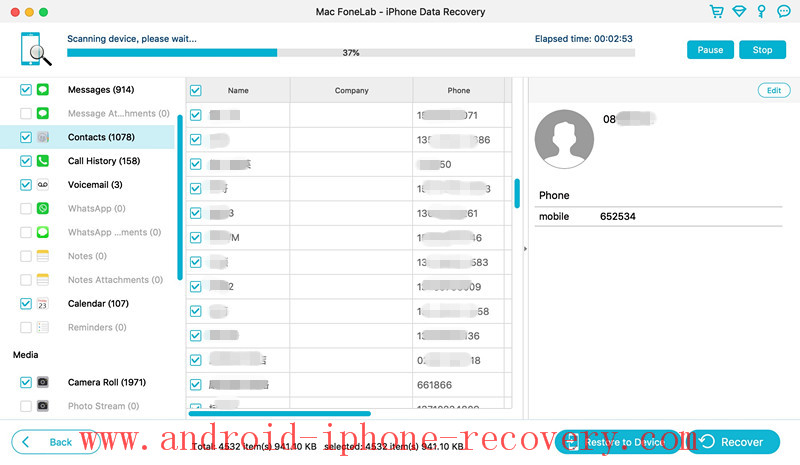
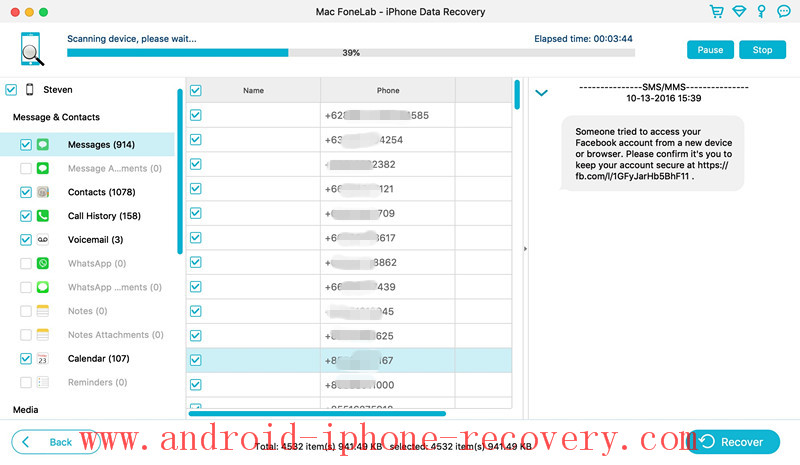
After analyzing the device complete, the program begin scanning your iPhone device to find all deleted/lost/missing and existing data. During the scanning process, it may take you some times, it depending on the large file size on your iPhone.

Scaning Lost and Deleted Contacts from iPhone on Mac

scan lost contacts from iPhone

Scaning Lost and Deleted Messages from iPhone on Mac

scan lost SMS from iPhone

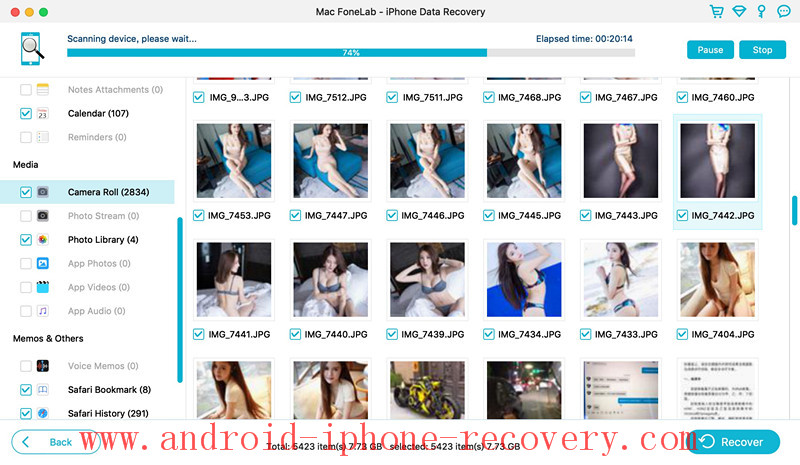
Scaning Deleted and Lost Camera Roll, Photos, Images from iPhone on Mac

scan deleted camera roll from iPhone

Tips: If you found the files you need, you can click “Stop” button to finally the scanning process.

Step 5. Preview the Scaned Results
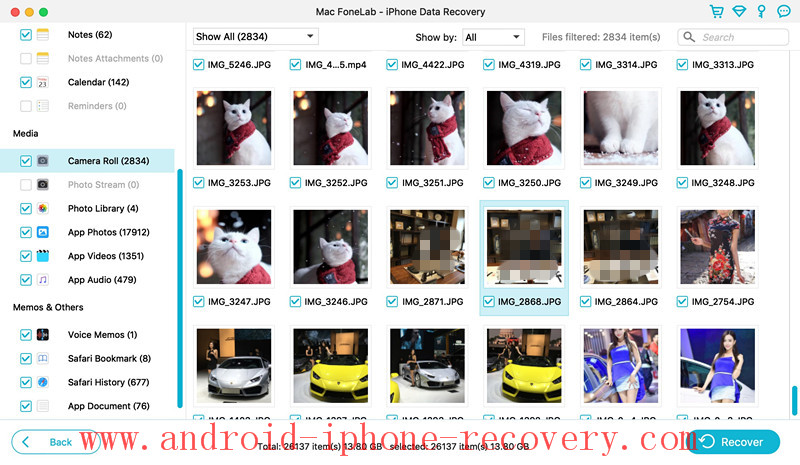
After scanning, the software will display all files that can be recovered under categories, you can preview all scanned files before decide to recover them.

preview iphone deleted photos

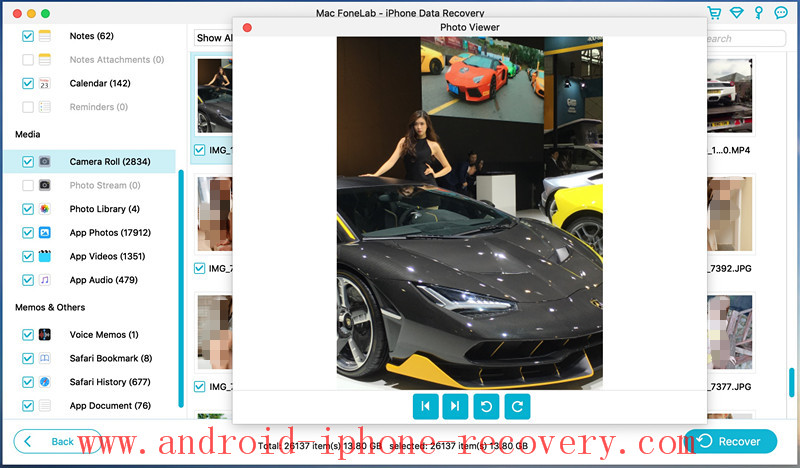
You can also double-click one pictures to preview before recovering it.

preview deleted photos on iPhone

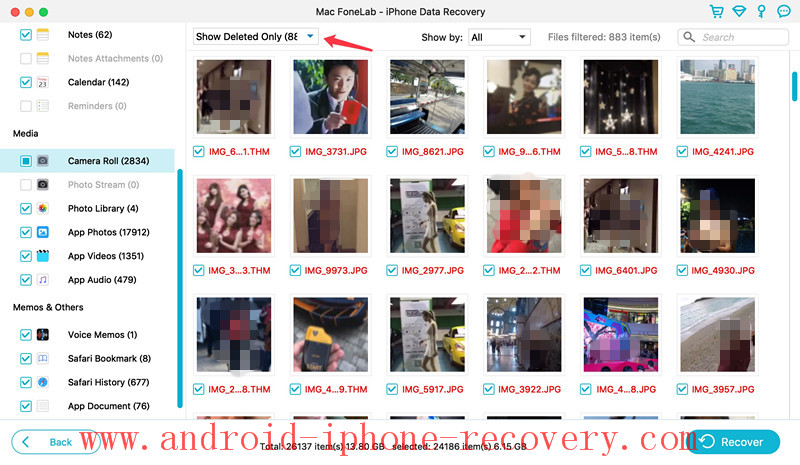
If you want to show deleted/lost files only, please switch to “Show Deleted Only” in the upper left corner of the interface.

show deleted iphone photos

Step 6. Recover iPhone Files and Save Onto MacBook

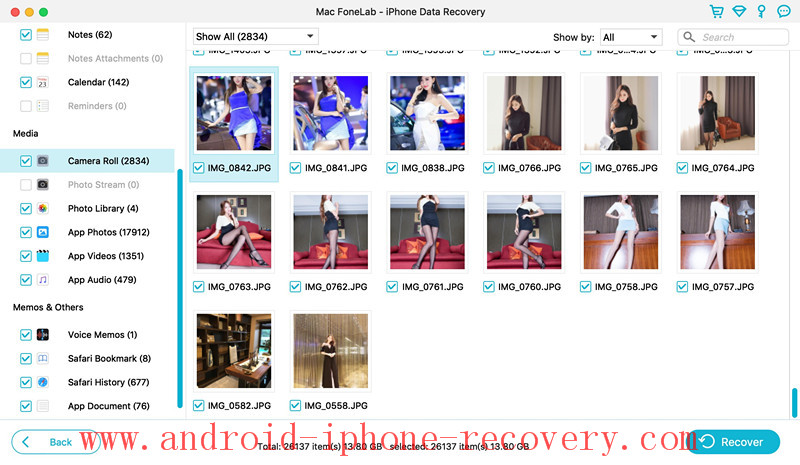
Select the files you want to recover from iPhone and just click the “Recover” button start to recovering data from iPhone and save onto your MacBook.

recover iphone photos on Mac

Step 7. Save iPhone Lost Data on MacBook
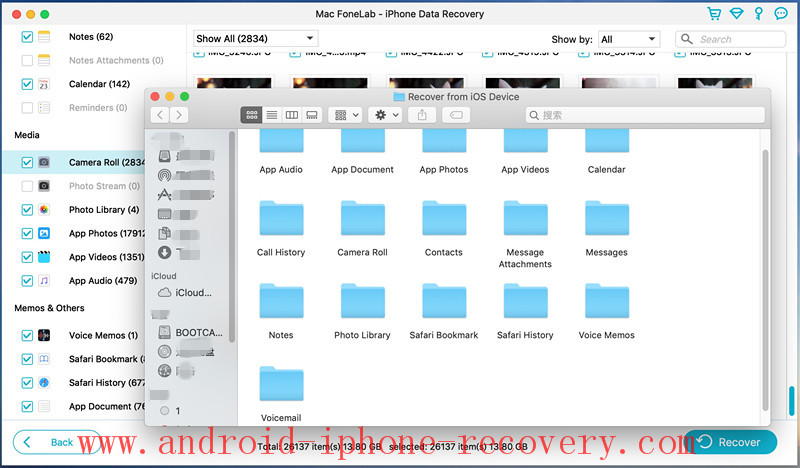
Only few minutes, all your seleted contents will be restored and save onto the MacBook.

save iphone deleted files on Mac

Free download iPhone Data Recovery for Mac and try to scan your iPhone lost data on Mac computer.

d_win d_mac

Related Article

Top 5 Best iPhone Data Recovery Software Review

How to Recover iPhone Lost Files after iOS Update on Mac

How to Recover Deleted Contacts on iPhone XS/XS Max/XR

How to Recover Deleted Photos from iPhone/Android/PC/Mac?

How to Restore Deleted Call Logs from iPhone 8/7/6S/6

Mac iPhone Data Recovery

Factory Reset Locked/Disabled iPhone without iTunes

[Summary]: Looking for a way to reset locked or disabled iPhone without iTunes, but don’t know how? This guide explains the 4 different ways to factory reset your disabled or locked iPhone without using iTunes app.

To prevent others from accessing and protecting our private information, almost all iPhone users want to set a password on their device. Some people may even change their passwords regularly to ensure security. If you have locked your iPhone but don’t remember your password or for some reason your device has been disabled, you won’t be able to use the iPhone, let alone access any of its data.

If you are looking for a way to reset the locked/disabled iPhone, including iPhone XS, iPhone XS Max, iPhone XR, iPhone X, iPhone 8/8 Plus, iPhone 7/7 Plus, iPhone SE, iPhone 6/6 Plus, iPhone 6s/ 6s Plus, iPhone 5s, etc., then you will get help. This guide is intended to share 4 ways to give these people who want to factory reset their locked/disabled iPhone without iTunes. Let’s get started.

CONTENTS

Part 1. Factory Reset Locked/Disabled iPhone Using iOS Unlock

iOS ToolKit – iOS Unlock can easily unlock your iOS device without hassle when you enter your iPhone passcode for several times and your iPhone gets locked. The unlock feature in iOS Toolkit can efficiently unlock your iPhone if Find My iPhone/iPad is turned off.

KEY FEATURES

Easily remove iPhone lock screen without the passcode.
Fix disabled iPhone without iTunes.
Fix “iPhone is disabled, connect to itunes” issues.
Bypass passcode with 4 digits, 6 digits, Touch ID and Face ID on iPhone/iPad.
Works for all models of iPhone, iPad and iPod touch.
Fully compatible with the latest iOS 12.New icon.

d_win d_mac

step 1. Install and run the iOS Toolkit – Unlock

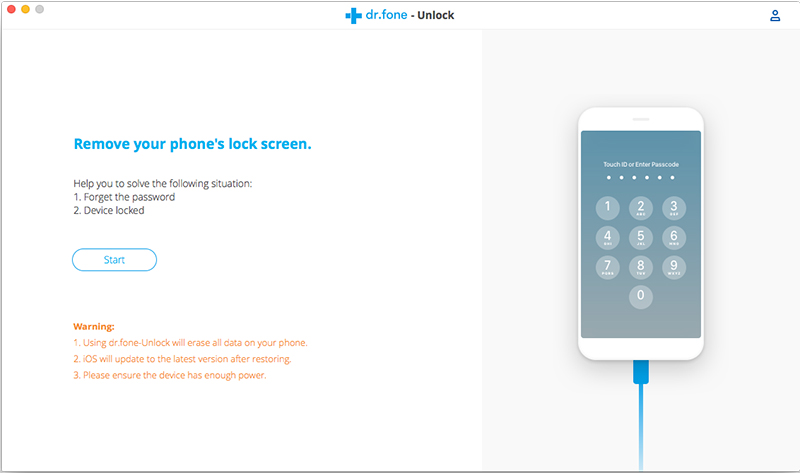
Check the version that is right for you to download, then install and launch the iOS Toolkit – Unlock. On the welcome screen, select the “Unlock” option to activate the process.

iPhone Lock Screen Removal

Step 2. Connect iPhone to Mac/PC

Now, using a USB/lightning cable, connect the iPhone to the system and wait for a while because the app will automatically recognize it. Then click the “Start” button.

connect screen-locked iPhone to pc

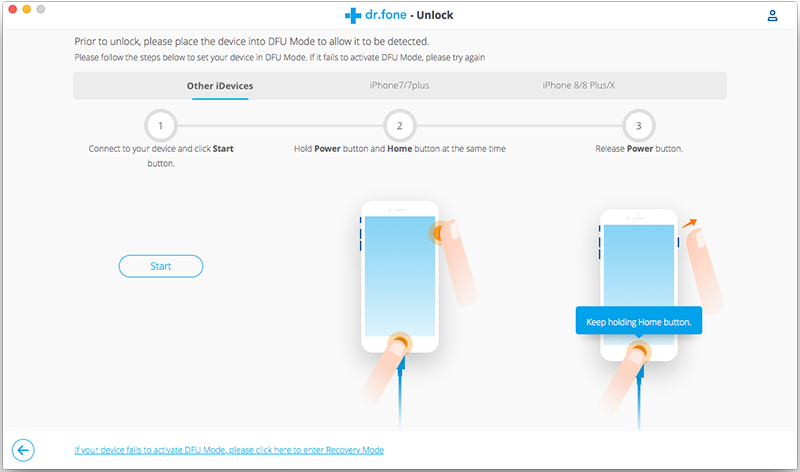
Step 3. Put the device into DFU mode

When the device is detected, it will display the interface that needs to activate the iPhone DFU mode. Follow the instructions.

get your iPhone into DFU mode

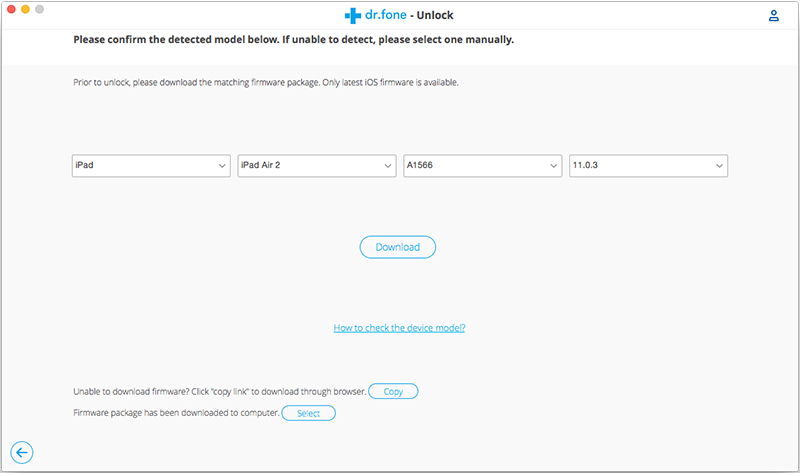
Step 4. Check iPhone Information

If the detect finishes, the software will display the model of your device. If there is something wrong, you can select again from the list. Make sure that you have provided the right information before clicking the “Download” button.

Confirm locked iPhone information

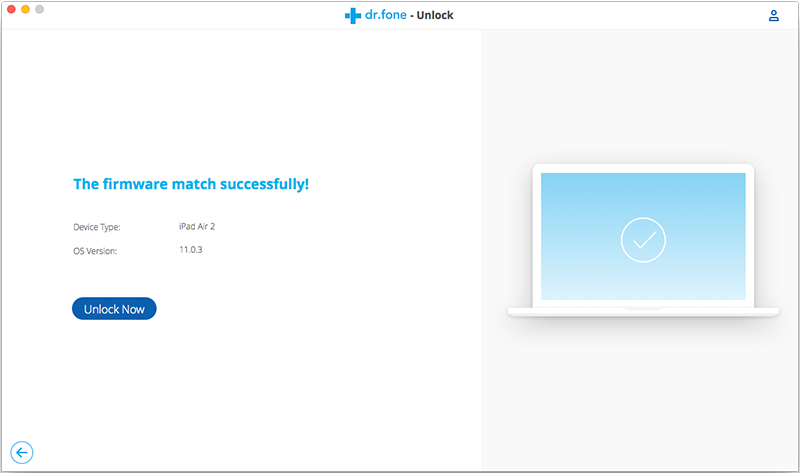
Step 5. Start to Unlock iPhone without iTunes

The app will automatically download the relevant firmware updates for your device. It may take a while to complete the download. Then click the “Unlock Now” button.

Download iPhone Firmware Package

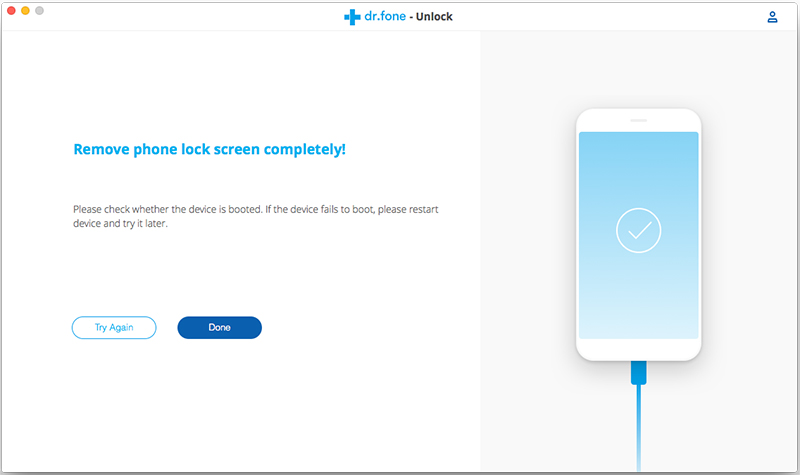
Since the data on the device is deleted after unlocking, you are asked to enter the confirmation code 000000 from the on-screen command to activate the unlock function. Then touch “Unlock” immediately.

Your disabled iPhone has been unlocked without iTunes successfully. Your device will now be brand new.

Unlock iPhone Locked Screen

d_win d_mac

Part 2. Factory Reset Locked/Disabled iPhone by Find My iPhone

Find My iPhone can be used to locate a lost iPhone as well as to lock the device to prevent unwanted access to personal data, and can be used to factory reset locked iPhone. In order to make use of this feature, you must have previously activated the “Find my iPhone” feature on your iPhone before it got locked.

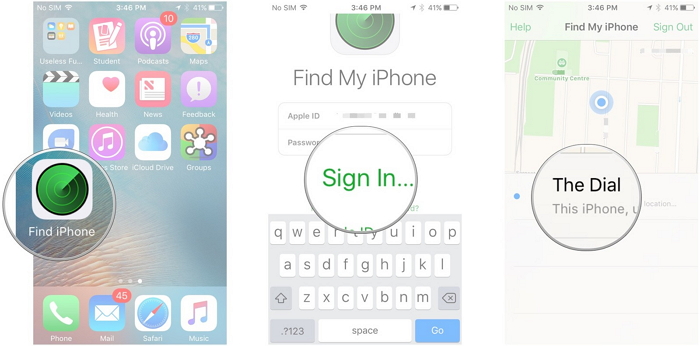
Step 1. Launch find my iPhone app from another different iPhone.

Step 2. Log in with your own Apple ID and password.

Step 3. Click on the name of your iPhone or iPad that you want to reset.

find-my-iphone-device-1

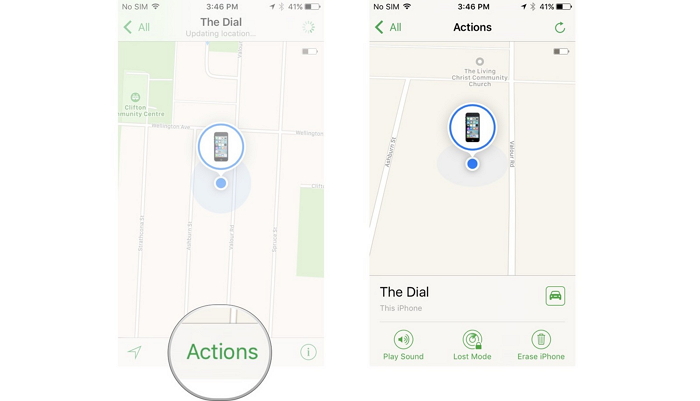
Step 4. Click on the “Erase iPhone” option and confirm your selection. Then it will remotely factory reset the locked iPhone for wiping everything on the device.
Step 5. Wait for a while as the “Find My iPhone” feature will remotely erase your iOS device. Needless to say, it will also disable its lock.

find-my-iphone-device-2

Part 3. Factory Reset Locked/Disabled iPhone on iCloud.com

Restoring from iCloud backup will erase all data and settings (including the screen password) on your device. Here’s how to do it.

Note: If you have already stored some important files that have not been backed up to iCloud, then it is best to try other alternatives.

Step 1. Enter anyone browser to visit iCloud.com, then log in with the same Apple ID used on the disabled iPhone.

Step 2. Navigate to Settings > Select Restore and choose a backup that contains all of your data > click Restore. At the end, you will get a brand new device, but the iCloud backup file will cover all your data, which means that new data born after this backup will disappear.

Part 4. Factory Reset Locked/Disabled iPhone via Siri (iOS 8 – 12)

Most users still don’t know if your device is running iOS 8.0 to iOS 12, you can use Siri to unlock a disabled iPhone. Here’s how to bypass the iPhone lock screen without a password via Siri.

Step 1. Press and hold the Home button for a few seconds to activate Siri on your iPhone.

Step 2. Ask Siri “Siri, what time is it?” Then Siri will show the local time.

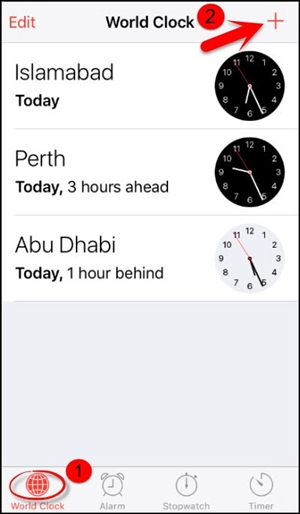
Step 3. Tap on the clock icon and then tap on “+” to add a new clock.

add-another-clock

Step 4.Simply type anything you want and tap on the “Select all” option. Here you need to target the “Share” option.

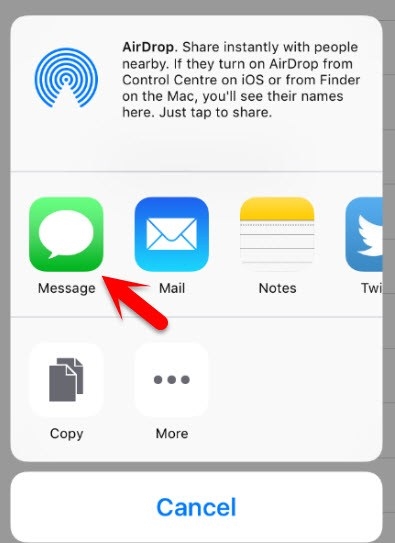
Step 5. In the pop-up options, select “Message” to open a new message window.

share-with-messages

Step 6.Type anything you want in the receiver bar and then tap on “+” to create a new contact.

Step 7. It will open a new window. Click here to click the “Create new contact” button.

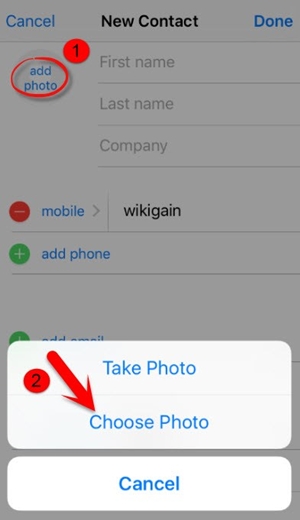
Step 8. On the Add new contact screen, choose to add a photo and tap on the “Add Photo” option.

add-contacts-photos

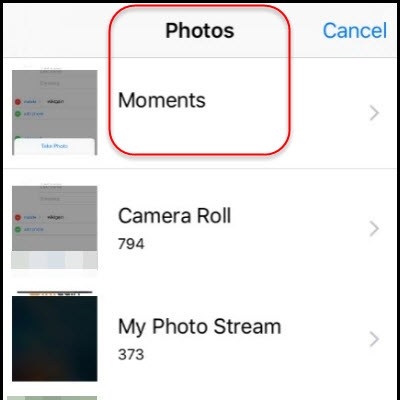
Step 9. This will open the photo gallery. From here, you can visit any album.

access-albums

Step 10. Don’t select an image, just press the Home button to exit the interface. This will open the iPhone’s home screen.

unlock-disabled-iphone-via-siri

Reset Disabled iPhone without iTunes

How to Copy Contacts from iPhone to Samsung Galaxy S10/Fold

[Summary]: When you upgrade iPhone to Samsung Galaxy S10 or S10+, you will be troubled how to copy contacts from iPhone to Samsung phone or Vice Versa, here is a step-by-step guide showing you how to transfer data contacts from iPhone to Galaxy S10/S10+/S10e and vice versa, you can also sync contacts from iPhone to the new Samsung Galaxy Fold phone.

Are you also attracted to the latest Samsung Galaxy S10 flagship phone and Galaxy Fold? If you are tired of the iOS system and want to jump to the Samsung Galaxy S10/Fold, contacts are one of the most important data, and you certainly don’t want to discard them. However, iOS and Android are not compatible with each other, and it is difficult to copy contacts from iPhone to new Samsung phones.

Manually entering contacts on the Samsung Galaxy S10 is extremely time-consuming, and I believe you don’t want this to be the only way. To complete the task easily and safely, you need help of a third party phone to phone transfer program. Here is my recommendation – iOS Toolkit – Phone Switch, which is designed to transfer contacts and other data type from iPhone to Samsung Galaxy S10 directly in just one click.

Safely Transfer Data from iPhone to Galaxy S10/Fold and Vice Versa

Phone Switch is an all-round yet easy-to-use data transfer app, which allows you to to transfer contacts between iPhone and Samsung Galaxy S10. Besides contacts, you can also use the program for transferring text messages, music, photos, video, calendar, call history, documents or Ebooks. This phone transfer software works well with various operating system, such as Android, iOS, Symbian, Windows and BlackBerry.

We now provide you free trial version of both Phone Switch Windows version and Mac version, please download either version according to system of your computer.

d_win d_mac
d_win d_mac

Support Devices: iPhone XS/XS Max/X/8/7/6S/6/5S, Samsung Galaxy Fold, Samsung Galaxy S10/S9/S8/S7/S6/S5, Samsung Galaxy Note 9/Note 8/Note 5/Note 3, HTC U11/M10, LG G5/G4/G3, Sony XA/XZ, Moto Z/X/G, OnePlus, Lenovo, Xiaomi and other.

Tutorial: How to Transfer Contacts from iPhone to Galaxy 10 or Galaxy Fold

Step 1. Run Phone Switch on PC or Mac

iOS Toolkit – Phone Switch is available on Windows and Mac OS X. When installation is over, double click desktop shortcut to launch the program and select “Switch” to get started from the main screen.

select switch mode

Step 2. Connect iPhone and Galaxy S10 to Computer

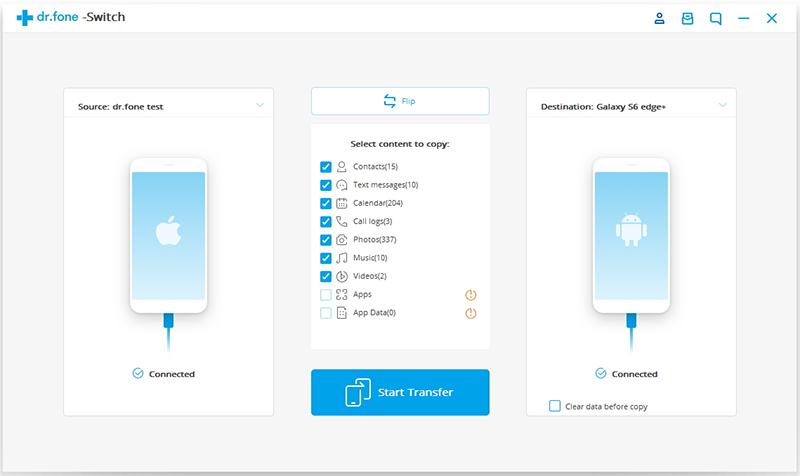
Next, use 2 USB cables to connect your old iPhone and Samsung Galaxy S10 to the same computer. Once the two phones are well connected to computer, their names should be displayed on the main screen. Your old iPhone should be detected as Source phone on the left side and SAMSUNG Galaxy S10 is the destination phone. If the position was wrong, then click “Flip” button to switch positions.

transfer iphone contacts to samsung galaxy s10

Tip: You should enable USB debugging on your Samsung Android phone so that it can be detected by the software. As for your iPhone, you should make sure iTunes is installed on the computer.

Step 3. Transfer iPhone Contacts to Galaxy S10 in One Click

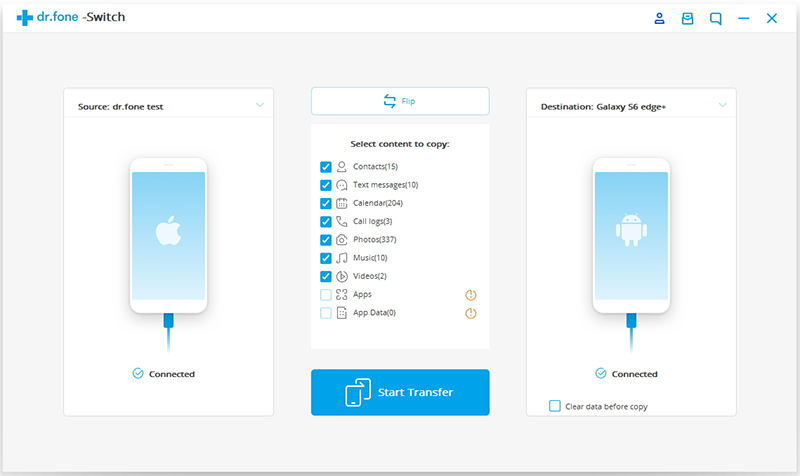
There are a couple of content that can be copied from iPhone to Samsung. Select Contacts and other contents you want to sync, then simply click on “Start Transfer” button. You can see how the process goes with the progress bar. After this, all selected items will be synced to Samsung Galaxy S10 automatically.

sync iphone contacts to samsung galaxy s10

Tips: If you have got the new Samsung Galaxy Fold, please follow the same steps to transfer contacts, SMS, music, photos, videos from iPhone to Galaxy Fold in 1 click. If you want to transfer WhatsApp messages from iPhone to Galaxy S10/Fold, please learn this guide about how to move iPhone WhatsApp to Galaxy S10.

d_win d_mac
d_win d_mac

Related Articles

How to Sync Files from iPhone to Samsung Galaxy S10

How to Transfer Contacts & SMS from Android to Galaxy S10

How to Transfer Data from Old Samsung to S10 in 3 Ways

Transfer Data from Android to Samsung Galaxy S10 in Two Ways

Transfer Data Contacts from Android to iPhone X/XS(Max)/XR

Copy iPhone Contacts to Galaxy S10

How to Transfer Data from iPhone to Samsung Galaxy S10/S10+/S10e

[Summary]: Want to sync iPhone data to Galaxy S10? This article teach you a easy & quickly way to transfer data including contacts, SMS, photos, music, videos and more from iPhone to Samsung Galaxy S10, you can also transfer data from iPhone to Galaxy Fold, as well.

Samsung released the new Galaxy S10 series (S10/S10+/S10e and S10 5G) and Samsung Galaxy Fold, the Samsung Galaxy S11 will be released on February 2020. The new Samsung S10 features a 6.1″ (15.49 cm) display with a screen resolution of 1440 x 2960 pixels and runs on Android v9.0 (Pie) operating system. When we just switched from an iPhone to Samsung Galaxy S10, there are data on the old phone that need to be copied or moved to our new phone so that we don’t lose our old data such as pictures, videos, apps, photos, SMS, etc.

To transfer all data types such as contacts, messages, music, videos, photos, call logs, apps and more from iPhone to new Samsung Galaxy S10 effectively, this article will provide you a simplified guide on sync iPhone files to Samsung Galaxy S10/S10+ by using a powerful phone tool.

The Tool You’ll Need to Copy iPhone Data to Galaxy S10/S10+ in 1 Click

iOS ToolkitPhone Switch is a professional software that is used for data transfer between devices. The “data” mentioned here consist of music, videos, photos, text messages, contacts, call history, documents, app and app data and so forth. With it, you can transfer data between iOS and Android devices flawlessly, such as transfer data from Samsung to Samsung Galaxy S10, copy iPhone contacts to Samsung Galaxy S10, sync data from Samsung Galaxy to iPhone XS(Max)/X, etc. The main features you can access include:

  • Transfer data between iPhone and Samsung Galaxy phone directly.
  • Transfer iCloud and iTunes backup to Android devices easily.
  • Supports backing up Android, iPhone to Mac or Windows PC.
  • Transfer call logs, contacts, messages, calendars, music, photos, and videos.
  • Compatible with almost all iPhones and Android devices.
  • This iPhone to Android transfer tool could be used in the Samsung company’s upcoming Galaxy S11 series phones.

Three easy steps are enough for you to finish transferring. Free download and install the Phone Switch on your Mac or Windows computer first.

d_win d_mac
d_win d_mac

How to Transfer Files from iPhone to Samsung Galaxy S10

Step 1. Run Phone Switch on Your Computer

Run the Phone Switch on your computer, and select “Switch” among the modules.

select switch mode

Step 2. Connect Old iPhone and Samsung Phones to PC

On the next window, you are required to connect both your iPhone and Galaxy S10 (Plus) handset to the computer. Just grab the two included USB cables to do this. Once done, your devices can be detected successfully. Your iPhone should be detected as a Source device and then displayed on the left side of the window, however, the new Samsung Galaxy S10 should be named as the Destination phone being displayed on your right side.

select iphone data to transfer

Note: If your devices aren’t in the correct positions, then click the “Flip” button to switch them.

Step 3. Transfer Data from iPhone to Galaxy S10

As you can see, many of transferable data types are listed in the middle. Now select the content you would like to copy from the iPhone to Samsung Galaxy S10 by ticking the box next to the data type. It’s worth noting that Call logs and Apps options are grey out for compatible issue between iOS and Android. When you’ve selected the data types that you want to be transferred, click on “Start Transfer“. And when the process bar reaches the end, press “OK” to finish the process.

sync iphone data to samsung galaxy s10

d_win d_mac
d_win d_mac

Related Articles

How to Transfer WhatsApp Messages from iPhone to Galaxy S11/S11+/S11e

How to Transfer All Files from Old Samsung Phone to Galaxy S10

How to Transfer Contacts & SMS from Android to Galaxy S10

How to Transfer Data from Old Samsung to S10 in 3 Ways

Transfer iPhone Data to Samsung Galaxy Note 8/5/4/3

How to Sync iPhone Photos with Samsung Galaxy S9

Copy Data from iPhone to Galaxy S10

How to Recover Lost Data from iPhone?

Summary
Do you lost or deleted data from iPhone? This tutorial recommend an effective iPhone data recovery, helping you recover iPhone data, including text messages, contacts, photos, videos, notes, WhatsApp messages, WhatsApp messages and other App data.

Accidental delete files on your iPhone? Lost iPhone data due after factory reset? Photos disappeared and missing from iPhone after iOS 13 update or jailbreak? Lost contacts and messages on iPhone 11/XS Max/X/8/7/6s/6/5s due to accidental deletion? Your iPhone is broken or locked by a forgotten passcode? Don’t worry, here is a professional iPhone Data Recovery software, it not only helps you recover lost data from iPhone/iPad/iPod(touch), but also able to recover data from iTunes and iCloud, no matter how you lost them.

Four iPhone Data Recovery Solutions

How to Recover iPhone Lost Data?

iPhone Data Recovery for Windows and U.Fone iPhone Data Recovery for Mac, both is designed to recover lost and deleted data from iPhone XS Max/ iPhone XR, iPhone XS, iPhone X, iPhone 8/7/6S/6/5/SE/4S/4, iPad & iPod touch, regardless of whether you have backup files. If you have backup iPhone data to iTunes or iCloud, the iPhone Data Recovery also can help you extract and recover data from iTunes/iCloud backups easily. After recover lost iPhone data and save onto the computer, you can use this iPhone Transfer to import the retrieved files from computer to iPhone for view or use.

  • 3 iPhone Data Recovery Modes: recover data from iOS device, iTunes backup and iClound bacup.
  • Restore 12 types of data, including photos, videos, SMS, contacts, call history.
  • Recover App data, such as WhatsApp, Viber, WeChat, Kik, Line, etc.
  • Recover iOS data due to accidental delete, formatted, damaged or various.
  • Fix iOS to normal and get your iPhone back to normal.
  • Backup and restore data on iPhone
  • Totally compatible with all iOS versions, including the latest iOS 13, iPhone 11 Pro(Max)

Download the iPhone Data Recovery for Windows or Mac and try to recover your lost iPhone data in four recovery modes.


d_win d_mac
d_win d_mac

Safely and Professionally iOS Data Recovery to Recover Lost Data from iPhone, iPad and iPod in Four Recovery Modes

Method 1: Recover Lost and Deleted Data from iPhone via Smart Recovery Mode

If you don’t know how you lost data, you can use this smart recovery mode to find and recover your iPhone data easily.

Step 1. Run the iPhone Data Recovery and Select Smart Recovery Mode
First of all, please download and launch the iPhone Data Recovery, then click “Smart Recovery” tab, click the button “Start”.
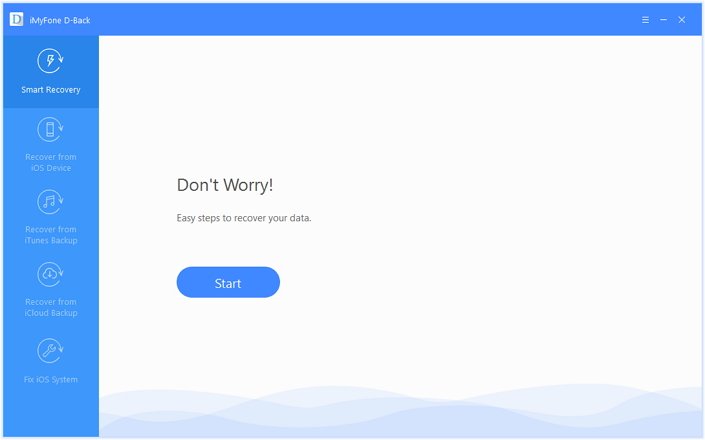
smart iphone data recovery

Step 2. Connect iPhone to PC or Mac(Optional)
Then, use a USB cable to connect your iPhone device with the PC or Mac computer. This method helps you directly scan your iPhone device and recover the lost data. If the program swith to “Recover Data from iTunes” or “Recover Data from iCloud” modes, you don’t need to connect the device to computer.

Step 3. Choose How You Lost iPhone Data
Next, you need to choose the situation on how you lost your data for subsequent scan and recovery.

Select Loss Situation

Step 4. Scan and Recover Your Lost Data
Next, all scan and search work will be completed by the iPhone recovery software itself. The program can analyze and recover your data from iOS device, iTunes backup or iCloud backup. The following procedures are similar to “Recover from iOS Device/iTunes Backup/iCloud Backup” tabs. With a few easy steps, you can restore your iPhone data.

If you know for sure where you could find the data, you can also start scanning from iOS Device/iTunes Backup/iCloud Backup tabs respectively. Please keep reading the below guide about how to directly recover data from iPhone devices, how to restore data from iTunes, and how to download and extract iPhone data from iCloud.

Method 2: Recover Data from iPhone Directly

Step 1. Run iPhone Data Recovery and Select “Recover from iOS Device” Mode
After running the program, then click the “Recover from iOS Device” tab. Click on “Start”.

Recover Data from iOS Device

Step 2. Connect iPhone to Computer
Connect your iPhone to your computer, the program successfully detects your iDevice, click “Next” to proceed.
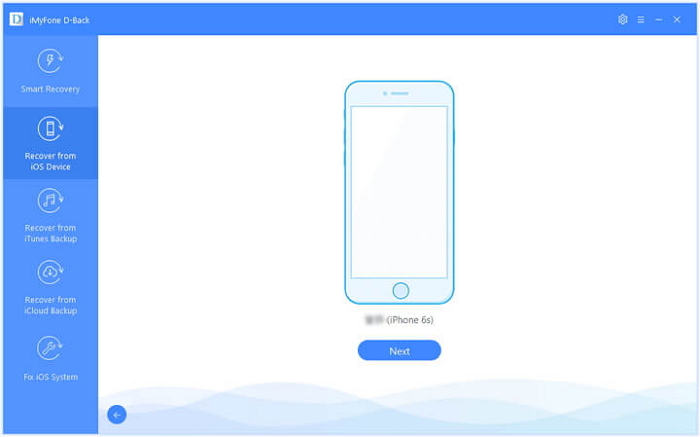
connect your iPhone to computer

Step 3. Select the Types of Files to Recover
Now, select the types of files that you want to get back, including photos, contacts, videos, messages, notes, Safari bookmarks, call history and other files.

select data types to scan and recover

Step 4. Start to Scan your iPhone for Lost Data
After that, click “Scan”. The program will start to scan the deleted files from your iPhone device.

scan iphone lost data

Step 5. Preview and Recover Data from iPhone Directly
After the scan is finished, all recoverable data will be clearly organized as the picture below shows. Click each tab to check all files, or only preview the deleted items by choosing “Show only the deleted files”. Select the files which you want to recover, and then click “Recover” at the bottom right corner.

recover iPhone photos

A pop-up window will display to let you choose the location to store the recovered files and it will take only a few minutes to finish the recovery.

Method 3: Recover iPhone Data from iTunes Backups

If you connect iPhone device with iTunes, the iTunes will automatically backs up your iPhone data, but those backed up contents is a specific file, so you can view it unless using a third-party tool. The iPhone Data Recovery also can help you extract iPhone backed data from iTunes easily. Let’s teach you how to restore iPhone data from iTunes backups via iPhone data recovery software.

Note: You don’t need to connect your iPhone device to the computer via this recovery mode.

Step 1. Choose and Scan from iTunes Backup
Run the iPhone Data Recovery software, then click “Start” from the “Recover from iTunes Backup” tab.
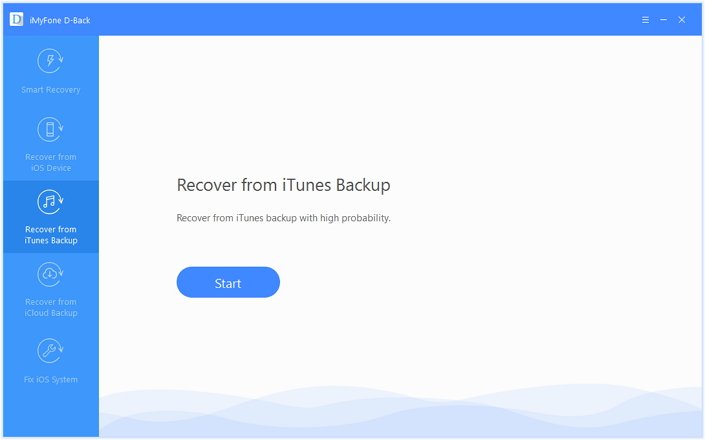
iTunes data recovery

Step 2. Choose the iTunes Backup History
Then choose the exacted iTunes backup from which you want to get back and click “Next”. If you choose an encrypted iTunes backup, you will need to enter the password for iTunes encryption.

Select iTunes Backup

Step 3. Select File Types and Scan from iTunes Backups
Select the file types you need and click “Scan” button. Please wait a moment while it scans.
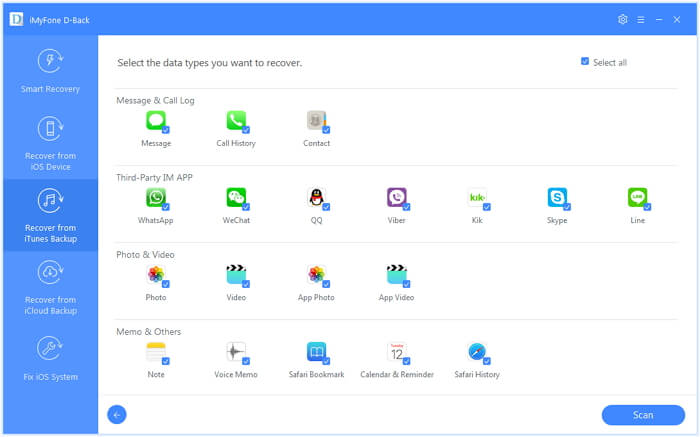
choose data type to recover from iTunes

Step 4. Preview and Recover Data from iTunes Backup
The search results will be showed on the interface clearly. Browse them according to your needs; or “Only show the deleted files”, and select the exact ones you need. Then click “Recover” button to extract iPhone backups and save them onto the computer.
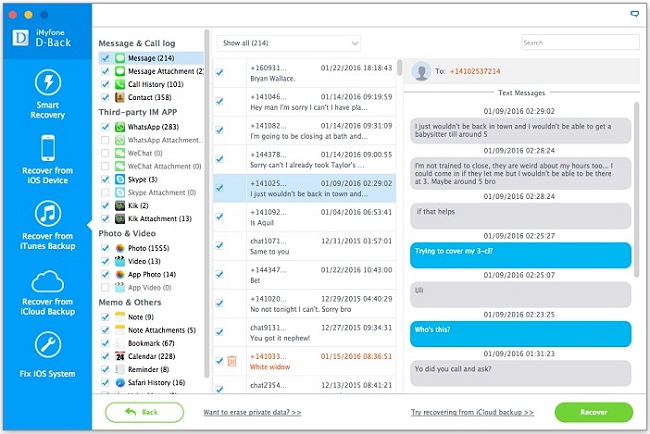
recover SMS from itunes

Method 4: Recover Lost iPhone Data from iCloud Backup

In default, Video, Photo, Contacts, SMS, Note option is turned on in iCloud settings for backup data to iCloud automatically. If your iPhone was stolen, lost, water-damaged or broken. However, if you had backup iPhone to iCloud before, then this is iCloud recovery mode is the beset choice for you. The iPhone Data Recovery can help you download the backup file from iCloud, then extract/recover photos, contacts, text messages, notes and more from iCloud and save onto the computer for you. Let’s teach you how to recover lost/broken/damaged iPhone data from iCloud backups via iPhone data recovery software.

Step 1. Run iPhone Data Recovery and Click “Recover from iCloud Backup” Mode
After launching the iPhone data recovery software on PC or Mac, then click “Recover from iCloud Backup” tab and click “Start” button.
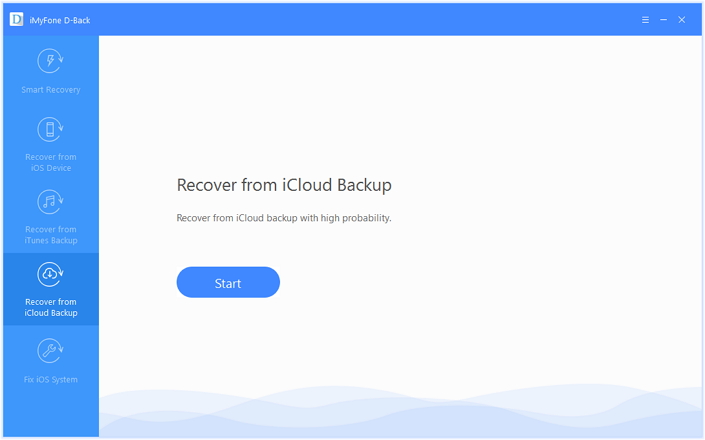
icloud data recovery

Step 2. Log In iCloud Account
Then, please log in iCloud Account to ready to download Your iCloud backup files.
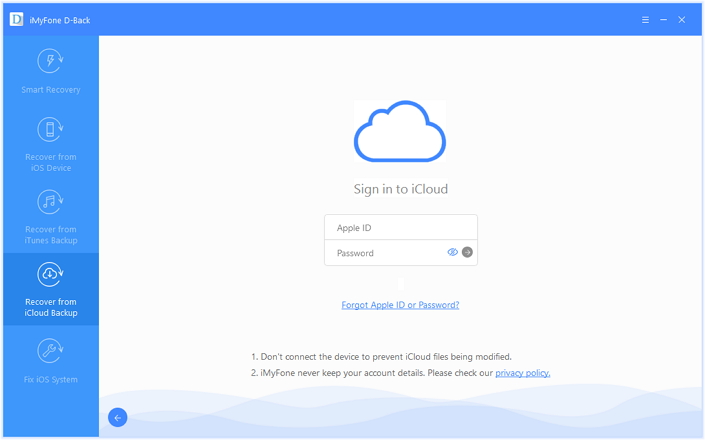
login iCloud account

Tips: Please be assured that we will never keep a record of your iCloud account info or content.

Step 3. Choose a Backup History to Download
The program will find all iCloud backup files in your account; then, select the iCloud backup you would like to recover data from. Click “Next” on the lower right corner.
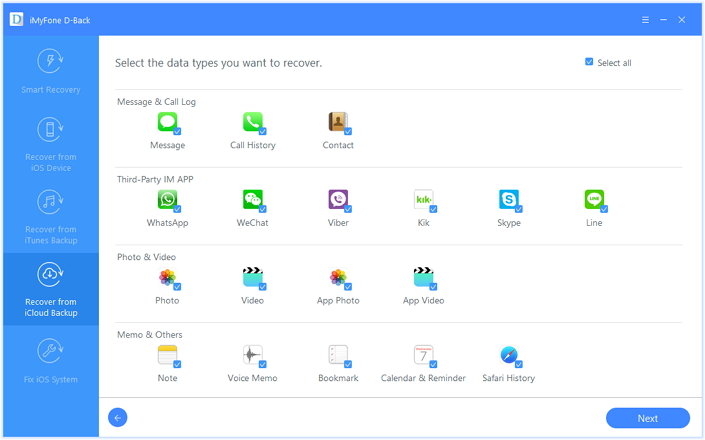
Select iCloud Backup History to Recover

Step 4. Select File Types to Recover
Select the files you wish to recover and then click “Scan”. It will take a few minutes for the program to download and scan your iCloud backup files.
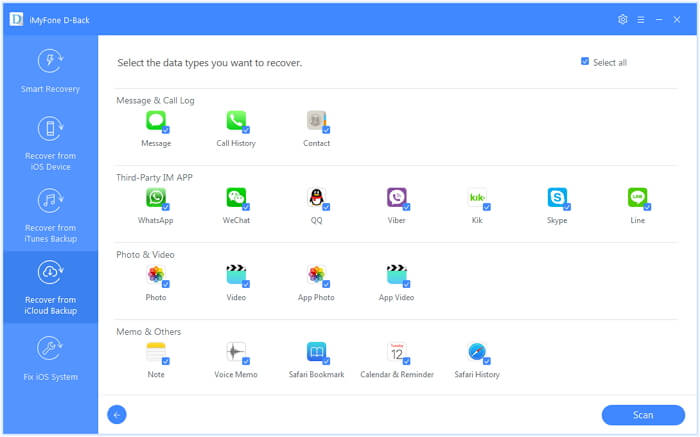
Select iCloud Backup Data to Recover

Step 5. Preview and Recover iPhone Lost Data from iCloud Backup
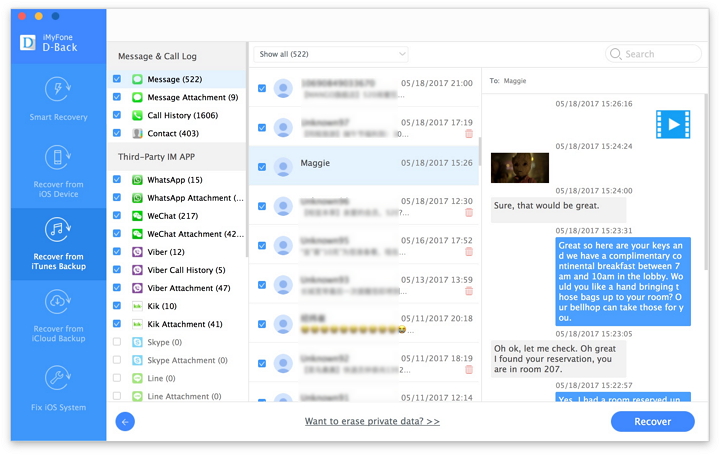
When the download is completed. iPhone Data Recovery will extract all the data from the file, such as videos, photos, contacts. Also, you can preview the file one by one to make sure it’s the right one you are looking for. Finally, click ‘Recover ‘ button to save the selected files to computer.
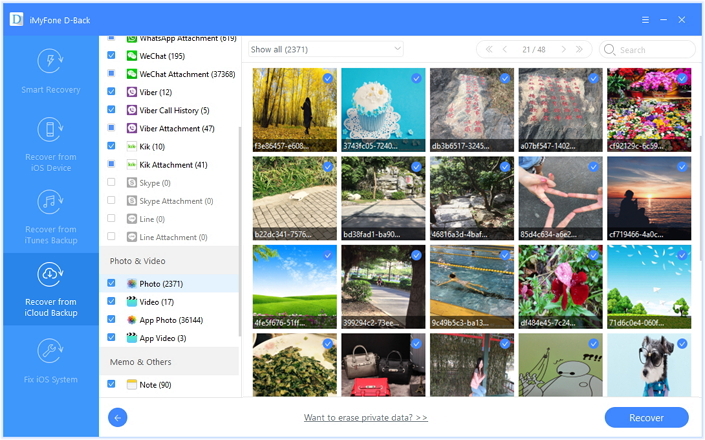
recover iPhone lost photos from icloud

Recover Text Messages, iMessages, WhatsApp messages and more from iCloud
recover text messages from icloud

Last, choose a location on your computer to store the recovered data. Please wait while the iPhone data recovery software is recovering your lost data. Only few minutes, your files have been successfully recovered and save onto the computer. If you want to transfer the retrieved files to iOS devices, you can use this iPhone Manager, which allows you put media and text files such as contacts, photos, videos, music from computer to iPhone/iPad/iPod directly.

Download the trial version of iPhone Data Recovery for Windows or iPhone Data Recovery for Mac and try to recover your iPhone lost data.

d_win d_mac
d_win d_mac

iPhone Data Recovery is highly reliable and it offers 30-day money-back guarantee after you have purchased the software. If you are not satisfied with how it performs, you can return it and your money will be refunded. There is 24-hour support service and if ever you encounter any problems while using the product, you can contact the support team to ask for help.

Avoid Data Loss: Backup iPhone Regularly

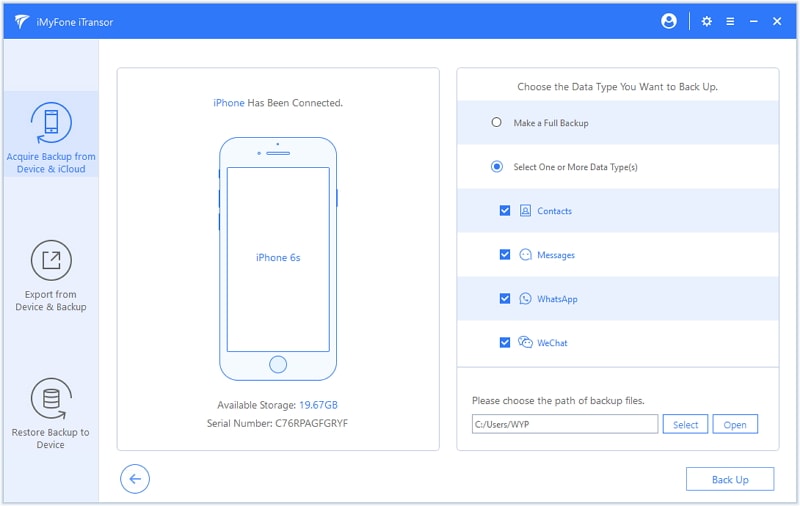
The best way to avoiding data losing on iPhone is to backup iPhone with iTunes. Every time you connect your iPhone to computer and launching the iTunes for syncing, the iTunes program automatically backs up your iPhone data. This is a free method to make your device return to its previous working order without data loss after experiencing technical issues. You can make it just by restoring your iPhone with iTunes. In additional, you can also use a best iTunes alternatives to backup and restore your iPhone data easily, this iOS Data Backup & Restore tool or U.Fone iOS Backup & Restore tool, both is designed to selectively back up and restore iPhone/iPad/iPod touch.

– Back up only Photos, Videos, Music, Call Logs, Notes and more.
– Back up only Contacts, SMS, WhatsApp, or WeChat and more.
– Restore only Contacts, SMS, WhatsApp, or WeChat from iTunes/iCloud backup without data loss on target device.
– View and export 18+ types of data from iTunes/iCloud backup or iOS device.
– Compatible with all iOS versions and devices including iOS 12 and iPhone XS(Max)
backup iphone data

Recover iPhone Data

iOS Data Recovery Recover Your iPhone iPad Lost Data
Now, Even without Backups

Compatible with iOS 13 & iPhone 11(Pro)

Recover Lost Data Now