All posts by DHZ

How to Play Tidal Music on Apple Watch

Summary

Looking for how to play Tidal Music on Apple Watch? Do you want to know how to download Tidal Music to Apple Watch for offline playing? In this post, you will learn 2 methods to play Tidal Music on Apple Watch: play Tidal Music on Apple Watch with Tidal app and play Tidal Music on Apple Watch without Tidal subscription.

I have got my Apple Watch recently, and as a Tidal fan, I am wondering how to listen to Tidal Music on my Apple Watch. Is there a way that I can download Tidal Music to MP3, so I can transfer them directly to my Apple Watch.

Tidal is now the most popular streaming music service with exclusive playlist and Hi-Fi sound quality. You can stream Tidal Music on multiple devices, such as your mobile phone (IOS/Android), smart TV or computer, etc,. You just need to download and install the Tidal app into your device to stream Tidal Music. Tidal supports downloading music for offline playing on authorized devices if you have paid for the Tidal subscription plan(Hi-Fi or Hi-Fi plus).

How about Apple Watch? Is Tidal Music able to be played on Apple Watch?

You can definitely play Tidal Music on Apple Watch. Tidal already had the announcement that Tidal app is available on types of wearable devices such as Apple Watch(iWatch), Samsung Watch, Galaxy Watch, etc,. You can stream Tidal Music directly on Apple Watch or download it for offline listening, but this is only for Tidal subscribers(HiFi or HiFi plus), so if you unsubscribe to Tidal or when the subscription ends, can we still play Tidal Music on Apple Watch?

As we all know, most of the streaming music service like Tidal Music, Spotify, Amazon Music, Youtube Music, etc. You can only stream music within its app. For Tidal as well, It is not possible to transfer and be playing on Apple Watch without the Tidal official app. If you want to get the solution on how to listen to Tidal Music on Apple Watch without subscription, you have come to the right place, we are going to show you 2 methods to play Tidal Music on Apple Watch.

Method 1: Play Tidal Music on Apple Watch with Tidal App

Tidal app is now available for Apple Watch to all Tidal subscribers, you can enjoy Tidal Music just simply install the Tidal app and play directly on your Apple Watch. But not all the Apple Watch model can run Tidal app, the following models are perfectly solve this problem.

Compatible Devices:
1.Apple Watch 3 or above.
2.WatchOS 7.1 or above.

Let’s follow this steps for playing Tidal Music on Apple Watch with Tidal app.

Step 1. Search the Tidal app on App Store, then download and launch it on your Apple Watch.
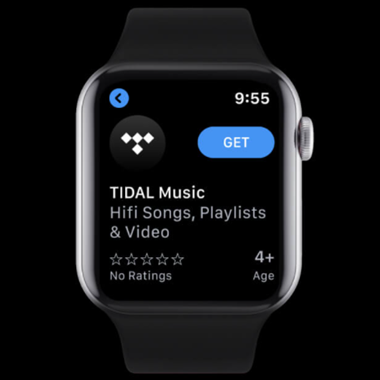
stream tidal on apple watch

Step 2. Go to link.tidal.com on your iPhone or PC, then log in Tidal account.

Step 3. You will get a 5-letter code, then enter the code on your Apple Watch to link your account and begin to stream Tidal music.
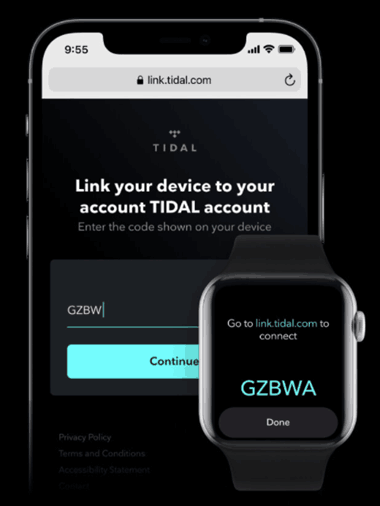
log in tidal on apple watch

Once the installation of Tidal app is done, you are able to stream Tidal Music on your Apple Watch directly.

Method 2: Play Tidal Music on Apple Watch without Subscription

How do you play Tidal Music on your apple Watch if you unsubscribe to Tidal or the subscription plan ends? You need a third-party tool to download Tidal Music to computer, UkeySoft Tidal Music Converter is a professional and useful tool enables you to download Tidal Music to plain audio file, including MP3, M4A, AAC, WAV, FLAC, AIFF, which are compatible with Apple Watch.

In addition, UkeySoft Tidal Music Converter helps you download and convert Tidal Music to various audio formats at 10X speed with ID3 tags kept. Moreover, the program has the ability to download Tidal with lossless audio quality, so you can play Tidal Music on Apple Watch with Tidal original Hi-Fi audio quality, even without accessing Tidal app.

Key Features

  • Support download Tidal Music for Tidal free and Tidal HiFi users.
  • Convert Tidal Music to MP3, AAC, M4A, WAV, FLAC and AIFF.
  • 10X conversion speed.
  • Keep Hi-Fi audio quality, preserve with ID3 tags.
  • No need to install the Tidal app.
  • Free update and technical support.

d_win d_mac
d_win d_mac

Part 1: How to Download Tidal Music to Computer

To download Tidal Music to computer with UkeySoft Tidal Music Converter, please follow the detail steps below.

Step 1. Run UkeySoft Tidal Converter and Log in Tidal
Download and launch UkeySoft Tidal Music Converter on the computer, then log in with your Tidal account. You can login in either Tidal free or Tidal Hi-Fi(Plus) account.
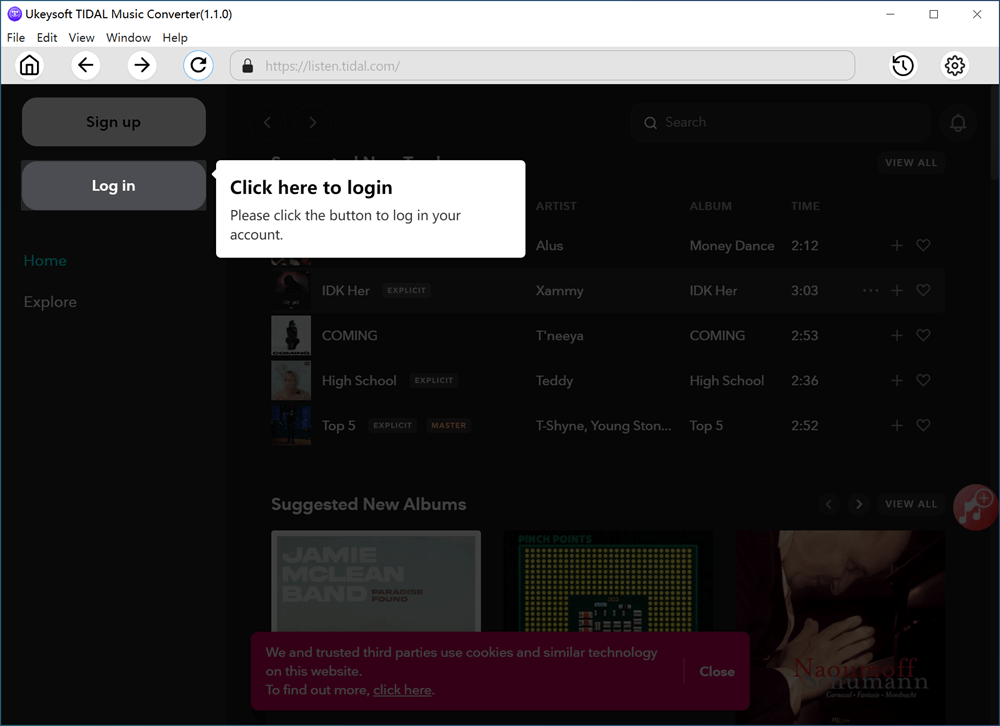
launch program

Step 2. Output Setting for Apple Watch
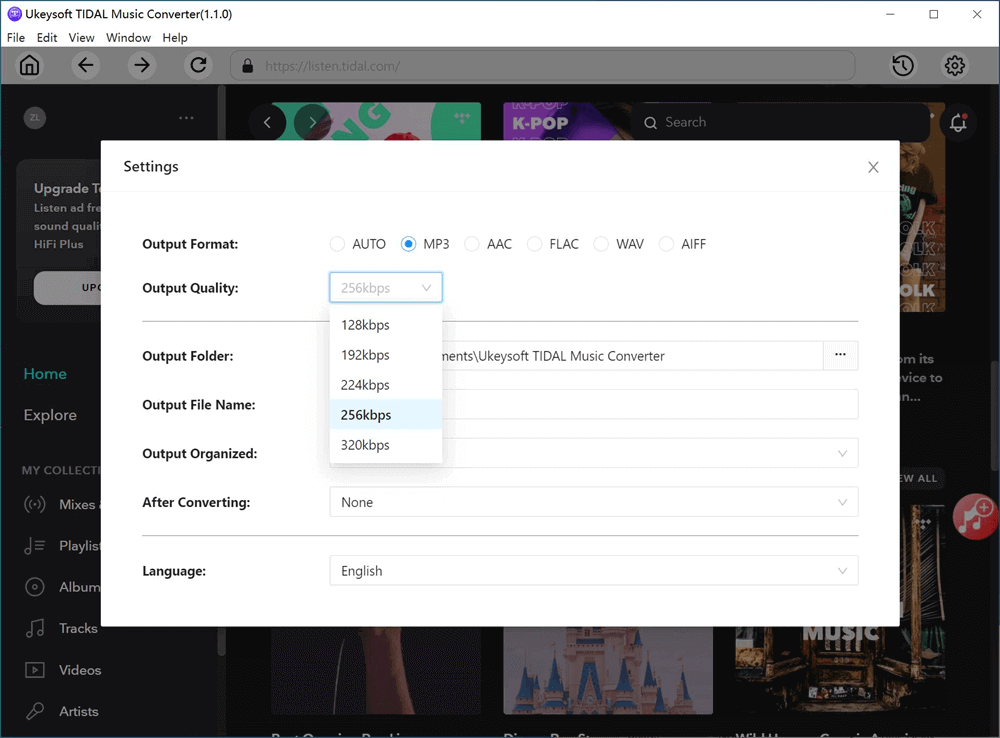
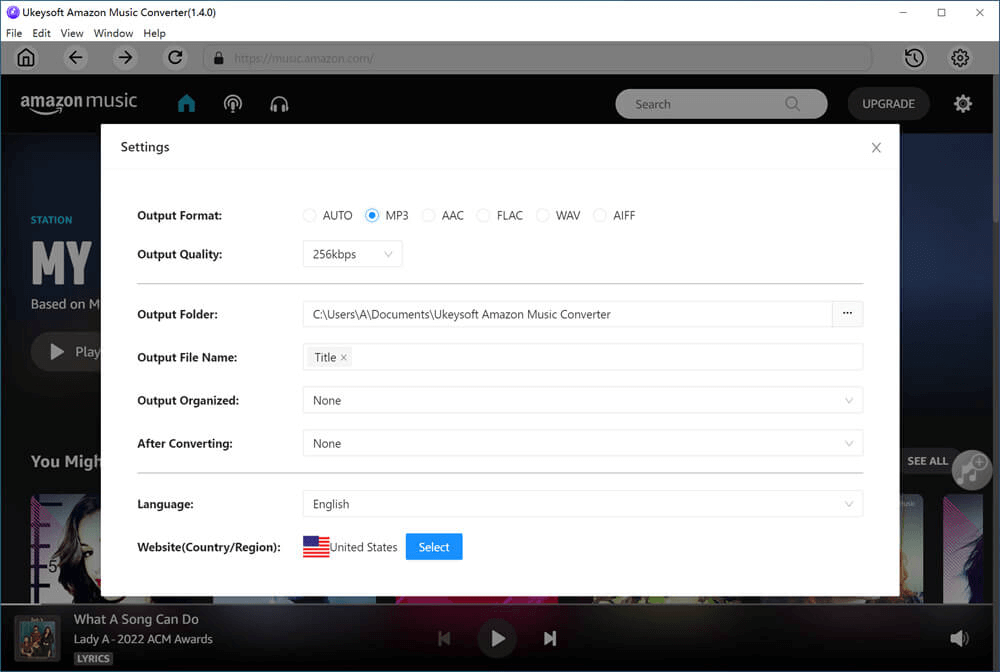
Click on the “gear” icon on the top right of the corner to set up the output format for playing Tidal Music on Apple Watch, the supported format for apple Watch are MP3, WAV, AIFF. Let’s choose MP3 with the output quality at 256 Kbps.
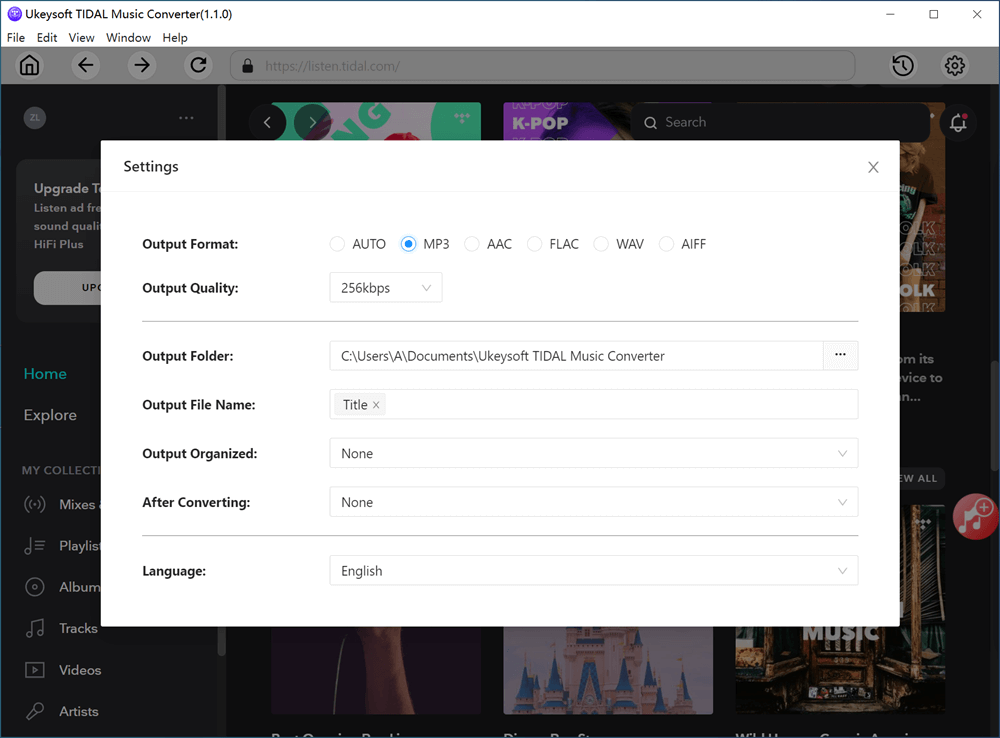
set mp3 output format

You can also set up output settings, output folder, output file name, output organized, etc,.

Step 3. Add Tidal Songs/Playlists/Albums
Choose and add Tidal tracks/playlists/albums by clicking on the red “+ Add” icon on the right side.
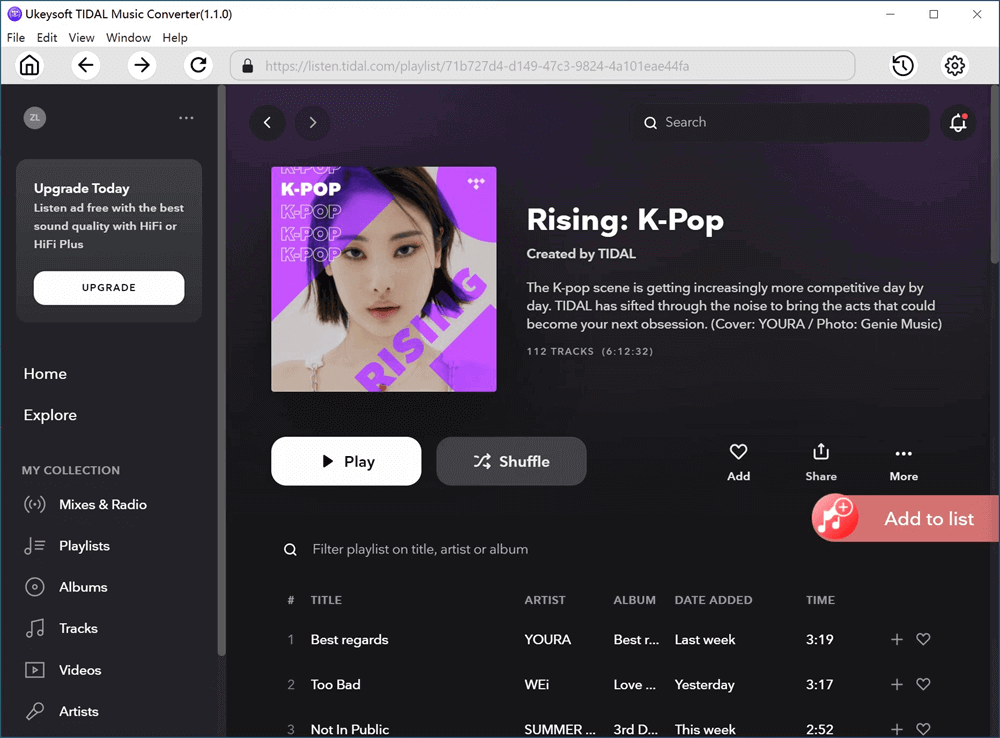
add tidal music to program

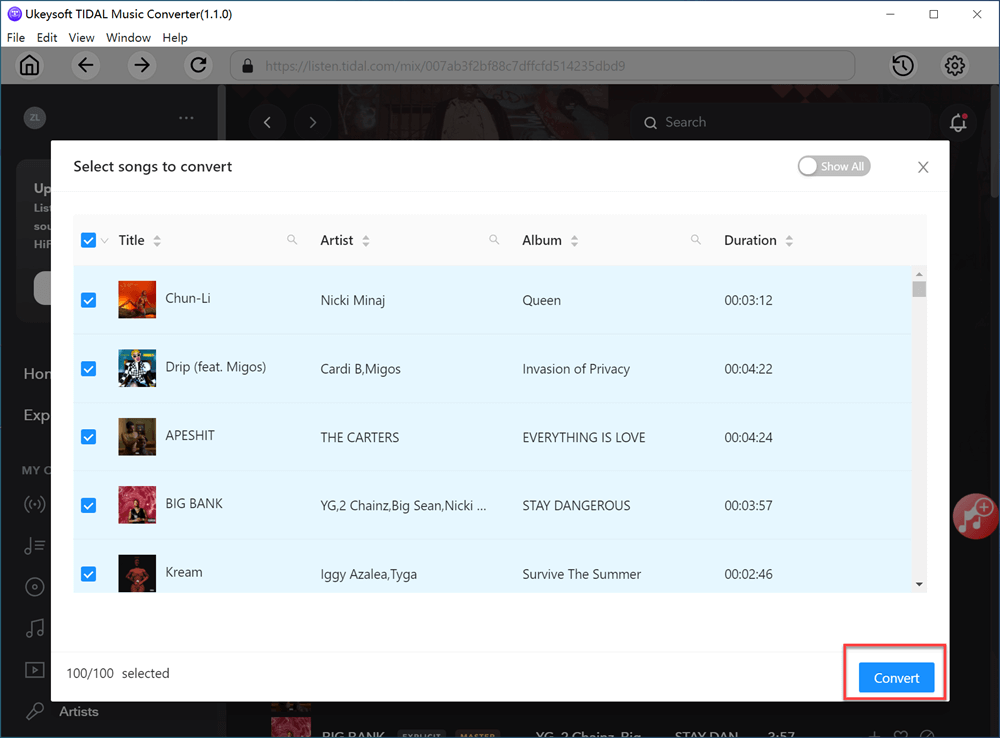
All songs are selected by default on the song list. You need to deselect the songs that you do not want to download manually.
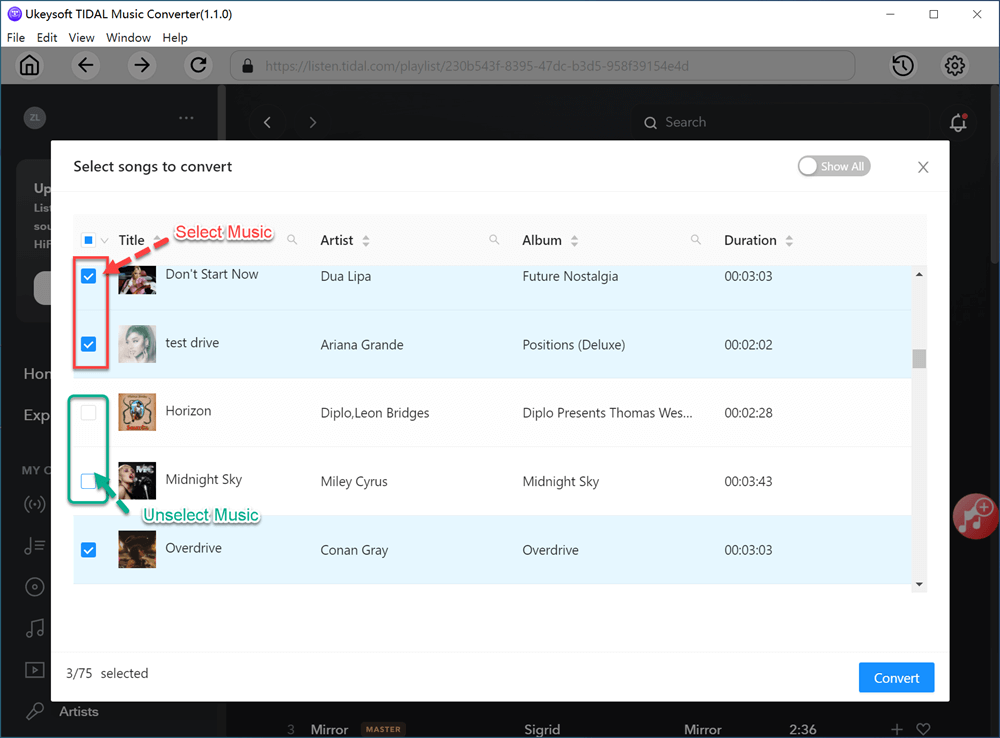
select tidal music

Step 4. Download Tidal Music to computer
Click the “convert” button to download and convert Tidal Music to computer at 10X conversion speed.
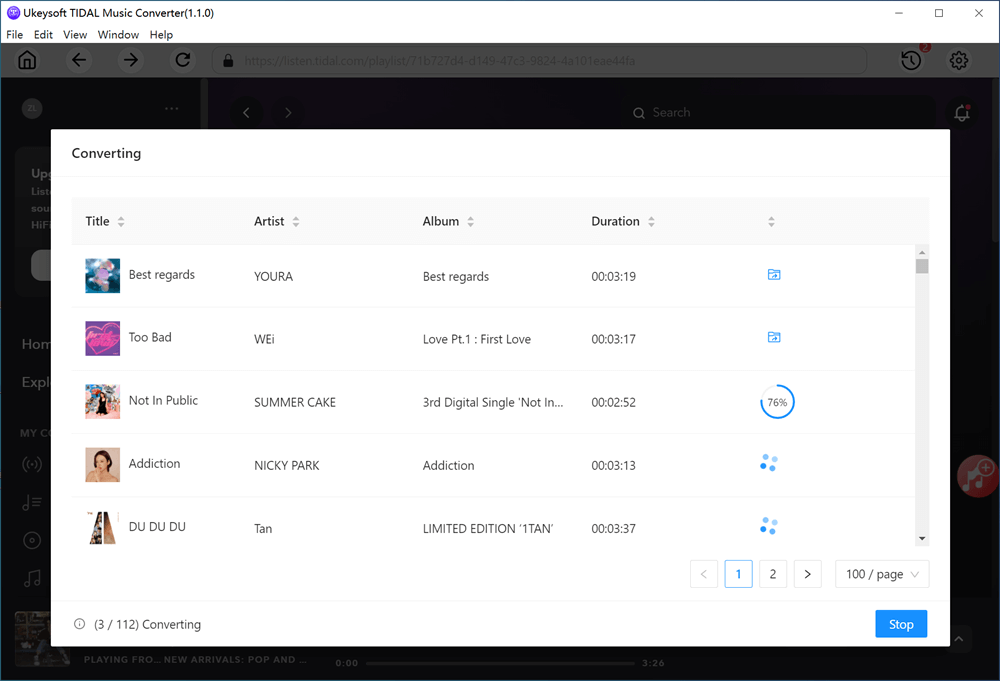
download tidal music

Step 5. Check The located files
When the conversion is done, you can find the downloaded Tidal songs by clicking the output folder, or you can click the “History” button on the top right corner to check the downloaded songs.
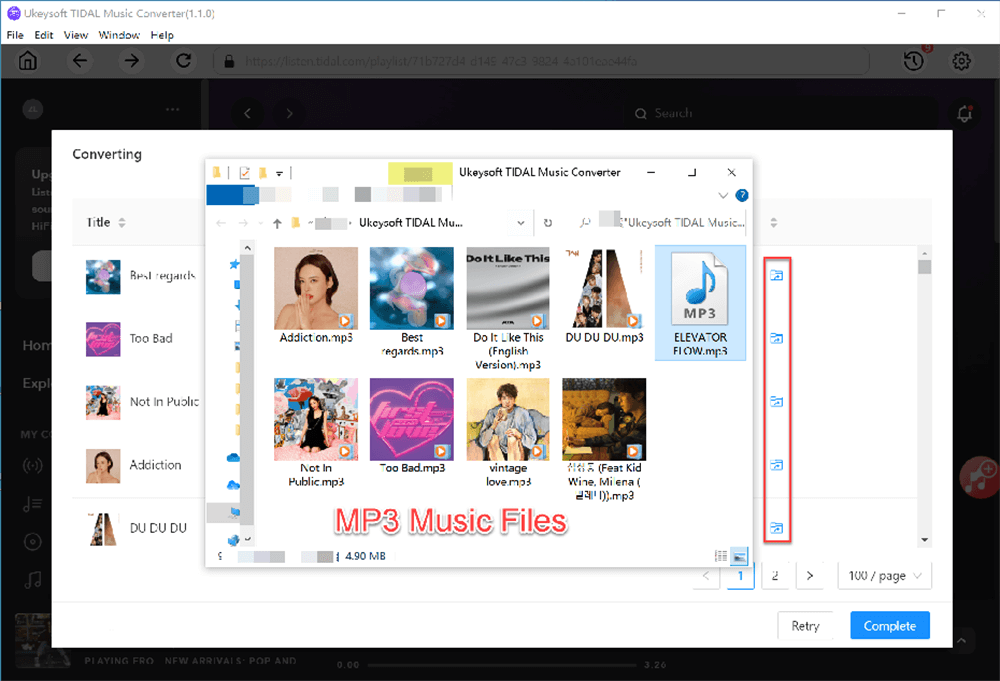
get converted tidal music

d_win d_mac
d_win d_mac

Part 2: How to Sync Tidal Music to Apple Watch

Now you have downloaded the Tidal songs as local files on your computer, please follow the steps to sync Tidal Music to Apple Watch.

Step 1. Open iTunes on your computer and go to “File > Add to Library”, then choose the downloaded Tidal songs to upload to iTunes.

Step 2. Connect your iPhone to computer, go to “Music > Sync Music” on iTunes, choose “Selected playlists, artists, albums” section and click apply to start transferring Tidal Music to iPhone.
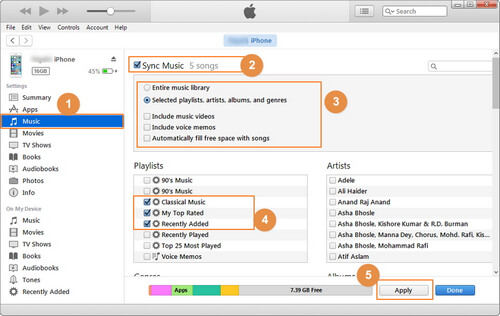
sync tidal to itunes

Step 3. Turn on the Bluetooth on your iPhone. Open the Apple Watch app on your iPhone and then tap on “My Watch”, Select the “Music > Add Music”, then choose the Tidal Music that you want to play on Apple Watch.

Now you can enjoy Tidal songs on your Apple Watch with your Blue headphone!

Conclusion
You have learned how to stream Tidal Music on Apple Watch with the Tidal app, and you also learned how to download Tidal Music to computer and transfer to you Apple Watch for offline listening. With the help of UkeySoft Tidal Music Converter, you can easily download Tidal Music as plain audio files, and put them to Apple Watch without accessing Tidal for streaming anywhere at anytime.
Play Tidal Music on Apple Watch

5 Best Amazon Music to MP3 Converters Review

Summary
Have you been looking for Amazon Music converter on the internet? How do you define the best Amazon Music to MP3 converter? Read this review, you will get to know about top 5 Amazon Music converter with the comparison of their features, pros & cons, and you will learn how to choose the best Amazon Music converter. With the best Amazon Music converter, you are able to download and convert Amazon Music to MP3 for offline playback without limits.

Amazon Music is one of the famous and top rated streaming music service around the world, it’s offering Amazon Prime Music and Amazon Music Unlimited subscription plans, there are over 50 millions subscribers and it’s regularly growing each year. With the subscription plans, you are able to access 90 millions of Amazon Music in SD and HD quality.

However, Amazon Music only provides download option for subscribers, and the downloaded Amazon Music can not be played outside the Amazon Music app. So for Amazon Music free or paid subscribers, they definitely need a Amazon Music downloader & converter to be more multi-playable with their personal devices. An Amazon Music downloader is capable to download and convert Amazon Music to MP3, so you can listen to Amazon Music for free without any limitations.

We believed that many Amazon Music users tried to search it from the internet and it is pretty hard to choose the suitable one. In this review, we will list 5 best Amazon Music converters, also Amazon Music recorder, it gives you better idea to choose the one that is the most suitable for usage.

Top 1. UkeySoft Amazon Music to MP3 Converter (The Best)

We have been testing many Amazon Music Converters, and summed up 5 best converters out of all brands. UkeySoft Amazon Music Converter is top 1, the reason why UkeySoft is the best Amazon Music converter is that this program is a one-stop Amazon Music Converter, Downloader and Player with amazing features.

UkeySoft Amazon Music Converter is the best Amazon to MP3 downloader & converter, it can convert Amazon Music to various audio formats, including MP3, M4A, AAC, FLAC, WAV and AIFF. All Amazon Music users (Amazon Free, Amazon Prime Music & Amazon Music Unlimited) are able to access this program and download music from Amazon for free. This program has a great capacity for removing DRM from Amazon Music, so you can save Amazon Music as local files on your computer, then you are able to transfer the downloaded music to other devices for backing up or offline playback. UkeySoft Amazon Music converter also keeps the original audio quality and ID3 metadata after conversion, this is perfect for those Amazon users who have high requirements for music output quality. More importantly, the program has a built-in Amazon Music player, you can play the converted songs directly on this program, you can just use the program for the whole process instead of installing the Amazon Music app.

d_win d_mac
d_win d_mac

How to Convert Amazon Music to MP3?

Step 1. Launch and Sign in Amazon Account
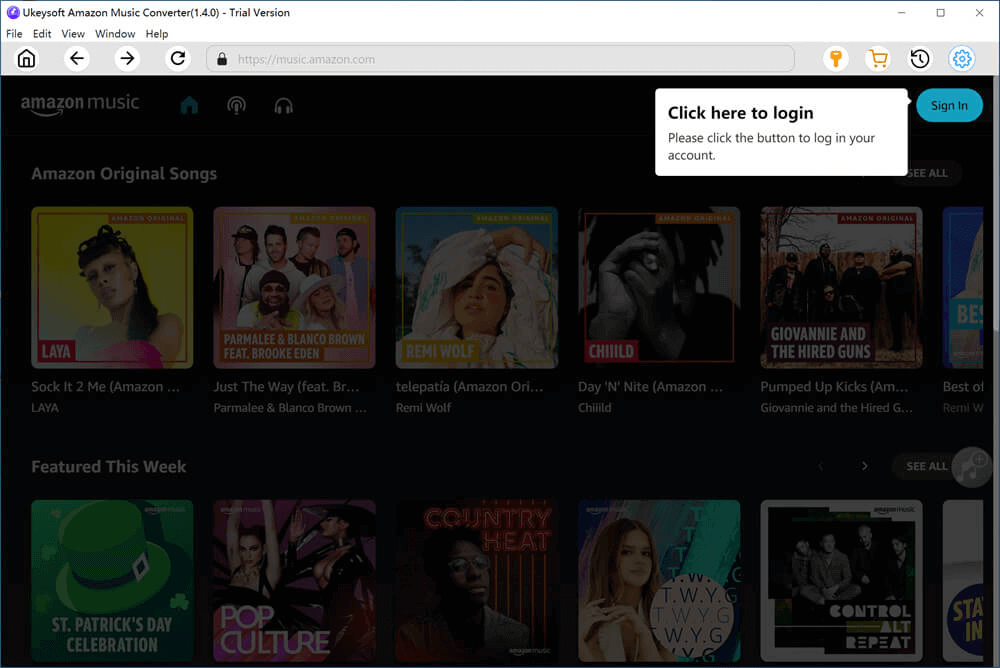
Launch UkeySoft Amazon Music Converter on your computer, log in your Amazon account by clicking the “Sign In” button on the top right corner. You can log in with your Amazon Free, Amazon Prime or Amazon Music Unlimited account.

launch amazon music converter

Step 2. Customize Output Format
Before you start downloading the songs, you need to customize your output setting. Click the ‘gear’ icon to the output setting window, Choose MP3 for the Output Format as MP3 is the most common audio formats. There are more output setting you can customize, output quality, output folder, output file name.

set output settings

Step 3. Add Amazon Songs, Albums or Playlists to UkeySoft
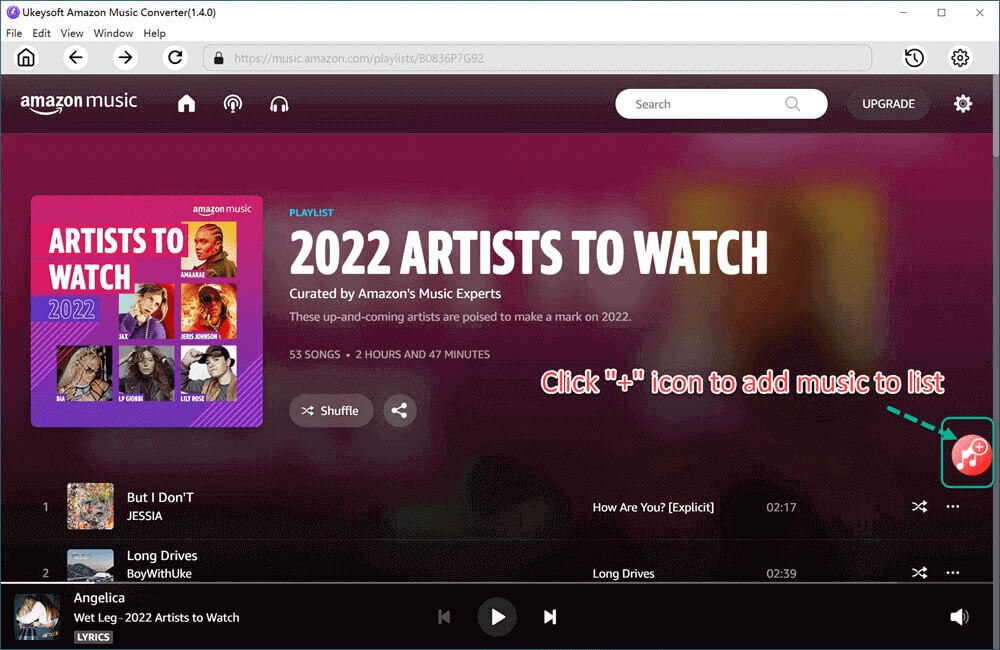
Choose songs, albums or playlists that you want to download from Amazon Music. Click the red ‘+’ add button on the right side to add the songs to the converting list.

add amazon music to program

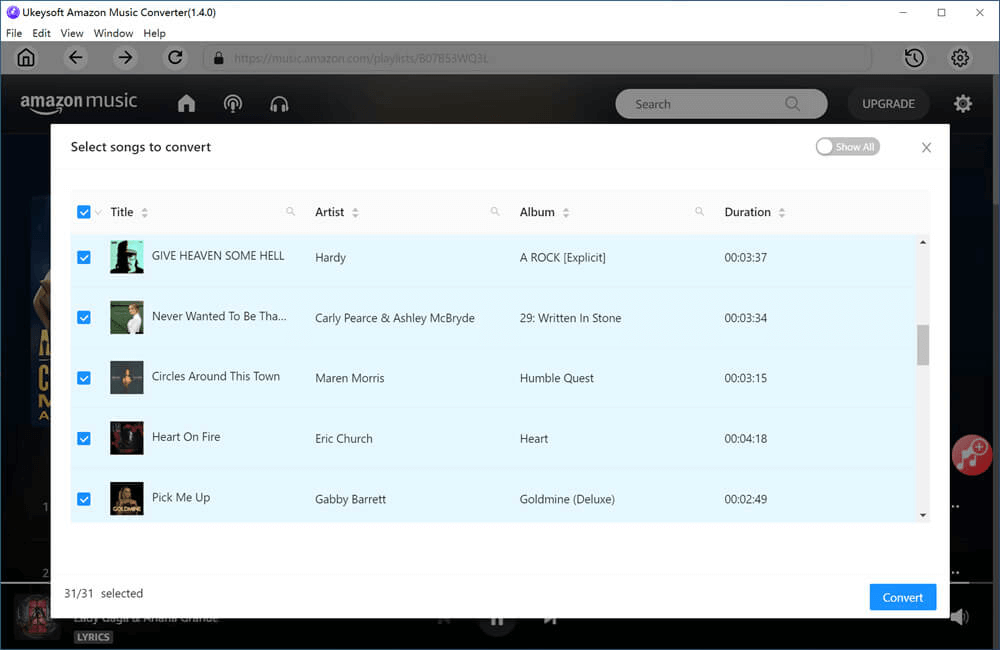
All songs in the playlist are selected by default. Deselect the songs that you do not want to download from Amazon Music.

select amazon music

Step 4. Start Converting Amazon Music
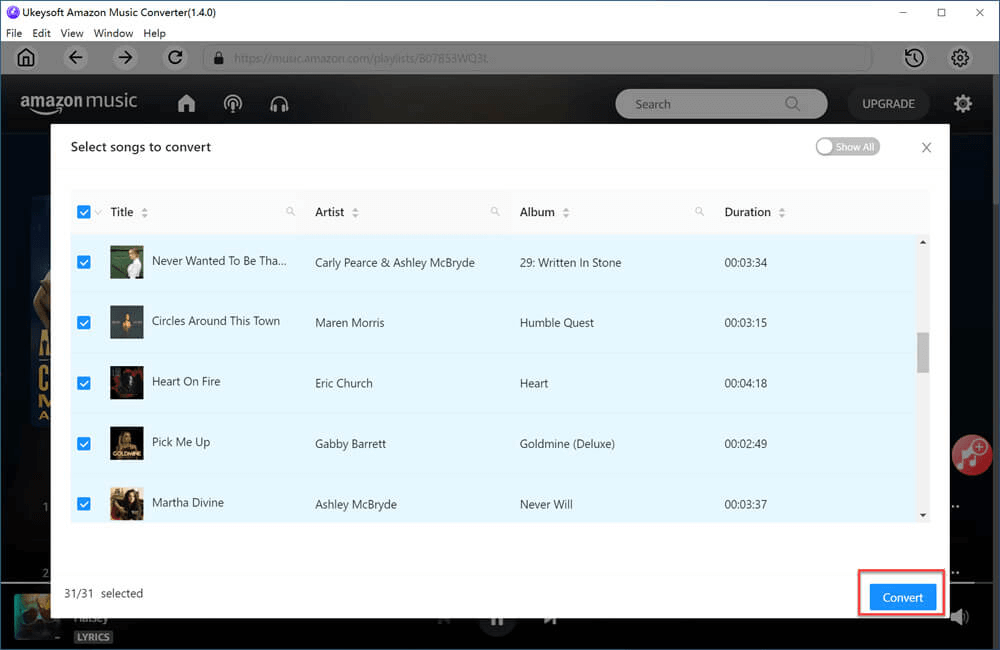
Once you have the songs in the converting list, click the “Convert” button to download the selected songs to MP3 as local files to computer at 5x speed. All output music files will be kept its original audio quality and ID3 tags.

start to download amazon music to computer

Step 5. Get the Local Files
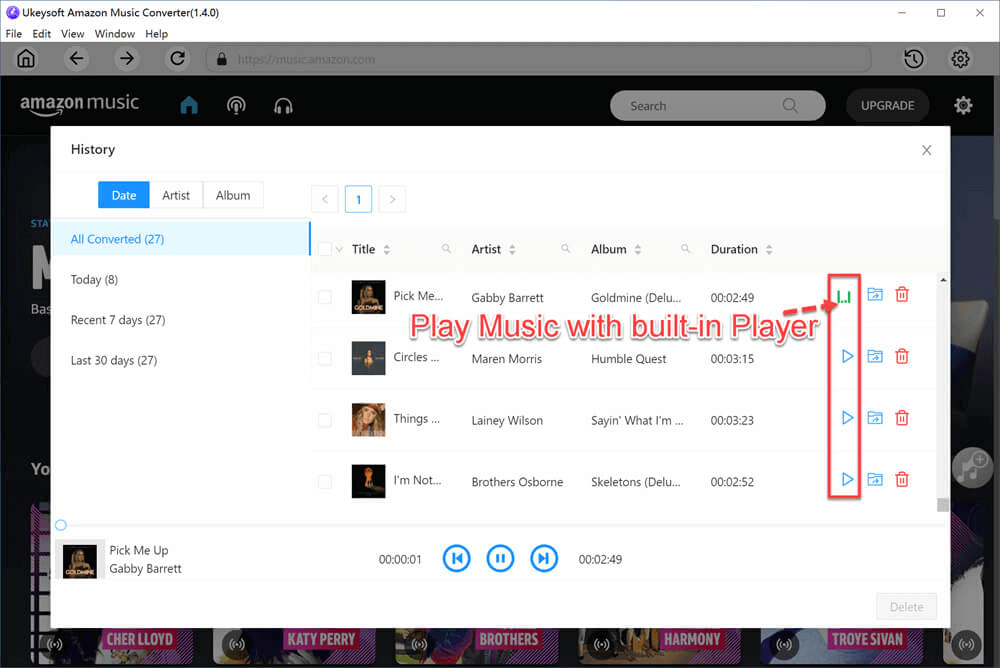
After the conversion is done, you can get your output music files in MP3 by clicking the blue folder icon as shown on the screenshot, or you can directly play in UkeySoft built-in music player.

get output amazon music songs

Pros:
Download Amazon Music and keep the songs forever
Removing DRM protection
Download and convert Amazon Music to MP3, FLAC, M4A, AAC, WAV, AIFF
Preserved ID3 tags and metadata
10X faster speed
Built-in Amazon Music player
Available on Windows and MacOS

Cons:
Only convert the first 3 minutes of each song for the Trial version
Not available on mobile devices

d_win d_mac
d_win d_mac

Top 2. Audials

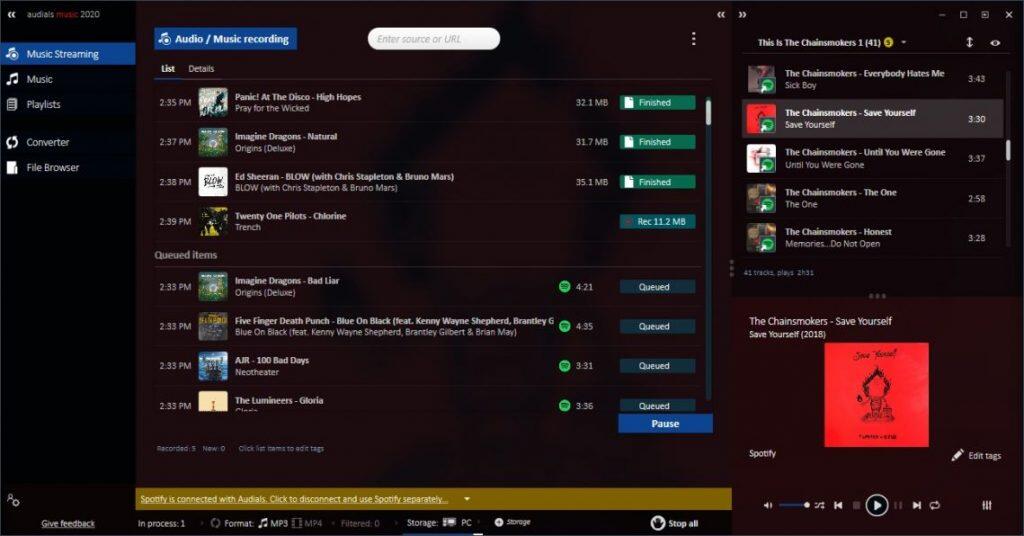
Audials will be the top 2 Amazon Music downloader on our list, this is because with this program, you can download Amazon Music in high quality output files. Audials is not just an Amazon Music downloader, also it supports downloading music from different streaming music services such as Tidal Music, Spotify Music, Apple Music, YouTube Music, etc. Audials is actually a music recorder which provides a powerful music recording function to download Amazon Music at 5X faster speed on Windows. For the output formats, Audials only provides 2 formats, MP3 and FLAC with the best quality up to 320 Kbps for MP3 and 44100 Kbps for FLAC. What’s more, one of the best thing about this program is that you do not need to open the Amazon Music app to play the songs for recording, you could just use Audials to finish the whole process of downloading Amazon Music with easy operation.

audial audio recording

Pros:
Record streaming music services, such as Amazon Music, Spotify Music, Tidal, etc
Downloading music at 5X faster speed
Support high quality output formats like MP3 and FLAC
Do not need specific streaming music platform app

Cons:
Only compatible with Windows
Only two output formats

Top 3. Screen Recorder

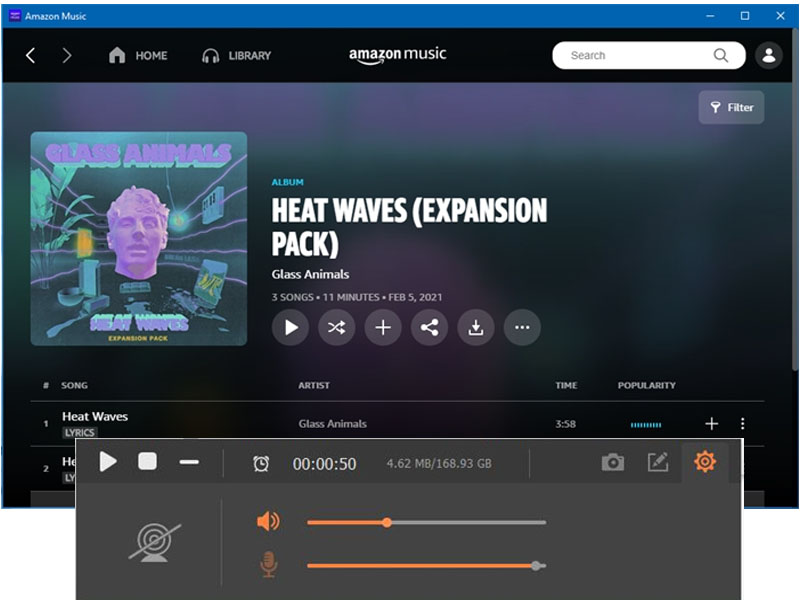
Screen Recorder is a very handy and useful tool that is able to record and download music to MP3, AAC, FLAC, WMA and so on from many sources, including streaming music services like Spotify Music, Tidal Music, Amazon Music, Apple Music, etc. You can record audio sounds from both external and internal on your computer, then you can transfer and play them on any device and share them with others. Screen Recorder is not just an audio recording tool, but also a video recorder, with the help of this recording tool, you are able to record video from streaming service like Pandora, Tidal, YouTube and more.

record amazon music

Pros:
Record online streaming music services such as Amazon Music, Spotify Music, Tidal Music
Record Amazon Music to common audio format
Record video from Pandora, Tidal, YouTube and more
Record online audio from system or microphone
Save the recorded audio in MP3, WMA, AAC, M4A

Cons:
Loss audio quality after recording
Slow recording speed
Cannot be preserved ID3 tags after recording

Top 4. Apowersoft Streaming Audio Recorder

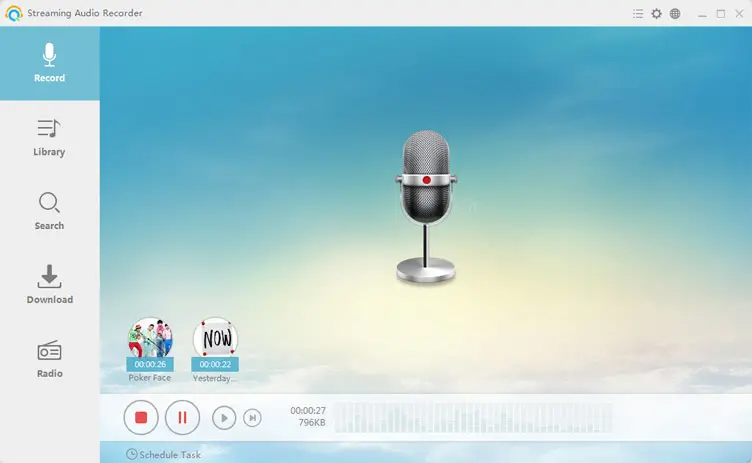
In our top 4 list, here comes Apowersoft Streaming Audio Recorder, this tool is such a great tool that is able to record audios from Amazon Music , also this is a multiple recording tool and it allows users to record streaming audio from music sites, video sites and radio stations. Apowersoft supports 4 type of output audio formats, MP3, AAC, FLAC and WMA, which are commonly compatible with most music players and portable devices. If you like to play music in CDs, Apowersoft Streaming Audio Recorder will be your great help, the program also supports burning audio to CDs, so you can play Amazon Music on CD in your car or CD players.

apowsoft audio recorder

Pros:
Record audio from streaming music services like Amazon Music, Spotify Music, Tidal Music, etc,.
Record streaming audios, radio stations, and more audios from the computer
Record and convert audio to common audio formats like MP3, AAC, FLAC and WMA
Support burning CD

Cons:
The output audio quality is only at 128 Kbps
It’s expensive to purchase the app

Top 5. Audacity

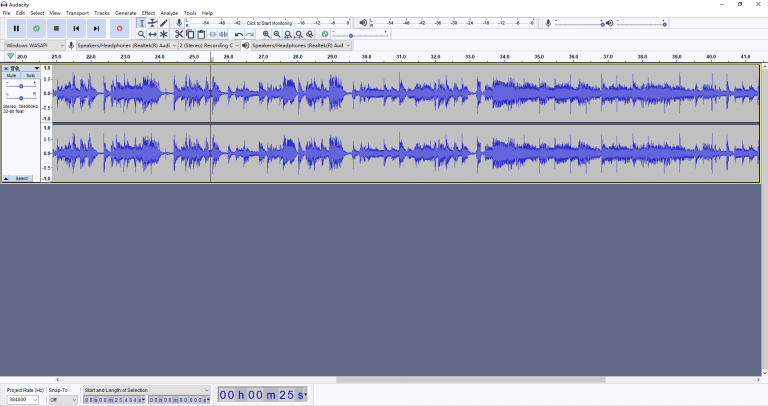
Audacity is a free program that helps download Amazon Music in best recording quality. This recording program is also able to download music from other popular streaming service beside Amazon Music, such as Spotify Music, Pandora Music, Tidal Music, Apple Music and more. Audacity has a in-built editing functions that allows people to edit the music before exporting to common audio files, the supported output formats are MP3, WAV, AIFF, AU, FLAC in high sound quality, which are also playable for most portable players.

audacity record amazon music

Pros:
Free Amazon Music recorder to download songs
Record audio from streaming music services, such as Amazon Music, Spotify Music, Tidal Music, Apple Music, etc.
Editing music before exporting
Record and convert audio to common audio formats like MP3, WAV, AIFF, AU, FLAC
High Sound quality
Support Windows, Mac, GNU/Linux

Cons:
Errors messages pops up
Not stable
There are still some bugs

These are the top 5 Amazon Music Converters above, now we will compare them on a table with some of the important features, like output formats, converting speed, supporting batch conversion, price, and if they are supporting all Amazon Music downloads. In this way, you can compare them wiith all list out clearly.

  UkeySoft Amazon Music Converter Audials Music Sceen Recorder Apowersoft Streaming Audio Recorder Audacity
Output formats MP3, M4A, AAC, FLAC, WAV, AIFF MP3, FLAC MP3, WMA, AAC, M4A MP3, AAC, FLAC and WMA MP3, WAV, AIFF, AU, FLAC
Speed 10X faster 5X faster 1X 1X 1X
Batch convert Yes No No No No
pricing 1-Month Plan: USD 14.95
1-Year Plan: USD 49.95
Lifetime Plan: USD 119.95
Lifetime: USD 39.95 Free 1-Month Plan: USD 19.95
1-Year Plan: USD 39.95
Lifetime Plan: USD 69.95
Free
Amazon Free Yes Yes Yes Yes Yes
Amazon Prime Music Yes Need subscription Need subscription Need subscription Need subscription
Amazon Music Unlimited Yes Need subscription Need subscription Need subscription Need subscription

Conclusion – the best Amazon Music to MP3 Downloader & Converter

After Comparing the top 5 best Amazon Music Converter from several aspects, you will probably have a clear idea of which is the best Amazon Music to MP3 downloader and converter. If you want to download music from Amazon Free, Amazon Prime Music and Amazon Music Unlimited at a fast speed, UkeySoft Amazon Music Converter is definitely the best choice for you. Besides, the output sound quality is very important, UkeySoft is able to keep original sound quality while others Amazon Music Converter could lose in audio quality after conversion. Why not download the tool just now and start enjoying original sound quality Amazon Music freely?

5 Best Amazon Music to MP3 Converters Review

How to Play Tidal Music on Sony Walkman

Summary
Wondering how to play Tidal Music on your Sony Walkman? Looking for a way to download music from Tidal and play on Sony Walkman? In this article, we will show you how to play Tidal Music on Sony Walkman or other MP3 devices/players.

Do you wan to play Tidal music on Sony Walkman, iPod nano and other MP3 players? As we know, Tidal is a music streaming service, even you have downloaded songs within Tidal app, you can’t transfer them to any MP3 player. And, the Sony Walkman is a popular MP3 player that no internet-connected function, if your looking for a method to enjoy Tidal music on Sony Walkman, you cannot download and install the Tidal app on Sony Walkman for steaming music.

Q: How to Download Tidal Music to Sony Walkman?
“I have a Sony Walkman and want to download Tidal songs to Sony Walkman for offline listening, but I found that Windows 10 has no download option for Tidal Music, even I can download Tidal Music on my mobile phone, and the Tidal files could not be found and do not work on the Sony Walkman. So is there a way to download and transfer Tidal music to Sony Walkman?”

Tidal is a global music streaming service that leads the new trend of music, you can stream over 80 millions songs online either you are subscribed for free or HiFi member. Moreover, You can even download and listen to Tidal high fidelity music on your mobile device if you are on a Hi-Fi or Hi-Fi Plus subcription. However, due to the unstable internet and inconvenient for carrying a mobile phone, it would be better to play Tidal Music on MP3 devices such as Sony Walkman. So is it possible to play Tidal Music on Sony Walkman?

Is there any solutions to download, transfer and play Tidal music on Sony Walkman? As we all know, Sony Walkman supports MP3, WMA, AAC, Linear PCM and HE-AAC audio formats, but the Tidal music is not compatible with Sony Walkman and most of the MP3 players, because it could not be possible to play Tidal music on Sony Walkman directly without an internet connection, even you have downloaded Tidal music with your mobile Tidal app, you are still not able to transfer them to Sony Walkman. Therefore we need a third-party tool to download Tidal music to computer and transfer them to Sony Walkman for offline listening.

For the following tutorial, we are going to show you 2 parts, one is to download Tidal music to MP3 or AAC files for Sony Walkman, and then you can transfer the downloaded Tidal songs(.mp3 or .aac) to Sony Walkman.

Part 1: How to Download and Convert Tidal Music to MP3 or AAC

As we mentioned above, we need a third-party tool to download Tidal music to computer for Sony Walkman. UkeySoft Tidal Music Converter is a one-stop music player, downloader and converter for Tidal users. With this tool, you can directly download Tidal music computer and convert them to various audio format, including MP3, AAC, M4A, WAV, FLAC and AIFF. Furthermore, this Tidal Music Converter runs at 10X faster speed during conversion with lossless HiFi audio quality. With built-in smart ID3 editor, it can manage the music library by album, artist, album/artist, artist/album. Most importantly, all Tidal users can download Tidal music to computer without any limitation, even you are a free member of Tidal.

Key Features:

  • Download Tidal songs/albums/playlist to computer for free.
  • Convert Tidal music to MP3, M4A, FLAC, AAC, WAV and AIFF.
  • Keep HiFi quality of Tidal music and retain ID3 Tag after conversion.
  • Available for Tidal Free and Tidal HiFi users.
  • 10X faster converting speed.
  • No need to install Tidal app, built in Tidal Web Player.
  • Free update and technical support.

d_win d_mac
d_win d_mac

Guide: Best Way to Download Tidal Music to Sony Walkman

To download Tidal Music for Sony Walkman, first of all, we need to download Tidal Music to computer, the following steps shows how to download Tidal Music to computer with UkeySoft Tidal Music Converter.

Step 1. Download and Launch UkeySoft Tidal Music Converter
Download and install the UkeySoft Tidal Music converter on your computer, then you need to login your Tidal account to launch the program.

launch program

Step 2. Choose MP3 or AAC as Output Settings
Click on the gear icon at the top right corner for output setting, there are a various of setting here, you can set up Output Format, Output Quality, Output Folder, Language, etc. as the screenshot shown below.

set mp3 output format

To download Tidal music for Sony Walkman, please set MP3 or AAC as the output format, we are taking MP3 as an example. You can select 320 kbps for high quality Tidal songs.

select mp3 320kpbs for tidal music

Step 3. Select Tidal Tracks/Playlists/Albums
Select your favour artist, playlist or album, then Click the Red “+ Add to list” icon on the right side to load the songs.

add tidal music to program

After you have select your playlist or album, it automatically ticks all the song on the list by default. If you just want to download some particular songs in the selected album or playlist, you can deselect the songs that you do not like to download.

select tidal music

Step 4. Start Converting Tidal Music for Sony Walkman
After you have selected all your songs, please click on the “Convert” button to start downloading and converting Tidal music to MP3/AAC format with high quality at 10X faster conversion speed.

convert tidal music to mp3 for sony walkman

When the converting is done, you can go to the little blue Output Folder to get the downloaded Tidal music for Sony Walkman.

get converted tidal music

Part 2: How to Put the Downloaded Tidal Music to Sony Walkman

Now you have all your Tidal Music downloaded on your computer, then you need to transfer the downloaded Tidal Music to Sony Walkman.

Step 1. Connect Sony Walkman to your computer with USB cable.
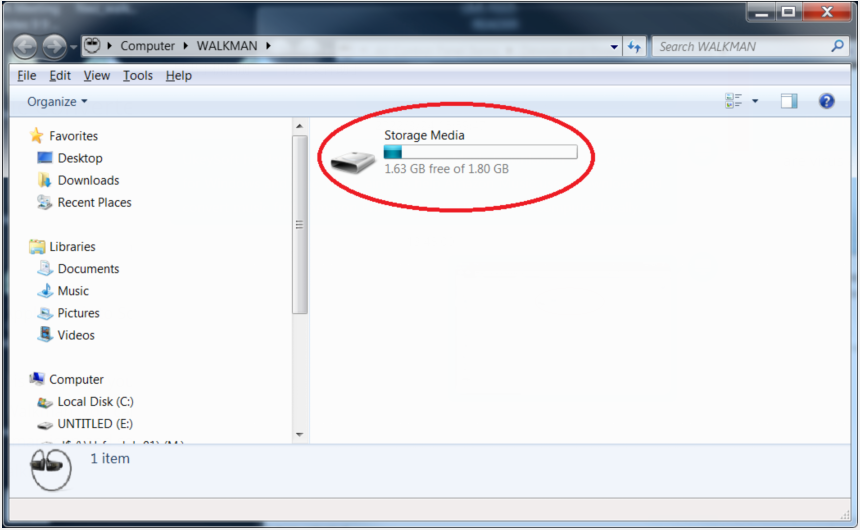
Step 2. Go to ‘This Computer’, click on the icon of Sony Walkman.
Stpe 3. Open the ‘Storage Media’ folder. You are going to put the downloaded Tidal songs in here as the target folder.
Step 4. Copy and paste or simply drag the Tidal songs to the folder in Sony Walkman.
Step 5. When it’s done, eject the Sony Walkman from the computer.

transfer tidal music to sony walkman

Now you can enjoy your high quality Tidal Music on your Sony Walkman for offline playing.

Conclusion

Now you have learned how to download and transfer Tidal Music to Sony Walkman, no matter if you are a Tidal Free or Tidal Hi-Fi (Plus) subscriber, with UkeySoft Tidal Music Converter, you can easily put Tidal Music on Sony Walkman for offline listening and playback. The Windows and Mac versions are available, please do not hesitate to get it to enjoy your favourite high quality Tidal Music on Sony Walkman at anywhere, anytime.
d_win d_mac
d_win d_mac

Play Tidal Music on Sony Walkman

How to Download Tidal Music without Premium

Summary
A tutorial teach you how to download Tidal Music without Tidal Premium, then you can easily save Tidal Music as local files and enjoy it on any movable devices freely.

I want to download songs from Tidal, and set the music as my ringtones. But the music I subscribed will be grayed once the Tidal subscription ends. Anyone give me the solution to download Tidal Music without Premium?

It’s well-known that Tidal like Spotify, it is available by the Chrome-based Web player or run in Tidal app. Tidal is a popular music streaming app, for those with a special liking for hi-fidelity audios. It provides two subscription plan – Hi-Fi and Hi-Fi Plus. The high sound quality always requires high internet speed. As a result, the best way to get the best listening experience of enjoying Tidal Music is to download Tidal Music to computer without Premium.

However, you can’t download Tidal Music on the computer even you are Tidal Premium. In other words, Tidal subscribers are authorized to download Tidal Music for offline listening on smartphone. The downloaded Tidal Music are not saved as local files on device. They are restricted to be played with the Tidal app and can’t be moved to anywhere else for offline playback. On the other hand, the music you downloaded from Tidal will be grayed without premium. To keep Tidal Music forever, or save it for more personal usage, such as, set it as ringtones, you should download Tidal Music on the computer first.

Download Tidal Music to Computer

UKeySoft Software has developed and created a professional Tidal Music Downloader, which is available for Tidal free and Tidal HiFi(Plus) users to download Tidal Music to computer without premium. UKeySoft Tidal Music Converter enables to convert and download Tidal Music to 6 kinds of usual file formats, including M4A, MP3, AAC, WAV, AIFF, FLAC. UKeySoft allows to download Tidal Music/albums/playlists to computer without Premium, with Hi-Fi audio quality kept. Then you can get Tidal Music on the computer for offline playing even without premium. Moreover, you can use the music for more personal usage, for example, set it as ringtones. The superior feature of this converter is that it is built-in web player, which is not require Tidal app installation while converting.

Pros of UKeySoft Tidal Music Converter

  • -Download Tidal Music for free and HiFi(Plus) Users
  • -Download Tidal Music with Hi-Fi audio quality
  • -Download Tidal to M4A, MP3, AAC, WAV, AIFF, FLAC
  • -Download Tidal with all ID3 tags, metadata kept
  • -Run at 10X converting speed
  • -Play Tidal Music on all devices and players without limits

d_win d_mac
d_win d_mac

How to Download Tidal Music without Premium

Step 1. Run UKeySoft Program
The first step, download, install and run UKeySoft Tidal Music Converter on the computer, which features a built-in Tidal web player.

Step 2. Log in Your Tidal Account
Follow the instructions to log in your Tidal account.

launch program

Step 3. Choose Output Format
The default output format is M4A. UKeySoft also supports MP3, AAC, FLAC, WAV, AIFF. Change the output format or output folder if you need.

You can also customize output song name with any combination of Title, Artist, Album, Track Number, Playlist Index.

set mp3 output format

Step 4. Add Tidal Songs/Playlists/Albums
Click Tidal songs/playlists/albums you want to download to the computer.

select tidal music

Then click the red icon to load songs. All songs in the playlist will be added by default. You can uncheck the songs if you don’t want to download.

Step 5. Download Tidal Music to Computer without Premium
In the final step, simply click “Convert” button to begin downloading Tidal Music to computer with the format you choose.

convert tidal music

When the conversion completes, you could click the folder icon to locate the downloaded Tidal Music on the computer for offline playing. You can use it for more personal usage even without Tidal Premium, for example, set it as ringtones or more.

d_win d_mac
d_win d_mac

Download Tidal Music without Premium

How to Download Amazon Music to Computer

Summary
Do you want to download Amazon Prime Music to computer? Looking for a way to download music from Amazon on computer? Here this post will introduce a professional Amazon Music Downloader to you and show you how to download music from Amazon Prime & Music Unlimited to computer locally.

Are you an Amazon Music user? What is your subscription tier? Amazon Free, Amazon Prime membership, or Amazon Music Unlimited? If you have an Amazon Prime account or an Amazon Music Unlimited subscription, you can enjoy ad-free unlimited playback and download Amazon music for offline listening. Can you get Amazon Music on PC? Unfortunately, you can only do this using the Amazon Music app on your mobile devices. Amazon doesn’t provide a way for users to download Amazon Music to computer. In fact, all songs from Amazon Music are protected, not open source – you can take any song out of Amazon Music app. Once you cancel the subscription from Amazon music, you’ll lose access to all downloaded songs.

Can’t save Amazon Music Unlimited songs to computer? Want to backup to Amazon Music songs before canceling your subscription? Looking for a way to transfer Amazon Music to MP3 player or USB drive? This guide is for you! Here you will learn how to download Amazon Music to computer locally. After which, you can use Amazon Music freely and enjoy them everywhere!

Best Amazon Music Downloader for Windows & Mac

UkeySoft Amazon Music Converter is a professional tool that supports to download any songs from Amazon Music to computer, including Amazon Music Free, Amazon Prime Music and Amazon Music Unlimited. For better compatibility, it is able to download and convert Amazon Music to MP3, M4A, AAC, FLAC, WAV, and AIFF audio formats. This professional tool will preserve the original music quality and ID3 tags of Amazon Music songs. What’s more, it allows users to customize output file names for better music library management!

With no need to install the Amazon Music app, it lets you download music from Amazon Web Player! Only in a few steps, users can easily and quickly download and save songs from Amazon music to a local PC, Mac for offline playing. After which, users could transfer Amazon MP3 songs to any other devices and player without hassle!

Why Choose UkeySoft Amazon Music Converter?

  • Batch download music from Amazon Prime & Music Unlimited.
  • Download Amazon Music to PC/Mac computer as local files.
  • Download songs, albums, playlists, podcasts from Amazon.
  • Convert Amazon Music to MP3/AAC/M4A/WAV/FLAC/AIFF files.
  • 10X speed; Built-in Amazon Music Web Player and Music Player.
  • Remain ID3 tags and original sound quality of Amazon Music.
  • Transfer Amazon Music songs to any music device and player.

d_win d_mac
d_win d_mac

Guide: Download Amazon Music to PC in MP3

UkeySoft Amazon Music Converter works perfectly on both Windows and macOS. Here we will take Windows version as example. Follow the steps to download Amazon Music to PC for free.

Step 1. Install and Launch Amazon Music Converter
Go to UkeySoft official website, download and install the Amazon Music Converter on your Mac or Windows. Launch the program and sign in with your Amazon account.

launch amazon music converter

Step 2. Customize Output Parameters
Click the Gear icon in the upper right corner to open the settings window. Here you can define the Output Format (choose MP3 format), Output Quality, Output Folder, Output Organized, etc.

set output settings

Step 3. Add Amazon Music Playlists to Download
Now browse your music library and find the songs, playlists or albums you want to download, then click the “Red +” icon.

add amazon music to program

All songs in the playlist/album/artist will be loaded into the conversion list, you can deselect some songs.

select amazon music

Step 4. Start Downloading Amazon Music to Computer
Simply press on the “Convert” button, then the software will immediately download songs from Amazon Music to computer locally.

start to download amazon music to computer

All downloaded Amazon Music songs will be saved in MP3 format, and you can click “History” to get the output songs!

get output amazon music songs

d_win d_mac
d_win d_mac

Download Amazon Music to Computer

How to Convert Tidal Music to MP3

Summary
In this article, we will sum up the top program to download and convert Tidal Music to MP3 with Hi-Fi audio quality kept, then you can enjoy Tidal Music with MP3 format like other common audio files.

I search the way for converting Tidal Music to MP3 on the Internet, but there are so many answers that confuse me, I don’t know how to choose those. Any practical advice for me? Thanks so much!

Music streaming services become more and more common in our daily life. While so many different kinds of music streaming app on the market, it is hard to choose which is the best for you. Tidal as one of the popular streaming music app for the Hi-Fi audio quality, which offers user for over 60 million songs in music library. Have you tired to search “convert Tidal Music to MP3” in Google to search the best answer? If yes, this post will not be disappointed for you.

In fact, as a Tidal Music subscription user, you’re allowed to download and playback Tidal Music tracks on authorized devices and players only. Moreover, you will be lose to access to the Tidal Music after the subscription ends. How to convert Tidal Music to MP3? It is possible to download Tidal Music to MP3 so that we can enjoy Tidal Music on any devices for offline playback? There are a large number of methods to help you to extract music from Tidal to MP3. The most direct way is to use a Tidal to MP3 converter to get Tidal Music in the format of MP3 files. In this post, we’ll introduce the most easy way to convert Tidal Music to MP3.

The Best Way to Convert Tidal Music to MP3

With the assistance of UKeySoft Tidal Music Converter, it’s easy to convert Tidal songs, albums, playlists to MP3, M4A, AAC, WAV, AIFF, FLAC with original Hi-Fi audio quality preserved. With a built-in Tidal web player, you can directly download any songs from it, without having to install the Tidal app. UKeySoft works at 10X faster speed, provides users with batch conversion. Even better, it allows you to organize the output Tidal Music to download by artist, album or album/artist according to your preference before conversion. Once finishes the conversion, the output Tidal Music will be saved as usual audio file format. Then you can offline playback the music anywhere, anytime. Additionally, you can do more personal usage for the Tidal Music, enjoy it on audio, transfer it to MP3 player, upload to Cloud, record it to CD, etc,.
Focus the Features of UKeySoft Tidal Music Converter:

  • Convert Tidal Music for Tidal free or Tidal HiFi(Plus) Users.
  • Convert Music to Various of Audio Files Formats.
  • Keep Hi-Fi Audio Quality and ID3 Tags.
  • Built-in web player, no Tidal app needed.
  • 10X conversion speed.

d_win d_mac
d_win d_mac

How to Convert Tidal Music to MP3

Step 1. Run UKeySoft and Log in Tidal
Download, install and launch UKeySoft Tidal Music Converter on the computer then click the Sign In to log in to your Tidal account.

launch program

Step 2. Choose MP3 as Output Format
The default output format is M4A. Tidal Music Converter also supports MP3, AAC, WAV, AIFF, FLAC. Click the Gear icon on the top right corner to change output format or output folder if you need, in this case, you should choose “MP3”.

set mp3 output format

You can customize the name of output song with any combination of Title, Artist, Album, Track Number, Playlist Index.

Step 3. Add Songs for Conversion
Browse the built-in Tidal Music web player and select songs, albums or playlists you want to download. Once you open an album/playlist and tap the red Add button suspended on the right side. It will present the list of songs for you. All songs in the playlist/album are selected by default. Remove the songs that you don’t want to convert.

select tidal music

Step 4. Convert Tidal Songs to MP3
Click “Convert” button to begin downloading and converting Tidal Music to MP3. Once conversion ends, click the folder icon to quickly locate the downloaded MP3 Tidal songs on the computer.

convert tidal music

d_win d_mac
d_win d_mac

Convert Tidal Music to MP3

How to Recover Lost Notes After iOS 15/iPadOS 15 Update

Summary
Did you lost notes after iOS 15 update on your iPhone or iPad devices? You have come to the right place! In this post, we are going to introduce you how to recover iPhone notes deleted after update to iOS 15 with a wonderful iOS Notes Recovery.

“iOS 15 has many wonderful features, but I lost notes on iPhone after update to iOS 15. How can I get my notes back after iOS updated?”

“How do I recover my iPad notes after I updated to iPadOS 15? After updating, I found I lost notes after iOS 15 update. Please help, these notes are important!”

September 20, 2021, Apple released the latest iOS 15, which bringing some amazing new features that are expected, such as new Focus status, more detailed weather information, offline using Siri and so on. Many users update to iOS 15 at the first time in order to experience these convenient functions. However, while praising the iOS 15, there are also some errors and loopholes. Some users found their iPhone notes deleted after update to iOS 15. This is not an individual case. After updating to iOS 15, the iOS data such as messages, contacts, and photos may disappear on your iPhone, iPad and other iOS devices. This article is written for those who have lost notes on iPhone after update and are looking for a method to recover lost notes after iOS 15 update.

To restore iPhone notes deleted after update to iOS 15, you can restore your backup files from iTunes and iCloud so that your notes will return to your phone. The premise of this method is that you have backed up the data of your iPhone or iPad device in advance on iTunes and iCloud. If not, you can ask help from a third-party tool to recover lost notes after iOS 15 update on your iOS devices.

U.Fone iOS Notes Recovery – Recover Lost Notes after iOS 15 Update

U.Fone iOS Notes Recovery software is specially designed for restoring iPad and iPhone notes deleted after update or downgrade. This powerful software can not only recover lost notes after iOS 15 update, but also restore disappeared iOS data such as messages, mails, photos, files, etc., without backing up on iTunes or iCloud. With its help, you can use it to recover lost data completely, whether it is due to factory reset, phone jailbreak failure, file deletion, phone reformatting, iOS update or downgrade. After that, all of your data on the iPhone or iPad will be saved in your devices safely and completely.

Highlights of U.Fone iOS Notes Recovery:

  • iOS Notes Recovery completely recovers disappeared notes.
  • Recover iPad & iPhone notes deleted after update to iOS 15.
  • Restore data of iOS devices without backup in iTunes & iCloud.
  • Provides 3 modes to restore iOS disappeared files losslessly.
  • Recover deleted messages, notes,contacts, photos, mails, etc.
  • Perfectly compatible with all iOS devices, iPhone, iPad, iPod.

d_win d_mac
d_win d_mac

How to Recover Lost Notes after iOS 15 Update with U.Fone Recovery?

The following guide will show you how to deal with iPhone notes deleted after update by using U.Fone iOS Notes Recovery.

Step 1. Launch U.Fone iOS Notes Recovery
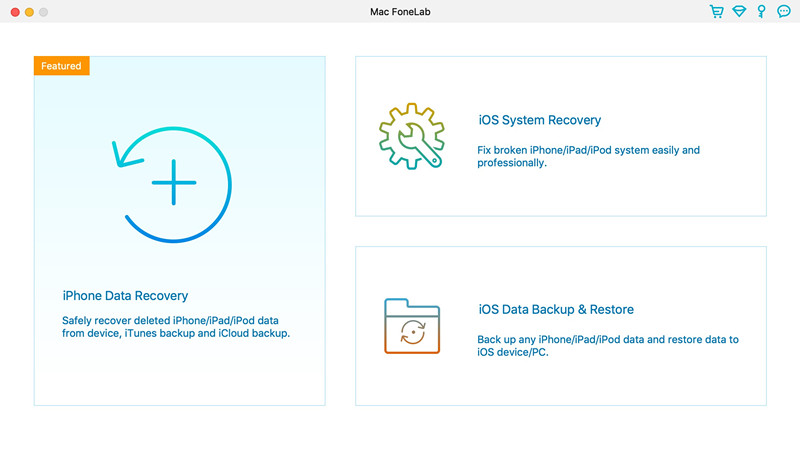
Downloaded, install and open the U.Fone iOS Notes Recovery on your computer. Then connect your iPhone/iPad to the computer with USB lightning cable. Choose the “iPhone Data Recovery” mode to go on.

iphone data recovery for mac

To restore lost notes from iPhone or iPad, just choose “Recover from iOS Device”.

recover data ios 15 update

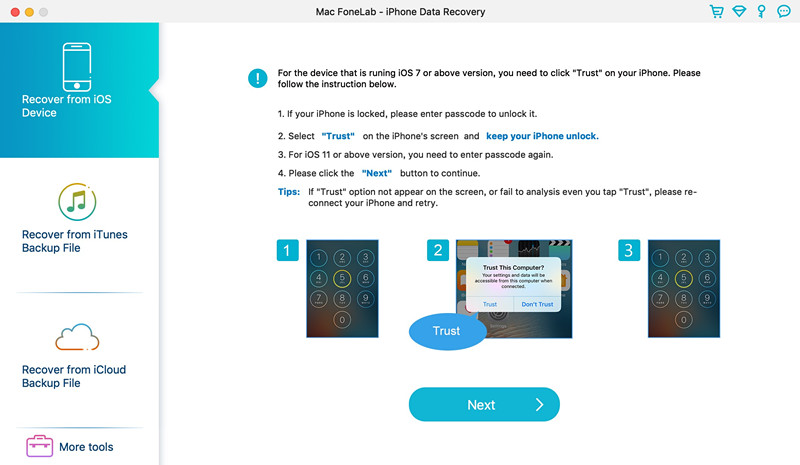
Then unlock your iPhone/iPad screen passcode according to the prompt and trust the computer, then hit on “Next”button to go on.

trust on iphone - recover lost notes ios 15 update

Step 2. Choose Notes File Type to Scan
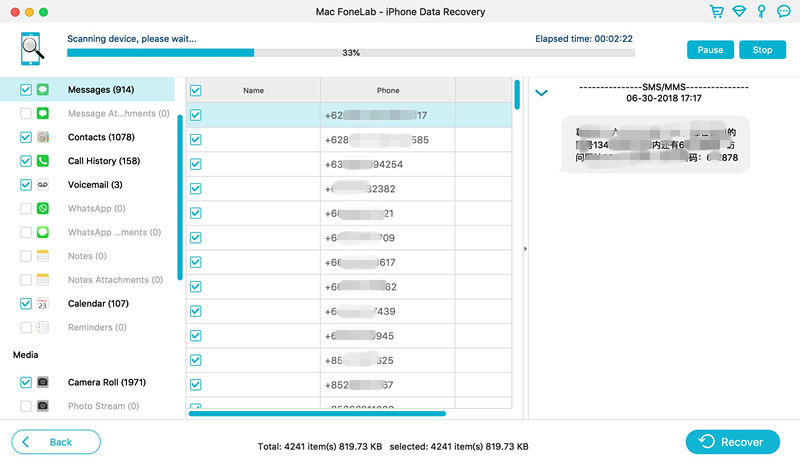
In the scan interface, choose the Notes data types you want to restore and then press “Start Scan” to scan the deleted files.

Scan lost notes from iPhone

Step 3. Preview the Scanned Files
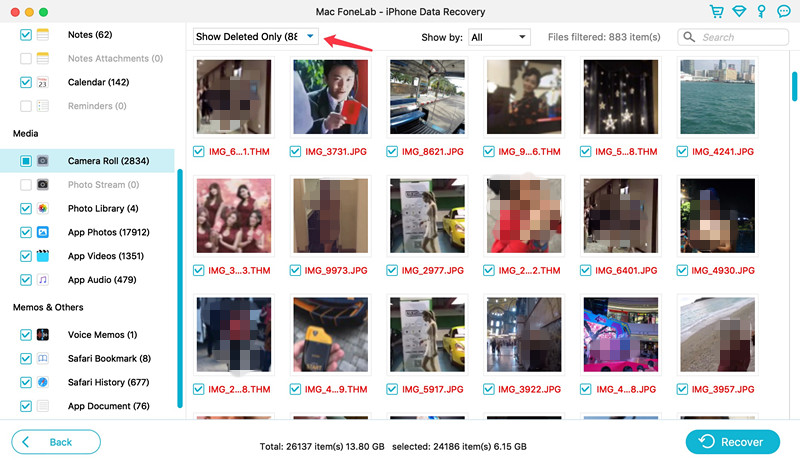
When the scanning process is completed, you can see all of the scanned data files will be listed in clear, organized categories. You can select “Show Deleted Only” to preview the lost notes.

View the deleted notes

Step 4. Recover Lost Notes from iOS Devices
Select the desired notes that you want to restore. You can also you select all the notes to recover. Lastly, touching “Recover” button to recover lost notes after iOS 15 update on iPhone and iPad.

recover iPhone notes

Conclusion
If your iPad or iPhone notes deleted after update or downgrade, you can completely trust U.Fone iOS Notes Recovery software. It can not only recover lost notes after iOS 15 update, but also restore the disappeared SMS, App files, photos, contacts and any iOS data. With its help, your data on iOS devices will not be gone anymore.

d_win d_mac
d_win d_mac

Related Articles:

How to Restore Lost Messages after iOS 15 Update

How to Recover Lost Data from iPhone After iOS 15 Update

How to Recover iPhone Photos, Contacts, SMS after iOS 15 Update

How to Recover WhatsApp Messages on iPhone 11

Recover Lost Photos, Videos from iPhone/iPad after iOS 15/iPadOS 15 Update

Recover Lost Notes After iOS 15 Update

How to Restore Lost Messages after iOS 15 Update

Summary
Have you lost message after iOS 15 update? This is an annoying common question of iPhone lost messages after updated. In this article, we are going to introduce you a useful tool to help you restore lost messages after iOS 15 update on your iOS devices.

“Last night I updated my iPhone 11 to iOS 15, but I found all my messages deleted after iOS 15 update. How can I get my messages back after updating my iPhone?”

“My iPhone lost messages after updated to iOS 15. How can I restore my iPhone messages without backup?”

The latest version of iOS 15 has been released, and many Apple users can’t wait to update their Apple devices to the latest iOS 15 version. In addition to bringing many new features to users, iOS 15 will also cause some troubles. There is a common problem is that the messages deleted after iOS 15 update, you may lose your valuable messages. If you lost messages after iOS 15 update, that’s terrible. In the latest article, we showed you how to recover lost data from iPhone. Today we will guide you restore lost messages after iOS 15 update.

If you backed up your Apple devices on iCloud or iTunes before updating your Apple device to iOS 15, the data you backed up will be completely preserved even if your messages deleted after iOS 15 update, you can restore them easily. But what if you don’t have a backup and the data is lost. Don’t worry, you can seek help from U.Fone SMS Recovery to restore lost messages after iOS 15 update.

Best iPhone SMS Recovery – U.Fone SMS Recovery

U.Fone SMS Recovery is a profession-grade SMS recovery tool to restore lost messages after iOS 15 update. This powerful software is not just an SMS recovery tool, it is a multipurpose iOS data recovery program, which can restore deleted data from iOS devices in any data loss situation. It can recover deleted photos, contacts, videos, App files and any data on iOS devices. With its assist, all iOS users can restore deleted iOS data without backup in advanced. In addition, U.Fone supports all iOS devices, including the latest iPhone 13 (Pro), iPhone 12, iPhone 11, iPhone SE, and iPad Pro, iPad Air.

Amazing Features of U.Fone SMS Recovery:

  • Powerful iPhone SMS recovery to restore deleted messages.
  • Restore lost messages after iOS 15 update on any iOS devices.
  • Recover iPhone lost messages after updated or downgraded.
  • Restore any iOS data including photos, contacts, videos, notes.
  • Simply recover lost data without backing up via iTunes and iCloud.
  • Suitable for any iOS devices like iPhone 13, iPad Pro, iPod Touch.

d_win d_mac
d_win d_mac

Guide: Restore Lost Messages after iOS 15 Update by U.Fone Recovery

In this part, we are going to show you how to fix iPhone lost messages after updated to iOS 15 by using wonderful tool – U.Fone iPhone SMS Recovery. Here are the easy steps to restore lost messages after iOS 15 update.

Step 1. Run U.Fone iPhone SMS Recovery
Download, install and launch U.Fone iPhone SMS Recovery on your computer, to restore lost messages after iOS 15 update, just choose “iPhone Data Recovery” tab.

iphone data recovery for mac

Step 2. Connect iPhone with Computer
Connect your iPhone with computer via lightning cable, then the software will detect your device automatically, choose the “Start Scan” option to scan your iPhone, then you will see the scanning interface.

get messages back on iPhone

Step 3. Start to Scan the iPhone Files
Please make sure your iPhone is connecting with computer during the process. Choose the data types that you want to scan, here you can tick the checkbox before “Messages”. In the process, if you find the lost messages, you can click “Stop” button to end the scanning process.

Scan lost messages from iPhone

Step 4. Choose the Files to Recovery
After the scan is finished, all found data will be showed up in the program. Click on “Messages” option to view them in details. To recover the messages deleted after iOS 15 update, click “Show Deleted Only” at the top left of the software interface.

View the deleted sms

Step 5. Restore Lost Messages after iOS 15 Update
After selecting the deleted messages you want to restore, and click “Recover” to restore the lost messages after iOS 15 update on your compute with one click.

recover iPhone sms

Conclusion
If your iPhone lost messages after updated to iOS 15, U.Fone iPhone SMS Recovery is your must-have tool to restore lost messages. Besides it can restore lost messages after iOS 15 update, the deleted photos, videos, App files, contacts and other iOS data files can be recovered well by this amazing iOS data recovery tool. You don’t have to be afraid of losing any data on your iOS devices any more.

d_win d_mac
d_win d_mac

Related Articles:

Recover Lost Photos, Videos from iPhone/iPad after iOS 15/iPadOS 15 Update

[Fixed] iPhone Contacts/SMS/Photos/Notes Disappeared after iOS 15 Update

How to Recover iPhone 11 Data Without iTunes/iCloud Backup?

How to Recover Deleted WhatsApp Messages on iPhone and Android

How to Recover Data from iPhone 11/11 Pro after Factory Reset

Restore Lost Messages after iOS 15 Update

Recover Lost Photos, Videos from iPhone/iPad after iOS 15/iPadOS 15 Update

Summary
Photos and videos disappeared on iPhone/iPad after iOS 15 or iPadOS 15 update? Do you want to know why photos disappeared from iPhone/iPad after iOS 15 update? This article will tell you why photos disappeared after iOS 15 update and how to recover lost photos, videos from iPhone/iPad after iOS 15/iPadOS 15 update, you also can recover deleted photos from iPhone 13(Pro) in iOS 15.

I have just updated my iPhone 12 to iOS 15, but all my photos and videos are disappeared! Why photos disappeared from iPhone after iOS 15 update? Where my photos gone? How to find the disappeared photos on iPhone? Is there any solution to recover lost photos and videos from iPhone after update to iOS 15? Thanks for help!

All photos and videos were lost after upgrading my iPad Pro to iPadOS 15, how to recover lost photos, videos from iPad after iPadOS 15 updated?

Recover Photos after iOS 15/iPadOS 15 Update

Apple’s iOS 15 has arrived. After Apple’s iPhone 13 event last week, the Apple company revealed that iOS 15 would be generally available for free download on now, alongside iPadOS 15. Recently, many Apple fans update their iPhone and iPad to iOS 15/iPadOS 15, in order to enjoy the new features. Have you upgraded your devices to iOS 15 or iPadOS 15? While some iPhone users enjoy the new features in iOS 15, but some users are complaining about the photos are disappeared after the iOS 15/iPadOS 15 update issue. Don’t worry, this article will teach you how to recover lost photos from iPhone and iPad after iOS 15/iPadOS 15 updated, you also can learn why did photos lost from the iPhone after iOS 15 update? And how to prevent similar things from happening every iOS update.

Why Photos Disappeared from iPhone/iPad after iOS 15/iPadOS 15 Updated?

When you update your iPhone/iPad to the new iOS/iPadOS, which means that it will re-install the new OS, it will erase your device, so you’d better backup your iPhone/iPad to iTunes or iCloud before the updates, I suggest you backup iPhone/iPad data to computer before iOS update, then you can easily to restore the data to the device after update completed.

After the iOS 15 update and cause the photos be deleted from your iPhone, because there are something error while iCloud syncing, or the photos may be erased from your iPhone accidentally, even the iOS 15 update failed and cause all data lossing.

How to fix photos and videos disappeared from iPhone/iPad after the iOS 15 update? How to recover lost photos after iOS 15 update? This article will teach you an effectiave way to recover iPhone/iPad lost photos after the iOS update. Keep on reading and recover your photos and videos from iOS devices.

Way 1: Re-log into iCloud Account and Re-Sync Photos from iCloud

Apple’s iCloud is a good service, which offers Apple users to backup or sync data online, before update your iPhone to iOS 15, make sure you have turn on iCloud Photo Library and all photos be sync to iCloud Photo Library automatically, if turned off the Sync function, the iCloud photos will disappear. If you have backup photos to iClound but find all photos disappeared after iOS 15 update, please try to log out your iCloud account and re-log into it again, you might you find your photos again. Let’s learn how to download the backed up photos from iCloud Photo Library.

Tips: In order to avoid erasing existing photos on the device, I suggest you login the same iCloud account to other devices to re-download the photos. In addition, before you restore your photos from iCloud, make sure there is enough space in the device.

Step 1. Login iCloud account on Other Apple Device and Reset iCloud Photos
Firstly, please signed into the same iCloud account on other iPhone, iPad or Mac.
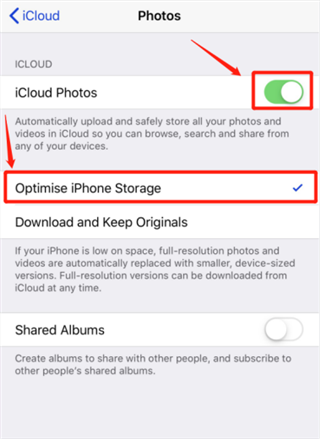
Then, go to Settings > Apple ID > iCloud > Photos to turn on iCloud Photos.

Turn on iCloud to recover iPhone photos

Tips: You may turn the “iCloud Photos” option off and wait for a while firstly, then turn it on again and check if it works fine.

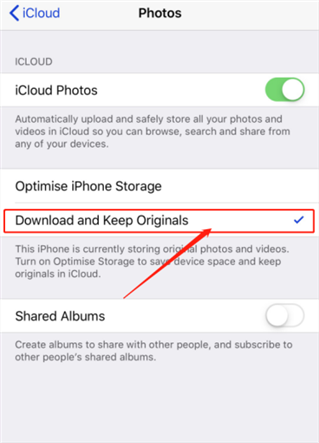
Step 2. Tap Download and Keep Originals
Then, tap “Download and Keep Originals” option, it will download all your original pictures and videos from iCloud Photo Library to your device.

iCloud - Download and Keep Originals

Way 2: Recover iPhone/iPad Photos from “Recently Deleted Folder”

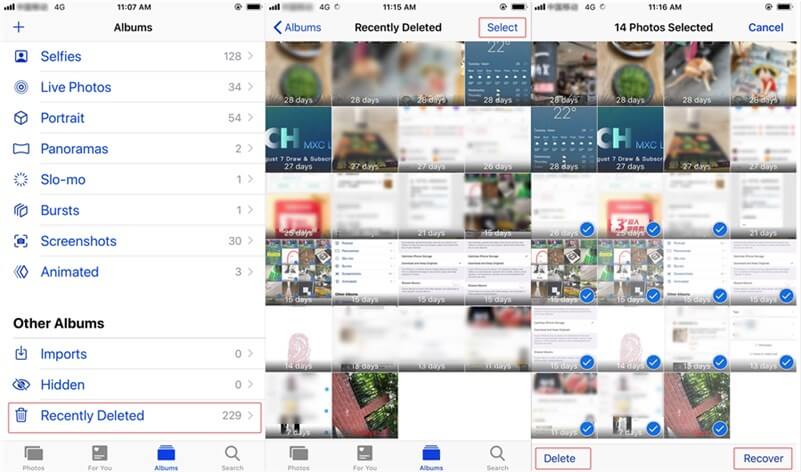
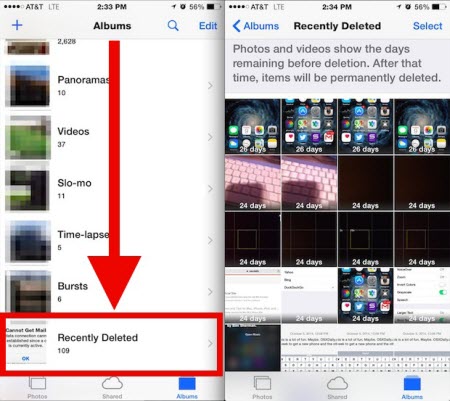
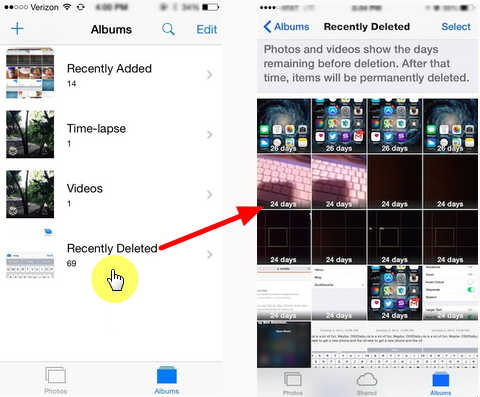
For the iOS 8 or later, there is a “Recently Deleted Folder” in the Albums, if you accidentally delete your photos after iOS 15 update, your deleted photos will be moved to the “Recently Deleted Folder”and saved for 30 days. If you have mis-deleted photos on iPhone or iPad, you can go to “Recently Deleted Folder”and easily restore them to your photo library or albums.

Recently Deleted Folder to recover iPhone photos

Step 1. Unlock your iPhone/iPad and go to its Albums, then tap “Recently Deleted” folder.

recover iPhone photos from Recently Deleted Folder

Step 2. You can view all the photos that were deleted in the last 30 days. Please tap on the Select button to select the photos you want to get back, then tap on the “Recover” option.

Step 3. Last step, just confirm your choice. Tap on the “Recover” button to recover your selected photos, you will view all the restored photos in Photo Library or Albums.

restore iPhone photos from Recently Deleted Folder

Way 3: Directly Recover Photos, Videos from iPhone/iPad after iOS 15 Update

There are many method to restore iPhone photos, you also can recover iPhone photos from iTunes/iCloud backups, but once you restored your iPhone with the selected iTunes/iCloud backup, all the current data on your iPhone will be erased and replaced by the data in the backup. This means the new messages, photos, contacts, and other contents in your iPhone will be erased. However, which is the most safely way to recover photos, videos, contacts, sms and other data from iPhone?

U.Fone iPhone Data Recovery offers three safe way to recover your iPhone/iPad data: Directly scan and recover data from iPhone/iPad; Restore iOS data from iTunes backups; and restore iOS data from iCloud backup. The program will help you extract the deleted and lost data from iOS devices/iTunes/iCloud and save them on to the computer, which is the most safely and quickly way to recover your iPhone data.

If you have backup your iPhone photos to iTunes before iOS 15 update, you can use the “Recover from iTunes Backup File” function to restore photos from a previous iTunes backup without deleting the existing content on iPhone, this is a safe solution for you.

If you have turned on iCloud service and enabled iCloud Photo Library sync automatically, you can use the “Recover from iCloud Backup File” function to download photos from iCloud backup, you also can view and select the photos you want before recover.

If you haven’t backup your iPhone/iPad to iCloud or iTunes before iOS 15 update, the “Recover from iOS Device” function is a good choice, just launch the iPhone Data Recovery and connect your iPhone/iPad to the computer, click “Scan” button to scan your iPhone/iPad device, the program will deep scan all already lost/deleted photos from your iPhone, only few minutes, you can easiy recover lost photos from iPhone directly. What’s more, the U.Fone iPhone Data Recovery also can recover Text Messages, iMessages, Photos, Contacts, WhatsApp/Kik/Line/Viber/Facebook Messenger Data, Notes, Call History, etc.

d_win d_mac
d_win d_mac

How to Directly Recover iPhone Lost Photos/Videos after iOS 15 Update

Step 1. Download, Install and Run the iPhone Data Recovery
Firstly, launch the iOS Toolkit on PC or Mac, and then select “iPhone Data Recovery”.

iOS 15 Data Recovery - recover data ios 15 update

Step 2. Connect iPhone to PC/Mac
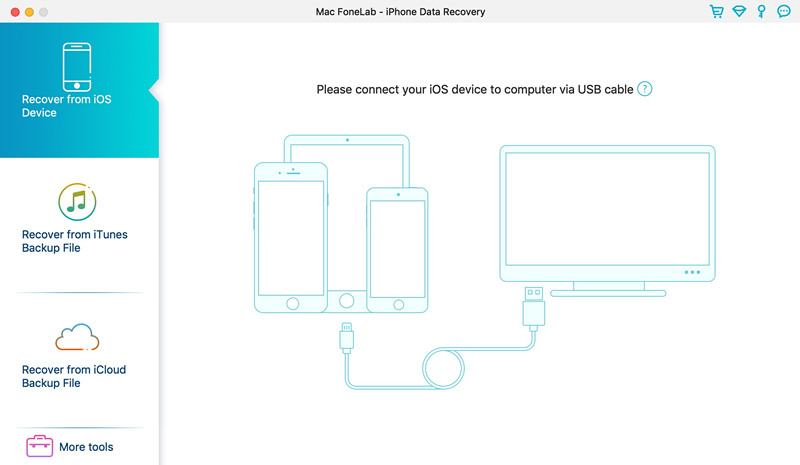
To directly scan and recover lost photos from iPhone, click on “Recover from iOS Device” among the other options. Then, please connect your iPhone to the computer via an Apple USB cable.

connect iPhone to PC - recover data ios 15 update

Unlock your iPhone and tap “Trust this computer”, click the “Next” button.

trust on iphone - recover data ios 15 update

Step 3. Select Photos and Videos to Recover
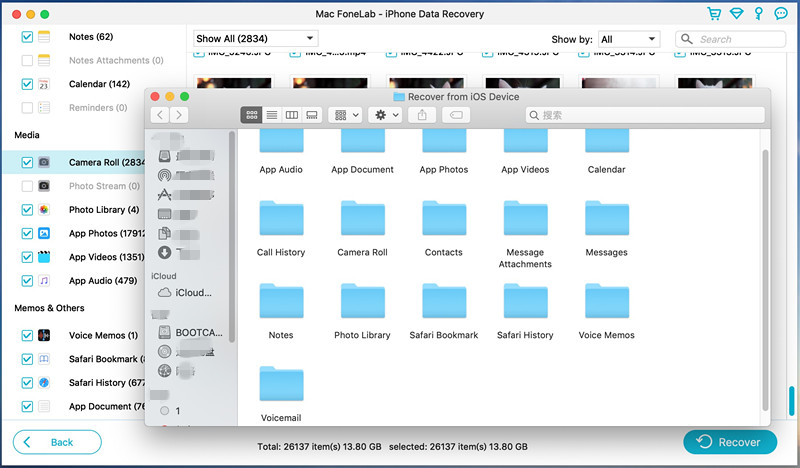
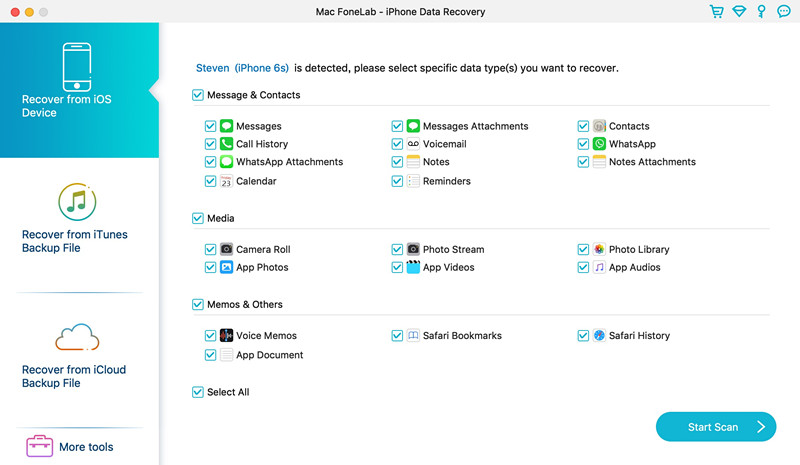
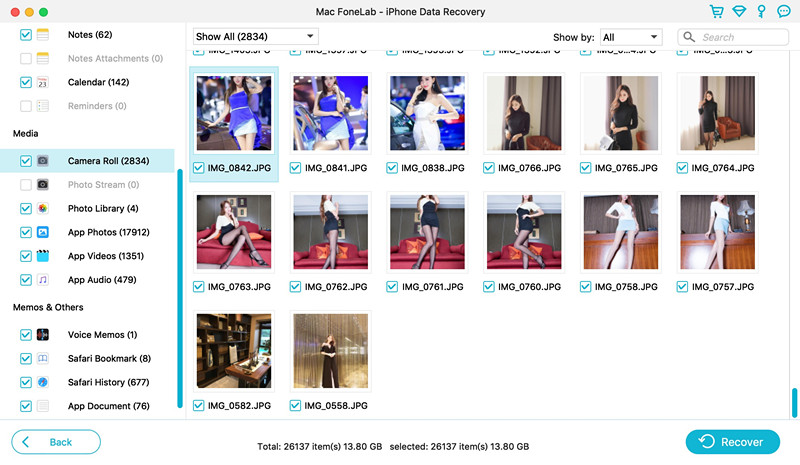
To recover all lost photos from videos from iPhone, please select Camera Roll, Photo Stream, Photo Library, App Photos, App Videos, and click “Start Scan” button.

scan iPhone data - recover data ios 15 update

Step 4. Scan Photos and Videos from iPhone
The program will scan your iPhone, you’ll get the interface as follow. Please don’t disconnect your iPhone with the computer during scanning process. Your will find the photos and videos that you want, you can click “Stop” button to stop the scanning process.

scan data from iPhone - recover data ios 15 update

Step 5. Preview Photos and Videos
When the scan is completed, you can view all scanned photos and videos, you can view them before recovery. If you just want to view the deleted photos & videos, please select “Show Deleted Only”, it will display all deleted contents.

preview iPhone data - recover data ios 15 update

Step 6. Recover Photos and Videos from iPhone Directly
Please choose the photos and videos you want to recover, and then click “Recover” button to recover your lost pictures/videos, the software will help you extract and save your iPhone photos onto your computer.

recover iPhone data after iOS 15 update

Step 7. Transfer the Recovered Photos/Videos to iPhone for View (Option)
After getting the lost photos & videos back, you can quickly locate the recovered files.

recover data from iPhone after ios 15 update

If you want to transfer them to your iPhone or iPad for using and viewing, you can use this iOS Transfer tool, which allows you transfer photos, videos and more contents from computer to iPhone easily.

restore data to iPhone

Also learn: How to Transfer Files from PC to iPhone/iPad/iPod

Free download the iPhone Data Recovery (Windows and Mac):

d_win d_mac
d_win d_mac

The Bottom Line

If you haven’t backup your iPhone/iPad before iOS update, only the iPhone Data Recovery can helps you recover your lost data back. The U.Fone iPhone Data Recovery software works for all iOS, including the upcoming iOS 15, if you deleted photos on iPhone 13, you also can directly scan and recover deleted photos from iPhone 13/13 Pro/13 Pro Max. What’s more, U.Fone iOS ToolkitiPhone Data Recovery offer three recovery modes to recover your iPhone photos, contacts, messages or other data, you can try different method to recover your iOS data easily. If you think this guide is helpful to you, please share this article to your Facebook or Twitter.

Recover iPhone Photos

[Fixed] iPhone Contacts/SMS/Photos/Notes Disappeared after iOS 15 Update

Summary
Want to recover disappeared data on iPhone after iOS 15 update? This article will help you solve the issue that contacts/SMS/photos/notes disappeared after the iOS 15 update. UFone iPhone Data Recovery can help you recover deleted/lost data from iPhone without any backup.

“Last night I updated my iPhone 12 Pro to iOS 15, but today I can’t find some collected photos. Can I recover iPhone deleted photos on iOS 15?”

“My iPhone notes disappeared after iOS 15 upgrade, what happened? How do I retrieve deleted notes from my iPhone without backing up?”

“I missed the Contacts after iOS 15 update. So sad. How can I get iOS 15 Lost contacts back? Please help.”

iOS 15 was released on September 20, 2021. iOS 15 not only changes the notification interface, but also adds many useful new features, such as camera text recognition, focus mode, etc. While some iPhone users enjoy the new features, some users suffer from loss of contacts, text messages, photos, notes after the iOS 15 update. This is the most common problem for iOS users every time they upgrade the iOS system. How to recover iPhone contacts/SMS/photos/notes disappeared after iOS 15 update? In this tutorial, we will guide you how to fix contacts/SMS/photos/notes that disappeared from iPhone after the iOS 15 update. Check it out!

Recover SMS Contacts Photos after iOS 15 Update

Recover iPhone Data after iOS 15 update with iPhone Data Recovery

To recover iPhone contacts/SMS/photos/notes that are being removed or disappeared accidentally, the best and fast way is to use a professional iPhone Data Recovery tool. Here we highly recommend the best iOS data recovery software – UFone iPhone Data Recovery.

UFone iPhone Data Recovery is one of the most reliable and professional data recovery software for iOS system. It aims to restore deleted/lost/disappeared/removed data from iOS device under any data loss cases, including contacts, SMS, photos, notes, music, WhatsApp, videos, audio, call logs, recording, etc. More importantly, this iOS data recovery can help you recover any lost data from iPhone under any circumstances, such as careless deletion, system upgrade, jailbreak, etc.

If you have no available backup yet, don’t worry, UFone iPhone Data Recovery is able to recover lost/disappeared/removed/deleted date from iPhone without backup. Only in a few clicks, it can get back disappeared notes/contacts/SMS/photos from iPhone without backup!

It works on all iPhones, iPad, iPod Touch and iOS, iPadOS system, including the latest iPhone 13 Pro Max, iOS 15.

Why Choose UFone iPhone Data Recovery?

  • Recover data from iTunes or iCloud backup with no data loss.
  • Recover deleted/lost data on iPhone/iPad/iPod without backup.
  • Preview and selectively recover content on iTunes/iCloud backup.
  • Recover disappeared data after iOS update, jailbreak without iTunes/iCloud.
  • Easy-to-use with a user-friendly interface, no technical is required.
  • Compatible with all iOS devices and iOS versions including the latest iPhone 15 and iOS 15.

d_win d_mac
d_win d_mac

How to Recovery Disappeared Contacts/SMS/Photos/Notes on iPhone

Step 1. Launch UFone iPhone Data Recovery
Download and install UFone iPhone Data Recovery on your Mac or PC, then start the program. Choose “iPhone Data Recovery” function.

iOS 15 Data Recovery - recover data ios 15 update

Step 2. Connect iPhone to the Computer
To recover lost notes/SMS/photos/contacts/ on iPhone after iOS 15 update,  please click on “Recover from iOS Device”. Next, connect your iPhone to the computer via USB cable. Choose “iPhone Data Recovery” function.

connect iPhone to PC - recover data ios 15 update

Then unlock your iPhone passcode and tap “Trust this computer” on the phone screen. Click “Next” button on UFone screen to go to the next step.

trust on iphone - recover data ios 15 update

Step 3. Choose Contacts/SMS/Photos/Notes Data
Now select the Contacts, SMS, Photos and Notes or other data you need to recover.

scan iPhone data - recover data ios 15 update

And tap “Start Scan” to start scanning lost data from iPhone.

scan data from iPhone - recover disappeared data ios 15 update

Step 4. Recover Disappeared Data from iPhone
All the photos, notes, contacts, SMS will appear when the scan is over. Preview the data on your iPhone. You can recover all or select the data you need, and then click “Recover” to save the selected data to your computer.

preview iPhone data - recover data ios 15 update

Great! It helped you recover all lost iPhone data after iOS 15 upgrade!

recover iPhone disappeared data after iOS 15 update

If you need to fix an iPhone notes/contacts/SMS/photos disappeared after iOS 15/14 update issue, you can ask a iOS Data Recovery tool for help. UFone iOS Data Recovery tool is a powerful tool which enables you to recover any deleted/lost/disappeared data from iPhone after iOS update. With its support, you can easily get back your iOS 15 lost contacts/SMS/notes/photos/videos/music/text and more!

d_win d_mac
d_win d_mac

Related Articles:

5 Ways to Recover Lost Notes from iPhone and iCloud

Recover Lost Contacts from iPhone after iOS 13/12 Update

How to Recover Lost Apple Music Songs from iPhone

Recover Deleted Text Messages on iPhone 11/XR/XS (Max)/X/8/7/6s/6 (Plus)

[Full Guide] Recover Data from iPhone 11/XS/XR/X/8 after Factory Reset

iOS 15 Data Recovery