All posts by DHZ

How to Recover Deleted Photos from iPhone 14/14 Plus/14 Pro/14 Pro Max

Summary
Accidentally deleted photos from your iPhone 14? Want to know how to recover deleted photos from iPhone 14? In this article, we will teach you 3 ways to recover deleted photos form iPhone 14 series, including iPhone 14/14 Plus/14 Pro/14 Pro Max.

“I mistakenly deleted some important photos from the ‘Recently Deleted’ folder in my iPhone 14 Pro’s Photos app. Is it possible to recover these deleted photos?”

Thanks to advances in smartphone technology, taking photos with the camera on your iPhone 14 is easier than ever before. However, accidental deletion of these precious photos can happen with just a single tap on the screen, leaving you in despair if the photos were not backed up. The good news is that there are various ways to recover permanently deleted photos from your iPhone 14, even if you thought they were lost forever. Whether you have a backup or not, you can recover your deleted photos and save them from being lost forever.

If you’re in a situation where you’ve accidentally deleted an important photo from your iPhone 14, don’t worry. In this guide, you’ll discover everything you need to know about recovering your deleted photos from iPhone 14/14 Plus/14 Pro/14 Pro Max, including methods for recovering them with or without a backup.

Part 1. Recover Deleted Photos from Recently Deleted Folder

Fortunately, if you haven’t permanently deleted your photos, you can easily recover them from the Recently Deleted folder within 30 days. Follow these simple steps to retrieve your photos:

Step 1. Open the Photos app on your iPhone.
Step 2. Tap on the Recently Deleted folder.
Step 3. Select the photos you want to recover by tapping on them, or tap ‘Select’ in the upper-right corner to select all.
Step 4. Tap on ‘Recover All’ or select the individual photos you want to recover, and then tap ‘Recover’ to restore them to your iPhone’s photo gallery.
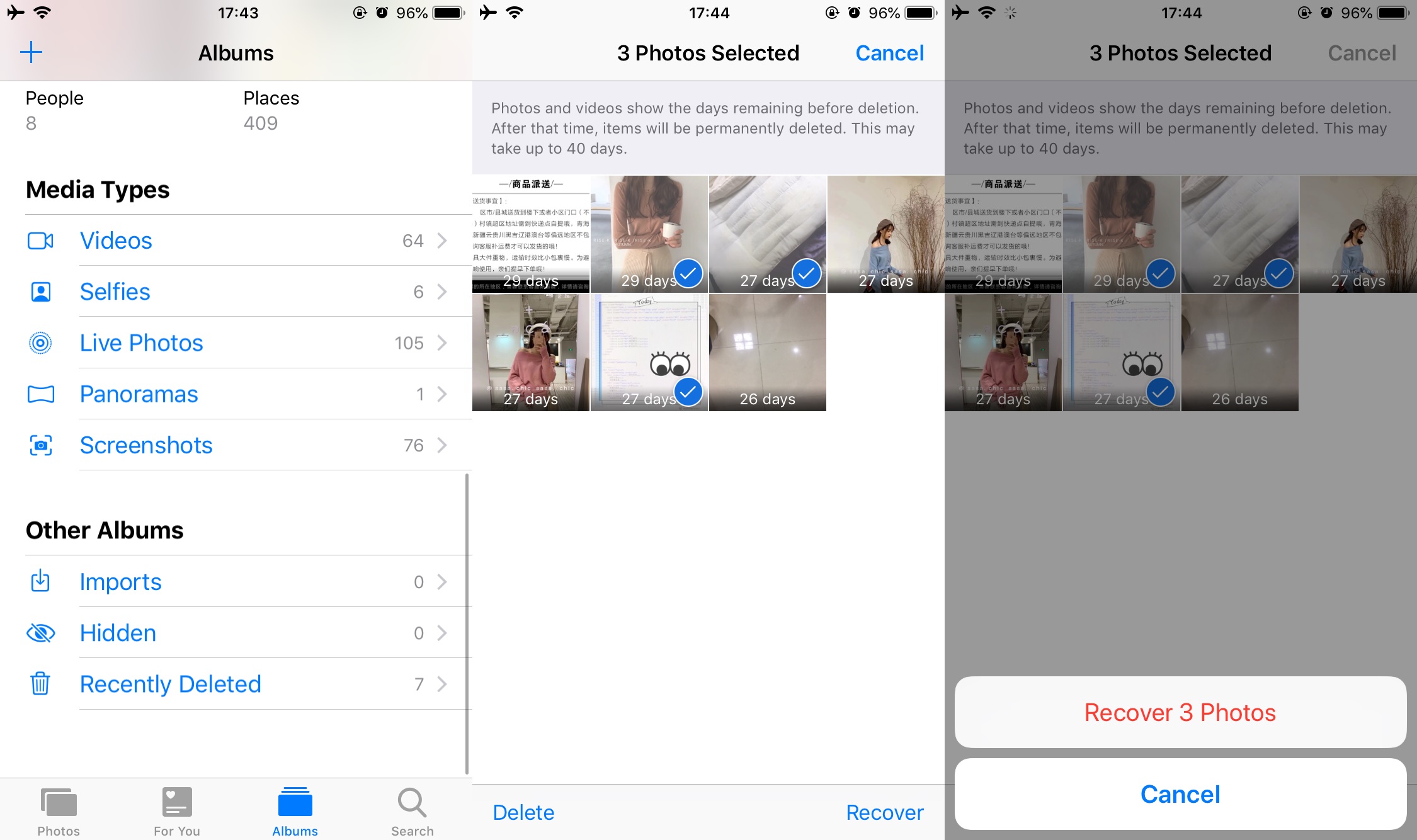
photo recently deleted

Recovering deleted photos on your iPhone 14 is a straightforward process. However, if it’s been more than 30 days since you deleted the photos, you won’t be able to retrieve them from the ‘Recently Deleted’ feature in the Photos app. In this case, your best option is to use a specialized photo recovery program to recover the deleted photos directly from your iPhone 14’s memory, without the need for a backup.

Part 2. Recover Deleted Photos from iPhone 14 without Backup

Among the available tools for recovering deleted photos on iPhone 14, iPhone Data Recovery stands out as an excellent option. Its advanced algorithms enable deep scans of the device’s memory, making it possible to recover not only photos but also other types of data, such as messages, contacts, notes, and call history. In addition, this iPhone photo recovery software provides the ability to retrieve images from iTunes and iCloud backups, making it a versatile tool.

More Features of iPhone Data Recovery

  • Easily recover lost or deleted data from your iPhone, iPad, or iPod touch.
  • Retrieve lost or deleted photos from your iTunes or iCloud backup.
  • Recover lost or deleted photos directly from your iOS device.
  • Save the recovered data directly to your computer for safekeeping.
  • Fix a variety of iOS system issues, including broken iPhones, stuck on the Apple logo, and DFU mode.
  • Compatible with the latest iPhone models (iPhone 14/14 Plus/14 Pro/14 Pro Max) and iOS 16.

d_win d_mac

Guide: How to Recover Deleted Photos from iPhone 14

Step 1. Download and Launch the Software
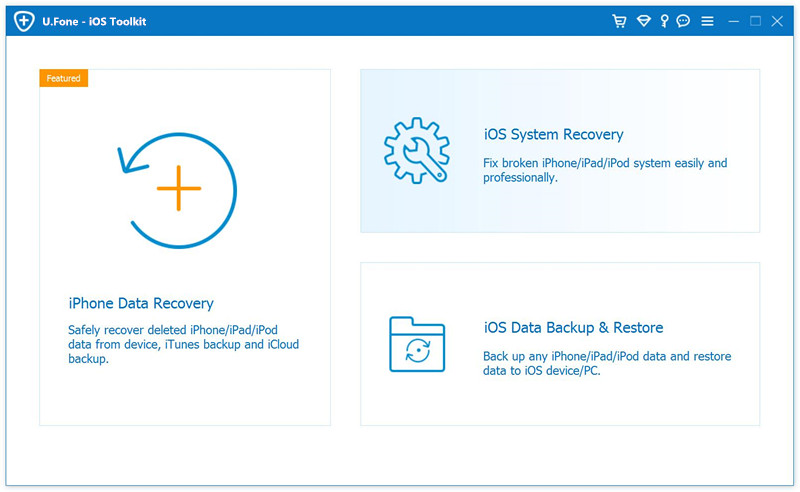
After downloading and installing iPhone Data Recovery on your computer, you can launch the program. The software’s main interface provides you with three primary functions, among which you can select “iPhone Data Recovery” from the list.
launch iphone data recovery

Step 2. Connect Your iPhone to Your Computer
Choose the “Recover from iOS Device” option to retrieve lost photos directly from your iPhone. Then connect your iPhone to your computer with an Apple USB cable.
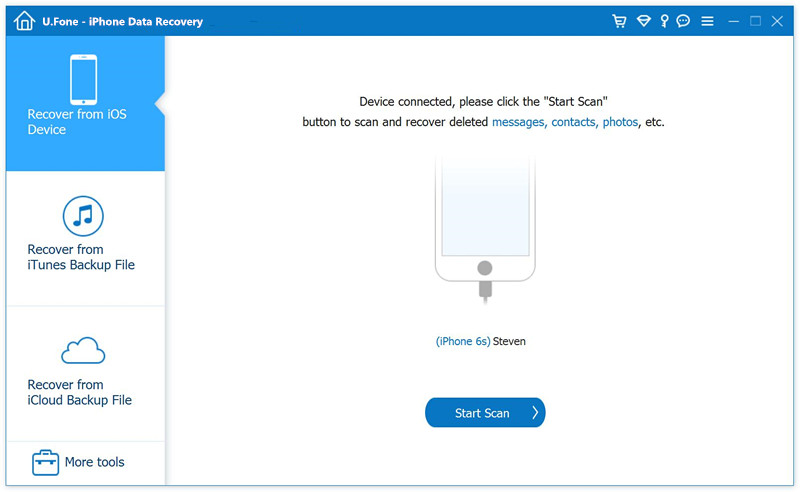
connect iphone to pc

Step 3. Scan and Analyze Data on iPhone
Once your iPhone is connected to the computer, click on the “Start Scan” button to begin scanning for lost data. The program will then proceed to analyze all of the files and data on your iPhone. After the scan is completed, the program will display all of the data and files that were found on your iPhone.
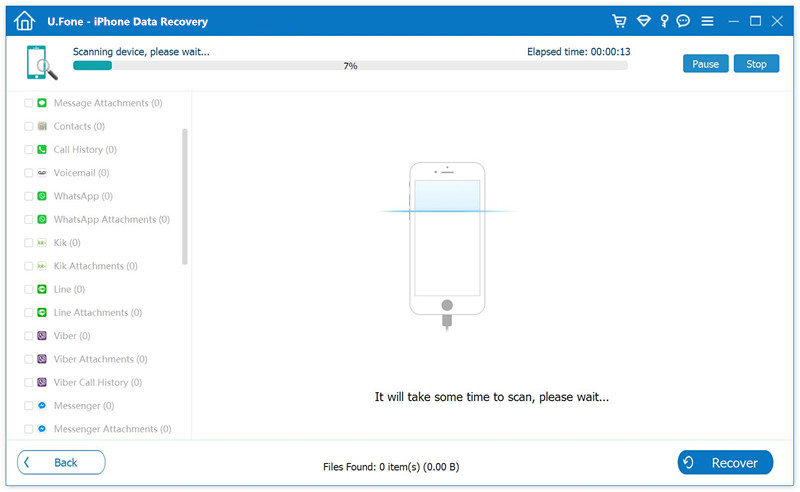
scan app

Step 4. Choose and Preview the Desired Photos
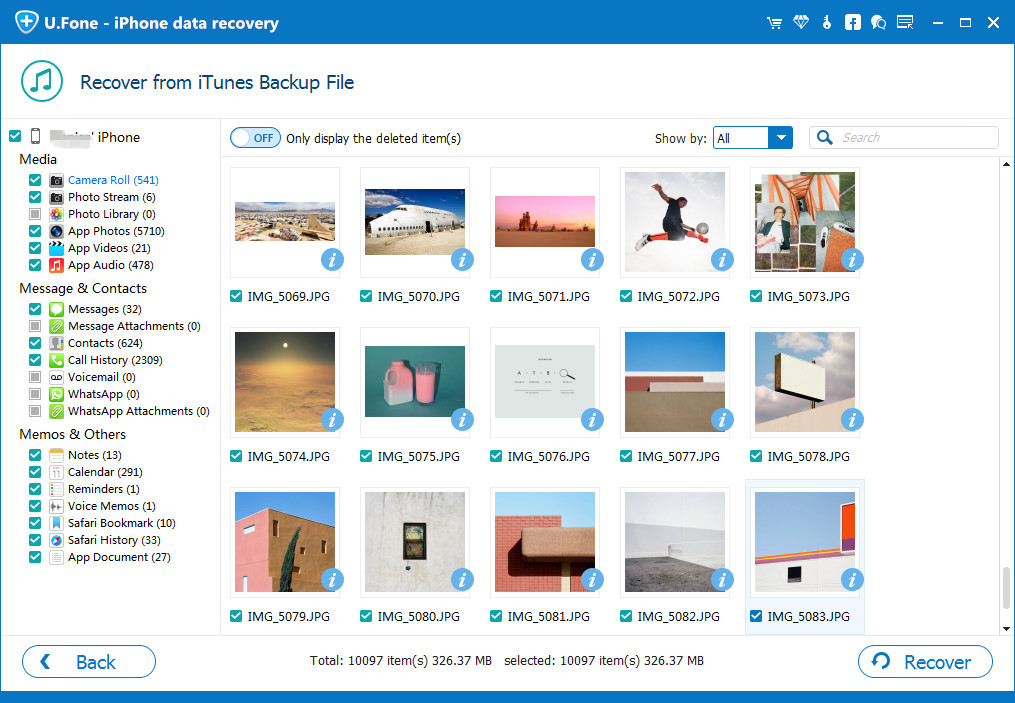
Navigate to the left-hand side of the interface and select the specific photo categories you want to recover, such as “Camera Roll”, “Photo Stream”, “Photo Library”, “App Photos”, “App Videos”. Once selected, the recoverable photos and videos will be displayed on the right-hand side of the interface, where you can preview them. Simply choose the ones you want to recover.
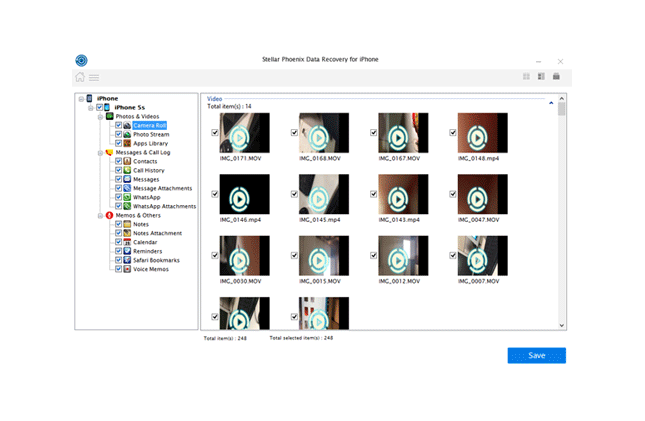
select data to recover

Step 5. Start to Recover Photos on iPhone
Select the photos you want to recover and click on the “Recover” button to start the recovery process. The software will then retrieve the chosen photos and save them to your computer. Be sure to pick a safe location to store the recovered files.
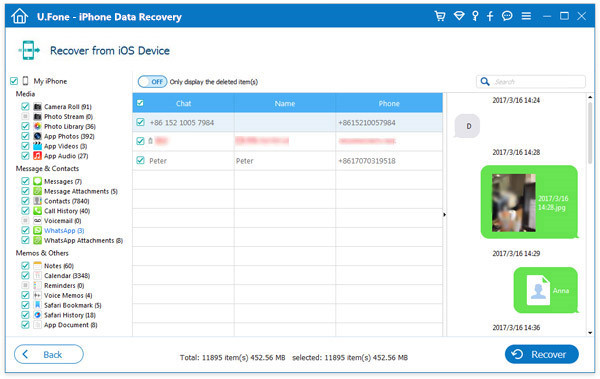
start to recover

d_win d_mac

Part 3. Recover Deleted Photos from iPhone 14 via iTunes

A viable option to recover photos from an iTunes backup is to perform a selective restore of the backup. By doing so, you can recover specific photos from the backup without losing any other data on your iPhone. Keep in mind that if you perform a full restore, it will erase all the data on your iPhone and replace it with the backup, including the newly taken photos that you might not want to lose.

Step 1. Launch iTunes on your computer and connect your iPhone 14 to it using a USB cable.
Step 2. Click on the iPhone icon, then navigate to the “Summary” tab in the Settings section.
Step 3. Under the “Backups” section, click on “Restore Backup” and select the most recent backup.
Step 4. Wait for the backup to restore, and then check if the deleted photos have been recovered on your iPhone.
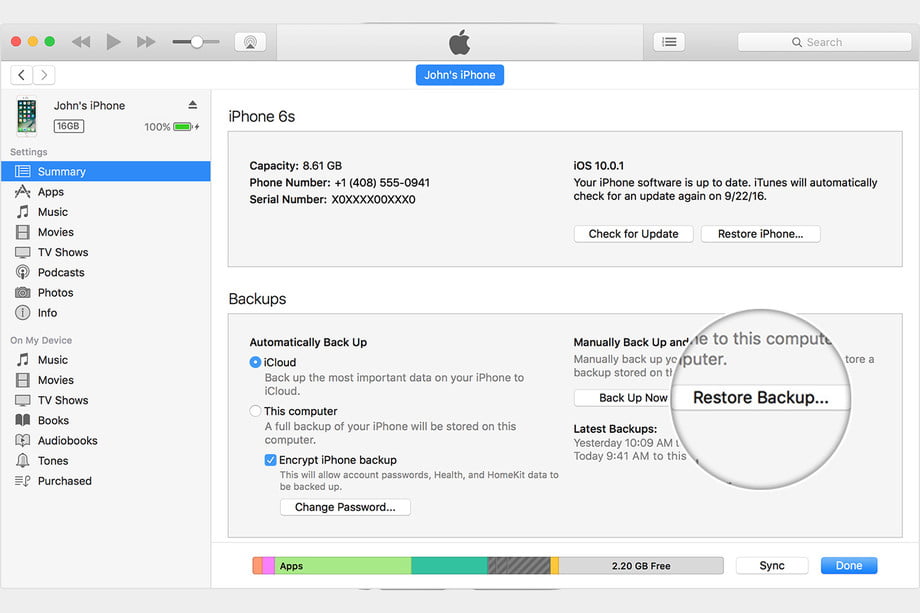
restore from itunes backup

Conclusion

Losing important photos from your iPhone 14 can be a frustrating experience, but fortunately, there are various ways to recover them. You can try recovering the deleted photos from your Recently Deleted album, iTunes backup, or use third-party data recovery tools such as iPhone Data Recovery. With these methods, you can easily retrieve your lost photos from your iPhone 14/14 Plus/14 Pro/14 Pro Max, regardless of the cause of the loss.
Recover Deleted Photos from iPhone 14

How to Fix iOS 16 iPhone to Normal without Data Loss

Summary
iPhone get into abnormal state after upgrading to iOS 16? Read this post then you will get the best method to fix iPhone which run on iOS 16 to normal without data loss.
My iPhone 13 stuck at restart loop after I upgraded it to iOS 16. What happen on it? Any ways to fix this device to normal? By the way, I haven’t backed up recently. How to return it to normal without data loss? Thanks so mush!

It is no doubt that the hottest topics are mostly about the newly released iOS 16. Recently Apple released iOS 16.4 and iPadOS 16.4, two updates that come after several weeks of beta testing. iOS 16.4 add a long list of new features, ranging from updated emoji characters to web push notifications on the iOS device. Lots of iOS users want to get their device on iOS 16, they can’t wait to upgrade their device to iOS 16. Lots of iOS users want to upgrade their device to the newest iOS 16. However it likely have many bugs that frustrate the users. Some iPhone user complain a variety of performance issues with iOS 16. The current list of iOS 16 performance issues includes UI lag, freezes, lock ups, and random reboots. These are extremely common, particularly on older iPhone models. This post aims to show you some simple tips and the best solution to fix iOS 16 iPhone to normal. Hope it will do a great help for you.

Part 1. Simple Tips to Fix iOS 16 iPhone to Normal

If you get some issues on your iOS 16 device, and you don’t have time to get in touch with Apple support, here are some simple tips may help you fix iOS 16 performance issues you’ve meet on your device.

1.Restart Your Phone
If you start noticing iPhone stuck or another performance issues after installing the latest version of iOS 16, try restarting your iPhone. Power it down, leave it off for a minute, and then turn it on. This has solved many issues for iPhone user in the past.

2.Clean Up the Storage of Your iPhone
If you’ve used your iPhone for some years you might have a ton of clutter taking up space on its internal storage. Deleting unnecessary files could help speed up your iPhone. This is especially true if you’re almost out of storage.

3.Stop Using Background App Refresh
iOS background app Refresh feature refreshes apps in the background to show you the latest data when you open it. It also makes your phone work in the background. So, if you don’t need this, you might want to shut the feature off. It may help to fix iOS stuck issue on device.

4.Downgrade iOS System
If it is not work for fixing abnormal state issues on iPhone with iOS 16, you can try downgrading device to the previous iOS version.

Part 2. Fix iOS 16 iPhone to Normal without Data Loss (Best Solution)

Well, if you try these tips above in the last part and it is not work perfectly, you can turn to this best solution. Thanks to U.Fone iOS System Recovery, you are able to fix iOS 16 iPhone to normal without data loss. With the advanced technology design, this tool provides a faster and reliable way with users. Only some easy steps, you can get your iPhone back to normal state as usual. What case can this tool help to fix? It supports to effortlessly repair 150+ iOS system issues at home like restart loop, stuck at white Apple logo, stuck on recovery mode, etc,. What’s more, this powerful tool is compatible with all iOS versions and devices including iOS 16 and iPhone 14 models.
d_win d_mac

How to Fix iPhone to Normal without Losing Data

Step 1. Install U.Fone iOS System Recovery
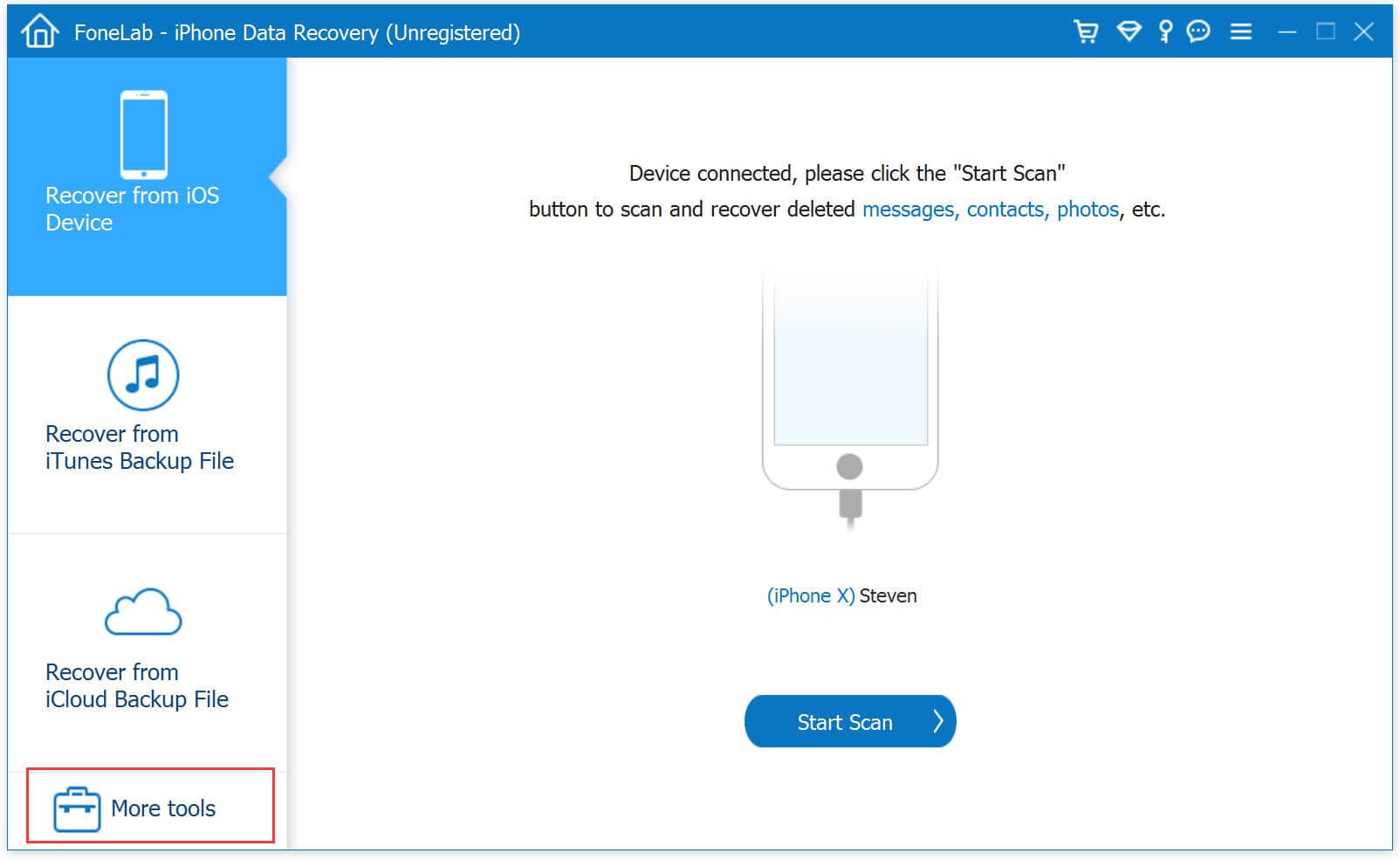
Download, install and run the U.Fone iOS System Recovery on PC/Mac computer, click the “More tools” function in its main interface. Then, connect your iPhone to the computer via an USB cable.

connect iPhone to computer

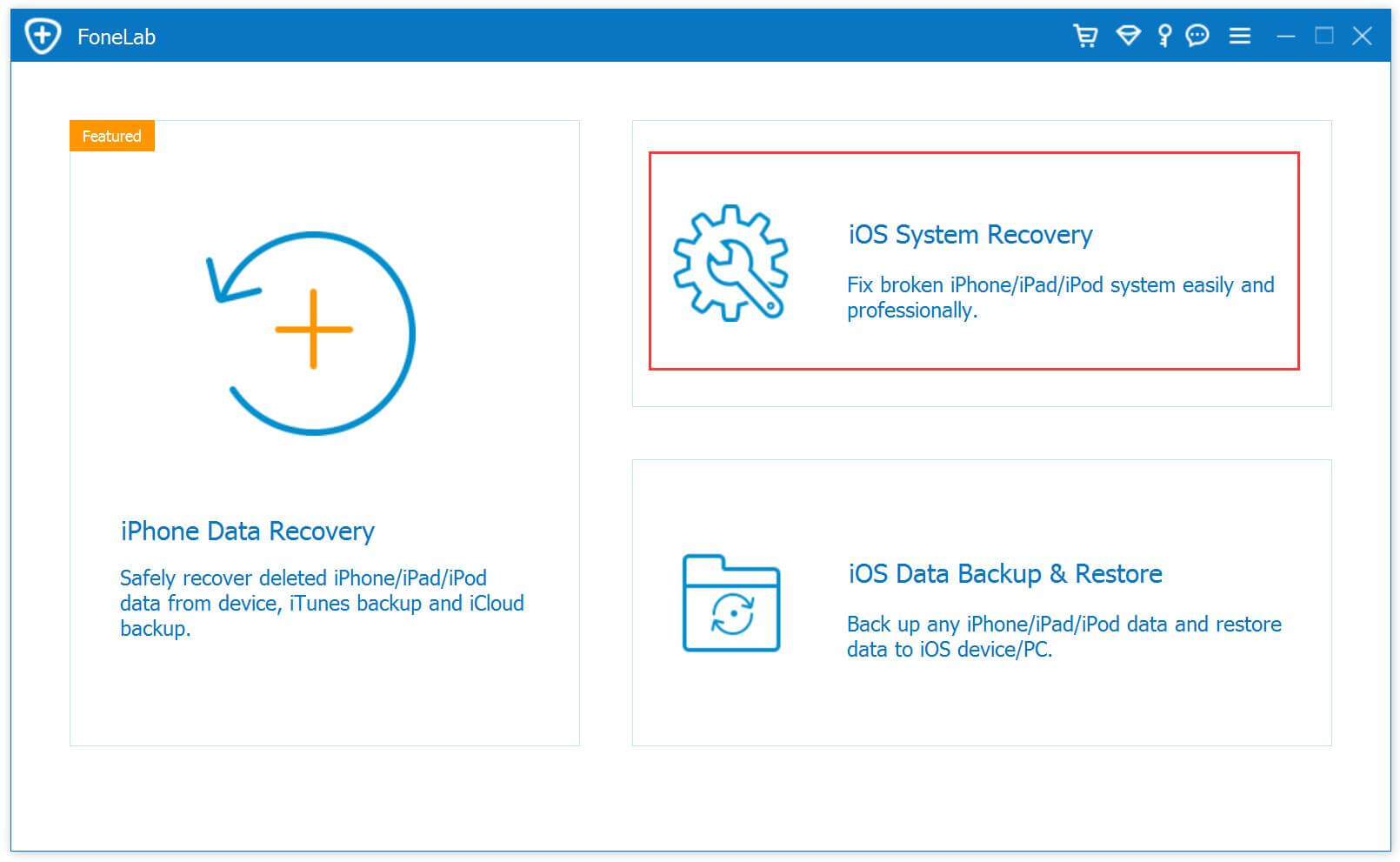
After that, a new window will pop up, offer three options for your chosen. To fix iPhone to normal without data loss, tap “iOS System Recovery” option.

select iOS System Recovery

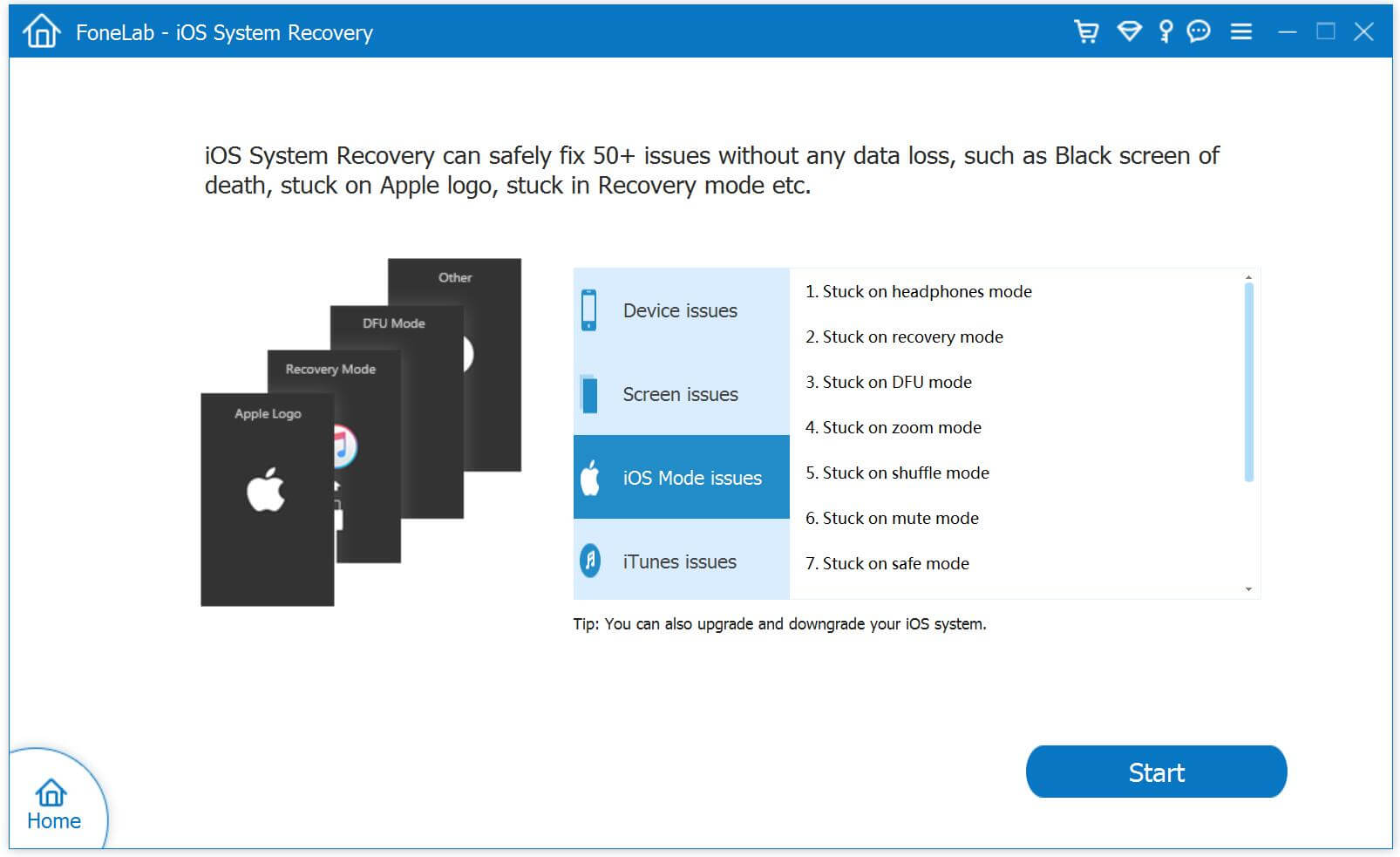
Then click “iOS Mode issues”, the program enable to fix 50+ issues, like stuck on headphones mode, stuck on recovery mode, stuck on DFU mode, etc,. Select one depend on your case. Then, hit the “Start” button to go on.

select iOS Mode issues

Step 2. Select Fix Mode for iPhone
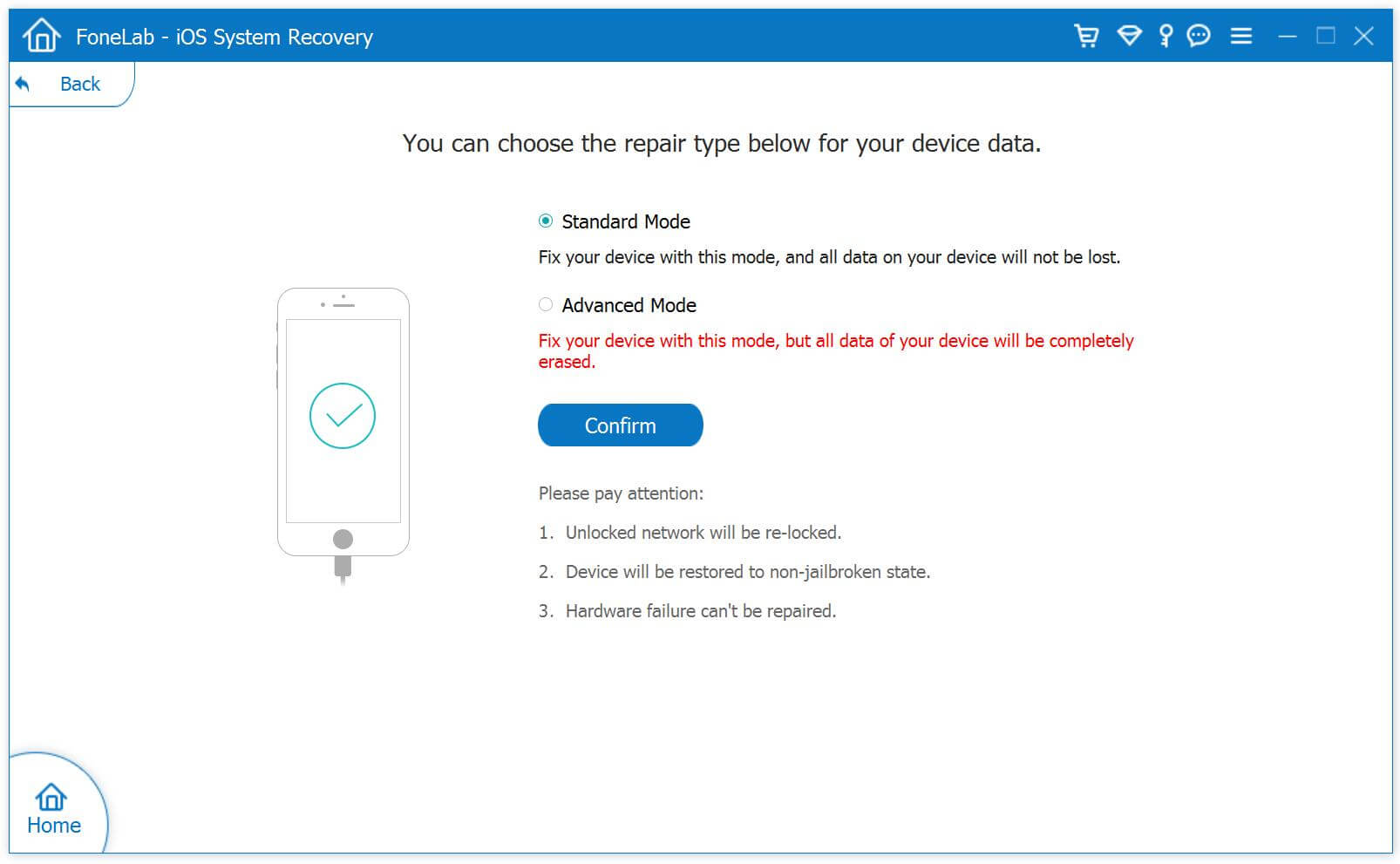
You then will get into a new window, like the screenshot below. Please select “Standard Mode” to fix your iPhone without data loss, then click “Confirm” to go on.

iPhone fixing mode

Tips: You are suggested to choose advanced mode only if the standard mode fails. (It may lead to data loss on device).

Step 3. Detect Your iPhone
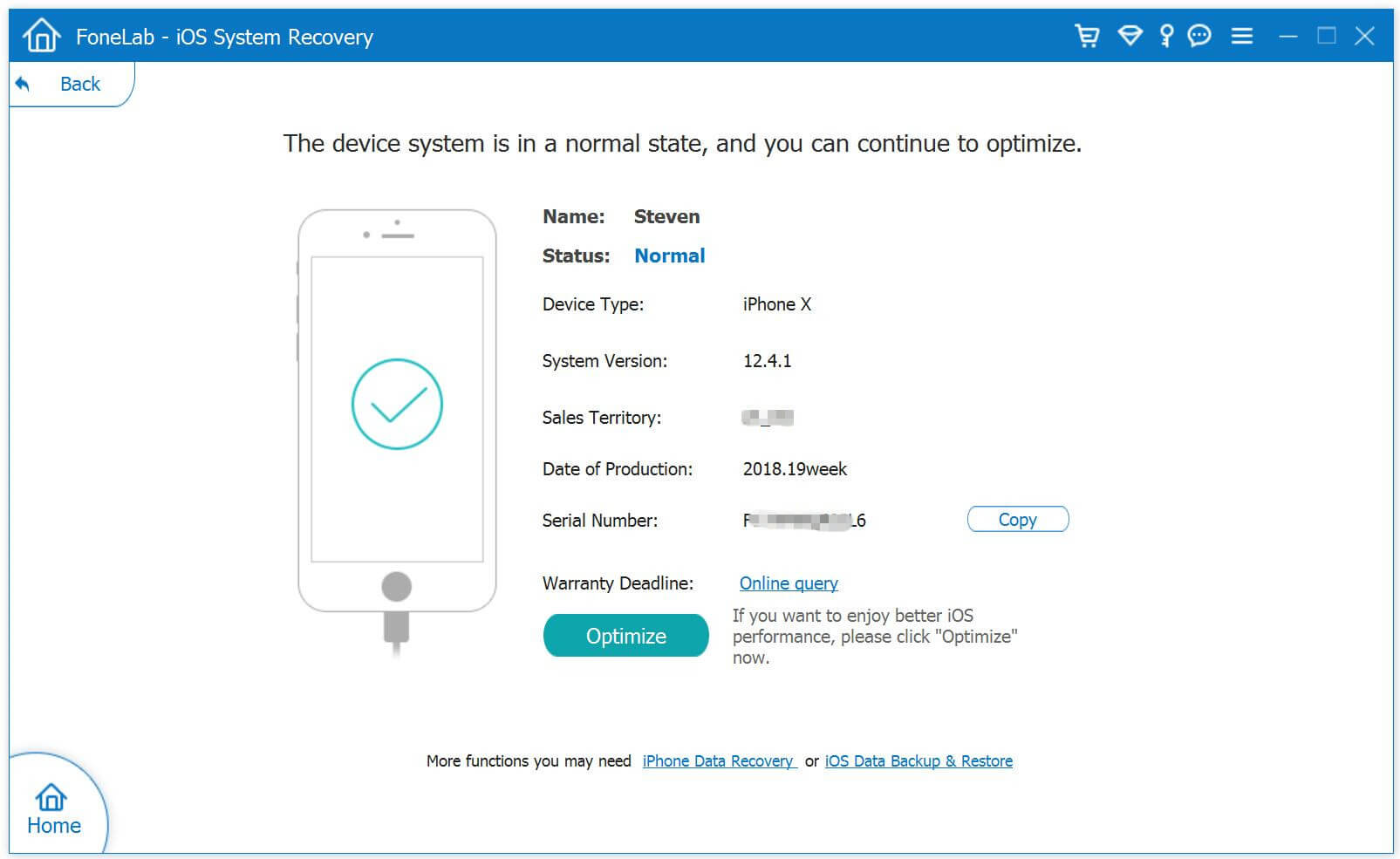
The program will detect and analyze your iPhone and shows its information.

detect iphone

Step 4. Select Firmware Package
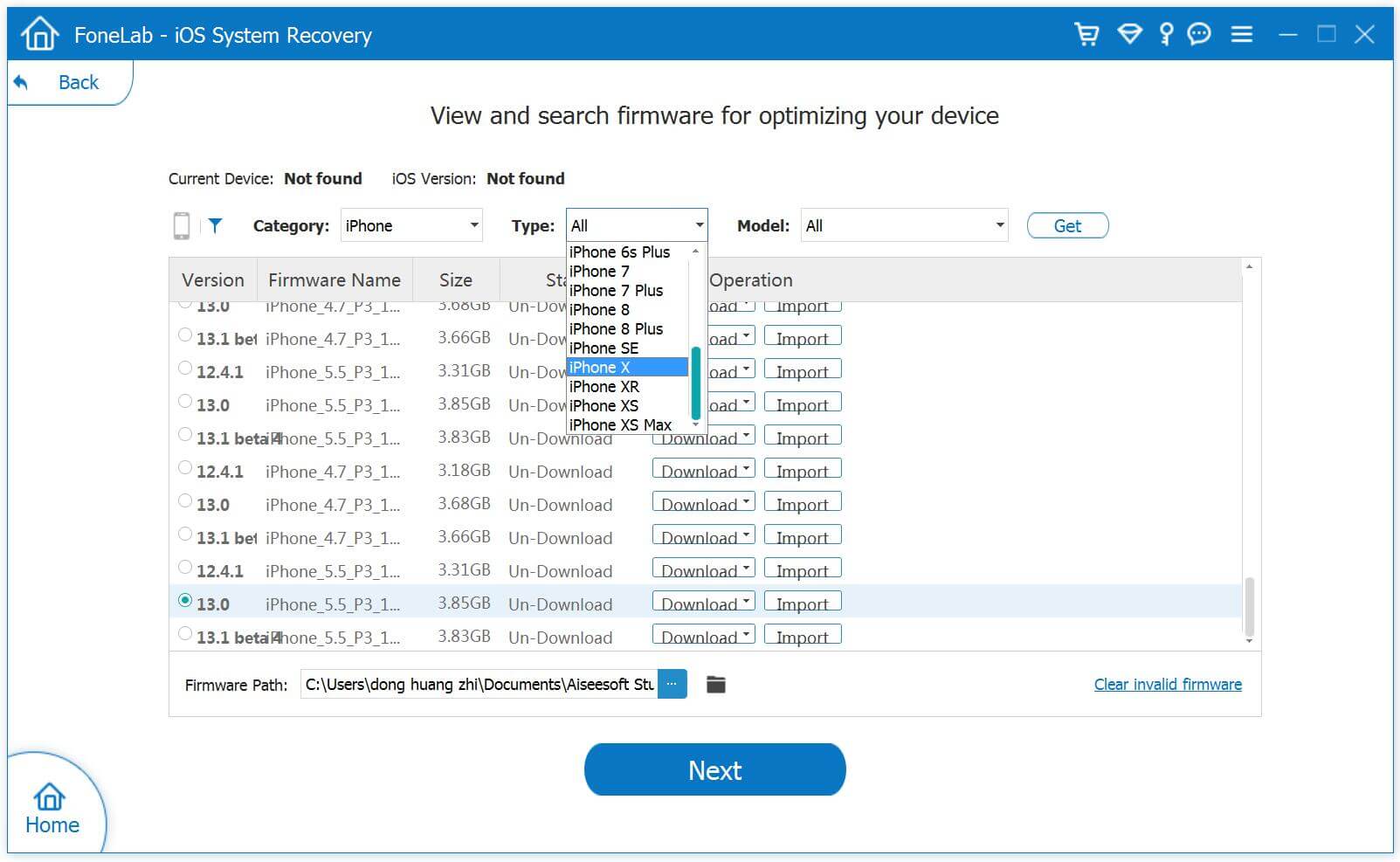
In this step, select a suitable firmware package for your iPhone, the program provides the latest iOS version for iPhone.

select Firmware

Step 5. Download Firmware Package for Fixing iPhone
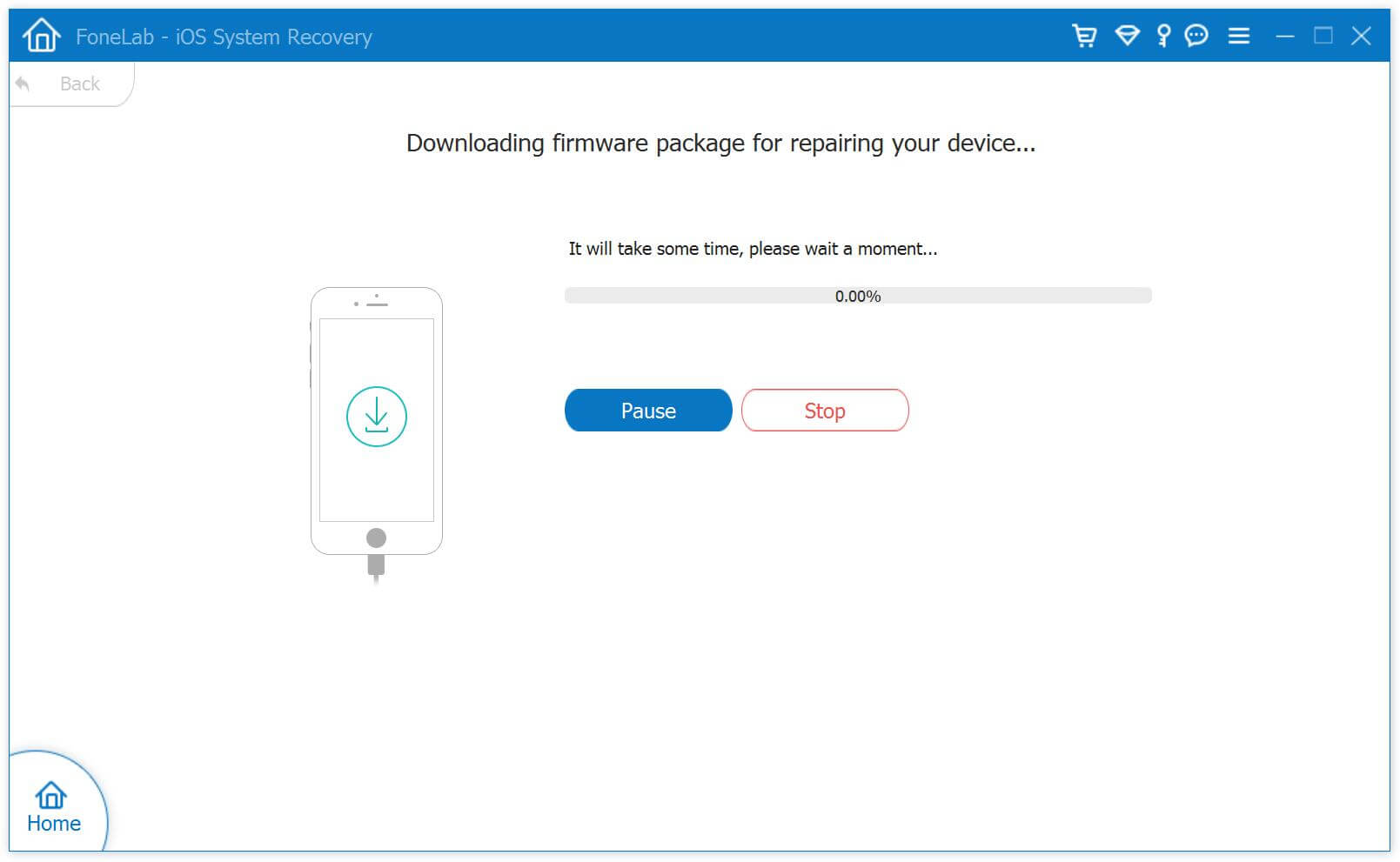
It will detect the model of your iPhone and displays available iOS system versions automatically. Select a version and click on “Next” button. It will start downloading Firmware package for repairing your iPhone. Please don’t interrupt the connection of your device during the download processing.

Download Firmware

Step 6. Fix iPhone to Normal without Data Loss
When the Firmware package downloading completes, click the “Repair” button. The program will begin to fix iOS system to normal without data loss, please keep connecting your iPhone with the computer until the fixing task finishes.

fix iphone without data loss

Well done, now your iPhone has restart automatically, and it has back to normal state without data loss.
d_win d_mac

The Bottom Line

After reading this post, we hope you have fix your iPhone successfully. Of all solutions mentioned above, get help of U.Fone iOS System Recovery is the most effective solution to fix iOS 16 iPhone problems. Almost all iPhone issues can be solve by using this program. Though it can fix iOS issues without data loss on iOS device, don’t forget to back up your device frequently. That’s all about our guide. If you have any questions about this topic, welcome to share it with us.

Fix iOS 16 iPhone without Data Loss

How to Transfer Data from Samsung to iPhone 14/13/12

Summary
Wonder how to transfer data from Samsung to iPhone 14/13/12? In this article, we will explore 2 ways that can assist you to transfer data including WhatsApp data, photos, media, files, contacts, and messages to iPhone 14/13/12 from Samsung.

“I have recently acquired an iPhone 13 and I am looking for guidance on how to transfer data from Samsung to my iPhone 13. Can anyone provide me with instructions or suggestions on how to proceed with this process?”

For those who are transitioning from Samsung to iPhone 14/13/12, transferring data from the old device to the new one is often a major concern. But don’t worry, you’ve landed on the right page! We’ve got you covered with the best tips and tricks that can assist any user to transfer data from Samsung to iPhone 14/13/12.

Part 1: How to Transfer Data from Samsung to iPhone 14/13/12 with Phone Switch [Best Tool]

When transferring data from your Samsung to iPhone 14/13/12, it’s crucial to use a data-sharing software that is reliable and efficient. Phone Switch is the perfect tool for this task, as it has advanced technology that enables seamless and secure data transfer without the risk of losing any original data.

With Phone Switch, you can transfer a variety of data types from Samsung to iPhone 14/13/12, including WhatsApp data, photos, media, files, contacts, and messages. This software is designed to simplify the transfer process and ensure that the operation can be completed with just a few clicks. So, if you’re looking for a hassle-free way to transfer data from Samsung to iPhone 14/13/12, Phone Switch is the way to go.

Key Features of Phone Switch

  • Quickly transfer large amounts of data from Samsung to iPhone 14/13/12.
  • Transfer up to 18+ different types of data between phones.
  • Compatible with over 6000 different mobile devices.
  • Simple to use, even for those who are beginners.

Guide: How to Transfer Data from Samsung to iPhone 14

Before proceeding with the steps below, ensure that Phone Switch is downloaded and installed on your computer.

d_win d_mac

Step 1. Run the Program and Connect Samsung and iPhone 14
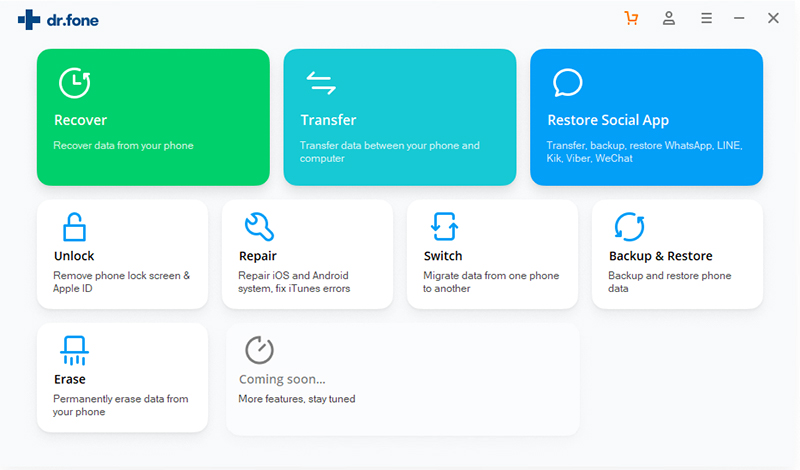
After launching Phone Switch on your computer, select the “Switch” mode to begin. Connect both your Android phone and iPhone 14 to your computer using USB cables, and ensure that your computer recognizes both devices before proceeding. The Phone Switch interface will be displayed on the screen.

phone switch home

Step 2. Choose File Types to Switch
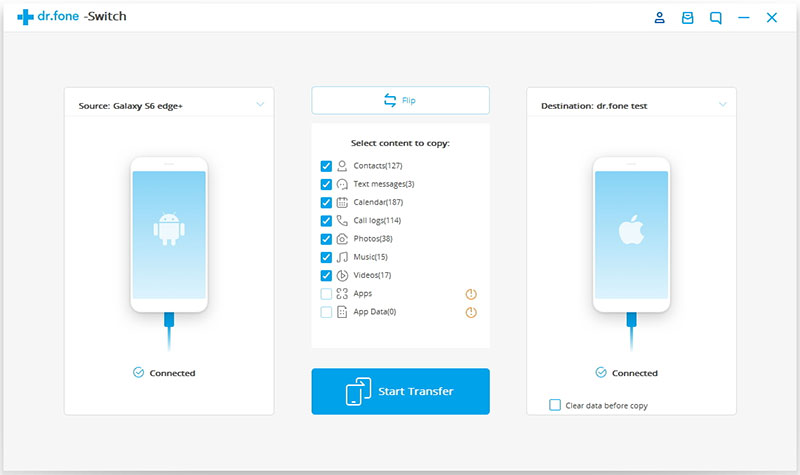
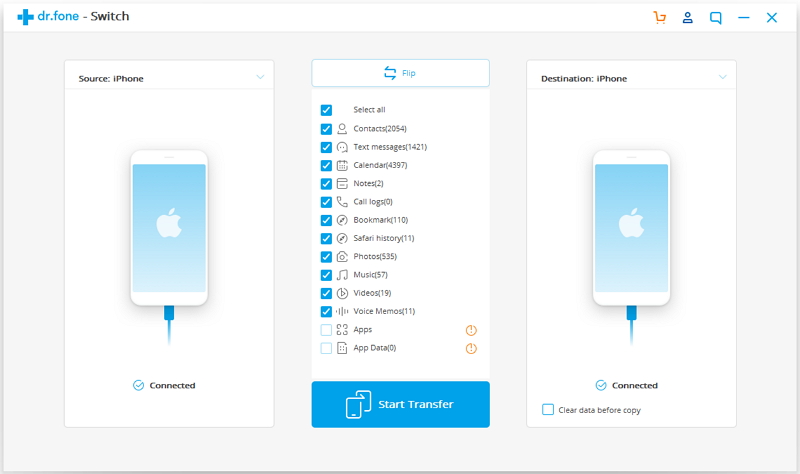
Once the Phone Switch program detects both devices, click the “Flip” button to ensure that the Samsung phone is on the left side as the source device, and the iPhone 14 is on the right side as the target device. You can now select the data types you want to transfer to your new iPhone 14.

choose file types

Step 3. Transfer Data from Samsung to iPhone 14
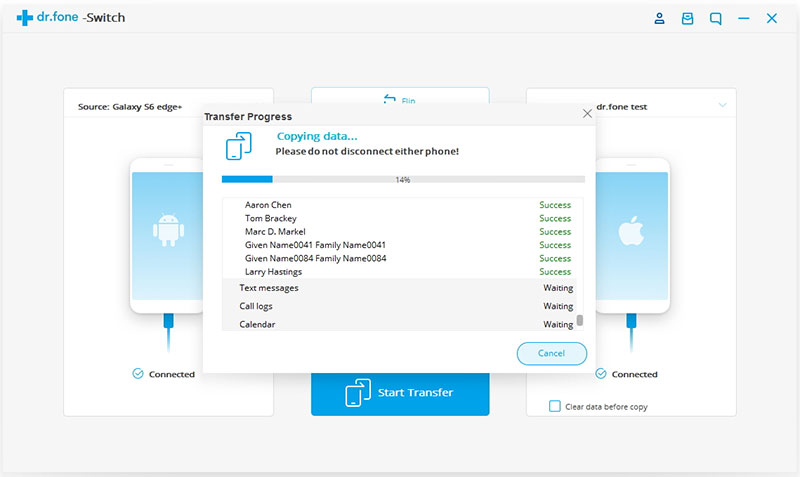
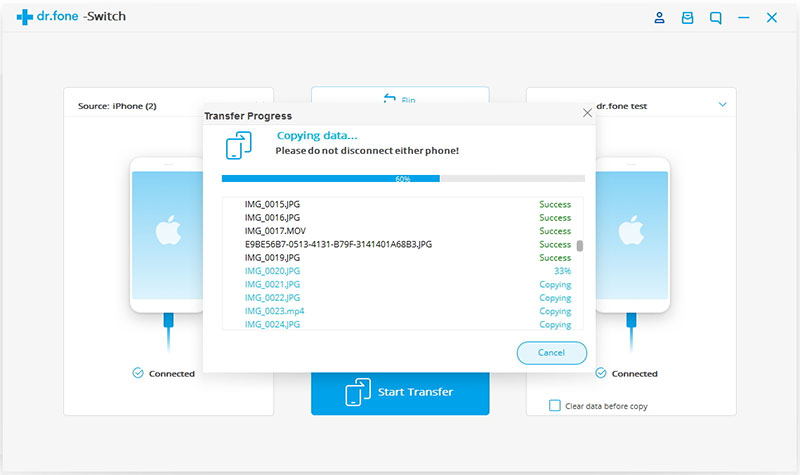
Simply click on the “Start Transfer” button and wait for the program to import the selected data from Samsung to iPhone 14. It’s important to avoid disconnecting either device during the transfer. Once the process is complete, you should find all your desired data, including text messages, call logs, calendar, photos, videos, and music, on your new iPhone 14.

transfer data to iphone

Part 2: How to Transfer Data from Samsung to iPhone 14/13/12 via Move to iOS

Move to iOS is a free app that allows for easy transfer of data between Android and iPhone devices. However, it can only be used when setting up a new iPhone. If you have already set up your iPhone 14, we recommend using the first method with Phone Switch. Here are the steps to transfer data from Samsung to iPhone 14 via Move to iOS:

Step 1. Install the Move to iOS app on your Samsung device from the Google Play Store.

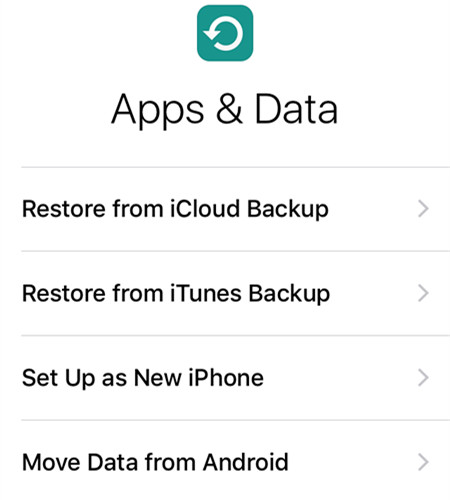
Step 2. On your iPhone 14, go to the ‘Apps & Data’ screen and select ‘Move Data from Android’.

select move data from android

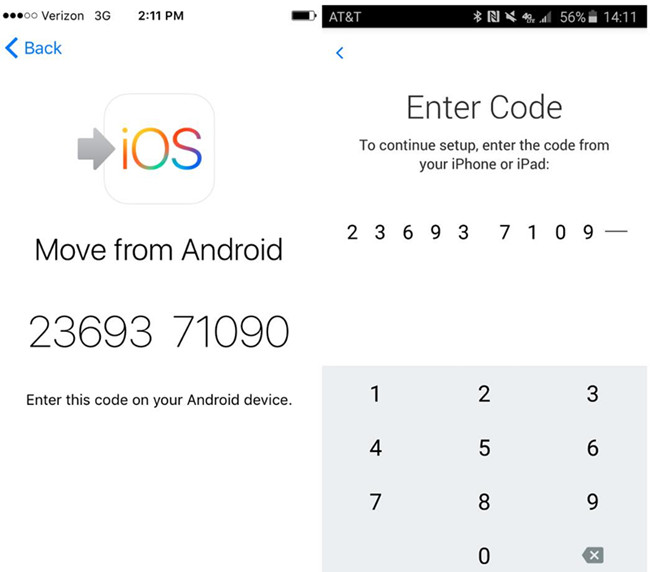
Step 3. Tap ‘Next’ and then wait for a ten or six-digit code to appear on the iPhone 14 screen.

wait for code

Step 4. Open the Move to iOS app on your Samsung phone and follow the on-screen instructions until you reach the point where you’re asked to enter the code provided on your iPhone 14.

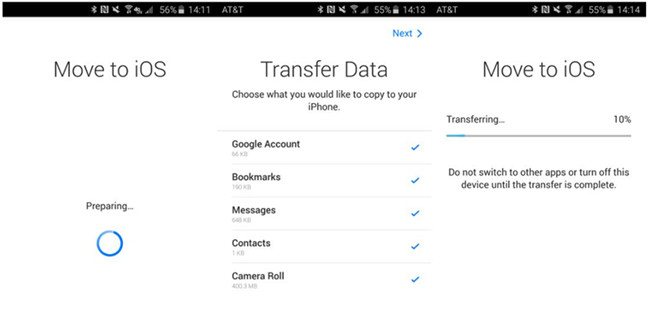
Step 5. Choose the data you want to transfer from your Samsung phone to the iPhone 14 and then click ‘Next’ to start the transfer.

Step 6. Wait a few minutes for the transfer to complete. Once done, finish setting up your iPhone 14 and access the transferred data.

finish transfer

Conclusion

No matter which data transfer method you choose to transfer data from Samsung to iPhone 14/13/12, this post has provided clear instructions on each method to simplify the process. If you are still unsure which method is the best for you, we highly recommend using the MobileTrans data-sharing tool. It offers a fast and straightforward data transfer operation that is sure to make the transition from Samsung to iPhone 14/13/12 much easier for any user.
Transfer Data from Samsung to iPhone 14

How to Transfer Contacts to New iPhone 14/13/12

Summary
Wondering how to transfer contacts to New iPhone 14/13/12?Read this article, you will learn four ways on how to transfer contacts to new iPhone 14/13/12. Whether you want to use SIM Card or transfer contacts from iPhone to iPhone with iTunes, you will find the solution here.

Getting a new iPhone is an exciting experience, and the first thing most people want to do is to transfer data from the old device to the new one. Among all the data on your phone, your contact list is perhaps the most important information. Losing your contacts can be a nightmare, especially if you have a large list of people you need to keep in touch with. Fortunately, with the advancements in technology, transferring contacts to a new iPhone has become a hassle-free task and you can complete in a matter of minute.

In this guide, we will provide you with three different methods to transfer your contacts to your new iPhone 14/13/12 that you can use to transfer your contacts seamlessly. These methods include using U.Fone – iOS toolkit, iTunes, and SIM Card. By following the step-by-step instructions, you can transfer your contacts from your old iPhone to your new one quickly and easily.

Method 1. Transfer Contact to New iPhone 14/13/12 Using iOS Toolkit

iOS Toolkit – Phone Switch is a robust software solution that facilitates the seamless transfer of data to and from iOS devices such as iPhones, iPads, and iPods. This all-in-one toolkit enables users to easily manage their personal data, including contacts, SMS, photos, music, and videos, among others.
With iOS Transfer, you can effortlessly export, add, delete, and organize your data, allowing for more efficient management of your iOS device. This versatile program makes it simple to transfer files between your iOS device, Android and WinPhone, ensuring that your data is always accessible and up-to-date.

More Features of U.Fone iOS Toolkit

  • Transfer contacts, SMS, photos, music, video and more from iPhone to iPhone.
  • Backup and Restore your phone and app data easily.
  • Support data transfer between iOS and Android devices.
  • Easy-to-use file management system.
  • Compatible with all iOS devices, including iPhones, iPads, and iPods.
  • Support latest iOS 16.

Guide: How to Transfer Contacts to New iPhone 14/13/12

Download and install U.Fone iOS Toolkit on your Windows & Mac computer.

d_win d_mac

Step 1. Connect Your iPhones
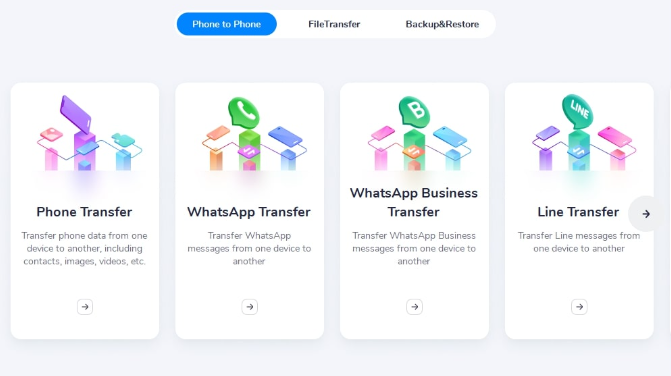
Connect both your old iPhone and new iPhone 14 to your computer using USB cables. Then launch iOS Toolkit – iOS Transfer and select “Phone Transfer”, and choose “Phone to Phone” option to start transferring contacts.

ios transfer interface

Step 2. Select Contacts to Transfer
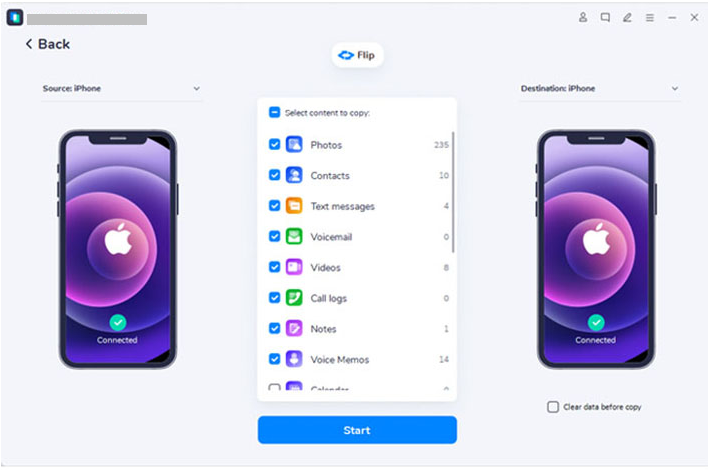
Locate the “Flip” button and use it to select them as the source and the destination. Then the software will detect and display all available files for transfer. To transfer your contacts, make sure that the “Contacts” option is selected, and then click on the “Start” button to begin the transfer process.

transfer file from iphone to iphone

Step 3. Transfer Contacts from iPhone to iPhone 14/13/12
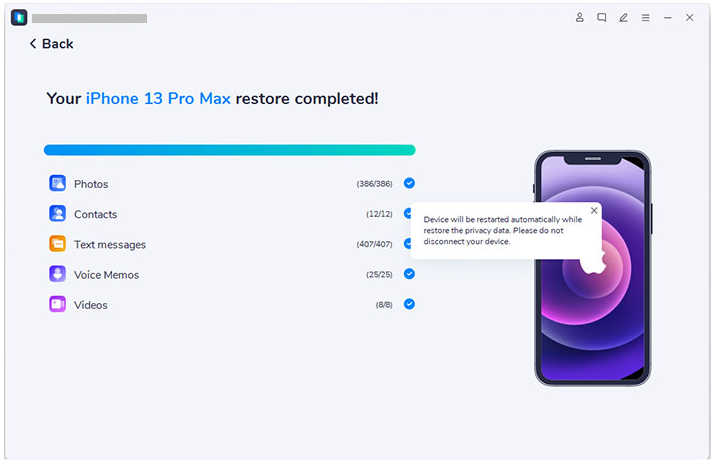
U.Fone will start transferring contacts from your olde iPhone to iPhone 14/13/12.

transfer completed

Once the transfer process is complete, disconnect both of your iPhone, and all the contacts will be transferred to your new iPhone 14/13/12.

d_win d_mac

Method 2. Transfer Contact to New iPhone 14/13/12 via iTunes

iTunes is also a workable way to transfer contacts, music, videos, and other data between your iOS devices, but it’s music more complicated. Here’ s how to transfer your contacts using iTunes:

Step 1. First, make sure you have the latest version of iTunes installed on your computer.
Step 2. Connect the iPhone with the contacts you want to transfer to your computer using a USB cable. If iTunes doesn’t launch automatically, open it.

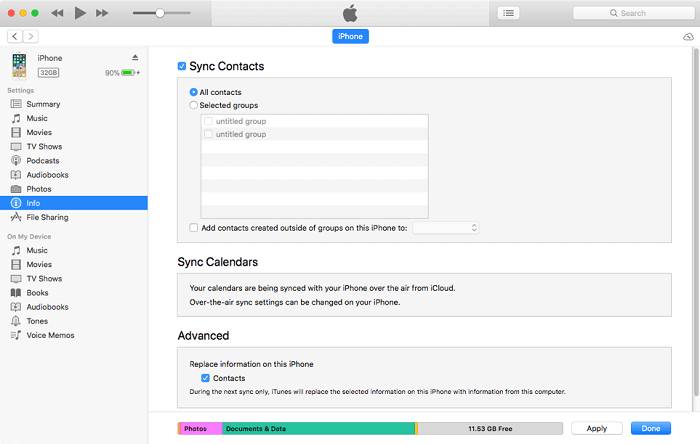
Step 3. In iTunes, click on the “Device” tab, then choose “Info”. From there, select “Sync Contacts” and click “Apply” to begin the sync process. This will copy the contacts from your iPhone to your computer.

Step 4. Once the sync is complete, disconnect the source iPhone and connect the target iPhone to your computer.

Step 5. In iTunes, select the “Device” tab again, and choose “Info”. This time, check the “Contacts” option in the “Advanced” section.

Step 6. Finally, click “Apply” to sync the contacts to your new iPhone.

That’s it! Your contacts should now be copied over from your old iPhone to your new one.”

transfer contacts itunes

Method 3. Transfer Contact to New iPhone 14/13/12 Using SIM Card

Another way to transfer contacts to a new iPhone is by using a SIM card. However, this method is only useful if your old phone and new phone support the same type of SIM card. Here’s how you can transfer your contacts using a SIM card:

Step 1. Insert the SIM card from your old phone into your new iPhone.

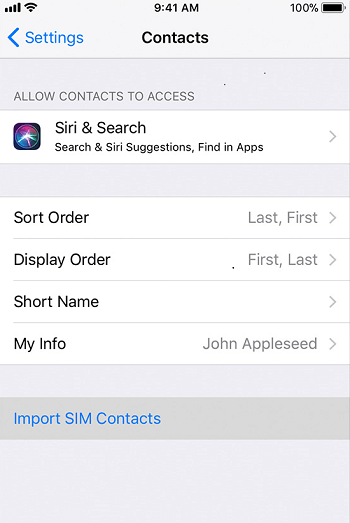
Step 2. Go to “Settings” on your iPhone and select the “Contacts” option.

Step 3. Click on the “Import SIM Contacts” option.

Step 4. Wait for the contacts to be imported to your new iPhone.

Step 5. Remove the SIM card from your new iPhone and insert your old SIM card back into your old phone.

import contacts from sim

Conclusion

Transferring contacts to a new iPhone has become a lot easier with the advancements in technology. You can use any of the above methods to transfer your contacts to your New iPhone 14/13/12. If you want a hassle-free and efficient transfer, we recommend using U.Fone – iOS Toolkit. However, if you prefer using Apple’ s native software, then iTunes is excellent option. Lastly, if you have a SIM card that supports your new iPhone, then using the SIM card method can also be a great option. Choose the method that works best for you and enjoy your new iPhone with all your contacts.

Transfer Contacts to New iPhone 14/13/12

How to Transfer Music to iPhone 14/14 Plus/14 Pro/14 Pro Max

Summary
Wondering how to transfer music to iPhone 14? Read this article, we will explore 3 ways to transfer music from computer to iPhone 14 series, including iPhone 14/14 Plus/14 Pro/14 Pro Max.

“How do I transfer music from my computer to my iPhone14 Pro without iTunes?”

If you frequently use your iPhone to relax and listen to music during your free time, you may want to consider enriching your music library. There are several ways to achieve this, such as downloading music directly to your iPhone, transferring music from your computer, or subscribing to popular music streaming services like Apple Music.

If you have recently acquired a new iPhone, you may be wondering how to transfer your music collection to your device. While using iTunes is a viable option, it may not always be the most efficient method. In this guide, we will explore various practical ways to transfer music to iPhone 14/14Plue/14 Pro/14 Pro Max, whether it be from a computer or music websites.

Method 1. Transfer Music to iPhone 14 from Computer with U.Fone – iOS Toolkit

When it comes to transferring music from your computer to your iPhone, the most effective and trustworthy method is by utilizing advanced data transfer software. With the iOS Toolkit – iOS Transfer, you can easily execute all types of data transfers, including from computer to iPhone or iPhone to computer, with just a few simple clicks.

In addition to its seamless transfer capabilities, iOS Toolkit – iOS Transfer offers a comprehensive suite of practical features that can make the data transfer process even easier. And with its user-friendly interface, navigating the software is a breeze, allowing you to transfer your music collection to your iPhone without any hassle or complications.

More Features of iOS Toolkit – iOS Transfer

  • Seamlessly export photos, music, videos, messages, and apps between your phone and PC.
  • Backup a diverse range of data types (over 18!) from both Android and iPhone devices to your PC.
  • Easily transfer data between more than 6000 mobile devices on different OS.
  • Efficiently transfer WhatsApp data between Android and iOS devices.
  • Compatible with both Windows and Mac OS.

d_win d_mac

Guide: How to Transfer Music to iPhone 14 from Computer

Firstly, download and install the newest version of iOS Toolkit – iOS Transfer to your computer from the link above.

Step 1. Connect Your iPhone to PC
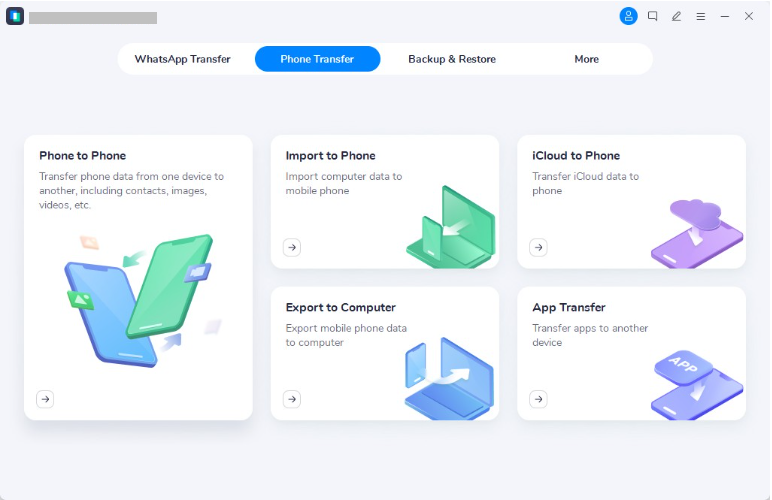
Connect your iPhone to your Mac/Windows PC, run iOS Toolkit – iOS Transfer, choose ‘Phone Transfer’ and click on ‘Import to Phone’ from the options as shown in the image.

ios transfer interface

Step 2. Select the Music File
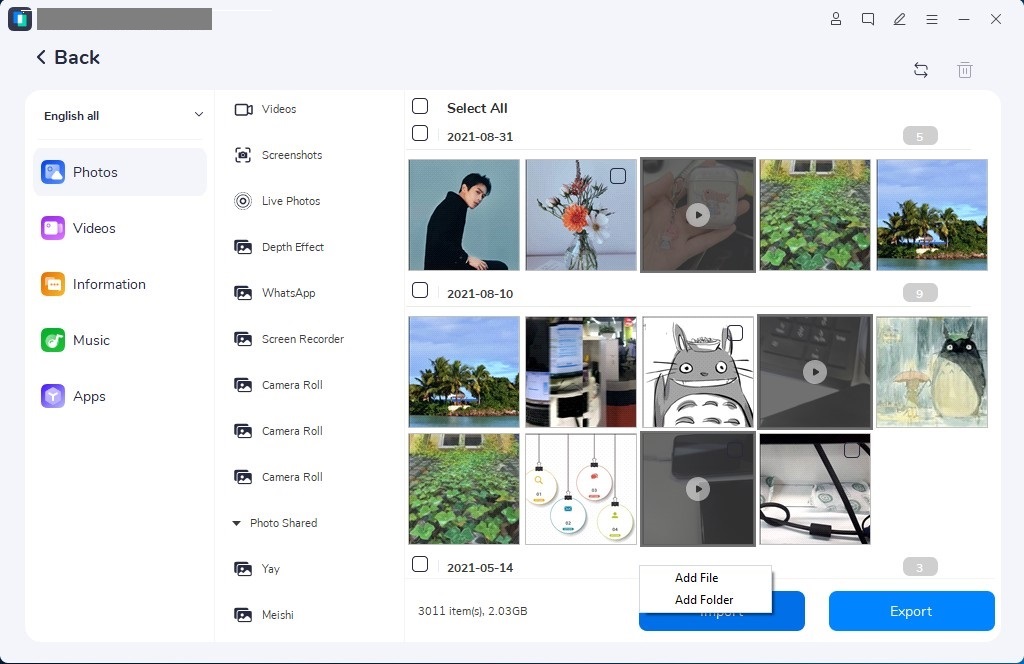
Clikc on ‘Music’ at the left-hand side of the interface, then click ‘Import’ and select ‘Add File’ to select the music file that you want to transfer to your iPhone.

select music file

Step 3. Transfer Music to iPhone
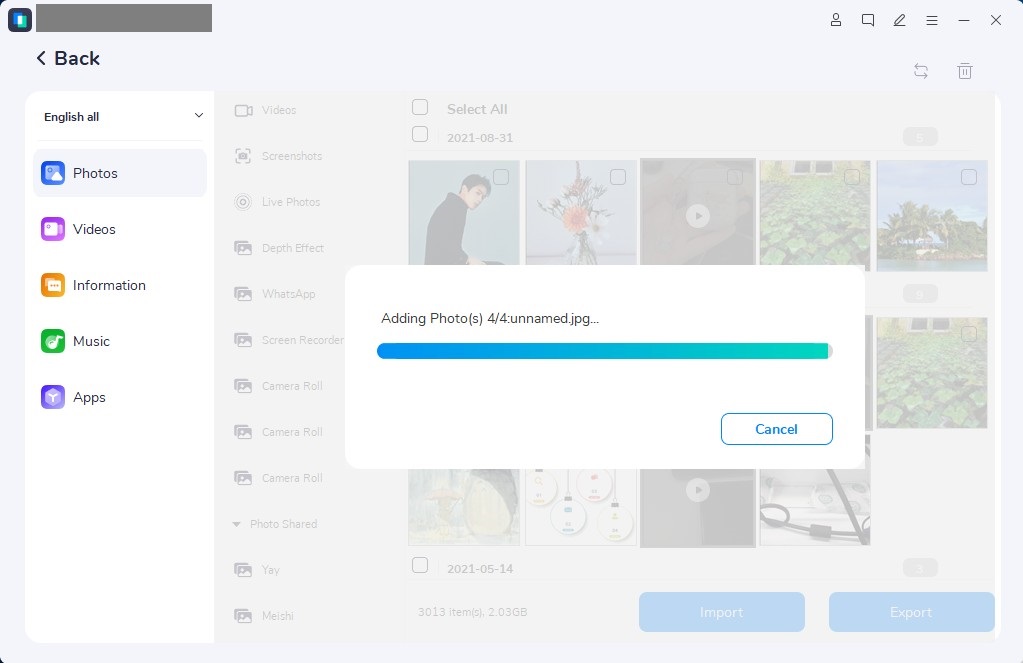
Please select the checkbox next to the music file and click on Import again to instantly transfer the music from your PC to your iPhone.

transfer music to iphone

That’s it! By using iOS Toolkit – iOS Transfer, transferring music from your iPhone to PC is now as easy as three simple steps.

d_win d_mac

Method 2. Add Music to iPhone 14 from Computer Using Cloud Storage

Cloud-based storage solutions offer a convenient way to transfer music files from a computer to an iPhone without requiring the use of a USB cable. Instead, these services enable seamless sharing of media files across all your devices through network connections.

To ensure successful transfer of music files from a computer to an iPhone 14/14 Plus/14 Pro/14 Pro Max using a cloud-based service, you should consider the following:

– Sufficient storage space in your cloud storage account to save the music files you wish to transfer
– Using the same account on both your computer and the iOS device
– Availability of a reliable and fast network connection for your PC and Wi-Fi or ample mobile data for your iPhone

For instance, Dropbox is a perfect example of a cloud-based storage service that can be used to copy music to an iPhone from a computer. Here are the steps to transfer music from computer to iPhone using Dropbox:

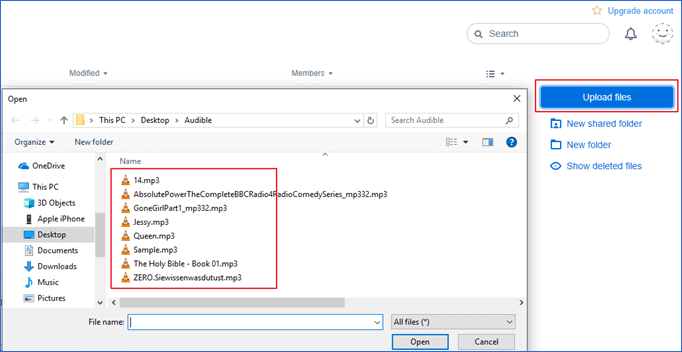
Step 1. Download and install the Dropbox program on your computer, and sign in to your account or create a new one. You can then upload the music files to Dropbox. Alternatively, you can sign in to Dropbox.com and upload the files there.

Step 2. Install the Dropbox app on your iPhone from the App Store.

Step 3. Sign in to the Dropbox app on your iPhone using the same account you used on your computer.

Step 4. Download the music files from Dropbox to your iPhone. You can do this by selecting the files you want to download and tapping the download icon. The music files will then be saved to your iPhone’s local storage, allowing you to play them using your preferred music app.

transfer mp3 to iphone dropbox

Method 3. Transfer Songs from Computer to iPhone 14 with iTunes

The official way to sync music from a computer to an iPhone is through iTunes. However, one drawback of using iTunes to add music from iTunes to the iPhone is that it will overwrite any media files, including music, movies, TV shows, and books, with the synced items, which could lead to data loss on your iPhone.

Despite this potential drawback, using iTunes is still an excellent option if you want to transfer music from a computer to a new iPhone. Follow these steps to import music to an iPhone using iTunes:

Step1. Connect your iPhone to your computer using a USB cable, and wait for iTunes to launch automatically.

Step 2. In the iTunes window, select “File” > “Add File to Library” to add the songs you want to transfer to the iTunes music library.

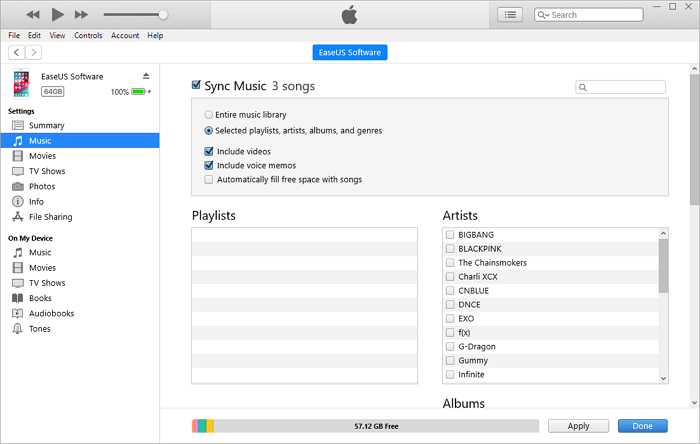
Step 3. Once you have imported the songs to the iTunes library, click the “Device” button in iTunes and select the “Music” option.

Step 4. Check the “Sync Music” > “Remove and Sync” option.

Step 5. Choose whether to sync the “Entire music library” or “Selected playlists, artists, albums, and genres.”

Step 6. Click “Sync” > “Done” to begin adding music from the computer to the iPhone.

transfer mp3 to iphone dropbox

Conclusion

Transferring music from your PC to your iPhone has never been easier. As you can see, there are multiple ways to transfer music from your PC to your iPhone depending on your preferences. Whether you choose to use iTunes, a cloud service, or data transfer tools, this article provides step-by-step guides to help you accomplish the task. While all the transfer methods discussed on this page work perfectly well, we highly recommend using the iOS Toolkit – iOS Transfer software, as it offers a wide range of features that enhance the transfer process, making music transfer from computer to iPhone even more effortless.

Transfer Music to iPhone 14

[Fixed] iOS 16 Downgrade Stuck on Recovery/DFU Mode/Apple Logo

Summary
Read this post some solutions to fix iOS 16 downgrade stuck on recovery mode, stuck on DFU mode, stuck at Apple logo screen; then you will get your iOS device to normal state.

I downgraded my iPhone 13 from iOS 16 to iOS 15 but failed. It stuck at Apple logo screen. Now I can’t do anything on my device. Any solutions to get it out of this abnormal state? Urgent!

Apple comes up with updates in the existing system software frequently. It is easy to upgrade your device to the newest iOS system, like iOS 16. However, you may feel it is not perfect of the newest iOS system, you don’t like the features that come with the updates. If you are not satisfied with the current iOS system, you can downgrade iOS to the old version, like iOS 15. It is very easy to downgrade from iOS 16 to iOS 15 or older iOS versions. However, the downgrade process may fail due to system or hardware issues. After that, you may put your device into some abnormal states. For example, stuck on recovery mode, stuck on DFU Mode, stuck at Apple logo screen, etc,. All in all, people get various kinds of issues like iPhone stuck issues after iOS downgrading. If you are one of those users who are facing iOS 16 downgrade stuck issues, here are some solutions that might help.

Part 1. Tips to Fix iOS Device Stuck after iOS 16 Downgrade

Here are some tips to fix iOS device stuck after iOS 16 downgrade, be available for all iOS stuck issues, like stuck on recovery mode, stuck on DFU mode, stuck at Apple logo screen. Try the solutions given below if something wrong with the iOS 16 downgrade procedure and it will resolve possibly.

A. Force Restart iPhone
Force restarting your iPhone/iPad is the first thing you should try. It won’t respond to several commands as the downgrade is stuck. Whether it is stuck in recovery mode, Apple logo, or DFU mode, you can force restart the device.

B. Exit Recovery Mode Stuck Manually
Once your device enter the recovery mode, you can exit it manually but many people don’t know this.

Step 1. Firstly, open iTunes on the computer and connect your iPhone to it.

Step 2. When you see the Apple logo screen, press and hold the sleep button on the device. Please don’t release the buttons and the “Connect to iTunes” icon will appear on the screen soon.

Step 3. Then the device will boot up, wait and you will see the lock screen.

C. Manually Exit DFU Mode
With the iOS 16 downgrade stuck issue happen, the same manual exit method can be tried also.

D. iTunes Restore
If you try these tips above but it doesn’t work, just try iTunes restore solution. But this solution will erase all of your data. So before you processing iTunes restore, we recommend you taking a backup.

restore itunes

Part 2. Final Solution to Fix iOS Device Stuck after iOS 16 Downgrade

If you have these tips which we mention in pat 1 but it doesn’t work, the final solution is offered for you. It will provide the best solution with you, help to fix all abnormal issues appear after iOS 16 downgrade. If you got yourself into a disaster after downgrade your iPhone, then you should know about this U.Fone iOS System Recovery. With the help of this software, you can solve all kinds of iOS 16 downgrade and other iOS issues. This software is specially designed to fix any iOS system issues without data loss. It can be used to fix iOS 16 downgrade stuck on recovery/DFU mode/apple logo without iTunes. After that, you will get your device back to normal state. It is compatible with most iOS devices and iOS system, including iPhone 14/13/12, iOS 16/15/14/13.

d_win d_mac

How to Fix iOS Device Stuck after iOS 16 Downgrade

Step 1. Run U.Fone iOS System Recovery and Connect Device to Computer
Download, install and run the U.Fone iOS System Recovery on the computer, click the “More tools” function at the bottom left of the main interface. Then, connect your iOS device with the computer via an USB cable. Here we take iPhone as an example.

connect iPhone to computer

A new window will pop up, offer three options for your chosen. To fix iPhone to normal state, choose the “iOS System Recovery” option to proceed.

select iOS System Recovery

The software will pop up a new window, then click “iOS Mode issues”, you can see the software can fix 50+ issues, like stuck on headphones mode, stuck on recovery mode, stuck on DFU mode, etc,. Then, hit the “Start” button at the lower right corner to go on.

select iOS Mode issues option

Step 2. Select Fix Mode for iDevice
You then will get into a new window, like the screenshot below. Please select “Standard Mode” or “Advanced Mode” to fix your iPhone, then click “Confirm” to go on.

“Standard Mode” – Fix iPhone with this mode, all data on your device will not be lost.
“Advanced Mode” – Fix iPhone with this mode, it will erase all data on your device.

You are suggested to choose advanced mode only if the standard mode fails.

iPhone fixing mode

Step 3. Detect iPhone
The software will detect and analyze your iPhone and shows all information of the device.

detect iphone

Step 4. Select Firmware Package
The software automatically detects the model type of your iPhone and displays available iOS system versions. Select a version and click on “Next” button.

select Firmware

Step 5. Download Firmware Package for Fixing iPhone
It will start downloading Firmware package for repairing your iPhone.

Download Firmware

Step 6. Fix iPhone to Normal State
After the Firmware package downloading completed, click the “Repair” button at the lower right corner. The software will begin to fix iOS system to normal, please keep connecting your iPhone with the computer until the fixing task end.

fix ios 16 stuck issue

Done, your iPhone will restart automatically and it will back to normal state without any problems.

d_win d_mac

Final Words

That are some solutions that you can try if you ever face issues like iOS 16 downgrade get stuck problems on your device. If you want a 100% reliable solution, then using U.Fone iOS System Recovery is the best option for you. It can return your device to normal state efficiently without data loss!

Fix iOS 16 iPhone Stuck issues

How to Fix iPhone 14/13/12/11 Stuck in Recovery Mode

Summary
There can be several reasons your iPhone is stuck on recovery mode. In this guide, we will show you how to get out of iPhone 14, 13, 12, 11 stuck on recovery mode. You can even fix iPhone 14/13/12/11stuck on recovery mode without data loss.

Q1: “iPhone 13 Stuck in Recovery Mode, How to Get Out of It?”

Q2: “How to Fix iPhone 14 Stuck in Recovery Mode?”

The iPhone 14 series get you 5G support, more storage, a better main camera, larger batter life and more attractive features. Have you upgraded to the iPhone 14, iPhone 14 Plus, iPhone 14 Pro, iPhone 14 Pro Max? Or are you using an iPhone 13, iPhone 12 or even iPhone 11? No matter which iPhone model you use, you can upgrade to the latest iOS 16 and enjoy new iOS features.

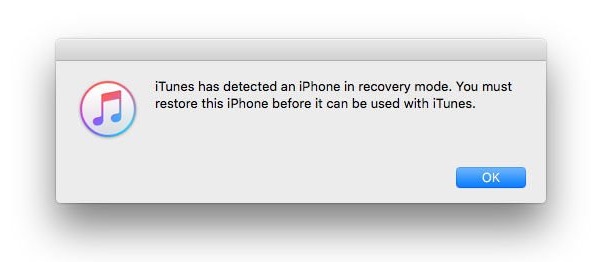
However, some Apple users reported that iPhone stuck in recovery mode after iOS 16 upgrade or restore. There can be several reasons your iPhone is stuck in recovery mode. The most common reason is a software corruption update during updating. If you’re facing the issue of iPhone 14/13/12/11 stuck in recovery mode, you come to the right place. Here we are going to teach you several solutions to fix iPhone 14/13/12/11 stuck in recovery mode.

Solution 1. Fix iPhone 14/13/12/11 Stuck in Recovery Mode Without Data Loss

Looking for a way to fix iPhone stuck on recovery mode without data loss? Here you can ask help from a third-party iOS system recovery software, such as U.Fone iOS System Recovery. It is capable of fixing 30+ iOS system issues, including recovery mode, DFU mode, black screen, white screen, Apple logo, boot loop, frozen iPhone, and more.

With it, you can easily and effortlessly fix all iOS/iPadOS/tvOS problems at home. In addition, it enables you to get your iOS back to normal with standard mode or advanced mode. Only in a few clicks, you can get out of iPhone 14/13/12/11 stuck on recovery mode, no data loss.

Here are some awesome features of U.Fone iOS System Recovery:

  • Fix iPhone stuck in Recovery Mode without data loss.
  • Fix various iOS system issues on iOS 16/15/14/13/13.
  • Fix iOS/iPadOS/tvOS system problems back to normal.
  • Downgrade iOS to old version without Jailbreak, keep your data.
  • Fix iOS issues like recovery mode, DFU mode, Apple logo, black screen, etc.
  • Recover data from iOS device, iTunes or iCould backup files.

d_win d_mac

How to Fix iPhone 14/13/12/11 Stuck in Recovery Mode?

Step 1. Open U.Fone iOS System Recovery
Download the U.Fone iOS System Recovery software from your computer. Install and start it. Click “More tools” in the left side, and connect your iPhone 14/13/12/11 to computer.

connect iPhone to computer

Step 2. Select “iOS System Recovery” Mode
From the options in the main window, select “iOS System Recovery” mode to fix iPhone stuck in recovery mode issue.

select iOS System Recovery

After that, you will see different issues in the screen. Please choose “iOS Mode issues” and click “Start”.

select iOS Mode issues option

Step 3. Select Standard Mode
You can repair iPhone stuck in recovery mode with Standard Mode or Advanced Mode. To keep your data, simple tick “Standard Mode” and tap “Confirm” to continue.

iPhone fixing mode

As your iPhone is stuck in recovery mode, so you don’t need to put it in DFU/recovery mode manually.

Step 4. Download Firmware Package
Before performing the system repair, you need select the matched firmware package for your iPhone 14/13/12/11.

select Firmware Package

After selection, click “Next” button to download the firmware package for iPhone.

Download Firmware

Step 5. Fix iPhone 14/13/12/11 Stuck in Recovery Mode
After the firmware package is downloaded successfully, press on “Repair” button to exit recovery mode on iPhone 14/13/12/11.

fix iphone 14 stuck in recovery mode

Wait a few minutes until it complete. After fixing iPhone 14, 13, 12, 11 stuck in recovery mode, your iPhone will restart automatically. And you can disconnect your iPhone from the computer and use it as usual.

Solution 2. Fix iPhone 14/13/12/11 Stuck in Recovery Mode With iTunes (Data Loss)

Don’t want to use a third-party tool? You may also get out of iPhone 14 stuck on restore mode with iTunes. iTunes can help you resolve many minor software-related issues, including recovery mode. But this method will erase all data and settings on your iPhone 14/13/12/11. You’d better make a backup in advance. Now try fixing it with the following steps.

Step 1. Open the latest version of iTunes on your computer.

Step 2. Use a USB cable to connect your iPhone 14/13/12/11 with computer.

Step 3. iTunes will detect your iPhone, and then pop up a window asking you to restore your iPhone.

fix iphone 14 stuck in recovery mode via itunes

Step 4. Click “Restore” button and confirm your action.

Step 5. Wait for the restore process to complete. Afterwards, your iPhone will restart and return to factory state.

If you want to fix iPhone 11, 12, 13, 14 stuck on recovery mode with no data loss, the best way is to use U.Fone iOS System Recovery. Have a try right now!

d_win d_mac

Fix iPhone 14/13/12/11 Stuck in Recovery Mode

How to Fix iOS 16 iPhone Stuck in Recovery Mode

Summary
iOS 16 iPhone stuck on recovery mode? How do you get out of iOS 16 stuck on recovery mode? Don’t worry. Here, we will list the most common reasons why iPhone stuck on recovery mode, and guide you how to fix iPhone stuck on recovery mode after iOS 16 upgrade or restore, no data loss.

For better user experience, Apple adds new features in its every iOS edition. The new iOS 16 features will help you make the most of your iPhone. Have you updated your iPhone to the lasted iOS 16 version? The latest version of iOS and iPadOS is 16.4. However, some people faced that iPhone stuck in recovery mode after iOS 16 upgrade or restore issue. Don’t worry, this is not a new thing that iOS 16 stuck iPhone in recovery mode. This post is written to help you fix iOS 16 iPhone stuck on recovery mode. Check it out!

Part 1. Why iPhone Stuck on Recovery Mode on iOS 16?

Some people are confused that why iPhone stuck on recovery mode after iOS 16 update or restore. To be honest, there are two main reasons for iPhone stuck in recovery mode: namely hardware issues and software corruption.

1) Hardware issue like water-damaged iPhone.

2) Software reasons of iOS 16 iPhone stuck in recovery mode include:

  • A failed jailbreak on your iPhone.
  • You activated the recovery mode accidentally.
  • A bugged software might’ve been installed on your iPhone.
  • An unsuccessful backup restore might be affecting the iOS.
  • Some old iPhone models don’t support iOS 16 version.

Next, let’s see how to fix iOS 16 iPhone stuck on recovery mode.

Part 2. Exit iOS 16 Stuck on Recovery Mode via Hard Reset

Force restarting iOS device is the easiest way to fix common iOS system issues, including an iPhone stuck in recovery mode. You can try to hard reset your device to fix iOS 16 iPhone stuck on recovery mode. iOS 16 is only compatible with iPhone 8 or above (iPhone SE 2nd, 3rd included).

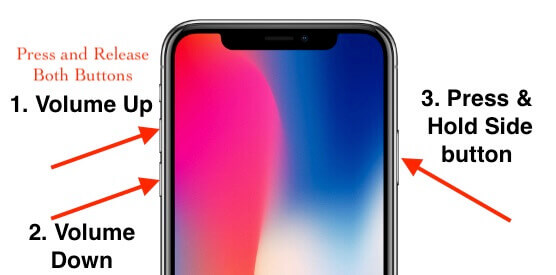
For iPhone 8/X/XR/XS/11/12/13/14/SE 2nd/SE 3rd:

Press and quickly release the Volume Up button.
Press and quickly release the Volume Down button.
Press and hold the Power button on the right side until the Apple logo appears on the screen.

hard reset iphone 13

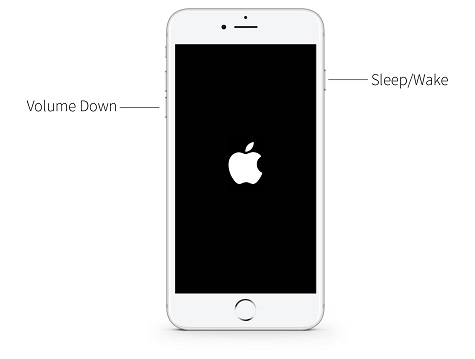
For iPhone 7, iPhone 7 Plus:

Quickly Press and Hold Volume up Button and Power button until you see the Apple logo on the screen.

hard reboot iphone 7

For iPhone 6/6s/6S Plus:

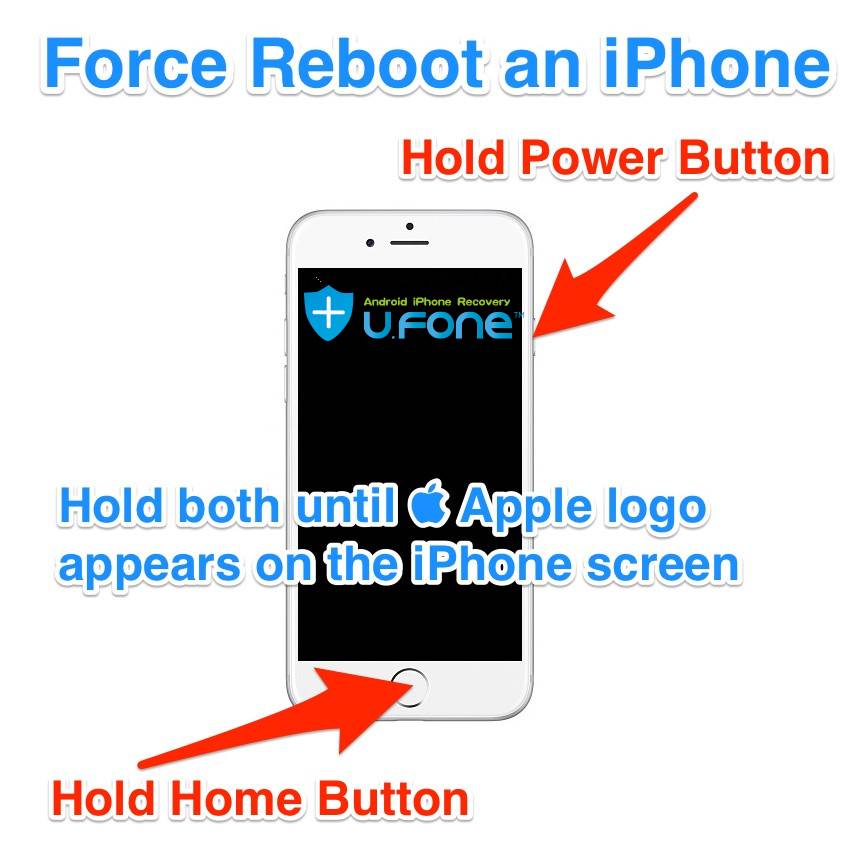
Quickly Press and Hold on the Home button and Power button until you see the Apple logo on the screen.

force reboot iphone 6

Part 3. Fix iOS 16 iPhone Stuck in Recovery Mode via iOS System Recovery (100% Work)

Another risk-free method to fix iOS 16 iPhone stuck on recovery mode is using a third-party iOS system recovery tool. U.Fone iOS System Recovery is a safe, reliable yet professional iOS system recovery software for iPhone/iPad/iPod Touch. It is able to fix various iOS system issues like stuck on recovery mode, headphones mode, DFU mode, black/blue/white screen, Apple logo, iPhone boot loop, iPhone keeps restarting, etc. With it, users can easily and quickly fix the iOS 16/15/14 stuck on the recovery mode issue.

Main Features:

  • Fix various iOS system issues without data loss.
  • Fix iOS system to normal on iPhone/iPad/iPod Touch.
  • Fix 30+ iOS system issues like Apple Logo, DFU/Recovery Mode, black screen, etc.
  • Repair iOS systems in 2 modes: Standard Mode, Advanced Mode.
  • Easily downgrade or update the iOS system without effort.
  • Supports all iOS devices, the latest iOS 16 and iPhone 14 series included.

d_win d_mac

How to fix iOS 16 iPhone Stuck on Recovery Mode?

Here is the detailed steps to fix iPhone stuck on recovery mode after iOS 16 upgrade.

Step 1. Launch U.Fone iOS System Recovery
Download U.Fone iOS System Recovery and install it on your Mac or Windows PC. Click the “More tools” in the left panel. Then connect your iOS 16 device to computer via USB cable.

connect iPhone to computer

Step 2. Select iOS System Recovery Function
It will turn to a new page with 3 options, including iPhone Data Recovery, iOS System Recovery, iOS Data Backup & Restore. Here please select “iOS System Recovery” function.

select iOS System Recovery

In the next window, it will list different device/screen/iOS/iTunes issues. Click “iOS Mode issues” and you will see “Stuck on recovery mode” included. Click the “Start” button to go on.

select iOS Mode issues option

Step 3. Choose Standard Mode
There are 2 modes that you can use to resolve stuck issues. To fix iOS 16 iPhone stuck on recovery mode without data loss, please choose select “Standard Repair”.

iPhone fixing mode

Step 4. Download Firmware Package
As your iOS device is stuck in recovery mode, U.Fone will detect and analyze your device automatically. For other iOS systems issues, you need to put your iOS device into DFU/Recovery Mode. So in this step, you just need to follow the onscreen instructions to download a suitable firmware, and click “Next” button.

Download Firmware

Then it will start downloading the firmware package, just wait patiently.

Step 5. Fix iOS 16 iPhone Stuck in Recovery Mode
After that, hit on “Repair” button to repair your iPhone system to normal. Keep connecting your iOS device with computer during the repairing process.

fix ios 16 stuck in recovery mode

Once finished, your iOS 16 device will restart automatically, and return to normal. Now you can use your iOS device and enjoy the iOS features as usual.

d_win d_mac

Fix iOS 16 iPhone Stuck in Recovery Mode

How to Restore iTunes Backup to New iPhone 14/13/12/11

Summary
Read this post then you will learn how to restore backup data from iTunes to your new iPhone models, including iPhone 14, iPhone 13, iPhone 12, iPhone 11 and more. Additionally, we will teach you how to restore lost data from iTunes backup files, and transfer data from old iPhone to new iPhone directly.

I backed up my old iPhone X with iTunes, now I want to restore the backup from iTunes to the new device iPhone 14. How can I restore my backup from iTunes?

Backup and restore is the normal thing for a mobile device, especially for iPhone. When you switch to a new device, it is necessary to transfer data between your old device and the new one. Nowadays, transferring data from an old iPhone to a new iPhone is not a difficult task anymore. Since there is a new feature of iPhone, you can sync data between two iPhone wirelessly with one click. However, wireless transmission is not perfect. Some users complain about the problems with the device-to-device migration, such as the process stuck, data loss. Honest speaking, wireless transfer is not as reliable as wired transfer because wireless transfer will be affected by many factors like Internet connection. In this case, we recommend you select the best solution for the restoration of your backup files, for example, restore iTunes backup to new iPhone 14/13/12/11.

Part 1: Restore iTunes Backup to New iPhone 14/13/12/11

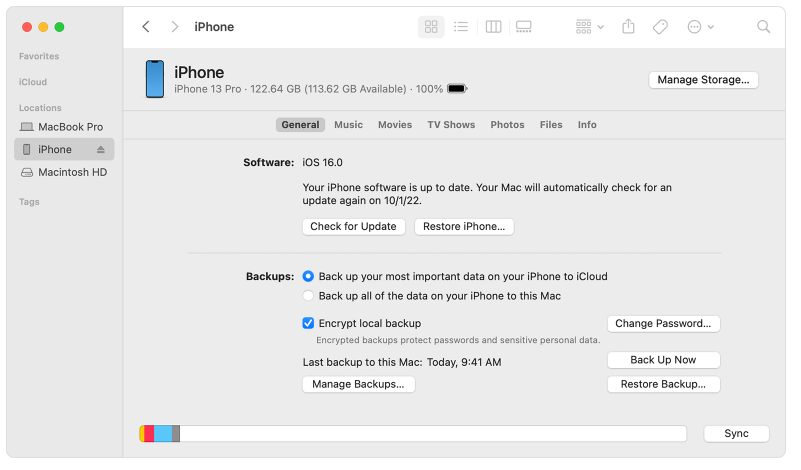
There are more than one way to restore backup from iTunes to iPhone, here are one contain simple steps to restore iTunes backup to new iPhone 14/13/12/11 with Finder/iTunes.

Step 1. On a Mac with macOS Catalina or later, open the Finder. On a Mac with macOS Mojave or earlier, or on a PC, open iTunes.

Step 2. Connect your new iPhone device to the computer with a USB cable. If there is a message prompt you and asks for your device passcode or to Trust This Computer, follow the onscreen steps.

Step 3. Select your iPhone model (iPhone 14/13/12/11) when it appears in the Finder window or iTunes.

restore itunes finder

Step 4. Select “Restore Backup”. Look at the date of each backup and pick the one you want.

Step 5. Click “Restore” and wait for the restore to finish. If asked, enter the password for your encrypted backup. Keep your device connected after it restarts and wait for the sync completes.

enter password for encrypted backup

Part 2: Restore Lost Data from iTunes Backup Files

That’s the way to restore iTunes backup to iPhone officially in part 1. However, how to restore lost data to your new iPhone from iTunes? There are many causes may lead to data loss on your iPhone, like iOS upgrade, iOS jailbreak, device get broken, device water damaged, factory reset on device, etc,. If you lost data from iPhone accidentally, in fact, you are able to get back these lost files from iTunes backup. Here we share the way with you, which is used to restore lost data to your iPhone from iTunes backup files.

iPhone Data Recovery offers you the best solution to restore data on iOS device. It features with three recovery modes to meet all data lost cases, like recover lost data from iTunes backup files, recover lost data from iCloud backup files, recover lost data from device directly. It can help to restore data from iOS device under data loss cases. This powerful tool supports recover up to 19 types of iOS data, including contacts, messages, photos, videos, audio, notes, calendar, WhatsApp messages, and more. Besides, you can preview data before recovery. What’s more, it is compatible with all iOS devices and all iOS systems, like iPhone 14/13/12/11; iOS 17/16/15/14; etc,.

d_win d_mac
d_win d_mac

Tutorial to Restore Lost Data from iTunes Backup Files

Step 1. Run iPhone Data Recovery
To get started with, download, install and run iPhone Data Recovery on your computer. There are three main functions in the home page, including “iPhone Data Recovery”, “iOS System Recovery”, “iOS Data Backup & Restore”. To recover lost data, click the left one “iPhone Data Recovery” option.

iPhone Data Recovery home page

Step 2. Choose iTunes Recovery Mode
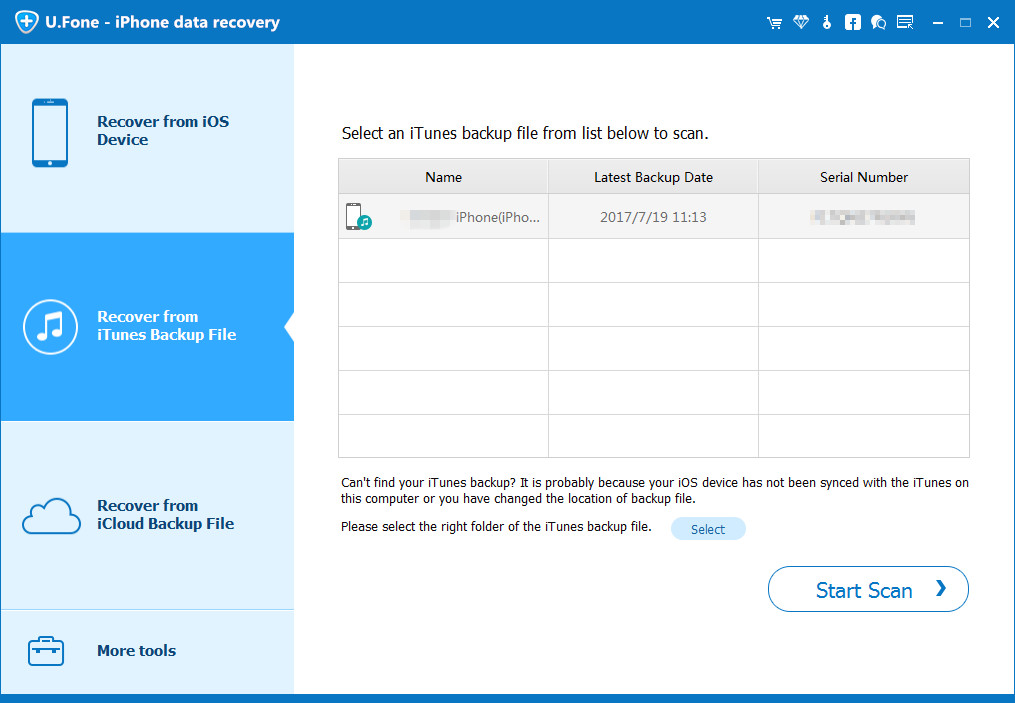
There are 4 options for your selection: “Recover from iOS Device”, “Recover from iTunes Backup Files”, “Recover from iCloud Backup File” or “More tools”. To recover lost data from iTunes backup files, click “Recover from iTunes Backup Files”.

choose recovery mode

Tips: Please don’t connect and sync your device with iTunes after you lost data,or the data you sync with iTunes previously will be overwritten.

Step 3. Scan Data from iTunes Backup File
Once the program lead you enter the iTunes recovery mode, then you can choose the backup file which contain the lost data you need and click “Start Scan“. It will begin to scan the backup file witch you choose.

select data from itunes backup

Step 4. Preview and Restore Data from iTunes Backup File
After scanning, all the content in the iTunes backup file will be show you. Preview all data in the backup file, and check the items you want to restore, just click “Recover” to save them on your computer.

recover data from itunes backup

d_win d_mac
d_win d_mac

Part 3: Transfer Data from Old iPhone to New iPhone Directly

That’s the solution to restore lost data from iTunes backup files via iPhone Data Recovery in part 2. In this part, we are going to show you a practical way to transfer data from old iPhone to new iPhone directly. If you switch to a new device, you can take this way for reference. Hope it can help your move files between two devices conveniently.

Phone Switch is an ideal tool for moving data between two devices which run on the same or different OS system. With the help of it, you can easily transfer data from old iPhone to new iPhone directly. All kinds of data are available for transferring, like photos, contacts, messages, videos, call logs, notes, voice memos, etc,. The process is extremely easy, no need any skills. What’s better, this tool supports 6000+ smartphone models on iOS, Android, and Windows. The whole data sync task will be finish in a fast speed, that will save your precious time.

d_win d_mac

How to Transfer Data between iPhone and New iPhone

Before begin the data sync process, please download, install and run Phone Switch on your PC/Mac computer.

Step 1. Select Phone Transfer Function and Connect Devices
In its home page, select “Phone Transfer” function. Connect both of your two iPhone to the computer with USB cable.

phone transfer function

Step 2. Select Files for Transfer
When you connect the devices, it will detect it and set it as the “Source” phone or “Destination” phone. You can change their position by clicking the Flip button. Select the files you want to transfer. There are more than 22 types of files for your selection, like photos, contacts, messages, videos, call logs, notes, voice memos, etc,.

select files to transfer

Step 3. Transfer Data from iPhone to iPhone 14/13/12/11
Finally, simply click on “Start Transfer”. Then Phone Switch will begin to transfer your selected files from Source iPhone to iPhone 14/13/12/11 with fast speed.

transfer files to iphone 14

d_win d_mac

Final Words

Now you have learn how to restore backup data from iTunes to your new iPhone 14/13/12/11. And you get the solution to restore lost data from iTunes backup files, even the method to transfer data from old iPhone to new iPhone directly. You will never worry about losing iPhone data, or restore data from iPhone. If you like our post, you can read more post and get more solutions from our products to help you in life.

Restore iTunes Backup to New iPhone

How to Transfer Messages from iPhone to New iPhone 14/13/12

Summary
If you wish to transfer messages from old iPhone to new iPhone, this guide is for you. This post covers 2 ways to help you transfer all or selected text messages & iMessages from iPhone to new iPhone 14/13/12. You can even move all/some old iPhone data to the new one directly.

“I have a new iPhone 14 Pro and need to move my data from iPhone 8 to iPhone 14 Pro. I found it difficult to transfer messages from iPhone to new iPhone 13. Any suggestion?”

Have you got a new iPhone 14? Do you need to transfer files from your old iPhone to new iPhone? It’s very common to transfer all your data, including photos and messages, to your new iPhone. Messages on iPhone are your precious memories and important data. If you are interested in how to transfer messages from iPhone to new iPhone, you’d better put your eyes on this guide. Here this post will cover 2 ways to transfer Messages from iPhone to new iPhone 14/13/12.

Way 1. Transfer All Messages to New iPhone 14/13/12 with iCloud Backup

Apple provides users with 5GB of free space on iCloud, and you can use iCloud to backup and transfer data on iPhone. iCloud makes it easy to transfer message from iPhone to new iPhone wirelessly. But you have to transfer all messages from iPhone to new iPhone 14/13/12. Let’s see how to do it.

Step 1. On your old iPhone, go to “Settings” > “iCloud”, turn on the Backup option.

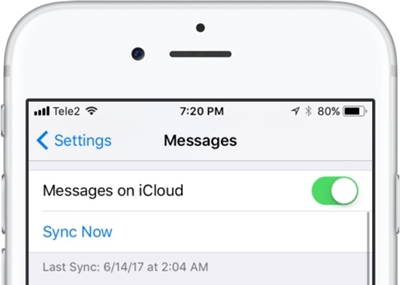
Step 2. If you old iPhone is running iOS 11.4 and later version, you can go to “Settings” > “Messages”, and turn on the “Messages on iCloud” option.

messages on icloud

Step 3. Then turn on “Sync Now” to sync you messages from iPhone to iCloud.

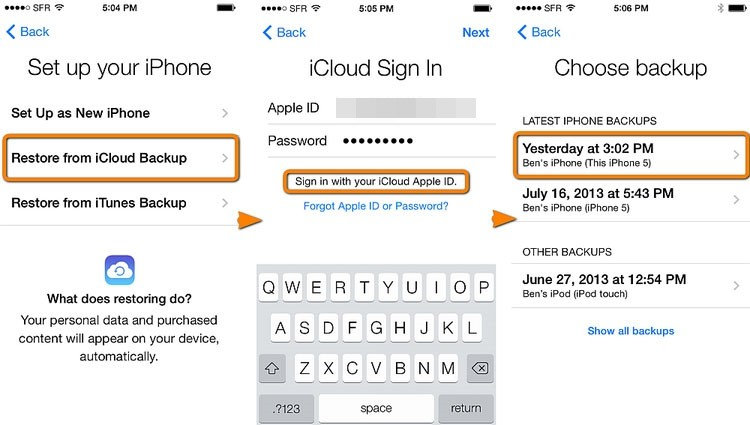
Step 4. On your new iPhone 14/13/12, login to iCloud with your Apple ID. Select the recent iCloud backup to restore. Then all messages will be synced to your new iPhone.

restore icloud backup

Note: If you’ve already used your new iPhone 14/13/12, you need to factory reset your new iPhone before iCloud backup restore.

Restrictions: iCloud can assists you to sync some types of data, however, both iPhones should use the same Apple ID. Moreover, it may take a long time to complete the transfer if you have poor Wi-Fi. And you are not allowed to transfer selected messages from iPhone to new iPhone. Here we will show you another quick way to move messages from iPhone to new iPhone without iCloud. What you need is a third-party iPhone Data Transfer tool.

Way 2. Transfer All or Selected Messages to New iPhone 14/13/12HOT!

U.Fone iOS ToolkitPhone Switch is your smart iPhone transfer and managing tool. It enables you to transfer messages, SMS, photos, videos, notes, contacts, app data and more from iPhone to another iPhone/computer directly. Besides, it is able to quickly drag and drop files into any target app on iOS devices. With it, users can easily transfer all or selected text messages & iMessages from iPhone to new iPhone 14/13/12 or computer directly.

Another awesome feature is that it can transfer iCloud data to iPhone/iPad/iPod touch/computer directly. This handy tool also works as an iOS Data Manager, which helps you manage your iOS data by importing, exporting and deleting.

Main Features:

  • Transfer any data between iOS devices and iTunes.
  • Transfer data from iPhone to iPhone 14, 14 Plus, 14 Pro, 14 Pro Max, 13, 12, 11, etc.
  • Transfer Messages/Photos/Music/Video/Files/Contacts between iPhone and PC/Mac.
  • Manage files/data/apps between computer and iOS devices.
  • Import songs from iTunes or drag and drop files to iPhone/iPad/iPod Touch.
  • Support iOS 16 and iPadOS 16, Windows 7/8/8.1/1011, mac OS X 10.8 & higher, latest iTunes 12.10.

d_win d_mac

How to Transfer Messages from iPhone to New iPhone 14/13/12?

Read on the detailed guide to learn how to transfer messages from iPhone to new iPhone directly with U.Fone iOS Toolkit.

Step 1. Connect both the iOS devices
First of all, download, install and launch the U.Fone iOS Toolkit software. Then connect your old iPhone and new iPhone 14 to computer using USB cable. In the home screen, select “Phone Transfer“, and click “Phone to Phone” option.

ios transfer interface

Step 2. Select Messages to Transfer
U.Fone will automatically detect your two iPhones and mark them as source or destination. Your old iPhone should be the source, and your new iPhone 14 should be the destination. If not, simply click “Flip” at the top to correct their position.

transfer messages from iphone to iphone 14

Next, select any data you want to move. Here you should tick “Text messages” and click “Start” to start the process.

Step 3. Transfer Messages from iPhone to iPhone 14
U.Fone will begin to transfer messages from iPhone to iPhone 14/13/12, wait patiently.

transfer messages to iphone 14 completed

When finished, disconnect both iOS devices, and all messages have been moved to your new iPhone!

d_win d_mac

Transfer Messages to New iPhone 14/13/12