All posts by DHZ

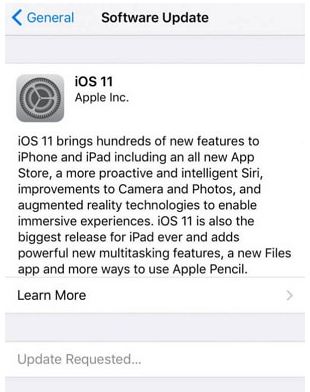
How to Fix iPhone Stuck on iOS 11/12 Update Requested

Summery: iPhone stuck on iOS 11 or iOS 12 updated requested? Can’t get iPhone out of this frozen screen? Please pay attention on this post, we will share the best way with you to solve the iOS system issue.

My iPhone 7 stuck on “iOS Update Requested” screen, now I can’t do anything on it. I try to enter it to the Recovery Mode to fix this problem but failed. Any other ideas to return my phone to normal?

iOS 12 is made of new features and functions, since Apple released iOS 12 beta, the iOS device will prompt you with a message on the device “The new iOS system is ready to update”. A lot of people can’t wait to update and try this new operating system. However, every coin has two faces, the troubles will follow while new iOS system released. Some iOS user response that their device stuck on iOS update requested. There are various causes why the phone stuck on “Update Requested”. Some may be network related, while not all are. In this article, we are going to be looking at the best solution to this common iOS system problem.
ios update requested

Fix iPhone Stuck on “Updated Requested” Issue

It is easy to fix iPhone stuck on iOS 11/12 update requested with the help of iOS System Recovery. It is a magic iOS fixing tool designed for fixing iPhone abnormal iOS system to normal without data loss. It supports fix any types of iOS issues, like stuck in the Recovery Mode, stuck at black screen, stuck in Apple logo, stuck in restart loop, etc,. This powerful tool is frequently mentioned and used when it comes to iOS issues on all models of iPhone/iPad/iPod touch, including iPhone X, iPhone 8, iPhone 6S/6, iPhone SE, iPhone 5S/5C/5; iPad Air, iPad Mini, iPad Pro.


d_win d_mac

Fix iPhone Stuck on iOS 11/12 Update Requested

Step 1.Run the iOS System Recovery on the Computer
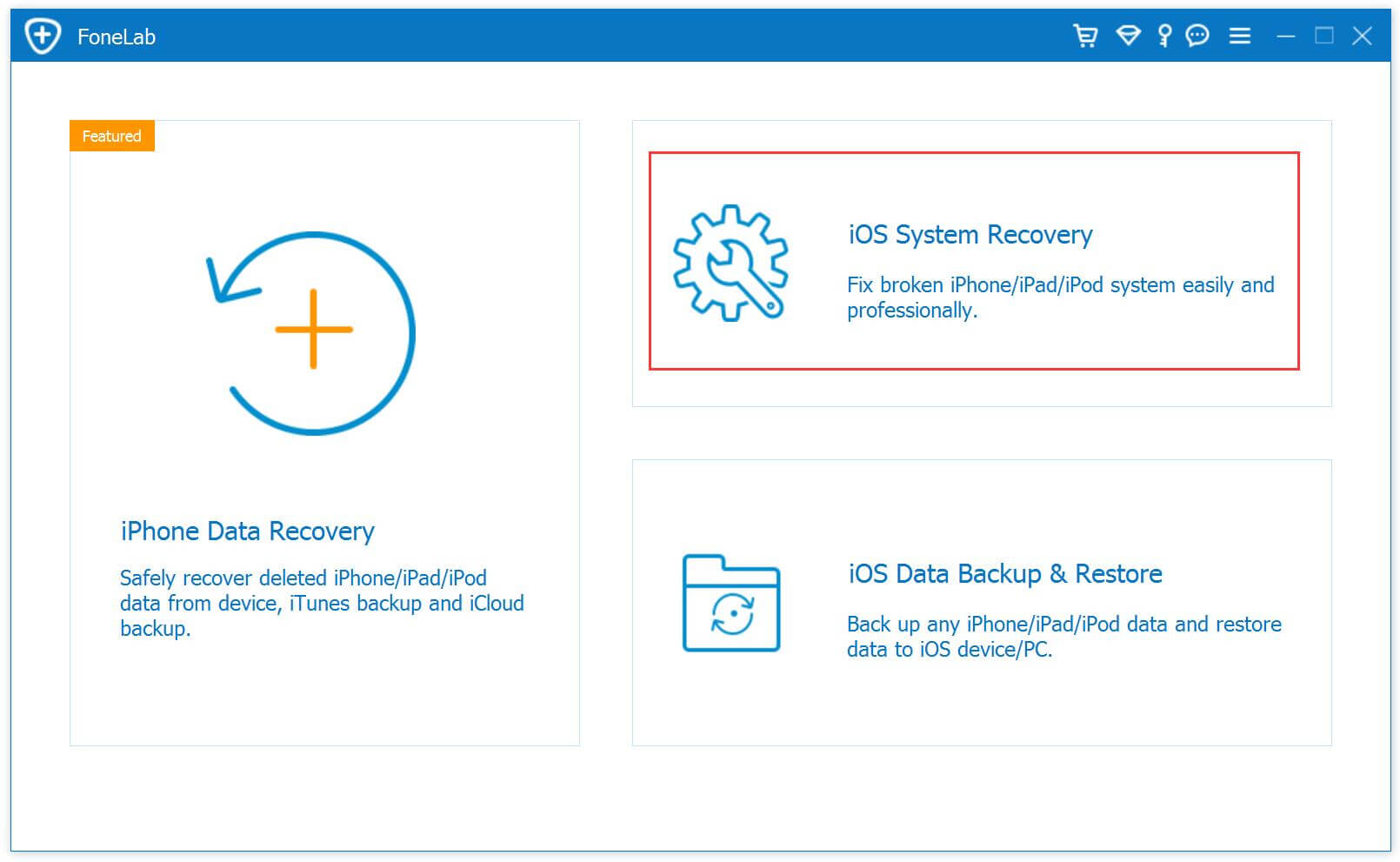
First of all, please download and run iOS System Recovery on the computer, it will show the windows as below.
ios system recovery home page

Step 2. Select Mode and Connect iPhone
Click “iOS System Recovery” option in the home page under “More tools“. Secondly, connect your iPhone to the computer using a USB cable. The iPhone will be detected by program soon and display it on its screen. Click on the button “Start“.

connect iPhone

Step 3. Select Model and iOS Version of iPhone
Now you should select the iPhone model which matching your device. You will see that the program offer for you the latest iOS version for downloading, select the iOS version you are prepare to update on your device. Then click “Repair” to go on.

select iPhone model

Step 4.Download the Latest iOS Firmware for iPhone
iOS System Recovery will download the selected iOS firmware for fixing your device. Please keep the connection of your iPhone and the computer until the firmware downloading process is end.

download the firmware for iPhone

Step 5.Fixing iPhone Stuck on “Updated Requested” Issue
Once the iOS System Recovery has finished downloading the latest firmware for your iPhone, it will begin fixing the iPhone system to normal without data loss.

fix iPhone system to normal

After some minutes later, your device will be return to normal state. Finished.

d_win d_mac

Related Articles:

How to Restore iPhone System to Normal

How to Fix iPhone Stuck in Spinning Circle

How to Fix iPhone Get Frozen/Bricked Screen

How to Fix iPhone Stuck on Apple Logo

How to Get iPhone Out of Recovery Mode without Data Loss

How to Use IPSW File to Restore iPhone without Data Loss

How to Fix iTunes Cannot Connect to iPhone Error
Fix iPhone Stuck on iOS Update Requested

How to Fix iPhone Stuck in Spinning Circle

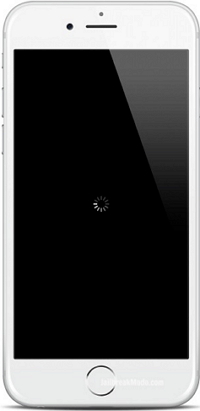
My phone stuck in a spinning circle with black screen after I power it on, I have try some methods but failed. Is there any way to fix my device to normal without losing data?

iPhone users often justify the high price of their hardware by citing the ease of use and absence of major problems when comparing to Android. However, iPhone users meet iOS abnormal issues regularly. One of the common problems annoyed iPhone users is the “iPhone stuck at black screen with spinning circle” problem. While this often occurs after a major iOS update or iOS jailbreak, for example, update iOS 11 to iOS 12; perform iOS 12 jailbreak. It can strike at any moment. iPhone stuck in spinning circle is not a nice phenomenon for most iOS users. What’s worse, it may be lead to lose data on your frozen device.

iphone black screen with spinning wheel

A quick reminder: the spinning wheel can also be an indicator of general activity, and does not always represent a crash or frozen device. If you’re updating apps, updating iOS, or performing a task in an app, it’s quite likely you’ll see the spinning wheel as part of normal behavior. We are not trying to correct normal behavior here, and we are only looking to resolve crashes and freezes where an iPhone, iPad, or iPod touch is completely unresponsive and truly frozen, often displaying that same cursor in the process.

If you are suffering from iPhone stuck at black screen with spinning wheel issue, these methods could definitely save you. Choose one to fix your device now.

Part 1: Fix iPhone Stuck in Spinning Circle by Entering into the Recovery Mode

Normally, enter iPhone into the Recovery Mode is a tradition way to fix iPhone abnormal system to normal. Entering your iPhone into the Recovery Mode and updating iOS system via iTunes is a frequently-used solution to fix iOS device stuck in spinning circle problem. Let’s check the steps below to fix your device.

Step 1. Connect your iPhone to PC/Mac with a USB cable and run iTunes on the computer.
Step 2. Get your iPhone into the Recovery Mode. Related read: How to Get iPhone into the Recovery Mode
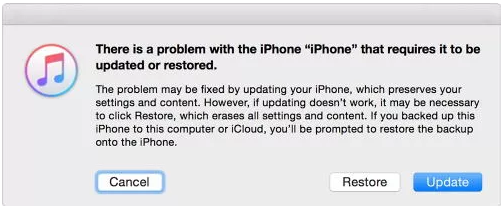
Step 3. iTunes will automatically detect your iPhone and pop up a window. Click “Update” to update your iOS system.

restore iphone to recovery mode

After this, your phone will run the newest iOS version, and the iOS system issue will be solved.

However, this way preserves your settings and content on the phone. If the updating doesn’t work, it may be necessary to click “Restore”, which erases all settings and content from the device. If you want to fix iOS without data loss absolutely, you could take another way, please pay attention on the next section.

Part 2: Fix iPhone via iOS System Recovery without Data Loss

If you need to fix iPhone system to normal, we highly recommend you using iOS System Recovery. It can magically deeply repair abnormal iOS system in different cases, such as, fix iPhone stuck in spinning circle without data loss. Additionally, it supports to fix iPhone stuck in the Recovery Mode, fix iPhone stuck at black screen, fix iPhone stuck in Apple logo, fix iPhone keep restarting loop, etc,. This program work for all models of iPhone, iPad and iPod touch; including iPhone X, iPhone 8, iPhone 6S/6, iPhone SE, iPhone 5S/5C/5; iPad Air, iPad Mini, iPad Pro.

d_win d_mac

Step 1.Run the iOS System Recovery on the Computer 
To begin with, please download and run iOS System Recovery on the computer, you will get the windows as below.

ios system recovery home page

Step 2.Connect iPhone to the Computer and Select Mode
Select the option of “iOS System Recovery” from the primary window under “More tools“. Secondly, use a USB cable to connect your iPhone to the computer. After a few seconds, the iPhone will be detection by program and display it on its screen. Now, click on the button “Start“.

connect iPhone

Step 3. Select your iPhone Model and Latest Version of the iOS System
Now you should select the iPhone model and iOS system version which matching your device. Then click “Repair” to go on.

select iPhone model

Step 4.Download the Latest iOS Firmware for iPhone
In this step, iOS System Recovery will download the latest iOS firmware for fixing iPhone, you will see that the program offer for you the latest version of the iOS to download. Please keep the connection of your iPhone and the computer during the firmware downloading process.

download the firmware for iPhone

Step 5.Fixing iPhone Stuck in Spinning Circle
When iOS System Recovery has finished downloading the latest firmware for your iPhone, it will continue to fix the iPhone system to normal without data loss.

fix iPhone stuck in spinning circle

After that your device will return to normal state in some minutes later.

d_win d_mac

Related Articles:

How to Restore iPhone System to Normal

How to Fix iPhone Get Frozen/Bricked Screen

How to Fix iPhone Stuck on Apple Logo

How to Get iPhone Out of Recovery Mode without Data Loss

How to Use IPSW File to Restore iPhone without Data Loss

How to Fix iTunes Cannot Connect to iPhone Error
Fix iPhone Stuck in Spinning Circle

How to Recover Lost Contacts from Lenovo Phone

Summery: Lost contacts from Lenovo phone? This article shows you how to restore lost contacts from Lenovo phone without backup, including phone number, E-mail address, house address, and more information.

I accidentally deleted some phone numbers in the contacts list. I need these numbers for connecting people. How to retrieve the lost contacts from my Lenovo phone without backup? Urgently. Thanks for your help.

Have you ever encountered the problem about accidentally lost contacts on your Lenovo mobile phone? To tell you the truth, most people have ever once mistakenly press the “Delete All” button on the mobile phone when he wanted to erase some useless contacts only. After that they felt hopelessly since the contacts were so important to him, moreover, it is quite hard to restore lost contacts without backup. Many people search the question on the Internet “How to recover lost contacts on Lenovo phone” on Google and they can’t get a satisfied answer. Here in this article, I will share this experience of retrieving contacts from Lenovo phone.

Restore Lost Contacts on Lenovo Phone

A reliable data recovery call U.Fone Android Data Recovery is a good helper you need, to restore lost contacts on Lenovo phone without hassle(including phone number, E-mail address, house address, and more information). It can help you recover overall file types of Android data, such as contacts, SMS, photos, videos, call logs, WhatsApp messages, documents and more as long as the deleted data has not yet been overwritten. It could be used to recover Android data lost due to accidental deletion, Android OS updated, Android OS rooted, factory reset restoring, virus attacked, etc,. What’s more, it has extra features: Android data backup & restore; broken Android data extraction. It is compatibles with all Lenovo models and most of Android models, including Z5, A5, K5, K6, K8, S5, P2, C2.

d_win d_mac

How to Recover Lost contacts on Lenovo Phone

Step 1.Run Program & Connect Lenovo Phone
In this first step, run U.Fone Android Data Recovery on the computer. Connect your Lenovo phone to the computer using an Android USB cable, the program will detect your device when it successfully connects. There are three modes are available, select “Android Data Recovery” option to go on.

connect Lenovo phone

Step 2. Enable USB Debugging on Lenovo
This step will guide you to enable USB debugging on the device, just click “OK” on it.

allow to detect Lenovo

Step 3. Select the Contacts File to Scan
Here, the program will list all kinds of files for you to restore, including contacts, message, gallery, videos, WhatsApp messages, etc,. Select the “Contacts” item for contacts recovery. Then click “Next” to go on.

select contacts file to scan

Step 4. Allow to Scan your Lenovo Phone
You should tap “Allow” on the phone to get privilege to allow the program scan your phone.

allow to scan Lenovo

Step 5. Begin to Scan Lenovo Phone
After that, U.Fone Android Data Recovery will begin to scan all lost and existent files from your phone.

scan Lenovo data

Step 6. Preview and Recover Lost Contacts from Lenovo Phone
In the last step, it will list all contacts, photos, videos, messages, call logs, WhatsApp messages,and more data for recovery. Please click “Contacts” item, and the recoverable data will be displayed in the preview window. Preview and mark the data you want to restore. Restoring all the selected contacts data to the computer by clicking the “Recover” button.

recover lost contacts from Lenovo

d_win d_mac

More Lenovo Related Guides you can Check:

How to Recover Deleted Files from Lenovo Phone

How to Recover Deleted Photos from Lenovo Phone

How to Recover Data from Water Damaged Lenovo Phone

How to Recover Lost Data from Android SD Card

How to Backup and Restore Lenovo Phone

How to Manage Android Phone on the Computer

Recover Lost Contacts from Lenovo Phone

Android Data Recovery

Recover Your Lost Data from Android
Now, Even Device Broken

Compatible with Android 8.0 Oreo/7.0, etc.

Recover Lost Data Now

How to Recover Deleted Call Logs from Xiaomi Phone

Summary:To recover deleted call logs from mobile phone may seem to be impossible. Here is an article guide about easily recover phone number from call record list of Xiaomi phone.

Please help. I clean the call list last night and then I find that I haven’t saved the call which from my important client. Are there any ways to restore the call history from my Xiaomi phone without backup? Please let me know as soon as possible. Thanks so much.

Call history contain incoming calls, outgoing calls and missed calls. Have you ever had such a problem that you accidentally deleted your call logs from mobile phone and didn’t know how to restore it without backup? When you find your data get lost, what will you do first? It would be wise to stop using the phone immediately in case the record of calls might be overwritten by new data. Then you can choose a reliable and powerful data recovery software to help you retrieve lost call logs directly from phone. This article guides you through the process of restoring call history from Xiaomi by using Android data recovery tool.

Android Data Recovery is specifically designed for Android device users, allowing Android users to preview and restore all data from Xiaomi or other devices on the computer. This powerful recovery tool ensures that it’s easy to use. It is capable of restoring deleted call logs from Xiaomi phone. This program supports to recover Android data lost due to accidentally deletion, device damaged, Android OS upgrade, Android OS rooted and more. In addition to restoring call logs, it can also restore other types of data, including contacts, videos, photos, text messages, audio, documents, WhatsApp messages and so on.

d_win d_mac

How to Recover Deleted Call Logs on Xiaomi Phone

Step 1. Run Program and Connect Xiaomi Phone
The first step is to run Android Data Recovery on the computer. Connect your Xiaomi phone to your computer using an Android USB cable, and the program will detect your device when it connects successfully. Select “Android Data Recovery” option to proceed.

connect Xiaomi phone

Step 2.Enable USB Debugging on Xiaomi
It will guide you to enable USB debugging on the phone, just click “OK” on the phone to allow the program enable USB debugging on it.

allow to detect Xiaomi

Step 3. Select Call Logs File to Scan
After enable USB debugging on the phone, the program lists various files for you to restore, including call logs, contacts, messages, gallery, videos, WhatsApp messages, etc,. Here, to restore the call logs and select the “Call Logs” item. Then click “Next” to the next step.

select call logs file to scan

Step 4. Allow Program to Scan Xiaomi Phone
You should click “Allow” on the phone to allow the program analyzing and scanning your Xiaomi phone.

allow to scan Xiaomi

Step 5. Start Scan Data from Xiaomi Phone
After that, Android Data Recovery will start scanning all files from your phone, including the deleted ones and the existent ones.

scan Xiaomi data

Step 6. Preview and Restore Deleted Call Logs from Xiaomi Phone
Scan results shows all call logs,contacts, gallery, videos, messages, WhatsApp messages and more types of data. Please click the “Call Logs” item, and the recoverable data will be displayed in the preview window. Preview and mark the data to be restored. Finally, click the “Recover” button to restore the call logs data from Xiaomi on the computer.

recover deleted call logs from Xiaomi

d_win d_mac

More Xiaomi Data Recovery Guides:

How to Recover Deleted Files from Xiaomi Phone

How to Recover Deleted Photos from Xiaomi Phone

How to Recover Deleted Contacts from Xiaomi Phone

How to Recover Deleted Text Messages from Xiaomi Phone

How to Backup & Restore Android Safely

How to Manage Android on Computer

Recover Deleted Call Logs from Xiaomi Phone

Android Data Recovery

Recover Your Lost Data from Android
Now, Even Device Broken

Compatible with Android 8.0 Oreo/7.0, etc.

Recover Lost Data Now

How to Recover Deleted Text Messages from Xiaomi Phone

Summary: This post has introduced a way to recover text messages from Xiaomi in details. Please follow the steps and get back your deleted text messages from the Xiaomi phone with easy steps.

Xiaomi is a cost-effective Android phone, providing users with a wealth of experience. If you use Xiaomi, you must enjoy the wonderful message service. Sensitive touch screens allow you to process word processing easily. But at the same time, sensitive screens are also prone to cause message loss. It can accidentally delete unread threads, conversations with important people. In this case, you need to recover the message from Xiaomi phone as soon as possible, Android Data Recovery can be your first choice. This program can scan the conversation deleted from your phone and restore it to your Xiaomi phone completely. So you can easily return the name of the message, the time of sending and receiving, and more information of the deleted SMS.

U.Fone Android Data Recovery is one of the best Android data recovery tools, it has the ability to perform data recovery with a simple user interface. It can restores all deleted text messages, contacts, photos, call logs, videos, audio, WhatsApp messages, documents, etc,. With the help of Android Data Recovery, you can preview and easily restore deleted text messages from Xiaomi without hassle. This program supports recover Android data lost for any reasons, such as accidental deletion, Android operating system updates, Android operating system roots, restore to factory reset, virus attacks. This program works for almost all Xiaomi phones and Android models, including Xiaomi Mi 4/Redmi 4/Note 4/5A, and so on.

d_win d_mac

How to Recover Deleted Text Messages on Xiaomi Phone

Step 1. Run the Program and Connect Xiaomi Phone
Firstly, run U.Fone Android Data Recovery on computer. Select “Android Data Recovery” option in the home page of program to go on. Connect your Xiaomi phone to the computer with an Android USB cable.

connect Xiaomi phone

Step 2. Enable USB Debugging on Xiaomi Phone
Now you should enable USB debugging on Xiaomi phone to allow program to access device. Tap “OK” on your phone to enable USB debugging on it when the program prompt your to do. Please follow the instruction below if you are not sure how to do it.

allow to detect Xiaomi

Step 3. Select the SMS Files to Recover
You will see many different types of files can be chose on the program. Select the deleted species file you want to recover from Xiaomi phone. For messages recovery, you should click “Messages” & “Message Attachments” files. Then click “Next” to go on.

select SMS fileS to scan

Step 4. Allow Scanning and Analyzing Data on Xiaomi Phone
After your device is detected by the program, tap “Allow” on your device to enable the program to scan your device for deleted data.

allow to scan Xiaomi

Step 5. Scan Xiaomi Phone for Deleted Messages
Now the program will begin to scan data including messages on your phone. The scanning process will spend only a few minutes.

scan Xiaomi data

Step 6. Recover Deleted Text Messages from Xiaomi Phone
Once the program has scanned all data files successfully, you are allowed to preview all data found on your Xiaomi phone, including SMS, contacts, photos and more. If you just want to recover text messages then you can tick “Messages” & “Message Attachments” files. Lastly click “Recover” button to restore the data you want from Xiaomi phone on the computer.

recover deleted SMS from Xiaomi

d_win d_mac

More Android Data Recovery Guides:

How to Recover Deleted Files from Xiaomi Phone

How to Recover Deleted Photos from Xiaomi Phone

How to Recover Deleted Contacts from Xiaomi Phone

How to Recover Lost Data from Android SD Card

How to Backup & Restore Android Safely

How to Manage Android on Computer

Recover Deleted SMS from Xiaomi Phone

Android Data Recovery

Recover Your Lost Data from Android
Now, Even Device Broken

Compatible with Android 8.0 Oreo/7.0, etc.

Recover Lost Data Now

How to Get Pictures Off a Broken Samsung Phone

Summery: Samsung get broken screen, black screen, stuck in the Download Mode, or get into other broken cases? This article is going to show you the best method to extract pictures and other types of files from a broken Samsung phone with ease, even have no backup.

I need some help. My Samsung phone is broken, now I can’t do anything on it as usual. What suffer from me is the previous pictures still stored on the phone which haven’t no backup. Are there any ideas to get the pictures off my broken device? Thanks anyway.

Almost all people may encounter the situation, the phone get broken and they have no way to extract data from the broken device. That sounds so depressed. You may have a large number of photos saved on the mobile phone, family pictures, vacation photos and other meaningful photos. When your phone is damaged, the first thing that comes to your mind may be: How to get data off the broken phone? Especially the photos, it is the most important personal data that people are not willing to lose. This post is going to introduce the best solutions for you to get pictures off a broken Samsung device, whether the Samsung is totally dead, stuck at black screen, stuck in the Download Mode, or others. The methods also work on other normal Android devices.

Extract Pictures from A Broken Samsung Phone

U.Fone ToolkitBroken Android Data Extraction & Fix is the best choice to get pictures off a broken Samsung phone. It is a professional toolkit for fix Android device in any broken cases and recover data from it, like frozen/crashed/bricked/broken Android; black screen, unresponsive screen, broken screen, system crash, virus attack, USB debug fail, water-damaged. It is well-known by its powerful data recovery function, it is capable of recovering data from broken device as well as normal device. The types of recoverable files including pictures, contacts, messages, call logs, audio, WhatsApp messages, documents, etc,. This program supports most of Samsung and Android models, such as, Galaxy Note 5/4/3, Galaxy S6/S5/S4/S3.

d_win d_mac

How to Extract Pictures Off a Broken Samsung Phone

To begin with, please download and run the U.Fone Toolkit – Broken Android Data Extraction & Fix on the computer.

Android ToolKit home page

Step 1.Connect Broken Samsung to Computer
Click “Broken Android Data Extraction” among three options, then connect the broken Samsung to computer with a USB cable, and click the “Start” button.

connect broken Samsung to PC

Step 2.Select the Files Type to Scan
The program will begin to scan data from your broken phone, you can click the option which is the type data name that contain the data you want. For pictures recovery, you should click “Gallery” & “Picture Library” files. If you want to scan all files at once, please click “Select All” item. Then click “Next“.

select file to scan

Step 3.Select Broken Situation for Broken Samsung
In this step the program will guide you to another screen, you will see this screen. There are several fault types of phone choices. Please choose the one which match your phone.

choose Samsung broken type

Step 4.Select Samsung Phone Model
Select the brand and model of your Samsung according to the option. (If you can’t find your phone model, please click the “No my device in the list” option.)

select device model

Step 5.Enter Samsung into the Download Mode 
In this step, you will follow the steps to enter your phone into the Download Mode.

enter broken Samsung into the download mode

Tips:Please keep connecting your broken Samsung with the computer during the getting phone into the Download Mode process is end.

Step 6.Analyze Data of Samsung Phone
After entered Samsung into the Download Mode, the program will start downloading the recovery package for your phone with some minutes.

scanning data from Samsung

Once the downloading is finishes, the selected item stored on the device will be scanned out.

Step 7.Preview and Get Pictures Off Samsung
At last, you could preview all deleted/lost or existent data from Samsung in the scan out list, including contacts, messages, gallery, videos and more. For pictures recovery, preview data under “Gallery” & “Picture Library” files, select the data you want to extract from and click “Recover” button to save them on the computer.

recover pictures from Samsung

d_win d_mac

Related Articles:

How to Recover Photos from Broken Samsung Galaxy Phone

How to Recover Data from Water Damaged Samsung Phone

How to Recover Photos from Broken Samsung Phone

How to Recover Lost Data from Broken Samsung Phone

How to Backup & Restore Samsung Galaxy

How to Manage Samsung Galaxy on the Computer

How to Stream Apple Music to Samsung Galaxy

Get Pictures Off a Broken Samsung Phone

Android Data Recovery

Recover Your Lost Data from Android
Now, Even Device Broken

Compatible with Android 8.0 Oreo/7.0, etc.

Recover Lost Data Now

How to Recover Lost SMS from HTC Phone

Summary: As one of the most popular Android phones in the market, HTC phone has been warmly welcomed. Here, in this article, we will show you the easiest way to recover lost text messages from HTC phone.

Sometimes people lose their text messages without knowing what they have done on the HTC phone. Yes, for most people who use HTC phones or other mobile phones, deleting text messages has become a common phenomenon. As a result, more and more users are looking for the most effective way to restore SMS from HTC, or other mobile phones on the Internet. Since you don’t have any backup files available, it’s almost impossible to retrieve lost files from an HTC phone without third-party tools. If you mistakenly delete, lose, or format messages on an HTC mobile phone, the best way to do is to seek help from a professional Android Data Recovery software.

In order to save your time, we provide the quickest way to solve your problem, we would like to recommend this Android Data Recovery program for your reference. It is a professional HTC message recovery tool as well as Android data recovery tool designed to help all Android users retrieve missing or deleted SMS from their phones. In addition to SMS, the recoverable types of data include contacts, photos, videos, audio, call logs, documents, etc,. Android Data Recovery allows you to completely restore the Lost SMS from HTC phone with minimal effort. This advanced software supports all cases of data loss, like accidental deletion, device factory reset, SD card damage, system crash or more. This tool not only supports HTC phones, but also compatible with other popular Android phones, such as Samsung, Motorola, LG, Sony, Lenovo, Google Pixel, Huawei and so on.

d_win d_mac

How to Recover Lost SMS on HTC Phone

Step 1. Run the Program and Connect HTC Phone
First of all, run Android Data Recovery on the computer. Select “Android Data Recovery” option in the home page of program to go on. Connect your phone to the computer with an Android USB cable.

connect HTC phone

Step 2. Enable USB Debugging on HTC Phone
Now you should enable USB debugging on HTC phone to allow program to access device. Tap “OK” on your phone to enable USB debugging on it when the program prompt your to do. Please follow the instruction below if you are not sure how to do it.

allow to detect HTC

Step 3. Select SMS Files to Recover
You can see many different types of files can be chose on the program. Then you can select the deleted species file you want to recover from Samsung. For messages recovery, you should click “Messages” & “Message Attachments” files. Then click “Next” to go on.

select SMS files to scan

Step 4. Allow Scanning and Analyzing Data on HTC
Tap “Allow” on your device to allow the program to scan your device for lost data.

allow to scan HTC

Step 5. Scan HTC for Lost Messages
In this step the program will begin to scan data include messages on your phone. Just wait a few minutes, the scanning process will spend only a little time.

scan HTC data

Step 6. Recover Lost SMS from HTC
After the program has scanned all data files successfully, you are allowed to preview all data found from your phone, including SMS, contacts, images and more. If you just want to recover SMS then you can tick “Messages” & “Message Attachments” files. Then just click “Recover” button to restore the data you want from HTC.

recover lost SMS from HTC

d_win d_mac

More Related HTC Articles:

How to Recover Deleted Data from HTC

How to Recover Deleted Photos from HTC

How to Recover Deleted Contacts from HTC

How to Backup & Restore Android

How to Root Android on Computer with One Click

How to Manage Android on Computer

Recover Lost SMS from HTC Phone

Android Data Recovery

Recover Your Lost Data from Android
Now, Even Device Broken

Compatible with Android 8.0 Oreo/7.0, etc.

Recover Lost Data Now

How to Retrieve Lost Text Messages from LG Phone

Summary: Mistakenly delete text messages rom your LG mobile phone? Take it easy. This Android Data Recovery software can help to restore lost text messages from LG Phone within 6 steps.

My little sister deleted some important text messages on my LG phone just now, I check the phone and find it gone. How to restore the lost SMS from my device directly without backup? Please send me your ideas. Thanks advanced.

SMS play an important role in our life. We use it to connect with others frequently. When you lose important text messages on the mobile phone, you may worry about losing it forever, especially when it’s important to you. Once they are deleted, it means it will disappear. If you don’t receive or send any text messages after losing your SMS, you have chance to get back the deleted SMS. However, here is a question: How can we get the right tools to recover lost messages? Here I recommend Android data recovery software. With the help of this program, you can retrieve the text messages completely, regardless of whether you have lost the LG text messages due to any causes.

Android Data Recovery will help to scan and get lost or deleted data back from Android phone or tablet. This smart Android Data Recovery not only supports recover lost text messages from LG phone, but also allows you restore contacts, photos, videos, WhatsApp, call history, and more types of Android data. In addition to what I mentioned above, it supports the recovery of Android lost data in any data environment, such as accidental deletions, Android operating system updates, factory reset, screen disconnection, BRD Android, lock screen, and Android operating system crash. Let us teach you how to restore lost text messages from LG phone step by step.

d_win d_mac

How to Recover Lost Text Messages from LG Phone

Step 1. Run the program and Connect LG to the Computer
First of all, run the program on the computer, it brings up the main interface with an intuitive and clean design. There are three options are available. To perform the SMS recovery task, click the “Android Data Recovery” module in the home page. Next, connect your LG phone to the computer with a USB cable.

connect LG phone

Step 2. Allow USB Debugging on the LG Phone
Once connected, you’ll be required to open USB debugging mode on your LG phone. Follow the on-screen instructions to enable it.

allow to detect LG

Step 3. Choose Data Types to Scan for Lost Files
Once your phone is successfully detected, you will be asked to choose which file types you want to search for on the LG phone. In this case, click the “Messages” & “Message Attachments” files, and click the “Next” button to go to the next step.

select SMS files to scan

Step 4. Allow Scanning LG Phone for Lost SMS
Then click on the button “Allow” to authorize program scan and analyze the lost data from LG phone.

allow to scan LG

Step 5. Scan LG phone for Lost Data
Now the program will begin scanning the data on your LG phone.

scan LG data

Step 6. Preview and Restore Lost SMS from LG phone
The scan out list will show that all recoverable messages, photos, videos, contacts, call logs, WhatsApp messages, etc,. Preview and mark those data under “Messages“& “Message Attachments” items you want to restore. Finally, click the “Recover” button to restore the lost SMS from LG phone on the computer.

recover lost SMS from LG

d_win d_mac

More LG Related Guides you can Check:

How to Recover Deleted Photos from LG Phone

How to Recover Deleted Data from LG Phone

How to Recover Lost Contacts from LG Phone

How to Recover Deleted WhatsApp History from LG Phone

How to Recover Data from Water Damaged LG Phone

How to Recover Data from LG G5/G4/G3/G2 with Broken Screen

How to Backup and Restore LG Phone

How to Manage Android Phone on the Computer

Recover Lost SMS from LG Phone

Android Data Recovery

Recover Your Lost Data from Android
Now, Even Device Broken

Compatible with Android 8.0 Oreo/7.0, etc.

Recover Lost Data Now

How to Restore Lost Contacts from LG Phone

Summary: We may lost contacts from mobile phone without warning. To avoid data loss on LG phone, you can try this Android Data Recovery to restore lost contacts with simple steps.

In daily life, you may lose contact because of improper operation, formatting devices, or virus infection. If you have many important phone numbers on your phone that are important to your career and life, you’d better find a way to recover the contacts from the LG phone as soon as possible after losing it. Many people think that a deleted or lost contact on a LG phone has no chance to recover, but the fact is, when you delete some contact from the memory of the LG, the data is erased from the phone. The storage location used to save contacts is marked again as reusable. It means that you can restore the lost contacts if it haven’t been overwritten. Please notice, when new data are added to the phone and cover them, you will lose them forever. To retrieve the missing LG contacts successfully, you should use third party application to perform the data recovery.

In this article, I recommend Android Data Recovery software, which is considered the best recovery program on the market to help restore data lost from Android device. This software can restore contacts from LG phone with only a few clicks. In addition to restoring contacts, the recoverable types of data include SMS, photos, video, audio, call logs, and more. After working on the computer, you can preview all deleted and existent data on the computer. This advanced software supports all types of data loss cases, like accidental deletion, device factory reset, SD card damage, or system crash. Android Data Recovery is suitable for 6000 + Android device models and various Android operating systems.

d_win d_mac

How to Restore Lost Contacts from LG Phone

Step 1. Run the program and Connect LG to the Computer
When you run the program on the computer, it brings up the main interface with an intuitive and clean design. There are three options available to complete different tasks. To perform the contacts recovery task, click the “Android Data Recovery” module in the home page. Next, connect your LG phone to the computer with a USB cable.

connect LG phone

Step 2. Allow USB Debugging on the LG Phone
Once connected, you’ll be required to open USB debugging mode on your LG phone. Follow the on-screen instructions to enable it.

allow to detect LG

Step 3. Choose Data Types to Scan for Lost Files
Once your phone is successfully detected, you will be asked to choose which file types you want to search for on the LG phone. In this case, click the “Contacts” option in the window, and click the “Next” button at the bottom corner to proceed.

select contacts file to scan

Step 4. Allow Scanning LG Phone for Lost Contacts
Then click on the button “Allow” to authorize program scan and analyze the lost data from LG phone.

allow to scan LG

Step 5. Scan LG Phone for Lost Contacts
In this step the program will begin to scan data on your LG phone. It will take 10-20 minutes, please be patient.

scan LG data

Step 6. Preview and Restore Lost Contacts from LG Phone
After the scan, Android Data Recovery will list all the recoverable data for recovery. Finally, check and mark the “Contacts” file, and then click “Recover” to save the restored data on your computer.

recover lost contacts from LG

d_win d_mac

More LG Related Guides you can Check:

How to Recover Deleted Photos from LG Phone

How to Recover Deleted Data from LG Phone

How to Recover Deleted WhatsApp History from LG Phone

How to Recover Data from Water Damaged LG Phone

How to Recover Data from LG G5/G4/G3/G2 with Broken Screen

How to Backup and Restore LG Phone

How to Manage Android Phone on the Computer

Recover Lost Contacts from LG Phone

Android Data Recovery

Recover Your Lost Data from Android
Now, Even Device Broken

Compatible with Android 8.0 Oreo/7.0, etc.

Recover Lost Data Now

How to Restore Deleted Contacts from Xiaomi Phone

Anyone can help? I need a Xiaomi mobile phone data recovery software which works on my Xiaomi phone to recover the mistakenly deleted contacts from the call list. Would you like to share any software to me if you know? Please send me your recommendation as soon as possible. Thanks a lot.

Xiaomi is the rising star in smartphone industry. Xiaomi makes high performance Android mobile phones with a low price. Xiaomi phone become more and more popular among Android phones. You can do a lot of things on Xiaomi phones, make calls, take photos, shopping, chat with others, surf the Internet, etc,. People save their personal data on the mobile phone than ever before, such as contacts & phone numbers, text messages, photos, videos, music, documents, and so on.

There are several types of data loss cases may happen on Xiaomi phone. You delete files from phone carelessly? Everything gets lost immediately after formatting Xiaomi mobile phone? Or important files get lost from Xiaomi phone due to Android OS updated? We suggest all mobile phone users to back up data to an external storage, such as your computer or a cloud backup service. However, not all mobile users do the backup frequently. But not all people do this in time. Then, you can use data recovery software for Xiaomi phone data recovery.

Xiaomi Contacts Recovery – Restore Deleted Contacts on Xiaomi

Android Data Recovery is a powerful data recovery solution I came across recently. It is the best one among all Android data recovery tools for its recovery ability and simple user interface. Only a few clicks in the whole recovery process to get back all deleted contacts, text messages, photos, call logs, notes, WhatsApp messages, etc,. With the help of Android Data Recovery, you can easily restore deleted contacts from Xiaomi after previewing the data. This program is capable of recovering Android data lost due to any causes, like accidental deletion, Android OS updated, Android OS rooting, restore to factory reset, virus attacked. To sum up, this program works well for almost all Xiaomi phones and Android models, including Mi Mix, Mi Note 2, Mi 5s (Plus), Mi Max, Redmi Pro, Redmi 3S, Redmi Note 4X, Redmi Note 3 and so on.

d_win d_mac

How to Recover Deleted Contacts from Xiaomi

Step 1.Run Program & Connect Xiaomi
To begin with, run Android Data Recovery on the computer. Connect your Xiaomi phone to the computer using a Android USB cable, the program will detect your device when it successfully connects. Select “Android Data Recovery” option to go on.

connect Xiaomi phone

Step 2. Enable USB Debugging on Xiaomi
This step will guide you to enable USB debugging on the device, just click “OK” on it.

allow to detect Xiaomi

Step 3. Select the Contacts File to Scan
Here, the program will list all kinds of files for you to restore, including contacts, message, gallery, videos, WhatsApp messages, etc,. Select the “Contacts” item for contacts recovery.

select contacts file to scan

Step 4. Allow to Scan your Xiaomi
Click “Next” to begin analyzing and scanning your Xiaomi. And then you should tap “Allow” on the phone to get privilege.

allow to scan Xiaomi

Step 5. Begin to Scan Xiaomi for Deleted Contacts
After that, Android Data Recovery will begin to scan all deleted files from your phone.

scan Xiaomi data

Step 6. Preview and Recover Deleted Contacts from Xiaomi
The scan results show that all contacts, photos, videos, messages, call logs, WhatsApp messages, etc,. Please click contacts item, and the recoverable data will be displayed in the preview window. Preview and mark the data you want to restore. Finally, click the “Recover” button to restore the deleted contacts from Xiaomi on the computer.

recover deleted contacts from Xiaomi

d_win d_mac

More Android Data Recovery Guides:

How to Recover Deleted Files from Xiaomi Phone

How to Recover Deleted Photos from Xiaomi Phone

How to Recover Lost Data from Android SD Card

How to Backup & Restore Android Safely

How to Manage Android on Computer

Recover Contacts from Xiaomi Phone

Android Data Recovery

Recover Your Lost Data from Android
Now, Even Device Broken

Compatible with Android 8.0 Oreo/7.0, etc.

Recover Lost Data Now
















