All posts by DHZ

How to Import Music to Samsung Galaxy Note 9

Music play an important role in our daily life. Most people like to listen to music in anywhere at anytime with the portable devices such as smartphone, tablet, MP3 player, etc,. All of these devices can save thousands of songs for enjoying. Android phone become more and more popular, especially Samsung phones. Galaxy Note 9 is one of the newest models of Samsung, it features with many new function, and it must attractive a lot of Android users. However the problem here is that how to import music from different source to the new Galaxy Note 9. This tutorial is going to show you 6 ways to transfer music to your new Samsung phone.

Part 1. Transfer Music from Computer to Galaxy Note 9 via USB

As we know, the most common way to transfer data between Android and the computer is using a USB cable. To export music from computer to Galaxy Note 9, just need to connect it to computer then copy the music files to the phone storage. This way can be one of your choices if you need.

Step 1. Connect Samsung Galaxy S9 to your computer via a USB cable. Click on “Allow” when pop-up message prompt on your device.

Step 2. Swipe down from the top of the screen, it will be a pop up that tells you how your device is connected. Underneath it will say “Touch for other USB options”, choose to connect as “Media device(MTP)”.

Step 3. Navigate to This PC and you’ll find Samsung device under “Portable Devices”. Open it and then find a music folder you are familiar with then copy and paste songs from computer to this music folder. Now check them on your phone.
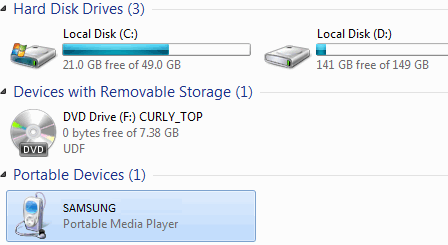
usb transfer

Part 2. Transfer Music from Computer to Galaxy Note 9 by One-Click

Android ToolKit Android Transfer is an all-in-one data manage & transfer tool, it can help to transfer music from computer to Galaxy Note 9 with one-click. It is designed for backup Android files to computer & restoring backed up from computer to Android safely. Besides, it could help to transfer files between Android and iTunes, transfer files between Android and Android/iOS devices. The types of transferable files including music, videos, photos, contacts, SMS and playlist.


d_win d_mac

Once you’ve launched the Android Transfer software and connected it to your Galaxy Note 9, follow the steps to transfer music from computer to your phone:

Step 1. Run Program and Connect Samsung Phone
Run Android Transfer on the computer, connect your Galaxy Note 9 to computer via a USB cable, and wait until the program detects your phone.

android transfer main page

Step 2. Add Music from Computer to Samsung Phone
Click on the “Music” tab, located on top. Select the “Add” icon (you could choose to add either a file or a music folder). It’ll open a window that would display your music files. Select the file or folder that you’d like to import from the computer to your Samsung Galaxy Note 9.

sync music from pc to Samsung

Finished. It’ll automatically start transferring the selected songs to your Samsung and notify you once it’s done syncing.

d_win d_mac

Part 3. Transfer Music from Other Devices to Galaxy Note 9

Android & iOS ToolkitPhone Switch is a smart tool enables you to switch files between two phones no matter it run the same OS or not. Easily transfer every type of data from an old phone to Galaxy Note 9 including apps, music, videos, photos, contacts, messages, apps data, call logs, calendar, etc,. Moreover, this program allows you to backup phone data to computer safely, restore local/could backup files selectively. Works perfectly with Apple, Samsung, HTC, LG, Sony, Google, HUAWEI, Motorola, ZTE, Nokia and more smartphones and tablets.

d_win d_mac

Step 1. Run Program & Connect Devices
Firstly, you need to launch the software and connect both of the two phones to the computer. Now your old device has to be chosen as the source device. Click on the “Switch” tab in the home page of program.

android toolkit home page

Step 2. Ready for Transfer
Select your Samsung Galaxy Note 9 device as the destination. All the types of files are transferable, including apps, music, videos, photos, contacts, messages, apps data, call logs, calendar, etc,.
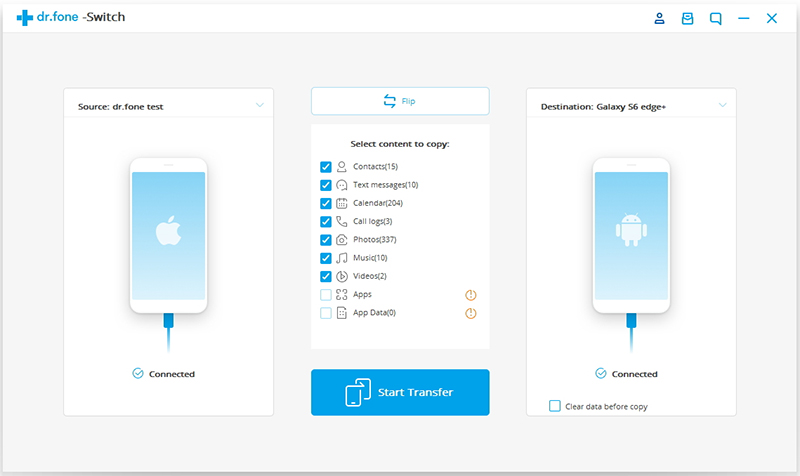
select files to transfer

Step 3. Transfer Music to Galaxy Note 9
Select “Music” and hit the “Start Transfer” button to begin the transfer.
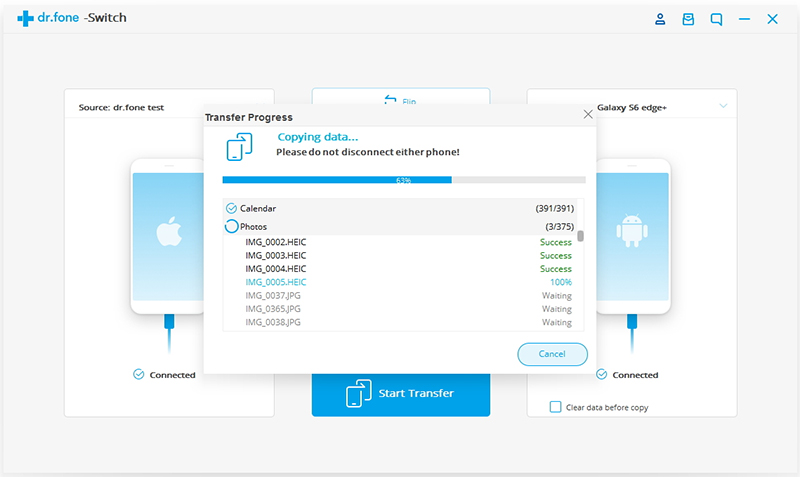
switch data to Galaxy Note 9

Done. Now all the music have been transferred to Samsung phone.
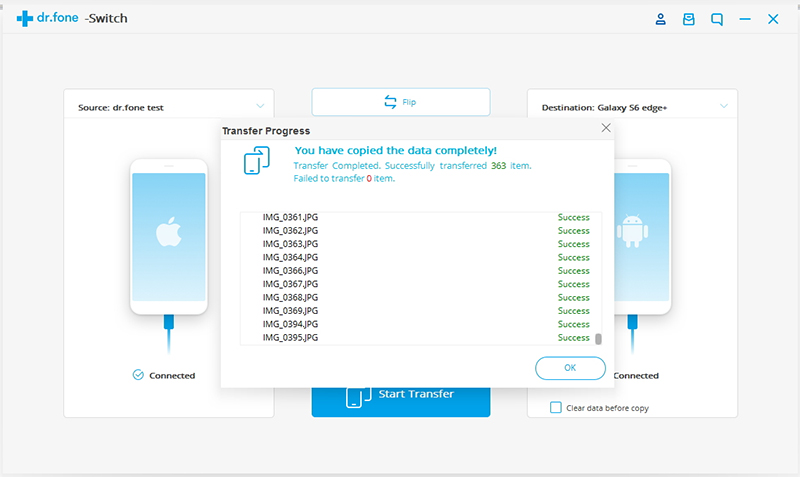
transferred completed

d_win d_mac

Part 4. Sync Music from iTunes Library to Note 9

What’s going to do if you just switched from an iPhone to Samsung Galaxy Note 9 and want to sync iTunes music library to the new phone so that you don’t have to re-download or purchase the same music again? iTunes to Android Transfer software provides a simple method to transfer music files from iTunes library to Samsung Galaxy Note 9.

d_win d_mac

Basic Features:
-The best alternative to iTunes for managing files.
-Freely transfer music, videos and photos between your devices.
-Easily export, edit and backup contacts, SMS, MMS.
-Support for syncing iTunes music to Android or transferring music from Android to iTunes.
-Works on Mac and PC and is compatible with Android 8.0 and iTunes 12.X.

Easy Way to Enjoy iTunes Music on Samsung Galaxy Note 9

Step 1. Launch iTunes to Android Transfer Tool
First of all, free download, install and launch iTunes to Android Transfer tool on your computer. After connecting Samsung Galaxy Note 9 to PC, you will get a connected screen shown as below. Simple choose “Transfer iTunes Media to Device” option.
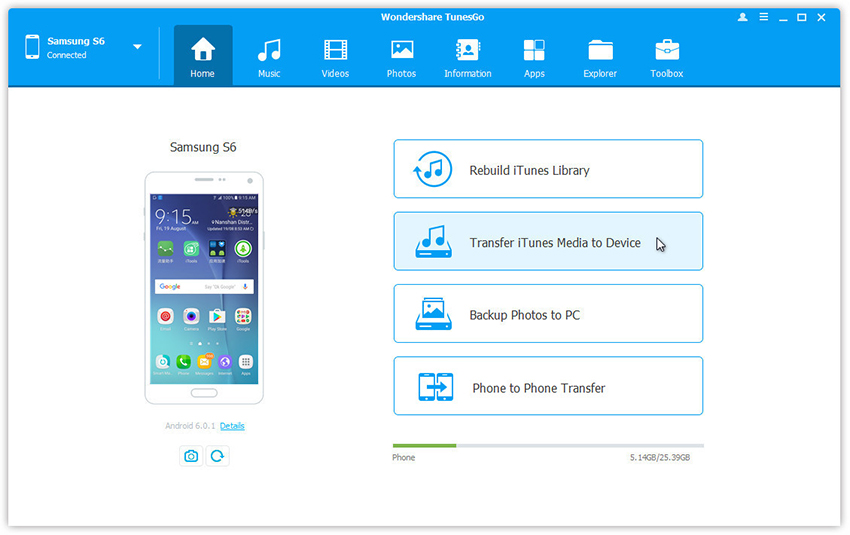
Android transfer home page

Step 2. Choose Data to Sync
As shown, you can select the entire library or any other options as needed. In this case, choose Music and once you have made your selection, just click “Transfer“.

select itunes music to transfer

Step 3. Sync iTunes Music Library to Galaxy Note 9
Now you must simply wait while the program transfers your chosen data from iTunes to Samsung Galaxy Note 9. As soon as the process is done, you will be prompted through a screen notification.

transfer itunes music to Galaxy Note 9

d_win d_mac

Part 5. Stream Apple Music on Galaxy Note 9

Apple Music are combined with digital rights management (DRM) protection. There is not an Apple Music app for Samsung Galaxy Note 9. This makes it complicated to stream Apple Music songs on newly Samsung Galaxy Note 9 until you find out the Apple Music Converter software which is a comprehensive tool to crack DRM protection from Apple Music songs, Audible audiobooks, iTunes Library and convert Apple Music M4P to common audio files MP3, M4A, FLAC, WAV, AAC at an up to 30X faster speed without reducing the audio quality.

d_win d_mac

Step 1. Install Apple Music Converter
You can start by connecting your Samsung Galaxy Note 9 to the PC and launching the Apple Music Converter program. Soon, you will see the program will load iTunes playlists on the left panel of the window.
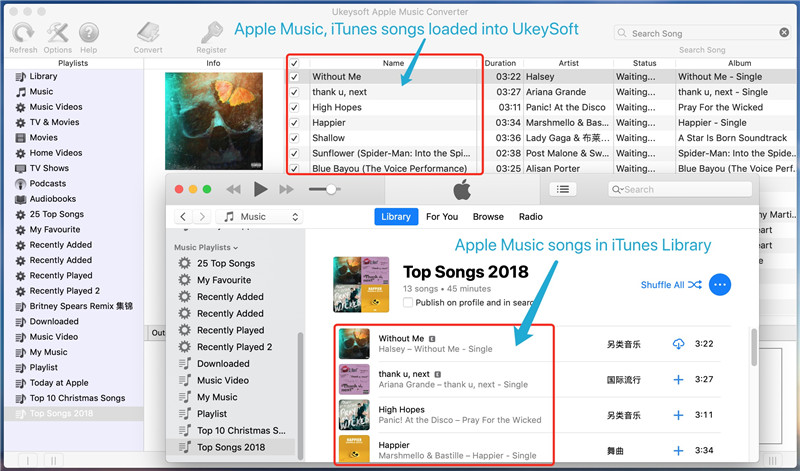
launch apple music converter on mac or pc

Step 2. Add Apple Music Tracks
Hit on “Library” to browse the Apple music files to import directly. You can choose a few songs even the whole music library as this program supports batch conversion.

select music to convert

Step 3. Set Output Format
Generally, “MP3” which is highly recommended works for any scenarios. But if you want to convert your Apple Music songs losslessly, you can choose “FLAC” or “WAV”.

choose MP3 as output format

Step 4. Stream Apple Music on Samsung Note 9
Simply click on “Convert” button and Apple Music Converter will convert all the music files to DRM-free MP3 format in batch. After conversion, you are able to transfer & enjoy Apple Music songs on Galaxy Note 9 freely.

convert apple music to mp3 for Samsung

d_win d_mac

Part 6. Stream Spotify Music on Galaxy Note 9

Spotify is a streaming service that adds a DRM layer to its streaming music collection. To listen to Spotify music on Samsung Galaxy Note 9 successfully, you need to download and install Spotify Music Converter which assists you to directly remove DRM from Spotify music, playlist and convert to MP3/ AAC/ WAV/ FLAC, keeping Spotify music forever after canceling premium subscription.

d_win d_mac

Step 1. Add Spotify Music to the Program
After running on the Spotify Music Converter software on your computer, Spotify music app will be launched automatically and you can click on “Add Files” icon, then a dialogue will pop up to let you paste the URL. Or you can drag & drop the music or playlists from Spotify app to the program directly.
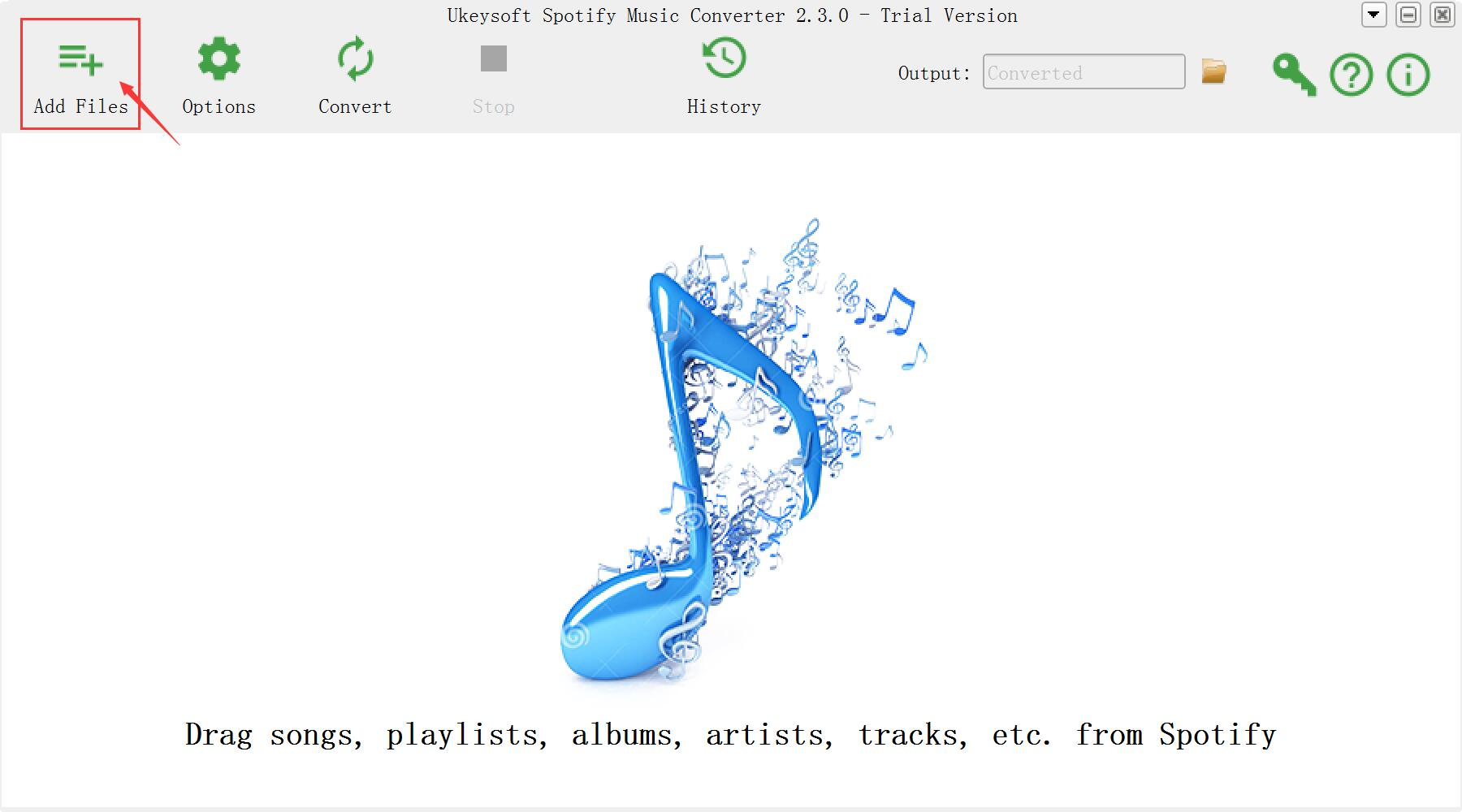
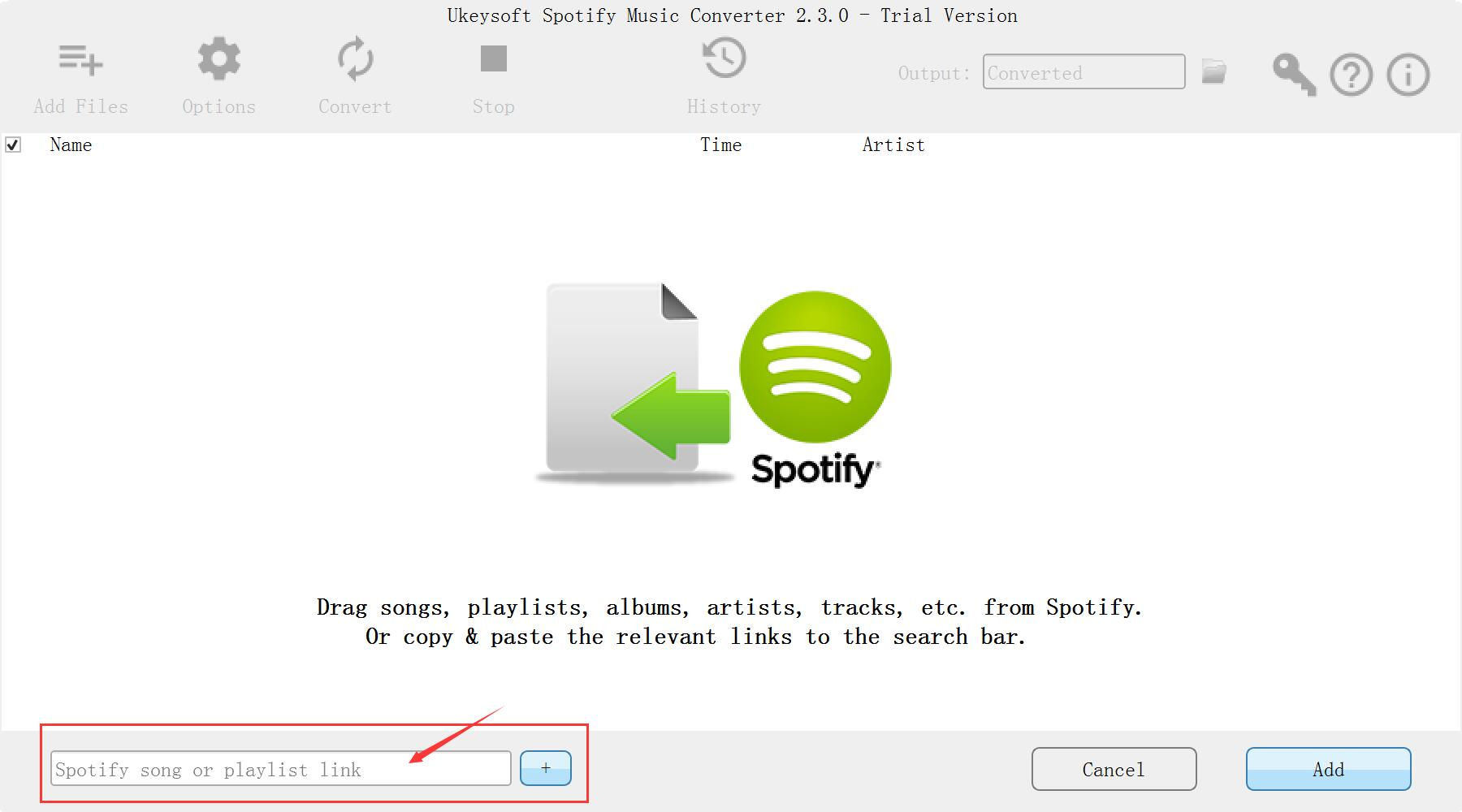
Spotify Music Converter home page

add Spotify Music

Step 2. Choose Output Format as MP3
Then click Setting button to customize the output parameters. You can choose MP3, AAC, FLAC or WAV as the output format and you are able to change SampleRate and bitrate before conversion.
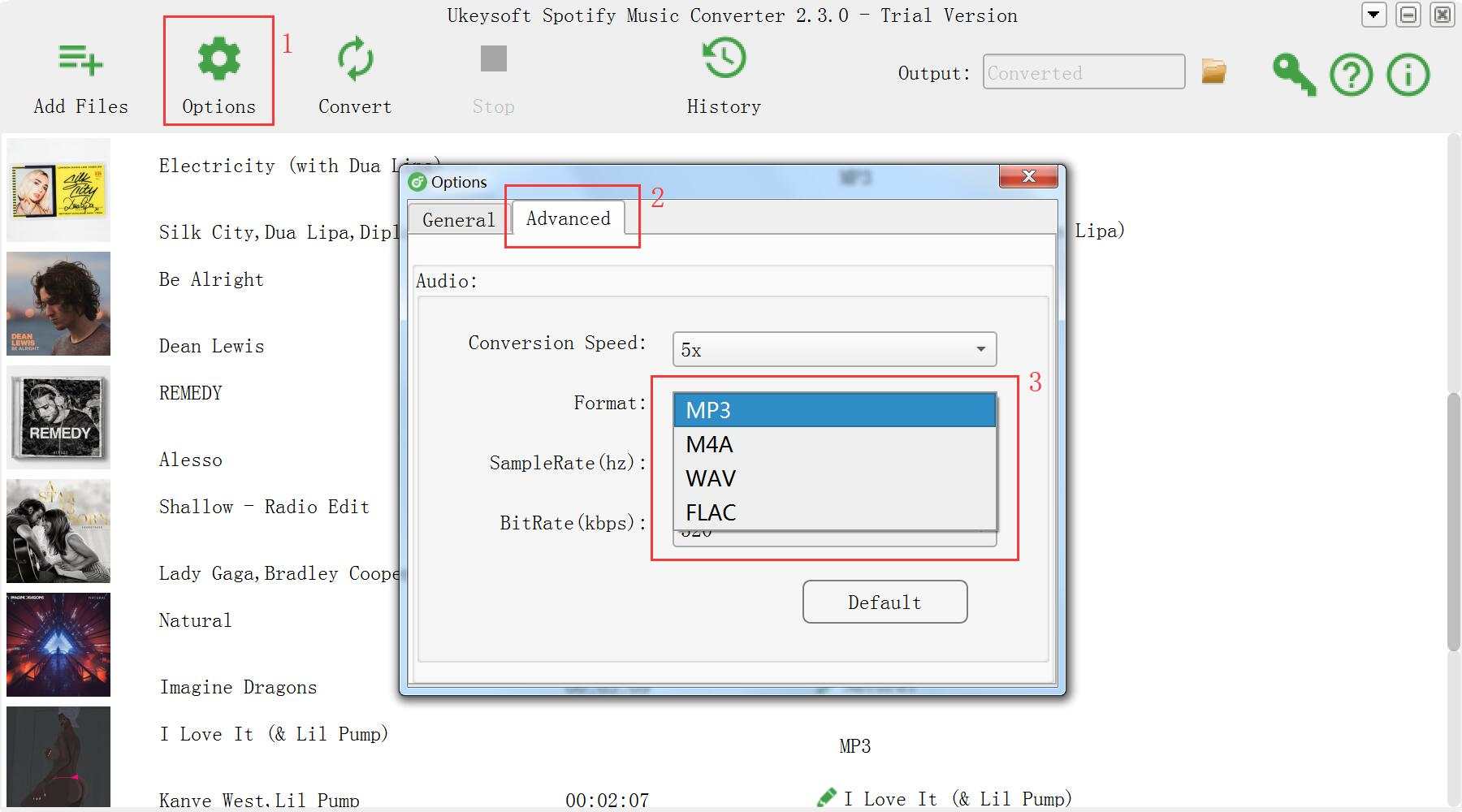
output format settings

Step 3. Stream Spotify Music to Samsung Galaxy Note 9
Click “Convert” button to remove DRM from Spotify Music and convert these files to MP3 plain format without losing original quality.
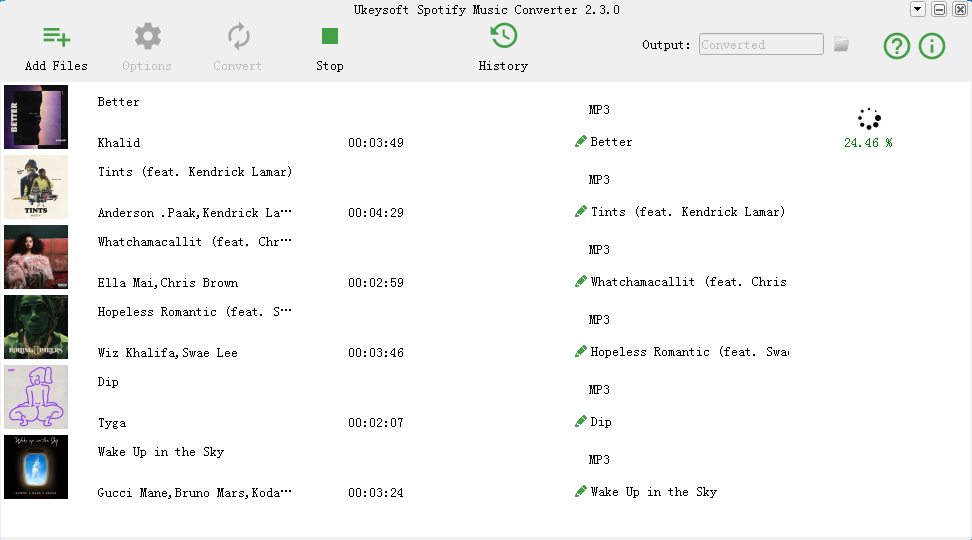
convert Spotify Music to MP3 for Samsung

After conversion, you will easily find the downloaded DRM-free Spotify music files in the History folder.

d_win d_mac

Lastly, import the converted Spotify Music from the computer to Galaxy Note 9 phone via Android ToolKitAndroid Transfer tool, then you can enjoy the songs on your phone without any limits.

Related Galaxy Note 9 Articles:

Transfer Samsung/Android Data to Samsung Galaxy Note 9

How to Recover Deleted Data from Samsung Galaxy Note 9

How to Transfer iTunes Music to Samsung Galaxy Note 9

How to Transfer iTunes Videos to Samsung Galaxy Note 9

How to Backup & Restore Samsung Galaxy Note 9

How to Root Samsung Galaxy Note 9 with One Click

Manage & Transfer Files for Samsung Galaxy Note 9

Transfer Music to Samsung Galaxy Note 9

How to Restore Lost Photos from HTC U12/U12+

Summary: If you want to recover lost photos from HTC U12/U12+ or other HTC models, you can follow the below guide and try to use the Android Data Recovery tool to get photo back.

The HTC U12/U12+ is a powerful 6-inch phone with all the markings of an Android flagship. Made of metal and glass, it comes in several stunning colors, while a fast Snapdragon 845 ticks inside of it, alongside plenty of memory. For the first time in a while, HTC is adding a dual camera on its flagship, enabling 2x zoom and portrait shots. Another dual camera setup at the front enables portrait selfies and face unlock. To complete the package, HTC is adding Edge Sense 2 – a squeeze or a double tap of the sides of the phone can act as shortcuts to frequently used features.

If you accidentally lost photos from the HTC U12/U12 + device, it is really a frustrated thing since these photos are important for great memories. With the camera function of HTC phone, you can take pictures with your family and friends during each vacation to record every wonderful moment you have experienced. Taking pictures can keep beautiful moments forever. There are many causes will lead to photos disappeared from the phone, like accidental deletion, Android OS updated, Android OS rooting, etc,. Losing photos from smartphone is a pity, especially when those pictures are very important to you. In this moment, you can try Android Data Recovery software to solve this problem, which is useful for you to recover different data of phones and tablets from Android device.

Android Data Recovery allows you to completely restore lost photos from HTC U12/U12+. This advanced software supports all types of data loss, possibly due to accidental deletion, Android OS updated, Android OS rooting, device factory reset, SD card damage, or system crash. Besides photos, Android Data Recovery enables users to recover lost videos, call logs, SMS, contacts and more file types from Android device effectively. It allows you to preview all the details of deleted and existent data and selective recovery on Android with ease. This program supports almost all HTC models, including HTC U12, HTC U12+, HTC U11, HTC Ultra, HTC Bolt, HTC One M9s; etc,.

d_win d_mac

How to Restore Lost Photos on HTC U12/U12+

Step 1. Connect HTC U12/U12+ to the Computer
Run the Android Data Recovery after you download and install it on your computer, select “Android Data Recovery” option. Connect your HTC U12/U12+ to computer to let the app detect it automatically.

connect HTC to the computer

Step 2. Debugging USB on HTC Phone
When the connection is successful, you should enable USB debugging on your device. Your device will display a dialog box and click “OK“.

usb debugging on HTC

Step 3. Select Photos files Recovered from HTC
Here, the program listing all kinds of files for you to restore, including contacts, message, gallery, videos, WhatsApp messages, etc,. Let’s take photos recovery for an example, just select “Gallery” and “Picture Library” items only. Then click “Next”.

select gallery files to recover from HTC

Step 4. Allow Scanning HTC U12/U12+ for Lost Photos
In this step, you should click on the button “Allow” to authorize program scan and analyze the lost photos from HTC.

allow scanning HTC

Step 5. Begin to Scan HTC Phone for Lost Photos
After that, Android Data Recovery will begin to scan all lost files from your HTC U12/U12+ phone.

scan HTC for lost data

Step 6. Preview and Restore Lost Photos from HTC U12/U12+
All the recoverable photos, messages, contacts, videos, and other types of files will be displayed on the scan out list. To lost photos directly from HTC phone , click the “Gallery ” and “Picture Library” items, and the recoverable photos will be displayed. Preview and mark those photos you want to restore, and click the “Recover” button to retrieve the selected photos from HTC U12/U12+ on the computer.

recover lost photos from HTC

d_win d_mac

Related Articles:

How to Recover Deleted Data from HTC

How to Recover Deleted Photos from HTC

How to Recover Deleted Contacts from HTC

How to Backup & Restore Android

How to Root Android on Computer with One Click

How to Manage Android on Computer

Recover Lost Photos from HTC U12

Android Data Recovery

Recover Your Lost Data from Android
Now, Even Device Broken

Compatible with Android 8.0 Oreo/7.0, etc.

Recover Lost Data Now

How to Recover Lost Contacts/Photos/SMS from LG G8

Summary:This post is intended to help LG smartphone users to easily recover lost files from the phone. It offers the best ways to retrieve photos, contacts, text messages and more types of data from LG smartphone, such as LG G8/G5/G4/G3/G2.

LG smartphones are quite popular all over the world these days. The smartphone has become a device that we can’t live without it. One of the major reasons why people prefer to buy LG phones is due to its higher specifications with cheaper price. Especially, with the new LG G8 phone, you can take pictures, store music and videos in highest qualities and with internal 32 GB storage, it gives you the opportunity to store a lot of data on your phone, such as contacts, SMS, photos, etc,. As time goes on, you will have tons of important data, contacts, photos, SMS and so on in your phone that you can’t afford to lose them. But data loss may occur for various reasons, you may lose data during software update or you may accidentally delete them as well. Whatever the reason, you should find a solution to recover those important content that stored on your phone. In this short tutorial, you will learn how to quickly and efficiently recover lost data from LG phone.

Android Data Recovery, like a doctor, rescue all types of Android data, including photos, messages, contacts, videos, call logs, WhatsApp messages, etc,. The lost Contacts, Photos, SMS can be recovered from LG G8, even without backup. It supports recovering lost Android data in any case of data loss, such as factory resets, accidental deletions, Android operating system updates, screen disconnects, Android OS crashes, and so on. It perfectly combines LG, Samsung, HTC, Sony, Google, Huawei, OPPO, Xiomi, Motorola, ZTE and almost all Android models. The following tutorial shows you how to restore data lost from LG.

d_win d_mac

How to Recover Lost Data from LG G8

Step 1. Run Android Data Recovery and Connect LG G8
Firstly, run Android Data Recovery on the computer and click “Android Data Recovery” among three options. Connect your LG G8 to the computer through the a USB cable. The interface is as follows.

connect LG phone

Step 2. Debugging USB on LG Phone
When the connection is successful, you should enable USB debugging on your device. Your phone will display a dialog box and click “OK“.

allow to detect LG

Step 3. Select the File Recovered from LG G8
Check and click the files contain the data you need to restore for scanning, or you can click “Select All” to scan from all LG data then click “Next“.

select files to scan

Step 4. Allow Scanning LG G8 for Lost Files
In this step, you should click ”Allow” to authorize program analyze the lost data from your LG phone.

allow to scan LG

Step 5. Scan Lost Files for LG G8
Now the program will start scanning the data on your LG G8 device. Please be patient.

scan lost LG data

Step 6. Preview and Restore Lost Files from LG G8
Once the scan is finished, you are allowed to preview all the data find from your phone, including photos, contacts, text messages, etc,. Lastly, click the “Recover” button to save the selected lost data on the computer.

recover lost data from LG

d_win d_mac

More LG Related Guides you can Check:

How to Recover Deleted Photos from LG Phone

How to Recover Deleted Data from LG Phone

How to Recover Data from Water Damaged LG Phone

How to Recover Data from LG G5/G4/G3/G2 with Broken Screen

How to Backup and Restore LG Phone

How to Manage Android Phone on the Computer

Recover Lost Data from LG G8

Android Data Recovery

Recover Your Lost Data from Android
Now, Even Device Broken

Compatible with Android 8.0 Oreo/7.0, etc.

Recover Lost Data Now

Restore Lost WhatsApp Messages from Samsung Galaxy S5

I need some help. I want to restore some lost WhatsApp messages from the WhatsApp list. Last night my litter son deleted some important data from it what made me angry. How to get it back without backup?

Nowadays, there are many third-party app used to chat with others without calling or messaging. WhatsApp is a notable messaging app available on different OS of smartphones. WhatsApp has made communication simple and it ranks at the top list of iOS, Android, Windows and Symbian app store. Through WhatsApp we can share media in a single tap, for example, instant messages, voice messages, photographs, recordings. WhatsApp is one of the popular app that people like to use to communicate with friends, families, client, or stranger. Maybe you like to use WhatsApp for connecting people because it’s free and easy to use. Maybe it’s just a convenient way to keep in touch with anyone you want.

Lost WhatsApp Messages from Samsung Galaxy
You probably have a lot of important WhatsApp data in WhatsApp chat list, and it’d be depressed if it all suddenly disappeared. It is a terrible thing if you lost your WhatsApp chat history. Some people may made a WhatsApp backup with local backup function, some people backup WhatsApp data via could service app. However, most people haven’t backed up WhatsApp. When it happens, how do you recover the lost WhatsApp conversion like the text, audio messages and media files? Here we will introduce you a powerful Android data recovery software and show you how to recover lost WhatsApp messages from Samsung Galaxy with ease.

Recover Lost WhatsApp from Samsung Galaxy S5

Different from other data recovery, Android Data Recovery is highly evaluate program in 2018 to recover all kinds of lost data for Android phones and tablets. There is a built-in features to recover lost WhatsApp messages from Samsung Galaxy S5, as well as WhatsApp audio messages, photos, videos and attachments. That makes it extremely easy to restore data from Android under any data loss cases. What’s more, it is able to recover other types of files, like photos, videos, contacts, SMS, call logs and more. All major Android devices are well supported by this program, including Samsung Galaxy(S5/S6/S7/S8/S9), HTC One, Sony Xperia, Huawei, Google Pixel, Motorola and so on.

d_win d_mac

Restore Lost WhatsApp Messages on Samsung Galaxy S5

Step 1. Run the Software & Connect Samsung to PC
Run Android Data Recovery on the computer, click “Android Data Recovery” option in the home page. Use a USB cable to connect your Samsung phone to the computer and then you will see the software automatically recognize and detect your phone.

connect Samsung Galaxy S5

Step 2. Enable USB Debugging on Samsung
This step will guide you to enable USB debugging on the device(If you haven’t did it previously), just click “OK” to allow enable USB debugging on it.

allow to connect Samsung Galaxy S5

Step 3. Select WhatsApp Files to Scan
After you successfully enabled the USB debugging on your Samsung, the program will list all kinds of files for you to restore, including message, contacts, gallery, videos, WhatsApp messages, etc,. Select the “WhatsApp“& “WhatsApp Attachments” items for WhatsApp data recovery. Click “Next” to go to the next step.

select whatsapp files to recover

Step 4. Allow to Scan Samsung Phone
Tap “Allow” on the phone to allow the program analyzing and scanning your Samsung.

allow scan the Samsung Galaxy S5

Step 5. Scan for the Lost WhatsApp on Samsung
After that, Android Data Recovery will begin to scan all lost files from your phone. Please wait for a few minutes.

scan Galaxy S5 for lost data

Step 6. Preview and Restore Lost WhatsApp Messages
The scan result shows that all recoverable messages, photos, videos, contacts, call logs, WhatsApp messages, etc,. Preview and mark those messages under “WhatsApp“& “WhatsApp Attachments” items you want to restore. At last, click the “Recover” button to restore the lost WhatsApp from Samsung Galaxy S5 on the computer.

recover lost WhatsApp from Galaxy S5

d_win d_mac

More Samsung Data Recovery Guides:

How to Recover Lost Data from Samsung Galaxy S5 after Rooting

How to Recover Lost Photos from Samsung Galaxy S5

How to Recover Lost Data from Samsung Galaxy S5

How to Backup & Restore Samsung Galaxy S5

How to Manage Samsung Galaxy on the Computer

How to Stream Apple Music to Samsung Galaxy

Recover Lost WhatsApp from Galaxy S5

Android Data Recovery

Recover Your Lost Data from Android
Now, Even Device Broken

Compatible with Android 8.0 Oreo/7.0, etc.

Recover Lost Data Now

Restore Lost SMS from Motorola Z3/Z3 Play/Z3 Force

Summary:This post will teach you how to recover the important text messages you accidentally lost from Motorola Z3/Z3 Play/Z3 Force via Android Data Recovery.

The Moto Z3 is the first in the U.S. to support Verizon’s 5G network directly, with a downlink rate of more than 3.5Gbps. In appearance, with a 6.75 mm ultra-thin fuselage, known as the “world’s thinnest flagship”, the frame is 6000 series of aviation aluminum, high strength and corrosion resistance. The Moto Z3 uses a 2.5D Corning glass with a 40% improvement in scratch resistance and a 6.01-inch Super AMOLED super-screen from. In addition to the ultra-thin body, the Moto Z3’s biggest bright spot is that, in a sense, it is the world’s first smartphone to be upgraded to 5G networks, and its network speed is far faster than the 4G network, known as “100 times faster”.

SMS is now more and more important in people’s daily life for the reason that it can be sent and received in a shortest possible time. And it is preferred to be stored in mobile phone that people can preview content at any time. However, we are accustomed to place the important data that we received from others in the message inbox. If the messages happened to be deleted unintentionally, what should we do? Fortunately, nothing is impossible. Android Data Recovery is a good assistant for you. It is a data recovery tool to retrieve deleted data from Android device. To let you know more about this program, I will take Motorola phone as an example to show you the details of it.

Android Data Recovery is always a good choice when it comes to recovering lost SMS or other types of Android data. Its purpose is to help restore deleted or lost data from Android phones or tablets. The tool provides a simple and safe way to recover lost SMS from Motorola Z3/Z3 play/Z3 force. Not just text messages, it also helps restore contacts, WhatsApp messages, audio, videos, photos, call logs, and others. It supports restoring Android data for any data loss cases, such as accidental deletion, Android operating system updates, Android operating system rooting, factory reset restoring, etc,. Compatible with all Motorola models and other Android models, including Motorola Z series, G series, E series, X series, etc,.

d_win d_mac

How to Restore Lost SMS from Motorola Z3/Z3 Play/Z3 Force

Step 1. Run the Software & Connect Motorola to PC
You can directly launch it by double-clicking on the “Android Data Recovery” shortcut icon. Use a USB cable to connect your Motorola phone to the computer and then you will see the software automatically recognize and detect your phone.

connect Motorola phone

Step 2. Enable USB Debugging on Motorola
This step will guide you to enable USB debugging on the device, just click “OK” on it.

allow detect Motorola

Step 3. Select SMS Files to Scan
After you successfully enabled the USB debugging mode on your Motorola phone, the program will list all kinds of files for you to restore, including message, contacts, gallery, videos, WhatsApp messages, etc,. Select the “Messages“& “Message Attachments” items for SMS recovery.

select SMS files to scan

Step 4. Allow to Scan your Motorola
Click “Next” to go to the next step. And then you should tap “Allow” on the phone, to begin analyzing and scanning your Motorola.

allow to scan Motorola

Step 5. Scan for the Lost SMS on Motorola
After that, Android Data Recovery will begin to scan all lost files from your phone. Please wait for a few minutes.

scan lost Motorola data

Step 6. Preview and Restore Lost SMS from Motorola
The scan result shows that all recoverable messages, photos, videos, contacts, call logs, WhatsApp messages, etc,. Preview and mark those messages under “Messages“& “Message Attachments” items you want to restore. Finally, click the “Recover” button to restore the lost SMS from Motorola on the computer.

recover lost SMS from Motorola

d_win d_mac

Related Motorola Data Recovery Articles:

How to Recover Lost Contacts from Motorola Z3/Z3 Play/Z3 Force

How to Recover Deleted Data from Motorola Z3/Z3 Play/Z3 Force

How to Recover Deleted Photos from Motorola Z3/Z3 Play/Z3 Force

How to Recover Data from Water Damaged Motorola

How to Backup and Restore Motorola Safely

How to Manage Android on the Computer

Recover Lost SMS on Motorola Z3

Android Data Recovery

Recover Your Lost Data from Android
Now, Even Device Broken

Compatible with Android 8.0 Oreo/7.0, etc.

Recover Lost Data Now

How to Recover Deleted Messages on Samsung Galaxy S10/ S10+/ S10e

Summary
This article tells you how to recover deleted messages from Samsung Galaxy S10/S10+/S10e effectively with Android SMS Recovery app. Scroll down the screen and check how to restore Android text messages on PC or Mac, you can easily to recover the deleted SMS with one click and save them to CSV, HTML and attached images.

Can I Recover Deleted SMS from Samsung Galaxy S10/S10+?

I deleted an important messages on my Galaxy S10+, is is possible to recover deleted text messages from Samsung Galaxy S10+ without Samsung Kies backup?

After reset my Samsung Galaxy S10 to factory setting, I found all important messages were loss, how to recover lost messages from Samsung Galaxy S10? Can I recover Samsung S10 texts in the phone memory? Thanks to help me.

Whatever how excellent performance a mobile phone has, we may lost data like text messages due to different circumstances, like accidental deletion, rooting, system crash, etc,. Samsung Galaxy S10 is no exception. Actually, when the message is deleted, it doesn’t go to the trash or the recycle bin, because there isn’t a trash or a recycle bin on your Samsung. It’s only marked as useless information and can be overwritten by new data. The deleted message only become invisible, and disappear until being overwritten. Well, you don’t need to panic. Samsung Galaxy S10 SMS Recovery software can help you recover lost SMS and more types of data from Samsung Android phones. As the world’s first Android data recovery software, it’s completely safe and reliable.

Text Messages Recovery for Samsung Galaxy S10/ S10+/ S10e

Android SMS Recovery can directly recover deleted text messages from Samsung Galaxy S10, including name, phone number, additional images, e-mail, and more personal information. It is a smart data recovery tool designed for recovering data from Android mobile phones and tablets, insist of text messages, contacts, photos, videos, call history, WhatsApp message, and so on. It can handle with any data loss cases, such as error deletion, Android system updates, Android system rooms, forgotten passwords, factory resets. Android Data Recovery works well for almost all Android devices, like Samsung, HTC, LG, Huawei, Google, Lenovo, OPPO, ZTE, Sony, Sharp, and so forth.

d_win d_mac
d_win d_mac

Guide: Restore deleted Messages on Samsung Galaxy S10/ S10+/ S10e

Step 1. Connect your Samsung Phone to the Computer
Download, install and run the program on the computer. Select “Android Data Recovery” option among the three mode. Connect your Samsung phone to PC via a USB.

connect Samsung phone

Step 2. Enable USB Debugging on Samsung Galaxy S10
If you have not opened the USB debugging option yet, this program will ask you to do it. Follow the instruction below to do it now. The device will display a dialog box and click “OK“.

allow to detect Samsung

Step 3. Select the SMS File Recovered from Samsung
In this step, you can check some files contain the data you need to restore, or you can click”Select All” to scan all Samsung data. For SMS recovery, you should click “Messages” and & “Message Attachments” files, then click “Next“.

select SMS files to scan

Step 4. Analyze and Scan your Samsung for Lost SMS
Click on the button “Allow” to authorize program scan and analyze the lost data from Samsung.

allow to scan Samsung

Step 5. Scan Samsung Galaxy S10 for Lost SMS
Now the program will begin to scan and analyze data on your Samsung device. It will take you some time, please be patient.

scan lost Samsung SMS

Step 6. Preview and Recover SMS from Samsung S10 Phone Memory
When the scan finishes, you are allowed to preview the whole message contents in the scan out list. You can preview them one by one and choose those you want to recover by clicking “Recover” button to save them as a HTML file on the computer.

recover lost SMS from Samsung

d_win d_mac
d_win d_mac

Recover SMS from Samsung S10

Android Data Recovery

Recover Your Lost Data from Android
Now, Even Device Broken

Compatible with Android 9.0 Oreo/8.0, etc.

Recover Lost Data Now

How to Recover Lost Call Logs from Samsung Galaxy S10

Summary: This guide will shows you how to recover your lost call logs on Samsung Galaxy S10 in a simple way. Follow the steps to have a try!

How to recover the lost phone number in the call list from Galaxy S10? Could anyone give me some ways available to accomplish this recovery? Many thanks.

Call history includes all calls, outgoing calls, incoming calls and unanswered calls, losing call logs from smartphone may reveal your privacy or even get you into trouble. To protect privacy, many Samsung users choose to delete their call history oftenly. However, regularly deleting the Samsung call logs can also cause problems, for example, you deleted the phone numbers then you may find that you forgot to check and save some important numbers so free regret. At this point, a lot of questions arise in your mind, for example, how to restore lost call logs from Samsung Galaxy S10?

Samsung Call Logs Recovery

Android Data Recovery provides you with a simple and safe solution. It allows you to scan all the missing files on Android internal storage, and then selectively or in batches recover the files you need on the device. You can use it to restore lost call logs on Samsung Galaxy S10, as well as photos, videos, contacts, messages, photos, documents, etc,. In addition, it can handle any data loss situation well, such as error deletion, Android system updates, Android system rooms, forgotten passwords, factory resets, and more. Most of the Samsung models are compatible with Android Data Recovery, such as Samsung Galaxy S10/S9/S8/S7/S6/S5. The program has a wide range of support Android brands, which means that devices from Samsung, Lenovo, Huawei, Google, HTC, Motorola, Sony, LG, and so on.

d_win d_mac

How to Recover Lost call logs from Samsung Galaxy S10

Step 1. Run Android Data Recovery and Connect Samsung to the Computer
Download and install Android Data Recovery on your computer. Run it and choose “Android Data Recovery” mode. Then connect your Samsung Galaxy S10 phone to the computer via a USB cable.

connect Samsung phone

Step 2. Enable USB debugging on Samsung Phone
If you have not opened the USB debugging option yet, this program will ask you to do it. Follow the way below to do it now. The device will display a dialog box and click “OK“.

allow to detect Samsung

Step 3. Select Call History File to Scan
Choose the file type you need to recover from Samsung. For call history recovery, just click “Call Logs”. Then click on “Next”.

select call logs file to scan

Step 4. Analyze and Scan your Samsung for Lost Call Logs
Once you enabling USB debugging on Samsung Galaxy S10, it will be detected by the program soon. Then click on the button “Allow” to authorize program analyze the lost data from Samsung.

allow to scan Samsung

Step 5. Scan Samsung Galaxy S10 for Lost Call Logs
Then the program will take you some minutes to scan & analyze data on your device.

scan lost Samsung call logs

Step 6. Preview and Recover Lost Call Logs form Galaxy S10
When the scan finishes, you can preview the whole contents in the scan result list. You can preview them one by one and choose those you want to recover and click “Recover” button to save the selected call logs data under “Call Logs” file on the computer.

recover lost call logs from Samsung

d_win d_mac

Related Samsung Data Recovery Guides:

How to Recover Deleted Data from Samsung Galaxy S10

How to Recover Lost Contacts from Samsung Galaxy S10

How to Recover Deleted Photos from Samsung Galaxy S10

How to Backup & Restore Samsung Galaxy

How to Manage Samsung on the Computer

Recover Lost Call Logs from Galaxy S10

Android Data Recovery

Recover Your Lost Data from Android
Now, Even Device Broken

Compatible with Android 8.0 Oreo/7.0, etc.

Recover Lost Data Now

Transfer Samsung/Android Data to Samsung Galaxy Note 9

The Galaxy Note series has always been controversial. From the days of “who would ever want a 5.3-inch screen?” to the commercials that made Apple doubt itself, to the Note 7’s fiery fiasco, the series has constantly made the news. Despite the controversy – or maybe because of it – the Note family is Samsung’s proudest achievement, an embodiment of its leadership in technology and design. Announced in New York City, the Galaxy Note 9 is an exquisitae, yet utterly uncontroversial phone.

In these years, many competitive smartphones have been made by Android manufacturers. The phone run on Android OS, which is known for highly performance and quality, it is very popular on the mobile market. Undoubtedly, Samsung is one of the most outstanding brands. And Samsung Galaxy phones must be the most shining series. Whether you have got a new Samsung Galaxy or are thinking of buying one, Galaxy Note 9 is a good option. Whether you have got an old Samsung phone or Android phone and prepare to switch to this new Samsung model, you need to learn a reliable way to transfer data between the old device and the new one.

Currently, many Android manufacturers provide apps to help users transfer data to new phone easily, such as, Samsung Smart Switch, HTC Transfer Tool, LG Backup, Sony Xperia Transfer, Motorola Migrate, etc,. All these phone transfer apps are free and you can choose the suitable one to finish the transition. However, there are limitations on these free Android file transfer apps. Why not using Samsung Smart Switch to switch data between two Samsung phones? Smart Switch does NOT support phones running on Android OS lower than 4.0; Smart Switch is NOT compatible with some phones; for some non-Samsung phones, Smart Switch ONLY supports a small part of all the file types. To import the data from an old Samsung/Android to Galaxy Note 9, you need an excellent way.

Import Samsung/Android Data to Samsung Galaxy Note 9

Compared to free phone transfer apps, another professional tool is highly recommended Android & iOS Toolkit – Phone Switch. It is designed for switching data between two mobile devices among iOS device, Android device, Symbian device, Windows device. It provides you with a one-click solution which can help you transfer data between Samsung/Android and Samsung Galaxy Note 9, including contacts, text messages, call logs, calendar, photos, videos, music, apps and apps data. It supports to any brands of Android devices, including Samsung(Galaxy Note 9/8/5/4/3), Huawei, HTC, LG, Xiaomi, Sony, Motorola, ZTE, Google, etc,.

d_win d_mac

Switch Samsung/Android Data to Samsung Galaxy Note 9

Step 1. Run Program and Connect Tow Phones to the Computer
Run Android & iOS Toolkit – Phone Switch on the computer, select “Switch” among the 8 options in the home page.

android toolkit home page

Connect both of your old Samsung/Android phone and the new Galaxy Note 9 to the computer. Then the program will detect the two phones soon and show them in the control panel.

select files to transfer

The data can be transferred from the source device to the destination one. (The old Samsung/Android phone as the source device should be on the left and the new Samsung phone as the target phone should be on the right.) You can use the “Flip” button to exchange their position.

Step 2. Choose the File and Start to Transfer
Select the file types you would like to transfer between the two phones. Then click on “Start Transfer” to begin the transfer. Please don’t disconnect the devices until the process is end.

switch data to Galaxy Note 9

Note:You can check the “Clear Data before Copy” box if you want to erase data on the destination phone before transferring the data to the target phone.

After a few minutes, all selected files will be transferred to the target Galaxy Note 9 phone successfully.

transferred completed

d_win d_mac

Related Galaxy Note 9 Articles:

How to Recover Deleted Data from Samsung Galaxy Note 9

How to Transfer iTunes Music to Samsung Galaxy Note 9

How to Transfer iTunes Videos to Samsung Galaxy Note 9

How to Backup & Restore Samsung Galaxy Note 9

How to Root Samsung Galaxy Note 9 with One Click

Manage & Transfer Files for Samsung Galaxy Note 9

Transfer Samsung/Android Data to Galaxy Note 9

How to Recover Deleted Contacts from Samsung Galaxy X

For years, we’ve heard rumors about a Samsung foldable smartphone called the Galaxy X. The phone still hasn’t surfaced – but Samsung’s mobile business head DJ Koh said on August 10 that it’s “not far away” during a press conference following the company’s Unpacked event where it announced the Galaxy Note 9 phone. An earlier report from July suggested 2019 would be the year we finally get a peek at the Galaxy X, according to the Wall Street Journal. The Galaxy X, as it’s been nicknamed, will reportedly be 7 inches diagonally when unfolded. That’s about the same size as a small tablet, giving more screen space than a traditional smartphone, in a smaller package. What an amazing phone that we can imagine!

Contacts contain phone number, E-mail address, house address, birthday data and more persona information. Losing contacts may be a frustrating thing for most of mobile users. Losing your smartphone contacts can be a stressful ordeal. Even if you handle your phone with care and attention, there are a few main reasons why you might lose your contacts: Your Android operating system is corrupt; you accidental delete your contacts carelessly, a virus infects your smartphone, your delete your contacts on purpose, and then realize later that you needed them; etc,. When a contact is deleted from your Galaxy phone, the contact is not totally gone from your phone memory. It just disappeared from the contacts app but continues to exist in your phone memory as unreadable data until it is overwritten by new data.

Restore Deleted Contacts from Samsung Galaxy X

To recover deleted contacts from Samsung Galaxy X, you need this reliable data recovery for Android named Android Data Recovery. It is the best option to recover deleted data from Android phone or tablet. The types of recoverable files including contacts, SMS, photos, videos, call logs, WhatsApp messages, etc,. It help to recover Android data lost due to any causes, for instance, accidental deletion, Android OS updated, Android OS rooted, factory reset restoring, virus attacked, and more. More importantly, it allows you to preview data before recovery. Android Data Recovery works well for most Samsung models and Android models, like Samsung Galaxy X, Galaxy S10/S9/S8/S7/S6/S5, Note 9/8/5/4, and so on.

d_win d_mac

How to Recover Deleted Contacts on Samsung Galaxy X

Step 1.Run Program and Connect Samsung Galaxy X
Firstly, please run Android Data Recovery on the computer, connect your Samsung Galaxy X to the computer. It will detect your phone automatically soon. In the home page of program click “Android Data Recovery” option, it will lead you to the next step.

connect Samsung phone

Step 2.Enable USB Debugging on Samsung Galaxy X
Now follow the instruction to allow enable the USB debugging mode on your phone. If you have already did it, you will see a pop-up window on the screen, mark “Always” and click “OK”.

allow to detect Samsung

Step 3.Select Contacts File to Restore from Samsung
After allowing program detect your device on computer, you’ll see this window, different types of files can be chose to be scan by program. For contacts recovery, select the “Contacts” file to scan by program then click “Next” to go on.

select contacts file to scan

Step 4.Allow Scanning and Analyzing Samsung Data
A new screen will appear on your phone to ask you if you allow the program to scan your phone. Tap “Allow” to enable the program to analyze your phone for deleted data.

allow to scan Samsung

Step 5. Scan Samsung Galaxy X for Deleted Contacts
In this step the program will begin to scan data on your Samsung phone. The scan process will take you some minutes.

scan deleted Samsung contacts

Step 6.Preview & Recover Deleted Contacts from Samsung Galaxy X
Once the scan is completed, you are allowed to preview all data found on your phone in the scan out lost, including contacts, SMS, photos, etc,. Preview then selecting the data you want to restore by clicking “Recover” button under the “Contacts” file to save them on the computer.

recover deleted contacts from Samsung

d_win d_mac

More Samsung Data Recovery Guides:

How to Recover Deleted Files from Samsung Galaxy X

How to Recover Deleted Photos from Samsung Galaxy X

How to Recover Data from Broken Samsung Galaxy

How to Transfer iPhone Data to Samsung Galaxy

How to Manage Samsung Galaxy Phone on PC/Mac

How to Play Apple Music on Samsung Galaxy without Limits

Recover Deleted Contacts from Galaxy X

Android Data Recovery

Recover Your Lost Data from Android
Now, Even Device Broken

Compatible with Android 8.0 Oreo/7.0, etc.

Recover Lost Data Now

How to Recover Contacts from Samsung Galaxy S10/S10+/S10e

Summary
Want to know how to recover lost contacts from Samsung Galaxy S10? This article teach you how to recover deleted contacts from Samsung Galaxy S10, S10+, S10e with a Samsung contacts recovery tool, so that you can get back important information like phone number, contact name, e-mail, address, and more.

Q:My Samsung Galaxy S10 was reset and all contacts are loss, how to restore lost contacts from Samsung S10 after factory reset?” – Joneson

Samsung Galaxy S10 is gaining popularity for its lifecycle capture capabilities and other enhanced technical features, mainly for communications tools. Most people don’t bother remembering those phone numbers because the smartphone remembers their contacts. When a person is taking root/upgrading on his Galaxy S10, the contacts on the phone are likely to be damaged and lost. Fortunately, you still have chance to restore contacts from Samsung Galaxy S10. When you delete contacts on Samsung Galaxy S10 or accidentally lost contacts on Galaxy S10, how to recover contacts from Samsung S10/S10+/S10e without backups? Here, we will recommend you a powerful and userful Samsung Galaxy S10 Contacts recovery tool.

An Effective Samsung Galaxy S10 Contacts Recovery

To recover lost contacts from Galaxy S10, we recommend that you use a Samsung Contacts Recovery, which not only helps you restore lost contacts from Samsung S10/S10+/S10e, but also allows you to restore SMS, photos, videos, WhatsApp, call logs and more types of files from Android phones. It could be help to restore lost data from Android due to any data loss circumstances, like accidental deletion, factory reset restoring, Android system updated, Android system rooted, virus attacked, etc,. This powerful data recovery tool is compatible with almost all Samsung models and Android models, like Galaxy S20/s20+/S10/S9/S8/S7/S6/S5, Note 9/8/5/4, and so on. All in all, Samsung Galaxy Data Recovery should be a good software to help you recover lost contacts from your Samsung device.

d_win d_mac
d_win d_mac

Guide: Recover Contacts on Samsung Galaxy S10/ S10+/ S10e

Step 1.Run Program and Connect Samsung Galaxy S10
In the first step, please run Android Data Recovery on the computer, connect your Samsung Galaxy S10 to the computer. It will detect your phone automatically soon. In the home page of program click “Android Data Recovery” option, it will lead you to the next step.

connect Samsung S10 to PC

Step 2.Enable USB Debugging on Samsung Galaxy S10
Now follow the instruction to allow enable the USB debugging mode on your phone. If you have already did it, you will see a pop-up window on the screen, mark “Always” and click “OK”.

allow to detect Samsung

Step 3.Select Contacts File to Restore from Samsung
After allowing program detect your device on computer, you’ll see this window, different types of files can be chose to be scan by program. For contacts recovery, select the “Contacts” file to scan by program then click “Next” to go on.

select contacts file to scan

Step 4.Allow Scanning and Analyzing Samsung Data
A new screen will appear on your phone to ask you if you allow the program to scan your phone. Tap “Allow” to enable the program to analyze your phone for lost data.

allow to scan Samsung

Step 5. Scan Samsung Galaxy S10 for Lost Contacts
In this step the program will begin to scan data on your Samsung phone. The scan process will cost you some minutes.

scan lost Samsung contacts

Step 6.Recover Lost Contacts from Samsung Galaxy S10
When the scan is completed, you are allowed to preview all data found on your phone, including contacts, SMS, photos, etc,. Preview then retrieving the data you want to restore by clicking “Recover” button under the “Contacts” file to save them on the computer.

recover lost contacts from Samsung

d_win d_mac
d_win d_mac

Recover Lost Contacts from Galaxy S10













