All posts by DHZ

How to Recover Deleted Photos from Samsung Galaxy S10/S10+

Summary
Do you want to recover deleted photos from Samsung Galaxy S10? Learn how to quickly recover lost or deleted photos from Samsung Galaxy S10/S10+/S10e internal memory and SD card with these professional Samsung photo recovery tools and data recovery software.

How to Recover Photos from Samsung Galaxy S10?

After factory reset the Samsung S10, all photos and videos were missing, how to recover lost photos from Samsung S10 after factory reset?

My son accidentally deleted some photos on my Samsung Galaxy S10+, is it possible to recover deleted photos from Samsung S10+? Thanks a lot.

Everyone’s phone has precious photos stored on it, but no one can guarantee that they will not be lost due to accidental deletion, formatting, system upgrade, factory reset or other reasons. So what should we do if we encounter this situation? If you deleted photos on Samsung phone by careless, how to recover photos from Samsung Galaxy S10 without any backups? If you stored the photos in SD card but the card was formatted, is it possible to recover photos from Samsung SD card? Do not worry! Here in this article, we will teach you how to recover lost, deleted, formatted photos from Samsung phone internal memory and SD card.

Part 1: How to Recover Deleted Photos from Samsung Galaxy S10/S10+

Android Data Recovery is capable of recovering data from a lot of scenarios like accidental deletion, system crash, R.O.M flashing, factory reset restoring and others. The range of file-types can be recovered list here: contacts, text messages, photos, videos, call logs, WhatsApp messages, etc,. With the help of Android Data Recovery, it could efficiently recover deleted photos from Samsung Galaxy S10. Moreover, it allows you to preview before recovery. It is an all-in-one data manage tool for Android, it features with Android data recovery; broken Android data extraction and Android data backup & restore. It is compatible with all Motorola models and more than 6000+ Android models, insist of Samsung Galaxy S10/S9/S8/S7/S6/S5, Note 9/8/5/4 and the new Samsung Galaxy Fold.

d_win d_mac
d_win d_mac

Guide: Recover Deleted Photos from Samsung Galaxy S10 /S10+ Internal Memory

Step 1.Run Program & Connect Samsung
Firstly, run Android Data Recovery on the computer. Connect your Samsung to the computer via an Android USB cable, the program will detect your device when it successfully connects. Select “Android Data Recovery” among three options.

connect Samsung phone

Step 2. Enable USB Debugging on Samsung
This step will guide you to enable USB debugging on the phone, just click “OK” on it.

allow to detect Samsung

Step 3. Select the Photo File to Scan
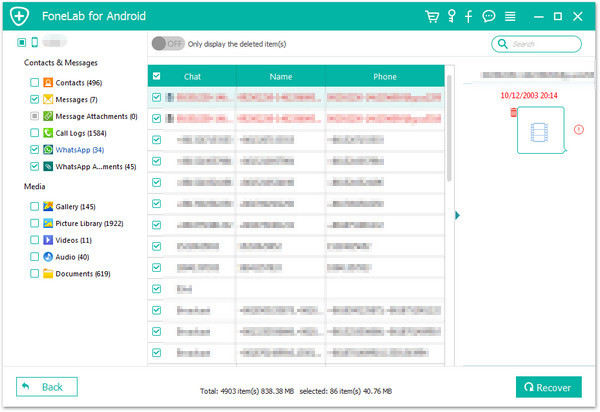
Now the program will list all kinds of files for you to restore, including gallery, videos, contacts, message, WhatsApp messages, etc,. For photos recovery, you should select the “Gallery” & “Picture Library” items for program scanning.

select photo files to scan

Step 4. Allow to Scan your Samsung
Click “Next” to begin analyzing and scanning your Samsung. Tap “Allow” on the phone to get privilege to scan your phone.

allow to scan Samsung

Step 5. Begin to Scan Samsung for Deleted Photos
After allowing the program scan your phone, Android Data Recovery will begin to scan all deleted files from your phone.

scan deleted Samsung photos

Step 6. Preview and Recover Deleted Photos from Samsung S10
At last, it will show all photos, videos, messages, contacts, call logs, WhatsApp messages, etc, in the scan out list. Please click the photos for previewing and mark it under “Gallery” & “Picture Library” items. Finally, click the “Recover” button to restore the deleted photos from Samsung on the computer.

recover deleted photos from Samsung

d_win d_mac
d_win d_mac

Part 2: How to Recover Deleted Photos from Samsung SD Card

Samsung SD Card is ideal for storing high resolution pictures, however, it could get corrupted easily. If you have a Samsung Galaxy S10/S10+ or Galaxy Fold phone with your precious photos lost on its SD card, you need U.Fone Data Recovery which provides a simple and safe way to recover deleted photos from Samsung’ SD card. it works well for digital picture and many types of image file recovery. It helps you easily recover deleted pictures from the emptied Recycle Bin, digital cameras, memory cards, CF cards, SD cards, USB flash drives and external hard drives, etc. the program can be applied in various data loss situations. For example, system crash, hard drive formatting, virus attack, partition loss and other unknown reasons in Windows. Below is all that you need to do recover your photos from the Samsung SD Card, with the help of U.Fone Data Recovery. First of all, free download the software on your compupter.

d_win d_mac
d_win d_mac

KEY FEATURES

Get back lost/deleted files, photos, audio, music, emails from any storage device safely.
Support SD Card recovery, flash drive recovery, memory card recovery,
hard drive recovery, digital camera and camcorders recovery, recycle bin recovery and any external storage device recovey.
Recover data due to system crashes, formatting, accidental deletion, malware or virus attacks, etc.
Have a wide array of photo format support for recovery, like JPG, TIFF/TIF, PNG, BMP, GIF, PSD, CRW, CR2, NEF, ORF, RAF, SR2, MRW, DCR , WMF, DNG, ERF, RAW, etc.
Fully compatible with Samsung Galaxy S4/S5/S6/S7/S7 Edge/S8/S8 Plus/S9/S10/S10+, Galaxy Fold and other Android devices.

Pre-Steps to Be Considered for U.Fone Data Recovery

* Stop using a disk or device that contains deleted/formatted/lost pictures as soon as possible.
* DO NOT write or save any new data on the disk or device to avoid the deleted data being replaced.
* Use this reliable read-only digital picture recovery software – U.Fone SD Card Data Recovery.

Steps to Recover Deleted Photos from Samsung SD Card

Step 1. Free Download and Install U.Fone Data Recovery

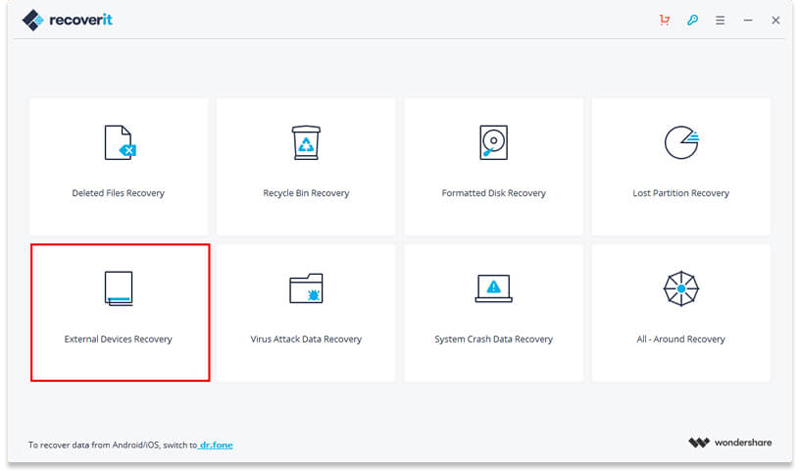
To start with, free download and install the U.Fone SD Card Data Recovery with your computer. In the case, locate “External Devices Recovery” option to start restoring photos from your SD card.

Select Samsung SD Card Data Recovery Mode

Step 2. Insert Samsung SD Card to Computer

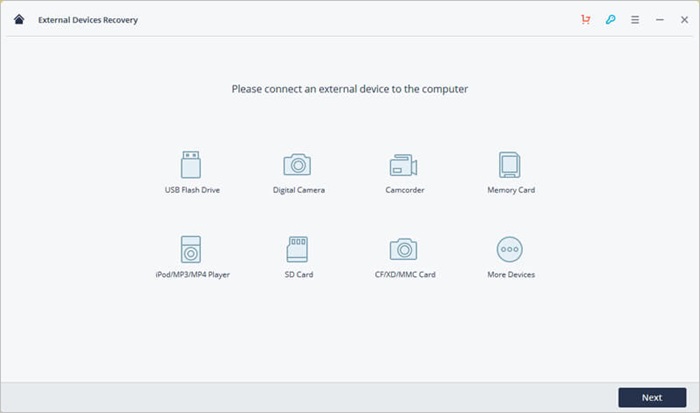
Now you just need to plug the Samsung Galaxy S10/S10+/Fold device into your computer and click “Next”. Then, select the location (SD Card) where you lost your files and click “Start” to scan lost pictures.

Connect Samsung SD Card

Step 3. Scan Deleted Photos from Samsung SD Card

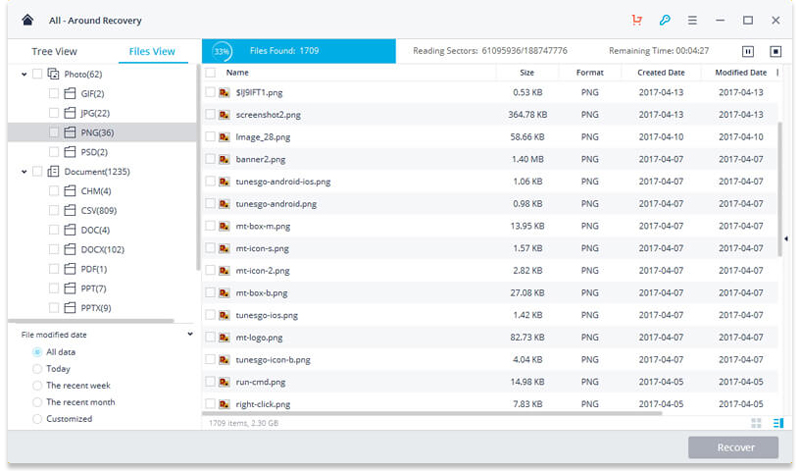
As you can see, the program will start to automatically scan your SD card and quickly find lost photos in .png, .jpg, .jpeg, .tif, etc fromat.

Scan SD Card

Tip: If the first scan does not fill all the images you are looking for, continue to scan again using the Full Recovery mode. Click “All-Around Recovery” to drill down to search all the files currently displayed on the SD card.

Step 4. Preview and Retrieve Deleted Photos from Samsung SD Card

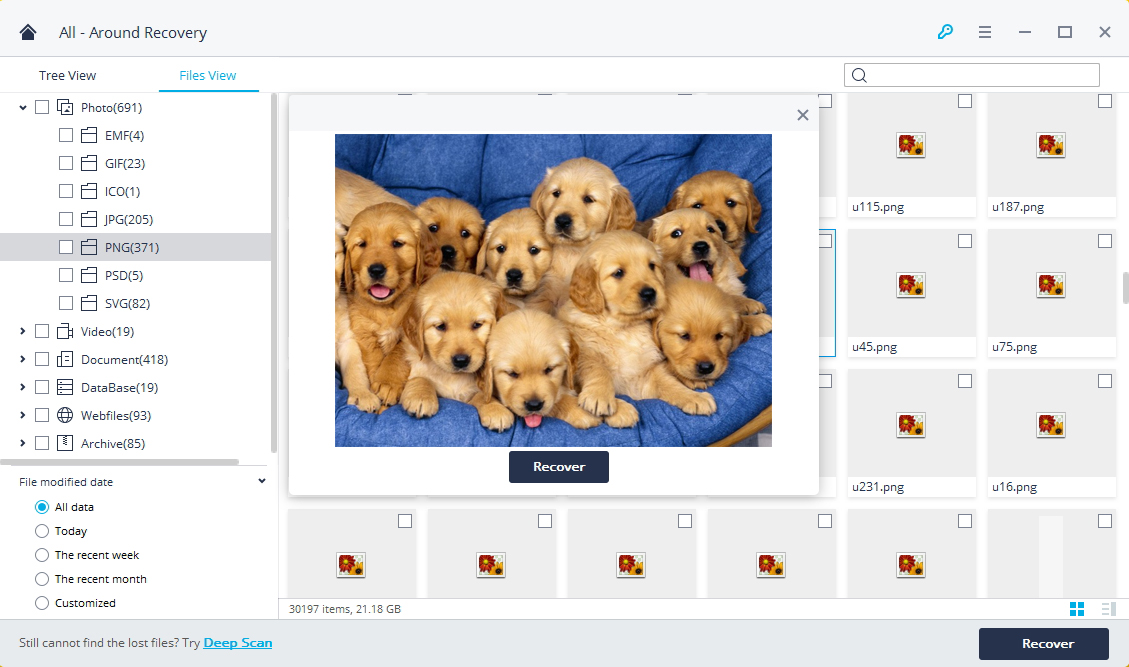
Finally, U.Fone Data Recovery provides the option to preview all recovered data. You are able to select all target images and restore deleted photos from the Samsung SD card by clicking the “Recover” button. Also, you can search for a file name and file type in the Search bar.

Scan SD Card

d_win d_mac
d_win d_mac

Recover Photos from Samsung S10

How to Recover Deleted Data From Samsung Galaxy S10/S10+/S10e

Summary
Want to recover deleted data from Samsung Galaxy S10e/S10/S10+? In this article teach you five effective methods to recover deleted data from Samsung S10e, S10, S10 plus, S10 5G and Galaxy Fold, including photos, pictures, gallery, contacts, messages, videos, WhatsApp messages, call logs and other documents.

Lost data after factory reset Samsung Galaxy S10. What can I do to recover the data if I lost data on Samsung Galaxy S10+? Is it possible to retrieve lost contacts, messages and photos? Thanks.

Are you one of Samsung S series smart phone user? You may have experienced accidental deletion of data from your phone, which is a frustrating thing for most of Samsung users. Do you want to recover lost data from Galaxy S20 in a simple way? Many users like to use their phone as the best storage device for saving their pictures, videos text messages, videos, audio files, contact lists, WhatsApp messages, and even games. When you lost or deleted files on Galaxy S10, how to recover deleted data from Samsung Galaxy S10? This aritcle will recommend you an effective Samsung S10 data recovery software to restore lost files on Galaxy S10, S10+ and S10e easily.

When we are using the Samsung Galaxy S10, data loss or deleted is common for many reasons. For example, deleting by accident, system crash, rooted failed, factory reset, broken screen, black screen, etc.. When you lost or deleted data on Samsung Galaxy S10, how to recover deleted files on Samsung Galaxy S10? Any free way to retrieve lost data on Samsung S10? There are some Samsung S10 data recovery solution helps you recover lost or deleted data easily.

What causes data loss on Samsung Galaxy S10?

Before learning how to recover Samsung Galaxy S10 lost/deleted data, you may want to know how to lost data, the main reason might lead to data loss in Samsung Galaxy S10

  • Reason 1: Delete photos, contacts, messages, call logs in Galaxy S10 by mistake
  • Reason 2: Wipe unwanted data from Galaxy S10 but delete the wrong files
  • Reason 3: Data missing when backing files from Samsung S10 to PC or Mac
  • Reason 4: Software crashes during upgrading to the latest Android OS version
  • Reason 5: Hard reset the device, or restore the Samsung Galaxy S10 to its factory settings
  • Reason 6: Failed root your Samsung Galaxy S10 device
  • Reason 7: Sudden power failure during data transmission
  • Reason 8: Suffered from a virus or malicious program attack

People also read: How to Recover Lost Data from Samsung after Factory Reset

However, accidents always happen without your license, since the deleted files remain intact until the data is not overwritten by any new data, you can retrieve your lost Samsung files from the device directly even without backup. A professional Android data recovery software helps you recover deleted data on Samsung Galaxy S10.

Part 1: Recover Deleted Photos from Samsung Galaxy S10 Recycle Bin

For Samsung Galaxy S10, there is a recycle bin in Gallery app. If you delete your photos on Samsung Galaxy S10 by careless, they don’t really deleted, instead, the deleted photos just be moved to the the recycle bin. So, you still have change to restore the deleted photos before being overwritten by new data. Thus, before that, you’d better stop using your phone to take new photos or shot video, please follow the below steps to restore deleted photos Samsung Galaxy S10 as soon as possible.

Step 1. Unlock your Samsung Galaxy S10 and open the Google Photos app on your phone.
Step 2. Tap “Trash” from the top-left menu, all the deleted pictures will be shown in details.
Step 3. Select the photos you’d like to restore, then tap “Restore” to get the deleted photos back to the Gallery.
You will find the deleted photos be restored and listed in the Gallery app again.
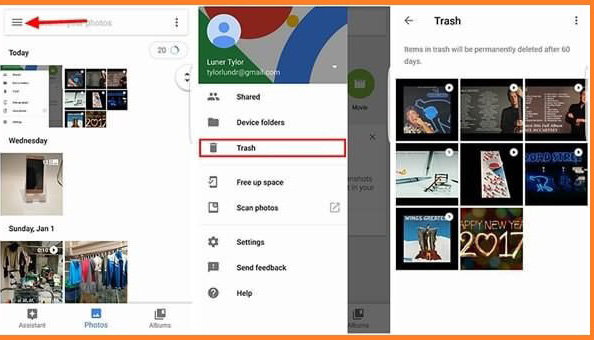
google photo recovers samsung photos

Note: If you have lost or deleted your photos for more than 60 days, those deleted photos will be erased from Recycle Bin. Don’t worry, you can use a professional Samsung data recovery to recover deleted photos from Samsung Galaxy S10 (Plus) internal memory and the SD card, please keep reading the below guide, you will know how easy to recover nearly anything from Samsung Galaxy S10 (Plus).

Part 2: Restore Samsung Galaxy S10 Lost Data from Samsung Cloud Backups

Samsung Cloud is a great cloud data backup service, which offers for Samsung users to backup data from Samsung phone to Samsung cloud. If you’ve enabled “Auto back up” feature on Samsung Galaxy S10, your data will be synced to Samsung cloud automatically, or you manually backup your phone’s data to the Samsung cloud regularly. Once you deleted the data from your phone by accidentally, you can easily to restore the data back from Samsung Cloud to your Samsung Galaxy S10 phone.

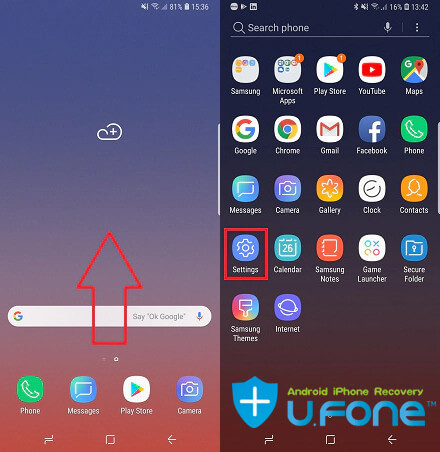
Step 1. Unlock your Samsung S10 and swipe up to open the apps page, then tap Settings icon.
open setting on samsung

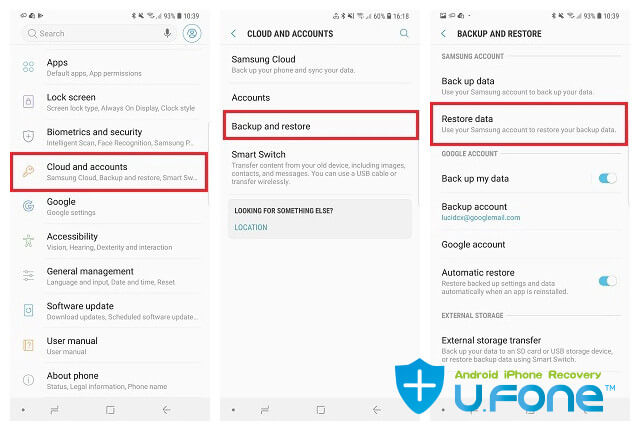
Step 2. Tap on Cloud and accounts > Samsung Cloud > Backup and Restore > Restore Data.
go to Restore Data

Tips: You need to login the same Samsung account that you have synced before.
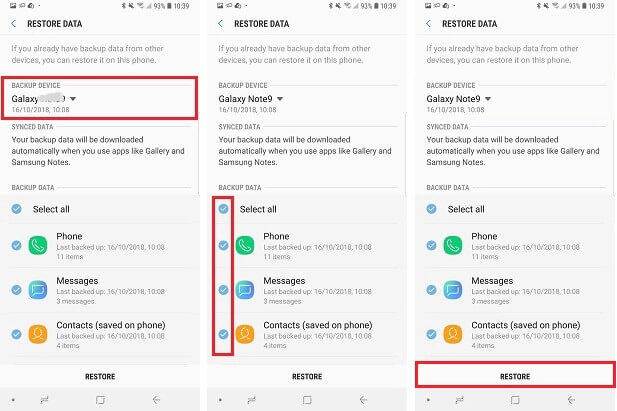
Step 3. Select the contents you want to recover: Phone, Messages, Contacts, Clock, Calendar, Settings, Apps, Music, Voice Recorder, Documents, Home Screen.
Step 4. Finally, just tap “Restore”.
restore data from samsung cloud

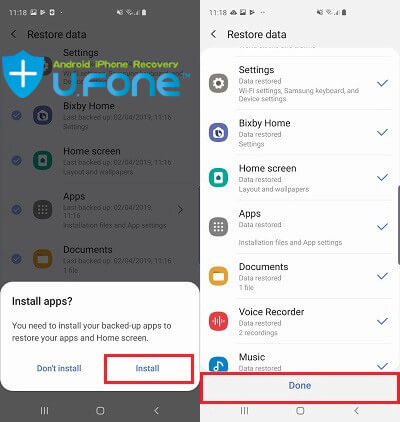
Step 5. At this time, it will ask you whether you need to install your backed up apps to restore your apps and Home screen. If you agree, please tap Install and tap Done. After restoring completed, the selected data will be restored to the phone.
done restore

Now you can see the restored data appear in Samsung Galaxy S10 again.
[Also Read: How to Backup or Restore Data on Samsung Galaxy S20/S10]

Note: If you haven’t backup data to Samsung cloud, this method will not work for you. In addition, if this method cannot help you recover deleted WhatsApp messages, if you want to recover deleted WhatsApp messages and more data from Android phone, please keep reading the following powerful Samsung Galaxy S10 data recovery solution.

Part 3: Recover Deleted Data Files From Samsung Galaxy S10e/S10/S10+ with Android Data Recovery

The Android Data Recovery has the advanced feature to recover data from your Samsung S10, regardless of any cause of data loss, such as accidental deletion, Android operating system updates, Android root, factory reset recovery, etc,. It has advanced functions that enable you to recover deleted data from Samsung Galaxy S10/S9/S8/S7/S6/S5/S4. Just connect your Samsung Galaxy S10 to PC or Mac, and then scan, preview and restore deleted photos, videos, contacts, text messages, call logs, WhatsApp messages, documents on Galaxy S10 in simple steps. It compatible with all Android operating system versions, supports Samsung, Google, LG, Motorola, Lenovo, Sony and all other models of Android devices.

Recover Deleted or Lost Contacts, SMS, Photos, Videos, Audio, Voice Memo, WhatsApp Messages, Documents and More From Samsung Galaxy S10e, S10, S10 Plus

  • Directly recover photos, pictures, images, videos, audio, contacts, text messages, whatsapp chat history, call history, notes, voice memo, App photos & videos documents and many more from Galaxy S10.
  • Recover data from Samsung device, no matter lost or deleted due to accidental deletion, factory reset, virus attack, formatting SD card, OS update, ROM flashing, rooting, water damaged, forgotten screen lock password and so on.
  • Support the latest Android 9.0, works well with all Samsung Android phones such as Galaxy Fold, Galaxy S20/s20+, Galaxy S10/S9/S9+/S8/S8+/S7/S7 Edge/S5/S5/S4/S3, Galaxy Note 9/Note 8/Note 5/Note 4/Note 3, Galaxy J-series, Galaxy A-series and more.
  • Extract contacts, SMS, photos, videos, WhatsApp and more data from crashed/damaged/smashed/cracked, water damaged, virus infected, locked, black/white screen of death, ROM flashed, rooted, factory reset Samsung phones.
  • Preview recoverable files before recovery.
  • 100% read-only program. Safe, secure and easy to use.
  • Fix frozen, crashed, black-screen, virus-attack, screen-locked Android system to normal.
  • Selectively back up your Android data to PC or Mac.
  • Restore data from backup files to Samsung, HTC, Huawei, Sony, Google Pixel, Xiaomi and more Android devices.


d_win d_mac
d_win d_mac

Now let us learn the complete guide to restore deleted data from Samsung Galaxy S10e, S10, S10 Plus by using Android Data Recovery Software. You should pay attention before using the Android data recovery software to recover the deleted or lost data:

Note: Don’t add files to your phone and stop using your Samsung Galaxy S10e/S10/S10+ phones after you lost or accidentally delete data on it. It is because if you add any new data on it, then it will overwrite and replace the existing data and hence you will lose the chances for successful recovery of files. Please using a reliable Android Data Recovery to recover the deleted/lost data as soon as possible.

Guide: How to Use Samsung Galaxy S10/S10+ Data Recovery?

Step 1. Run the Android Data Recovery Computer
Run and open the Android Data Recovery on the computer, click “Android Data Recovery” option among three modes.

connect Samsung S10 to PC

Step 2. Connect Samsung S10 and allow USB Debugging on it
Then connect your Samsung Galaxy S10 to the computer via a USB cable. Tap “Allow” when prompted on the phone and click “OK” on the phone to allow the program detect your device on the computer.

allow to detect Samsung

Then you’ll need to have USB debugging mode enabled on your Samsung S10 to grant your access to it. Also see detailed instructions about how to enable USB debugging on Android.

allow to detect Samsung

Step 3. Select types of data files to scan
When the program detect your device on the computer, you will see this interface. Just check the type of files contain the data you need to restore for program scanning, or you can click “Select All” to scan all your Samsung data. Then click on “Next” to go to the next step.

select files to scan

Step 4. Root for Deep Scanning
The Android data recovery start to analyze the phone and then scan it for all your files. If your device is unroot, you need to root the device for a deep analysis and scan more deleted/lost data from your phone. To root the phone, press Rooting Tools button and download KingoRoot app on the computer, this Android tool can help you root your Samsung Galaxy S10 safely.
Also read: How to safely root and unroot an Android Device
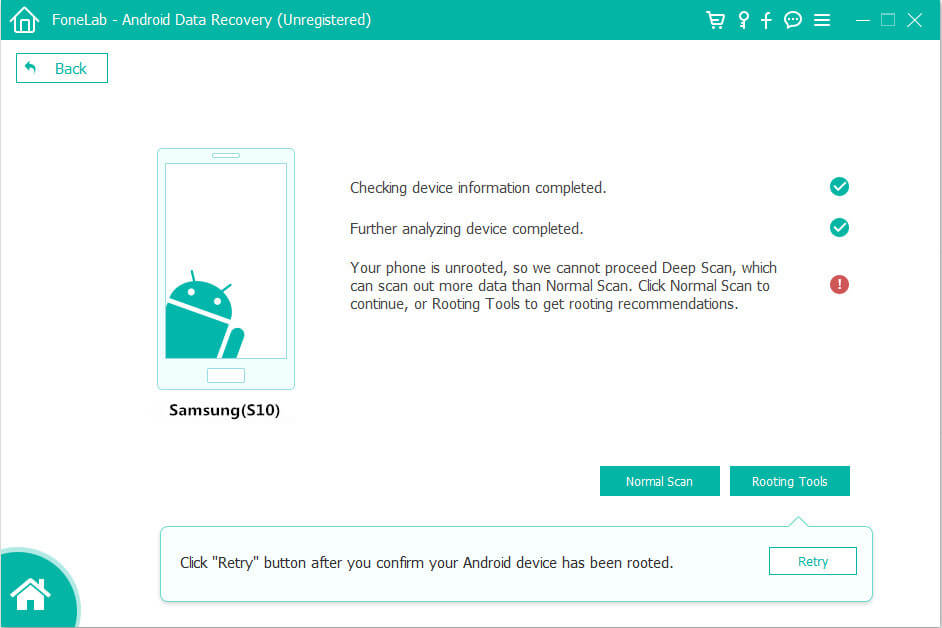
root Samsung S10

Once rooted successfully, please click “Retry” option and the program continues scanning Samsung S10. This will take some minutes.

Step 5. Scan Samsung Galaxy S10
In this step the program will begin to scan data on your Samsung phone. The scan process will cost you some minutes.

scan data from Samsung s10

Step 6. Preview and Recover Data from Samsung S10 memory
When the scan is over, you are allowed to preview all the recoverable data in the scan list. Preview and retrieve the data you want by clicking “Recover“, to save the deleted data on the computer from Samsung Galaxy S10.

recover deleted data from Samsung

Select the contents you want to retrieve, and click Recover button to save them onto your computer.

Free download the Android data recovery and start to recover your Samsung lost data now.

d_win d_mac
d_win d_mac

Now, you have extract the deleted/lost data from Samsung Galaxy S10 memory and save them onto computer, if you want to import the restored data to your Samsung phone for viewing or using, we recommend you use this userful Mobile Phone Manager, it can help you transfer contacts, photos, videos, music and more from PC/Mac to Android or iPhone directly.
[Also Read: How to Transfer Data to Samsung Galaxy S20/S10]

This only applies to recovering deleted data from the Samsung Galaxy S10/S10+ without a backup. If you have iCloud or iTunes backup previously, then restoring data from a backup to a Samsung device is an easy task by using the Android Toolkit – Backup & Restore. Note: Existing data for the Samsung Galaxy S10/S10+ will not be erased. The specific steps are Part 4 and Part 5.

Tips: The best way to recover deleted or lost data from Samsung Galaxy S10e/S10/S10+ is to use a professional Android Data Recovery which is suitable Samsung Galaxy S10e, S10, S10 Plus Data Recovery Software, it not only can help you recover data from Samsung internal memory, but also restore lost files from SD Card on Android.This Android data recovery software could be used in the Samsung company’s upcoming Galaxy S20 series phones.

Part 4: Restore iCloud Backup to Samsung Galaxy S10/S10+

With Android Toolkit – Backup & Restore, you can easily restore data from various sources, like iCloud, iTunes, One Drive, and more. Almost every kind of data, like contacts, notes, photos, call logs, calendars, messages can be restored. Besides, you can use it to take a complete backup of your data as well. Now simply download the Android Toolkit – Backup & Restore software on your computer then follow the steps below to restore a full iCoud or iTunes backup to Samsung Galaxy S10/S10+. Also, you can selectively restore the data as they are previewable before restoring.


d_win d_mac

Note: Some data types such as Voice memos, Notes, Bookmark, and Safari history are not compatible with your Android devices. They can be restored from iCloud to iPhone, but not your Samsung Galaxy S10 and S10+.

Learn how to restore from iCloud/iTunes to Samsung Galaxy S10/S10+ by following these simple steps.

Step 1. Connect Samsung Galaxy S10 to Computer

Run this program on your Windows or Mac, you will see its home screen like this. Note we use its Windows version in this demo.
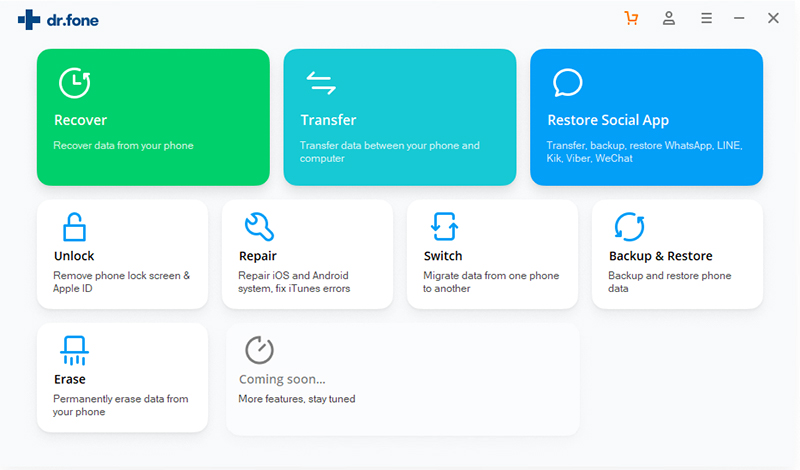
android toolkit home page

Connect your Samsung Galaxy S10/S10+ to computer via USB. Then click the “Restore” button.
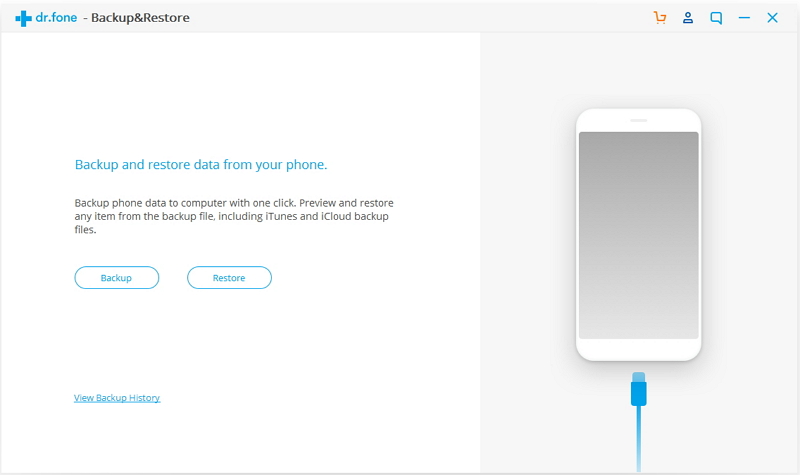
ios device backup restore

Step 2. Sign in iCloud Account

Choose “Restore from iCloud backup” from the left pane, you will be taken to iCloud sign up screen as following.
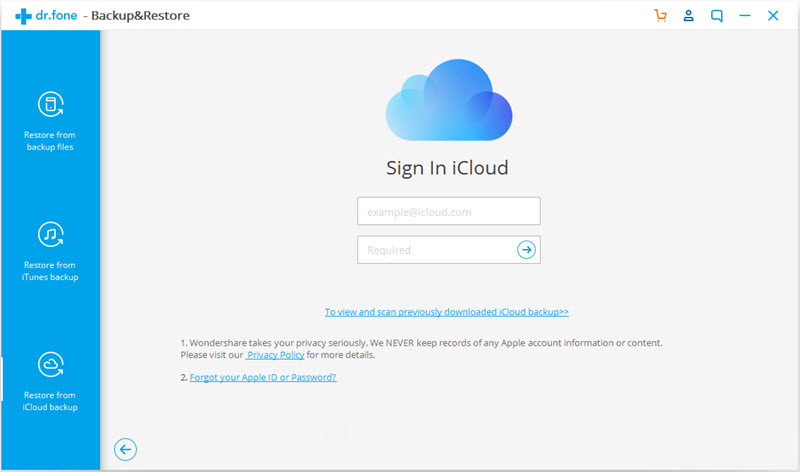
sign in icloud

Sign in to your iCloud account with your Apple ID and password. If you have enabled two-factor authentication for your iCloud account. A verification code will be sent to your iPhone. Connect your iPhone to the internet to receive a verification code and enter it on the screen below, then click “Verify” to continue.
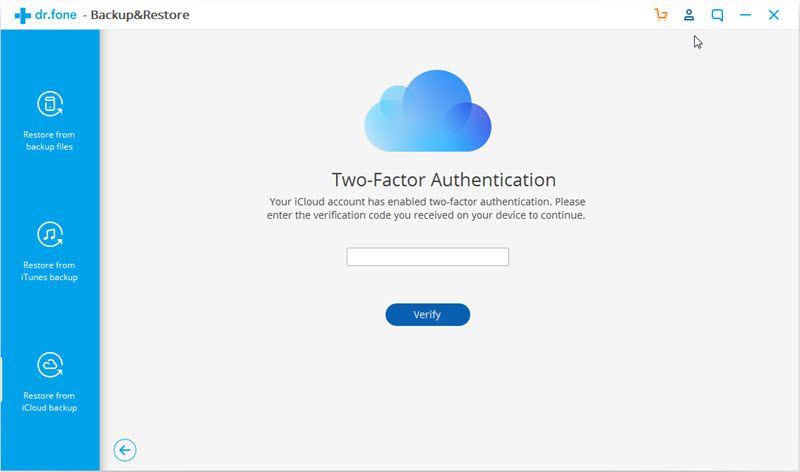
verify icloud id

Step 3. Download iCloud Backup File

All the backup files saved in your iCloud account will be listed. Select one of them and click “Download” to save the backup file to your PC. This may take sometime.
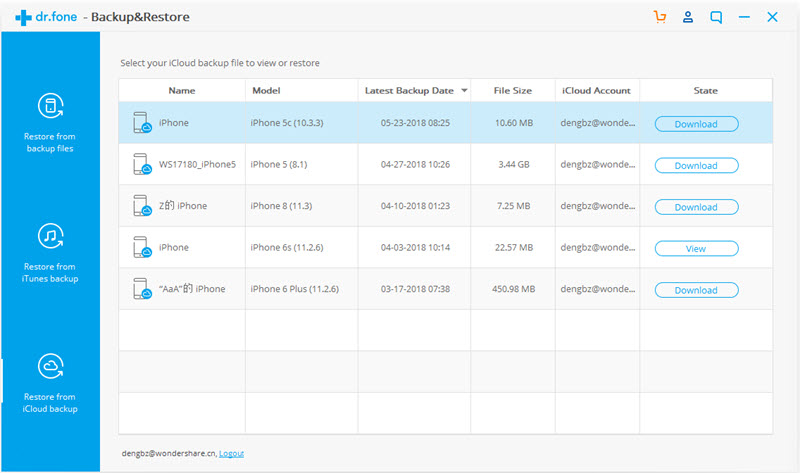
download icloud backup file

Step 4. Restore iCloud Backup File to Galaxy S10

You can easily export iPhone contacts, SMS, call logs, photos from iCloud to Android phones. Choose the data you want to restore the click on “Restore to Device”.
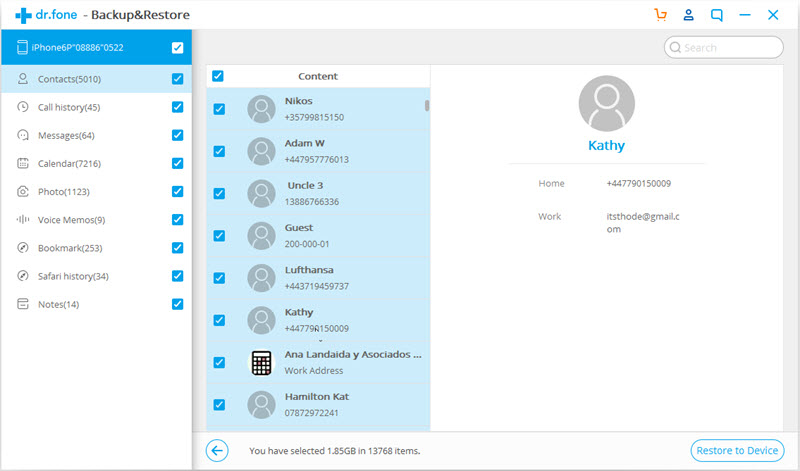
select icloud backup data to restore

Currently Android Toolkit – Backup & Restore supports to restore contacts, SMS, call logs, photos from iCloud to Android phones. Some data types such as Voice memos, Notes, Bookmark, and Safari history are not compatible with Android devices, only for iPhone/iPad. After clicking on “Restore to Device”, there is a window pop up, where you can select your Samsung Galaxy S10 from the drop down list and click “Continue” to restore the selected data from iCloud backup.
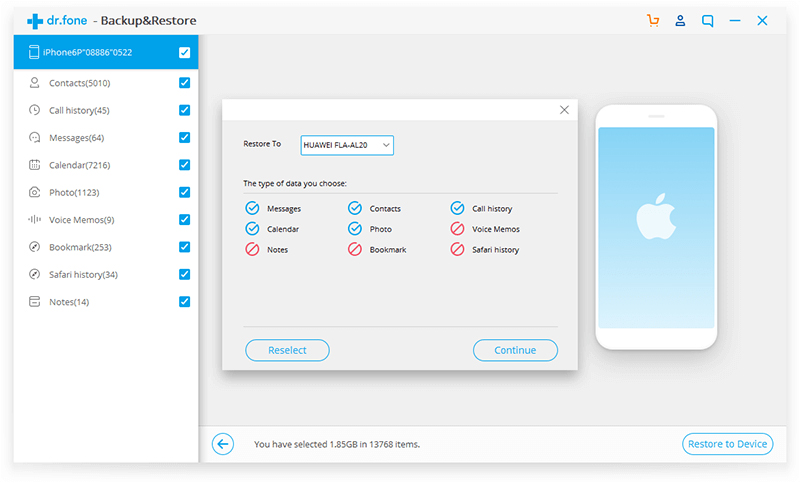
confirm to restore to android

The main reason might lead to data loss in Samsung Galaxy S10

Step 1. Run Android Toolkit – Backup & Restore Software

This step is the same as the first step of Part 1. Run on the software and connect your Samsung phone to PC. Locate to the “Restore” from “Backup & Restore” option from the main screen.

ios device backup restore

Step 2. Select Restore from iTunes Backup

On the left column, select “Restore from iTunes Backup”. The software will list all iTunes backup files from the default iTunes backup location. Select the iTunes backup file and click on “View” or “Next” button.
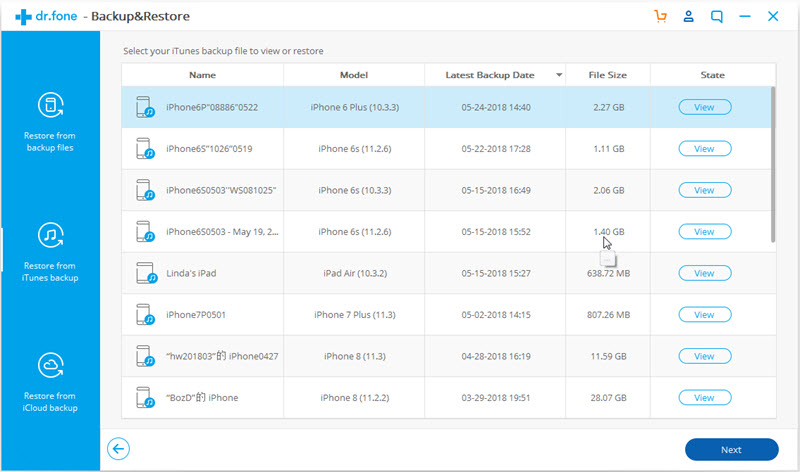
detect itunes backup files

Step 3. Preview & Sync Data from iTunes Backup to Samsung

Now preview and select the data you want to restore from iTunes backup.
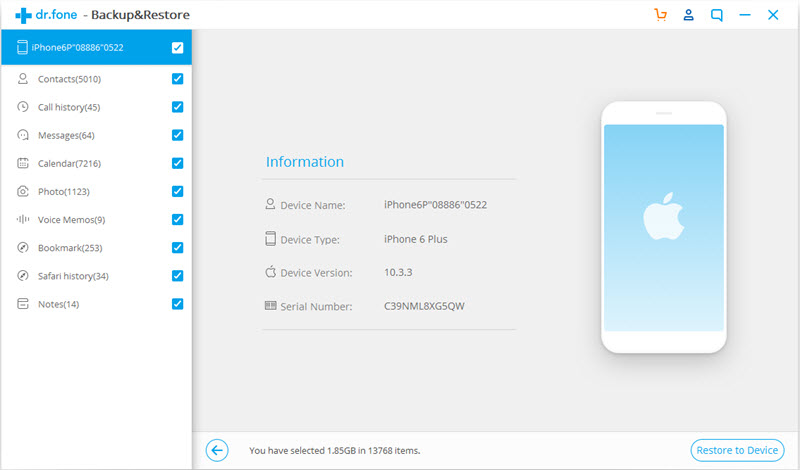
confirm android device to restore to

At last, click “Restore to Device” after selecting the data you want to restore.
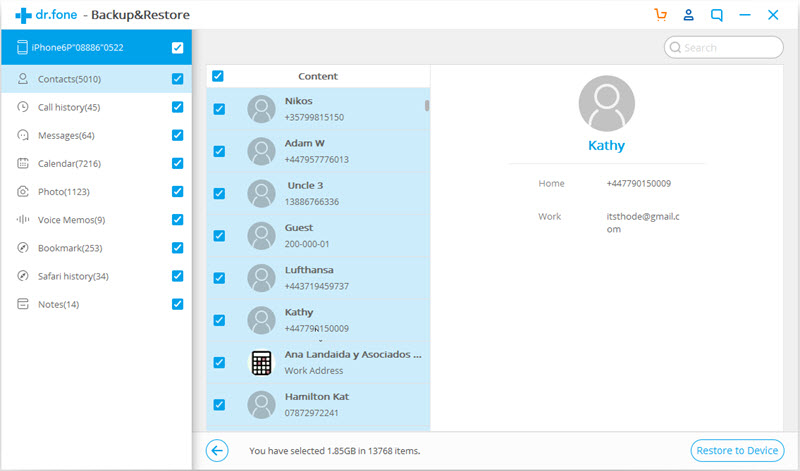
select itunes backed up data to restore

In the new dialog box that pops up, select your Samsung phone and click “Continue” to confirm restoring iTunes backup to Samsung Galaxy S10.

confirm to restore to samsung galaxy s10

d_win d_mac

Recover Data from Samsung S10
Recover Lost Contacts from Motorola Z3/Z3 Play/Z3 Force

The Moto Z3 is a great smartphone which has a lot of quality features. The Moto Z3 comes with a 6.0-inch Super AMOLED display, which exhibits a screen resolution of 1,080×2,160 pixels. It has a pixel density of 402 PPI. A Corning Gorilla Glass is placed upon the display to protect it from scratches and minor collisions. The device boots on the Android v8.1 (Oreo) operating system. The display of the device provides a good viewing experience and the powerful configuration ensures flawless multitasking operations. The cameras are also praiseworthy, besides the storage space. The quick-charging featuring adds some perks to the battery life as well. Overall, if you are looking for a powerful smartphone then you can consider this Moto Z3.

Lost contacts for Mobile users is not a strange thing. They might have wrongly deleted contacts and need to ask for people’s numbers again. Some people lost contacts due to different causes, either for their phones are stolen or owing to some faulty operation. Apart from that, some have their contacts deleted when their phones are formatted, their phone memory gets cleared up, the factory settings are restored, or the card in which the contacts are saved is damaged. In this case, a reliable way to recover those deleted numbers is absolutely needed, or you’ll have to look for and input all of your contacts again one by one, which is trouble and time-consuming. Here we will take Motorola Z3 as an example, to explain how to recover lost contacts from Motorola phone and more Android device without backup.

Motorola Contacts Recovery
When talking about the recovery of lost contacts or other types of Android data that matters to you, Android Data Recovery is always a good option. It is designed to help uses restore deleted or lost data from any Android phone or tablet. This tool brings a simple and safe way to recover lost contacts from Motorola Z3/Z3 Play/Z3 Force. Not just contacts, it will help with recover text messages, WhatsApp messages, audio, videos, photos, call logs and other files. It supports to recover Android data under any data loss causes, like accidental deletion, Android OS updated, Android OS rooting, factory reset restoring, etc,. Compatible with all Motorola models and other Android models, including Moto Z series, G series, E series, X series, Moto Driod and Moto Xoom.

d_win d_mac

How to Restore Lost Contacts from Motorola Z3

Step 1.Run Program & Connect Motorola
To begin with, run Android Data Recovery on the computer. Connect your Motorola to the computer using a Android USB cable, the program will detect your device when it successfully connects. Select “Android Data Recovery” option to go on.

connect Motorola phone

Step 2. Enable USB Debugging on Motorola
This step will guide you to enable USB debugging on the device, just click “OK” on it.

allow to detect Motorola

Step 3. Select the Contacts File to Scan
Here, the program will list all kinds of files for you to restore, including contacts, message, gallery, videos, WhatsApp messages, etc,. Select the “Contacts” item for contacts recovery.

select contacts file to scan

Step 4. Allow to Scan your Motorola
Click “Next” to begin analyzing and scanning your Motorola. And then you should tap “Allow” on the phone to get privilege.

allow to scan Motorola

Step 5. Begin to Scan Motorola for Lost Contacts
After that, Android Data Recovery will begin to scan all lost files from your phone.

scan lost Motorola data

Step 6. Preview and Recover Lost Contacts from Motorola
The scan results show that all contacts, photos, videos, messages, call logs, WhatsApp messages, etc,. Please click items, and the recoverable data will be displayed in the preview window. Preview and mark those data under “Contacts” item you want to restore. Finally, click the “Recover” button to restore the lost contacts from Motorola on the computer.

recover lost contacts from Motorola

d_win d_mac

Related Motorola Data Recovery Articles:

How to Recover Deleted Data from Motorola Z3/Z3 Play/Z3 Force

How to Recover Deleted Photos from Motorola Z3/Z3 Play/Z3 Force

How to Recover Deleted Files from Motorola Z Phone

How to Recover Data from Water Damaged Motorola

How to Backup and Restore Motorola Safely

How to Manage Android on the Computer

Recover Lost Contacts on Motorola Z3

Android Data Recovery

Recover Your Lost Data from Android
Now, Even Device Broken

Compatible with Android 8.0 Oreo/7.0, etc.

Recover Lost Data Now

Recover Deleted Photos from Motorola Z3/Z3 Play/Z3 Force

I lost some photos from my new 5G phone due to the accidental deletion. However, there is not a ‘Recycle Bin’ I could check to restore the deleted one. I realized that these photos are very special to me. Are there any ways to recover the deleted photos from the new Android model?

Motorola held a new product launch at China, Wuhan Intercontinental Hotel, officially released Z3, E5 Plus, P30 three new models. The first upgradable 5G network with Moto Z3, it is known as the world’s first 5G mobile phone, it is equipped with the MYLONG 835 processor, 6GB + 128GB memory combination, and supports a maximum 2TB extension. This superior phone is equipped with a 430 processor, with 3/4 GB of memory, 32GB/64 GB, maximum support for 256 GB expansion, 12 million pixels after the + front 5 million pixels lens.

Lost Photos on Motorola Z3 phone
As the speed of technology has grown rapidly, the touch screen of our cell phone become more and more sensitive. It is quite commonly that our Android files will be deleted by us accidentally, especially the previous photos. One of my friends comes to me for help when he accidentally lost photos from the Moto Z3 phone. I calm him down and tell him a good news that lost Android data are now recoverable. What you need is a recovery tool called Android Photo Recovery. It is a superior data recovery for restoring Android photos with ease.

What should you pay attention to when you find out that the photos on your phone are deleted or lost?
A. DO NOT use the phone if it is possible. When you lose your photos from the internal memory of the phone, you are not able to recover the lost photos once they are overwritten by the new adding data.
B. DO NOT format the phone as well as the memory card.
C. Try to recover the lost photos from phone as soon as possible with the reliable data recovery tool.

Android Data Recovery – Recover Deleted Photos from Motorola Z3

Android Photo Recovery(also called Android Data Recovery) is an outstanding recovery tool that it empowers you to recover Android files including photos, videos, contacts, notes, call history, and other things like that. With Android Photo Recovery, you could recover deleted photos from Motorola Z3 with 6 easy steps. It could be help restore deleted Android data lost due to any causes, like accidental deletion, Android OS updated, Android OS rooting, factory reset restoring, etc,. Besides to recover Android data, it have extra features with broken Android data extraction, Android data backup & restore. Android Data Recovery compatible with almost all Android models, like Motorola(Z3/Z3 Play/Z3 Force); Google(Pixel, Nexus); Samsung(Galaxy S9/S8/S7/S6); Lenovo; HTC; Sony; etc,.

d_win d_mac

How to Restore Deleted Photos from Motorola Z3

Step 1.Run Program & Connect Motorola
To get started, run U.Fone Android Data Recovery on the computer. Connect your Motorola to the computer using an Android USB cable, the program will detect your device when it successfully connects. Select “Android Data Recovery” option to go on.

connect Motorola phone

Step 2. Enable USB Debugging on Motorola
This step will guide you to enable USB debugging on the device, just click “OK” on it.

allow to detect Motorola

Step 3. Select the Photo Files to Scan
Here, the program will list all kinds of files for you to restore, including contacts, message, gallery, videos, WhatsApp messages, etc,. Select the “Gallery” & “Picture Library” items for photos recovery.

select photo files to scan

Step 4. Allow to Scan your Motorola
Click “Next” to begin analyzing and scanning your Motorola. And then you should tap “Allow” on the phone to get privilege.

allow to scan Motorola

Step 5. Begin to Scan Motorola for Deleted Photos
After that, Android Photo Recovery will begin to scan all deleted files from your phone.

scan deleted Motorola data

Step 6. Preview and Restore Deleted Photos from Motorola
The scan results show that all photos, videos, messages, contacts, call logs, WhatsApp messages, etc,. Please click items, and the recoverable data will be displayed in the preview window. Preview and mark those photos under “Gallery” & “Picture Library” items you want to restore. Finally, click the “Recover” button to restore the deleted photos from Motorola on the computer.

recover deleted photos from Motorola

d_win d_mac

Related Motorola Data Recovery Articles:

How to Recover Deleted Data from Motorola Z3/Z3 Play/Z3 Force

How to Recover Deleted Files from Motorola Z Phone

How to Recover Data from Water Damaged Motorola

How to Backup and Restore Motorola Safely

How to Manage Android on the Computer

Recover Deleted Photos on Motorola Z3

Android Data Recovery

Recover Your Lost Data from Android
Now, Even Device Broken

Compatible with Android 8.0 Oreo/7.0, etc.

Recover Lost Data Now

Manage & Transfer Files for Samsung Galaxy Note 9 on the Computer

I switch to a new Samsung phone lately. I want to sync my iTunes media files to the new device which synced with my old iPhone. Please send me your idea. BTW, my phone is Galaxy Note 9.

How to backup photos from Galaxy Note 9 phone to the computer with one-click? Any reliable phone manager tool can help?

There is no denying that Samsung phone has become one of the most popular smart phones all around the world. Every year it will announce several of new phone models. As a strong opponent to iPhone, Samsung has released some hot models, Galaxy Note 9 is one of them, Samsung phone become more and more popular in these years. People can do almost everything on the smartphone, take photos, mark notes, make calls, listen to music, watch videos, surf the Internet, chat with others, shopping, etc,.

But with more and more features of the smartphone and people staying with them longer and longer, managing them is not an easy task at all with large of data. With so many powerful applications, the smartphone enable us to live a more colorful and convenient life. Using a improper way to manage files in the Android phone can make it a mess. It is trouble to manage phone data without a reliable solution. So here comes your helper – Samsung Galaxy Manager, which is highly recommended for you to do the managing job of Samsung Galaxy Note 9.

Manage & Transfer Files for Samsung Galaxy Note 9

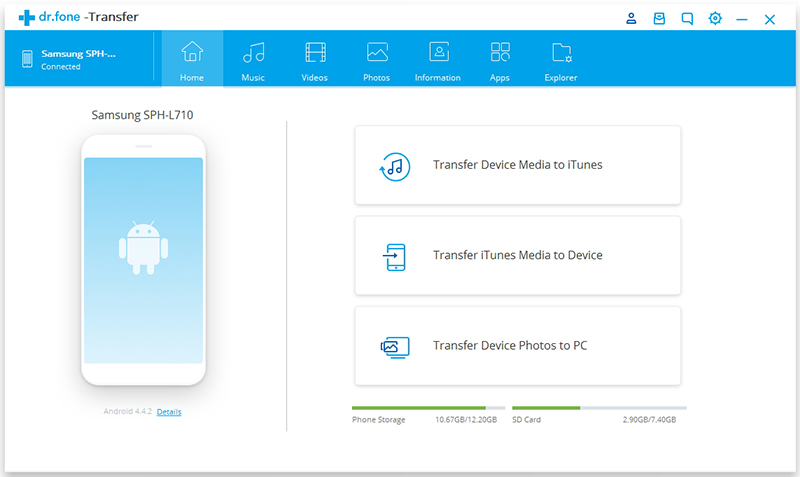
Android TransferSamsung Galaxy Manager is an ideal software to manage & transfer files for Samsung Galaxy Note 9 on the computer. It offer a secure solution for you to transfer files between Android and the computer; transfer files between Android and iTunes; transfer files between Android and Android/iOS device. The kinds of transferable files including Music, Photos, Videos, Contacts, SMS and playlist. Besides to manage and transfer files for Android device, it has extra features with rebuild iTunes library, GIF maker, one-click root. It compatible with almost all Android models, such as, Samsung(Galaxy Note 9/8/5), HTC, LG, Lenovo, Huawei, Google Pixel, ZTE, OPPO, Motorola, Xiaomi, etc,.

d_win d_mac

In the follow section we will take “Photos” as an example to explain how to do the files transfer between Samsung Galaxy Note 9 and computer via Android Transfer – Samsung Galaxy Manager.

Part 1:Backup Photos from Samsung Galaxy Note 9 to Computer

Step 1. Run Program and Click on “Photos” Option
Run Android Transfer – Samsung Galaxy Manager on computer, Click “Transfer” in the home page of program.

android toolkit home page

android transfer main page

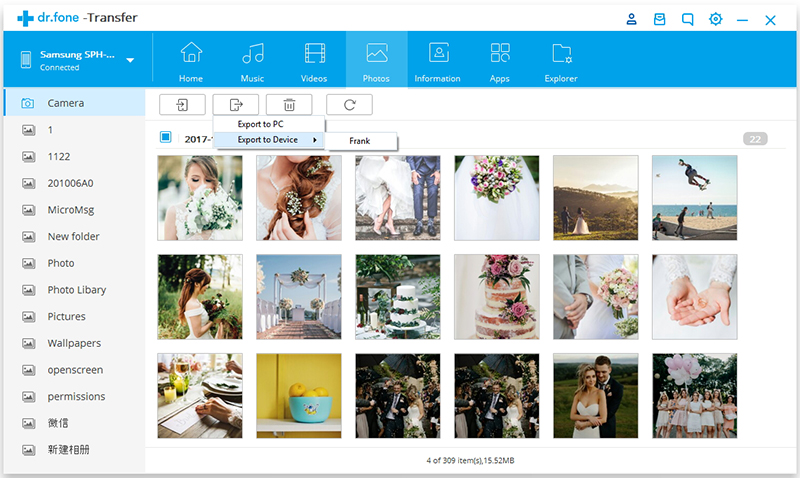
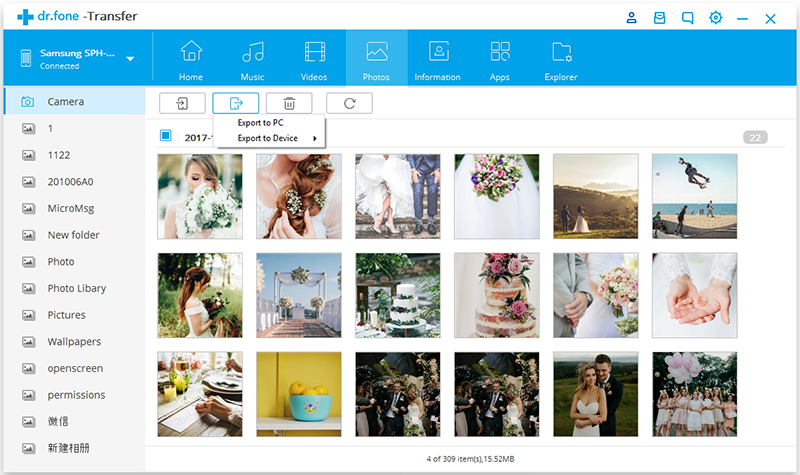
In the “Photos” management window, choose photos you want to backup, and click “Export” > “Export to PC“.

export photos from Samsung to other device

Step 2. Backup Photos from Samsung to Computer
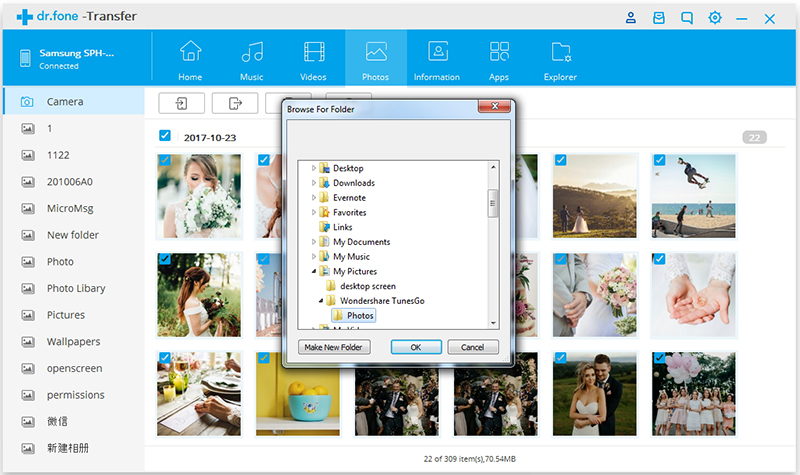
It will bring up your file browser window. Select a save path to store the photos from your Samsung phone to computer.

You can also transfer the whole photo album from Samsung to the computer.

transfer photo files from Samsung to pc

export photos from Samsung to pc

d_win d_mac

Part 2:Transfer Photos from Computer to Samsung Galaxy Note 9

Step 1. Run Program and Click on “Photos” Option
Run Android Transfer – Samsung Galaxy Manager on computer, Click “Transfer” in the home page of program.

android toolkit home page

android transfer main page

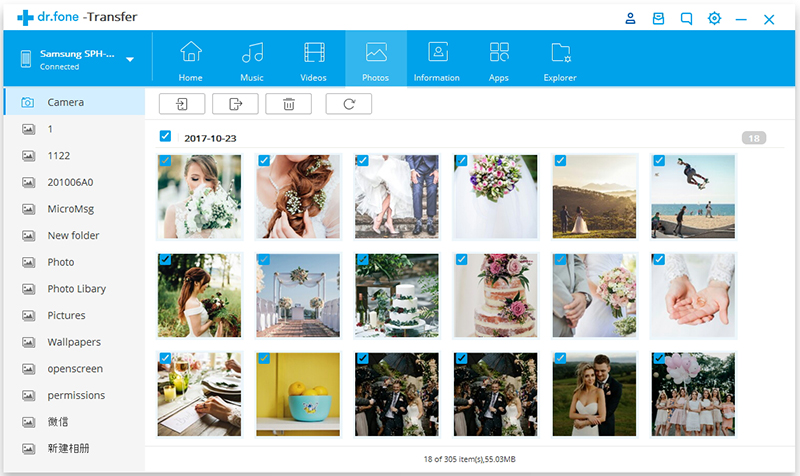
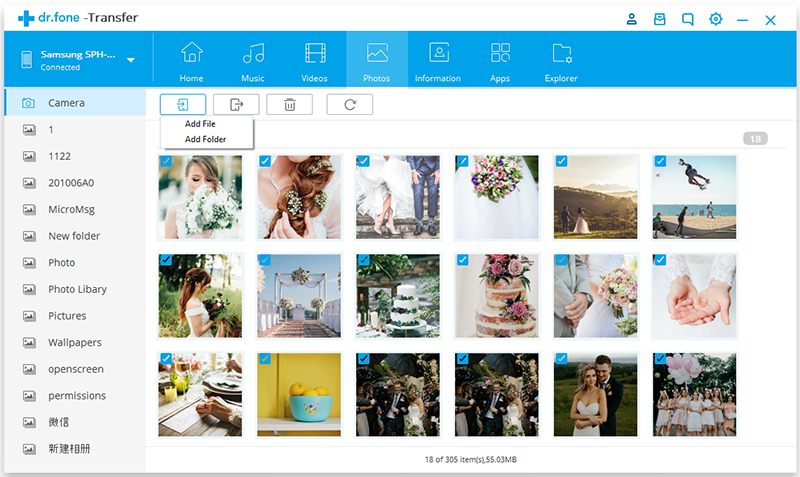
Click “Photos” tab. All the albums will be displayed. Select one folder to store new added photos on your Samsung phone.

select folder to store added photos on Samsung

Step 2. Transfer Photos from Computer to Samsung Phone
Click “Add” > “Add File” or “Add Folder“.

If you only want to select some photos, then click “Add File“. You can create new albums and add photos in it. Simply right-click the photos category on the left panel, then click “New Album“.

add folder to save Samsung photos

If you want to transfer all the photos in one folder, then click “Add Folder“.

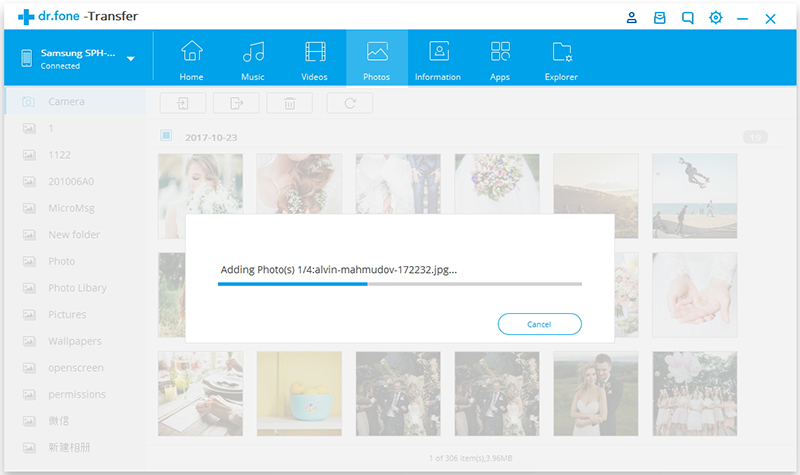
Now select photos or photo folders and add to your Samsung phone. Hold down “Shift” or “Ctrl” key to choose multiple photos.

transfer photos from computer to Samsung

d_win d_mac

Related Articles:

How to Recover Deleted Data from Samsung Galaxy Note 9

How to Transfer iTunes Music to Samsung Galaxy Note 9

How to Transfer iTunes Videos to Samsung Galaxy Note 9

How to Backup & Restore Samsung Galaxy Note 9

How to Root Samsung Galaxy Note 9 with One Click

Manage & Transfer Samsung Galaxy Note 9

How to Recover Deleted Photos from Samsung Galaxy X

Summery: Check this post to learn how to recover deleted photos from Samsung Galaxy X via Android Data Recovery, besides photos, contacts, SMS, call logs, WhatsApp messages and more types of files are available.

The phone, reportedly called the Galaxy X (though maybe not, as it turns out), seems to have been in the works for years. In that time, countless reports have speculated on whether Samsung device would fold in or out, be the size of a smartphone or a tablet (or both), and ultimately attract an audience in a decidedly flat and rigid smartphone market. The Samsung Galaxy X mobile features a 5.0″ (12.7 cm) display with a screen resolution of Full HD (1080 x 1920 pixels) and runs on Android v7.0 (Nougat) operating system. The device is powered by Quad core (2.4 GHz, Dual core, Kryo + 2 GHz, Dual core, Kryo) processor paired with 6 GB of RAM. As far as the battery is concerned it has 4000 mAh. Over that, as far as the rear camera is concerned this mobile has a 18 MP camera.

People like to take photos with phone camera than the traditional camera, it record our like anytime and anywhere conveniently; the meaningful moments can be well stored in the phone. However, have you ever faced the trouble of losing photos on the phone accidentally? Have you ever suffered from the regret of losing precious photos? Are you looking for an ideal way which can help you retrieve deleted photos from Samsung Galaxy X? It is well known that there are many causes lead to the photos loss, incorrect operation, restoring factory settings, damaged or broken phone, flashing ROM, rooting, etc,. But the actual contents of the file are still physically present on the internal storage, until overwritten by new data and the deleted photos can be recovered using Android Data Recovery. We will talk about in the next section.

Restore Deleted Photos from Samsung Galaxy X

I recommend you a professional data recovery tool to help you. Just try Android Data Recovery, which enables you to recover deleted photos from Samsung Galaxy X directly and get them back with just one click. In addition to photos, it supports to recover several types of data, including contacts, SMS, call logs, WhatsApp messages and more. It is capable of recovering Android for any data loss causes. All in all, it is an all-in-one tool has extra features with Android data backup & restore; broken Android data extraction. Android Data Recovery compatible with almost all Samsung models and Android models, such as, Samsung Galaxy S5/S6/S7/S8/S9, Note 5/8/9.

d_win d_mac

How to Restore Deleted Photos on Samsung Galaxy X

Step 1.Connect Samsung Device to Computer
To get started, run Android Data Recovery on the computer. Use a Android USB cable to connect your Samsung to the computer, the program will detect your device when it successfully connects.

Note: Please make sure the battery of the device no less than 20% before using the program to recover data from Samsung phone.

connect Samsung phone

Step 2. Enable USB Debugging on Samsung
Now let the program enable USB debugging on the device and click “OK” on it.

allow to detect Samsung

Step 3. Select the Gallery File to Scan
Here, the program listing all kinds of files for you to restore, including contacts, message, Gallery, videos, WhatsApp messages, etc,. Let’s take recover Samsung photos for an example, just select “Gallery” and “Picture Library” items.

select photo files to scan

Step 4. Allow to Scan your Samsung Phone
Click “Next” to begin analyzing and scanning your Samsung phone. And then you should tap “Allow” on your phone to get privilege.

allow to scan Samsung

Step 5. Begin to Scan Samsung for Deleted Photos
After that, Android Data Recovery will begin to scan all deleted files from your Samsung.

scan deleted Samsung data

Step 6. Preview and Recover Deleted Photos from Samsung
The scan results show that all photos, messages, contacts, videos, call logs, WhatsApp chat records, etc,. To deleted photos directly from Samsung, click the “Gallery ” and “Picture Library” item, and the deleted photos will be displayed in the preview window. Preview and mark those photos you want to restore, and click the “Recover” button to restore the deleted photos from Samsung.

recover deleted photos from Samsung

d_win d_mac

More Samsung Data Recovery Guides:

How to Recover Deleted Files from Samsung Galaxy X

How to Recover Data from Broken Samsung Galaxy

How to Transfer iPhone Data to Samsung Galaxy

How to Manage Samsung Galaxy Phone on PC/Mac

How to Play Apple Music on Samsung Galaxy without Limits

Recover Photos from Samsung Galaxy X

Android Data Recovery

Recover Your Lost Data from Android
Now, Even Device Broken

Compatible with Android 8.0 Oreo/7.0, etc.

Recover Lost Data Now

How to Recover Deleted Photos from Android Gallery

Summary: Want to know how to restore deleted photos from the Android gallery? One of the most effective ways to recover photos from Android device is through the superior Android Data Recovery, let check the solution and get back your photos from Android galleryeasily.

When people deleted photos on their phone, they usually sad at the first time. What worse, they lost data on device without any backups. In this case, people feel depressed because there is no way to restore the deleted precious pictures. Photographs are the most important data store in a phone because it is easy to capture but difficult to recover. It can be painful if you don’t have a backup, especially when you realize you’re not leaving anything. In this article, you’ll find out how to recover photos from Android gallery when they’re lost. Recovering photos from any Android gallery requires an effective method – Android Data Recovery can do a great help for you.

Android Gallery Recovery – Restore Deleted Android Photos

Android Data Recovery – Android Gallery Recovery can be a good option for recovering deleted photos from Android gallery. The software can not only restore photos, but also restore other types of Android data. Recoverable data including photos, contacts, text messages, call logs, WhatsApp messages, video, documents, etc,. Android Data Recovery allows you to recover deleted Android data, regardless of the circumstances in data loss cases, such as, Android system updates, Android system roots, accidental deletions, factory reset. The program supports 6000 + Android device models and various Android operating systems, like Samsung Galaxy, LG, HTC, Lenovo, Sony, OPPO, Huawei, Google Pixel, ZTE, and so on.

d_win d_mac

How to Recover Deleted Photos from Android Gallery

Step 1.Connect Android Device to Computer
First of all, run Android Data Recovery on the computer. Use a Android USB cable to connect your Android to the computer, the program will detect your device when it successfully connects.

Note: Before using the program to recover data from your Android, make sure the battery of the device no less than 20%.

connect Android phone

Step 2. Enable USB Debugging on Android
The steps will be very easy. Let the program enable USB debugging on the device and click “OK” on it.

allow to detect Android

Step 3. Select the Gallery File to Scan
Here, the program listing all kinds of files for you to restore, including contacts, message, Gallery, videos, WhatsApp messages, etc,. Let’s take recover Android Gallery photos for an example, just select “Gallery” and “Picture Library” items.

select photo files to scan

Step 4. Allow to Scan your Android Gallery
Now, click “Next” to begin analyzing and scanning your Android Gallery. And then you should tap “Allow” on your Android to get privilege.

allow to scan Android

Step 5. Begin to Scan Android Gallery for Deleted Photos
After that, Android Data Recovery will begin to scan all deleted files from your Android device.

scan deleted Android data

Step 6. Preview and Restore Deleted Photos from Android Gallery
The scan results show that all photos, messages, contacts, videos, call logs, WhatsApp chat records, etc,. To deleted photos directly from Android gallery , click the “Gallery ” and “Picture Library” item, and the deleted photos will be displayed in the preview window. Preview and mark those photos you want to restore, and click the “Recover” button to retrieve the deleted photos from Android Gallery.

recover deleted photos from Android gellery

d_win d_mac

More Android Data Recovery Guides:

How to Recover Deleted Data on Android

How to Restore Lost Data from Rooting Android

How to Recover Lost Data from Android SD Card

How to Transfer iPhone Data to Samsung/Android

How to Backup & Restore Android Safely

How to Manage Android on Computer

Recover Photos from Android Gallery

Android Data Recovery

Recover Your Lost Data from Android
Now, Even Device Broken

Compatible with Android 8.0 Oreo/7.0, etc.

Recover Lost Data Now

How to Recover Lost Files from Samsung Galaxy S7

Summary:Read this post to get the best Android data recovery solution, to restore lost contacts, text messages, photos, videos, WhatsApp and more types of files from Samsung Galaxy S7 with only 6 steps.

Can someone help me? Yesterday, my sister deleted some important files in my new Samsung Galaxy S7, and now I want to restore the deleted data from my phone, how to directly do the data recovery without backup?

Have you ever disappointed that you deleted or lost your files from the Galaxy S7 phone? Do you ever want to recover the data you want from the device but have no ideas? In fact, we can’t restore the files on the phone itself, because the deleted files will be disappear after being deleted, the deleted data will be replace by the new data unless you have backed up the data to Samsung Cloud, Google Cloud or other cloud backup service. How to deal with recovering the lost files from Samsung when you haven’t a backup? Here’s a useful software we want to share with you – Android Data Recovery.

For restoring files from Android device, Android Data Recovery is the ideal program you need, what an excellent tool enables you to recover lost files from Samsung Galaxy S7. It allows users to restore deleted files for any types of Android data, including messages, photos, contacts, call logs, videos, WhatsApp messages, and more. It can help to perform the data recovery under any data loss cases, like accidental deletion, Android OS crashes, Android ROM flashing, broken screen, factory reset restoring. It supports Android device of any brands: Samsung, LG, Sony, Google, OnePlus, ZTE, OPPO, etc,. Restore lost Samsung file as explained below. There are six steps as shown in the follow section.

d_win d_mac

How to Recover Lost Files on Samsung Galaxy S7

Step 1. Running Android Data Recovery and Connection Samsung Galaxy S7
Firstly, run Android Data Recovery on the computer and connect your Samsung Galaxy S7 to the computer via a USB cable.

connect Samsung phone

Step 2. Enabling USB debugging on Samsung
When the connection is successful, you should enable USB debugging on your device. The Samsung Galaxy S7 will display a dialog box and click “OK” on it.

allow to detect Samsung phone

Step 3. Select the File Recovered from Samsung
At this point, you can check each type of files, or you can click”Select All” to scan Samsung data then click “Next“. Now select the file containing data that you want to recover from your phone.

select files to scan

Step 4. Allow Scanning Samsung for Lost Data
Once you enabling USB debugging on Samsung Galaxy S7, it will be detected by the program soon. Then click on the button “Allow” on the phone to authorize program analyze the lost data from it.

allow to scan Samsung phone

Step 5. Scan Samsung Galaxy S7 for Lost Files
In this step the program will begin to scan data on your Samsung Galaxy S7s. It will take you some time, please be patient.

scan lost Samsung data

Step 6. Preview and Restore Lost Files from Samsung Galaxy S7
After the scan, the Android Data Recovery will list all the recoverable files for recovery. Finally, check and mark the data you want to recover, and then click “Recover“. Then it will save the restored files on your computer.

recover lost data from Galaxy s7

d_win d_mac

More Samsung Data Recovery Guides:

How to Recover Lost Data from Samsung Galaxy S7 after Factory Reset

How to Recover Lost Data from Samsung Galaxy S7 after Rooting

How to Recover Lost Photos from Samsung Galaxy S7

How to Recover Data from Broken Samsung Galaxy

How to Backup & Restore Samsung Galaxy

How to Manage Samsung Galaxy on the Computer

How to Stream Apple Music to Samsung Galaxy

Recover Lost Files from Samsung Galaxy S7

Android Data Recovery

Recover Your Lost Data from Android
Now, Even Device Broken

Compatible with Android 8.0 Oreo/7.0, etc.

Recover Lost Data Now

How to Recover Deleted Call Logs after Android 8.0 Update

Summary:It’s official – the newest version of Google’s mobile operating system is called Android 8.0 Oreo, it compatible with some Android models. In this page, we will teach you how to the Android call logs recovery safely and quickly after Android 8.0 update.

it’s in the process of rolling out to many different devices. Oreo has plenty of changes in store, ranging from revamped looks to under-the-hood improvements, so there’s tons of cool new stuff to explore. People can’t wait to upgrade the phone to Android 8.0 which is an intelligentization of new and experienced systems There is no doubt that the new system is smarter and faster. However, even though you’re using the most powerful Android system, you’ll encounter some annoying problems. Most people respond to the missing call logs. Of course, there are many ways to help you solve this problem, one of the most effective is to use Android data recovery.

The reputation of Android Data Recovery is very high and has been praised by many people. It can help you recover call logs, photos, videos, audio, text messages, WhatsApp messages, and other types of data. This smart program can restore the deleted call logs after Android 8.0 update. Android Data Recovery will scan your phone and recover the lost call logs including phone number, name, data, duration time, etc,. All the recoverable call logs be saved in HTML file on your computer for you to read or print them easily. It supports all brands of Android phone: Samsung, LG, Sony, Google Pixel, OnePlus, ZTE, OPPO, etc,. It supports to recover lost data due to Android system updates, Android system roots, accidental deletions, restore factory settings or other causes.

d_win d_mac

How to Recover Deleted Call Logs after Android 8.0 Update

Step 1. Running Program and Connect Device
Firstly, run Android Data Recovery on the computer and connect your Android phone to the computer via a USB cable.

connect Android to PC

Step 2. Enabling USB Debugging on Android
When the connection is successful, you should enable USB to debugging on your device. The device will display a dialog box and click “OK“.

allow enable USB debugging on Android

Step 3. Select the Call Logs File to be Recovered
At this time, you can check all files, or you can click “Select All” to scan all Android data. Now select the file containing data that you want to recover from Android. For call logs recovery, you should click “Call Logs” and then click “Next“.

select call log file to recover from Galaxy S5

Step 4. Allow to Scan Android for Deleted Call Logs
Click on the button “Allow” to authorize the program analyze the deleted data from Android.

allow scan the Android

Step 5. Scan Android for Deleted Data
In this step the program will begin to scan data on your Android device. It will take you some time, please be patient.

scan Android for deleted data

Step 6. Preview and Restore Deleted Call Logs from Android
After the scanning, the Android data recovery will list all the recoverable data for recovery. Finally, check and mark the call logs data, and then click “Recover” under the “Call Logs” file to save the restored data on the computer.

recover deleted call logs after factory reset

d_win d_mac

Related Article:

How to Recover Deleted Data after Android 8.0 Update

How to Recover Lost Data after Android 7.2 Update

How to Recover Deleted Data from Android

How to Recover Deleted Photos on Android

How to Recover Data from Android after Factory Reset

How to Backup & Restore Android Safely

Recover Call History after Android 8.0 Update

Android Data Recovery

Recover Your Lost Data from Android
Now, Even Device Broken

Compatible with Android 8.0 Oreo/7.0, etc.

Recover Lost Data Now

How to Recover Lost Data from Samsung Galaxy S5 after Factory Reset

Summary: If you choose the right way, it is possible for restore lost data from Samsung Galaxy phone after factory reset. This article shows you an effective solution to recover lost data from Samsung Galaxy S5 after factory reset, it can also be used for other Samsung models.

Factory reset will erase all the data in your Samsung phone. It will delete all the data from the device’s internal storage and return it to the factory default settings. This means that all personal data, such as contacts, text messages, phone records, photos, videos, music files, and other files on the phone will be deleted. Sometimes you may inadvertently press the factory reset button, but you haven’t backed up the data in your device. Or other reasons, such as the freezing of a phone that causes it to not work properly. For whatever reason, when you restore the phone to the factory reset, all the data on all your device will be clean completely. Once the data is deleted, how do you restore the lost data from Samsung phone after factory reset?

It is easy to recover erased data from your Samsung phone after your do the factory reset. Android Data Recovery allows you to recover lost data from Samsung Galaxy smartphone, including photos, videos, text messages, contacts, phone records, WhatsApp messages, etc,. The lost data can be recover lost from Samsung Galaxy S5 after factory reset, even if there is without backup. In addition to factory resets, it supports Android data recovery in the event of any data loss, such as accidental deletions, Android operating system updates, screen disconnects, BRD Android lock screens, Android OS crashes, and others. The program works perfectly with almost all Android models, even Samsung, HTC, LG, Sony, Google, Huawei, OPPO, Xiaomi, Motorola, ZTE and more. Now, let’s follow the guide step by step to scan and recover lost data from your Samsung device.

d_win d_mac

Recover Lost Data on Samsung Galaxy S5 after Factory Reset

Step 1. Download Program and Connect Samsung Galaxy S5 to the Computer
Run and open the Android data recovery on the computer and click “Android Data Recovery“. Then connect your Samsung Galaxy S5 to the computer through a USB cable.

connect Samsung Galaxy S5

Step 2. Enable USB Debugging on Samsung Galaxy S5
When the program detects your phone, it requires you to enable USB debugging on it. For Galaxy S5, please click “OK” on the phone and go to next step.

allow to connect Samsung Galaxy S5

Step 3. Select Files to Scan by Program
Here, you can select several types of files to scan Android data for recovery, you can select more than one file for scanning or select all of them.

select files to recover from Galaxy S5

Step 4. Analyze and Scan Samsung Phone for Lost Data
When the program detects your Galaxy S5, the phone will pop up the dialog box. Click “Allow” to on the device to enable the program to scan your device for lost data.

allow scan the Samsung Galaxy S5

Step 5. Scan Samsung Galaxy S5 for Lost Data
In this step the program will begin to scan data on your Samsung phone. It will take you a few minutes.

scan Galaxy S5 for lost data

Step 6. Preview and Recover Lost Data from Samsung Galaxy
After scanning, you can preview all recoverable data in the scan list. You are allowed to preview the contacts, photos, videos, messages and more files. Select the data you want, click the “Recover” button to save it on your computer.

recover lost data Galaxy S5 after factory reset

d_win d_mac

More Samsung Data Recovery Guides:

How to Recover Lost Data from Samsung Galaxy S5 after Rooting

How to Recover Lost Photos from Samsung Galaxy S5

How to Recover Lost Contacts from Samsung Galaxy S5

How to Recover Lost Data from Samsung Galaxy S5

How to Recover Data from Broken Samsung Galaxy

How to Backup & Restore Samsung Galaxy S5

How to Manage Samsung Galaxy on the Computer

How to Stream Apple Music to Samsung Galaxy

Recover Lost Data Galaxy S5 Factory Reset

Android Data Recovery

Recover Your Lost Data from Android
Now, Even Device Broken

Compatible with Android 8.0 Oreo/7.0, etc.

Recover Lost Data Now