All posts by DHZ

Transfer Data from Old iPhone/Android to iPhone XR/XS/XS Max

[Summary]: Bought an new iPhone Xs? Go to learn this guide to transfer contacts, SMS, music, photos, videos and other data from old iPhone and Android phone like Samsung, HTC, Huawei, Sony, Moto, Google Pixel to the new iPhone XS, iPhone XS Max and iPhone XR via Phone Switch with easy steps.

Don’t Miss: Move to iOS App: Swtich Android to iPhone

Don’t Miss: iPhone Manager: Transfer Music/Photos/Video to iPhone X/Xs

News about iPhone XS and iPhone XS Max

Last year’s iPhone X brought the biggest evolution in a decade, so what changes will the iPhone bring this year? Today, Apple held an autumn new product launch at the Jobs Theatre in the Apple Park campus, officially releasing the iPhone XS and iPhone XS Max. The iPhone XS is an upgraded version of the iPhone X that uses the iPhone X 5.8-inch OLED screen with a resolution of 2436×1125. iPhone XS Max is a large screen upgrade of iPhone X. Although the overall shape still uses the design of iPhone X, the screen is increased from 5.8 inches to 6.5 inches of iPhone X. It can be said that it is the largest iPhone in history. Close to the iPhone 8 Plus. Of course, as the screen increases, the specifications are also improved. The screen resolution of the iPhone XS Max is increased to 2688×1242, which is still an OLED material.
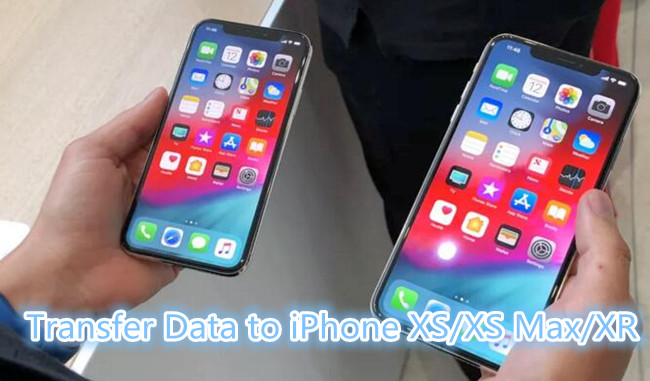
transfer data to iphone xs

In terms of price, iPhone XS and iPhone XS Max continue the previous high-priced strategy, with 64GB, 256GB, 512GB three versions, iPhone XS 999 US dollars, and iPhone XS Max is the most expensive iPhone in history, and the most expensive in history. The iPhone model, the 64GB version starts at $1099, pre-Order on September 14.

There are some features of the new iPhone models attract the user’s attention. However, data transfer is always a problem for most people. Here is the question: How to transfer data from old phone to new iPhone XS and iPhone XS Max?

Question: How to Transfer Data to iPhone XS/XS Max?

How to transfer data from Samsung to iPhone Xs Max?
Hi. I got a problem and want some help. Is there any way to transfer data from my old Android Samsung phone to iPhone XS Max? I heard that there are some tool available for transferring data between two phones directly. Any suggestions? Thanks so much!

How to sync data from iPhone 6s to iPhone Xs?
Someone can help me sync contacts and text messages from iPhone 6s to new iPhone Xs without iTunes? It’s very difficult to do syncing between two iPhones by iTunes, I need a third-party iPhone to iPhone transfer tool to switch contacts, SMS and songs from old iPhone 6s to the new iPhone Xs.

Normally, people will backup data from the old phone on the computer or some cloud service, then restoring the backed up to the new iPhone. That sounds so complicated and time-costing. In fact, here is an better solution for you who want to import data to the new iPhone. Did you get a new iPhone model and now you want to migrate all of your data and stuff from an old phone to the new iPhone? It’s easy to migrate everything from an old phone to a brand new iPhone and sync all of your data with you. What is it? That’s Phone Switch.

CONTENTS: Switch Data from Any Old Phone to NEW iPhone XS(Max)

Let Phone Switch help you transfer everything from old iPhone to the new iPhone XS, iPhone XS Max and iPhone XR quickly. It supports to transfer various types of contents such as contacts, SMS, call logs, photos, videos, music, calendar, apps, apps data between two mobile devices. It is a famous software designed for switching files between two phones based on iOS OS, Android OS, Symbian OS, or Windows OS. Besides to transfer data between two mobile devices, it features with phone data backup & restore. Phone Switch compatibles with all iOS models like iPhone XR and iPhone XS(Max); iPhone 8(Plus); iPhone 7 (Plus); iPhone 6 (Plus); etc,.


d_win d_mac

Transfer Contacts,SMS,Photos,Videos from Android to iPhone XS(Max)

Step 1. Run Program and Connect Two Phones to the Computer
To begin with, run Phone Switch on the computer, select “Switch” among the 8 options.

Android to iPhone XS/XR transfer

Connect both of the old phone and new iPhone to the computer. The program will detect the two phones soon.

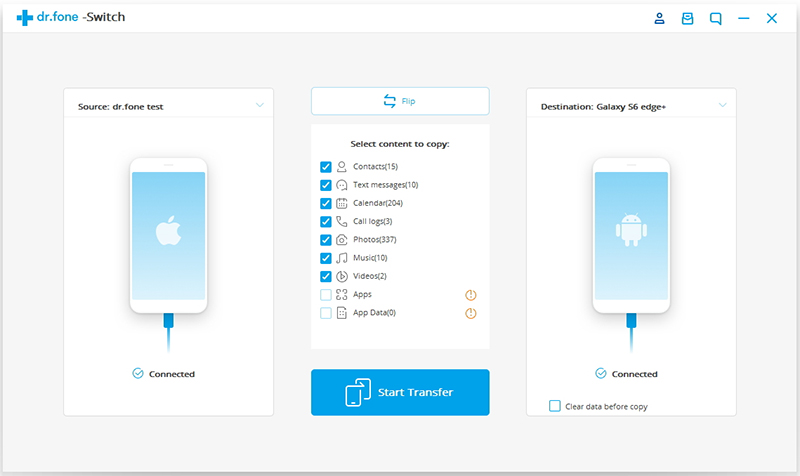
To import data from phone to iPhone, the old phone as the source device should be on the left and the new iPhone as the target device should be on the right.

Note: You can click the “Flip” button to exchange the position of two phones.

Step 2. Select Files and Start to Transfer
In this step, please switch your Android phone in the left side as source device, the new iPhone XS in right side as target devices. Then select the file types contain the data you would like to transfer, here contacts, photos, messages, call logs, music, videos, calendar, apps, apps data are available for selecting.
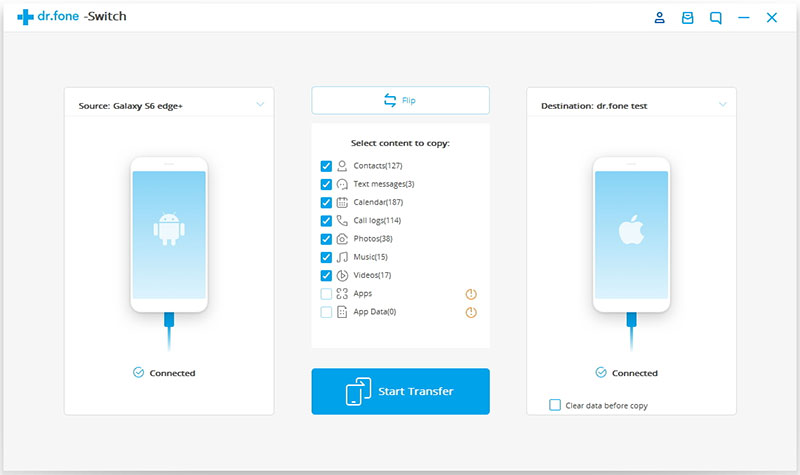
select files to transfer

Step 3. Transfer Data from Android Phone to iPhone XS
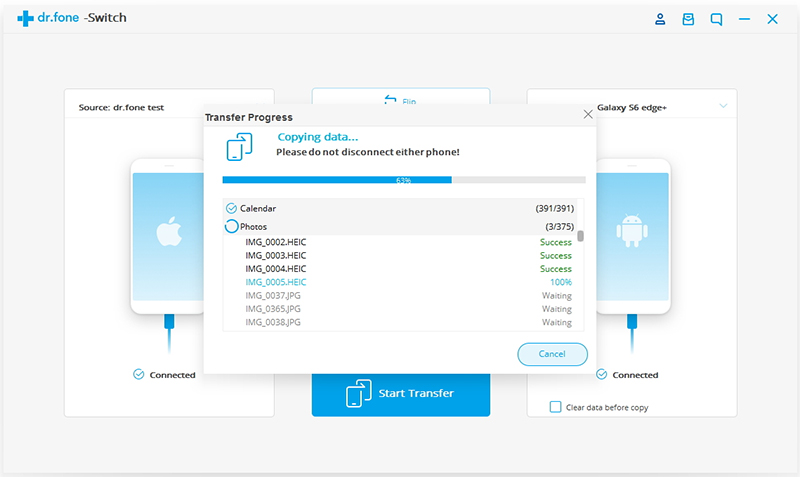
Simply click on “Start Transfer” to begin the transfer. Please keep the connection between the devices and the computer until the process is end.
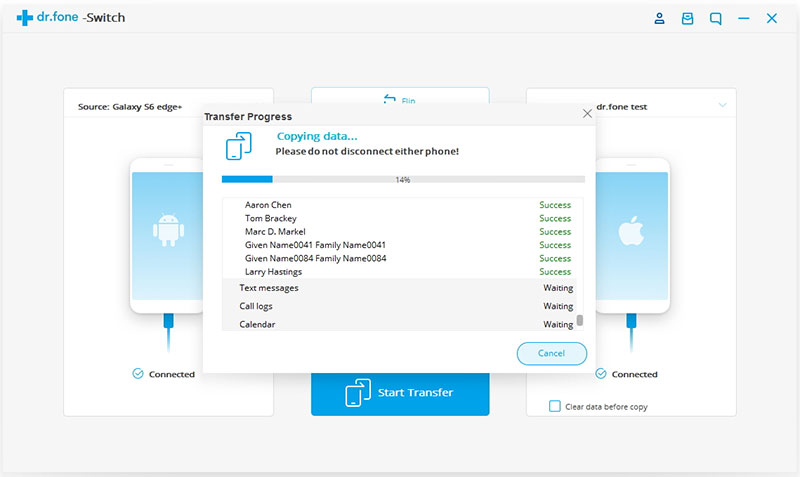
switch data from Android to iPhone XS

Finally, all the selected files will be transferred to the target phone(new iPhone) successfully take you just a few minutes. All of your Android data be moved to your new iPhone XS, you will find it on the iPhone XS and using them!
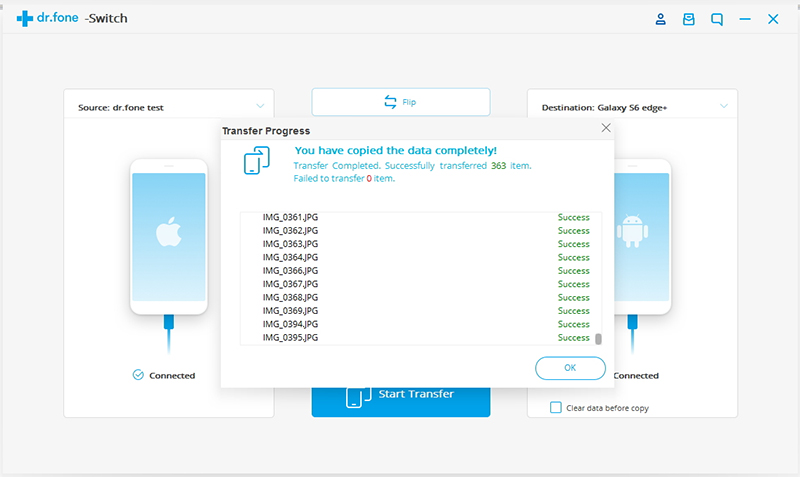
Android to iPhone XS transfer completed

1-Click to Transfer Data from iPhone to iPhone XS

Tips: If you want to transfer files from iPhone to iPhone, please connect both two iPhones to the computer, then launching the Phone Switch on your computer, after your old iPhone and new iPhone XS detects by the Phone Switch – iOS Toolkit program, then making sure your iPhone XS in the right side as a target device which you want to sync data to…Then, select the file types you want to move, finally click the “Start Transfer” button begin to sync data from old iPhone to iPhone XS. Only few minutes, your old iPhone’s data by synced to iPhone X, this program supports transfer data from iOS 11 to iOS 12 devices; sync data between iOS 11 devices or iOS 12 devices for iPhone, iPad and iPod.
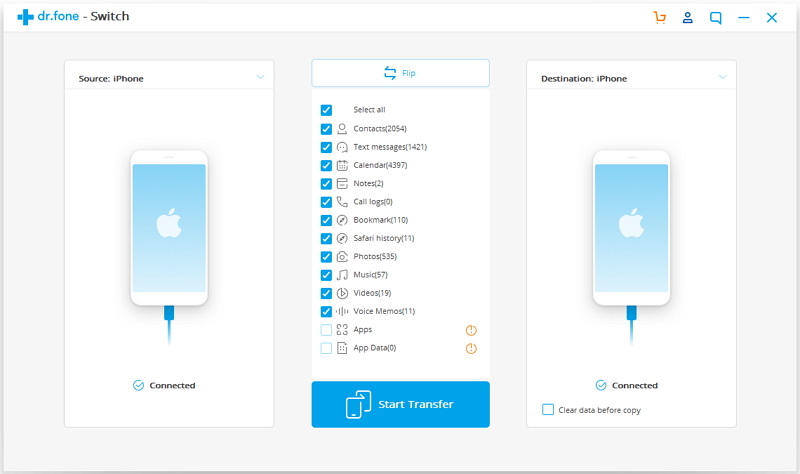
transfer iPhone data to iPhone XS

Free download the Phone Toolkit – Phone Switch for Windows or Mac and try to transfer files to your new iPhone directly.

d_win d_mac

Related Articles:

Transfer iPhone Data to iPhone XS/XS Max/XR

Transfer Samsung Data to iPhone XS/XS Max/XR

Transfer Content from Previous Phone to New iPhone 8/X/XS

How to Recover Deleted Data from iPhone

How to Transfer iTunes Music to iPhone

How to Transfer iTunes Videos to iPhone

How to Backup & Restore iPhone
Transfer Data to iPhone XS/XR

Transfer Data to iPhone XS

Transfer iPhone Contacts SMS Data to iPhone XS/XS Max/XR

[Summary]: Don’t know how to transfer contacts and text messages from old iPhone to iPhone X, iPhone XS, iPhone XS Max and iPhone XR without iTunes? Download the iPhone to iPhone transfer software and follow this to sync data including contacts, phone numbers, email, SMS, iMessages, text messages from iPhone 8/7/6S/6(Plus) to iPhone X/XR/Xs(Max)/XR quickly.

I am ready to upgrade my phone to new iPhone XS Max. However, a trouble thing suffer from me is how to switch contacts from iPhone 8 to iPhone XS Max with one click? I need an efficient plan with easy steps. Thanks for your advice.

There’s only a few weeks to go until the 2018 iPhone (likely to be called the iPhone Xs/XS Max) is expected be announced. Wondering what Apple might have for us? According to the rumor, there are three new models will be release, insist of iPhone Xs, iPhone Xs Max, iPhone XR. Ready to get it in your pocket? However, you may encounter a headache problem when you have the new brand iPhone by then, which is how to transfer data from old iPhone to the new one, especially contacts, messags, notes, calendars, songs, applications or others.

In this article, we mainly talk about transferring data between two iPhone with the most simple and safe way. When you have finished working through this tutorial your new iPhone will look exactly the same as your old iPhone: Apps ordered in the same way, and stored in the same folders; photos will appear in your Photos app; old text messages will appear in your Messages app; all your Contacts will be available to you; and so on. The only difference will be the way your iPhone looks and how fast it is! What we want to recommend for you is a terrific tool – Mobile Sync.

Sync iPhone Data to New iPhone via Mobile Sync

Mobile Sync is a professional iOS data transfer & manager software, which is the best tool designed for syncing iOS data between iOS device and PC, transfer files between two iOS devices directly. Mobile Sync is an iTunes alternative, manage and sync iOS data in an easy way, provides you with an effective solution to sync iPhone data to iPhone 9/iPhone X Plus/iPhone SE2 with easy steps. The types of transferable files including videos, music, photos, contacts, SMS and others. What’s more, it features with ringtone maker and HEIC to JPEG/PNG converter. Mobile Sync works perfectly with all iOS models and supports all iOS system.

d_win d_mac

How to Sync Contacts, SMS from iPhone to iPhone XS?

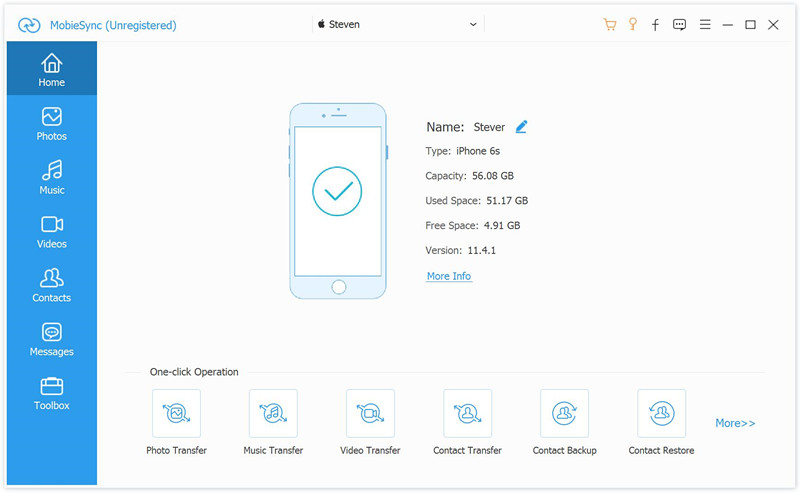
Step 1. Connect Two iPhone to PC
First of all, launch Mobile Sync on the computer, connect both of old iPhone the new iPhone to the computer at the same time with its USB cables.

mobile sync home page

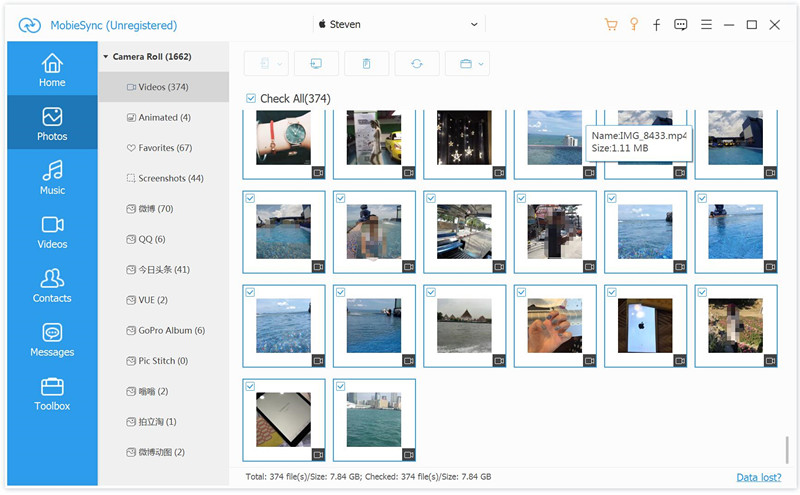
Step 2. Select Data to Transfer
Click the files contain the data you need to transfer. Click data type on the left and select specific iOS files on the preview window.

select data to transfer

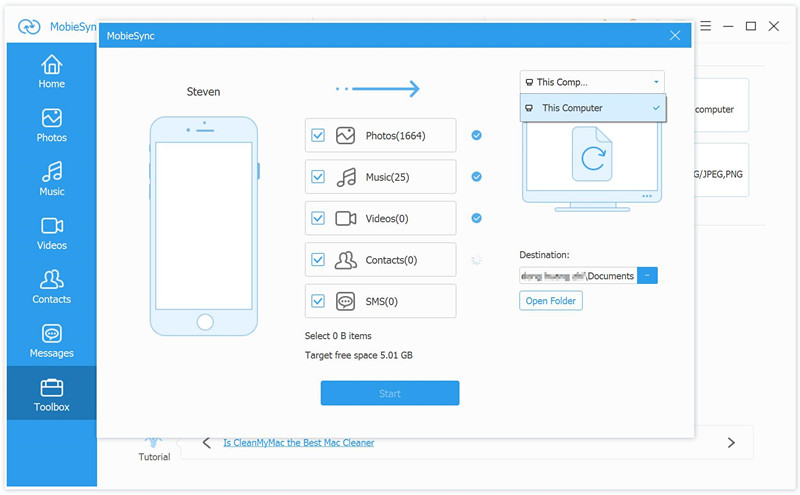
Step 3. Begin to Sync Data to iPhone XS
You could preview all select data under the files name, then click “Export to Device” on the menu bar. The program will begin to sync all selected data from the old iPhone to the new one.

sync iPhone data to new iPhone

d_win d_mac

Related Articles:

Transfer Samsung Data to iPhone 9/iPhone X Plus/iPhone SE2

Transfer Android Data to iPhone 9/iPhone X Plus/iPhone SE2

Transfer Content from Previous Phone to New iPhone 8/X

How to Recover Deleted Data from iPhone

How to Transfer iTunes Music to iPhone

How to Transfer iTunes Videos to iPhone

How to Backup & Restore iPhone
Transfer SMS Contacts to iPhone XS

Transfer iPhone Data to NEW iPhone

Transfer Contacts SMS Photos from Android to iPhone XR/Xs(Max)

[Summery]: Don’t know how to move Android to iPhone XS? Read this post to learn how to transfer/switch/copy data including contacts, text messags, photos, videos and music from Android to iPhone XR/Xs(Max)/X and iPhone 8/7/6S/6(Plus) without iTunes.

Since the new models of iPhone (iPhone XS, iPhone XS Max and iPhone XR) are going to release on the market, it attractive many people, especially a part of Android users who are planning to switch data from Android to iPhone. Want to transfer from Android phone like Samsung, Huawei, HTC, Moto, Google Pixel to new iPhone Xs? That’s really nice. However, I guess that it may worry you a lot for how to transfer data from Android to iPhone. Actually, it is not as so hard as you think to switch files between Android and iPhone. There are some ways available for you to transfer content between Android and iPhone though it based on different OS system, making it for you migrate all your important data safely. Here we offer the best one for you to finish the transfer with only one click.

Transfer Data SMS Contacts Photos fro iPhone XS Directly

Suffer greatly from the slow speed to transfer Android data to iPhone and want a better way? Here is a powerful Android to iPhone XS transferPhone Switch, which helps you transfer data from Android to iPhone XS(Max)/iPhone XR with one click. All in all, it is a smart data transfer tool designed for switching data between two mobile devices among Android device, iOS device, Symbian device and Windows device. The types of transferable files including contacts, photos, messages, call logs, music, videos, calendar, apps, apps data. It features with phone data backup & restore function. Almost all brands of mobile phone are supported by this tool, like Samsung, Google Pixel, Lenovo, LG, HTC, Motorola, Huawei, Xiaomi, Vivo, OPPO, etc,.

d_win d_mac

Simple Steps to Transfer Contacts, SMS from Android Samsung to iPhone XS/XS Max/XR

Step 1. Run Program and Connect Samsung and iPhone XS to the Computer
To get started, run Phone Switch on the computer, select “Switch” among the 8 options. Connect both of the Samsung Galaxy S9/S8/S7/S6/Note 8/Note 6/Note 4,etc. and new iPhone XS to the computer. The program will detect the two phones soon.

Android Samsung to iPhone XS transfer

To import data from Android to iPhone, Android as the source device should be on the left and iPhone as the target device should be on the right.

Note: You can click the “Flip” button to exchange the position of two phones.

Step 2. Select Files and Start to Transfer
Select the file types contain the data you would like to transfer, contacts, photos, messages, call logs, music, videos, calendar, apps, apps data are available for selecting.

select files to transfer

Step 3. Transfer Data from Samsung Galaxy to iPhone XS(Max)
Simply click on “Start Transfer” to begin the transfer. Please don’t disconnect the devices until the process is end.

switch data from Samsung to iPhone XS

At last, all the selected files will be transferred to the target phone (new iPhone XS) successfully in just a few minutes. Then you could check the data on the new device freely.

transferred completed

d_win d_mac

Related Articles:

Transfer Data from Samsung to iPhone XS, iPhone XS Max and iPhone XR

Transfer Content from Previous Phone to iPhone 8/X

How to Recover Deleted Data from iPhone

How to Transfer iTunes Music to iPhone

How to Transfer iTunes Videos to iPhone

How to Backup & Restore iPhone
Manage & Transfer Files for iPhone

Transfer Android Data to iPhone XS

Transfer Data Contacts from Samsung to iPhone XS(Max) and iPhone XR

[Summery]: Get a new iPhone to replace your Samsung? Wondering if there is an efficient way to switch contacts, SMS and other data between Samsung and iPhone Xs? Check this post and get the best solution to complete switch Samsung to iPhone with only three steps.

Apple just announced the iPhone XS, iPhone XS Max and iPhone XR, the iPhone XS Max is so much larger, it has a 6.5-inch screen, making it a bigger phone than even the latest model in Samsung’s famously large Galaxy Note seris. Good new, the newest iPhone XS will be available to pre-order in most countries around the world from September 14, with the handset going on sale globally from September 21 if you want to pick it up from a store. In terms of price, the good (ish) news is that the cost hasn’t risen over last year’s incredibly expensive iPhone X, with the 64GB iPhone XS coming in at $999 / £999 / AU$1,629. The 256GB iPhone XS price is $1,149 / £1,149 / AU$1,879, and the 512GB iPhone XS price is $1,349 / £1,349 / AU$2,199.

Although these are not set on behalf of Apple’s final design, but new iPhone models will definitely bring users more bright spots. So we are not hard to guess that at the scheduled time there will be lots of users to upgrade their phone with the new iPhone XS Max, no matter your use Android phone or iPhone before. It is common for Android user to purchase a new iPhone model to take place their Android device. If you use Samsung Galaxy S/Note before, when upgrading from an old Samsung phone to a new iPhone XS Max or XS/XR, the first question you may ask is, “How to transfer contacts from Samsung to iPhone Xs Max?” We all know you can transfer data from an Android to another Android or from an iPhone to another iPhone, however we are always in trouble when transfer data from an Android phone to an iPhone, to solve this problem, we need this smart Phone Switch.

Switch Contacts and SMS from Samsung to iPhone XS

Phone Switch, a comprehensive iOS & Android data transferring tool, which allows you to move all you data like photos, messages, contacts, call logs, music, video, calendar, apps, apps data between iOS & Android devices with great convenience and safety. With the help of this program, you can one click to transfer data between Samsung Galaxy and iPhone XS(Max), iPhone XR directly. What’s more, it has extra features with backup & restore phone data; backup phone data to the computer, restore local/Cloud backed up to the phone. Phone Switch compatibles with mobile device based on Android system, iOS system, Symbian system and Windows system.

d_win d_mac
d_win d_mac

Supports Samsung devices: Samsung Galaxy S10/S10+, Samsung Galaxy S9/S9+, Galaxy S8/S8+, Galaxy S7/S7 Edge, Galaxy S6/S6 Edge/S6 Edge+, Galaxy S5/S4/S3/S2, Galaxy Note 8/Note 5/Note 4/Note 3, Galaxy C9/C8/C7/C5, Galaxy J8/J7/J6/J5/J4/J3/J2/J, Samsung Galaxy Ace and other Samsung phones and tables.

Supports iOS devices: The latest iPhone Xs Max, iPhone Xs, iPhone XR and previous iPhone X, iPhone 8/7/6S/6(Plus), iPhone SE, iPhone 5S/5C/4S/4, iPad Air/Pro/Mini and iPod(touch).

How to Transfer Contacts from Samsung Galaxy S7 to iPhone XS Max

Step 1. Run Program and Connect Phones to the Computer
First of all, run Phone Switch on your computer, and select “Switch” among the 8 modules.

samsung to iPhone xs transfer

Connect both of Samsung Galaxy S7 and new iPhone XS to the computer. The program will detect the two phones very soon.

The data will be transferred from the source device to the destination one.(Samsung S7 as the source device should be on the left and iPhone Xs as the target device should be on the right.)

Note: You can click the “Flip” button to exchange their position.

Step 2. Select Files and Start to Transfer
Select the file types contain the data you would like to transfer, including phone numbers, photos, messages, Contacts, call logs, music, video, calendar, apps, apps data are available.

select files to transfer

Step 3. Transfer Data from Samsung to New iPhone
Then click on “Start Transfer” to start transfer contacts from Samsung Galaxy S7 to iPhone XS. Please don’t disconnect the devices until the process is end.

switch data to new iPhone xs

Note:You can check the “Clear Data before Copy” if you want to erase data on the destination phone before transferring the data to the target phone.

transferred completed

Finally, all the selected files will be transferred to the target phone(new iPhone) successfully in just a few minutes.

d_win d_mac
d_win d_mac

Related Articles:

Transfer Content from Previous Phone to New iPhone 8/X

How to Recover Deleted Data from iPhone

How to Transfer iTunes Music to iPhone

How to Transfer iTunes Videos to iPhone

How to Backup & Restore iPhone
Manage & Transfer Files for iPhone

Transfer Samsung Data to iPhone XS/XR

How to Fix iPhone Keyboard Not Working Problem

Summery: iPhone keyboard not working? If you encounter the same problem and want a self solved solution, just focus on this article. It will give you several ways to fix this issues with easy steps.

I was texting a SMS then the iPhone keyboard was not working, it just being unresponsive . Has anyone ever experienced this? How do I fix iPhone keyboard not working without sending it to the Apple repair store?

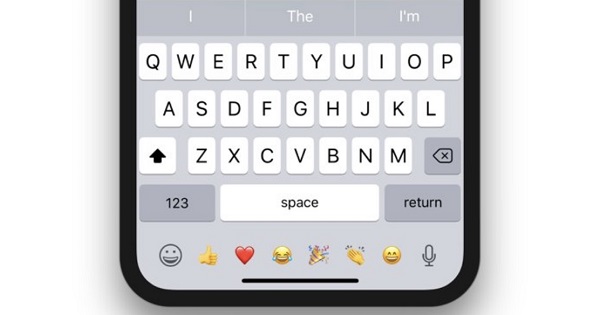
iphone keyboard

Have you found that your iPhone keyboard being abnormal while using it? Some people reflect that the keyboard of their device was not working after iOS system updated, screen replacement or when charging. iPhone keyboard not working issue is one of the main issues of different iOS device models, it need to be solved rapidly in case not to cause any other damages on iPhone. In general, iPhone keyboard not working issue includes several situations: 1. Keyboard is Frozen or Unresponsive. 2. Keyboard Predictions Not Working. 3. Keyboard Not Appearing. If you are getting the keyboard not working problem on iPhone, just take a glance on the follow section, we well provide you with some quick tips to help you out of the trouble.

Part A: Reset Keyboard Dictionary to Fix iPhone Keyboard Problem

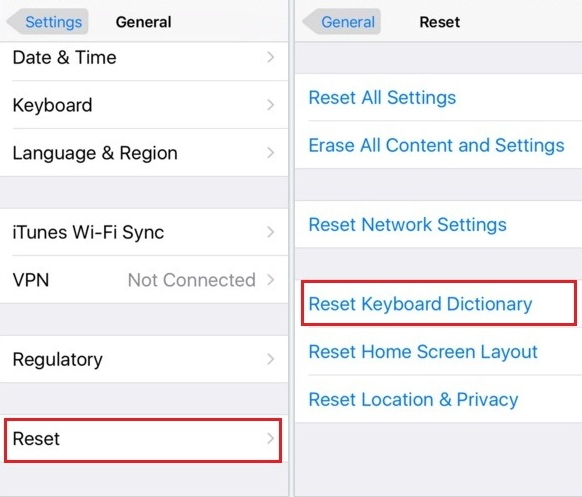
iPhone keyboard is laggy or frozen? Try to reset keyboard dictionary. Go to Settings > General > Reset on your iPhone and choose “Reset Keyboard Dictionary”.

reset keyboard dictionary

Part B: Reboot iPhone to Fix iPhone Keyboard Problem

If your iPhone keyboard is frozen, try to reboot your device to fix the “iPhone keyboard not working” issue. On iPhone X, iPhone 8 and iPhone 8 Plus, quickly press and release the Volume Up button, quickly press and release the Volume Down button and then press and hold the Sleep/Wake button (side button) until you see the Apple logo.

Part C: Fix iPhone Keyboard Problem via iOS System Recovery

Keyboard problem can be caused by system errors for users who have just updated to the new iOS system for example iOS 12. You can fix the keyboard not working problem without restoring your iPhone with the help of iOS System Recovery, which will solve your problem without losing any data on device.

iOS System Recovery is a powerful software which can not only specialize in data recovery but also help you fix the iOS system issues. It is totally safe and it can offer the best help for fixing iPhone keyword not working issue. It’s good to fix all kinds of iOS system issues like iPhone stuck in recovery mode, DFU mode, iPhone gets frozen on Apple Logo , black screen, white screen and so on. It offers 3 modes for users to fix iOS issues on device without losing data. It compatibles with all iOS models run any iOS system, such as iPhone X, iPhone 8/8 Plus (iOS 12/11.3 included).

d_win d_mac

Fix iPhone Keyboard Problem without Data Loss

Step 1. Run the iOS System Recovery on the Computer
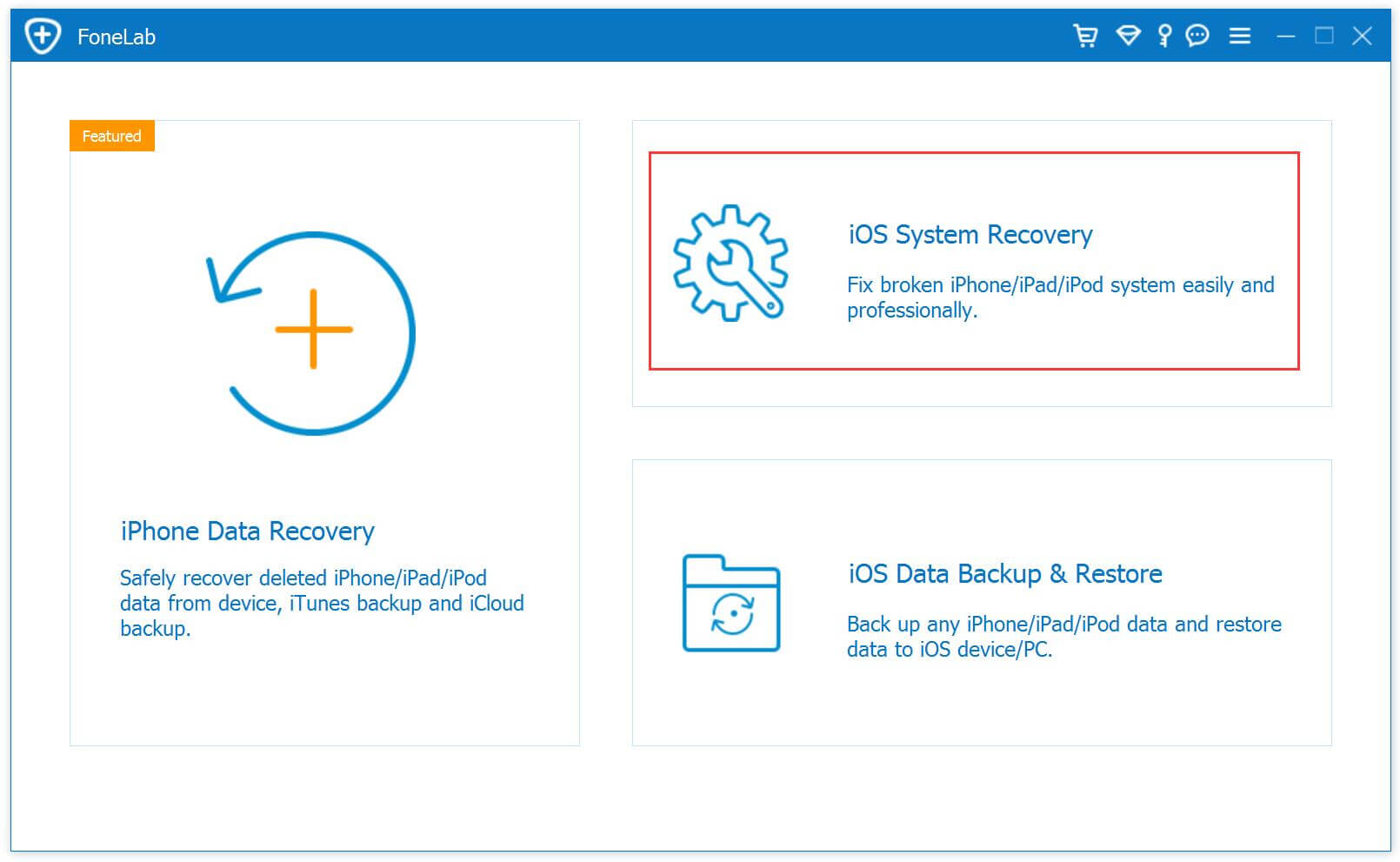
First of all, run iOS System Recovery on the computer, it will show the home page as below.

ios system recovery home page

Step 2. Select Mode and Connect iPhone
Click “iOS System Recovery” option in the home page after clicking “More tools” option. Connect your iPhone to the computer using a USB cable. The device will be detected by program soon and display it on its screen. Click on the button “Start“.

connect iPhone

Step 3. Select Model and iOS Version of iPhone
Now you should select the iPhone model which matching your device. The program will offer for you the latest iOS version for downloading. Then click “Repair” to go on.

select iPhone model

Note: It will be update the selected iOS system on your device after restoring.

Step 4. Download the Latest iOS Firmware for iPhone
The program will download the selected iOS firmware for fixing your device. Please don’t interrupt the connection of your iPhone and the computer until the firmware downloading process is end.

download the firmware for iPhone

Step 5. Fixing iPhone Keyboard Not Working Issue
When the iOS System Recovery has finished downloading the latest firmware for your iPhone, it will begin to fix iPhone system to normal and fixing iPhone keyboard not working issue without data loss at the same time.

fix iPhone keyboard problem

d_win d_mac

More iOS System Recovery Articles:

How to Restore iPhone System to Normal

Fix Siri Not Working on iPhone Problem(iOS 12 Supported)

How to Fix iPhone Get Frozen/Bricked Screen

How to Fix iPhone Stuck on Apple Logo

How to Get iPhone Out of Recovery Mode

How to Fix iTunes Cannot Connect to iPhone Error

How to Use IPSW File to Restore iPhone without Data Loss

Fix iPhone Keyboard Not Working Problem

How to Get Pictures Off an Android Phone with Broken Screen

Summary: This page introduces you an easy Android broken screen pictures recovery solution – recover pictures from Android phone with broken screen via Broken Android Data Extraction.

Thin morning, my Samsung Galaxy S5 screen is broken after felling out of my jeans pocket. The phone is power on but I can’t unlock the phone since the screen is damaged. I have many precious family pictures stored on the phone. I need to get them off the broken screen device before sending it to the repair store. Any ease way to do this job by myself?

Did you be familiar with this situation? Your phone slips from your hands and fall into the floor, and this come into your mind urgently “Oh on! Please don’t let the screen be broken!”. Most of us ever encounter this case that break our phone screen and unfortunately the screen is damaged. We can’t lives without smartphones, we use the phone for doing all kinds of things and save lots of important things in it, from simple text to meaningful pictures and videos. Device get broken screen is nothing new for most of us. When your Android phone get broken, you can’t unlock it to have a access. Moreover, the foremost problem is how to get data off an Android phone with broken screen, especially the pictures.

Get Pictures Off Broken Screen Android Phone

You have the best choice here – try Broken Android Data Extraction to get pictures off Android phone with broken screen. It is a smart program designed for fix abnormal Android OS & retrieve your valuable data from any types of broken Android, like broken screen, black screen, water damaged, stuck in the Download Mode, stuck in reboot loop, etc,. It supports to recover all types of data from broken Android like gallery, contacts, messages, audio, videos, WhatsApp messages, documents, etc,. It works well for most popular Android phones from Samsung(Galaxy S4/S5/S6, Note 3/4/5), LG and so forth.

d_win d_mac

Extract Pictures from Broken Screen Android Phone

To begin with, please download and run the Broken Android Data Extraction on the computer.

broken Android data extraction home page

Step 1. Connect Broken Screen Android to the Computer
In the home page of program, click “Broken Android Data Extraction” among three options, then connect the Android phone with broken screen to the computer with a USB cable, and click the “Start” button.

connect broken screen Android to PC

Step 2. Select the Photos Files to Scan
The program will begin to scan data from your phone, click the files contain the data you want. For pictures recovery, you should click “Gallery” & “Picture Library” files, then click “Next“. If you want to recover all files at once, please click “Select All” item.

select photo files to scan

Step 3. Select Broken Situation for your Android
In this step the program will guide you to another screen, you will see several fault types of phone choices. Please choose the one which match your phone. In this case, you should click “Others“.

choose Android broken type

Step 4. Select Android Phone Model
Select the brand and model of your Android phone according to the option. (You could click the “No my device in the list” option if you can’t find your phone model.)

select device model

Step 5. Enter Android into the Download Mode
Follow the instruction to enter your phone into the Download Mode.

enter broken screen Android into the download mode

Note:Please keep the connection between the phone and the computer during this process.

Step 6. Analyze Data of Android Phone
After entered Android into the Download Mode, the program will start downloading the recovery package for analyzing your phone data, which will take you some minutes.

analyze data from Android

Once the downloading is completes, all recoverable files including the selected items stored on the device will be scanned out.

Step 7. Preview and Get Pictures Off Android Phone
At last, you could preview all deleted/lost or existing data from Android in the scan out list, including gallery, videos, contacts, messages, and more. To get pictures off Android phone, select and preview the data you want under “Gallery” & “Picture Library” items, save them on the computer by clicking “Recover” button.

recover pictures from Android

d_win d_mac

Related Articles:

How to Recover Photos from Broken Samsung Galaxy Phone

How to Recover Data from Android Phone with Broken Screen

How to Restore Data from Broken Android Phone

How to Fix Android Black Screen Issue

Get Pictures Off an Android Phone with Black Screen

How to Backup & Restore Android

How to Manage Android on the Computer

Get Pictures Off Broken Screen Android

Android Data Recovery

Recover Your Lost Data from Android
Now, Even Device Broken

Compatible with Android 8.0 Oreo/7.0, etc.

Recover Lost Data Now

Retrieve Deleted Phone Number from Samsung Android

I lost some phone numbers in the contact list from my Samsung phone, which are so important to me. How to restore the deleted contacts from the device without backup? Please send my your advice. Thanks so much.

As you know, nowadays mobile phone has become much smarter and more functional, we would achieve more while using a smart phone, such as take pictures, surf on the Internet, install various apps, and so on. However, it is undeniable that making phone calls and sending messages are always the two basic functions of all mobile phones. For most people, phone numbers list is one of the important part on the mobile phone for communicate with others. Although nowadays people are tightly connected by all kinds of social software like Facebook, Twitter, Instagram, WhatsApp, WeChat, etc,; it seems important to keep the phone numbers on device. Since contacts/phone numbers is always the most fast and direct way for us to get in touch with others.

No matter which smart phone model you own, data loss from your phone is inevitable. I guess the last file you don’t want to lose from your phone must be the contacts information. Losing contacts could be terrible for most phone users. We will lost contacts on phone cause by different reasons: accidental deletion, Android OS updated, Android OS rooted, factory reset restoring, and so on. When you lost the phone numbers on Samsung phone, just clam down and this page will concentrate on providing you with the best recovery software to help you recover deleted contacts from Samsung Android phone.

Retrieve Deleted Contacts from Samsung Android

There are some data recovery solutions for your reference, it could retrieve your deleted contacts on Samsung Android, including phone numbers, name, e-mail address, company, job title, and more information. This powerful tool here we recommend for you called Android Contacts Recovery, which is an easy to use yet reliable program also named Android Data Recovery. It is a superior data recovery for restoring data for Android phone or tablet under any data loss cases, it requires no professional skills for both beginners and experts. Besides to contacts, it supports to restore all types of Android data, such as, gallery, videos, audio, messages, call logs, WhatsApp messages, documents and more. This program compatibles with all Android models, like Samsung, HTC, Motorola, HUAWEI, Google Pixel,Samsung, OPPO, ZTE and other 6000+ Android models & various Android OS.

d_win d_mac

Restore Deleted Phone Number from Samsung Android

Step 1.Run Program & Connect Samsung Phone
Firstly, run Android Contacts Recovery on the computer. Connect your Samsung phone to the computer using an Android USB cable, the program will detect your device when it successfully connects. There are three modes are available, select “Android Data Recovery” option to go on.

connect Samsung phone

Step 2. Enable USB Debugging on Samsung
This step will guide you to enable USB debugging on the device, just click “OK” on it.

allow to detect Samsung

Step 3. Select the Contacts File to Scan
Here, the program will list all kinds of files for you to restore, including contacts, message, gallery, videos, WhatsApp messages, etc,. For contacts recovery, please select the “Contacts” item. Then click “Next” to go on.

select contacts file to scan

Step 4. Allow to Scan your Samsung Phone
Tap “Allow” on the phone to allow the program scan your phone.

allow to scan Samsung

Step 5. Begin to Scan Samsung Phone
After that, Android Contacts Recovery will begin to scan all lost and existent files from your phone, including the deleted phone numbers.

scan Samsung data

Step 6. Preview and Recover Deleted Phone Number
At last, it will list all contacts, photos, videos, messages, call logs, WhatsApp messages,and more data for recovery. Please click “Contacts” item, and the recoverable data will be displayed in the preview window. Preview and mark the data you want to restore. Restoring all the selected contacts data to the computer by clicking the “Recover” button.

recover deleted phone number from Samsung

d_win d_mac

More Android Data Recovery Guides:

How to Recover Deleted Data on Android

How to Restore Deleted Data from Samsung Phone

How to Recover Lost Data from Android SD Card

How to Transfer iPhone Data to Samsung/Android

How to Backup & Restore Android Safely

How to Manage Android on Computer

Recover Phone Number from Samsung Android

Android Data Recovery

Recover Your Lost Data from Android
Now, Even Device Broken

Compatible with Android 8.0 Oreo/7.0, etc.

Recover Lost Data Now

Fix Siri Not Working on iPhone 6/7/8/X(iOS 12 Supported)

Summery: You may meet Siri problem for example Siri not working on your iPhone 6/7/8/X. Read this post to learn how to fix Siri not working on iPhone issue with an efficient way.

The Siri wasn’t work as usual on my iPhone 7 after I updated it to iOS 12. It was unresponsive when I called it. I like the Siri function and it do a great help for me in life. Is it possible to fix the Siri issue with easy steps by myself instead of sending it to the repair store?

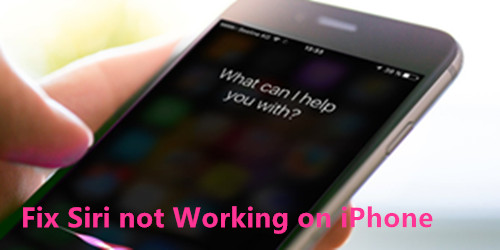
fix siri not working on iphone

Siri is one the smartest personal assistance on iPhone, it can help users do a lot of things, to make your life become more convenient and intelligentized. Just saying a word to it, it would do everything with taking your place. Nevertheless, lots of iPhone users complain about Siri not working on their devices. Siri is not working or available? It doesn’t pick up your voice anymore? Or it is just not responding after you upgrading your iPhone to the new iOS version, like iOS 12? In this article, we will offer some instructions which could be the most comprehensive guide to solve iPhone Siri not working problem. If you are facing the issue of Siri not working on iPhone 6/7/8/X, learn the solutions from the follow parts to help yourself out.

Part 1: Check if the iPhone Microphone Working Well

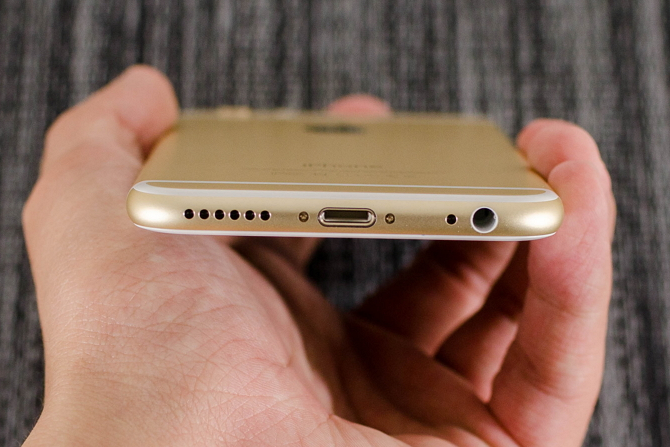
Sometime Siri not working may be caused by iPhone microphone errors. If it can’t pick up your voice, then it won’t give any response to you. Just confirm whether your microphone works by recording an audio or voice memo. It your iPhone microphone can’t detect your voice, try the following steps:

Step 1. Clean your microphone hole with a soft toothbrush or a can of compressed air.
Step 2. Remove your iPhone case in case it keeps your voice from the phone.

check iphone microphone

Part 2: Update iPhone to the Latest iOS(iOS 12 for Now)

In normal, the old iOS system may be not compatible with iPhone, and lead to some software errors. Update iPhone to the newest iOS system will probably solve some unknown Siri issues, you can follow the steps as below to do so.

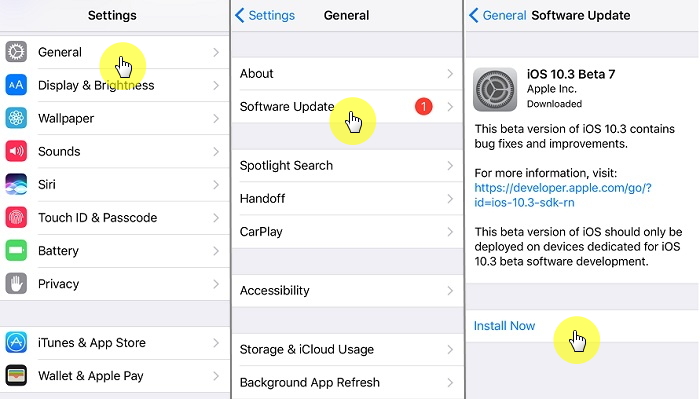
Step 1. Tap on “Settings” > “General” on your iPhone.
Step 2. Tap on “Software Update” and iPhone will check for update automatically.
Step 3. Tap on “Install Now” if new version is available.

check for ios update

If you tried all the methods above but Siri is still not working on your iPhone, then the problem may be caused by iOS issue on your device. In this case, you are suggest try this powerful iOS System Recovery to fix the issue.

Part 3: Fix iPhone Siri Not Working Problem via iOS System Recovery

As an iOS issues fixing expert, iOS System Recovery can do more than you can imagine. It can fix iOS problems without any data loss. With the help of this program, you could fix iPhone Siri not working on iPhone 6/7/8/X with ease. Besides to this error, it help to fix every type of iOS system errors, like stuck in the Recovery Mode, stuck in Apple logo, stuck at black/white screen, stuck in frozen screen, stuck in restart loop. It works well for all iOS models and all iOS version.

d_win d_mac

Fix iPhone Siri Not Working Problem without Data Loss

Step 1. Run the iOS System Recovery on the Computer
To begin with, run iOS System Recovery on the computer, it will show the home page as below.

ios system recovery home page

Step 2. Select Mode and Connect iPhone
Click “iOS System Recovery” option in the home page under “More tools“. Connect your iPhone to the computer using a USB cable. The device will be detected by program soon and display it on its screen. Click on the button “Start“.

connect iPhone

Step 3. Select Model and iOS Version of iPhone
Now you should select the iPhone model which matching your device. The program will offer for you the latest iOS version for downloading, select the iOS version you are prepare to update on your device. Then click “Repair” to go on.

select iPhone model

Step 4. Download the Latest iOS Firmware for iPhone
In this step, the program will download the selected iOS firmware for fixing your device. Please keep the connection of your iPhone and the computer until the firmware downloading process is end.

download the firmware for iPhone

Step 5. Fixing iPhone Siri Not Working Issue
Once the iOS System Recovery has finished downloading the latest firmware for your iPhone, it will begin fixing the iPhone system to normal, in the meantime fixing iPhone Siri not working issue without data loss.

fix iPhone siri to normal

A few minutes later, your iPhone system will be restore to normal state. You can check if the Siri works well as usual on your device.

d_win d_mac

Related Articles:

How to Restore iPhone System to Normal

How to Fix iPhone Stuck in Spinning Circle

How to Fix iPhone Get Frozen/Bricked Screen

How to Fix iPhone Stuck on Apple Logo

How to Get iPhone Out of Recovery Mode

How to Fix iTunes Cannot Connect to iPhone Error

How to Use IPSW File to Restore iPhone without Data Loss

Fix iPhone Siri Not Working Problem

How to Get Pictures Off an Android Phone with Black Screen

Please help me get pictures off my Android phone, the phone is stuck at black screen. I am not familiar with any Android data recovery tools. What should I do to extract the memory from the broken device directly even can’t power it on? Please share your ideas with me. Thanks sincerely!

Android phone keep black screen? Don’t be anxious. There are different causes will lead to Android get black screen, for example, you update the Android OS but failed; you try to perform Android root on it but get error; etc,. All these operations will make device turn to black screen. Sometimes, the black screen problem can be solved easily by rebooting the device. But it doesn’t work all the time. You have no other way but to factory reset your Android phone. What a pity that you lost previous data from the phone after fixing black screen issue on it. So here is the question for users whose Android phone get black screen: How to get pictures off the black screen Android device?

Extract Pictures from a Black Screen Android Phone

Broken Android Data Extraction is regarded as one of the best program which help you to get pictures off Android with black screen. It supports to recover all types of data from broken Android like contacts, messages, audio, videos, WhatsApp messages, documents, etc,. It deals with many broken cases of Android, like black screen, broken screen, stuck in the Download Mode, water damaged, system crash and more. Moreover, this is an all-in-one tool features with Android data recovery; Android data backup & restore. And it works on all Android phones and tablets, including Samsung, HTC, LG, Motorola, Sony, Huawei, ZTE, OPPO, Google Pixel, Lenovo, Xiaomi and so forth.

d_win d_mac

Recover Pictures from an Android Phone with Black Screen

To get started, please download and run the Broken Android Data Extraction on the computer.

broken Android data extraction home page

Step 1.Connect Black Screen Android to Computer
Click “Broken Android Data Extraction” among three options, then connect the Android phone with black screen to the computer with a USB cable, and click the “Start” button.

connect black screen Android to PC

Step 2.Select the Photos Files to Scan
The program will begin to scan data from your phone, click the files contain the data you want. For pictures recovery, you should click “Gallery” & “Picture Library” files, then click “Next“. If you want to recover all files at once, please click “Select All” item.

select photo files to scan

Step 3.Select Broken Situation for your Android
In this step the program will guide you to another screen, you will see several fault types of phone choices. Please choose the one which match your phone. In this case, you should click “Black screen“.

choose Android broken type

Step 4.Select Android Phone Model
Select the brand and model of your Android phone according to the option. (Please click the “No my device in the list” option if you can’t find your phone model.)

select device model

Step 5.Enter Android into the Download Mode
Follow the instruction to enter your phone into the Download Mode.

enter broken Android into the download mode

Note:Please keep the connection between the phone and the computer until it has got into the Download Mode.

Step 6.Analyze Data of Android Phone
After entered Android into the Download Mode, the program will start to download the recovery package for fixing your phone, which will cost you some minutes.

analyze data from Android

Once the downloading is finishes, the selected item stored on the device will be scanned out.

Step 7.Preview and Get Pictures Off Android Phone
In the last step, you could preview all deleted/lost or existing data from Android in the scan out list, including gallery, videos, contacts, messages, and more. To get pictures off Android phone, select and preview the data you want under “Gallery” & “Picture Library” items, save them on the computer by clicking “Recover” button.

recover pictures from Android

d_win d_mac

Related Articles:

How to Recover Photos from Broken Samsung Galaxy Phone

How to Recover Data from Android Phone with Black Screen

How to Restore Photos from Broken Android Phone

How to Fix Android Black Screen Issue

How to Backup & Restore Android

How to Manage Android on the Computer

Get Pictures Off Black Screen Android

Android Data Recovery

Recover Your Lost Data from Android
Now, Even Device Broken

Compatible with Android 8.0 Oreo/7.0, etc.

Recover Lost Data Now

How to Recover Deleted Text Messages from Lenovo Phone

Summery: Sending text messages is the major way to connect with others, lost text messages data on mobile device may be a depressed thing for most people. This article is going to show you a practical way to recover deleted SMS from Lenovo phone.

Nowadays, people prefer to send text messages instead of making a call, since sending SMS is instant, and is a good way available for you to record important and valuable information. Accident always happen without saying a word. One of the common phenomenon appear on Android users is data loss. For example, when you are texting or reading a SMS, you may wrong tap “Delete” button then the message gone. Let’s assume you are a Lenovo user who deleted messages from the phone carelessly, which are really significant and you just want to restore it as soon as possible. What should you do to recover the deleted SMS from being lost from Lenovo? Even without any backup?

Lenovo Text Messages Recovery

Fortunately, there are a lot of recovery tools available today that have been introduced, such as U.Fone Android Data Recovery. In fact, the program is great for providing clear instructions that walk users through the entire process. With it, you can easily recover deleted text messages from Lenovo phone, like Z5, A5, K5, K6, K8, S5, P2, C2, etc,. Besides to SMS, it supports recovering deleted contacts, photos, videos, audio, call logs, WhatsApp messages, documents, etc,. In conclude, this recovery tool allows to restore Android data lost due to any cases, such as, accidental deletion, Android OS updated, Android OS rooted, factory reset restoring, virus attacked, and so on. U.Fone Android Data Recovery compatibles with all Lenovo phones and other Android models.

d_win d_mac

How to Restore Deleted SMS from Lenovo Phone

Step 1.Run Program & Connect Lenovo Phone
To get started, run U.Fone Android Data Recovery on the computer. Connect your Lenovo phone to the computer using an Android USB cable, the program will detect your phone when it successfully connects. There are three modes are available, select “Android Data Recovery” option to go on.

connect Lenovo phone

Step 2. Enable USB Debugging on Lenovo
This step will guide you to enable USB debugging on the device, just click “OK” on it.

allow to detect Lenovo

Step 3. Select the SMS Files to Scan
Here, the program will list all kinds of files for you to restore, including contacts, messages, gallery, videos, WhatsApp messages, etc,. Select the “Messages” & “Message Attachments” items for SMS recovery. Then click “Next” to go on.

select SMS files to scan

Step 4. Allow to Scan your Lenovo Phone
Simply tap “Allow” on the phone to get privilege to allow the program scan data on it.

allow to scan Lenovo

Step 5. Start to Scan Lenovo Phone
After that, U.Fone Android Data Recovery will begin to scan all lost and existing data from your phone.

scan Lenovo data

Step 6. Preview and Recover Deleted SMS from Lenovo Phone
In the last step, it will list all contacts, photos, videos, messages, call logs, WhatsApp messages,and more data in the scan out result list. Please click “Messages” & “Message Attachments” items to preview the data you want to restore, and mark the data then clicking the “Recover” button to save the restored data on the computer.

recover deleted SMS from Lenovo

d_win d_mac

More Lenovo Related Guides you can Check:

How to Recover Deleted Files from Lenovo Phone

How to Recover Deleted Photos from Lenovo Phone

How to Recover Lost Contacts from Lenovo Phone

How to Recover Data from Water Damaged Lenovo Phone

How to Backup and Restore Lenovo Phone

How to Manage Android Phone on the Computer

Recover Deleted SMS from Lenovo Phone

Android Data Recovery

Recover Your Lost Data from Android
Now, Even Device Broken

Compatible with Android 8.0 Oreo/7.0, etc.

Recover Lost Data Now