Category Archives: Fix iOS

How to Completely Untinstall iTunes from Windows/Mac

Summary: How to completely remove and uninstall iTunes on Windows/PC? We will show you a complete guide about deleting iTunes on computer with an easy way, including iTunes media, iOS backups, iTunes/iOS update files and other iTunes useless files.

I want to completely uninstall iTunes and all the related apps at once. Is there a one-click solution to do this job?

When you switch from iTunes to another media player like QuickTime, iTunes Helper, Bonjour, you might need to remove iTunes and the related document completely. Uninstalling iTunes with the traditional way through programs and features one by one on computer, it leaves a lot behind. It is complicated and time-costing. If you try to use Windows remove utility to unstinstal iTunes but fail and now want to remove any reference to iTunes, just get iTunesFix to fully uninstall everything of iTunes without troubles, including its related components and even the user data, leaving no leftover pieces.

One-Click Remove iTunes Completely

iTunesFix can completely remove iTunes from computer with one click, including iTunes media (music, videos/movies, playlist), iOS backups, iTunes/iOS update files, other iTunes useless files, related components and user data. Moreover, iTunesFix is an all-in-one iTunes error fixing tool, help to fix all iTunes errors and issues without any data loss, return iTunes to normal. It can also manage iTunes Library on computer safely, clear iTunes to free up and boost your computer with an efficient solution.

d_win d_mac

How to Remove iTunes from Computer Completely

Note: The full uninstallation of iTunes will thoroughly remove iTunes and its related software components. Meanwhile, you can delete the iTunes user data if you want.

Step 1. Choose the Uninstall Mode
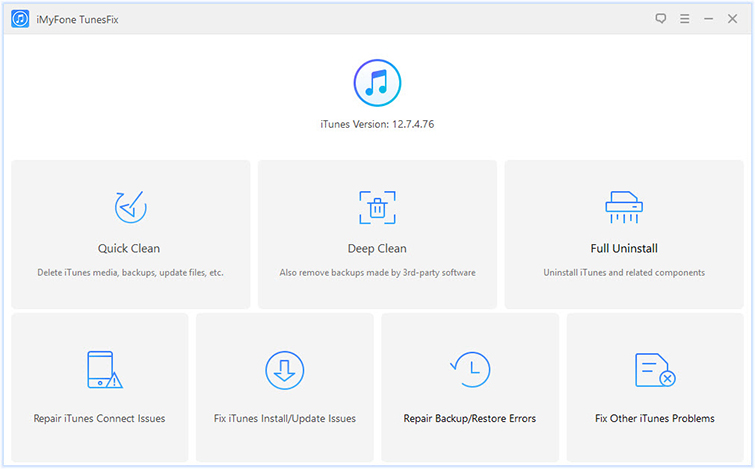
Run iTunesFix on computer, click on “Full Uninstall” in the home interface of iTunesFix. It will guide you to the uninstallation page.

itunesfix home page

Step 2. Uninstall iTunes Completely
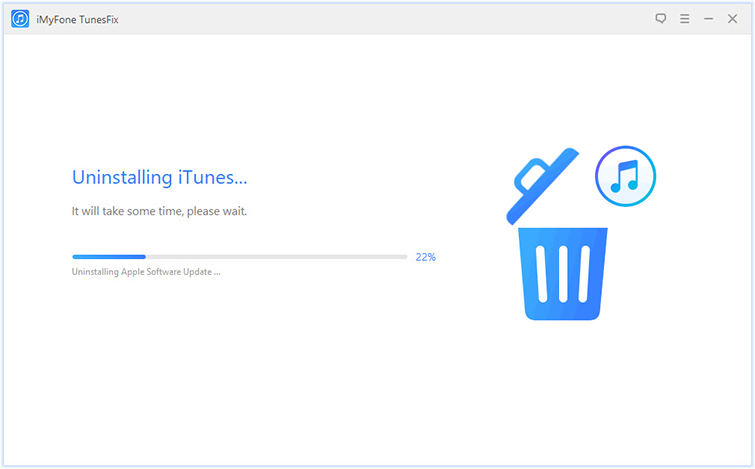
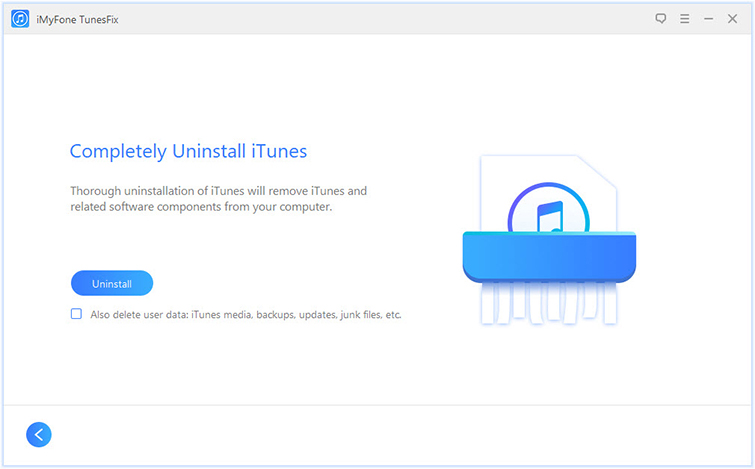
Click “Uninstall” and it will start to remove iTunes and its software components from your computer completely.

Note: If you want to delete iTunes user data, check “Also delete user data” under “Uninstall” button, before you click on “Uninstall“. It will delete iTunes media, iOS backups, iTunes/iOS update files and other iTunes useless files.

confirm to remove itunes

uninstalling itunes

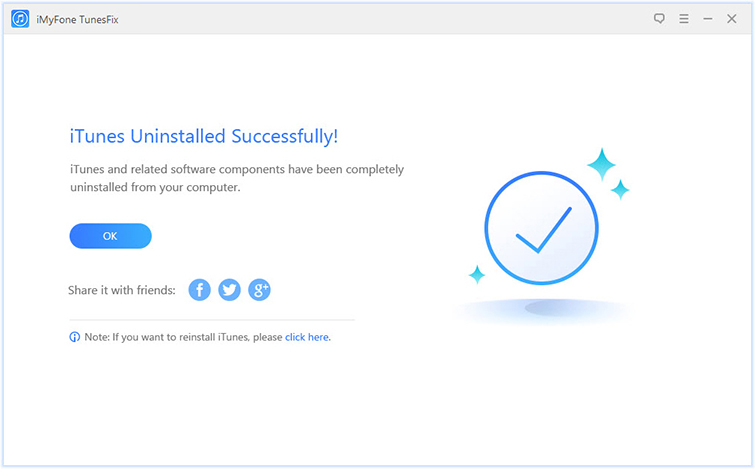
When it’s done, you can tap “click here” to reinstall iTunes if you need.

remove itunes finished

d_win d_mac

Related Articles:

How to Fix iTunes Won’t Install/Update Issues

How to Repair iTunes Unknown Errors

How to Fix “iTunes Could Not Backup/Restore” Issue

How to Fix iTunes Cannot Connect to iPhone Error

How to Recover Deleted/Lost Data on iPhone X/8/7/6S/6

How to Fix iTunes Error 45 When Update/Restore iPhone with iTunes

I put my iPhone into Recovery Mode and attempted to update on the most current iTunes, but I got the error ‘The iPhone could not be updated. An unknown error occurred (45).’ What’s wrong with my phone? How to fix this iTunes issue?

It’s a common case that you get iTunes error 45 when you try to update or restore iPhone using iTunes. A lot of iPhone users faced this issue and reported to Apple official company. Most of people are wondering why they were suffering from this error. Here we list some curses that lead to this iTunes error.

A. The version of iTunes is old, you should update it to the newest version.
B. If you iPhone is firmware damaged, you will get this error when update/restore iPhone.
C. Some apps or programs that may disturb the updating/restoring process by interfacing it.

iTunes Error 45 Fix – Update iTunes
You can try this way to fix iTunes error 45, check and update your iTunes to the newest version. To do this job, you could follow these steps.

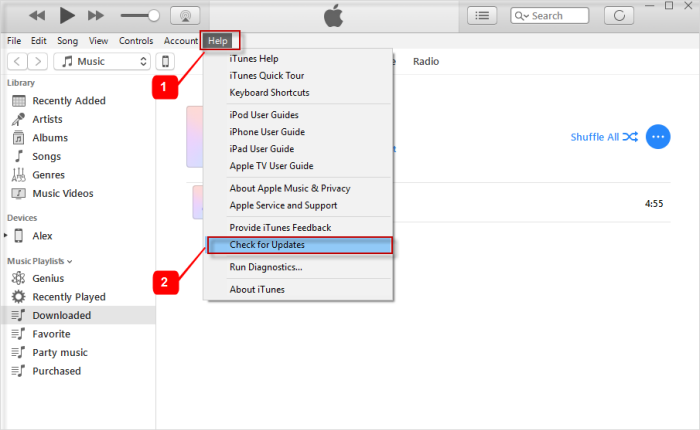
update itunes

Step 1: Open iTunes on your computer.

Step 2: Click on Help and then choose Check for Updates.

Step 3: If there is a new version available, a pop up window will appear. Click on Download iTunes.

Step 4: Then, just follow the instruction it shows to update your iTunes to the latest version.

If iTunes error 45 can be fixed after updated iTunes to the newest version. You can try the second way to return iTunes to normal.

Fix iTunes Error 45 via iTunesFix Tool

If you want to fix iTunes Error 45, try iTunesFix tool and it won’t disappoint you. It can deal with all iTunes errors and return iTunes to normal without data loss. Solve iTunes won’t install/update issue, fix iTunes couldn’t connect to iPhone issue, fix iTunes won’t back up/restore issue, etc,. Solve iTunes can’t start because Error 2, Error 13, Error 56, Error 1002, etc,. Fix iTunes was not installed correctly, installer has insufficient privileges, etc,. Clean iTunes files or completely uninstall iTunes.

d_win d_mac

How to Fix iTunes Error 45 to Normal

Step 1. Install and Launch iTunesFix on PC
Firstly, please install and launch iTunesFix on computer.

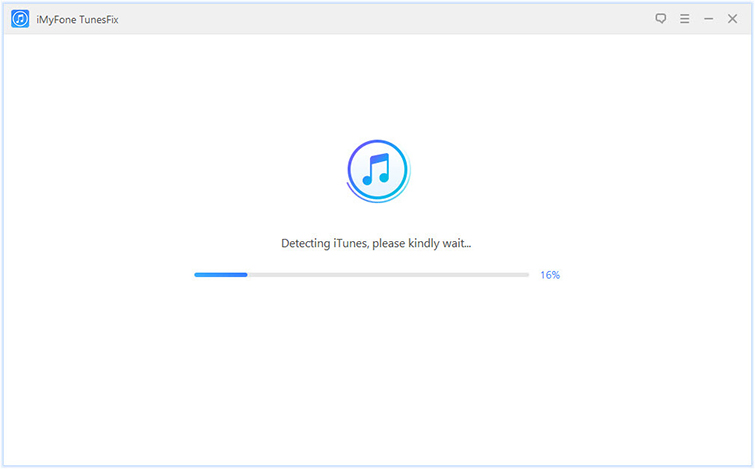
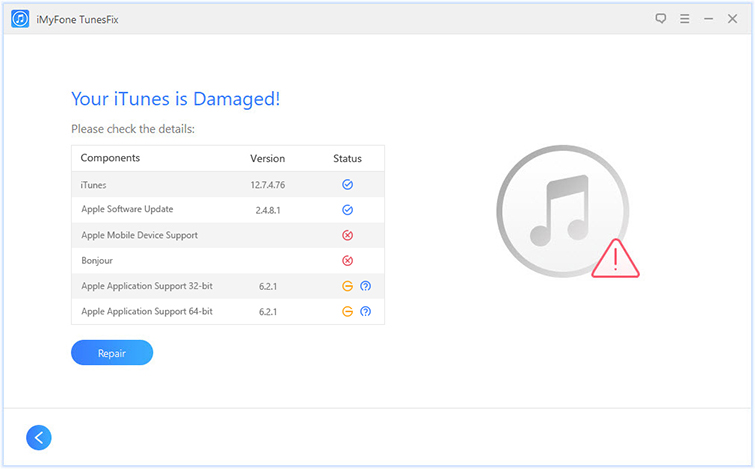
iTunesFix will automatically detect your iTunes and its related components. If there is no issue, you will be brought to its home interface. If your iTunes or components are lost or corrupted, it will show you the details.

detect itunes

Step 2.Repair iTunes Components Issues
Click on “Repair” and it will repair iTunes components issues.

repair itunes components issues

Step 3.Fix iTunes Error 45
If your iTunes components have no issue. You can choose other modes like “Repair iTunes Connect Issues“, “Fix iTunes Install/Update Issues“, “Repair Backup/Restore Errors” to fix iTunes error 45.

itunesfix home page

d_win d_mac

Related Articles:

How to Fix iTunes Won’t Install/Update Issues

How to Repair iTunes Unknown Errors

How to Fix “iTunes Could Not Backup/Restore” Issue

How to Fix iTunes Cannot Connect to iPhone Error

Fix iTunes Error 2/13/56/1002/3194/4037 and Other Unknown Errors

How to Recover Deleted/Lost Data on iPhone X/8/7/6S/6

How to Use a Stolen iPhone without Getting Caught

Summary
Have found a lost iPhone or bought a stolen iPhone and dont’s know how to use a stolen/found iPhone safely without getting caught?Just unlock passcodes on stolen iPhone;factory reset iPhone to erase all contents and settings; clear everything from the stolen iPhone completely & permanently;and sign out of all account including Apple ID, iTunes Store ID, iCloud ID and Find My iPhone account,etc.
Use A Stolen/Lost/Found iPhone

Man’s nature is good at birth,if you help others, God will also help you.If you found a phone on the road,returning sth. to its origin owner is a virtue.Even with the best of intentions, it can be difficult to know how to proceed when you find a lost or stolen iPhone. Fortunately there are a few things you can do to help return the device to its rightful owner.If the iPhone is locked with passcodes and don’t know how to get in touch with the phone’s owner,you can unlock iPhone passcode,after that you can access the phone and contact with the phone owner’s friends or family.
For Samsung users: How to Unlock Samsung Galaxy without Passcode

If you have picked up an iPhone and want to use it safely without getting caught,the following measures you must do.

Part 1: Unlock a Stolen iPhone Passcode or Apple ID with UkeySoft Unlocker

Found a lost or stolen a iPhone? How do you unlock a stolen iPhone without knowing the passcode? How to unlock Apple ID from second-hand iPhone? If “Find My iPhone” is disabled, you can remove password on stolen/second-hand iPhone easily.

UkeySoft iPhone Unlocker is special designed to unlock iPhone/iPad/iPod touch, it can unlock all kinds of locked screen passcode: 4-digit/6-digit passcode, pattern, Face ID, or Touch ID. When you forget the password on your iPhone/iPad or you just don’t know the password on a stolen iPhone or iPad, this iPhone unlocker helps you remove iPhone lock screen passcode easily, but mare sure “Find My iPhone” function is turned off. In addition, UkeySoft Unlock also allows you remove Apple ID from any iOS devices, even if the “Find My iPhone” function is on, when you got a second-hand iPhone, this program can help you remove Apple ID without password.

Key Features:

  • Unlock a locked, disabled, broken screen iPhone or iPad.
  • Delete screen passcode, pattern, Touch ID, Face ID.
  • Unlock a stolen iPhone if you don’t know the passcode.
  • Unlock Apple ID if you don’t know the password.
  • Bypass iPhone lock screen Restrictions/Screen Time Passcode.
  • Remove iOS 13 iPhone Lock Screen without Passcode.
  • Protect your data and settings after unlocking Apple ID.
  • Bypass iCloud activation lock after removing Apple ID.

d_win d_mac
d_win d_mac

Part 1: How to Unlock a Stolen iPhone Passcode

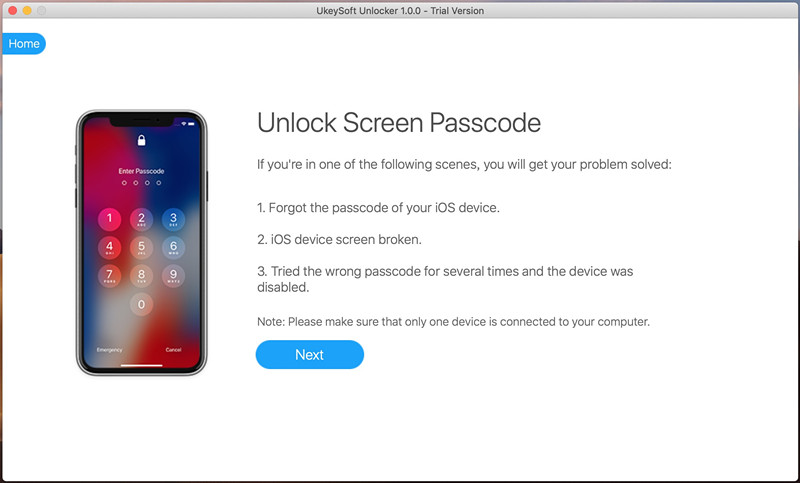
Step 1. Download, install and launch UkeySoft Unlocker. Then, select the “Unlock Screen Passcode” function and click “Start”.
Connect iPhone to Computer

Step 2. Connect the iPhone to your computer via a Apple USB cable and put iPhone into recovery mode.
Also read: How to enter recovery mode on iPhone
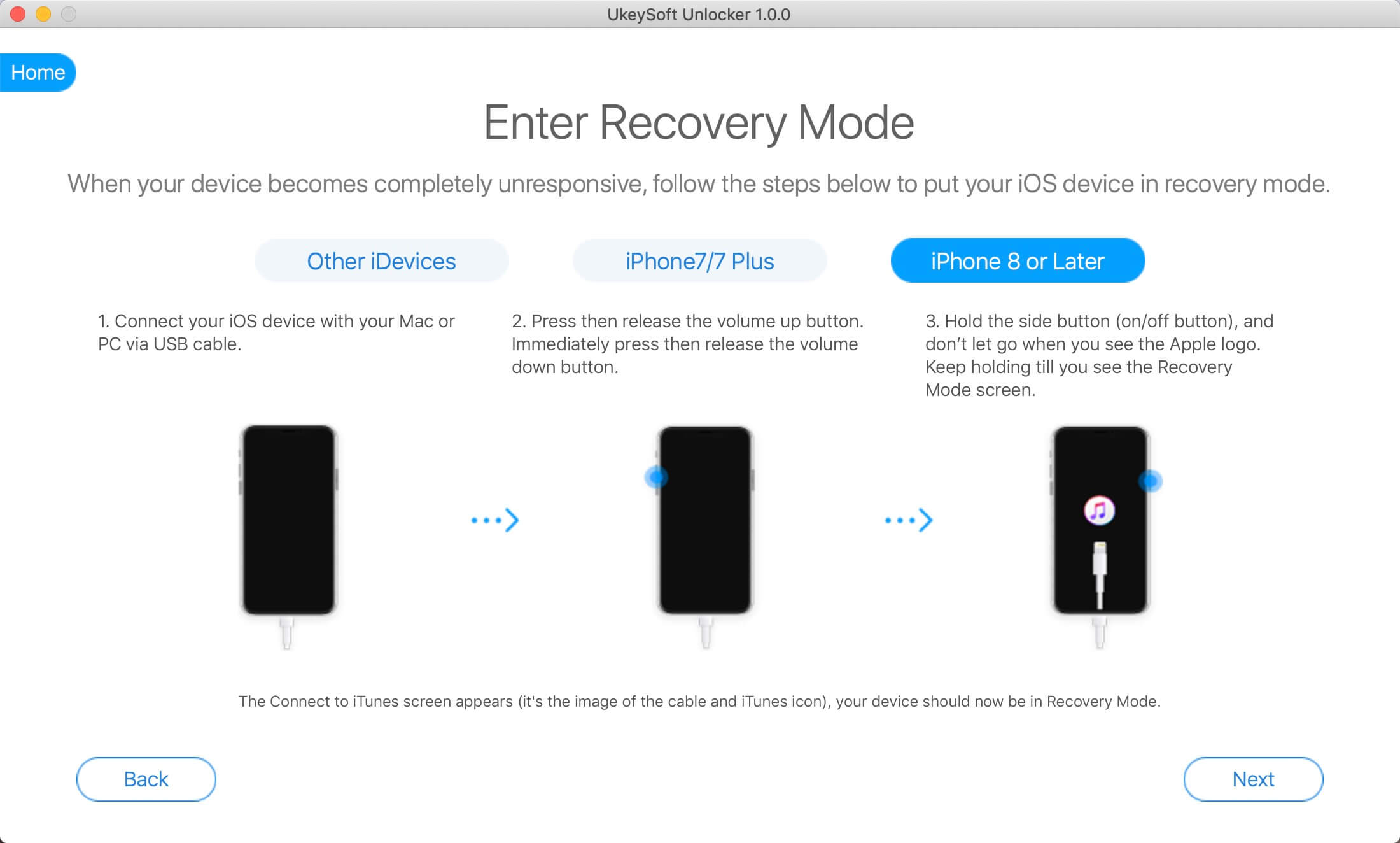
Enter Recovery Mode on iPhone

Step 3. The iPhone is recognized and there shows the matching firmware package. Click “Download” start to download the firmware.
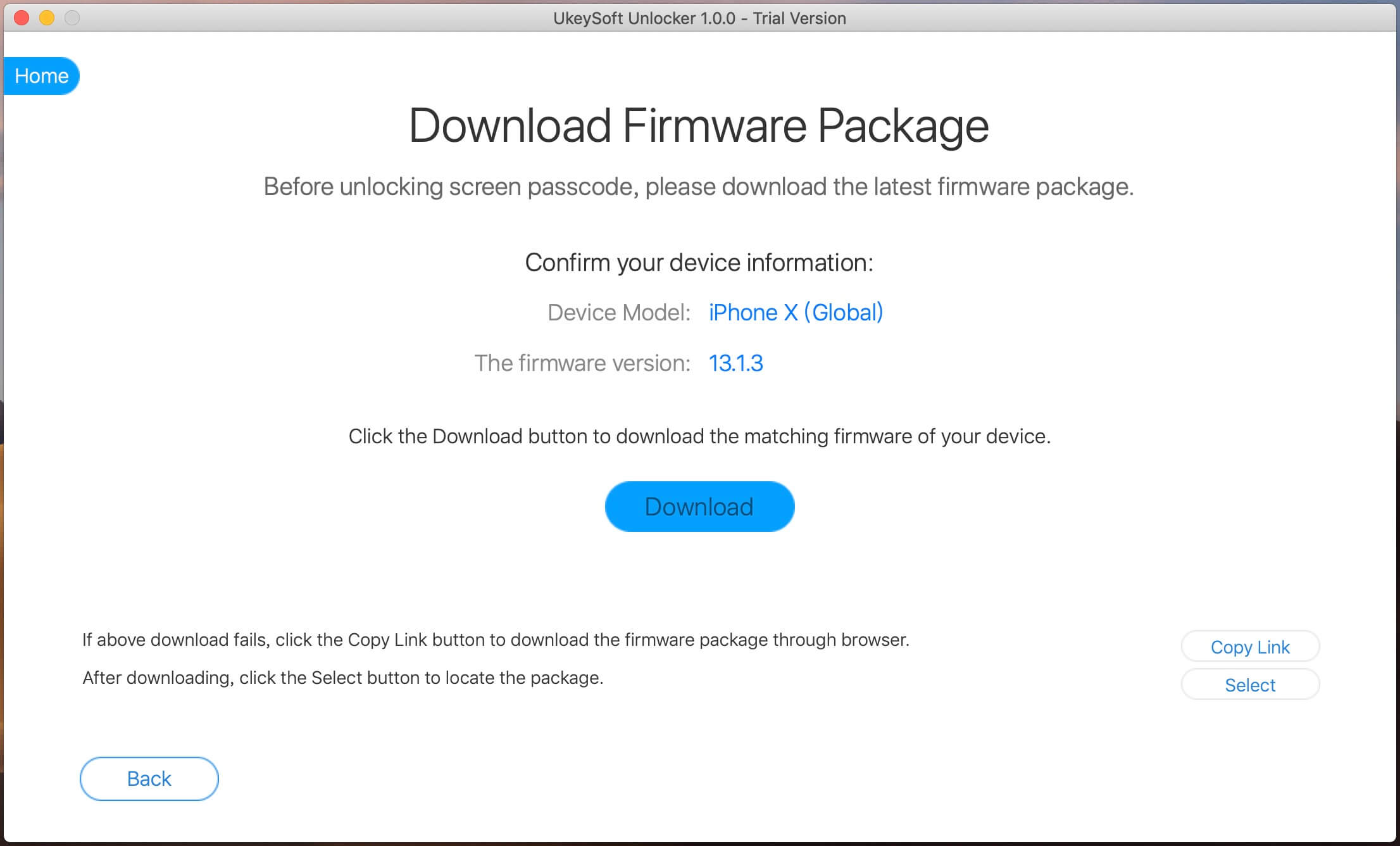
detect iPhone information

Step 4. Click “Start” button ready to unlock your iPhone after downloading the firmware package completed.
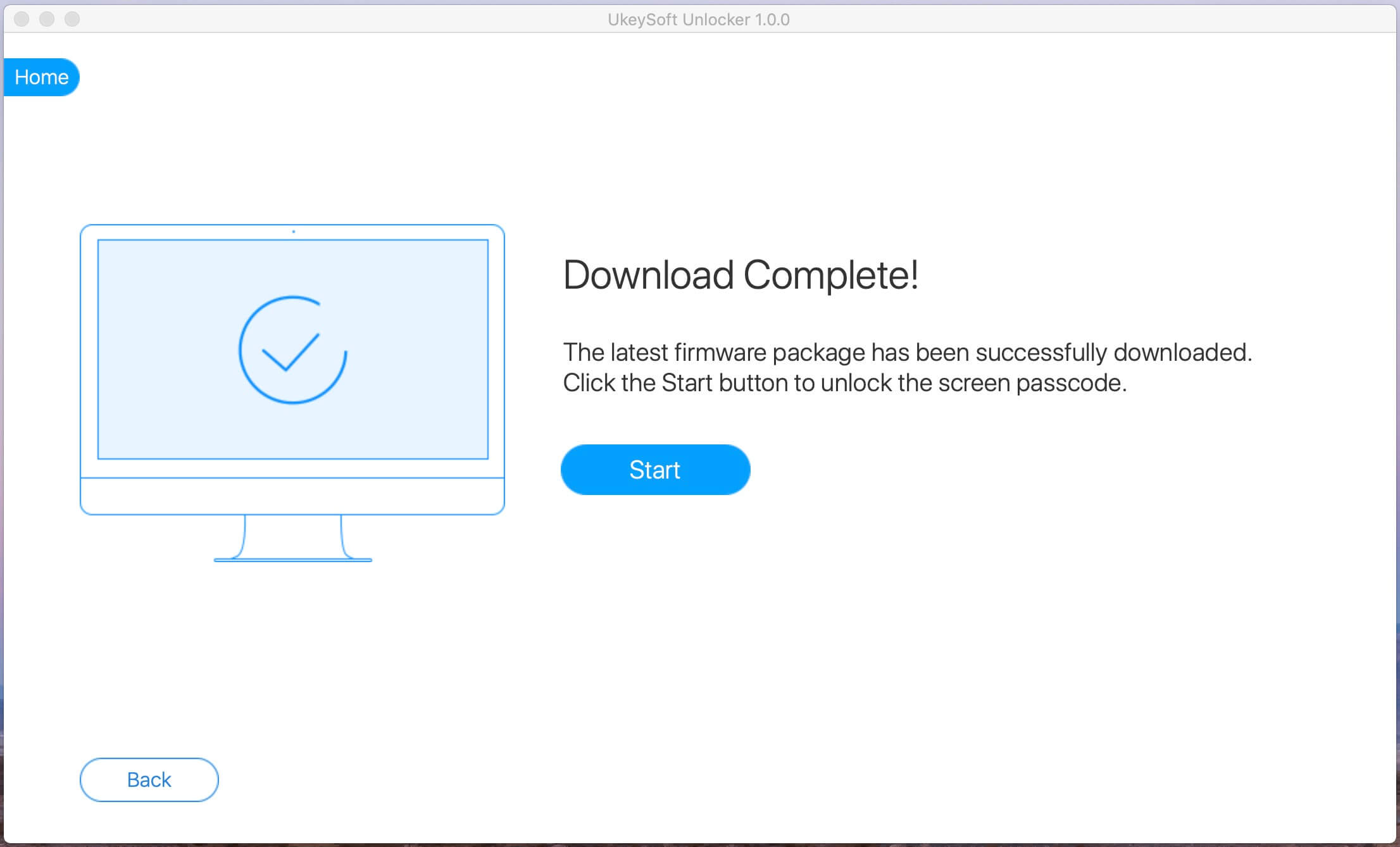
remove iphone passcode

Step 5. Click “Start Unlock” button start to remove screen passcode, pattern, Touch ID or Face ID.
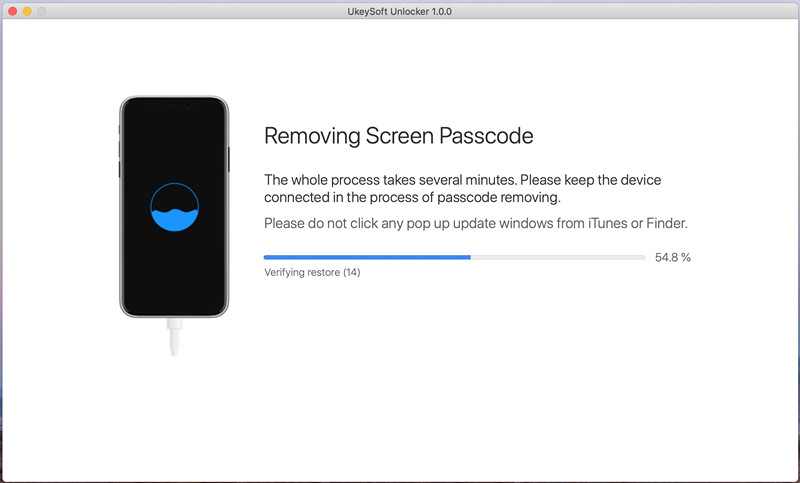
unlock iphone locked screen

Step 6. When the unlocking process completes, your iPhone will restart, then disconnect your iPhone with computer and setup the device.
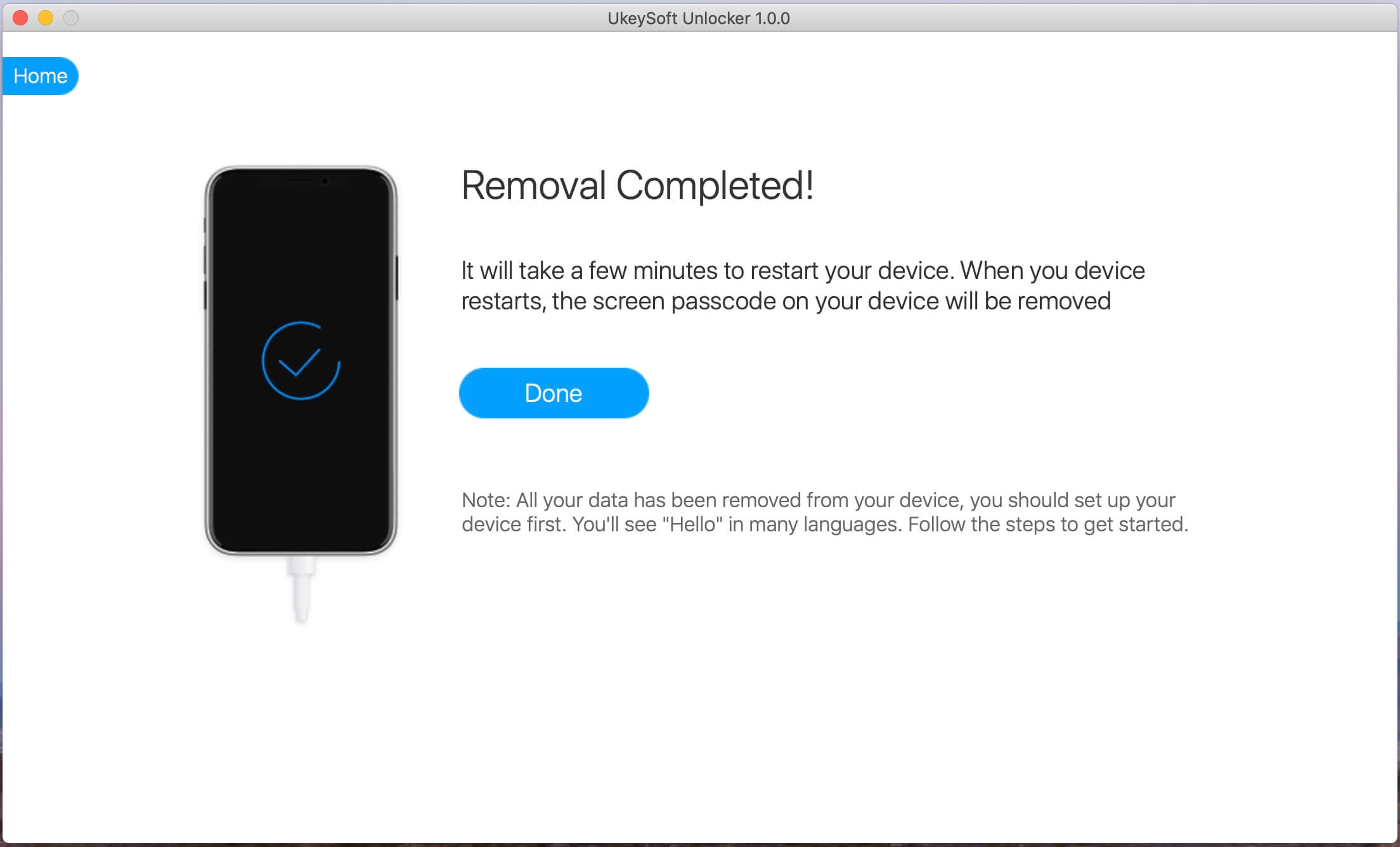
unlock stolen iPhone passcode

Part 2: How to Unlock Apple ID from a Stolen iPhone

Step 1. Launch UkeySoft Unlock on computer and click “Unlock Apple ID” function.
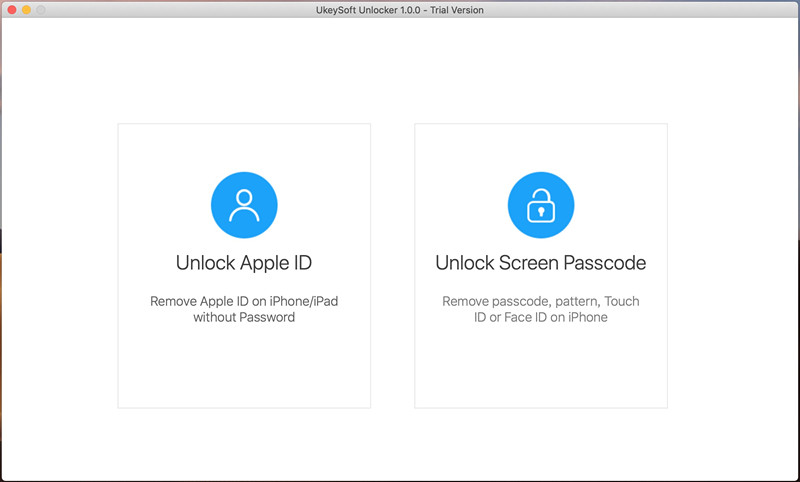
Launch UkeySoft Unlocker

Step 2. Connect the iPhone to computer via a USB cable, the software will detect it automatically.
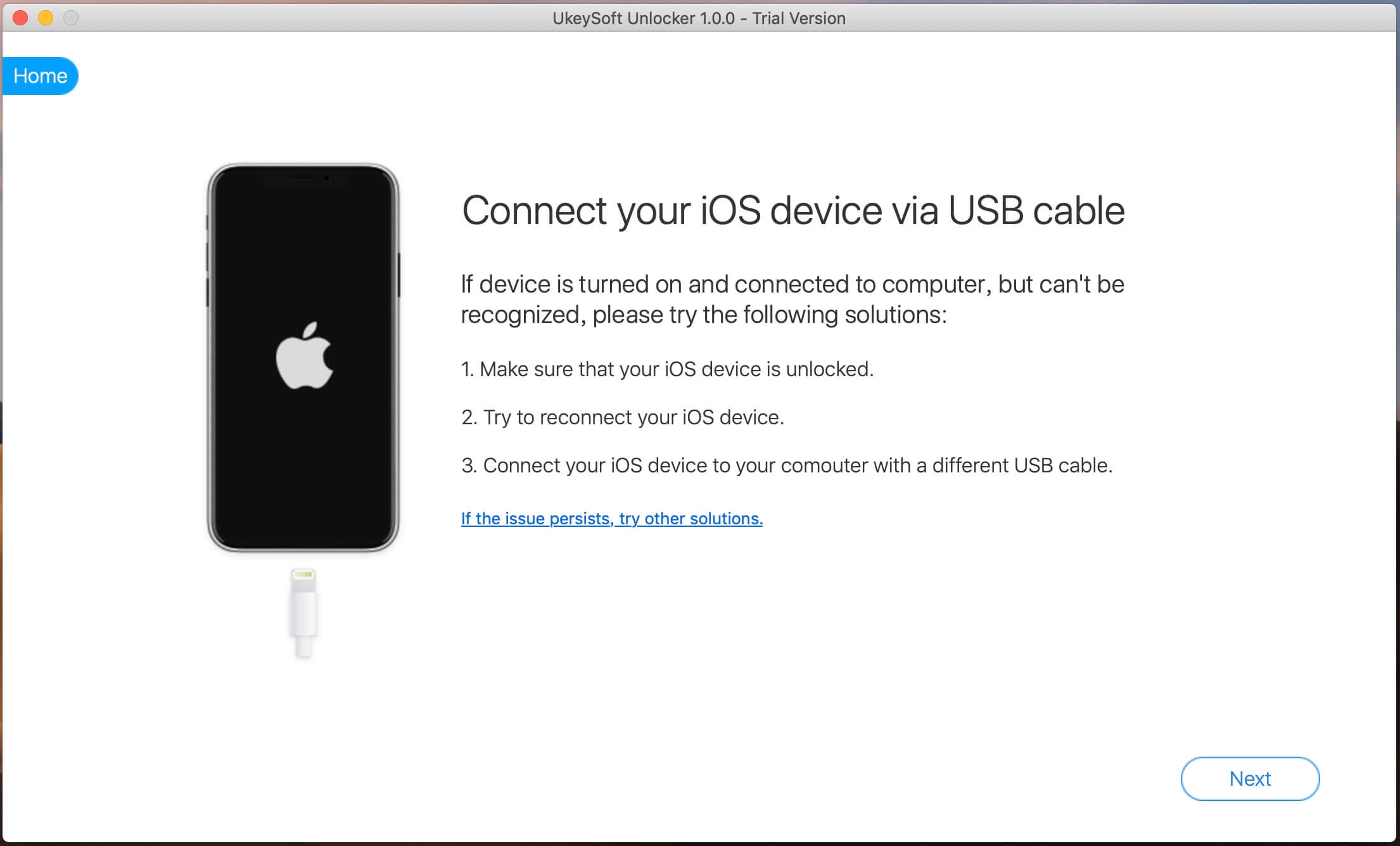
connect iPhone to Mac

Step 3. Click “Start” button begin to unlock Apple ID
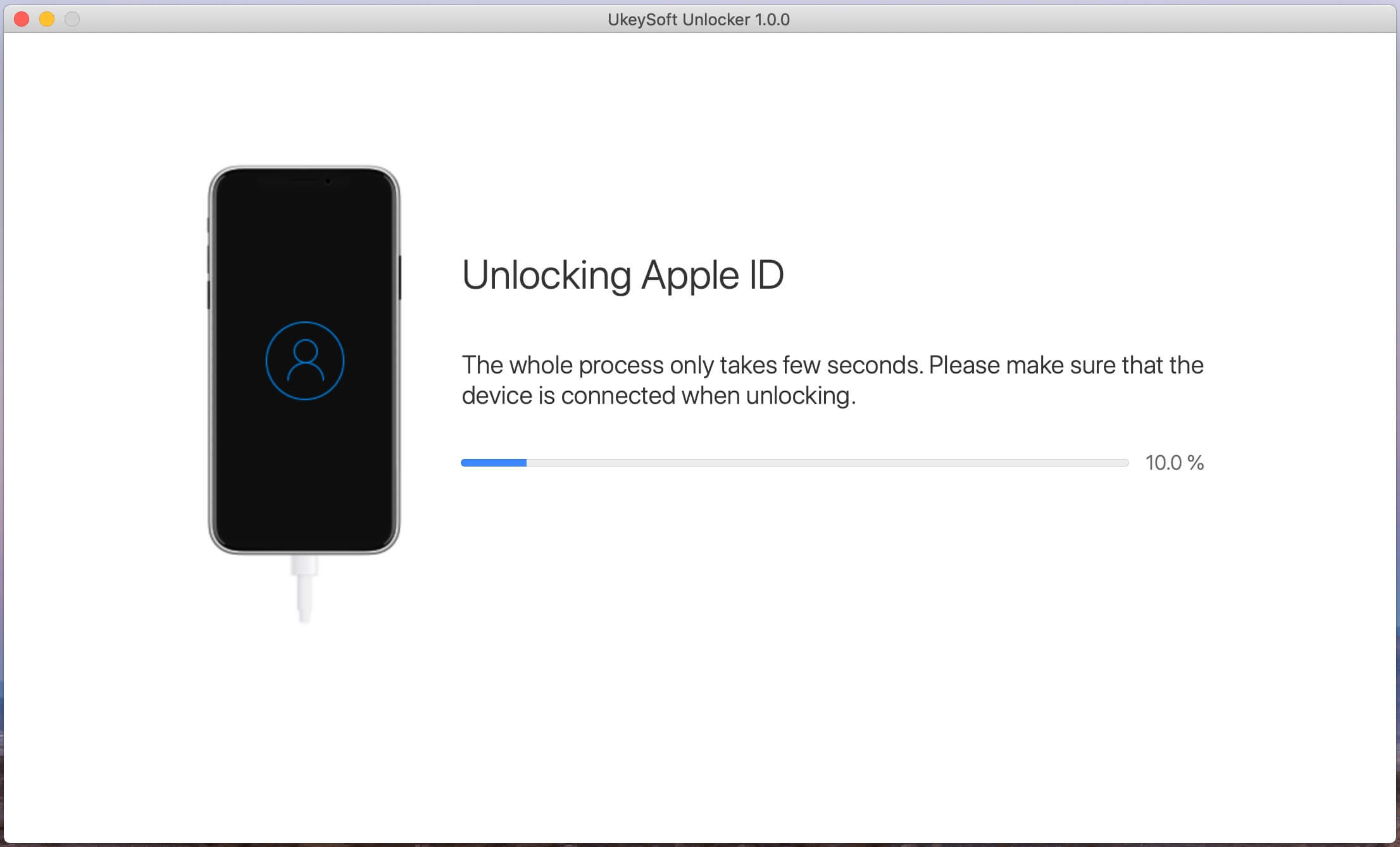
start to unlock Apple ID

Step 4. Apple ID removed successfully, you can login into a different Apple ID or create a new one.
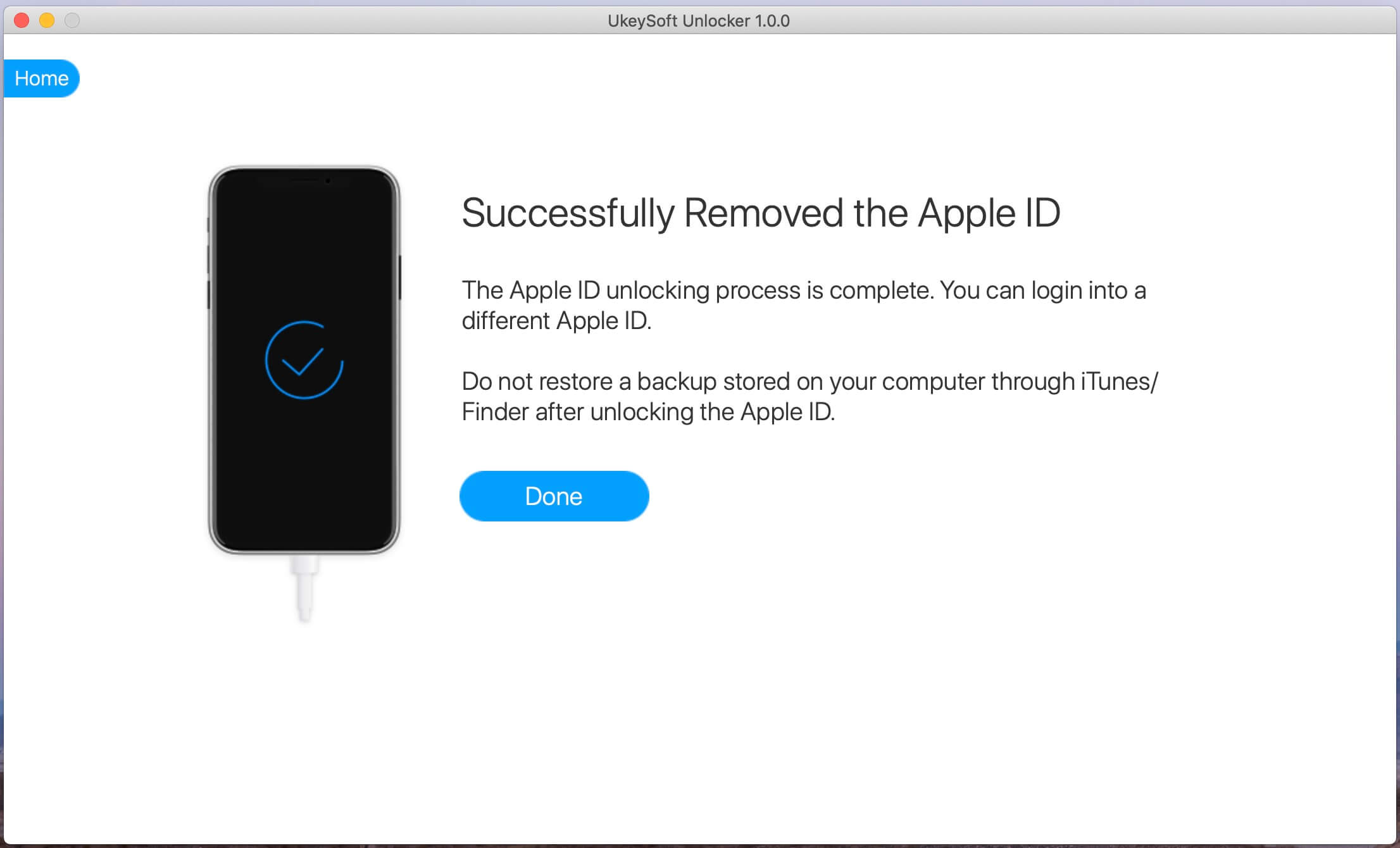
remove Apple ID

Also read: How to Reset Locked/Disabled iPhone without Password

Part 2: Unlock a Found/Stolen iPhone with iOS Toolkit – Unlock iOS

How thieves unlock passcodes on stolen iPhones 6/6 Plus, iPhone 7/7 Plus, iPhone 8/8 Plus, iPhone X/XS/XR and even the latest iPhone 11 Pro and iPhone 11 Pro Max. Unlock iPhone with iTunes is very fastly, but it will cause data lossing. However, how to byepass iPhone password quickily?

When our iPhone screen is broken, disable or locked, we can’t enter the passcode, even we can’t unlock the iPhone screen with Touch ID or Face ID. At this time, if you have turn on “Find My iPhone”, you can sign in iCloud web to remotely unlock the iPhone screen, but this method will erase all data and settings on your iPhone. Unfortunately, if you have turned off “Find My iPhone”, you can’t unlock it via iCloud. Don’t worry, you can use a third-party iPhone unlocking tool to unlock your iPhone without knowing the passcode, even “Find My iPhone” is disabled. So, if you have got a second-hand iPhone or a stolen iPhone, if “Find My iPhone” is off, you can easily unlock a stolen iPhone without passcode.

Phone Toolkit – Unlock (iOS) and UkeySoft Unlocker, both can help you unlock iPhone/iPad locked screen easily. When you forget the password on your iPhone or you just don’t know the password on a stolen & found iPhone,it can help you unlock screen passwords from iPhone and iPad,or remove passcode from iPhone with broken screen in 5 minutes.Before doing it, you need to know this: the Find My iPhone/iPad should be disabled,then you can successfully unlock your iPhone and iPad.If the stolen iPhone’s “Find My iPhone/iPad” is turning on, I’m unlucky to tell you that this program can not help you, but you can also give it a try if this “Find My iPhone/iPad” function is turning off.

Download the Phone Toolkit – Unlock (iOS) for Windows and Mac computer:

d_win d_mac
d_win d_mac

Tips:Phone Toolkit compatible with the latest iPhone 11 Pro, iPhone XS, iPhone XR and iOS 13.

How to Unlock A Stolen iPhone Without the Passcode

Tips: Disable “Find My iPhone” firstly.

Step 1:Download and Run the Phone Toolkit – Unlock iOS
The very first as always is to download the Phone Toolkit on your computer. Then select the option “Unlock”.
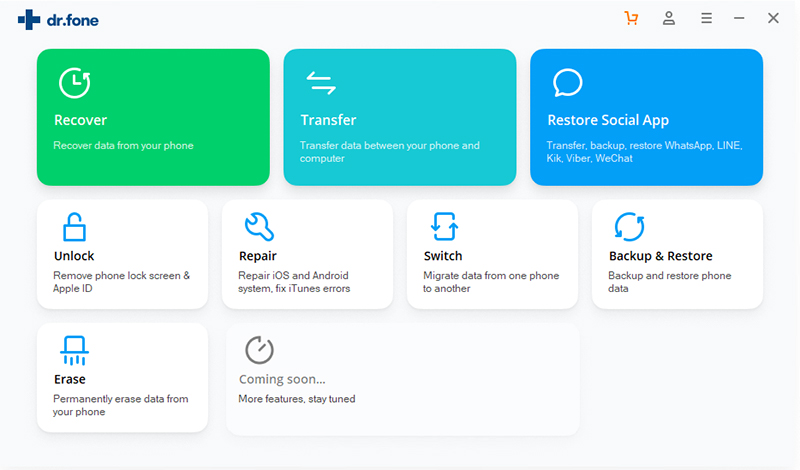
unlock iphone without passcode

Step 2: Connect iPhone to the Computer
Use the USB cable to connect your iPhone to the computer.Now the iPhone is enabled with dr.fone and you will see the Unlock window displayed. Simply, click Start to begin your work.
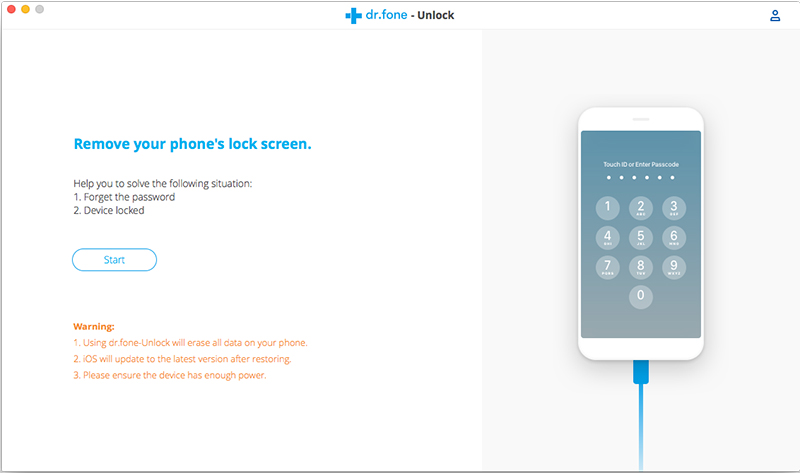
unlock a stolen iphone without passcode

Step 3: Enter iPhone in DFU mode
In the new window, you need to follow the instructions to enter the DFU mode.
1)Power off your iPhone.
2)Press and hold the Volume Down button and the Power button together for 10 seconds.
3)Release the Power button and keep holding the Volume Down button until the device is in DFU mode.
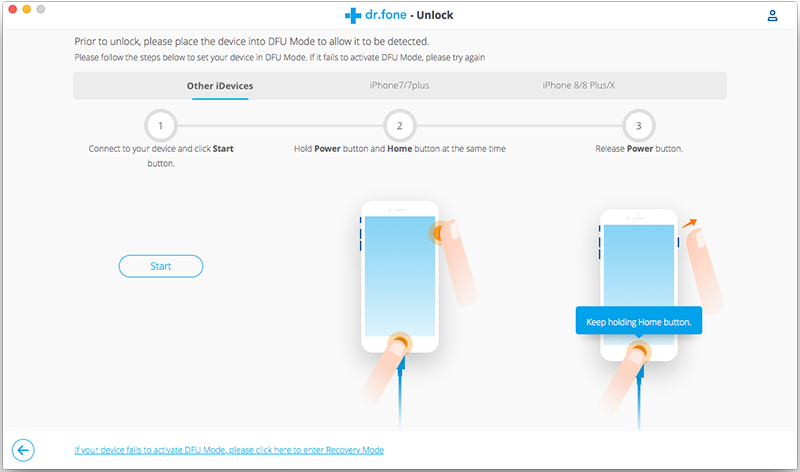
DFU mode to unlock iphone without passcode

Step 4:Confirm the iPhone Information
In this step to unlock iPhone without passcode, you will see that Phone Toolkit will detect your iPhone information such as the iOS version, device number and generated code etc. Just cross check the information.Then click Download the download the firmware for the stolen iPhone.
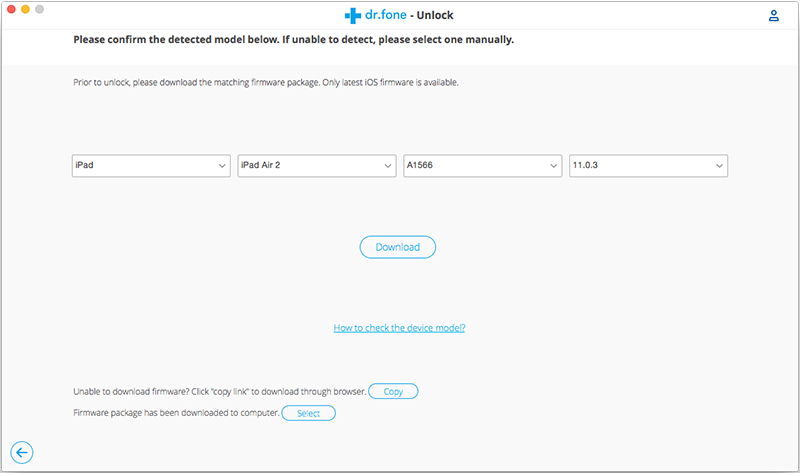
check information to unlock iphone without passcode

Step 5:Unlock the Stolen iPhone Screen Lock
Once the firmware gets downloaded, the iPhone Unlock tool will proceed to erase your passcode. For that, you would have to click the button “Unlock Now” as shown in the image below. Then you need to confirm the erasing operation as this will wipe out your phone data.
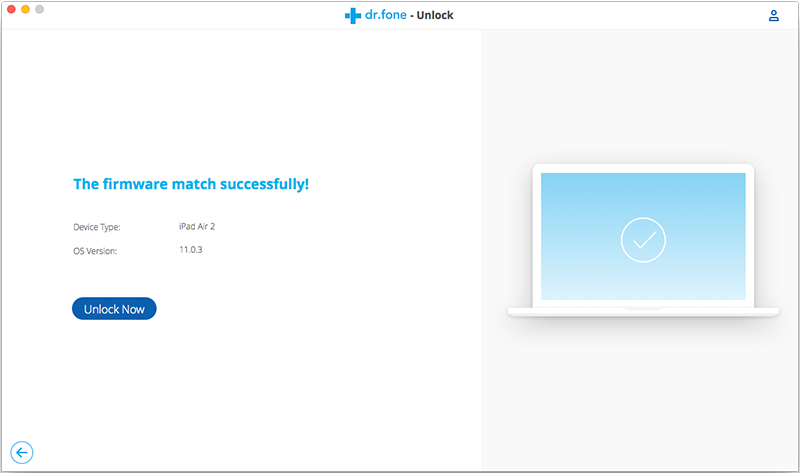
confirm and unlock iphone without passcode

Step 6:Remove the Stolen iPhone Locked Screen and Access it without Passcode
Within a few minutes the lock screen will be removed from the stolen iPhone,after that the device will reboot as a newly bought iPhone without lock screen display.
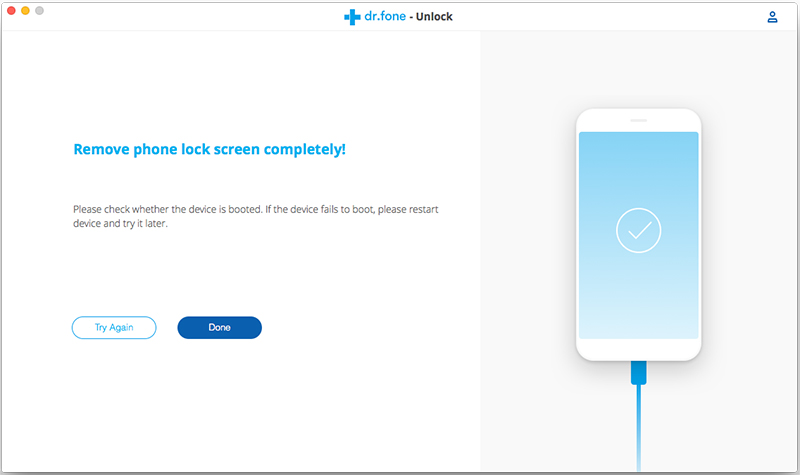
confirm and unlock iphone without passcode

Download the Phone Toolkit – Unlock (iOS) and have a try now.

d_win d_mac
d_win d_mac

Part 3. Turn Off Find My iPhone/iPad

After got a stolen/found iPhone and the owner have’t disable Find My iPhone remotely,if you have assess the phone system,plase turn off “Find My iPhone/iPad” at firstly.The simplest and fastest way to turn things off is right on the device.

Step 1.Launch Settings from the Home screen.
Step 2.Tap on iCloud.
Step 3.Tap Find My iPhone.
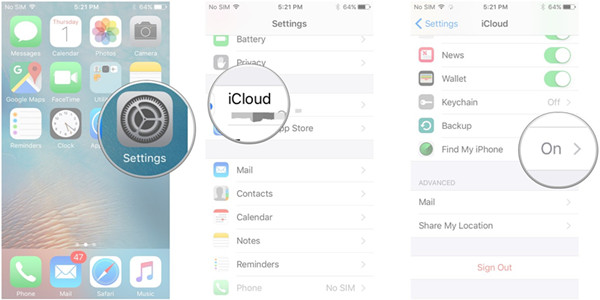
find my iphone disable find my iphone

Step 4.Switch Find My iPhone to Off.
Step 5.Enter your Apple ID password to confirm.
Step 6.Tap Turn Off.
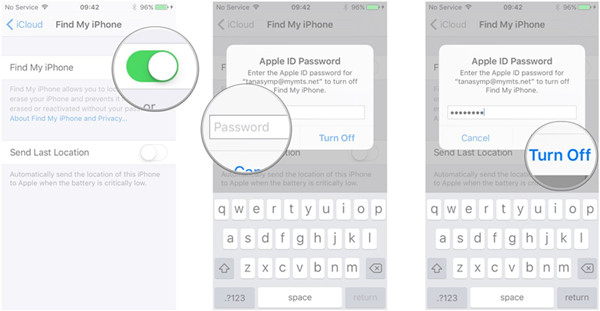
disable find my iphone on a stolen iPhone

That’s it. The stolen & found iPhone or iPad can no longer be found via Find My iPhone.

Part 4: Remove a Previous owne’s Apple ID,iTunes Store ID and iCloud ID from a Stolen iPhone Completely

When you have got a used iPhone/iPad, and everything seems fine except that when you attempt to log into iTunes, the previous owner’s Apple ID pops-up and it requests a password.Here is the guide tach you how to get rid of Apple ID,iTunes Store ID and iCloud ID,so that I can use your own Apple ID on a stolen iPhone.

Remove/Delete Apple ID

Sign Out Everywhere on Stolen/Found iPhone: Go to Settings → iTunes & App Store and tap on the Apple ID field. Then, tap on Sign Out. Next up, go to Settings → iCloud and repeat the process. This is a usual places where you have sign out and signed in with your Apple ID.
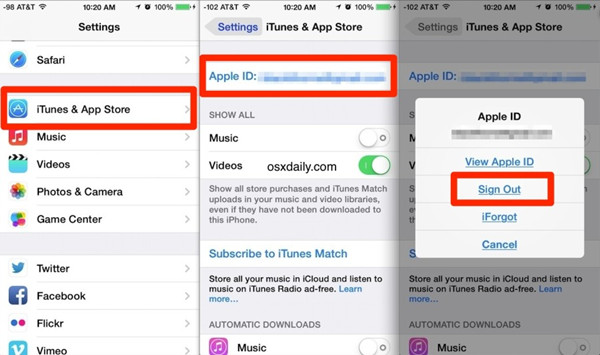
Remove a Previous Apple ID

Part 5: Factory Reset a Stolen/Found iPhone and Erase iPhone

A factory reset can help resolve issues with your iPhone or iPad if it’s crashing or freezing, if you have bought a second-hand iPhone.Luckily it’s very easy to wipe an iPad or iPhone through factory reset.

Factory reset is the easiest way is to remove everything from iPhone. To do this, all you have to do is go to Settings → General → Reset → Erase All Content & Settings. Then, Settings → General → Reset → Reset All Settings.
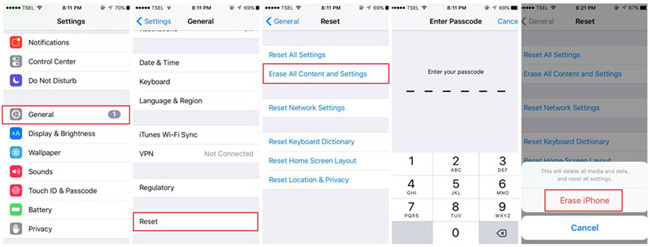
Factory Reset iPhone erase all content and settings

Note:But factory reset is not completely and permanently wipe an iPad or iPhone,becuase some data recovery in market can recover data from iPhone after factory reset.However,you must to us a professional iOS Data Eraser to completely erase all data on a stolen iPhone without leaving a trace,after that,even the professional data software can’t recover the erased data back.

It’s easily be recovered by Most iPhone Data Recovery Softwares.Scanned out all messages, contacts, notes, call logs, phone numbers, name and other data. Just one click, everyone can recover these data and save to computer.

Part 6: Permanently Erase All Data from a Stolen iPhone, 100% Unrecoverable

UkeySoft FoneEraser and this iPhone iPad Data Eraser is a professional iOS Data Eraser and iOS Optmizer,it provides four erasing options to ensure all deleted data were overwritten and erased without the possibility of recovery by any practical data recovery software or hardware methods.You can use this ios data eraser to wipe all text messages, photos, contacts, call history and other persional data from a stolen iPhone without harming the device,after that,the second-hand device as new one.

Download the iPhone iPad Data Eraser for Windows or Mac and start to wiping all data and setting from the device permanently.

d_win d_mac

iPhone iPad Data Eraser Features:

  • Data erased by this iOS Data Eraser is 100% unrecoverable.
  • Completely factory reset iPhone without any trace.
  • Review and selectively erase iPhone data.
  • Data deleted before can be erased as well.
  • 3rd-party apps data can be erased completely.
  • One click free up space, erase deleted files and erase private files which also help users deal with memory and data protection issues.

Step 1. Connect the stolen iPhone to the computer and run the iOS Data Eraser.
Step 2. Go to the erase all data tab.
Step 3. Choose a security level from high, medium and low. The optimum one would be medium.
Step 4. Type “Erase” into the box which appears on the erase all data page. Confirm action by pressing “Erase Now”.
Detail guide: How to permanently erase all data on iPhone
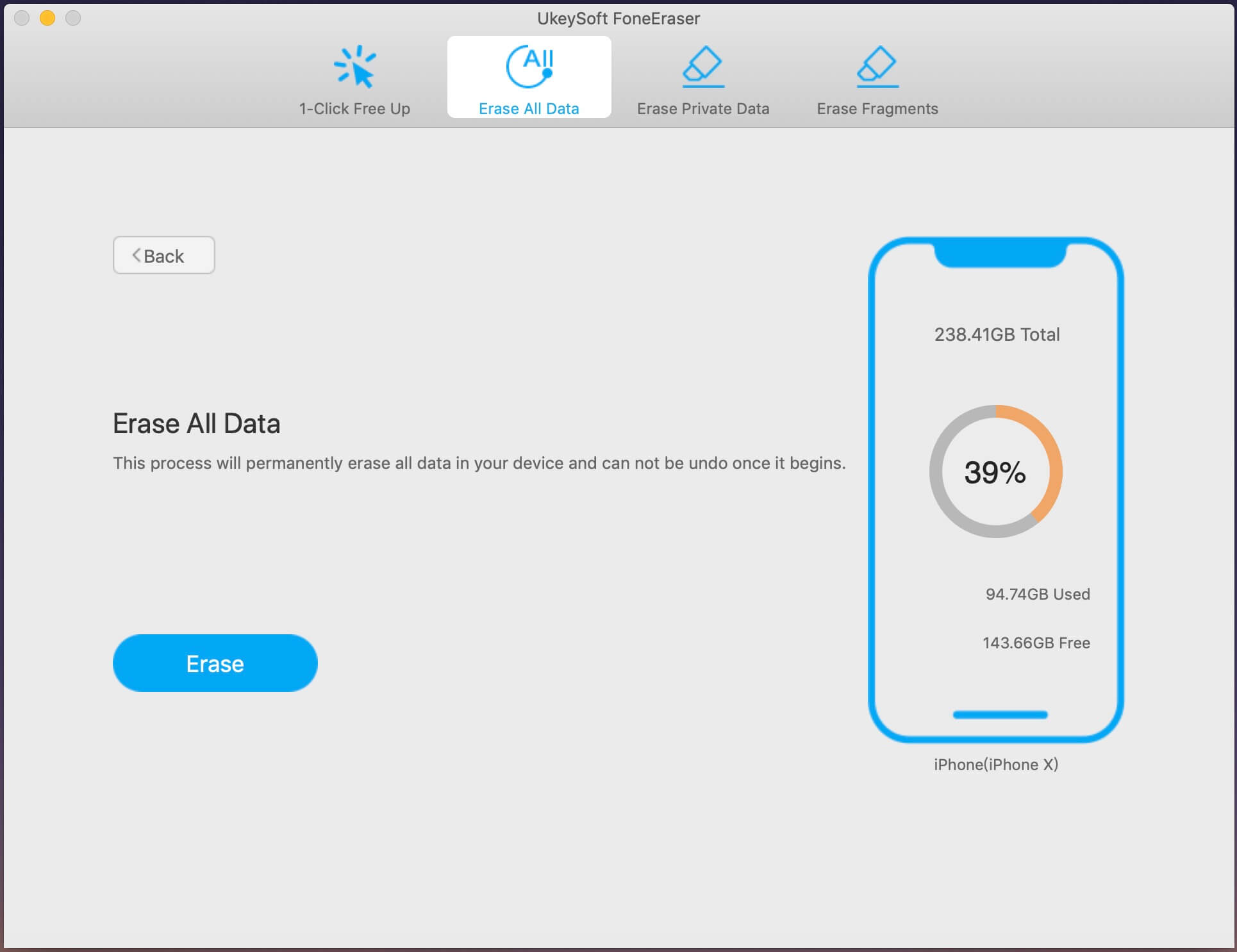
erase data on stolen iPhone

If want to selling your old iPhone/iPad, it’s absolutely vital that you delete all the sensitive data stored on it. If not, an unscrupulous buyer could gain access to your social media profiles, your financial information and even your personal photos and videos, enabling them to browse through your private moments or steal your identity.So,it’s necessary to erase everything from your iPhone before re-selling.
Learn this guide abouth:Permanently erase everything from iPhone before selling.
Fix iTunes Error 2/13/56/1002/3194/4037 and Other Unknown Errors

Summary: Some Windows users reports and complaint such issue related to iTunes error when installing/updating/running iTunes. From this topic we figure out the best way to solve iTunes Error 2/13/56/1002/3194/4037 and other unknown errors.

I have tried installing iTunes on my computer many times but I got this messages prompt me ‘Apple Application Support was not found. Apple Application Support is required to run iTunes. Please uninstall iTunes, then install iTunes again. Error 2.’ Any help to overcome this error 2 please?

I download the latest iTunes 12 on my Windows 7 computer, and then I try to install iTunes. But I receive the prompt messages of iTunes error 2. How to fix this problem?

The Causes of iTunes Error 2/13/56/1002/3194/4037
When you got the prompt messages on iTunes like the error 2/13/56/1002/3194/4037, it means that there are something wrong with iTunes. The iTunes error always happened when you want to update/install or running iTunes on a Windows/Mac, and many reasons could lead to errors. The iTunes installation could be failing due to multiple issues:

A. Interrupted download or partial installation of iTunes Library.
B. Virus attacked that corrupt Windows system files or iTunes-related software files.
C. An iTunes-related application corrupts or deletes Windows registry by mistake.
D. Other unknown reasons.

Fix iTunes Error 2/13/56/1002/3194/4037 and Other Unknown Errors

If you want to fix iTunes error 2/13/56/1002/3194/4037 and other unknown errors, you can try this famous iTunesFix. It is specially designed for fix more than 100 kinds of iTunes errors and issues without data loss, for instance, fix iTunes won’t install/update issue, fix iTunes couldn’t connect to iPhone issue, fix iTunes won’t back up/restore issue, etc,. It provides you a safe and effective way to repair iTunes to normal. Except fixing iTunes errors and issues, this tool features with Manage iTunes Library on Computer Safely, Clear iTunes to Free up, Boost your Computer, Uninstall iTunes Completely.

d_win d_mac

Fix iTunes Error 2/13/56/1002/3194/4037 and Other Unknown Errors

Step 1. Run Program on Computer
To get started, run iTunesFix program on computer, it will auto-detect your iTunes.

Step 2. Select the Fixing Mode
If there is no issue of iTunes and its components, you will be in the home interface of program. Choose one of the repair modes. Here “Repair iTunes Connect Issues”, “Fix iTunes Install/Update Issues”, “Repair Backup/Restore Errors”, “Fix Other iTunes Problems”; “Quick Clean”, “Deep Clean”, “Full Uninstall” are available.

itunesfix home page

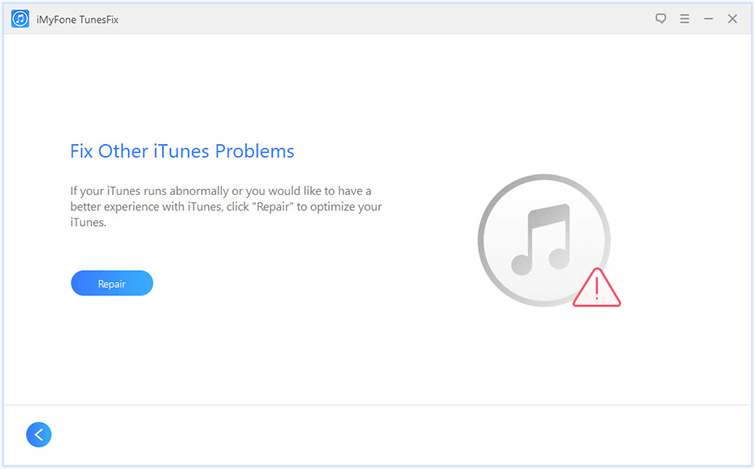
To fix iTunes Error 2/13/56/1002/3194/4037 and other unknown errors, choose “Fix Other iTunes Problems”.

fix other itunes problems

Step 3. Fix iTunes Error and Return it to Normal
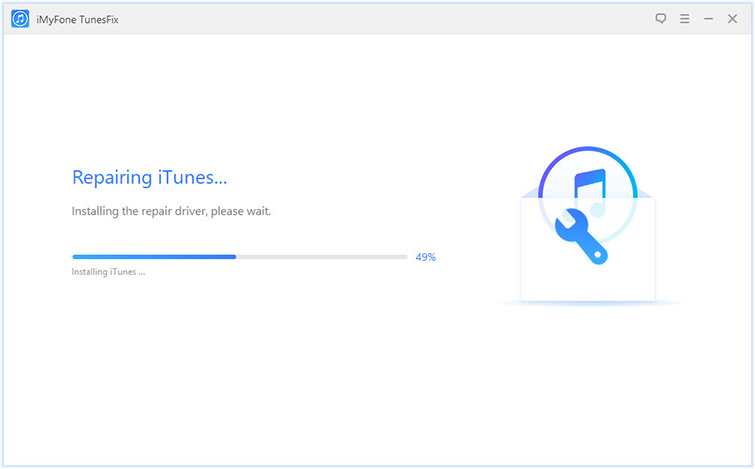
In the last step, click “Repair” to begin the repair job. Please keep the internet stable until the repairing process is completes.

repairing itunes

When the repair job is finish, click “Open iTunes” to launch your iTunes and try it again.

d_win d_mac

Tips to Fix iTunes Error 2/13/56/1002/3194/4037 and Other Unknown Errors

1.Update iTunes Version
For running iTunes correctly, you should make sure you get the latest iTunes version. Run iTunes to click “Help” > “Check for Updates”, and then it will show you if you are running the latest version of iTunes.

2.Reinstall iTunes
When you suffer from the failed installation or repair of iTunes, then you could try to remove the components left from a previous installation and reinstall iTunes.

3.Clean System Junk
Your computer may accumulate junk files over time. If the junk files are not cleaned up from your computer completely or occasionally, your iTunes will respond slowly or provide an error.

4.Restart your Computer
Like iPhone, restarting will be a good idea to deal with some problems. You can restart your computer to have a try to remove the error on iTunes.

5. Contact Apple support
After trying all solutions mentioned above, you could contact Apple support team to help you fix the issue.

Related Articles:

How to Recover Deleted/Lost Data on iPhone X/8/7/6S/6

How to Repair iTunes Unknown Errors

How to Fix “iTunes Could Not Backup/Restore” Issue

How to Fix iTunes Cannot Connect to iPhone Error

How to Fix iTunes Won’t Install/Update Issues

Fix iTunes 9/4005/4013/4014 Error when Restore iPhone

How to Fix iTunes Won’t Install/Update Issues

I get the messages ’There is a problem with this Windows Installer package. A program required for this install to complete could not be run. Contact your support personnel or package vendor.’ when I try to install iTunes on my computer. What’s wrong with it? How to fix this iTunes won’t install issue?

Many people have found it difficult to install or update iTunes on computer. This iTunes install error is not strange to some users who came across the same iTunes error on computer. The most common cause of the errors is outdated or incompatible version of iTunes installing on computer. Are you being trouble with the same problem? Actually, iTunes won’t install/update issue is not from your PC but not able to uninstall all the files of the previous version of iTunes. Now, you take this way for reference to fix this situation.

Here I recommend a wonderful tool call iTunesFix to help you. It’s powerful enough to repair 100+ iTunes error and issues without data loss by simple steps, like fix iTunes won’t install/update issue, fix iTunes couldn’t connect to iPhone issue, fix iTunes won’t back up/restore issue, etc,. What’s more, iTuneFix allows to completely uninstall iTunes and its components in the right order, leaving no traces; clean iTunes in one place, like to remove useless cache, cookies, logs, junk, used update files, old iOS backups, etc,.

d_win d_mac

How to Repair iTunes Won’t Install/Update Issues

Step 1. Run Program on Computer
First of all, run iTunesFix program on computer, it will auto-detect your iTunes.

Step 2. Select the Repair Mode
If there is no issue of iTunes and its components, you will be in the home interface. Choose one of the repair modes.

itunesfix home page

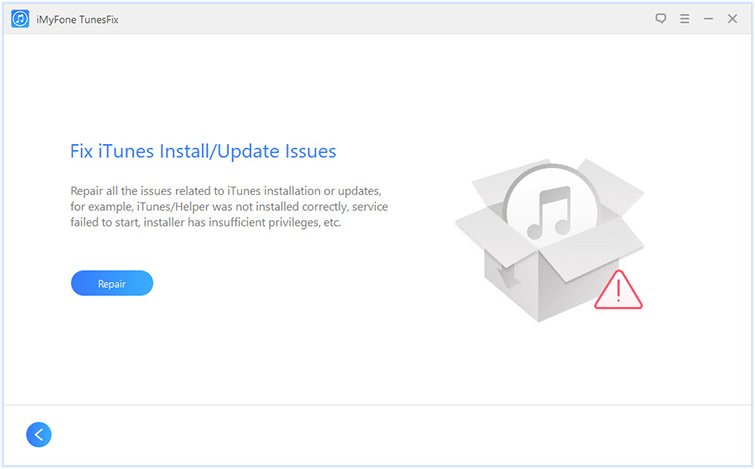
If you want to solve iTunes installation or updates, choose “Fix iTunes Install/Update Issues”.

fix itunes install update issues

Step 3. Fix iTunes to Normal
In the last step, click “Repair” and the program will start to repair your iTunes to normal. Please keep the internet stable until the repairing process is end.

repairing itunes

When the repair job is finish, you can click “Open iTunes” to launch your iTunes and try it again.

d_win d_mac

Related Articles:

How to Recover Deleted/Lost Data on iPhone X/8/7/6S/6

How to Repair iTunes Unknown Errors

How to Fix “iTunes Could Not Backup/Restore” Issue

How to Fix iTunes Cannot Connect to iPhone Error

Fix iTunes 9/4005/4013/4014 Error when Restore iPhone

How to Fix “iTunes Could Not Backup/Restore” Issue

I try to use iTunes to backup my iPhone last night but fail. It prompt with the messages ‘iTunes could not back up the iPhone because the backup was corrupt or not compatible with the iPhone’. I can’t check the problem with iTunes. Anyone know what wrong with it? How to fix this error and return iTunes to normal?

It is suggested for iOS users to backup iPhone/iPad/iPod device manually using iTunes on computer, which a the primary way to backup iOS device. Actually, backing up or restoring iOS device via iTunes should be an easy job. However, sometimes the iTunes syncing process may get some errors or just not compatible with your device. When this happen, iTunes will stop the sync process and prompt a messages for you, notice you iTunes can’t finish the job.

Recently, some people have complained that when backing up or restoring iPhone in iTunes, an error message pops out saying iTunes backup/restore is corrupt or not compatible. The causes of this error can be sync failure or iOS system incompatibility. Have you ever encountered a situation like this? This is an extremely frustrating issue and in this article we will show you how to deal with it, provides you a helpful way to fix “iTunes Could Not Backup/Restore” issue with easy steps.

Fix iTunes Issue and Return it to Normal

iTunesFix can be used to fix “iTunes Could Not Backup/Restore” issue without data loss and you don’t have to suffer from risks of losing data. In general, iTunesFix is designed for fix iTunes errors/issues and return it to normal, for example, fix “iTunes Could Not Connect to iPhone”, fix “iTunes Won’t Install/Update Issues” and other iTunes unknown errors. Additionally, it is an all-in-one program features with clear iTunes to free up and boost your computer, manage iTunes Library on computer safely, uninstall iTunes completely.

d_win d_mac

How to Repair “iTunes Could Not Backup/Restore” Issue

Step 1. Run Program on Computer
Firstly, run iTunesFix program on computer, after that, it will auto-detect your iTunes.

Step 2. Select the Repair Mode
If there is no issue of iTunes and its components, you will be in the home interface. Choose one of the repair modes.

itunesfix home page

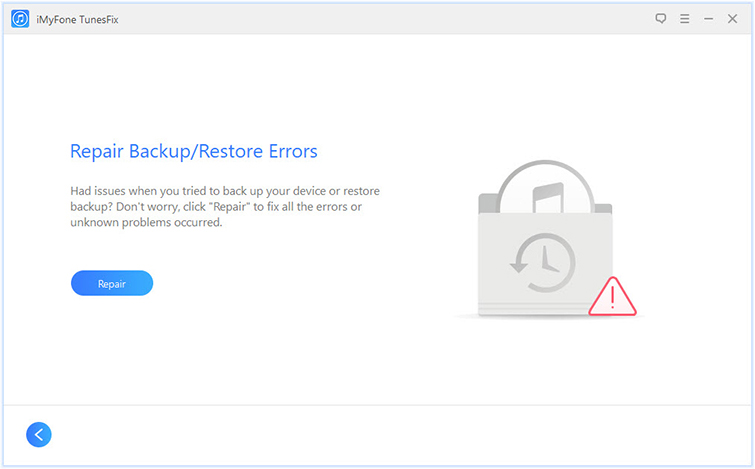
If you want to fix iTunes can’t backup or restore issue, click “Repair Backup/Restore Errors“.

repair backup restore errors

Step 3. Fix iTunes to Normal
Lastly, click “Repair” and the program will start to repair your iTunes to normal. Please keep the internet stable until the repairing process is end.

repairing itunes

When the repair job is complete, you can click “Open iTunes” to launch your iTunes and try it again.

d_win d_mac

Related Articles:

How to Recover Deleted/Lost Data on iPhone X/8/7/6S/6

How to Repair iTunes Unknown Errors

How to Fix iTunes Cannot Connect to iPhone Error

Fix iTunes 9/4005/4013/4014 Error when Restore iPhone

How to Fix iPhone Error 3194 on iTunes

How to Fix iPhone Error 14 on iTunes

How to Get Rid of iTunes Error 9006

How to Repair iTunes Unknown Errors

I try to connect my phone to iTunes on the computer then I got the messages that prompt me ‘An unknown error occurred(13010)’. I am not sure what’s wrong with it. How to fix this issue?

Some iOS users complained that they couldn’t open iTunes on computer and got some unknown iTunes errors for example 13010 issue, 0xE8000015 issue, error 4014/4013/4005. These issue usually caused by incomplete iTunes download or installation or virus infection. There are so many curses will lead to iTunes turns abnormal and then prompting you your iPhone can’t connect to iTunes as usual. But the good thing is, you can always find a way to fix the iTunes unknown errors. We’ve tested for times and gathered the best ways to fix iTunes errors, turn iTunes to normal, keep reading and have a try.

Fix iTunes Errors and Restore iTunes to Normal

One of most reliable options is using iTunesFix tool. It is one of the best tool that works perfectly with fixing all iTunes unknown errors and issues. It is a well-known repair tool for fixing 100+ iTunes errors without data loss during installing, connecting, restoring, backup with iTunes; clear iTunes to free up and boost your computer. The abnormal of iTunes states can be fix including “iTunes Could Not Connect to iPhone”, “iTunes Won’t Install/Update Issues”, “iTunes Could Not Backup/Restore”, etc,. What’s more, this program enables to manage iTunes Library on computer safely, uninstall iTunes completely.

d_win d_mac

How to Fix iTunes Unknown Errors

Step 1. Run Program on Computer
Run iTunesFix program on computer and it will auto-detect your iTunes.

Step 2. Choose the Repair Mode
If there is no issue of iTunes and its components, you will be in the home interface. Choose one of the repair modes.

itunesfix home page

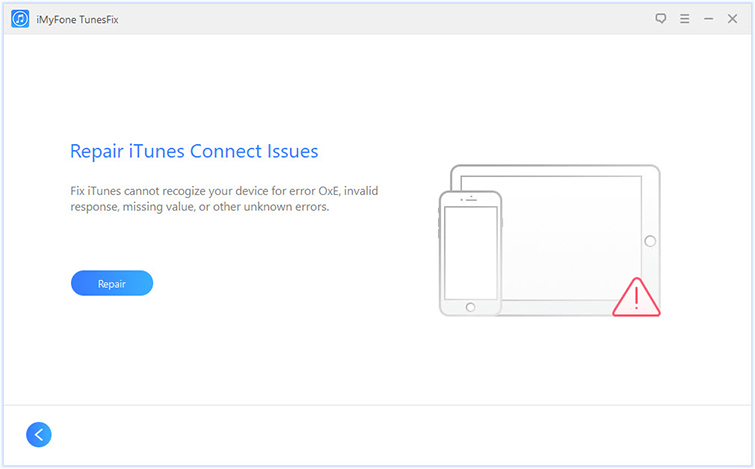
If you want to repair iTunes connect/detect issues, click “Repair iTunes Connect Issues“.

repair itunes connect issues

If you want to solve any issues related to iTunes installation or updates, choose “Fix iTunes Install/Update Issues“.

fix itunes install update issues

If you want to fix any errors occurred when you try to back up or restore iPhone, click “Repair Backup/Restore Errors“.

repair backup restore errors

If you have no idea that the errors you want to get rid of belong to which kind of issues, just choose “Fix Other iTunes Problems“.

fix other itunes problems

Step 3. Repair Your iTunes to Normal
Click “Repair” and it will start to repair your iTunes. Please keep your internet stable during the repairing process.

repairing itunes

When it’s done, you can click “Open iTunes” to launch your iTunes and try it.

d_win d_mac

Related Articles:

How to Recover Deleted/Lost Data on iPhone X/8/7/6S/6

How to Fix iTunes Cannot Connect to iPhone Error

Fix iTunes 9/4005/4013/4014 Error when Restore iPhone

How to Fix iPhone Error 3194 on iTunes

How to Fix iPhone Error 14 on iTunes

How to Get Rid of iTunes Error 9006

How to Fix iPhone Won’t Turn Off

Summary: Your iPhone will not turn off and you’re looking for help. It’s a problem that can be easy or difficult to fix, depending on the cause. In this article, I’ll help you determine the reason why your iPhone won’t turn off and show you how to fix your iPhone when it isn’t turning off.

My iPhone got something wrong, it won’t turn off as usual, I am not sure what cause this problem, so how to fix iPhone to normal without data loss? I haven’t backed up my phone lately.

In these days, we have received feedback from iPhone users who complain that their iPhone frozen won’t turn off. This can be caused due to different reasons. Though, there are solutions to fix it. If your iPhone won’t turn off, may be your the battery of your phone is going to run out or that even your iPhone is broken. An iPhone that’s stuck on is a rare situation, but if it’s happening to you, you need to understand what’s going on so you can know how to fix it.

Restore iPhone Won’t Turn Off

Most of cases that lead to iPhone won’t turn off may be the problems like iOS jailbreak, iOS update, virus attack or more. In this way, you are recommended to try iOS System Recovery program, which designed to solve various types of iOS system issues easily and efficiently. It’s a powerful system repair tool help to fix iPhone won’t turn off issue, as well as other system issues, like iPhone stuck in Recovery Mode, iPhone stuck at black screen, iPhone stuck in Apple logo, iPhone can’t connect to iTunes, etc,. Only a few steps, you can make your device return to normal state without data loss. All iOS models are compatible to iOS System Recovery, such as, iPhone X, iPhone 8, iPhone 6S/6, iPhone SE, iPhone 5S/5C/5; iPad Air, iPad Mini, iPad Pro.

d_win d_mac

How to Fix iPhone Won’t Turn Off Issue

Step 1.Run the Program and Connect iPhone to PC
To begin with, run the iOS System Recovery on your computer, then connect your iPhone to the computer with a USB cable.

ios system recovery home page

After connected it, the program will detect your device automatically. Then you will see several options on the interface of program, click on the “Fix iOS System” option under “More tools” function. Then press “Start” button to begin the repair process.

click start to begin

Step 2.Download Firmware for Repairing iPhone
In this step,the program will offer the latest and the match iOS version of your iPhone for you. Then you should click on “Repair” option to go on.

select iphone model

To fix iPhone won’t turn off error, you should install the firmware for restoring iPhone system.It will cost you some time, please wait patiently and do not disconnect or operate your device during the firmware downloading process.

download firmware for iphone

Step 3.Fix iPhone Won’t Tun Off Issue
In the last step, the iOS System Recovery will begin to restore iPhone system to normal automatically.

fix iPhone won't turn off issue

When it is done, you can use your iPhone as usual without any data loss.

d_win d_mac

Related Articles:

How to Fix iPhone Stuck in Reboot Loop

How to Fix a Frozen iPhone to Normal

How to Get iPhone Out of Recovery Mode

How to Fix iPhone Stuck on Apple Logo

How to Fix iTunes Cannot Connect to iPhone Error

How to Fix iPhone Keeps Restarting Issue

How to Restore iPhone System to Normal

How to Fix iPhone Keeps Restarting Issue

Summary: If your iPhone keeps restarting randomly, here is the best way we provides to you, help to fix the iPhone X/8/7/6S/6 keeps restarting issue.

As we know, iOS system is the modern system, iPhone carry with a well-performing system, goes smoothly and hardly breaks down in daily life. However, it still can be a problem when the iPhone get restarting randomly loop. Before you start using tips below to fix your keep-restarting iPhone, let’s understand why does your iPhone keep restarting first. This is a common circumstance that happen that iPhone screen displays the Apple logo.

Here are some causes that might be a reason lead to iPhone keep restarting.
A. iOS Updated Failed
It is one of the most common issues for the iPhone restarting error. While updating your device to a new version of iOS, if the process gets something wrong, then it might result in a few issues. An unstable updated of iOS can result in this issue.

B. Virus Attack
This usually happens with jailbroken devices. If you have performed iOS jailbreak on your iPhone, then you can install apps from other sources as well. Though, this comes with a few disadvantages as well, especially making your device vulnerable to security threats. If your device get virus attack, then it can result in iPhone keeps restarting error.

C. Hardware Issue
When a malfunctioning hardware get something wrong also causes this issue. For instance, there could be a problem with your device’s Power key that might cause the iPhone restarting error.

Solve iPhone Keeps Restarting Issue

There are some professional tools can fix iOS issue of “keeps restarting”. For example, iOS System Recovery provides you with “iOS System Recovery” feature to fix different kinds of iOS system issues on iPhone/iPad. It can do a great help for you to restore iPhone system to normal without data loss, to fix iPhone keeps restarting problem, other iOS system issues also can be fix, such as, iPhone stuck in Apple logo, iPhone stuck in Recovery Mode, iPhone stuck at black screen, iPhone stuck at frozen screen, etc,. It works for all models of iPhone/iPad, supports iPhone X/8(Plus)/iPhone 7(Plus)/iPhone 6S(Plus)/iPhone 6(Plus), iPhone SE and the latest iOS 11 fully.

d_win d_mac

How to Fix iPhone Keeps Restarting Issue

Step 1.Run the Program and Connect iPhone to PC
First of all, run the iOS System Recovery on your computer, then connect your iPhone to the computer with a USB cable.

ios system recovery home page

The program will detect your device automatically. Then you will see different options on the interface, click on the “Fix iOS System”under “More tools” function. Then press “Start”button to continue.

click start to begin

Step 2.Download Firmware for Restoring iPhone
In this step,the program will provide the latest and the match iOS version of your iPhone to you. Then you should click on “Repair” option to go on.

select iphone model

To fix iPhone restarting error,you should install the firmware for restoring iPhone system.It will take some time, and you should wait patiently and do not disconnect or operate your device during the downloading process.

download firmware for iphone

Step 3.Fix iPhone Restarting Issue
In the last step, the iOS System Recovery will begin running the iOS system repairing process automatically.

fix iPhone restarting issue

Once it is done, you can use your iPhone without any data loss.

d_win d_mac

Related Articles:

How to Fix iPhone Stuck in Reboot Loop

How to Fix a Frozen iPhone to Normal

How to Get iPhone Out of Recovery Mode

How to Fix iPhone Stuck on Apple Logo

How to Fix iTunes Cannot Connect to iPhone Error

How to Restore iPhone System to Normal

Fix iTunes 9/4005/4013/4014 Error when Restore iPhone

There is something wrong with my iPhone and I do not know what can I do now.Please help! Now I can not restore my phone anymore! When I tried to restore my iPhone 7 Via iTunes, it didn’t work but an error message that said “The iPhone/iPad could not be restored. An unknown error occurred (9/4005/4013/4014)”. I wonder is it possible to fix the issue?Please give me the easiest and efficient way.Thanks a lot! “-David

It may not always go smoothly when you try to update or restore iPhone or iPad via iTunes but failed with error 9/4005/4013/4014.Your iPhone may get stuck or disconnected,which means that you can not restore iPhone/iPad successfully.Normally,your phone may have many problem like sticking in Apple logo or restart multiple times automatically, etc,. These issues may probably because of the USB connection,the computer operation system issues,the iPhone system issues or the worst , virus infection may also cause error occur.What can you do when you meet iTunes 9, 4005, 4013, or 4014 error with your iPhone?How to fix iTunes error and restore iOS devices successfully?Now in this article,we will tell you the best solution to get rid of iTunes 9/4005/4013/4014 error with two ways.

Part 1. Fix iTunes 9/4005/4013/4014 Error via iTunesFix Tool

Using iTunesFix tool is usually recommended as the best way to fix iTunes problems, for example, fix iTunes 9/4005/4013/4014 Error when restore iPhone. It is a terrific repair tool for fixing iTunes errors and issues without losing data, such as, iTunes could not connect issues, iTunes install/update failed, iTunes backup/restore iOS issues, etc,. What’s more, it can also clean iTunes useless files selectively in bulk or all at once: cache, logs, cookies, junk, old iOS backups, used software updates, etc,; complete uninstall iTunes on computer, including iTunes media (music, videos/movies, playlist), iOS backups, iTunes/iOS update files, other iTunes useless files, related components and user data. To sum up, it provides you with the most simple method to return iTunes to normal.

d_win d_mac

Step 1. Run Program on Computer
To get started, run iTunesFix program on computer, it will auto-detect your iTunes.

Step 2. Select the Fixing Mode
If there is no issue of iTunes and its components, you will be in the home interface of program. Choose one of the repair modes. Here “Repair iTunes Connect Issues”, “Fix iTunes Install/Update Issues”, “Repair Backup/Restore Errors”, “Fix Other iTunes Problems”; “Quick Clean”, “Deep Clean”, “Full Uninstall” are available.

itunesfix home page

To fix iTunes Error 2/13/56/1002/3194/4037 and other unknown errors, choose “Fix Other iTunes Problems”.

fix other itunes problems

Step 3. Fix iTunes Error and Return it to Normal
In the last step, click “Repair” to begin the repair job. Please keep the internet stable until the repairing process is completes.

repairing itunes

When the repair job is finish, click “Open iTunes” to launch your iTunes and try it again.

d_win d_mac

Part 2. Fix iTunes 9/4005/4013/4014 Error via iOS System Recovery

The iOS System Recovery is designed for users to fix iTunes 9, 4005, 4013, or 4014 error when restore iPhone, and put their iPhone, iPad and iPod touch back to normal status. It fixes almost all the abnormal problems of iOS system such as: stuck in recovery mode, DFU Mode; stuck in connect to iTunes mode or restart mutiple times; iPhone/iPad becomes black screen, red or blue screen or frozen and doesn’t respond at all.Sometimes if you have these common scenarios and your phone popped up an error occurred (9/4005/4013/4014),then you can use the iOS System Recovery as soon as possible.In addition, the iOS System Recovery is fully compatible with Windows and Mac versions and supports system requirements like the latest iOS 11 and former.

Now you can download the trial of the iOS System Recovery on your computer firstly and refer to the tutorial below and fix iTunes 9/4005/4013/4014 error easily.

Free Download iOS System Recovery:

d_win d_mac

How to Fix iTunes 9/4005/4013/4014 Error when Restore iPhone

Step 1.Download the Program and Connect Your Device to PC
Firstly, you should install the iOS System Recovery on your computer and run it.Then connect your iPhone with the USB cable.

ios system recovery main page

The program will identify your device automatically. Then you can see many different options on the interface and you should click on the “Fix iOS System”under “More tools”.Then just press “Start” option to continue.

connect iphone to the program

Step 2.Initiate Downloading of Firmware
In this step,the program will help you install the latest iOS version on your iPhone and detect the model and type of you phone.Then you should click on “Repair” option.

select iphone model

To fix iTunes error on your phone,you should install the firmware.That will take some time and you should wait patiently and do not disconnect or operate your device during the downloading process.

download firmware for iphone

Step 3.Restore iPhone System to Normal
After that, the iOS System Recovery will start running the repair process automatically.

fix itunes error issue

Once you can see some words like“Fixing System is Done” on the interface, then you can use and restore your iPhone without any data lost.

d_win d_mac

Related Articles:

How to Restore iPhone System to Normal

How to Fix iPhone Stuck in Reboot Loop

How to Fix iPhone Blue Screen of Death

How to Fix iTunes Cannot Connect to iPhone Error

How to Fix iPhone Error 3194 on iTunes

How to Get Rid of iTunes Error 9006