All posts by DHZ

How to Recover Text Messages from Broken Samsung Galaxy Note 5

Text messages are an important part of personal data on our mobile phone and losing them would lead to serious data loss to your work or daily life. Text message may contain important address or work detail that you don’t want to lose. However, many unexpected accident can cause loss of the messages. Let see the most common causes that lead to lose SMS on our mobile device:

A.Dropping your Phone
We all know this one is the most common ways that lead to data loss almost everyone ever encounter. It is estimated that 30% of all broken phones happen because of simply dropping the phone.

B.Water Damaged
Water damaged is another common way that phones get destroyed. For example, your phone fall in the bath or toilet. Water is responsible for 18% of all broken phones.

C.Others
There are several other unusual ways to break your phone and it is possible to lead to data loss. They include things like sink-hole, your phone falling from roller coaster rides. Believe it or not, it happen a lot more often that you think.

Restore SMS from Broken Samsung Galaxy Note 5

If one of this situations happen unfortunately, you get your phone broken, you are able to access the data from your broken device with the reliable solution. Broken Android Data Recovery is the perfect solution for recovering data for broken Android devices, helps to recover text messages from broken Samsung Galaxy Note 5. It will automatically scan for the data saved on device and show the recoverable data. You can recover data like photos, videos, contacts, text messages, apps, etc,. Let us look at its features:

-Highest retrieval rate in the industry.
-Recover photos, videos, contacts, messages, call logs, and more.
-Supports to any broken Android cases: broken screen Android, black screen Android, water-damaged Android or more.
-Compatible with Samsung Galaxy devices, including Galaxy S6/S5/S4, Note 5/4/3.


d_win d_mac

How to Extract Text Messages from Samsung Galaxy Note 5

Step 1.Connect Samsung and Run Program
To begin with,please connect the your broken Samsung to the computer. Select “Start” under “Broken Android Phone Data Extraction“ in the home page of program.

broken android data recovery

Step 2.Select the Models of Samsung
Make sure that you choose the correct information of your phone including the device name and device model. Then click “Confirm“.
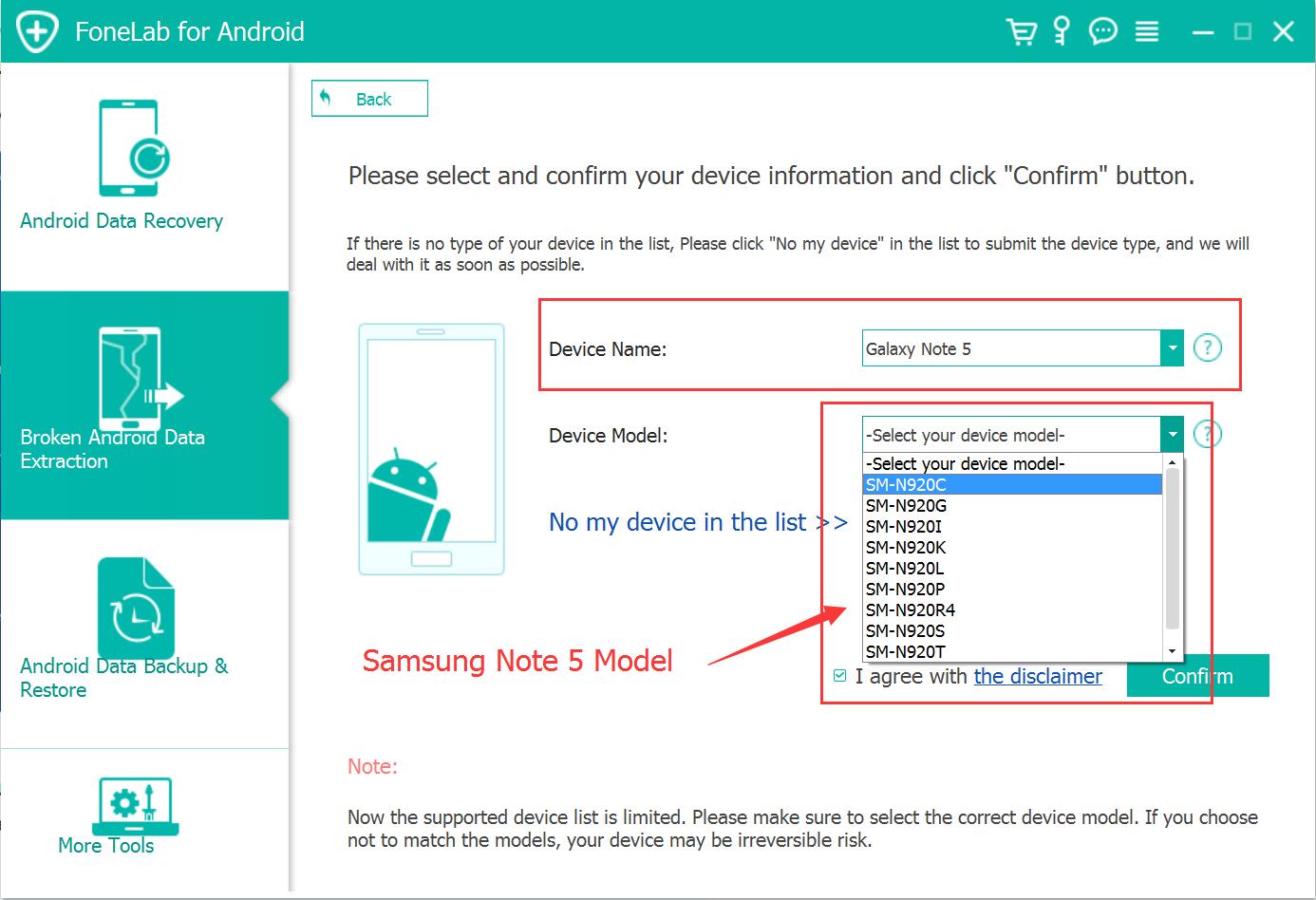
select galaxy note 5 model

Step 3.Setting Samsung into Download Mode
Follow the guide to enter your broken Samsung to the Download mode: Power off the phone > Press the volume down + Home button + Power button > Press the volume up to enter download mode.
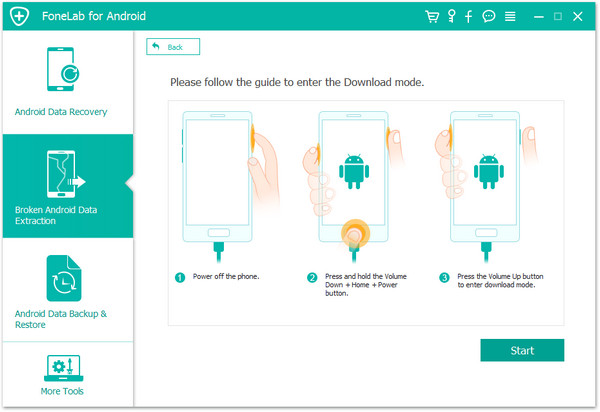
get samsung into download mode

After that,your phone will enter “Download Mode” successfully.

Step 4.Download the Recovery Package for Samsung
Now the Broken Android Data Recovery program will download the recovery package for your Samsung Galaxy Note 5.
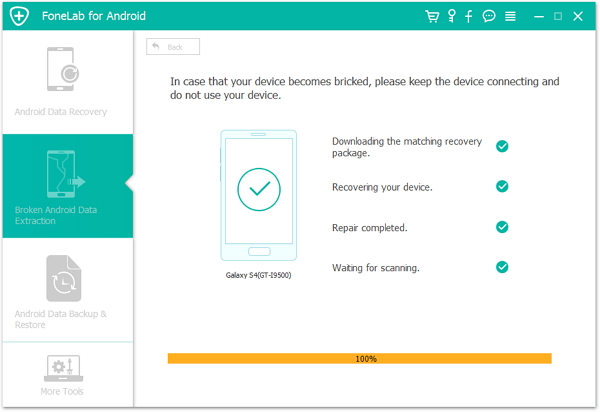
detect samsung

Step 5.Preview and Recover Text Messages from Samsung Galaxy Note 5
Now you should select the text messages to preview and recover the selected data from Samsung to your computer.
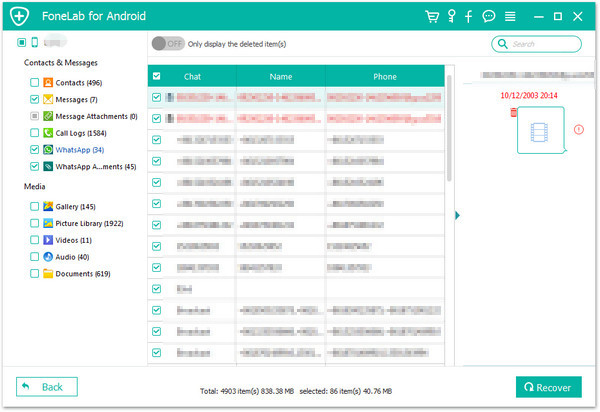
recover sms broken samsung galaxy note 5

d_win d_mac

Related Article:

How to Recover Data from Broken Samsung Galaxy Note 5

How to Recover Contacts from Broken Samsung Galaxy Note 5

How to Recover Data from Broken Samsung Galaxy Note 5/4/3/2

How to Recover Photos from Broken Samsung Galaxy Note 5/4/3/2
How to Recover Text Messages from Broken Samsung

How to Recover Data from Samsung with Broken Screen

How to Recover Contacts from Broken Samsung Galaxy Note 5

Last night I dropped my Galaxy Note 5 phone on the floor when I was cooking. Now I want to extract the contacts list from my broken Samsung phone. Is there any way to recover the contacts from it directly?

Accidentally dropped your Samsung mobile phone on the floor and feel hopeless to get all the contacts back from the broken Samsung phone? There are a lot of people may be do the backup frequently in case losing data, however, more people have not a habit to backup data for mobile device too often. From now on, you can stop worrying about the question because it is quite possible to recover contacts from a broken Samsung device. If you have no backup of your Samsung data, you can perform a recovery process to extract all the contacts from broken Samsung device directly with the help of Broken Android Data Extraction.

Recover Contacts from Broken Samsung Galaxy Note 5

Broken Android Data Recovery can help to recover contacts from broken Samsung Galaxy Note 5 surely. Not only contacts, but also other types of Samsung data are supported, including text messages, photos, videos, call logs, documents, WhatsApp and more. Broken Android Data Recovery can solve most broken cases of Samsung device, for example, Samsung with broken screen, Samsung with black screen, water damaged Samsung, Samsung with unresponsive screen, etc,. Broken Android Data Recovery works well on most of Samsung phones, such as, Samsung Galaxy Note 5/4/3, Samsung Galaxy S6/S5/S4.

d_win d_mac

How to Extract Contacts from Broken Samsung Galaxy Note 5

Step 1.Connect Samsung and Run Program
Firstly,please connect the your broken Samsung to the computer. You should select “Start” under “Broken Android Phone Data Extraction“ in the home page of program.

broken android data recovery

Step 2.Select the Models of Samsung
Make sure that you choose the correct information of your phone including the device name and device model. Then click “Confirm“.

select galaxy note 5 model

Step 3.Enter Samsung into Download Mode
Follow the guide to enter your broken Samsung to the Download mode: Power off the phone > Press the volume down + Home button + Power button > Press the volume up to enter download mode.

get samsung into download mode

After that,your phone will enter “Download Mode” successfully.

Step 4.Download the Recovery Package for Samsung
Now the Broken Android Data Recovery program will download the recovery package for your Samsung device.

detect samsung

Step 5.Preview and Recover Contacts from Samsung Galaxy Note 5
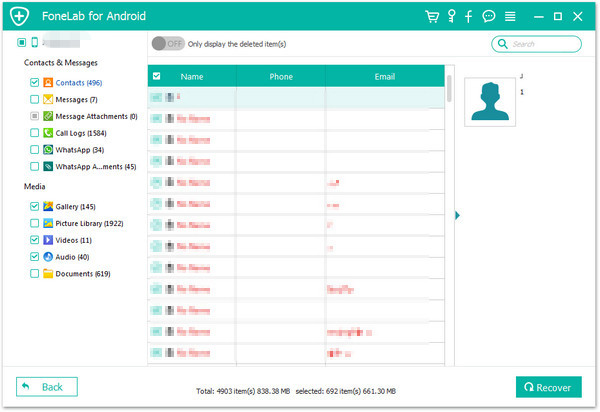
Now you should select the contacts to preview and recover the selected data from Samsung to your computer.

restore contacts broken samsung

d_win d_mac

Related Article:

How to Recover Data from Broken Samsung Galaxy Note 5

How to Recover Data from Broken Samsung Galaxy Note 5/4/3/2
How to Recover Pictures from Broken Samsung Galaxy Note 5/4/3/2
How to Recover Data from Broken Samsung Phone

How to Restore Contacts from Broken Samsung Phone

How to Recover Data from Samsung with Broken Screen

How to Recover Data from Broken Samsung Galaxy Note 5

My phone is broken with the unknown error, the screen is unresponsive. However all the data still on the phone, how to extract data from the broken phone on the computer? By the way, my phone is Samsung Galaxy Note 5.”

Accidents always come without expection. We will encounter different kinds of broken cases on our mobile device, such as, the screen is unresponsive, the screen is crashed, water damaged, and more others. When you are facing it, you may be frustrated that the your Samsung is broken. What’s wore, you can’t open it and access your Samsung, you may feel annoyed that the precious data of the phone is lost, such as contacts, photos, messages and more that have been stored on the broken device. This page is going to describe how to recover data from broken Samsung Galaxy Note 5 for any broken cases. Read it patiently and you will get the best solutions to extract data on broken Samsung device.

Recover Data from Broken Samsung Galaxy Note 5

What you need is a wonderful program names Broken Android Data Recovery, which is a useful data recovery for extracting data from broken Android device. With the help of this program, you could simply recover data from broken Samsung Galaxy Note 5, including contacts, text messages, photos, videos, call logs, documents, WhatsApp and more. Broken Android Data Recovery works on any broken Android cases, for instances, Android screen is unresponsive, Android screen is crashed, water damaged Android, and so on. Broken Android Data Recovery is compatible with most of Samsung device, like Samsung Galaxy Note 5/4/3, Samsung Galaxy S6/S5/S4.

d_win d_mac

How to Extract Data from Broken Samsung Galaxy Note 5

Step 1.Connect Samsung and Run Program
To begin with,please connect the your broken Samsung to the computer. In the home page of program, you should select “Start” under “Broken Android Phone Data Extraction“.

broken android data recovery

Step 2.Select the Models of Samsung
Make sure that you choose the correct information of your phone including the device name and device model. Then click “Confirm“.

select galaxy note 5 model

Step 3.Enter Android into Download Mode
Follow the guide to enter Android to the Download mode: Power off the phone > Press the volume down + Home button + Power button > Press the volume up to enter download mode.

get samsung into download mode

After that,your phone will enter “Download Mode” successfully.

Step 4.Download the Recovery Package for Samsung
Now the Broken Android Data Recovery program will download the recovery package for your Samsung device.

detect samsung

Step 5.Preview and Recover Data from Samsung Galaxy Note 5
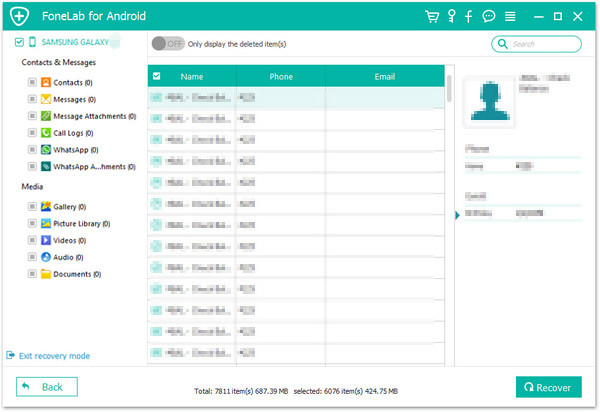
Now you should select data to preview and recover the selected data from Samsung to your computer.

extract data from samsung

d_win d_mac

Related Article:

How to Recover Data from Broken Samsung Galaxy Note 5/4/3/2
How to Recover Pictures from Broken Samsung Galaxy Note 5/4/3/2
How to Recover Data from Broken Samsung Phone

How to Restore Contacts from Broken Samsung Phone

How to Recover SMS from Broken Samsung Phone

How to Recover Data from Samsung with Broken Screen

How to Root HTC 10 without Data Loss

My HTC 10 phone always running crashed, is it be better after rooting it? Besides, I want to remove the adds from the apps which I downloaded. Can anyone provide me a good suggestion? Thanks.

Most of Android users want to make the full use of Android mobile phone, want to release more features from it, optimize the internal system and gain more authority of it. Access to your root device will allow you to install apps and custom ROMs that will change how your phone operates. You can make certain tweaks that you could not do before, remove bloatware and your device will be more streamlined, making it perform better. The HTC 10 can be easily rooted, the rooting process is not as hard as you think. We are going to offer two selection for you, to root HTC 10 on the computer safely and efficiently.

Part 1: Root HTC 10 without Data Loss via Android Toolkit – Android Root

To root HTC 10 safely and simply, you can rely on Android ToolkitAndroid Root, it’s easy to root HTC 10 on computer safely without data loss. I shared details about the required tools and rooting method on this post for all HTC 10 users. Android Toolkit enable to safely root HTC 10 phone with only one click. Almost all brands of Android are compatible with this program, including HTC, Google Pixel, Nexus, Samsung, LG, Motorola, Huawei, OPPO, OnePlus, Lenovo, ZTE, Xiaomi, Meizu, etc,.

Download Android Toolkit – Android Root:

d_win d_mac

More Features of Android Toolkit:
-Root Android without data loss.
-Simple process, hassle free.
-Supports over 7000 devices.
-Highest success rate in the industry.
-100% safe and secure.

Firstly,please download and run Android Toolkit-Android Root on your computer then click on “More Tools” in the home page of program.Select “Root” option on it.

android root mian page

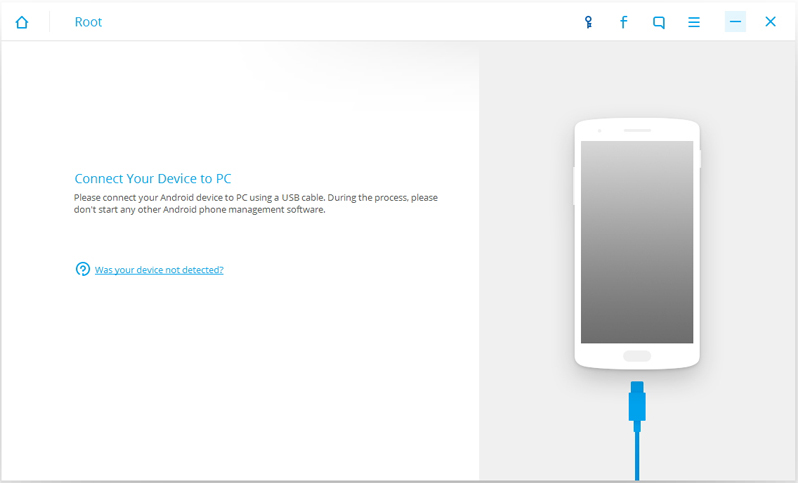
Step 1.Connect HTC 10 to the computer
Connect HTC phone to the computer with an USB cable.You should enabled the USB Debugging mode on your Android device.Then Android Root will automatically connect your device.

connect htc phone to pc

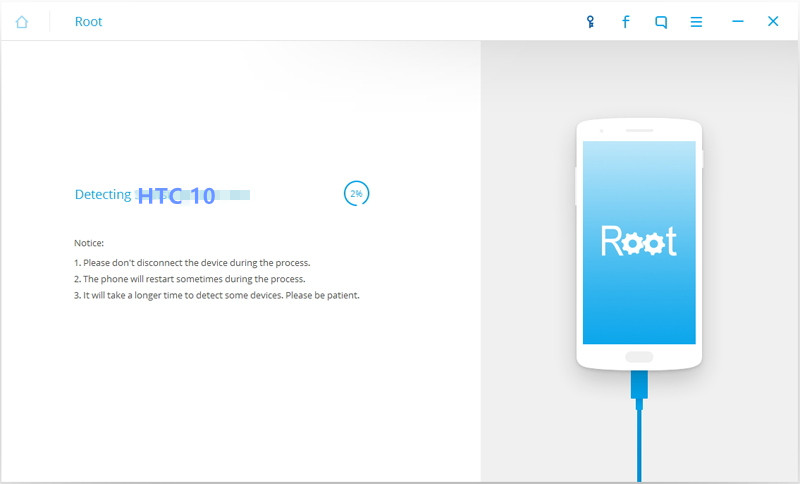
Once your HTC is connected,Android Root will offer a proper solution to root your phone.Click on “Start” to go on.

detect htc

Tips:
1.Please don’t interrupt the connection of the device and computer until the whole process is end.
2.The phone will restart sometimes when detecting.
3.It may cost you some time to detect your device.Please be patient.

Step 2.One Click to Root HTC Phone on Computer
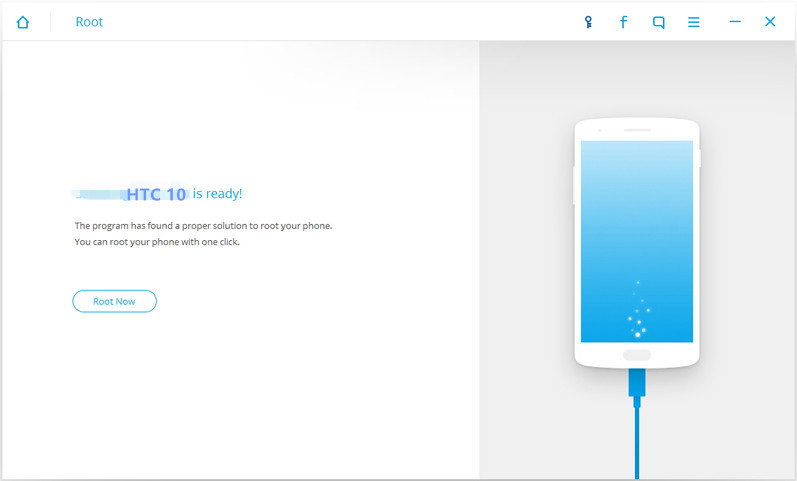
It will take you a little while for the program to detect your Android phone.Then it will be ready for you to root your device.Just click on “Root Now” to safely root your phone on computer.

ready to root htc

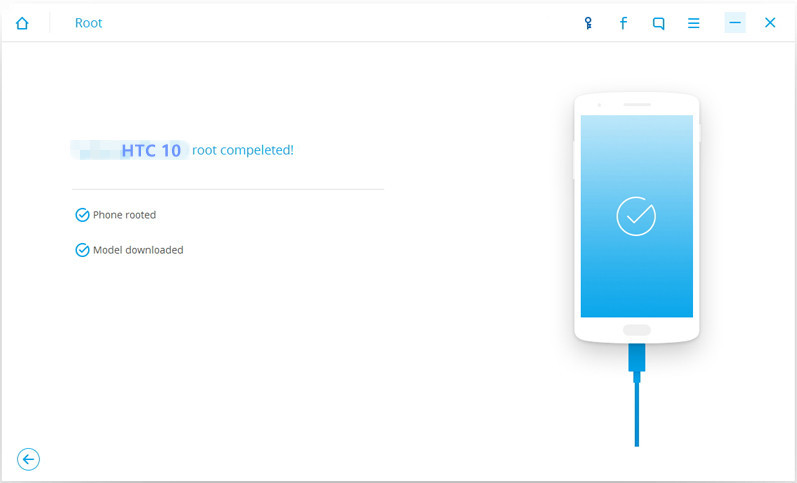
Note:During the rooting process,the phone will pop up a message to prompt whether you would like to root the phone.Tap on “Confirm” to continue the rooting process.You phone will be complete rooting in minutes.

htc rooted

d_win d_mac

Part 2: Root HTC 10 without Data Loss via Android Manager – Android Root

Another selection you can have a try is the famous program calls Android Manager-Android Root, it provides an efficient way to you one click to root HTC 10 without data loss, 100% safe and secure. Let me describe the functions of Android Manager. It’s such a powerful tool for transferring data & managing data for Android device, including music, video, photos, SMS, contacts, apps, help to transfer data between iTunes/computer/iOS or Android device and Android freely.

Download Android Manager – Android Root:

d_win d_mac

More Features of Android Manager:
-One click Root : Root Android to take full control of your device.
-Backup music, photos, videos, contacts, SMS to computer and restore easily.
-iTunes Manager : Sync iTunes music to Android or transfer music from Android to iTunes.
-Phone to Phone Transfer:Transfer music, photos, videos, contacts, SMS between two mobiles (both Android and iPhone are supported).
-Manage, export&import contacts and SMS, deduplicate contacts, reply SMS with computer.
-App Manager:Install, uninstall, import or backup Apps in batch.
-Gif Maker: Create Gif from photos, motion photos, videos.
-Fully compatible with 3000+ Android devices (Android 2.2 – Android 7.0) from HTC, Samsung, LG, Huawei, Motorola, Sony, etc,.
Step 1.Run Android Manager – Android Root on Computer

Please download and install Android Manager program on your computer first.

Step 2.Connect HTC 10 with the Computer
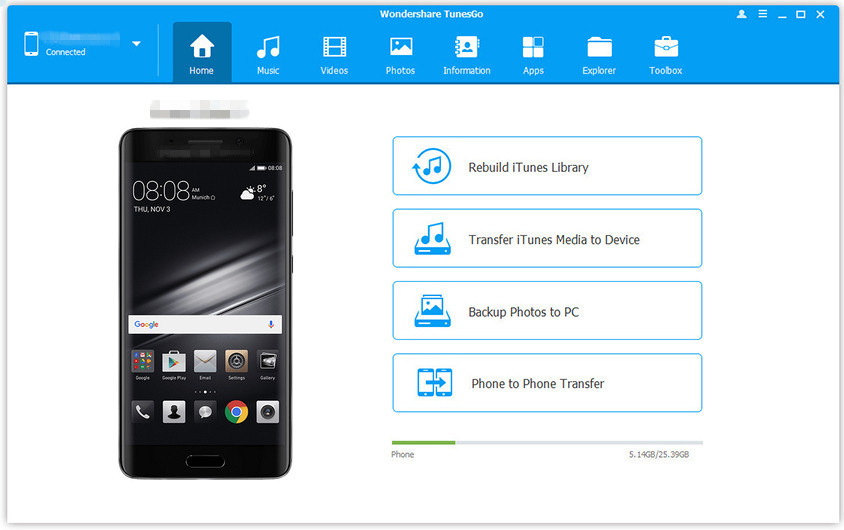
After running program on computer and it will ask you to connect your device with the computer.Then Android Manager will automatically detect your device and you will be shown a screen like this on your computer.

android manager main page

Step 3.Click the Root Selection
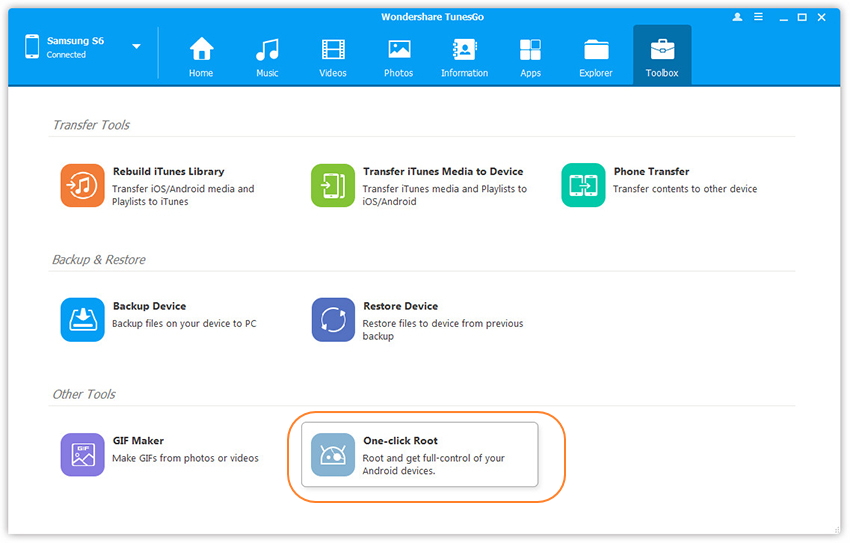
Click “Toolbox” tab and find “One-click Root” on bottom.

one click root

Step 4.One Click to Root HTC 10 without Data Loss
After you have clicked” on one-click root” you just need to wait seconds and then the program will prompt you that one-click root on your phone has been successfully completed.

root htc 10 on computer

Done.Now you could enjoy trip on your rooted HTC phone freely.

d_win d_mac

Related Article:

How to Transfer Videos to HTC 10

How to Transfer Music to HTC 10

How to Transfer Android Data to HTC 10

How to Transfer iPhone Data to HTC 10

How to Recover Deleted Data from HTC 10

How to Recover Deleted Contact from HTC

How to Manage Android on Computer

How to Root Sony Xperia XZ without Data Loss

Is it possible to root the Sony Xperia XZ by myself without data loos? I Heard that it could solve the overheating and weak battery issue so I want to have a try. Any good ideas?

root sony xperia xz without data loss

After rooting your Sony Android phone, you can open a world of possibility on your device. Rooting enables you to flash a custom ROM, install many third-party apps which can’t be download from Google Play, backup system data and block ads on apps and browsers. Android users want to make the full use of Android mobile phone, customize the device, optimize the internal system and gain more authority of it. Sony Xperia XZ was the latest flagship of Sony which was launched on 28 September 2016, it is No.7 best smartphone of 2017, according to the report. Here we will offer the best and fastest method to root your Sony Xperia XZ on the computer with a safe solution.

One Click to Root Sony Xperia XZ without Data Loss

Android Manager – Android Root is an outstanding program which help to root Sony Xperia XZ on the computer without data loss. Withing using this program, you could easily root your Android with only one click. In addition, Android Manager is a powerful data manager for Android, it empowers to transfer files between Android and iTunes, transfer files between Android and computer, transfer files between Android and iOS devices. Not only Sony, but also almost all of Android devices are compatible with Android Manager, such as, Sony, Samsung, Google Pixel, Motorola, LG, ZTE, HTC, etc,. After rooting completed, you are able to enjoy your Android freely without limitation whenever and wherever.

d_win d_mac

Features of Android Root you should Know:
-One click to root Android device without data loss.
-Rooting Android device with over 95% success rate.
-Fully compatible with Andorid 4.0 to Android 7.0.
-Work on both Windows and Mac OS X.

How to Root Sony Xperia XZ without Data Loss

Step 1.Run Program and Connect Device
If you have installed the Android Manager on your computer,just launch it and then connect the Sony phone to the computer with a USB cable.The program will detect your phone if it is connected successfully and display it on the primary window.

android manager main page

Step 2.Select Rooting Mode
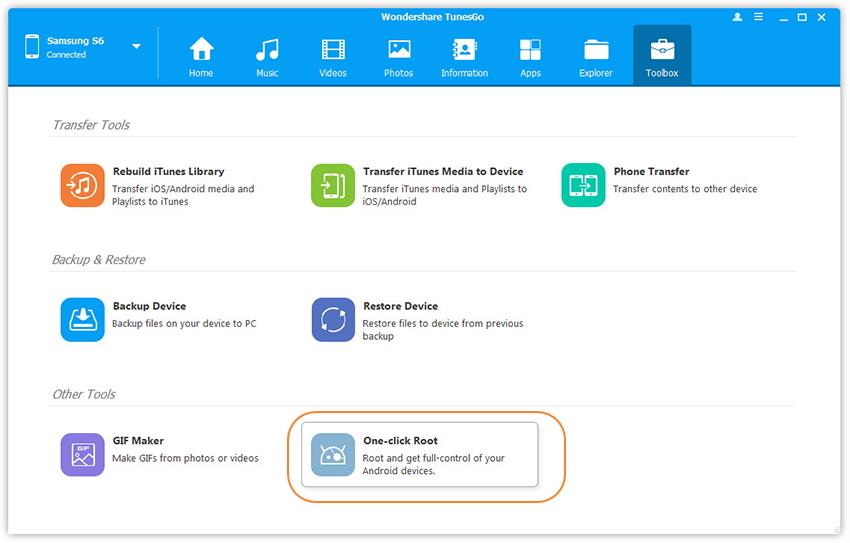
Click the “Toolbox” tab in the top menu on the primary window of the program.Three main sections will be displayed under the “Toolbox” option.Go to the “Other Tools” section and from the two subsections that will be shown,choose “One-click Root” to gain full control of your Sony.

one click root sony

Step 3.One Click to Root Sony Safely without Data Loss
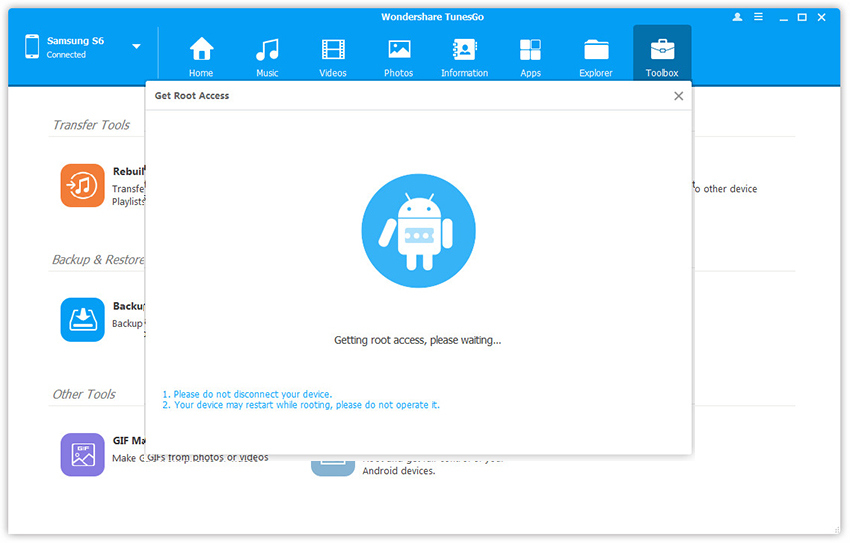
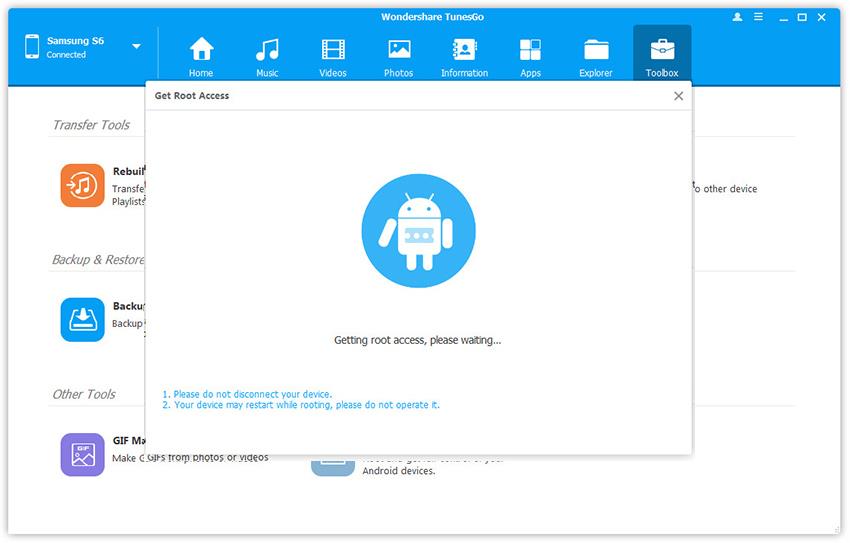
A prompt message will be displayed saying that after rooting you will gain full access to your phone system and that rooting may affect your device warranty.Just click “Root” from that warning box to continue rooting your Sony Xperia XZ phone.

root sony safely

Please keep the connection of your device and the computer until the root is completed.The phone may restart during the root process,but you should not operate it.It will prompt you once the root process is finished.

d_win d_mac

Related Article:

How to Transfer Samsung Data to Sony Xperia XZ

How to Switch iPhone Data to Sony Xperia XZ

How to Transfer Android Data to Sony Xperia XZ

How to Transfer Videos to Sony Xperia XZ

How to Transfer Music to Sony Xperia XZ

How to Recover Deleted Data from Sony Xperia XZ

How to Backup Messages for Sony Xperia

How to Manage Android on Computer

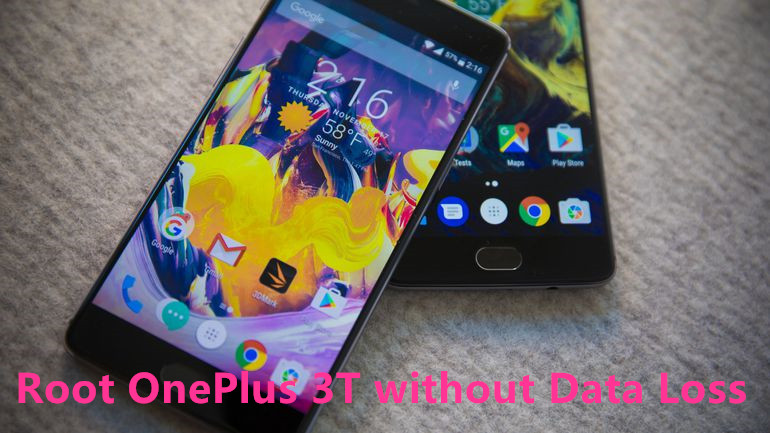
How to Safely Root OnePlus 3T on Computer

I heard that OnePlus 3T is one of the models of the top 10 popular mobile phone in 2017. I get a new OnePlus 3T as the new years gift. May I ask how to safely root the OnePlus 3T on the computer by myself?

root oneplus 3t

The OnePlus 3T phone is one of the most popular devices to be released of OnePlus Android in 2016. Rooting your phone will open up a world of customizations, new apps, and software modifications that greatly enhance the Android experience. When it comes to the OnePlus 3T, it have a fairly large development Possibility, so the selection of root OnePlus 3T is superior to most other Android phones. If you’re ready to start exploring the rooting tip on OnePlus 3T, we’ll introduce the best root methods following to you. So please be sure to follow all of the instruction as I walk you through gaining root access to the OnePlus 3T.

Root OnePlus 3T with One Click – Android Root

Android ManagerAndroid Root tool can help to safely root OnePlus 3T with one click on the computer without data loss. With the help of Android Manager, you can easily root OnePlus 3T by yourself with only three steps. Android Manager is a powerful data manager for Android, including videos, music, photos, contacts, SMS, apps. It enables to transfer data between Android and iTunes,transfer data between Android and computer,transfer data between Android and iOS devices. Android Manager works well for almost all Android devices, such as, OnePlus, Samsung, LG, Lenovo, HTC, ZTE, Motorola, Huawei, Google Pixel, etc,.

d_win d_mac

How to Root OnePlus 3T without Data Loss

Step 1.Run Program and Connect Device
If you have installed the Android Manager on your PC/Mac,just launch it and then connect the OnePlus phone to the computer using a USB cable.The program will detect your phone if it is connected successfully and display it on the primary window.

android manager main page

Step 2.Select Rooting Mode
Click the “Toolbox” tab in the top menu on the primary window of the program.Three main sections will be displayed under the “Toolbox” option.Go to the “Other Tools” section and from the two subsections that will be shown,choose “One-click Root” to gain full control of your Android.

select root mode

Step 3.Root OnePlus Safely without Data Loss
A message will be displayed to prompt that after rooting you will gain full access to your phone system and that rooting may affect your device warranty.Just click “Root” from that warning box to continue rooting your OnePlus 3T phone.

root oneplus 3t safely

Note:Please do not disconnect your device until the root is end.The phone may restart during the root process,but you should not operate it.Once the root process is completed, you will get a prompt message.

d_win d_mac

Related Article:

How to Transfer Videos to OnePlus 3T

How to Transfer Music to OnePlus 3T

How to Restore Deleted Data from OnePlus 3T

How to Transfer iPhone Data to OnePlus 3T

How to Transfer Android Data to OnePlus 3T

How to Manage Android on Computer

How to Convert and Play Apple Music on Android

How to Transfer iTunes Music to Samsung Galaxy

I get a new Samsung Galaxy S8 phone and now I need to transfer the iTunes playlist and songs to my new Android directly. Anyone give me a good suggestion? Thanks advanced.”

You may like:

* How to Watch iTunes Movies on Samsung Galaxy

* How to Burn Samsung Video to DVD

Samsung phone is the most hot brands of Android mobile. Samsung has not only the coolest phone screen but also equip with very wonderful high quality audio. Music play a more and more important role in our daily life. Many people like to use Samsung as a great mobile music player to play and enjoy music on it, like the cool Samsung Galaxy Series. If you also own one Samsung phone, do you also want to transfer iTunes music to it? This practical guide will easily walk you through the two best ways that to import iTunes music to Samsung with easy steps.

Part 1: Transfer iTunes Music to Samsung Galaxy with Android Manager

To import iTunes music to Samsung Galaxy easily, you can try this Android Toolkit – Android Transfer first, which is also a terrific iTunes to Android transfer program,it helps to transfer iTunes music to Samsung Galaxy, such as Galaxy S9/S8/S7/S6/S5. Android Transfer & Manager is an outstanding program that allows to transfer files between Android and iTunes, transfer files between Android and computer, transfer files between Android and mobile device. The supported types of file including music, videos, photos, contacts, SMS, apps. Let’s more features of Android Manager.

d_win d_mac

Features of Android Transfer & Manager

-iTunes Manager : Sync iTunes Music to Android or transfer music from Android to iTunes.
-Backup music, photos, videos, contacts, SMS etc. to computer and restore them easily.
-Manage, export & import contacts and SMS, deduplicate Contacts, reply SMS with computer.
-One click Root : Root your Android phones/tablets to take full control of your device.
-Phone to Phone Transfer : Transfer music, photos, videos, contacts, SMS between two mobiles (both Android and iPhone are supported).
-App Manager : Install, uninstall, import or backup Apps in batch.
-Gif Maker – Create Gif from photos, motion photos, videos.
-Fully compatible with 3000+ Android devices (Android 2.2 – Android 8.0) from Samsung, LG, HTC, Huawei, Motorola, Sony, Google Pixel, ZTE, etc,.

Step 1.Select Transfer Option
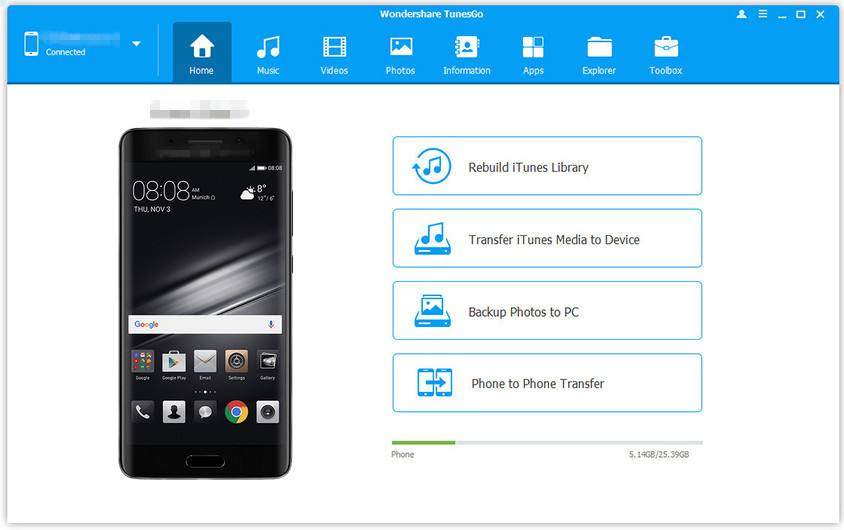
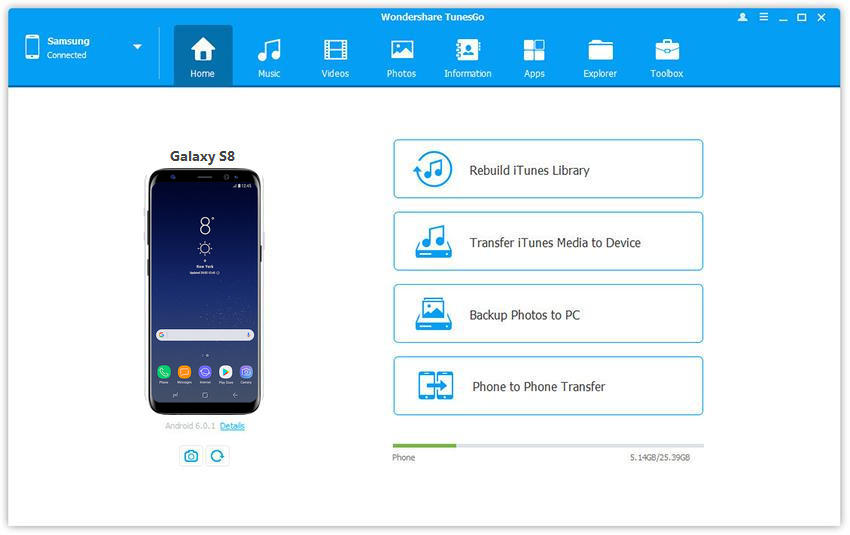
Simply click Transfer iTunes Media to Device on the main interface of program.Or find the Transfer iTunes to Device option under Toolbox > Transfer Tools section.

android manager

Step 2.Transfer iTunes Music to Samsung Galaxy
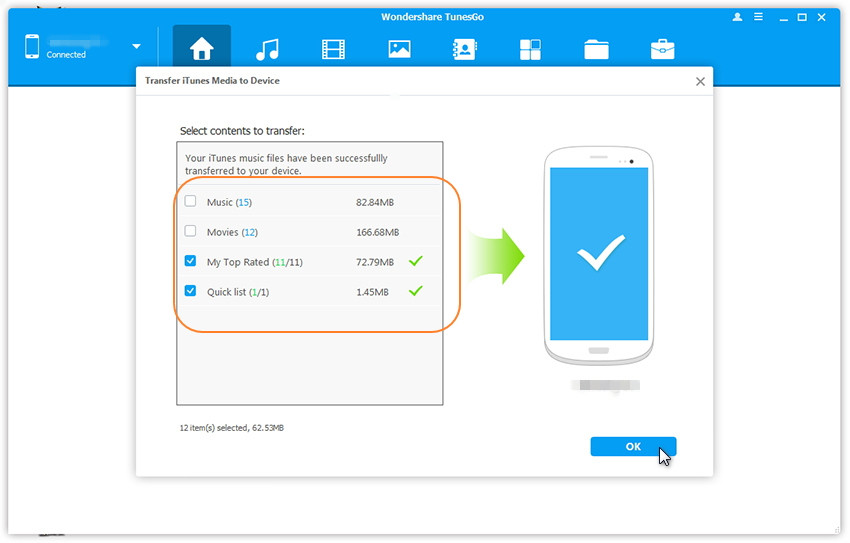
Check options and start to copy media from iTunes to Samsung Galaxy.All the iTunes files will be scanned and will be shown under different categories like Music, Movies, and others.By default,all the file types will be selected,you can uncheck the files which you don’t need.Click Transfer to start transferring.

select itunes media to transfer

transfer itunes media to samsung galaxy

Free download the Android Toolkit – Android Transfer and try to transfer music from iTunes to Samsung Galaxy phone directly.

d_win d_mac

Part 2: How to Stream iTunes Music on Samsung Galaxy with Apple Music Converter

Another selection you can try is to use the Apple Music Converter, Apple Music Converter is a pretty good Apple music converter for mobile device. With the help of Apple Music Converter, you can easily remove DRM from Apple iTunes that purchased in iTunes, convert Apple music to MP3 or other compatible formats. Other supported converted files including MP3, M4A, AC3, MKA, AIFF, FLAC, etc,. After the conversion, you could stream Apple music on Samsung Galaxy for free without limitation, such as, Galaxy S9/S8/S7/S6/S5. Additionally, Apple Music converter enables to convert Audiobooks and Audible Audiobooks to DRM free formats. In general, this wonderful program works for almost all Android devices, iOS devices, MP3 players and more.

Download Apple Music Converter for Windows or Mac:

d_win d_mac

Step 1. Download and Run Apple Music Converter on Computer
To get started, please download and run Apple Music Converter on computer.

launch apple music converter

Note: iTunes will be run automatically at the same time when you run Apple Music Converter on the computer.

Step 2. Select Apple Music to Convert
You will find all you Apple Music songs and playlists you have added to iTunes library on the interface of Apple Music Converter program, including iTunes songs, movies, TV shows, audiobooks, etc,. Click the checkbox before the Apple Music songs you want to convert. You can also search the Apple Music songs you want to convert with the searchbox.

select apple music to convert

Step 3. Select the MP3 Output Format for Converted Music
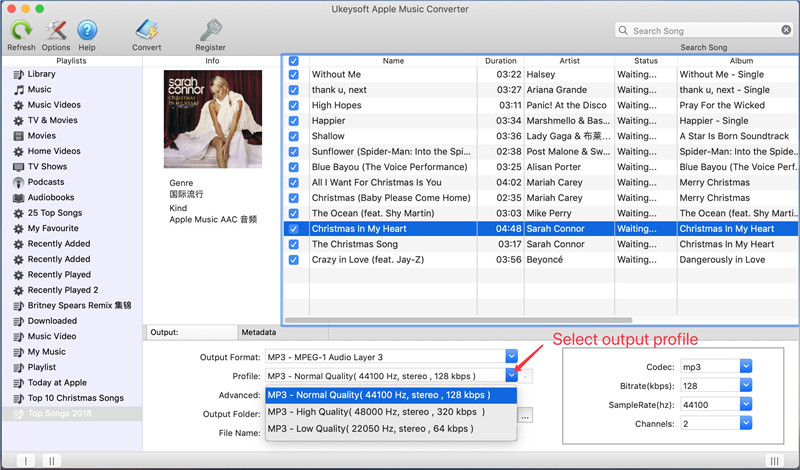
Now you should select the output format, customize profile, name format for the converted music. Apple Music converter supports to convert Apple Music M4P songs to different formats, such as, MP3, M4A, AC3, AAC, AIFF, AU, FLAC, M4R, MKA. Here we suggest you select the MP3 format to convert for Samsung Galaxy. It provides 3 profile settings for each output format: Normal, High and Low with different Bitrate, SampleRate and Channels. You can also customize the values if you need.

select mp3 output profile

Step 4. Convert M4P Apple Music to MP3 for Samsung Galaxy
In step 4 you just need to simply click “Start Convert” button to start to convert the selected Apple music to MP3 files. It will finish the conversion job within a few minutes.

convert apple music from m4p to mp3

When the conversion is finished, clicking on the “Open Output File” button to find the converted music file on the computer.

view converted mp3 apple music files

Download the trial version of Apple Music Converter for Mac or Apple Music Converter for Windows:

d_win d_mac

Step 5. Transfer Converted Apple Music to Samsung Galaxy
In the last step you could transfer the music from computer to your Samsung phone using a USB, or using Android Transfer,Android Transfer & Manager.

transfer apple music to samsung galaxy

Related Article

How to Transfer iTunes Music to Samsung Galaxy S8/S7/S6

How to Transfer Music from Computer to Samsung Galaxy S8/S7/S6

A Complete Guide to Transfer iTunes Music to Android

How to Transfer iTunes Music to Android

How to Convert and Play iTunes Music on Android

How to Manage Samsung Galaxy S8/S7/S6 on Computer

Recover Data from Samsung when Stuck on Android System Recovery

My Samsung Galaxy S6 stuck on Android System Recovery and I have no idea to get it out of the abnormal state. Could anyone help me to fix the stuck issue on my Android?

What is Android System Recovery:
Android system recovery it is actually a feature that can be quite helpful to your Android device when it’s needed. Normally you can boot your Android device into Android system recovery mode by turning off your device and holding specific key combination like Power + Home + Volume Up key together at the same time. It can be useful when you want to hard reset the Android device without having to access the settings. Android system recovery can be start-up if your device is not working well as usual, for example, the touch screen is unresponsive. It can also be accessing the settings on your device when the device get some unknown error. For these reasons it is actually a good thing although when it does happen unexpectedly, you may want to know how to fix it.

Part 1: How to Fix Samsung Phone Stuck on Android System Recovery

Though the Android system recovery can do many amazing thing for your Android device, you can also get troubles when using it. For example, your device may be stuck in recovery mode when you cannot turn on the device. This situation is quite annoying for most Android users. Moreover, you don’t know whether you have lost your important personal data or not and don’t know how to fix it. You can follow the easy steps and try to get out Android system recovery of Android by yourself.

A: Boot Samsung into Android System Recovery:
Step 1. Please check the button first, and make sure your phone keys are working properly.

Step 2. If the battery is removable, take it out to ensure that completely turned off and then reinsert the battery into the device.

Step 3. Boot your device into Android recovery mode by pressing and holding Power + Home + Volume Up at the same time until the device vibrates. Then release the Power button but keep holding down the Home and Volume Up button.

B: Fix Samsung Stuck on Android System Recovery:
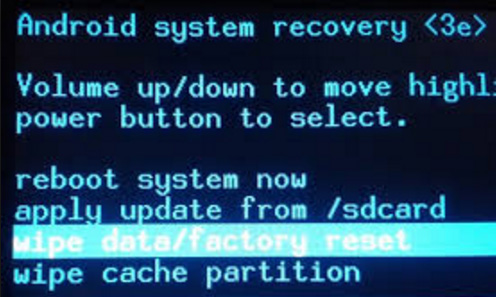
Step 4. When the Android get into the recovery mode, do a factory reset on it by tapping “wipe data/factory reset”. Power on your device after the process is finished.

factory reset samsung

Part 2: How to Recover Samsung Data when Stuck on Android System Recovery

Performing factory reset on Samsung will erase all your data and settings from Samsung, so I suggest you should make a backup of your important data on your Samsung device first. How to extract data from an unresponsive Samsung phone? Here we will recommend a professional Broken Android Data Recovery software for you which is enables to recover data from Samsung when stuck on Android system recovery. Furthermore, this program allows to recover data from broken/damaged/frozen/bricked/virus infected or water damaged Android phones and tablets. Broken Android Data Recovery works well on almost all models of Samsung, such as Galaxy S8/S7/S6/S5, Note 5/4/3, etc,.

d_win d_mac

Step 1.Connect Samsung and Run Program
First of all,please connect the your Samsung which stuck in Android system recovery to the computer. In the main page of program, you should select “Start” under “Broken Android Phone Data Extraction“.

broken android data recovery

Step 2.Select the Models of Samsung
Make sure that you choose the correct information of your phone including the device name and device model. Then click “Confirm“.

select the model of samsung

Step 3.Enter Android into Download Mode
Follow the guide to enter Android to the Download mode: Power off the phone > Press the volume down + Home button + Power button > Press the volume up to enter download mode.

get samsung into download mode

After that,your phone will enter “Download Mode” successfully.

Step 4.Download the Recovery Package for Samsung
Now the Broken Android Data Recovery program will download the recovery package for your Samsung device.

detect samsung

Step 5.Preview and Recover Data from Samsung
Now you should select data to preview and recover the selected data to your computer.

extract data from samsung

d_win d_mac

Related Article:

How to Fix Bricked Android Phone or Tablet

How to Fix Android Won’t Turn on Issue

How to Enter,Use and Exit Recovery Mode on Android

How to Recover Data from Broken Android

How to Recover Data from Broken Screen Android

How to Recover Data from Black Screen Android

A Complete Guide to Transfer iTunes Music to Android

Are there any ways to transfer iTunes music to Android with a complete guide? I want a simple way for free, and some recommendations for the helpful music transfer programs. Thanks.

Android has been dominated mobile industry because of the new brands and models frequently released in these years. A lot of people who come from Apple decide switch to the Android phones. After switching to the Android from iPhone, how to deal with the Apple music that saved on the iTunes playlist? It might be a pity if you decide to get out of iTunes world and go into Android world. It might be a pity if you decide to get out of iTunes world and go into Android world. Even though Apple’s music management software makes it easy to sync iTunes music to iOS devices, it is still a big problem to transfer iTunes music to Android. Here we’ll take a look at several ways to transfer iTunes music to Android.

Part 1: Find iTunes Media Folder and Copy iTunes Music to Android

The first way here we provide to you to copy iTunes to Android with finding iTunes media folder. Of course, as long as you have a computer and tick Copy files to iTunes media folder when adding to library in iTunes, you can transfer all the iTunes music to your Android easily.

You should find the iTunes media folder first.

By default, iTunes media folder is saved at:
Windows 8/7: C:\Users\username\My Music\iTunes\
Windows XP: C:\Documents and Settings\username\My Documents\My Music\iTunes\
Windows Vista: C:\Users\username\Music\iTunes\

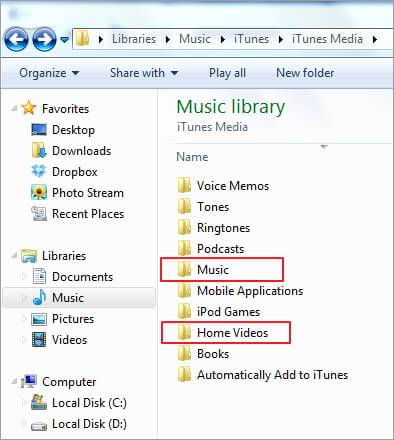
Step 1: Go to the iTunes media folder and you will see a Music folder. Open it and you will find some folders named by artists in which songs are stored.

itunes media folder

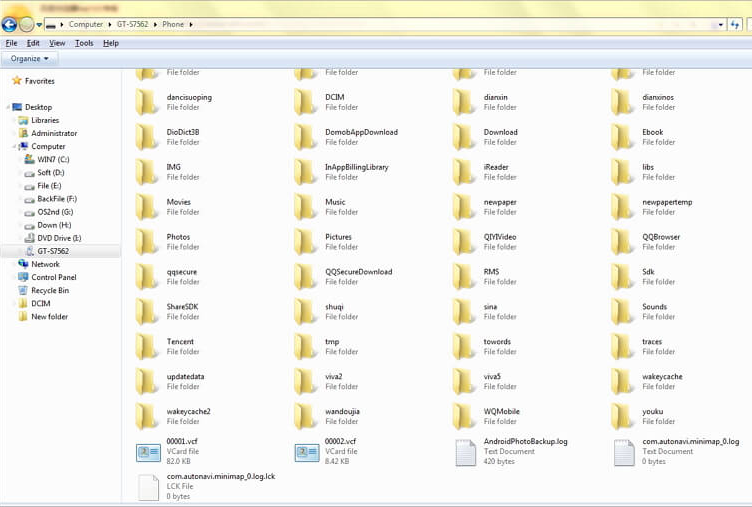
Step 2: Connect your Android device to your computer via a USB cable. Once connected successfully, go to find the external hard drive of Android device and open it.

Step 3: Go back to iTunes music folder and copy the songs you need import to Android device.

transfer itunes music to android

Part 2: Transfer iTunes Music to Android via Android Manager

Using Android Manager is another wonderful way to move iTunes music to Android with easy steps. It makes iTunes music library be accessible to all your Android devices and transfer iTunes music to Android directly with a few clicks. With Android Manager, you are able to transfer & manage files for Android files on the computer freely, including music, videos, photos, contacts, SMS, apps. Android Manager enables to transfer files between iTunes and Android, transfer files between computer and Android, transfer files between mobile device and Android. Almost all Android devices are supported by Android Manager, such as, Samsung(Galaxy S7/S6/Note 5), Google (Pixel,Nexus), Huawei(P10/P9), HTC, Lenovo, Motorola, LG, Sony, etc,.

Download Android Manager:

d_win d_mac

Launch Android Manager and connect your Android phone to the computer.Your Android phone will be detected and displayed in the main page of program soon.

Step 1.Select Transfer Selection of Program
Simply click Transfer iTunes Media to Device on the main interface.Or find the Transfer iTunes to Device option under Toolbox > Transfer Tools section.

android manager main page

Step 2.Select Music File to Transfer
Check options and start to copy media from iTunes to Android.All the iTunes files will be scanned and will be shown under different categories like Music, Movies, and others.By default,all the file types will be selected but if you want to transfer only the music files,you can uncheck the others.Click Transfer to begin transferring.

select itunes music to transfer

transfer itunes music to android

d_win d_mac

Part 3: Convert and Play iTunes Music on Android via Apple Music Converter

Apple Music Converter makes it easy to convert iTunes music from M4P to MP3, then you can transfer and play albums and artists from iTunes playlists on Android for free without limitation. Apple Music Converter is the best programs to remove DRM protection from iTunes music and Apple Music, convert M4P files to MP3/AC3/AIFF/FLAC/M4A. Apple Music Converter supports to all brands of Android, for example, Samsung(Galaxy S7/S6/Note 5), Google (Pixel,Nexus), Huawei(P10/P9), HTC, Lenovo, Motorola, LG, Sony, and so on.

Download Apple Music Converter:

d_win d_mac

More Features of Apple Music Converter:
-Remove the limitation and keep Apple Music as offline local songs.
-Convert and burn Apple Music to CDs.
-Convert Audiobooks to M4A files.
-Playing Apple Music on any Windows/Mac computer and any media player devices such as Android devices, iPhone, iPad, iPod, PSP, Zune, MP3 player, mobile phones, etc,.

Step 1. Run Apple Music Converter on the Computer

Run Apple Music Converter program on the computer.

launch apple music converter

Step 2. Select Apple Music to Convert
Select the Apple music you want to convert, including music, playlists, Audiobooks, M4P Audio, iTunes movies and TV shows. Click “Download“.

Step 3. Choose MP3 – Output Format to Convert
Select MP3 as the format for the converted music.

Step 4. Convert Apple Music to MP3 for Android
Click “Start Convert” to begin the conversion.

convert itunes music to mp3 for android

Step 5. Browse the Converted Apple Music in DRM-free .MP3 Format
When the conversion is finished, you could explore the output files and folders by clicking “Open Output File” button to view the converted music file on the computer.

Step 6. Transfer Converted Apple Music to Android via Android Manager
In the last step you should transfer the converted music to your Android via Android Manager.

d_win d_mac

Related Article:

How to Transfer iTunes Music to Android

How to Sync iTunes Music on Android with Google Play

How to Transfer Music from Android to iTunes

How to Transfer Music from Computer to Android

How to Manage Android on Computer

How to Convert and Play Apple(iTunes) Music on Android

How to Transfer Music from Android to iTunes

I want to sync the favorite music from my Samsung Android phone with iTunes, but I can’t find a helpful tool for helping. Any good suggestions? It will be better if the steps is simple. Thanks.

iTunes keeps all your music together, so it’s there when you’re ready to listen. Instead of going through stacks of CDs or digital files, you can import them into iTunes and quickly browse your whole collection. Organize your library any way you want. Create playlists and enjoy them whenever and wherever. Then sync the iTunes music to your iPhone, iPad, or iPod touch or stream them to your Apple TV. However, for some Android users, most of them have no idea on how to transfer the music between Android and iTunes. If you try to search the solutions to sync music from Android to iTunes on the Internet, you will find various of methods for the transfer. However, here we just provide you with the most easiest ways.

Part 1: How to Transfer Music from Android to iTunes Manually

A free way to transfer your music from Android to iTunes is copying the music files using the drag-and-drop traditional method manually. All you need to do is the use a USB cable for connecting your Android device and the computer, then follow these steps:

Step 1. Firstly create a temporary folder on your computer desktop.
Step 2. Connect your Android device to the PC using the USB cable.
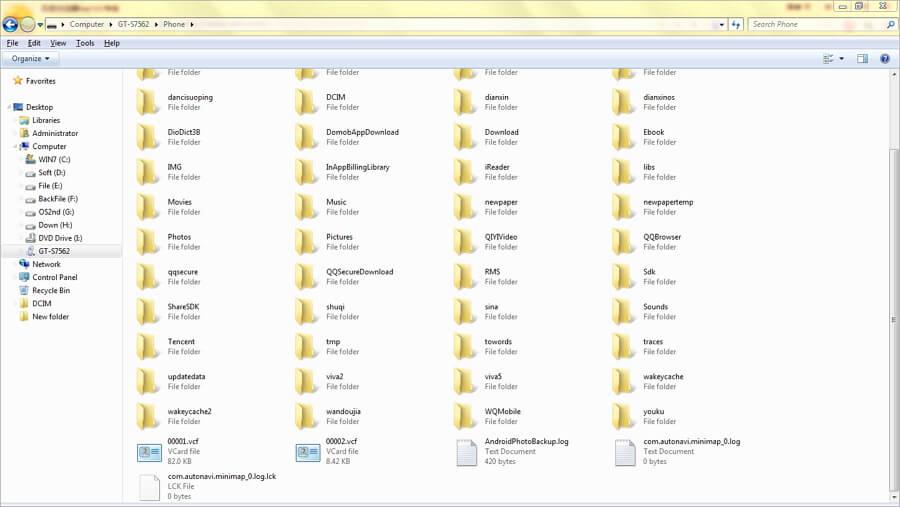
Step 3. Navigate to the SD card or internal memory of your device and open it.

backup android music

Step 4. Select music tracks that you’d like to copy and drag and drop them into the temporary folder.
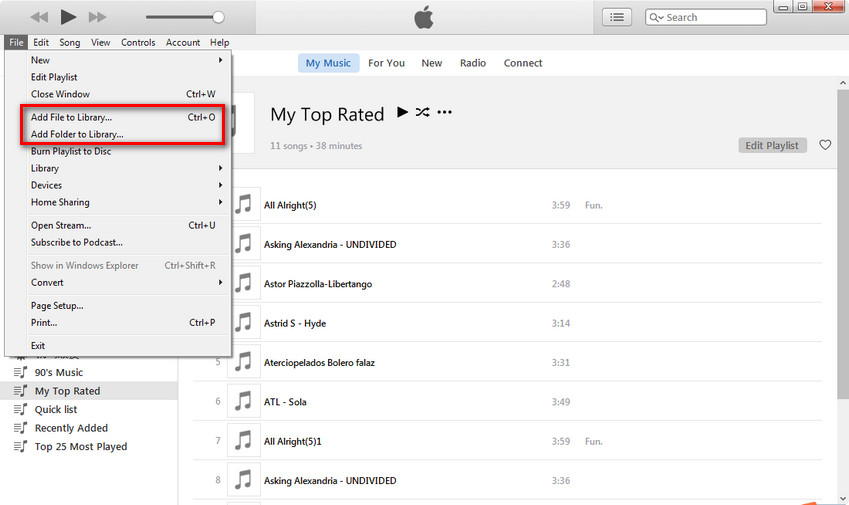
Step 5. Run iTunes on your PC and click “Music” under Library directory.
Step 6. Select “Add File to Library” or “Add Folder to Library” on the File menu. After that, go to the temporary folder you just created and add it to iTunes.

add-android-music-to-itunes-library

Step 7. If you still cannot see your music collection in the iTunes library, click on the “Music“icon in the top-left corner, click “My Music” and navigate to “Scan for Media“.

Done. So easy. Right?

Part 2: How to Transfer Music from Android to iTunes with Android Manager

Though many people will take the free way to transfer music from Android to iTunes manually, there is another easier way to sync music between Android and iTunes. If you want to backup  music from Android device to iTunes, it’s simple with Android Manager. It has a wide variety of unique features that helps users to manage & transfer files for Android on the computer, including music, videos, photos, contacts, SMS, apps. Android Manager is a useful data manager for Android device, it not only can transfer music between iTunes and Android, but also can transfer files between computer and Android, transfer files between Android and mobile device. If you are a music lover, this one is definitely for you. I am going to show you how to use Android Manager to transfer music from Android to iTunes library.

d_win d_mac

Step 1. Run Android Manager and Connect Android
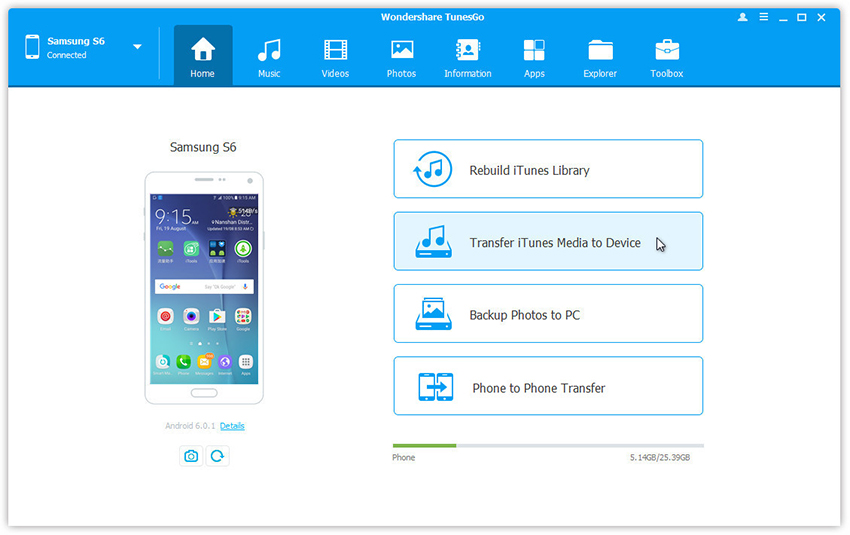
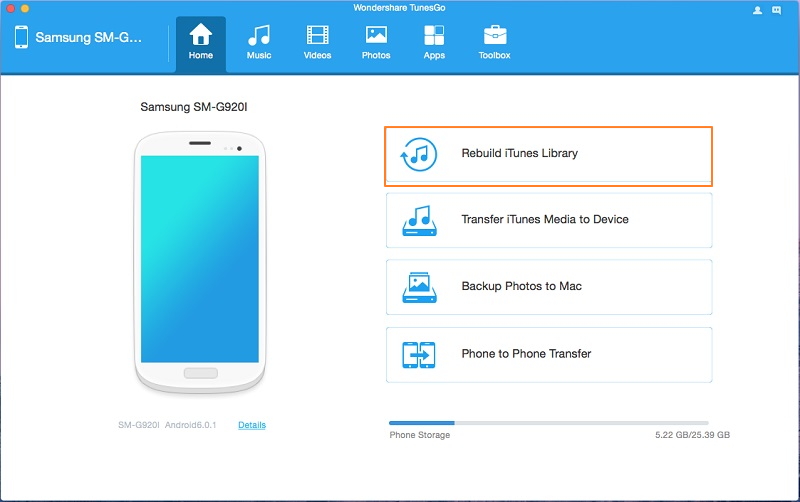
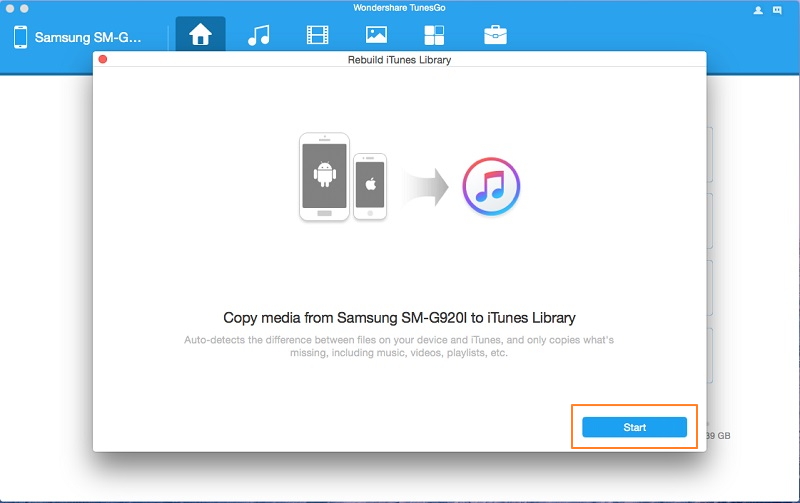
Run Android Manager and connect your Android to the Mac/Windows computer. Click “Rebuild iTunes Library” on the home page of program.

android manager home page

Then a new window will popped up and click “Start“.

transfer android music to itunes

Step 2. Select Music File to Transfer
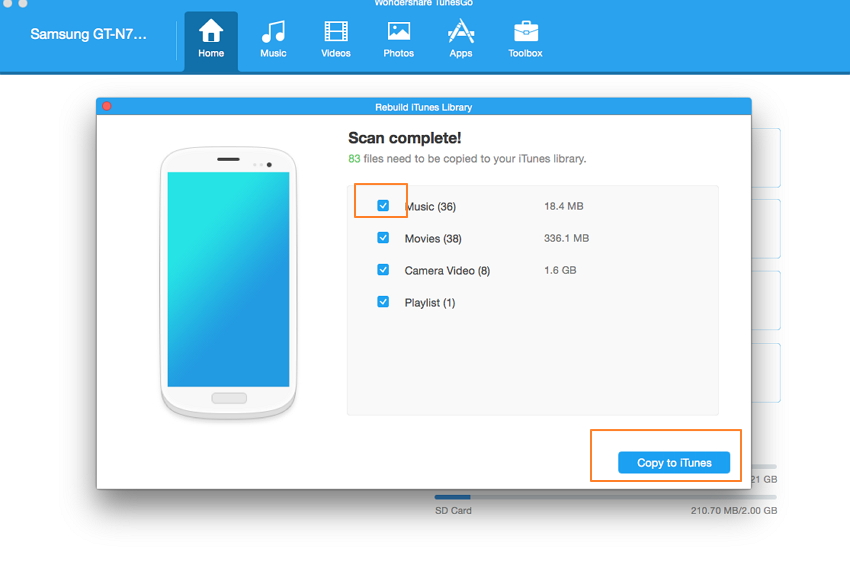
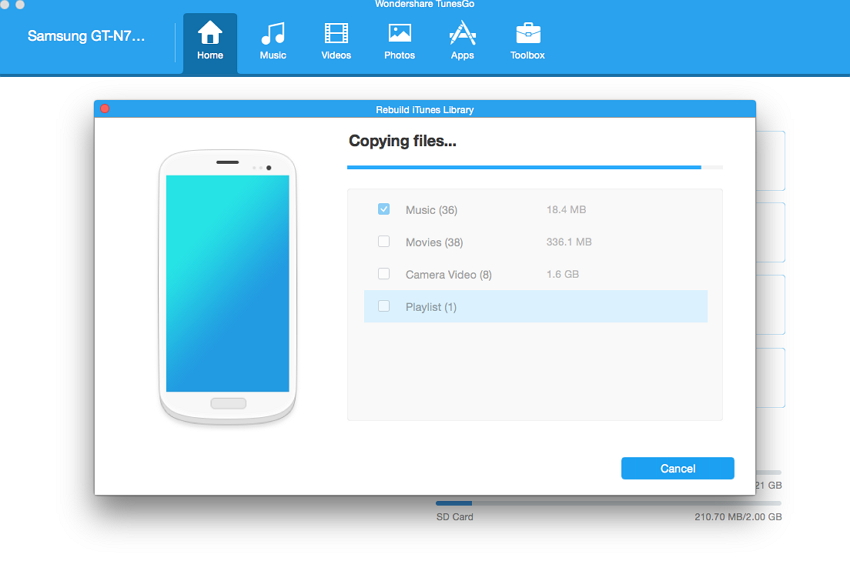
Check the “Music” and uncheck the other files. Then click “Copy to iTunes“. Then the transfer process will begin. You can see the process from the below screenshots. You can also transfer playlist or movies if you want to at the same time.

select music file to transfer

transfer android music to itunes

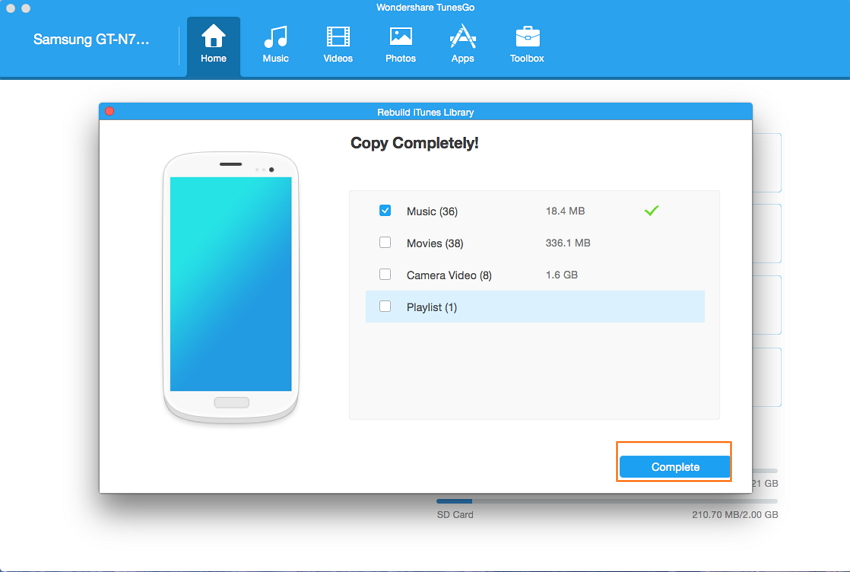
When the transfer is finish, click ” Complete” to end it.

transfer android music to itunes completed

d_win d_mac

Part 3: How to Transfer Music from iTunes to Android with Android Manager

Step 1. Run Android Manager and Select Transfer Option
Run Android Manager and connect Android to the computer. Simply click “Transfer iTunes Media to Device” on the main interface of program.Or find the “Transfer iTunes to Device” option under Toolbox > Transfer Tools section.

android manager mian page

Step 2.Transfer iTunes Music to Android
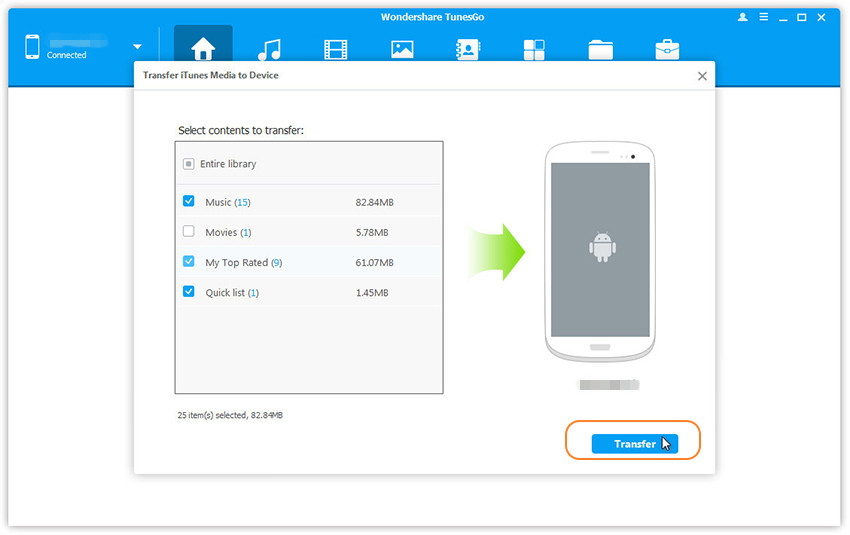
Check options and start to copy media from iTunes to Android.All the iTunes files will be scanned and will be shown under different categories like Music, Movies and others.By default,all the file types will be selected,you can uncheck the files which you don’t need.Click “Transfer” to begin transferring.

select itunes music to transfer

transfer itunes music to android

d_win d_mac

Related Article:

How to Transfer iTunes Music to Android

How to Sync iTunes Music on Android with Google Play

How to Transfer Music from Computer to Android

How to Manage Android on Computer

How to Convert and Play Apple(iTunes) Music on Android