All posts by DHZ

How to Sync iTunes Music on Android with Google Play

Hi. I get a problem. I used iPhone for 3 years. Now I switch to the new Samsung Android phone. I can’t download and listen to the iTunes music on Samsung directly. How to sync the iTunes music with my new Android?

Most of people like to download music from iTunes and then listen to the iTunes music on personal computer. It’s also good for downloading iTunes music on iPhone/iPad device then you could listen to the iTunes music on the iOS device conveniently. However, if your mobile device is Android device, it means that you can’t download the iTunes music on it and listen it on Android directly.So a part of Android users ask that is it possible to download and listen iTunes music on Android. Actually,there is definitely several ways to sync iTunes and listen it on Android without hassle.

Part 1: Sync iTunes Music with Google Play on Android

Most people think that there is no way to sync Google Play with iTunes, in fact there are several ways you can perform Google Play Music – iTunes sync. Here we will discuss how to sync iTunes on Android with Google Play(a simple way).
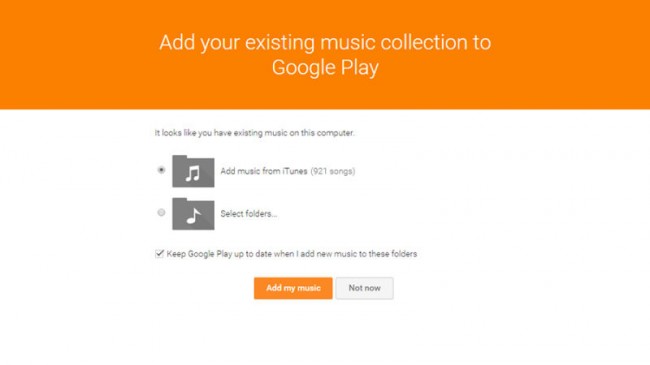
google play

Here are the steps to perform syncing Google Music on Android with iTunes via Google Play:

Step 1. Open play.google.com/music on your internet browser and log into your Google account. Click “Upload Music” located on the upper right-hand corner of the window.

Step 2. In the new window, click “Download Music Manager” and follow the installation instructions to get it up and running on your computer.
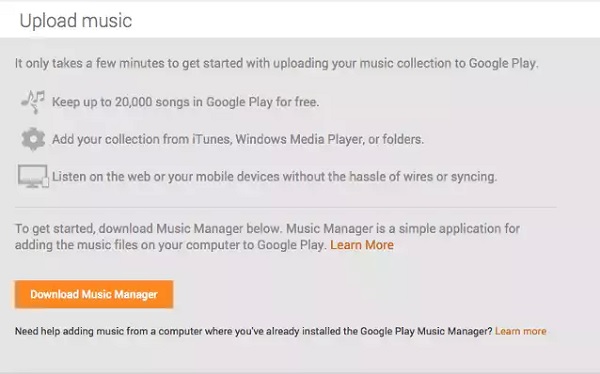
download music manager

Step 3. Once you have set up Google Play Music, direct the program to your iTunes library. Click “Next” to start music upload iTunes to Google Play.
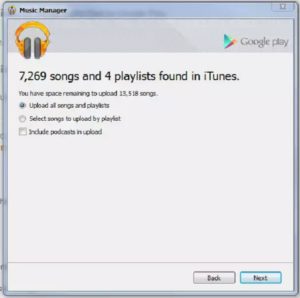
upload itunes songs to google play

Download the app on your Android device and sign in using your Google account. You will automatically be able to stream music from your digital collection.

Note:This method is that the program only upload music on the cloud without downloading it in your local device storage. This simply means that you will need to be online to access music on your mobile device.

Part 2: Sync iTunes Music with Android Manager on Android

The second way here we want to suggest you to try is using the Android Manager – One Click Transfer iTunes Media to Android. With Android Manager, you are allowed to sync iTunes music on Android with only one click. Android Manager is an ideal data manager for Android device, help to transfer & manage files for Android on the computer, including music, videos, photos, contacts, SMS, apps. Except syncing iTunes music with Android, it can also help to transfer files between computer and Android, transfer files between Android and mobile device.

Download Android Manager:

d_win d_mac

Let’s see the Features of Android Manager:
-iTunes Manager – Sync iTunes music to Android or transfer music from Android to iTunes.
-Backup music, photos, videos, contacts, SMS etc. to computer and restore them easily.
-Manage, export & import contacts and SMS, deduplicate contacts, reply SMS on the computer.
-One-click Root : Root your Android phones/tablets to take full control of your device.
-Phone to Phone Transfer : Transfer music, photos, videos, contacts, SMS between two mobiles ( both Android and iPhone are supported).
App Manager :Install, uninstall, import or backup Apps in batch.
-Gif Maker – Create Gif from photos, motion photos, videos.
-Fully compatible with 3000+ Android devices (Android 2.2 – Android 7.0) from Samsung, LG, HTC, Huawei, Motorola, Sony, Motorola, Google Pixel, etc,.

Step 1.Select Transfer Option
Simply click “Transfer iTunes Media to Device” on the main interface of program.Or find the “Transfer iTunes to Device” option under Toolbox > Transfer Tools section.
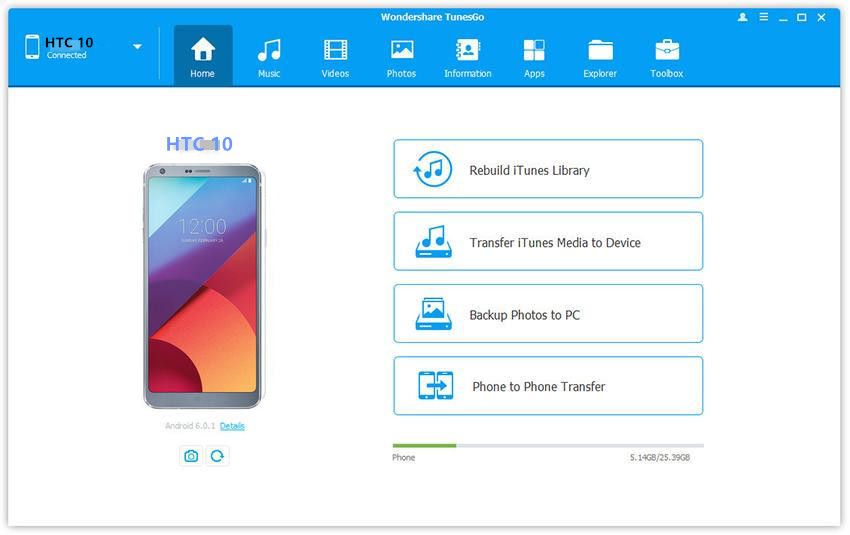
android manager home page

Step 2.Transfer iTunes Music to Android
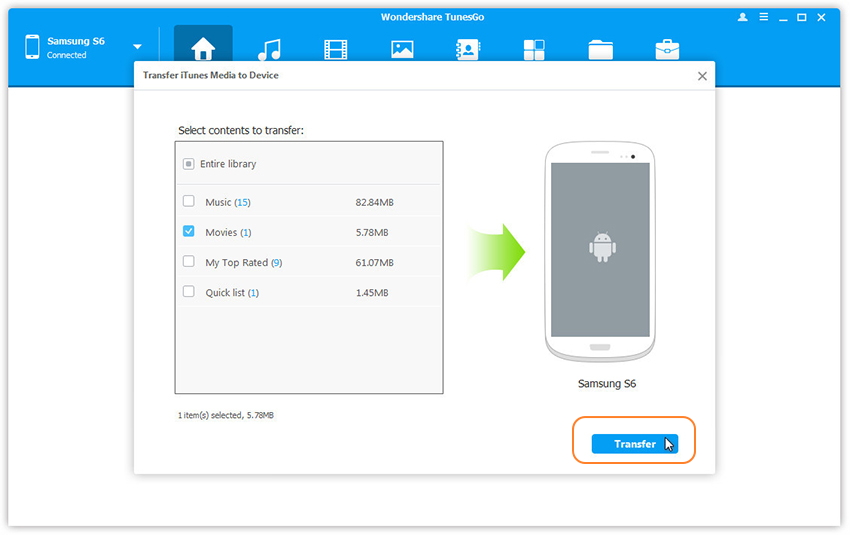
Check options and start to copy media from iTunes to Android.All the iTunes files will be scanned and will be shown under different categories like music, movies, podcasts and others.By default,all the file types will be selected,you can uncheck the files which you don’t need.Click “Transfer” to start transferring.
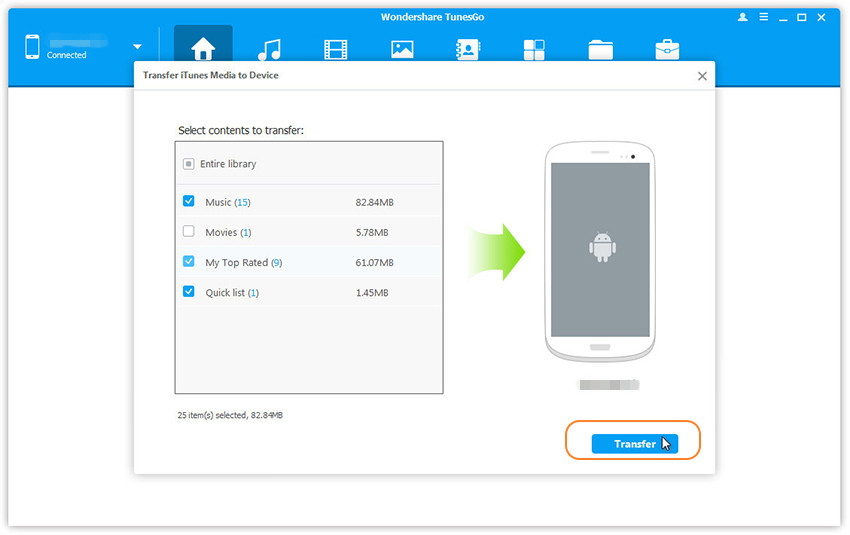
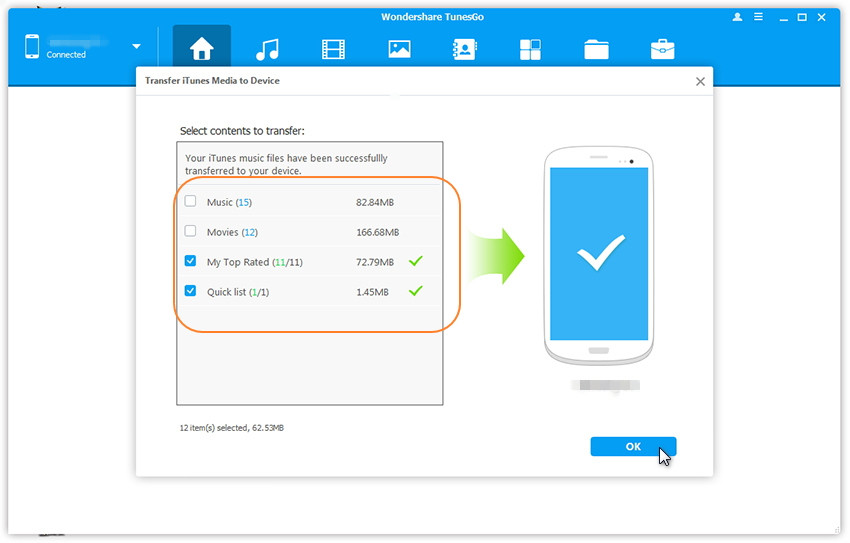
select itunes music to transfer

transfer itunes music to android

d_win d_mac

Part 3: Convert and Play iTunes Music with Apple Music Converter on Android

Moreover, we want to share an excellent program with you,Apple Music Converter – Apple Music DRM Removal is a professional M4P file converter, which is designed for converting Apple M4P music to DRM – free MP3 and AC3/AIFF/FLAC/M4A. It can legally remove DRM from M4P music files without downloading it, then you can play the converted Apple music on Android device(Samsung, HTC, LG, Motorola, Huawei, Google Pixel, ZTE,etc,.) and any other devices for free, including iPhone 7/6S/6/5S/5, iPad, iPod, Zune, PS4, MP3 player and more.

Download Apple Music Converter:

d_win d_mac

Pros:
-Remove DRM from iTunes M4P music to AC3, AIFF, FLAC ,M4A.
-Convert and burn Apple Music to CDs.
-Enjoy Apple Music tracks in anywhere and at anytime.
-Keep original data to MP3, M4A audio files.
-Convert Apple Music songs at up to 16X speed.
-Convert Audiobooks to M4A files.
-Easy-to-use with an intuitive and streamlined user interface.

Step 1. Download and Run Apple Music Converter on Computer

First of all, please download and run Apple Music Converter on the computer.

run apple music converter

Note: iTunes will be run automatically at the same time when you run Apple Music Converter on the computer.

Step 2. Select Apple Music to Convert
It will load all the Apple Music songs and playlists you have added to iTunes library on the interface of Apple Music Converter program, including iTunes songs, movies, TV shows, audiobooks, and more. Click the checkbox before the Apple Music songs you need to convert. You can also search the Apple Music songs you want to convert with the searchbox.

select apple music to convert

Step 3. Make Settings for Converted Apple Music
Click to set the data of the converted Apple music and a window will pop up for prompting to make the settings. You can set the converting speed (up to 16X) and the Apple music output format, and others.

Setting the Output Profile of Converted Apple Music:
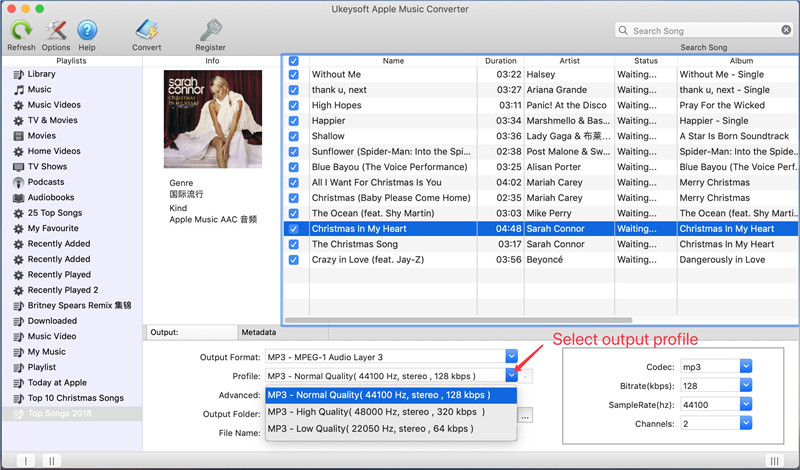
select mp3 output profile

Setting Conversion Speed of Conveted Apple Music:
If you would like to change the conversion speed, then go to Options>>General.One the preferences windows to “Set Custom conversion speed for audio convert (1-16)” to adjust the conversion speed.
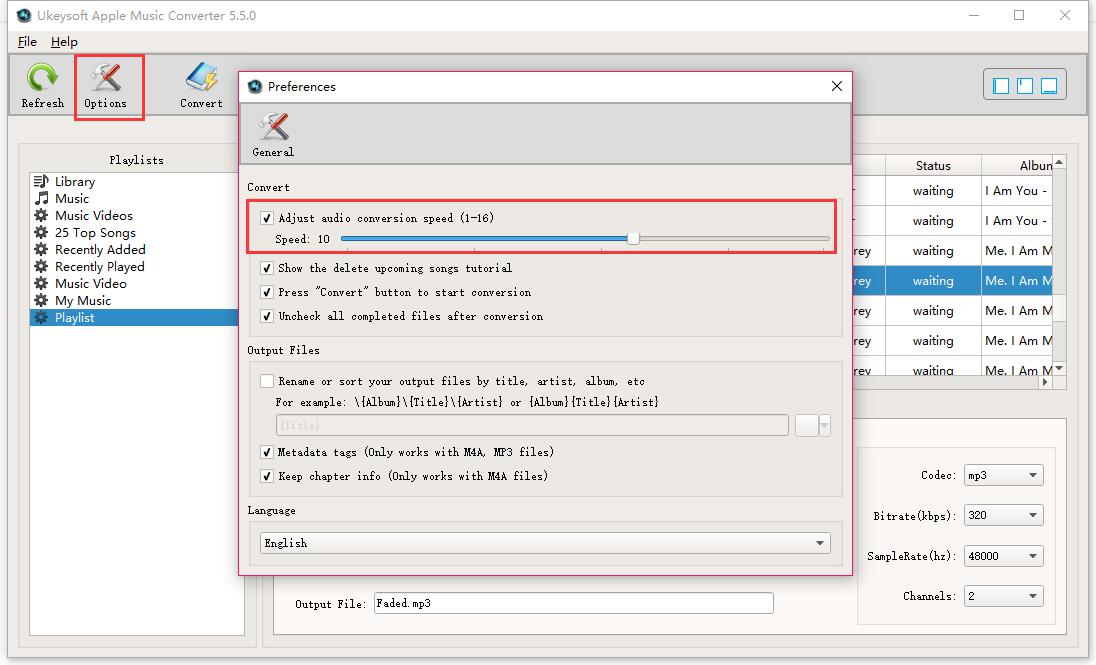
adjust conversion speed

Step 4. Convert M4P Apple Music to MP3
Simply click “Start Convert” button to start to convert the selected Apple music to MP3 files. It will complete the conversion job in a few minutes.

convert apple music from m4p to mp3

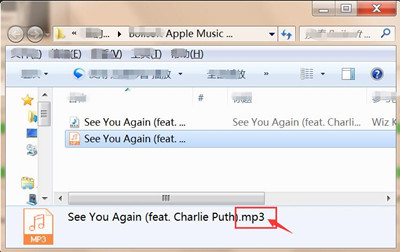
You can explore the output files and folders by clicking “Open Output File” button to view the converted music file on the computer after the conversion is finished.
view converted mp3 apple music files

Step 5. Import the Converted Apple Music to Android Device
In the last step, you could connect your device with a USB cable on the computer and then transfer all the converted Apple music to the Android device in one time. Only 5 steps, you have completed the Apple music conversion by yourself. Now just enjoy the music on the Android device for free without limitation.

Guide: How to Transfer Music from Computer to Android

d_win d_mac

Related Article:

How to Convert Apple Music from M4P to MP3

How to Play Apple Music on Galaxy S8/S7/S6

How to Play M4P Apple Music on iOS Device

How to Transfer Videos from Computer to Android
How to Manage Android on Computer

How to Root Android Phone with One Click

How to Import Videos to HTC 10

I just switched to the new HTC 10 phone. I heard that this model is one of the top 10 popular phones in 2017. So I want to have a try. Now one thing confuse me is that how to import the videos from computer and iTunes to my new Android. I synced some videos with the PC and some videos with iTunes from my old iPhone. So how to complete the videos transfer task with a simple solution?

Nowadays, more and more mobile users like to try Android devices because the Android camera is pretty good of its high quality, and Android OS system become more and more perfectly. So a lot of iPhone fans change their mobile device to new Android models, HTC 10 is the hottest one. In a word, transferring video files from computer to HTC, is as simple as plugging up your phone to the computer through a USB cable. When your HTC phone shows as a removable drive on your computer, you can drag and drop files between phone and computer easily. However, USB cable is not always useful and sometimes it is just inconvenient to be used. In the new century, more and more people choose to use an application to help transferring files between the phone and PC, which is not only helps to transfer media files between Android and computer, but also helping to transfer media files between Android and iTunes, it’s a multi-function tool.

Android Manager – Manage & Import Videos to HTC 10

What you need is Android Manager, it’s a wonderful program that helps to manage & transfer files for Android on the computer with a safe solution. The supported types of files including videos, photos, music, SMS, contacts, apps. Android Manager provides a simple solution to you, to transfer media files between Android and computer, transfer media files between Android and iTunes, transfer media files between Android and Android/iOS device. With the help of this outstanding program, you could easily import videos to HTC 10 without hassle. Most of Android devices are compatible with Android Manager, such as, HTC, Samsung, Lenovo, Motorola, LG, OnePlus, ZTE, Huawei, Google Pixel, etc,.

d_win d_mac

Part 1: How to Import Videos from Computer to HTC 10

To begin with, please run Android Manager on the computer, then connect your HTC 10 to the computer. Your Android device will be detected and displayed in the primary window of Android Manager.

android manager home page

Step 1. Select Videos to Transfer
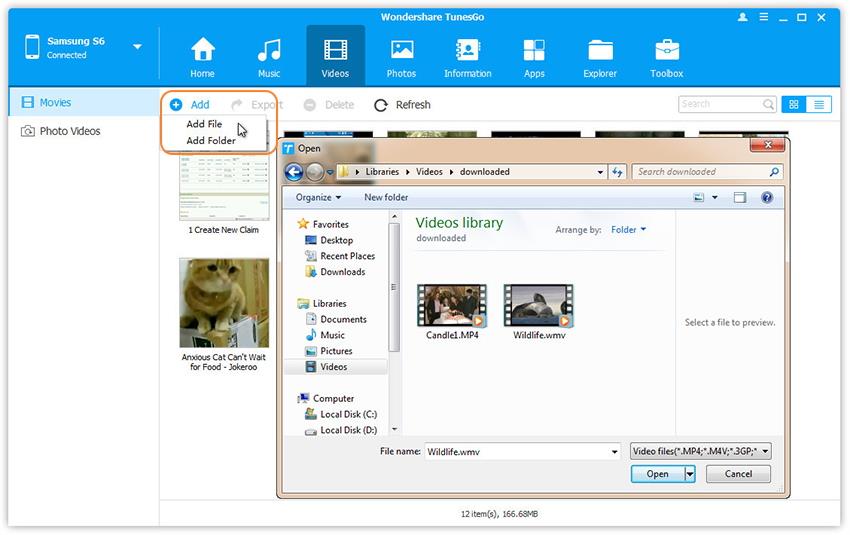
Select “Videos” tab. Once your media loads, click Add > Add File or Add Folder.

add videos from pc to htc

Step 2. Transfer Videos from Computer to HTC Phone
It will bring up your file browser window, from which you can select videos to import from your computer. All videos imported can be viewed with the built-in player.

You can also simply Drag and Drop videos from computer to HTC.

d_win d_mac

Part 2: How to Import Videos from iTunes to HTC 10

First of all, please launch Android Manager on the computer and connect your HTC phone to the computer. Your Android phone will be detected and displayed in the primary window of program quickly.

Step 1.Choose the Transfer Mode
Simply click “Transfer iTunes Media to Device” in the main interface of program. Or find the “Transfer iTunes to Device” option under Toolbox & Transfer Tools section.

android manager home page

Step 2.Select Videos File to Transfer
Check options and start to import videos from iTunes to HTC phone. All the iTunes files will be scanned and shown under different categories like music, movies, podcasts and others. By default, all the file types will be selected but to transfer only the “Movies” file, you can uncheck the others. Click “Transfer” to start import videos from iTunes to HTC.

transfer itunes videos to htc

d_win d_mac

Related Article:

How to Transfer Music to HTC 10

How to Transfer Android Data to HTC 10

How to Transfer iPhone Data to HTC 10

How to Recover Deleted Data from HTC 10

How to Recover Deleted Contact from HTC

How to Recover Deleted Photos from Android

How to Root Android on Computer with One Click

How to Manage Android on Computer

How to Transfer Videos to Sony Xperia XZ

How to import videos from computer to my Sony phone?I just downloaded some football videos from the Yutube. How to make it all on my Android? My phone model is Sony Xperia XZ.”

How to sync videos from iTunes with the new Sony Xperia XZ? I get a new Android, and I want to watch the videos on it. How?

People now prefer to watch videos and movies via mobile devices especially travelling in somewhere without Internet connection, thanks to the convenience of those portable devices. Among these gadgets, Android mobile OS is customized and flexible, it is really a good choice. If you notice the late news, you may be know that Sony Xperia XZ is one of the top 10 best phones in 2017, according to the report. More and more Android users switch to the new Sony phone model. However, we often share the videos with others or move them to the other phone so as to watch it for entertainment. The article below will introduce the solutions about how to transfer videos to Sony Xperia XZ from computer or iTunes.

Manage & Transfer Videos to Sony Xperia XZ – Android Manager

In general, with phone data manage software, you can transfer videos to Android with ease. Here Android Manager is recommended. Android Manager is a good program designed for managing and transferring files for Android devices, like videos, music, photos, contacts, SMS and apps. With it, you could transfer videos to Sony Xperia XZ with only a few clicks, conveniently and simply. What can Android Manager do for you? Transferring files between computer and Android, transfer files between iTunes and Android, transfer files between mobile device and Android. Android Manager provides a safe solution to you, helps to complete the data transfer job efficiently. Supported Android devices including Sony, Lenovo, Samsung, Motorola, OnePlus, HTC, Huawei, Google Pixel, etc,.

d_win d_mac

Part 1: How to Import Videos from Computer to Sony Xperia XZ

First of all, please run Android Manager on the PC/Mac, then connect your Sony Xperia XZ to the computer. Your Android device will be detected and displayed in the primary window of program.

android manager main page

Step 1. Select Videos to Transfer
Select “Videos” tab. Once your media loads, click Add > Add File or Add Folder.

add videos from pc to sony

Step 2. Transfer Videos from Computer to Sony Phone
It will bring up your file browser window, from which you can select videos to import from your computer. All videos imported can be viewed with the built-in player.

You can simply Drag and Drop videos from computer to Sony also.

d_win d_mac

Part 2: How to Import Videos from iTunes to Sony Xperia XZ

To begin with, please launch Android Manager on the PC/Mac and connect your Sony Xperia XZ to the computer. Your Android phone will be detected and displayed in the primary window of program quickly.

Step 1.Select Transfer Mode
Simply click “Transfer iTunes Media to Device” in the main interface of program. Or find the “Transfer iTunes to Device” option under Toolbox & Transfer Tools section.

android manager mian page

Step 2.Select Media File to Transfer
Check options and start to import videos from iTunes to Sony phone. All the iTunes files will be scanned and shown under different categories like music, movies, podcasts and others. By default, all the file types will be selected but to transfer only the “Movies” file, you can uncheck the others. Click “Transfer” to start videos transferring.

transfer itunes videos to sony

d_win d_mac

Related Article:

How to Transfer Samsung Data to Sony Xperia XZ

How to Switch iPhone Data to Sony Xperia XZ

How to Transfer Android Data to Sony Xperia XZ

How to Transfer Music to Sony Xperia XZ

How to Recover Deleted Data from Sony Xperia XZ

How to Backup Messages for Sony Xperia

How to Manage Android on Computer

How to Remove DRM from Apple Music Completely

Summary
Not easy to remove DRM from Apple Music? Here we’ll introduce the best method for you to remove Apple Music DRM and convert Apple Music/iTunes M4P music to MP3, after removing DRM from Apple Music songs, you can save Apple Music songs forever and offline listen to Apple Music on any MP3 players/devices.

Any way to remove the DRM from Apple Music and iTunes M4P Files?
Once the Apple Music subscription service is canceled,all the playlists and music songs we downloaded from Apple Music can not be played,or we can’t listen Apple musics without iTunes or iOS devices,because the Apple music songs protected by DRM encryption in M4P format.However,many people looking for a solution to remove the DRM from Apple Music and output DRM-free MP3, M4A, etc. for playing on any devices such as Android, iPod, MP3 player, mobile phones, Car players, etc.without limitation.

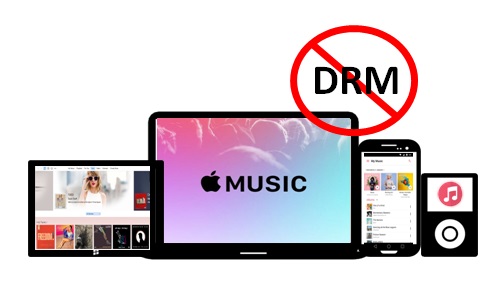
remove drm from apple music

Remove DRM from Apple Music songs

Have purchased and download the music from Apple Music and want to enjoy the Apple music M4P songs even after unsubscribing Apple Music streaming service?However,any solutions to remove DRM from Apple Music after downloading?Please keep reading the below tutorial,we’ll you the best Apple Music DRM Removal tool to easily remove DRM protection from M4P files so that you can listen to all Apple Music songs in any devices for free forever.

Best Apple Music DRM Removal – Apple Music to DRM-free MP3 Converter

Google news,the Apple Music DRM Removal tools – UkeySoft Apple Music Converter and TunesBank Apple Music Converter, both is designed to convert Apple Music to MP3 and remove the DRM-Protected, after converting Apple music to DRM-free MP3, AC3, AIFF, FLAC, etc.You can transfer the output Apple music to any media players for enjoying at anytime even you end the Apple Music subscription.Let’s teach you how to completely bypass DRM lock from Apple Music M4P streams,and keep the offline Apple Music tracks on the computer as the local free music in MP3 format.

d_win d_mac
d_win d_mac

Key Features of Apple Music DRM Removal

-Convert Apple Music songs from DRM-Protected M4P to DRM-free MP3, M4A, etc.
-Bypass DRM from Apple Music songs and convert Apple Music to other free format.
-Convert iTunes M4P songs, M4B/M4P Audiobooks to MP3.
-Convert Audible AA/AAX Audiobooks to MP3.
-Enjoy Apple Music on Samsung Galaxy, HTC, Huawei, Sony, Motorola, Google Pixel, LG and other Android phones or tables.
-Listen to Apple music and MP3 player, Car player and other media player you want.
-Play Apple Music on iPod Classic/Nano/Touch, iPhone, iPad for free forever.
-Convert Apple Music M4P to MP3 at 16X speed.

Steps to Remove DRM Encryption from Apple Music

The following tutorial will show you how to completely unlock DRM protection from Apple Music M4P tracks and output as DRM-free MP3 format with Apple Music Converter & DRM Removal with a few clicks only.

Step 1.Download Apple Music Converter and Run it on Mac or Windows
First of all,please free download and install UkeySoft Apple Music Converter for Mac or UkeySoft Apple Music Converter for Windows on the MAC/Windows computer.

d_win d_mac

For Windows: Windows 10/8.1/8/7(32&64bits)
For Mac: Mac OS X 10.9, 10.10, 10.11 and 10.12.

Step 2.Run the Apple Music Converter
After download and install the Apple Music Converter on the computer,and then run it.At this time,the iTunes program will be launched automatically. If iTunes is already running, Apple Music Converter will ask you to Quit and Relaunch it. On the interface, you will see the entire iTunes library is automatically loaded.

launch apple music converter for mac

Tips:The Apple Music converter not only can help you remove DRM from Apple Music songs, but also allows you unlock the DRM protected songs purchased from iTunes Store before April, 2009 and Audiobooks from iTunes Store or Audible.

Step 3.Choose Apple Music You Want to Remove DRM from
In this step,please select the M4P Apple music files you want to add for removing on the right panel. If you added Apple Music songs or albums to iTunes library, click Music on the left column and sort all songs by Type.Then choose the ones or all M4P files you want to remove DRM from.

choose Apple music to remove DRM from

Step 4.Select MP3 as Output Format
Then,please choose the output format on the “Output Settings” section, here,you can select MP3, AC3, M4A, M4R, AIFF, FLAC, AU, MKA as free-DRM output audio format.In additional,before you remove DRM from M4P files,you also can customize bitrate, sample rate, output folder and name format as per your requirement.

choose MP3 as output format

Apple Music DRM Removal & Converter Supported Input Formats

All iTunes supported audio formats: Apple Music, M4P, Protected AAC (from iTunes Store), AAC, MP3, iTunes M4B, M4A audiobooks, AIFF, WAV, and Audible AA/AAX.
All iTunes supported video formats: Protected M4V from iTunes Store (Music Videos, Movies & TV Shows); Unprotected M4V, MP4, MOV including Podcast, iTunes U, etc.

Before converting Apple music to free-DRM output format,you also can set the output profile: High, Normal and Low with different Bitrate, SampleRate and channels. You can also customize the value as you like.

select mp3 output frofile

Output file name can contain Title, Artist, Album, TrackID and DiskID. Click Options on the menu bar to open Preferences and customize output file name format if you like.

Step 5.Remove DRM from Apple Music M4P songs and Output as MP3
Finally,please click “Convert” button to completely remove the DRM protection from selected Apple Music songs in M4P format,and output the Apple msuic as free-DRM MP3/M4A songs.

remove DRM from Apple Music

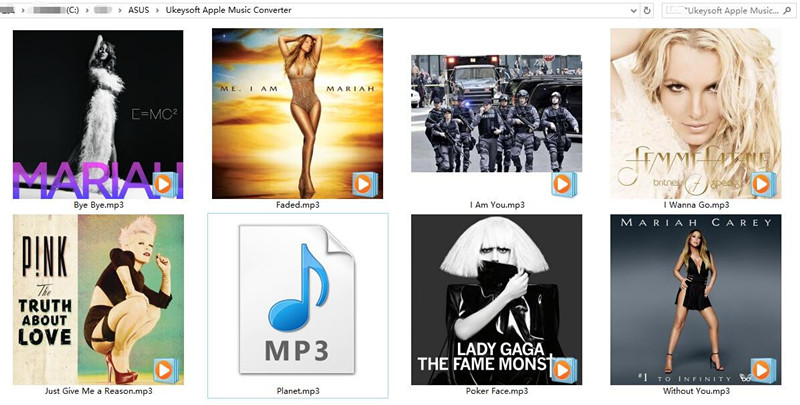
Only few minutes,the Apple Music Converter complete removed DRM from Apple Music and converted output format as free-DRM MP3 with 16X speed, so you will get DRM free Apple Music songs in .MP3 format by click “Open Output File” button to veiw them.

view mp3 files

Free download the Apple Music DRM Removal & Converter for Mac or Windows:

d_win d_mac
d_win d_mac

Well done! Now,you have successfully using this Apple Music DRM removal & converter software to convert Apple Music songs to DRM-free MP3 formats and enjoy them on any devices for free forever.What’s more,you can also use this Apple Music Converter program to remove DRM from iTunes videos/movies, Audible AA/AAX audiobooks and convert them as DRM-free MP3 files.

Related Articles:

Remove DRM and Convert Apple Music to MP3 for Android

How to Convert Apple Music M4P to MP3

How to Download Apple Music from iTunes

How to Play Apple Music on Galaxy S8/S7/S6

How to Transfer Music from iTunes to Android

How to Transfer Music to Samsung Galaxy

Transfer Music from iTunes Liberary to iPhone iPod

Remove Apple Music DRM

Unlock Apple Music DRM for Offline Playing on Any Devices

My girlfriend downloaded some favorite songs from iTunes on my iPhone. The Apple music is DRM protection. She asked me that is it possible to unlock the iTunes DRM and play the iTunes songs with MP3 on her Android device. Can anyone give me some advice? Thank you so much sincerely.

Apple Music users can choose from the world’s largest Apple music catalog directly to download any of the songs available on iPhone/iPad device. However, the tracks and playlists you downloaded from the Apple music will be DRM protected, meaning you can only enjoy the Apple music with authorized iTunes. You can’t transfer them to your Android device, iPod or other MP3 players. Maybe you may think that is it possible to bypass the DRM of iTunes music and play M4P iTunes music on any mobile device. To be honest, the answer is YES. You can remove Apple music DRM and convert Apple music to MP3 for free. What you need is a professional program calls Apple Music Converter.

Unlock iTunes DRM and Convert Apple Music to MP3

Apple Music ConverterApple Music DRM Removal is a professional M4P file converter, which is specialized in converting Apple M4P music to DRM – free MP3 and AC3/AIFF/FLAC/M4A. It can legally remove DRM from M4P music files without downloading it, then you can play the converted Apple music on any device for free, including Android devices, iPhone 7/6S/6/5S/5, iPad, iPod, Zune, PS4, MP3 player and more.

d_win d_mac

Pros:
-Remove DRM from iTunes M4P music to AC3, AIFF, FLAC ,M4A.
-Convert and burn Apple Music to CDs.
-Convert Audiobooks to M4A files.
-Easy-to-use with an intuitive and streamlined user interface.
-Available in Mac and Windows version.
-No extra hardware or virtual drive needed.

Bypass Tunes DRM and Play iTunes Songs on Any Devices

Step 1. Download and Run Apple Music Converter on Computer
Firstly, please download and run Apple Music Converter on the computer.

run apple music converter

Note: iTunes will be run automatically at the same time when you run Apple Music Converter on the computer.

Step 2. Select Apple Music to Convert
It will load all the Apple Music songs and playlists you have added to iTunes library on the interface of Apple Music Converter program, including iTunes songs, movies, TV shows, audiobooks, and more. Click the checkbox before the Apple Music songs you need to convert. You can also search the Apple Music songs you want to convert with the searchbox.

select apple music to convert

Step 3. Make Settings for Converted Apple Music
Click to set the data of the converted Apple music and a window will pop up for prompting to make the settings. You can set the converting speed (up to 16X) and the Apple music output format, and others.

Setting the Output Profile of Converted Apple Music:

select mp3 output profile

Setting Conversion Speed of Conveted Apple Music:
If you would like to change the conversion speed, then go to Options>>General.One the preferences windows to “Set Custom conversion speed for audio convert (1-16)” to adjust the conversion speed.

adjust conversion speed

Step 4. Convert M4P Apple Music to MP3
Simply click “Start Convert” button to begin to convert the selected Apple music to MP3 files. It will complete the conversion job in a few minutes.

convert apple music from m4p to mp3

You can explore the output files and folders by clicking “Open Output File” button to view the converted music file on the computer.

view converted mp3 apple music files

Step 5. Migrate the Converted Apple Music to Device
Last but not least, you could connect your device with a USB cable on the computer and then transfer all the converted Apple music to the device in one time. Only 5 steps, you have completed the Apple music conversion by yourself. Now just enjoy the music on your device without limitation.
Learn how to transfer music from computer to iPhone iPod iPad

d_win d_mac

Related Article:

How to Play M4P Apple Music on iOS Device

Remove DRM and Convert iTunes M4P Music to MP3 on Android

How to Convert M4P Apple Music to MP3 for Samsung Galaxy

Apple Music to MP3 Converter – Convert Apple Music M4P to MP3

Free Download Previous Purchases Music from iTunes to Computer

How to Transfer Music from PC to iOS Device

How to Transfer Music from PC to Android Device

How to Play Apple Music Songs on iPhone/iPad/iPod Touch Offline

[Summary]: Want to make Apple Music available offline on your iPhone, iPod and iPad for free even the Apple Music subscription service is canceled? Find a way to make Apple Music songs available offline?This aritcle teach you a best way to remove DRM protection from Apple music and convert M4P to DRM-free M4A and MP3 for playing on iOS devices,like iPhone X, iPhone 8, iPod Touch 4, iPod nano and iPad Pro/Air.

I downloaded some Apple music with M4P format, the music is protected by DRM. How to remove the DRM protection from Apple music and play it on my iOS device for free without limitations? Any music converter recommendations? Thanks.

Apple Music members can access millions of songs, curated radio and playlists, and music recommendations, all in the Apple Music app. Members can also access the Apple music across other iOS devices, as long as they’re signed in to Apple Music with the same Apple ID, and download music to listen to offline. Nowadays, most of people owns one or more than one mobile device to enjoy music, iPhone, iPad, Android device, or music/video player, etc,. However, it is time limitation that you own the Apple music, if you want to enjoy the music when it is times up, you must pay for it to continue. Are you imagine that getting Apple music for free legally and then packing to your iPhone/iPad/iPod, enjoy it without time limitation? So how to own the Apple music for free forever?

There are a lot of the kind of Apple music transfer software programs.This Apple Music Converter is the No.1 music converter you can try, which is good for converting Apple music from M4P to MP3 with its original data, then you can enjoy the converted Apple music on iPhone/iPad/iPod without limitations. Besides allowing you to convert Apple music to MP3 format with ease, it also supports to convert Apple Music to AIFF/FLAC/M4A. It is a wonderful converter program that will not let you down.

What’s more can Apple Music Converter do for you:
-Remove the limitation and keep Apple Music as offline local songs.
-Convert Audiobooks to M4A files.
-Convert and burn Apple Music to CDs.
-Playing Apple Music on any Windows/Mac computer and any media player devices such as iPhone, iPad, iPod, PSP, Zune, MP3 player, mobile phones, etc,.

How to Download Apple Music for Offline Listening on iOS Devices

Step 1. Download and Run Apple Music Converter on Computer
Firstof all, please download and run Apple Music Converter on the computer.

run apple music converter

Note: iTunes will be run automatically at the same time when you run Apple Music Converter on the computer.

Step 2. Choose Apple Music to Convert
It will load all the Apple Music songs and playlists you have added to iTunes library on the interface of Apple Music Converter program, including iTunes songs, movies, TV shows, audiobooks, and so on. Click the checkbox before the Apple Music songs you need to convert. You can also search the Apple Music songs you want to convert with the searchbox.

select apple music to convert

Step 3. Setting the MP3 Output Format for Converted Apple Music
Now you should setting the output format, customize profile, name format for the converted music. Apple Music converter supports to convert Apple Music M4P songs to several formats, including MP3, M4A, AC3, AAC, AIFF, AU, FLAC, M4R, MKA. Here we suggest you select the MP3 format to convert for iOS device. It provides 3 profile settings for each output format: Normal, High and Low with different Bitrate, SampleRate and Channels. You can also customize the values if you need.

select mp3 output format

Step 4. Convert M4P Apple Music to MP3 for iPhone/iPad/iPod
Simply click “Start Convert” button to start to convert the selected Apple music to MP3 files. It will complete the conversion job in a few minutes.

convert apple music from m4p to mp3

When the conversion is completed, clicking “Open Output File” to view the converted music file on the computer.

view converted mp3 apple music files

Step 5. Transfer the Converted Apple Music to iPhone/iPad/iPod
In this step, you could connect your iPhone/iPad/iPod with a USB cable and then transfer all the converted Apple music to the device in one time. You can also try to migrate the converted Apple music from computer to iOS device via iOS Manager. iOS Manager is good for transferring & managing files for iPhone/iPad/iPod safely on the computer.

export converted songs to ios device

d_win d_mac

Guide: How to Transfer Music from PC to iOS Device

More Tips You May Be Interested In

How to Play Apple Music on iPhone 7/6S/6 for Free

How to Play M4P Apple Music on iOS Device

How to Convert Apple Music M4P to free-DRM MP3

How to Convert iTunes M4P Music to MP3 for Android

How to Transfer Music from iTunes to iPhone

How to Manage iPhone on Computer

How to Import Videos to OnePlus 3T

My old Android phone is broken due to I slipped it to the floor when I was in bath last week, then I purchased a new OnePlus 3T phone for replace. However, the favorite still on the computer which I downloaded it from Youtube. How to import the videos from computer to my new device?

As life becomes more wonderful, people like to record their meaning moment with taking videos, or download videos from the Internet so as to enjoy it for entertainment. With the rapid development of Internet, new movie and videos are shown every day. People now used to download videos and save on mobile device for watching at anytime in anywhere. What if you want to transfer your list of favorite videos from computer to Android device efficiently? It seems not as easy as you think to transfer videos files from computer to Android directly. What you need to complete the videos transfer process is with the help of some professional programs, like Android Manager. Let’s see how it works.

Transfer Videos to OnePlus 3T Effortlessly

We especially recommended you the Android Manager tool. It is attractive by Android users for its user friendly interface. Android Manager is your best solution that lets you manage your Android device in one convenient place. With Android Manager, you are able to manager files on OnePlus 3T phone and other Android devices effortlessly, including videos, music, photos, contacts, SMS and apps. You could use this smart program to transfer videos between computer and OnePlus 3T freely. What’s more, Android Manager allows to transfer files between iTunes and Android, transfer files between mobile device and Android. What’s brands of Android are supported by Android Manager, such as, OnePlus, Motorola, Samsung, HTC, Lenovo, LG, Sony, ZTE, Huawei and more.

d_win d_mac

Kind Tips: If you seek a reliable YouTube to MP3 Converter, 4kFinder YouTube Music Downloader is the tool that allows you to download YouTube videos and music as MP3 or M4A files faster with better quality. Then, you can offline enjoy YouTube music on any MP3 player, iPhones, Android phones.

Part 1: How to Transfer Videos from Computer to OnePlus 3T

To begin with, please run Android Manager on the PC/Mac, then connect your OnePlus device to the computer. Your Android device will be detected and displayed in the primary window of program.

android manager main page

Step 1. Select Videos to Transfer
Select “Videos” tab. Once your media loads, click Add > Add File or Add Folder.

add videos from pc to oneplus

Step 2. Transfer Videos from Computer to OnePlus Phone
It will bring up your file browser window, from which you can select videos to import from your computer. All videos imported can be viewed with the built-in player.

You can simply Drag and Drop videos from computer to OnePlus.

d_win d_mac

Part 2: How to Transfer Videos from iTunes to OnePlus 3T

Firstly, please launch Android Manager on the PC/Mac and connect your OnePlus phone to the computer. Your Android phone will be detected and displayed in the primary window of program very soon.

Step 1.Select Transfer Mode
Simply click “Transfer iTunes Media to Device” on the main interface of program. Or find the “Transfer iTunes to Device” option under Toolbox & Transfer Tools section.

android manager mian page

Step 2.Select Media File to Transfer
Check options and start to copy videos from iTunes to OnePlus phone. All the iTunes files will be scanned and shown under different categories like music, movies, podcasts and others. By default, all the file types will be selected but to transfer only the “Movies” file, you can uncheck the others. Click “Transfer” to start videos transferring.

transfer itunes videos to oneplus

d_win d_mac

Related Article:

How to Transfer Music to OnePlus 3T

How to Restore Deleted Data from OnePlus 3T

How to Transfer Samsung Data to OnePlus 3T

How to Transfer iPhone Data to OnePlus 3T

How to Transfer Android Data to OnePlus 3T

How to Recover Deleted Photos from Android

How to Root Android on Computer with One Click

How to Manage Android on Computer

How to Stream Apple Music on Sony Phone

[Summary]:Want to listen to Apple Music on Sony phone?Looking for a way to transfer music from iTunes to Sony Xperia XZ Premium?Learn this guide to legally remove DRM from Apple Music songs and playlists and convert Apple Music files, audiobooks, or other downloaded music from iTunes or Apple Music to MP3,then transfer the Apple Music to Sony phone for playing offline.

I pay for a lots of iTunes music, but the songs are available for me only for a limit time. Is it possible to own the favorite songs forever for free and play it on my new Sony phone? I want to enjoy the music on my new device while I’m traveling.”

Many people like to using Sony smartphone like Sony Xperia XZ2, Xperia XZ2 Compact, Xperia™ XZ1, Xperia™ XZ1 Compact, Xperia™ XZ Premium, Xperia XA2, Xperia XA2 Ultra, Xperia L2, Xperia™ XZs, Xperia™ XA1 Plus, Xperia™ XA1, Sony Xperia™ XA1 Ultra and more.Increasing people will switch to Sony Xperia XZ Premium to enjoy its brilliant functions. However, some of them may encounter the same problem, especially for the Apple Music users: how to play Apple Music on Sony Xperia XZ Premium?

The Apple Music Format: M4P, Not MP3
Songs purchased from the Apple Store come with the M4P format. While both M4P and MP3 are digital audio files. However M4P music files give you a time limitation to own the music from Apple/iTunes. Moreover, not all MP3 player supports to the M4P music files, so if you want to play Apple music with MP3 format on Android devices, you need to convert the Apple songs to the MP3 format with the help of some professional tool. There are a lot of audio conversion programs that can perform this task, but since you’ve already pay for iTunes, you can using the program to convert songs from the iTunes Store to MP3 files directly and then own the songs for free forever.

Convert Apple Music Songs to MP3 via Apple Music Converter

iTunes music tracks are under DRM protection and can’t be played on other non-Apple devices. With the Apple Music Converter, you could convert Apple music to MP3 at 16X speed, cancel its subscription, and keep the music for free forever. After conversion, you are allowed to stream Apple music on Sony phone or other Android devices without time limitation. It allows you to convert Apple Music songs to MP3/AC3/AIFF/FLAC/M4A without downloading them. By the way, all Apple music will be converted with its original data.

d_win d_mac

Convert and Play Apple Music with MP3 for Sony Phone

Step 1. Download Apple Music Converter and Install It
Launch and run Apple Music Converter on PC and iTunes will be launched automatically.

launch apple music converter

Step 2. Select M4P Apple Music you want to Convert
Apple Music Converter will automatically scan and load all playlists and M4P songs from your iTunes library, including music, playlists, Audiobooks, M4P Audio, iTunes movies and TV shows. It’s no need to import M4P files on the program, just select the ones you need to convert to MP3 file and then click “Download” to load the selected Apple music from Apple.

select apple music to convert

Step 3. Make Settings for Converted Apple Music
Click to set the data of the converted Apple music and a window will pop up for prompting to make the settings. You can set the converting speed (up to 16X) and the Apple music output format, and others.

Setting the Output Profile of Converted Apple Music:

select mp3 output profile

Setting Conversion Speed of Conveted Apple Music:
If you would like to change the conversion speed, then go to Options>>General.One the preferences windows to “Set Custom conversion speed for audio convert (1-16)” to adjust the conversion speed.

adjust conversion speed

Step 4. Start the Apple Music Conversion
After all is done, simply click “Start Convert” button to start converting the selected Apple music from M4P to MP3.You can explore the output files and folders by clicking “Open Output File” button to view the converted music file on the computer.

convert apple music from m4p to mp3

view mp3 file

Download the Apple Music Convert for Mac or Apple Music Convert for Windows:

d_win d_mac

Step 5. Migrate Converted Music from Computer to Sony Phone
The last but not least, you could freely migrate the converted Apple music from computer to the Sony phone with several ways.

A: Transfer music from PC to Sony via USB cable(a traditional way).

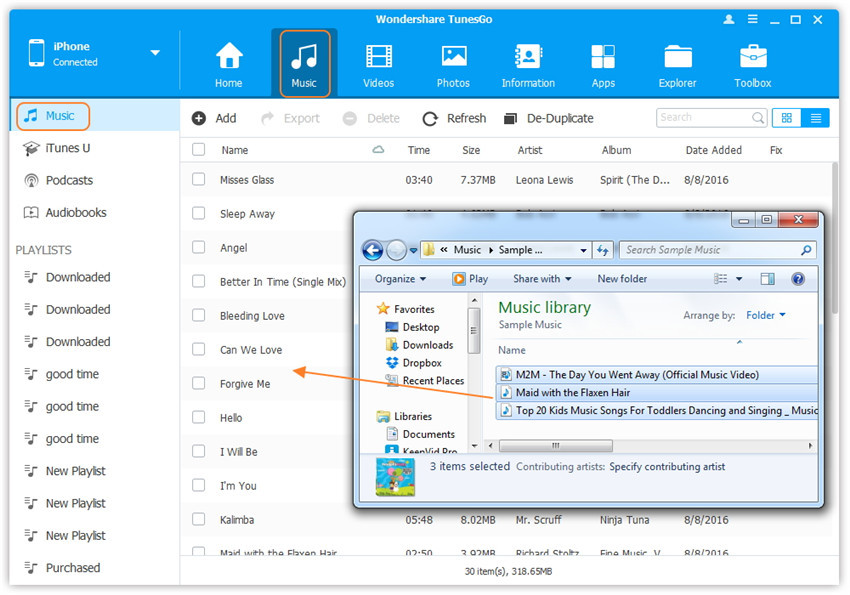
B: Transfer music from PC to Sony via Android Manager(a better way, safely and conveniently)

transfer music from pc to sony

More Useful Tutorial You May Be Interested In

How to Convert Apple Music M4P to MP3 for HTC

How to Convert Apple Music M4P to free-DRM MP3

How to Convert iTunes M4P Music to MP3 for Android

How to Convert M4P Apple Music to MP3 for Samsung Galaxy

How to Transfer Apple Music M4P Files to Huawei

How to Transfer Music from iTunes to Android

How to Transfer Music from Computer to Android 

How to Play Apple Music M4P on HTC

[Summary]:Want to listen to purchased Apple music on Android HTC phone for free forever?This article will teach you how to use Apple Music Converter to convert M4P to MP3 and play Apple music songs on HTC 10, HTC U11, HTC Desire 10 pro, HTC One M9/M8/A9/X9,etc.

I have downloaded some songs from Apple Music in M4P format. How can I convert M4P to MP3 and play Apple Music on my new HTC 10?

Apple Music is compatible with iPhone/iPad/iPod, and the Apple Watch. Have you ever thought of converting Apple Music to MP3 format so as to play them on Android devices? It has been nearly several years since the release of Apple Music and Apple Music is popular around the world. Many people love the new music steaming service. One of the most-complained issues is that Apple Music tracks are only playable on device with a current Apple Music subscription, which stops users from enjoying Apple Music on many other popular media devices, including MP3 player, and Android devices. If you are one of who want to enjoy the iTunes music on Android device without time limitation, you should read the passages following, and you will get the best answer on it.

Convert Apple Music from M4P to MP3

A good solution you can try is using Apple Music Converter to convert M4P to DRM-free MP3, then you can enjoy the Apple Music in MP3 format on your Android device,like HTC 10, HTC One M9, Samsung Galaxy S8/S7/S6/Note 8, Google Pixel XL, Nexus 6, Huawei P10/P9/M9, etc.What’s more,the Apple Music Converter is the best programs to remove iTunes music and Apple Music DRM protection and convert M4P files to MP3/AC3/AIFF/FLAC/M4A. After the conversion, you are allowed to enjoy the Apple music on any mobile device for free without time limitation. What’s more, this smart program enables to convert audiobooks to M4A files.

d_win d_mac

How to Convert M4P to MP3 with Apple Music Converter

Step 1. Download and Run Apple Music Converter on PC
To get started, please download and run Apple Music Converter on PC.

launch apple music converter

Note: iTunes will be launched automatically at the same time when you run Apple Music Converter on the PC.

Step 2. Select Favorite Music to Convert
The program will load all you Apple Music songs and playlists you have added to iTunes library on the interface of it, including iTunes songs, movies, TV shows, audiobooks, etc,. Click the checkbox before the Apple Music songs you need to convert. You can also search the Apple Music songs you want with the searchbox.

select apple music to convert

Step 3. Select MP3 Output Format for Converted Music
In this step you should set the output format, customize profile, name format for the converted music. Apple Music converter supports to convert Apple Music M4P files to several formats, including MP3, M4A, AC3, AAC, AIFF, AU, FLAC, M4R, MKA. It provides 3 profile settings for output format: Normal, High and Low with different Bitrate, SampleRate and Channels. You can also customize the values if you need.

select mp3 output profile

Setting the Output Profile of converted Music:

select mp3 output profile

Setting Conversion Speed:
If you would like to change the conversion speed, then go to Options>>General.One the preferences windows to “Set Custom conversion speed for audio convert (1-16)” to adjust the conversion speed.

adjust conversion speed

Step 4. Convert M4P Apple Music to MP3 for HTC
Simply click “Start Convert” button to start converting the selected Apple songs from M4P to MP3. It will load the selected songs and transfer them with MP3 format with a few seconds.

convert apple music from m4p to mp3

When the conversion is done, clicking on the “Open Output File” button to view the converted music file on the computer.

view mp3 file

Get the free trial version of Apple Music Convert for Mac/Windows:

d_win d_mac

Step 5. Transfer the Converted Apple Music to HTC an Enjoy it
In the last step, you could connect your HTC Android device via its USB cable and then transfer all the converted Apple music to your device. You could also migrate the converted Apple music from computer to HTC via Android Manager. Android Manager is famous for transferring & managing files for Android safely and freely on the computer.

transfer music from pc to htc

More Useful Tutorial You May Be Interested In

How to Convert Apple Music M4P to free-DRM MP3

How to Convert iTunes M4P Music to MP3 for Android

How to Convert M4P Apple Music to MP3 for Samsung Galaxy

How to Transfer Apple Music M4P Files to Huawei

How to Transfer Music from iTunes to Android

How to Transfer Music from Computer to Android

How to Play Apple Music on iPhone/iPod/iPad offline?

Apple Music is, to quote the company, “All the ways you love music. All in one place.” Apple Music is Apple’s massive music service, comprising a subscription music catalog, iTunes Music Library syncing across your devices, algorithmic radio, customized playlists, and more artist exclusives than you can shake a stick at. Most of iOS users like to purchase the Apple music on iTunes. But iTunes only give you a permit to own the iTunes music for a limit time. Apple Music also offers a massive recommendation and browsing area for its streaming catalog: As you listen to songs in the Music app, Apple collects data about your tastes and drops daily custom-curated playlists in the app for you to listen to, along with a weekly algorithmic “New Music” mix that suggests songs and artists you might like.>

Apple Music Converter enables to remove DRM from Apple music, convert Apple music from M4P to MP3 and play on iOS device. This program is a wonderful tool which helps to freely loads all your Apple Music tracks and playlists automatically then convert M4P music files to MP3. After converting Apple music to the compatible MP3 format, you can play Apple Music on all devices offline.

More Key Features of Apple Music Converter:
-Safely Remove DRM from Apple Music Streams with original data.
-Convert Apple Music from M4P format to DRM-free MP3, M4A, etc,.
-Convert Audiobooks to M4A files.
-Remove the limitation and keep Apple Music as offline local songs.
-Convert and burn Apple Music to CDs.
-Playing Apple Music on any Windows/Mac computer and any media player devices such as iPod, iPhone, iPad, PSP, Zune, MP3 player, mobile phones, etc,.

How to Play Apple Music with MP3 Files on iOS Device

Step 1. Download and Run Apple Music Converter on Computer
Firstly, please download and run Apple Music Converter on computer.

launch apple music converter

Note: iTunes will be run automatically at the same time when you run Apple Music Converter on the computer.

Step 2. Choose Apple Music to Convert
It will load all you Apple Music songs and playlists you have added to iTunes library on the interface of Apple Music Converter program, including iTunes songs, movies, TV shows, audiobooks, and more. Click the checkbox before the Apple Music songs you need to convert. You can also search the Apple Music songs you want to convert with the searchbox.

select apple music to convert

Step 3. Setting the MP3 Output Format for Converted Music
Now you should setting the output format, customize profile, name format for the converted music. Apple Music converter supports to convert Apple Music M4P songs to several formats, including MP3, M4A, AC3, AAC, AIFF, AU, FLAC, M4R, MKA. Here we suggest you select the MP3 format to convert for iOS device. It provides 3 profile settings for each output format: Normal, High and Low with different Bitrate, SampleRate and Channels. You can also customize the values if you need.

select mp3 output profile

Step 4. Convert M4P Apple Music to MP3 for iOS Device
In this step you just need to simply click “Start Convert” button to start converting the selected Apple music to MP3 files. It will finish the conversion job in a few minute.

convert apple music from m4p to mp3

When the conversion is completed, clicking on the “Open Output File” button to view the converted music file on the computer.

view converted mp3 apple music files

Step 5. Transfer the Converted Apple Music to iOS Device
In the last step, you could connect your iOS device with using USB cable and then transfer all the converted Apple music to iOS device in one time. You can also try to migrate the converted Apple music from computer to iOS device via iOS Manager. iOS Manager is used for transferring & managing files for iPhone/iPad/iPod safely on the computer.

Download the iOS Manager for Mac or Windows and import music from computer to the iPhone/iPod/iPad.

d_win d_mac

export converted songs to iphone

A complete guide: How to Transfer Music from PC to iOS Device

More Tips You May Be Interested In

How to Play Apple Music on iPhone 7/6S/6 for Free

How to Free Download Previous Purchases Music from iTunes to Computer

How to Convert Apple Music M4P to free-DRM MP3

How to Convert iTunes M4P Music to MP3 for Android

How to Convert M4P Apple Music to MP3 for Samsung Galaxy

How to Transfer Music from iTunes to iPhone

How to Manage iPhone on Computer