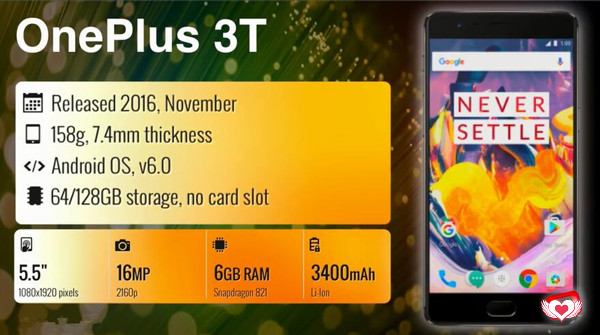
OnePlus 3T, released in November, 2016, was the second big Android handset this year from the Chinese company. Yes, it’s an upgrade of the OnePlus 3, which was released 5 month earlier this year. The 5.5-inches phone deliver 1920×1080 screen resolution, 8-megapixel with front camera and 16-megapixel with gear camera; runs on Android 6.0 Marshmallow + Oxygen OS and Snapdragon 820 processor, 6GB memory.
In order to update to the Android system and manage data on Android more effectively and conveniently, it’s a common case that people switch from iPhone to Android phone. So when you’re planning to transfer data from iPhone to Android, you must need to transfer data between your old iPhone and the new Android. But due to the different OS system between iPhone and Android, it’s not an easy job to directly switch data among them. Here is the guide for reference to transfer data from iPhone to OnePlus 3T with one click.
Switch iPhone Data to OnePlus 3T
Phone Transfer is a one-click program that lets you transfer contacts, text messages, photos, videos, calendars, music, apps between iPhone and OnePlus 3T. Phone Transfer works well on transferring data between two mobile devices even though it run on different OS systems. Moreover, Phone Transfer enables to backup data for mobile device on the computer safely, restore data for mobile device on the computer completely. All Android devices are supported by Phone Transfer, like OnePlus, Lenovo, HTC, Sony, Motorola, ZTE, Samsung, and so on.
How to Copy iPhone Data to OnePlus 3T
Step 1. Run Phone Transfer Tool on the Computer
Run Phone Transfer on your Windows PC or Mac. In its homepage, choose the “Phone to Phone Transfer” mode and click “Start“.
Step 2. Connect iPhone and OnePlus Device to Computer
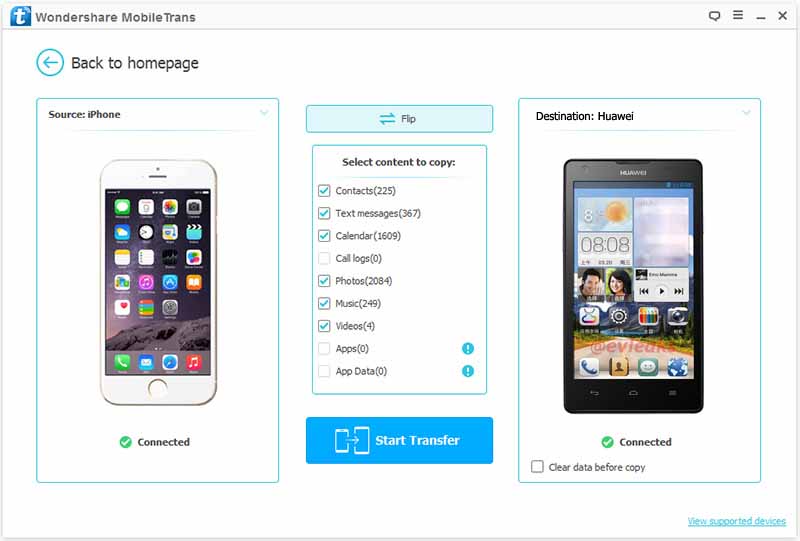
Connect your iPhone and Android device to the computer at same time with USB Cables. Two devices will be soon detected and shown in the window below. iPhone as the source device should be on the left, OnePlus as the target device should be on the right.
Step 3. Start Data Transfer from iPhone to OnePlus
Scan the supported files to ensure what you’re going to transfer. Click “Start Transfer” after selecting file(s) to transfer from iPhone to OnePlus. If your have useless files on your Android device, you can check “Clear data before copy” to wipe files on your target device and release more space to save the transferred data.
OnePlus has also been releasing Android 7.0 Nougat to its OnePlus 3T phones over the past few weeks. OnePlus 3T phone is one of the No.6 popular phone in 2017. OnePlus 3T long-term review – A side of Nougat and new Midnight Black edition. OnePlus has released a matte-black version of the excellent 3T. Like the iPhone 7 before it, dark black is probably the perfect color for a phone and the new 3T looks fab. It’s only available in limited amounts, and in 128GB varieties, but it’s still an excellent value phone.
In result, people update their Android phones from time to time in order to get the new functions of Android. And the Android users usually want to keep the data on the old Android phone intact and transfer them to the new Android. Sometimes you might be faced with some troubles especially in times when you are in a hurry and in need of transferring data from one device to another for example transfer data from Android to the OnePlus 3T. This article is teaching you how to switch data between Android and another Android with a few clicks. Here we will take OnePlus for an example.
Transfer Data from Android to OnePlus 3T Directly
Thanks to Phone Transfer, you can easily switch data from Android to OnePlus 3T directly. It is capable of transferring contents between iOS, Android, and Nokia Symbian devices. As to transfer data between two mobile devices, contacts, messages, photos, call logs, calendars, videos, music, applications are supported. This software program is also used to backup & restore files on mobile device safely. All brands of Android are applicable to the Phone Transfer, including OnePlus, Samsung, Motorola, Huawei, Lenovo, LG, Sony, ZTE, etc,.
How to Switch Android Data to OnePlus 3T
Step 1. Install and Run the Phone Transfer
Install and run Phone Transfer on your computer. In the main interface click the “Phone to Phone Transfer” tab.
Step 2. Connect Two Android Devices to Computer
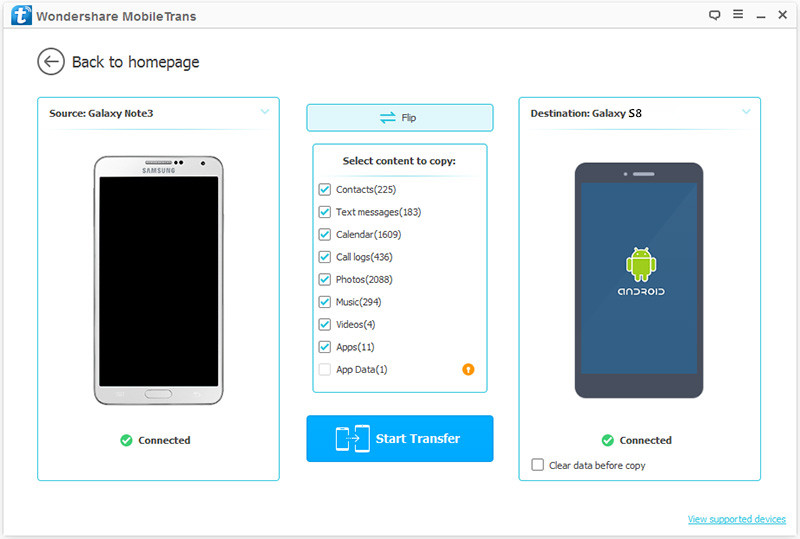
Connect the 2 devices to your computer and wait for the devices to be detected by the program. Once they are detected, a window will show your two phones with the source phone and target phone information as below image. Android should be on the left position as the source phone and the OnePlus should be on the right position as the target phone. You can click “Flip” to change their position if you need.
Step 3. Transfer Android Data to OnePlus in 1 click
Now You can choose from the box in the middle which file(s) you would like to transfer from the source device to the destination device. You can just check on the file(s) which you want to be transferred and click the “Start Transfer” button to start transferring data.
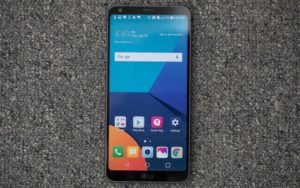
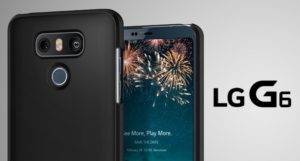
LG’S decision to adopt a modular design for its flagship last year was one of the most exciting developments in the smartphone scene but it didn’t quite catch on. Fast forward a year later and the South Korean electronics giant has gone back to basics with its latest flagship phone, the G6. It’s a sleek smartphone with sturdy Gorilla Glass on the front and rear and a smooth aluminium frame that is a pleasure to hold onto as our daily companion.
Though Samsung is the most popular Android brands around the world nowadays, it is not surprise that a few of Android brands is become more and more attractive to people, for example LG. LG G6 phone is one of the top 10 popular phone in 2017. And once you a new LG Android phone, you probably need to share data with your new device from the old one. This article is showing you how to transfer data from Samsung to LG G6 directly with only three steps.
Phone Transfer- Switch Samsung Data to LG G6 with One Click
Compared to the lots of phone transfer apps, a professional tool is recommended – Phone Transfer. It is a one-click solution which can help you in managing Android transfer completely. It’s certainly helps to transfer data from Samsung to LG G6 directly. With it, you can transfer contacts, text messages, photos, call logs, calendars, videos, music and apps between any Android devices. It is compatible with all brands of Android, including LG, Samsung, HTC, Sony, Lenovo, Motorola, ZTE, Huawei, Xiaomi, etc,.
How to Switch Samsung Data to LG G6
Step 1. Connect Samsung and LG G6 to Computer and Run Phone Transfer
Connect your Samsung phone and LG G6 to the computer with USB cables. (You can also connect them with WiFi if your computer permits.) Then, select the “Phone to Phone Transfer” mode.
Step 2. Select the Content to Transfer to LG G6
Two devices would be displayed on the middle of the next window. Please ensure that LG G6 was in the right (Target Device) panel. If not, clicking on “Flip” button to switch the device positions. Check the contents to transfer from Samsung phone to LG G6 after Phone Transfer finished loading data.
Step 3. Transfer Samsung Data to LG G6
You can transfer Contacts, Call logs, Text messages, Photos, Video, Music, Calendars, apps from Samsung to LG G6. After selecting your content, press “Start Transfer” button and wait till it completed.
“I heard that LG G6 phone is one of the top 10 popular phone in 2017. I’m moving off iOS to Android with LG G6. Does anyone knows the best ways to transfer stuff (contacts,photos,SMS) from iPhone to LG G6?”
Here comes the difficulty. Many people have no idea of transferring data between iOS device an Android device due to the different OS system. Actually, it’s really not a big deal with transferring data between iPhone and Android, for example LG G6. Normally, people will backup data from iPhone on the computer, then transfer the backed up data to new Android. But it seems so complicated, right? All in all, you have to find a way to help you transfer contents between iPhone and LG phone directly.
Transfer iPhone Data to LG G6 Directly
Here Phone Transfer comes for you. Phone Transfer empowers users to migrate iPhone data to LG G6 phone with a convenient way. I believe it can be one of the easiest ways among all kinds of data transfer methods. In addition to the speedy transfer, the program can copy and switch several kinds of data among iOS device, Android device, Symbian device and Blackberry device, including contacts, SMS, photos, videos, call logs, music, calendars, apps. Phone Transfer works on all models of iPhone and all brands of Android phones, like iPhone 7/6/5; Samsung, HTC, LG, Sony, Motorola, ZTE, Huawei, Xiaomi.
How to Switch iPhone Data to LG G6 Directly
Step 1. Run Program and Connect iPhone and LG G6 to PC
Run Phone Transfer on your computer and select “Phone to Phone Transfer” mode. Connect your old iPhone and LG G6 to the computer. Trust your computer on your iPhone. Then enable USB debugging on LG. They will be detected by the program immediately.
Note: Ensure that iTunes have installed on the computer.
Step 2. Select File Types to Transfer
When your devices are connected and detected, the program will scan files in the iPhone. When you get options of file types, you can choose a specific file types to transfer from iPhone to LG G6. Select the box that is followed the files name, for example “Contacts“.
Step 3. Transfer iPhone Data to LG G6
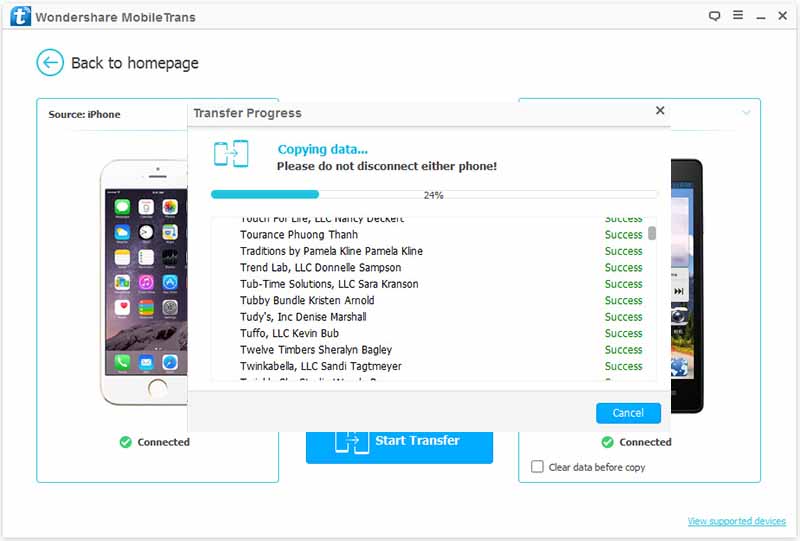
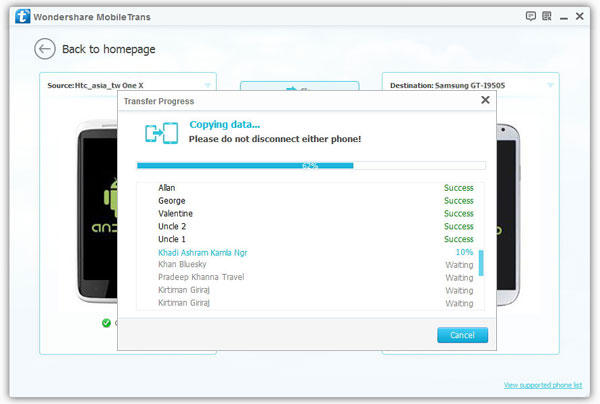
Click the button “Start Transfer” in the middle pane. Phone Transfer will start transferring data from iPhone to the target LG G6. Wait for a few minutes. The process is quite fast itself but it depends on the data on the source phone.
When all the items are copied, click “OK” and finish the process. The program has successfully moved all selected data from iPhone to LG G6. Check your LG phone.
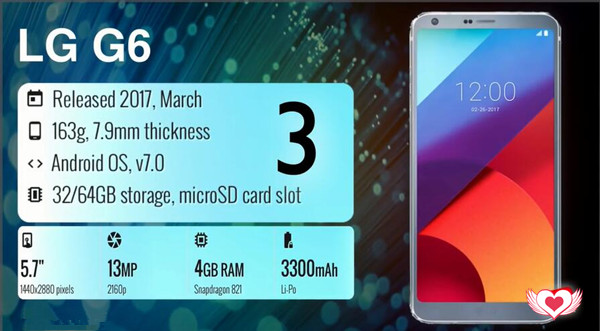
LG G6 was announced at 2017, March. LG G6 is the top 3 best smartphones of 2017 according to the report. Powered by a non-removable Li-Ion 3300 mAh battery, the smartphone runs Android V7.0. Many users owned LG G6 may like this smartphone very much. The smartphone has a very large touchscreen display of 5.7 inches with the resolution of 1440 x 2880 pixels. The smartphone packs with 32/64 GB of internal storage space that can be extended to 256 GB.
Nowadays people like to change their mobile phone all the time, especially while the new models of phone is releasing. And there are always so many powerful and fashionable released Android smartphone for you to have a choice, such as LG G6. However, when you switched to the new Android from old phone, you may need to manage and transfer data between two devices. Is it possible to transferring all data in batch just with one click? It may sound unbelievable, but it is the truth.
Switch Android Data to LG G6 Directly
Phone Transfer is designed to transfer data cross the same or different platforms, including Android OS system, iOS system, Symbian system, Blackberry system. With Phone Transfer, you are allow to switch data from Android to LG G6 directly. The transferable data insist of contacts, SMS, photos, videos, call logs, music, calendars, apps. In addition, Phone Transfer allows to backup & restore data for mobile device on computer safely. Phone Transfer works well for all Android brands devices, like LG G6, Samsung Galaxy S8/S7/S6, Huawei P10/P9, HTC, Lenovo, Sony.
How to Copy Android Data to LG G6
Step 1. Install the Program and Connect Devices to the Computer
Before anything else, download the Phone Transfer software on your computer, and then and install it. Once done, launch it to get the primary window.
The phone transfer, data erasing and data backup & data restore are available features in this software. Obviously click “Phone to Phone Transfer” on the primary window of software.
Step 2. Select the Transfer Data Items
In few seconds, the software will display details and image of the smartphone. Now, set your source and aim device through “Flip” button. Once connected, your window should look like this:
Considerations: The labels of your devices will be displayed as “Source” and “Destination”. The Source is Android, while the destination is LG phone. But if you wish to change the places of your two devices, you may click the “Flip” which is a blue button.
As you can see, there is different files are available. These data listed in the middle, such as photos, contacts, messages, and etc, can be transferred. What you need to do is to mark the data for transferring.
Step 3. Transfer Data from Android to LG G6
Once marked, click the “Start Transfer” button, and then click the “OK” button once completed.
“I bought a new Android phone yesterday, now I need to root this new device for more extra features. Is it possible to root it on the computer on my own?”
Do you want to unlimited control over your phone? Android rooting opens up a world of possibility. With a rooted phone, you can remove default software on the rooted device, speed up your Android, and customize the element of your phone software’s appearance. In order to get more access on your Android, finally you are decide to root your Android, but get stuck to selecting a right one from lots of Android root tools? This guide will walk you through the necessary steps to root Android on the computer without data loss.
Root Android Phone with One Click
Android Toollkit – Android Root is the best Android root tool in the industry with everything just simplified. All you need to do is to connect your Android, find the “Android Root” feature and click it. The advanced Android Root helps to root your Android device on the computer with only one click, without any data loss. It’s compatible with all Android phones and tablets produced by Samsung, HTC, Sony, Motorola, LG, Huawei, Acer, Google and more. The two versions are available: Android Root for PC and Android Root for Mac can help to root your Android on computer safely.
How to Root Android on Computer without Data Loss
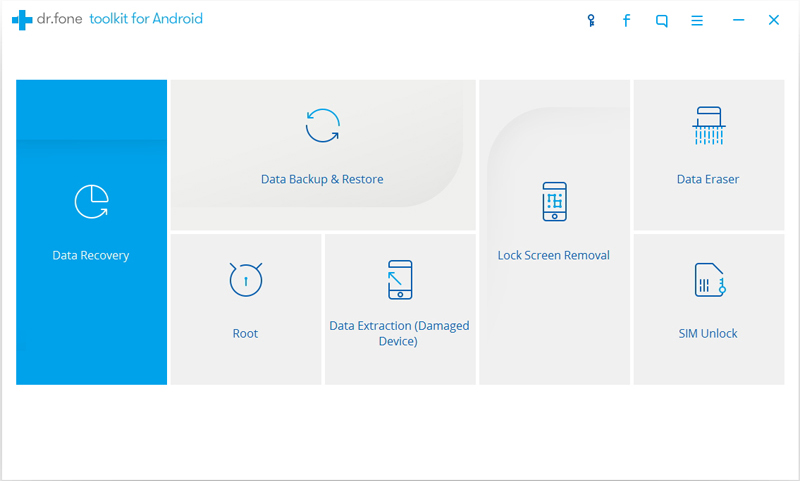
To get started, download and run Android Root on your computer, then click on “More Tools” in the main page of program.Select “Root” mode on it.
Step 1.Connect Android to the computer
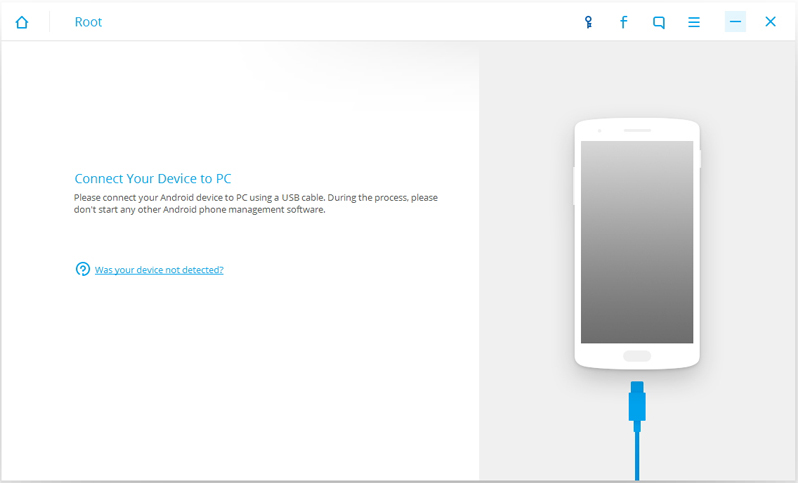
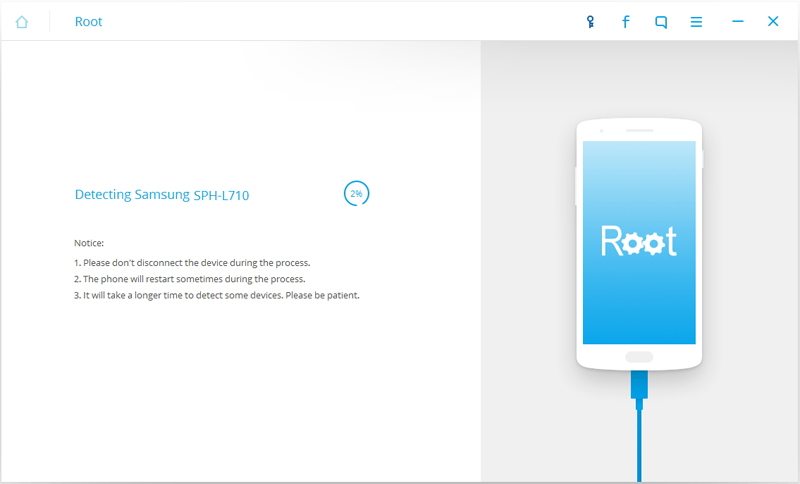
Connect Android device to the computer with an USB cable.Make sure you have enabled USB Debugging mode on your device.Then Android Root will automatically detect your device.
When your Android is detected successfully,Android Root will find a proper solution to root your phone.Click on “Start” to go on.
Note:
One.Please don’t disconnect the device during the whole process.
Two.The phone will restart sometimes when detecting.
Three.It may cost you a little time to detect your device.Please be patient.
Step 2.Root Android with One Click
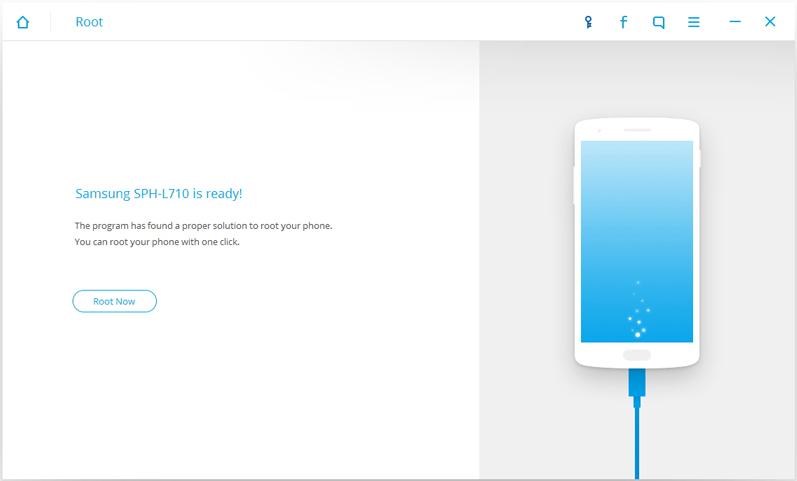
It will take you a few minutes for the program to detect the device.Then it will be ready for you to root your device.Just click on “Root Now” to root your Android device with one click.
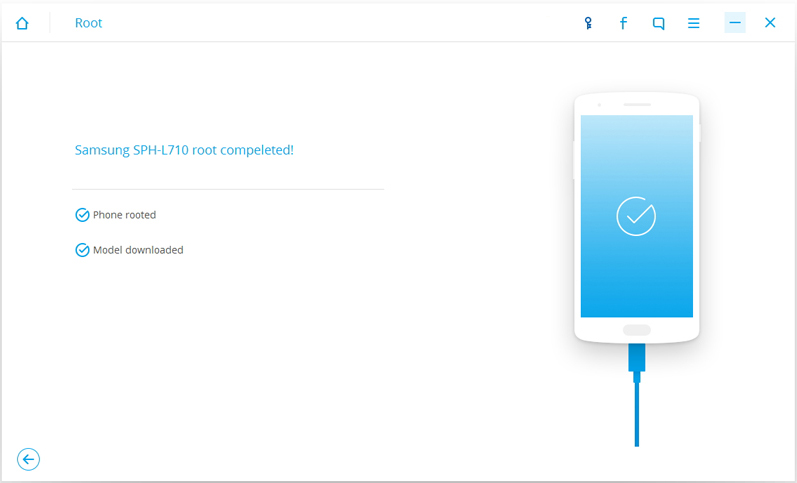
During the rooting process,the phone will pop up a message to ask whether you would like to root the phone.Tap on “Confirm” to continue the rooting process.You phone will be finish rooting without data loss in just a few minutes.
“My old iPhone was stolen, fortunately I backed up contacts and other data on my computer. Now I want to import the contacts to my new iPhone 7. How? Is it possible to restore the contacts to my device without iTunes?”
Keep contact information backup for mobile device to ensure you can access to phone numbers, emails and addresses whenever you need them. If you saved the contact on the computer in CSV or VCF format, you can transfer them to your iPhone after losing contacts data, for example, contacts on iPhone disappeared due to iOS upgrade, iOS jailbreak, mistaken deletion or other purposes. However, when you have a contact list on the computer, you may feel confused of how to import it to your iPhone, right? This article is going to show you the best ways to transfer contacts from computer to iPhone within a few clicks.
Sync Contacts to iPhone 8/7/6S/6 without iTunes
In this case, you can reply on iOS Transfer, which is a terrific data manager for iPhone, iPad and iPod. iOS Transfer enables to import contacts from computer to iPhone without iTunes. In addition, iOS Manager can help to transfer & manage several types of files for iOS device, like contacts, SMS, videos, music, photos, apps. iOS Transfer supports to switch files between iOS device and computer, switch files between iOS device and iTunes, switch files between iOS device and Android device.
The key features about managing iPhone contacts:
-Import contacts from computer to iPhone in batches.
-Export iPhone contacts to computer and save as vCard file(s) or a CSV file.
-Sync iPhone contacts to Outlook, Windows Address Book & Windows Live Mail.
-Add, edit iPhone contacts, and merge duplicate ones on the computer.
-Manage contacts in the phone memory, iCloud, Yahoo!, Hotmail, etc,. easily.
Part 1: How to Import Contacts from Computer to iPhone
Import CSV / VCF file to iPhone
If you haven’t sync iPhone contacts with Gmail, the iOS Transfer is a good choice for you. It empowers you to import contacts from a single or multiple VCF file(s), a CSV file, Outlook, Windows Live Mail and Windows Address Book to iPhone effortlessly.
Step 1. Run Program and Connect iPhone
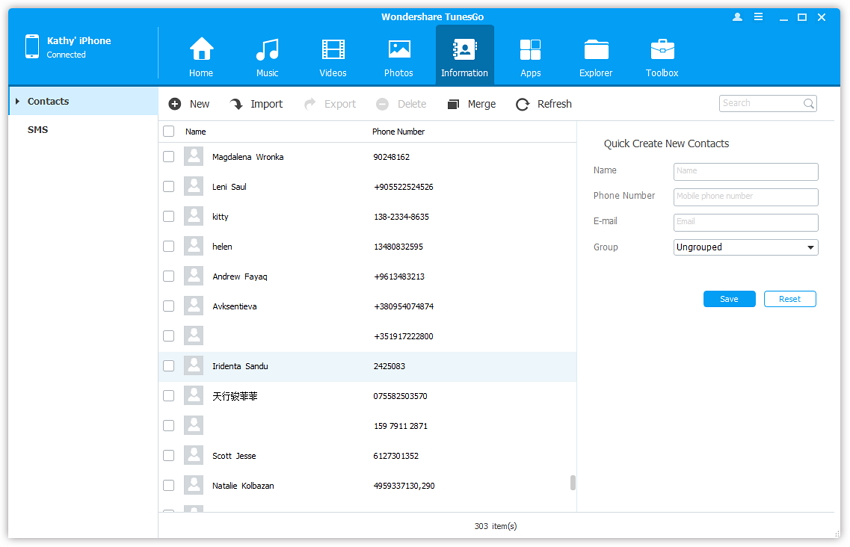
To get started, install and run iOS Transfer on your computer. Connect your iPhone with the computer via the USB cable. This tool will instantly detect your iPhone and then display its information in the left-side column of the primary window.
Step 2. Import Contacts from Computer to iPhone
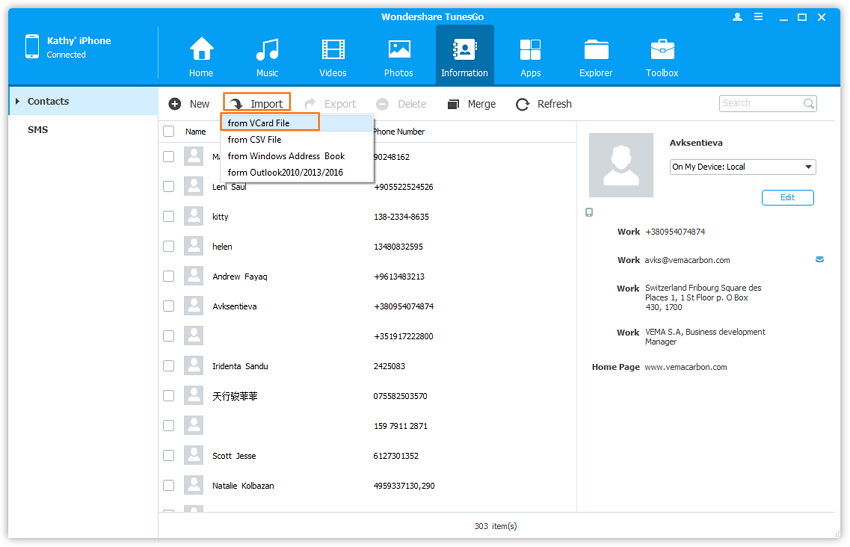
Click Contacts in the left-side column to bring up the contact management window. Click Import. In the drop-down list, select from which you decide to import contacts. For example, you can choose from vCard file. When the small file browser window appears, chooses your wanted VCF file(s), CSV file. Then, import contacts from computer to iPhone.
Part 2: How to Export Contacts from iPhone to Computer
Step 1. Run Program and Connect iPhone
To get started, install and run iOS Transfer on your computer. Connect your iPhone with the computer via the USB cable. This tool will instantly detect your iPhone and then display its information in the left-side column of the primary window.
Step 2. Export iPhone Contacts to Computer
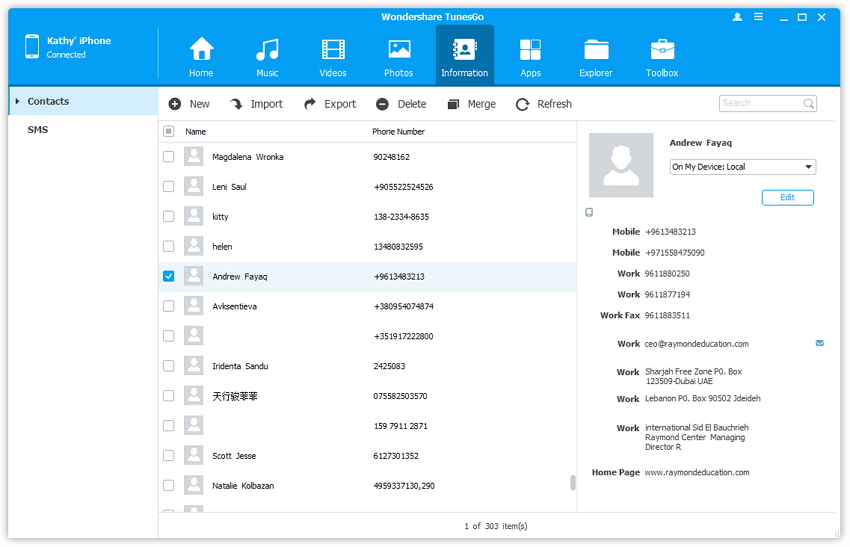
Click Information. This brings up all contact categories. Select one category, like On My iDevice or iCloud. Then, contacts in the category show up on the right.
Choose your wanted contacts and click Export. A drop-down list pops up. To save iPhone contacts to computer, you can choose or to CSV File or others. Then, browse your computer to find a location to save the exported contacts.
Note: With this iOS Transfer tool, you can also export iPhone contacts to Outlook Express, Outlook 2003/2007/2010/2013, Windows Address Book and Windows Live Mail.
Summary: The 10 top smartphones we’ve tested,all the best smartphone are running Android and iOS operating system,these are 10 of the best smartphones available now on the market,and the best smartphone right now is the Samsung Galaxy S8/S8 Plus,others top smartphones are iPhone 7/7 Plus, LG G6, Google Pixel/Pixel XL, Huawei P10 Plus, OnePlus 3T, Sony Xpearia XZ, HTC 10, Moto Z and Lenovo P2.
Smart phones are our necessary equipment, in daily life we are inseparable from the phone, some people say we can not have a girlfriend, but we can not no mobile phone, regardless of working, entertainment, traveling, shopping,etc.Some people spend more time on the phone than spending time in love,are you so?Ha ha!!So, what kind of smartphone to buy is the most suitable for yourself? What factors do we consider buying mobile phones? Price, Specifications, Features, Comparison, Chipset, OS, MEMORY, BATTERY, CPU, Camera ….
iOS & Android Manager – Transfer and Backup Contacts, Photos, Music, SMS, and more on your iOS & Android Devices.
Phone Transfer – Transfer Transfer Data From iPhone, Android, Windows Phone, Symbian etc.
What are the main considerations for buying a mobile phone?
1. The processor, the heart of a cell phone, a powerful processor over everything, the CPU determines the speed, the GPU determines the image.
2. System is the backbone of the phone, now the most common system is the Android OS, Apple is their own iOS system, and the Nokia use Microsoft’s WP system now.
3. Screen resolution, material, etc., a large screen phone is not very high resolution is not enough.
3. ROM refers to the memory, RAM is shipped, the size of the indirect determination of the speed.
4. Camera, millions of pixels and the like believe you will see, there are some key technology, the stack is better than the back.
Of course,the price is the most important consideration,it is not the more expensive phone is the best, each brand model of the phone has its advantages and disadvantages.Let’s show you the 10 best smartphones of 2017 so far.
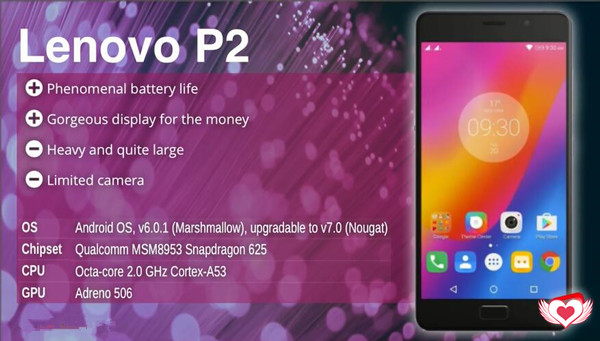
Pros:Phenomenal battery life
Gorgeous display for the money
Cons:Heavy and quite large,limited camera
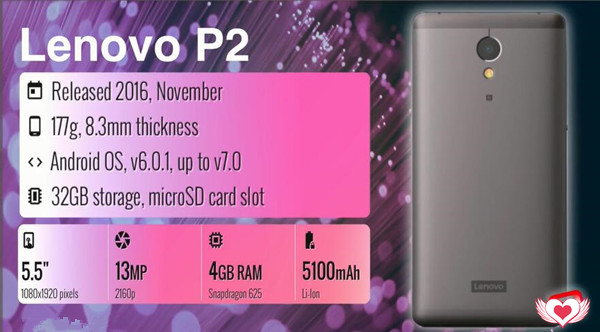
The P2 is Lenovo’s biggest phone launch to date in the UK that doesn’t feature the Moto branding. The P2 brings something unique to the table in the form of a huge 5,100mAh battery, making it one of the most impressive phones we’ve seen in the past year. A fingerprint reader sits below the screen, a volume rocker and power button on the right edge, while the left treats you to a dual SIM slot and an intriguing battery saving switch.
Top 9- Moto Z
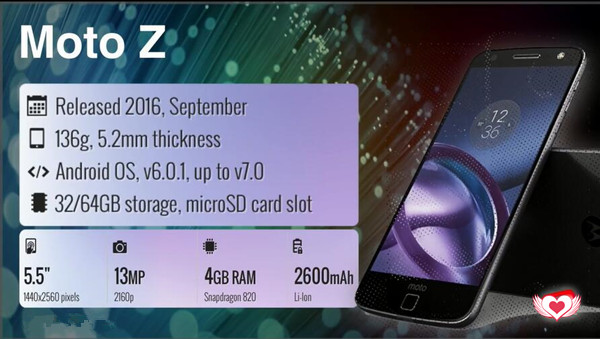
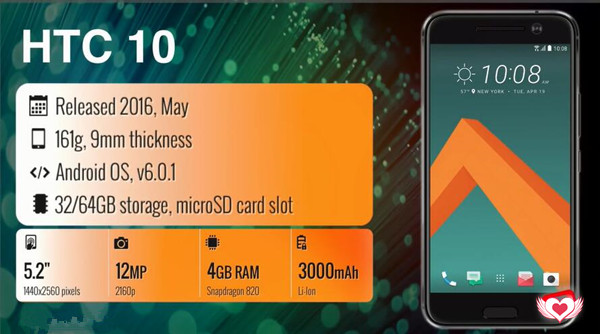
Announced:2016, September BODY:136g, 5.2mm thickness OS:Android OS,v 6.0.1, up to v7.0 MEMORY:32/64GB storage, microSD card slot
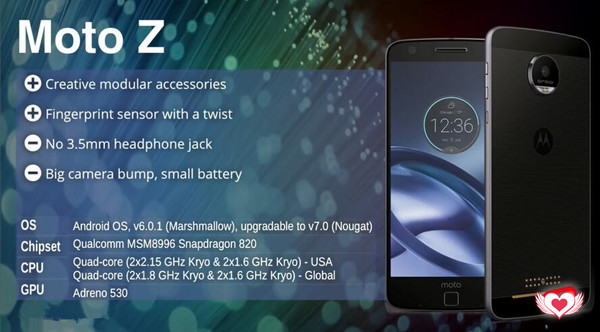
Pros:Creative modular accessories
Fingerprint sensor with a twist
Cons:No 3.5mm headphone jack
Big camera bump, small battery
Last year’s Moto Z was an alright phone, but priced a little high considering its reliance on expensive add-on Mods. The Moto Z is a fast phone by today’s standards, but the battery life is a bit short. The Hasselblad Mod isn’t the most impressive camera I’ve seen, but it’s great for outdoor photography thanks to its 10x optical zoom. That’s real optical zoom, with moving lenses and everything.
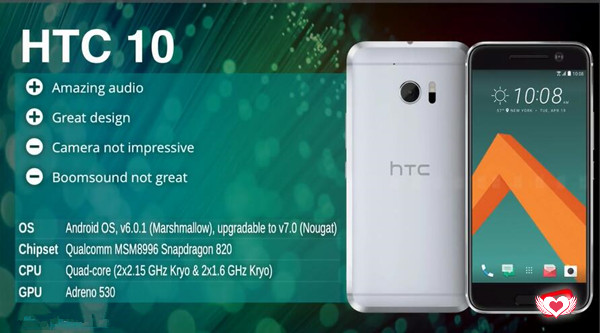
Pros:Amazing audio
Great design Cons:Camera not impressive
Boomsound not great
HTC 10. It’s more of what you’re looking for in a flagship phone. Unparalleled performance. Superb 24-bit Hi-Res sound. The world’s first Optical Image Stabilization in both front and back cameras. And one of the highest smartphone camera rankings ever from DxOMark. All in a beautifully crafted metal unibody. Meet HTC 10. You get unprecedented control. Off the chart performance. And innovations like the world’s first dual OIS for pro level photos front and back, as well as end-to-end 24-bit Hi-Res sound.
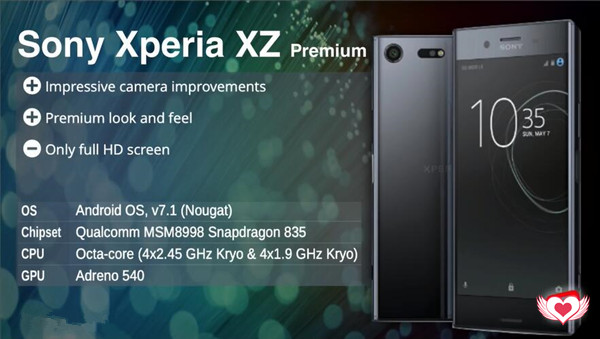
Pros:Impressive camera improvements
Premium look and feel Cons:Only full HD screen
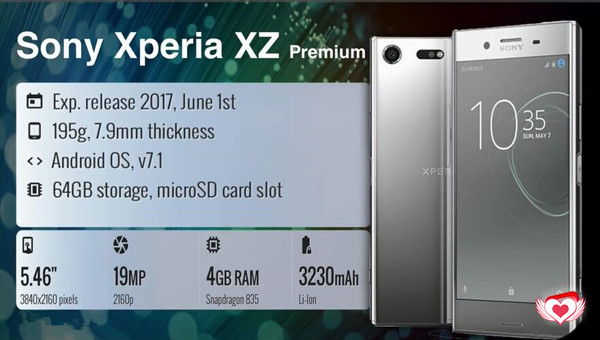
Sony Xperia XZ Premium comes with all the top specifications. Like Sony’s previous flagship, the Z5 Premium, there’s a 5.5-inch screen with 4K resolution and HDR (with a caveat, mind), and a Snapdragon 835 processor that can give rival handsets such as the Samsung Galaxy S8, HTC U11 and LG G6 a run for their money. But where Sony really wants to stand out is with its camera. The headline feature is its 960fps slow-motion capabilities for dramatic videos. This by far eclipses the slow-motion available on other handsets, which typically tops out at 240fps.
Top 6- OnePlus 3T
Announced:2016, November BODY:158g, 7.4mm thickness OS:Android OS,v 6.0 MEMORY:64/128GB storage, no card slot
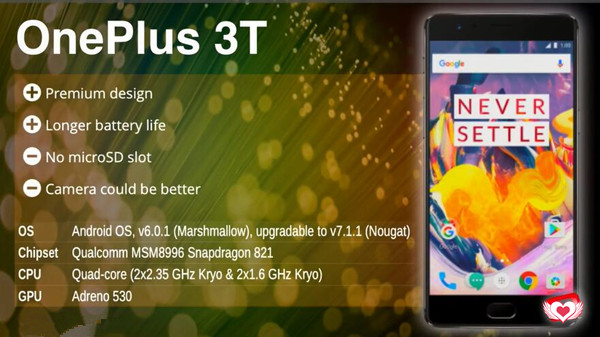
Pros:Premium design
Longer battery life Cons:No microSD slot
Camera could be better
The OnePlus 3T delivers the best user experience, thanks to the latest hardware upgrades and carefully tested software enhancements. It was developed with the best care, craftsmanship. Lightning-fast shutter speed, snappy autofocus, and intelligent software combine to create unmatched smartphone camera experience. The OnePlus 3T features the most refined version of OxygenOS yet. It makes the most of Android’s core functionalities while adding a slew of customization options.
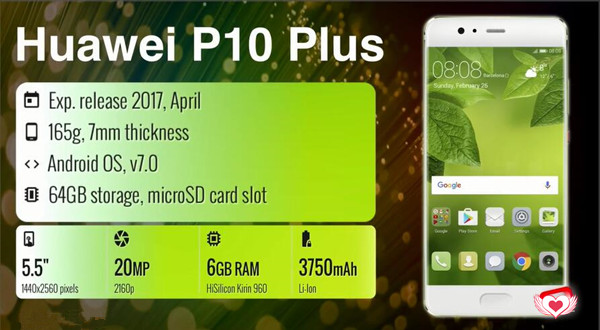
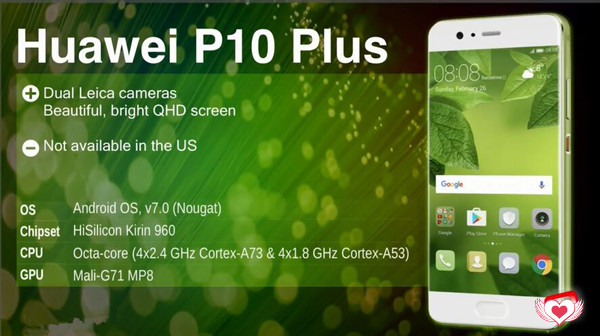
The Huawei P10 Plus is everything the P10 has on offer and more. With a giant, and powerful, Quad HD display, you’ll be able to see more than ever. The devcie is a dual SIM (GSM and GSM) smartphone that accepts Nano-SIM and Nano-SIM. Connectivity options include Wi-Fi, GPS, Bluetooth, USB OTG, 3G and 4G. Sensors on the phone include Compass Magnetometer, Proximity sensor, Accelerometer, Ambient light sensor and Gyroscope.
Pros: Great Camera
Steamlined Android Stock Software
Google Assistant
Cons: More Expensive that Nexus phone
No stereo speakers
No waterproof
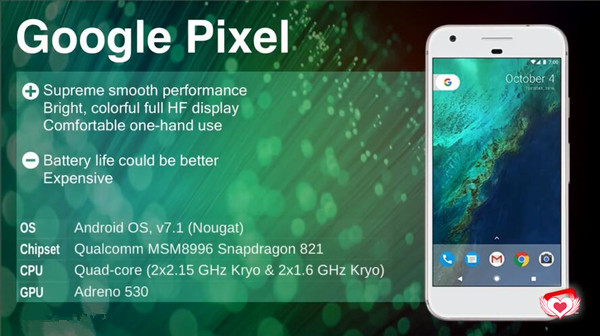
Pixel XL is a larger version of Google’s Pixel smartphone. It boasts a 5.5-inch Quad HD display, 12.3MP camera, which is great in low-light situations, and for the first time, Google Assistant.
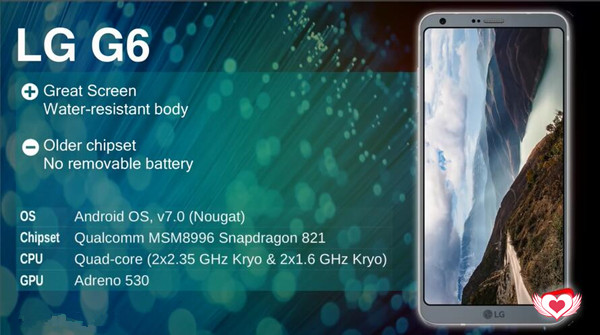
The G6 is the company’s first dust- and water-resistant flagship. It’s rated IP68, which means you can dunk it in up to a meter of water (about 3 feet) for up to 30 minutes. And the phone is a single SIM (GSM) smartphone that accepts a Nano-SIM. Connectivity options include Wi-Fi, GPS, Bluetooth, NFC, USB OTG, 3G and 4G. Sensors on the phone include Compass Magnetometer, Proximity sensor, Accelerometer, Ambient light sensor and Gyroscope.
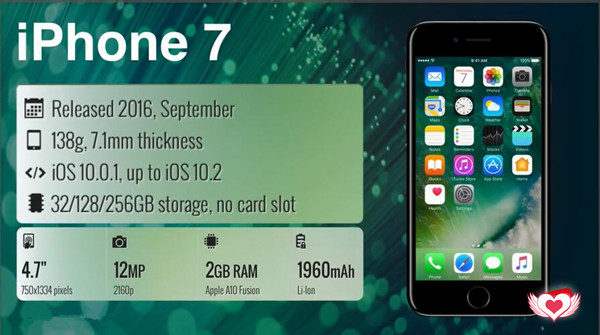
Top 2 – iPhone 7
Announced: Released 2016, September BODY: 138g, 7.1mm thickness OS: iOS 10.0.1, up to iOS 10.2 MEMORY: 32/128/256GB storage, no card slot
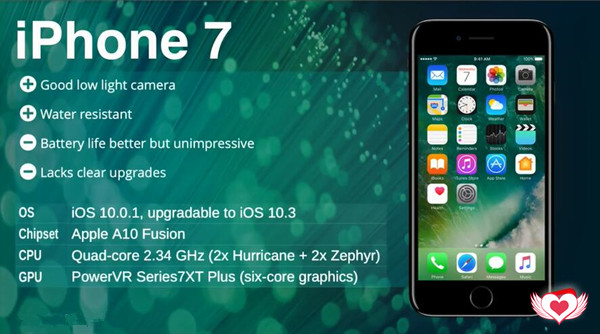
Cons: Battery life better but unimpressive
Lacks clear upgrades
Compared to an aging iPhone 6 or 5S iPhone 7 is a big jump forward. There’s just one thing missing. The iPhone 7 still give you more: more speed, better camera, better screens, faster LTE, more battery life, more water-resistant. The iPhone 7 removes the standard 3.5mm audio jack in favor of audio over the Bluetooth protocol and its proprietary Lightning port. And it has a dust/water resistance rating of IP67.
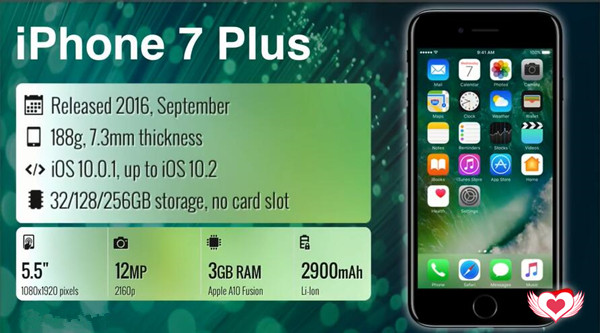
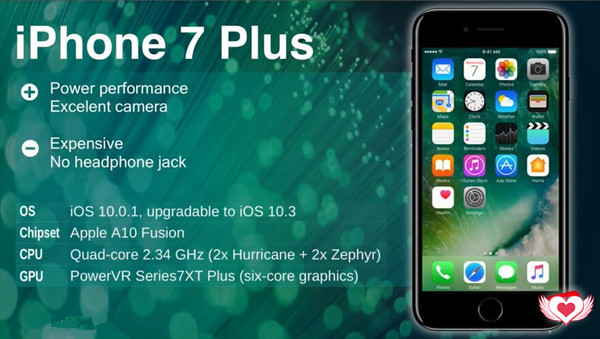
All of the features built into the iPhone 7 are included in the iPhone 7 Plus, but it has one other unique feature — a second lens. The first lens in the iPhone 7 Plus is the same wide-angle 28mm lens included in the iPhone 7, but it is installed alongside a second 12-megapixel 56mm telephoto lens with an f/2.8 aperture.
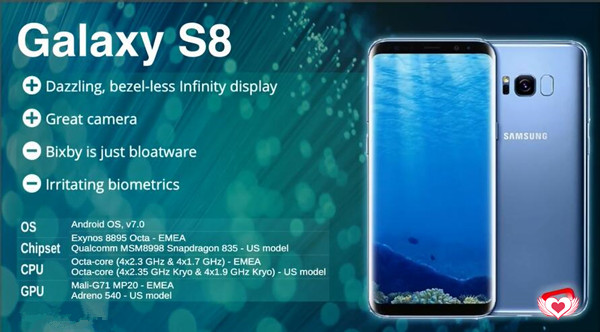
Chipset: Exynos 8895 Octa
Qualcomm MSM8998 Snapdragon 835 – US model
CUP: Octa-core (4*2.3 GHz & 4*1.7 GHz) – EMEA
Octa-core (4*2.35 GHz Kryo & 4*1.9 GHz Kryo) – US model
GPU: Mail-G71 MP20 – EMEA
Adreno 540 – US model
Pros: Dazzing, bezel-less Infinity display
Great camera
Cons: Bixby is just bloatware
Irrtating biometrics
Compared to the Galaxy S7, the Galaxy S8 takes naturally sharper photos (meaning it uses less artificial sharpening), and also takes less-saturated and more accurate photos. Those are both overall quality improvements, while the GS8 also remains lightning quick with lots of extra software features to boot.
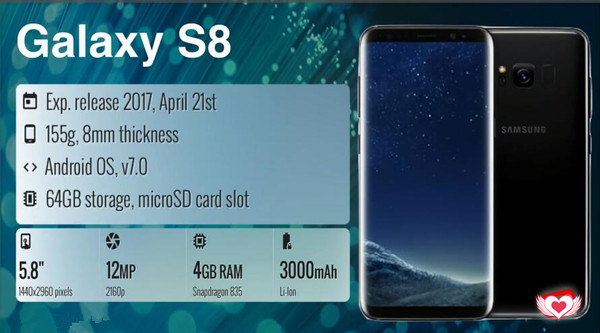
The Galaxy S8 and S8+ are now on sale. In the U.S., you’ll have your choice of the Galaxy S8 or Galaxy S8+, both in 64GB storage configuration, in one of three colors: black, silver or orchid grey. There are a number of good reasons to stick with stock Android, and the timeliness of operating system updates is at the top of the list. It’s a big tradeoff though, when you consider the power, performance, and beautiful design of the Galaxy S8.
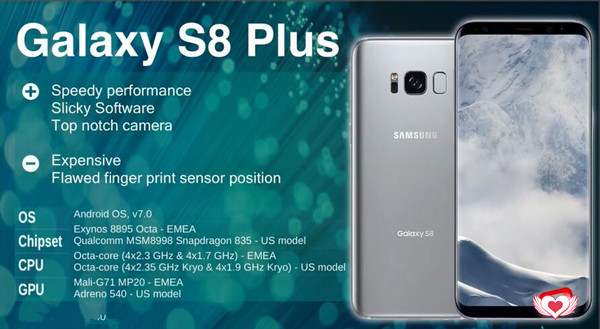
Chipset: Exynos 8895 Octa – EMEA
Qualcomm MSM8998 Snapdragon 835 – US model
CUP: Octa-core (4*2.3 GHz & 4*1.7 GHz) – EMEA
Octa-core (4*2.35 GHz Kryo & 4*1.9 GHz Kryo) – US model
GPU: Mail-G71 MP20 – EMEA
Adreno 540 – US model
Pros: Speedy performance
Slicky Software
Top notch camera
Cons: Expensive
Flawed finger print sensor position
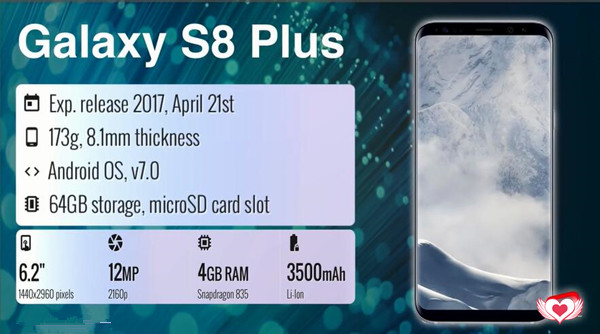
The Galaxy S8+ will be available from April 21, and pre-order deals have already begun for around $850. It is available in three colors: Orchid Gray, Midnight Black and Arctic Silver. The S8+ has a fingerprint scanner, iris scanner and facial recognition built in for unlocking the phone and authenticating purchases. Plus, it also has Samsung’s new smart assistant called Bixby, which is designed as a Google Assistant or Siri rival, but isn’t quite as capable as Google Assistant.
No matter your using iOS or Android phones.In daily life, you may encounter some problems in using the phone,here,we will recommend some useful tips and solutions for you solve your smartphone problem at Home.
“Can I ask how to import the contacts from the computer to Android? My old Android was broken, now I need to transfer the contacts from backed up to my new Android. Thanks very much.”
Are you searching for a reliable way to transfer contacts from computer to Android right now? Switch your old Android phone for a new one, like Samsung Galaxy S8, and want to transfer contacts to the new device from backed up on the computer? Getting all the phone numbers and other contact information transferred is sometimes necessary. It’s not a big deal. In this article, I would like to show you the some best solutions to make it true. Just read on.
Part 1: How to Import Contacts to Android via Gmail
If you ever synced contacts from old Android with your Google account, the odds of recovering contacts are definitively in your favor. Gmail has a nifty feature, that allows you to restore a backup of all your contacts, which can date up to 30 days back. Once you have done this, you can re-sync your device(new device) with your Google account and get all your contacts back.
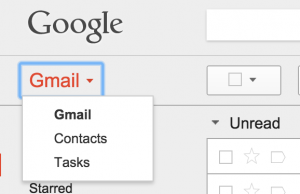
To restore a backup of your Gmail contacts, go to the inbox on your Android device(new device) and select “Contacts” from the dropdown menu on your left hand side.
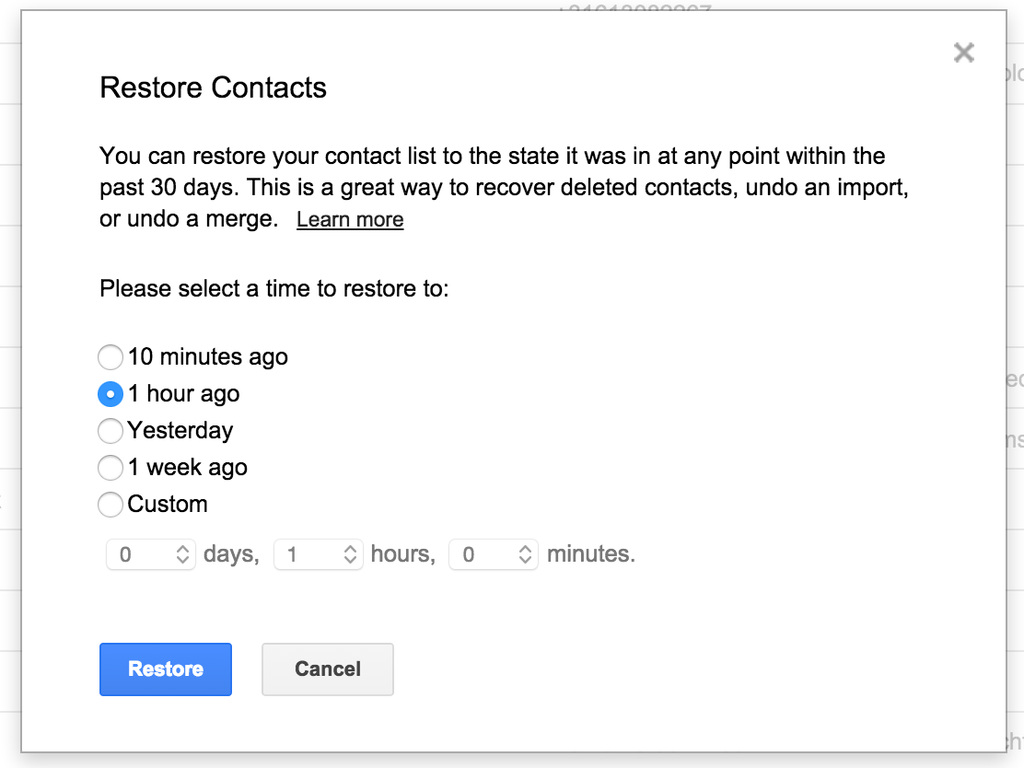
Once you see the list of your contacts (or not), click on “More” to get to the dropdown menu, where you need to select the option “Restore contacts”.
Now you should see this pop-up window, where you can select a backup, which can date back as far as 30 days. If this method worked for you, go ahead and re-sync your Google account on your Android device and you should be good to go. If it didn’t work, let’s explore some other options, for example, import contacts from backed up to Android on computer.
Part 2: How to Import Contacts to Android via Android Manager
Thanks to Android Manager, you are able to import contacts from computer to Android with only three steps. Android Manager is famous for transferring & managing data for Android on computer, including contacts, SMS, videos, music, photos, apps. Android Manager can help to switch files between Android and computer, switch files between Android and iTunes, switch files between Android and iOS device. Most brands of Android device are compatible with Android Manager, insist of Samsung, HTC, Lenovo, LG, Sony, Motorola, Huawei, etc,.
Android Manager makes it extremely easy to restore Android contacts from backup on computer, or import contacts from Windows Address Book or Outlook 2010/2013/2016 to Android phone in one click. Android Manager also allows you to manage and transfer contacts on your SIM card, iCloud, Exchange, Yahoo! and other accounts.
Step 1. Run Android Manager on PC
Run Android Manager on PC and connect your Android phone to PC. Your Android device will be recognized and displayed in the primary window.
Step 2. Select the Contacts Format to Import
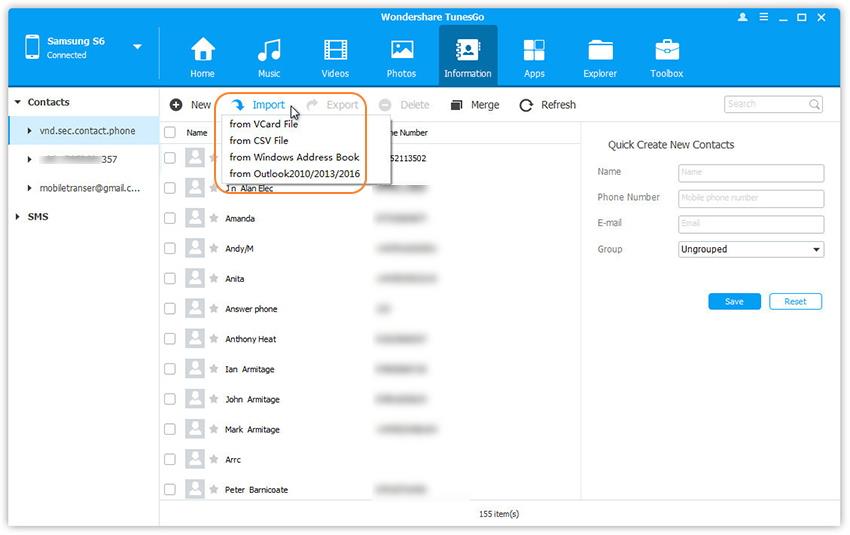
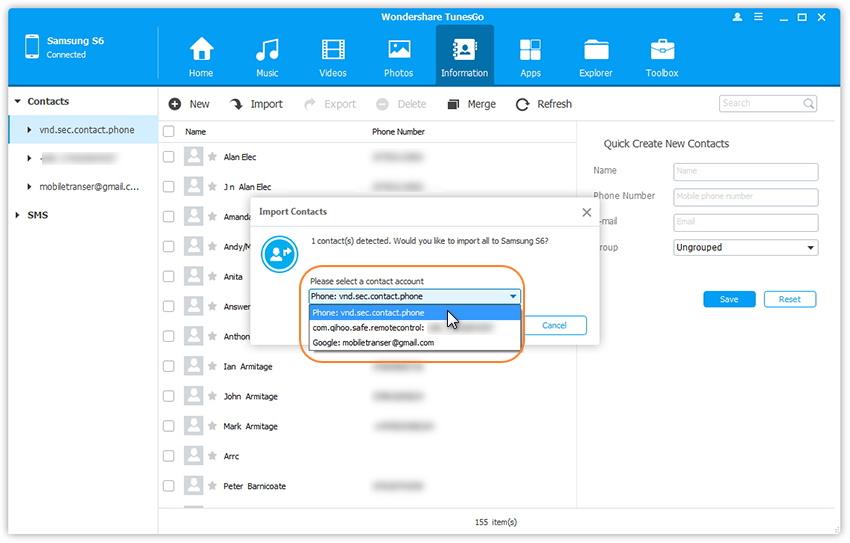
Select Information tab. Click Import. You get 4 options: from vCard File, from CSV File, from Windows Address Book and from Outlook 2010/2013/2016. Select one option.
Step 3. Select the Account to Import
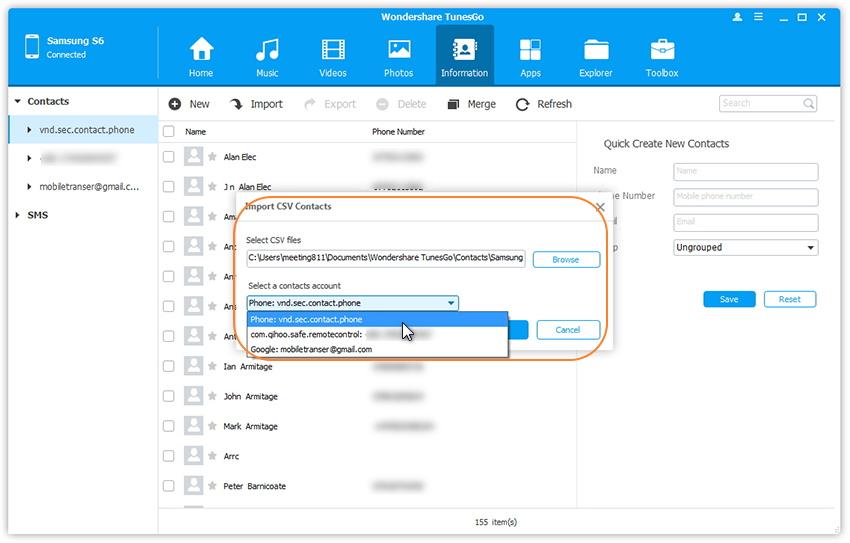
Select the account you would like to import and manage the imported contacts. To import contacts from vCard and CSV files on computer, you should browse the backup vCard and CSV file and then select the contact account.
To import contacts from Windows Address Book or Outlook 2010/2013/2016, select the contact account.
“I want to transfer photos to my new Samsung Galaxy S8 from the computer. How to complete it without complicated steps?”
Now most of Android are equip with the high quality camera and high pixel screen. Lots of people would like to use their Android phone to take photos, which is more convenient than carrying the camera. But how to transfer photos computer to Android? How to import them to your phone without difficulties? Reading this article, you will get the tips about how to export photos to Android from computer with original quality.
Export Photos to Android from Computer
Here Android Manager is good for you, which is a wonderful data manager design for transferring & managing data for Android on computer freely, including photos, music, videos, contacts, SMS, apps. With the help of Android manager, you could transfer photos between Android and computer easily. What else Android Manager can do for you? Backup contacts, text messages, music, videos and apps on computer; send text messages from computer to one or more persons directly; capture Android screens for backup; import and convert incompatible music and videos to Android optimized ones; import Outlook contacts to Android quickly, etc,.
How to Export Photos from Computer to Android
Step 1. Connect Android with PC
First of all, connect your Android to the computer via a USB cable.
This program works well in Windows 10/8/7/2003/XP/Vista. When your Android is detected, all contents on your Android will be displayed in the primary window.
Note: Multiple Android phone and tablets, like Samsung, HTC, Google, are fully supported. So that you can transfer photos from computer to Samsung, HTC, Google, Huawei, Motorola easily, including the latest Samsung Galaxy S8.
Step 2. Transfer Photos from Computer to Android
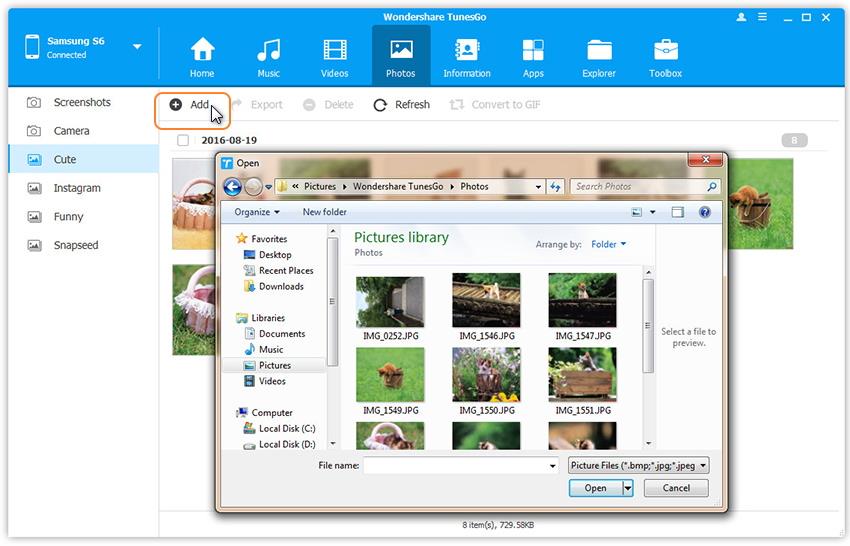
In the primary window, click “Photos” from the top menu. All albums on your Android show up. Choose one album to save the importing photos.
Then, click “Add” and choose “Add file” or “Add folder“. When the file browser window pops up, find your desired photos or photo album and then import them.
That’s the simple steps on how to move photos from computer to Android.