All posts by DHZ

How to Import Text Messages to Android

I backup the SMS from my old HTC phone to the computer. Now I want to import the backed up SMS from computer to my new Samsung. How to finish the Android SMS import job with simple steps?

As we know, SMS play an import role in our life. All of us like to send SMS for connecting, some are related to the work, the personal affair, or others. Some of us backup important SMS on the computer, to save the previous information safely. However, if you need to restore or import the backed up SMS from computer to another Android, you may be annoy with how to deal with it. In this article, we will show you an easy way to transfer SMS from PC or Mac to Android.

Transfer Text Messages to Android from Computer

Android Manager can do a great help for you, it’s an amazing data manager for Android, enables to transfer & manage data for Android on computer freely, including SMS, contacts, videos, music, photos, apps. With the help of Android Manager, you are able to import SMS to Android from computer with a few clicks. What’s the main features of Android Manager? It empowers to transfer files between Android and computer, transfer files between Android and iTunes, transfer files between Android and iOS device. Most brands of Android are supported by Android Manager, such as, Samsung, HTC, LG, Sony, Lenovo, Motorola, Huawei, Xiaomi.

d_win d_mac

How to Import Text Messages to Android

Step 1. Run Android Manager on the Computer
Launch Android Manager and connect your Android to the computer. Your Android will be detected and displayed in the primary window.

android manager main page

Step 2. Select SMS to Import
Select Information tab. Click SMS on the left panel. All messages will be shown on the right.

Step 3. Import SMS to Android
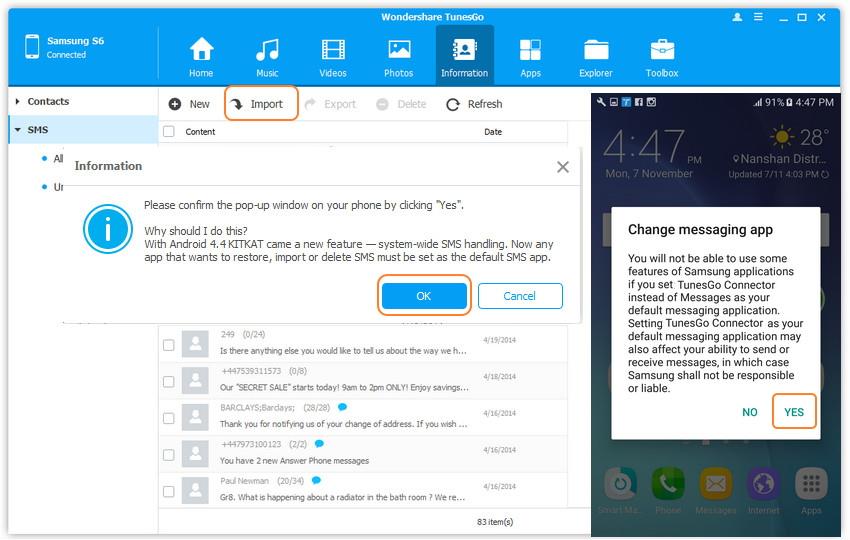
Click Import. The program may ask you to set MobileGoConnect as your default messaging application, as shown below. Tap on Yes on your device first, and then confirm it on your computer.
import sms from computer to android

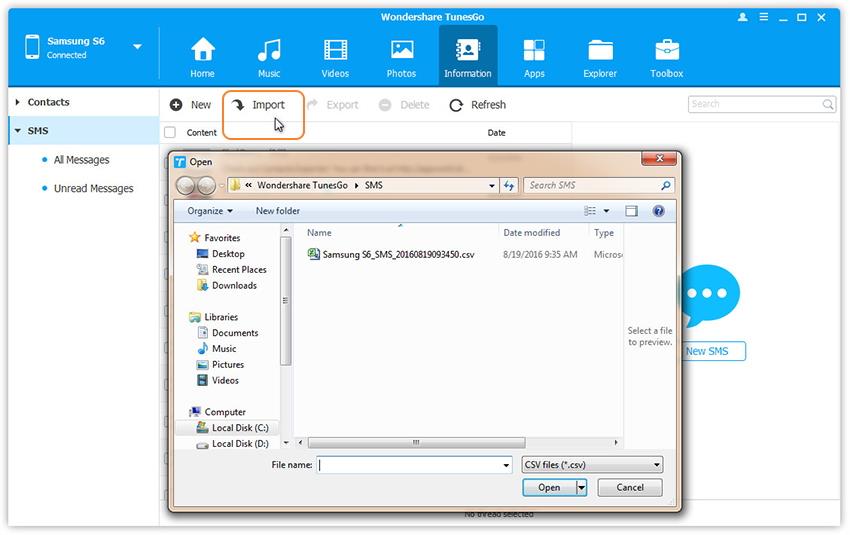
Step 4. Set the SMS Format to Import
Select CSV or HTML file on your computer to import and restore Android Messages.

import android messages

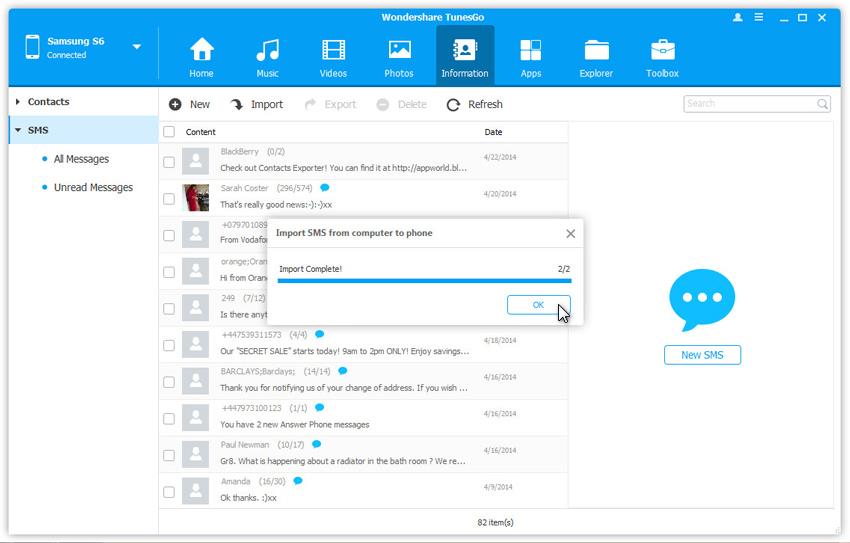
Please be patient until importation is completed. Click OK.

restore android messages completed

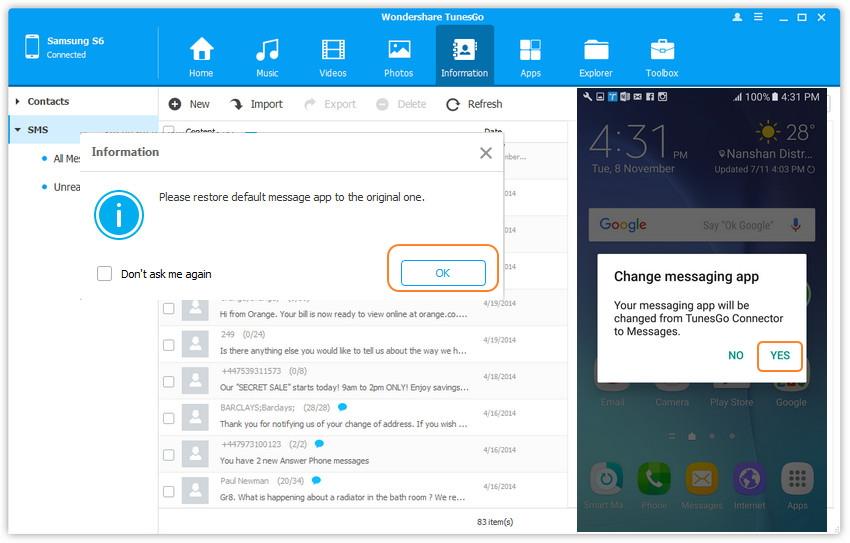
You’re done importing text messages. Now you can change your messaging app from MobileGoConnector to the original. Tap on Yes on your device first, and then confirm it on your computer.

restore default sms app to original

d_win d_mac

Related Article:

How to Transfer Videos from Computer to Android

How to Manage Android on Computer

How to Recover Deleted Text Messages from Android Phone

How to Recover Deleted Data from Android Phone

How to Transfer Videos from Computer to Android

I wanna transfer some videos on my computer to the HTC Android phone. How to complete the task with simple ways?

Most Android phones are equip with high quality camera and high screen pixel, so there are a lot of Android users buy Android device are because of the attraction of it. As life becomes more colorful, people like to record their wonderful moment with taking video. Whenever you are, you can still watch the video to share the meaningful moments with your friends or review the good old days though the video. On the other hand, with the rapid development of film and television career, new movie and TV series are shown every day. People now used to download video on the computer or their mobile device for watching it at anytime. What if you want to transfer your videos from computer to Android device effortless?

Export Videos to Android with the Original Quality

Android Manager is your best choice to transfer videos from computer to Android with the original quality. This professional Android Manager program, which is designed for managing Android videos, music, photos, apps, contacts, SMS on the computer with simple steps. With the help of Android Manager, you are allowed to transfer files between Android and computer, transfer files between Android and iTunes, transfer files between Android and iOS device. Almost all brands of Android are supported by this program, such as, Samsung, HTC, Lenovo, Motorola, LG, Sony, Huawei, Xiaomi, etc,.

d_win d_mac

Kind Tips: Looking for a way to download videos from YouTube? 4kFinder YouTube Video Downloader provides everything you expect. This is an excellent online video downloader dedicated to downloading 1080p 60fps videos, 720p HD, 1080p HD, 4K, 8K videos, etc. from YouTube to MP4 without image quality loss. In addition, extracting MP3 audio from YouTube is also one of its features. Apart from YouTube, it is also able to download videos from more than 1,000 popular online streaming sites, like Facebook, Instagram, Twitter, Bilibili, NicoNico, BBC, Vimeo, VLive, Tumblr, Fmovies, etc.

How to Transfer Videos from Computer to Android

Firstly run Android Manager on the computer, then connect your Android device to the computer. Your Android device will be detected and displayed in the primary window.

android manager main page

Step 1. Select Videos to Transfer
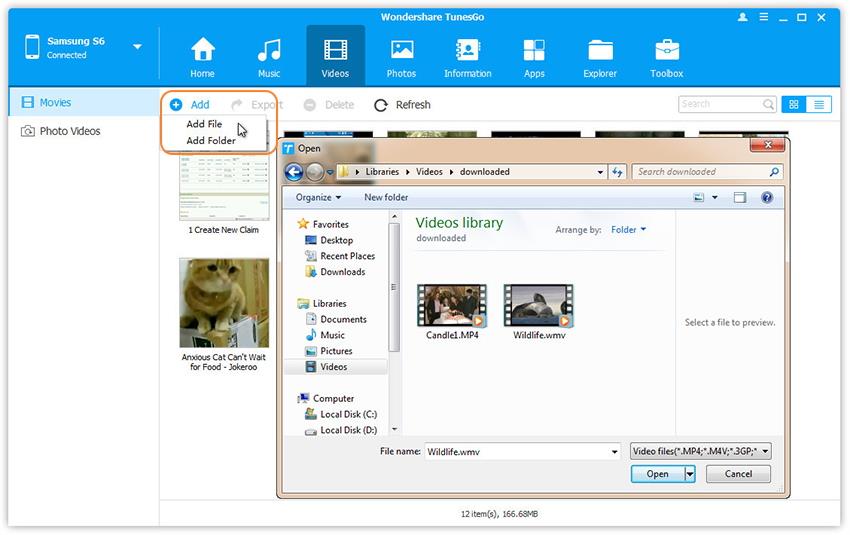
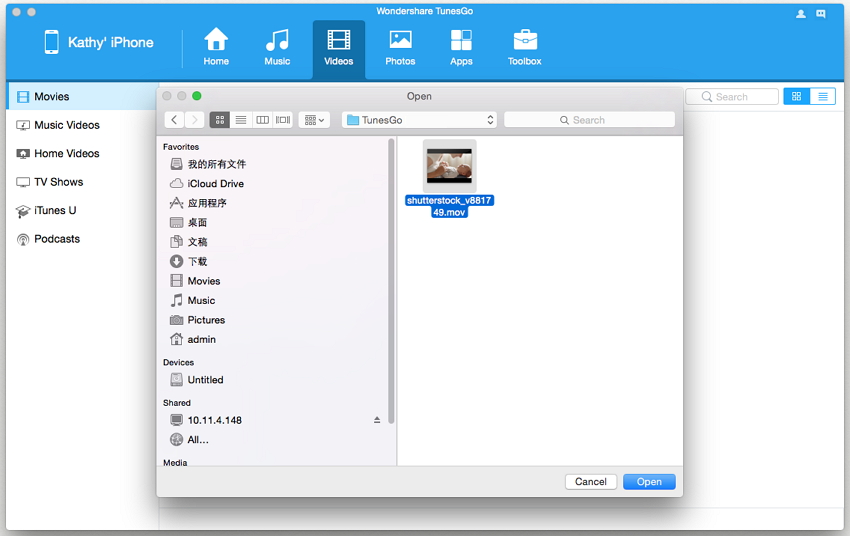
Select Videos tab. Once your media loads, click Add > Add File or Add Folder.

add videos from pc to android

Step 2. Transfer Videos from Computer to Android
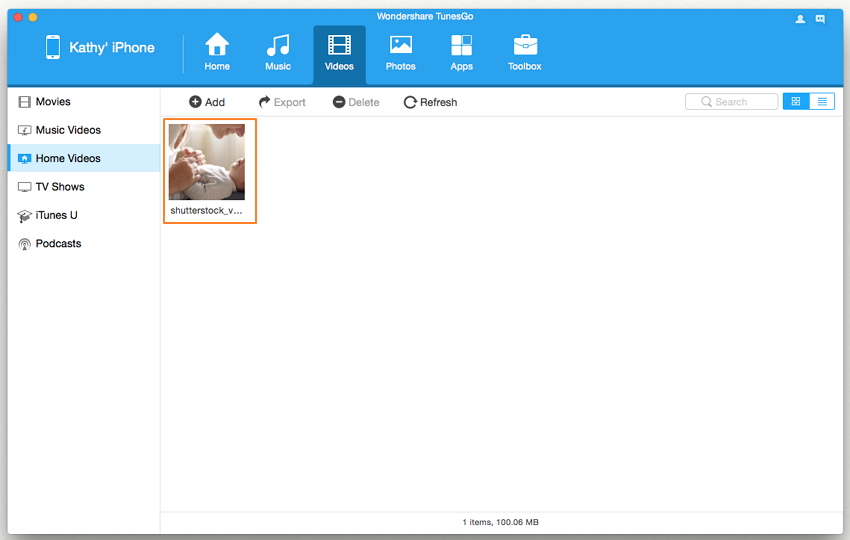
This brings up your file browser window, from which you can select videos to import from your computer. All videos imported can be watched with the built-in player.

You can simply Drag and Drop videos from computer to Android.

Done.

d_win d_mac

Related Article:

How to Transfer Videos to Samsung Galaxy S7

How to Transfer Videos to Samsung Galaxy S8

How to Transfer Videos from Computer to Samsung Galaxy S6/S7

How to Manage Android on Computer

How to Manage Samsung Galaxy on Computer

How to Export Videos from Mac to iPhone 8/7/6S

Hi. I downloaded some Yutube videos on the Mac, now I want to export it to the iPhone 8. How? I wonder is there any easy ways to get it done? I’ll appreciate your suggestions, thanks!

iPhone only supports certain types of video files such as MP4, M4V and MOV files. Thus, if you want to transfer videos from Mac to iPhone for an enjoyment, you will need to convert your videos to iPhone-compatible formats. In most of the situations, iTunes will do the conversion stuffs for you, but sync videos with iTunes will cover the old data on your device. In this case you will probably need some professional tool to give you a hand. And the post will show you the best ways to transfer videos from computer to iPhone 8/7/6S without data loss.

Part 1: How to Sync Videos from Mac with iPhone via iTunes

Step 1.Add Videos from Computer to iTunes
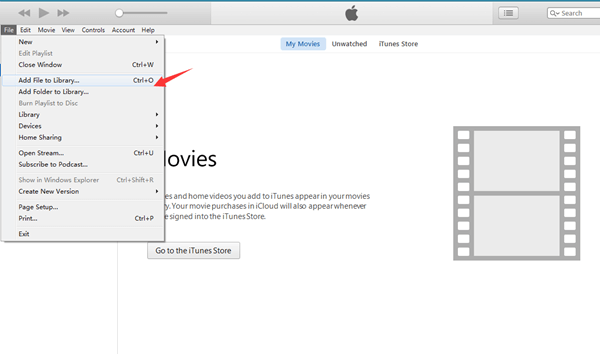
Run iTunes on your Mac. Then, click “File” in top left corner of the screen and in the drop-down list. Choose either “Add File to Library” (adding one video to iTunes) or “Add Folder to Library” (adding all videos in one folder to iTunes) to add videos to iTunes.

add files to transfer

Step 2.Prepare to Add Video to iPhone
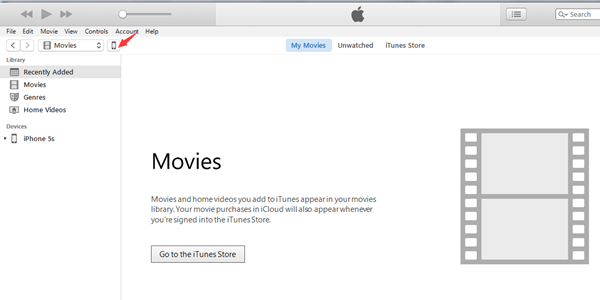
Connect your iPhone with Mac via the USB cable, click on cell phone icon appearing beside Content Menu to enter your iPhone.

connect iphone

Step 3.Sync Video from iTunes to iPhone
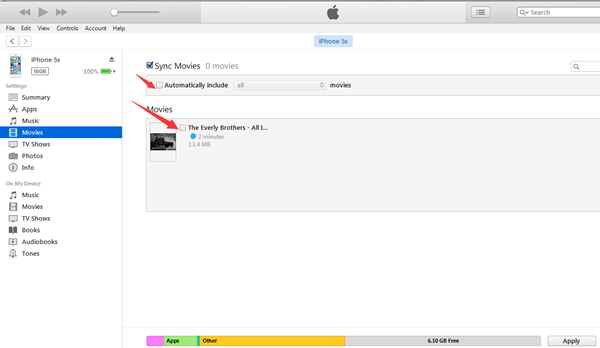
Click “Movies” under “Settings” on the left sidebar and tick “Sync Movies” appearing on the main window. Select what you want from videos listed below “Movies” or you can also tick the checkbox “Automatically include movies” to allow iTunes to select videos for you, either selecting all movies or most recent watched/unwatched videos. After choosing the right videos, click “Apply” underneath the window, iTunes will then start transferring videos that you want to your iPhone.

sync videos to iphone with itunes

Part 2: How to Export Videos from Mac to iPhone via iOS Manager

The best ways to export videos from Mac to iPhone without data loss is with the help of iOS Manager, which is an amazing data manager for iOS device without iTunes. It allows you to transfer almost any video from Mac to iPhone with fast transferring speed. iOS Manager enables to convert videos to an iOS supported format automatically while you transfer files from the computer to your iPhone/iPad/iPod. What’s more, iOS Manager empowers to transfer several types of files between iOS device and computer, between iOS device and iTunes, between iOS device and Android device. The transferable data including videos, music, photos, apps, contacts and SMS.

d_win d_mac

Step 1. Download and install iOS Manager for Mac
After downloading iOS Manager on the computer, install it on your Mac. To transfer videos from Mac to iPhone, connect your iPhone with your Mac via a USB cable.

ios manager main page

Step 2. Transfer Videos from Mac to iPhone
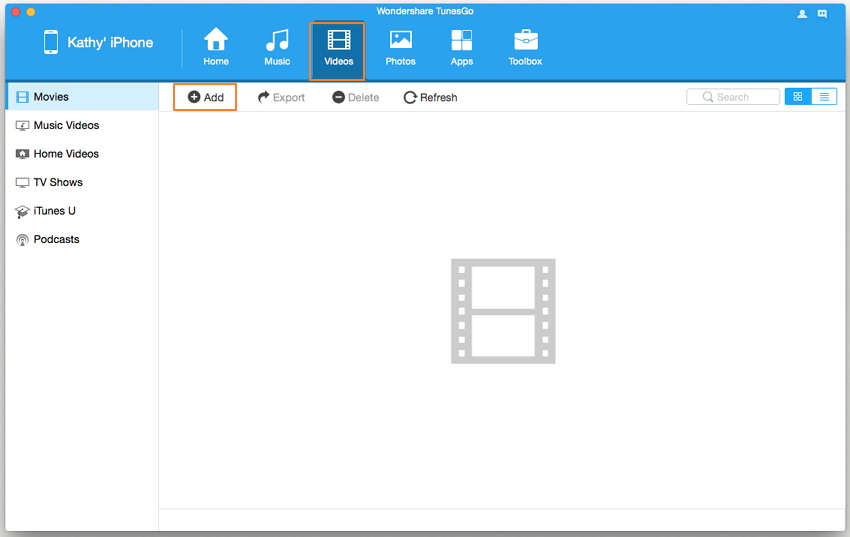
You can see there is a Videos option on the top. Click it to see the video control panel. In the window, you can see the tab “+Add“.
add videos

A new window will pop up, browse your videos. Click Open to transfer videos from Mac to iPhone directly. The whole process of transferring videos from Mac to iPhone with program only takes a few seconds.

transfer video to iphone from mac

You can see the video on your iPhone now.

transferred videos done

If the video you’re transferring to your iPhone is not supported by your iPhone, then there is a pop up telling you to convert them first. Just click Convert. After the conversion, the video will be transferred to your iPhone instantly.

d_win d_mac

Related Article:

How to Transfer Videos to iPhone

How to Sync iTunes Videos to iPhone 8

How to Transfer Photos from Computer to iPhone

How to Transfer Music from Computer to iPhone

Best iPhone 8 Manager: How to Transfer Files to iPhone 8

Photos Transfer from Broken Samsung to Galaxy S6/S7

My old Samsung Galaxy S4 fell down from the stairs. The phone still boots up and I am able to do anything on it. I will bought a new Galaxy to replace, how to export the photos from this broken Samsung to my new Galaxy S7 phone?

Photos are important data on our mobile phone and losing them would risk serious loss to our work or personal life. However, many times unwanted events can cause of the photos loss from mobile device. One of the most common is breaking of the phone. It can happen it physical level or on the software level. To transfer data between two mobile devices you could try to use Phone Transfer, which is a wonderful data transfer tool to switch files between two devices directly, contacts, SMS, photos, call logs, videos, calendars, music, apps are included. On the other hand, to transfer data from broken Samsung to Galaxy phone, you should focus on the other two programs we are going to recommend for you. This post is going to show you how to transfer the photos from broken Samsung to Galaxy S6/S7.

Export Photos from Broken Samsung Phone

Broken Android Data Extraction is a ideal data extraction program for exporting photos from broken Samsung directly. Besides photos, this program enables to extract several of data from broken Android device, including contacts, SMS, videos, audio, call logs, documents, WhatsApp & WhatsApp Attachments, etc,. Broken Android Data Extraction helps to extract data from Android under any broken situations, like device with broken screen, device with black/white screen, device get water damaged, device get into stuck loop or others. Most of Samsung Android are compatible with the Broken Android Data Extraction, such as, Samsung (Galaxy S6/S7/S8, Note 3/4/5), HTC, Motorola, Lenovo, LG, Sony.

d_win d_mac

Part 1: How to Export Photos from Broken Samsung Phone

Step 1. Connect Broken Samsung  to the Computer
First of all, please connect the broken Samsung to the computer, now you should connect your broken Samsung to the computer. Click “Start“.

connect broken samsung to computer

Step 2. Select the Photo File to Export
Now click the option which is the type data name that you want to export. If you want to recover all files at once, please click on “Select All”. For photos recovery, you should click “Gallery”. Then click “Next“.

select file type to export

Step 3. Select the Fault Type of Your broken Samsung
In this step, the program will guide you to another screen, select one situation depend on your broken Samsung. Then click “Next“.

choose phone broken type

Step 4. Select Your Broken Samsung Device Model
According to option to select the brand and model of your phone. If you are not sure what model of your Samsung device, please click the “How to confirm the device model” option.

choose samsung model

Step 5. Enter Download Mode for Broken Samsung
In this step, you will follow different steps to enter your phone into download mode.

broken samsung download mode

Note: During the process of getting device into “Download mode”, remember keep connecting your broken Samsung to the computer via USB cable.

Step 6. Fix Broken Samsung and Analyze Data on Samsung
After entered the “Download mode”, the program will start downloading “recovery package” to restore your Samsung phone and then analyze data on your device with a short time.

scanning data broken samsung

When the downloading finished, the selected data stored in the device will scanned out.

Step 7. Preview and Export Photos from Samsung
Once finish scanning the your Samsung, you are allow to preview and export selected photos from Samsung to the computer. Just simply click “Recover” button at the lower-right corner and save them on the computer.

export photos from samsung

d_win d_mac

Part 2: How to Transfer Photos from Computer to Samsung Galaxy S6/S7

Now you should use the Android Manager to help to transfer photos from computer to Samsung Galaxy S6/S7. Android Manager is a ideal manage tools for Android device, helps to transfer & manage Android on the computer freely, including photos, videos, music, contacts, SMS, apps. With using Android Manager, you could easily transfer data between Android and computer, transfer data between Android and iTunes, transfer data among Android device and iOS device.

d_win d_mac

Step 1. Connect Samsung to the PC
Firstly, connect your Samsung phone to the computer via a USB cable.

This program works well in Windows 10/8/7/2003/XP/Vista. When your Samsung is detected, all contents on your device will be displayed in the primary window.

android manager mian page

Step 2. Transfer Photos from Computer to Samsung
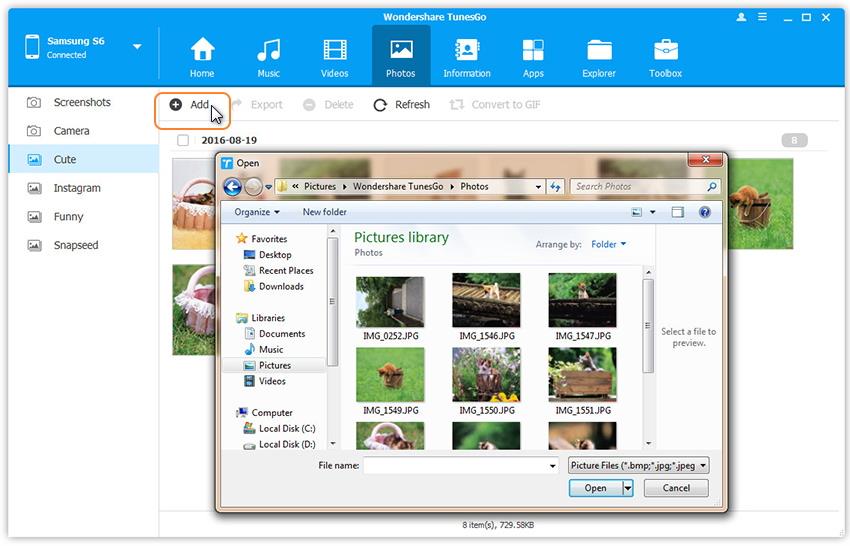
In the primary window, click “Photos” from the top menu. All albums on your Samsung show up. Choose one album to save the importing photos.

Then, click “Add” and choose “Add file” or “Add folder“. When the file browser window pops up, find your desired photos or photo album and then import them.

transfer photos from pc to samsung

That’s the simple steps on how to move photos from computer to Samsung Galaxy S6/S7.

d_win d_mac

Related Article:

How to Tranfer Videos from Broken Samsung Phone to Galaxy S6/S7

How to Transfer Contacts from Broken Samsung Phone to Galaxy S6/S7

How to Recover Photos from Broken Samsung Phone S6/S7

How to Recover Data from Broken Samsung Galaxy S6/S7

How to Recover Deleted Data from Samsung Phone

How to Recover Deleted Photos from Samsung Galaxy S6/S7

How to Transfer Photos from Computer to iPhone 8/7/6S

How to transfer photos from the computer to my iPhone 8 without iTunes? I need to sync the photos with my new device in a simple way. Thank you very much.

One of the most frequently asked questions from iOS users is about how to transfer photos from computer to iPhone without iTunes. When it comes to transferring photos from computer to iPhone, there is no doubt that the first solution come to our mind is iTunes. However, when syncing photos from iTunes with iPhone, all the previous photos, music, ringtones, iBooks and other media files you synced to your iPhone will be recovered. In this article, we will show you how to import photos from computer to iPhone without iTunes.

Part 1: Transfer Photos from Computer to iPhone via iOS Manager

iOS Manager has been specifically designed to import photos from computer to iPhone 8/7/6S/6/5S/5 directly. iOS Manager is a best data manage tools for iOS device, helps to transfer & manage data for iPhone, even iPad on the computer freely, including photos, videos, music, contacts, SMS, apps. With using iOS Manager, you could easily transfer data between iOS device and computer,  transfer data between iOS device and iTunes, transfer data among iOS device and Android device.

d_win d_mac

Step 1. Run iOS Manager on the Computer
Download, install and launch the iOS Manager program, connect your iPhone to the computer and then wait for detecting.

ios manager main page

Step 2. Select Photos to Import to iPhone  
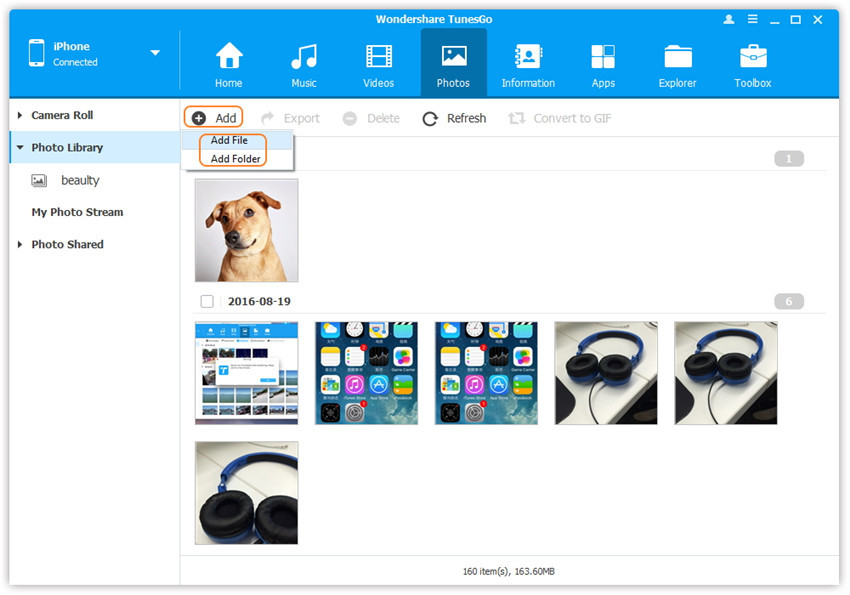
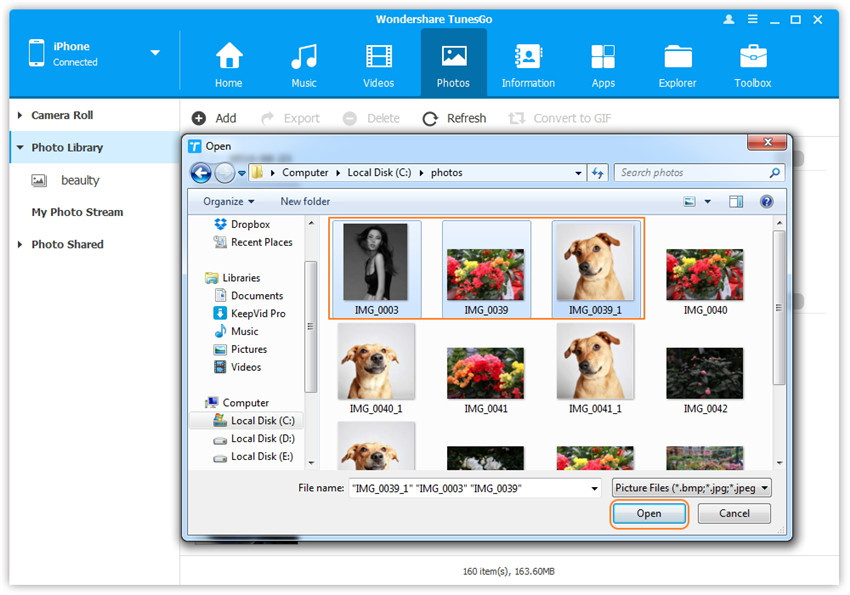
Click the “Photos” on the top. You will see a new interface, then click “+Add” and select “Add File” or “Add folder” to add photo from computer to iPhone easily.

add file to transfer

Step 3. Transfer Photos from Computer to iPhone Directly
From the file explorer which appears, now you need to select the photos and transfer them to the device to finish the process.

select photos to transfer to iphone 8

d_win d_mac

Part 2: Transfer Photos from Computer to iPhone via Google Photos

Google photos are a normal way to transfer photos from computer to iPhone 8/7/6S/6/5S/5. It was created by Google company.

Requirements:
– iPhone
-Active internet connection
– Laptop or PC

Step 1. From the URL the user needs to access the main page:

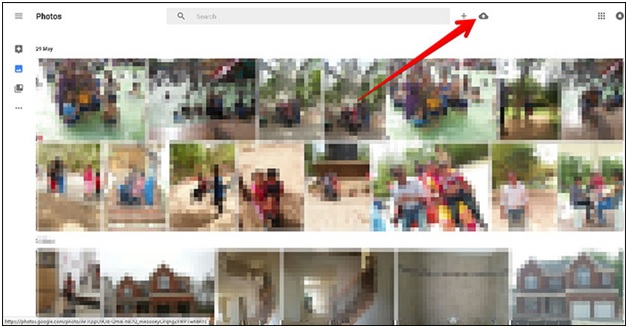
Step 2. Click the upload icon, from the dialogue box which appears, the user needs to upload the photos to the service using the system:

click the upload icon

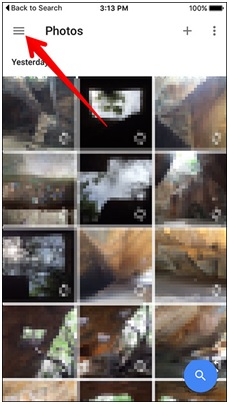
Step 3. Launched the Google photos app on the iPhone and tap the left menu:

launch the google photo app

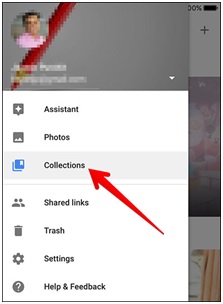
Step 4. Tab then the collections where the user can see all the photos to complete the process in full:

tab the collections

An Excellent Photos Transfer for iOS

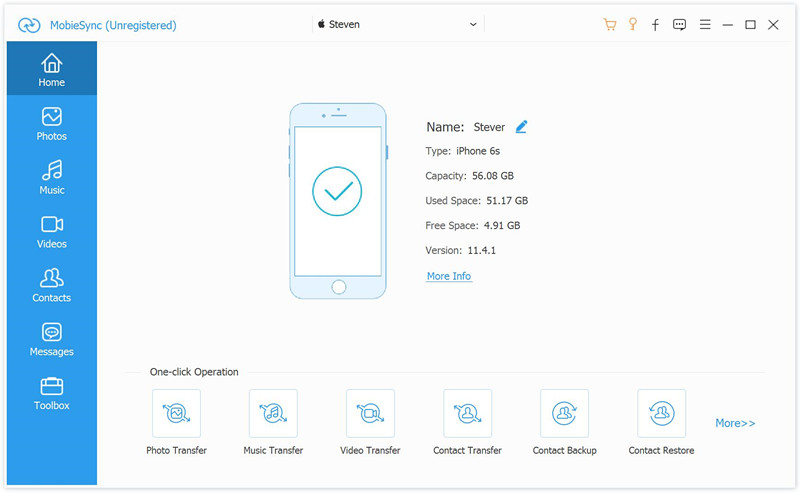
In this extra part we recommend an excellent iOS photos transfer for you, which called Mobile Sync. It is capable of transfer photos from computer to iPhone 8/7/6S with one-click. Mobie Sync is an all-in-one iOS data manage tool for sync iOS files between iPhone/iPad/iPod and computer; transfer data between iOS devices; transfer iOS files to computer; add files from computer to iOS device; extra features with ringtone maker and HEIC converter. It is compatibles with all iOS models, including iPhone X, iPhone 8(Plus), iPhone 7(Plus), iPhone 6S(Plus), iPhone 6(Plus), iPhone SE, iPhone 5C/5S/5; iPad and iPod.

mobile sync home page

Related Articles:

How to Transfer Photos to iPhone 8

How to Transfer Photos to iPhone 7

How to Transfer iTunes Videos to iPhone 8

How to Transfer iTunes Music to iPhone 8

Best iPhone 8 Manager: How to Transfer Files to iPhone 8

How to Recover Deleted Data from iPhone 8

How to Backup & Restore iPhone 8

How to Recover Deleted Data from iPhone

Import Photos from Computer to iPhone

How to Backup Photos on Samsung Galaxy S8

I like to take photos in life anytime, I save a lots of photos on my Galaxy S8 phone. How to backup or export the photos from my phone to computer with a safe way?

Smartphone now have played an important role in life for everyone. And one of the popular feature that people using smartphone is taking photos. However, the biggest problem with the photos taken on smartphones is memory. Because mobile devices got a limited memory and you may need to release more space on device to store new photos. Besides, you may be lose your previous photos with a wrong operation. For so many reasons, many mobile users tend to perform a backup for device in order to protect the personal data especially the photos. In this page, we are going to tell you how to backup photos of Samsung Galaxy S8 on computer safely.

Part 1: Backup Photos on Samsung Galaxy S8 with Samsung Kies

Step 1. Download and Install Samsung Kies
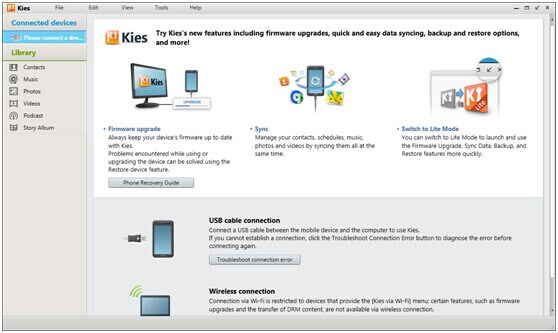
The software is available at the Samsung website. Have it set up and double click to open. You will find this interface when the handset is not connected.
samsung kies main page

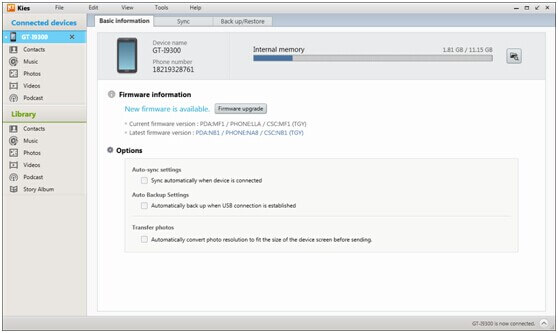
Then, plug your Galaxy S8 phone in with a USB. If there is any new firmware detected, you will be promoted to update it. Click “Cancel” to continue.

connect s8 samsung kies

Step 2. View the Samsung Photos and Backup
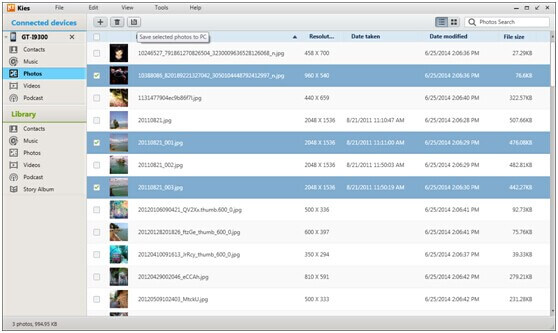
When connection is done, five kinds of data will be listed under the name of you phone. (Not the ones beneath “Library”.) Click “Photos”. And then, the file details will show up on the right—images, names, resolutions, dates taken, dates modified and sizes.

backup photos galaxy s8 samsung kies

Tick the ones that you need to backup to the computer and press the third icon on the tool bar to save them.

Part 2: Backup Photos on Samsung Galaxy S8 with Android Manager

Android Manager is an excellent data manage tool for Android, helps to backup photos from Samsung Galaxy S8 to the computer. With the help of Android Manager, you are allowed to transfer & manage Android data freely and safely on the computer, including photos, videos, music, contacts, SMS and apps. Android Manager provides a reliable solution for transferring data between Android and computer, transferring data between Android and iTunes, and transferring data among Android and iOS devices.

d_win d_mac

Step 1. Run Android Manager on the PC
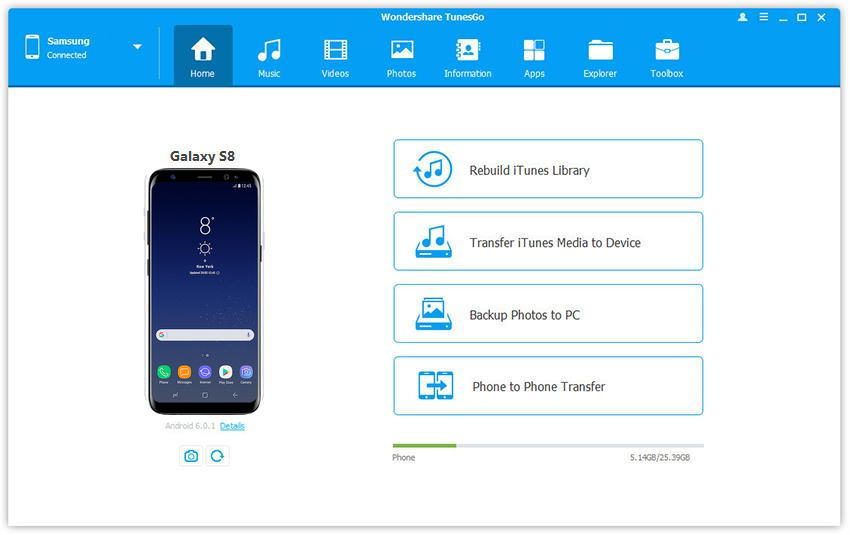
Run Android Manager and connect your Galaxy S8 to PC. Click “Backup Photos to PC” on the interface of program.

android manager main page

Step 2. Backup Photos from Galaxy S8 to PC
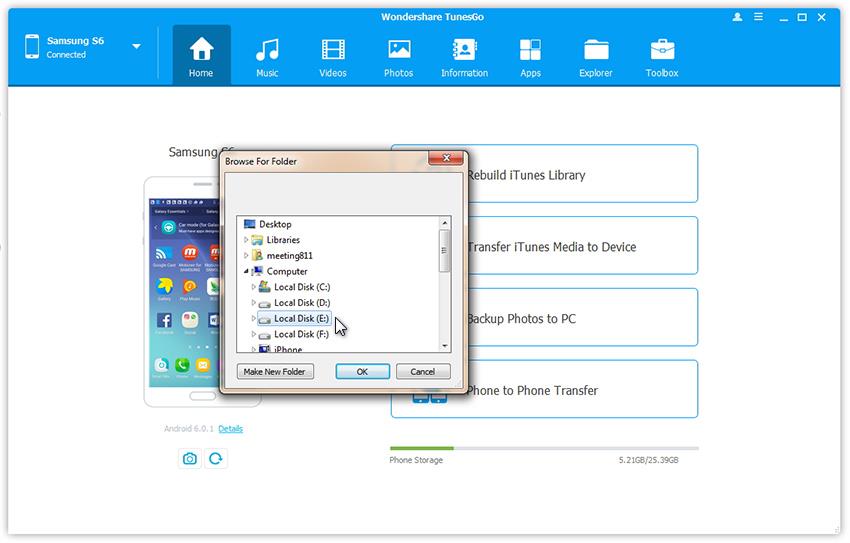
This brings up your file browser window. Select a save path to store the photos from your device to the computer.

save s8 photos to pc

Click “OK” to complete the process.

d_win d_mac

Related Article:

How to Backup SMS on Samsung Galaxy S8

How to Backup Contacts on Samsung Galaxy S8

How to Backup WhatsApp on Samsung Galaxy S8

How to Backup App/App Data on Samsung Galaxy S8

How to Manage Samsung Galaxy S8 on Computer

How to Recover Data from Samsung Galaxy S8

How to Backup & Restore Samsung Galaxy S8

How to Backup and Restore Samsung Galaxy S8 with Samsung Kies

How to Backup App/App Data on Samsung Galaxy S8

I want to back the WhatsApp, WeChat, and more other apps data on my new Galaxy S8 phone. But I am really not sure how to complete the apps data backup task with a simple way. Any suggestions?

Samsung’s followup to the ill-fated Galaxy Note 7 is expected to be an even sleeker and more impressive version of the Galaxy S8 and Galaxy S8+. It’s believed to sport a similar design to the S8 duo, but it should have an even larger display with perhaps a slightly improved screen-to-body ratio. When you get a new Galaxy S8 phone, while enjoying the features on it, you should be aware of do a backup of your personal data that saved on the device. The normal data backup is sounds a pretty simple job, the contacts, SMS, photos, etc,. But how to backup apps or apps data on Samsung Galaxy S8?

Part 1: Backup App Data on Samsung Galaxy S8 with Android Backup & Restore

Android Backup & Restore offers you a reliable solution to backup and restore Android data on computer. With the help of Android Backup & Restore, you are allowed to backup app and app data on Samsung Galaxy S8 safely, restore backed up for mobile device on computer completely. Android Backup & Restore enables to backup and restore almost all Android data types, such as contacts, messages, videos, gallery, audio, call logs, calendar, application, application data. Android Backup & Restore works well for almost all brands of Android device: Samsung(Galaxy S8/S7/S6/S5), HTC, LG, Sony, Lenovo, Huawei, Xiaomi, Motorola, ZTE, and so on.

d_win d_mac

Step 1. Preparation Before Running the Program
One: Make sure that your Samsung phone with the battery of 20% in order to complete the following steps.
Two: Check whether the USB cable is workable or not.

Step 2. Enable USB Debugging on Galaxy S8
Run the Android Backup & Restore program, and choose the feature “Android Data Backup & Restore” option. If there is the first time to connect your phone to computer, you should click “Allow” on your phone.

backup restore android phone

recover samsung data

Now enable the USB debugging on your Samsung phone. If you have enabled USB debugging on your device before, you can skip this step.

After that, you will see the window as below. Then you can click “Backup” to start your backup process.

backup galaxy s8 app data

Step 3. Select File Type to Backup
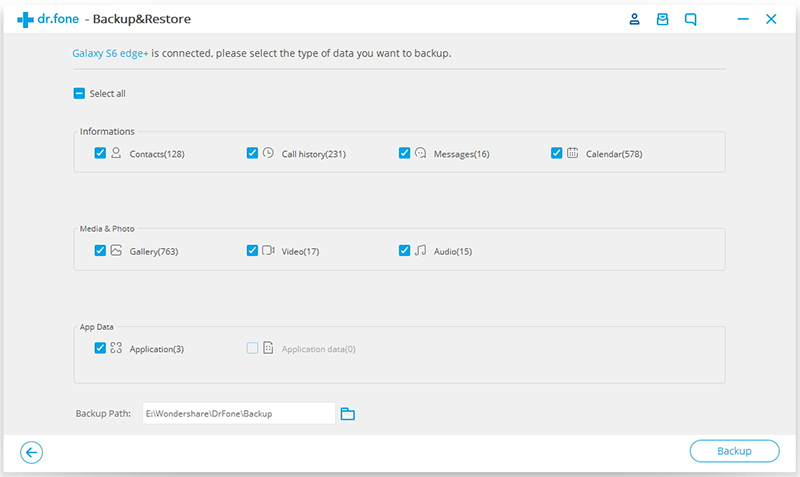
In this step, click “Application”  & “Application data” from the interface below to backup the app and app data on Galaxy S8. Select and click the apps name app, then click “OK” , hit the “Backup” button to begin the backup process.

backup galaxy s8 data

Once the backup process is completed, you will be able to check the backup files in detail by clicking “View the Backup”.

d_win d_mac

Part 2: Backup App on Samsung Galaxy S8 with Android Manager

The best ways to backup app on Samsung Galaxy S8 is using Android Manager. Android Manager famous of data manage tool for Android. With the help of Android Manager, you can transfer & manage Android data freely and safely on the computer, including apps, videos, photos, music, contacts, SMS. Android Manager provides a full solution for transferring data between Android and computer, transferring data between Android and iTunes, and transferring data among Android and iOS devices.

d_win d_mac

Step 1. Run Android Manager on the Computer
Firstly, run Android Manager and connect your Galaxy S8 to the computer.
android manager

Step 2. Select Apps to Backup
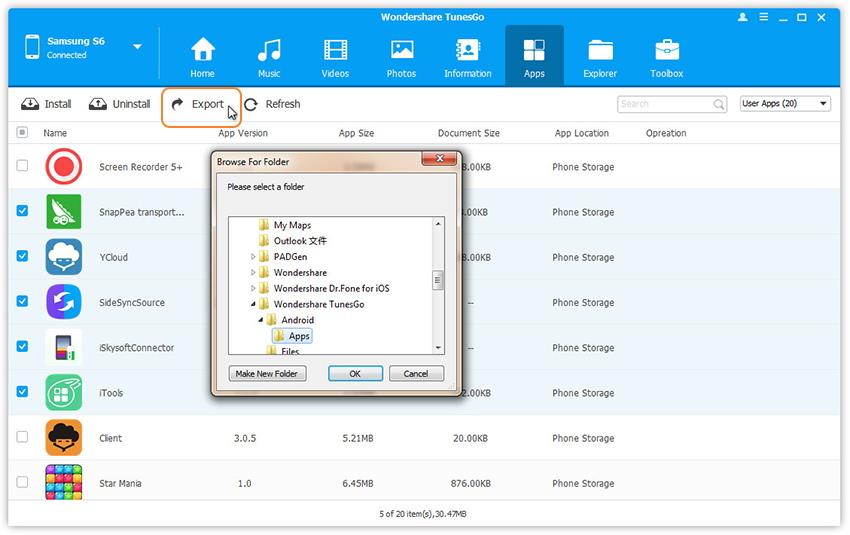
Click “Apps” tab. Check the apps you want to export/backup to the computer.

Step 3. Backup Apps from Galaxy S8 the the Computer
Click “Export“. In the pop-up Windows file browser window, select a save path and click “Save” to export the .apk files.

backup galaxy s8 app

Note: It just exports apps, excluding app data.

d_win d_mac

Related Article:

How to Backup SMS on Samsung Galaxy S8

How to Backup Contacts on Samsung Galaxy S8

How to Backup WhatsApp on Samsung Galaxy S8

How to Manage Samsung Galaxy S8 on Computer

How to Recover Data from Samsung Galaxy S8

How to Backup and Restore Samsung Galaxy S8 with Samsung Kies

How to Backup & Restore Samsung Galaxy S8

Contacts Transfer from Broken Samsung Phone to iPhone 7/7 Plus/6s

I just bought Galaxy S8 not even a week. As usual, I was chatting on Messenger, everything froze. No buttons responded to anything in my case. Even charge didn’t show any light. It seem like a dead phone. Now I want to use my contacts, how can I get the contacts back and shift to the iPhone 6s?” Gayle asked.

There are many people may experienced a sudden death of the phone for no reason. In fact, things happen cause there is a reason. Maybe your phone was attacked by virus or short circuit. When your Samsung phone meet problem like suddenly black/blank screen, stuck in Samsung logo/download mode or other situation, what will you do to restore the data from the broken Samsung? And how to transfer it to iPhone?

Actually, there is a easy and simple way can help. Download the Broken Samsung Data Recovery and Phone Data Transfer can solved the question. Broken Samsung Data Recovery is a powerful data extraction. It design for user to restore data from a broken Samsung phone with broken screen, black/blank screen, or stuck in Samsung logo/recovery mode/start screen, looping on restart,etc. It can recover many kinds of the files like contacts, SMS, videos, photo, music, call history, WhatsApp message and more. With help of Broken Samsung Data Recovery, you can extract contacts from broken Samsung easily. It was totally compatible with Samsung Galaxy S7/S6/S5/S4/S3, Galaxy Note 5/Note 4/Note 3/Note 2 and Galaxy Tab.

d_win d_mac

Tip: The recovery system function only suitable for Samsung phone, if your phone is HTC, Motorola, LG, Sony, Huawei, ZTE, Google Nexus, Google Pixel, ZTE, Xiaomi, Sharp, Windows phone, you can use this software to backup data when the phone is normal.

Part One: Recover Contacts from Broken Samsung to Computer

Step 1. Run the Program and Connect Broken S8 to Computer
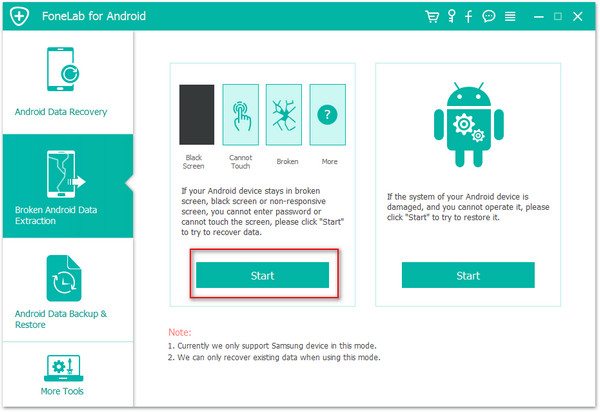
Install and run the Broken Samsung Data Recovery on your computer. Then connect your Samsung Galaxy S8 to computer. Find “Broken Android Phone Data Extraction”, and click “Start” to go on.

broken samsung data recovery main page

Next, choose “Contacts” and click the “Next”.

select file to restore

Step 2.Choose the Phone Fault Type
At first, you need to select a phone fault type of your broken. Here, select “Black Screen” option to the next.

choose broken samsung type

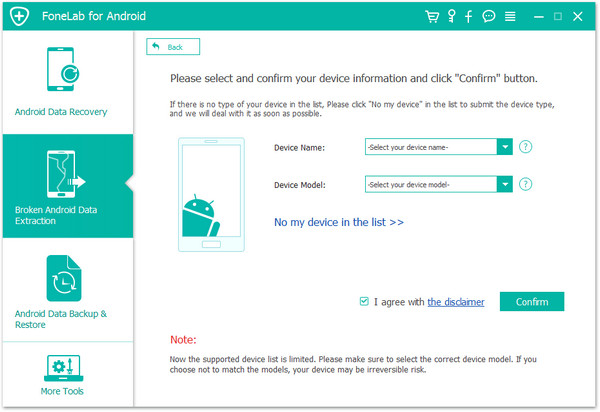
After that you need to select the name and model information of your device and make sure it is correct.

select broken samsung model

Step 3.Enter Broken Samsung S8 into Download Mode
Then, get your broken Android into download mode by following the instructions on the program: Power off the phone > Press and hold “Volume down”, “Home” and “Power” button on the phone > Press “Volume up” button to enter download mode.

enter download mode broken samsung

Step 4. Start to Fix Broken Samsung S8 to Normal
After entering into download mode, the program will download recovery package, and it begin to fix the Broken Samsung S8, it will take some minutes.

download recovery package for broken samsung

Step 5. Recover Contacts from Broken Samsung Galaxy S8 to Computer
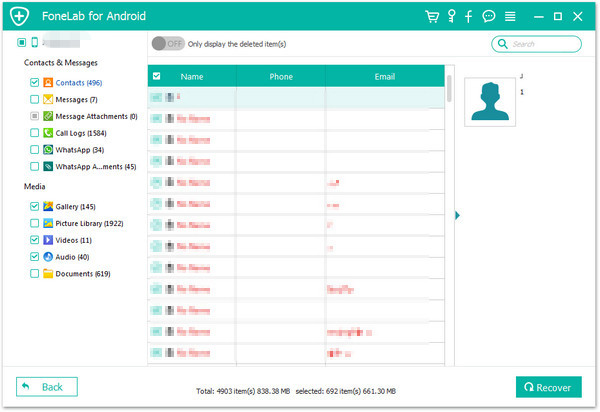
You are able to preview on your data after the repairing. Select “Contacts” and click “Recover”, then the contacts will save on your computer.

restore contacts samsung

d_win d_mac

Part Two: Transfer Contacts to iPhone7/7 Plus/6s

Phone Data Transfer can assist you to transfer data including contacts, photos, music, SMS, and more from computer to Android/iPhone, or phone to phone even not the same operating system. With the help of this program, you can transfer contacts from computer to mobile device with one click. At the meanwhile, users can use it to manage your data on your phone. It is suitable for almost Android phone with Android 7.0 and iPhone with 10.3.

d_win d_mac

Step 1. Connect your iPhone 7/7 Plus/6s to Computer
Installing and running the program, then connect your iPhone 7/7 Plus/6s to computer. You can see the interface.

phone data transfer main page

Step 2. Preview and Import Contacts to the iPhone 7/7 Plus/6
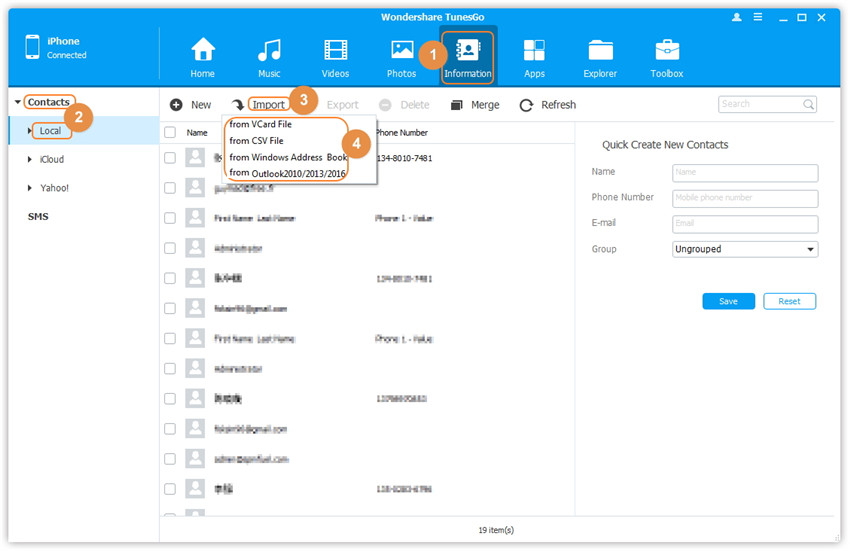
Click Information at the top of the the main interface, you’re expected to enter Contacts > Local by default. Select the file type you want import, then waiting for some minutes, the contacts can be on the iPhone 7/7Plus/6s.

transer contacts from computer to iphone

d_win d_mac

Related Article:

How to Transfer Contacts from Broken Samsung to Galaxy S7/S6

How to Recover Data from Broken Samsung Phone

How to Recover Contacts from Broken Samsung Phone

How to Manage iPhone 7 on Computer

How to Recover Lost Contacts on iPhone 7/7 Plus/6s

How to Recover Lost Data on iPhone 7/7 Plus/6s

How to Backup Text Messages from Samsung Galaxy

I get a new Galaxy S8 phone as the Anniversary gift. Can I ask how to backup the SMS on my Samsung phone individually?

Over the past few years, Samsung has transitioned away from its plastic past to a refinement of its glass and metal build, and the Galaxy S8 presents the future of this design language. In previous years, Samsung’s Galaxy S flagship(s) would almost certainly be the best phones of the year, but this year LG, Huawei, and Sony have all bought their very best to the market, and Samsung’s issues have presented a rare chink in its armor.

We sent and received a large number of text messages to and from business partners, friends or beloved ones, of which some truly mean a lot to us. Unlike other media files, SMS cannot be saved in an external SD card. So, if your device get the system error or perform a factory reset, even other accident happen, all the messages will be lost.The current article discusses in detail about three different solutions to create a backup of the SMS on Samsung Galaxy S8 to a computer.

Part 1: Backup Galaxy S9/S8/S7/S6 SMS with Samsung Kies

Samsung Kies is an official software for Samsung devices with two version, Kies and Kies 3, available on the Samsung website. This program enables Samsung users to manage files, perform backups and restore data on Samsung mobile phones.

Step 1. Connect Galaxy S8 to Samsung Kies
Firstly, you should download and run Samsung Kies. Then, connect your phone via USB cable to PC. It may take seconds to detect your Samsung device.

Note that if there is a pop-up prompting you to update the firmware, please choose “Cancel”.

Step 2. Backup Messages for Galaxy S8
When it successfully connected, select “Backup & Restore” option and click on “Data backup“. Then, select “message” option under “Personal information“, and tap on the “Backup” button on the upper right of the interface. After a while, the backup process will be completed.

Note that if you want to restore messages, you can simply switch to the “Restore data” section, and then choose “Messages”, tap on “Restore” button.
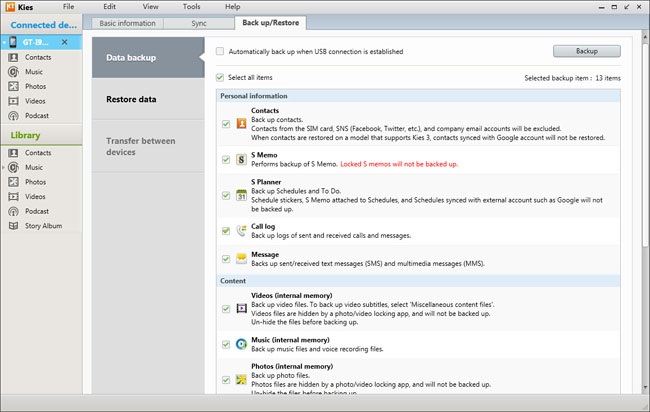
backup mode samsung kides

Part 2: Backup Galaxy S9/S8/S7/S6 SMS with Android Backup & Restore

Android Toolkit – Backup & Restore is a great data manage tool developed for Android users. With Android Backup & Restore , you are allowed to backup & restore contacts on Samsung Galaxy S8 easily and safely. There are only a few steps to back up Samsung data on computer including contacts, text messages, photos, music, videos, apps and others.Android Backup & Restore supports to most of Samsung smartphone, like Galaxy S8/S7/S6/S5/S4/S3, Samsung Galaxy Note 5/4/3/2, and more.


d_win d_mac

Step 1. Connect Galaxy S8 to Computer and Run Program
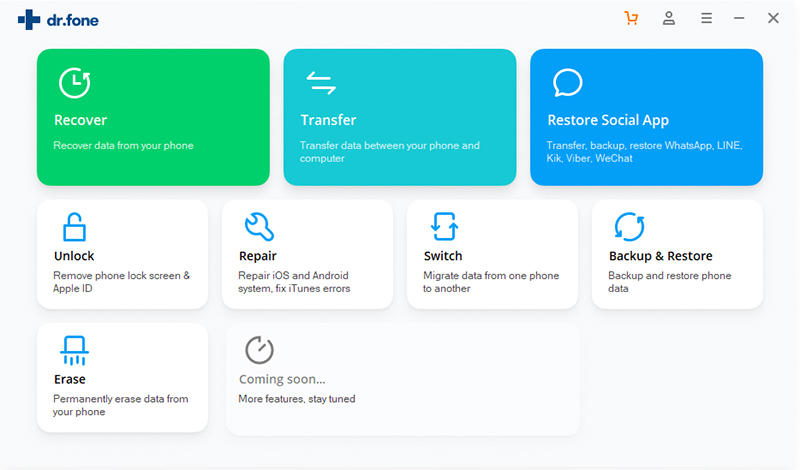
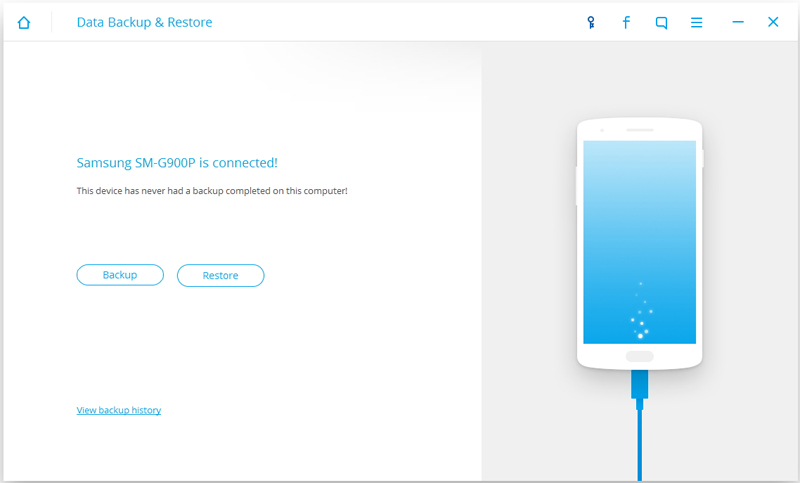
Launch Android Backup & Restore and from the “More Tools” section, select “Android Data Backup & Restore” option. Then connect the Samsung device to your computer using USB cables. The program will detect the device soon.
backup samsung contacts

backup samsung contacts

Note:If you have other Android management program on your computer, make sure none of them is running.

Tips: If you have used this program to back up your device previous, you are allow to view your previous backup by clicking on “View backup history”.

Step 2. Select File Types to Backup
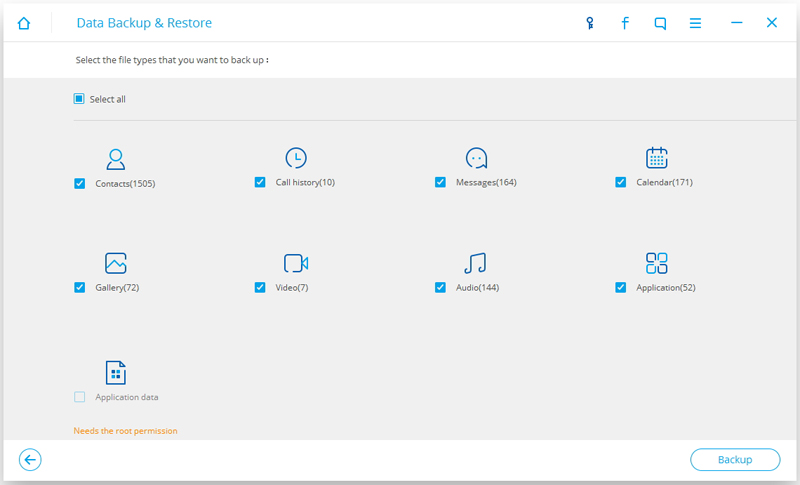
Once program has detected your Samsung, click on “Backup” to select the data you want to backup (include in the past backup). Android Backup & Restore can be used to back up 9 different file types including messages, contacts, call history, calendar, gallery, audio, video, applications and application data. If you just need to backup SMS, select “Messages” only.

Please note that to backup app data requires your Samsung device to be rooted.
backup samsung contacts to computer

After you have selected the file which you want to backup, click the button “Backup” to start the process. The entire process will take you only a few minutes.
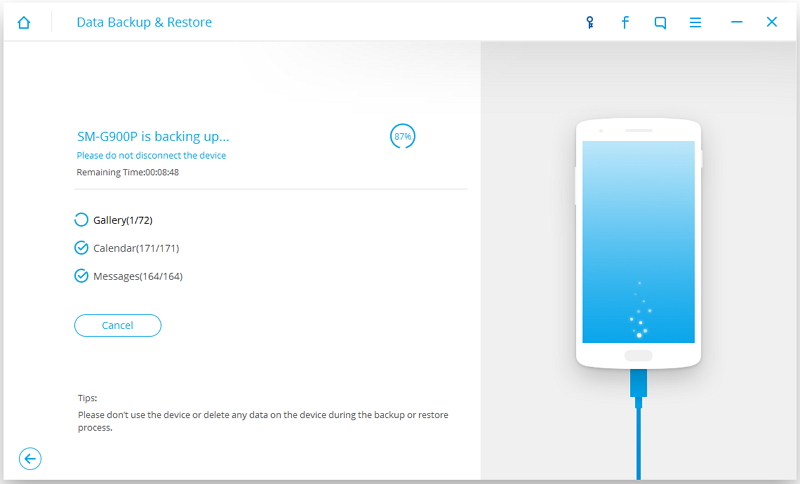
backup samsung contacts to computer

When the backup is finished, you are allowed to click on “View the backup” on the lower left corner of the window to see the details of the backup file.
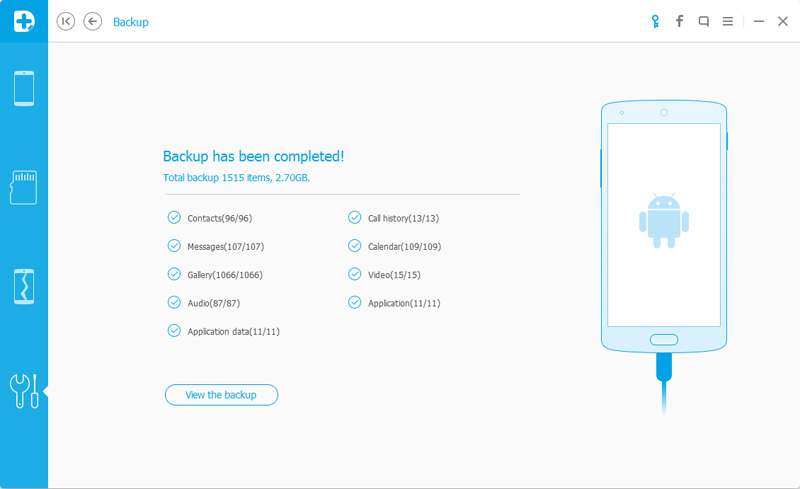
backup samsung contacts completed

d_win d_mac

Part 3: Backup GalaxyS9/S8/S7/S6 SMS with Android Manager

Samsung kies backs up and saves messages as a message.sme file, which is unreadable and can only be used to restore. You can try another SMS backup software for Samsung – Android Manager. It enables you to backup all or selected messages on Samsung Galaxy S8 phone easily and conveniently. Android Manager is a wonderful data manage tool for Android. With the help of Android Manager, you are allowed to transfer & manage Android data freely and safely on the computer.

d_win d_mac

Step 1. Run Android Manager and Connect Galaxy S8
Launch Android Manager and connect your Galaxy S8 phone to PC. Your Android device will be detected and displayed in the primary window.

android manager mian page

Step 2. Select SMS to Export
Select “Information” tab. Click “SMS” on the left panel. All messages will be shown on the right.

Tick the SMS you want to save and then click “Export“.
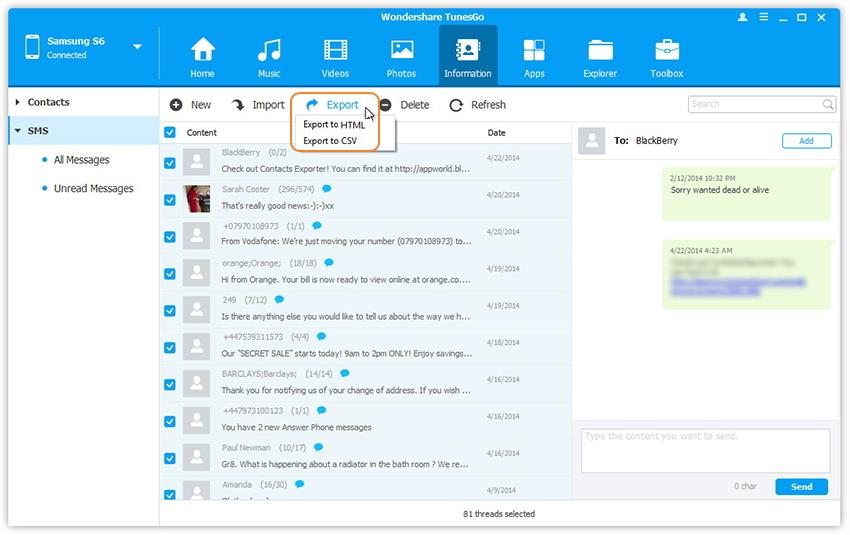
select sms format to export

Step 3. Select the SMS Format to Export
Select the backup format from the two options: “Export to HTML” or “Export to CSV“.

Step 4. Select the Position to Save Backed up Contacts
This brings up the file browser window. Find your desired place to backup and save the SMS.
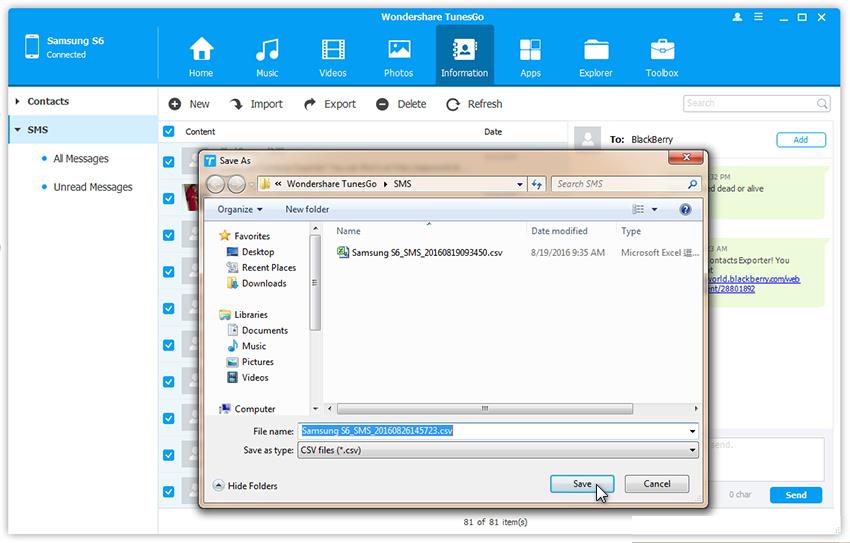
backup s8 sms to csv

d_win d_mac

Related Article:

How to Backup Contacts on Samsung Galaxy S8

How to Backup WhatsApp on Samsung Galaxy S8

How to Manage Samsung Galaxy S8 on Computer

How to Recover Lost SMS from Samsung Galaxy S8

How to Recover Data from Samsung Galaxy S8

How to Backup and Restore Samsung Galaxy S8 with Samsung Kies

How to Backup & Restore Samsung Galaxy S8
How to Backup Contacts on Samsung Galaxy S8/S8 Plus

I just switched to the new Galaxy S8 phone, how to backup all the phone numbers, E-mail safely on the computer?

Samsung Galaxy S8/S8 Plus – Samsung’s latest flagship has all the hallmarks of being one of the best phones of 2017, with its excellent design and outstanding display. It might not be the absolute best phone, but as with previous years, it’s likely to be the best phone for most users. Let’s assume that you get a new Galaxy S8 phone and now you need to backup the personal data, especially the contacts. There are actually several situations that we may get the contacts missing forever. In this article we will going to discuss how to backup contacts on Galaxy S8 with 3 different ways.

Part 1: Backup Contacts on Samsung Galaxy S8 via Gmail

If you have a Google account with your Samsung Galaxy S8, you can choose to sync your contacts from smartphone to the cloud service.

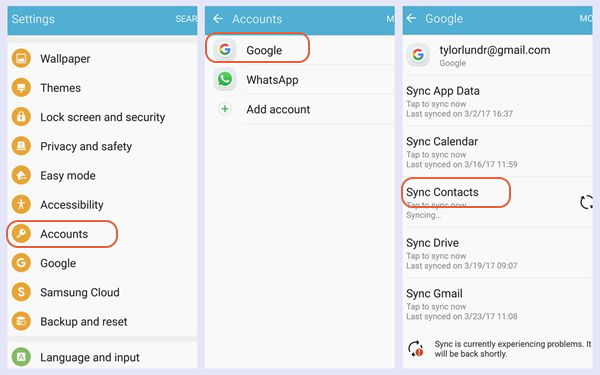
Step 1. Open Settings app on your Samsung and then scroll down to choose “Accounts“.

Step 2. Tap on “Google” and you can see your Google account on the top. Please continue to tap on the “Sync Contacts” and the contacts from your Samsung would be synced to your Gmail.

backup samsung contacts gmail

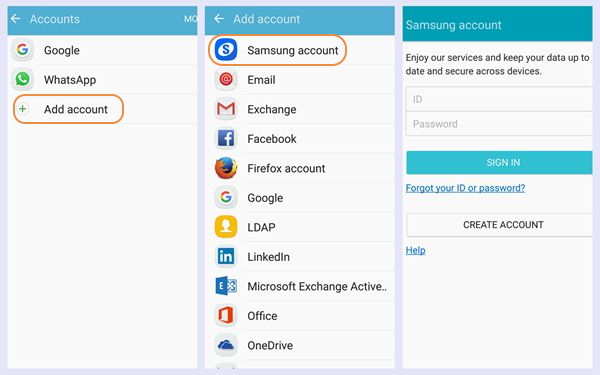
Note: If you haven’t connected a Google account to your device, please tap on the “Add account” on the interface to firstly add a Google account.

Part 2: Backup Contacts on Samsung Galaxy S8 via Samsung Account

The second way – backup contacts on Samsung via Samsung account. And you can also restore the data simply whether to the same Samsung or the other device with the Samsung account.

Step 1. Navigate to Settings app on your Samsung and choose “Account“.

Step 2. Find “Samsung account” option on the list. If you cannot find it, please tap on “Add account” and you would see the “Samsung account” option there.

Step 3. Sign in your Samsung account. If you don’t have the account, please create one.

backup galaxy s8 contacts samsung account

Step 4. On the interface, select “Backup” and choose the options you want. Then the program would start the backup process.

Part 3: Backup Contacts on Samsung Galaxy S8 via Android Manager

The best ways to backup contacts on Galaxy S8 is using Android Manager. As its name, Android Manager is a wonderful data manage tool for Android. With the help of Android Manager, you are allowed to transfer & manage Android data freely and safely on the computer. Android Manager provides a full solution for transferring data between Android and computer, transferring data between Android and iTunes, and transferring data among Android and iOS devices.

d_win d_mac

Android Manager makes it extremely easy to backup Android contacts to CSV or vCard files on computer, or export Android contacts to Windows Address Book or Outlook 2010/2013/2016 in one click. Android Manager also allows you to manage and transfer contacts on your SIM card, iCloud, Exchange, Yahoo! and other accounts. In the following part, we would like to show you the detailed tutorial.

Step 1. Run Android Manager on the PC
Launch Android Manager and connect your Samsung Galaxy S8 phone to PC. Your device will be detected and displayed in the primary window.

android data transfer mian page

Step 2. Select the Contacts to Export
Select “Information” tab. In the contact management window, select group from which you want to export and backup contacts, including your Phone Contacts, SIM Contacts and Account Contacts.
select the position to export

Step 3. Select the Position to Export
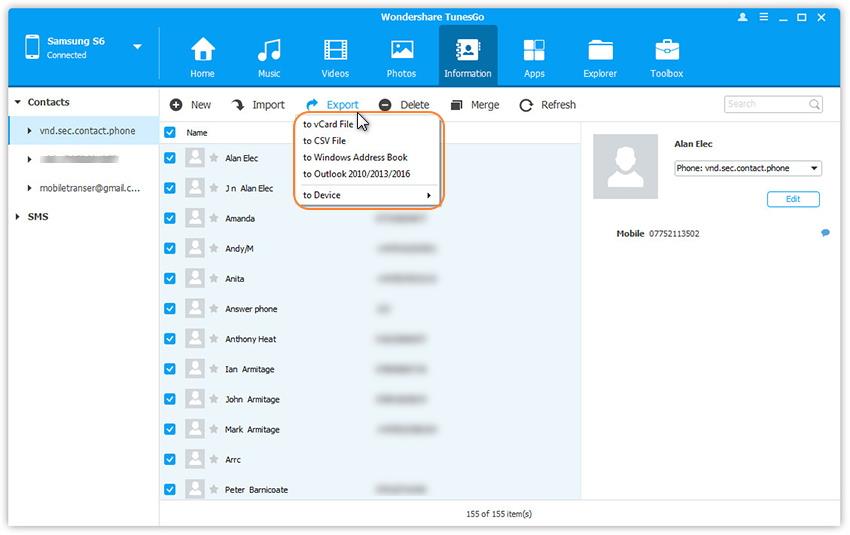
Choose all or selected contacts you want to export. Click “Export” and select one from the 4 options: “to vCard File“, “to CSV File“, “to Windows Address Book” and “to Outlook 2010/2013/2016“.

backup galaxy s8 contacts csv

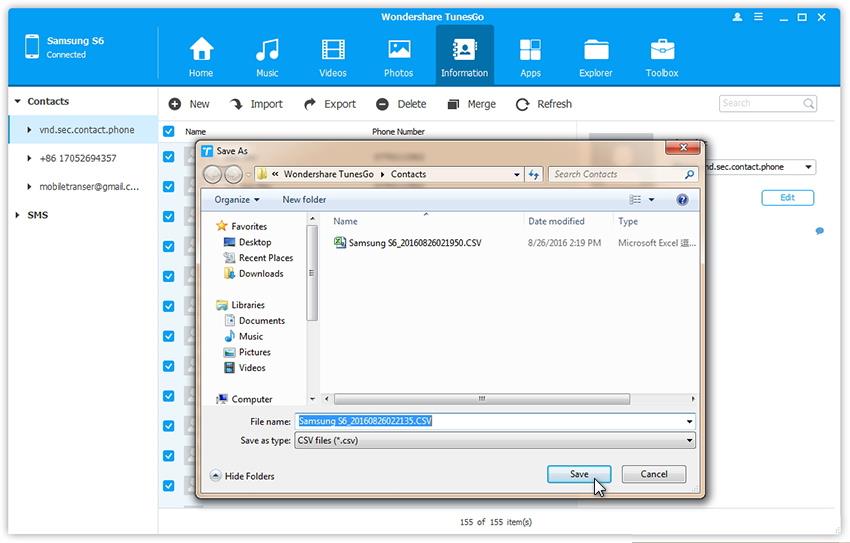
Step 4. Backup Samsung Contacts
Then, the contacts begin to export. When it’s complete, click “OK“.

d_win d_mac

Related Article:

How to Backup WhatsApp on Samsung Galaxy S8

How to Manage Samsung Galaxy S8 on Computer

How to Recover Lost Contacts from Samsung Galaxy S8

How to Recover Data from Samsung Galaxy S8

How to Backup and Restore Samsung Galaxy S8 with Samsung Kies

How to Backup & Restore Samsung Galaxy S8