All posts by DHZ

How to Backup and Restore Google Pixel 3a/3a XL

[Summary]: Want to backup data from Google Pixel 3a/3a XL to computer? This article teach you a easily method to back up your Android data from Google Pixel 3a/3/2/1(XL) to computer, you can also learn how to selectively restore backed up data to your Google Pixel, as well as restore iTunes/iCloud backup to Google Pixel phone.
backup restore google pixel phone

Contents:

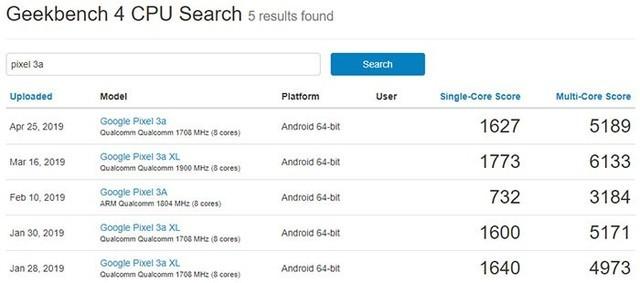
Google has released two mid-range smartphones – Pixel 3a and Pixel 3a XL. The Pixel 3a’s screen is 5.6-inch with a resolution of 1080 x 2160, while the Pixel 3a XL phone’s screen is 6-inch screen with a resolution of 2220 x 1080.The Pixel 3a will be powered by a Qualcomm Snapdragon 670 processor with 4GB of RAM and 64GB of storage. The single-core/multi-core runs in Geekbench are 1627 / 5189. The Pixel 3a XL will be powered by the Qualcomm Snapdragon 710 processor with 4GB of RAM and 128GB of storage. The single-core/multi-core runs in Geekbench are 1773 / 6133 respectively.
google pixel 3a backup resotre

In terms of shooting, Pixel 3a and Pixel 3a XL will use a 12.2 megapixel rear lens, equipped with Google Pixel Visual Core image processing unit, which can accelerate the camera’s HDR+ calculation, make image processing faster, and make HDR+ performance better than current 5 times faster. Pixel 3a and Pixel 3a XL will use the Titan M security chip and support fast charging. In terms of price, the Pixel 3a is priced at $399 and the Pixel 3a XL is priced at $479.

If you often take photos and shoot videos by Google Pixel phone, since there are a lot of photos and videos stored on your phone, in order to speed up your Google Pixel phone, you may need to regularly back up your large capacity videos and photos to your computer, and then deleted the photos and videos on your phone. In order to make your data safely, you must to backup contacts, text messages, photos, videos, call logs, calendar, Application and Application data to the computer. In the following cases, you may need to back up your Android data in advance.

Part 1: Why You Need to Backup Android Data Regularly?

Avoiding files deleted by mistakenly.
Before perform factory reset your Android phone.
Avoiding formatting phone’s SD card by careless.
Before updating Android OS.
Avoiding data lost due to virus or malware attack.
Forgot lock screen password password/PIN/pattern.
Before rooting the Android phone
Prevent the phone stuck at white/black/blank screen of death and can’t access data.
Avoid losing data due to water-damaged the phone
Avoiding the phone ROM flashing.
And so on…

If you are looking for some way to backup and restore your Pixel 3a/3a XL and Google Pixel 3/2/1(XL), you’d better read our passage in detail. We recommend you to use Android Toolkit – Backup & Restore and U.Fone Android Data Backup & Restore tool, both can help you backup and restore Android data easily.

Part 2: Backup and Restore Pixel 3a/3a XL Data by U.Fone Android Data Backup & Restore

The U.Fone Android Data Backup & Restore is a part of U.Fone Android Toolkit, which is designed to back up data from Pixel 3a/3/2/1(XL) to computer and even selectively restore backed up data to your other Android device. You can safely and selectively back up your Android data, including contacts, text messages, WhatsApp messages, call logs, gallery, videos, audio and documents. Moreover, you can also set a password for protecting your important backup files.


d_win d_mac
d_win d_mac

Steps to Backup Data from Pixel 3a/3a XL to Computer

Step 1. Launch Android Toolkit on PC or Mac
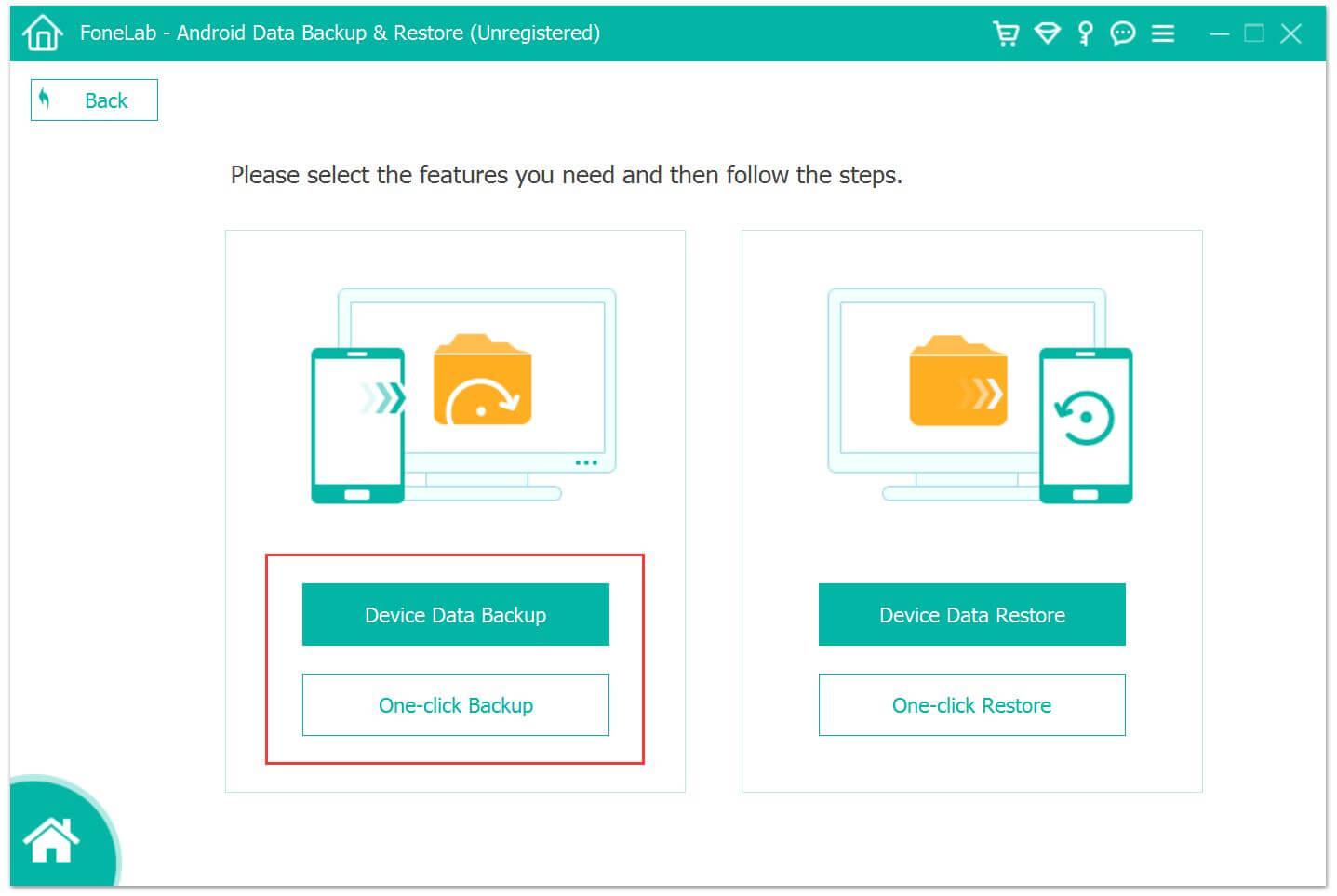
First of all, please download, install and launch the Android Toolkit on the computer, click “Android Data Backup & Restore” section, you can see the screenshot as below.

google Pixel backup restore

Entering “Android Data Backup & Restore” function and select “Device Data Backup”
backup google Pixel phone

Step 2.Connect Google Pixel 3a to Computer with USB cable
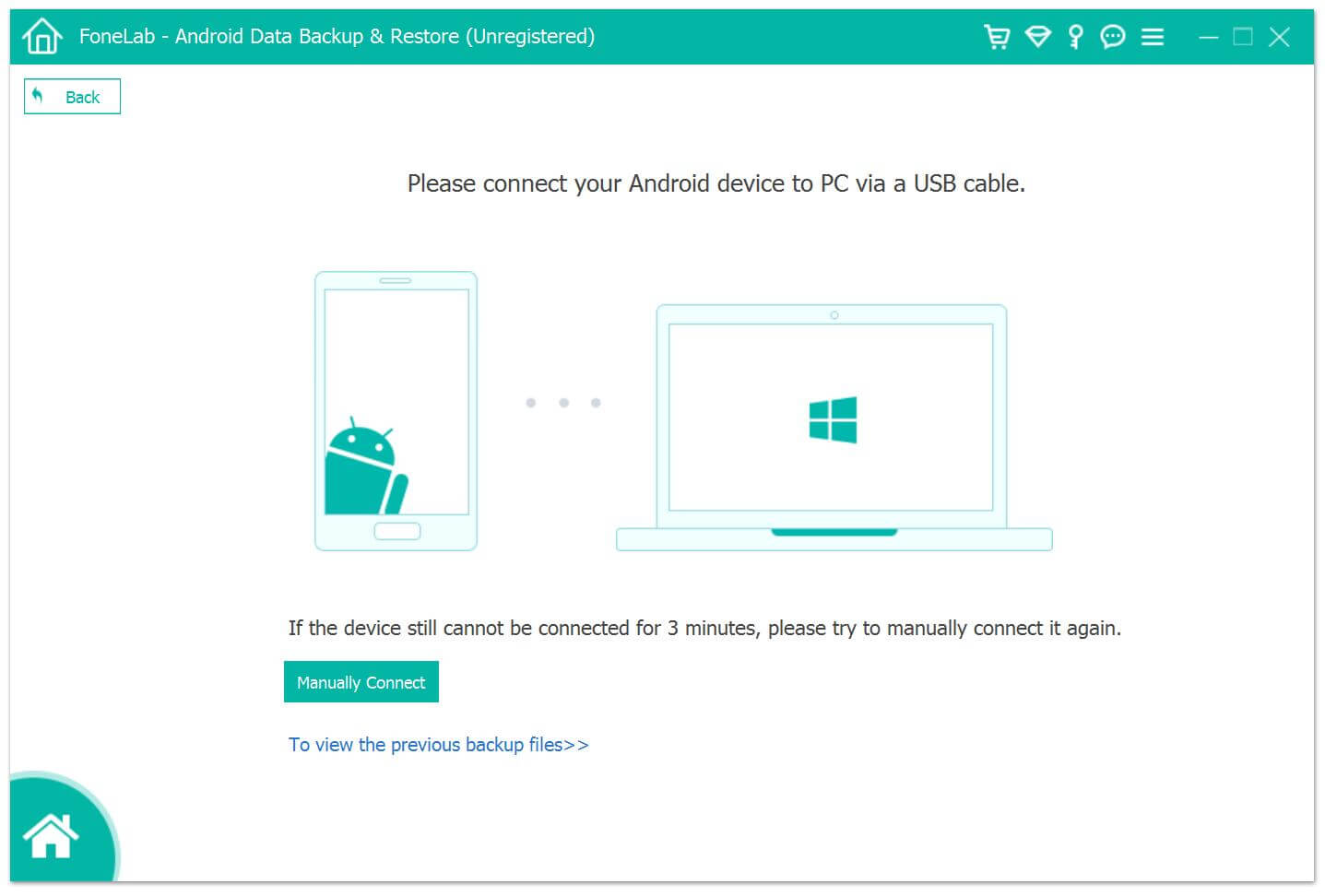
Then, using a USB cable to connect your Pixel phone to the computer, then program will detect it.
connect google Pixel to backup

Step 3. Choose a Backup Option
Choose ‘Device Data Backup‘ or ‘One-click Backup‘ option to back up data from Pixel 3a to the computer.

backup google Pixel data

Note: “Device Data Backup” means you can select data type to make a backup while “One-click Backup” lets you back up all data at one time without picking up specific data. After backing up data from Google Pixel to the computer, you can also set a password to protect the backups.
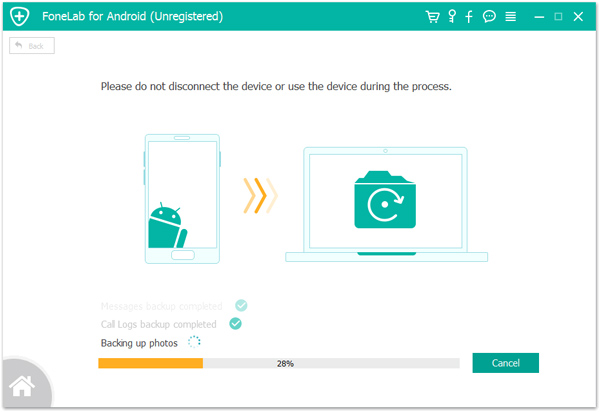
backup data from google Pixel

Steps to Restore Backup to your Pixel Phone or other Android phones

Above steps, you have backed up your Google Pixel phone’s data, you can preview and select the data you want to restore. In this part, we will teach you how to restore the backup files to the original Pixel 3a phone or other Android phones. In additional, you can also directly restore Android data to PC/Mac for further use.

Step 1. Connect Google Pixel or other Android Devices to Computer
If you want to restore all your data, you can back to the main interface and choose ‘One-click Restore‘ option. If you want to choose some certain data, you can click choose ‘Device Data Restore‘ according to your need.
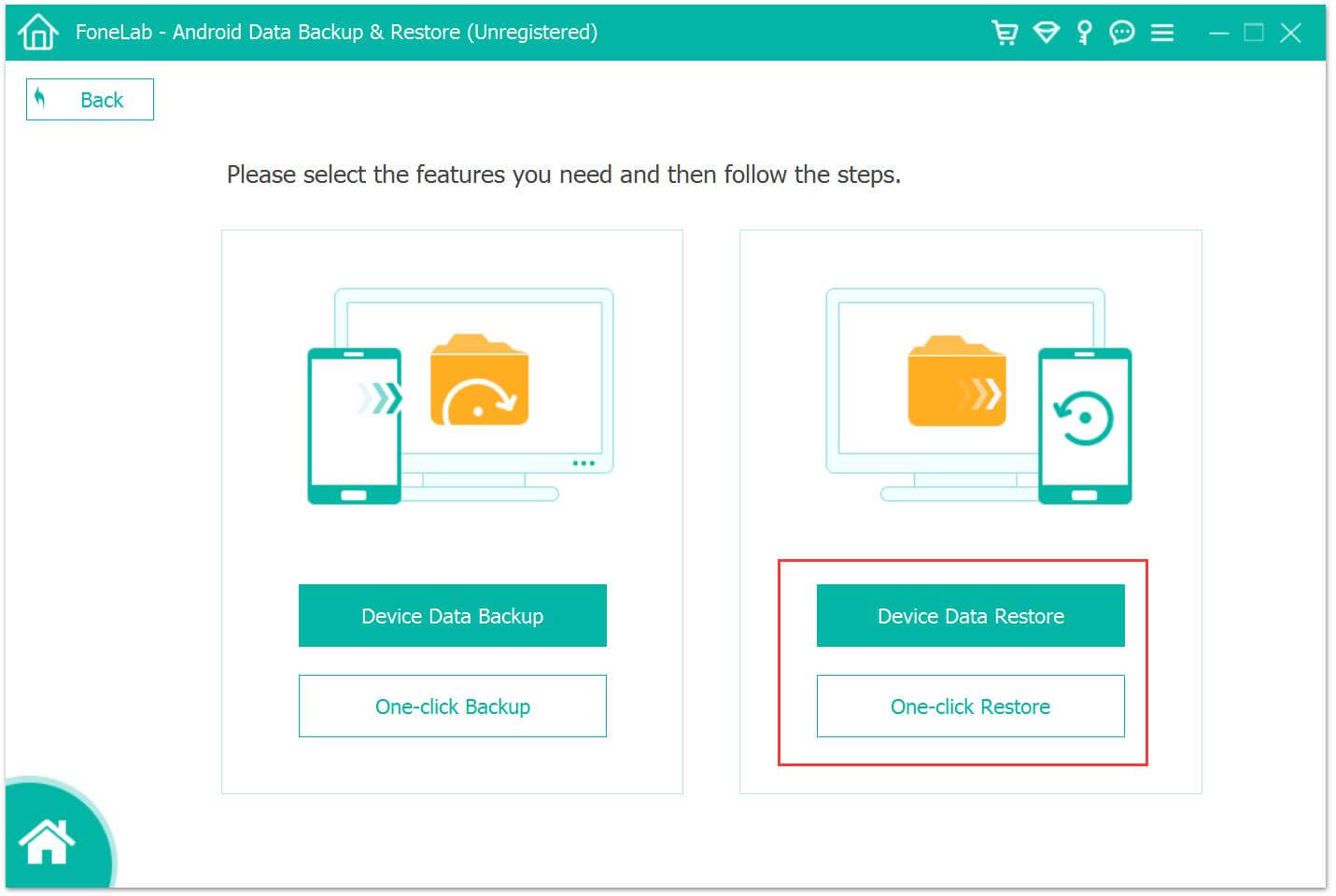
restore google Pixel data

Step 2. Start to Restore Data to Pixel 3a
After connecting your Google Pixel phone to the computer successfully, choose the suitable backup to restore your backed up files to Google Pixel 3a directly.
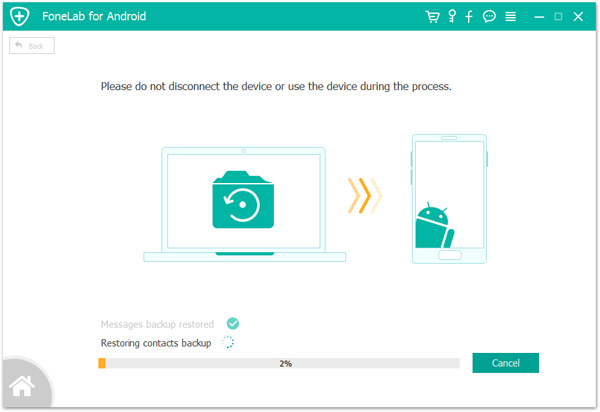
restore data to google Pixel

You can also restore your Android phone the other new phone easily in regardless of e data loss for deletion or phone switch.
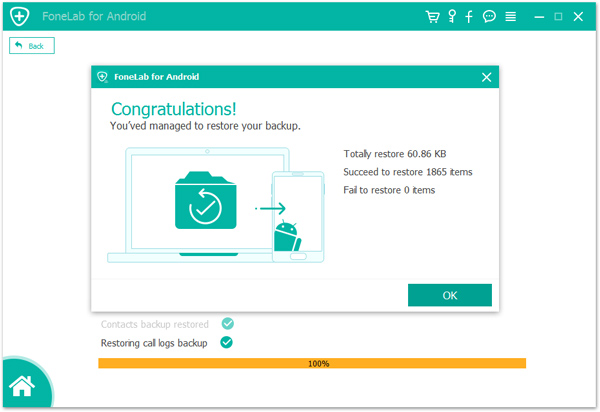
restore data to google Pixel 3a

Related guide: How to transfer data from iPhone/Android to Pixel 3a/3a XL

Download the Android Toolkit – Android Data Backup & Restore and start to backup and restore your Android data easily.

d_win d_mac
d_win d_mac

Tips: U.Fone Android Toolkit not only can help you backup restore data on Google Pixel phone, but also can help you recover deleted data from Google Pixel phone.

Part 3:Restore iCloud and iTunes Backup to Pixel 3a/3/2/1(XL) by Android Toolkit

If you use iPhone/iPad/iPod before, and you may have backup iOS data to iCloud or iTunes before. When you have purchased an new Android phone as replace, like Pixel 3/3a(XL), Samsung Galaxy S10/S9/S8/Note 9, Huawei P30/P20/Mate 20/Mate 10, etc. This part will teach you how to restore precious iCloud/iTunes backed up data to Google Pixel phone.

Android Toolkit – Backup & Restore can help you backup your contacts, SMS, photos, videos, WhatsApp data and more Apple data on Android phone and restore them selectively whenever you need. Moreover, it also allows you restore iTunes backup to Android, and restore iCloud backup to Android. Let’s learn how to restore data to Google Pixel from iTunes/iCloud backups.

Download Android Toolkit for Windows and Mac and try to manage your phone’s data easily.

d_win d_mac
d_win d_mac

Step to Restore iCloud Backup Data to Google Pixel

With the help of Backup & Resotre (Android), you can easily download, preview, and restore iCloud backup to Google Pixel phone in minutes, the whole restoring process won’t affecting existing Android data and settings.

Step 1. Connect your Google Pixel Phone to PC
Download, install, and launch the Android Toolkit on your PC. In the main screen, select “Backup & Resotre” function.
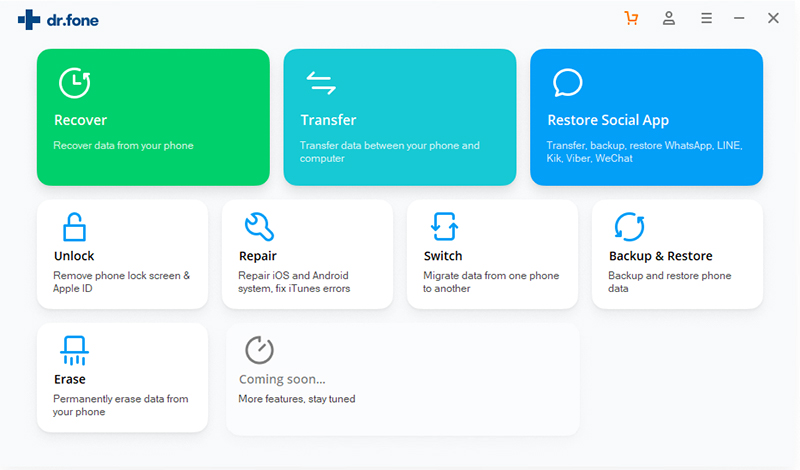
Restore iCloud Data to Android

Use the original USB cable to connect Google Pixel phone to the PC. Then click the “Restore” button in the middle of the scren.
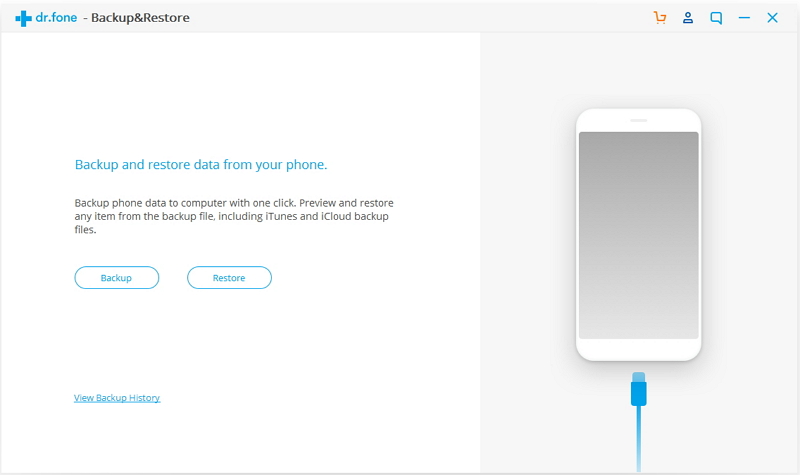
Restore iCloud Data to Google Pixel

Step 2. Sign in to your iCloud account
In the next screen that shows up, select “Restore from iCloud backup” from the left side.
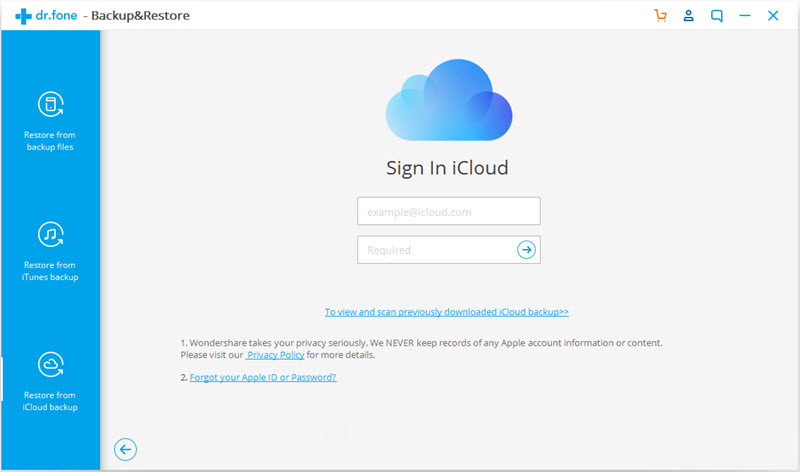
sign in icloud

You may have enabled the two-factor authentication for your iCloud account. In this case, a verification code will be sent to your iPhone. Find the verification code and input it in in the following screen, and click “Verify”.
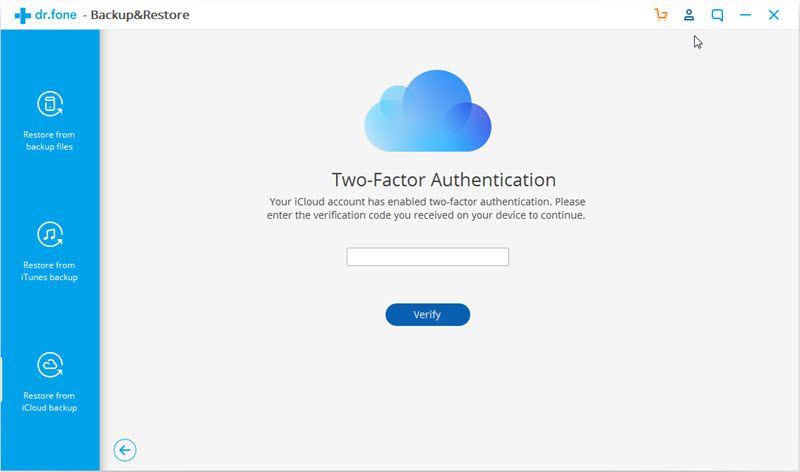
verify icloud id

Step 3. Restore iCloud Data to Google Pixel
Now you have signed in to your iCloud. All the backup files are listed in the dr.fone screen. Select one of them and click “Download” to save the file to a local directory on your PC.
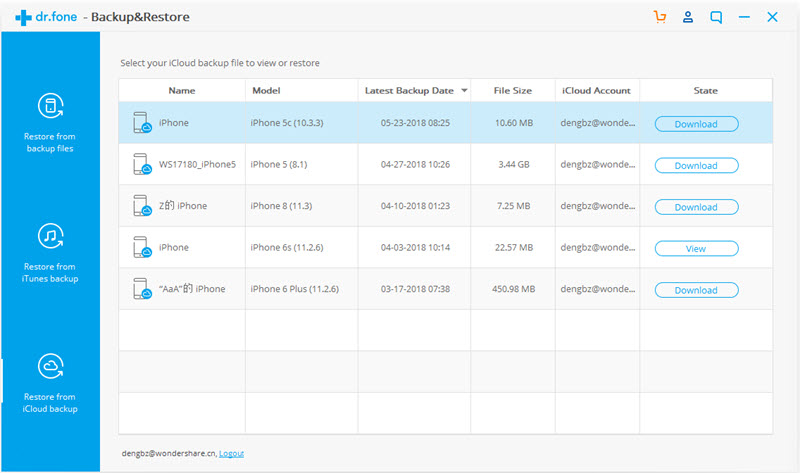
download icloud backup file

Then the software will read and display all the data from the downloaded iCloud backup file. Click a data type and preview what information is stored in it. Then you can select some or all of the data items and click “Restore to Device”.
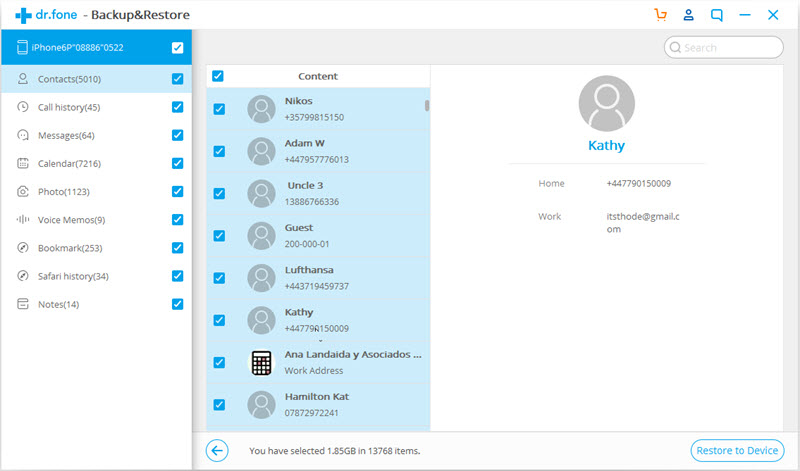
select icloud backup data restore to google pixel

In the dialog box that is displayed, select an Android device in the drop-down list, and click “Continue”.

Note: An Android device does not support such data types as Voice memos, Notes, Bookmark, and Safari history.
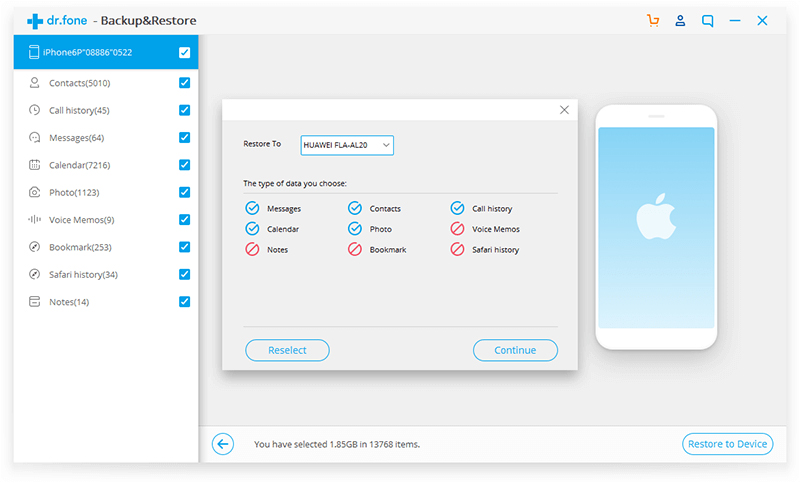
confirm to restore to android

Step to Restore iTunes Backup Data to Google Pixel

For iOS users, you may frequently back up and restore iPhone or iPad data via iTunes, when you have purchased an new Android phone like Pixel 3a/3(XL), you can directly restore data from iTunes to Android phone. If you iPhone is broken, damaged, lost or stolen, under these circumstances, you still have chance to restore iTunes backup data to Android phone, even if your iPhone or iPad is unavailable or not in hand.

Step 1. Connect the Goolge Pixel Phone to Computer
After downloading dr.fone on your computer, install and start the tool. Then select “Backup & Restore” among all the features.

Restore iTunes Backup Data to Android

Then, please connect your Goolge Pixel phone to the computer via USB cable. After the connection is set up, click “Restore” in the center of the screen.
Restore iTunes Backup Data to

Step 2. Detect iTunes backup files
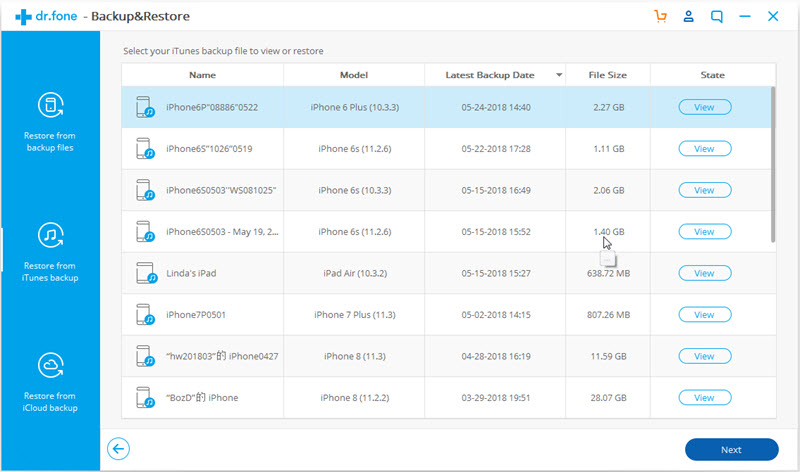
In the next screen, select “Restore from iTunes backup” from the left column. dr.fone will detect the location of iTunes backup files on your computer, and list them one by one.
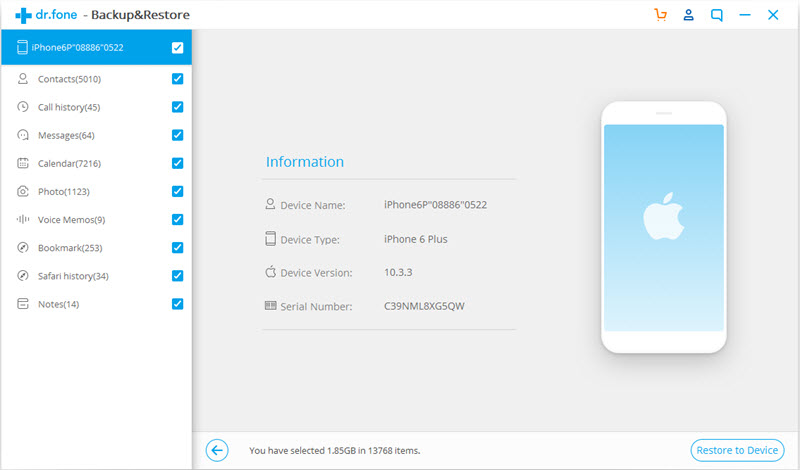
confirm android device to restore to

Step 3. Preview iTunes backup data, and restore to Android.
Select one of the iTunes backup files, and click “View”. The Android Toolkit will read and display all details from the iTunes backup file by data type.

Select all or some of the items, and click on “Restore to Device”
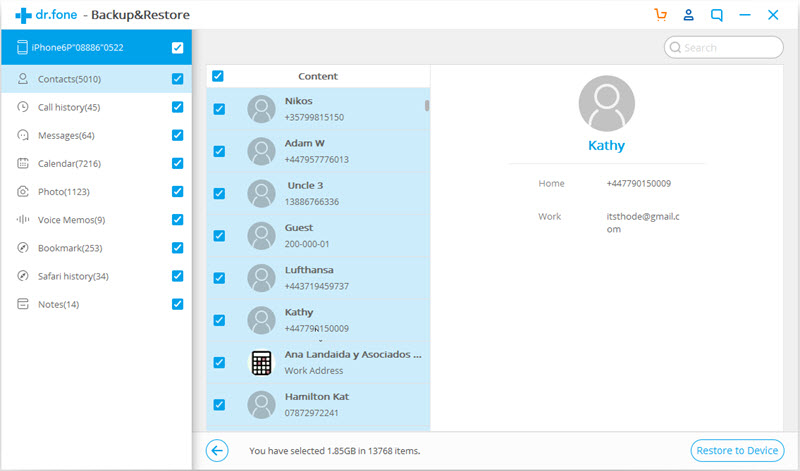
sync iTunes data to google pixel

In the new dialog box that pops up, select the desired Android device, and click “Continue” to confirm restoring iTunes backup to Goolge Pixel.

confirm to restore iTunes to Pixel 3a

Note: Data cannot be restored if Android does not support the corresponding data types.

Download the Android Toolkit and try to restore data from iTunes/iCloud to your iOS/Android phone directly.

d_win d_mac
d_win d_mac

Tips: When you have purchase an new Android phone, you can also follow this method to transfer data from iPhone/iPad/iPod to Android phone. For example, you need to sync data from iPhone to iTunes or upload to iCloud firstly, then use our Phone Toolkit to restore iCloud/iTunes backup to Samsung Galaxy S10/S9/S8/S7/S6/Note 9/Note 8, Huawei, HTC, Sony, LG, Motorola, Google Pixel, Xiaomi and almost of all latest Android smart phones.


Backup and Restore Google Pixel

How to Recover Deleted Data on Google Pixel 3A/3A XL

[Summary]: How to recover deleted data from Google Pixel 3A/3A XL. Use Android Data Recovery Software to recover deleted and lost data from Pixel 3A/3A XL. We also recommend you backup Android data to avoid data loss on Google Pixel 3A/3/2/1(XL).

Recently, Google inc released the Pixel 3a and Pixel 3a XL smartphones, this is a mid-range phone and the cheapest Android phone in the Pixel series, the Pixel 3A starts at $399, while the 3A XL is priced at $479. The back of the Pixel 3a is not glass, but polycarbonate, which is plastic. Although it’s plastic, the Pixel 3a feels pretty good overall. The Pixel 3A’s screen uses a 5.6-inch OLED screen with a resolution of 2220*1080, and the Pixl 3A is 6.0 inches, but the resolution is only 2160*. 1080. Pixel 3a/3a XL are equipped with Qualcomm Snapdragon 670 processor with 4GB of running memory, It is a good choice to buy a mid-range Android smartphone in this low price.

You may want to know:

How to transfer data from iPhone/Android to Pixel 3a/3a XL

How to backup and restore Android Data

Do you often use Google Pixel phone to take photos or shot videos? If you deleted or lost photos on your Pixel phone, how can you recover deleted photos, videos on Pixel phone? Have you lost contacts, SMS, call logs after factory reset Google Pixel phone? Do you uninstall and reinstal the WhatsApp app and found all WhatsApp data lost? Though the Google Pixel 3A smartphones has high ends features and specification, loss or deletion of data still occurs on these smartphones.
what are the causes for the loss of data and how users delete their files from Google Pixel 3A/3A XL/3/3XL/2/2XL and Pixel/XL?

Below causes for the data missing or deleting from Google Pixel phone.

How Data Gets Deleted Or Lost From Google Pixel 3A/3/2/1(XL)

Deleted files on Pixel phone by careless.
Restore to factory setting.
Formatting the SD card inside of the Pixel phone.
Failed update Android OS without backup phone’s data.
Virus or malware attack.
Forgetting screen lock password/PIN/pattern lock.
Failed rooting the Android phone without backup.
Android phone stuck at blank/white/black screen of death.
Water-damaged.
ROM flashing.
And so on…
Those are the common causes for the data loss or deleted on Android phones.
Don’t worry! In this article you are going to learn effective methods that will help you to recover lost or deleted data from your Google Pixel 3A/3A XL, including photos, videos, contacts, text messages, WhatsApp messages and more documents.

So, keep reading the detail guide – How to recover lost data and deleted files from Google Pixel 3A/3/2/1(XL), let’s take restore deleted photos from Pixel 3A as example.

Recover Data From Pixel 3A/3A XL by Use Android Data Recovery Software

U.Fone Android Data Recovery is a powerful and perfect Google Pixel 3A/3A XL Data Recovery Tool that will help you to effectively recover the erased, lost, deleted or missing data from Google Pixel 3A/3/2/1(XL) without backup, all recoverable data including text messages, contacts, photos, videos, audio, call history, documents, voice/call recordings, WhatsApp messages, documents and many other files.

This powerful Google Pixel 3A/3A XL Data Recovery software is available for both Windows and Mac computer. So, you need to download this Android data recovery software on PC or Mac, then using this software to scan and recover lost data from phone’s internal storage, external SD Card, not matter data lost due to mistakenly deletion, factory reset, rooted/unrooted and other unexpected situation.

d_win d_mac
d_win d_mac

In addition, the Broken Android Data Extraction feature also can help you fix Android system to normal and extract data from broken Android phone. So, you can use this function to recover data from damaged, screen broken, locked, water damaged, virus infected, black/white screen, factory reset, rooted/unrooted, ROM flashed .

Also Read: Recover Data From Broken/Damaged Samsung Galaxy S6/S5/S4
How to Fix a Black Screen Android phone

Now let us learn the complete guide to restore deleted data from Google Pixel 3a/3a XL by using U.Fone Android Data Recovery Software.

Step-by-Step To Recover Deleted or Lost Data From Pixel 3A/3A XL

Note: Before using our Android data recovery software to recover your lost data from Android phone, ensure don’t import/transfer data to the phone, or don’t using your Android phones after you lost or accidentally delete data on it. It is because if you add any new data on it, the new data will overwrite and replace the deleted data, it may greatly reduces the possibility of file recovery. Please use an profession Android data recovery software to recover your Android lost and deleted data as soon as possible.

Step 1. Launch Android Toolkit and Click “Android Data Recovery” Section
Download, install and run our Android Toolkit on PC or Mac, then click “Android Data Recovery” section go to recover your Android lost data.

Recover Google Pxel phone's Data

Step 2. Connect the Pixel 3A/3A XL Phone to PC
After launching the program, then using a USB cable to connect the Pixel phone to the computer.

Retrieve Data from Pixel 3A

Enabled USB debugging

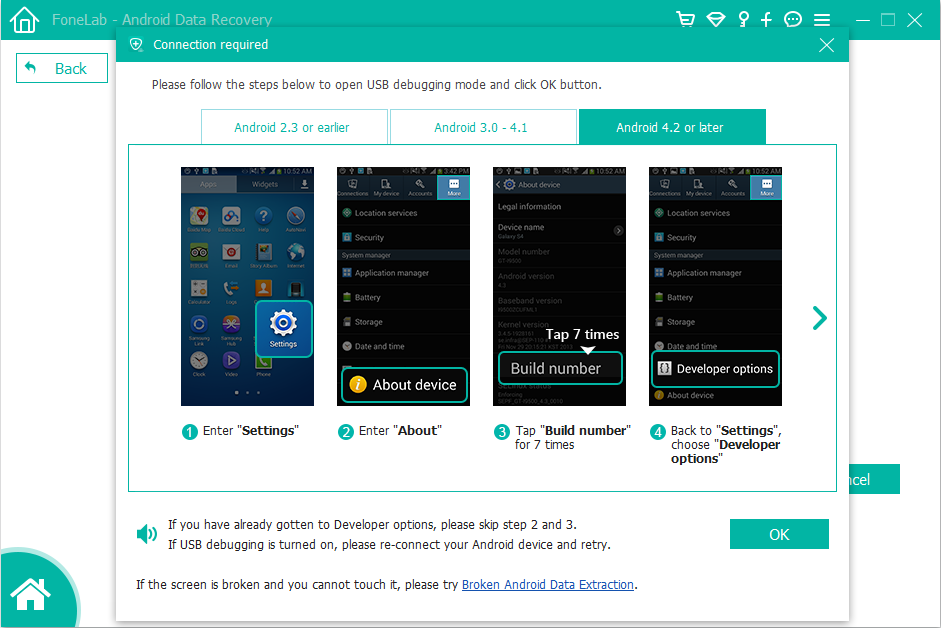
Now, if you have not enabled USB debugging, you will need to follow this. Otherwise, skip to “Step 2”.

1) For Android 5.0 or newer: Tap “Settings” > “About Phone” to tap “Build number” seven times for “You are now a developer!” signal. Then, move to “Settings” > “Developer options” to turn on “USB debugging”

2) For Android 4.2 to 4.4.4: Move to “Settings” > “About Phone” > Tap “Build number” for several times until “You are under developer mode” appears > “Settings” > “Developer options” > Check “USB debugging”

3) For Android 3.0 to 4.1: Enter “Settings” > “Developer options” > Tick “USB debugging”

4) For Android 2.3 or earlier: Go to “Settings” > “Applications” > “Development” > Tick “USB debugging”

Restore Files from Pixel 3A

Step 3. Select File Types to Scan Google Pixel Phone
On this interface you are able to choose which kinds of data are to be scanned. So, please select the types of file you want to recover. And then press “Next” to scan your phone.

Recover Lost Files from Pixel

You should go to your Galaxy phone and tap “Allow” on the pop-up box until it disappears and the scanning will start.

allow to scan Pixel 3A XL

The program will start to analyze the phone.

Recover lost data from Google Pixel 3A

Step 4. Preview the Result and Recover Data from Pixel 3A/3A XL
Now, you can view the data you want to get back. Tick all of them and click “Recover” to save the deleted files onto the computer.

Retrieve Photos on Pixel 3A

d_win d_mac
d_win d_mac

Well done! You have restored lost and deleted data from Pixel phone, if you want to transfer the retrieved files back to the original phone for viewing or using, you can use this phone transfer & manager to transfer your Pixel phone’s lost content from PC to the original phone, you can also use this phone manager tool to transfer Android phone’s lost data from PC to iPhone/iPad directly.

Bonus Tips: Avoid Data Loss On Google Pixel 3A/3A XL

In order to avoiding data lost on your phone again, we recommend you should backup your Android data to computer regularly. Our Android Toolkit – Android Data Backup & Restore section allows you backup and restore data from 3A/3/2/1(XL) and almost all Android devices, all backupable data including contacts, messages, call logs, gallery, videos, audio and documents. In addition, you are able to set a password for protecting your important backup.

Recover Data from Pixel 3a

How to Transfer iOS/Android Data to Google Pixel 3A/3A XL

[Summary]: Do you want to transfer data from old phone to Pixel phone? This article teach you two ways to transfer data including contacts, messages, photos, videos, music and App data from Android, iPhone to Google Pixel 3A/3A XL with Google Quick Switch Adapter and Phone Switch.

transfer data to gooogle pixel 3A/3A XL

People also read:

* Transfer WhatsApp Messages from iPhone to Pixel 3A/3/2/1(XL)

* Restore deleted data from Pixel 3A/3/2/1(XL)

* Backup and restore data on Pixel 3A/3/2/1(XL)

* Import Music, Photos, Videos to Pixel 3A/3/2/1(XL)

* Transfer Music (Apple Music) from iTunes to Pixel 3A/3/2/1(XL)

Google released the cheap version of Google Pixel, Pixel 3A/3A XL, at the I/O 2019 Developer Conference on May 8. Also a Pixel phone, the Pixel 3A series broke the past high-priced flagship style, Pixel 3A is only half the price of Pixel 3: The Google Pixel Pixel 3A is priced at $ 399. The larger screen version of the Pixel 3A XL is available for $479, bringing two more intimate options to the Pixel model. Below is the detail specs of Pixel 3A/3A XL:

Google Pixel 3A/3A XL specs and price:

CPU: Qualcomm Snapdragon 670 processor
RAM: 4GB
ROM: 64GB
Screen; 5.6-inch 222×1080 OLED(Pixel 3A), 6.0-inch 2160×1080 OLED(Pixel 3A XL)
Camera; front: 8MP wide angle, F/2.0 rear: 12.2MP, unit pixel size 1.4μm, F/1.8, electronic image stabilization
System; Android 9.0 Pie
Battery capacity: 3700mAh(Pixel 3A), 3000mAh(Pixel 3A XL)
Body material: Plastic(Polycarbonate)
Features: Google Assistant, Night Shift, Live Relay

Google’s Pixel 3A/3A XL, many of us don’t seem to be particularly perfect in its eyes. In its target market, it is a very competitive product, only half the price of Pixel 3, so cheap! It almost the same photo performance as the previous models – Pixel 3/2/1(XL), the color design and Native Android support, such a high-profile mobile phone, I believe it is popular with many consumers. The Pixel 3A is available from Sprint, T-Mobile, Verizon and Google Fi. AT&T is not carrying these phones. You can also go to googlestore.com. The Pixel 3A starts at $399, while the Pixel 3A XL starts at $479.

Have upgraded from your old Android or iPhone? While buying a new Pixel 3A/3A XL, Pixel 3/3 XL, or Pixel 2/2 XL is exciting, transferring data can be boring and take a lot of time. To transfer data from old iPhone/Android to Pixel 3A/3A XL or Pixel 3/2/1(XL), you can use Quick Switch adapter to copy data from old phone to Google Pixel 3A/3A XL, if you looking for the easiest and fastest way to transfer iOS/Android data to Google Pixel, you need a specific phone data transfer app. This article teach you two method to copy data to Pixel 3A/3A XL from Android phone, such as Samsung Galaxy, old Google Pixel phone, Huawei Mate/P, Sony, HTC, Motorola, LG, ZTE, Xiaomi, etc. You can also follow the same steps to transfer data from iPhone to Pixel 3A/3A XL, transferable data includes contacts, text messages, photos, music, calendars, apps and more.

Part 1: Transfer Data from Android to Pixel 3A/3A XL with Google Quick Switch Adapter

Quick Switch Adapter is developed by Google™ inc, which is designed to transfer contents from old phone to Google Pixel phone, it not only allows you transfer data from your current Android device to your Pixel 3A/3/2/1(XL) phone, but also copy data from iPhone/iPad to Google Pixel phone, but during the entire transfer process, you must connect to a cellular or Wi-Fi network.

More you need before transfer content from old Android phone to Pixel 3A/3A XL with Google™ Quick Switch Adapter:

1.Google Pixel phone and old Android phone (Samsung, Huawei, HTC, LG, etc.)
2.USB cable provided with your old Android device
3.Google Quick Switch adapter
4.Sign your Google account on both mobile phones
5.A cellular or Wi-Fi network connection
6.Ensure both devices have more than 50% charge before getting started.

Let’s shows you the step-by-step guide on how to copy data from Samsung Galaxy to Pixel 3/3A XL via Google Quick Switch Adapter.

Step 1. Connect Wi-Fi network or cellular on Pixel 3A
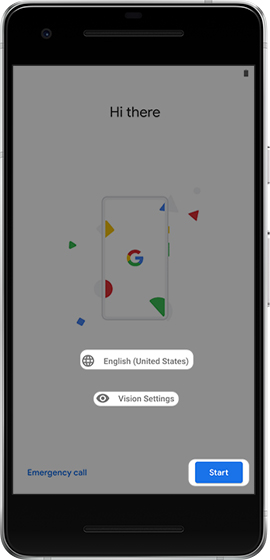
Firstly of all, please tap Start on your Google Pixel 3A phone and follow the on-screen prompts to connect to a cellular or Wi-Fi network, and then tap Copy your data.

google quick switch adapter from Android

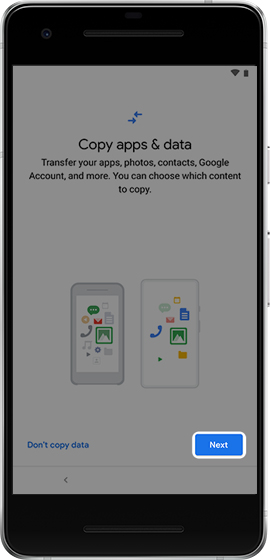
Step 2. Tap ‘Copy apps & data’ on Pixel Phone’s Screen
From the ‘Copy apps & data‘ screen, tap NEXT to transfer your data.

google quick switch adapter transfer to pixel 3A

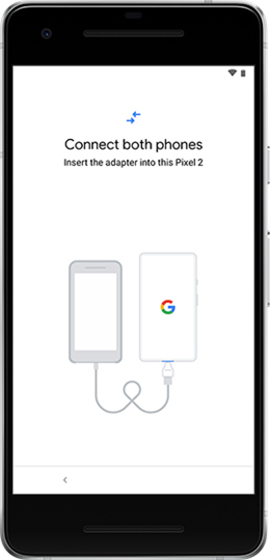
Step 3. Connect your Android Samsung and Pixel 3A Phone via Quick Switch Adapter
Turn on and unlock your Samsung Galaxy phone, then plug your Samsung Galaxy phone into the Quick Switch Adapter and plug the adapter into your Google Pixel phone.

google quick switch adapter transfer to pixel 3A xl

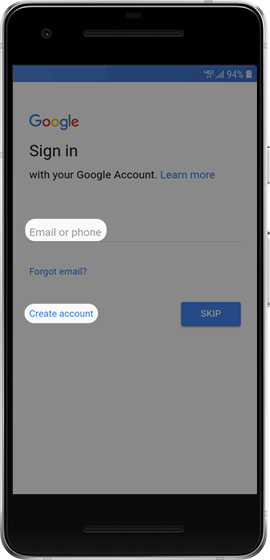
Step 4. Sign in to Google on Two Phones
When prompted, sign into your Google account or create a new Google account on your two Android phones.

google quick switch adapter move to pixel 3A

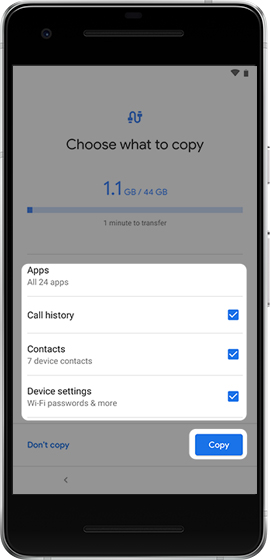
Step 5. Copy Data from Samsung to Pixel 3A
After signing your Google account, it will prompt the ‘Choose what to copy‘ screen on the Samsung phone’s screen, just select the types of contents that you want to copy and tap ‘Copy‘ to continue.

google quick switch adapter copy to pixel 3A

On your Google Pixel 3A phone, you’ll see a list of your data, please tap ‘Copy‘ to copy all your selected data from Android Samsung phone to Pixel 3A.

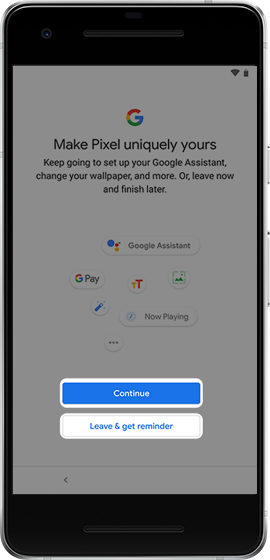
Step 6. Completed Samsung to Pixel 3A Data Transfer
When the transferring process done, you’ll get a notification, please tap Continue to set up your Pixel phone completely or tap Leave & get reminder to set up later.

google quick switch adapter copy samsung to google pixel

Just tap Done when you see the ‘Your phone’s almost ready’ screen then disconnect the cable when the transfer is finished. Now, you can see all copied contents be moved to your new Pixel 3A smart phone, you can use or view those copied contents on Pixel phone.

Notes:
Using Google Quick Switch Adapter to move contents from old phone to Google Pixel 3A/3/2/1(XL), make sure your Android phone running Android 5.0 (Lollipop) or later, and is performed during initial device setup.
In addition, please ensure the two phone’s battery is charged to at least 50% before connecting.

Part 2: Transfer Data from iPhone/Android to Pixel 3A/3A XL with Phone Switch

If you looking for a easy and quick way to transfer data from any old phone to Google Pixel 3A/3/2/1(XL), you can use a third-party mobile phone transfer tool, like Phone Toolkit – Switch, Phone Transfer or iOS & Android Transfer, all phone transfer tools can help you transfer contacts, SMS, photos, videos, music, call logs, calendar and Apps data from Android/iOS to Pixel 3A/3A XL directly, no need for a cellular or Wi-Fi network connection!

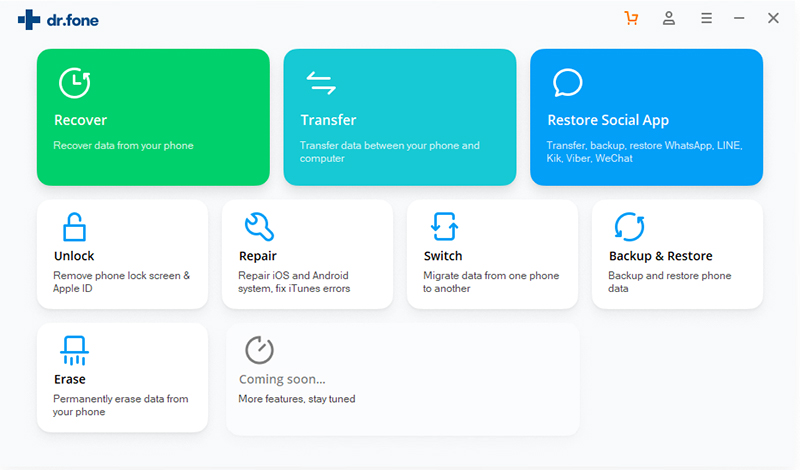
Phone Switch is a part of Phone Toolkit, it works on Windows and Mac computers, it can help you transfer data from Android to Android, iOS to Android, Android to iOS, and iOS to iOS phone, the phone switch compatible with Android 2.1 to 9.0 or later OS and iOS 5 to 12 or later. So, you can use this Phone Switch to transfer all kinds of data from iPhone/iPad/iPod/Android to Google Pixel phone directly, including text messages, contacts, photos, call logs,, videos, documents, calendar, music, and App data. What’s more, the “Restore Social App” function can help you transfer WhatsApp messages from iOS/Android to Pixel 3A/3/2/1(XL), as well as backup and restore WhatsApp data on Android phone. If you want to backup and restore your Android data, the “Backup & Restore” function allows you selectively backup Android data to computer with one click, so you can preview and restore the backup files to any Android/iOS devices.

Free download this Phone Toolkit – Swtich, and try to switch files from iOS/Android devices to Google Pixel phone directly.

d_win d_mac
d_win d_mac

More Features:

1-Click Phone to Google Pixel Transfer
Transfer photos, videos, calendar, contacts, messages and music from Android/iPhone/iPad to Google Pixel phone within 5 minutes.
Copy data from Huawei, HTC, Samsung, Nokia, Motorola, Nokia and more Android brands to Google Pixel phone.
Transfer data to Google Pixel phone from iPhone X/8/7/SE/6s (Plus)/6 Plus/5s/5c/5/4S/4/3GS that run iOS 12/11/10/9/8/7/6/5.
Fully compatible with major providers like AT&T, Verizon, Sprint and T-Mobile.
Fully compatible with Windows 10 or Mac 10.14

Step-by Step Guide to Transfer iOS/Android Data to Pixel 3A/3A XL

Step 1. Run Phone Toolkit- Switch
Launch Phone Toolkit on your Windows PC or Mac. In its homepage, choose the “Switch” option and click on it.

iphone to google pixel 3A transfer

Step 2. Connect iPhone and Pixel 3A to the Computer
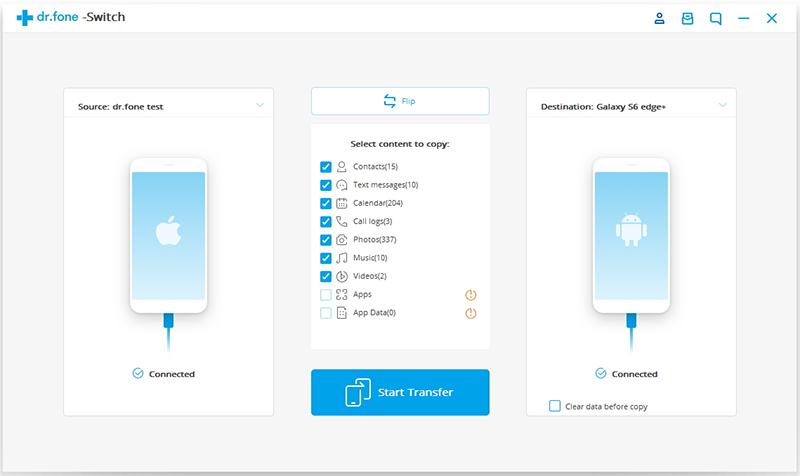
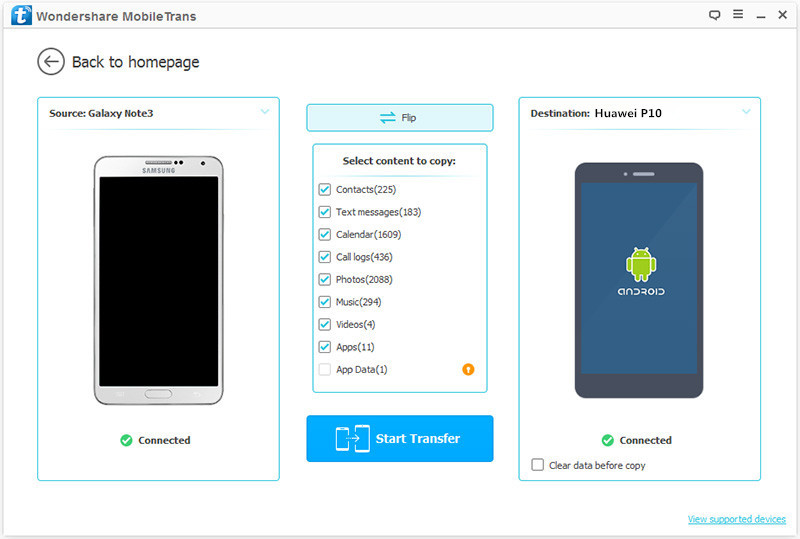
Connect Your iPhone and Google Pixel 3A smart phone to the computer with USB cables, two mobile phones will be soon detected and shown in the window below.

For: iPhone to Android Transfer

transfer iphone data to pixel 3A

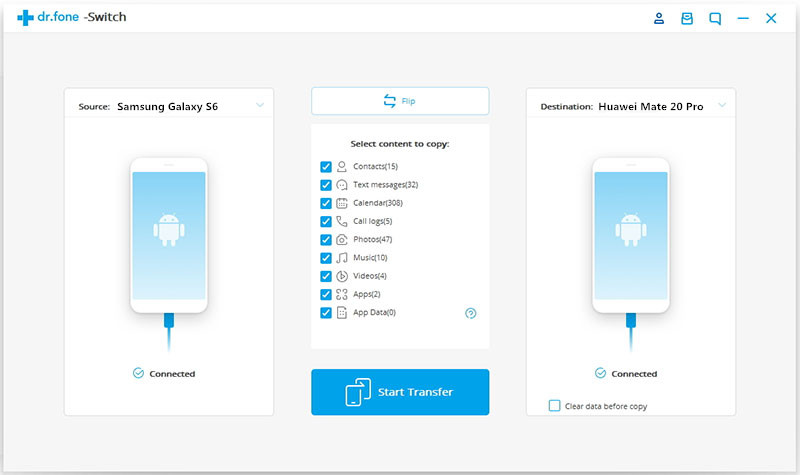
Tips: If you want to transfer data from old Android phone to Pixel 3A/3A XL, please connect your Android phone to the computer via USB cable.

For Android to Android Transfer

transfer android data to pixel 3A

Step 3. Select Contents and Transfer from iPhone to Pixel 3A/3A XL
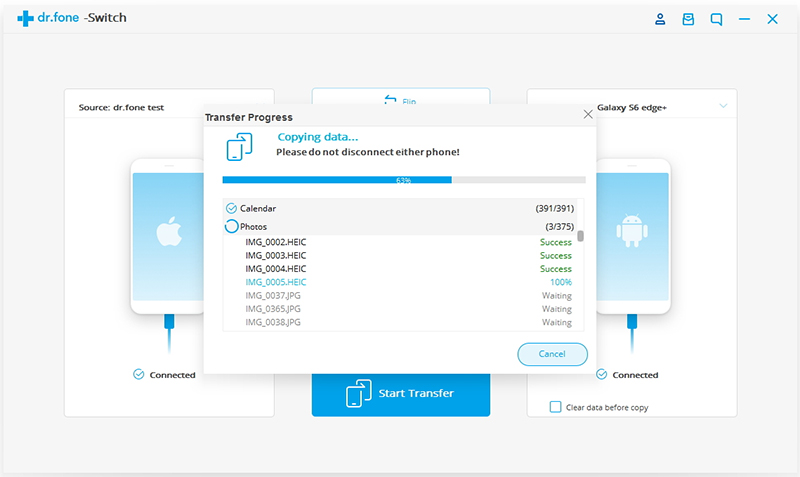
After being detected and scanned the iPhone by Phone Toolkit – Switch, the program will show all transferable data, including Contacts, Text messages, Calendar, Call logs, Photos, Music and Videos. For Android to Android Transfer, the program also supports transfer App and App Data. Just select the type of data you want to transfer, and then click “Start Transfer” button start to move data from iPhone to Pixel 3A.

transfer iphone data to google pixel 3A

Tips: If your have many useless files on your Pixel 3A smart phone, you can check “Clear data before copy”.

More Tips:
1. Transfer Contacts in accounts: To transfer contacts in Facebook, Twitter, Google and any accounts on your old Android/iPhone to Pixel phone or Android phone/tablet, you should sign in the accounts on your old phone.

2.Backup and restore: This function allows you backup data from iPhone/Android to computer, and then restore to your Android Pixel phone directly.

3.Android Data Recovery & iOS Data Recovery: This functions can help you recover lost and deleted data from Android phone and iPhone, including contacts, SMS, photos, videos, notes, call logs, WhatsApp messages and more.

4.Unlock Android & Unlock iPhone: If you forgot the locked screen of your phone, this feature can help you remove PIN, Password, Fingerprint & Pattern of Android phone to unlock your phone, as well as unlocking screen passwords from iPhone and iPad, no data lost at all.

d_win d_mac
d_win d_mac

Transfer Data to Pixel 3A/3A XL

How to Recover Lost Apple Music Songs from iPhone

[Summary]: iPhone Apple Music songs disappeared suddenly? Here are the incredible ways to recover lost Apple Music songs from iPhones and iPads.

A question from the Apple Forum: My Apple Music library has disappeared from my iPhone (6s) but my entire Music library is still intact on my iPad (iPad Air 2).

I can understand you. This issue can actually occur without any human input. For example, one day you are on the road, you feel that it is time to listen to music and relax. When you took your phone out of your pocket, you found all Apple Music songs disappeared. This kind of thing is very common among iPhone users. The most widely reported iteration of this issue is that iTunes basically “delisted” your music — it’s still there on your device taking up storage space, but iTunes doesn’t recognize it as music. Anyway, how to get back lost Apple Music songs is your first thing to consider. In this article, 2 methods have been listed and you can choose one of them according to your wishes.

CONTECT

Part 1: Restore Lost Apple Music Library Using iCloud Music Library

To get your music back and ready to be heard, just follow these simple steps.

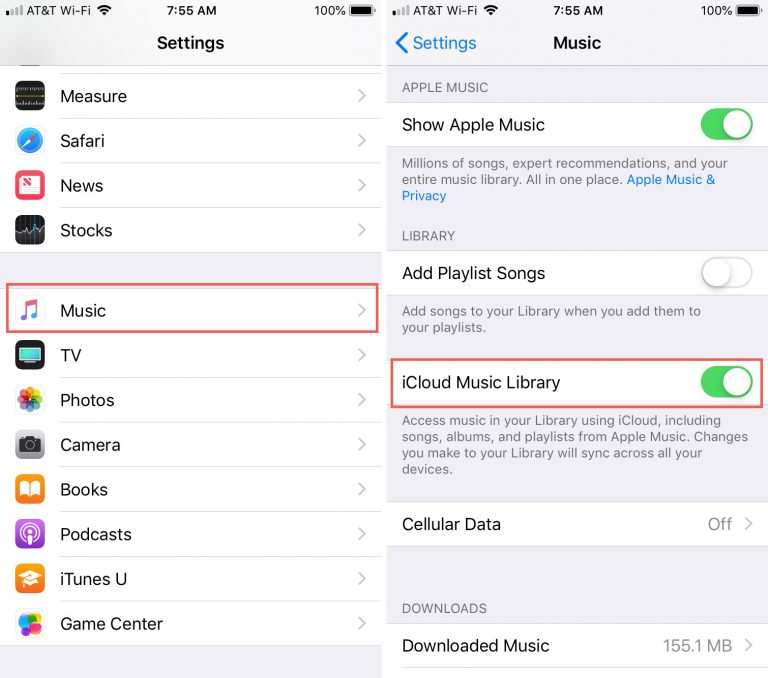
Step 1. Go to Settings > Music > iCloud Music Library.

Step 2. Enable iCloud Music Library by moving the slider to green.

enable-icloud-music-library-iphone

Now, head back over to your Music app and check your Library. Your playlists, albums, and songs should all be there.

Part 2: Recover Apple Music Disappeared from iPhone and iPad

iOS Tooklit – Transfer is an extraordinary transfer software, supports you to copy files between iDevice, PC/Mac and iTunes. Also, you can use it to recover lost Apple Music songs from iPhone XS Max/XS/XR/X/8/7/6S/6/5S/5, iPad 2/Pro, etc. With just a few clicks, you can retrieve all lost music easily. Let’s take a look at the main highlights of iOS Transfer:

Transfer Music, Video, Photo, Apps, Ebook, Contacts, Messages and More on iOS devices.
Backup, edit, transfer, manage your media files.
Export certain or all of your photos from iPhone to computer.
Rebuild your iTunes library with one click.
Transfer music between iTunes and iPhone.
Manage songs & albums in iTunes Library or iPhone.

d_win d_mac
d_win d_mac

Steps to Retrieve Missing Apple Music Songs from iPhone

Step 1. Launch iOS Tooklit – Transfer on Your Computer

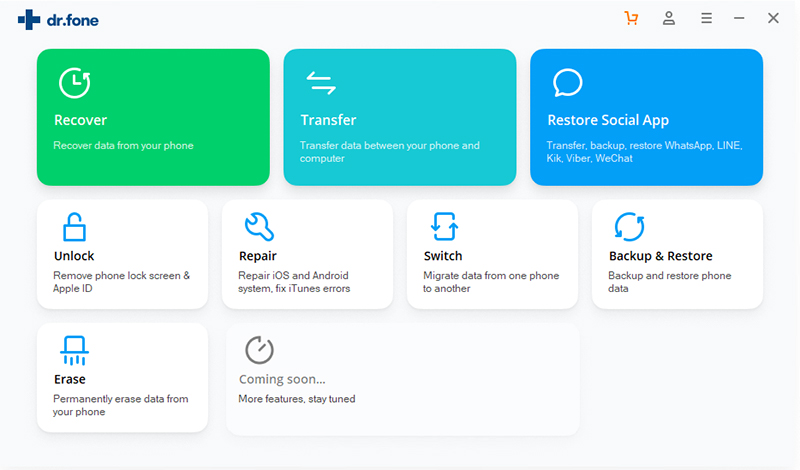
Free download the iOS Tooklit – Transfer software on your computer. Install and run it and its main page is as shown in the picture. In order for the program to detect your device, don’t forget the connection between the computer and your iPhone by using a USB cable. Navigate to the Transfer function to start.

u.fone ios toolkit - transfer

Step 2. Select Transfer iTunes Media to iDevice Options

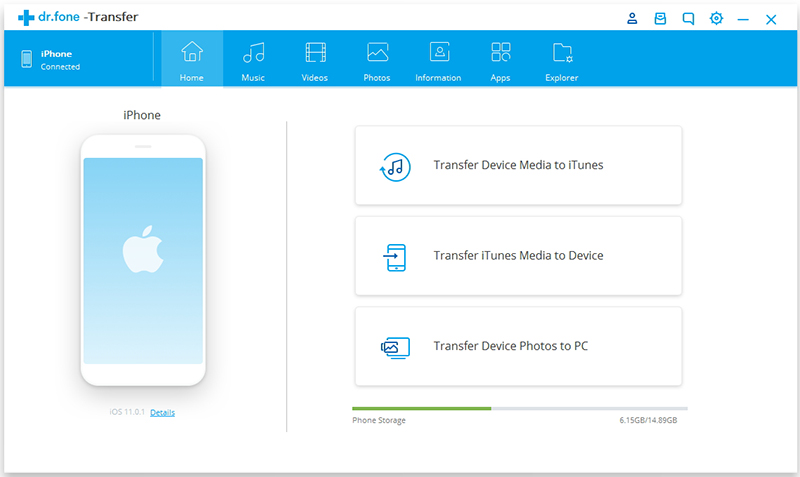
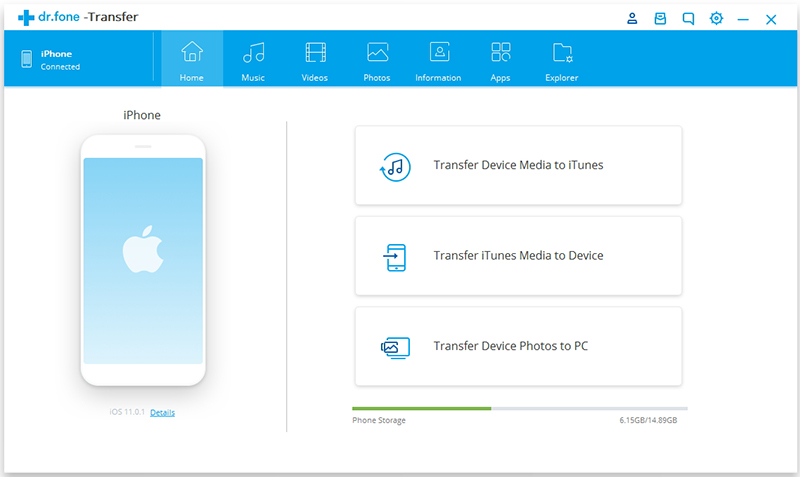
You should see the “Transfer iTunes Media to iDevices” feature on the main screen. Choose it.

Transfer iTunes Media to iPhone Xs

Step 3. Recover Music from iTunes to iPhone

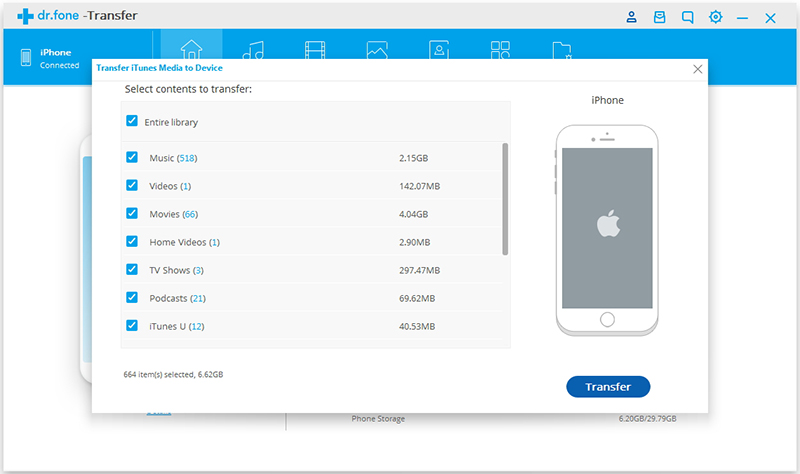
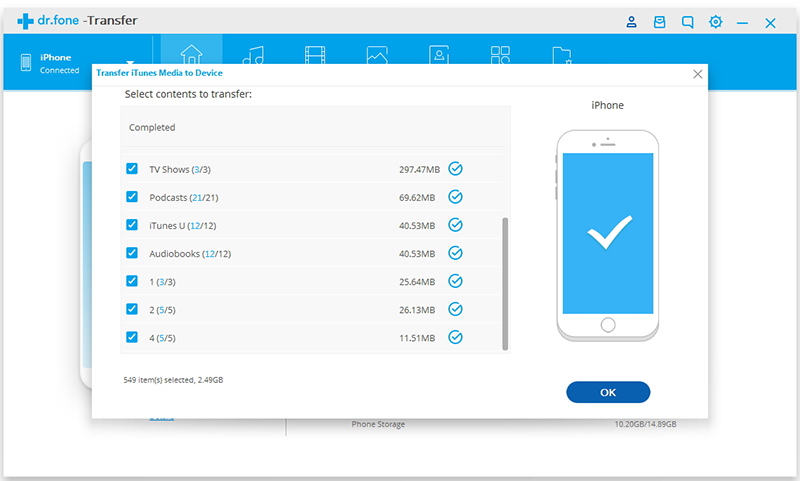
Next, a window pops up and you will see all iTunes content, such as music, videos, downloaded, ringtones, purchased, and more. Check “Music” and then click “Transfer”, all iTunes music including Apple Music will be transferred to your iPhone directly.

scan iPhone music

sync iTunes music to iPhone

If you only want to restore some Apple Music songs, find the “Music” tab from the top of the window and click tap “Add”, you can choose “Add File” or “Add Folder”. Now you only need to select the Apple Music songs you want to restore. Done!

d_win d_mac
d_win d_mac

Recover Apple Music Songs from iPhone

How to Transfer Files from PC to iPhone XS/XS Max/XR

Summary
This article teach you the fastest way to transfer data to your iPhone XS, iPhone XS Max iPhone XR, iPhone X or iPhone 8/7/6S/(Plus) without iTunes. If you are looking for the way to copy music, videos, photos and more data to your new iPhone from PC or Mac, this iTunes syncing alternative can do it within minutes.

Importing files from PC to iPhone is always in great need, you might want to transfer music to iPhone for listening anywhere you like; add video to iPhone for offline watching; add photos and album to iPhone for view at any time; create and import ringtone to iPhone, etc. In this article, we’d like to show you you the best method to transfer files from PC to your iPhone XS(Max), iPhone XS Max, iPhone XR or iPhone X/8/7/6S/6 without iTunes.

iphone xs file transfer

iTunes is designed to manage and sync iPhone data, but every time you sync iPhone data with iTunes, it takes a lot of data and even errors. Why not use a iTunes alternative? Read on to download an PC to iPhone Transfer or Mac to iPhone Transfer and copy files to the iOS 13/iOS 12/iOS 11 devices quickly.

Best iTunes Alternative – Transfer files from computer to iPhone

There are many iTunes alternative in market, here we recommend three best iPhone transfer & manager tool: iPhone Manager, iOS Toolkit and MobileSync are the three best iTunes alternative.

Here we we focus on iOS Toolkit for Windows and Mac. This iOS Toolkit not only can help you transfer files, including photos, videos, music, ringtones, voice memos, contacts, books, and more from your PC to your iPhone all at once, but also helps you backup and restore data on iPhone, iPad and iPod(touch). More iPhone transfer features:

Add to This Device: Add File/Add Folder function can help you easily add files from PC to iPhone without using iTunes. Whether you want to transfer files from computer to your iPhone all at once or selectively, you can import data to iPhone quickly.

Transfer to Other Device: After connect two devices to the computer, this features help you transfer contacts, SMS, music, photos, videos and more from iOS to iOS, iOS to Android, Android to iOS and even Android to Android. For example, you can transfer contacts from iPhone to iPhone, sync contacts from Samsung to iPhone, or transfer music from iPhone to iPod(Touch/Nano).

Transfer to Computer: This feature not only allows you copy files from PC to your iPhone but also backup data from iPhone/iPad/iPod/Android to the computer. With this option, you can export photos, videos, music, contacts and SMS from iPhone to PC easily.

Transfer iTunes Media to Device: If you have purchase an new phone, this function not only allows you sync music and videos from iTunes library to iDevices, but also enables you transfer music from iTunes to Android phone directly.( Tips: If you want to transfer Apple Music from iTunes to mobile phone, you need to convert Apple Music to MP3 firstly, then using the “Add to This Device” function to transfer the converted Apple Music songs to mobile phone for listening offline.)

Download the Phone Toolkit and try to mange your iPhone files on the computer conveniently.

d_win d_mac
d_win d_mac

Part 1: Transfer Files from PC to iPhone XS (Max) without iTunes

Let’s we will take transferring music to iPhone XS as example, you can also follow the below step-by-step guide to transfer videos, photos and more from computer to iPhone XS (Max)/XR/X/8, etc.

Step 1. Download and Launch Phone Toolkit
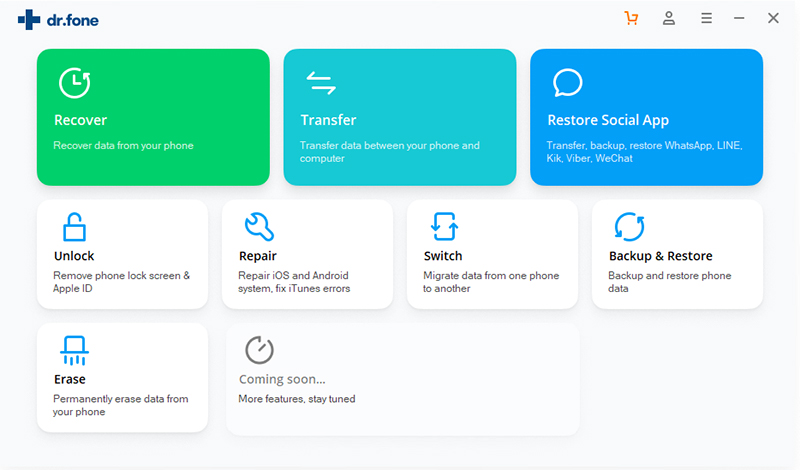
To start the process, download and run the Phone Toolkit on your PC, after that, choose the “Transfer” module from the software main window.

iphone transfer - transfer files to iPhone XS (Max) without itunes

Step 2. Connect iPhone XS (Max to PC
Now, connect your iPhone XS (Max) to your computer using a digital cable. If you are connecting your iPhone XS (Max) to a computer for the first time, then the popup windows will appear on your iPhone XS (Max) for “Trust this computer. So, tap on “Trust”.

transfer data from pc to iPhone XS (Max) without itunes

Step 3. Tap Music
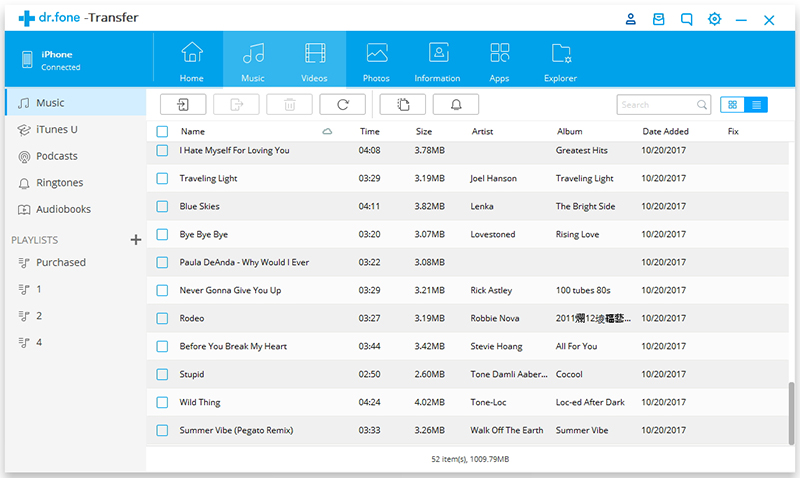
After that, tap on the files that you want to transfer to your iPhone XS (Max), you can choose “Music”, “Videos”, “Photos”, “Information” and “App”. In this case, in order to import songs to iPhone XS, please tap “Music” option.

transfer music to iPhone XS (Max) without itunes

Step 4. Add Music or Music Folder
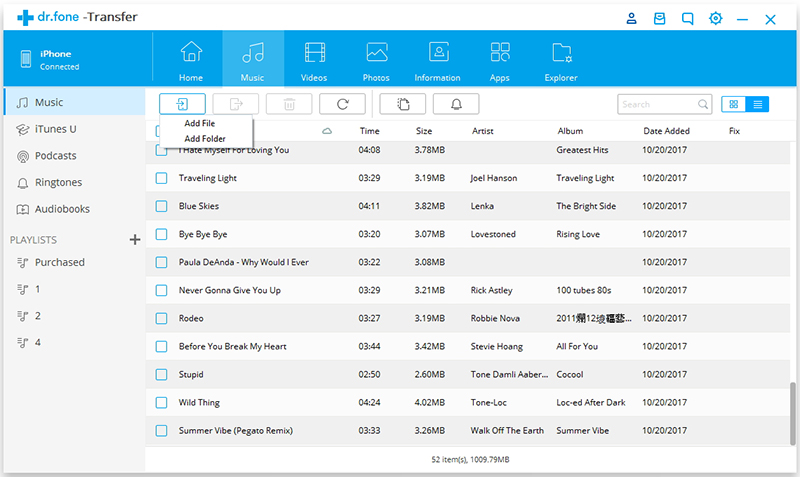
Now, click on the “Add” icon to add those songs that you want to transfer from computer to iPhone XS (Max).

Add songs to iPhone XS (Max) without itunes

Tips: In this step, you can also transfer music from one phone to another, or transfer music from iPhone to PC.

Step 5. Start to Transfer Music from PC to iPhone XS
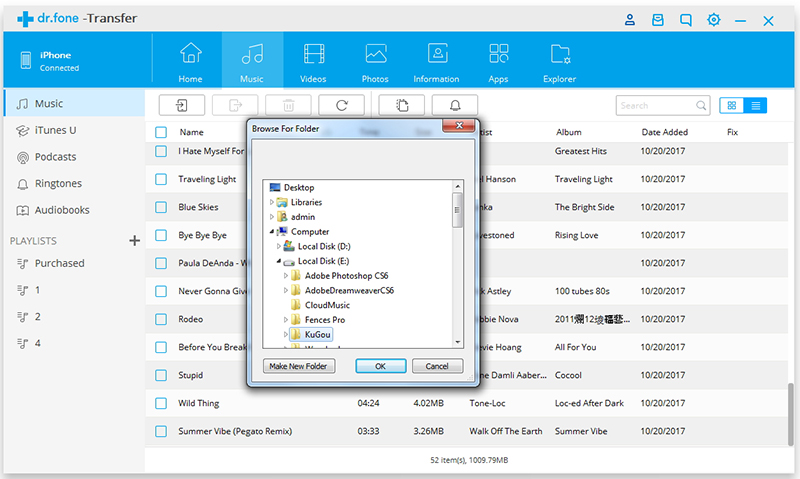
The browser window will appear. Select the desired music files from your computer and finally, tap on “Ok”. Within a few minutes, your selected music files will be transferred to your iPhone XS (Max) from the computer.

Add music to iPhone XS without iTunes

Part 2: Transfer Music from iTunes to iPhone XS (Max) without iTunes

The iOS Toolkit not only supports transfer music, photos, videos, contacts, messages, etc from iPhone to iOS/Android, from PC to iPhone, but also supports transfer music from iTunes library to iPhone/iPad/iPod/Android. Let’s learn how it works.

Step 1. Launch Phone Toolkit on PC or Mac
After launching the Phone Toolkit and select “Transfer” menu, then click “Transfer iTunes Media to Device” and connect your iPhone XS to the computer.

transfer iTunes music to iPhone XS (Max) without itunes

Step 2. Scan iTunes Library and Transfer Music to iPhone XS(Max)
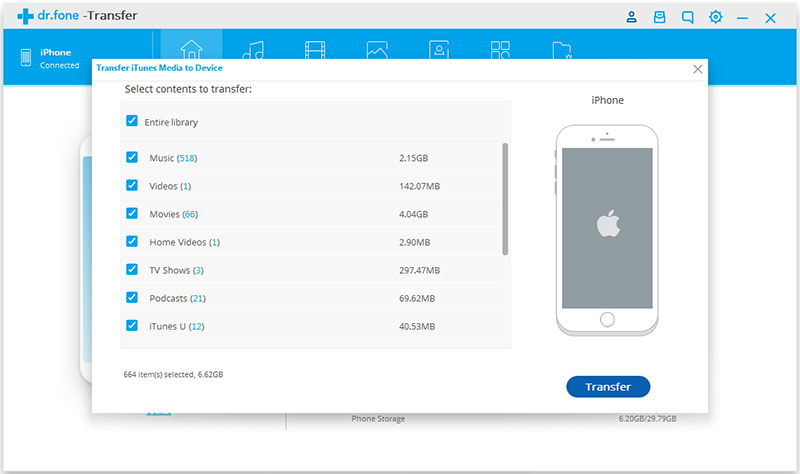
In this step, the software will start to scan your iTunes library, showing you your available files, including music, playlist, videos, movies, TV shows, Home Videos, Podcasts and iTunes U. If you want to sync music from iTunes to iPhone, please select “Music” item and click ‘Transfer’ button start to coping music from iTunes library to iPhone XS(Max).

sync music from iTunes to iPhone XS (Max) without itunes

This will transfer your music files to your iOS device within a few minutes, depending on how many songs you’re transferring. If you have bought an new Android phone like Samsung Galaxy S10/S9/S8/Note 8, Huawei Mate 20/P30/P20, Google Pixel 3, Sony, LG, Motorola, etc. You can also transfer music from PC to Android, or sync iTunes music to Android phone easily.
Read More: how to transfer music from iTunes to Galaxy S10

d_win d_mac
d_win d_mac

iPhone XS(Max)/XR File Transfer

Recover Deleted WhatsApp Messages on Samsung Galaxy S10

Summary
Accidentally deleted WhatsApp messages on Samsung S10? Looking for an easy way to recover deleted WhatsApp messages from Samsung? Learn how to retrieve deleted WhatsApp messages on Samsung Galaxy S10 (Plus)/ S10e in this tutorial. We have come up with two effective ways to recover your WhatsApp data on Samsung Galaxy phone effortlessly.

As one of the most popular social messaging apps, more and more people users using WhatsApp chat online, we can use WhatsApp app send/receive messaging, as well as adding features like voice and video calling. If you have deleted your WhatsApp messages, then don’t worry. In this article, we will teach you two effective ways to recover deleted WhatsApp messages on Samsung Galaxy S10/ S10 Plus/ S10e, let’s follow to do Android WhatsApp messages recovery.

We will taking recover deleted WhatsApp chat history on Galaxy S10 as example, you can also follow the same steps to recover lost WhatsApp messages on Galaxy S9/S8/S7/S6 with/without backup.

2 Methods to Recover WhatsApp messages from Samsung Galaxy S10/S10+

Here two different methods that users can try out to recover the WhatsApp messages from Samsung S10/S10+, if you have backed up WhatsApp data, you can follow the first method to restore WhatsApp messages on Samsung phone directly; If you never make WhatsApp data backup, please follow the second method, you can easily to recover deleted WhatsApp messages from Samsung phone via Android WhatsApp messages recovery software to scan the phone after connecting the phone to the computer.

Method 1. Recover Deleted WhatsApp Messages from Samsung Galaxy S10/S10+ with Recent Backups

Your WhatsApp messages might get deleted accidentally or might lose your WhatsApp data due to factory reset, root failed, system crash. Even when you are transferring from one phone to another. Actually, the WhatsApp stores the backup file in the message database, if you deleted the messages on WhatsApp app, those deleted messages still saved in the app database and these data are hidden, so you still have chance to recover deleted WhatsApp messages from Samsung Galaxy S10 from the recent backup files, follow the steps as:

Part 1: Backup WhatsApp Messages on WhatsApp App

Step 1. Open WhatsApp app on Samsung S10 and Go to “Setting” options
Make sure you have backing up your WhatsApp data before, to backup chat history on WhatsApp app, please open WhatsApp app and go to the “Settings” options on your WhatsApp dashboard.

whatsapp settings - backup whatsapp chats

Step 2. Select “Chat and Calls” options
In the setting interface, please click “Chat and Calls” to continue.

whatsapp settings - select chat and calls

Step 3. Backup WhatsApp Chats
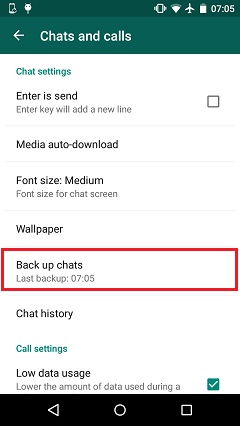
Now, just tap the “Backup Chats” options, all of your WhatsApp messages will automatically save on the message database.

tap on backup whatsapp chats

Tips: You can also back the WhatsApp chats to your Google drive.

Part 2: Restore WhatsApp Messages from WhatsApp App Backups

Above simple steps, you have backup WhatsApp chats on it’s app automatically, you can also backup WhatsApp messages from Samsung to computer by a third-party Android data backup & restore tool, after backing WhatsApp data to the computer, you can also easily to restore the backed up WhatsApp data to any Android devices selectively.

If you have lost your WhatsApp messages or deleted WhatsApp chat history, to restore deleted WhatsApp messages on Android phone directly, please follow the simple steps to restore WhatsApp messages from the WhatsApp application on your mobile again.

Step 1. Uninstall the WhatsApp app from your Samsung Galaxy S10

Step 2. Go to Google Play store and install the WhatsApp app again.

Step 3. After running the WhatsApp app on your Samsung S10, please login in with your previous WhatsApp account, the WhatsApp app will recognize the chat backup. Additionally, the app also loads the backups from the Google drive as well(if you have backup to Google drive before).

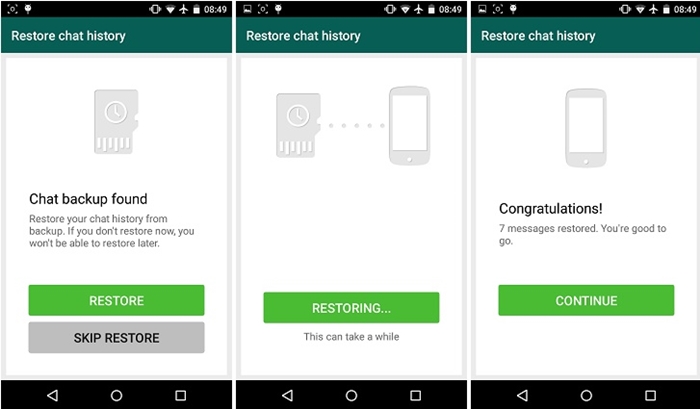
When you are setting up the application, the app will ask permission, as “would you like to restore your message history from Backup”> Click on Yes and continue to click on the “Restore” option to recover all your messages from the most recent backup, please waiting for a while as WhatsApp will restore your data from the backups.

restore WhatsApp messages

Note: You must to connect your phone to the internet while restoring the backup on WhatsApp app, otherwise, you won’t restore your messages back. If you have not taken a backup of your WhatsApp messages already, please follow the method 2 to recover deleted and lost WhatsApp messages from Android phone without backups.

Method 2: Retrieve Deleted WhatsApp Messages from Samsung Galaxy S10/S10+ without Backups

If above the above method can’t helps you get back your wanted WhatsApp messages, don’t worry, you can recover deleted WhatsApp messages from Android phone or recover deleted WhatsApp messages from iPhone with the help of some professional and reliable Android data recovery tool or iPhone data recovery tool, both is designed to retrieve deleted WhatsApp messages and restore them back to your device.

To recover deleted WhatsApp messages from Android Samsung phone,here we highly recommend U.Fone Android Data Recovery, which has been trusted by millions of Android users for data recovery, this Android data recovery software already compatible with more than 6000 Android devices (such as Samsung Galaxy S/Note/Ace/Wave/Alpha/J, Huawei, HTC, Sony, Google Pixel, Motorola, ZTE, LG, etc.) and runs on both, Mac and Windows. Now, let’s learn more about how to recover WhatsApp messages on Samsung Galaxy S10.

  • Directly scan deleted data and restore them from almost all Android phone & tablet.
  • Preview and selectively recover WhatsApp messages from your Android phone & tablet.
  • Supports various file types, including WhatsApp Chat History, Messages, Contacts, Photos, Videos, Audio, Document and App Data.
  • Retrieve lost data for Android phone due to mistaken deleting, factory resetting, OS upgrade, system crash, forgotten password, flashing ROM, rooting, ect.
  • Extract WhatsApp messages from broken Android phone, icluding Samsung S6/S5/S4/Note 5/Note 4/Note 3, etc.
  • Fix Android system to normal, such as system frozen, system crashed, black-screen, virus-attack, screen-locked, Android bricked, etc.
  • Backup and restore data from Android phones and tables.

d_win d_mac
d_win d_mac

Recover Deleted WhatsApp Messages from Samsung S10/S9/S8 without Backup

Step 1. Launch Android Toolkit and Select “Android Data Recovery”
Launch Android Toolkit after downloaded and installed it on the computer. The following interface will show you. If you want to recover deleted WhatsApp data on Android Samsung phone, please select “Android Data Recovery” option.

samsung contacts recovery

Use a USB cable to connect your Samsung Galaxy phone to the computer.

Connect Samsung S10 to PC

Step 2. Enable USB Debugging
After connecting your phone with the computer, then the program will detect your Samsung automatically, if the device can not be detected, turn to allow USB debugging. Follow the steps as below:

1. For Android 2.3 and earlier versions: Tap “Settings” app > “Applications” > “Development” > Check”USB debugging”.
2. For Android 3.0 – 4.1: Navigate to “Settings” > “Developer options” >  Check “USB debugging”.
3. For Android 4.2 and latter versions: Navigate to “Settings”, tab “Build number” for 7 times. Go back to “Settings” and select “Developer options” > Check “USB debugging”.
After enable the USB debugging mode, continue to follow the next step.

enable usb debugging

Step 3. Select “WhatsApp” to Scan
To retrieve deleted WhatsApp data on Samsung Galaxy phone, please tick “WhatsApp” and “WhatsApp Attachments” and click “Next” to allow the program scan your device.

select whatsapp data to scan

Step 4. Allow to Scan Samsung Galaxy Phone
When the below windows appear, you can switch to your Android device again, click “Allow” on the device and make sure the request has been remembered forever, then turn back to the computer and click on the “Start” button to continue.

click allow on samsung

Step 5. Begin to Scan Samsung WhatsApp Messages
The Android data recovery tool start to scanning all lost and deleted data from Samsung phone, including WhatsApp messages, WhatsApp attachments and other data.

Scan whatsapp from samsung phone

Step 6. Preview and Recover WhatsApp Messages from Samsung Galaxy
After the scan, the program will list all the WhatsApp messages on the interface. If you only want to check the deleted data, you can turn on the button of “Only display the deleted item(s)” on top of the window. You can preview them in detail. Select the WhatsApp chats you want to get back and click “Recover” button to save them on the computer.

recover whatsApp chat history on samsung s10

Not only WhatsApp messages, this Android Data Recovery software can also help your recover your photos, videos, call logs, contacts, text messages, documents from Android phones. You can give it a try and recover your Samsung lost data in the similar steps.
d_win d_mac
d_win d_mac

Android WhatsApp Recovery

How to Copy Contacts, SMS Data from Samsung to Huawei P30(Pro)

[Summary]: Want to transfer contacts and text messages or other contents from old Samsung to Huawei P30/P30 Pro directly? Check out this guide and you’ll find the easiest and most time-saving way.

Attracted by the most powerful camera phones? With the strong launch of the Huawei P30 series, it is believed that many people have switched from old Android devices such as Samsung to this new flagship product. After upgrading to a new mobile phone, the first difficulty you face should be how to deal with old data. Of course, you definitely don’t want to discard important data like contacts, text messages, schedules, call logs, photos, videos, music, and more. So how do you quickly transfer important information such as contacts and text messages to Huawei P30?

Contacts, notes, documents, WhatsApp cannot be manually transferred to a new device. In this guide, we will show how to transfer data from Samsung Galaxy S8/S7/S6/S5/S4/S3/Note to Huawei P30 or P30 Pro completely.

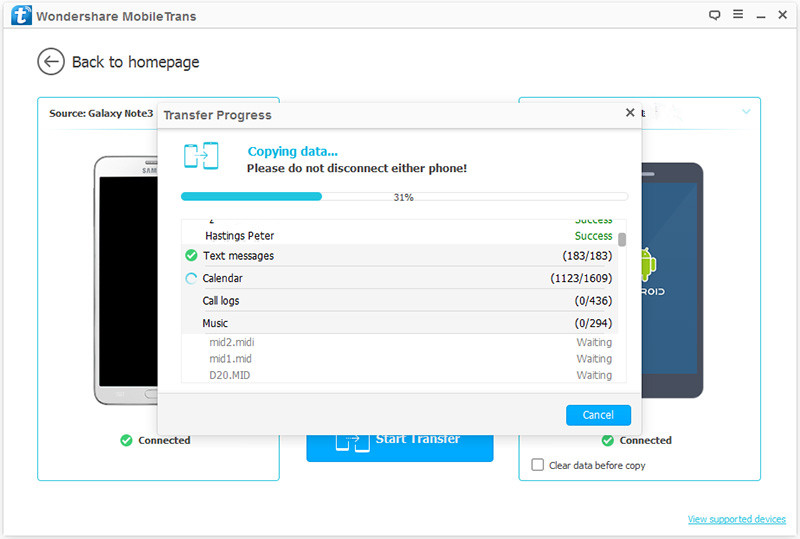
Phone Transfer creates a bond connecting between Samsung Android phone and Huawei device, allowing a direct transfer of contacts and SMS from Samsung to Huawei P30 handset. Besides it is also able to move photos, call logs, videos, calendars, music and even apps between Android phones. This all-in-one program is available for a variety of devices running iOS, Android, Blackberry, WinPhone and Symbian. In addition, Phone Transfer comes with other useful features, such as back up phone data, restore data from iTunses/iCloud/Kies backups, permanently erase data from old device to prevent strangers from snooping. All in all, Phone Transfer allows you to transfer all of data from Samsung Android to Huawei P30/P30 Pro safely and easily, including contacts, messages, call history, photos, videos, songs, bookmarks, apps and so on. Now free download the trial version and have a try!
d_win d_mac
d_win d_mac

Step-by-step Guide to Copy Contacts/SMS Data from Samsung to Huawei P30

Step 1. Run Phone Transfer with Computer

Install and run Phone Transfer on your computer. In its main screen, click the “Phone to Phone Transfer” option.

samsung to huawei transfer

Step 2. Connect Both Android Phones

Next, connect your Samsung and Huawei P30 to the computer using using USB cables and turn on debugging mode on both your smartphones (see how-to). After connection, a screen as below will appear showing two smartphone icons on both sides (source and target). You can click “Flip” button to switch their positions if necessary.

transfer samsung data to huawei p30

Step 3. Copy Contacts and SMS from Samsung to Huawei P30

In the middle of the screen, you are presented a list of data including contacts, messages, music, calendar, photos, videos, apps, call logs. Select the data you want. Click on “Start Transfer” then your contacts and SMS will be transferred to Huawei P30 mobile phone. A progress bar pops up telling you where the process is going.

samsung to huawei p30 transfer

d_win d_mac
d_win d_mac

Samsung to Huawei P30 Data Transfer

How to Recover Deleted Text Messages from Galaxy S10/S9/S8(Plus)

[Summary]: How to retrieve deleted texts on Samsung cell phone? This article will tell you an easy way to recover your deleted messages from Samsung Galaxy S10/S9/S8(Plus)/S7/S6(Edge). You can download the Android SMS Recovery program for free to have a try!

Accidentally deleted your messages from Samsung phones, like Galaxy S10, S9, S8, S7, S6, S5, S4, Samsung Galaxy Note 9/8/5 Samsung Ace, Samsung Wave? Lost messages on Samsung phone due to factory reset, root failed, accidental message deletion, phone crash, black screen or broken screen? Actually, when the message is deleted or lost, it doesn’t go to the trash or the recycle bin, because there isn’t a trash or a recycle bin on your Android phone as on the computer. And it’s only marked as useless information and can be overwritten by new data. Therefore, the deleted message only turns to be hidden, and disappear until being scanned by a professional Samsung SMS Recovery software. This guide is going to show you to recover deleted messages on Samsung Galaxy without backup.

Don’t worry. U.Fone Android Data Recovery software not only helps you recover deleted SMS and messages attachments from Samsung phones, as we as recovering contacts, call history, photos, videos and WhatsApp messages from Samsung Galaxy S10/S9/S8(Plus)/S7/S6(Edge)/S5/S4/Note/Ace/Wave/Alpha/J, etc. As the full Android Toolkit, it can:

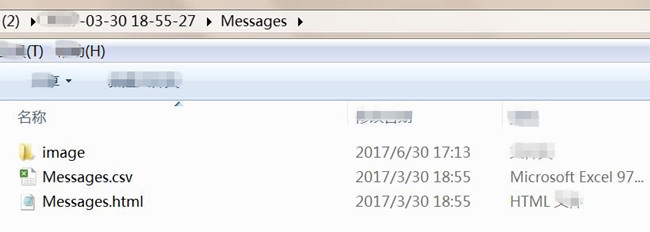
  • Samsung SMS Recovery: Retrieve deleted messages from Samsung Galaxy with full information such as name, phone number, attached images, email, message, data and more. And saving the deleted messages as CSV, HTML for your use.
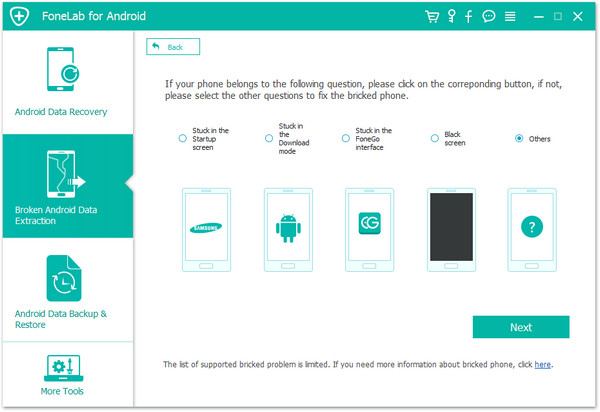
  • Broken Samsung SMS Recovery: Recover existing messages from broken Samsung Galaxy S6/S5/S4/Note 5/Note 4/Note 3, etc.
  • Android SMS Backup & Restore: Backup text messages from Samsung to computer, and restore messages to Android phone from the backup files.

  • Fix Android system to normal: Fix frozen, crashed, black-screen, virus-attack, screen-locked Samsung phone to normal without data loss.
  • Get backup data from Android lost due to accidentally deleting, factory resetting, system crash, forgotten password, flashing ROM, rooting, ect.
  • Preview and selectively recover SMS and other data from Samsung phone.
  • Recover, backup and restore data from almost all Android devices, such as Samsung, Huawei, Sony, Sharp, Motorola, Google Pixel, HTC, LG, Oppo, Xiaomi, ZTE, Windows phone, etc.

Download the free trial version of this software on your computer.

d_win d_mac
d_win d_mac

Steps to Retrieve Deleted Messages from Samsung Galaxy S10

This guide shows you how to recover deleted text messages from Galaxy S10 in Windows 10/8/7, you can also use the Mac version to restore Samsung deleted or lost messages on Mac.

Step 1. Launch Android Toolkit and Select “Android Data Recovery”
First of all, please free download and launch the Android Toolkit on the computer, then select “Android Data Recovery” function to recover lost/deleted data on Android.

samsung contacts recovery

If your Samsung Galaxy S6/S5/S4/Note 5/Note 4/Note 3 cell phone was broken, you can select “Broken Android Data Extraction” feature to fix Android system to normal and extract text messages, contacts, call history, WhatsApp messages, photos, etc. from broken Samsung phone directly.

If you want to extract data from dead/broken Samsung phone internal storage, please read the related guide: How to recover data from broken Samsung phone

recover data from broken samsung

If you want to fix frozen, crashed, black-screen, virus-attack, screen-locked Android to normal, please reading the related guide: How to fix a black screen Samsung phone

fix samsung with black screen

Note: currently, this “Broken Android Data Extraction” feature does not support the latest Galaxy S9/S8/S7/Note 9/Note 8 and Note 7.

Step 2. Connect Samsung Galaxy S10 to Computer Using USB Cable
After entering the Android Data Recovery interface, connect Samsung Galaxy S10 to the computer with USB cable.

Connect Samsung S10 to PC

Step 3. Turn on USB Debugging on Samsung Phone
The steps will be very easy. To enable USB debugging, you can find the suitable instruction on the program according to your Android OS.
1) For Android 2.3 or earlier: Enter “Settings” < Click “Applications” < Click “Development” < Check “USB debugging”
2) For Android 3.0 to 4.1: Enter “Settings” < Click “Developer options” < Check “USB debugging”
3) For Android 4.2 or newer: Enter “Settings” < Click “About Phone” < Tap “Build number” for several times until getting a note “You are under developer mode” < Back to “Settings” < Click “Developer options” < Check “USB debugging”

Enable USB Debugging

Then click the “OK” button to move on to the next step.

Step 4. Choose Messages to Scan
In this step, if you just want to recover deleted text messages on Samsung Galaxy S10, you can select the file type “Messages“, “Messages Attachment” and then click “Next” on the window below to begin it.

Choose Samsung Messages to Scan

Step 5. Allow Super Users Request
Superusers request should be allowed to further scan the deleted and exiting data on your Samsung phone. Just tap “Allow” if you see a pop-up asking for the super users request. Or “Retry” if the windows doesn’t show.

Allow SuperUser Requests on Samsung

Step 6. Analyzing and Scanning Your Samsung Phone
When the program detects your phone after you set the USB debugging, you’ll see the window below. Make sure that the battery on your phone is more than 20%, and click “Start” to analyze the data on your phone.

Scan sms from samsung phone

Step 7. Preview and Recover the Deleted SMS from Samsung Phone
When the scan is over, you can preview and check deleted messages here in detail, all the lost SMS will be listed in red, you can preview contacts, videos, audios and photos here and view it before you want to get them back. To retrieve the deleted messages on Samsung phone, just tick the messages you want and just click “Recover” button to save them onto computer.

Recover sms from samsung S10

Tips: You can undelete the deleted SMS with one click and save them as CSV, HTML and attached images for you browsing or printing.

recover android sms to CSV, HTML and attached images

Save messages as HTML file: For you easy to reading the retrieved text messages on the computer.
Save messages as CSV format: For you easy to print out the detail contents of retrieved messages.
Save messages as attached images: For you easy to reading the messages on the computer.

d_win d_mac
d_win d_mac

Samsung SMS Recovery

How to Recover Deleted Contacts from Samsung Galaxy S10/S9/S8(Plus)

[Summary]: This article provides an efficient way to recover deleted and lost contacts from Samsung Galaxy S10/S9/S8(+) with Android Data Recovery, so you can easily recover the deleted contacts with full information including phone number, contacts name, Email, job title and address.

Since the release of Samsung S10/S9/S8/S7/S6, many people use Samsung Galaxy S series, the topic on how to recover deleted contacts from Samsung becomes hot:

I accidentally deleted some important contacts from my Samsung Galaxy S10 memory card, how can I restore deleted contacts from my Samsung phone?

After reset my Samsung Galaxy S9 to factory setting, I found all contacts and messages disappear, how to recover lost contacts and SMS on Galaxy S9 after factory reset?

I rooted my Samsung Galaxy S8, the contacts, messages and photos of my Samsung Galaxy S8 were all lost after rooting. How can I get it back?

In fact, if you backed up Samsung data on your Google/Samsung account, you can easily restore contacts from the backups. If not, you can still recover the deleted or lost contacts on Samsung Galaxy S10/S9/S8(+), in fact, the deleted data is still stored on the phone, but the deleted data is hidden. However, the deleted contacts can be scanned, found and recovered from Android phone by a professional Samsung Contacts Recovery.

Samsung Contacts Recovery: Recover Deleted Contacts on Samsung Galaxy

U.Fone Android Data Recovery is a data recovery tool is designed to recover Samsung phone deleted and lost contacts even without a previous backup. It can selectively restore contacts from Galaxy S10/S9/S8/S7/S6/S5/S4/Note,etc. and save them as VCF, CSV or HTML files on computer, as well as recovering photos, videos, messages, call logs, WhatsApp messages and documents from Android phone, such as Samsung Galaxy Note, HTC, LG, Huawei, Sony, Windows phone, Motorola, Xiaomi, Oppo, OnePlus, etc.

d_win d_mac
d_win d_mac

Note:
1.Don’t added or import any data to the phone until the lost/deleted data be retrieved.
2.Don’t factory reset, format the phone.
3.Don’t continue using your Samsung the moment when you find the files lost or deleted.
4.Using a professional Android data recovery to recover your lost data as soon as possible.

Simple Steps to Retrieve Deleted Contacts from Galaxy S10/S9/S8

This guide teach you how to recover deleted contacts from Samsung Galaxy S10 in Windows 10 as example, you can also follow the same steps to restore contacts from Galaxy S10/S9/S8(+) on Mac.

Step 1. Install and run the AndroidToolkit on your computer
After downloading, installing and launching the AndroidToolkit program on the computer, you can see it’s main interface as below. If you want to recover deleted contacts from Samsung phone, please select “Android Data Recovery” option, Then you’ll get the start window as below.

samsung contacts recovery

Connect Samsung Galaxy S10 to the computer via it’s USB cable.

connect samsung galaxy to pc

Step 2. Enable USB debugging
After connecting the phone with the computer, then the program will promote you “enable USB debugging”. There are there different accesses owing to different android OS. Choose the right access according to your phone to start USB debugging.
1) For Android 2.3 or earlier: Enter “Settings” < Click “Applications” < Click “Development” < Check “USB debugging”
2) For Android 3.0 to 4.1: Enter “Settings” < Click “Developer options” < Check “USB debugging”
3) For Android 4.2 or newer: Enter “Settings” < Click “About Phone” < Tap “Build number” for several times until getting a note “You are under developer mode” < Back to “Settings” < Click “Developer options” < Check “USB debugging”

enable usb debugging on galaxy s10

Step 3. Select “Contacts” to Scan
When you see the interface as below, if you just want to recover lost contacts from Galaxy S10, please choose “Contacts” to recover and then click the “Next” button.

Select contacts to scan

Step 4. Allow the Program to Access Your Samsung Galaxy S10
Now the Android Data Recovery needs to get privilege to scan more deleted/lost/existing files from the Android devices, please try as below:

If there is a pop-up window on your device, please click “Allow/Grant/Authorize” on the device and make sure the request has been remember forever.

If there is no such pop-up window on your device, please click “Retry” to try again.

Allow scan Samsung phone

Step 5. Start to Analyze and Scan Samsung Phone to Find the Data
After moving to your phone and authorize to scan the devices. After that, back to the computer window to click “Start” button to begin scanning, the Android data recovery software begins to scan your Samsung phone after a few seconds’ analysis.

Scan lost contacts

Step 6. Preview and Recover Contacts from Samsung Galaxy S10
After a few minutes’ scanning, all found contacts will be displayed on the window, please select “Contacts” from the left menu. Both existing and deleted contacts are displayed in the software’s interface, you can preview the found contacts one by one and view the details, then mark those contacts items you want to get back and click “Recover” to save them on your computer.

recover samsung contacts on pc

Note: You can slide the button on to “Only display deleted items”. It will be more convenient for you to look for your lost contacts.

Step 7. Save Samsung Contacts onto the Computer
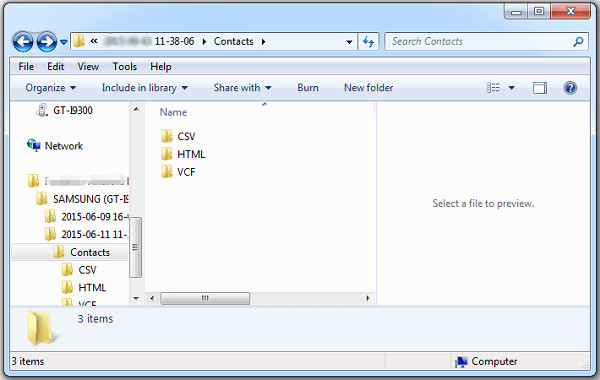
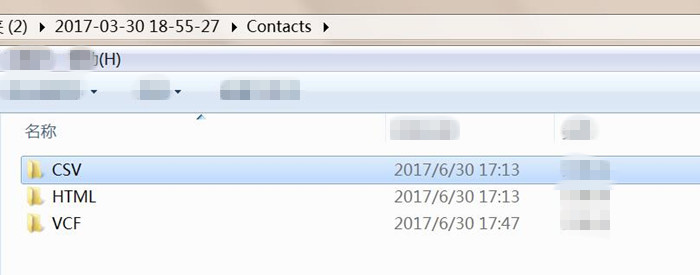
only few seconds, all lost contacts will be saved as VCF, CSV or HTML formats for your use.

restored-contacts

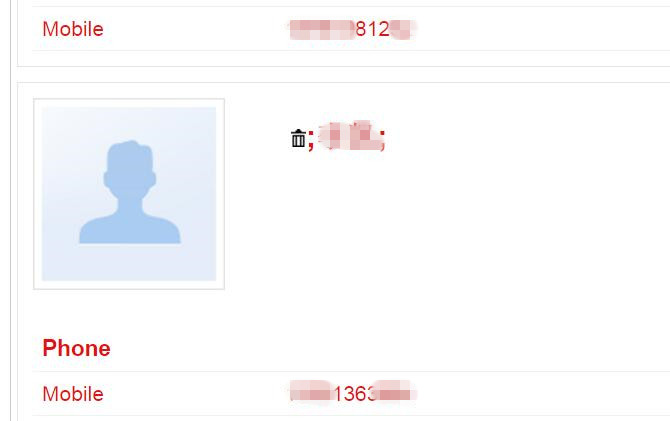
Save contacts as HTML file: For you easy to reading the retrieved contacts on the computer.

recover samsung contacts as html format

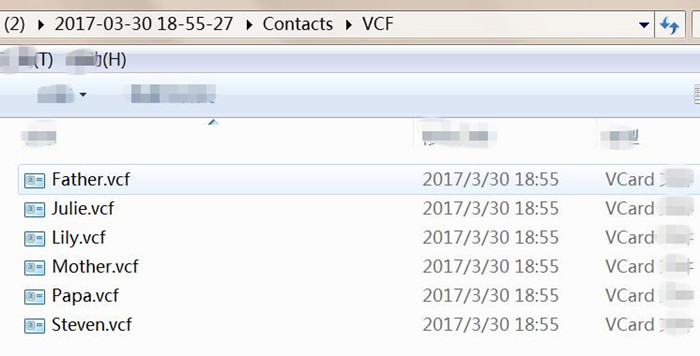
Save contacts as VCF files: For you easy to import the VCF to Samsung phone or other Android/iPhone by third-party phone transfer tool, like iOS & Android Manager
You may want to know How to Import Contacts from PC to Android

recover samsung contacts as vcf format

Save contacts as CSV format: For you easy to print out the contact list.

Note:
Don’t forget to back up your important contacts to the computer regularly, after creating your phone’s data backup, you no longer have to worry about data loss, even if your phone is damaged, lost or stolen.

d_win d_mac
d_win d_mac

Samsung Contacts Recovery

Recover Data Files from Samsung Galaxy S20/S10/S9/S8(+)

Summary
This article shows you an efficient & safe Samsung files recovery solution, helping you recover deleted data SMS, Contacts, Photos, Videos, WhatsApp, Documents and more from Galaxy S20/S10/S9/S8(Plus)/S7/S7 Edge, etc.

Deleted your important data files on Samsung phone and want to get them back? Actually, whether the data has been lost due to a factory reset or you simply press the wrong delete button to delete files by mistake, you still have a reasonable chance of recovering files from Samsung Galaxy phone. In this quick article, we will show you three ways to recover Samsung files under different circumstances, you can follow the below guide to retrieve data files from Samsung Galaxy S20, S10, S9, S8, S7, S6, etc. In addition, if your mobile phone is broken, you can also recover data from broken Samsung Galaxy S6, S5, S4, S3, Note 5, Note 4 and Note 3.

In recent years, the technology of the Samsung mobile phone S series has been continuously innovated. Currently, most Samsung users use Samsung Galaxy s20/S20+, Galaxy S10/S10+, Galaxy S9/S9+, Galaxy S8/S8+ or Galaxy Note 10/Note 9/Note 8. Samsung released the latest Galaxy S20 series this year, as Samsung’s flagship phone, Galaxy S10/S9, are the most powerful Android phone out today. Tests and reviews from experts show it is superior to Google Pixel 3, Apple iPhone Xs, and Huawei Mate 20, Huawei P30, P20 Pro, etc.

Many people choose Samsung phone, but when you deleted files on your Samsung phone by mistake, or lost contacts, SMS, photos on Samsung Galaxy phone after factory reset, how you can restore lost data on Galaxy S20/S10/S9/S8/S7, etc? Accidentally deleted videos on Samsung Galaxy phone? Don’t worry, you can recover deleted files from Samsung S20/S10/S9/S8/S7 with or without backup, you can also follow the third methods to recover deleted photos from other Android phones such as Samsung Galaxy Note 9/Note 8/Note 5, Motorola, HTC, LG G, Googe Pixel, HUAWEI P/Mate, Xiaomi, ZTE, Oppo, etc.

Method 1: Restore deleted photos and videos from Samsung Cloud Recycle Bin

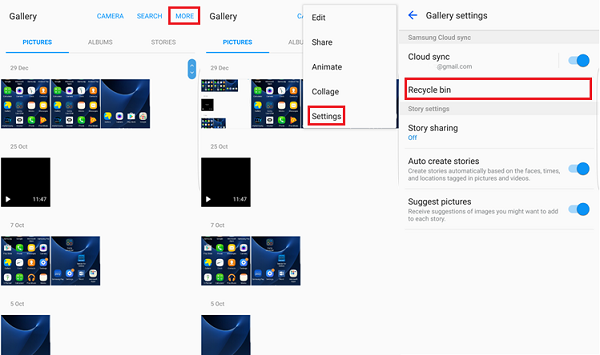
When you deleted photos on Samsung Galaxy by accidentally, you can find the deleted photos in the hidden recycle bin in Samsung Cloud if you have enabled Gallery to sync pictures/photos to Samsung Cloud. Let’s follow the simple guide to recover deleted photos from Samsung Galaxy phone’s Cloud backups without computer.

Step 1. Open Gallery app on your Samsung phone, then tap More > Settings > Recycle Bin.

Step 2. View the deleted photos or videos and choose the ones you need to recover to your Samsung phone.

recover data on samsung recycle bin

Step 3. Find the restored photos or videos on Gallery app.

Method 2: Recover Photo Files From Smart Switch Backup

If you have recently backed up photos from Samsung Galaxy phone with Smart Switch, you can easily restore your deleted, lost, erased photos from Smart Switch backup. Let’s follow the deail guide about how to restore Samsung recently backed up photos/pictures/images files from Samsung’s Smart Switch:

Note: Making sure you have created backup of your Samsung phone via Smart Switch.

Step 1. Connect your Samsung Galaxy phone to computer to the computer(you have created backup of your phone to this computer) via USB cable.

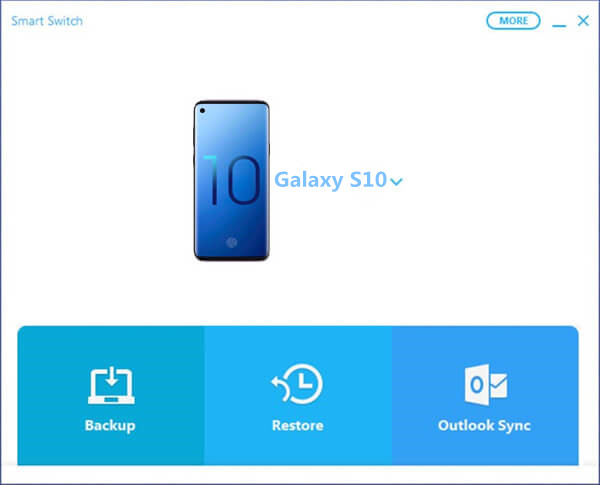
Step 2. Run the Smart Switch on your computer and waiting your Samsung phone detected.

Step 3. After your Samsung phone connected successfully, then click on “Restore” button on Smart Switch, the program will helps you restore all the recently deleted files and save onto the computer.

Restore Samsung Galaxy S10/S10 Plus With Smart Switch

After restoring Samsung files from Smart Switch backups completes, you can transfer the restored data back on your Samsung phone.

Method 3: Recover Deleted Data From Samsung S20/S10/S9/S8

If you haven’t synced with Google Photos/Samsung Cloud or never backup your Samsung data to computer via Smart Switch. Don’t worry, you can use a third-party Samsung Data Recovery software to recover deleted, lost, missing and erased data from Samsung S10/S9/S8/S7/S6/S5/Note, etc. without any backup.

U.Fone Android Data Recovery as the first Android data recovery software in the world, it can helps you directly recover your photos, videos, contacts, text messages, call logs, WhatsApp data and documents from your Samsung Galaxy phone, this Samsung data recovery not only allows you you restore deleted, lost, erased, inaccessible, disappeared files from all Samsung internal memory without backup, but also enables you recover pictures, photos, audios and videos from the SD card on your Samsung device.

Download the free and trial version of Android Data Recovery program:

d_win d_mac
d_win d_mac

Guide: Recover Deleted Data from Samsung Galaxy S10

Below we’ll taking how to recover lost/lost text messages, contacts, call history, videos, photos, WhatsApp messages, etc from your Galaxy S10 or S10 Plus as example. You can also follow the same steps to restore data on Galaxy S9/S8/S7/S6/S5 and other Android devices directly.
Firstly please install the Android data recovery software to your PC or Mac. If you want to recover lost data on your computers, HDD, SSD or phone’s SD card, you can also use this U.Fone Data Recovery software, it can help you recover deleted/lost/formatted data from Samsung SD card easily.

Step 1. Run Android Toolkit and Choose Data Recovery Mode
Firstly of all, please download, install and launching the Android Toolkit on the computer and choose “Android Data Recovery” mode on the interface.

samsung data recovery

Connecting Samsung Galaxy S10 phone to the computer via USB cable.

samsung s10 data recovery

Step 2. Enable USB debugging before scanning your phone
Note: To allow your Samsung Galaxy S10 phone to be analyzed by the software, please turn on USB Debugging Mode on the device. If your phone’s USB debugging has been enabled before, you can skip this step and move the next. If not, follow the on-screen guide or visit the article on how to enable USB Debugging Mode on Android.

1) Android 2.3 or earlier: Go to “Settings” < “Applications” < “Development” < “USB debugging”
2) Android 3.0 to 4.1: Go to “Settings” < “Developer options” < “USB debugging”
3) Android 4.2 or newer: Go to “Settings” < “About Phone” < click “Build number” for several times until you get the note that You are under developer mode” < Back to “Settings” < Click “Developer options” < “USB debugging”

usb debugging samsung galaxy s10

Step 3. Select File Types to Scan
On the next window, please select the deleted files you want to scan and recover, including media files: “Gallery“, “Photo Library“, “Videos”, “Audios”, “Documents” and text contents: “Contacts”, “Messages”, “Call Logs”, “WhatsApp Messages”, “Messages Attachments” and “WhatsApp Attachments”, then press the Next button.

select files for recovery

Step 4. Allow Superuser Request
The Android Data Recovery will try to scan your phone but forbid before Superuser request is confirmed. So, you will need to go to your Samsung phone and allow the Superuser request by tapping the “Allow”/ “Grant”/ “Authorize” button.

Allow scan Samsung phone

Step 5. Go Advanced Root for Deep Scanning
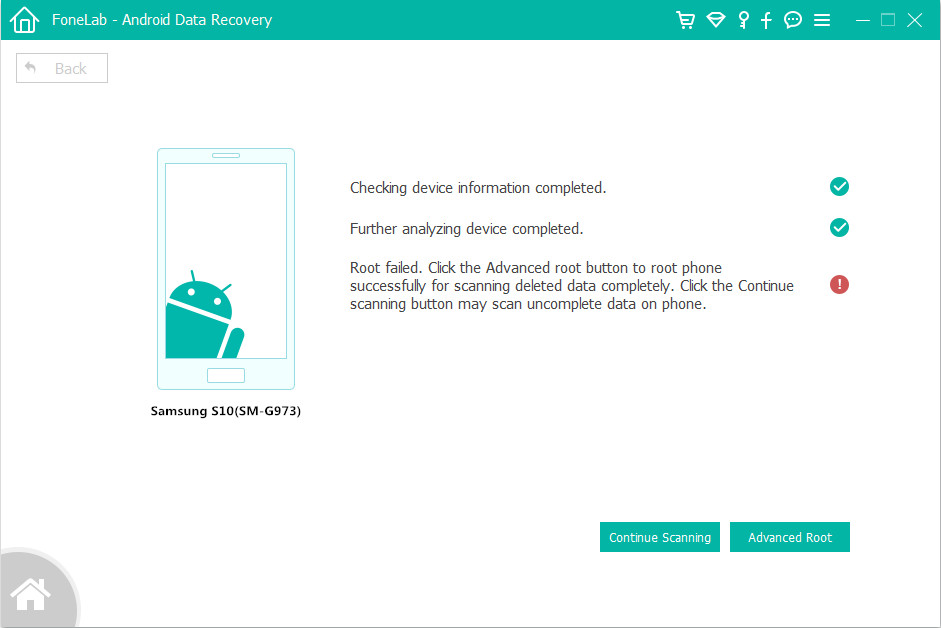
Next, the program will start analyzing your device and try to search for data in your Samsung S10. In order to gain access to the storage memory and scan the data thoroughly, you’ll be prompted to root the Samsung Galaxy S10 phone.

To do so, click the “Advanced Root” button at the bottom and this will take you to a site where you can install a tool named KingoRoot to root your device. More information, please visit: how to safely root and unroot an Android device.

samsung galaxy s10 root

When you’re rooted, the software will initiate a deep scan over the data on your handset. You can see the rundown on how much time the scan will take. The whole process may need 15-20 minutes to be finished.

Step 6. Scan Samsung Phone to Find the deleted Data
The program start to scanning lost, deleted and exiting data from Samsung device, during the scanning processing, please keep connecting the device with the computer, if yo find the files you need, you can click “Stop” button to end it.

Scan Samsung lost data

Step 7. Preview and Recover Contacts, Photos, SMS and Videos from Galaxy S10
Once the scan process is complete, you allow to preview all data found on your Samsung Galaxy S10, including text messages, contacts, photos, videos, WhatsApp data and more, please mark the types of files you want to recover and click “Recover” button to restore your lost files.

Recover data from Samsung Galaxy S10

With the simple steps, your lost data on Samsung Galaxy S10/S10+/S9/S9+/S8/S8+ are retrieved and save onto the computer safely. If you want to import the restored data backup to the phone for view or used, you can use this Android Manager to transfer files from computer to Android devices or iOS devices.
Related guide: How to import files to Galaxy S10/S10+
A very important guarantee is that you’d better don’t using the phone once your precious files lost or deleted. Any further overwrite can lead to permanent data loss, please using a professional Android data recovery software to recover your lost data back as soon as possible.

d_win d_mac
d_win d_mac

Samsung File Recovery