All posts by DHZ

How to Transfer Files from HUAWEI P30/P30 Pro to PC/Mac

[Summary]: Looking for the fastest way to backup photos, music and videos from HUAWEI P30/P30 Pro to Windows/Mac computer? This HUAWEI transfer lets you transfer pictures, gallery, videos, SMS, contacts, apps, music, etc from HUAWEI P30/P30 Pro to computer quickly and safely.

Hi, I want to backup large files including photos, videos and music from my HUAWEI P30 Pro to computer. It worked fine with Huawei HiSuite but it takes me a lot of time, I looking for a fast way to backup media files from Huawei to Mac.

People also read:

* How to Keep Apple Music Songs Playable on Huawei Phone

* How to Download and Transfer Spotify Music to HUAWEI P30/P30 Pro

Backup Huawei Phone Photo/Video/Music/Contacts/SMS to Computer

Don’t worry. To transfer files from HUAWEI P30 to PC or Mac, you can try this Android Manager tool, which can help you transfer contacts, music, videos, apps, SMS, photos and more from your HUAWEI P30/P20/P10/P9/Mate 20/Mate 10/Mate 9, etc. to the computer easily.

More Functions:

  • Transfer Music from PC/Mac/iOS/Android/iTunes to HUAWEI P30/P30 Pro.
  • Import Photos from Computer/Android/iPhone to HUAWEI P30/P30 Pro.
  • Add Videos to HUAWEI P30/P30 Pro from Computer and old Phone.
  • Transfer iOS/Android Data to HUAWEI P30/P30 Pro.
  • Transfer iOS/Android Data to HUAWEI P30/P30 Pro.
  • Backup data from HUAWEI P30/P30 Pro to computer and restore them easily.
  • Transfer Contacts and SMS between Android HUAWEI and PC./li>

Download the right version of this HUAWEI Files Transfer to the computer running Windows OS or Mac. In the part below, lets’ work with the Windows version to transfer photos from HUAWEI P30 to PC as example.

d_win d_mac
d_win d_mac

1 Click to Transfer Files from HUAWEI P30 to PC

Step 1. Connect the HUAWEI P30 to the computer
Make a connection between HUAWEI P30 smart phone to the computer by using a USB cable. Please do enable the USB debugging mode on your Huawei device before the connection. This Android manager will recognize the HUAWEI P30 phone immediately. Then, your phone will show up in the main window.

connect to transfer files from HUAWEI P30 to pc

Step 2. Transfer Files from HUAWEI P30 to PC
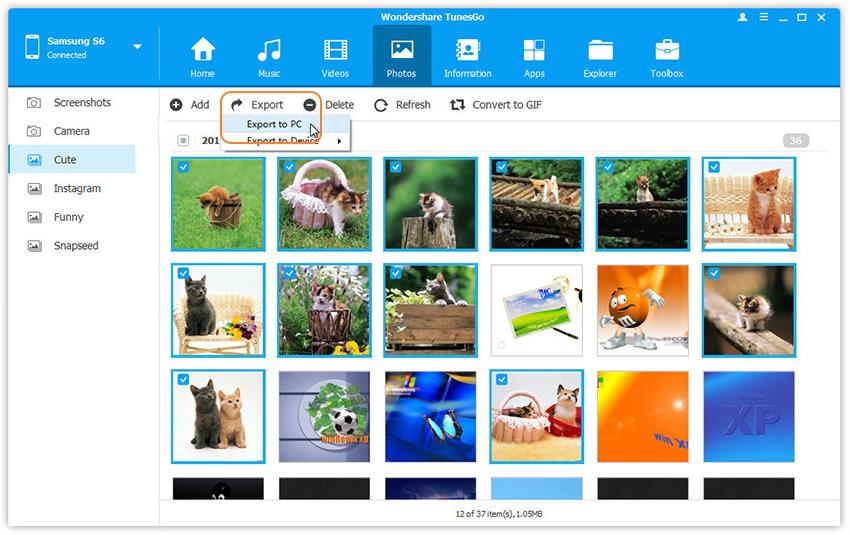
Simply and respectively click “Music“/”Videos“/”Photos“/”Information” to show the music/video/photo/contact/sms window. In the corresponding window, select your desired songs/videos/photos/contacts/sms. Click “Export” and then browse your computer until find a place to save the exported songs/videos/photos/contacts/sms. Then, save these files.

transfer files from huawei p30 to pc

Transfer photos from huawei P30 to pc

transfer photo files from huawei p30 to pc

Backup videos from huawei P30 to pc
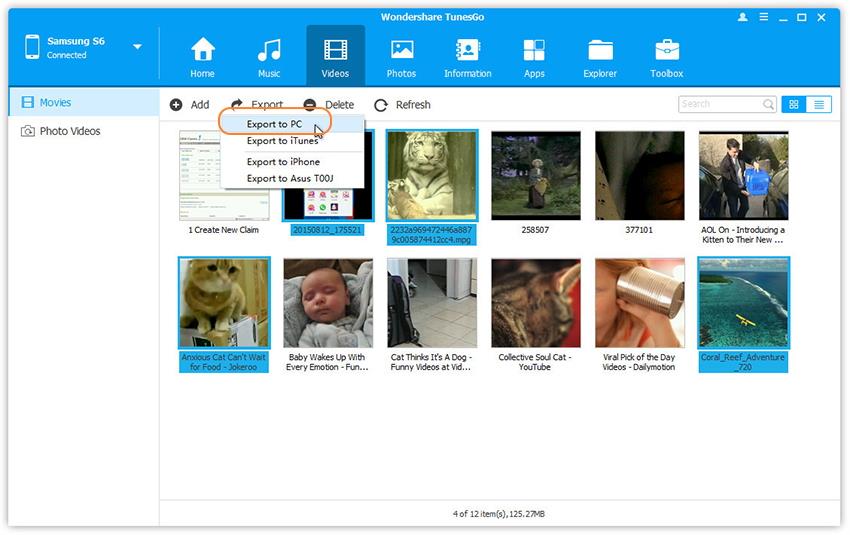
Click on “Videos” and view all the videos saved on your HUAWEI P30.You may now simply drag the videos you want to transfer to the computer and drop them anywhere on your PC or select a couple of or all videos which you wish to transfer and click on “Export” to select “Export to PC” option.

transfer video files from huawei p30 to pc

Backup Contacts from HUAWEI to PC:
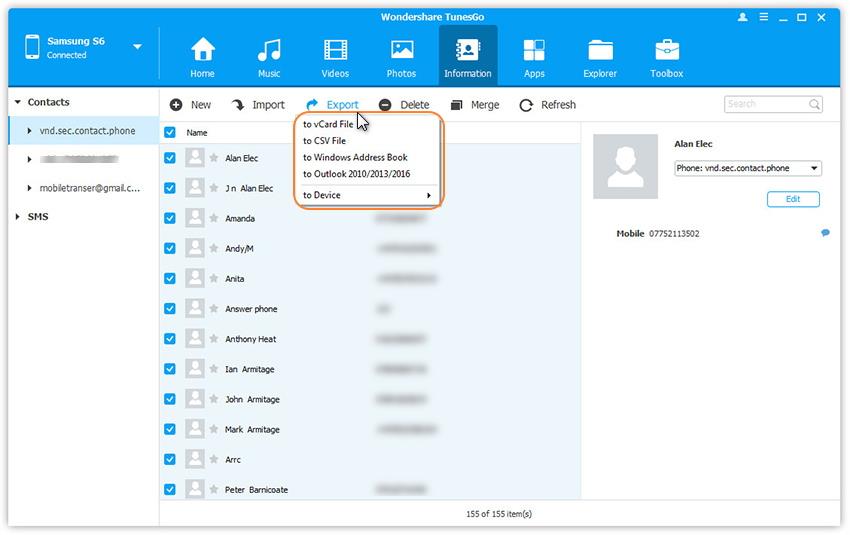
As how to transfer contacts from Huawei to PC, you can click “Contacts“. In the contact window, choose the contacts you want to transfer. Then, tick contacts and click “Export” button. In the pull-down list, choose “to vCard file”.

With HUAEI File Transfer & Manager (Windows), you can also backup contacts from Huawei phone to Outlook, Windows Address Book, Windows Live Mail.

backup huawei contacts

Backup Messages from HUAWEI to PC:
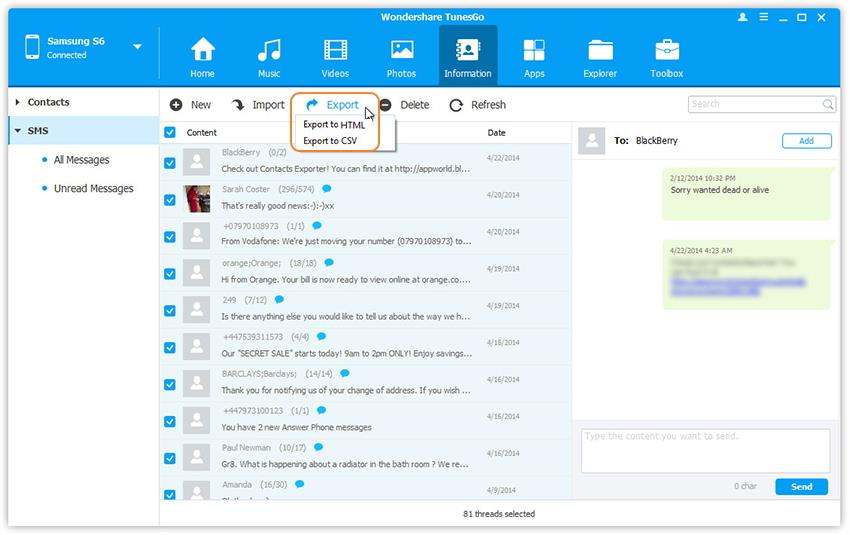
To backup text messages from HUAWEI P30 to the computer, you can go to “SMS“. After selecting your wanted SMS, you should tick the SMS threads you want and click “Export”. Navigate to the destination where the SMS will be saved. Then, backup the messages from HUAWEI P30 to the computer as .html or .csv files.

backup huawei messages

1 Click to Backup All Data from HUAWEI P30 to PC

This Android Huawei Transfer could also help you backup all files on your HUAWEI P30 to PC easily. Whenever you suffer data loss or get a new Android device, you can effortlessly retrieve the backup files and get the data back.
Here you can learn how to backup and restore data on HUAWEI P30/P30 Pro

how to backup huawei p30 to pc

d_win d_mac
d_win d_mac

Transfer HUAWEI Files to PC

How to Backup & Restore Data From HUAWEI P30/P30 Pro

[Summary]: This article teach you how to backup and restore HUAWEI P30/P30 Pro quickly! Not only support to transfer data between PC/Mac and HUAWEI P30/P30 Pro safely and selectively, but also achieve the function of backup files to HUAWEI P30 and other Android device.
huawei p30 backup restore

People also read:

* Transfer WhatsApp Messages from iPhone to Huawei P30

* Recover deleted data from Huawei P30

The Huawei P30 uses a 6.1-inch OLED display, while the P30 Pro is a larger 6.47-inch OLED hyperbolic screen with a resolution of 2340×1080. Huawei P30 body measurements size 149.1 × 71.36 × 7.57, weight 165g; P30 Pro is 158 × 73.4 × 8.41, weight 192g. On the battery capacity, Huawei P30 / P30 Pro are 3650mAh and 4200mAh respectively. The camera is a highlight of the Huawei P30 series. The Huawei P30 Pro is equipped with a super-sensing Leica four-shot camera, including a 40-megapixel super-sensing lens + a 20-megapixel super wide-angle lens + an 8 million-pixel pixel periscope telephoto lens, and a second row. It is a ToF deep lens. P30 is relatively inferior, using 40 million pixels super sensitive + 16 million pixels wide angle + 8 million pixels telephoto three camera. 50x zoom is the main feature of HUAWEI P30 Pro, its camera can take 50 times HD quality photos.

Of course, the photos and videos taken by the Huawei P30 Pro are very large and require a large memory space. In order not to affect the speed of the phone, we recommend that you should back up your Android data regularly, especially the pictures and videos.

If you are looking for some way to backup and restore data on HUAWEI P30, you’d better read our passage in detail. We recommend you to use the best Android Data Backup & Restore, Android Manager and Android Data Transfer, all Android tools can help you backup and restore Huawei phone, and manage your Android data on PC/Mac computer easily.

Method 1: Backup and Restore HUAWEI P30 Data by Android Data Backup & Restore

Android Data Backup & Restore is a part of Android Toolkit, which can help you backup all data from Huawei P30/P30 Pro/P20/P10/P9/Mate 20/Mate 10/Mate 9, etc. to the computer quickly and safely, include photos, gallery, videos, music, contacts, text messages, call history, WhatsApp messages and documents, etc. After backing up files from Huawei to the computer, you can set a password for protecting your important backup. In additional, the Restore feature allows you preview the backup files and selectively restore your backups Huawei P30/P30 Pro and other Android phones/tables.


d_win d_mac
d_win d_mac

Part 1: Backup Data from HUAWEI P30 to Computer

Step 1. Launch Android Toolkit on PC or Mac
Launch the Android Toolkit on the computer and click “Android Data Backup & Restore” option, you can see the screenshot as below.
android toolkit data backup resotre

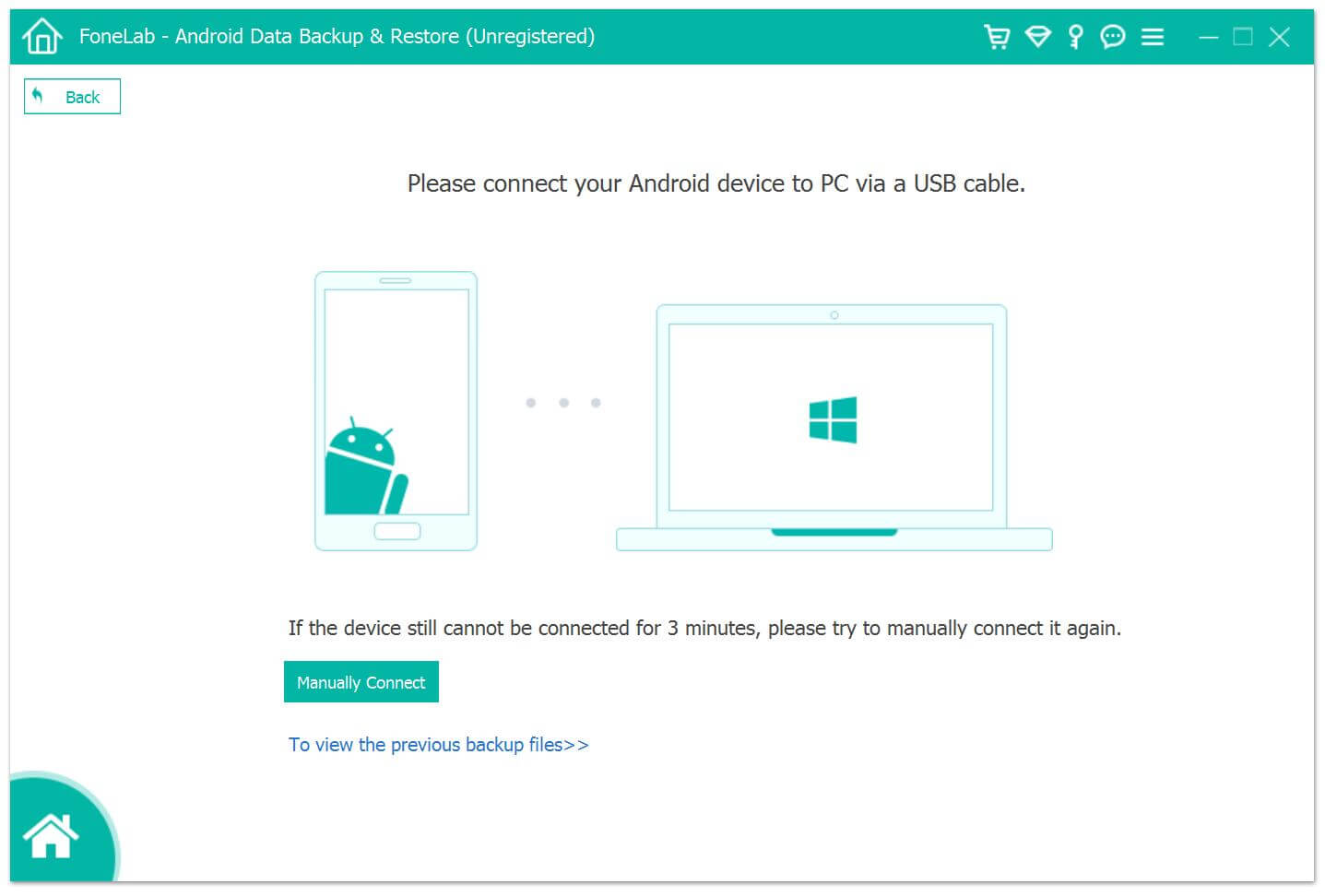
Step 2.Connect your HUAWEI P30 to computer with USB cable.
connect android to backup

Step 3. Choose Backup Option to Start Backup HUAWEI P30 Data
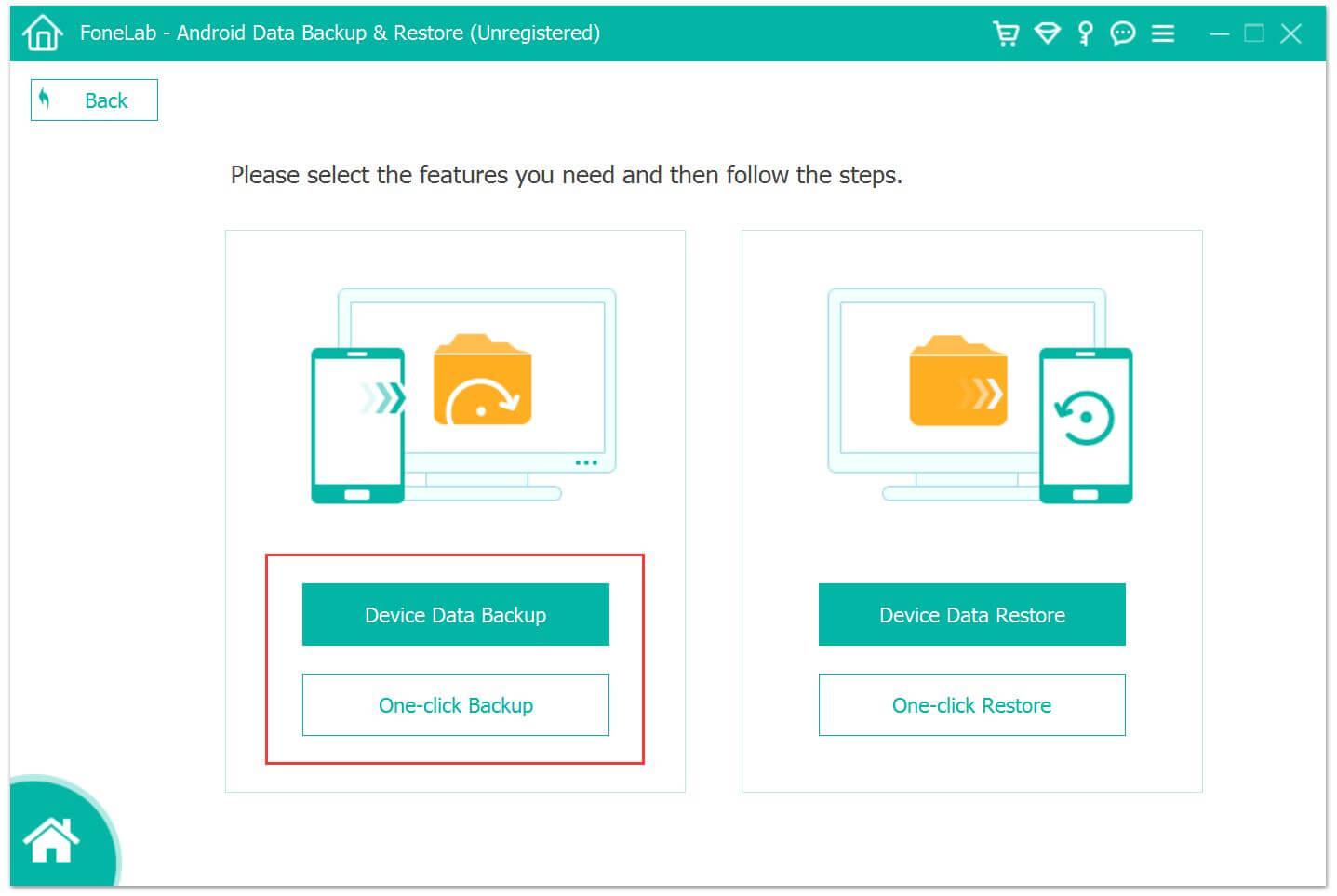
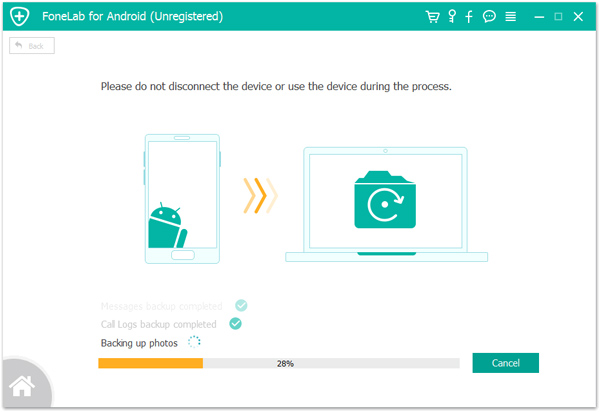
Choose ‘Device Data Backup‘ or ‘One-click Backup‘ option to back up the files of your HUAWEI P30.

backup android

Note: “Device Data Backup” means you can select data type to make a backup while “One-click Backup” lets you back up all data at one time without picking up specific data.
backup huawei data

Part 2: Restore Data from Backup Files to HUAWEI P30 and other Android Phone

Above steps, you have backup files from HUAWEI P30. Then, you can preview and select the data you want to restore. After choosing the restore feature, the program will display all available backups for you. Then you can preview the backup files and selectively restore your Android data.
Here you can directly restore the data to your HUAWEI P30 or other Android device, or choose to restore these selected backup files to PC/Mac for further use.

Step 1. Connect your Phone to the Computer again
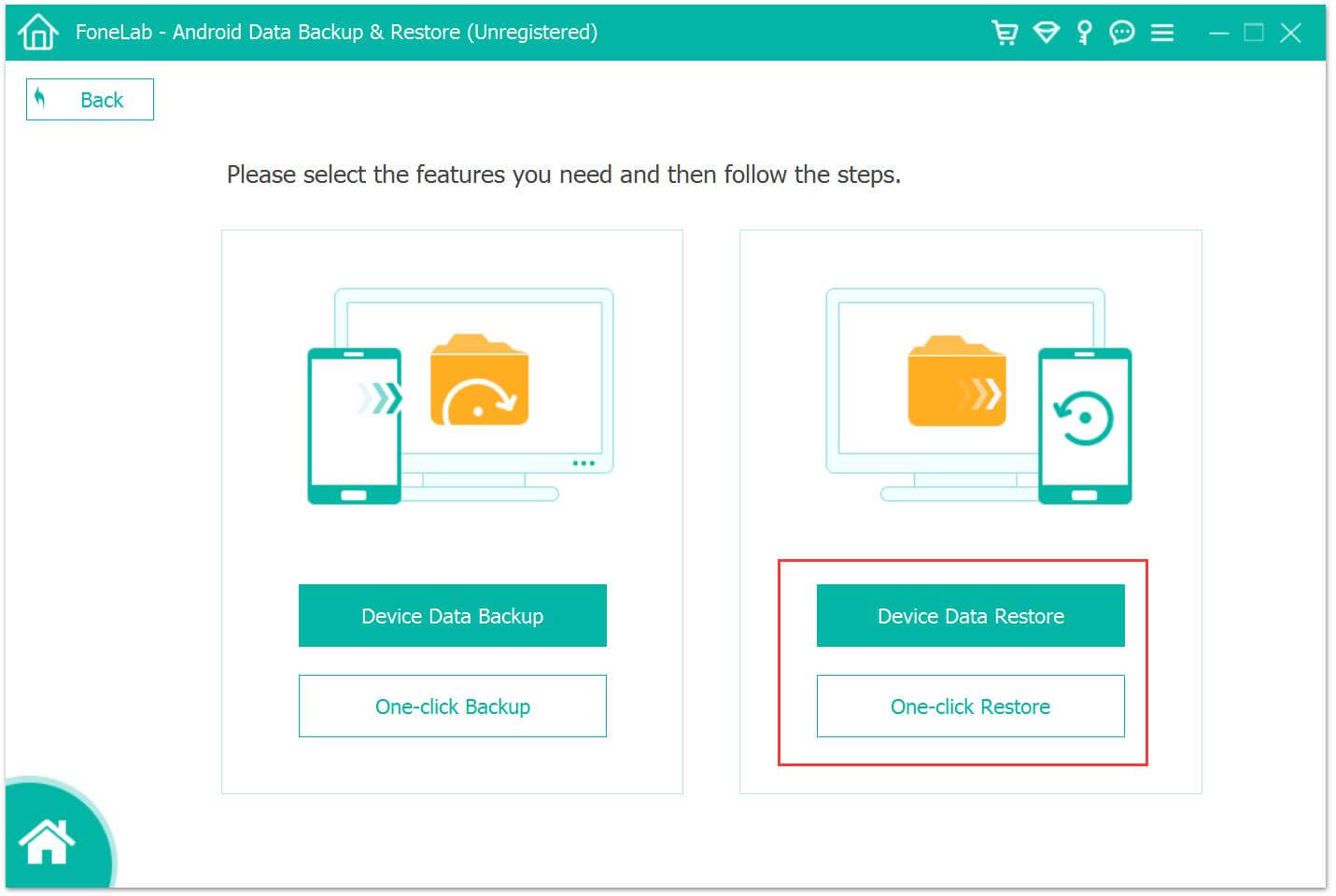
If you want to restore all your data, you can back to the main interface and choose ‘One-click Restore‘ option. If you want to choose some certain data, you can click choose ‘Device Data Restore‘ according to your need.
restore huawei data

Step 2. Start to Restore Data to HUAWEI P30
After connecting your phone to the computer successfully, choose the suitable backup to restore your Android data to HUAWEI P30 from the backup list.
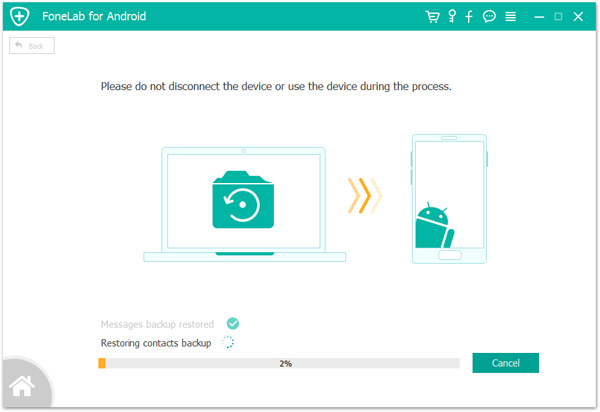
restore huawei data

You can also restore your Android phone the other new phone easily in regardless of e data loss for deletion or phone switch.
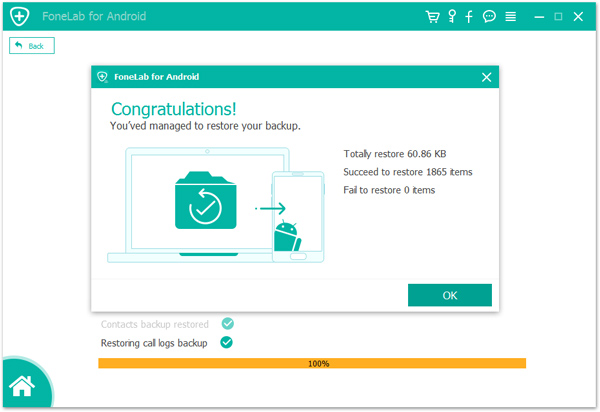
restore data to huawei p30

Download the Android Toolkit – Data Backup & Restore and star to backup your phone’s data easily.

d_win d_mac
d_win d_mac

Method 2: Backup and Restore HUAWEI P30 Data by Android Manager

This Android Manager likes as iTunes to Android, but it unlike iTunes, this phone manager compatible with both, Android and iOS devices, which is a must-have phone manager software for everyone to backup, restore, transfer, import, add, sync files between Android and computer, you can use this Android manager software easily to backup or restore media files and text files on HUAWEI P30/P30 Pro, transfer music, photos, contacts, between your HUAWEI P30 and computer, sync music from iTunes to HUAWEI P30, download or discover new music, organize your playlists, record audio and even make gifs using photos or videos.

d_win d_mac
d_win d_mac

Part 1: Backup your HUAWEI P30 to PC or Mac

This part show you how to  backup contacts, messages, music, photos and more files from HUAWEI P30 to PC, you can also use the Mac version to backup all data from HUAWEI P30 to Mac easily.

Step 1. Launch Phone Manager and Connect HUAWEI P30 to PC
Launch the program and make sure that your HUAWEI P30 is connected to the computer. The software will detect your HUAWEI P30 and it’ll show up on the main interface.
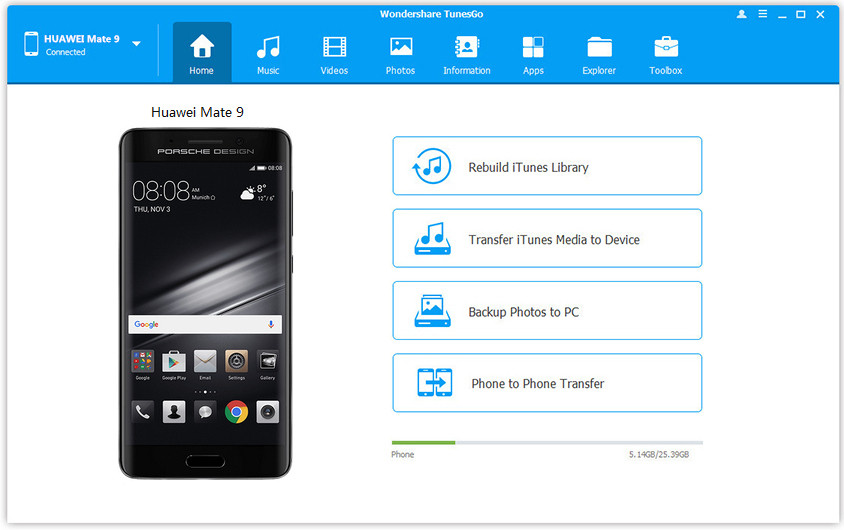
backup huawei p30 to pc

Step 2. Go to” Backup & Restore” Option
Click on the “Toolbox” tab on the top right corner. It’ll open up a new window. You’ll find the “Backup & Restore” option right under transfer tools. Select “Backup Device”.
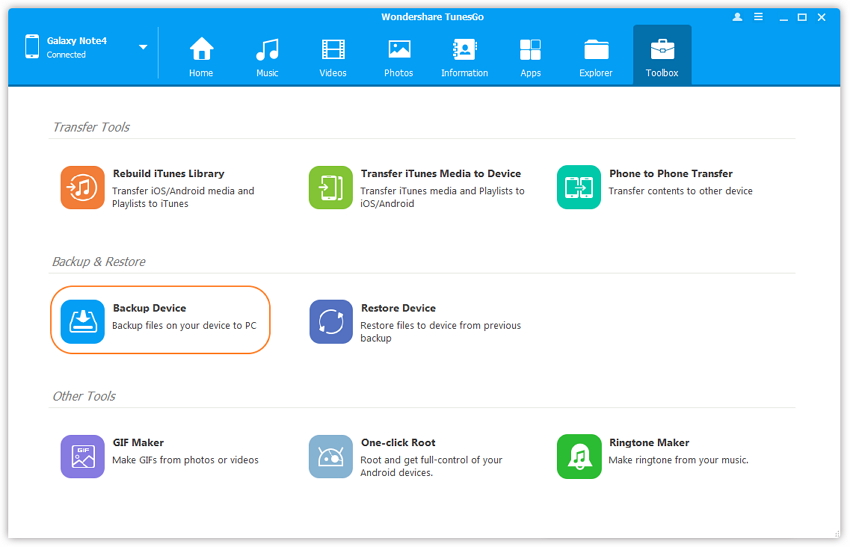
how to backup huawei p30 to pc

Step 3. Backup your HUAWEI P30 to PC with 1 Click
It’ll display all the content on your HUAWEI P30. Select the types of file you want to backup and also choose the file destination. You can also check for the total file size at the bottom of the window as it’ll help you to manage your storage. Click on “Backup” backup start to backup files from HUAWEI P30 to the computer.
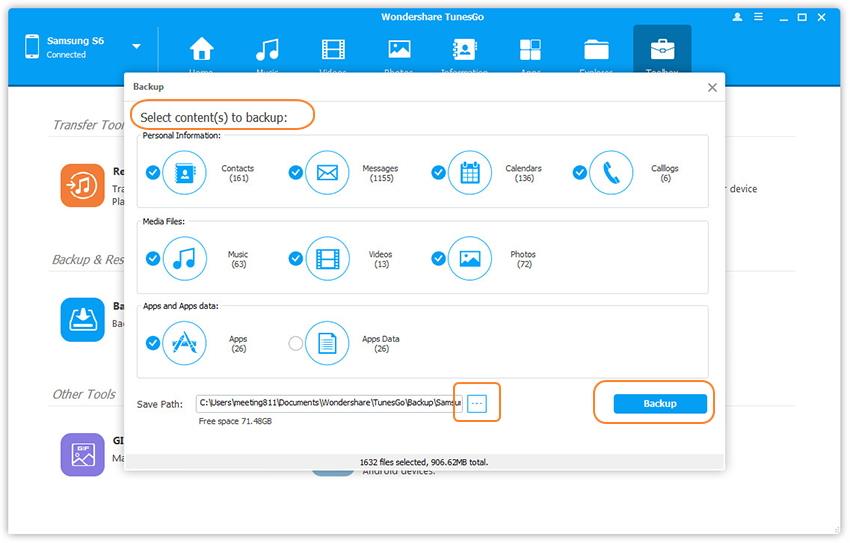
backup huawei p30 files to pc

Part 2: Restore Data to HUAWEI P30 from Backup

Step 1. Launch the Phone Manager and Connect Your HUAWEI P30
Open the Phone Manager software and connect your HUAWEI P30 to the computer again.

Step 2. Select “Restore Device” Option
Go to the “Toolbar” tab and select “Restore Device” under the backup & restore option. It’ll show all the backup files.
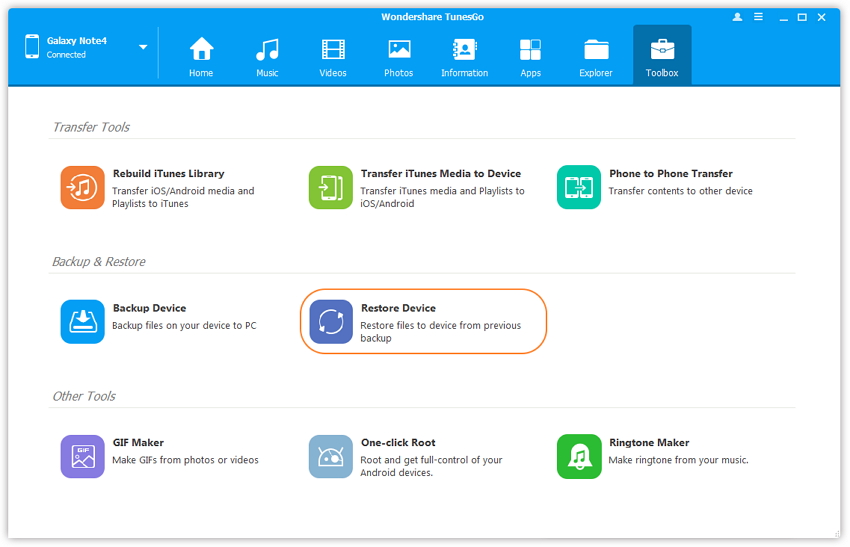
restore files from huawei p30 backup

Step 3. Select a Backup History
Select the backup file you want and hit “Next.”
backup and restore huawei p30

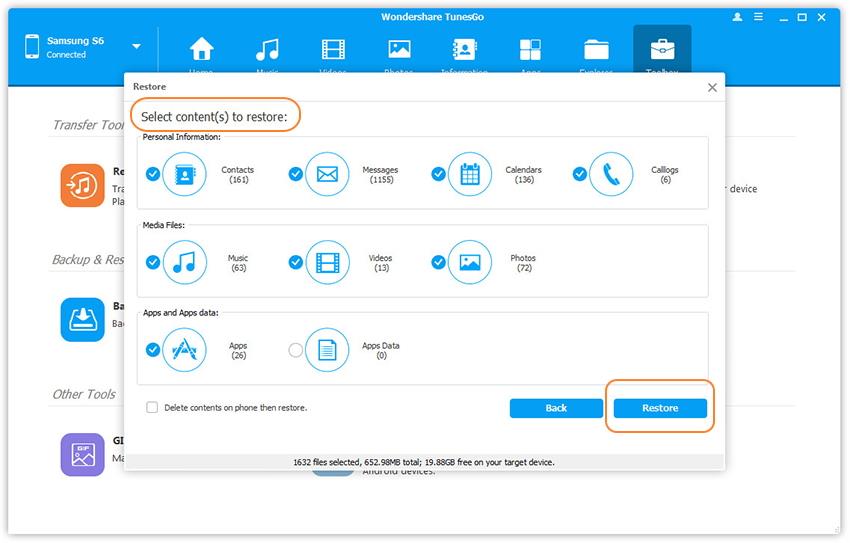
Step 4. Select Types of Files to Restore
It’ll open a window displaying the content of that particular backup file. Select the ones that you want to restore and click on the “Restore” button.

restore data to huawei p30 pro

Step 5. Start to Restore Files to HUAWEI P30 from Backups
The program begin restore the backup files to HUAWEI P30. Once it’s done restoring your phone, it’ll prompt “restore complete” on your screen.

d_win d_mac
d_win d_mac

Method 3: Transfer Data Between HUAWEI P30 and PC by Android Data Transfer

Android Data Transfer is a part of Android Toolkit, which not only helps you transfer files between HUAWEI P30 and computer, including contacts, photos, music, text messages, videos and more; But also allows you transfer music, playlist videos between HUAWEI P30 and iTunes directly. When you have bought an new HUAWEI P30, the program also enables you transfer data from old Android to HUAWEI P30/P30 Pro easily. Let’s shows you how to transfer photos, videos, music from HUAWEI P30 to computer, as well as from the computer to HUAWEI P30.

d_win d_mac
d_win d_mac

Part 1: Transfer Photos/Video/Music from HUAWEI P30 to Computer

Step 1. Launch the Android Toolkit and Click “Transfer” Option
Launch the Android Toolkit on the computer, you will see there are 8 main function among the program, if you want to transfer files between Android and PC, please enter the “Transfer” option
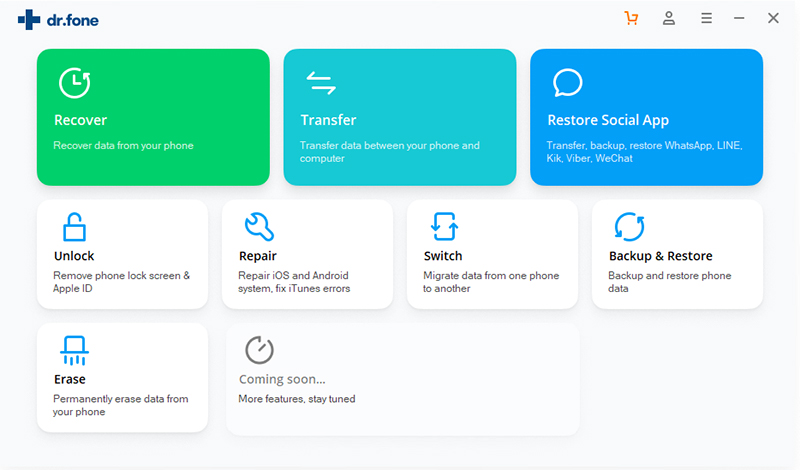
HUAWEI P30 file transfer

Step 2. Connect HUAWEI P30 to PC
connect your HUAWEI P30 to the computer, when your HUAWEI P30 is recognized and displayed in the primary window. No matter you transfer photos, video or music, the steps are similar. Here we will take photos as an example.
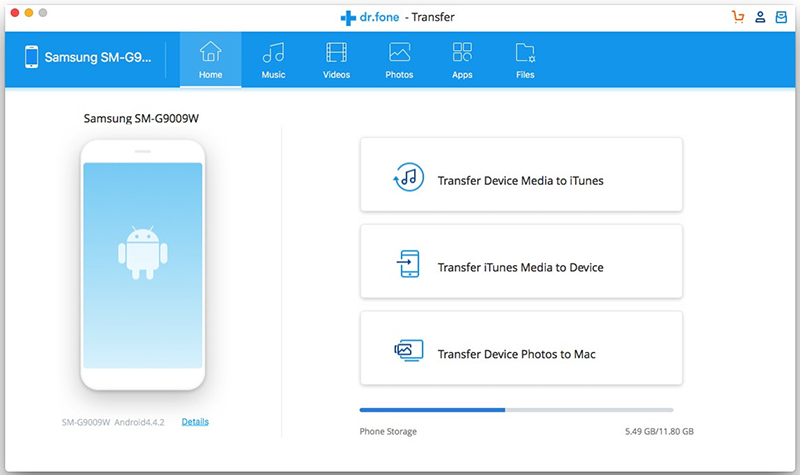
transfer files to HUAWEI P30

Step 3. Go to “Photo” Tab
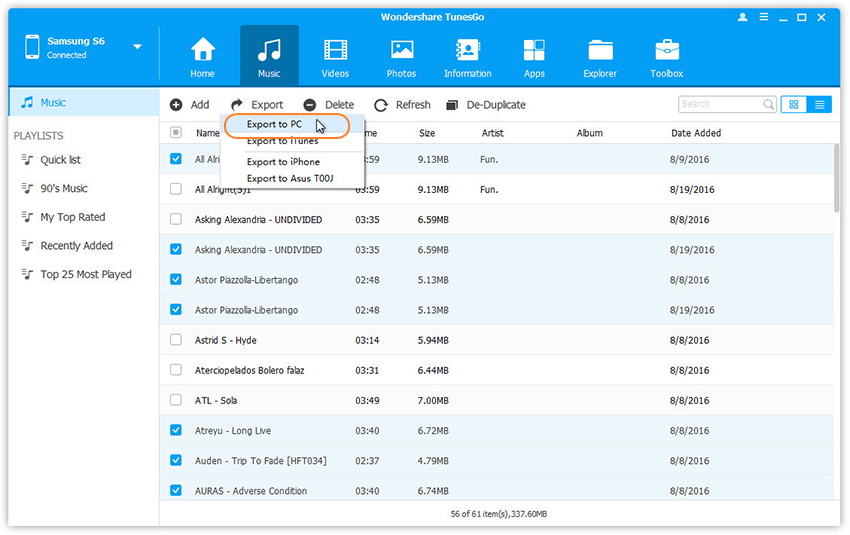
To manage photos and transfer photos from Huawei P30 to the computer, please click the “Photo” management window, choose your desired photos and click Export > Export to PC.
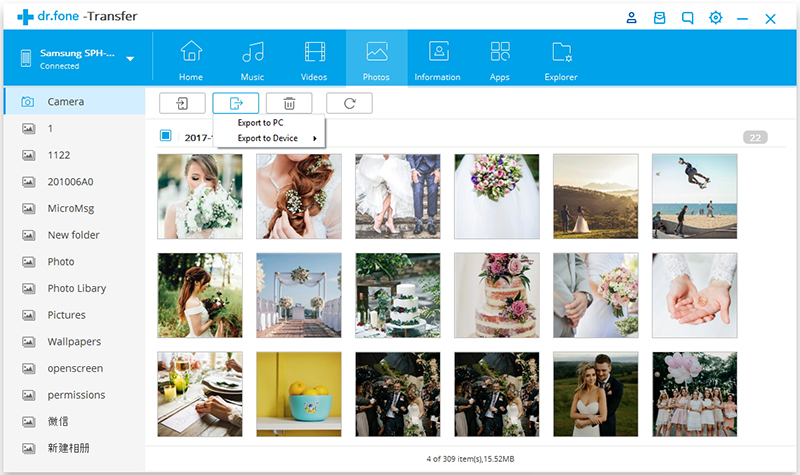
Export Photos from HUAWEI P30 to Computer

Step 4. Set Path to Store the Photos
This brings up your file browser window. Select a save path to store the photos from your Android device to computer. You can also transfer the whole photo album from HUAWEI P30 to PC.
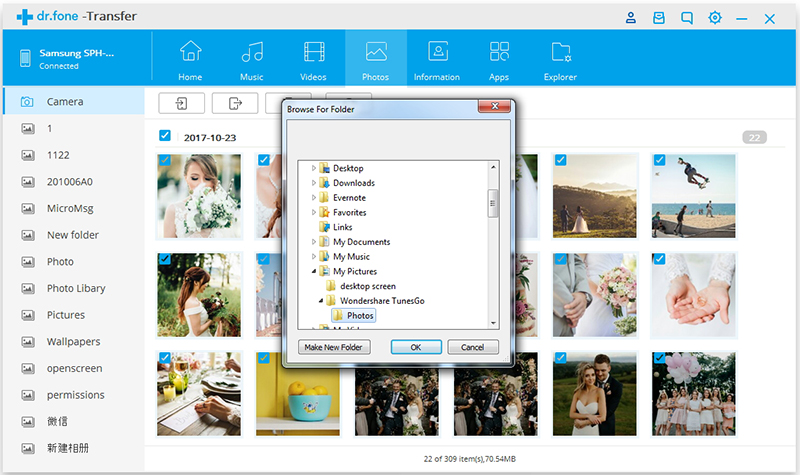
Transfer HUAWEI Photo Album to Computer

Step 5. Backup Photos from HUAWEI P30 to PC
Except for backing the photos from your HUAWEI P30 to PC, it also supports to transfer the photos to another iOS or Android device. Connect the target device to the computer and select it as the export path, all selected photos will be moved to the target device.
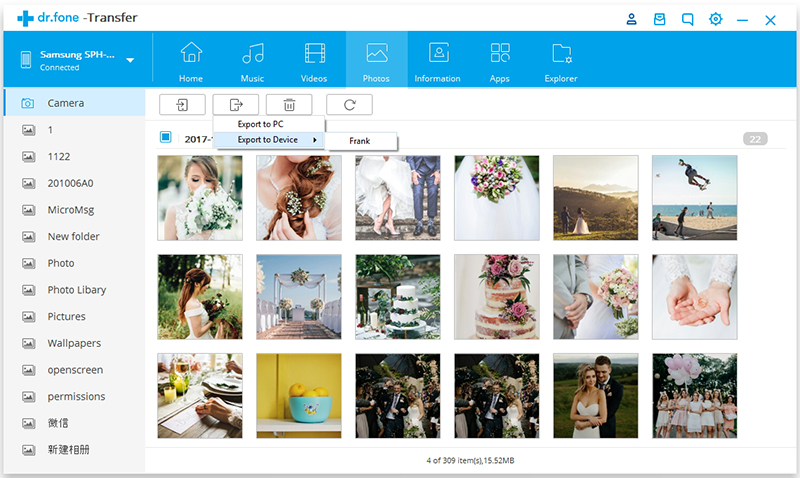
Backup Photos from HUAWEI P30 to PC

Part 2: Add Photos/Video/Music from Computer to HUAWEI P30/P30 Pro

This guide teach you how to import photos from computer to HUAWEI P30, you can also follow the same steps to import/add music, videos and other files from computer to HUAWEI P30 easily.

Step 1. Connect HUAWEI  Phone to PC and Go to “Photo” Tab
Click “Photos” tab. All the albums will be displayed on the left. Select one folder to store new added photos on your phone.
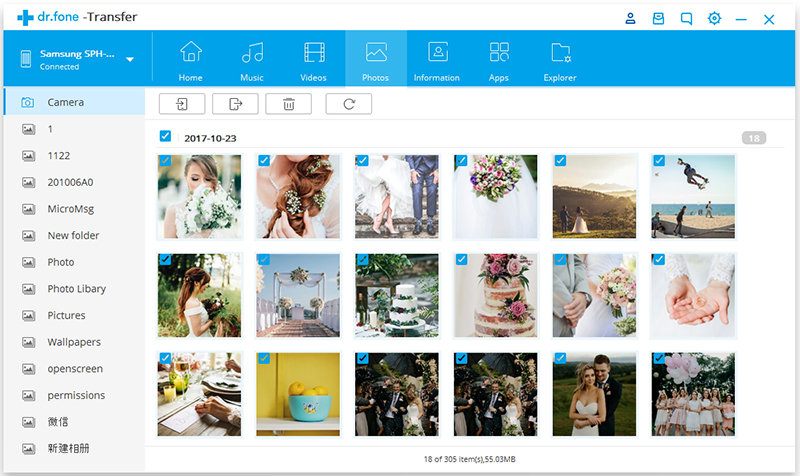
add photos from pc to huawei p30

Step 2. Click Add > Add File or Add Folder.
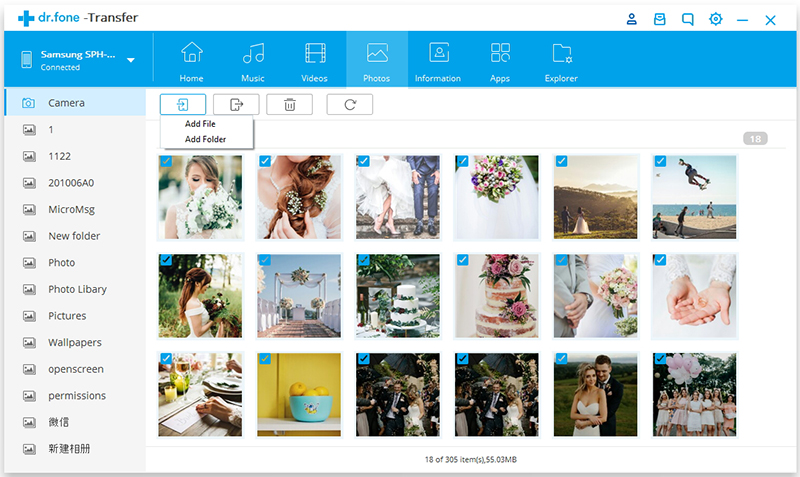
add photos from pc to huawei p30

If you only want to select some photos, then click “Add File“. You can create new albums and add photos in it. Simply right-click the photos category on the left panel, then click New Album.
If you want to transfer all the photos in one folder, then click “Add Folder”.

Step 3. Add Photos to HUAWEI P30
Then, please select photos or photo folders and add to your HUAWEI P30. Hold down Shift or Ctrl key to choose multiple photos and start to importing the select photos from computer to HUAWEI P30 directly.
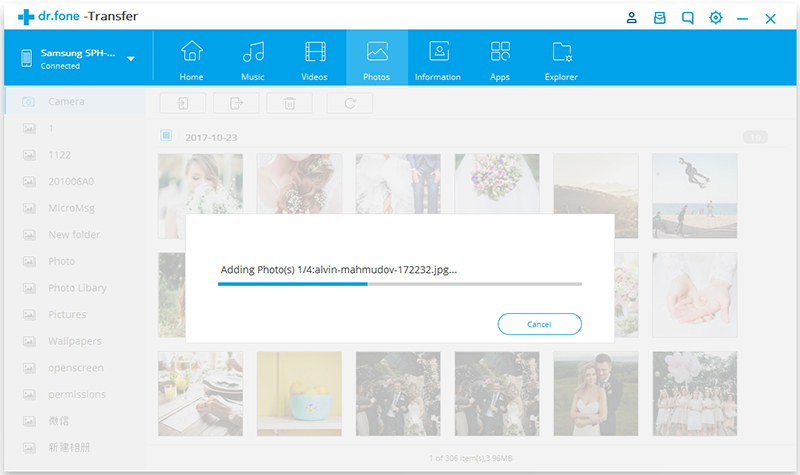
Transfer Photos from Computer to Android huawei

Well done! You have know how to transfer photos, videos, music, contacts and SMS between Android HUAWEI phone and PC/Mac, this Android Data Transfer function also allows you transfer music and playlist from iTunes library to HUAWEI P30/P30 Pro.

Download the Android Toolkit – Android Transfer and try to transfer files between your Android device and PC/Mac easily.

d_win d_mac
d_win d_mac

Useful Tips: If you want to offline play Apple Music on HUAWEI P30, you need to remove DRM from Apple Music tracks at first, and then use this Android Transfer tool to import the converted Apple Music songs to your HUAWEI P30/P30 Pro for playing offline.

If you want to watch iTunes Movies, TV shows and music videos on HUAWEI P30/P30 Pro, you can use this UkeySoft M4V Converter to convert iTunes M4V movies to MP4 firstly, and then use this Android Toolkit – Android Transfer tool to import the converted iTunes movies to the HUAWEI P30/P30 Pro for watching at anytime you like.

More HUAWEI Phone Solutions

How to Import Music and Videos to Huawei Mate 10/Mate 20/P30

Free Download Songs from Spotify on Huawei P30/P30 Pro

How to Transfer Music from Huawei to Huawei P30/P30 Pro

How to Sync Data from iTunes/iCloud to Huawei

Backup & Restore HUAWEI Phone
Transfer Data to Huawei P30/P30 Pro from Old iPhone/Android Samsung

[Summary]: Here are the best way to transfer data including contacts, SMS, photos, videos, music and more from old iPhone, Samsung phone or other Android phone to your new Huawei P30/P30 Pro, as well as restore data from iTunes/iCloud backup to Huawei P30/P30 Pro easily.

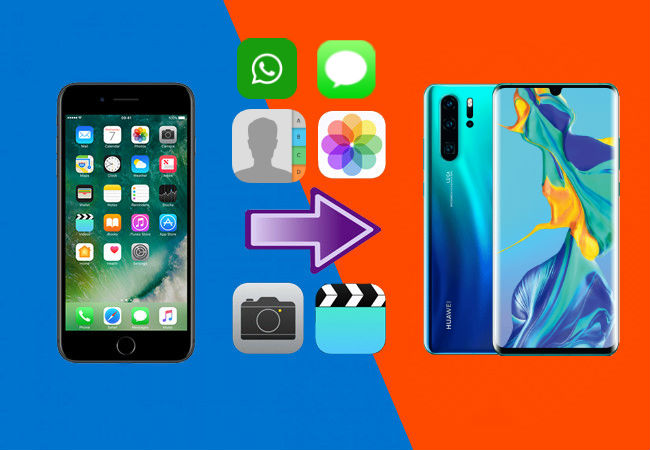
HUAWEI company has released the Huawei P30 and P30 Pro of its P serials, when you have got an new Huawei P30 smart phone, the first thing you need to do is to transfer data from old phone to Huawei P30/P30 Pro, including contacts, text messages, photos, videos, music and WhatsApp messages. If you use iPhone before, it’s not easy to transfer data from iPhone to Android Huawei phone crossing the different platforms; If you have synced data to iCloud or backup contents to iTunes, how to sync data from iTunes or iCloud to Android Huawei phone? If you use Android phone like Samsung Galaxy, how you can transfer WhatsApp messages, contacts and SMS from Samsung Galaxy to Huawei P30? Don’t worry, this article will teach you an effective method to transfer Everything from an old iPhone/Android to your new Huawei P30/P30 Pro.

transfer iPhone data to huawei p30 and p30 pro

People also read:

* Transfer WhatsApp Messages iPhone to Huawei P30/P30 Pro

* Import Music (Apple Music and Spotify Music) to Huawei Phone

Here you’ll learn how to quickly transfer all your data to Huawei P30/P30 Pro/P20/P10 or Mate 20/Mate 10 from iPhone X/8/7/6 or from Android(old Huawei phone, Samsung S9/S8/S7, Note 8, Google Pixel, LG, Motorola, Huawei, Sony, ZTE, Oppo, Xiaomi, etc.)

Part 1: Transfer Data from iPhone/Android to Huawei P30/P30 Pro

This Phone Transfer is one of the best. It can not only helps you transfer text messages, contacts, photos, videos, music and so on between iOS and Android (iOS to iOS or Android to Android), but also enables you restore backup files from iTunes or iCloud to Android. So, you can use this powerful phone to phone transfer tool to transfer Everything from iPhone to Android Huawei phone, from old Android phone to Huawei phone easily. The program supported the latest smart phone, such as Samsung S10/S10+, Samsung Galaxy Fold, Samsung S9/S8/Note 9, iPhone XS/XR/X/8, Huawei Mate X, Huawei Mate 20/Mate 20 Pro, P30 and other latest Android smart phones.

d_win d_mac
d_win d_mac

Guide to Transfer Files from iPhone/Android to Huawei P30/P30 Pro

This guide shows you how to transfer contacts, SMS, photos, music and videos from old iPhone to Huawei P30 as example, you can also follow the same steps to copy data from Android to Huawei phone directly.

Step 1. Run the Phone Transfer on PC or Mac
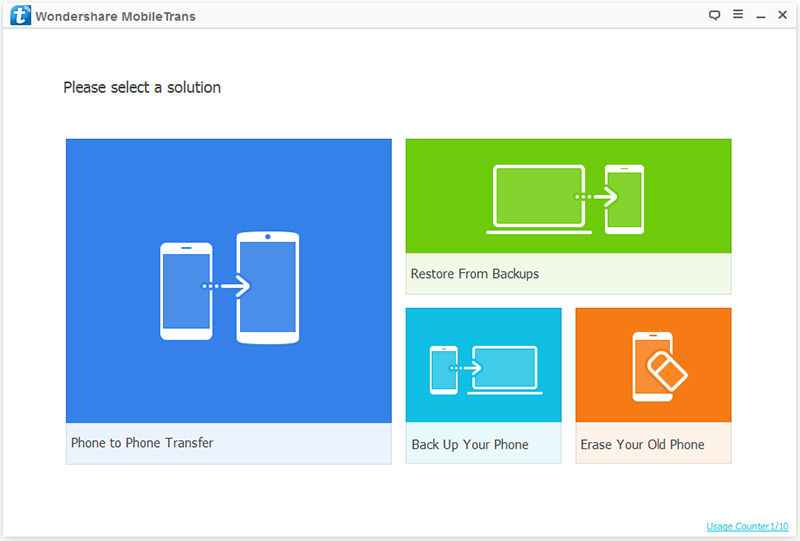
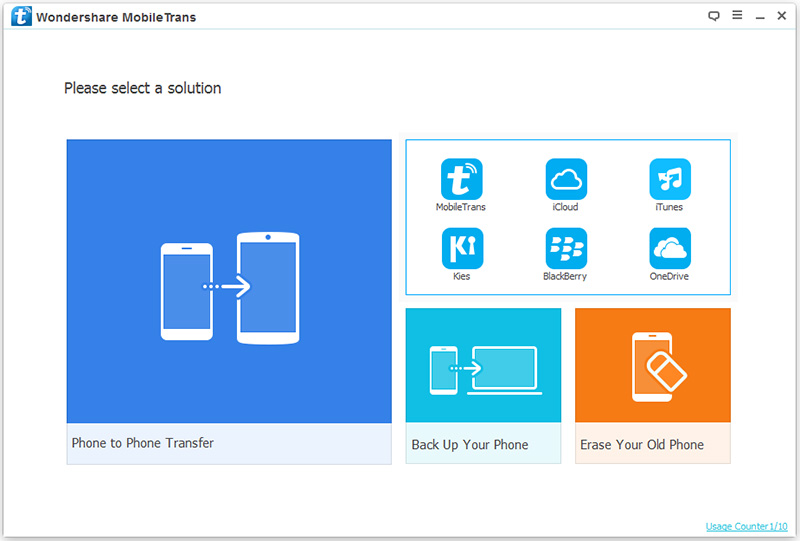
Run Phone Transfer on your computer and select “Phone to Phone Transfer” among the interface, then press “Start” to go on.

huawei phone transfer

Step 2. Connect the Old iPhone and Huawei P30 to the computer
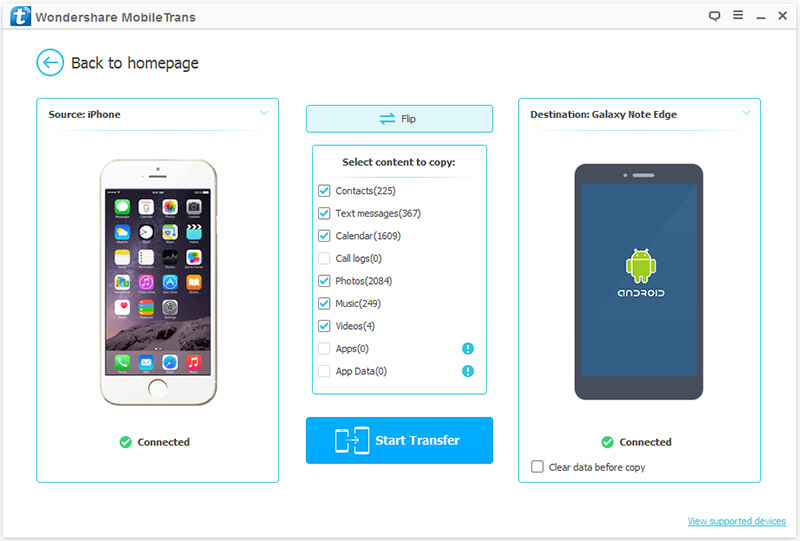
Use the USB cables to connect both of your iPhone and Huawei P30/P30 Pro to your computer. When two phones are successfully connected, the iPhone will be displayed on the left, the Huawei P30/P30 Pro will be displayed on the right. Because this software has requirements for the display position of the source phone and the target phone. If not, you can press “Flip” to exchange theirs position.

iphone to huawei transfer

Step 3. Select SMS, Contacts, Videos, Music, Photos to Transfer
When your phones are displayed on the right place, all the files that can be transferred between the two phones will be displayed in the middle panel of the program, check the items you needed from these data types, and then click on the “Start Transfer” button to sync them between your phones.

transfer iphone data to huawei

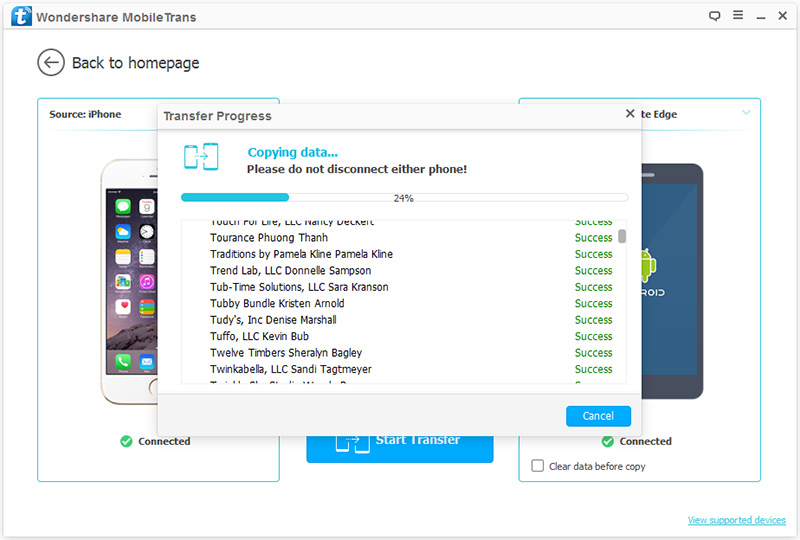
Note: During the whole transfer process, you need to make sure that the connection between the two phones and the computer is continuous. Besides, you can check the “Clear Data before Copy” box if you want to erase data on the Huawei phone before copying the new data.

Above is the simple guide to transfer data from old iPhone/Android phone to Huawei P30, if you have backed up your iPhone data to iTunes or iCloud before, once your iPhone is broken/damaged or the phone not working properly, you can restore iTunes or iCloud data to Android directly, please keep reading the below guide.

Part 2: Restore Data from iTunes Backup to Android Huawei Phone

Step 1. Choose “iTunes” to restore the backup
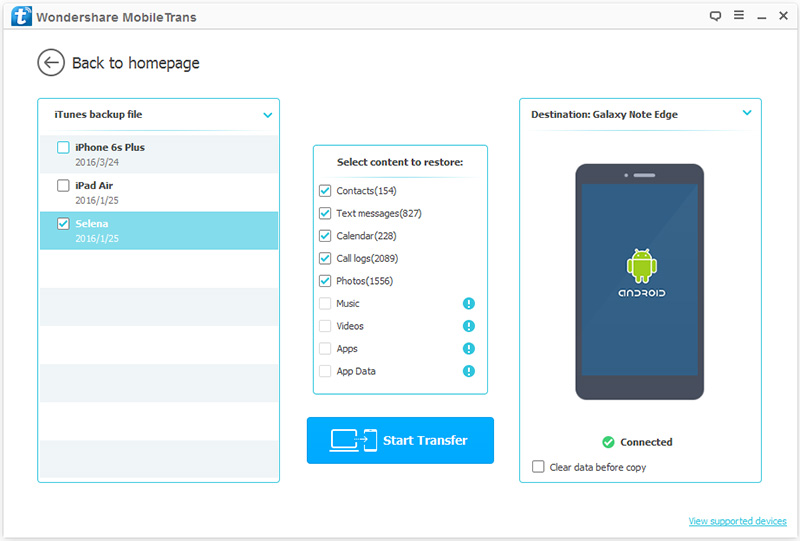
Since you need to transfer data from the iTunes backup, please run the program and click “Restore from Backups” > “iTunes”. Then, connect your Huawei P30 to the computer via a USB cable.

restore iTunes to huawei

Step 2. Transfer data from iTunes backup to your Android Huawei Phone
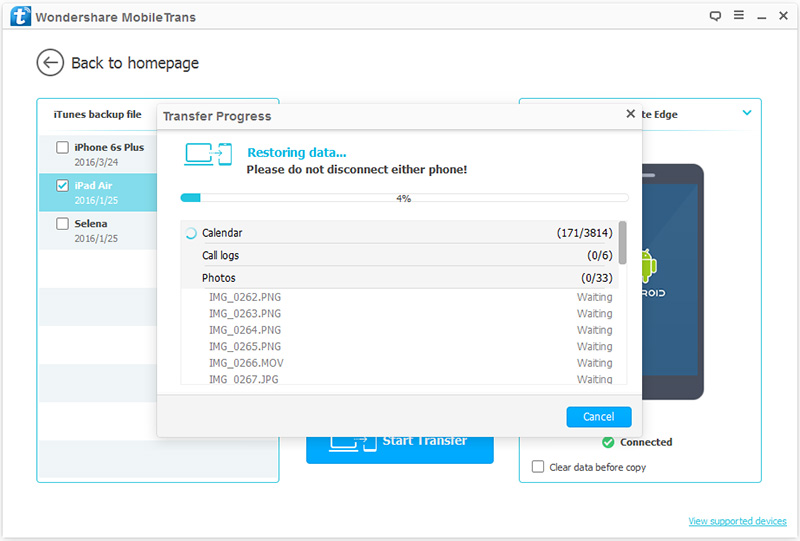
Then, select an iTunes backup from the list and select the file you want to transfer in the middle of the option. Then, click “Start Transfer”. When the data is officially started transfer, do not interrupt the connection between the Huawei P30 and the computer.

transfer data from iTunes to huawei

Note: If you want to clean up the original data in Huawei P30, you can check the “Clear Data before Copy” box below the Huawei P30.

sync iTunes to huawei

Part 3: Restore Data from iCloud Backup to Android Huawei Phone

Step 1. Sign in with your iCloud account
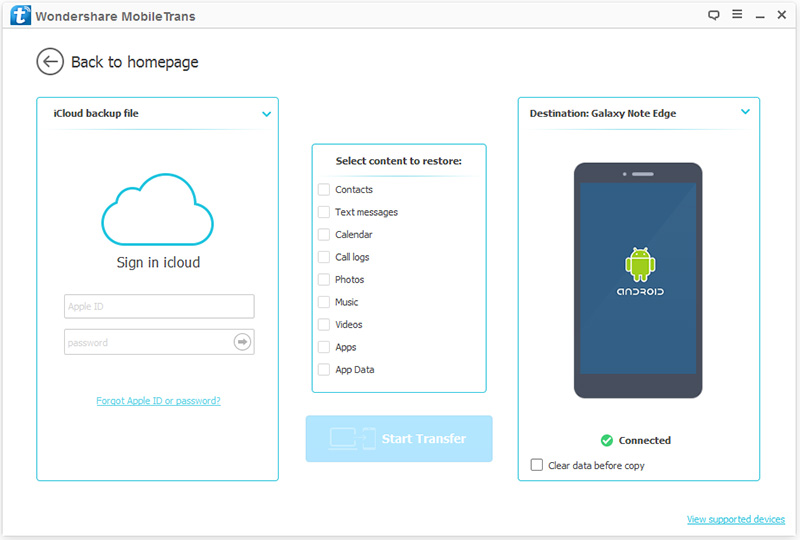
Similarly, launch the program and click “Restore from Backups” > “iCloud” in the primary interface. Then, use a USB cable to connect your Huawei P30 to the computer.

restore iCloud to huawei

Next, you need to sign in with your iCloud account, just enter the account ID and password to sign in your iCloud account.

transfer iCloud data to huawei

Step 2. Download your iCloud backup
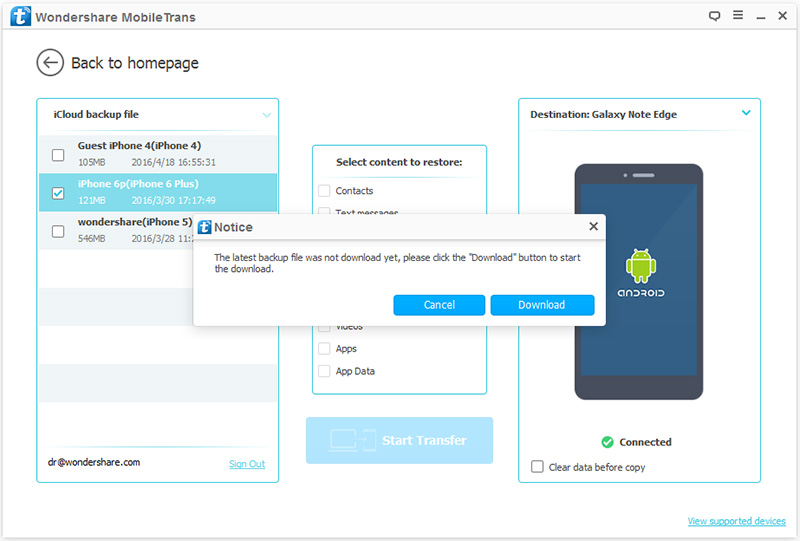
When you enter your iCloud account, all the iCloud backups are displayed in the window. Before you officially transfer data, you need to select a backup file and wait for it to be downloaded. It will take you a few minutes, please wait patiently.

transfer data from iCloud to huawei

Step 3. Transfer data from iCloud backup to your Huawei P30
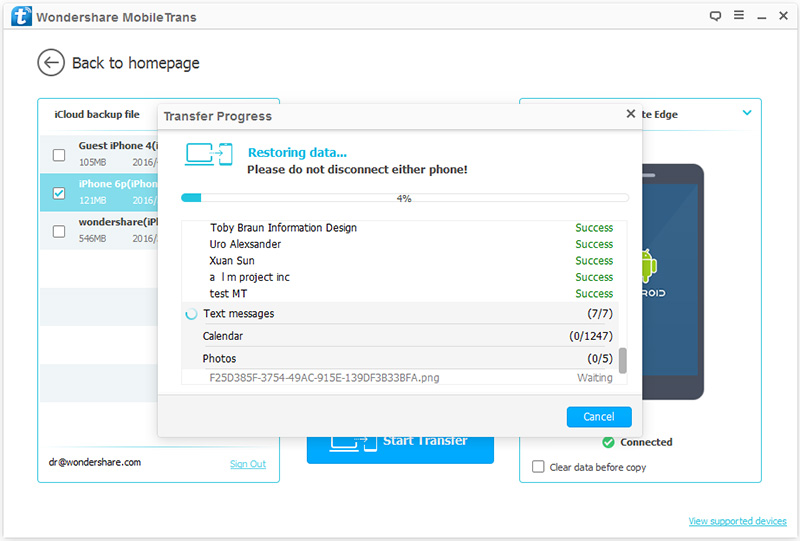
When iCloud backup has been downloaded, all the transferable data will be listed, you can select those whatever you needed and click “Start Transfer” to start transferring data to Huawei P30.

download iCloud data to huawei

Note: During this process, please do not disconnect the Android phone from the computer, otherwise the transfer process will be interrupted. If you want to wipe all your data from the Android phone before transfer, you can use the “Clear data before copy” feature.

Download the Phone Transfer and try to transfer data from iPhone/Android/iTunes/iCloud to Android Huawei phone directly.

d_win d_mac
d_win d_mac

Part 4: Transfer WhatsApp Messages from iPhone/Android to Huawei Phone

If you want to transfer WhatsApp messages from an old iPhone or Android phone to the new Android phone, you need to use another third-part WhatsApp Transfer tool.

Phone ToolkitSocial App Restore is a reliable and professional program for users to transfer, backup or restore WhatsApp data with 1 click. It not only supports transfer WhatsApp messages from iPhone to Android (iPhone to iPhone, Android to Android), but also enables backup WhatsApp data from iPhone/Android and restore WhatsApp data to Android. So, you can use this tool to directly transfer WhatsApp messages to Huawei P30/P30 Pro; or backup WhatsApp chat history, pictures & videos to the computer, and then restore the backed up WhatsApp data to your new Huawei P30/P30 Pro.
Tips: Phone Toolkit – Data Backup & Restore supports backup Everything from iPhone and Android devices.
Phone Toolkit – Switch function is the same also above Phone Transfer tool, it is designed to switch files between two phones.

Let’s free download the Phone Toolkit and start to move WhatsApp messages from iPhone to Android Huawei phone directly.

d_win d_mac
d_win d_mac

Step 1. Download, Install and Launch the Phone Toolkit
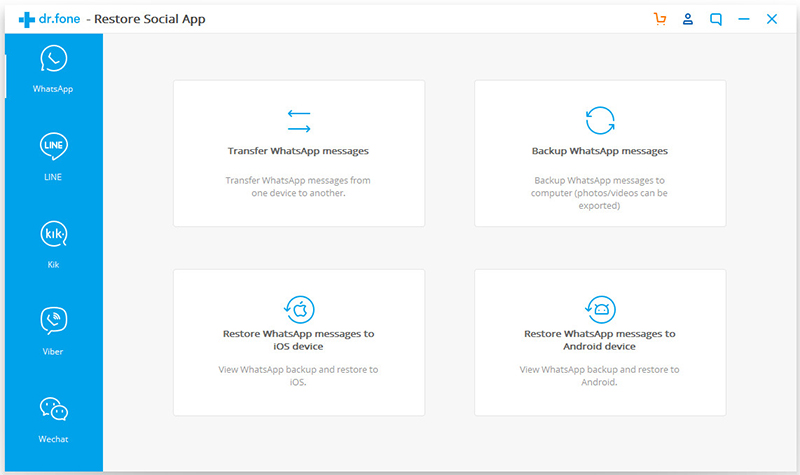
After launching the program on your PC or Mac, you can get it’s main interface as below. Then, please choose “Social App Restore” option.

whatsapp transfer

Step 2. Connect iPhone and Huawei Phone to the Computer
Using a Android USB cable and iOS USB cable to connect both Huawei P30 and iPhone to the computer, and choose “Transfer WhatsApp messages” option.

Connect WhatsApp to WhatsApp Manager

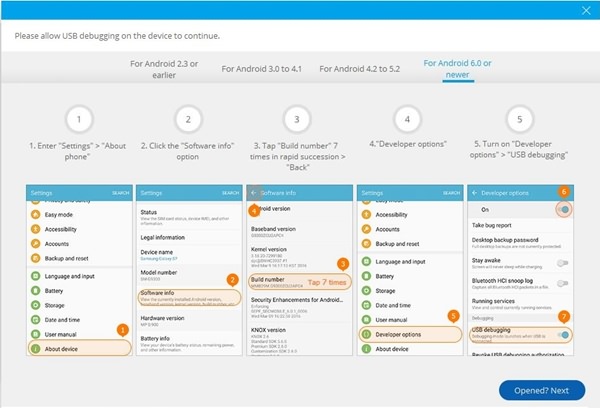
Now, please get your iPhone and Android connected to the program. However, if your Android phone did not enable USB debugging, the process would fail. Therefore, please allow the USB debugging by following the instructions below.

Enable Android USB Debugging

Step 3. Setting iPhone as Source Device
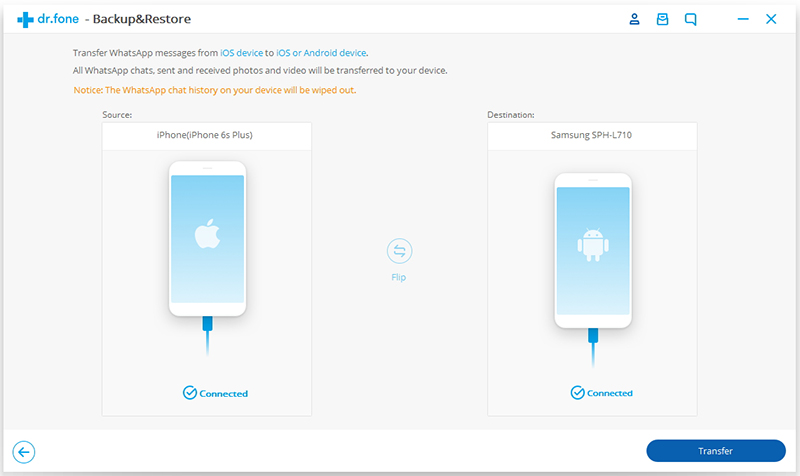
Both two mobile phone detected and recognized automatically, if you want to transfer WhatsApp messages from iPhone to Android, you should confirm that iPhone is labeled as “Source” and the Huawei P30 phone is as “Destination”.

iphone to android whatsapp transfer

Step 4. Start Transferring WhatsApp Messages to Huawei P30
After the software detects both of your devices, they will be displayed on the interface. Now, please click “Transfer” button at the lower right and start transferring WhatsApp chat history from old iPhone to Android Huawei P30. It might take minutes to finish the process.

transfer whatsapp messages to huawei phone

Note: All WhatsApp data on target device will be overwritten after transferring, so you also use this Restore Social App to backup your WhatsApp data from Huawei to the computer at first.

More Features of Restore Social App Function:

  • Move WhatsApp chat history between iOS & iOS, Android & Android, and Android & iOS.
  • Backup or export iOS/Android WhatsApp messages to computers.
  • Backup your LINE/Viber/Kik/Wechat messages with just one click.
  • Export any item from the backup for printing.
  • Preview the backup content and restore the backups to iOS or Android devices.

Now, download the all-in-one Phone Toolkit and try to mange your WhatsApp data on PC or Mac computer.

d_win d_mac
d_win d_mac

Transfer Data to Huawei P30/P30 Pro

Transfer WhatsApp Messages and Data from iPhone to Huawei P30/P30 Pro

[Summary]: Don’t know how to transfer WhatsApp messages from iPhone to Huawei phone? This article teach you an effective method to move your WhatsApp chat history from iPhone to Huawei P30/P30 Pro, you can also use this iOS to Android WhatsApp Transfer tool to backup WhatsApp messages, pictures & videos to the PC/Mac and then restore to Android easily.

Is there any way to transfer WhatsApp messages from iPhone 7 to Huawei P30? It’s easy to backup and restore via iCloud, but I don’t know how to transfer WhatsApp chat history to Huawei P30.

People also read:

* Recover deleted WhatsApp/Viber/Line/Messenger/Kik/WeChat data from iPhone

* Recover deleted WhatsApp messags on Android

* Backup and Restore WhatsApp Messages, Pictures & Videos

When switching from your old iPhone to Android, you will encounter such an issue – you can iPhone WhatsApp data but can’t find an option to restore WhatsApp data to an Android phone. It is hard to transfer WhatsApp messages between Android and iPhone because WhatsApp official doesn’t provide any suggestion on it. So, how to transfer WhatsApp messages from iPhone to Android Huawei phone?

Don’t worry, this post will show you a simple method to move WhatsApp messages, photos, audios, videos from iPhone to Android phone effectively. Let’s take transferring WhatsApp messages from iPhone to Huawei P30/P30 Pro as example.

Best WhatsApp Transfer, Backup and Restore Tool

Phone ToolkitSocial App Restore not only helps you backup and restore WhatsApp, Contacts, SMS, Photos, Videos, Call Logs, etc. between phone and computer, but also helps you transfer WhatsApp messages from iOS to Android directly. So you can use this iPhone WhatsApp to Android transfer tool to move WhatsApp conversations from iPhone to Android phone directly. What’s more, this Social App Restore tool also enables you backup and restore other Social App’s data from iPhone, such as LINE, Viber, Kik and Wechat.

Key Features of Social App Restore:

  • Transfer WhatsApp messages from iPhone to Android, iPhone to iPhone, iPhone and iPad, Android and Android (Windows & Mac version).
  • Transfer WhatsApp messages from Android to iPhone on PC(Only Windows version supported).
  • Transfer WhatsApp data from iPhone/iPad to PC/Mac, PC/Mac to iPhone/iPad.
  • Backup and Restore other app data (messages, photos, videos) on iPhone/iPad: Kik, Viber, Lines, and WeChat.

d_win d_mac
d_win d_mac

1 Click to Transfer WhatsApp Messages from iPhone to Huawei P30/P30 Pro

Step 1. Download and Launch Phone Toolkit on Computer
Firstly, download, install and launch this Phone Toolkit on your PC or Mac. After running the program, you can see there are 8 main functions among the interface:
Recover, Transfer, Switch, Backup & Restore, Repair, Eraser, Unlock and Restore Social App.
If you want to transfer WhatsApp messages between phones or backup & restore WhatsApp data, please click “Restore Social App” in the interface and the firmware will start downloading. When it completes, click again to open “Restore Social App”.

whatsapp transfer

Step 2. Select “Transfer WhatsApp Messages” Function
And click the“Whatsapp” icon in the control panel on the left, and then select “Transfer WhatsApp messages” option.

transfer whatsapp messages

Step 3. Connect both iPhone and Huawei P30 to the computer
Connecting your iPhone and Huawei P30 to the computer with USB cables.
For Android phone connection: You will need to enable USB debugging on Android before connecting to computer.
Both two devices detected and recognized automatically. To move WhatsApp data from iOS to Android, you should confirm that iPhone is labeled as “Source” and the Android Huawei phone is as “Destination”.

ios to android whatsapp transfer

Tips: You can swap the transfer direction by clicking “Filp” in the middle.

What’s more, please notice that the previous WhatsApp chat history on your device will be erased. And the Data Backup & Restore feature enables you backup all data from iOS/Android devices to computer safely.

Step 4. Click “Transfer” Button
When everything is ready, you can click “Transfer” to begin to transfer WhatsApp messages from iPhone to Huawei P30 directly. During the transferring process, please keep connecting both two devices.

Step 5. Complete Transfer iPhone WhatsApp Messages to Android Huawei Phone
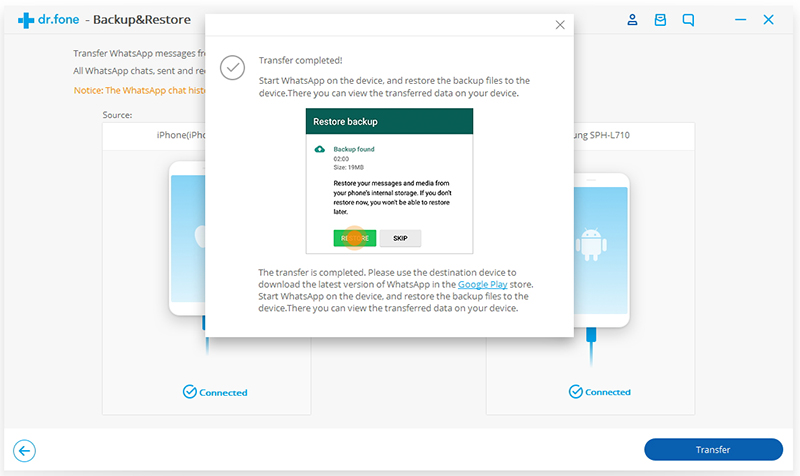
It will take a few minutes to complete switching your WhatsApp data like messages, photos and videos from iPhone to Huawei phone. As soon as it finished, a pop-up windows will appear telling you “Transfer Completed”. You can click “Skip” to close it, and then go to your Huawei phone and open WhatsApp, you can see your WhatsApp chat history flood in on the screen of your Huawei P30.

transfer whatsapp from ios to Huawei completed

Well Done! Above is the most simple method to transfer your WhatsApp messages from iPhone to Android phone crossing the different platforms. If you have got an new Android phone like Samsung Galaxy S10/S9/S9/S7, Galaxy Note 9/Note 8, Huawei Mate 20/10/P30/P20, Google Pixel 3, Motorola, LG, Sony, etc. It’s very easy to move WhatsApp data between iPhone and Android, Android and Android with the help of this Android Toolkit.
Why not download and try to move your Social App data by yourself now?

d_win d_mac
d_win d_mac

iOS to Android WhatsApp Transfer

[Solved]Unlock Huawei Phone if you Forgot the Password

[Summary]: Want to remove screen locked on Huawei phone if you forgot the password on your Huawei phones? This article teach you two effective ways to unlock Huawei phone with locked screen, black screen, broken screen, etc. Including Huawei Mate 20/10/9/8/7, Huawei P30/P20/P9/P8 and so on.

If you forgot your password on your Huawei phone or cannot log into your phone you may want to consider a factory reset. A factory reset will basically format your phone as if you just took your phone out of the box. This article teach you Hard Reset or Factory Reset your HUAWEI phone to unlock the phone, if you forget password, mobile not working properly, phone stuck in black/bank screen of death, Hard Reset or Factory Reset of HUAWEI phone can help you fix the problem. In addition, if you want to sell your old Android phone, Hard Reset or Factory reset will wipe out all data of Android, so hard resetting also used to prepare mobile phone for resale safely.
People also read: Permanently erase data on Android before selling

Let’s shows you how to unlock Huawei P30/P20/Mate 20/Mate 10, etc. through Hard Reset or Soft Reset (Factory Reset), before Hard Reset or Restore to Factory Setting, you have to backup all data from Huawei phone to computer at first, because hard reset and factory reset will erase all your data.

Part 1: Backup Data before HARD RESET (FACTORY RESET) HUAWEI Phone
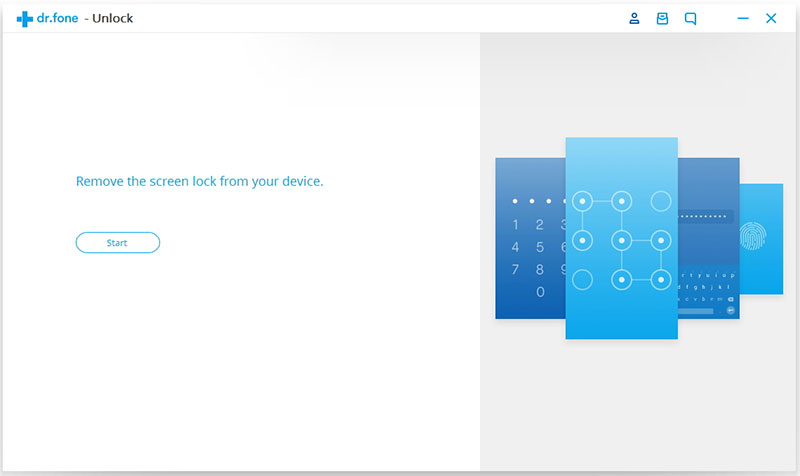
Before doing hard reset on HUAWEI phone, we recommend you use a third-party Android Backup Tool to backup data from Huawei phone to the computer.
Android Backup & Restore tool (Windows/Mac) both can help you backup the contacts, SMS, photos, videos, music, WhatsApp messages, documents and call logs from Huawei phone to PC or Mac easily. In additional, after hard rest or soft reset the Android Huawei phone, you can also restore the backups to Huawei phone and other Android devices via “Android Data Restore” feature.

Free download the Android Data Backup & Restore software to backup your Huawei phone at first.

d_win d_mac
d_win d_mac

Backup Huawei P30/P20/Mate/Honor Phone to PC or Mac with 1 Click
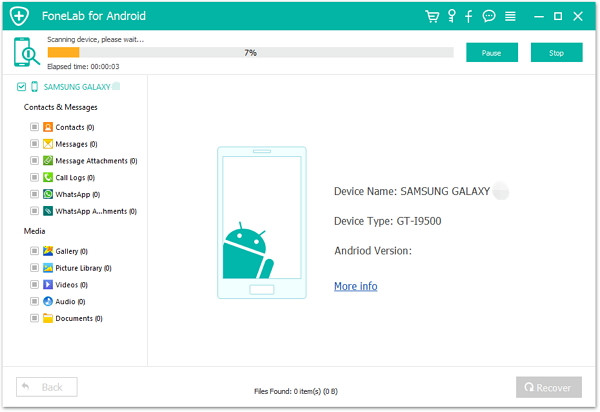
Step 1. Connect the Huawei phone to the computer
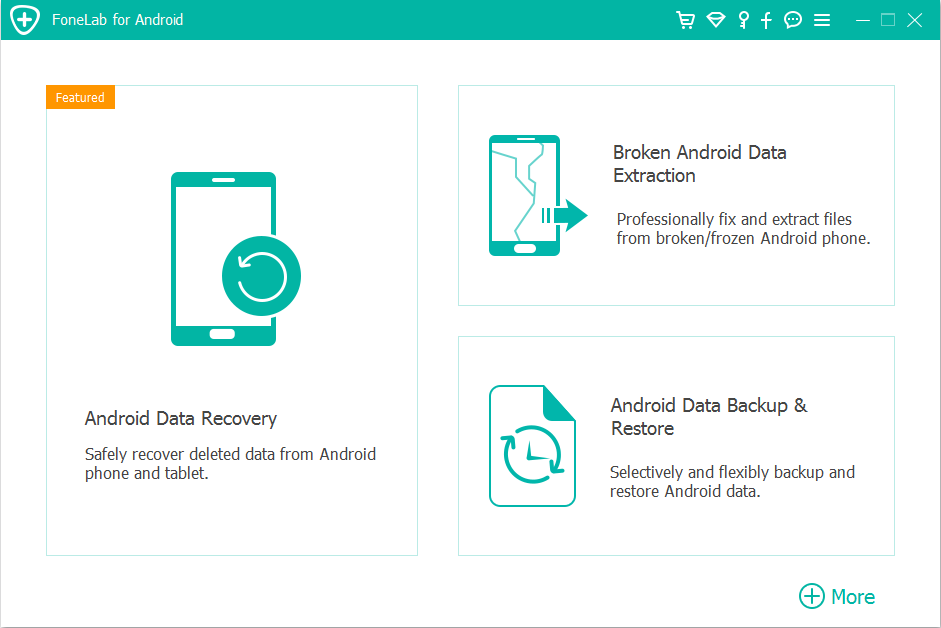
After launch the Android Toolkit on the computer, you can see three are three main features: Android Data Recovery, Broken Android Data Extraction and Android Data Backup & Restore. To create a full backup of your Huawei phone, please click on the “Android Data Backup & Restore” tab on the lower right position.

android backup restore

Step 2. Select Backup Mode
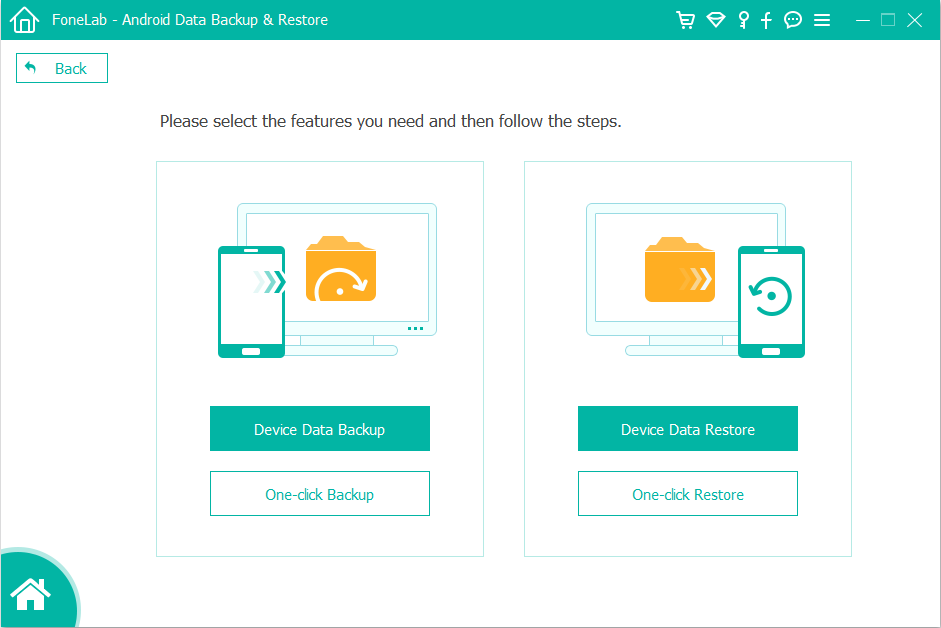
In the next window that comes up, you will need to choose between two different modes, one for backing up Android stuff, and the other for restoring from backup you created. If you want to backup all data from Huawei phone to the computer, please click on “One Click backup” option, if you want to select and back the types of file you want, please click “Device Data Backup” option and then connect your Huawei phone to the computer.

android data backup restore

Step 3.Enable USB Debugging mode on Android device
At this point, a notification pops up, asking you to enable the USB debugging mode on the Android device to let the program access to its internal memory.

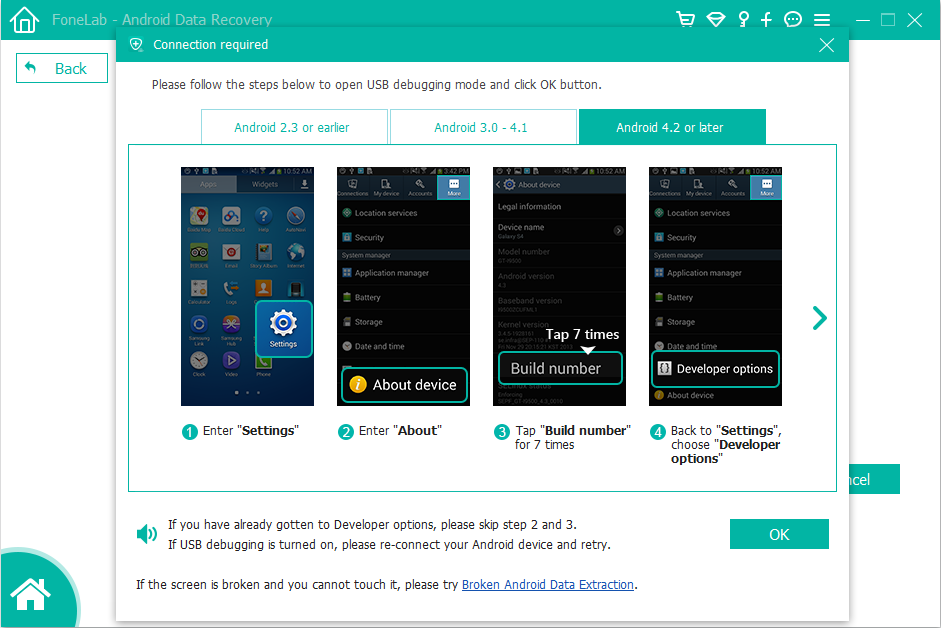
If you have done this on your device, you will skip to the next step; otherwise, you need to follow the on-screen instructions to enable it on the device. For Android 4.2.x and higher version, go to Settings > About phone. Locate to Build number field and tap it 7 times to enable developer mode. Then, turn back to Settings > Developer option, and toggle the “USB Debugging” option to ON position.

usb debugging android

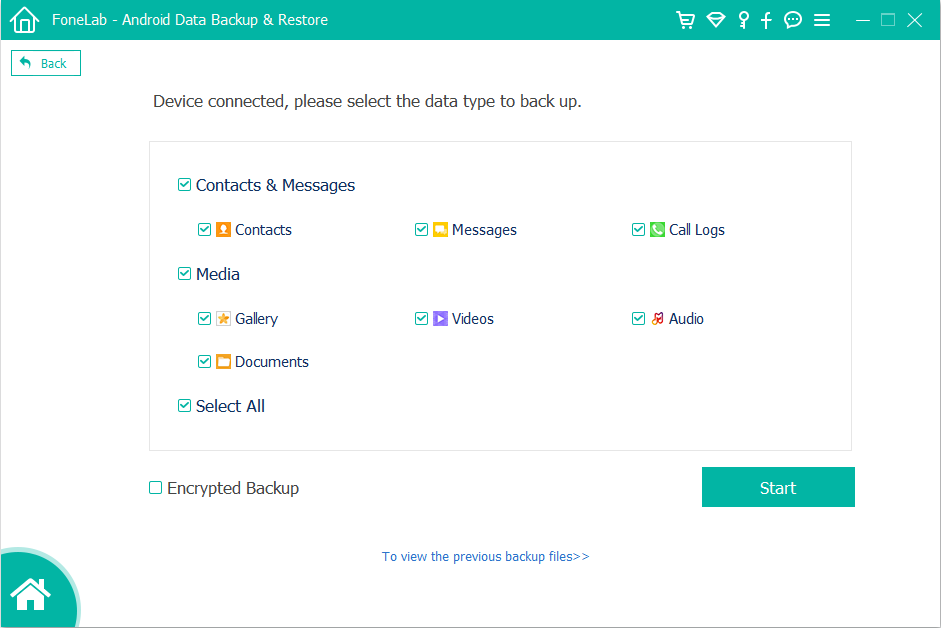
Step 4. Select Types of File to Backup
Once you’ve done so, you will get into a new window. From there you’re going to want to select which file types you wish to back up. Including Contacts, videos, audios, call logs, messages, pictures and documents are all supported.

android backup data selection

Step 5. Backup Selected Data from Huawei to Computer
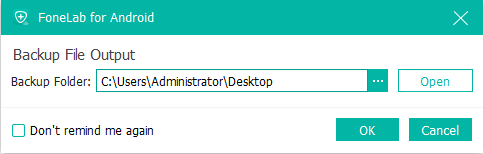
After selecting the files you want to backup, just click the “Start” button at the lower right corner and a dialog box for output path selection jumps out. You just specify the directory where you wish to save the newly created copy of your Android data.

android backup output fold.png

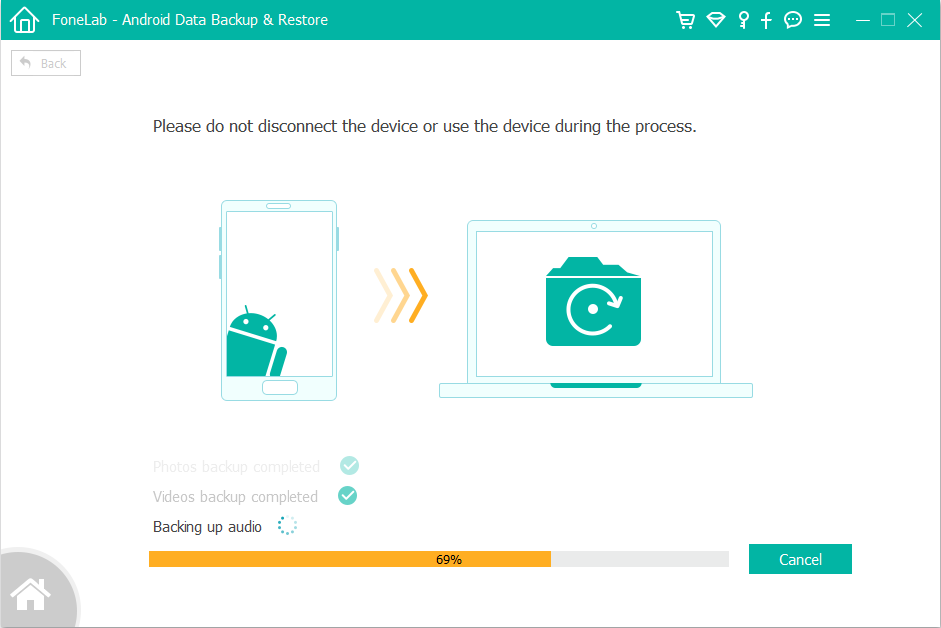
Then, click the “OK” button to save all data from Huawei phone to the computer. A orange progress bar will display and indicate a percentage of completion of the process.

android data backup process

After the process is done, you can now see a backup file in .data extension sitting on the folder you specified earlier.

Now you have backed up Huawei phone’s data to the computer, after resetting the phone to factory setting successfully, you can also restore the backup file to the phone again.

d_win d_mac
d_win d_mac

Tips: Backup Data from Huawei to Google Cloud

Google Could also provides the free backup service, if your phone runs normal, you can also backup contacts, calendars, e-mail, system settings, apps to Google Cloud via Google free backup service.

Simply go to Settings > Backup & reset then tap Backup my data and Automatic restore. Then back to Settings > Account and click on your Google account. Check the boxes next to sync icons (App data, Gmail, Calendar, Photos, Contacts, Docs, etc) to select types of content you want backed up.

Part 2: Hard Reset to Unlock Huawei Phone
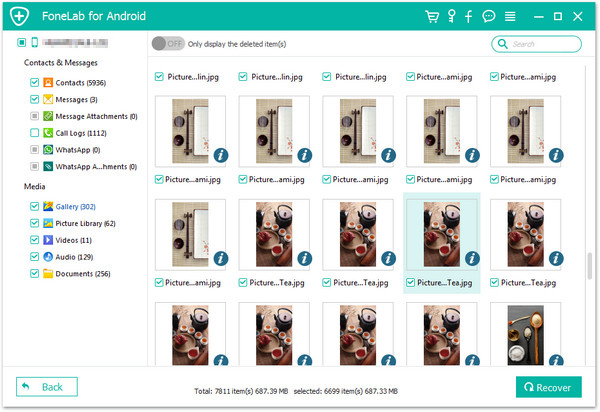
Above simple steps, you have doing all data backup of your mobile phone, now you can remove Huawei lock screens Password, PIN, Pattern and Fingerprint by hard resetting the locked Huawei phone. Let’s take how to hard reset HUAWEI P30 PRO OR UNRESPONSIVE HUAWEI P30 PRO as example.

Step 1. Power off your HUAWEI P30 Pro mobile.
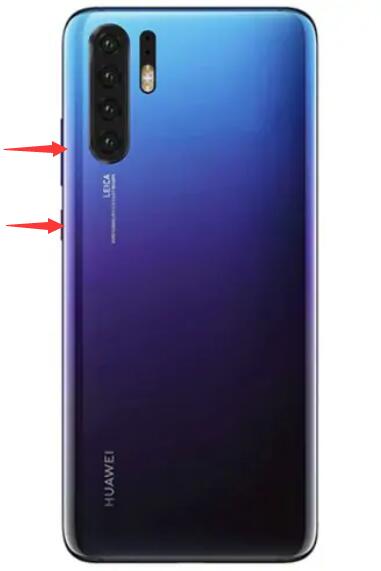
Step 2. Press and hold together: Volume Down + Power button for about 10 to 15 seconds.

Huawei P30 Pro Hard Reset

Step 3.When you see Fastboot Mode on your mobile screen,  Select Recovery Mode by using the Volume button
Step 4.Tap the Power button to confirm it.
Step 5.Select “Wipe data” three times by using Volume button to go and select the Power button to confirm your action.
Step 6.Move down by using Volume buttons to select “OK” and press the Power key once.
Step 7.Select “Back” and “Reboot system“. and it will hard reset your HUAWEI P30 PRO mobile phone.

Part 3: Soft Reset Huawei Phone If the Phone not Working Properly
If your Huawei phone not working properly or the phone is running very slowly, you can reset Huawei phone to factory setting to fix this issues. After factory resetting Android phone, it will ease all data and setting, this is one of the useful method to free up more space and speed up the phone.
You may want to read: How to Get More Internal Storage on Android

Let’s take how to restore HUAWEI P30 Pro to factory setting as example:

Step 1. Select Settings from Menu
Step 2. Tap on More Settings
Step 3. Tap on Backup and Reset.
Step 4. Select to Erase all data and Reset Phone. Check Reset phone only if you want to delete all the data on the phone internal storage.
Step 5. Choose Erase Everything start to factory reset your HUAWEI P30 Pro smartphone.

Above is two methods to unlock Huawei phone without Password, PIN, Pattern and Fingerprint. After hard reset or soft reset the Android phone, it will erase Everything of the phone, so you must to backup Android data to the computer firstly.

Part 4: Unlock iPhone, Samsung Phone and LG Phone with 1 Click

If you use iPhone, iPad, iPod(touch), Samsung Galaxy S/Note/Tab series, and LG G2/G3/G4, etc. You can use this Android Unlock and iOS Unlock to remove screen locked of Samsung/iPhone/LG’s PIN, Password, Fingerprint & Pattern. When you forget the password on your device or you just don’t know the password on a second-hand Samsung, LG, iPhone or iPad. You can use this iOS unlock tool and Android Lock Screen Removal to get rid of the unknown passcode in 5 minutes.

unlock android phone

Download the Phone Toolkit – iOS/Android Unlock tool to unlock iPhone, Samsung and LG locked screen, no data loss at all.

d_win d_mac
d_win d_mac

Related Tutorials:

How to Unlock iPhone and iPad without Data Loss

How to Bypass Samsung Lock Screen Pattern, Pin, Password and Fingerprint

How to Unlock LG Phones If You Forgot Password, PIN and Pattern

Android Data Backup Restore

Read More Solution

How to Recover Lost Data from Huawei P30/P30 Pro after Factory Reset

How to Recover Deleted Photos from Huawei P30/P30 Pro

How to Recover Deleted WhatsApp Messages from Huawei P30/P30 Pro

How to Safely Backup and Restore Data on Huawei Mate X/20/10

How to Sync iTunes/iCloud Backup to Huawei

Transfer Data from iPhone to Huawei P30/P20/P20 Pro/Mate 20

Recover WhatsApp Messages, SMS, Contacts on Huawei P30/P30 Pro

[Summary]: How to retrieve deleted WhatsApp chat history, text messages and contacts on Huawei phone? Whether or not you have a backup, let me show you the way to recover lost/deleted text messages, contacts and WhatsApp messages from Huawei P30/P30 Pro with ease.

Accidentally deleted your text messages or WhatsApp messages from Huawei phones, like Huawei Mate 30, Mate 20, Mate 10, Huawei P20, Huawei P10? Actually, when the texts is deleted, it doesn’t go to the trash or the recycle bin, because there isn’t a trash or a recycle bin on your Android phone as on the computer, and this deleted files marked as hidden information, but this data can be overwritten by new data. If you want to recover deleted texts files from Android phone, remember to “Don’t add any data to the phone until the deleted data is restored“. Otherwise, the deleted data will be overwritten, so it is difficult to recover it.

recover files on huawei p30

To recover deleted files from Huawei P30/P30 Pro and other Android phones(Samsung Galaxy, HTC, Sony, Huawei, Motorola, Google Pixel, etc.), you need to use a Android Data Recovery software to recover the deleted data as soon as possible.

U.Fone Android Data Recovery is a professional Huawei P30 data recovery software, which not only can help you recover deleted SMS, WhatsApp messages, contacts and call logs from Huawei P30/P20/P10/Mate, etc. But also enables you recover deleted pictures, videos and Documents from Huawei cell phones and Android SD card. As the world’s first Android data recovery software, it’s completely safe and reliable.

More Features of Android Toolkit – Android Data Recovery Software

  • Directly recover deleted messages from Huawei phone with full information such as name, phone number, attached images, email, message, data and more. And saving the deleted messages as CSV, HTML for your use.
  • Restore lost or deleted photos, videos, audio files, contacts, messages, messages attachments, call history, whatsApp, documents from Android phone and SD cards inside your Android device.
  • Get backup Android data lost due to accidentally deleting, factory resetting, system crash, forgotten password, flashing ROM, rooting, ect.
  • Preview and selectively recover deleted files from android smartphone and tablet.
  • Fix bricked Android system to normal like frozen, crashed, black-screen, virus-attack, screen-locked and extract data from dead/broken android phone internal storage.
  • Recover contacts, SMS, WhatsApp data, photos, videos and documents from broken Samsung Galaxy phone by Broken Android Data Recovery function.
  • Selectively backup all types of files on your Android phones and Android tables; Restore backups files to any Android device or PC/Mac by Android Data Backup & Restore feature.

Download the free trial version of this Android data recovery software on your computer.

d_win d_mac
d_win d_mac

How to Recover Deleted WhatsApp Messages on Huawei P30/P30 Pro

This guide shows you how to recover deleted/lost WhatsApp chat history from Huawei phone, you can follow the same steps to recover deleted contacts, SMS and more from Huawei P30.

Step 1. Download and Launch Android Toolkit on Computer
Prevent Android data from being overwritten, you need to connect Android phone to the computer and then using a Android data recovery for PC or Mac to scan your phone and recover the deleted files. So, we provides Android data recovery for Windows and Android data recovery for Mac, please download, install and launch the Android Toolkit on your computer, and then select “Android Data Recovery” to enter the data recovery function.

lauch Android data recovery

Step 2. Connect your Huawei P30 to the Computer
Then connect your Huawei P30 to PC via USB cable, the program will detect it.

connect Huawei P30 to computer

Step 3. Enable USB debugging on your Huawei Phone
If you have not opened the USB debugging option yet, this program will ask you to do it. Follow the way below to do it now.
Here, you can learn this guide about how to Enable USB debugging on Android
1) For Android 2.3 or earlier: Enter “Settings” < Click “Applications” < Click “Development” < Check “USB debugging”
2) For Android 3.0 to 4.1: Enter “Settings” < Click “Developer options” < Check “USB debugging”
3) For Android 4.2 or newer: Enter “Settings” < Click “About Phone” < Tap “Build number” for several times until getting a note “You are under developer mode” < Back to “Settings” < Click “Developer options” < Check “USB debugging”

enable usb debugging

Step 4. Select WhatsApp Messages and WhatsApp Attachments
If you just want to recover deleted WhatsApp messages and it’s Attachments files from Huawei P30, in order to saving scanning time and quickly to recover the deleted files you need, just select “WhatsApp Messages” and “WhatsApp Attachments” item and go to next step.

select whatsapp message to scan

Step 5. Enable the Superuser Request
In this step, you need to authorize and allow the software to scan your phone, please go to your phone when you get the window below. Here you need to move to your phone and tap on “Allow” to enable the Superuser Request. And then click “Start” on the program’s window to begin scanning your Huawei phone.

allow scan huawei p30

Step 6. Analyze and Scan your Huawei P30 for lost WhatsApp Data
Now the program needs to analyze your device before scanning it,just click “Next” on the window below to begin it. During the scanning process, please keep connecting your phone with the computer.

analyze and scan huawei for lost data

Step 7. Preview and Retrieve Deleted WhatsApp Messages
When the scan finishes, you can preview the whole WhatsApp message, WhatsApp pictures, videos in the scan result as a list. You can preview them one by one and choose those you want to recover and click “Recover” button to save the WhatsApp messages as a HTML file on your computer.

recover data from Huawei P30

Tips: You can see that WhatsApp messages found here contains those you deleted recently (displayed in orange) and those existing on your Huawei phone (displayed in black). You can separate them by using the button above: Only display deleted items.
Moreover, you can preview and recover the deleted contacts, photos and videos (no preview), as well as you do with the messages. Contacts can be saved as CSV, VCF and HTML files on your computer.

Now, download this powerful Android data recovery program to have a try!

d_win d_mac
d_win d_mac

Rooting the Android Devices for a Deep Scanning (Option)
Above steps teach you the most simple method to quickly scan and recover data from Android phone(Saving time), if you can’t find the files you need, you need to root your phone and deep scan the device.
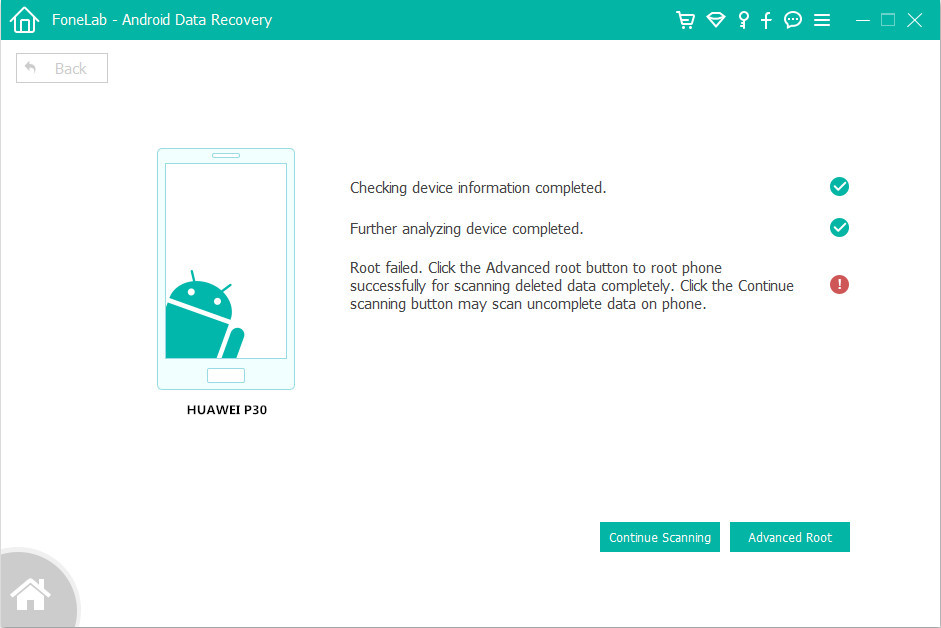
Please return to “Advanced Root” interface, the program guide to download KingoRoot to root the device at first, after rooting the Android device, the Android data recovery will help you deep scanning the device and recover most deleted and lost files.
After recovering the deleted data, the devices will return to original state.
[Also Read: How to Safely Root and Unroot an Android Phone ]

root for deep scan Android

More Userful Solution

Phone to Phone Transfer – Transfer contacts, SMS, photos, videos and music to Huawei P30/P30 Pro from old Android phone and iPhone.

Android Toolkit – Restore Social App – Transfer WhatsApp messages from iPhone to Huawei P30/P30 Pro, backup and restore WhatsApp LINE/Viber/Kik/Wechat chat history on Huawei P30/P30 Pro.

iOS & Android Manager – Manage your Huawei P30/P30 Pro on PC/Mac, and import music, videos, photos, contacts and more to your new Huawei P30/P30 Pro.

Recover Files on Huawei P30/P30 Pro

How to Recover Deleted Photos Videos from Huawei P30/P30 Pro

[Summary]: What to do if you accidentally deleted important photos and videos on Huawei P30/P30 Pro? Don’t worry, this article will tell you how to recover deleted photos and videos from Huawei P30 and P30 Pro with simple steps.

Hi, guys. I lost some photos from my Huawei P30 Pro, tried some Android data recovery or similar apps, but failed to recover the deleted pictures. Any huawei data recovery tool can really retrieve deleted photos from Huawei P30 Pro? Thanks a lot.

I have Huawei P30, when I moved photos and videos from the device to SD card I lose it and i can’t find it in my Huawei P30. How do I recover lost photos, videos on Huawei P30?

I transferred my pictures and videos to computer from Huawei P30. My pictures got corrupted. Don’t know why. Is it possible to retrieve lost pictures and videos from Huawei P30?

recover photos video on huawei p30

When a “delete” is performed on your Huawei phone by mistake, you suddenly lost your important files on your Huawei Android phone; when you transfer files between phones and computer, you may lost data during the transferring process; After factory reset your phone, it may erase data on Android phone. Therefore, there is no recycle bin built in Android phone and tablets. Don’t worry, as long as nothing new has been added to the phone since the deletion, you still have a good chance to recover the deleted or lost photos from Huawei phone. This article shows you how to recover deleted photos and video on Huawei phone without backup.

To retrieve deleted pictures and videos from Huawei P30, what you need is a professional Huawei Photo recovery software. U.Fone Android Data Recovery (Windows/Mac) both can help you retrieves photos, videos and audios on Android devices ranging from internal storage to microSD card, it supports recover deleted photos on Huawei (P, Mate, Nova, Honor…) without Google Drive, Amazon Cloud Drive, Dropbox backup, just connect your Huawei phone to the computer, then use this Android data recovery to retrieve files such as pictures, videos, audios, WhatsApp messages, contacts, text messages and attachments, documents and more. Except for recovering files from Huawei phone, the Android data recovery is designed to help user to recover data on all Android devices, including Samsung Galaxy, HTC, Motorola, Google Pixel, Google Nexus, LG, Huawei, Xiaomi, Nokia Android, Oppo, Sony, OnePlus, and ZTE etc.

android data recovery recover android files

Now please free download the U.Fone Android Data Recovery tool on your computer and try to scan your Huawei phone’s lost data easily.

d_win d_mac
d_win d_mac

Kind Tips: As for the online video downloader, 4kFinder Online Video Downloader is a time-saving and reliable solution. Copy and paste the video URL to download the video from YouTube or other popular online streaming sites (Facebook, Instagram, Twitter, Bilibili, NicoNico, BBC, Vimeo, VLive, Tumblr) to MP4 at 360p, 720p, 1080p, 1080p HD , 4K, 8K quality.

Retrieve Deleted Photos, Videos from Huawei P30/P30 Pro

Step 1: Download and Launch Android Toolkit
First of all, download the Android toolkit – Data Recovery tool on your PC or Mac. After install ing and launching the program, you can see the Android Toolkit including “Android Data Recovery”, “Broken Android Data Extraction” and “Android Data Backup & Restore”, in order to getting deleted photos, videos back from Android phone, please click “Android Data Recovery” solution.

Android data recovery

Step 2: Connect Huawei P30 to the Computer
Connect your Huawei P30 smart phone to the computer with a USB cable. Then launch the program and you’ll get the main interface below.

connect phone to PC

Step 3: Enable USB debugging before scanning your phone
Note: If your phone’s USB debugging has been enabled before, you can skip this step and move the next.

After connecting, you should check USB debugging on your Android to have it detected by the program. Choose the right way for your own device.
1) Android 2.3 or earlier: Go to “Settings” < “Applications” < “Development” < “USB debugging”
2) Android 3.0 to 4.1: Go to “Settings” < “Developer options” < “USB debugging”
3) Android 4.2 or newer: Go to “Settings” < “About Phone” < click “Build number” for several times until you get the note that You are under developer mode” < Back to “Settings” < Click “Developer options” < “USB debugging”

Enable USB debugging

Select “Gallery“, “Picture Library” and “Videos” and go to next step.

select photo files to recover

Step 4: Analyze and Scan Lost Files from Huawei P30
When your Huawei P30 device is connected and detected by the program, you need to click “Next” button in the screen below to start analyzing it. Please ensure that your phone battery is more than 20% charged, so that you can get a smooth scan.

allow scan huawei phone

Then, switch to your phone’s homescreen. Click “Allow” to allow the program scan your phone for lost photos, videos, messages and contacts on it.
Note: For some devices, they may ask you to click “Allow” button more than one time on your Huawei phone’s home screen. It’s normal. Just do it if it asked. Then click “Start” button to scan your phone.

Go to Advanced Root – Allow the Program Deep Scan Your Android Phone (Option)
Next, it requires the phone to be rooted for a complete and deep scan. To do so, press the “Advanced Root” button and it will open a site which provides you with a tool named KingoRoot to get the job done.

Check out the article on how to root and unroot an Android device.

root huawei p30

After the root, a deep scan over your Huawei handset begins. This process may take about 15 minutes.

Step 5: Preview and Recover Photos, Videos from Huawei P30
After scanning process complete, the program will shows all the scanned contents for you, including messages, contacts, videos and photos. If you want to view the deleted videos, you need to recover and save them on the computer at first. To recover photos and videos from Huawei P30, please select “Photo Library” and “Video” item, then mark those files you want to recover by clicking “Recover” button to save them on computer selectively.

recover photos from Huawei P30

Only few minutes, all lost/deleted photos, videos be retrieved and save on the computer, if you want to view the restored files on your Huawei P30 again, you can use this Android Transfer tool to transfer the retrieved photos and videos to the device.
You may want to read: how to import files to Android

Huawei Photo Recovery

Recover Photos SMS Contacts from Huawei P30/P30 Pro

[Summary]: How to recover deleted photos, contacts and text messages from Huawei P30/P30 Pro? Here in this guide, we will show you how to recover deleted data from Huawei P30/P30 Pro in just 1 click.

Accidentally deleted photos, text messages, contacts or even all files on Huawei P30/P30 Pro/P20/P20 Pro/P10/P10 Pro, most of Huawei users have done it. Actually, besides accidental deletion, there are many other reasons can also lead to terrible data loss on Android Huawei phone, like water damaged, system crash, update failure, mistakenly formatted, etc.

huawei p30 data recovery

If you are looking for a way to recover deleted data from Huawei P30/P30 Pro, now stop here. You still have a chance to recover deleted files from Android phone, because the deleted file will be still there until new data overwrites it. Hence, To increase the possibility of recovering lost data from Huawei phone, including phones, messages, contacts, photos and videos, you’d better stop using your phone when you find files missing. Then choose a reliable Android Data Recovery can be a life savior.

An Huawei P30/P30 Pro Data Recovery for PC and Mac

This Huawei P30/P30 Pro Data Recovery – U.Fone Android Data Recovery, which is an three-in-one Android toolkit. For Android devices, it is able to recover lost data from Android, extract data from broken Android, backup & restore data on Android phone and tablets no matter you are running Android 2.2 or Android 9.0. The Android data recovery function is designed to retrieve deleted and lost data from Huawei P30/P30 Pro, including Contacts, Text Messages, Photos, Videos, Audio, Call Logs, Whatsapp Messages and Documents. In additional, it can also help you recover pictures and movies from the SD card on your Android Huawei phone.

d_win d_mac
d_win d_mac

Key Features of Android Data Recovery:

  • Retrieve Android data lost due to different scenarios such as deletion, format, factory reset, root, etc.
  • Recover data from Android phone memory, SD card, and broken Samsung phone.
  • Recover from almost all Android devices, such as, Huawei, Samsung, HTC, Sony, Google Pixel, LG, etc.
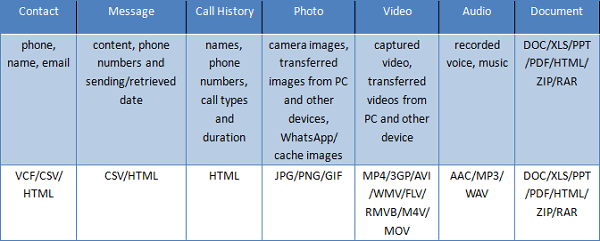
  • Recover 8 types of files: Photos, Message, Contacts, Call History, WhatsApp, Audio, Video, and Others (documents, pdf, etc).
  • Perfectly compatible with Android OS ranges from 2.0 ~ Android P 9.0.
  • Selectively retrieve files without wiping current data in your device.

How to Recover Deleted Data from Huawei P30/P30 Pro

Below is a detailed guide on how to recover deleted pictures, text messages, contacts, call logs, videos, etc from your Huawei P30 or P30 Pro. Firstly please install the Android data recovery software to your PC or Mac. If you want to recover deleted photos on your computers or Android SD card, etc, please go for Data Recovery(Windows and Mac).

Step 1. Connect Huawei P30 to computer with USB Cable
Firstly, download the Android data recovery tool on your PC or Mac. And then install and open it up. In the interface homepage, you should select “Android Data Recovery” function.

Choose Android data recovery mode

Then, connect your Huawei P30 to computer with a USB cable. Please keep them connected during the whole recovery process. It is good to charge your phone battery over 60% before you start.

connect Huawei P30 to PC

Step 2. Enable USB debugging on Huawei P30
Follow the guide to turn on USB debugging setting on your Android Huawei P30 phone. And the way do it differs from phone to phone, depending on your Android OS version and phone model. If these method does not fix your phone, you can learn this guide about how to enable USB debugging on Android.

turn on usb debugging

Step 3. Select File to Recovery
Please select the type of files you want to recover, if you want to recover deleted photos, contacts and messages from Huawei P30, just select “Messages”, “Contacts” and “Pictures Library” item and click “Next” go to next step.

select files to recover

Step 4. Scan and Analyze Deleted Files on Huawei P30
After entering the USB debugging, the program will automatically detect your device and ask you to choose file types to analyze. If you receive message from U.Fone Android Data Recovery program on device asking for permission, please tap on the “Allow” button to let the program scan your the deleted messages, contacts, photos and video on your Android phone.

allow scan huawei p30

Step 5. Root Permission for a Deep Scan (Option)
If you want to deep scan your phone to find more deleted files, click the Advanced Root button at the lower right position. The program will guide you to download KingoRoot to root the device.
[Also Read: How to Safely Root and Unroot an Android Device with KingoRoot ]

root huawei p30

Tips: You can also skip this step and try to scan your phone, the program will help you scan the data you need.

scan data from android

Step 6. View and Recover Deleted Data from Huawei P30
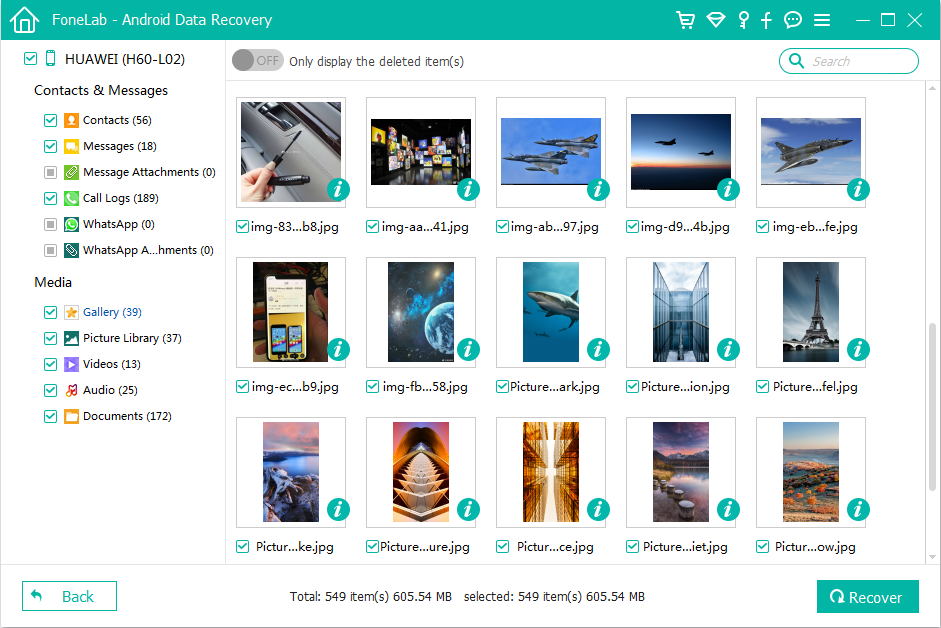
Check Android recoverable files and find the data that you want to recover. In the list, you can see contacts, messages, attachments, call logs, WhatsApp, gallery, picture library, videos, audios, documents. If you want to recover the deleted files, you can turn on the filter “Only display the deleted items” on the top to only show the lost data. Last but not least, click “Recover” to save the recovered data to your computer.

recover data from Huawei P30

Note: For safety’s sake, don’t save the recovered files on your Huawei phone again. You had better choose another place like on your computer or other external disk.

After recovering deleted files from Huawei P30 and save the files on computer, you can use this Android Manager tool to transfer them back to your phone or tablet, the Android Manager not only helps you import SMS, contacts, apps, pictures, videos, etc. to Huawei P30/P30 Pro, but also helps you transfer data from old Android/iPhone to Huawei P30/P30 Pro directly.
Learn how to import files to Huawei devices

Huawei Data Recovery

How to Download Songs from Spotify on Huawei P30

[Summary]: This page covers an easy way to sync Spotify music or playlists to your Huawei P30/P30 Pro so you can keep your Spotify songs on Huawei P30 and Huawei P30 Pro for offline listening.

Huawei’s P30 and P30 Pro are grabbing the headlines from the Chinese company’s launch event in Paris today (March 26). The P30 Pro is Huawei’s new flagship phone, designed with a large focus on its camera, with Super Sensing’s 400,000-pixel sensor. The device also features a 32 megapixel self-timer camera, bright OLED, HDR-compatible display, the latest Kirin 980 chipset and Qi wireless charging. Obviously, enjoying Spotify music on Huawei P30 and P30 Pro phones is a good experience.

How to transfer Spotify music to Huawei P30 and P30 Pro? We all know that Spotify now supports the Android version, and users can download the Spotify Music – Android app directly on Google Play. If you’re a Spotify Premium user, offline mode works well for offline downloads of Spotify songs. Sign in to your Spotify for Android app now and connect your Huawei P30/P30 Pro to your computer via a USB cable or Wifi. Simply find the “Device” list in the Spotify desktop software and select your P30/P30 Pro that is connected to your computer. Then you can “Sync your device with Spotify”. The “Sync all music to this Android device” or “Manually select playlist” options will be available for you to choose from. Once selected, the song or playlist will be automatically synced from your computer to the Huawei P30 device.

However, the download option is not available on Spotify Free users. And all downloaded Spotify music can only be played in the Spotify app. This is because Digital Rights Management (DRM) technology restricts free users from listening to Spotify songs offline, and Spotify Premium can only play downloaded playlists in the Spotify app. In this guide, we’ll show you an alternative way to transfer Spotify songs to Huawei P30/P30 Pro with free & premium account.

Remove DRM from Spotify Songs & Playlist with Spotify Music Converter

Spotify Music Converter helps users remove DRM from downloaded Ogg songs and convert them to MP3, M4B, M4A, AAC, WAV, FLAC for free playback on different music players. In addition to keeping 100% quality of the original quality, Spotify Music Converter allows users to adjust the audio channel, bit rate, and sample rate for better music quality output.

d_win d_mac

Top Key Features of Spotify Music Converter

Remove DRM from Spotify music
Convert Spotify songs, playlists, albums to MP3 / AAC / FLAC / WAV
Convert Spotify music with 100% original quality
Up to 5X conversion speed
Preserve ID3 tags after conversion
Transfer Spotify songs to Huawei P30/P20/Mate 20, Android tablets, iPod nano/shuffle, Sony Walkman, etc.

Remove DRM from Spotify Premium’s Ogg Files and Sync to Huawei P30

Step 1. Launch Spotify Music Converter

Install and launch this Spotify Music Converter on your computer and Spotify will also launch automatically.

Note: Please do not close Spotify application before the process of DRM removal or music downloading is done.

Spotify Music Converter home page

Step 2. Add downloaded Spotify songs

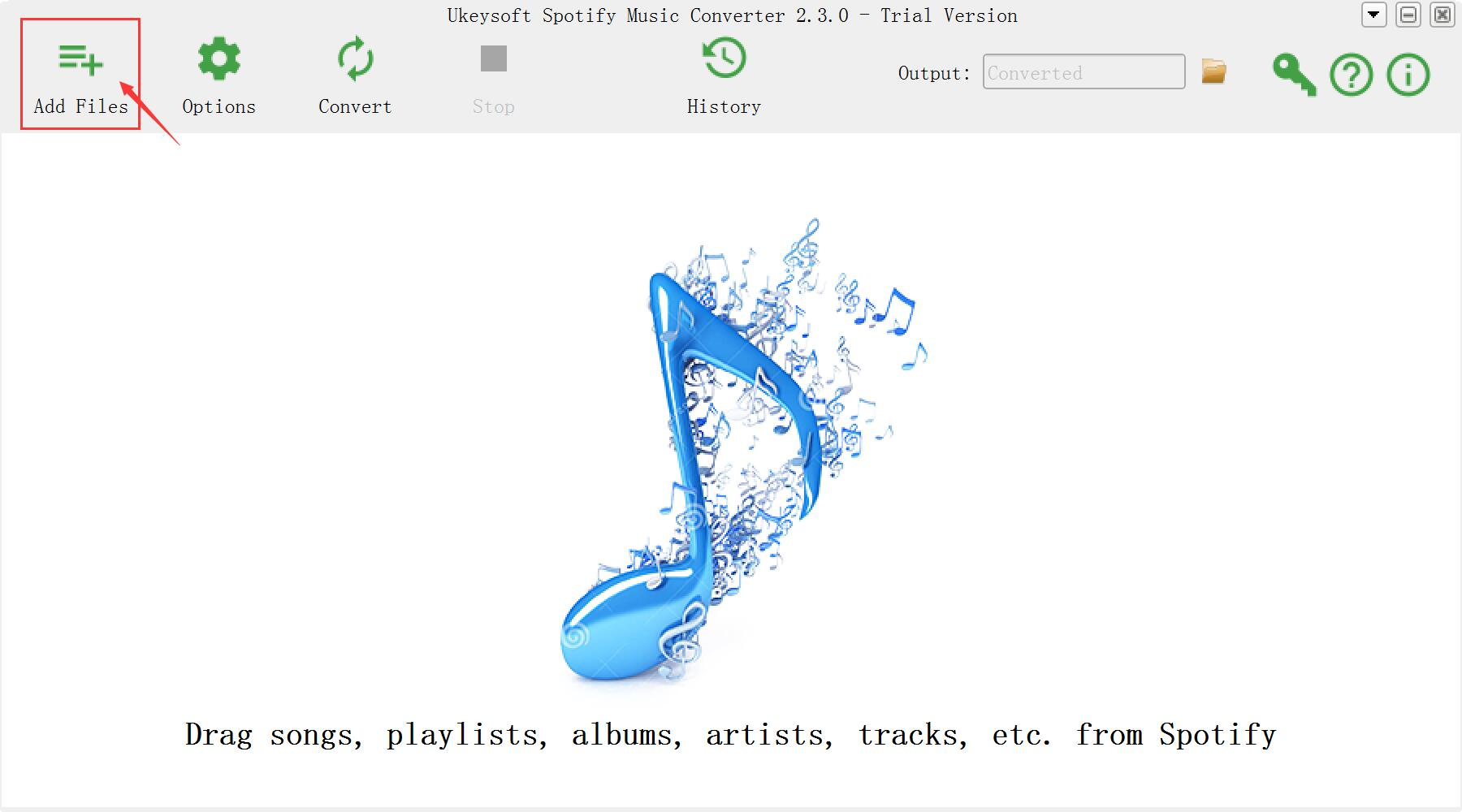
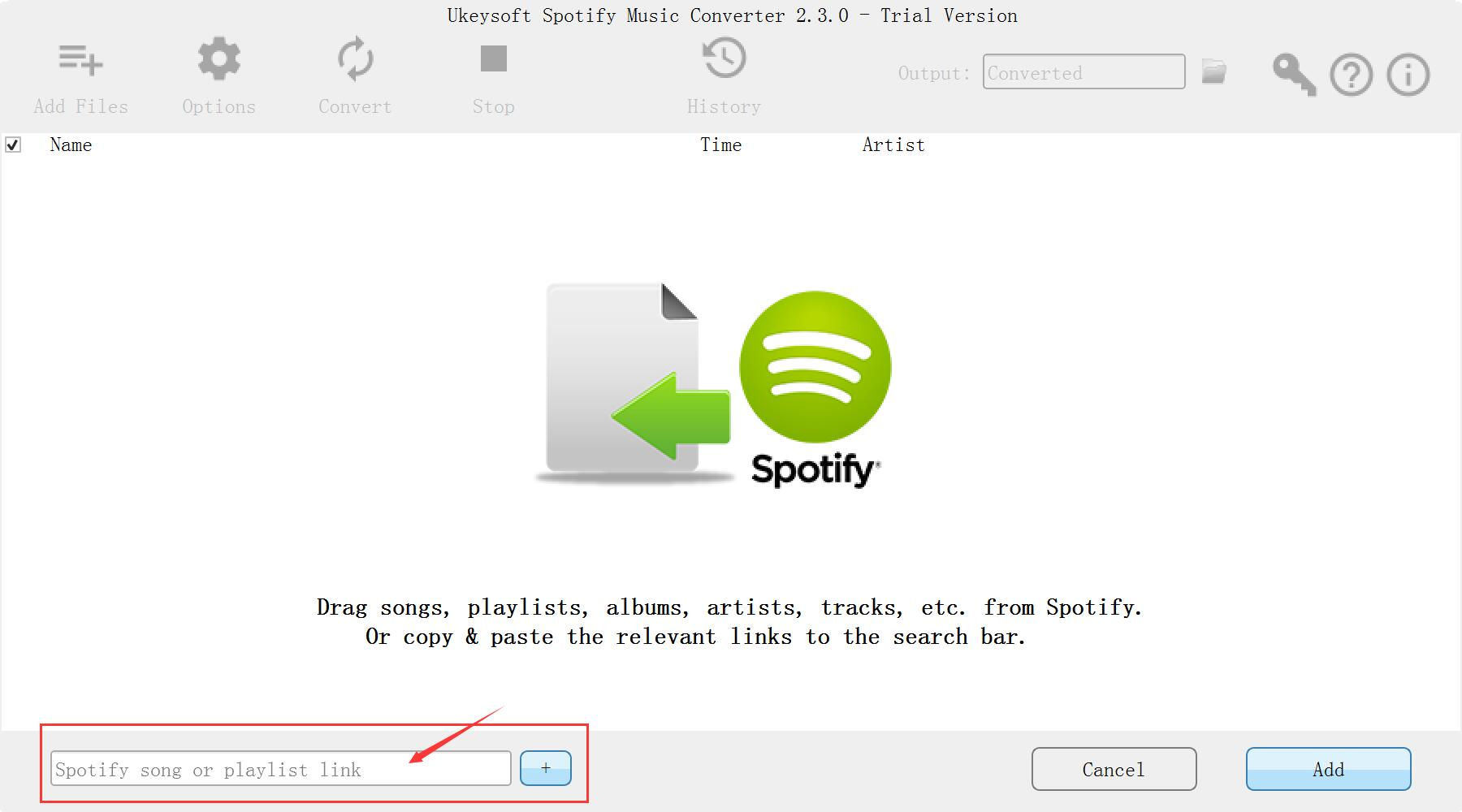
Go to the Spotify music library, drag the track, playlist or album you want to convert and put it into the converter. If you use a free account, you can also add Spotify songs in the same way even if you don’t download them.

add Spotify Music

Step 3. Choose Output Format

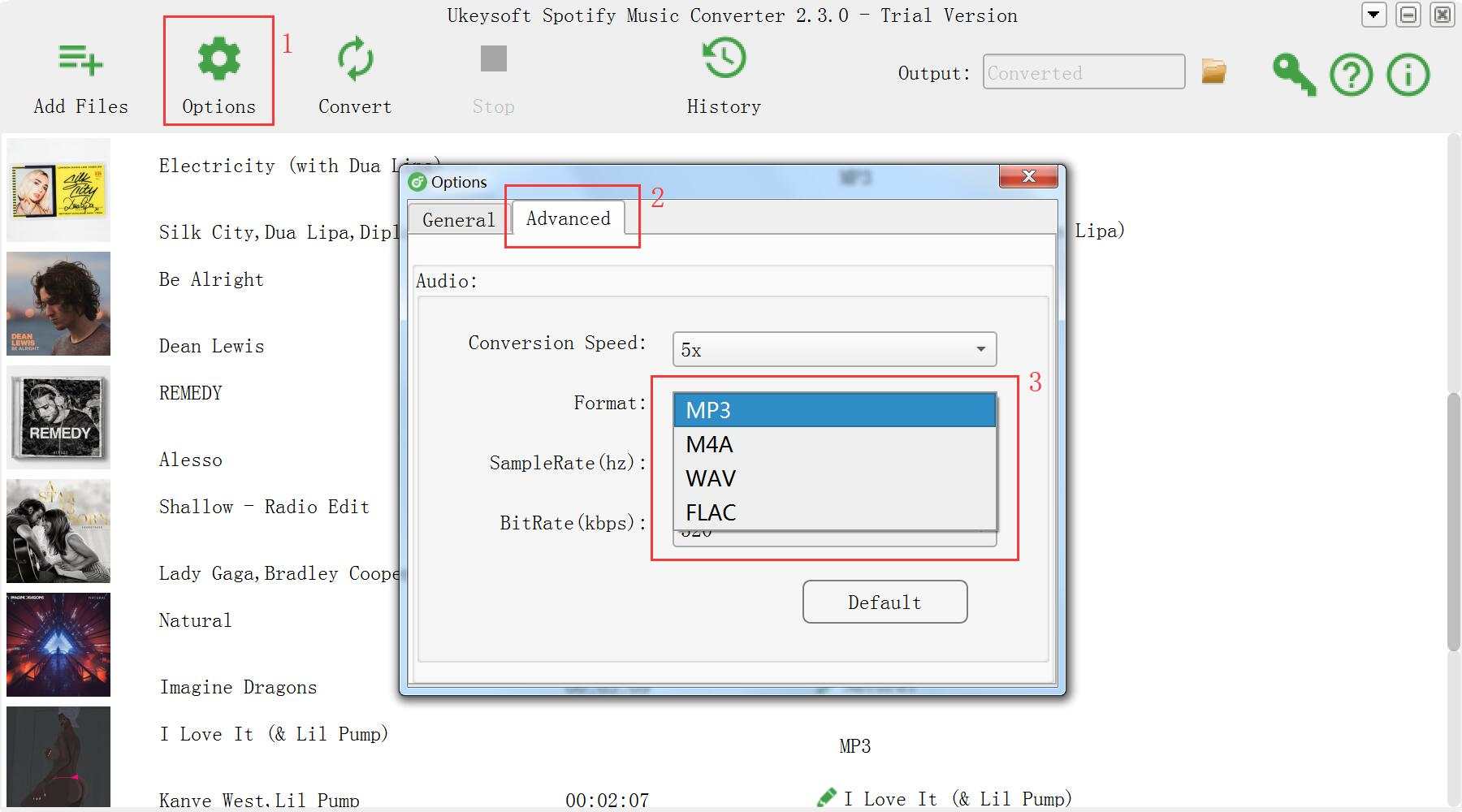
Spotify Music Converter provides MP3, M4A, WAV and FLAC as output formats. By default, 320kbps MP3 will be used. You can change the output folder by clicking the Options button.

output format settings

Step 4. Start Removing DRM from Spotify Premium’s Ogg Files

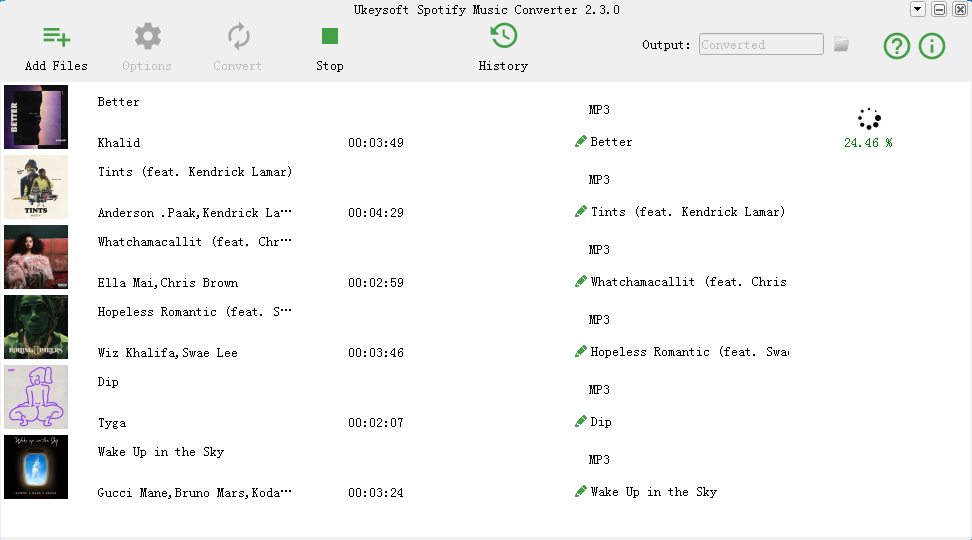
Click on the “Convert” button to start removing DRM protection from the downloaded Ogg file and converting them to the normal format you set up earlier. You will get an unprotected audio file with the ID3 tag of the desired format.

convert Spotify Music to MP3

d_win d_mac

Step 5. Transfer Spotify Songs to Huawei P30 and P30 Pro

There are tools to help you transfer your local music files to the Huawei P30 and P30 Pro. Recommend Android ToolKitAndroid Transfer, you can use it to transfer music from your computer to Huawei mobile phone with just one click. Now you can start playing Spotify songs with the Huawei Music Player.

transfer music to huawei p30

Related Guides:

How to Convert Spotify Music to MP3

How to Remove DRM from Spotify Music

How to Listen to Spotify Music without Subscription

How to Stream Spotify Music to Huawei(P20/Mate 20/Mate 10)

Transfer Apple Music & Spotify Music to Huawei Mate 20/P20(Pro)

How to Set Spotify Music as Android Phone Ringtone

Best Spotify Music Converter

How to Sync Apple Music to Huawei P30 for Offline Playback

[Summary]: How to Stream Apple Music to Huawei P30 or P30 Pro? With Apple Music Converter, you can easily convert Apple Music M4P songs to common audio format supported by Huawei P30 for offline playback.

Huawei’s latest Android flagships have launched. Both the Huawei P30 and Huawei P30 Pro run Android Pie 9.1. Since this P-series is a high-end, high-priced flagship, it comes packing all the features one would expect in such a device. The display is a bright, vibrant OLED panel with HDR support in apps such as Netflix. At 5x zoom, the picture retains detail and looks great. By default the 40-megapixel sensor churns out super-detailed 10-megapixel snaps by turning four pixels into one. With the most versatile camera setup in any phone to date, it’s easy to see why the P30 Pro is billed as the photography phone.

How to Put Apple Music Songs into Huawei P30?

Apple Inc. also announced two Apple Music plans. There is a $9.99 single-person plan and a $14.99 family plan that allows up to 6 people to share accounts. The highlight of the Apple Music subscription is that it allows you to manually download your favorite music tracks, even if you are not connected to Wi-Fi or connected to the cellular network. How about downloading Apple Music songs for free without Apple Music membership?

Apple Music is a music streaming service and Apple Music files are protected by FairPlay DRM, preventing you from syncing them to other programs or devices with iTunes or Apple Music app. Worse, when you cancel your Apple Music subscription, all downloaded songs will no longer be available. Now Apple Music Converter allows you to strip DRM from Apple Music and iTunes M4P music by converting the songs to DRM-free MP3/M4A/AAC/AC3/FLAC/AIFF with 16x faster speed and ID tags kept. Besides, Apple Music Converter can also convert DRM-ed iTunes and Audible audiobooks like M4A, M4B, AA, AAX files to common audio format with the lossless sound quality kept. Now you can make full use of Apple Music, such as playing Apple Music on Huawei P30 freely, burning Apple Music songs to a CD and transferring them to an MP3 player for playback.

d_win d_mac

Tutorial: How to Convert Apple Music Tracks to Huawei P30/P30 Pro

Equipment Preparation:

A Computer running Mac OS or Windows OS
The latest version of iTunes
Apple Music Converter for Mac or Apple Music Converter for Windows

Step 1.Download and Launch Apple Music Converter

To sync Apple Music to Huawei P30, please download,install and launch Apple Music Converter on Windows PC or Mac computer. After that, it shows all the list of iTunes library locations on the left panel, audio tracks and track information at the center and output conversion settings on the bottom panel.

Step 2.Select Apple Music Tracks

The Apple Music Converter automatically loads all your Apple Music songs, albums, and playlists that you have added to Library. Check the ones that you want to convert to Huawei P30 for listening offline.

select music to convert

Step 3.Choose Output Format

And then click “Output Format“, select the output format for the converted music, for example, MP3. By the way, the software supports converting songs in batch. It will save lots of your time.

select output format

Step 4.Convert Apple Music for Huawei

Simply click the “Convert” button to start converting Apple Music to DRM-free MP3. Once done,you can find the DRM-free Apple Music songs by clicking on “Open Output File”.

remove DRM from Apple music

Step 5. Transfer DRM-free Apple Music Files to Huawei P30

Connect Huawei P30/P30 Pro to your computer using the provided USB cable, then you could transfer the converted Apple Music to Huawei P30 for listening via Android Manager.

d_win d_mac

Best Apple Music Converter