All posts by DHZ

How to Fix iTunes Components Issues

A Required iTunes Component is Missing
I had an earlier version of iTunes which ran fairly well until it suddenly stopped working last night and after several attempts I could not get it to run, how to fix this iTunes components issues without updating?

I’ve now been through several iterations of trying to install and get the damned thing to run but it insists that ‘A required iTunes component is missing’ (~45075). I’ve let the installer try to ‘repair’ it but that made no difference. How to return iTunes to normal?

iTunes is the official music manager for Apple iOS devices and Windos/macOS computer that lets you manage music and songs for your Apple devices. iTunes as a computer-based software can work efficiently on Windows 10/8/7 and Mac computers. However, for iTunes to work efficiently, it needs a software component called iTunesHelper.exe file. But most often than not, this .exe file is corrupt or not running.

Why and When Will iTunesHelper Not Running
Some of the most common iTunesHelper error messages that are likely to be seen when starting up iTunes on computer include:

1.iTunesHelper.exe Application Error
2.iTunesHelper.exe is not a valid Win32 application
3.iTunesHelper.exe has encountered a problem and needs to close
4.iTunesHelper.exe not found
5.Error starting program: iTunesHelper.exe
6.iTunesHelper.exe is not running
7.iTunesHelper.exe failed
8.Faulting Application Path: iTunesHelper.exe

When it get something wrong, for example, when it not compatible with your computer, it will make iTunes run on computer abnormally. To fix iTunes components issues, you need a reliable yet safe tool for help, which is called iTunesFix tool.

iTunesFix to Repair iTunes Components Issues

iTunesFix can fix all “iTunesHelper not running” issues to make you have a simple experience when using iTunes to manage music and other media files on your computer. With using iTunesFix tool, you can easily fix iTunes components issues without updating iTunes. Moreover, it will not lead to any data loss in iTunes. It can fix other iTunes backup, uninstall, reinstall, and update errors and issues with just a few clicks, such as, iTunes could not connect issues, iTunes install/update failed, iTunes backup/restore iOS issues, etc,.


d_win d_mac

How to Fix iTunes Components Issues

Step 1. Run iTunesFix Tool on Computer
Open iTunesFix and it will automatically detect your iTunes and its related components.
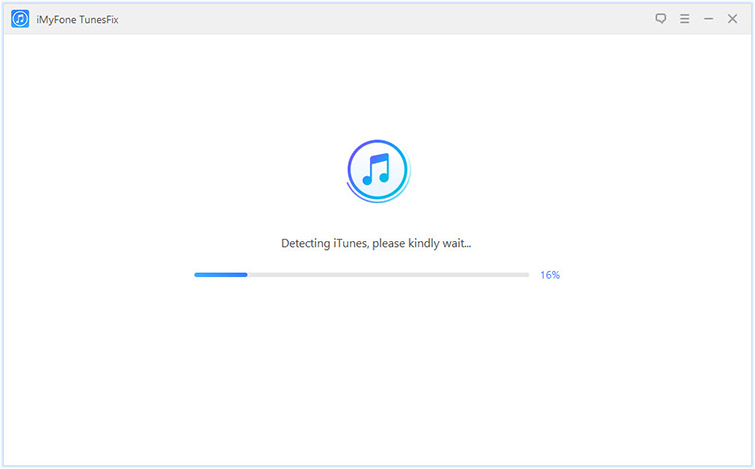
detecting itunes

If there is no issue, you will be brought to its home interface. But if your iTunes or components are lost or corrupted, it will show you the details, like which one is lost, or which one is corrupted, etc,.
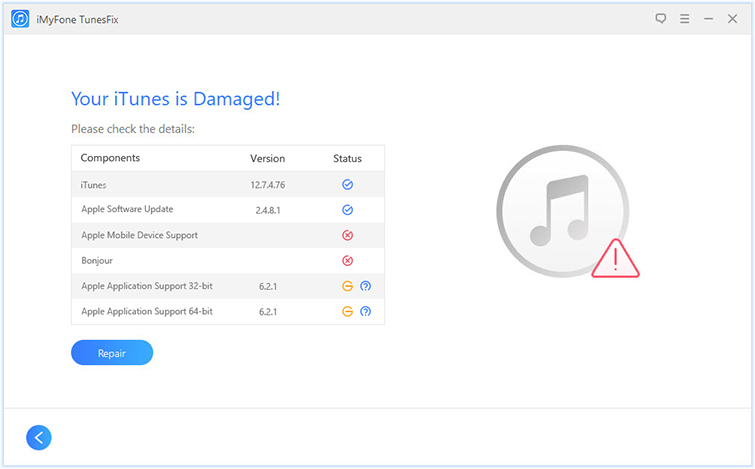
detect itunes damaged

Step 2. Repair iTunes Components Issues
Click on “Repair” to start to repair your iTunes and components. Please ensure your iTunes is connected to stable network while repairing.

Note: If you don’t want to fix iTunes components issues, you can click the “Back” icon and you will get back to the home interface.
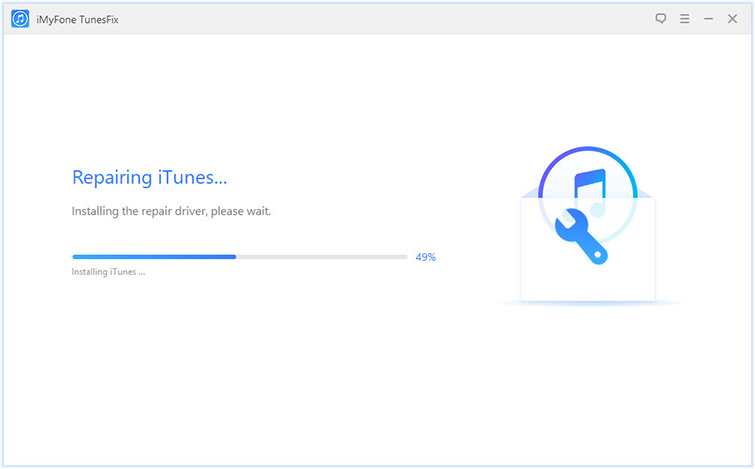
repairing itunes

Then it will begin to repair iTunes components issues in some minutes. Finally, your iTunes will be return to normal. Now you can use your iTunes without any problems.
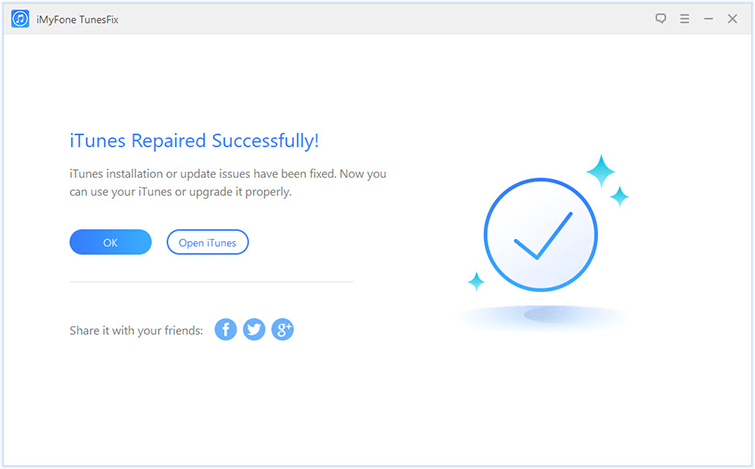
repair completed

d_win d_mac

Related Articles:

How to Repair iTunes Unknown Errors

How to Fix iTunes Crashing Issue

How to Fix iTunes Won’t Install/Update Issues

How to Fix “iTunes Could Not Backup/Restore” Issue
How to Fix iTunes Won’t Open on Windows

How to Recover Deleted/Lost Data on iPhone X/8/7/6S/6

How to Fix iTunes Won’t Open on Windows

Summary: iTunes Library is a data manager tool both media library for entertainment. A common problem faced by Windows and iOS users is iTunes not opening on Windows computer. There are numerous reasons why iTunes won’t open and following this guide will get you a safe way of successfully loading your iTunes Windows.

This morning when I click on the iTunes icon on Windows, the icon just bounces once and it stops, never opening. I’ve tried opening iTunes from my Applications folder, but it doesn’t work. What’s wrong with it? How to fix iTunes won’t open on Windows?

A lot of people have complained that they try running iTunes on computer but failed. Double clicking on the iTunes icon to run the software and there is no change or error message that appears on the home screen, just that iTunes will not open. Many people may be wondering if there is a virus attack on the PC or iTunes software malfunction. Actually, this is something strange when iTunes is not compatible with Windows. To fix this issue, you need this iTunesFix tool.

Fix iTunes Won’t Open on Windows

iTunesFix tool is a professional tool to fix more than 100 kinds of iTunes errors and issues by repairing iTunes and windows components. It will automatically detects iTunes issues upon launch and allows you to quickly fix iTunes won’t open on Windows via its powerful repair feature. Apart from cannot open iTunes, it also fixes other iTunes issues, like iTunes could not connect issues, iTunes install/update failed, iTunes backup/restore iOS issues, etc,. What’s more, it enable to clear your iTunes junk, caches and boost your computer; completely uninstall iTunes and related components.

d_win d_mac

How to Fix iTunes Won’t Open on Windows

Step 1. Run iTunesFix and Select Fix Mode
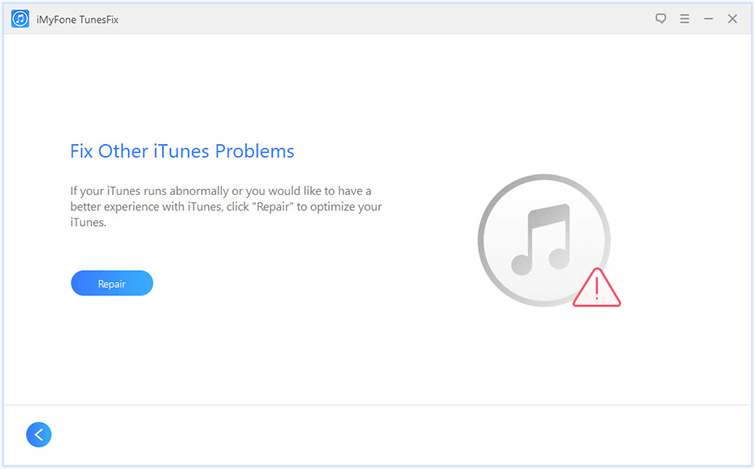
Open iTunesFix on computer and click on “Fix Other iTunes Problems“.

fix other itunes problems

Step 2. Fix iTunes Won’t Open on Windows
Then iTunesFix will repair your iTunes automatically.

repairing itunes

With the above two steps, you’ll be able to use your iTunes normally.

d_win d_mac

Tips to Repair iTunes Won’t Open on Windows

A:Restart Your System
While connected to the internet, your windows may have automatically updated itself, and for every window update, you will need to restart the system to reconfigure the updates. Failure to restart your system may cause the issue of iTunes won’t open.

B: Update All Your Windows Drivers
iTunes not opening issue may caused of the absence of a driver/or a driver is disabled. Just update your drivers to fix it.

Step 1: Click on Ctrl and Esc to open your start menu.

Step 2: Open Control Panel, then click on System and Security in the available options.

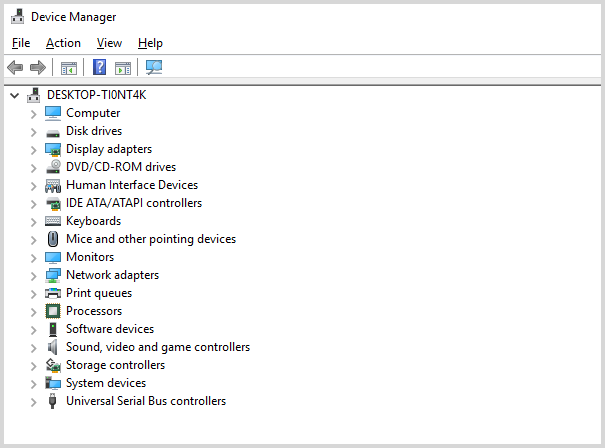
Step 3: Click on Device Manager under the options available in the system section.

Step 4: Right click on your drivers one by one and click on update.

update drivers

Related Articles:

How to Repair iTunes Unknown Errors

How to Fix iTunes Crashing Issue

How to Fix iTunes Won’t Install/Update Issues

How to Fix “iTunes Could Not Backup/Restore” Issue
How to Completely Untinstall iTunes from Windows/Mac

How to Recover Deleted/Lost Data on iPhone X/8/7/6S/6

How to Convert Spotify Music to MP3

How to listen to Spotify Music as MP3 local music files? I want to own these Spotify Music songs completely without ads, even without subscription. Is it possible to make it true?

Spotify Music is one of the hot streaming music around the word with more than 140 million users, 30+ million music tracks. It allows you to browse or search any types of music by artist, album, genre, playlist. Spotify provides you two kinds of Spotify Music listening, including Premium and Free. Spotify Free is available to anyone who have no subscription, but it’s supported by ads. The shortcoming of the free Spotify Music service is that there are fewer features and restrictions on the music you can play, for example, it is unable to save and play the playlists for offline listening for a free Spotify Music subscription.

Even if the Spotify Music Premium plan supports downloading Spotify songs, there are still some restrictions and requirements caused by the DRM protection when offline playing Spotify Music.

1. You can only download offline songs to 3 different devices only;
2. You can only download a limited number of songs per device;
3. You have to go online within the Spotify Music app at least once every 30 days to keep your devices on offline mode.

So if you want to keep Spotify Music songs completely, play Spotify Music without limits, even without subscription, you should convert Spotify Music to MP3.

If you are a Spotify user who want to download and save Spotify Music as MP3 files, here we’d like to recommend the fastest solution. Trying this powerful UkeySoft Spotify Music Converter, which is an excellent Spotify Music downloader and speedy converter will assist you to legally download and convert Spotify Music to MP3 by removing DRM from it completely, then you can play Spotify Music without limits for free. The output files will be save with its original quality. For Spotify free users, this program can also remove Spotify ads after conversion. In addition, you can listen to the converted music for offline playing, record it to CDs, or playing it on any mobile devices without Spotify Music app.

How to Convert Spotify Music to MP3

Step 1. Run Program on Computer
First of all, run Spotify Music Converter on computer.

spotify converter home page

Step 2. Add Spotify Songs or Playlists
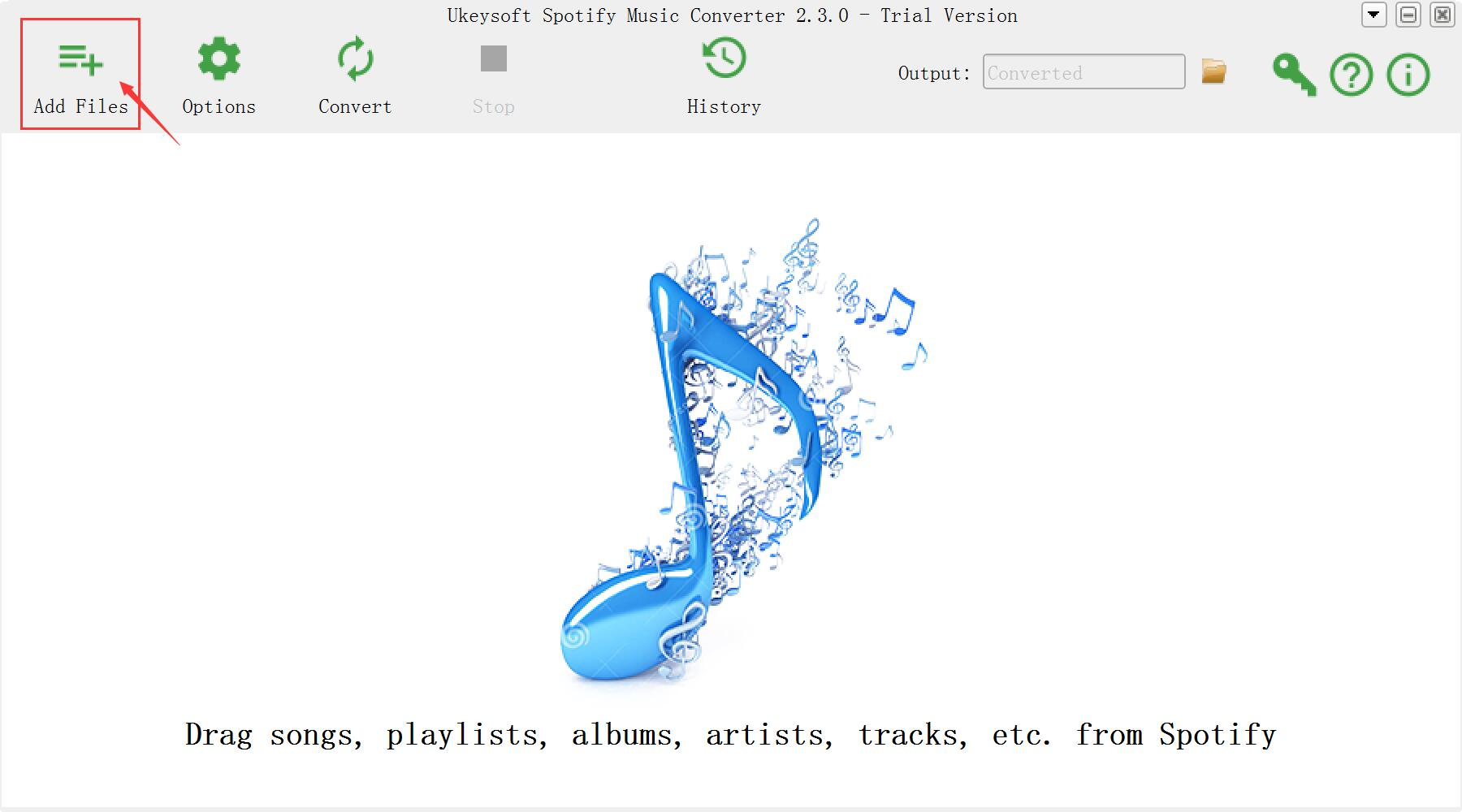
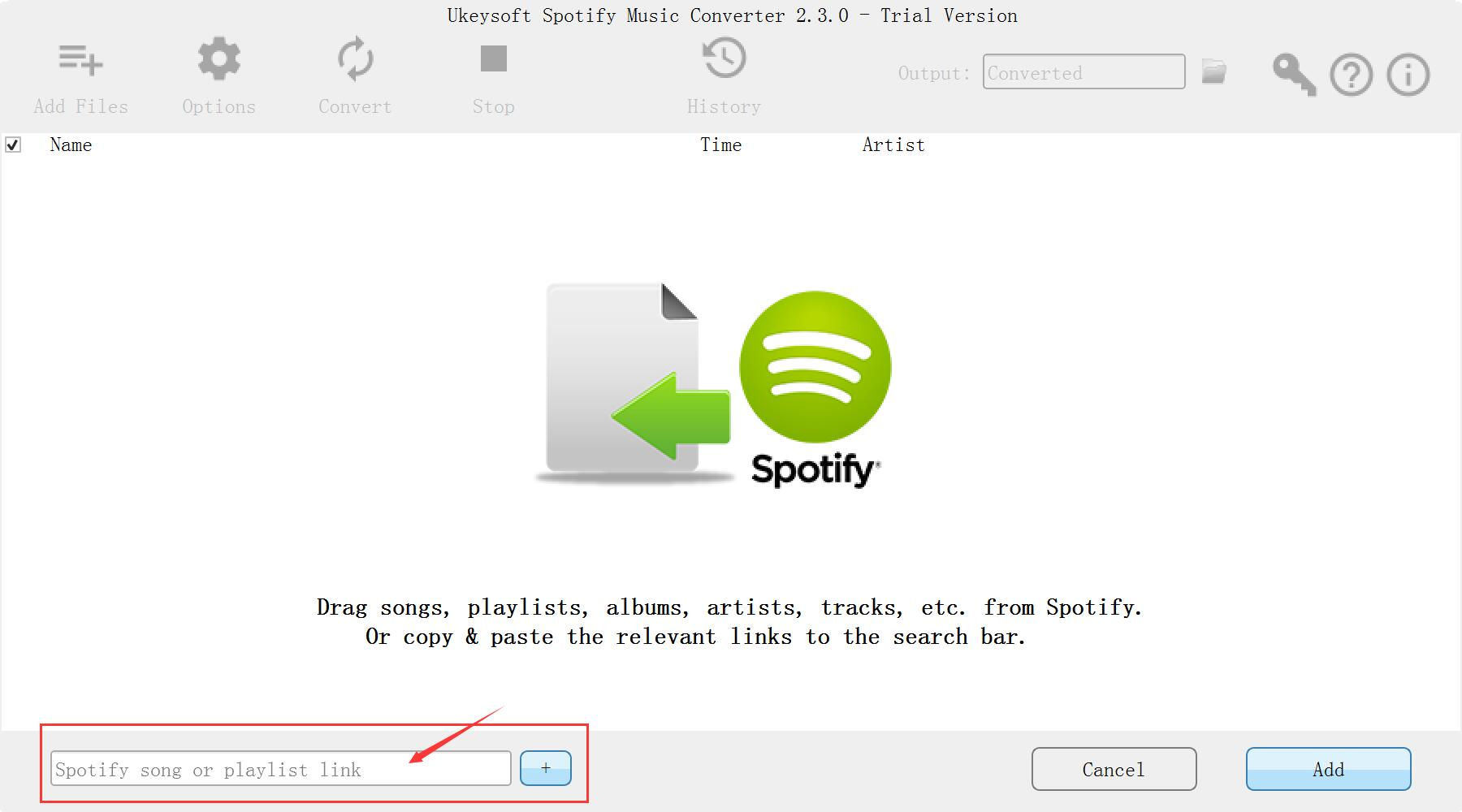
After running Spotify Music Converter on your computer, and Spotify will open with it automatically. Click “Add Files” button on the top-left interface to open the add audio window. Then go into Spotify main menu to find music or playlist you want to convert, directly drag the songs or playlist you want to convert to the add music window to finish importing.

add spotify music

Step 3. Set Output Preference
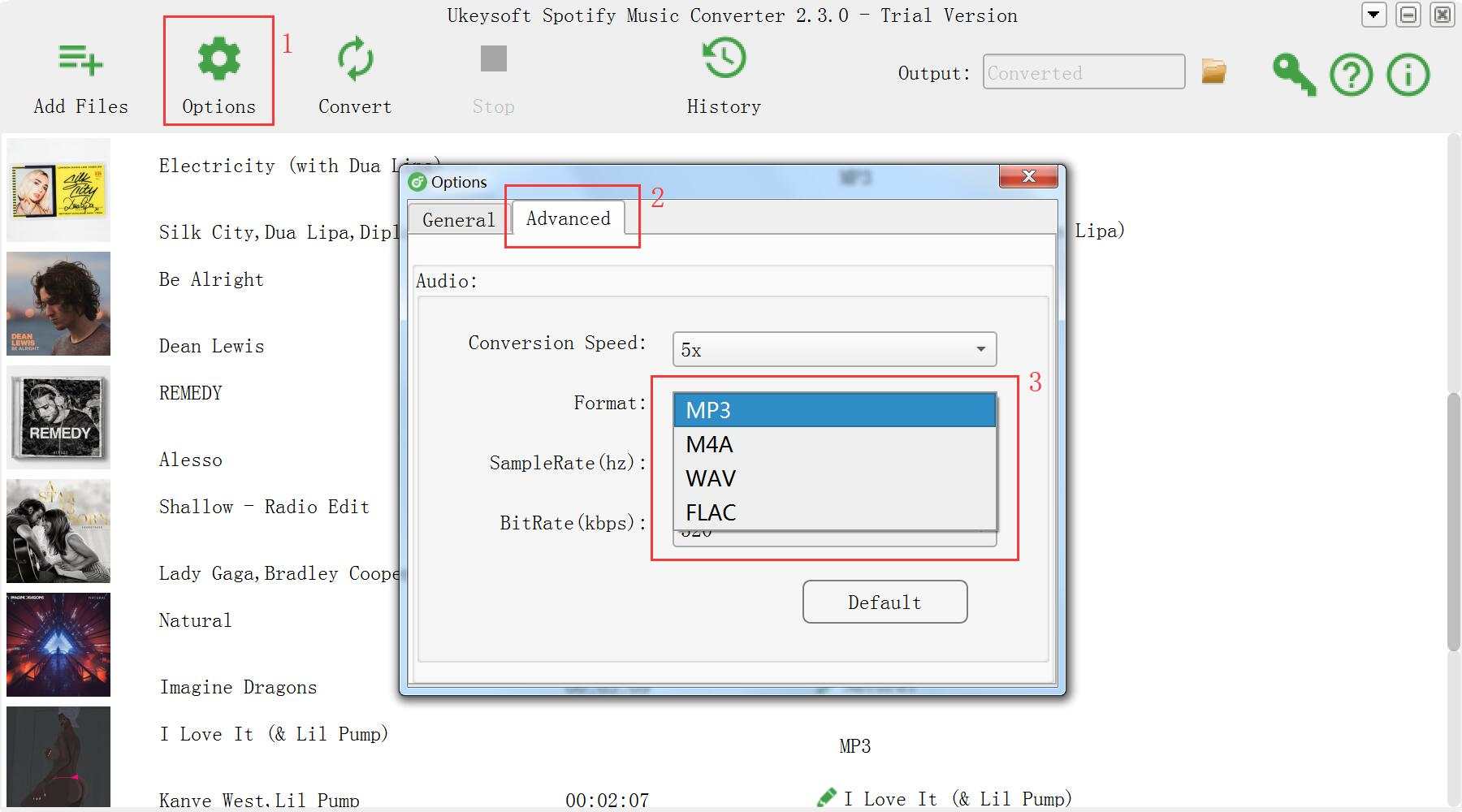
Click the “Options” button to set output format, output quality, conversion speed and output path. You can convert Spotify Music to MP3/M4A/WAV/FLAC with high quality (320 kbps is available to choose).

choose format

Step 4. Start Converting Spotify Songs to MP3
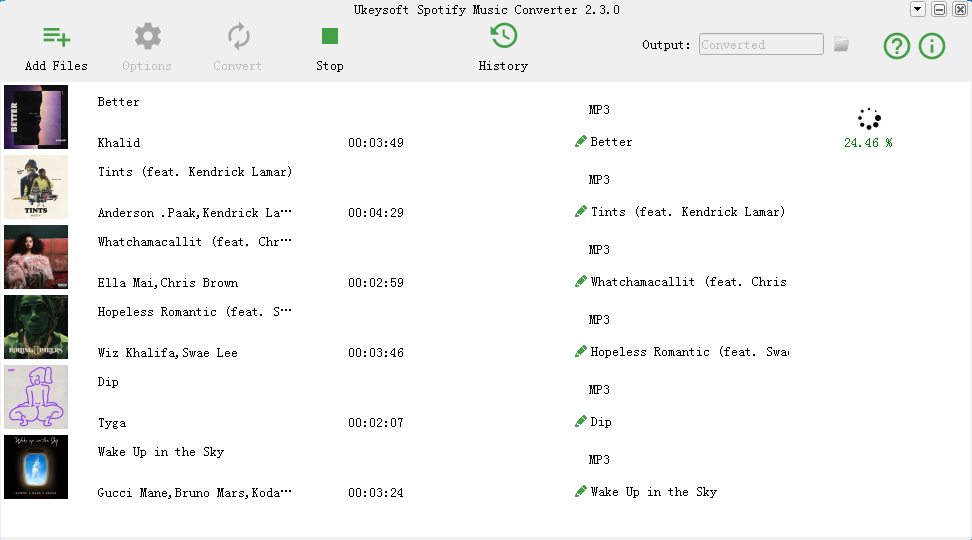
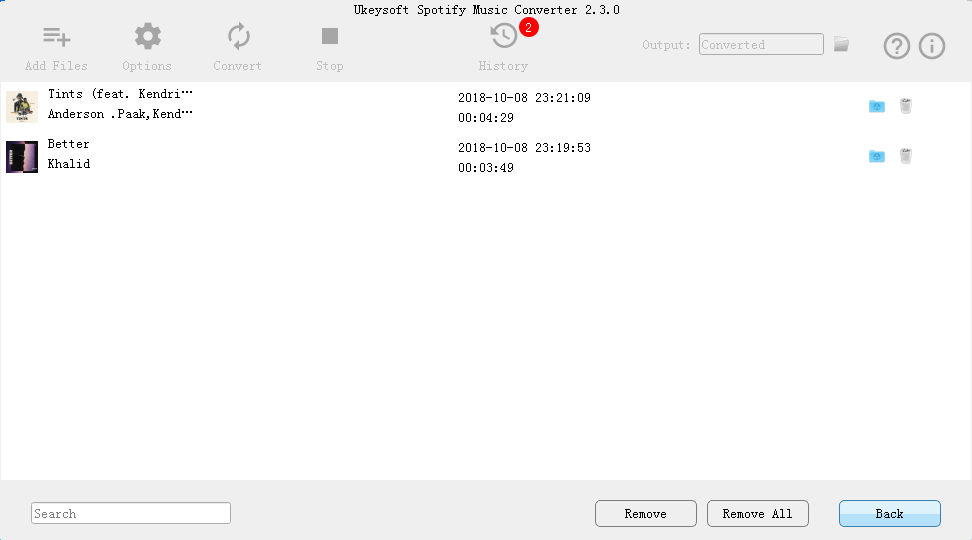
After the above setting, click “Convert” button the start converting Spotify Music to MP3. After conversion, you can click the “folder” button to find the converted MP3 music.

convert spotify music to MP3

view mp3 music

Related Guides:

How to Listen to Spotify Music without Subscription

How to Sync Spotify Music to iPod Touch/Nano/Shuffle

How to Remove DRM from Apple Music Completely

How to Record Apple Music M4P Streams as MP3

How to Play Apple Music without Subscription

How to Recover Deleted or Lost Data from iPhone/iPad/iPod

How to Listen to Spotify Music without Subscription

I want to listen to Spotify Music on iPhone when the subscription is end but the DRM protected restrict me. Is there any way to play Spotify Music as local music files without paying? How to do this?

Music streaming service become more and more popular, like Apple Music, Spotify Music. Yes, I am talking about Spotify. On June 15, 2017, Spotify announced and now it have surpassed 140 million monthly active users. With Spotify Music app, you can download 3,333 songs for offline listening on three different devices. That’s 9,999 total tracks across different kinds of music. Along with the increase of user number, some problems are frequently asked on Spotify community. One of these questions is how to listen to Spotify Music without subscription.

Why need to Remove DRM from Spotify Music
If you are a Spotify Music user, you are allow to download and enjoy Spotify Music offline in 3 authorized devices and it’s totally ad-free when listening to the online streaming music. However, if you are a Spotify Music free user, then you are not allowed to download Spotify songs and listen to them offline. What’s more, you are not actually own the Spotify Music because you can’t access the songs when the subscription is end, the only way you can play Spotify Music is renew the music subscription.

As a result, Spotify Music users including Premium and Free users, may search for a way to download Spotify Music song as common music files so that play it on mobile device without paying. But how to make this true? All you should do is to remove DRM protected from Spotify Music, convert it to MP3 music files. What you need for help is a professional music converter tool named Spotify Music Converter.

Spotify Music Converter – Remove DRM from Spotify Music

It can convert all your Spotify Music to different kinds of common format of music file, like MP3. Afterwards, you can enjoy Spotify Music without using or purchasing Premium Membership. Spotify Music Converter is capable of easily removing DRM from Spotify Music with fast speed, convert Spotify songs, albums, playlists to MP3/M4A/WAV/FLAC with its original quality.After the conversion, you can listen to converted Spotify Music offline for free; burn it to CDs, enjoy it on any audio player outside Spotify Music app.

d_win d_mac

How to Easily Remove DRM from Spotify Music

Step 1. Run Spotify Music Converter
Download and install the Spotify Music Converter step-by-step, then launch it an run it on computer.

spotify converter home page

Step 2. Add Spotify Songs
Click “Add Files” to drag songs, playlists, albums, tracks, etc,. from Spotify Music.

add spotify music

Or you can find the songs you want to convert on Spotify Music, copy the song link, and paste it into the search bar. Click “Add“.

Step 3. Choose MP3 as Output Format
Go to “Option“, choose “MP3” as the output format. Moreover, you are optional to change SampleRate and bitrate before conversion.

choose format

Step 4. Start Conversion of Spotify Songs
At last, click “Convert” and the program will start converting.

convert spotify music

Only some minutes later, you will get the DRM-free Spotify Music with MP3 as the local music files. Now you can listen to the converted Spotify Music without subscription.

d_win d_mac

Related Guides:

How to Sync Spotify Music to iPod Touch/Nano/Shuffle

How to Remove DRM from Apple Music Completely

How to Record Apple Music M4P Streams as MP3

How to Play Apple Music without Subscription

How to Recover Deleted or Lost Data from iPhone/iPad/iPod

How to Fix iTunes Freezes When iPhone is Connected

iTunes freezes when iPhone is connected. HELP!
Hello, I wanted to sync some new music over to my phone but it turned out into a 3 hour ordeal that left me with no new music. As stated in the title, iTunes freezes when I connect my phone. I can’t close it and it keep the frozen state always. Also, iTunes feels very buggy – when I open preferences, there is a very long lag. How to fix it?

There are many iOS users have encounter some iTunes freezes problems like iTunes freezes when iPhone is connected, iTunes freezes during iTunes restore or sync process, etc,. People complain from Apple forum, for example, iTunes freezes while they are connecting iPhone/iPad to iTunes on computer, it means there’s a problem that could potentially cause some error in iTunes. To get rid of iTunes frozen issue when iPhone is connected, here we provides you the best way to fix it and return iTunes to normal.

Fix iTunes Freezes when iPhone is Connected

To fix iTunes freezes when iPhone is connected, you could try this iTunesFix. iTunesFix is an iTunes manager and iTunes repairer. It has the ability to fix the iTunes connection problem. It is a famous iTunes fixing tool help to fix iTunes errors and issues for any cases without data loss, including fix iTunes update or restore issue, fix iTunes install or update issue, fix iTunes connect issue, and fix other iTunes problems. Furthermore, it can be used in optimaize your iTunes by cleaning or uninstalling your iTunes with only one click.

d_win d_mac

How to Fix iTunes Freezes when iPhone is Connected

Step 1. Run Program on Computer
Firstly, run iTunesFix on computer, it will auto-detect your iTunes. If there is no issue of iTunes and its components, you will be in the home interface of program.

itunesfix home page

Step 2.Select Repair Mode
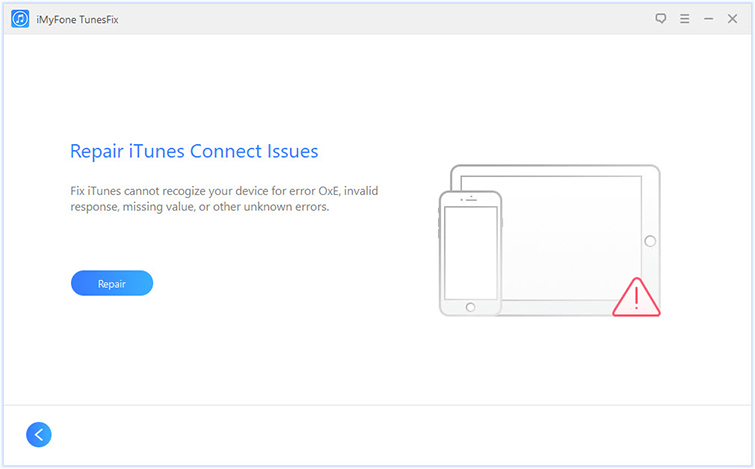
Here you can choose the “Repair iTunes Connect Issues” mode.

Step 3. Repair iTunes to Normal
After that, click “Repair” and it will fix the iTunes connect issue.

repair itunes connect issues

If you still can’t fix the problem, just try other mode like “Fix iTunes Install/Update Issues“, “Repair Backup/Restore Errors“. There is always a solution to your problem.

d_win d_mac

Related Articles:

How to Repair iTunes Unknown Errors

How to Fix iTunes Crashing Issue

How to Fix iTunes Won’t Install/Update Issues

How to Fix “iTunes Could Not Backup/Restore” Issue
How to Fix iTunes Cannot Connect to iPhone Error

How to Completely Untinstall iTunes from Windows/Mac

How to Recover Deleted/Lost Data on iPhone X/8/7/6S/6

How to Fix iTunes Crashing Issue

Summary: Are you wondering is it able to get the answers here to fix iTunes crashing issue? Just keep reading this tutorial and it will provides you some tips about fixing iTunes crashing issue without losing data. Hope it will do a help for you.

It is common to get iTunes keeps crashing while downloading a movie or playing Apple Music on computer or your iOS device. The dilemma of getting crashing when you using iTunes. As all iOS users may know, iTunes is not an efficient app and it perform very poorly. There could be some issues that can cause iTunes to crash. Here we list some of them could be:

1) Some malicious applications and software on your phone can prevent iTunes from launching smoothly. Check your device first.
2) Outdated or obsolete drivers on your PC can be one of the reasons for the iTunes crash issue. Check for the outdated drivers and update them if required. Some third party software applications help you give an update on the outdated drivers.
3) iTunes installation itself could have some issues. Check if your iTunes installation is proper. If not, try re-installing the iTunes.
4) Lastly, there could also be chances that the version of iTunes that is currently on your device or computer, needs to be updated to the latest version in order to make the iTunes running correctly.

If you try these methods and it wouldn’t fix your problem, just try the most effective way in the follow section we are going to show you, to fix iTunes crashing via the best tool – iTunesFix.

Fix iTunes Crashing Issue to Normal

One of the best and the easiest ways to solve “iTunes crashing” is by using a reliable iTunes repairing tool – iTunesFix. iTunesFix is equipped with advanced features to fix various iTunes issues. Fixing an iTunes issue with this software is efficient and simple with it automatically scans and identifies problems related to iTunes and then prompts to fix them via its Repair feature. It can help to fix iTunes crashing issue to normal. It will make your iTunes perform better than ever: fixing iTunes crashing and speed up your iTunes. Clean iTunes useless files selectively in bulk or all at once: cache, logs, cookies, junk, old iOS backups, used software updates, etc,. Moreover, this program enable to fix 100+ iTunes errors, including fix iTunes update or restore issue, fix iTunes install or update issue, fix iTunes connect issue, and fix other iTunes problems.

d_win d_mac

How to Fix iTunes Crashing Issue Completely

Way 1. Fix iTunes via Au-to Repair Mode
Download and install iTunesFix on your computer. Open iTunesFix and it will detect your iTunes. It will show you if your iTunes is damaged. Click “Repair” to fix the issues.

detect itunes damaged

Way 2. Fix iTunes via Clean iTunes Mode
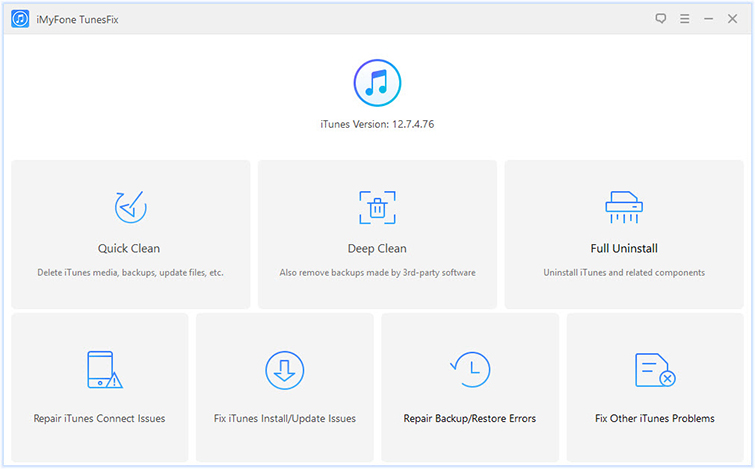
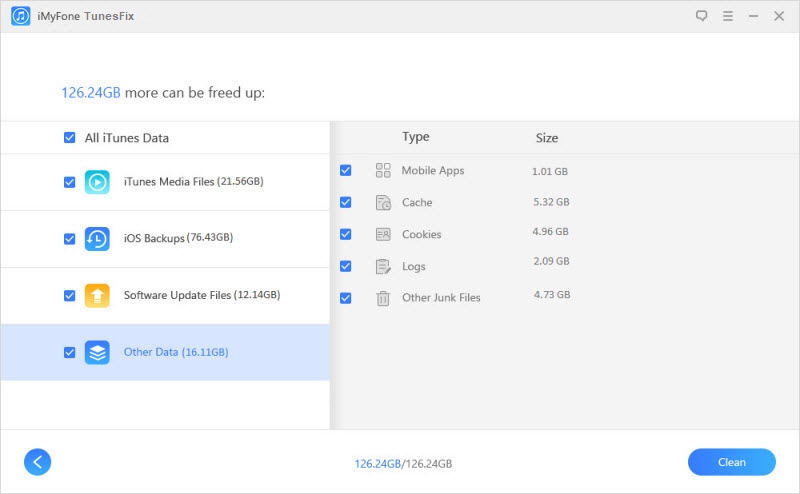
If your iTunes isn’t damaged, you will be directed to the home interface. Choose “Quick Clean” mode. It will start to scan your iTunes. Once done, you can preview your iTunes files and select those useless files (like cache, cookies, logs, used iTunes/iOS software updates, etc.). Click “Clean” and it will clean your iTunes.

Note: If you want to delete hidden backups left by third-party software, choose “Deep Clean“.

clean itunes mode

Way 3. Fix iTunes via Fix iTunes Error Mode
You can also choose “Fix Other iTunes Problems” feature from the home interface to try. It would also fix iTunes crashing.

fix other itunes problems

d_win d_mac

Related Articles:

How to Fix iTunes Won’t Install/Update Issues

How to Repair iTunes Unknown Errors

How to Fix “iTunes Could Not Backup/Restore” Issue
How to Fix iTunes Cannot Connect to iPhone Error

How to Completely Untinstall iTunes from Windows/Mac

How to Recover Deleted/Lost Data on iPhone X/8/7/6S/6

How to Sync Spotify Music to iPod Touch/Nano/Shuffle

Summary: iPod is a popular music player to listen to music everywhere and it is worthy collection. If you have iPod and want to transfer or sync Spotify music to it, you can read this article for reference which introduces the best ways to sync or transfer Spotify music to iPod Touch/Nano/shuffle easily and efficiently.

Spotify Spotify is a digital music, podcast, and video streaming service that gives you access to millions of songs and other content from artists all over the world, like Apple Music. Spotify Music is DRM protected. The technology DRM, short for Digital Rights Management, which was intended as a means to protect digital media from piracy, has been giving consumers trouble since its inception. It only supports to listen to the Spotify Music under the subscription, you can’t copy the music you buy or play it on anything other than the intended device, it means that you don’t own these subscribed music in deed.

Actually, it is still impossible to sync songs from Spotify to the iPod via USB cable. Why can you find this wrong result on Google? Because the feature referred in the post is an old feature of the desktop app that allowed you to sync MP3 files to the iPod, however, this never allowed you to sync Spotify songs to the iPod since Spotify Music is DRM protected. Is it possible to sync Spotify Music to iPod Touch/Nano/Shuffle? Yes absolutely. How to sync Spotify Music to iPod for playing without limits? How to transfer Spotify Music to iPod for offline playing? If you have the same question, you have come to the right place.

Remove DRM from Spotify Music and Record to MP3 Format

Since the Spotify Music from Spotify Premium are inserted DRM protection which limits you transfer or play music to the non-supported device for offline use. If you are a subscriber of Spotify and want to sync the downloaded music to iPod Touch/Nano/Shuffle, there is a solution to do this job, what you need to do is removing DRM from Spotify Music, converting Spotify Music to MP3 format, then you could transfer the converted music to iPod Touch/Nano/Shuffle.

UkeySoft Spotify Music Converter can help you remove DRM protection from Spotify Music completely, convert the Spotify songs to common MP3, M4A, WMV, FLAC formats with 100% original quality. Then you could transfer the converted music and play it on iPod Touch/Nano/Shuffle without limits. What’s more, after the conversion,you can listen to any Spotify Music, including single track, albums, playlists with DRM-free format for offline on any player and device freely.

d_win d_mac

More Features of Spotify Music Converter:
-Burn Spotify music to CD, enjoy them outside Spotify app and web player.
-Customize output Spotify music quality.
-Preserve all original ID3 tags.
-100% lossless quality and fast conversion speed.

Part 1. How to Remove DRM from Spotify Music Completely

Step 1. Run Spotify Music Converter on Computer
Download, install and run Spotify Music Converter on your computer.

spotify converter home page

Step 2. Add Spotify Music to Convert
Drag & drop Spotify songs, albums or playlists or copy & paste link. If you have installed Spotify app and logged in your account, whether free or premium, you can drag songs, playlists or albums from Spotify app to the interface directly. If you are using the web player, copy & paste the link of the song, album or playlist. And then click “Add“.

add spotify music

Step 3. Setting the Output Format
Now you should choose the output format for converted music. The default output format is MP3. Spotify Music Converter also supports M4A, WAV, FLAC. Click “Option” button to change output format or output folder if you need. You can also change bitrate, samplerate if you need.

choose format

Step 4. Remove DRM and Convert Spotify Music
Simply click “Convert” button to start removing DRM from Spotify Music, recording Spotify Music to MP3 files.

convert spotify music

After conversion, click below “folder” icon to quickly locate the DRM-free Spotify song.

view mp3 music

d_win d_mac

Part 2. Transfer Music from Computer to iPod Touch/Nano/Shuffle

When the Spotify Music have converted to local MP3 files, you should transfer the music from computer to iPod Touch/Nano/Shuffle via iOS & Android Manager. It is an all-in-one data manager tool to manage files for iOS and Android device, help to sync music from computer to iPod Touch/Nano/Shuffle with one click. Moreover, it enable to transfer iTunes media, backup & restore device, transfer files between two mobile devices. Works well for all iOS device and Android devices, including iPod Touch/Nano/Shuffle, iPad Pro/Air/Mini, iPhone X/8/7/6S/6.

Free Download iOS & Android Manager:

d_win d_mac

Step 1.Launch iOS & Android Manager and connect iPod Touch/Nano/Shuffle with the Computer.

iOS Android Manager home page

Method 1:Transfer Music Using Buttons

Step 2.Add Music from Computer to iPod Touch/Nano/Shuffle
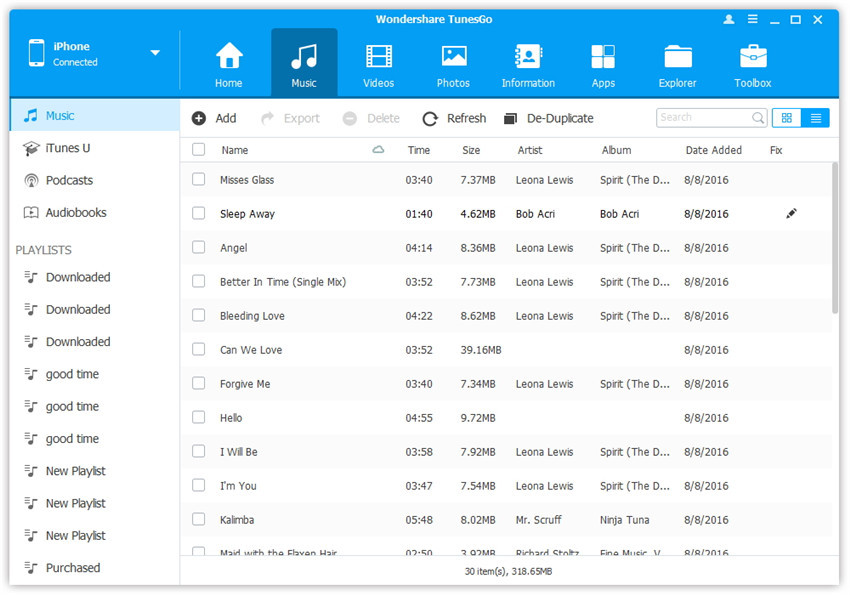
Click Music icon at the top of the interface,then select the specific option Music (Music is the default option). Please note that iTunes U/Audiobooks/Podcasts is available to select here also.

select music to transfer

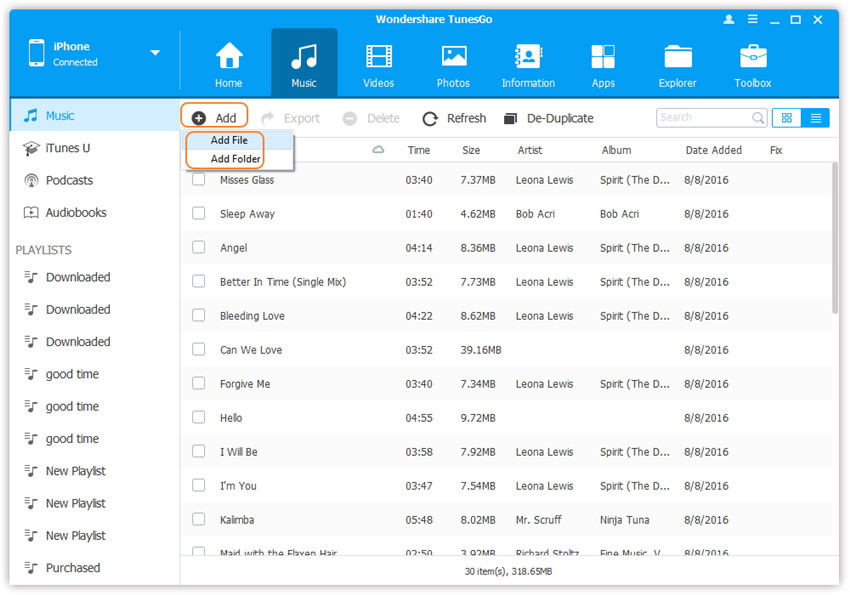
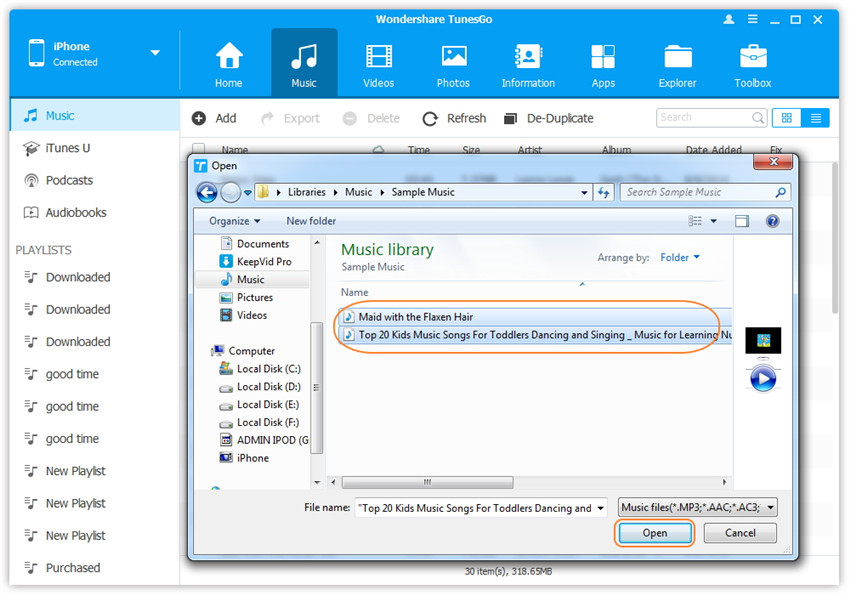
Then you should click Add and then select Add File or Add Folder to add music files from your computer. If you only want to select some music files, then click Add File, and then hold down Shift or Ctrl key to choose multiple files; if you want to transfer all the music in one folder, then click Add Folder. After that, click Open to import the selected music. Here we only add music to iPod by clicking Add File for example, others are with the similar steps.

add folder to add music files

transfer music from computer to iPod

Method 2:Transfer Music by Drag and Drop

Step 2.Find Songs on Computer
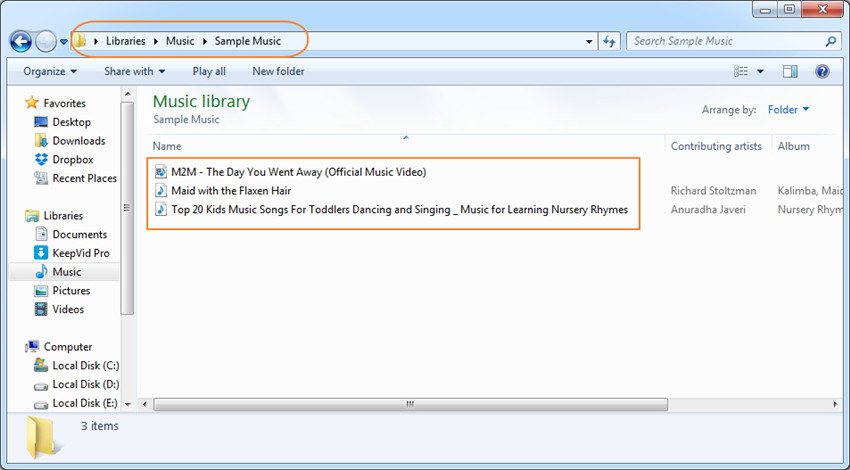
Find and open the music folder on your PC or Mac which includes the music files that you wish to transfer to your iPod Touch/Nano/Shuffle.

open the music folder on computer

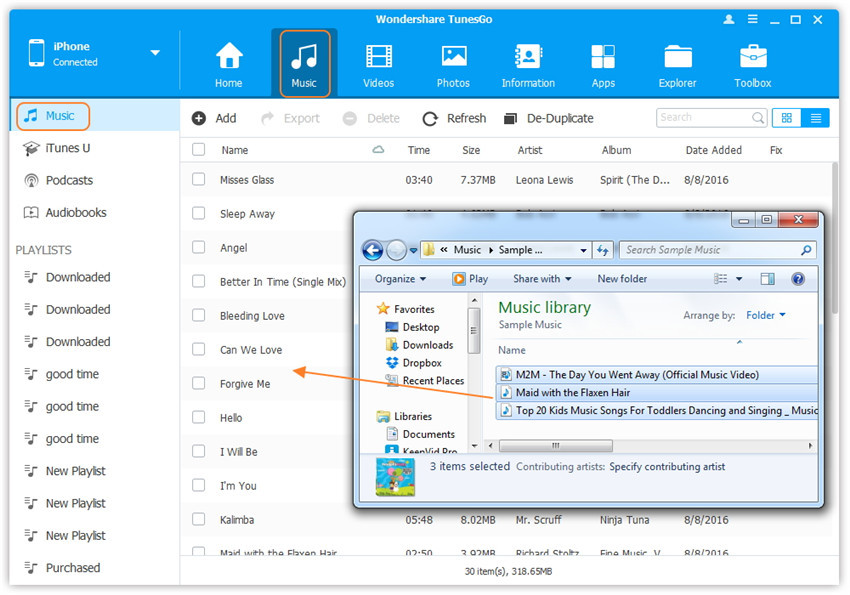
Step 3.Export Songs to iPod by Drag and Drop
Click Music icon on the main interface of  program,it will go to the Music window by default.Drag and drop the selected music from your computer to the Music window of program.

export the songs to iPod by Drag and Drop

Tips:iOS & Android Manager additionally supports to add Podcasts, iTunes U, Audiobooks from PC/Mac to iPhone/iPad/iPod with this method too. The only change while adding these media files is to select one of the options: Podcasts, iTunes U, Audiobooks instead of Music.

d_win d_mac

Related Guides:

How to Listen to Apple Music Offline on iPhone/iPod/iPad

How to Remove DRM from Apple Music Completely

How to Record Apple Music M4P Streams as MP3

How to Transfer Music from Android to iPhone/iPad/iPod

How to Recover Deleted or Lost Data from iPhone/iPad/iPod

How to Completely Untinstall iTunes from Windows/Mac

Summary: How to completely remove and uninstall iTunes on Windows/PC? We will show you a complete guide about deleting iTunes on computer with an easy way, including iTunes media, iOS backups, iTunes/iOS update files and other iTunes useless files.

I want to completely uninstall iTunes and all the related apps at once. Is there a one-click solution to do this job?

When you switch from iTunes to another media player like QuickTime, iTunes Helper, Bonjour, you might need to remove iTunes and the related document completely. Uninstalling iTunes with the traditional way through programs and features one by one on computer, it leaves a lot behind. It is complicated and time-costing. If you try to use Windows remove utility to unstinstal iTunes but fail and now want to remove any reference to iTunes, just get iTunesFix to fully uninstall everything of iTunes without troubles, including its related components and even the user data, leaving no leftover pieces.

One-Click Remove iTunes Completely

iTunesFix can completely remove iTunes from computer with one click, including iTunes media (music, videos/movies, playlist), iOS backups, iTunes/iOS update files, other iTunes useless files, related components and user data. Moreover, iTunesFix is an all-in-one iTunes error fixing tool, help to fix all iTunes errors and issues without any data loss, return iTunes to normal. It can also manage iTunes Library on computer safely, clear iTunes to free up and boost your computer with an efficient solution.

d_win d_mac

How to Remove iTunes from Computer Completely

Note: The full uninstallation of iTunes will thoroughly remove iTunes and its related software components. Meanwhile, you can delete the iTunes user data if you want.

Step 1. Choose the Uninstall Mode
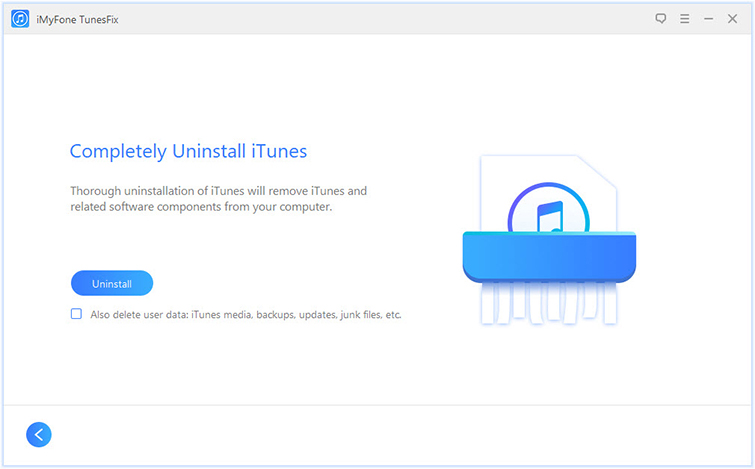
Run iTunesFix on computer, click on “Full Uninstall” in the home interface of iTunesFix. It will guide you to the uninstallation page.

itunesfix home page

Step 2. Uninstall iTunes Completely
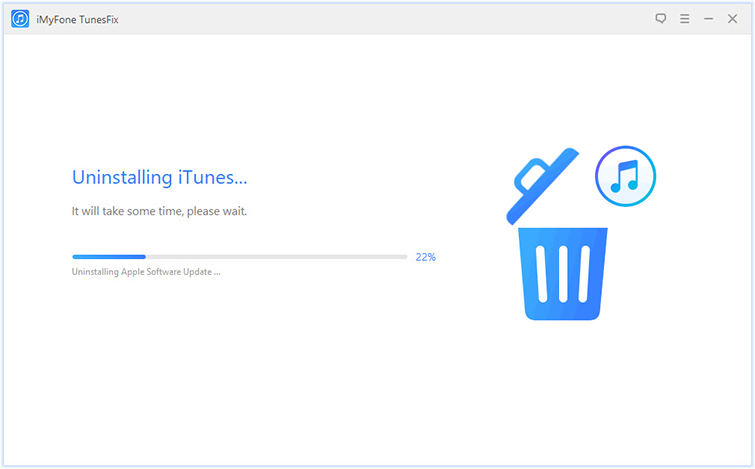
Click “Uninstall” and it will start to remove iTunes and its software components from your computer completely.

Note: If you want to delete iTunes user data, check “Also delete user data” under “Uninstall” button, before you click on “Uninstall“. It will delete iTunes media, iOS backups, iTunes/iOS update files and other iTunes useless files.

confirm to remove itunes

uninstalling itunes

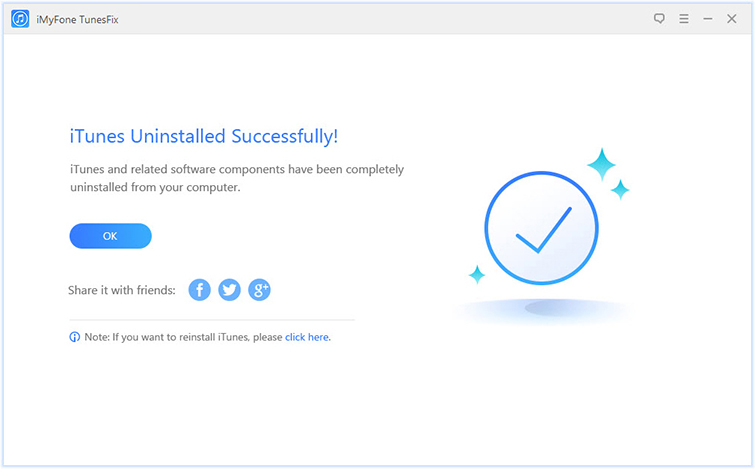
When it’s done, you can tap “click here” to reinstall iTunes if you need.

remove itunes finished

d_win d_mac

Related Articles:

How to Fix iTunes Won’t Install/Update Issues

How to Repair iTunes Unknown Errors

How to Fix “iTunes Could Not Backup/Restore” Issue
How to Fix iTunes Cannot Connect to iPhone Error

How to Recover Deleted/Lost Data on iPhone X/8/7/6S/6

How to Play M4P Apple Music Songs with Winamp

Summary: Want to import Apple Music to Winamp for playing but failed? This tutorial will provides you a way to play M4P Apple Music songs with Winamp by converting Apple Music to MP3 files via Apple Music Converter.

What it Winamp player? Winamp is still a music player used by many users with 20 years of legendary history. It support files formats including MP3, MIDI, MOD, MPEG-1 audio layers 1 and 2, AAC, M4A, FLAC, WAV, and WMA. The M4P Apple Music and iTunes Music are not in the list, since the DRM protection of it. How to play Apple Music with Winamp? All your downloaded offline Apple Music tracks under the subscription are in M4P extension that the M4P format files is DRM protection. Instead of using outdated and ineffective Winamp M4P plugin, using Apple Music Converter is the best choice.

Convert M4P Apple Music for Playing on Winamp

Since Apple Music is protected by DRM which restricts you from playing Apple Music on Winamp player, you need to use Apple Music Converter to convert Apple Music to DRM-free audio format (like MP3). With using Apple Music Converter, you can freely remove DRM protection from Apple Music. It can auto load all Apple Music you have added to iTunes Library, convert both iTunes M4P and Apple Music M4P songs to MP3,M4A, AC3, AIFF, AU, FLAC, M4R, MKA at a fast 16X speed. After the conversion, you can play the converted Apple Music on Winamp directly without limits. The output music files will be saved with its original quality. Extremely user-friendly interface, anyone knows how to use within minutes.

d_win d_mac

How to Play Apple Music on Winamp

Step 1. Launch Apple Music Converter
First of all, launch Apple Music Converter on computer, the iTunes will be open at the same time by itself. iTunes will load all Apple Music you added to it.

add apple music

Step 2. Select Apple Music Tracks You Want to Play with Winamp
Select the playlist from iTunes, and all the songs in that playlist will be shown in program. Just choose the songs you want to put into Winamp. It is better to try to search it in the built-in search box to locate it immediately.

Step 3. Choose the MP3 as Output Format
After selecting the songs, you can change the settings based on your need. If you don’t want to change anything, all settings will be by default. We suggest you set the output format as the most common MP3. If your internet speed allows, it is advised that you adjust the speed as 16X.

setting 320 as bitrate

Step 4. Start Conversion
After all the easy preparations are done, just simply click the button “Convert” to start converting the selected tracks. Some minutes later, you will get MP3 common local music files. Now you can drag and drop the songs to Winamp for playback or add the output songs to Winamp library for playing on it without limits.

convert apple music to 320Kbps

d_win d_mac

More Apple Music Tutorials you can Check:

How to Get DRM-free Versions of Apple Music

How to Convert Apple Music to MP3 Files

How to Play Apple Music on iPhone for Free

How to Play Apple Music on Android Device without limits

How to Listen to Apple Music for Offline Playing

How to Set Apple Music as Ringtone for Any Phones

How to Get Apple Music at 320kbps High Quality

Summary: Apple Music provides a standard 256Kbps quality for music files. Here is a question: How to get Apple Music at 320 kbps? In this post we will lead you to convert Apple Music to audio files with 320 kbps as the common MP3 music.

Generally MP3 music can have the maximum bitrate up to 320Kbps. Apple Music, however, adopts a standard 256Kbps quality in M4P format. M4P Apple Music files is DRM encrypted to prevent piracy. It can only be played on iOS device under the Apple Music subscription. So we can’t play Apple Music as local files or out of the subscription, and we can’t get Apple Music as common MP3 files with with 320 kbps. In that case, you need to find a powerful converting program to finish the conversion to get Apple Music at 320kbps high quality.

Here I strongly recommend you make use of best Apple Music DRM removal software – Apple Music Converter – to remove DRM from Apple Music and convert Apple Music streaming bitrate from 256kbps into 320kbps in MP3 format. If you want to get Apple Music at 320kbps high quality, you can make use of Apple Music Converter. This software can not only convert Apple Music from 256kbps to 320kbps but also help you remove DRM from Apple Music. In this way, you can play Apple Music on any devices and listen to Apple Music offline with more freedom. Apple Music Converter enables to convert M4P Apple Music to free-DRM format files, including MP3, M4A, AC3, AIFF, AU, FLAC, M4R and MKA. After the conversion, you can play back the converted music on any compatible audio players.

d_win d_mac

How to Convert Apple Music to 320Kbps

Step 1. Download and Install Apple Music Converter
Download, install Apple Music Converter and launch it on computer. iTunes Library will run automatically. Apple Music account and playlist are synced when you enter the main page of program.

Step 2. Add  Apple Songs for Conversion
Now you can select Apple songs you want to convert to 320Kbps. You’re encouraged to select diverse songs in one conversion as Apple Music Converter supports batch conversion. It will pop up a window, which will show you all of songs you have downloaded from Apple Music. You can choose any song you want to convert.

add apple music

Step 3. Manage Bitrate Settings
Go to “Output Settings” area to personalize output parameters. Here MP3, M4A, AC3, AIFF, AU, FLAC, M4R, MKA are available to choose. Select “MP3” as output format and decide which “Output Folder” to save the converted Apple songs. Remember to click “Bitrate(kbps)“. You can choose different qualities in the dropdown window. Select “320“. Keep other parameters if you don’t have other special need.

setting 320 as bitrate

Step 4. Start Converting Apple Songs to MP3 Music at 320Kbps
When all setting is done, click “Convert” and you will jump to the conversion page. Wait for minutes and you will get MP3 music at 320Kbps high quality that you want.

convert apple music to 320Kbps

d_win d_mac

More Apple Music Tutorials you may be Interested in:

How to Get DRM-free Versions of Apple Music

How to Convert Apple Music to MP3 Files

How to Play Apple Music on iPhone for Free

How to Play Apple Music on Android Device without limits

How to Save Apple Music Songs to SD Card

How to Set Apple Music as Ringtone for Any Phones