All posts by DHZ

How to Transfer Photos/Gallery between Huawei and Computer

Huawei is one of the biggest smartphone manufacturers in the world. Especially in these years, Huawei has come up with popular models of Android-based smartphones to win over its fans. With a global reach, Huawei smartphones are used by millions of people around the world. One of the concerns is that Huawei camera function is pretty good with high audio quality and advance features, and almost all Huawei models got the good comment from users. Huawei phones will get more and more attention in the future.

Photos are considered as one of our important personal data and losing them can be quite frustrate for the most of us. It is no doubt that Huawei users may stored a large number of photos on their mobile device, may be you are one of them. To keep photos being safely and completely, it is necessary to manage Huawei photos on computer with a reliable solution. Have you encountered any difficulties of transferring photos between Huawei and computer? Read this tutorial and you will learn how to transfer transfer photos/gallery data between Huawei and computer without hassle.

Transfer Photos between Huawei and Computer with One Click

Android & iOS Manager is a great Huawei data transfer tool to help you transfer photos between Huawei and computer with one click. It not only can backup photos from Huawei to computer, but also transferring photos from computer to Huawei. Moreover, it allow to transfer files between Huawei and iTunes, transfer files between Huawei and Android/iOS device. It is such an all-in-one data manager to transfer files for Android device as well as iOS device, the transferable types of files including photos, music, videos, playlist, contacts and SMS. It features with more function such as, Rebuild iTunes Library, Backup Device, Restore Device and GIF Maker. Compatible wit all Android and iOS models, like Huawei Mate RS, Huawei P20/P10/P9, Huawei Mate 10/9, Huawei Honor; Google Pixel, HTC, Samsung, OPPO, Lenovo, Motorola, LG; iPhone, iPad.

d_win d_mac

Part A. How to Backup Huawei Photos to Computer

Step 1. Run Android & iOS Manager on the Computer
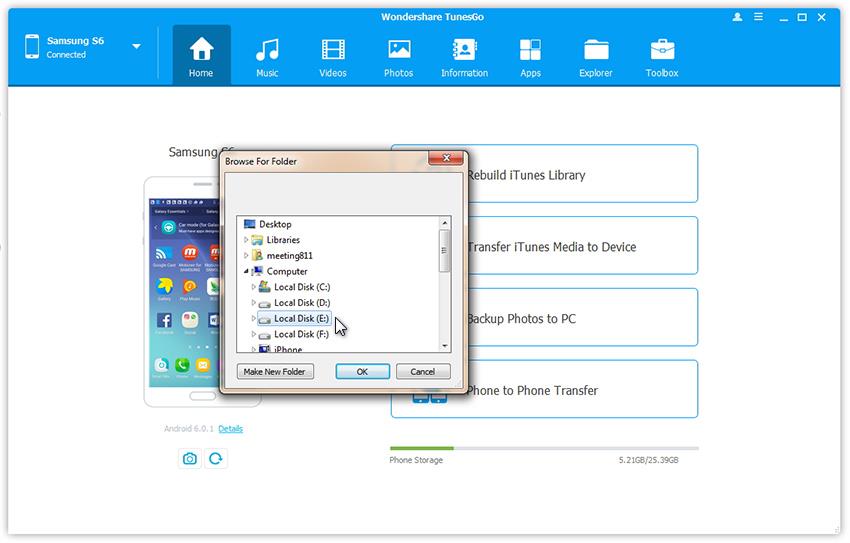
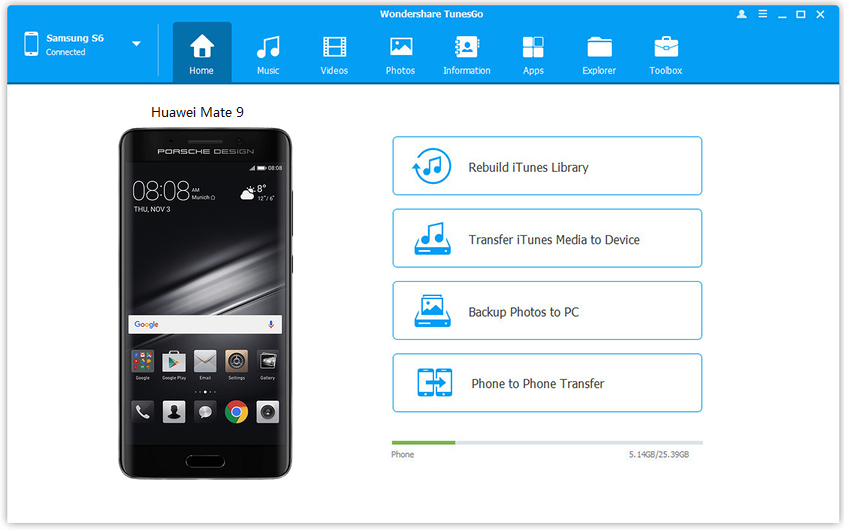
Run Android & iOS Manager  on computer and connect your Huawei to it. Click “Backup Photos to PC” on the interface of program.

Android & iOS manager home page

Step 2. Backup Photos from Huawei to Computer
This brings up your file browser window. Select a save path to store the photos from your device to the computer.

transfer photos from huawei to pc

Click “OK” to complete the process.

d_win d_mac

Part B: How to Transfer Photos from Computer to Huawei

Step 1. Run Android & iOS Manager on the Computer
Firstly, tun program on the computer, connect your Huawei to the computer via a USB cable.

Android & iOS manager home page

Step 2. Transfer Photos from Computer to Huawei
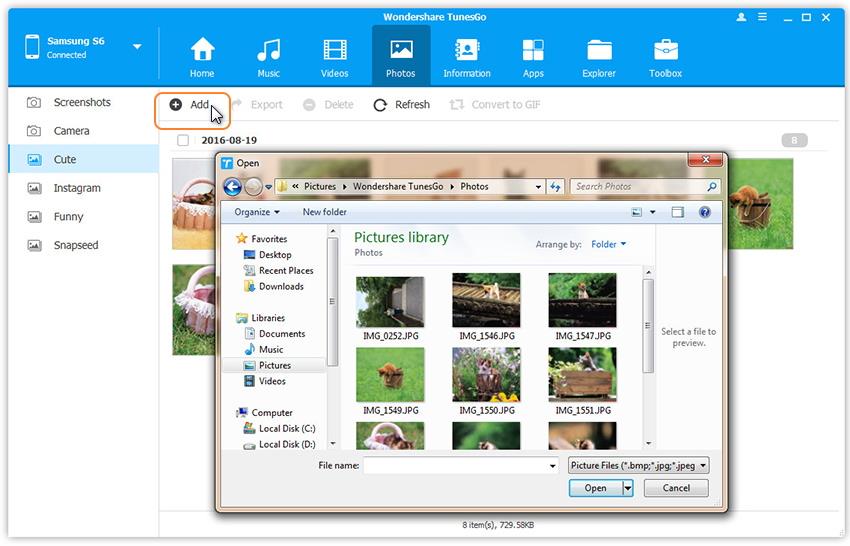
In the primary window, click “Photos” from the top menu. All albums on your device show up. Choose one album to save the importing photos.

Then, click “Add” and choose “Add file” or “Add folder“. When the file browser window pops up, find your desired photos or photo album and then import them.

transfer photos from pc to huawei

That’s the simple steps on how to move photos from computer to Huawei.

d_win d_mac

Related Articles:

How to Transfer Files between Huawei and Computer

How to Transfer Photos from Samsung to Huawei

How to Transfer Photos from iPhone to Huawei

How to Recover Deleted Photos from Huawei Phone

How to Backup and Restore Huawei Phone

Transfer Photos between Huawei and Computer

Data Recovery for Android and iPhone

Summary: We’ve all done it: accidentally lost contacts, photos, videos, messages or other files carelessly. But, before you say goodbye to it, actually there are ways to recover your data and get back your precious files. In this article, we’ll guide you through how you can recover deleted data on Android phone and iPhone.

I try to perform Android OS updated on my Android phone but failed, what are suffering me is that all the contacts saved on the phone were gone. What’s wrong with it? How to retrieve those lost files as soon as possible?

I accidentally deleted some photos and videos I had recorded on my iPhone, how can I restore the deleted data without backup?

We will meet different data loss circumstances in our daily life, it seems not a strange case that we lost data from Android or iOS device.The most common curses lead to data loss on device might be: deletion accidentally, factory reset restoring, device system updated, virus attacked, device get damaged. To be honest, when you lost the data from your device, it is not immediately removed from the physical drive actually, it just become disappeared and hidden in somewhere of your phone internal memory. However, you should know that the deleted data still technically exists on the device and it could be recovered with smart data recovery tool if it hasn’t been overwritten by the new adding data.

Android device offer Google account for Android users to backup data, iOS device could backup data via iTunes or iCloud service, but it’s always make users ignore the needing to do it. Please don’t wait until it’s too late to start thinking about backing up your phone. In fact, it is very important for all Android and iOS users backing up their phone contents as frequently no matter using any backup methods. We can see many question like this on the Internet and need to help: Is possible to recover data from Android and iPhone without backup? The answer is definitely positive. No matter you have a backed up or not of your device, you can get back the lost data from Android or iPhone through asking the help of some reliable data recovery tools.

Part 1: Recover Deleted Data from Android Phone by Android Data Recovery

If you meet the same situation of data loss on Android device, you could ask the help of Android Data Recovery, it is a small expert for recovering deleted data from Android phone and tablet without any professional skills. It is capable of restoring several kinds of Android data, insist of contacts, text messages, gallery, videos, call logs, WhatsApp messages, apps data, documents and more. It is designed for recovering Android data lost due to any cases, including deletion accidentally, factory reset restoring, Android system updated, virus attacked, device get damaged, etc,.

Download Android Data Recovery:

d_win d_mac

Conclude Other Mean Features of Android Data Recovery:
-Android Data Backup & Restore:
Backup and restore Android data on computer safely.
-Broken Android Data Extraction:
Recover/extract data from broken Android device.
-Preview before Recovery:
Allow to preview data before beginning to recover data.
-Support to all Android models:
Samsung(Galaxy S9/S8/S7/S6/S5, Note 9/8/5/4), Huawei(P20/P10/P9, Mate RS, Mate 10/9, Honor), HTC, Lenovo, Motorola, LG, Sony, Google Pixel, OPPO, ZTE, etc,.

How to Recover Deleted Data from Android Phone

Step 1. Run Program and Connect Android 
In the first step, install and run the Android Data Recovery on computer and select “Android Data Recovery” mode in the home page of program.

Android Data Recovery home page

Then connect you Android to computer using a USB cable.

connect Android phone

Step 2. Enable USB Debugging on Android
Once connecting your device to the computer, please allow the program detect your phone to the computer by clicking “OK”.

allow to detect Android

Step 3. Select Files to Recover
Select the any files you need to recover from Android. Here contacts, gallery, WhatsApp messages, call history and more are available. Then clicking “Next” to go on.

select files to scan

Step 4. Scanning Deleted Data from Android
Clicking “allow” to allow program scan and analyze the deleted data from Android.

allow scan Android phone

Now the program will start to scan data on Android phone.

scan Android for deleted data

Step 5. Preview and Recover Deleted Data from Android
Lastly, all the recoverable data will be displayed after finishing scanning. Preview and mark those you want and click “Recover” under the files to save the selected data on the computer.

recover deleted data from Android

d_win d_mac

Part 2: Recover Deleted Data from iPhone by iOS Data Recovery

When discuss about how to recover deleted data from iPhone, iOS Data Recovery is absolutely the best one which I must recommend for you. It enable you to recover lost iOS data in different scenarios: unconsciously deletion, iOS system update, phone stolen,locked iPhone when forget passcode, factory reset restoring, device get broken and more. You can recover all lost/deleted data on iPhone/iPad/iPod with using this program, such as, contacts, text messages, photo, video, call logs, note, WhatsApp messages, apps data, documents and more files.

Download iOS Data Recovery:

d_win d_mac

Sum Up Other Mean Features of iOS Data Recovery:
-Three iOS Data Recovery Modes:
Directly recover from iOS device without backup.
Recover from iTunes backup files.
Recover from iCloud backup files.
-iOS System Recovery
Fix broken iPhone/iPad/iPod system easily and professionally.
-iOS Data Backup & Restore:
Back up any iPhone/iPad/iPod data and restore data to iOS device/PC.
-Preview before Recovery:
Allow to preview data before beginning to recover data.
-Support to all iOS models:
iPhone X, iPhone 8, iPhone 7, iPhone 6S/6, iPhone 5S/5; iPad Air, iPad Pro, iPad Mini, iPad 4/3/2/1;iPod Touch, iPod Nano, iPod Shuffle.

How to Directly Recover Deleted Data from iPhone without Backup

Step 1. Run Program and Select Mode
Download and install iOS Data Recovery on your computer.Select the function “iPhone Data Recovery“.
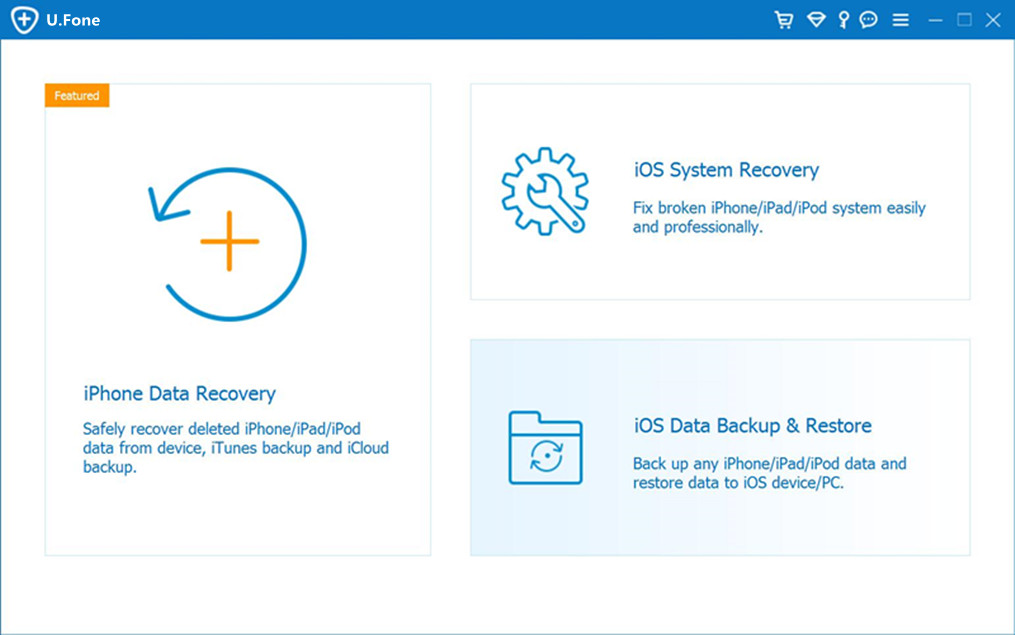
iOS Data Recovery home page

Step 2. Select Recovery Mode
If you hadn’t backed up your iOS device with iTunes or iCloud, you should click “Recover from iOS Device” mode, then connect your device to the computer with a USB cable.

Step 3. Scan and Analyze Data on Device
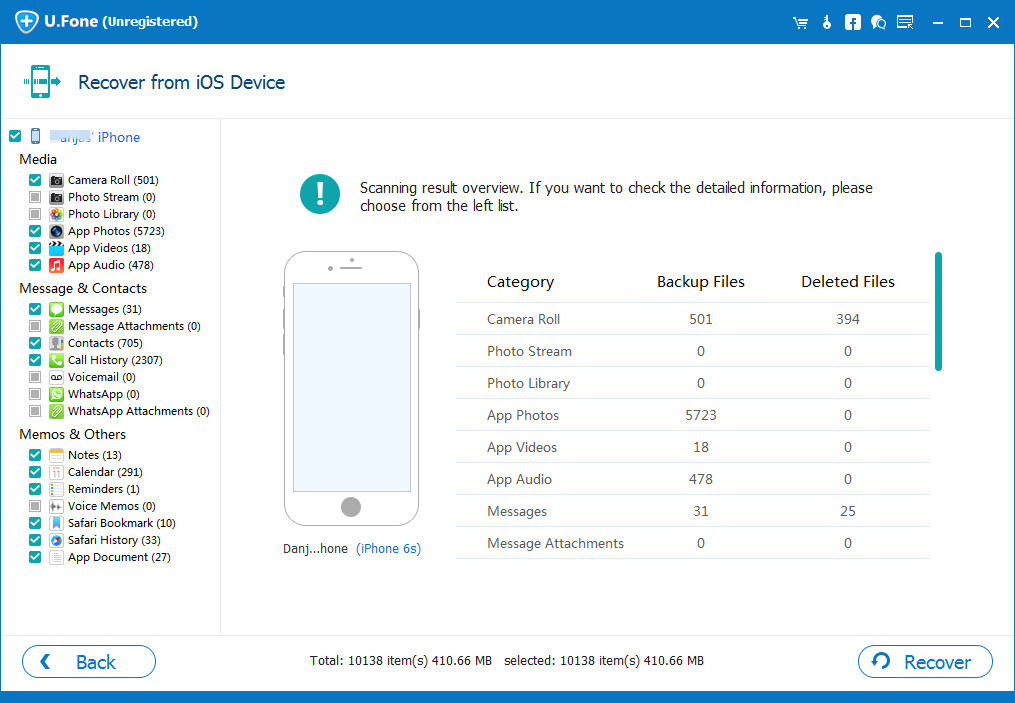
Click “Start Scan“, the program will begin to scan and analyze the data from your device, including the lost one and the existent one.
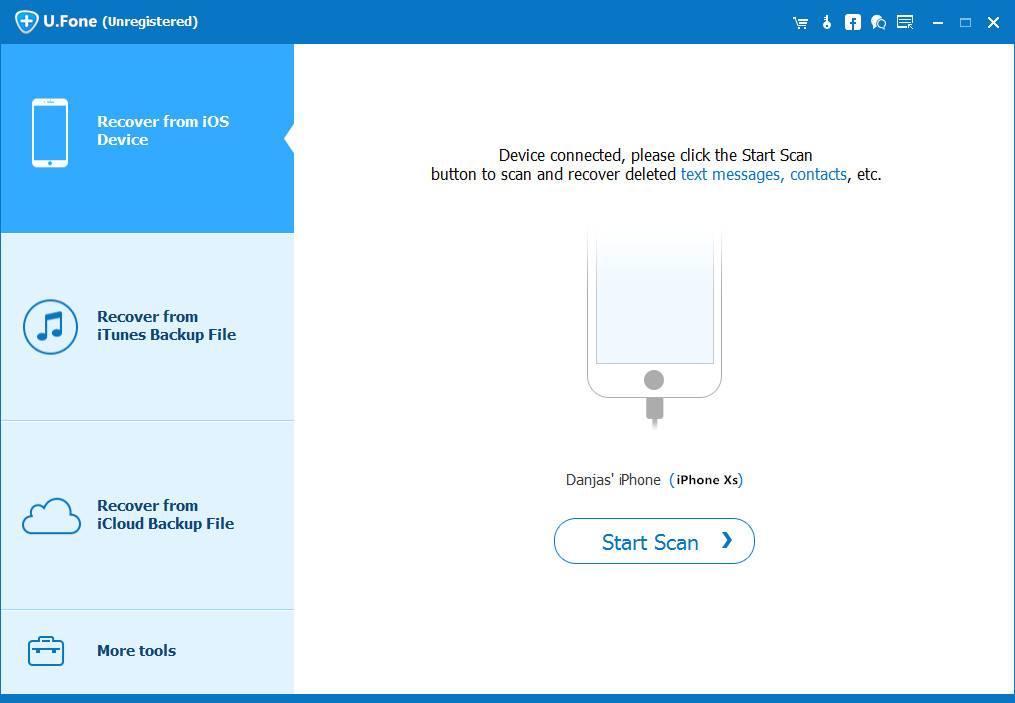
connect device to computer

scan iPhone for deleted data

The scanning result will be listed in groups. If you just want to get back deleted data, you could switch on “Only display the deleted item(s)”.

Step 4.Preview and Recover Selected Data from iPhone Directly
Lastly, you are allow to preview and recover selected data on computer by clicking “Recover“. The data will be exported and saved to the output folder of your computer.
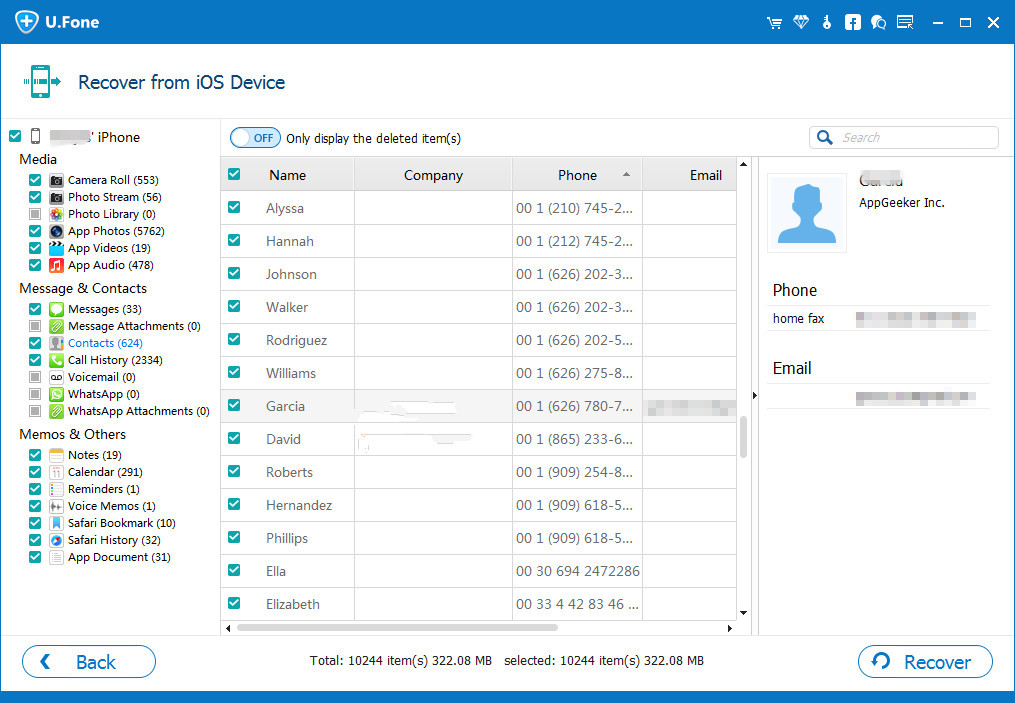
recover data from iPhone directly

Recover Deleted iPhone Data with iTunes Backup File
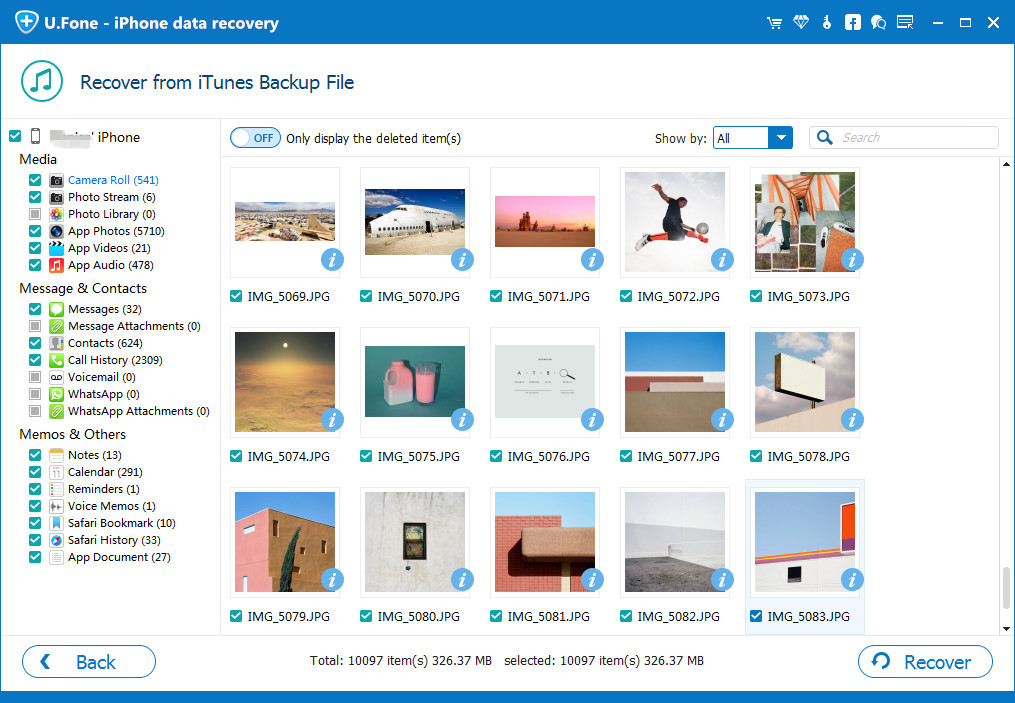
restore iPhone data from iTunes backup

Recover Deleted iPhone Data with iCloud Backup File
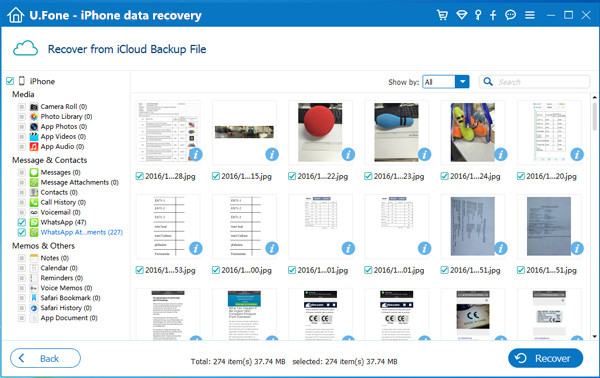
recover iPhone data from iCloud backup

d_win d_mac

Related Articles:

How to Recover Deleted or Lost Data from Android

3 Ways to Recover Deleted or Lost Data from iPhone/iPad/iPod

How to Backup and Restore Android Data on Computer Safely

How to Backup and Restore iPhone Data on Computer Safely

How to Manage Android on Computer

How to Manage Files on iPhone X/8/7/6S/6
How to Transfer Files between Huawei and Computer

Summary:To prevent data loss on your Huawei smartphone, you should know some skills to protect your data stored on device. This post aims to tell you how to transfer photos, music, videos and more files between Huawei phone and computer, to backup Huawei or restoring files on Huawei with one click.

Huawei is one hot brands of Chinese smartphone, it has been making a host of Chinese best-selling smart phones. Personal data that stored on our mobile phone play an important role in life, especially photos, music, videos and more. Since aware of the importance of phone data, it is quite significant that this information must be protected before any disaster happens. In fact, data saved on Huawei are easy to face the data loss problem. Files will be missing due to all kinds of circumstances, like system corruption, virus infection, system formatting, etc,.

What will you do if you suffer data loss on your Huawei device? To backup data is the first choice for most people. Normally, people will transfer files between phone and computer using a USB cable. As we know, sync files via a USB cable on Android device should enable USB debugging on it. Unfortunately, it may be not always work since the USB debugging enabling is failed. Luckily, you can turn to Android & iOS Manager for help. This smart tool can easily transfer all files between Huawei and computer with one click, help to backup Huawei to computer safely and restore backed up to Huawei completely. It will provides you with the most efficient and simple way to complete the files transfer job on Huawei phone.

One Click to Transfer Files between Huawei and Computer

You can check this Android & iOS Manager, is an outstanding and creative tool to transfer files between Huawei phone and computer with one click. This program has been helping Android and iOS users to manage files for their device in no effort, including photos, music, videos, playlist, contacts, SMS and apps. It is an all-in-one data manager tool to transfer files between device and computer, transfer files between device and iTunes, transfer files between two mobile devices. Furthermore, it features with Rebuild iTunes Library, Backup Device, Restore Device and GIF Maker. Compatible wit all Android and iOS models, like Huawei Mate RS, Huawei P20/P10/P9, Huawei Mate 10/9, Huawei Honor; Google Pixel, HTC, Samsung, OPPO, Lenovo, Motorola, LG; iPhone, iPad.

d_win d_mac

Part 1. How to Backup Huawei Photos to Computer

Step 1. Run Android & iOS Manager on the Computer
Run Android & iOS Manager on computer, connect your Huawei phone to computer. Click “Backup Photos to PC” on the interface of program.

Android & iOS manage home page

Step 2. Backup Photos from Huawei to Computer
This brings up your file browser window. Select a save path to store the photos from your device to the computer.

transfer photos from huawei to pc

Click “OK” to complete the process.

d_win d_mac

Part 2. How to Backup Huawei Music to Computer

Step 1. Run Android & iOS Manager on the Computer
After running the program on computer, select “Music” Tab
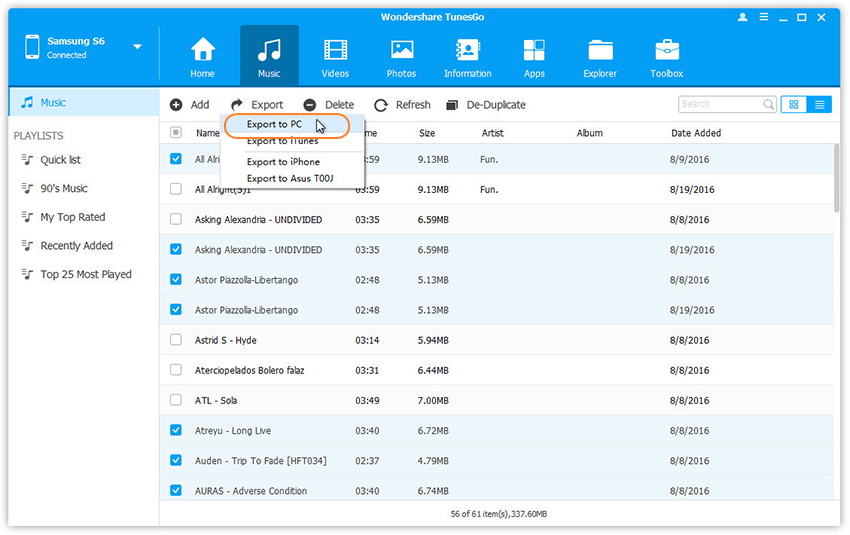
Once your media loads,choose your wanted songs and click “Export” > “Export to PC“.

select music from huawei to pc

Step 2.Backup Music from Huawei to Computer
This brings up your file browser window,choose a save path to save songs from your Huawei to computer.

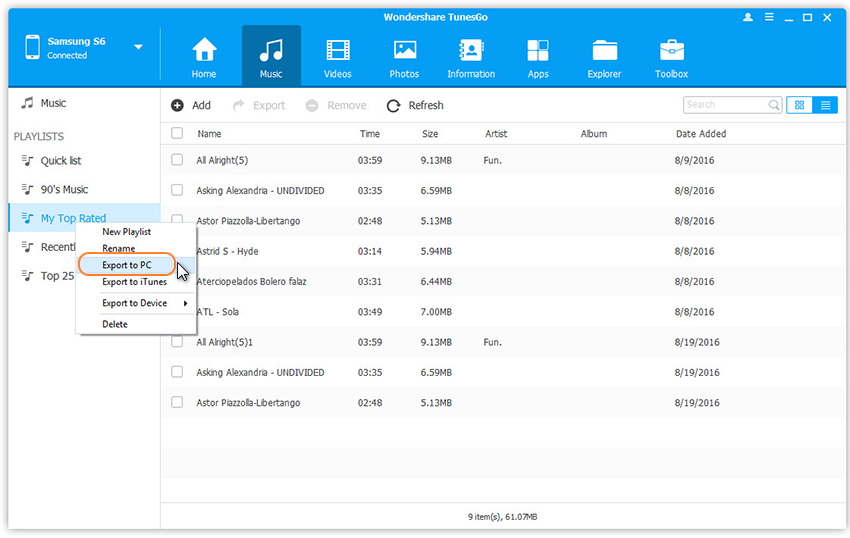
You can simply Drag and Drop music files from Huawei phone to computer.You can also transfer the whole music playlist from Huawei to computer in one click.

export huawei music to pc

d_win d_mac

Part 3. How to Backup Huawei Videos to Computer

Step 1. Run Android & iOS Manager on the Computer
After running the program on computer, select “Videos” Tab
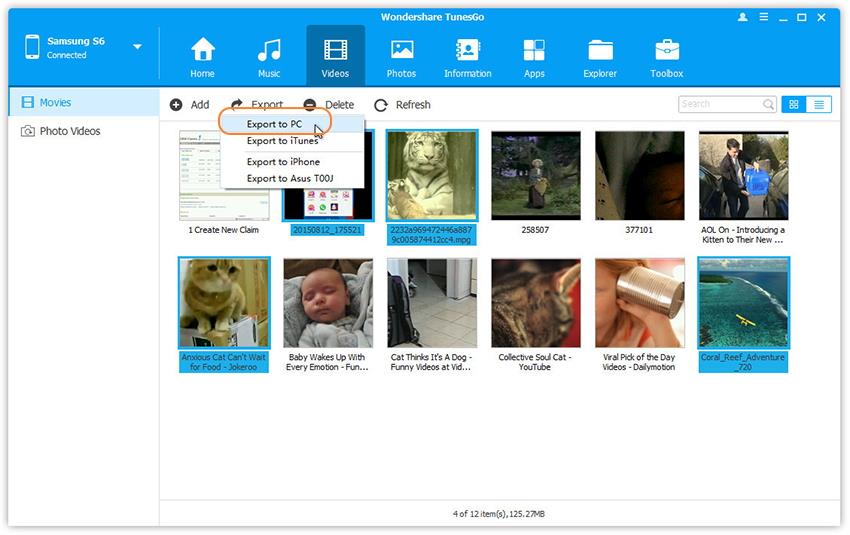
Once your media loads, choose your desired videos and click “Export” > “Export to PC“.

transfer videos from huawei to pc

Step 2. Backup Videos from Huawei to Computer
This brings up your file browser window. Select a save path to store the videos from your Huawei to computer.You can simply Drag and Drop videos from Huawei to computer.

d_win d_mac

Related Articles:

How to Transfer Data between Huawei Phones

How to Transfer Photos between Huawei Phones

How to Transfer Music between Huawei Phones

How to Backup Android Data to Computer

How to Recover Deleted Data from Huawei Phone

How to Backup and Restore Huawei Phone

How to Transfer Photos Data between Huawei Phones

I want to transfer the gallery from my old Huawei Honor phone to the new Huawei P10 phone. Since there are thousands of photos save on the old one, I don’t want to sync it one by one, it is time-costing. Is there any solutions to switch all the photos between the two devices with only one click?

With the latest technology incorporate into the Huawei new models, it is difficult for anyone to miss experience associated with this phone. Even though the previous Huawei models are the popular smartphone device in the market, they are not the best you can ever get online. The new models of Huawei phones are made with combination of those wonderful features you found in Samsung and iPhone, for example, Huawei P10, P20. For that reason, if you truly embrace technology improvement then you have to get ready for the release of Huawei new models.

Before you have decided to get a new Huawei phone, your may be wondering how you can start saving a large number of photos and other data from your old Huawei to your newly purchased new one. Truly, what you need is only a wonder data transfer software to move all your photos from between two Huawei phones that is Phone Transfer – Huawei Data Transfer. If you are planning to enjoy smooth, fast, safe and easy transfer of your data from old Huawei to the new one. Phone Transfer is the phone manager tool you need when you want to take absolute control of the data transfer task.

Sync Photos between Two Huawei Phones

It can’t be more easier than using Phone Transfer Huawei Data Transfer to switch photos between two Huawei phones with one click. It is a superior data transfer tool for transferring files between mobile devices based on Android system, iOS system, and Symbian system. The transferable types of files including photos, videos, contacts, text messages, call logs, calendar, music, apps. In addition, it enable to backup & restore device safely, wipe data on device completely. Phone Transfer works well for almost all phone models, like Huawei(P20/P10/P9, Mate 10/9, Honor), HTC, Lenovo, Motorola, LG, Sony, Google Pixel, OPPO, ZTE; iPhone; Nokia phone; etc,.

d_win d_mac

How to Switch Photos between Two Huawei Phones

Step 1.Run Program and Connect Two Phone to Computer
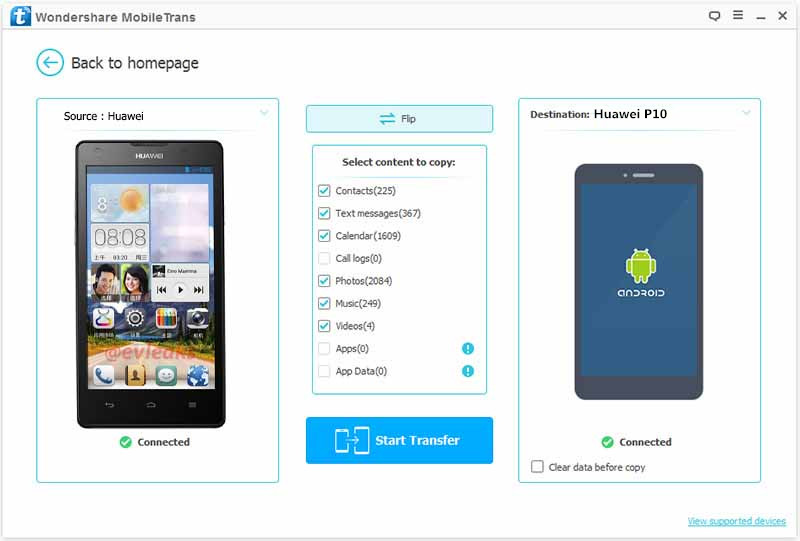
To get started,please run Phone Transfer and connect both two Huawei phones to the computer at the same time,then select the “Phone to Phone Transfer” mode in the home page of program.

phone transfer home page

Step 2.Select File Type for Transferring
Select the file type to transfer,here contacts,photos,videos,music,text messages,call logs,calendars,apps are available.You can select one or more than one file to transfer between Huawei.For photos,you should click”Photos“.

select photos file to transfer

To switch data from old Huawei to the new Huawei,the old phone should be on the left as the export device and the new Huawei should be on the right as the import device.You could click “Flip” to change the position of them if it is wrong.

Step 3.Start the Transfer Process
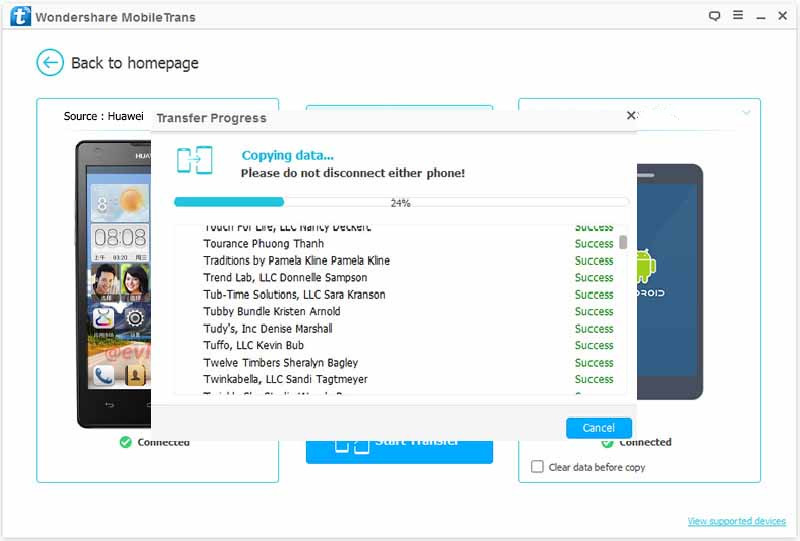
Once selecting all file you need to transfer,you could begin the transfer process by simply click “Start Transfer”.

transfer huiwei photos to huawei

d_win d_mac

Related Articles:

How to Transfer Data from Samsung to Huawei Phone

How to Transfer Data from iPhone to Huawei Phone

How to Transfer Contacts/SMS Between Huawei Phones

How to Recover Deleted Data from Huawei Phone

How to Backup and Restore Huawei Phone

How to Backup Huawei Android Data to Computer

How to Repair iTunes Connect Issue without Data Loss

When I try to connect my iPhone to iTunes on computer, it get stuck on the ‘Connect to iTunes’ screen, and I got prompt messages in iTunes saying there was a error when the device connected. I don’t know what happen on it. How to fix this iTunes connect issue without data loss?

iPhone stuck on the “Connect to iTunes” screen when connect to iTunes which will make some trouble for iOS user since you are unable to update/restore your device through iTunes, even make you not be able to access to the device. There could be a lots of different curses will lead to this iTunes can’t connect error occur. No matter what lead to this iTunes connect error happen, it means that your iTunes get something wrong or it just imcompatible with your computer and iOS device. In this article, we will share the best way with you to fix this issue and have your iTunes working normally.

Fix iTunes Connect Issue without Data Loss

iTunes Fix can be useful in fixing various iTunes errors and issues. It can help to fix iTunes connect errors without data loss for any other reason by using its safe mode. This program works well for repairing all kinds of iTunes issues and return iTunes to normal efficiently, like iTunes update/restore issue, iTunes install/update issue, and other iTunes unknown problems. Moreover, iTunes Fix features with Quick Clean/Deep Clean and Full Uninstall; delete iTunes media, backups, update files, etc, and uninstall iTunes and related components completely. It works perfectly with the latest and lower version of iTunes.

d_win

How to Fix iTunes Connect Issue without Losing Data

Step 1. Run Program on Computer
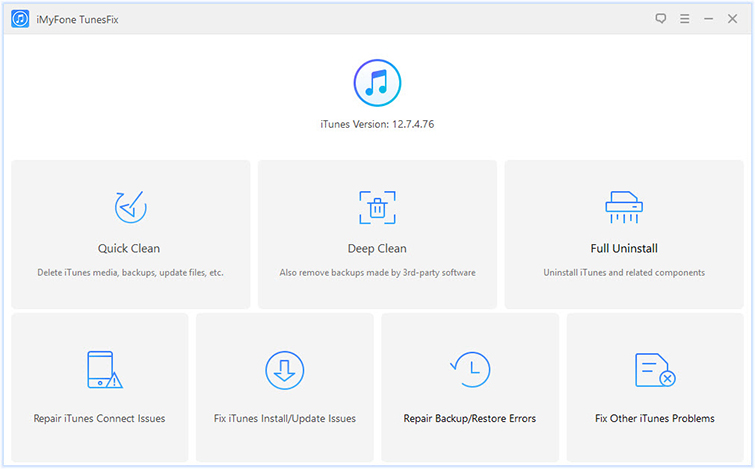
In the first step, run iTunes Fix on computer, it will auto-detect your iTunes. If there is no issue of iTunes and its components, you will be in the home interface of program.

itunes fix home page

Step 2.Select Repair Mode
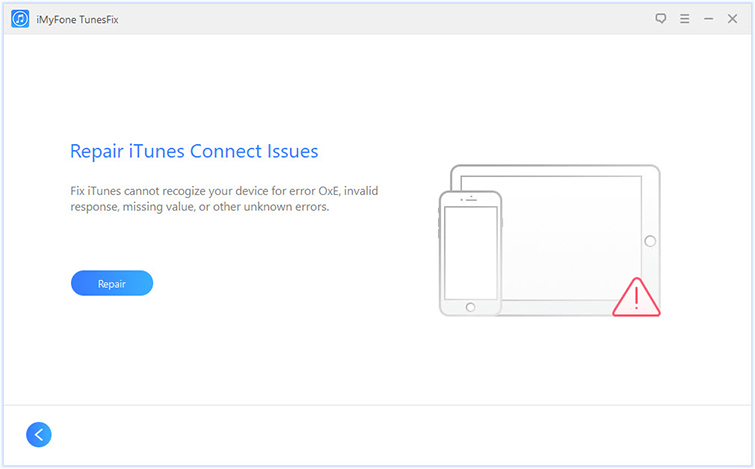
Select the repair mode depend on your situation. In this case, you should choose the “Repair iTunes Connect Issues” mode. “Fix iTunes Install/Update Issue”, “Repair Backup/Restore Errors” and more are available.

Step 3. Fix iTunes Connect Issue without Data Loss
Lastly, click “Repair” and it will fix the iTunes connect issue.

repair itunes connect issues

If this mode can’t fix the problem, just try other mode like “Fix iTunes Install/Update Issues“, “Repair Backup/Restore Errors“. There is always a solution to your problem.

d_win

Related Articles:

How to Repair iTunes Unknown Errors

How to Fix iTunes Crashing Issue

How to Fix iTunes Won’t Install/Update Issues

How to Fix “iTunes Could Not Backup/Restore” Issue

How to Fix iTunes Freezes When iPhone is Connected

How to Recover Deleted/Lost Data on iPhone X/8/7/6S/6
How to Recover Deleted WhatsApp Messages from Huawei Mate 9/10

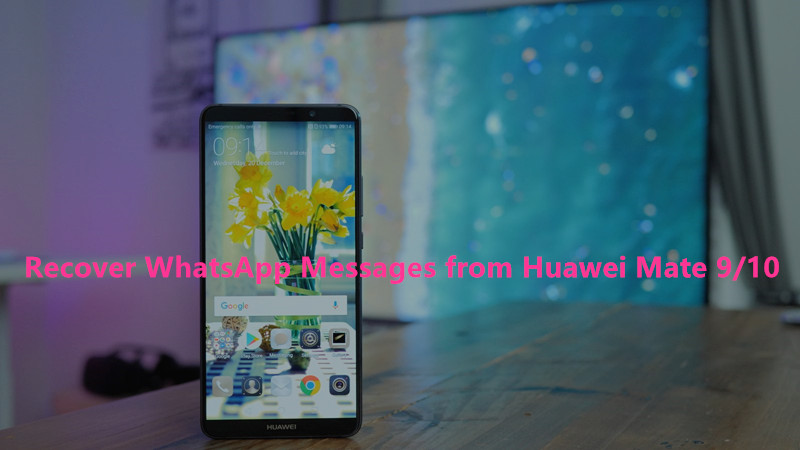
I try to update my Huawei Mate 9 to a new Android system but failed. What made me sad was that some WhatsApp chats history were gone. I haven’t backed up the data frequently, the deleted data is very special to me. How can I restore these lost WhatsApp chat conversation?

restore WhatsApp huawei mate 10

It is frustrating that you lose your WhatsApp chats on Huawei no matter for any cases, you may lost WhatsApp messages from device for different curses, like accidental deletion, Android OS updated failed, factory reset restoring, etc,. When you lose them then you realize the importance of these lost WhatsApp data. Rather than discussing how important the WhatsApp messages are to our life, I would prefer to meet your pressing need by sharing with you the best solution to retrieve deleted WhatsApp chat data using Android Data Recovery.

Restore Deleted WhatsApp Messages from Huawei Mate 9/10

Android Data Recovery is a magical software allows to recover deleted WhatsApp data from Huawei Mate 9/10 with easy steps, including WhatsApp text, video messages, photos, audio, attachments. Except WhatsApp data, other types of Android data are supported to be restored, such as, contacts, text messages, call logs, photos, videos, call logs, documents and more. It supports Android models running on Android 2.1 to Android 8.0. It is compatible with almost all Android device, for instance, Huawei (Mate 9/10, P9/P10/P20), Samsung, HTC, Lenovo, Motorola, OPPO, ZTE, Lenovo, HTC, SONY, Google Pixel.

d_win d_mac

Recover Deleted WhatsApp Data from Huawei Mate 9/10

Step 1. Download Program and Connect Huawei to the Computer
In the first step, install and run the Android Data Recovery on computer and select “Android Data Recovery” mode in the home page of program. Then connect you Huawei Mate 9/10 using a USB cable.

connect Huawei phone

Step 2. Enable USB Debugging on Huawei
Once connecting your device to the computer, please allow the program detect your phone to the computer by clicking “OK”.

allow to detect Huawei

Step 3. Select WhatsApp Files to Recover
Select the any files you need to recover from Huawei. Here contacts, gallery, WhatsApp messages, call history and more are available. For WhatsApp messages recovery, you should click “WhatsApp”& “WhatsApp Attachments” files then clicking “Next” to go on.

select WhatsApp files to scan

Step 4. Scanning Huawei for Deleted WhatsApp Messages
Clicking “allow” to allow program scan and analyze the deleted data from Huawei.

allow scan Huawei phone

Now the program will start to scan data on Huawei phone.

scan Huawei for deleted data

Step 5. Preview and Recover Deleted WhatsApp Messages from Huawei
In the last step, all the recoverable data will be displayed after finishing scanning. Preview and mark those you want and click “Recover” under “WhatsApp”& “WhatsApp Attachments” files to save the selected data from Huawei on the computer.

recover deleted WhatsApp data from Huawei

d_win d_mac

Related Articles:

How to Recover Deleted Data from Huawei Phone

How to Recover Deleted Photos from Huawei Phone

How to Recover Deleted Contacts from Huawei Phone

How to Recover Deleted Messages from Huawei Phone

How to Backup & Restore Huawei Mate 9/10

How to Manage Huawei Mate 9/10 on Computer

How to Stream Apple Music to Huawei Mate 9/10/20

[Summary]: Do you want to offline playing Apple Music songs on your Huawei Android phone without Apple Music app? Looking for a way to to keep Apple Music songs playable on iOS/Android phone after canceling subscription? This page will teach you how to remove DRM from Apple Music and convert them to MP3 files, and then transfer the converted Apple Music songs & playlist to Huawei Mate 20/10/9 for listening offline.

I use iPhone 6 for 3 years, now I am planning to switch to a new Android phone to take place the iOS device, Huawei Mate 10. I am a Apple Music subscriber and I subscribed some Apple Music tracks from Apple Music app. Is there any way to sync the Apple Music song to HUAWEI Mate 10 Pro for playing offline? I heard that ‘Apple Music for Android’ app is not very well. Any other ways?” – Asked by Jessica Simpson

I have purchased an new HUAWEI Mate 20 Pro, I want to sync purchased music from iTunes library to Huawei phone, but the iTunes not allow transfer songs to Android device, how to transfer music from iTunes to Huawei Mate 20 Pro?” – Askedy by Calvin Harris

For some Apple Music subscribers, you probably want to sync some songs from Apple Music for enjoyment after switching to the new Android device, for example, Huawei Mate 9/10. But there is a big problem that Apple Music songs are limited to be played on Apple Music app or iTunes since it is DRM-protected. In deed, we can only stream Apple Music on Android through installing the app – Apple Music for Android. However, it runs slowly and lags on some Android devices. Fortunatly, things changed thanks to the this famous Apple Music Converter tool.

Remove DRM from Apple Music for Playing on Huawei

With the help of this terrific Apple Music Converter, we can easily remove DRM restriction from Apple Music songs, convert Apple Music to DRM-free files as the local music files, then you can transfer it and offline play Apple Music on any Android phone without limits. It help you easily remove the DRM from Apple Music & Audiobooks & iTunes M4P music, convert it to MP3/AAC/WAV/FLAC. Besides, with an advanced DRM decrypting technique that differs from traditional recording, it can keep the original audio quality of the music in output files. When the conversion is finish, you can play back the music on any audio player, like Android device, iOS device, PSP/PS4, Xbox one, web player; transfer it to SD card/USB stick; record it to CD; set it as phone ringtone; etc,.

d_win d_mac

How to Convert Apple Music and Transfer to Huawei Mate 9/10/20

Step 1.Add Apple Music to Apple Music Converter
Launch Apple Music Converter on computer first. A pop-up window will show you all your music downloaded in your iTunes Library. Choose the Apple Music that you want to convert.

run Apple Music Converter

Step 2. Choose Output Format and Confirm Output Path
Click “Output Settings” button. Here you can set the parameter of converted music files: Output Formats ( MP3, FLAC, M4A, MKA, etc,.), Profile, Output Folder, Out File; Conversion Speed, and etc; Code, Conversion speed; etc,. Normally, you should select “MP3” format of music files for saving on Huawei phone.

setting output format

Step 3. Remove DRM from Apple Music
Click button “Start Convert“, the program will begin to remove DRM from Apple Music, and all the Apple Music you chose in Step 2 will soon be converted to the format, and downloaded & streamed to the output folder you customized in previous step.

remove DRM from Apple Music

d_win d_mac

Step 4. Find the Converted Apple Music and Transfer to Huawei Phone
When the conversion is finished, you could view the output music files. Now just connect your Huawei Mate 9/10/20 phone to your computer and transfer the converted Apple Music songs from computer to Huawei Mate 9/10/20 via Android & iOS Manager for playing without limits.

transfer music from pc to huawei

Free Download Android & iOS Manager:

d_win d_mac

Related Articles:

How to Recover Deleted Data from Huawei Phone

How to Transfer iPhone Data to Huawei Mate 9/10

How to Backup & Restore Huawei Mate 9/10

How to Manage Huawei Mate 9/10 on Computer

How to Set Apple Music as Ringtone for Any Phones

How to Download Apple Music and Playlist for Offline Listening

How to Recover Deleted Call Logs from Huawei Mate 9/10

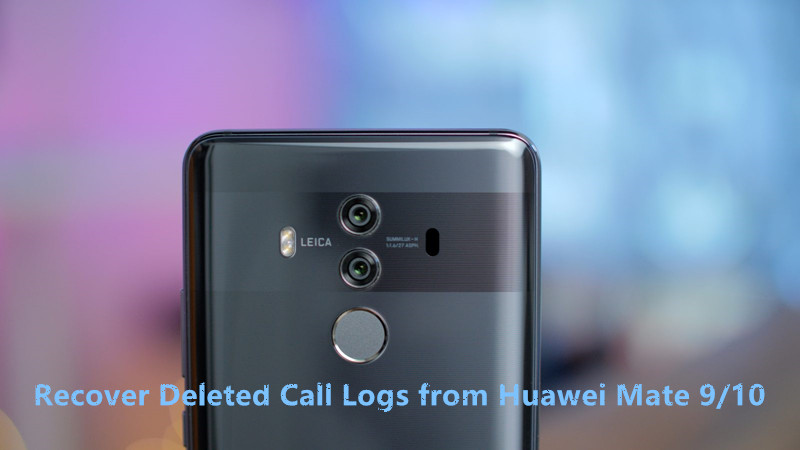
I want to clean some junk files on my Huawei Mate 10 phone but I click the delete option to delete all the call logs on my device. Now I am regret. Is it lost forever? I can’t find the information anywhere on my phone, please help me recover deleted call numbers from my Huawei.

recover call logs huawei mate 10

We check the call logs quite often just to remind us who we already spoke to in everyday. Some people may use the call logs to track someone or something related to his business. It also helps us keep tracking of who we need to call back or who gave us a call within the day. The call logs of our phones are pretty handy indeed. However, accidental deletion of call logs may lead to infect our life.

There are multiple reasons will curse call history loss on Huawei phone, they could be anyone of the following cases:

1.Accident Deletion – You somehow deleted the call logs without knowing that you were doing so, don’t worry it can be happen to many people.
2.Update Error – While updating the phone’s apps or the operating system of the phone itself, your device erases the information itself.
3.Damaged Phone – Your phone is water damaged that you can’t turn it on, device get broken screen that you can’t extract the data from it, device freezes when using, etc,.

Even though Huawei phone are one of the best brand of Android device, there are something accident that can happen lead to data loss on device, especially call logs. If you lose call logs from Huawei carelessly, you need a solution to recover deleted call logs on Huawei phone as soon as possible. In this post, we will offer the best way for you, recover deleted call logs from Huawei phone without hassle.

Retrieve Deleted Call Logs from Huawei Mate 9/10

Android Data Recovery is designed for Android users to find and recover deleted data from Android phones or tablets. With the help of this program, you can recover deleted call logs from Huawei Mate 9/10 with ease. Besides to call logs, photos, videos, text messages, contacts, WhatsApp messages, calendar and other document files are supported to be restored easily. It is capable of recovering Android data under any data loss circumstances, allow to preview data before recovery. Compatible with all Android models, including Huawei (Mate 9/10, P9/P10/P20), Samsung(Galaxy S5/S6/S7/S8/S9, Note 5/8/9), HTC, Google Pixel, LG, Lenovo, Sony, etc,.

d_win d_mac

How to Restore Deleted Call Logs from Huawei Mate 9/10

Step 1. Download Program and Connect Huawei to the Computer
To get started, download and run the Android Data Recovery on you computer and select “Android Data Recovery” mode in the home page. Then connect you Huawei Mate 9/10 using a USB cable.

connect Huawei phone

Step 2. Enable USB Debugging on Huawei
Once connecting your device to the computer, please allow the program detect your phone to the computer by clicking “OK” to go on.

allow to detect Huawei

Step 3. Select Call Logs File to Recover
In this step, You should select the any files you need to recover from Huawei. For call logs recovery, you should click “Call Logs” file then clicking “Next” to continue.

select call logs file to scan

Step 4. Scanning Huawei for Deleted Call logs
Clicking “allow” to allow program scan and analyze the deleted data from Huawei.

allow scan Huawei phone

Now the program begin to scan data on Huawei phone.

scan Huawei for deleted data

Step 5. Preview and Recover Deleted Call Logs from Huawei
Lastly, all the data will be displayed for recovery. Just simply check and mark those you want and click “Recover” under “Call Logs” file to save the selected data from Huawei on the computer.

recover deleted call logs from Huawei

d_win d_mac

Related Articles:

How to Recover Deleted Data from Huawei Phone

How to Restore Deleted Photos from Huawei Phone

How to Restore Lost Contacts from Huawei Phone

How to Recover Lost Messages from Huawei Phone

How to Backup & Restore Huawei Mate 9/10

How to Manage Huawei Mate 9/10 on Computer

How to Play Apple Music on Apple TV

I try to play the subscribed Apple Music on Apple TV 3 but failed since the TV device not compatible with Apple Music. Are there some ways to make it available? Any advice is welcomed.

A good news for Apple Music fans is that Apple Music is now sported by Apple TV 4, this would be such a great news to those who use both Apple Music and Apple TV. It means that they could play Apple Music on Apple TV 4 directly. Although Apple Music is still incompatible with Apple TV 1/2/3, you can still play songs on them through AirPlay or by removing DRM encryption from Apple Music. And in this post, I’d like to provides you with the best way to play Apple Music on Apple TV without hassle. If you are using the latest Apple TV 4, it’s extremely easy to play Apple Music on Apple TV after removing DRM protection from Apple Music.

To make this job being easy, you need to get help of Apple Music Converter. It is the perfect way to easily stream Apple Music to Apple TV. As a smart audio solution, Apple Music Converter is capable of completely removing DRM lock from Apple Music songs and convert them to common MP3 and other formats with its original quality that can be easily synced to Apple TV, the conversion with a high speed which can reach 16x. After conversion, you can enjoy Apple Music on any devices including Apple TV 1/2/3, iOS device, Android device, PSP/PS4, MP3 players, Xbox one, web players, etc,. On the other hand, you can record the converted music to CDs or SD card, set it as phone ringtone, transfer it to USB stick.

d_win d_mac

How to Stream Apple Music to Apple TV

Step 1. Launch Apple Music Converter
To get started, you have to launch this Apple Music Converter program. Make sure you also install the latest iTunes, since the program would connect with iTunes automatically when you run it.

run Apple Music Converter

Step 2. Select Music to Convert
Then you can select the unconverted music from the home page of program. You are able to select more than one song each time.

Step 3. Output Settings
You can choose the target format and output folder of the output files in “Output Settings“. Mostly, you could select MP3 format. Besides, the bitrate, codec, etc,. can also be amended.

setting output format

Step 4. Start Conversion
Finally, start the conversion by clicking on “Convert“. The whole process will be finished just in few minutes. Click on “Explore Output Files” to find the converted songs.

remove DRM from Apple Music

d_win d_mac

Step 5. Transfer Music to Apple TV for Playing
After conversion, you can transfer the Apple Music to Apple TV 1/2/3. You are able to use a USB stick to save the songs or directly on computer. Then play them on your TV through HDMI. The download DRM-free Apple Music could be drag to your USB directly. Connect your PC and TV with HDMI cable, and you can play them directly.

Related Articles:

How to Listen to Apple Music without iTunes

How to Set Apple Music as Ringtone for Any Phones

How to Copy Apple Music Songs and iTunes Playlist to USB Stick

How to Save Apple Music Songs to SD Card

2 Ways to Burn Apple Music to CD

How to Download Apple Music and Playlist for Offline Listening

How to Listen to Spotify Music for Offline Playing

I’m a Spotify Premium member for 3 months. I download some Ariana Grande music tracks for listening. How to keep these music be offline playing after the subscription is end?

Offline mode is very useful for listening to your music on planes or in locations that don’t have an Internet connection. It’s also a good way to reduce data usage by synchronizing your playlists when you have a Wi-Fi connection and listening to them in offline mode. If you’re a Spotify Premium user, you can listen to Spotify’s 13 million tracks from your iOS or Android device. You can quickly mark Spotify playlists and make them available offline directly from your phone – your computer doesn’t need to be on because you download tracks directly from Spotify’s own server.

However, the number of tracks you can sync is limited to 3,333 tracks, and you’ll also be required to log in to your Spotify account once a month to verify that you’re still a premium member. Since Spotify Music is DRM-protected, you can play it as local MP3 music files for offline playing when you stop the subscription, you can’t play it on MP3 player during the subscription, you can’t play record it to CDs freely. So here is the question, how to listen to Spotify Music for offline playing without subscription? To offline play Spotify Music without subscription, you need a perfect music converter tool – Spotify Music Converter.

Remove DRM from Spotify Music for Offline Playing

Spotify Music Converter is a wonderful Spotify DRM removal tool and Spotify MP3 converter, which can easily remove DRM from Spotify streaming Music and convert Spotify songs, albums or playlists to MP3, M4A, WAV and FLAC with lossless quality. It provides you with fast conversion speed. After the conversion, you can listen to Spotify Music offline for free, burn Spotify Music to CD, enjoy them outside Spotify app and web player. More importantly, you can customize output Spotify Music quality with this program.

d_win d_mac

How to Listen to Spotify Music for Offline Playing

Step 1. Run Spotify Music Converter
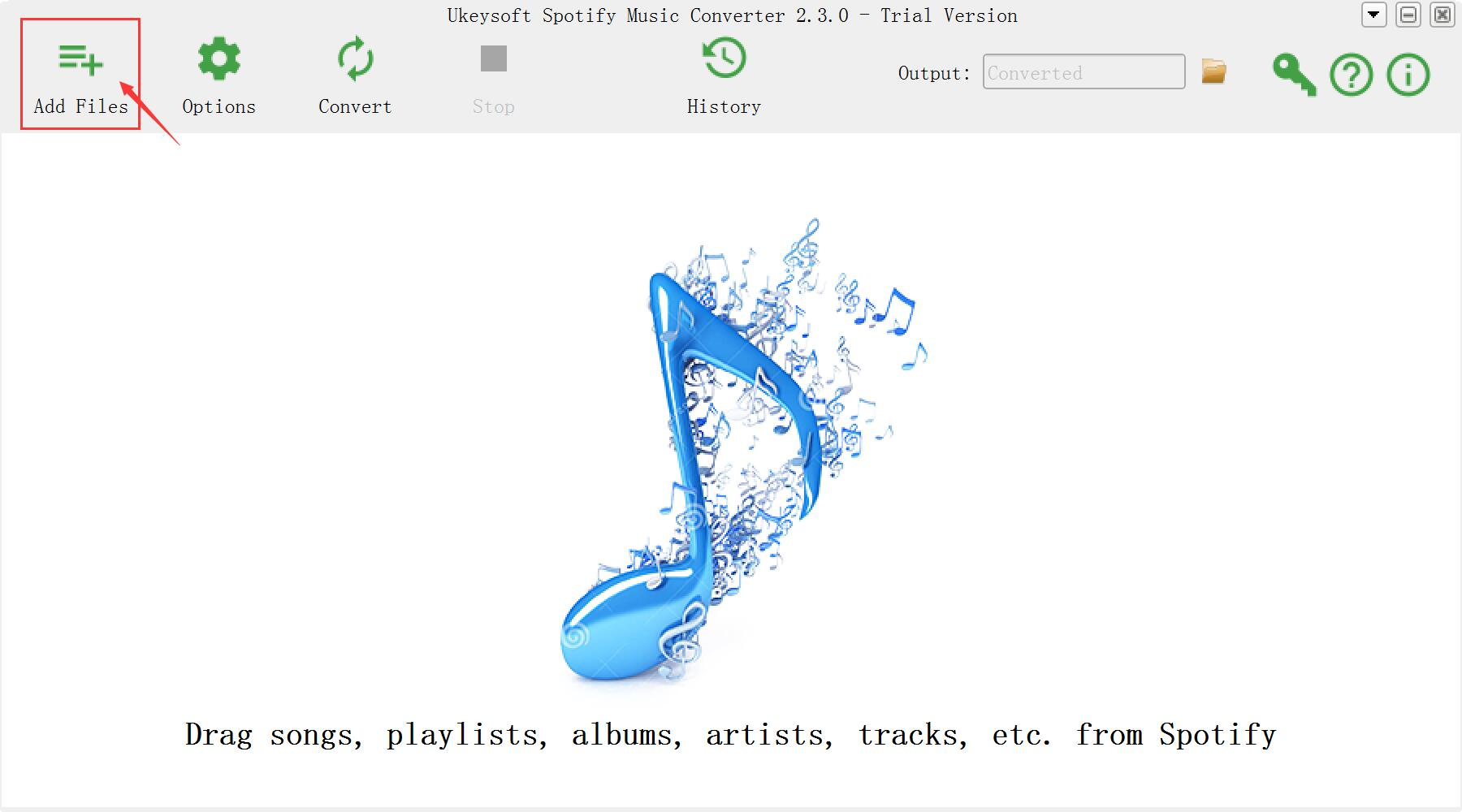
To get started, download, install and run Spotify Music Converter on your Windows/Mac computer.

Spotify Music Converter home page

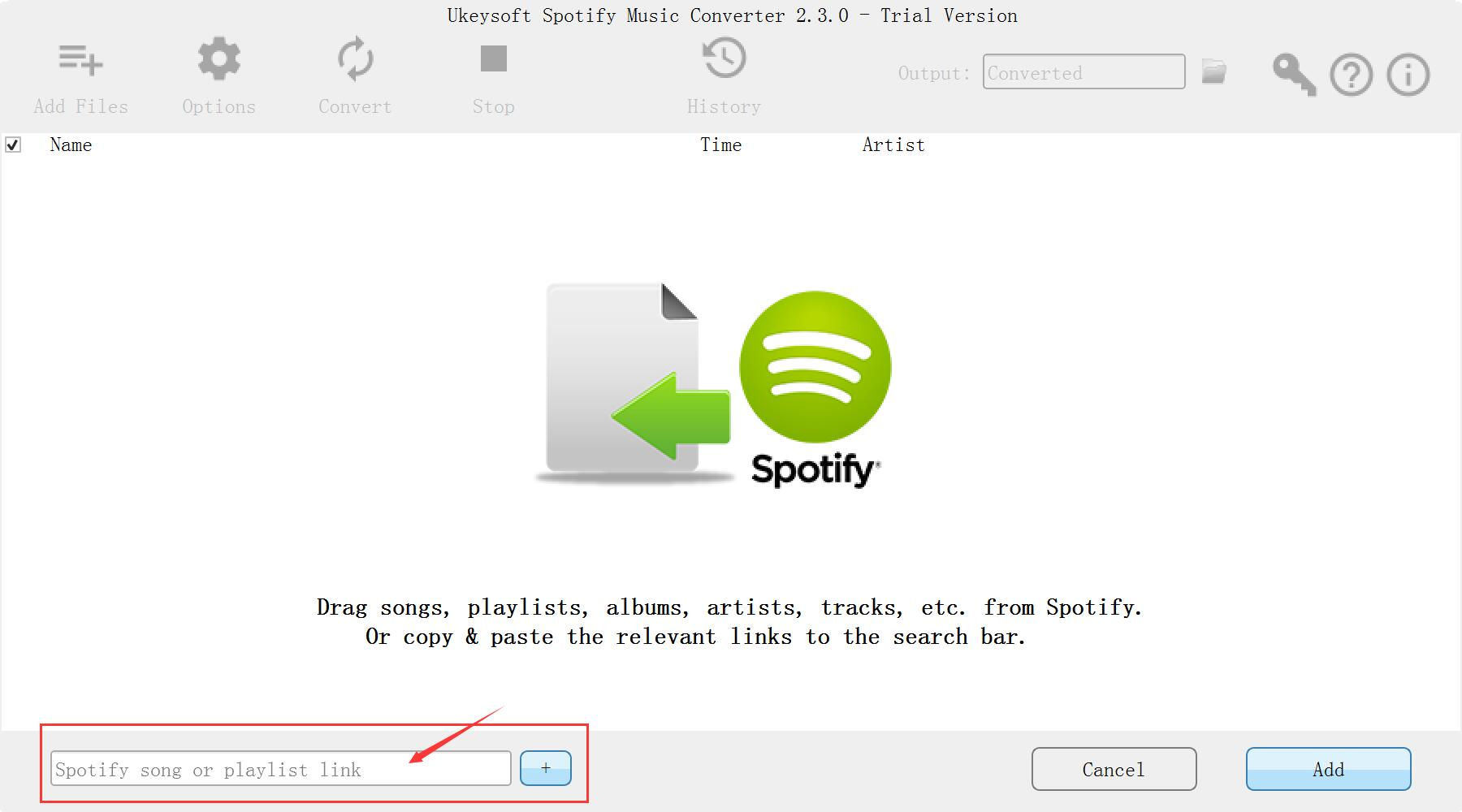
Step 2. Drag & Drop Spotify Songs/Albums/Playlists
As you see, from the interface of program, find the songs, albums or playlists on Spotify and drag them to the interface of program. If you are using the web player, copy & paste the link of the song, album or playlist. And then click “Add”.

add Spotify Music

Step 3. Choose Output Format for Converted Music
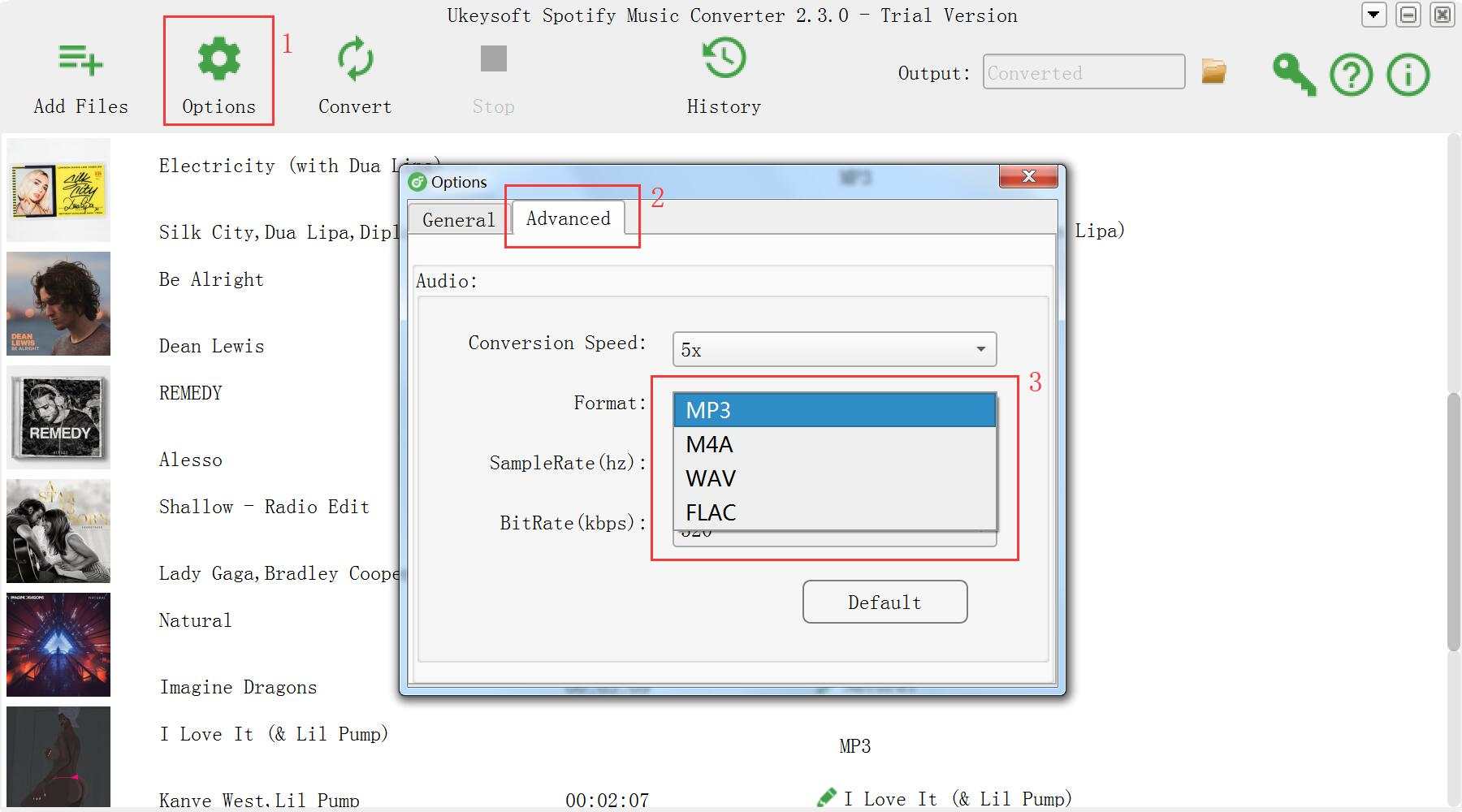
The default output format is MP3. Spotify Music Converter supports to MP3, M4A, WAV, FLAC format. Click “Option” button to change output format or output folder if you need. You can also change bitrate, samplerate according to your needs. Spotify Music Converter will keep the Artwork, Title, Artist and Album of each song to the output DRM-free songs.

choose format

Step 4. Start to Convert Spotify Music
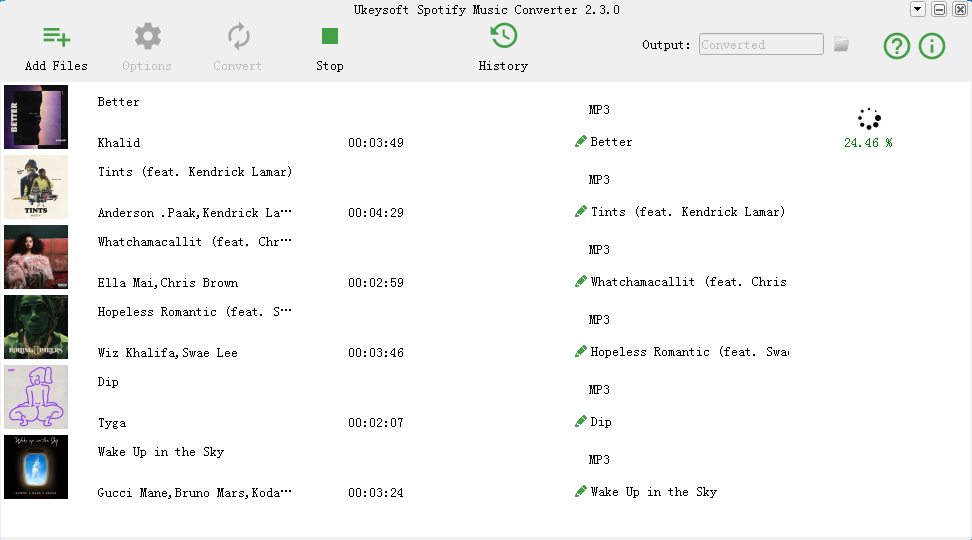
Click “Convert” button to start removing DRM from Spotify Music and convert to the format you choose.

remove DRM from Spotify Music

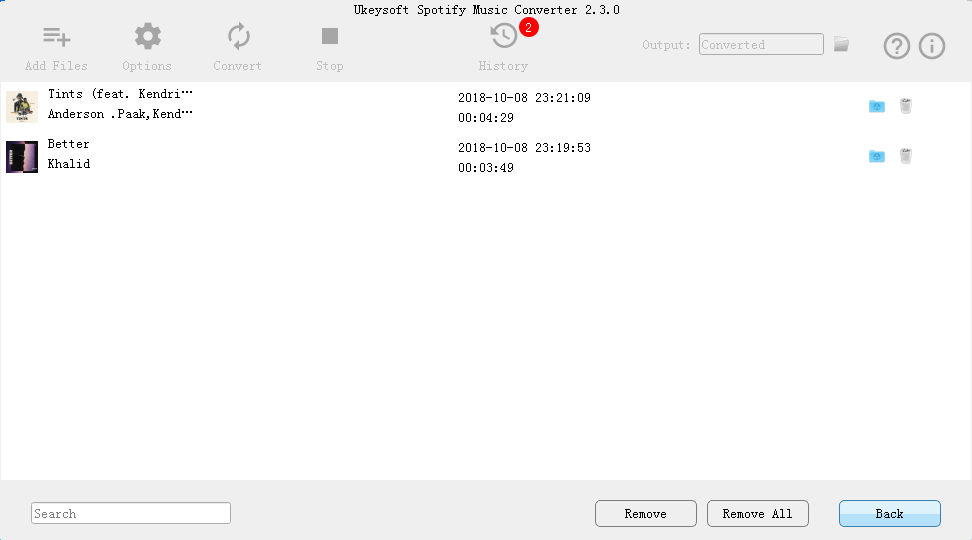
When the conversion is finished, you are allowed to quickly locate the DRM-free Spotify songs by clicking below folder icon. You can then transfer and play them anywhere just as the local MP3 music files for offline playing.

view mp3 music

d_win d_mac

Related Guides:

How to Listen to Spotify Music without Subscription

How to Convert Spotify Music to MP3

How to Sync Spotify Music to iPod Touch/Nano/Shuffle

How to Remove DRM from Apple Music Completely

How to Record Apple Music M4P Streams as MP3

How to Play Apple Music without Subscription

How to Recover Deleted or Lost Data from iPhone/iPad/iPod