All posts by DHZ

How to Play iTunes Movies on Android

Is it possible to watch a movie rented on iTunes to my Android device? I have rented ‘Beauty and the Beast’ from iTunes store for my daughter, and she wants to enjoy it on my Samsung phone while traveling. How to make this true?

Android device become more and more popular around the world. Samsung, HTC, Huawei, Google are the most hot brands of Android models. All of these handsets now have a big screen. It’s a good choice to watch videos and HD movies on these Android phone. However, for Android users, there is a frequently met question – the iTunes movies can’t be transferred to Android smartphone or tablet for watching like common audio files. Watching iTunes movies on Android phone has always been a problem.

Why Can’t Sync iTunes Movies to Android Directly
Why we can’t directly play iTunes videos on Android device? Since Apple encodes videos, movies and TV episodes in the iTunes Store with M4V format. The M4V files are usually protected by the FairPlay Digital Rights Management copyright protection of Apple. It prevent people to watch the iTunes audio files on non-Apple music or playing it after canceling the subscription. Many people might subscribed a number of iTunes movies in iTunes library. And they are seeking for a method to stream iTunes movies on Android device for playing without limits. If you are one of them, this post is good for you, you will definitely get the most reliable method of transferring iTunes videos to Android for entertainment freely.

Remove DRM from iTunes Movies for Android

iTunes M4V Converter allows you to easily remove DRM from purchased or rented iTunes movies, TV shows and music videos at 30x speed. It will convert M4V iTunes videos to MP4 with 100% original quality and all keep with all original subtitles/sound tracks. After this, you can play the converted MP4 iTunes videos to Android for playing without limits. In addition, you can save the audio files as local files for playback on any compatible storage device freely even without subscription, like iOS device, windows media player, Xbox; transfer it to SD card; transfer it to USB drive.

d_win d_mac

How to Sync iTunes Movies to Android

Step 1. Run Program and Add iTunes M4V Files
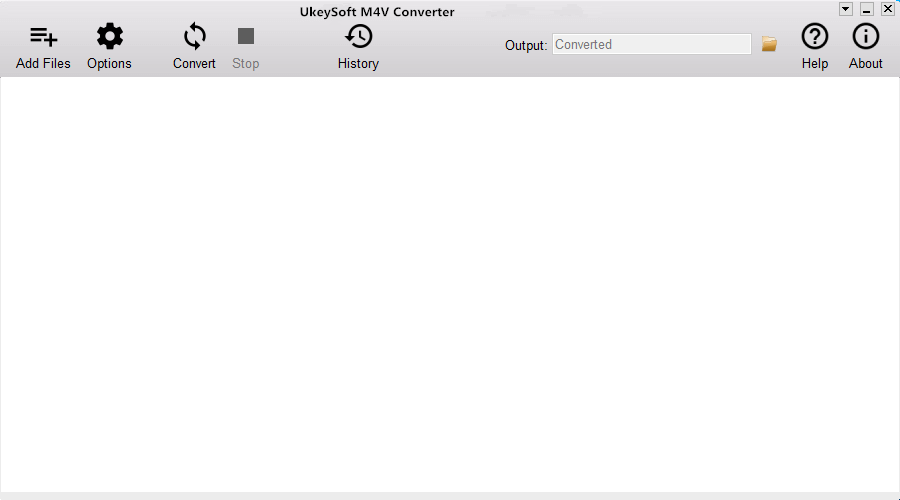
In the first step, run iTunes M4V Converter on the computer. While you launching the iTunes M4V Converter, iTunes will be opened automatically.

run iTunes M4V converter

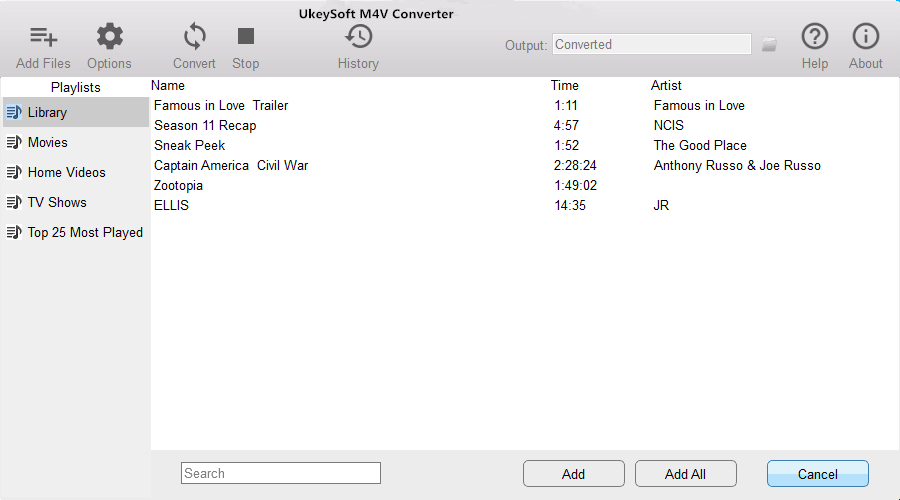
In the main interface, click the “Add Files” button to load iTunes movies from program library, and now your iTunes movies are listed out here. Choose the iTunes movie files you want to convert and click “Add” button.

add iTunes movies

Step 2. Manually Choose Output Audio Tracks/Subtitles
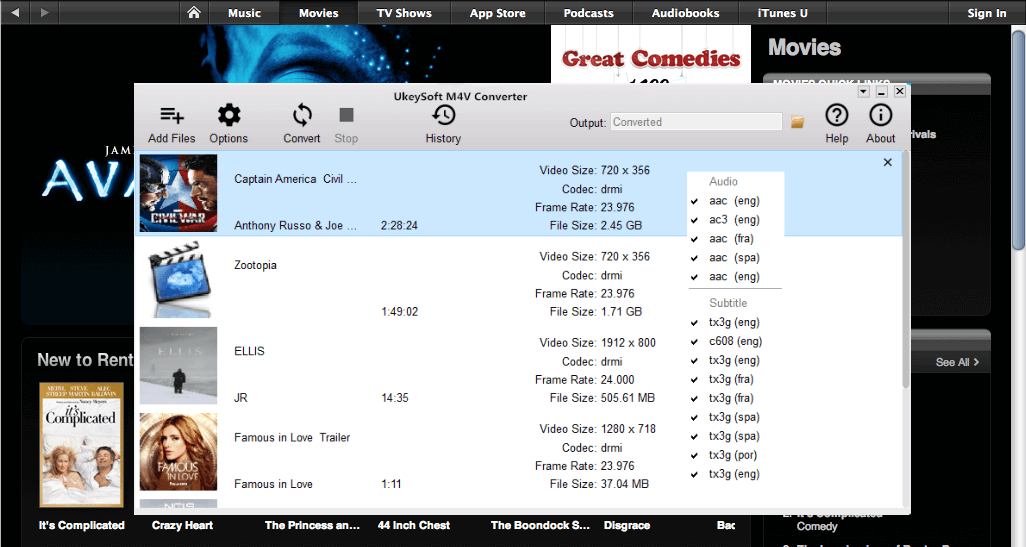
What you need to do next is to manually choose the subtitles and audio tracks you want for the output MP4 videos by clicking the “Settings” button. Or the program will keep all the original subtitles and audio tracks for you by default.

setting audio tracks subtitles

Tips: In the “Option” button, you can change the output folder to a specific location on your hard drive where you would like to save the converted files.

Step 3. Convert iTunes Movie to MP4
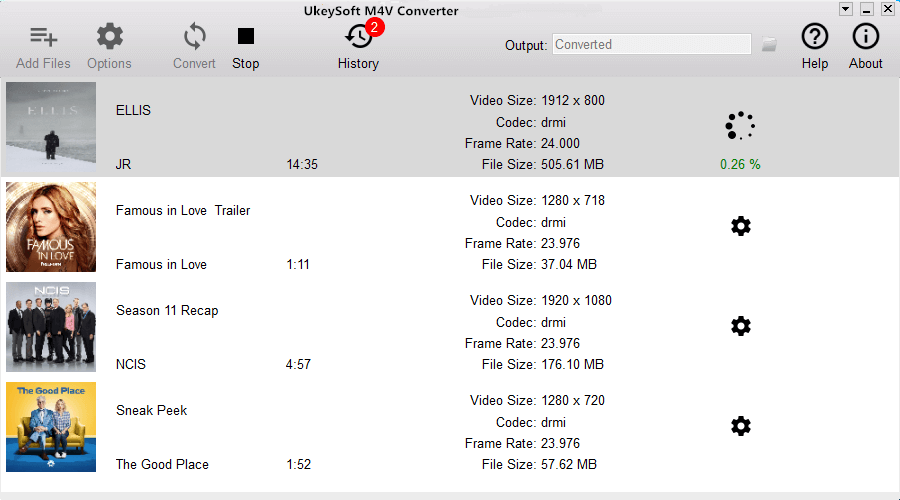
Simply click the “Convert” button to start the M4V to MP4 conversion. When the conversion done, you can find the converted MP4 videos by clicking on the “history” button.

remove DRM from iTunes movies

d_win d_mac

Step 4. Transfer the Converted Movies to Android
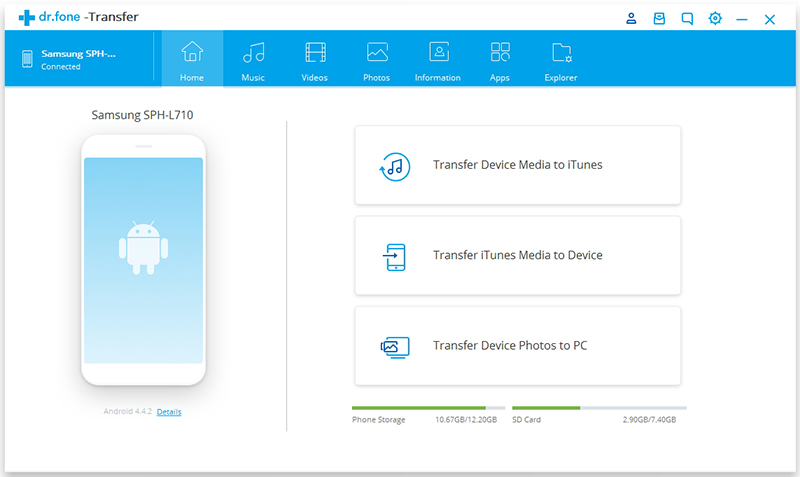
The last step would be to transfer the converted movies to Android for streaming. You can sync the movies from the computer to Android via Android Transfer.

android transfer main page

Finish. Now you can enjoy the movies on your Android without DRM restriction as you like. Have fun.

More iTunes Media Conversion Tutorials:

How to Remove DRM from iTunes M4V Videos

How to Convert DRM Protected iTunes M4V Videos to MP4

How to Convert iTunes Videos from M4V to MP4 on Mac

How to Transfer iTunes Videos to USB Drive

How to Listen to iTunes Music on Android

How to Play iTunes Audiobooks on Android

Watch iTunes Movies on Android

Android Backup & Restore: Restore iCloud/iTunes Backup to Android

[Summary]: Want to transfer iCloud or iTunes data to your new Android phone? This aritcle teach you how to restore iCloud/iTunes backup to Android phone without affecting existing Android data and settings, you can also learn how to backup and restore your Android data on computer.

I am searching an iCloud to Android restore tool to restore iCloud data to Samsung Galaxy S10+. Any suggestions to restore iCloud backups to Android phone? Please let me know. Thanks advanced.

I have backed up iPhone data to iTunes, but my iPhone was lost, then I have bought an new Huawei P30 Pro, since all iPhone data stored in iTunes library, can I restore data from iTunes to Huawei P30?

Here is the best Android phone overall in 2019, which is the most popular Android smart phone? We have listed some popular Android phones for you to choose: Huawei P30 Pro, Huawei Mate 20Pro, Samsung Galaxy S10 Plus, Samsung Galaxy Note 10+, Google Pixel 3, OnePlus 7 Pro, Samsung Galaxy S10e, OnePlus 6T, Samsung Galaxy S9 Plus, Google Pixel 3a, Samsung Galaxy Note 9, Samsung Galaxy A50, Moto G7 Power, LG G8 ThinQ, Sony Xperia XZ3, Xperia XZ1, Sony Xperia L2, Sony Xperia XA2, Sony Xperia XZ2 Premium, Sony Xperia 10, Xiaomi Mi 9, Xiaomi Mi 8 Pro, Xiaomi Pocophone F1, Oppo A9, OPPO Reno 10x Zoom Edition, OPPO Reno, Meitu T9, Meitu M8, Meitu V6. When you have purchased an new Android phone to replace the old iPhone, the first thing you need to do is transferring data from iPhone to Android phone, but your iPhone is not in hand, for example lost, damaged, stolen, screen-broken, etc. However, how to transfer data from broken iPhone to Android phone? If you have sync iPhone data to iCloud or backup your iPhone to iTunes before, you can restore data from iTunes to Android phone, or download and restore iCloud backup to Android.
Also read: Transfer Contacts from Broken iPhone to Android

The rapid development of communication and mobile technology allows mobile phone to become the indispensable tool for all of us in daily life. Mobile phone store all kinds of personal data, which together form a kind of virtual life. Our friends’ phone numbers, photos, text messages, audio, our agenda, the shopping list, personal documents and more. Losing data from Android device is something that unfortunately happens often and with it all that valuable information is going, even it will be heartbroken if your Android was lost or stolen. To prevent losing data on Android under any unexpected situations, you should be aware of the importance of taking a backup for your Android frequently. Thankfully, there is a number of ways to backup your files on Android. For this post, we’ll take a look at the best Android backup & restore tool.

Simple Android Data Backup & Restore Tool

Android ToolKitAndroid Backup & Restore tool is a terrific tool for flexibly backup & restore Android data safely. Supported Android files including contacts, call history, messages, calendar, photo, music, video, audio, application, and even application data(for rooted devices). It could be used to backup Android data to computer safely with one click. More importantly, it allow you to preview and restore backup to any Android/iOS devices selectively(transfer content among Android and iPhone that based on different system), restore iCloud/iTunes backup to Android device directly with easy step. Supports 8000+ Android models based on any brands, like Samsung, Huawe, Google, LG, HTC, Sony, Motorola, etc,.


d_win d_mac
d_win d_mac

More Features of Android ToolKit:

  • Android data recovery, Android SD card recovery, broken Android data recovery.
  • Root Android without data loss.
  • Switch files between Android and iOS devices.
  • Transfer & Android files between Android and computer.
  • Unlock Android lock screen without password.
  • Erase data from Android permanently.

Part 1: How to Backup & Restore Android Device

How to Back up your Android Phone

Step 1. Run Program & Connect your Android Phone to Computer
Run Android ToolKit – Android Backup & Restore on your computer, select “Backup & Restore” among all the functions.
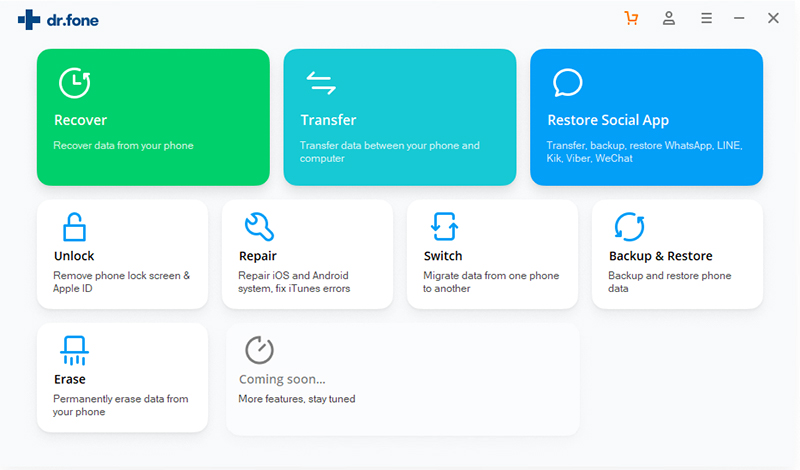
android toolkit home page

Connect your Android phone to the computer using a USB cable. Please make sure you have enabled USB debugging mode on the phone. If your Android os version is 4.2.2 or above, there will be a pop up window on the Android phone asking you to allow USB Debugging. Please tap on “OK“.
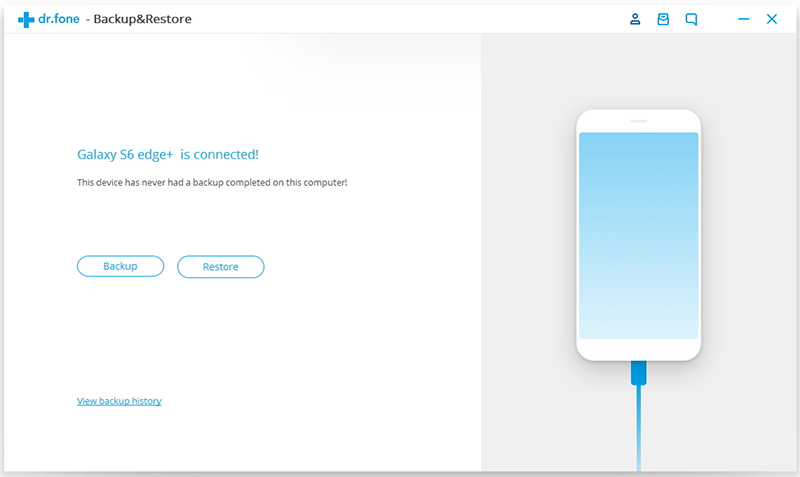
android data backup restore

Click “Backup” to start the Android data backup process.

If you have used this program to back up your device in previous, you can view your previous backup by clicking on “View backup history“.

Step 2. Select File Types to Back Up
After the Android phone is connected, select the file types you want to backup. By default, the program has checked all the file types for you, you can unselect the one you don’t need. Then click on “Backup” to go on.
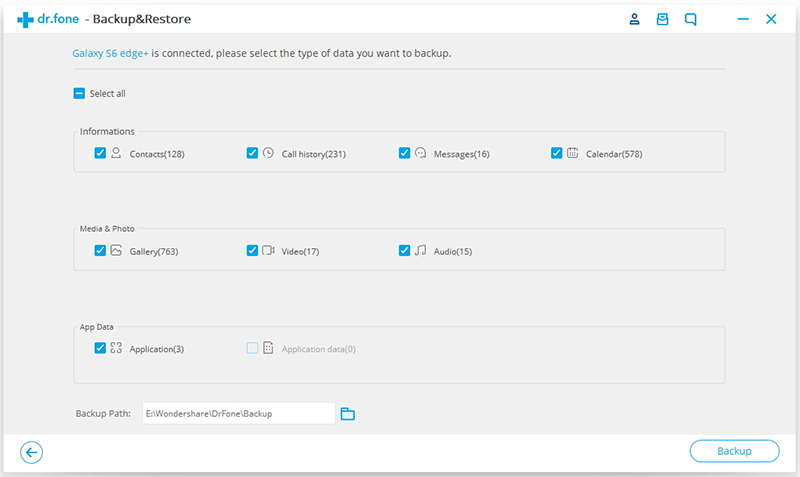
select android files to backup

The backup process will take a few minutes. Please keep the connection of your Android phone and the computer, don’t use the device or delete any data on the phone during the backup process.
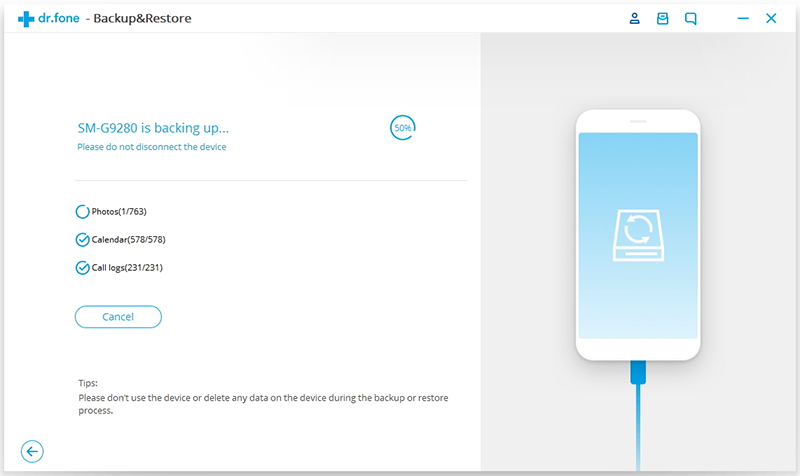
backing up android

After the backup is completed, you can click on “View the backup” button to browse the backup file.
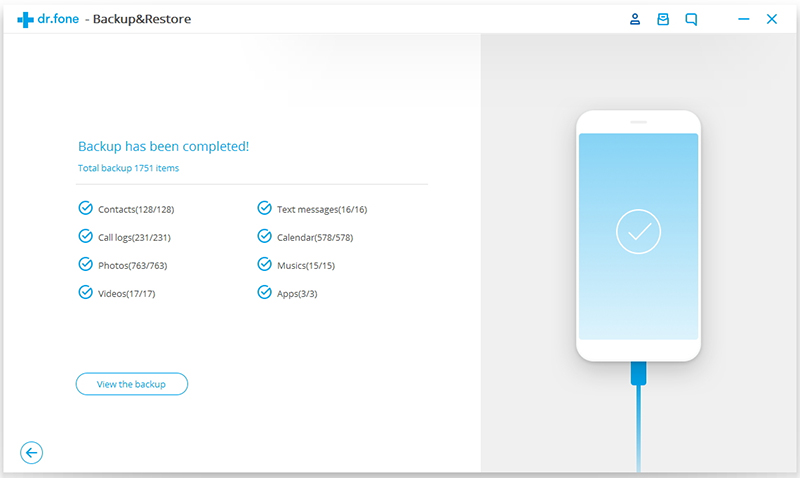
android backed up completed

d_win d_mac
d_win d_mac

How to Restore Backup to your Android Phone

Step 1. Run Program & Connect your Android Phone to Computer
Run Android ToolKit – Android Backup & Restore on your computer and select “Backup & Restore” among all the tools. Connect your Android phone to the computer using a USB cable.
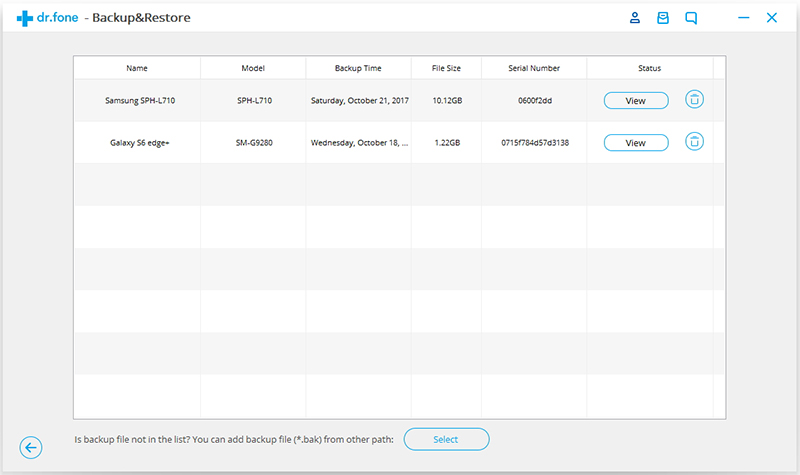
check backed up android file

Step 2. Select the Backup File to Restore
Click on “Restore” button, the program will display all the Android backup files from this computer. Select the backup file you need and click “View” to check it.
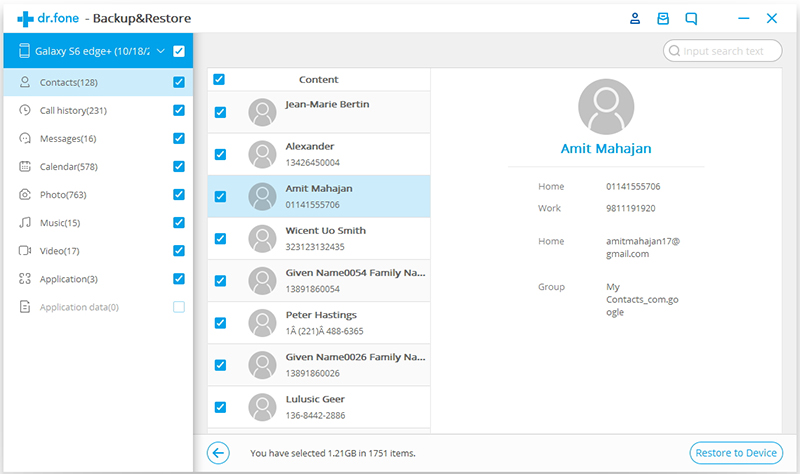
select android data to restore

Step 3. Preview and Restore the Backup Data to Android Phone
Here you can preview all data in the backup file. Preview and click all the data you need and finally click on “Restore” to recover it to your Android phone.
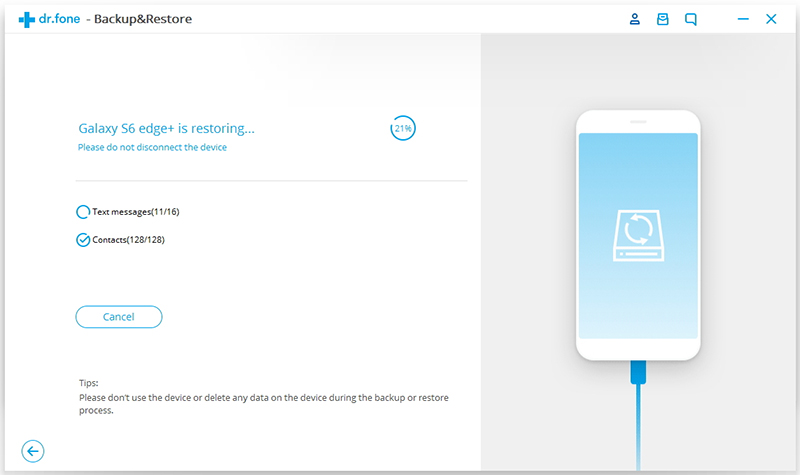
restoring android data from backup

The whole process will only take you a few minutes. Please keep the connection of your Android phone and the computer, don’t use the device or delete any data on the phone during the restoring process.
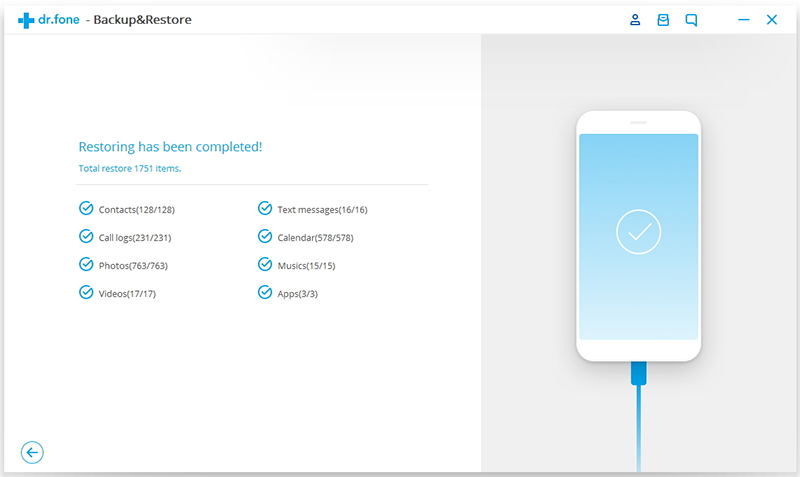
restore android data completed

d_win d_mac
d_win d_mac

Part 2: How to Restore iTunes Backup to Android

When you sync iPhone with iTunes, the iTunes application will backup iPhone data automatically, if your iPhone doesn’t in hand, don’t worry, you can restore iPhone data backed up in iTunes to Android phone, you need to use a third-party iTunes to Android transfer.

With Android ToolKit – Android Backup & Restore, you can easily extract, preview, and restore iTunes backup to Android phone/tablet easily, it won’t erase all data and settings off your Android device.

Step 1. Run Program & Connect your Android Phone to Computer
Run Android ToolKit – Android Backup & Restore on your computer, select “Backup & Restore” among all the functions.

android toolkit home page

Connect your Android phone to the computer via a USB cable. After the connection is finish, click “Restore” to begin the restoring process.
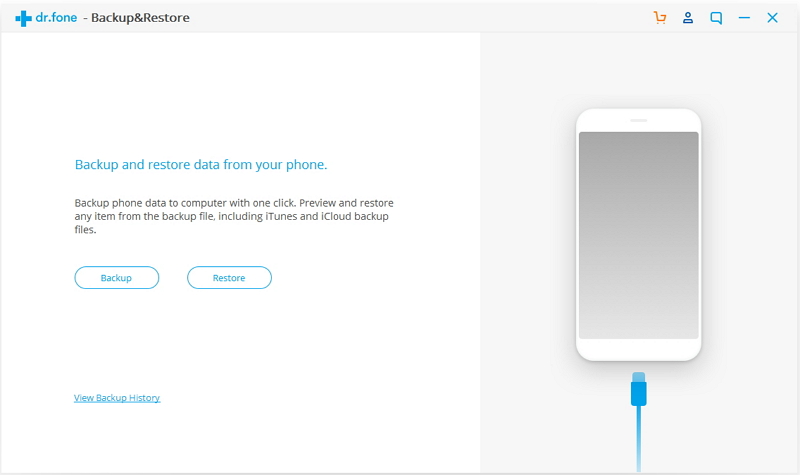
ios device backup restore

Step 2. Scan All iTunes Backup History
If you want to restore iTunes data to Android phone, please select “Restore from iTunes backup” from the left column, the software will scan all the location of iTunes backup files on your computer, after scanning complete, you can see all backup history.
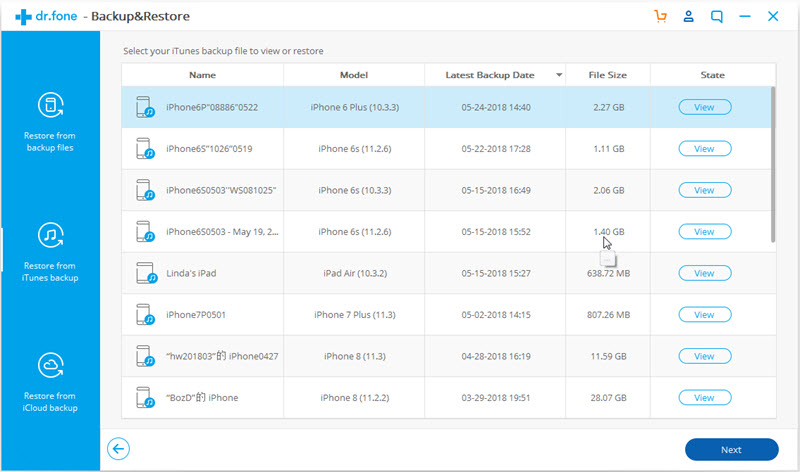
detect itunes backup files

Step 3. Preview and Restore iTunes Backup Data to Android
The program will list all types of data, including contacts, text messages, photos, videos and more, select the data you want and click “View” button to view the detail before restore them.
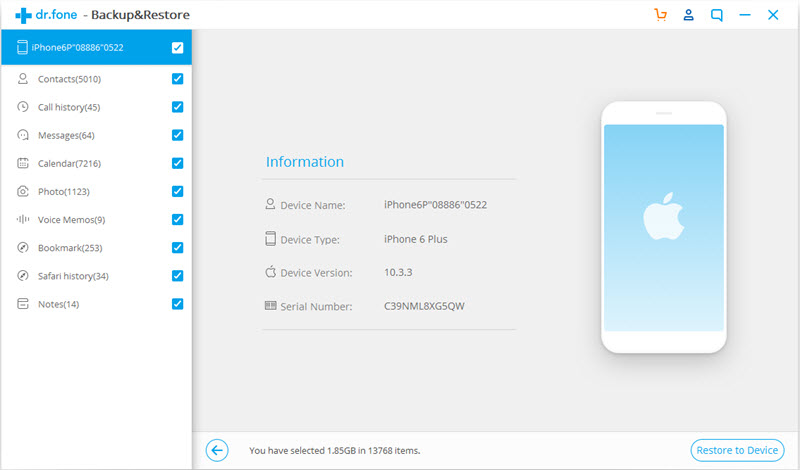
confirm android device to restore to

Preview and select all or some of the data, and click on “Restore to Device” to restore the data from iTunes to Android phone.
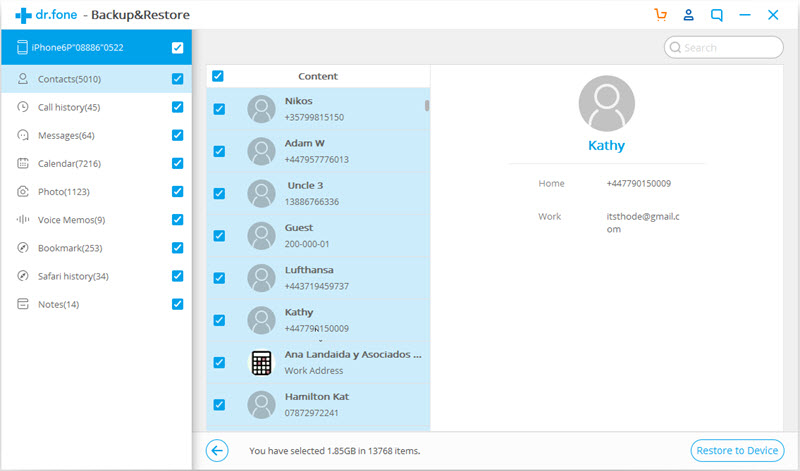
restore iTunes data to android

The software will pop up an new windows, then select the desired Android phone and click “Continue” button start to restore iTunes backup to Android.

Note: The selected data can’t be restored if the Android phone doesn’t support the corresponding data type you select, such as Notes, Bookmark and Safari history.
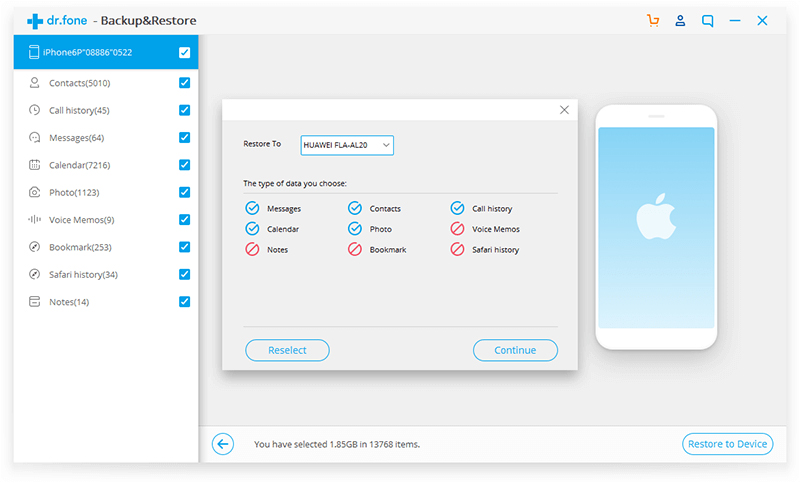
restore iTunes data to android

d_win d_mac
d_win d_mac

Part 3: How to Restore iCloud Backup to Android

iCloud is a good service for us manage data on Cloud, I believe most iPhone/iPad users backup the data to iCloud free, it is a good habit to backup and protect your important data regularly. Once your iDevice is stolen, you can restore iCloud data to iPhone, iPad, iPod or even Android devices, let’s teach you how to download and restore iCloud data to Android phone with 1 click.

With Android ToolKit – Android Backup & Restore, you can easily download and restore iCloud backup to Android, it allows you preview the downloaded data one by one before restoing. What’s more, this Android ToolKit won’t wipe the existing data and settings of your Android phone after restoring. Let’s shows you how to restore contacts, SMS, photos, videos, etc. from iCloud backup file to Android phone.

Step 1. Run Program & Connect your Android Phone to Computer
Run Android ToolKit – Android Backup & Restore on your computer, select “Backup & Restore” among all the functions.

android toolkit home page

Connect your Android phone to the computer via a USB cable, the software will detects it automatically, then click “Restore” starting the iCloud to Android restoring process.

ios device backup restore

Step 2. Login in Your iCloud Account
In this step, please choose “Restore from iCloud backup” from the left side, you will go to next step.
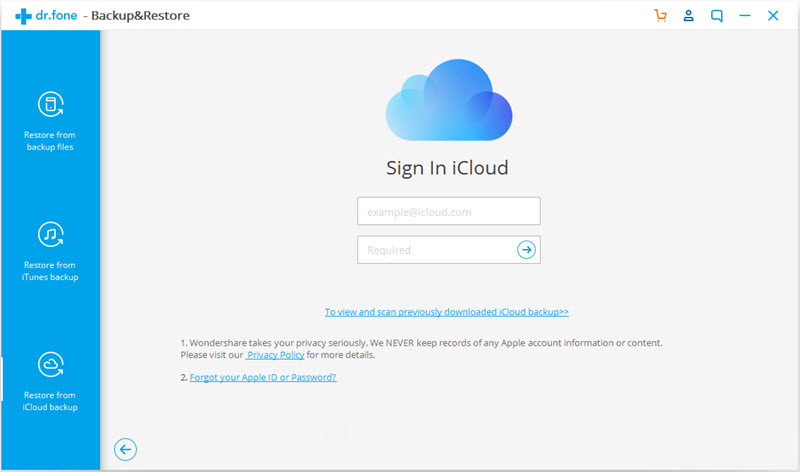
sign in icloud

If you have enabled the two-factor authentication for your iCloud account, a verification code will be sent to your iPhone, please enter the verification code to the below box, and click “Verify“.
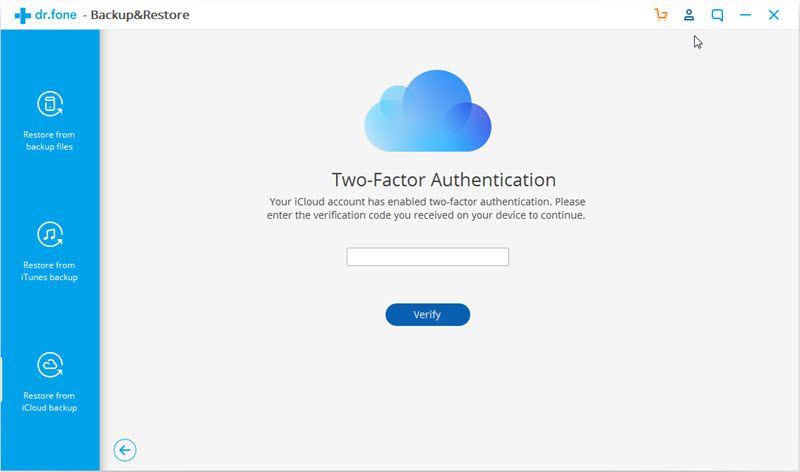
verify icloud id

Step 3. Preview and Restore iCloud Backup Data to Android Phone
After verification successful, it means you allow the software analyze and detect all iCloud data. Only few minutes, the software will shows you all the backup history, please select one backup history and click “Download” button to download iCloud data to your computer.
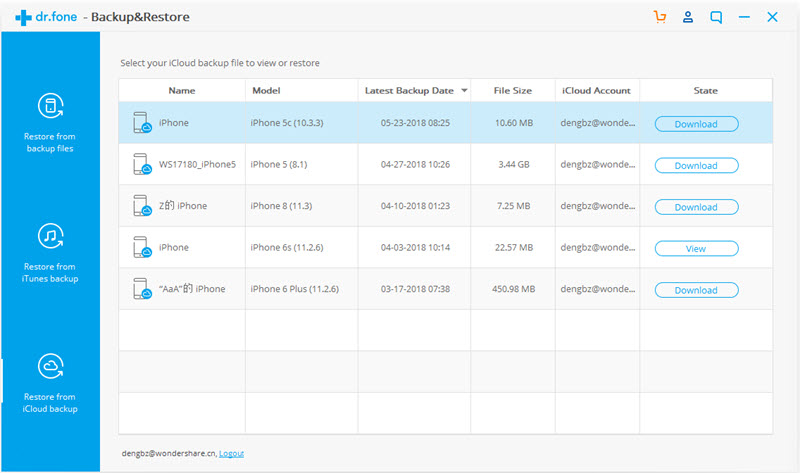
select icloud backup file

After downloading iCloud backup data complete, you can preview all downloaded contents one by one, then select some or all of the contents and click “Restore to Device” to restore to your Android phone directly.
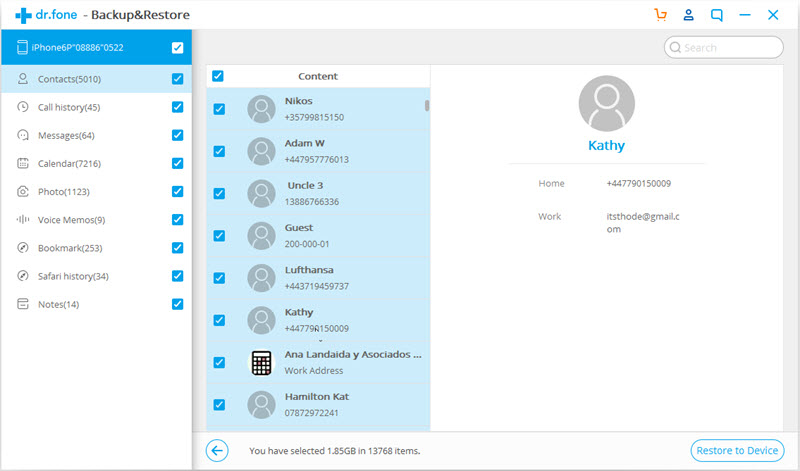
select icloud backup data to restore

The software will pop up an new windows, please select an Android device you want to restore to, and click “Continue“.

Note: Some special data can’t be restored to Android, such as Notes, Voice memos, Bookmark, and Safari history.

confirm to restore to android

d_win d_mac
d_win d_mac

More Android Data Recovery Tips:

How to Recover Deleted Data on Android without Root

How to Recover Deleted Photos on Android

How to Restore Lost Data from Rooting Android

How to Recover Lost Data from Android SD Card

How to Transfer iPhone Data to Samsung/Android

4 Ways to Backup & Restore Android Phone or Tablet

How to Manage Android on Computer

Safely Backup & Restore Android

How to Watch iTunes Movies on Windows Media Player

I purchased some favorite movies from iTunes routinely but I’d rather not use iTunes to play them as it takes up such a big memory to run and sometime it may freeze on my computer. Is there any way to play iTunes movies on Windows Media Player like the common audio files?

Windows Media Player is a common media player, almost all kinds of Windows computers and mobile devices come with it. It is powerful with a lot of features including media playback, library management, multiple file formats supported, disc burning, media streaming and so on. Most people use it to play videos as well as audios on their daily basis in daily life. If you are interested in playing media files such as iTunes movies via Windows Media Player, just focus the follow passages to get the solution to do this.

Check the Supported Media File Formats of Windows Media Player:
Supported Audio Formats: MP3, MID, MIDI, RMI, AIF, AIFC, AIFF, WAV, CDA, M4A, AAC, ADT, ADTS and so on.
Supported Video Formats: ASF, WMA, WMV, WM, ASX, WAX, WVX, WPL, WMD, AVI, DVR-MS, WMD, MPG, MPEG, IVF, MOV, MP4, 3G2, 3GP2, 3GP, 3GPP, M2TS, etc,.

Why Can’t Directly Play iTunes Movies on Windows Media Player
However, though Windows Media Player supports many formats of video and audio, you can play M4V iTunes videos on it directly. In other words, M4V on Windows Media Player is not available. M4V is a file format developed by Apple Inc. to encode movies, TV episodes and music videos in iTunes Store. On the other hand, iTunes movies is DRM-protected. This Apple’s FairPlay DRM protection prevents the media content from playing on non-apple authorized devices like some of Android phones and most of tablet, Windows Media Player, VLC Media Player, etc,. In order to sync iTunes movies to Windows Media Player, you need a iTunes media DRM removal tool for help.

Convert M4V iTunes Movies to MP4 by Removing DRM

To get the DRM of iTunes audio solved, iTunes Media DRM Removal is your good choice. iTunes Media DRM Removal has excellent performance in completely removing DRM restriction from iTunes videos and converting iTunes M4V videos to MP4 without quality loss. Meanwhile, it will finish the conversion at a 30X faster speed with only some minutes. Frankly speaking, iTunes Media DRM Removal will give you a satisfactory result in unlocking the iTunes audio DRM and playing iTunes audio limitlessly. After this, you could save the converted iTunes videos as local common audio files, stream and play it on any audio storage device freely, even on most non-Apple devices.

d_win d_mac

How to Play iTunes Movies on Windows Media Player

Step 1. Install and Launch iTunes Media DRM Removal
To begin with, download the software and install it following the instruction step by step, then launch it. iTunes will open automatically at the same time.

run iTunes DRM media removal

Step 2. Add iTunes Movies to Conversion List
Click “Add Files“, all your downloaded movies will show in the Library. Select the movies that you sync to play on Windows Media Player by clicking “Add”.

add iTunes movies

Click on the “Options” button to select audio and subtitle that you want to preserve in the converted movies. If you don’t select it, the program will keep all audio and subtitle automatically from the original M4V movies to the output MP4 movies. You can lick the gear icon to uncheck the one you don’t need.

setting audio tracks subtitles

Step 3. Convert iTunes Movies to MP4 by Remove DRM
Click “Convert” to start converting iTunes movies to MP4 by removing DRM from it. Once the conversion finished, you will get DRM-free iTunes movies files with MP4.

remove DRM from iTunes movies

Note: The output MP4 movies will be saved to Documents by default. You can change the destination folder as you like.

d_win d_mac

Step 4. Transfer the Movies to Windows Media Player
Go to your destination folder and find the converted MP4 video files. Launch Windows Media Player, then drag the videos to the player and play them freely. Enjoy!

More iTunes Media Conversion Tutorials:

How to Remove DRM from iTunes M4V Videos

How to Convert DRM Protected iTunes M4V Videos to MP4

How to Convert iTunes Videos from M4V to MP4 on Mac

How to Transfer iTunes Videos to USB Drive

How to Play iTunes Audiobooks on Windows Media Player

Watch iTunes Movies on Windows Media Player

How to Repair iOS System Issues without Data Loss

Summary: Having issues with your iOS devices? Free download iOS System Recovery to fix iOS operating system issues for iPhone, iPad, iPod such as white screen, recovery mode, Apple logo, restart loop, etc. without data loss.

While using iPhone, iPad, or iPod Touch, your iOS device may perform abnormally with the issues as below:

Endless “Recovery Mode” loop on your iPhone/iPad/iPod.
iPhone/iPad stuck on iTunes logo.
iPhone/iPad screen turned blue, black and white.
iPhone/iPad stuck at Apple logo.
iPhone/iPad stuck on ‘Slide to Upgrade’ screen.
iPhone/iPad stuck in endless reboot loop.
iPhone/iPad stuck in headphone mode
iPad/iPhone screen is frozen on lock screen and wont turn off.
More other circumstances.

Restore iOS System to Normal State for iPhone/iPad/iPod

The general method for most iOS users to fix iOS system issues is to connect your device to iTunes and reset it via iTunes. However, it will result in losing all data on iPhone/iPad/iPod touch devices.

To avoid losing your valuable data (Contacts, MMS/IMessages, Pictures, Videos, Call History, Notes, Calendars, WhatsApp/Wechat/Skype/Viber/Kik messages and Documents), we recommend you use iOS System Recovery. The iOS ToolkitiOS System Recovery software features Repairing iOS Operating System, making it easy for users to fix issues when your iPhone, iPad or iPod Touch perform abnormally. You can fix issues such as endless restarts; black, white, or blue screen, and white Apple logo, DFU mode, recovery mode and so forth. It only fixes iOS system and you will find your data are well-arranged originally after your iOS system gets back to normal.

Now free download the iOS System Recovery software on your Windows PC or Mac computer then follow the steps below to restore your device to its normal state in just a few steps.

d_win d_mac

What iOS System Recovery Can Help You:

– Repair iOS system to normal for iPhone, iPad and iPod without data loss.
– Fix with various iOS system issues like recovery mode, DFU mode, Apple logo looping, reboot loop, black screen, iTunes logo screen, white screen, “Slide to unlock” screen, “Slide to Upgrade” screen, “Software Update Failed” screen, etc.
– Retrieve lost or deleted data from iPhone or from iTunes/iCloud  backup.
– Recover contacts, iMessages/SMS/MMS, photos, notes, WhatsApp chat history, call logs, calendar, reminders, Safari bookmarks, etc.
– Compatible with any version of iOS device (including the latest iOS 12).

Steps to Fix Your iOS back to Normal without Losing Any Data

Step 1. Launch the Program on Your computer

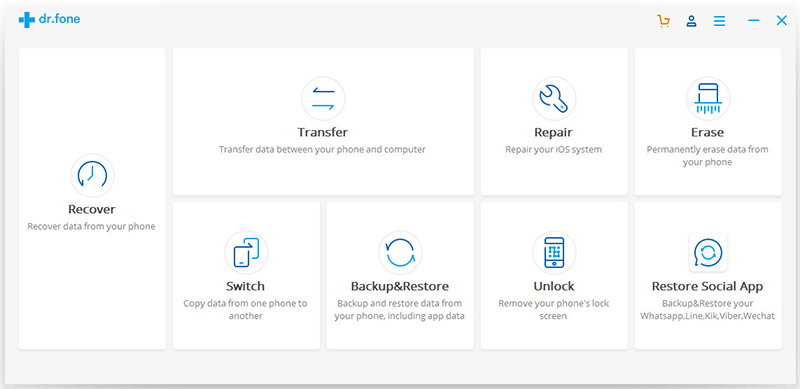
Install and launch the iOS System Recovery program on your computer. Then try the Repair feature from the main window.

drfone-home

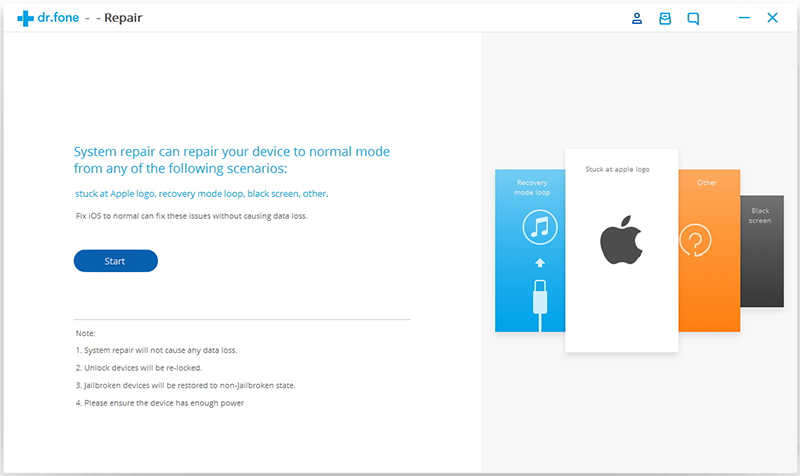
Next, connect your abnormal iPhone/iPad/iPod device to PC. When your device is detected by the proram, click “Start” to continue the process.

ios-system-recovery-01

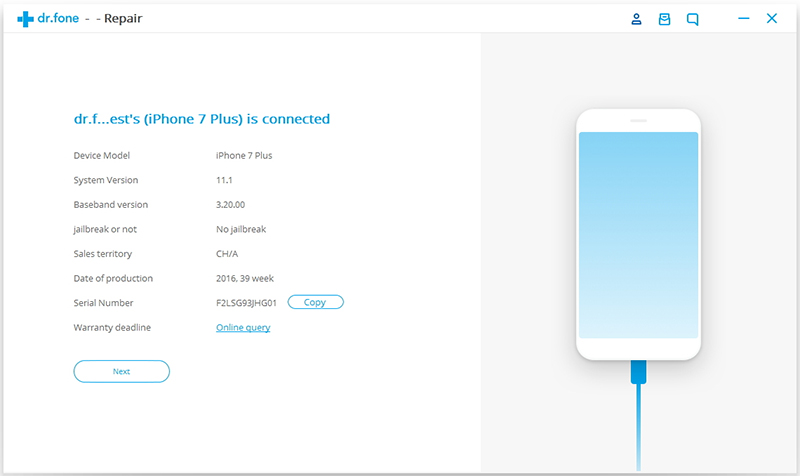
After connecting, it will display the device info on the window, such as device model, system version, baseband version, etc. Click on “Next” to go to the next step.

ios-system-recovery-02

Step 2. Boot Your iPhone/iPad/iPod in DFU Mode

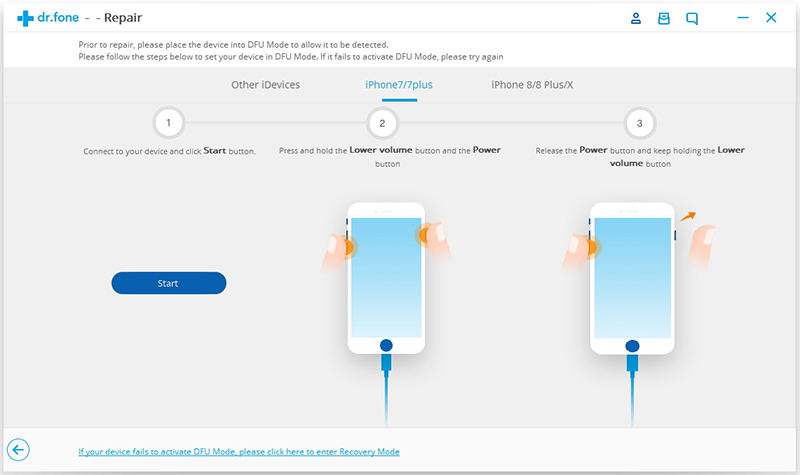
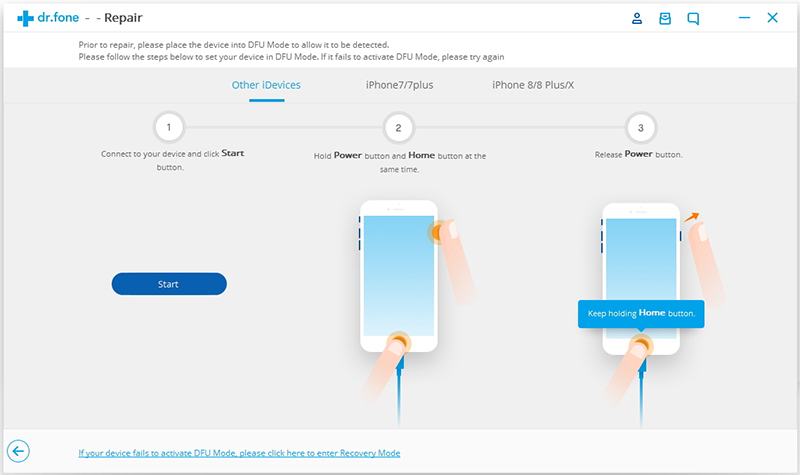
If your iPhone / iPad / iPod is in an abnormal state, you will be reminded to start the device in DFU mode. Follow the steps given in the picture to get your device into DFU mode.

On iPhone 7(Plus) and newer:

> Turn off your iPhone/iPad/iPod.
> Press and hold the Volume Down button and the Power button for 10 seconds at the same time.
> Release the Power button and press and hold the Volume Down button until the device is in DFU mode.

ios-system-recovery-03

On iPhone 6s(Plus) and older:

> Turn off the iPhone/iPad/iPod.
> Press and hold the Power button and the Home button simultaneously for 10 seconds.
> Release the Power button and press and hold the Home button until the device is in DFU mode.

ios-system-recovery-04

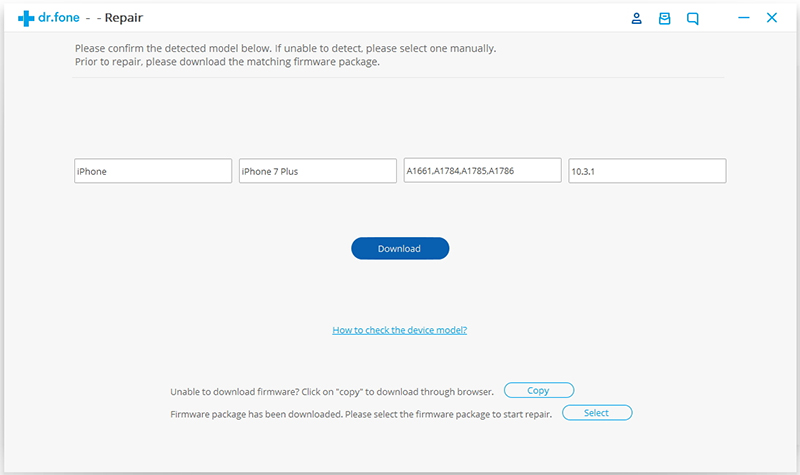
Step 3. Download the Firmware

Before fixing your iOS issue, you need to select the correct device phone model and firmware information. Then click on “Download” button.

ios-system-recovery-05

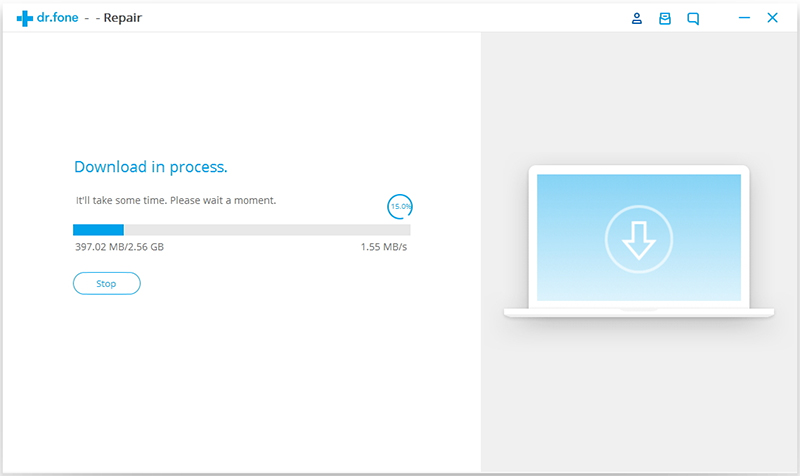
As you can see, the download is being executed. Since the firmware we need to download is large, it takes some time to complete the download. please wait patiently.

ios-system-recovery-06

Step 4. Fix iOS to Normal Status without Losing Your Data

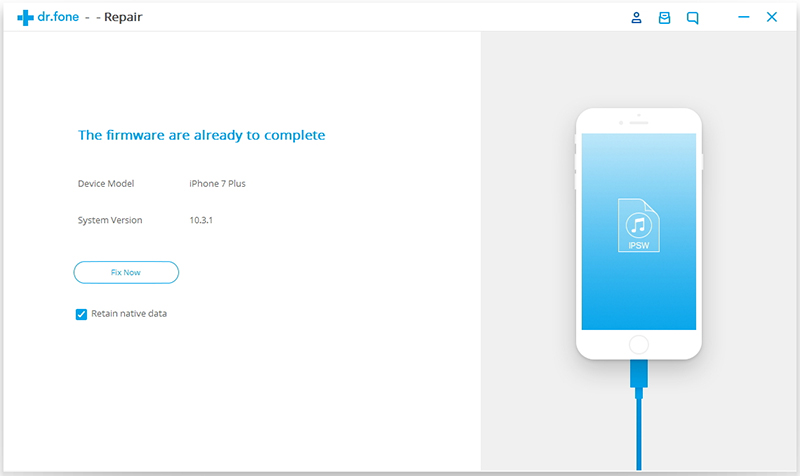
Once the download is over, click on “Fix Now” to start repairing your iOS System issue and to get your iOS device to work normally again.

ios-system-recovery-07

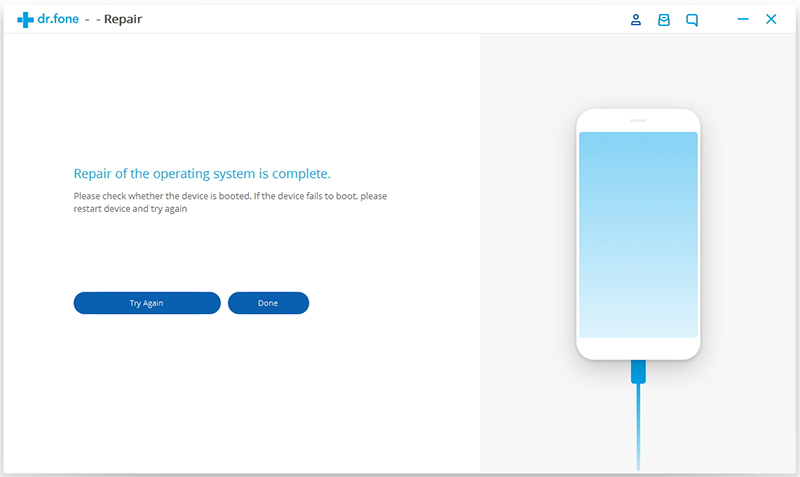
You will be told “Repairing of the operating system is complete”. Now, you can use your device as you wish.

ios-system-recovery-08

Important:

After the iOS system is restored, your device will be updated to the latest version, the unlocked device will be re-locked again, and the jailbroken device will be in a non-jailbroken state.

d_win d_mac

Related Articles:

How to Fix iTunes Connect Issue without Data Loss

How to Fix iPhone Stuck in Reboot Loop without Losing Data

How to Fix iPhone System to Normal after iOS 11 Downgrade

How to Fix iPhone Stuck in Recovery Mode

Restore Data from iPhone when Stuck in Recovery Mode

Repair iOS System Issues without Data Loss

How to Recover Deleted Data from Android Mobile Phone

Summary: A complete solution for Android data recovery without root is available for you here. If you want to recover deleted data from Android, Android ToolKitAndroid Data Recovery makes it possible for you to perform Android data recovery without root simply. Do your data recovery now!

Last night I accidentally deleted some important family photograph from my Samsung carelessly. I am suffering from the pain of my stupidity and need to know if there are any ways to restore that photo without rooting my phone. I have not any backup of Samsung Kis or Google account.

android toolkit data recovery

With the development of Android data recovery technology, people are well protected from deleting data due to different of data loss causes(accidental deletion, Android OS update, Android OS root, factory reset restoring, etc,), as most Android data recovery software in the market should be able to perform data recovery for Android. However, most of these Android data recovery require your Android has been rooted first. People explain their worries eagerly that once their phone is rooted, root Android may lead to hardware failure or OS errors on device. Here come the problem. What’s the probable way to do the Android data recovery but don’t root the phone? There are two solutions that you may have a try.

Part 1: Why Most Android Data Recovery Program Need Root Device

You may have try a lot of ways to do the data recovery task for Android, some may be need to get the help of Android data recovery program. To make it work, most of them require a root access on the device. Because the application needs to perform a low-level interaction with the device while performing the recovery operation using most of Android data recovery programs. It also include an interaction with the hardware(storage unit) of device.

To prevent an Android device from getting any virus attack and restrict customization, Android has made certain restrictions. For instance, most of the devices follow an MTP protocol. According to the protocol, users can’t have an advanced level interaction with the device. Though, in order to restore deleted Android data, an application would be required to do the same. In result, most of Android data recovery programs demand a root access to the device. To solve this issue, people search the solution on the Internet to restore Android data without root, luckily, in this post we will show you two methods to fix this without hassle.

Part 2: Recover Deleted Android Data without Root via Google Account

Google account is used to backup & restore Android with a convenient way. Google Drive provides you the free 15 GB storage for backing up Android files. Once you accidentally delete or lose Android files, you could recover the deleted Android files from Google drive without rooting your device. Before you recover deleted Android data, you had better make sure you have backed up your Android data with “Auto Backup” and “Music Manager” to Google Drive with your Google account.

Back up Android Data to Google Account
Google Drive can back up contacts to Google using your Google account. You could sync photos and video through “Google Photos” to Drive, upload music from “Music Manager” to Drive, and upload other files with “Auto Backup” to drive.

Restore Android Data from Google Account
Log in your Google Drive on the web, navigate “Trash” to find the deleted files > Click “Restore” to retrieve them to your Google Drive. For recovering your deleted files from Android on Google Drive, there are two situations for your reference.

Situation A: If you have another one Android phone, then you could add your Google account on that phone, and restore all your backup files from Google Drive. The backup files include, contacts, photos, videos, settings, calendars, etc,.

Situation B: If you just need to restore your deleted files on your original Android phone, then you need to log off your Google account, and then add this Google account again. When you add the Google account, it will ask you if you are willing to sync Google Drive data to your Android, just take the positive answer.

For recovering your deleted Android music, you should follow the above two situations to make it from “Music Manager”. In conclusion, you could recover your deleted files without rooting your Android via Google account. The shortcoming of recover Android data using Google account is: you are not allowed to recover some Android data selectively instead of the whole file. Here we suggest you try the better solution in the next section.

Part 3: Recover Deleted Android Data without Root via Android Data Recovery

To recover deleted Android data without root, you are suggested to use Android ToolKitAndroid Data Recovery. With this remarkable data recovery tool, you could directly recover deleted data from Android without root, including contacts, text messages, gallery, videos, call logs, documents, audios, WhatsApp data and more. It enables you to restore data for any data loss cases, like accidental deletion, Android OS update, Android OS root, factory reset restoring, etc,. Recover Android data by scanning your Android phone & tablet directly. More importantly, preview before selectively recover everything from Android phone & tablet. Supports 6000+ Android device models and all Android OS even Android 8.0.

d_win d_mac
d_win d_mac

More Features of Android ToolKit:
-Android SD card recovery, broken Android data recovery.
– Root Android without data loss.
-Backup & restore Android data safely.
-Switch files between Android and iOS devices.
– Transfer & Android files between Android and computer.
-Unlock Android lock screen without password.
-Erase data from Android permanently.

It has a user-friendly interface and provides an extremely secure way to recover your deleted Android files. The amazing Android Data Recovery can help to do all Android data recovery tasks:
-Recover deleted data from Samsung phone without root, such as, Galaxy S9/S8/S7/S6, Note 9/8/5/4.
-Recover deleted data from Huawei phone without root, such as, Mate RS, Mate 10/9/8, P10/9/8.
-Recover deleted data from Google phone without root, such as, Pixel 2(XL), Pixel (XL), Nexus 7/6/5, Honor 10/9/8/7.
-Recover deleted data from Vivo phone without root, such as, Xplay6, Xplay5, Xplay 3S, Xplay.

How to Recover Deleted Files from Android without Root

Step 1. Run Program and Connect Android Phone
To start with, run Android ToolKit – Android Data Recovery on the computer, and select “Recover” option.

android toolkit home page

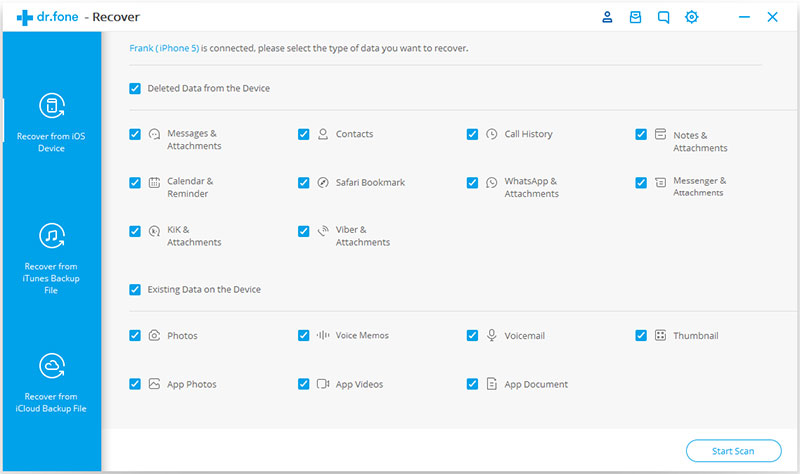
Connect your Android phone to the computer using a USB cable. Please make sure you have enabled USB debugging on your Android phone. When your device is detected, you will see the screen as follows.

select files to recover

Step 2. Select the File Contain the Data you want to Recover for Scanning
After the phone is connected successfully, it will display all the data types of recoverable files . By default, it has checked all the file types. You can uncheck the type of data that you don’t need.

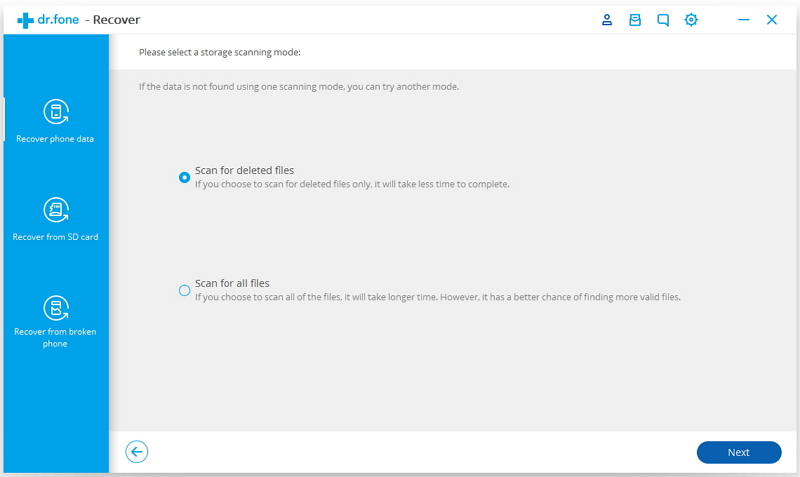
Here it will offer two options: Scan for deleted files and Scan for all files. Scan for all files will take longer time, but will scan for files more deeply. Select the scan mode.

select scan mode

And then click “Next” to let it scan and analyze the data from your phone.

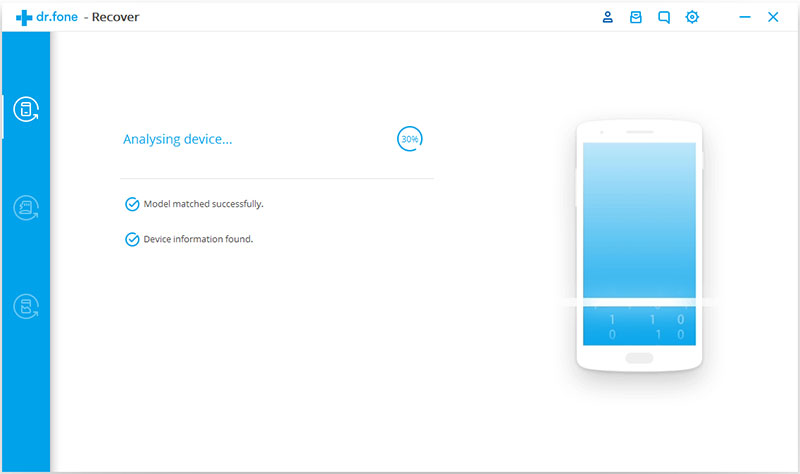
analyzing Android

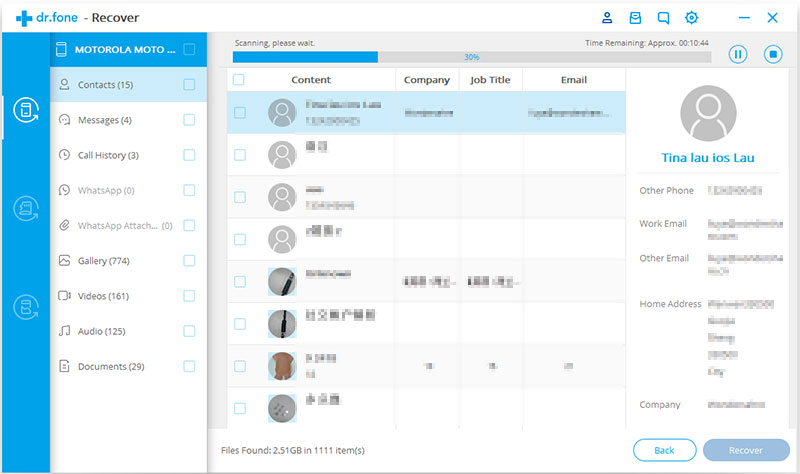
This scanning process will take you a few minutes. Just be patient.

scanning device

Step 3. Preview and Recover Deleted Data from Android
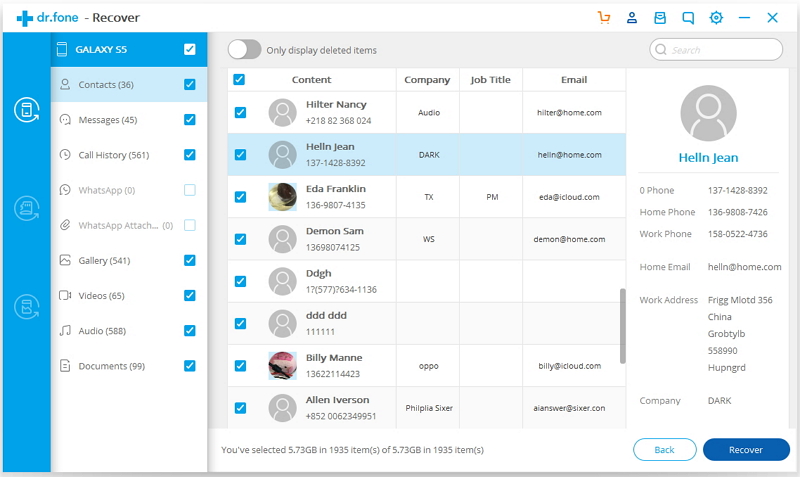
When the scan is done, you are allowed to preview the found data one by one in the scan result list. Check the items you want and click “Recover” to save the selected data on your computer as the recovery.

recover deleted from android without root

d_win d_mac
d_win d_mac

More Android Data Recovery Tips:

How to Recover Deleted Photos on Android

How to Restore Lost Data from Rooting Android

How to Recover Lost Data from Android SD Card

How to Transfer iPhone Data to Samsung/Android

How to Backup & Restore Android Safely
How to Manage Android on Computer

Recover Deleted Android Data

How to Transfer iTunes Videos to USB Drive

I try to copy the movies I purchased from iTunes library to a USB flash drive but failed. Any ideas to sync the iTunes videos to USB with ease?

I want to transfer an iTunes movie to USB so that I can watch the movie on my LG TV. But it seems impossible to complete this successfully. What’s wrong with it?

USB is a common storage device to save files with different formats, which makes our life more convenient. However, many people confuse that why he can’t directly transfer iTunes videos to USB drive, just like the common audio files. Although USB has no limitation to the format of preserved files, you must be aware of that the iTunes videos are protected by FairPlay DRM which is developed by Apple Inc.

iTunes Videos can’t be Recognized for USB Drive
With this DRM restriction, the iTunes videos cannot be copied, and it can only be played with Apple authorized devices. DRM-protected of iTunes files prevent you from copying any iTunes media files to USB drive and other non-Apple devices for playback. Therefore, USB drive will not recognize the DRM-protected iTunes videos properly. Currently the only way to make the iTunes DRM videos readable by USB is to remove DRM protection from iTunes videos before transferring it to the USB drive.

Remove DRM Protection from iTunes Videos

In this case, iTunes Video DRM Removal will do a favor for you. It’s one of the best iTunes media DRM removal tools to help you bypass DRM restriction from iTunes videos, to make you transfer DRM-free iTunes videos to USB flash drive successfully. While removing the DRM, this excellent software will convert the iTunes movies from M4V to MP4 format with nearly 100% original quality preserved, as well as the 30X fast speed. Supports iTunes purchased or rented movies, TV shows, music videos and any other M4V videos downloaded from iTunes. When the conversion is finish, you could save the converted iTunes videos as local common audio files, stream it to any storage device for offline playing without subscription.

d_win d_mac

How to Copy iTunes Videos to USB Drive

Step 1.Add DRM-Protected iTunes Videos
After launching iTunes Video DRM Removal on the computer, And then launch it. iTunes will be launched automatically at the same time.

run itunes media drm removal

The program will load all videos from your iTunes Library, including music Video, movies and TV shows. Click “Add Files” button to select the videos you want to remove DRM from, and click “Add“. (You can add more than one video at once.)

add itunes videos

Step 2. Choose Output Path, Audio Tracks & Subtitles
When the iTunes videos are loaded successfully, you can select the output folder, audio tracks and subtitles before removing the DRM protection form iTunes videos.

movie audio tracks subtitles

Note: The program will keep all audio tracks and subtitles from the original M4V movies to output MP4 movies, including Dolby AC3 5.1, AD, CC. Click the gear icon to uncheck the ones you don’t need.

Step 3. Remove DRM from iTunes Videos
Click “Convert” button to convert iTunes M4V videos to MP4 without quality loss by removing DRM from it.

remove DRM from iTunes movies

d_win d_mac

Step 4.Transfer Converted iTunes Videos to USB Drive
After conversion, go to the customized output folder to find the converted MP4 iTunes videos and you are free to move all the converted videos to USB flash drive.

More iTunes Videos Conversion Tutorials:

How to Remove DRM from iTunes M4V Videos

How to Convert iTunes Videos from M4V to MP4 on Mac

How to Convert DRM Protected iTunes M4V Videos to MP4

How to Convert Apple Music to MP3

How to Transfer Apple Music to USB Drive

Transfer iTunes Videos to USB Drive

How to Unlock DRM from iTunes Movies on Mac

Summery: Want to get a helpful solution to unlock DRM-protected from iTunes movies for freely owning? In this post, we will show you a recommended way to convert iTunes movies to common MP4 file by removing DRM from it completely on Mac.

People in contemporary who are iTunes movies lovers ask the questions as follows.
Can my iTunes M4V videos be watched after I canceling the subscription?
I have purchased lots of iTunes M4V videos, how can I copy the videos to my iPhone for offline playing?
Can I play iTunes M4V movies on my Android phone?

In fact, there are numbers of ways to copy iTunes movies on the computer, so that you can play the iTunes movies for entertainment without subscription, you can copy it to storage device for offline playing without DRM restriction. For example, you can use a video recorder tool to record the screen when you playback the video on iTunes. The recorded video will be save as local video files. However, in this case, the quality of the output videos may not be kept as well as that of the original movies. Is there any way to unlock DRM from iTunes movies without losing its audio quality? Definitely!

Unlock DRM from iTunes Movies with iTunes Media DRM Removal

You need a better solution to unlock DRM of iTunes movies completely. What you want is to remove DRM from iTunes M4V videos and get non-protected videos without any quality loss. iTunes Media DRM Removal for Mac supports to directly remove DRM from iTunes purchased or rented movies, TV shows, music videos and any other M4V videos downloaded from iTunes Store. It allows you to produce a video with your mother language or your favorite language for setting the subtitles and audio tracks. Moreover, this program losslessly convert iTunes M4V to unprotected MP4 videos with original video quality kept. Besides, the converting speed can be 30X faster than any other iTunes video converters.

d_win d_mac

How to Remove DRM from iTunes Movies on Mac

Step 1. Launch iTunes Media DRM Removal for Mac
Download and install iTunes Media DRM Removal for Mac on the Mac computer. And then launch it. iTunes will be launched automatically at the same time.

run itunes media drm removal

Step 2. Add iTunes Videos to Conversion List
The program will load all videos from your iTunes Library, including music Video, movies and TV shows. Click “Add Files” button to select the videos you want to remove DRM from, and click “Add“. (You can add more than one video at one time if you need.)

add itunes videos

Note: The program will keep all audio tracks and subtitles from the original M4V movies to output MP4 movies, including Dolby AC3 5.1, AD, CC. Click the gear icon to uncheck the ones you don’t need.

movie audio tracks subtitles

Step 3. Remove DRM from iTunes Movies without Quality Loss
Click “Convert” button to remove DRM from the selected movies without data loss, and convert iTunes M4V to MP4 with high speed.

remove DRM from iTunes movies

After conversion, you will find iTunes movies that are successfully converted by iTunes Media DRM Removal on Mac. Now enjoy them anywhere and anytime you want!

d_win d_mac

More iTunes Videos Conversion Tutorials:

How to Remove DRM from iTunes M4V Videos

How to Convert iTunes Videos from M4V to MP4 on Mac

How to Convert DRM Protected iTunes M4V Videos to MP4

How to Convert iTunes M4V Movies to MP4 Easily on Mac

How to Remove DRM from Apple Music Completely

Remove DRM from iTunes Movies on Mac

How to Sync iTunes Audiobooks to MP3 Player

Summary: It’s really amazing to listen to audiobooks in the spare time. But sometimes you may want to convert the iTunes audiobooks to MP3 for playing more conveniently. Here you are told how to download and convert iTunes audiobooks to MP3 and syncing to MP3 player.

Can I transfer my favorite iTunes audiobooks to MP3 player? It doesn’t seem to work when I simply copy & paste the audiobooks files. I’d like to listen to these audiobooks when I am doing excise outside. Any ideas?

MP3 player, also known as digital audio player or portable media player is welcomed widely since it was born. After years of its evolvement, most MP3 players can not only play music files, but also play audiobooks, and other kinds of audio files. Listen to audiobooks with MP3 player can make your life more conveniently and simply. You can play the loved audiobooks in anywhere else anytime. If you want to play iTunes audiobooks on MP3 player, you should convert the DRM-protected audiobooks to MP3/M4A by removing DRM from it. This will need a special converter to make it. A friendly reminder is that simply renaming the extension may cause irreparable damage to the original file.

Why Need to Remove DRM from iTunes Audiobooks
You should beware of the fact that the audiobook files downloaded from either iTunes or other website are protected by Digital Rights Management, commonly known as DRM, because of which all the iTunes audiobooks are restricted to be played on selected media devices that are approved by Apple and Audible. Normal MP3 player are not among the supported list. That’s why you can’t directly copy iTunes audiobooks to MP3 player for playback. Fortunately, that doesn’t mean there’s no way out. You can still listen to those DRM-locked audiobooks on MP3 player devices if some DRM removal tools are applied, such as this one we’ll recommend – iTunes audio converter.

Remove DRM from iTunes Audiobooks for MP3 Player

iTunes Audio Converter is powerful of removing the most advanced audio encoding technology from audio files. It can help to convert iTunes audiobooks to MP3, then you can listen to the audiobooks without DRM restriction on MP3 player after syncing. After this, you could check the converted audiobooks with DRM-free format as common audio files. Besides to MP3 format, this program enable you to convert audiobooks to M4A, AAC, WAV, WMA, etc,. Moreover, iTunes Audio Converter could be used to convert Apple music/iTunes music to DRM-free files for playing without limits. The output audio files will be saved with its original quality at 16x fast conversion speed.

d_win d_mac

How to Import iTunes Audiobooks to MP3 Player

Step 1. Add iTunes Audiobooks to Program
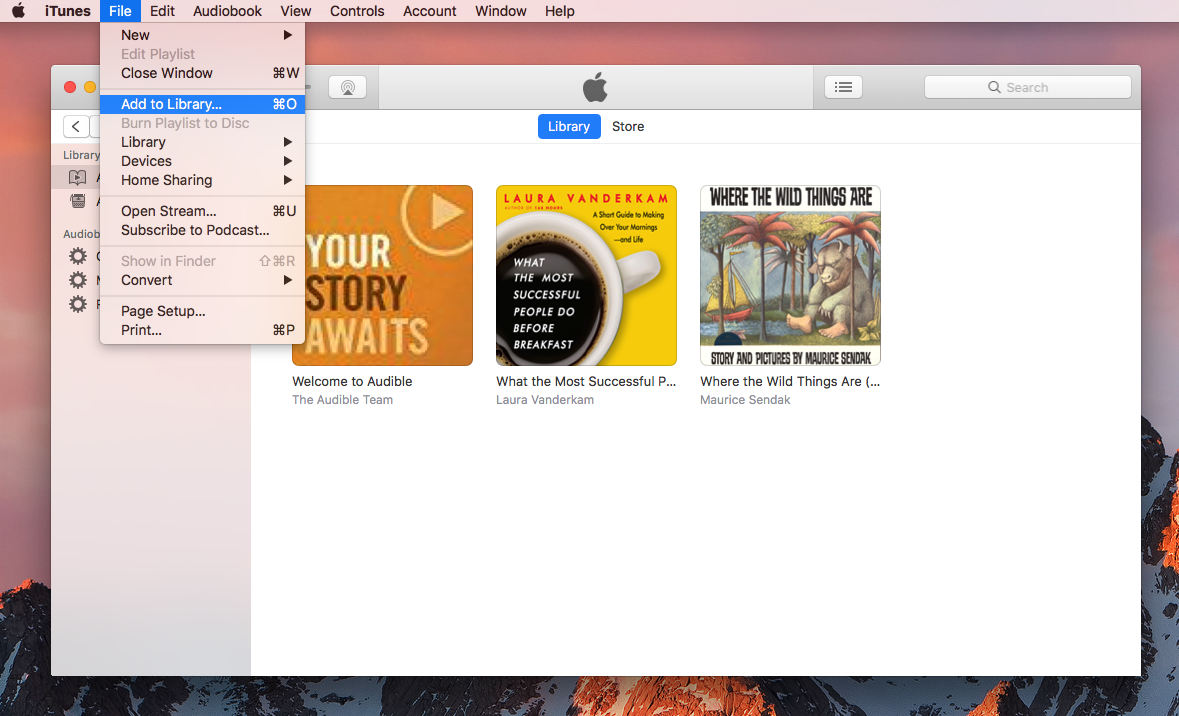
To start with, run iTunes Audio Converter on the computer. All iTunes files will be shown automatically on the interface, including audiobooks, music, movies, TV shows, etc,. You can click “Add to Library” under “File” selection to import purchased audiobooks from iTunes library. Select the audiobooks you want to remove DRM from.

add iTunes audiobooks

Note: iTunes Audio Converter supports to convert Audible audiobooks, Apple Music and iTunes music to DRM-free format.

Step 2. Settings Output Format
Click “Output” button of the interface, a new settings window will pop up. In this case, set MP3 as output format, you are allow to adjust the output quality and other parameter. The output path is changeable if you need.

adjust output settings

Step 3. Convert iTunes Audiobooks to MP3
Simply click “Start Convert” button to begin converting iTunes aduiobooks to MP3 by removing DRM from it.

remove DRM from iTunes audiobooks

d_win d_mac

Step 4. Transfer Audiobooks to MP3 player
When the conversion is done. You can copy and paste them or drag & drop the converted audiobooks from the computer to MP3 player, just do it in the way you prefer. Enjoy!

More Audiobooks Conversion Guides:

The Best Way to Remove DRM from iTunes Audiobooks

How to Remove DRM from iTunes Audiobooks on Mac

How to Convert M4B iTunes Audiobooks to MP3

How to Convert Audiobooks from AAC to MP3

How to Transfer Audiobooks to iP

How to Transfer Audiobooks to iPhone

How to Transfer Audiobooks to Android

Import iTunes Audiobooks to MP3 Player

How to Sync iTunes Audiobooks to iPod as MP3 Files

Summery: Audiobook is basically a recording of the text that can be read as a audio file. If you have your favorite collection of audiobooks, then you can sync it to iPod so that you can enjoy them more convenient. Below given is the best way on how to sync audiobooks to iPod as MP3 files.

Listening to iTunes audiobooks on iOS devices has been a wonderful experience to relax and acquire new knowledge everywhere in the fast-paced society nowadays. It can free your eyes and help to immerse yourself into the audio world. Apart from the iTunes audiobooks, some audiobooks fans also like to sync audiobooks to other different device for listening, for example, iPod. However, audiobooks are made of DRM protection, so you will need to remove DRM from audiobooks to play it as common audio files. If you are new to auiobooks or you are interested in listening to audiobooks on iPod, you can follow me in this article to find out the helpful way to play audiobooks on iPod as MP3 files.

With these audiobook players, audiobooks users can listen to different audiobooks from multiple media sources, but sometimes there maybe still problems. Take the iTunes audiobooks users for example, they might face the problem such as can’t listen to audiobooks whenever some errors occurred on the iBooks app or Apple Music on iPod, and it would not be so convenient to switch between different players. Someone may think if there is a way to remove the DRM restriction from iTunes audibooks for listening conveniently. Considering that iBooks instability and incompatibility with iPod models like iPod Shuffle/Nano, converting audiobooks to MP3 format files and transferring them to iPod would be the perfect way. If you are one who want to convert iTunes audiobooks to DRM-free files for syncing to iPod, iTunes Audio Converter is recommended for you.

Removing DRM from iTunes Audiobooks for iPod

iTunes Audio Converter is capable of removing DRM from iTunes M4A, M4B audiobooks, convert audiobooks to MP3 without quality lossless. Other formats are available for audiobooks conversion, like M4A, AAC, WAV, WMA. Thus, you can sync iTunes audiobooks for playing them on iPod or other players like the common audio files. Besides, it can also convert iTunes purchased songs and Apple Music to MP3/AC3/AIFF/FLAC/M4A or more formats with 16x fast speed. After the conversion, you could transfer the converted DRM-free audiobooks to any device for playing back freely, such as, iOS device, Android device, MP3 players and other commonly used media players. ID tags and metadata will be saved to output files. Batch conversion allows you to convert entire audiobooks collection.

d_win d_mac

How to Import iTunes Audiobooks to iPod

Step 1. Add iTunes Audiobooks to Program
Launch iTunes Audio Converter on the computer. When you run it, all your iTunes files will be shown automatically on the interface, including audiobooks, music, movies, TV shows, etc,.You can click “Add to Library” under “File” selection to import purchased audiobooks from iTunes library. Select the audiobooks you want to remove DRM from.

Besides, iTunes Audio Converter also supports converting Audible audiobooks, iTunes music and Apple Music tracks to DRM-free format.

add iTunes audiobooks

Step 2. Choose Output Format
Click “Output” button of the interface, a new settings window will pop up. You can set “MP3″ as output format, and adjust the output quality. In addition, the output path is also changeable if required.

adjust output settings

Step 3. Start Converting DRM-ed iTunes Audiobooks to MP3
Click “Start Convert” button to start converting iTunes aduiobooks to MP3 by removing DRM from it. When the conversion is completed, you can browse the DRM-free audiobooks.

remove DRM from iTunes audiobooks

d_win d_mac

Step 4. Transfer the Converted iTunes Audiobooks to iPod
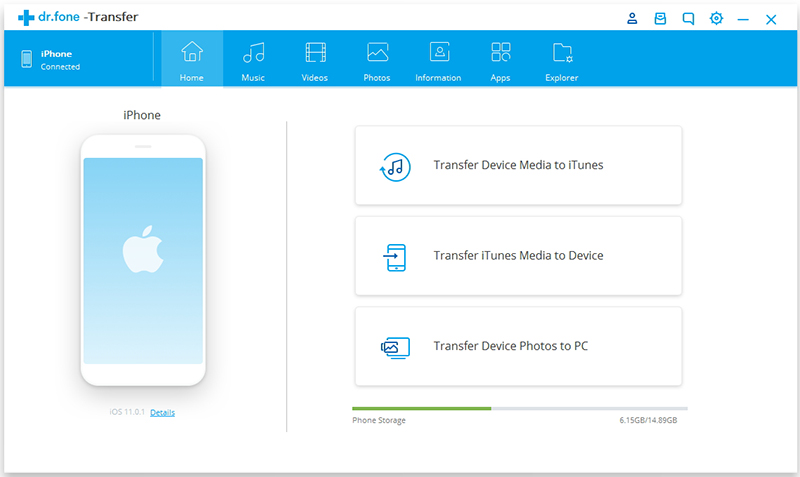
Now, connect your iPod to computer with a USB cable, then you can transfer the converted iTunes audiobooks to iPod. After that, you can play iTunes audiobooks on your iPod conveniently. On the other hand, you can sync the converted audiobooks to iPod using iOS Transfer, it is an all-in-one data manager tool for iOS device, help to transfer files between iOS device and the computer easily.

Free Download iOS Transfer:

d_win d_mac

ios transfer main page

More Audiobooks Conversion Guides:

The Best Way to Remove DRM from iTunes Audiobooks

How to Remove DRM from iTunes Audiobooks on Mac

How to Convert M4B iTunes Audiobooks to MP3

How to Convert Audiobooks from AAC to MP3

How to Convert iTunes and Amazon Audiobooks to M4A

How to Transfer Audiobooks to iPhone

How to Transfer Audiobooks to Android

Sync iTunes Audiobooks to iPod

How to Play iTunes Audiobooks on Windows Media Player

Summary: If you want to import and play iTunes audiobooks on Windows Media Player, you could check this post for reference. It will share a helpful tutorial to bypass DRM from iTunes audiobooks and then you could import it to Windows Media Player for playing.

Users who use the computer are familiar with Windows Media Player(WMP), a system-provided media player provided by Windows, which are available on both Windows computer and Windows smartphone as well as tablets. Windows Media Player allows you to play several types of media files, such as videos, music, pictures and the recorded TV shows; and it has a lot of features like media file playback, library management, disc burning, ripping and streaming, etc,. If you have some loved digital media contents (media files) from different sources, then it is a good way to import them to Windows Media Player for playing. After importing, you will get quick access to all your media files in one place and play it conveniently.

However, sometimes you may encounter the error that the files are corrupted or not supported when importing media files to Windows Media Player, for example, the iTunes audiobooks. That is mainly because these audiobooks files are encrpyted by DRM protection. What is DRM protection? DRM restriction is a special format of media files for iTunes audiobooks, iTunes music, iTunes videos and Apple Music. It prevent you downloading it without subscription or paying, and avoid you using these media files for illegal use. If you want to read iTunes audiobooks via Windows Media Player, the only is converting audiobooks to MP3 like the common audio files, then syncing it to Windows Media Player for playing.

Removing DRM from iTunes Audiobooks for Syncing to Windows Media Player

UkeySoft Apple Music Converter also is an Audiobooks Converter is used for bypassing the DRM from iTunes audiobooks by converting it to MP3 or other DRM-free formats, so that you could transfer the converted audiobooks and play the converted audiobooks on Windows Media Player. It is powerful to convert DRM-protected music files to MP3, M4A, AAC, WAV, WMA, etc,. without quality loss. The software also supports the conversion of music tracks, like iTunes music and Apple Music. And the entire operation just costs you a few minutes with fast speed. When the conversion is done, you will get all the DRM-free converted media files as local files, like the common files for playing without limits.

d_win d_mac

How to Sync iTunes Audiobooks to Windows Media Player

Step 1. Run UkeySoft Apple Music Converter on Computer
Install and run UkeySoft Apple Music Converter on computer. When you run it, all your iTunes files will be shown automatically on the interface, including audiobooks, music, movies, TV shows, and so on.

run iTunes Audio DRM Removal

Step 2. Select Audiobooks to Remove DRM from
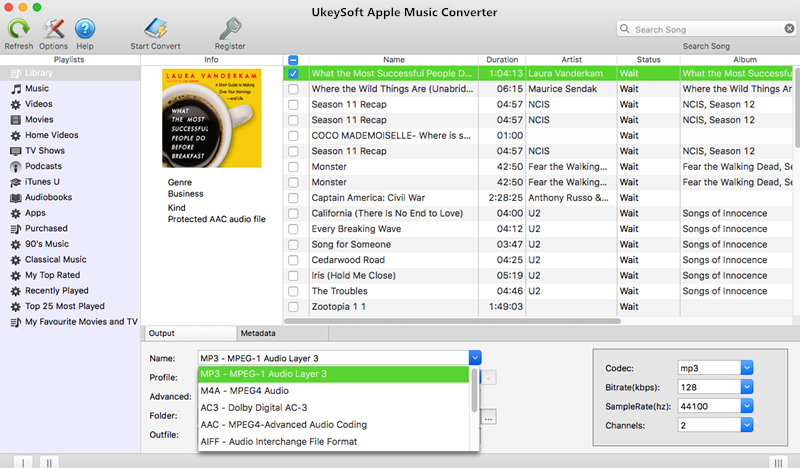
Click “Audiobooks” on the left column and you will see all your audiobooks on the right side. Then, click the checkbox before the audiobooks you want to remove DRM from.

Step 3. Setting Output Settings
In the “Output” section, select the output format, customize output file profile, choose an output folder. Here MP3 and M4A are suggested output format.

adjust output settings

Step 4. Remove DRM from iTunes Audiobooks
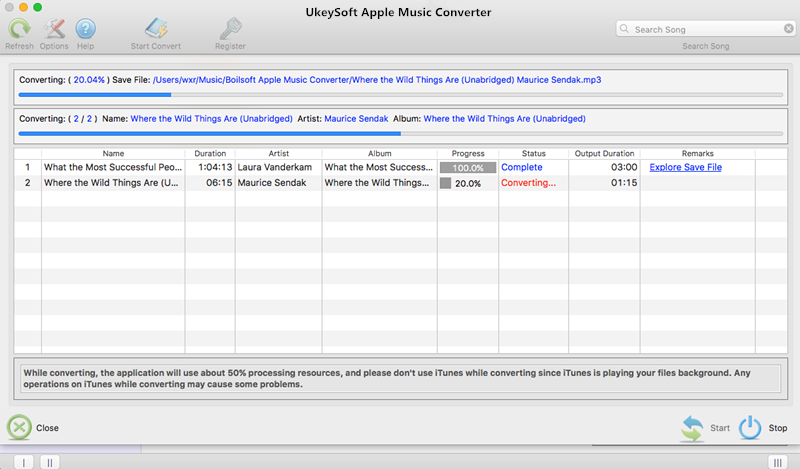
Click “Start Convert” to begin removing DRM from iTunes audiobooks.

remove DRM from iTunes audiobooks

d_win d_mac

Step 5. Transfer Audiobooks to Windows Media Playlist
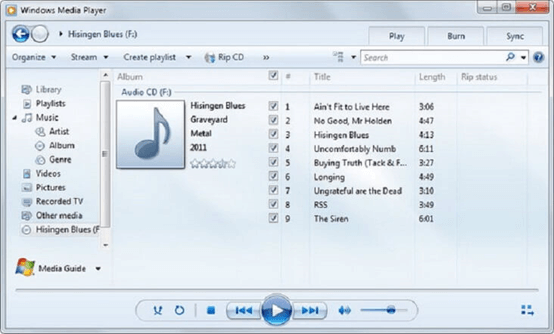
Finally, transfer the converted audiobooks to Window Media Player and make it a list so that you can listen to audiobooks with this Window Media Player.

play audiobooks on windows media player

Now you have learned how to sync your iTunes audiobooks to Windows Media Player by Audiobooks Converter. Hope you will enjoy the unblocked audiobooks listening journey from here.

More Audiobooks Conversion Guides:

The Best Way to Remove DRM from iTunes Audiobooks

How to Remove DRM from iTunes Audiobooks on Mac

How to Convert M4B iTunes Audiobooks to MP3

How to Convert Audiobooks from AAC to MP3

How to Convert iTunes and Amazon Audiobooks to M4A

How to Transfer Audiobooks to iPhone

How to Transfer Audiobooks to Android

Convert iTunes Audiobooks to MP3