All posts by DHZ

How to Convert iTunes and Amazon Audiobooks to M4A

I downloaded some audiobooks from iTunes and Amazon, when I try to sync it to the MP3 player, it had’t recognized it. How to convert the audiobooks to M4A for more using freely?

iTunes Store and Amazon Audible are the biggest and main audiobooks distribution channels, iTunes M4B audiobooks and Audible AA/AAX audiobooks have become the dominant audiobook format. Audiobooks are distributed in several of audio formats like M4A, MP3, M4B, WMA, WAV, AA, AAX and some other audio formats. Audiobooks come with chapters which help listeners to navigate and select a specific chapter easily. For listeners, chapter information is important because they can easily navigate and select a specific chapter and resume where they last left off.

Why Need to Convert Audiobooks to M4A
All audiobooks are implemented with DRM protection, it preventing users listening to the audiobooks in some common storage device, like MP3 player. You can only listen to iTunes audiobook on authorized PC, Mac, iPhone, iPad or iPod Touch or Android devices, Windows Phone, Kindle Fire tablets, etc,. If you have purchased some audiobooks from iTunes or Amazon, but your devices are not compatible with DRM-protected audiobooks, in order to enjoy audiobooks freely with convenient control, the best way is to convert audiobooks to M4A with chapters kept. Though MP3 and M4A files are playable on almost all MP3 players, MP3 can’t hold chapter information due to its own limitation while M4A supports chapters, we recommend you convert audiobooks to M4A with chapters kept.

Convert Audiobooks to M4A by Removing DRM Restriction

Apple Music Converter Audiobooks Converter is absolutely the best audiobooks converter tool as well as the excellent Apple Music converter tool. It allows you to easily remove DRM from iTunes/Audible audiobooks with fast conversion speed, convert M4P/M4B/AA/AAX audiobooks to M4A with audiobooks chapter information and 100% original quality. With this audiobooks DRM removal tool, you can easily convert iTunes audiobooks and Audible audiobooks to DRM-free formats(M4A, MP3, FLAC, etc,.). Then you can enjoy the converted audiobooks anywhere at anytime without limitations, for example, transfer it to MP3 player for playing freely.

d_win d_mac

Main Features of Apple Music Converter – Audiobooks Converter:
-Remove DRM from Apple Music/iTunes Music songs.
-Remove DRM from iTunes/Amazon audiobooks.
-Convert Apple Music M4P songs to DRM-free MP3, M4A, etc,.
-Convert iTunes songs and audiobooks to MP3, M4A, etc,.
-Keep the original quality with the output audio files.
-The conversion will be complete with fast speed.

How to Convert iTunes/Amazon Audiobooks to M4A

Step 1. Install Audiobooks Converter
Firstly, download Audiobooks Converter and follow instructions to install it on the computer. Then your iTunes Audiobooks library will be shown in the main interface of software at the same time, it will automatically load the purchased iTunes M4B audiobooks.

run Audiobooks Converter

Step 2. Select Audiobooks to Conversion List
Now, tick the audiobooks you want to convert. If it hasn’t load your purchased Amazon audiobooks, you can add it manually. This Audiobooks Converter supports batch conversion, so you can select as many audiobook as you want.

Step 3. Choose M4A as Output Format
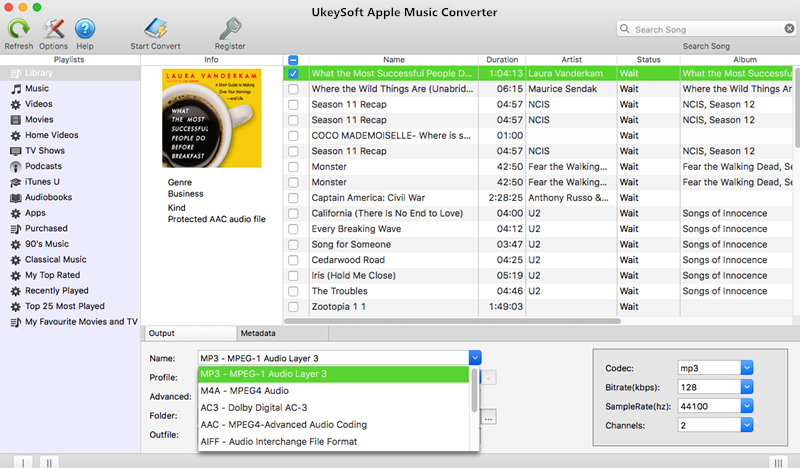
In the “Output” setting under “Options” choose “M4A“. You can also choose output audiobook quality (High, normal or low) or customize bitrate, sample rate according to your needs.

select audiobooks to convert

Step 4. Start to Convert Audiobooks to M4A
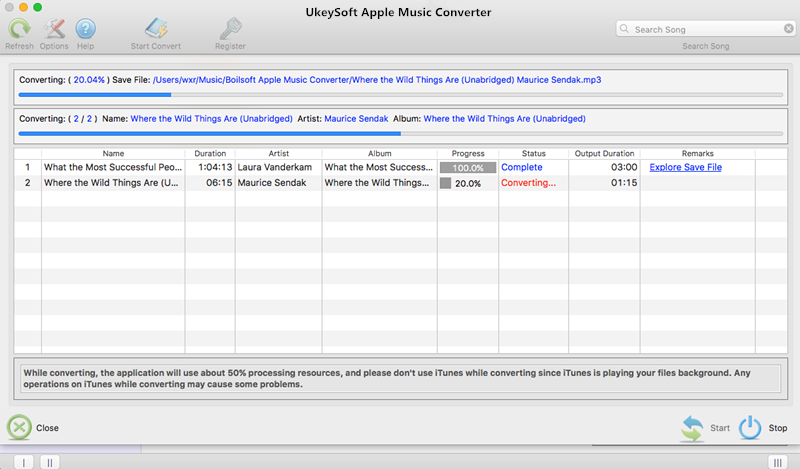
Click the “Convert” to start converting audiobooks to M4A. You will get the DRM-free M4A audiobooks within one minute.

convert audiobooks to M4A

When the converting process is completed, you can go to default folder (if you haven’t modified) or your chosen folder to find the converted files. Now you can transfer the converted M4A audiobooks to MP3 player for playing without limits.

d_win d_mac

More Audiobooks Conversion Articles:

How to Convert AAX Audiobooks to MP3

How to Convert M4B iTunes Audiobooks to MP3

How to Convert Audiobooks from AAC to MP3

How to Convert Apple Music M4P Songs to M4A

How to Play Apple Music on MP3 Player

How to Convert Protected M4P to MP3 on Mac(Without iTunes)

How to Play M4P Apple Music on iOS Device

How to Play M4P Apple Music on Android

Convert Audiobooks to M4A

How to Download Apple Music Songs to MP3

All the songs I download in Apple Music are M4P format, which prevent me saving it as local files for playing back. Could you give me some ideas to download the Apple Music songs to MP3 just like the common music files? How to make this true?

Apple Music has become arguably the most popular streaming service people choose to listen among so many music streaming service. Why Apple Music is the top music streaming service in the world? Apple Music provides New Music playlist and Chill Mix playlist based on your music taste and listening history. The more you listen, the better result you will get. Besides, Apple Music also provides Friday’s playlists updated on every Friday as well as Artist Spotlight playlists. You can add the playlist to your iTunes library and download for offline listening.

What is M4P Files
What it M4P files? M4P is a file extension for a protected audio file encoded with advanced audio codec (AAC), which is a lossy compression generally intended as the successor to MP3, which had not been originally designed for audio only but was Layer III in an MPEG 1 or 2 video files. M4P stands for MPEG 4 Protected (audio). The M4P file extension is seen in an Apple iTunes purchased song which uses Apples “Fairplay” DRM (digital rights management).

Why we can’t Download Apple Music to MP3
As Apple encrypts all its tracks in M4P Apple Music with DRM restriction, it means that all Apple Music users can’t directly download Apple Music to as normal MP3 music files. It can be only played on authorized devices which meet Apple Music’s minimum requirements, for example all Apple devices and some Android phone. Moreover, since the Apple Music is DRM-protected, all the access to downloaded Apple Music will be lost if you unsubscribed the service. How to download Apple Music to MP3? Actually, you can do this by yourself with the help of Apple Music Converter.

Download Apple Music to MP3 by Removing DRM Restriction

Luckily, things changed thanks to the coming out of this famous Apple Music Converter. Using Apple Music Converter, you can easily convert Apple Music to DRM–free format for getting rid of its DRM limitation, download Apple Music to MP3 by removing DRM restriction from it. It could be used to convert Apple Music to several of DRM-free formats, including MP3, M4A, AC3, AIFF, AU, FLAC, M4R and MKA. After that, you can save the music as local files for playing back without Apple Music; stream the music to device for enjoying(iOS device, Android device, PSP/PS4, Xbox one, MP3 player, etc,.); save the music to SD card; transfer the music to USB drive; even set the music as phone ringtone. Most importantly, the conversion will be complete at super-fast speed with 100% lossless quality.

d_win d_mac

How to Download Apple Music as MP3

Step 1. Download and Launch Apple Music Converter
Download and install Apple Music Converter on the computer. After it, please launch the software.

run Apple Music on PC

Step 2. Add Apple Music Songs to Conversion List
When you run the software, iTunes will run automatically at the same time. It will pop up a window, which will show you all of songs you have downloaded from iTunes. You can choose any song you want to convert, just adding it to the conversion list.

add Apple Music

Step 3. Output Format Settings
After the successful adding, please click the button “Options” to choose the output format as you need, in the pop-up window, you can choose output path, output format, and even the conversion speed. MP3, AC3, AIFF, FLAC, M4A are available to choose. In this case, you should choose “MP3“.

output settings

Step 4. Download Apple Music Songs to MP3
After completing the above steps, the final one is clicking the button “Convert“. Just a few second, it will completed.

dwonload Apple Music to MP3

Once the conversion finishes, the DRM will be removed completely from Apple Music tracks, and all the selected songs will be downloaded as MP3 files, you can freely import them to your devices for streaming. Note: You could check the converted music files on the computer by clicking the “Explore output File” button.

d_win d_mac

More Apple Music Conversion Articles:

How to Convert Apple Music to MP3

How to Remove DRM from Apple Music Completely

How to Record Apple Music M4P Streams as MP3

How to Download Apple Music and Playlist for offline listening

How to Get Apple Music at 320kbps High Quality

How to Set Apple Music as Ringtone for Any Phones

Download Apple Music to MP3

How to Download Apple Music without Subscription

I have downloaded some Apple Music tracks while I am a subscriber, however when I cancel the subscription, the songs in my playlist were disappeared. Is it possible to download all my favorite songs without paying?

Apple Music is the top music streaming app in the world. As we know, when you subscribe Apple Music streaming service, you will access to all features of a paid account for first three months of your subscription. After these initial 90 days, you’ll have to choose whether you’re going to continue paying for Apple Music – and keep those paid account features – or downgrade to a free account. If you choose to cancel the subscription, the downloaded songs from Apple Music app will gone, and you can’t access it anymore.

Why this happens? Because Apple adds DRM restriction to all Apple Music tracks to prevent Apple Music users download music for offline listening without paying, or for other illegal use. Since Apple Music is DRM-protected, you can’t use Apple Music freely, you can’t stream Apple Music to non-Apple device, you can’t listen to Apple Music and download it without subscription. You may ever meet such problem after canceling subscription from Apple Music, if you unsubscribe from Apple Music, you are no longer to play any streaming music you’ve added or downloaded to your library from the Apple Music catalog. How to download Apple Music after canceling the subscription?

Remove DRM Restriction from Apple Music

To download Apple Music after canceling subscription, you need Apple Music DRM removalApple Music Converter. This program can remove DRM from Apple Music songs completely, convert Apple Music DRM-ed M4P songs to DRM-free MP3/AC3/AIFF/FLAC/M4A formats at super-fast speed with 100% lossless quality. After the conversion, you could download Apple Music without subscription and save it as local files, stream the music to any device, transfer the music to USB drive/SD card, burn the music to CD, set it as phone ringtone, etc,. All in all, with the help of Apple Music Converter, you could enjoy Apple Music without limits.

d_win d_mac

How to Download Apple Music without Paying

Step 1. Launch Apple Music Converter on the Computer
Launch Apple Music DRM removal – Apple Music Converter on the PC/Mac. iTunes will run at the same time.

run Apple Music on PC

Step 2. Add Apple Music to Conversion Lost
Add any music file you want to download. All your playlists will be listed. Make sure that the music you want to download has been downloaded.

add music

Step 3. Setting Output Format
After adding music, all your added files will list in the main interface. Then please click the “Options” button to customize the output settings, including output format, output folder, etc,.

output settings

Step 4. Download Apple Music without Subscription
Now, all you need to do is to click the “Convert” button. All the selected music files will be downloaded with DRM-free format at fast speed with all ID tags and metadata kept. You could browse the converted songs in the output folder by clicking the “Explore output File” button if complete the conversion.

dwonload Apple Music without subscription

Finally, you got all these converted Apple Music without subscription. Now you can enjoy the music freely. Have fun.

d_win d_mac

More Apple Music Conversion Articles:

How to Remove DRM from Apple Music Completely

How to Record Apple Music M4P Streams as MP3

How to Download Apple Music and Playlist for offline listening

How to Download and Listen to Apple Music/iTunes Music Songs offline

How to Play Apple Music after Canceling Subscription

Download Apple Music without Subscription

How to Recover Deleted Files from OnePlus 6

OnePlus 6 is one of the best Android phones in 2018. The OnePlus 6 mobile features a 6.28″ (15.95 cm) display with a screen resolution of 1080 x 2280 pixels and runs on Android v8.1 (Oreo) operating system. The device is powered by Octa core (2.8 GHz, Quad core, Kryo 385 + 1.8 GHz, Quad core, Kryo 385) processor paired with 6 GB of RAM. As far as the battery is concerned it has 3300 mAh. Over that, as far as the rear camera is concerned this mobile has a 16 MP camera Exmor RS sensor supporting a resolution of 4616 x 3464 Pixels and the front snapper is powered by a Exmor RS sensor.

OnePlus was founded on 16 December 2013 by Pete Lau and Carl Pei. As a new smart phone company, OnePlus has gained well comment and fans. More and more people are using OnePlus phone, which provides excellent experience. However, nothing is perfect, there still something accident will happen out of the control. For example, you accidentally lost data from the OnePlus phone. Data loss can not be avoid due to different reasons, like careless deletion, Android OS update, Android OS rooting, factory reset restoring, etc,. Now we are going to show you how to directly recover deleted data from Android by taking OnePlus 6 as an example.

OnePlus Data Recovery – Recover Contacts/SMS/Gallery

Android ToolKitU.Fone Android Data Recovery which is considered as the perfect software to recover deleted files from OnePlus 6. It is a powerful and easy-to-use data recovery software designed for Android users. It can recover all kinds of files from Android-based smartphone or tablet. OnePlus, Samsung, HTC, Motorola, Google Pixel, Huawei and more Android brands are well supported by this software. It enable you to recover deleted photos, videos, text messages, contacts, WhatsApp messages as well as other types of Android data under any data loss causes. Additionally, Android ToolKit is an all-in-one data manager tool for Android, provide you with more features, including Android data backup & restore, broken Android data extraction.

d_win d_mac

How to Recover Deleted Data from OnePlus 6

Step 1.Run Program and Connect OnePlus 6
To start with, please install U.Fone Android Data Recovery on the computer, run it and connect your OnePlus 6 to the computer. It will take seconds to detect your device automatically by software. Select “Android Data Recovery” in the home page of the software.

Android ToolKit home page

connect OnePlus phone

Step 2.Enable USB Debugging on OnePlus Phone
Unlock your phone, go to Settings > Developer options > Allow USB debugging mode. If you have already allowed the USB debugging mode, you will see a pop-up window on the screen, mark “Always allow” from this computer and click “OK“.

allow to detect OnePlus phone

Step 3.Select Files you want to Restore from OnePlus
You’ll see this window, different types of files can be chose to be scan here, such as, contacts, messages, gallery. If you want to restore all types of Android data, you can tick “Select All” to have all your Android data scanned. If not, you can select one file or more than one files for scanning by software.

select files to scan

Step 4.Allow to Scan and Analyze Data on OnePlus
In this step, tap “Allow” to enable the program to scan your phone for deleted data.

allow to scan OnePlus phone

Note:Before starting,please make sure that your phone battery is more than 20% charged.

Step 5.Scan Deleted Data of OnePlus
The scanning process will take you some time. When the scanning is done, it will list all the recoverable files(the deleted one and the existent one), you can preview them one by one before recovery.

scan deleted OnePlus data

Step 6.Preview and Recover Deleted Data from OnePlus
Lastly, mark the data you need to restore and click “Recover” to restore them to the computer.

recover deleted data from OnePlus

d_win d_mac

Related OnePlus Data Recovery Tips:

How to Recover Lost Files from OnePlus Phone

How to Recover Deleted Photos from OnePlus Phone

How to Backup and Restore Data on OnePlus Phone

How to Root Android on Computer with One Click

How to Manage Android on the Computer

Recover Deleted Data from OnePlus 6

Android Data Recovery

Recover Your Lost Data from Android
Now, Even Device Broken

Compatible with Android 8.0 Oreo/7.0, etc.

Recover Lost Data Now

Keep Spotify Music be Playable after Canceling Subscription

After I cancel the Spotify Premium subscription all the Spotify Music that I added to the playlist for downloading were disabled. How to keep the songs being playable after I cancel the Premium subscription?

Spotify Music is one of a popular streaming music service, like Apple Music. Spotify Premium plan allow subscribers to stream ad-free music tracks as well as download any songs for offline listening. The cost for Spotify Premium service is $9.99 each month. Prior to that, it offer a 30-day free trial so that you can decide whether you would like to go for the paid subscription after testing out all the features.

Since Spotify is proprietary and encodes the music with digital rights management(DRM), which restricts you from listening to the downloaded Spotify Music after canceling the Premium subscription. Once canceled the subscription, you’ll still be on return to the free user and you can’t play and download the Spotify Music freely as you like. In other words, isn’t be able to access and download Spotify songs after you cancel the subscription. If you want to keep the Spotify Music be playable after canceling subscription, the only way is to remove DRM protection from Spotify Music completely.

Remove DRM from Spotify Music Legally

UkeySoft Spotify Music Converter provides the best solutions to Spotify users to remove DRM protection from Spotify Music, it will does an excellent job of convert Spotify music/playlist to MP3, M4A, FLAC or WAV format. It legally rip Apple Music to DRM-free files so that you can enjoy the converted music as local files without restrictions. After the conversion you will be able to play the downloaded Spotify Music after canceling the Premium subscription, keep them for offline playing forever. Moreover, you can stream the music to any device for playing without Spotify. The conversion preserve 100% lossless quality and fast conversion speed.

d_win d_mac

How to Remove DRM from Spotify Music Completely

Step 1. Download and launch Spotify Music Converter
Please download and then install the latest version of Spotify Music Converter on the computer.

Spotify Music Converter home page

Step 2. Add Spotify Songs or Playlists
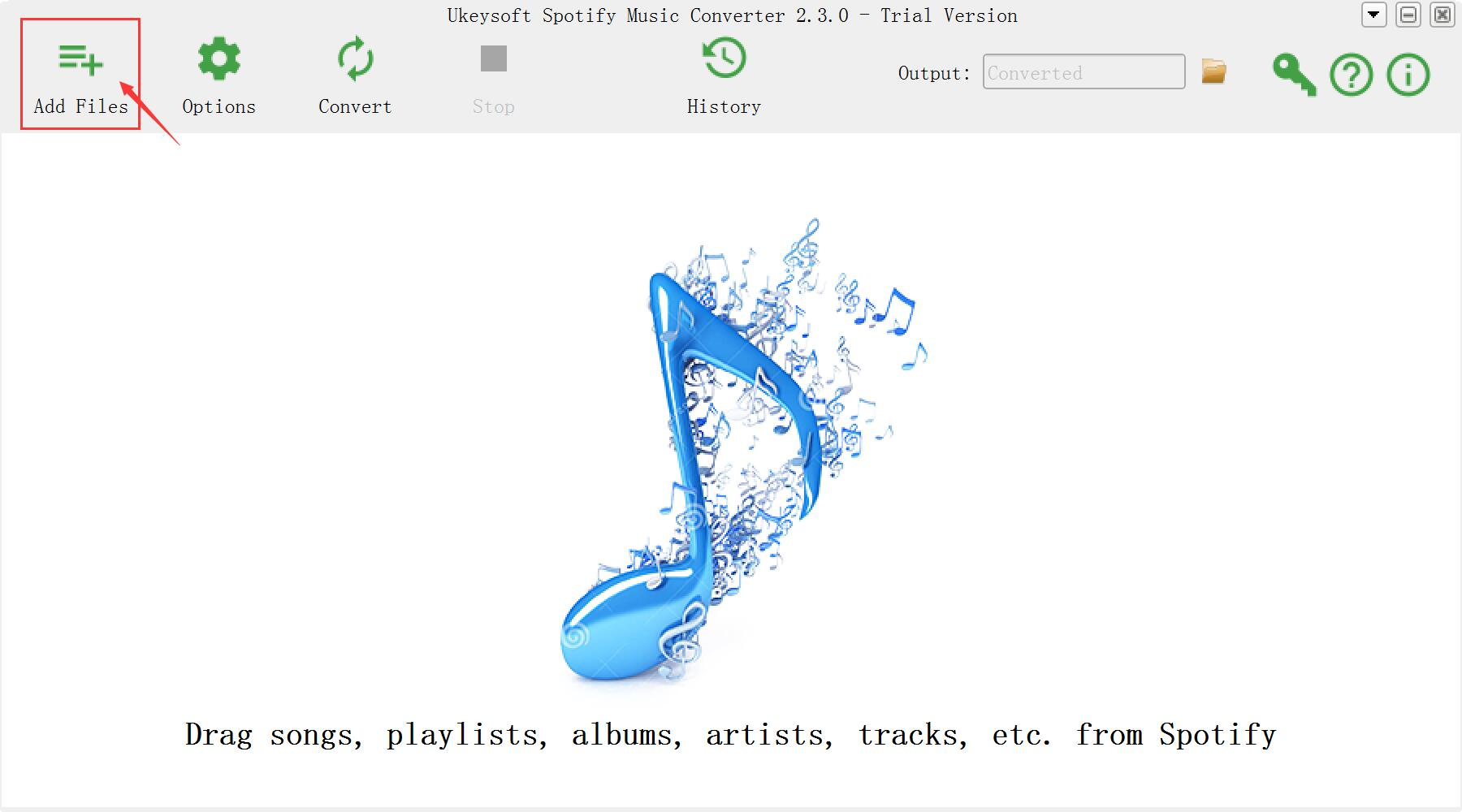
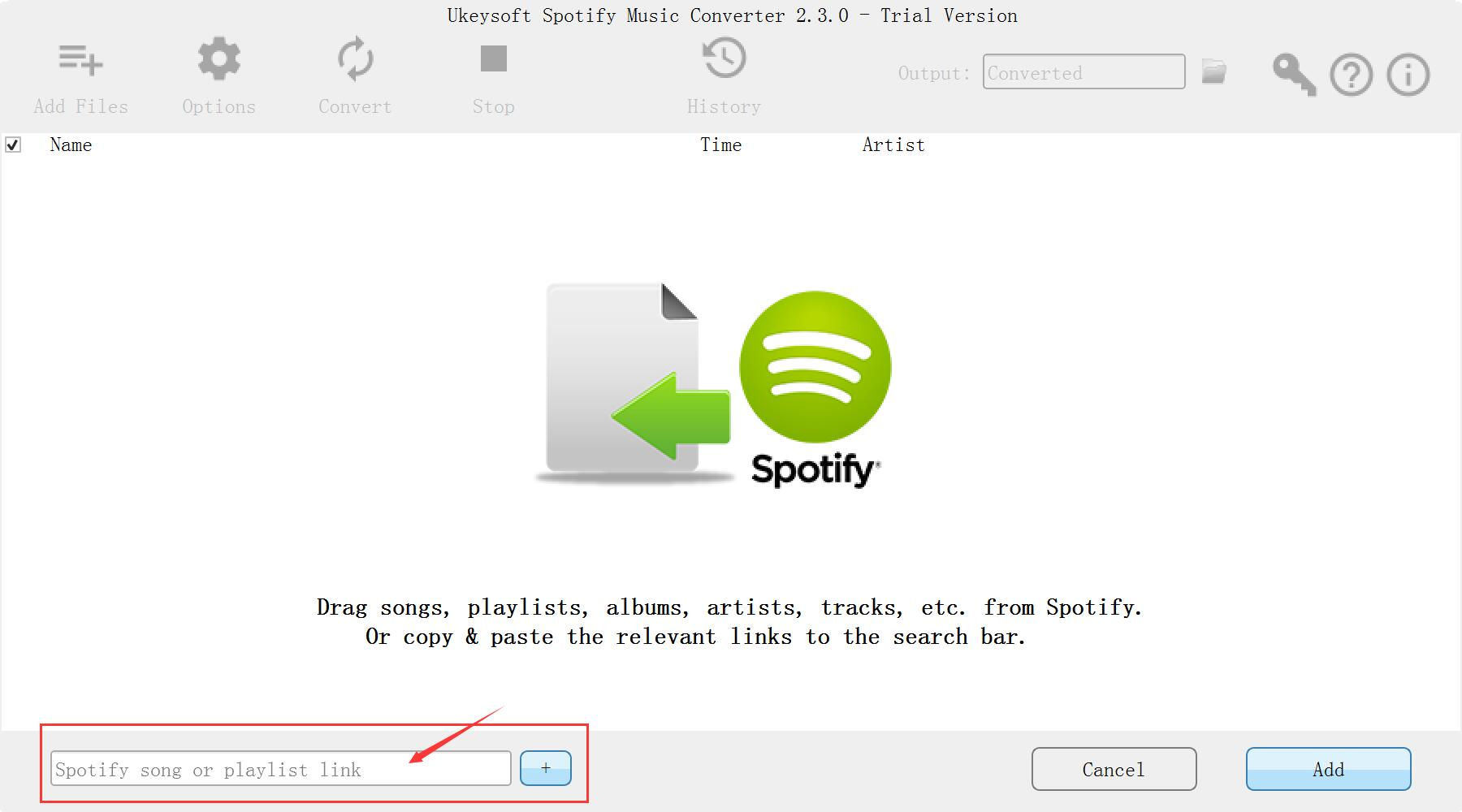
Click “Add Files” button on the top-left interface, and then drag or drop the audios you would like to remove DRM from. You can also paste the track links to the program conversion window to add the songs.

add Spotify Music

Step 3. Set Output Preference
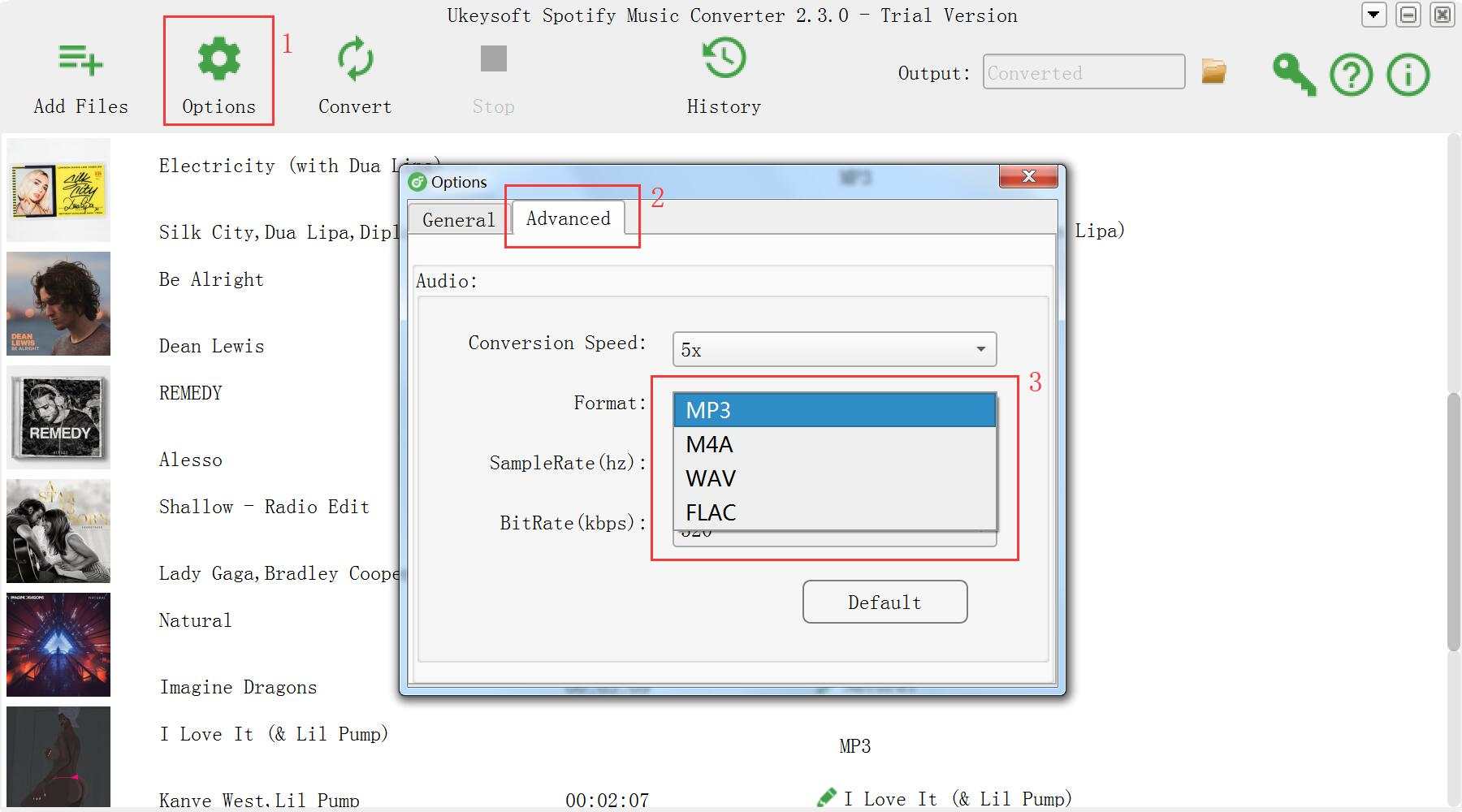
Click the “Options” button on the top-left interface to set output format, output quality, conversion speed and output path. You can convert Spotify Music to MP3, FLAC, M4A or WAV with high quality (320 kbps is available to choose).

setting output format

Step 4. Convert Spotify music to DRM-Free Version
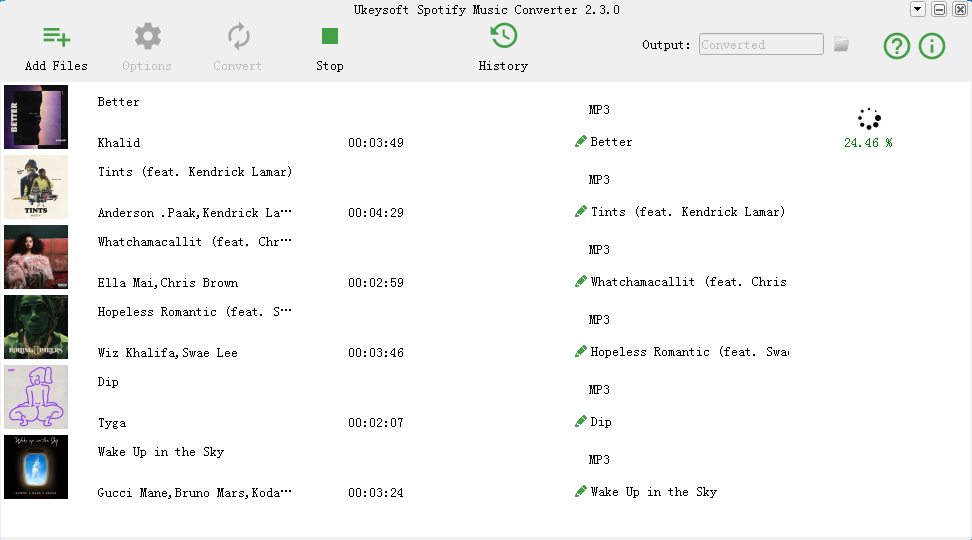
After the above setting, click “Convert” button to start converting Spotify Music. After converting, you could check the output folder.

convert Spotify Music to DRM-free

The converted music are DRM-free, you can keep them be playable after canceling the subscription.

d_win d_mac

More Spotify Music Conversion Tutorials:

How to Download Spotify Music as MP3

How to Download Spotify Music on the PC without Premium

How to Download Spotify Music Offline for Free

How to Remove DRM Restriction from Spotify Music

How to Get Spotify Music at 320kbps High Quality

How to Download & Save Spotify Music on Computer

Play Spotify Music without the Subscription

How to Download Spotify Music Offline for Free

Are there any ways to download Spotify Music offline for free without Premium or Family? If there are, please let me know. Thanks sincerely.

Spotify Music is one of the most wonderful music streaming services, which provides users with over 30 million songs for streaming. As of June 2016, it has 100 million monthly active users, and as of March 2017, it has 50 million paying subscribers, it mean that half of them are Spotify free users who can stream Spotify music online with advertisements and are not be allowed to download Spotify music for offline listening.

What’s the difference of Spotify free subscription and Spotify Premium subscription? One of the biggest differences between it is that the free account is not allowed to download any Spotify tracks to offline devices but only have access to online streams. What’s more, if you want to remove ads from Spotify tracks for enjoying more freely, there is one option provided by Spotify — upgrade to the Premium or Family plan. Here is the question: How to download Spotify Music for offline playing without paying? To download Spotify Music offline for free, you should convert Spotify Music to DRM-free files by removing DRM restriction from Spotify Music.

Download Spotify Music Offline for Free

To remove DRM restriction from Spotify Music completely, you need this UkeySoft Spotify Music Converter. Spotify Music Converter is an excellent Spotify Music Downloader, which can help you download Spotify Music offline for free, convert Spotify Music to MP3, M4A, FLAC or WAV with 100% original quality, by removing DRM from Spotify Music with fast speed. After the conversion, you could save the music as local for playing without paying, stream it to any devices for listening without limits, save it to SD card, transfer it to USB drive, even set it as phone ringtone.

d_win d_mac

More Features of Spotify Music Converter:
-Burn Spotify music to CD, enjoy them outside Spotify app and web player.
-Customize output Spotify music with high quality.
-Preserve all original ID3 tags.
-100% lossless quality and fast conversion speed.

How to Download Spotify Music without Paying

Step 1.Import Spotify Music to Program

Spotify Music Converter home page

add Spotify Music

Firstly, launch Spotify Music Downloader – Spotify Music Converter. Then it will load Spotify app automatically. After that, simply drag any track or playlist from Spotify software to Spotify Music Converter interface. You can also paste the track links to the program conversion window to add the songs.

Step 2.Choose Output Settings

setting output format

Then click “Option” – ”Advanced” to change output format, SampleRate or BitRate according to your needs. Click “Option” – “General” to change output folder if you like. Spotify Music Converter supports output formats as MP3, FLAC, M4A, and WAV.

Step 3. Start to Download Spotify Songs for Free

download Spotify Music without paying

Now click the “Convert” button and the program will begin to download the Spotify songs and convert them to the desired format as you like. Once the conversion completes, you can share or save the songs everywhere without limits.

d_win d_mac

More Spotify Music Conversion Tutorials:

How to Download Spotify Music as MP3

How to Download Spotify Music on the PC without Premium

How to Burn Spotify Music to CD

How to Remove DRM Restriction from Spotify Music

How to Get Spotify Music at 320kbps High Quality

How to Download & Save Spotify Music on Computer

Download Spotify Music without Paying

Download and Install iOS 12 on iPhone without Data Loss

[Summary]: Apple has released the newest version of its iOS operating system – iOS 12, on June 4 at the keynote event of the Worldwide Developers Conference. This post is going to show you three ways to download and install iOS 12 on iOS device without hassle.

People also read:
* Downgrade iOS 12 to iOS 11.4 without Losing Data

* Install IPSW File on iPhone iPad with/without iTunes

iOS 12 will focus on performance and quality improvements. Apple introduced new customizable functions, which you can personalize to look like you. Group FaceTime is here and supports calls with up to 32 people, and Memoji, Animoji, and other fun effects can be used both in Messages and with FaceTime through the new Effects camera. With Apple’s performance improvements, apps launch faster, the keyboard appears faster, and the Camera is quicker to open. Apple has also optimized the system when it’s under load, making iOS devices faster when you need performance the most.

If you are interested in the newest iOS 12 and have a plan to update this iOS version on your device, here are some guidance in the follow passages to download and install iOS 12 on iPhone. Before getting start with the iOS update process, you should check the it if your device is available for upgrading to iOS 12.

iOS Device Compatible with iOS 12:
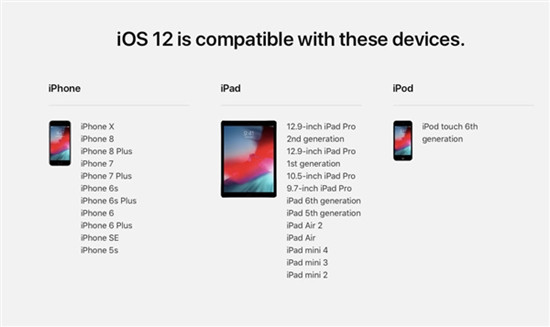
ios 12 supported devices

Part 1: How to Avoid Data Loss before Installing iOS 12 on iPhone

Since updating iOS 12 on iPhone will lead to data loss, you are suggested to back up your iPhone safely before performing the process. If you backup iPhone data using iTunes, the data synced with iTunes won’t be overwritten by new backup. What’s more, you can’t backup some files selectively instead of the whole device. Here is our sincere recommendation.

U.Fone iOS Data Backup & Restore can be a perfect choice for you to backup iPhone data before iOS 12 update without iTunes. All file types can be transferred to your computer as a backup, such as photos, messages, contacts, whatsapp messages, call logs, and more. It allows you to select the data you needs to be backed up, preview the iPhone backup before restoring, restore the backup to your iPhone without data loss. It’s a iOS device backup software available on both Mac OS and Win systems, compatible with all iOS devices run any iOS system.


d_win d_mac

How to Backup iPhone Data Safely before Installing iOS 12

Step 1. Download U.Fone iOS Data Backup & Restore
Launch the U.Fone iOS Data Backup & Restore on your computer until the download is successful.
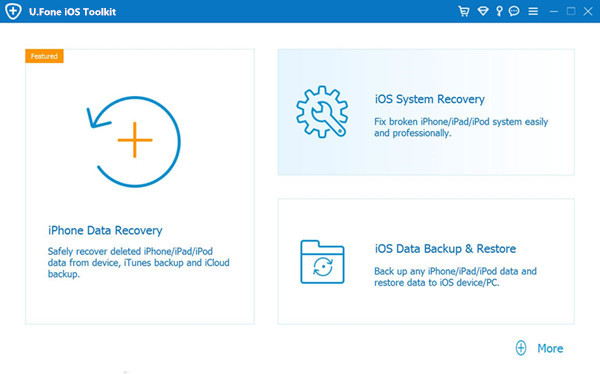
backup restore tool main page

Then you should select“iOS Data Backup & Restore” icon from the interface.
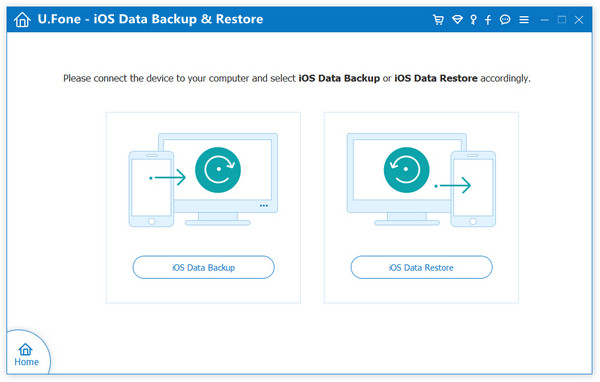
select backup restore option

Step 2. Connect Your iPhone to Mac
In this section you should connect your iPhone  to PC (Windows or Mac). There are two options on the screen: Standard backup and Encrypted backup. If you intend to protect the data on your iDevice, here you can to click “Encrypted Backup” which will require you to set a password for the backup. Otherwise you can tick Standard backup. Now you should click “Start” button to start the backup process.
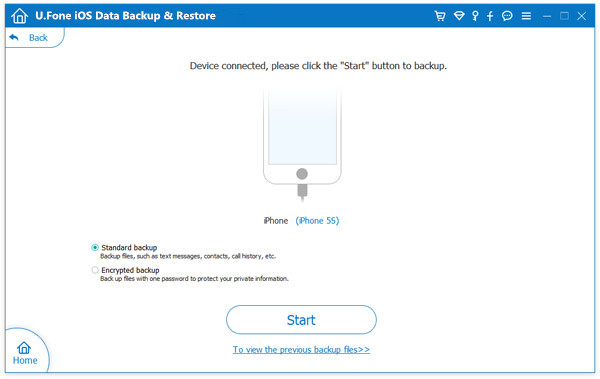
connect iphone to computer

Step 3. Choose Data to Backup
The data you can deal with is showed on the screen and you can see many data types are supported. Now you are able to select data to back up. Then click “Next”and wait a few minutes.
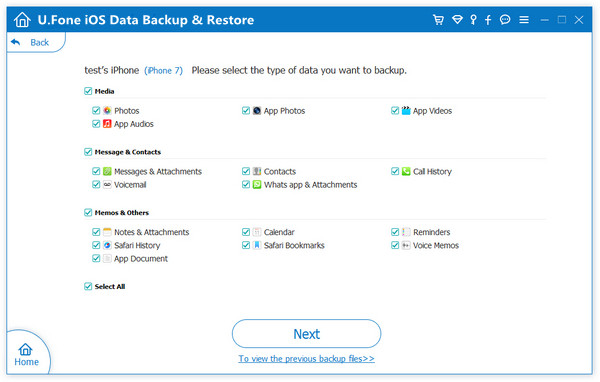
select file type

Step 4. Back Up is Finished
Wait for a moment, the software is backing up your data.
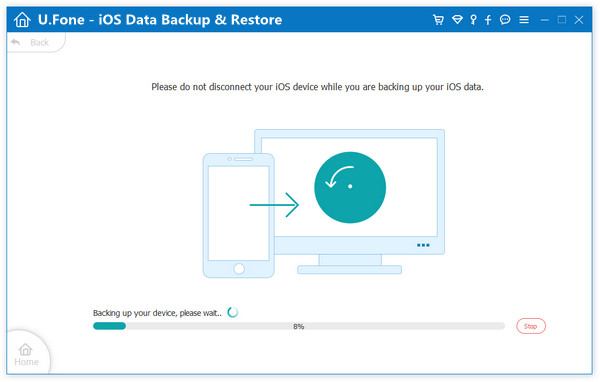
backup iphone data

As long as the backup is done, you can see the name and the size of the backup file.
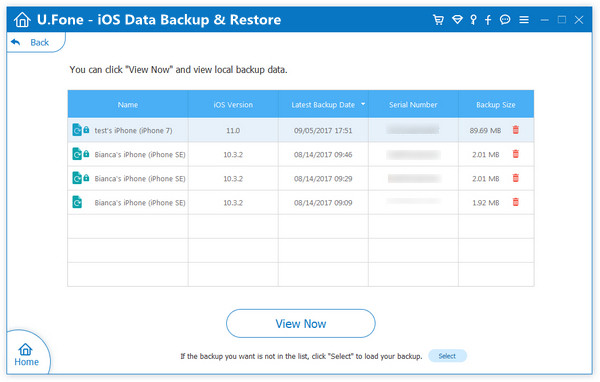
view backup files

d_win d_mac

Part 2: Download and Install iOS 12 on iPhone Directly

When you have do a secure backup of your iPhone, now you could install iOS 12 on your iPhone directly.

You can download iOS 12 Over-The-Air – Upgrade and install.

Related: Download iOS 12.0 Beta for Free (IPSW Direct Download Links)

Step 1. On your iPhone, go to: https://beta.apple.com. Click “Sign in” and sign in with your Apple ID and password.
If this is your first time to visit the Apple Beta Software Program, please create Apple ID (Developer account activation charge is $99/Year), you need to read and accept the Apple Beta Software Program Agreement and Sign up an Apple Developer account.

If you have an Apple Developer account, just sign in with your Developer account login details.

Step 2. Login to Apple ID and Password, then click Enroll your iOS device > “Download profile”. When asking your permission to show the configuration profile, click “Allow”. When you go to the download page, then move to iOS tab, and Download profile for your iPhone model (iPhone X/8/8 Plus/iPhone 7/7 Plus/6).

When you see the “iOS 12 Beta Software Profile”, tap “Install” and enter the phone password. Follow the on-screen instruction to continue. Restart your iPhone when asked.
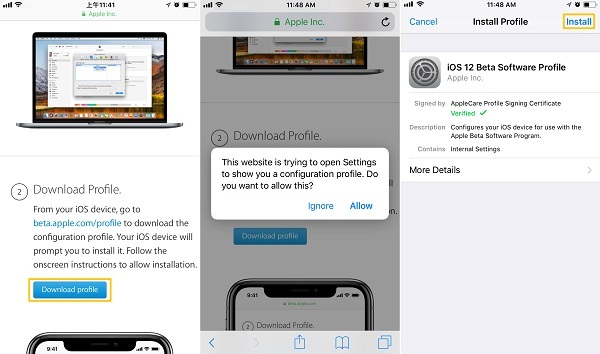
download ios 12 beta

Step 3. After the phone reboots, go to “Settings” > “General” > “Software Update” and you’ll see iOS 12 Public Beta. Tap “Download and Install”. Then it will start to install the iOS 12 on your phone.
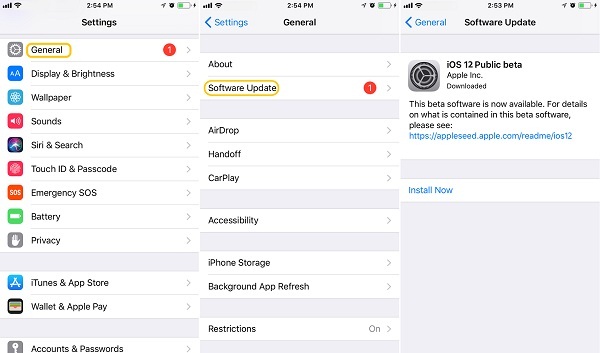
install ios 12 public beta

Tips: If you can’t receive the software update, restart or reboot your iPhone

Done. You can then access all new features on your iOS 12 device.

Shortcoming: It will take 30 minutes to 1 hour + to download and install iOS 12 public beta on your iPhone. The installation time varies depending on the following factors: A. Needing to backup device. B. Your current version of iOS on your device. C. Wi-Fi connection speed. In general, it will take longer time to download a public beta than a official version. So when you should be patient when the iPhone stuck in iOS 12 installation. Now we will guide you to perform the iOS update with another method.

Part 3:Download and Install iOS 12 on iPhone via iTunes

We could update iOS 12 on iPhone using iTunes by downloading & installing iOS 12 IPSW files on device. Here are steps to update iOS 12 on iPhone via iTunes, you need to download iOS 12 Developer Beta ipsw file on computer.

Step 1. Firstly, please download IPSW file of iOS 12 beta from Apple official site.

Here is the screenshot of my iOS 12 developer ipsw, I have login my Apple Developer Account and ready download iOS 12 (.ipsw) file.
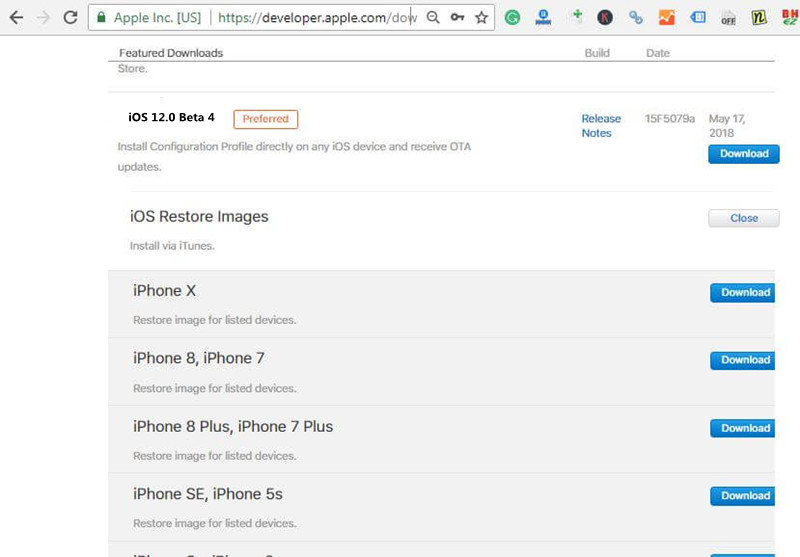
iOS 12 IPSW download on apple developer account

Step 2. Get the latest version of iTunes on your computer and launch it.

Step 3. Connect your iPhone to the computer and make a backup with iTunes. (If you have backup your device previously, you could slip this step.)

Step 4. Get your iPhone into the DFU mode. (How to Get iPhone into the DFU Mode)

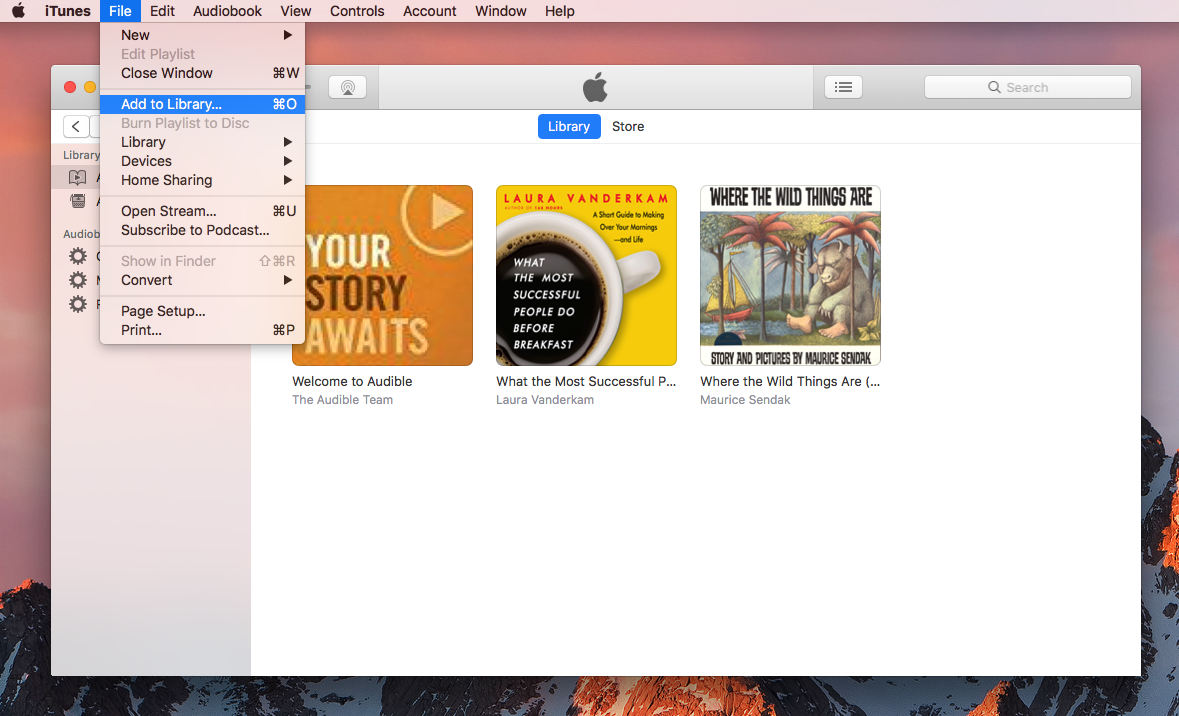
Step 5. On iTunes, select your device, press “Option” button on Mac (“Shift” button on Windows) while clicking on the “Upgrade” button.

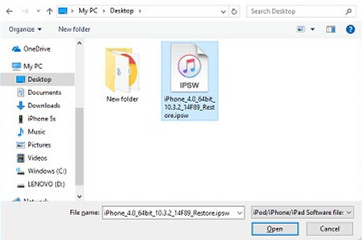
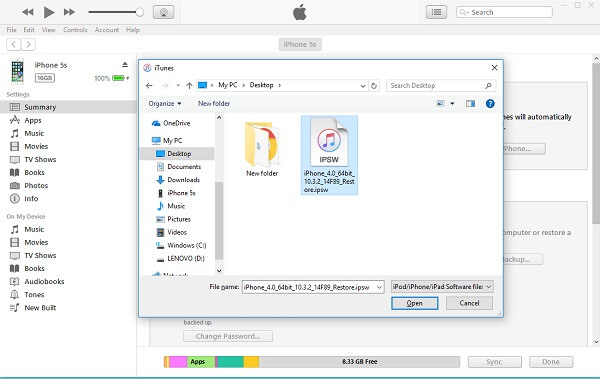
Step 6. Choose the downloaded IPSW file on iTunes, and it will begin to install iOS 12 beta on your iPhone.
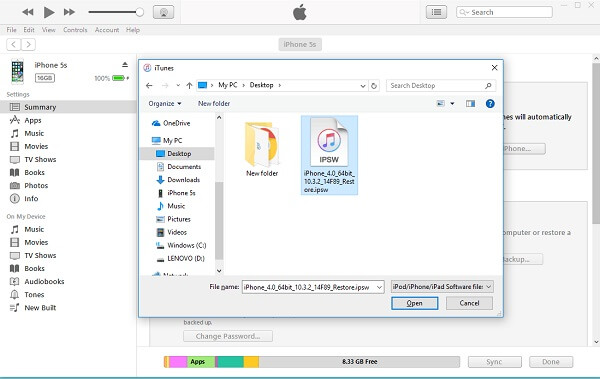
add ipsw file

However, no matter your install iOS 12 on iPhone directly or using iTunes, it may be lead to data loss on your device. Is it any way to install iOS 12 on iPhone without data loss? Yes absolutely.

Part 4:Download and Install iOS 12 on iPhone via iOS System Recovery

It may be lead to get stuck issues when/after installing iOS 12 on iPhone, such as, get stuck at Recovery mode, DFU mode, white Apple logo screen, etc,. To smoothly update iOS 12 on iPhone and install iOS 12 on iPhone without data loss, you could check this last section.

iOS System Recovery will do a favor for you to easily download and install iOS 12 on iPhone without data loss, and it will not cause to cost you too much time. Moreover, it can help to fix iPhone system to normal after iOS 12 update, insist of, iPhone stuck in the Recovery Mode/DFU Mode, iPhone stuck in Apple logo screen, iPhone stuck at black/white screen, or other iPhone frozen issues. iOS System Recovery works well for all iOS models, including iPhone X, iPhone 8(Plus), iPhone 7(Plus), iPhone 6S(Plus), iPhone SE and compatible with all iOS system including iOS 12 and lower.

d_win d_mac

How to Install iOS 12 on iPhone without Data Loss

Step 1.Run iOS System Recovery on the Computer
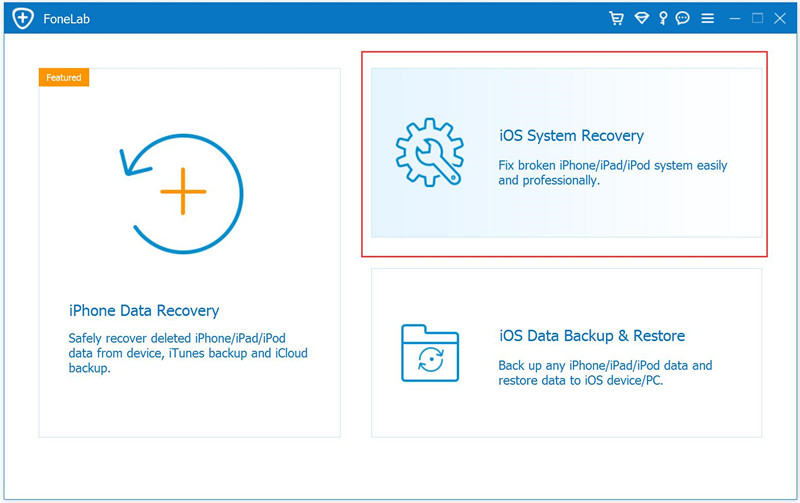
Launch this iOS System Recovery on your computer. Then connect your iPhone to it with USB cable. Click “More tools”then “iOS System Recovery” in the home page of it.

iOS system recovery

After that, click “Start” button to begin the process.

connect iphone to pc

If your iPhone is working and you want to install the iOS 12 IPSW firmware on your iPhone by this iOS System Recovery, please click the question mark below “Device is connected but not recognized“, then the program will guide you how to get the device into recovery mode ready for detected by the program.
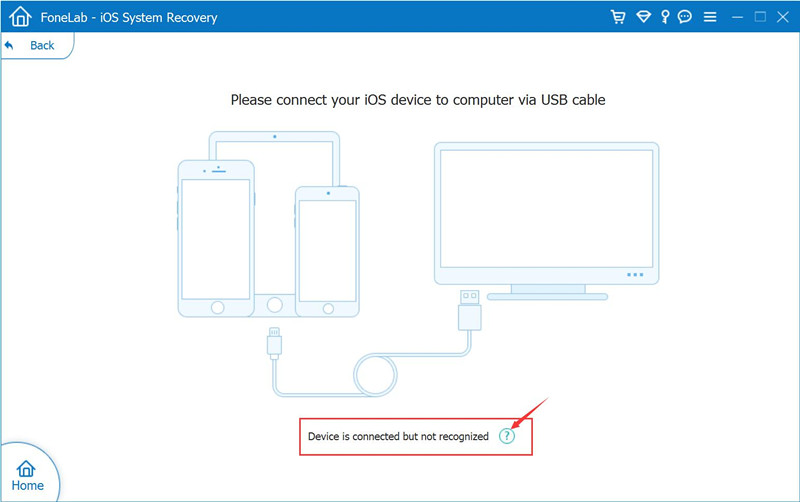
iPhone is connected but not recognized

Step 2.Boot iPhone into the Recovery mode or DFU mode
Then follow the on-screen guide to connect your device to computer and put it in recovery mode.

1)Power off your iPhone.
2)Press and hold the Power button and the Home button together for 10 seconds.
3)Release the Power button and keep holding the Home button until the device is in DFU mode.
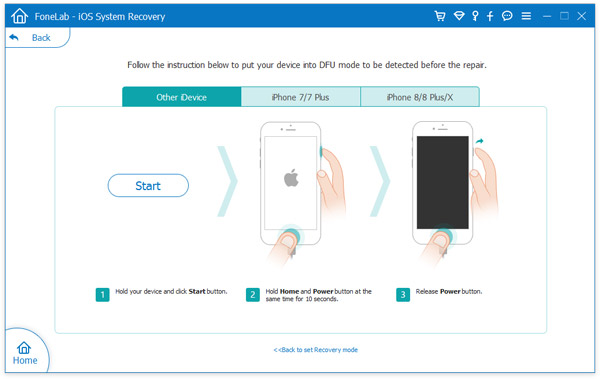
boot iphone into dfu

Note: If your iPhone/iPad is in abnormal status because of the current version of the iOS software, for example, your iPhone stuck in recovery mode, black screen of death, Apple logo screen, connecting to iTunes screen or iPhone is disable. Don’t worrry, the software can detect that your device is in the abnormal status, so you don’t need to put it in recovery mode, just click “Confirm” and the iOS System Recovery will download the suitable (.ipsw) file for your iPhone and installing it without data lossing, so it’s very effect, safely and quickly helps you fix ios system to normal.

Step 3.Select Device Model and Download the iOS 12 Firmware
In this step, please select the correct iPhone device model and iOS 12 firmware files for your iPhone, then click “Download” button,
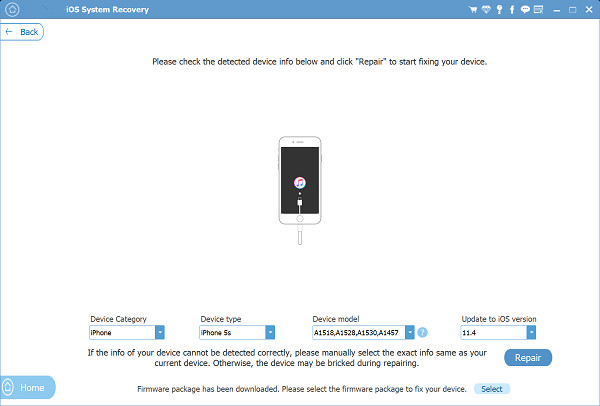
install ios 12 on iPhone

Manually add the downloaded iOS 12 IPSW file to iOS System Recovery program (Above steps, you have download the IOS 12 Developer Beta ipsw file for your device model)

Tips: If you haven’t download the iOS 12 IPSW files, here we also provides the iOS 12 IPSW Download Link for iPhone.

If you have downloaded the IPSW file previously, please select the IPSW file you just download and let the iOS System Recovery program install the iOS 12 IPSW files onto your iPhone without data loss.
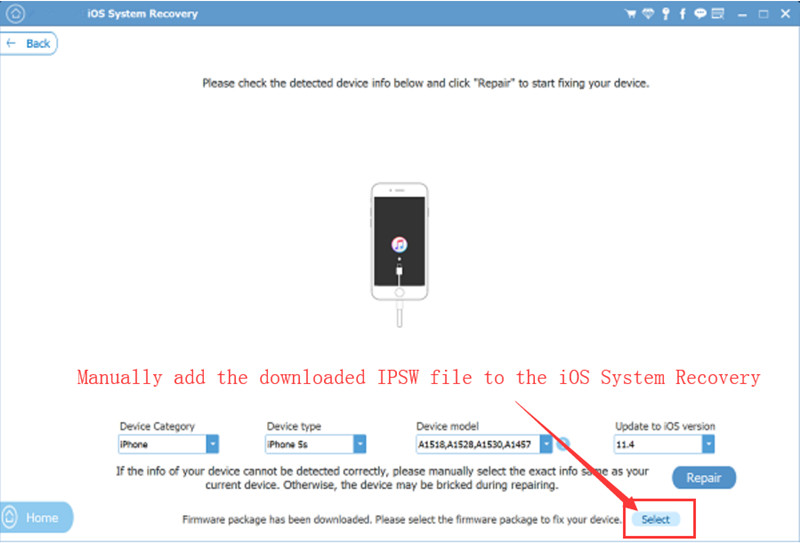
add and install iOS 12 on iPhone

Add iOS 12 IPSW file to Program:

add iPSW file

Note: To download the iOS 12 IPSW file for your iPhone, and place the IPSW file somewhere easily accessible(you can get other IPSW files here but only the most recent versions are signed and possible to use).

Step 4.Begin to Install iOS 12 on iPhone without Data Loss
When the iOS 12 IPSW file download is finished, now your phone will be updated to iOS 12 successfully.

install iOS 12 on iPhone

d_win d_mac

Related Articles:

How to Restore iPhone System to Normal after iOS 12 Update

How to Fix iPhone Stuck in Recovery Mode after iOS 12 Update

Export Everything from iPhone X/8/7/6S/6 to Computer before iOS 12 Update

How to Backup and Restore Data from iPhone before iOS 12 Update

Recover Lost Data from iPhone/iPad after iOS 12 Update

Best iPhone Manager: How to Transfer & Manage Files for iPhone

Install iOS 12 on iPhone without Data Loss
How to Download Spotify Songs as MP3

Summary: What’s your favorite streaming music? Most people may choose Spotify. It’s a subscription music service which offer the Spotify free and Spotify Premium subscription services for users. This tutorial is going to show you how to download Spotify Music as MP3 with easy steps.

Spotify Music is a popular music streaming service that let users access to millions of songs. There are millions of songs in Spotify and music can be browsed or searched by artist, album, genre, playlist, or record label. You can play Spotify Music on computers, mobiles, and tablets. But do you know that Spotify provides digital rights management-protected? That is to say, you can only enjoy music on Spotify and have no access to download Spotify music on other devices for offline playing without Spotify. How to download Spotify Music as MP3? You should convert Spotify Music to MP3 by removing DRM from it.

Convert Spotify Music to MP3

Due to the DRM protection, it becomes troublesome for people who would like to enjoy Spotify Music with MP3 format on other devices. Fortunately, Spotify Music Converter can solve this problem. It is a professional Spotify to MP3 Converter aiming to remove DRM protection from Spotify Music and make it easier to download Spotify Music as MP3 format. Besides, this converter enables to keep lossless quality as original audio including ID3 tags information. All in all, this program enable to convert Spotify Music to several DRM-free format, insist of MP3, WAV, M4A, FLAC. After that, you can save the converted Spotify Music to local files, listen to the music without Spotify.

d_win d_mac

How to Convert Spotify Music to MP3

Step 1. Run Spotify Music Converter
Download, install and run Spotify Music Converter on the computer. Spotify will be launched automatically at the same time.

Spotify Music Converter home page

Step 2. Add Spotify Music
Drag & drop tracks, playlists or albums from Spotify app to the interface directly. Or click “Add Files“, copy & paste the link of the song, album or playlist to the bottom area and then click “+” icon. To copy the link, right click the playlist, album or song and choose “Share” – Copy Palylist(or Album/Song) Link.

add Spotify Music

All songs in the playlist or albums will be checked by default. You are free to uncheck the tracks you don’t want to convert. Then click “Add” to import all checked songs.

Step 3. Choose MP3 as the Output Format (Optional)
The default output format is MP3. Besides converting Spotify Music to MP3, it also supports converting Spotify Music to M4A, WAV, FLAC. Click “Option” – “Advanced” to change output format, SampleRate or BitRate according to your needs. Click “Option” – “General” to change output folder if you like.

set MP3 as output format

Step 4. Start to Convert Spotify Music
If you don’t need to change output settings, just skip to this step. In the last step, click “Convert” button to start downloading Spotify Music as MP3.

download Spotify Music as MP3

After the conversion, you could quickly locate the DRM-free Spotify songs, albums or playlists in MP3 format. You can then transfer and play the MP3 files on different devices without Spotify, such as iTunes, Google Play Music, iPod, Sandisk, etc. or burn it to CD.

d_win d_mac

More Spotify Music Conversion Tutorials:

How to Convert Spotify Music to MP3

How to Burn Spotify Music to CD

How to Remove DRM Restriction from Spotify Music

How to Get Spotify Music at 320kbps High Quality

How to Download & Save Spotify Music on Computer

How to Download Spotify Music on the PC without Premium

Download Spotify Music as MP3

Download iOS 11.4 Update for iPhone and iPad

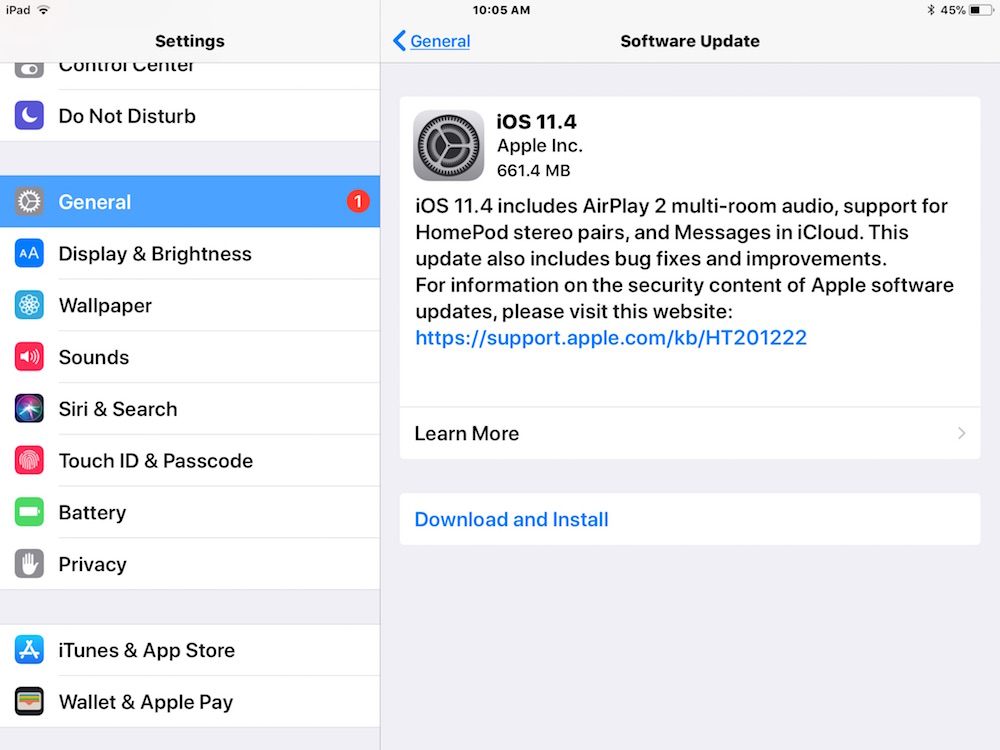
Here, this page will provides Apple users the latest iOS 11.4 IPSW file downloade links for users to download the iOS 11.4 IPSW files.

Apple has released iOS 11.4 for iPhone and iPad. The latest iOS software update focuses primarily on the inclusion of AirPlay 2 support, some HomePod updates, and the addition of Messages in iCloud support, though there are a handful of other features and bug fixes as well.

ios 11.4 ipsw download

The full release notes are included below, along with a quick tutorial on how to update your iPhone or iPad to iOS 11.4, along with iOS 11.4 IPSW download links for more advanced users.

Separately, Apple also released tvOS 11.4 for Apple TV and watchOS 4.3.1 for Apple Tv. Additionally, macOS High Sierra 10.13.5 has been released along

iOS 11.4 IPSW Direct Download Links for iPhone and iPad users


Using IPSW files to update iOS and fix ios system is considered advanced but it’s not particularly difficult, it does require iTunes and a computer, along with a USB cable, however. The links below to firmware files point to Apple servers:

Most users are better off installing iOS 11.4 through Software Update or iTunes.

Read More

How to Downgrade iOS 12 to iOS 11.4 without Losing Data

How to Install iOS 11/12 on iPhone iPad

How to Install iOS 11.4 or iOS 12 on iPhone without Data Loss

How to Downgrade iOS 12 to iOS 11.4 without Losing Data

[Summary]: Looking for a safe way to downgrade your iPhone, iPad, iPod Touch from iOS 12 beta to iOS 11.4? This article will teach you two effective methods to downgrade iOS 12 to iOS 11.4/11.3/11.2/11 with iTunes or iOS system recovery. No data loss.

Recently, Apple released the latest iOS 12 public beta at the WWDC 2018 Developer Conference. I did a simple start-up experience with this newly released iOS 12 public beta. I found that this iOS 12 is different from the system that Apple released in the past. The new iOS 12 system’s optimization of the iPhone is beyond my understanding.

iOS 12 has been designed to make the iPhone and iPad faster, more responsive, and more pleasantly surprised. iOS gives you a comprehensive optimization and enhancement. Whether it is iPhone or iPad, it will be faster and more sensitive to use. A variety of everyday operations, such as opening the camera app and typing text on the keyboard, are faster than ever. In addition, when you work on multiple tasks at the same time on the device, the performance increase will be more significant. The performance of all applicable devices will benefit from these optimizations, even the iPhone 5s and iPad Air. Apple’s latest iOS 12 system is consistent with the devices supported by iOS 11, with support down to iPhone 5s and iPad mini 2. Specific support model as shown below:

ios 12 supported devices

Some Apple users have installed iOS 12 on iPhone, there will be bugs, but the first beta version of iOS 12 is quite stable as far as I can tell so far, and battery life isn’t taking any hits. While iOS 12 seems pretty safe to use on your main iPhone, you should know you can always dial things back if you want to. It’s easy to safely downgrade to iOS 11.4, which is the latest public iOS 11 release. That means you won’t lose any data even if you haven’t backed up your iPhone or iPad before jumping on iOS 12.

How to Backup Data before Downgrading iOS 12 to iOS 11

Before updating, you should back up all your data and settings. For the beta, Apple advises that you should back up to iTunes specifically (rather than to iCloud) and then archive the backup.

People also read: Safely Backup iPhone Data before iOS 12 Update

Here’s how to archive an iTunes backup and prepare for iOS 12:

Step 1.Plug in your iPad or iPhone and start up iTunes on your Mac.
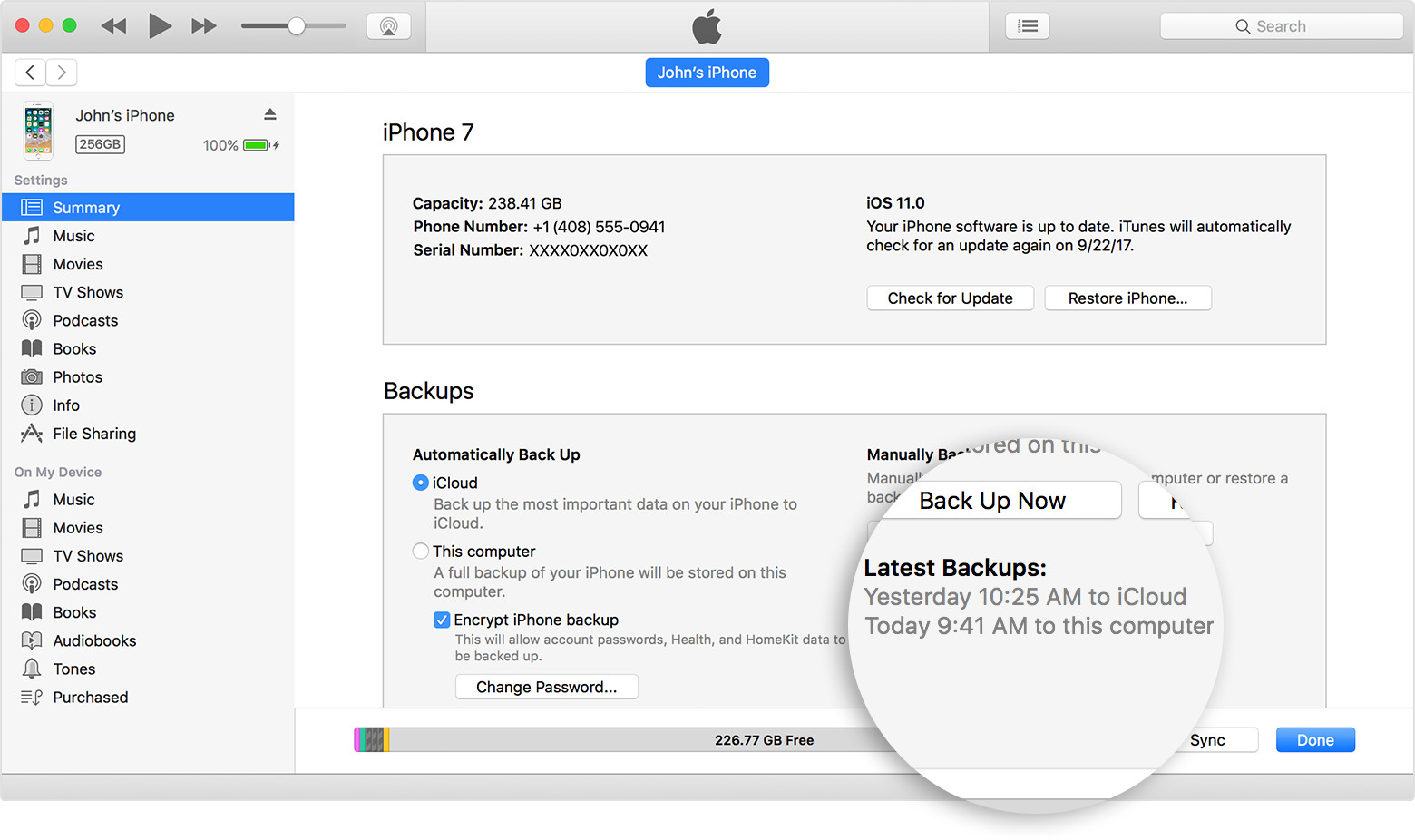
Step 2.Click “Summary“, then “Back Up Now“.

itunes 12.7 backup iphone data

Step 3.Wait for the backup to finish.
Step 4.Now select iTunes > Preferences > Devices and look for your device’s backup.
Hold the Ctrl key and click on the backup. Finally, select the option Archive.

This creates a safe backup that we can return to after trying out iOS 12. By archiving or copying iTunes backup, you can ensure the iOS 11 backup won’t be covered by the new iOS 12 backups so that after going back to iOS 11, you can still restore the device from iOS 11 backup. Remember that you cannot restore an iOS 11 device from backup that was made when the device was on iOS 12 beta.
If you worry about data loss during the iOS 12 beta downgrade, you can use an thrid party iOS Data Exporter to back up photos, text messages, contacts, videos, audio, WhatsApp messages, and other App data from iPhone to computer.
Next, we’ll look at how to go back to a previous version of iOS 11 (and restore the backup we just created) from iOS 12.

How to Downgrade iOS 12 to iOS 11 with Backup by iTunes

Above guide, you have make your iPhone backup with iTunes or thrid-party iPhone data backup & restore tool, the only issue is that you’ll have to restore from a pre-iOS 12 backup (here’s how to back up an iPad or iPhone), so any data or preferences you’ve saved since then will be lost – and if you haven’t got an archived backup from your iOS 11 (as Apple suggests doing before upgrading), you won’t be able to restore your data at all. Let’s teach you how to downgrade iOS 12 to iOS 11 with iTunes.

Step 1.Enter Recovery mode by holding the Power and Home buttons until your iPhone or iPad turns off, then continue holding the Home button. This can take a while, so don’t give up after a few seconds.
Step 2.When it says ‘Connect to iTunes’, do exactly that – plug it into the computer and open up iTunes.
Step 3.Download the proper IPSW file of iOS 11.4 according to your device model.
Download iOS 11.4 IPSW files in HERE.
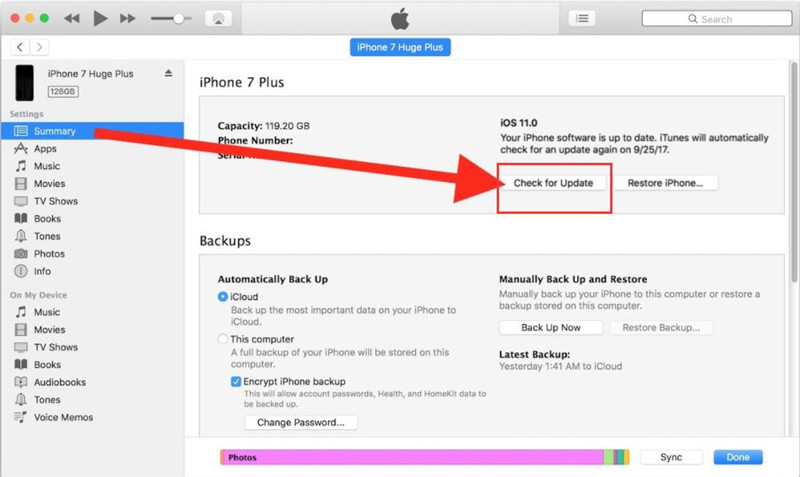
Step 4.Open iTunes and choose your device. Press Option button on Mac (Shift button on Windows) while clicking on the Upgrade button.

add iOS 11.4 ipsw file

Note: Do Not select Restore iPhone. Otherwise, iTunes will erase all data on your iPhone after downgrading to iOS 11.

Step 5.iTunes will tell you that it’s detected an iPhone or iPad in Recovery Mode, and that this needs to be restored – click OK to agree to this, and then Upgrade iPhone or Upgrade iPad (as appropriate).

Step 6.Finally, choose the option to Restore and Update. iTunes will begin to download iOS 11.4 to your iPhone or iPad device. After the download is complete, your device will restore to iOS 11.4 and restart.

downgrade iphone to ios 11.4

Step 5. Now, you iPhone downgraded to iOS 11.4, if you want to restore the iTunes backups to your devices, please keep your device connected iTunes, once iTunes has reinstalled a fresh version of iOS 11, and then click Restore from this backup in iTunes and choose the archived iOS 11 backup you made before the iOS 12 beta (remember, your iOS 12 backup won’t work) or setting it up as a new iPhone.

Well done, you have success downgrade iOS 12 to iOS 11 with iTunes, but you should backup your iPhone data at first.Next, we will teach you how to downgrade iOS 12 to iOS 11 without backup, no data loss at all, too.

How to Downgrade iOS 12 to iOS 11 without Backup by iOS System Recovery

Some people say it is very troublesome to using iTunes to upgrade or downgrade iOS 12 on iPhone, iPad, iPod Touch, because it takes a lot of time to back up the data, the processing is very slow, and there is a high-risk of data loss.For example, some users couldn’t downgrade from iOS 12 to iOS 11 with iTunes and get stuck at recovery mode, Apple logo screen, black screen; a few users reported that their iDevices cannot turn on or got frozen.

Don’t worry, iOS System Recovery can help you fix all kinds of iOS system issues, such as fixing frozen or dead iPhone on iOS 12 beta; fix iPhone black screen of death after iOS 12 update; fix iPhone stuck at Recovery mode/DFU mode after iOS upgrade/downgrade. In additional, iOS System Recovery for Windows or Mac, both can help you downgrade iOS without iTunes, it won’t erase the device’s data. Let’s shows you how to use the iOS System Recovery program to install OS on the iPhone, iPad or iPod without data loss.

Free download the easy-to-used and safe to iOS System Recovery to downgrad iOS 12 to iOS 11.4 without erasing data on your device.

d_win d_mac

Tips: If your iPhone X/8/7/6/5/4 has been disabled after iOS 12 upgrading or downgrading, the program can helps you fix a disabled iPhone with or without connecting to iTunes.

Simple Steps to Downgrade iOS 12 to iOS 11.4 without Losing Data

Step 1.Install and Launch iOS System Recovery on your PC or Mac
Launch this iOS System Recovery on your computer. Then connect your iPhone to it with USB cable. Click “More tools” on the left column and then tab the “iOS System Recovery” on the preview window.

ufone ios system recovery

After that, click “Start” button to begin the process.

connect iphone to pc

Tips: In order to downgrading iOS 12 to iOS 11.4, you need to download the iOS 11.4 firmware first, the iOS System Recovery program will help you download the latest firmware package and fix it, but you need to put your iPhone in recovery mode for detecting by the iOS System Recovery tool.

Situation 1: If your iPhone is working and you want to get back to iOS 11, click Start and select question mark below “Device is connected but not recognized“, the program will guide you how to get the devices into recovery mode as below step.

device not recognized

Step 2. Boot iPhone into Recovery or DFU mode
Then follow the on-screen guide to connect your device to computer and put it in recovery mode.
Led iPhone into DFU
Click “Question” button and follow the guide to turn your iPhone into Recovery or DFU mode. Here we put disabled iPhone into DFU mode:

For iPhone 6S and older version:
1)Power off your iPhone.
2)Press and hold the Power button and the Home button together for 10 seconds.
3)Release the Power button and keep holding the Home button until the device is in DFU mode.

boot iphone into dfu

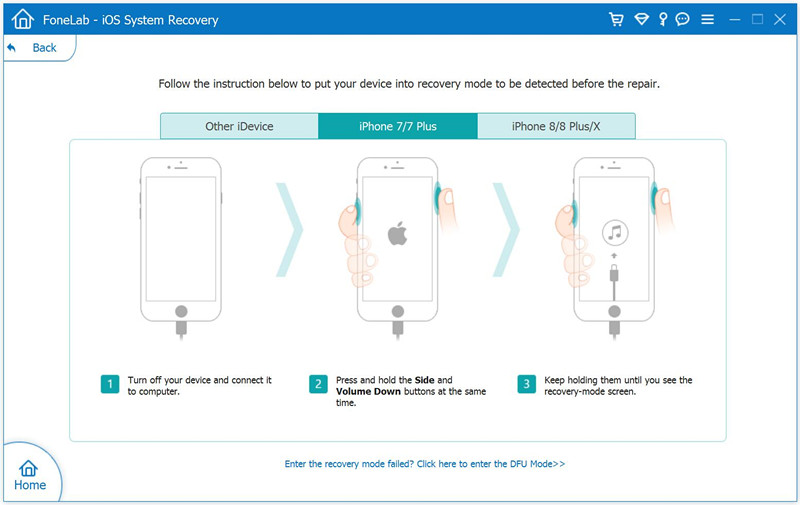
For iPhone 7/7 Plus: Put the iPhone 7/7 Plus into recovery mode to be detected before fix it

1. Turn off the iPhone 7 device and connect it to computer.
2. Press and hold the Side and Volume Down buttons at the same time.
3. Keep holding them until you see the “connect to iTunes” screen, it mean device be putted into recovery mode, at this time the program will detect it.

put iphone 7 into recovery mode

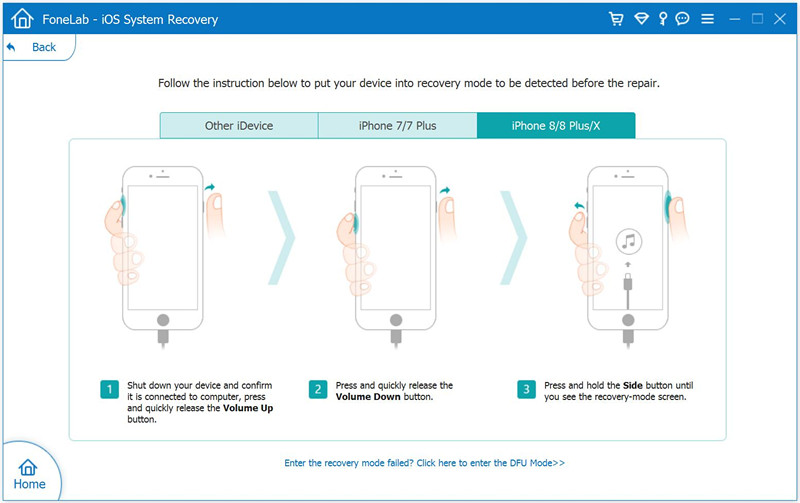
For iPhone 8/8 Plus and iPhone X:

1. Shut down your device and confirm it is connected to computer, press and quickly release the Volume Up button.
2. Press and quickly release the Volume Down button.
3. Press and hold the Side button until you see the screen shows iTunes logo screen appear(recovery-mode screen status)

put iphone x and iPhone 8 into recovery mode

Situation 2:If your iPhone/iPad works abnormal because of the iOS 12 beta, for example, your device stuck at black screen, Apple logo screen, recovery mode, etc. Just connect the iPhone to computer and click Start,the program will recognize that your device is in the abnormal status. Click “Confirm” and follow the step 3 begin download the IPSW firmware and installing it by this program.

Step 3.Select Device Model and Download the iOS 11.4 Firmware
In this step, please select the correct iPhone device model and iOS 11.4 firmware files, then click “Download” button, the software will detect your phone model and download the suitable iOS 11.4 IPSW files for your device.

install ios 11.4 on iphone

Manually add the downloaded iOS 11.4 IPSW file to iOS System Recovery software

If you have downloaded the IPSW file before, please select the IPSW file you just download and let the iOS System Recovery program install the iOS 11.4 IPSW files onto your iPhone/iPad device without data loss.

add and install ios 11 on iPhone

Add IPSW files to the program

add ipsw file

Tips: To download the iOS 11.4 IPSW file for your specific iPhone or iPad model, and place the .ipsw file somewhere easily accessible (you can get other IPSW files here but only the most recent versions are signed and possible to use)

Step 4.Begin Install iOS 11.4 on iPhone and Restore it Back to Normal
When the iOS 11.4 plug-in download is finished, this software can automatically downgrade iOS 12 beta to iOS 11.4 on iPhone/iPad/iPod Touch and fix disabled iPhone back to normal.

downgrade iPhone from iOS 12 to iOS 11.4

Well done, above easy guide helps you downgrade iOS 12 beta to iOS 11.4 successfully, at this time,the device will boot up automatically. You can check on Settings > General > About and see if your iPhone device downgraded to iOS 11, you can find the previous data and setting still on the device.If you found lost data after iOS 12 upgrading or downgrading, check this guide about how to recover lost data after iOS 12 update.

iOS System Recovery

Related Articles

Recover Lost Contacts from iPhone after iOS 12 Update

How to Restore Lost Photos from iPhone after iOS 12 Update

Get iPhone Out of Apple Logo after iOS 12 Update

How to Fix iPhone System to Normal after iOS 12 Update